3. Choose the right control
Choose a control by what someone needs to enter, understand or do. Similar-looking controls can have different jobs. A Date question asks for a day; a chart explains a pattern; a Task viewer lets someone work on an existing task.
Before choosing
Know the expected answer type and where it belongs. Text is words, Number is a quantity, Date is a day and Yes/No is a Boolean answer. A choice can return one value or a collection. Use the matching declared answer field; changing the visible label does not change the answer type.
Example 1: choose questions for a leave request
- Use Date for Start date and End date so the form can work with real date values.
- Use Integer for Requested days when the teaching record expects a whole number. Explain that five days is the agreed sample; calculating working days across weekends/holidays is a separate business rule.
- Use TextArea for Reason for leave so the person has room for a short explanation.
- Use Select or Radio group for a known single category, with choices the business has agreed.
- Use Store value in or Store selection in to choose each compatible answer destination.
- Set Required only where an answer is actually necessary, then test both a valid answer and a missing one.
These numbered guides show the fictional People Operations draft captured on 15 November 2026. They help compare the selected question with its answer type; they do not show a submitted request or manager approval.
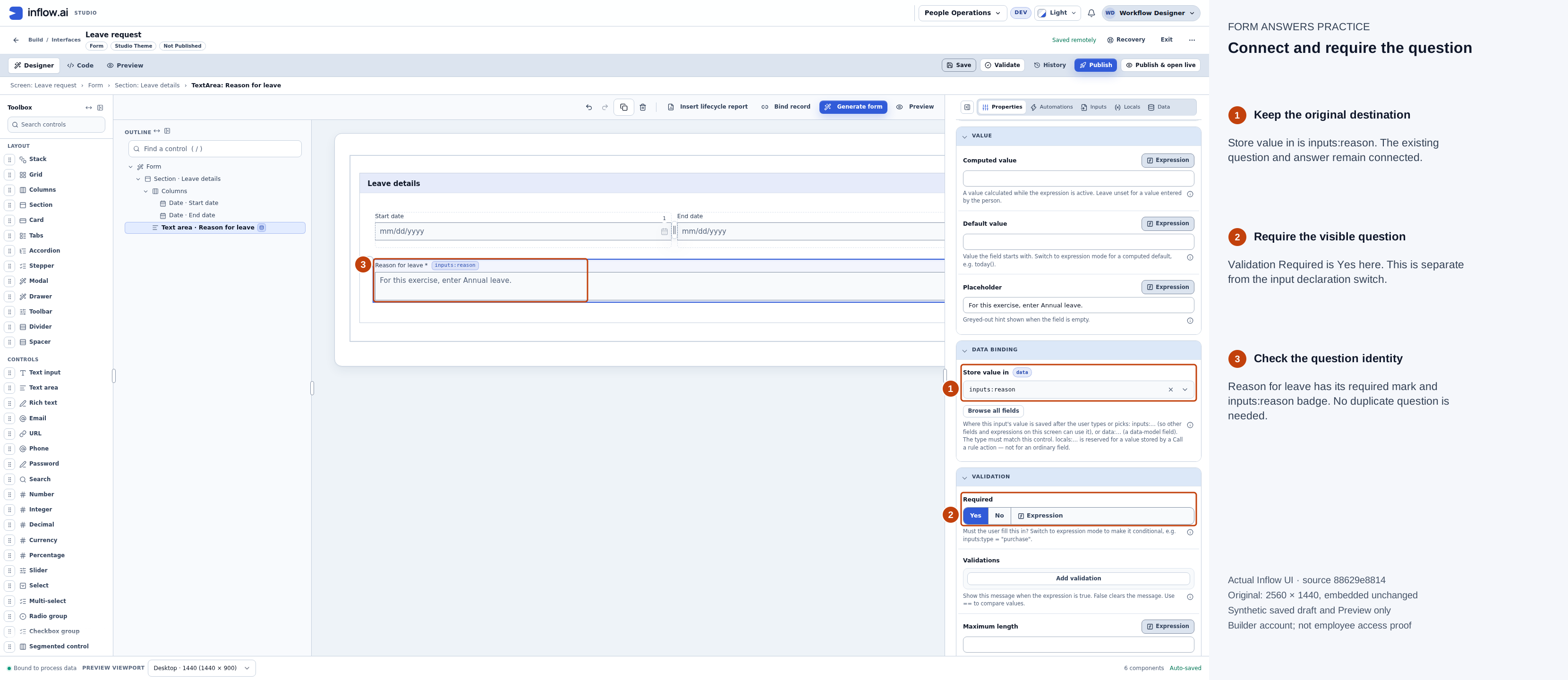
Reason for leave is a TextArea connected to the single Text answer reason. Select the existing question and inspect its destination instead of adding a duplicate. Full-size numbered guide · Unchanged original screenshot.
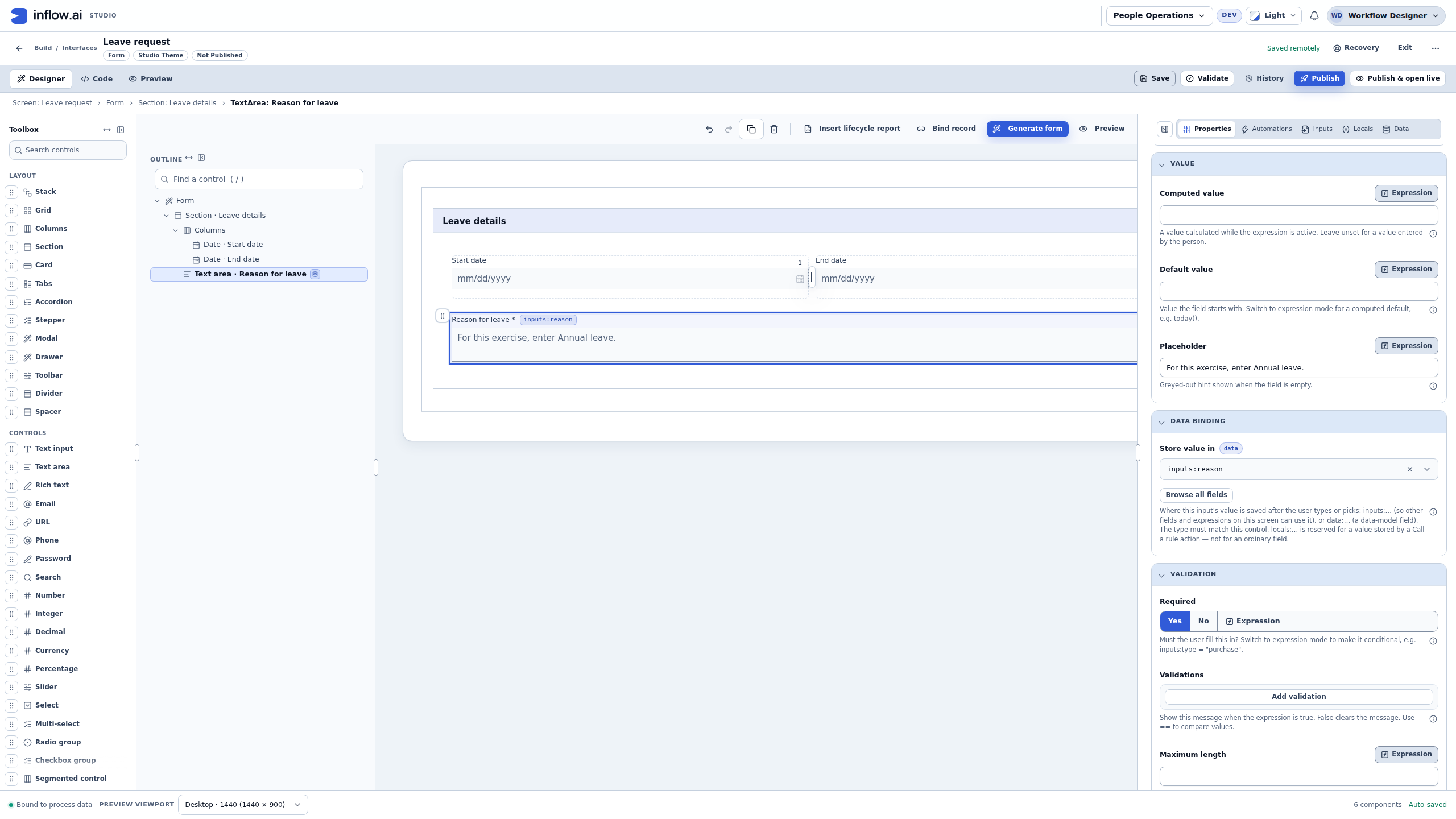
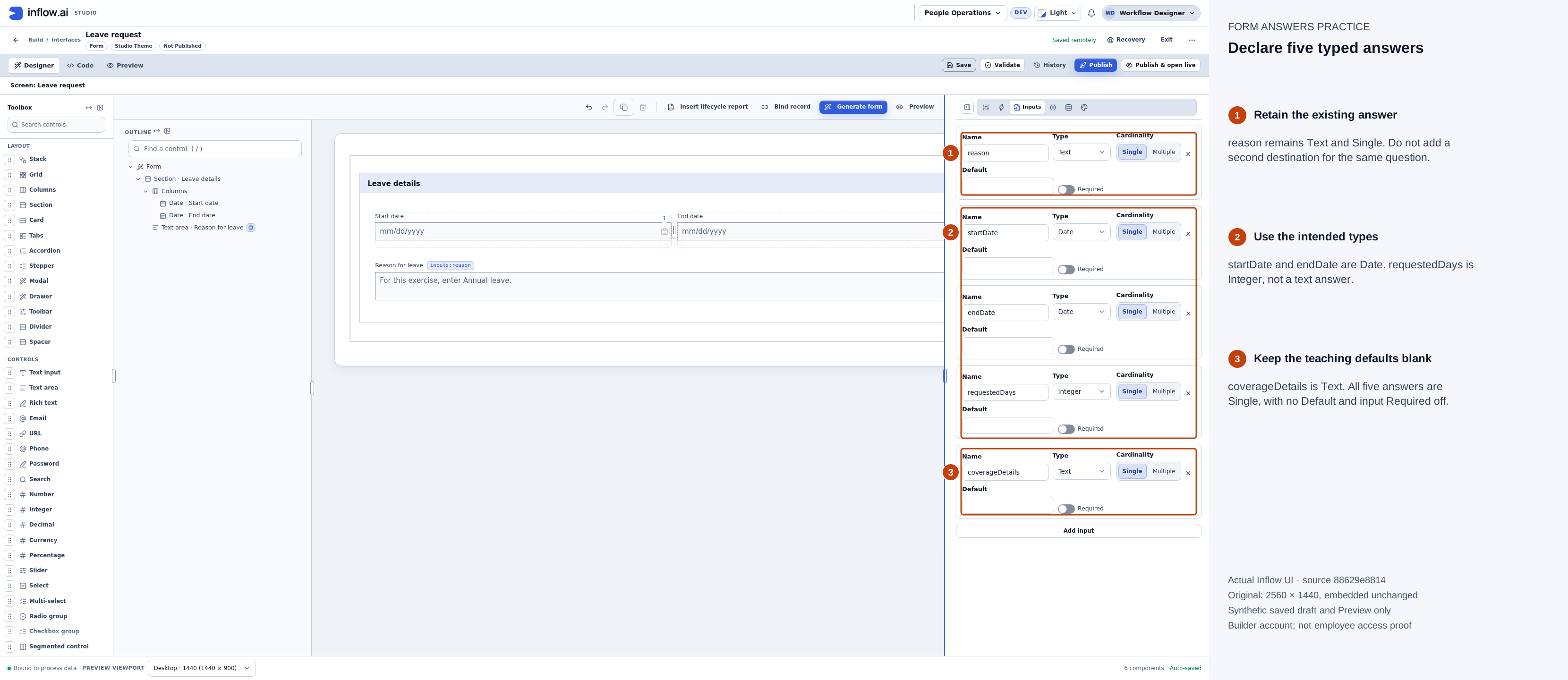
All five answers use Single cardinality, blank Defaults and input-level Required off. The visible question's Validation Required setting is separate. Identify each input by Name when row order changes after reopening. Full-size numbered guide · Unchanged original screenshot.
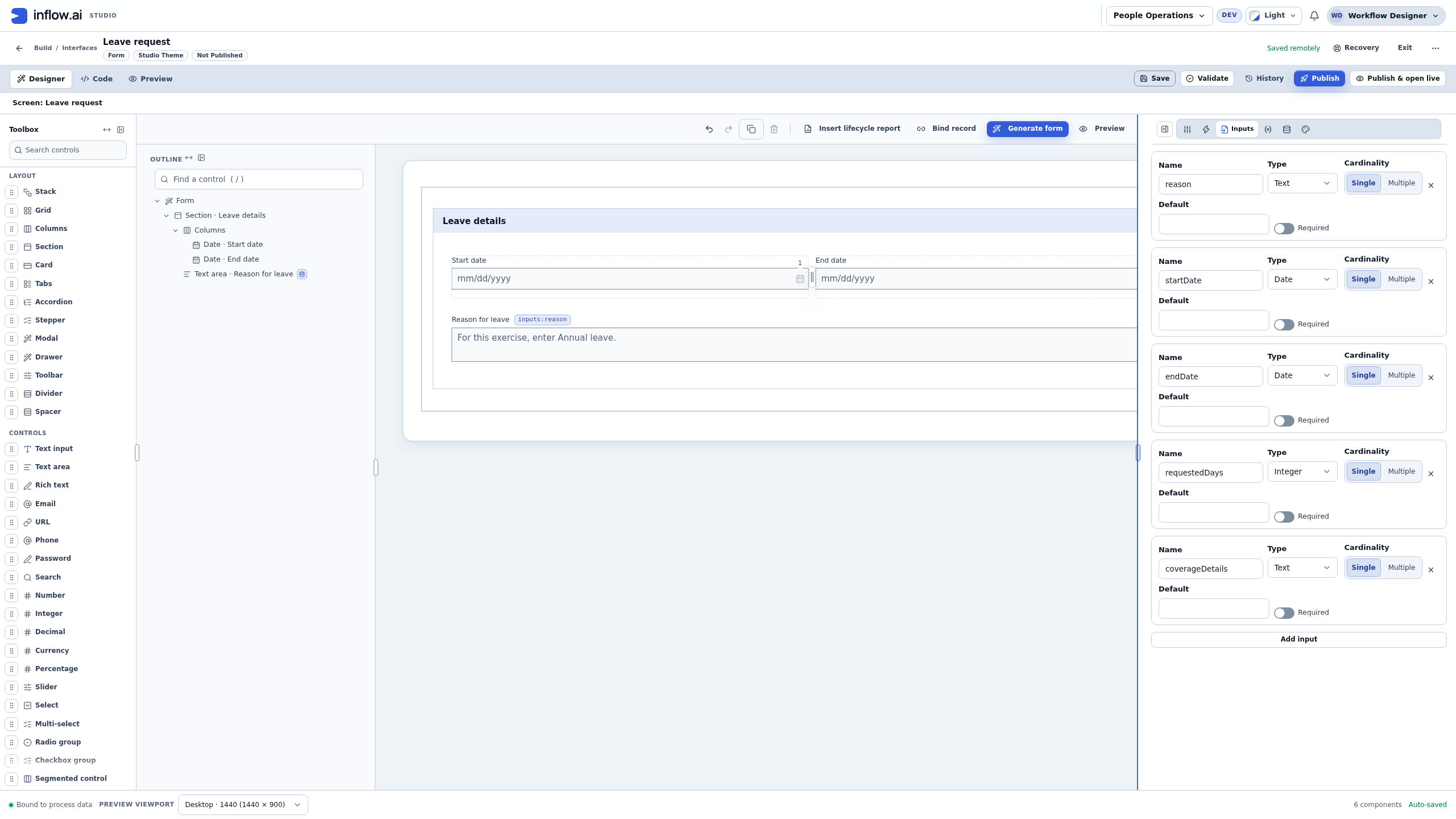
Try a missing answer and repair it
- Keep Reason for leave → Validation → Required set to Yes for this practice check. The separate input declaration's Required switch remains off.
- Open Preview → Interactive, leave Reason empty and choose Check form. The summary should link to the question and show This field is required beside it. The placeholder is not an answer.
- Enter Annual leave and choose Check form again. The required-answer message should clear. Check other configured questions separately; a pass here is not a manager decision or proof that every business rule is complete.
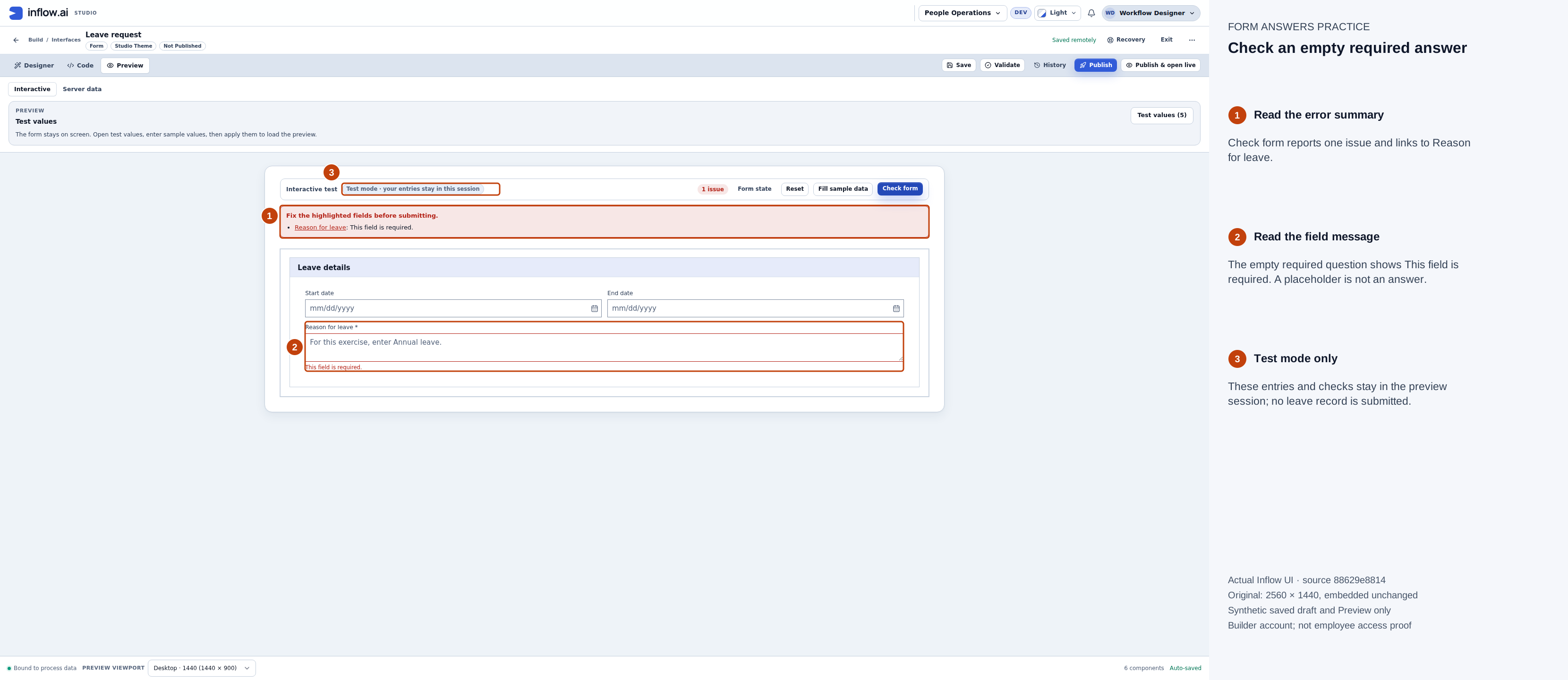
This actual empty-answer check identifies the question to repair. Interactive Preview entries remain in the session; no leave record is created. Full-size numbered guide · Unchanged original screenshot.
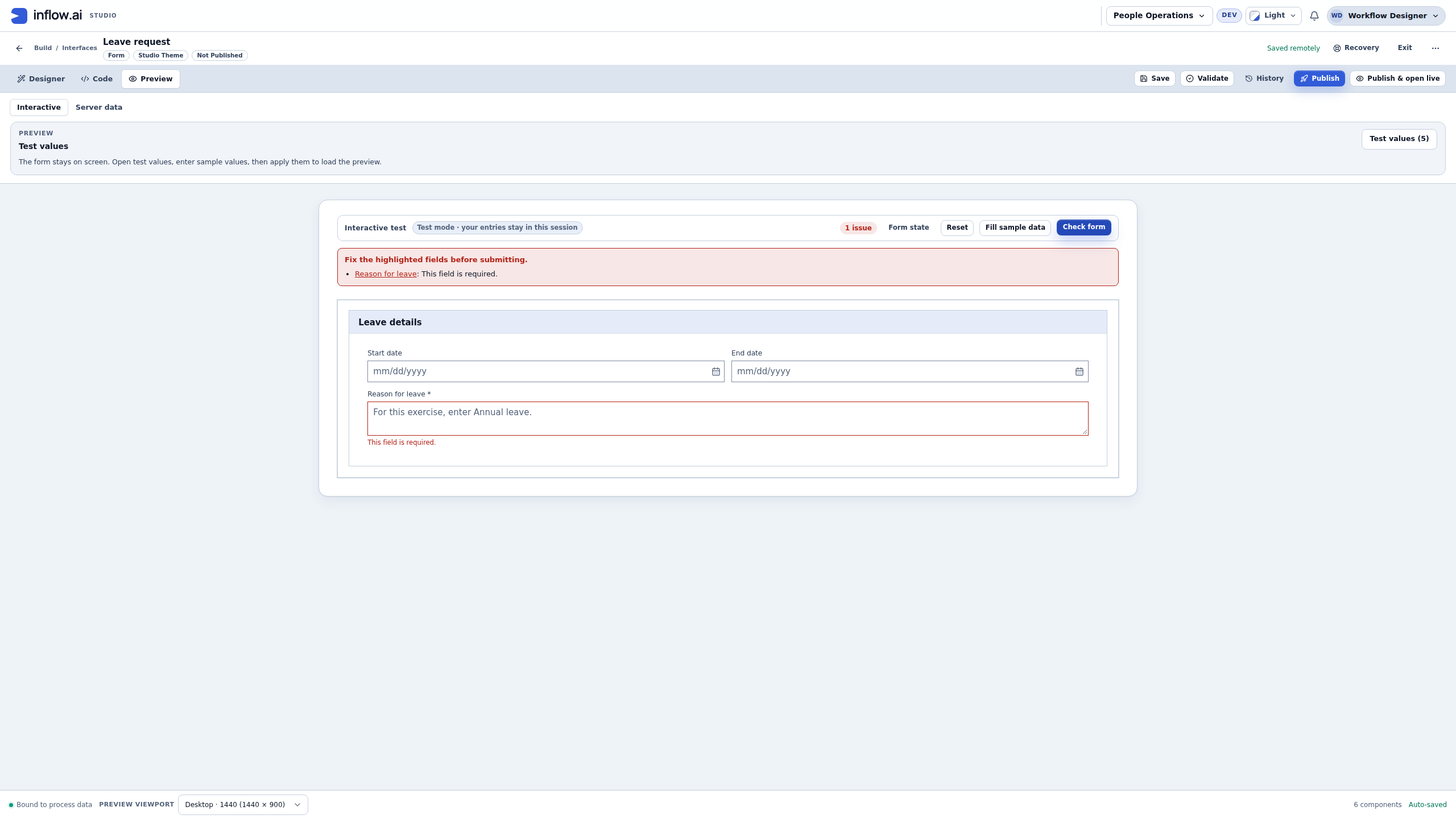
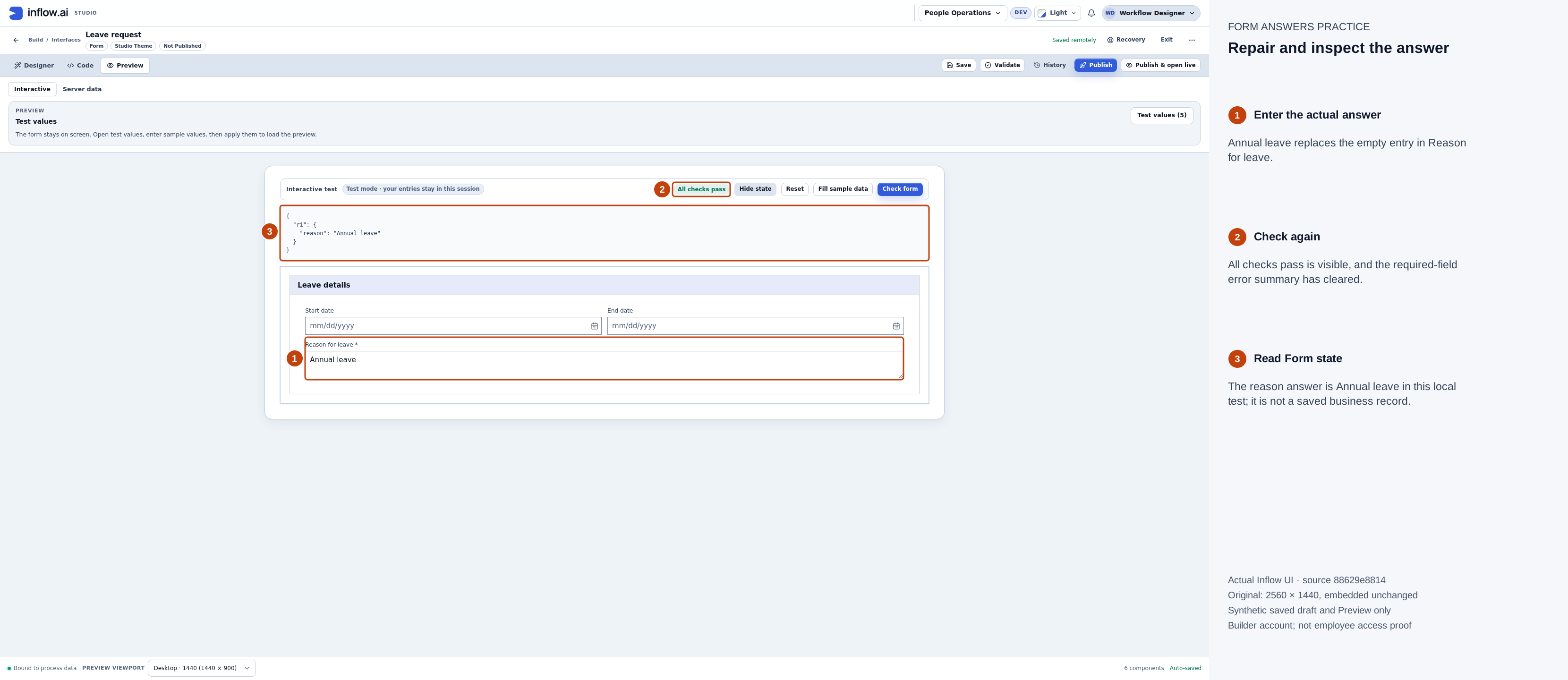
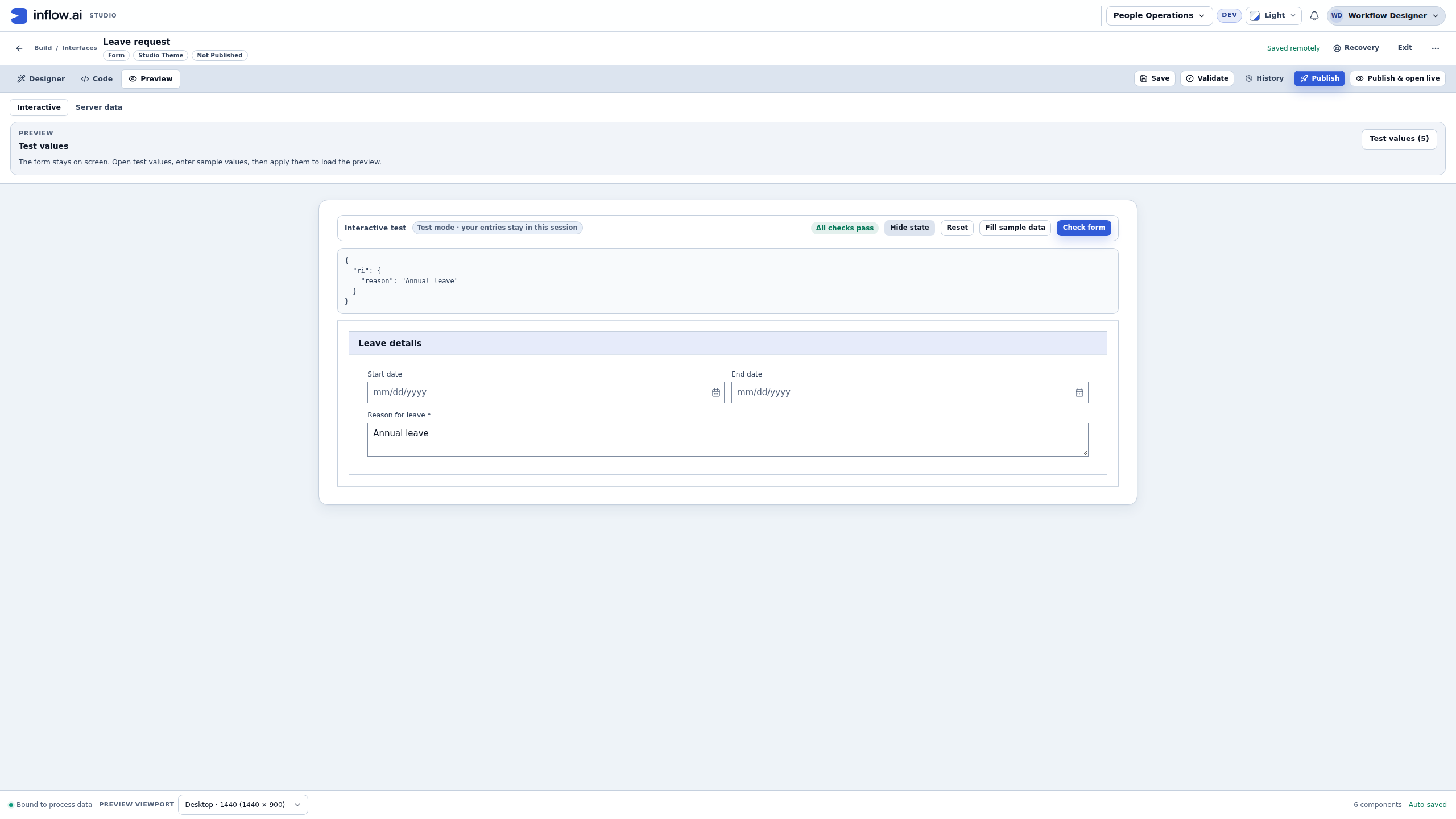
After entering Annual leave, the required-answer message clears. Form state shows the reason value used in this local check; it is not a saved leave record. Full-size numbered guide · Unchanged original screenshot.
Do not use three free-text fields simply because they are quick to add. They would let people enter dates or quantities the next step cannot interpret reliably.
Worked story: one choice, two labels and a stable answer
Nadia is preparing a small practice form before adding leave questions to an application. Mohammad should choose one category, and the next step should receive a predictable code. Initially the choices read Annual leave and Unpaid leave. Later the owner asks Nadia to change the first wording to Annual vacation. The answer must remain ANNUAL so the wording change does not silently change the meaning used by downstream rules.
This walkthrough uses a synthetic Leave category practice draft in People Operations Access Practice. The screenshots were captured on 16 November 2026 from a build of source 2ee1b33a14. The creator has Admin in that isolated practice workspace through ordinary sign-in. Your workspace may offer fewer controls or editing actions. Use a workspace and form you are allowed to edit; this exercise does not require changing anyone's role, using a different account or creating a real employee request.
The result is a saved unpublished form and a successful local question check. It is not a published App Shell, employee access check, saved leave record, assigned manager task or approval. The earlier Reason for leave illustrations above retain their 15 November source; they have not been relabeled as this newer capture.
1. Create a separate practice draft
- Open the practice workspace, choose Build → Forms, then New form. The dialog is titled New interface because the wizard also supports other interface kinds.
- Keep Form as the type. Under Placement, select Leave Management, the function prepared for this exercise. Continue to Details.
- Enter Leave category practice as the title and an unused key. This captured draft uses
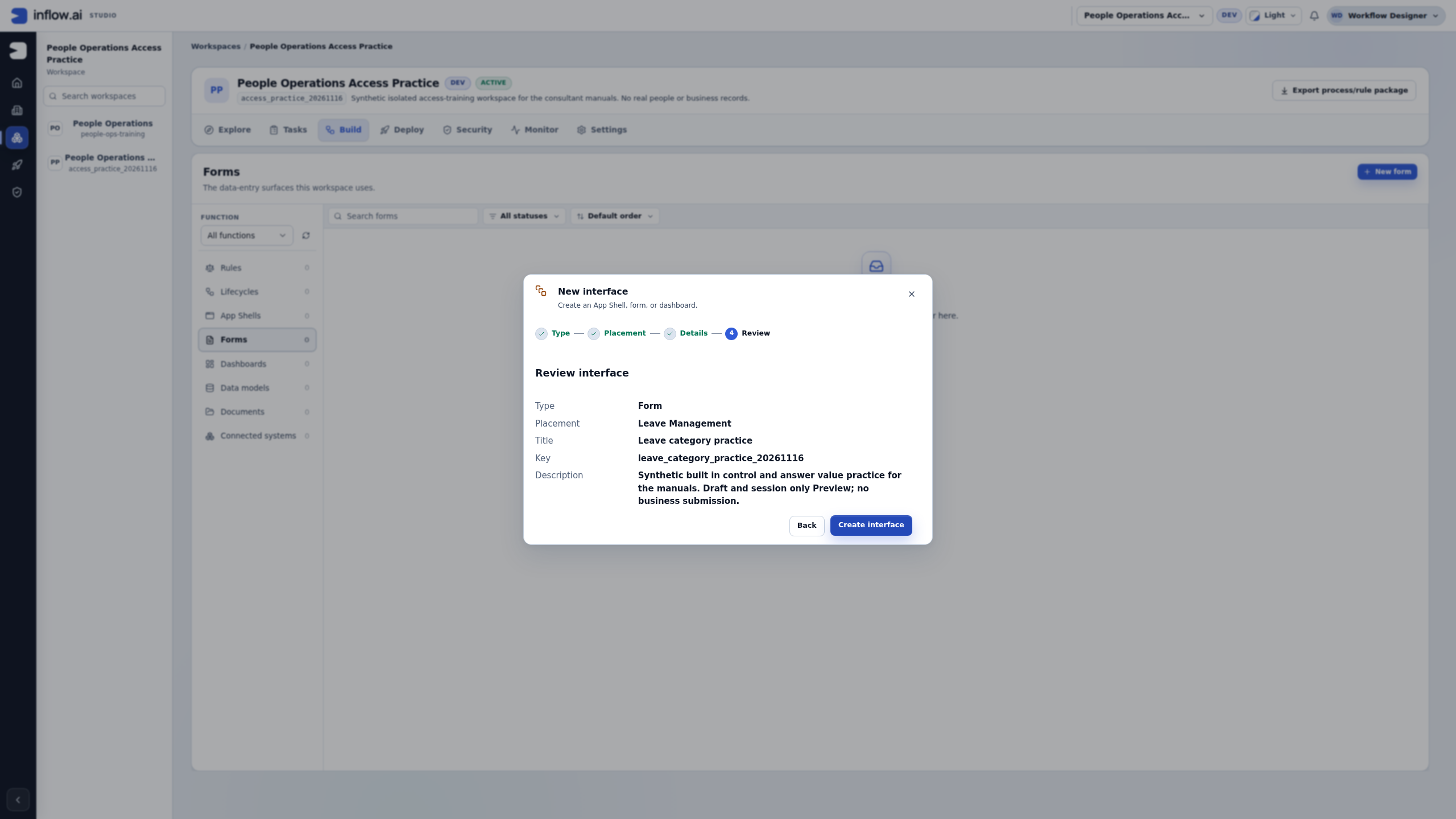
leave_category_practice_20261116; use your own unused key when repeating the lesson. Enter a description explaining that this is a synthetic draft and session-only test. - On Review, compare Type, Placement, Title, Key and Description. Choose Create interface once when those details are right. If the key already exists, open the intended draft or choose another unused key; do not create duplicates to recover from a slow response.
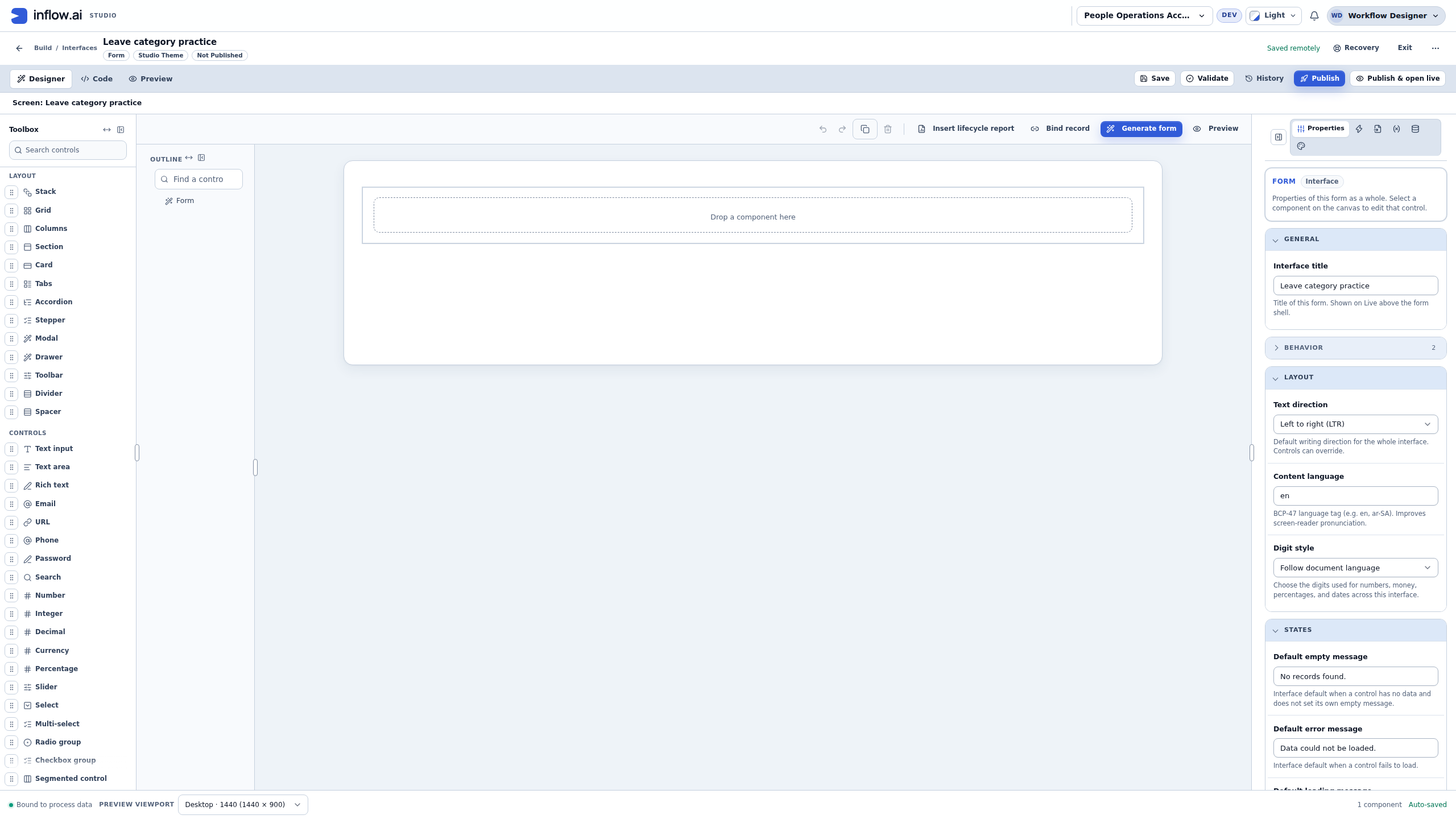
- Confirm that the Designer opens with a Form root and an empty drop area. The header shows Not Published. Creating a draft has not made a page available to employees.
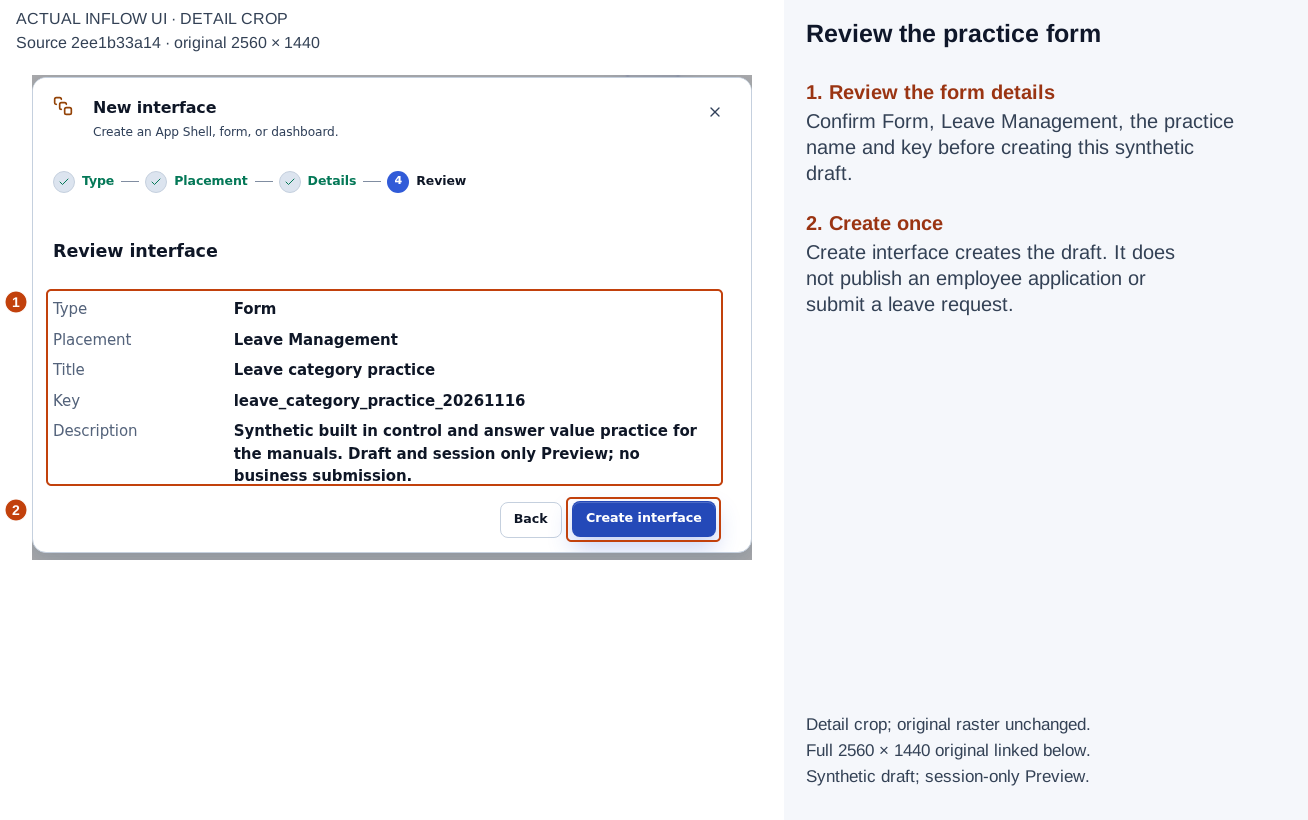
Read the actual Review details before creating the draft. The placement is Leave Management, not an employee assignment. Full-size numbered guide · Unchanged original screenshot.
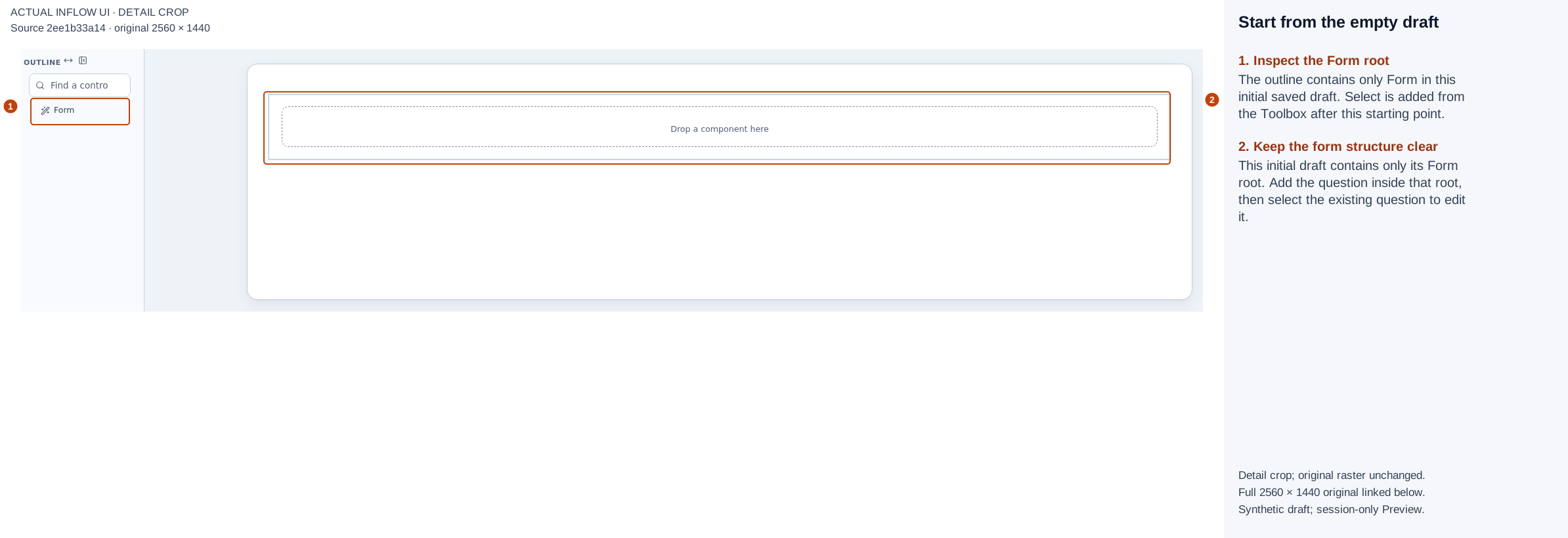
Start from the empty Form root. Select is a built-in Toolbox item; adding it supplies a question, not a business submission action. Full-size numbered guide · Unchanged original screenshot.
2. Declare the answer before wiring the question
- Open the right-hand Inputs tab. Add one input named
leaveCategory, set Type to Text, and keep Cardinality → Single. - Leave Default blank and this input declaration's Required switch off. We will require the visible question separately so the missing-answer lesson has one clear source.
- If the name is clipped, widen the Properties panel using its divider. With the divider focused, End expands it to the supported maximum; Home narrows it and Enter resets its width. This changes your editor layout, not the saved answer type.
- Add one Select from the Toolbox inside the Form. After it exists, select that existing question in the outline when editing it; do not click the Toolbox again just to reopen its settings.
- In Properties, set the component Name to
leaveCategoryChoiceand its visible Label to Leave category. The component name identifies the control; the input name identifies its answer destination. They need not be the same.
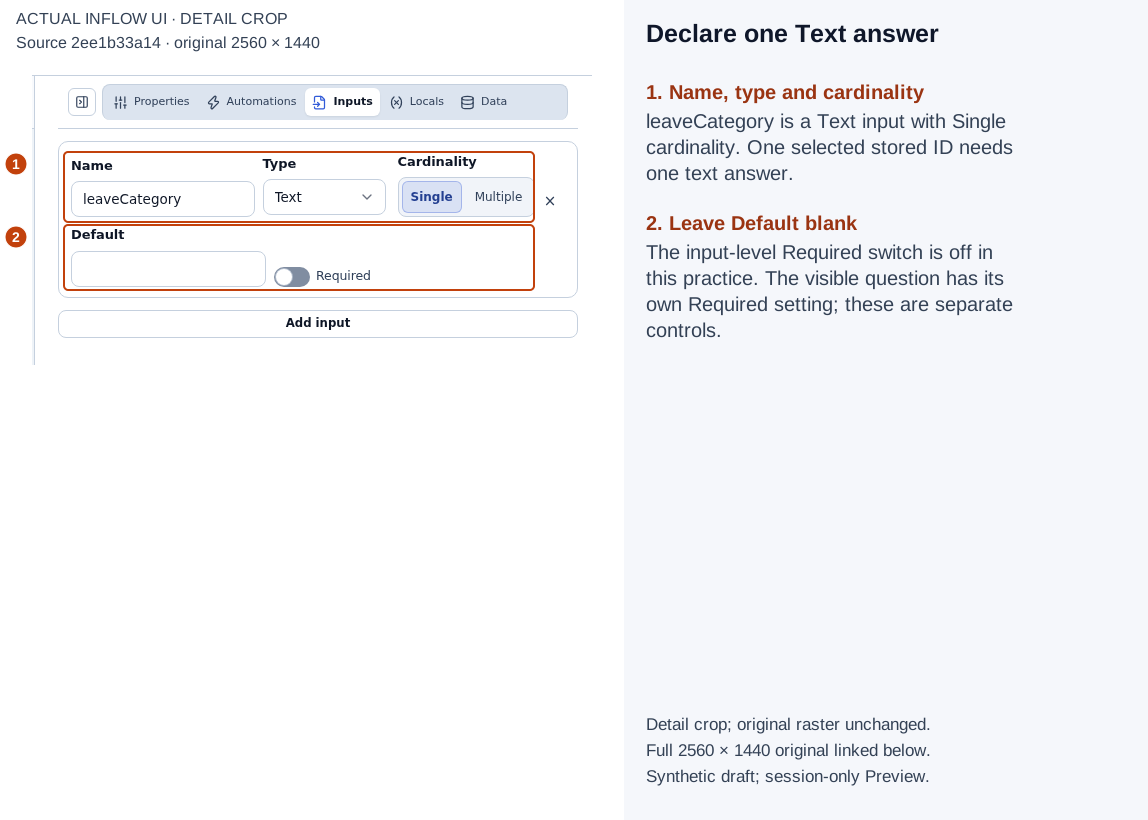
The full input name, Text type, Single cardinality, blank Default and input-level Required off are readable together. This declaration accepts one text code. Full-size numbered guide · Unchanged original screenshot.
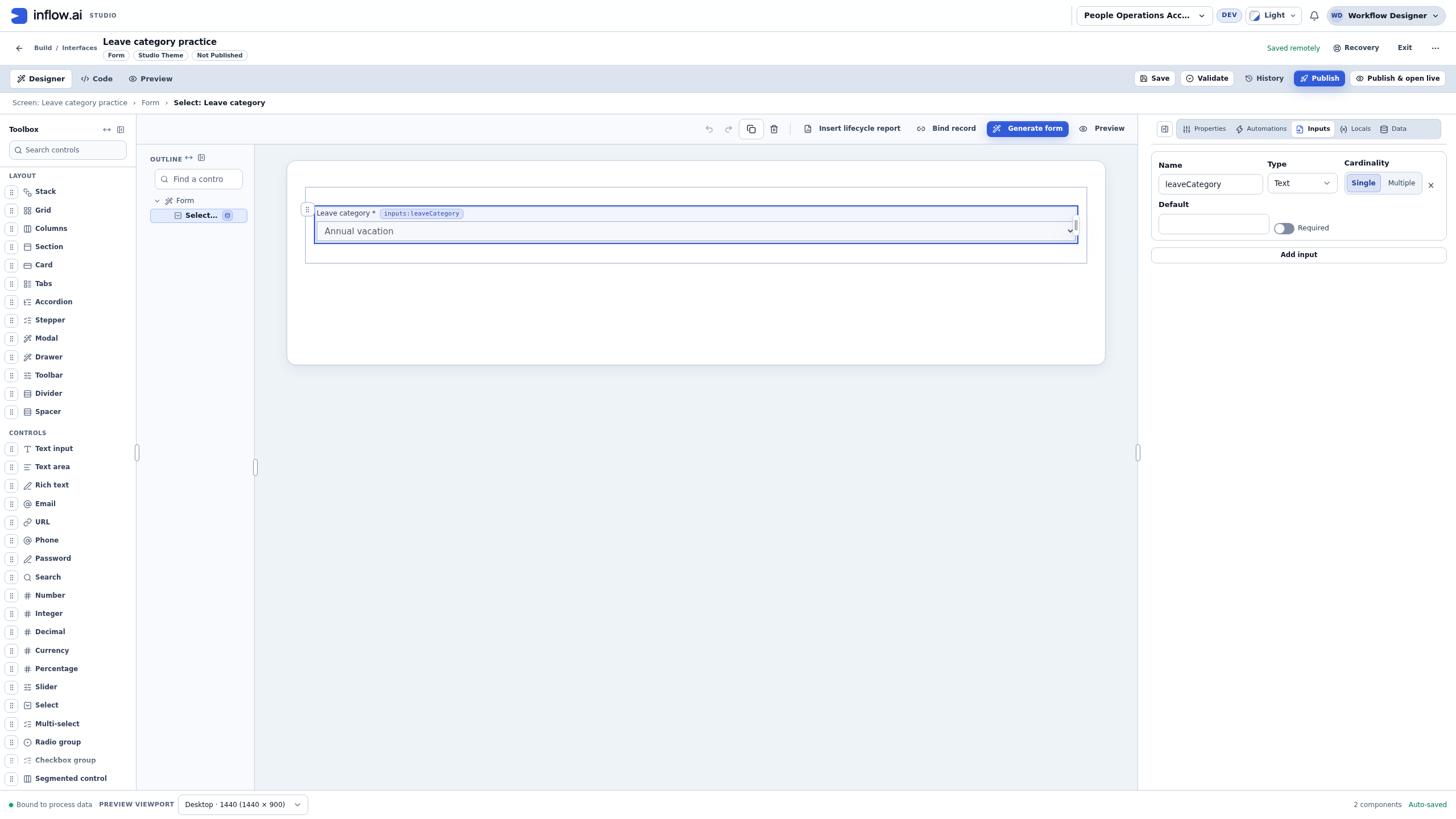
3. Configure choices and the answer destination
- In the Select's Choices, use Fixed list for these two agreed options. A dynamic rule result is unnecessary for two fixed teaching choices.
- Replace the example rows with the following pairs. Stored id is the code the form keeps; Label shown is what the person reads.
| Stored id | Initial label shown | Meaning in this exercise |
|---|---|---|
ANNUAL |
Annual leave | The ordinary annual-vacation category. |
UNPAID |
Unpaid leave | The unpaid category. |
- Under Data binding → Store selection in, choose the existing
leaveCategoryText input from the field picker. The resulting destination isinputs:leaveCategory. Do not bind the question to its choices list or to an unrelated record field. - Under Validation → Required, choose Yes. Leave the question's Default value blank for the missing-answer check. The design canvas can illustrate its first option even before a person has answered; use Interactive Preview to test the actual value.
- Choose Save and wait for the remote-save status. The designer also autosaves edits. A visible warning is not proof that an invalid intermediate edit was kept only locally or that Save refused it.
If both options accidentally use the same stored ID
The duplicate-ID picture below is an actual temporary authoring mistake: both values were ANNUAL while the labels differed. The editor displayed Option values must be unique: ANNUAL. This was repaired before the final saved setup and Preview checks.
- Read the Stored id column, not just the labels. Two labels can still point to the same code.
- Change the second stored ID to
UNPAID, leaving its Unpaid leave label intact. Confirm thatANNUALandUNPAIDare distinct and the warning disappears. - Save the repaired draft and inspect the rows again. Do not publish a knowingly invalid configuration or assume the warning prevented autosave. This exercise did not attempt Publish or Validate while the duplicate existed.
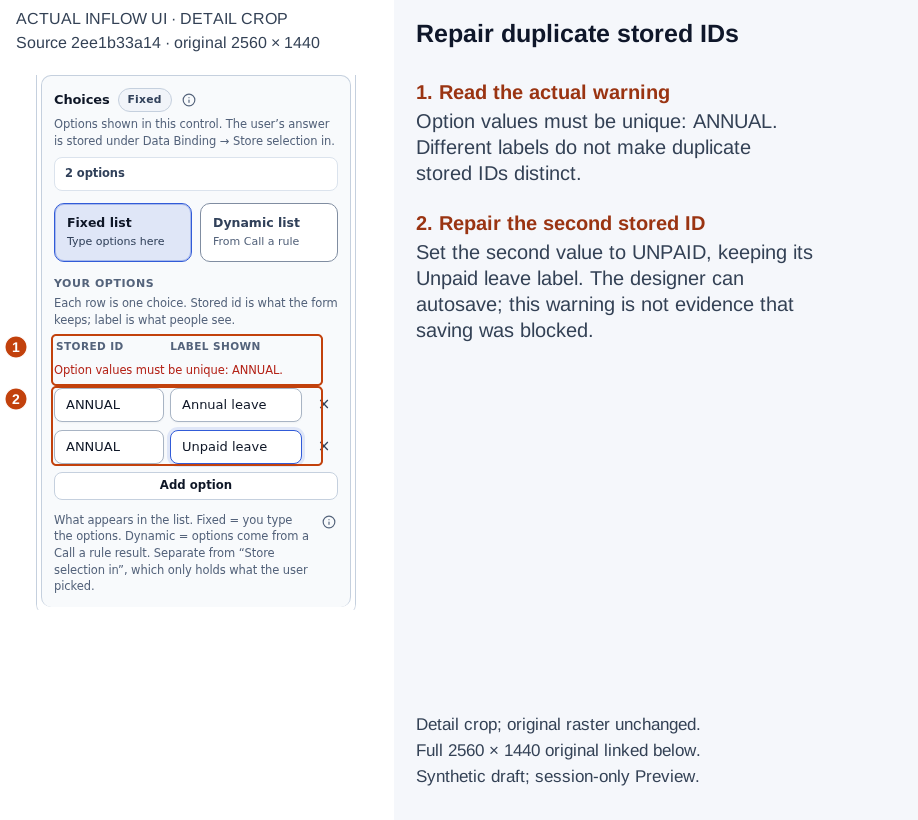
Different labels do not resolve duplicate stored IDs. This screenshot documents the warning, not a rejected Save or publication attempt. Full-size numbered guide · Unchanged original screenshot.
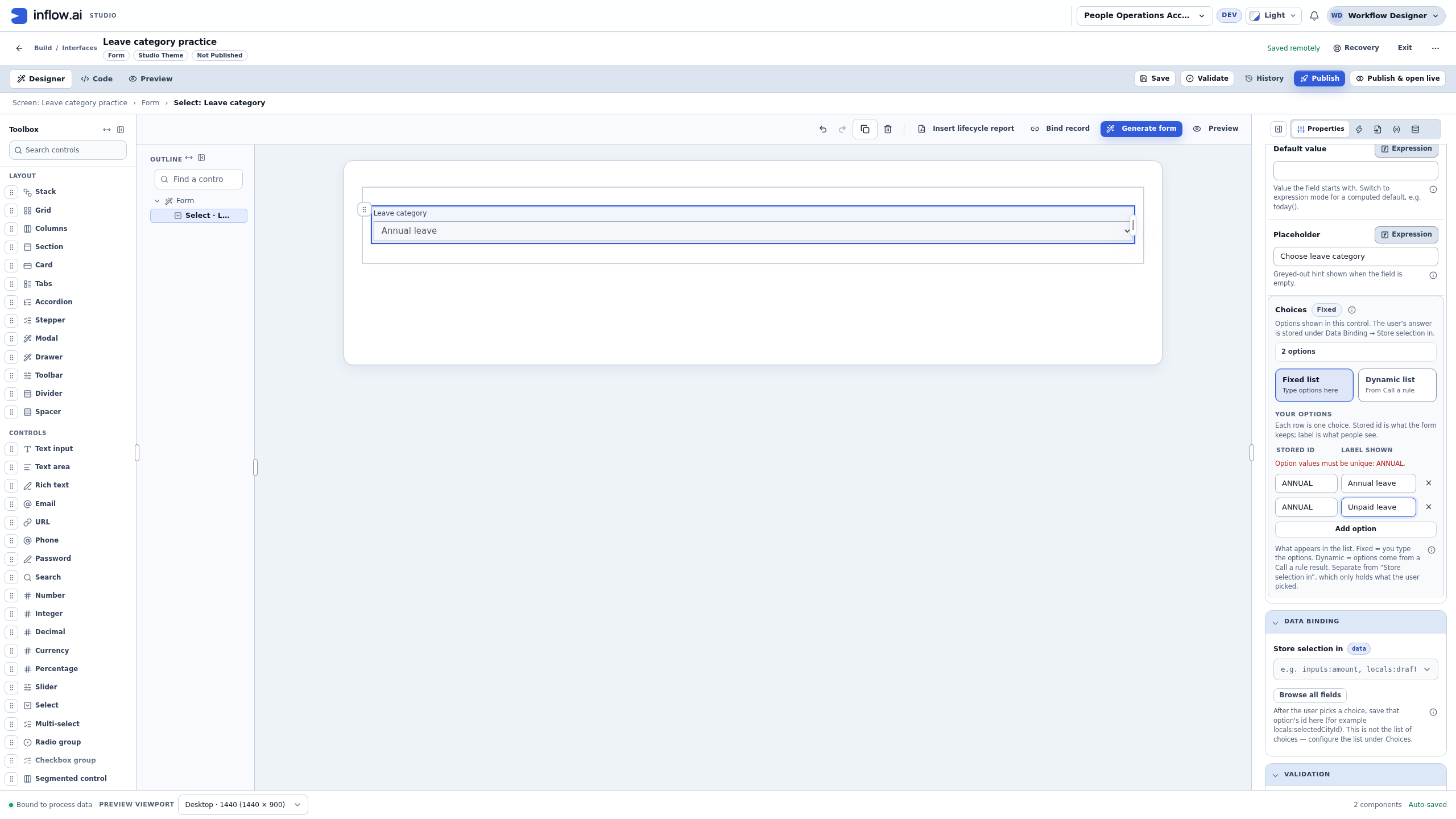
4. Check an empty answer, then both real choices
- Open Preview → Interactive. Expand Form state if it is collapsed. Use Interactive, rather than Server data, for this session-only question exercise.
- Leave the category unselected and choose Check form. Expect 1 issue, a linked Leave category: This field is required summary, and the message beside the question. The captured empty option is —. Although a Placeholder setting was authored, this actual Select does not display that custom text as its empty label.
- Choose Annual leave and run Check form again. The local result becomes All checks pass. In Form state, inspect
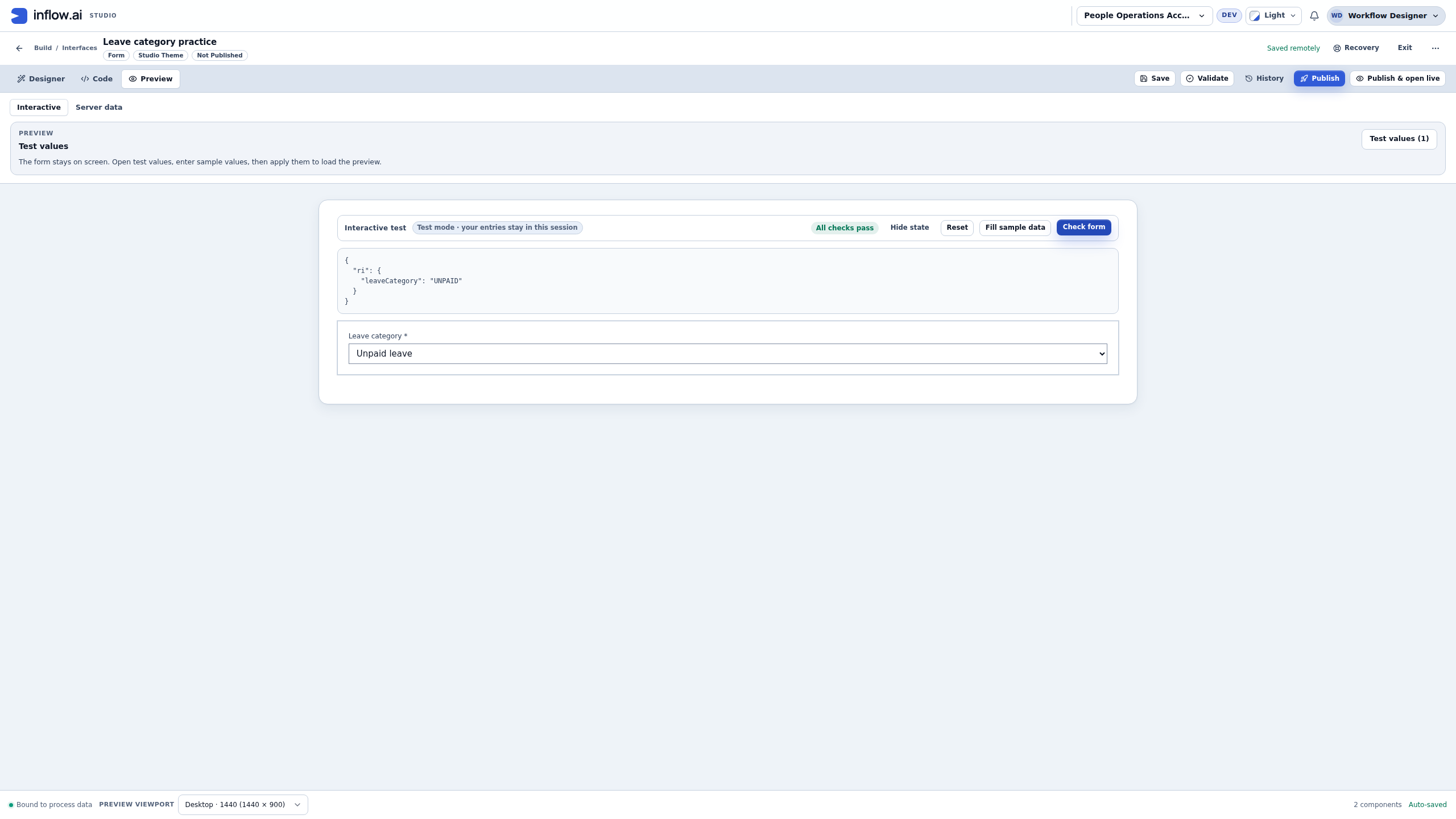
ri.leaveCategory: its value isANNUAL, not the label's words. - Choose Unpaid leave and check again. The value becomes
UNPAID. If the label changes but the code does not, return to the option rows and binding before continuing. - Keep the scope of the result clear. All checks pass reports this local question check. It is not proof of every business policy, a database write or a manager's decision. The preview's generic Bound to process data footer does not mean this draft created a process case.
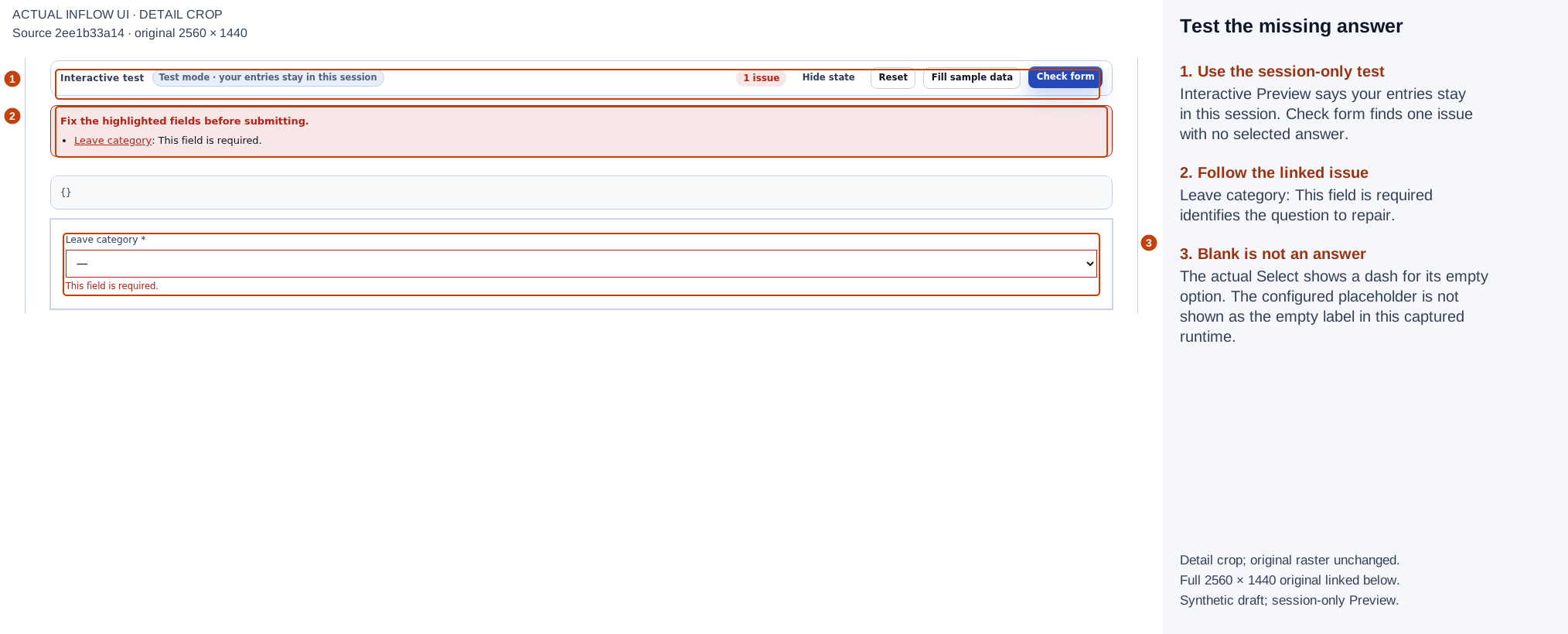
The empty answer produces a linked issue and a field-level message. Form state is empty; the dash is not a leave-category value. Full-size numbered guide · Unchanged original screenshot.
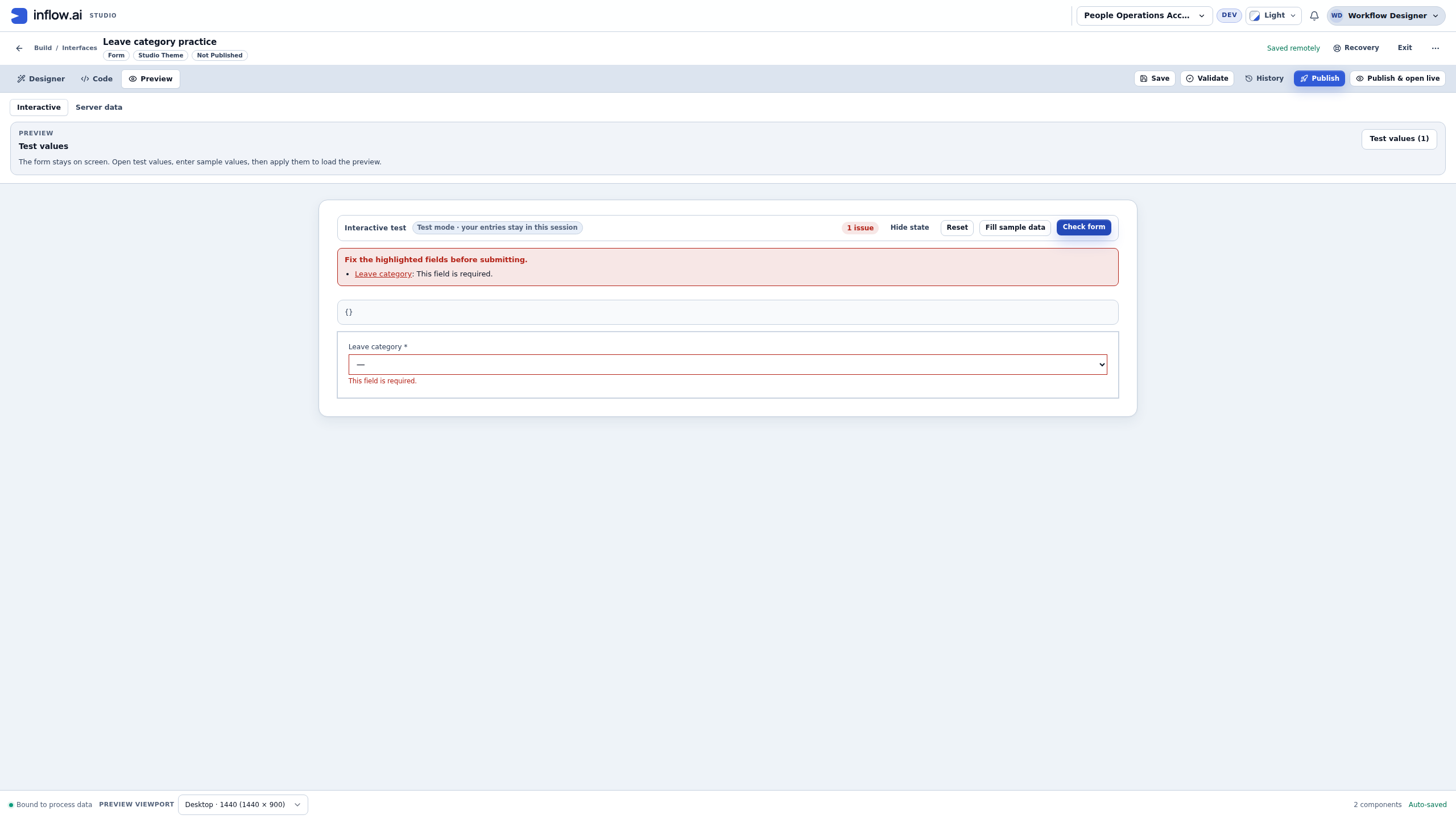
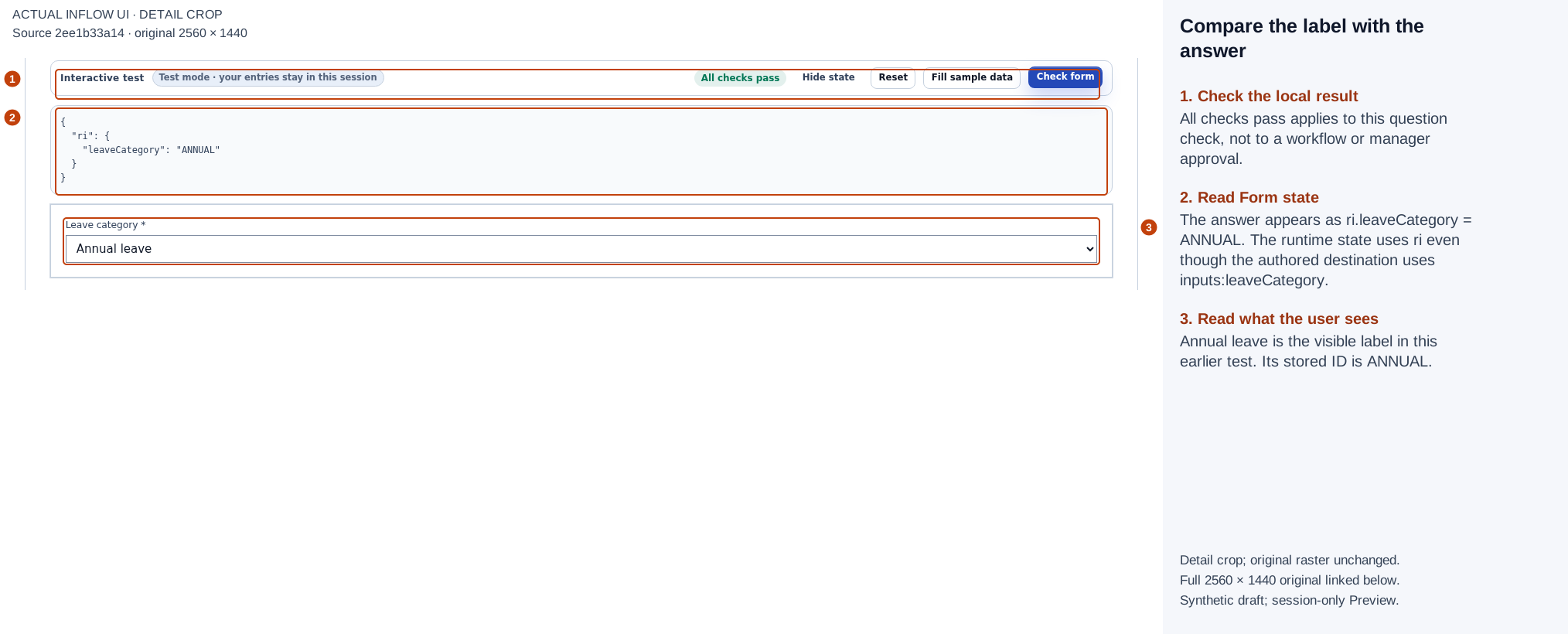
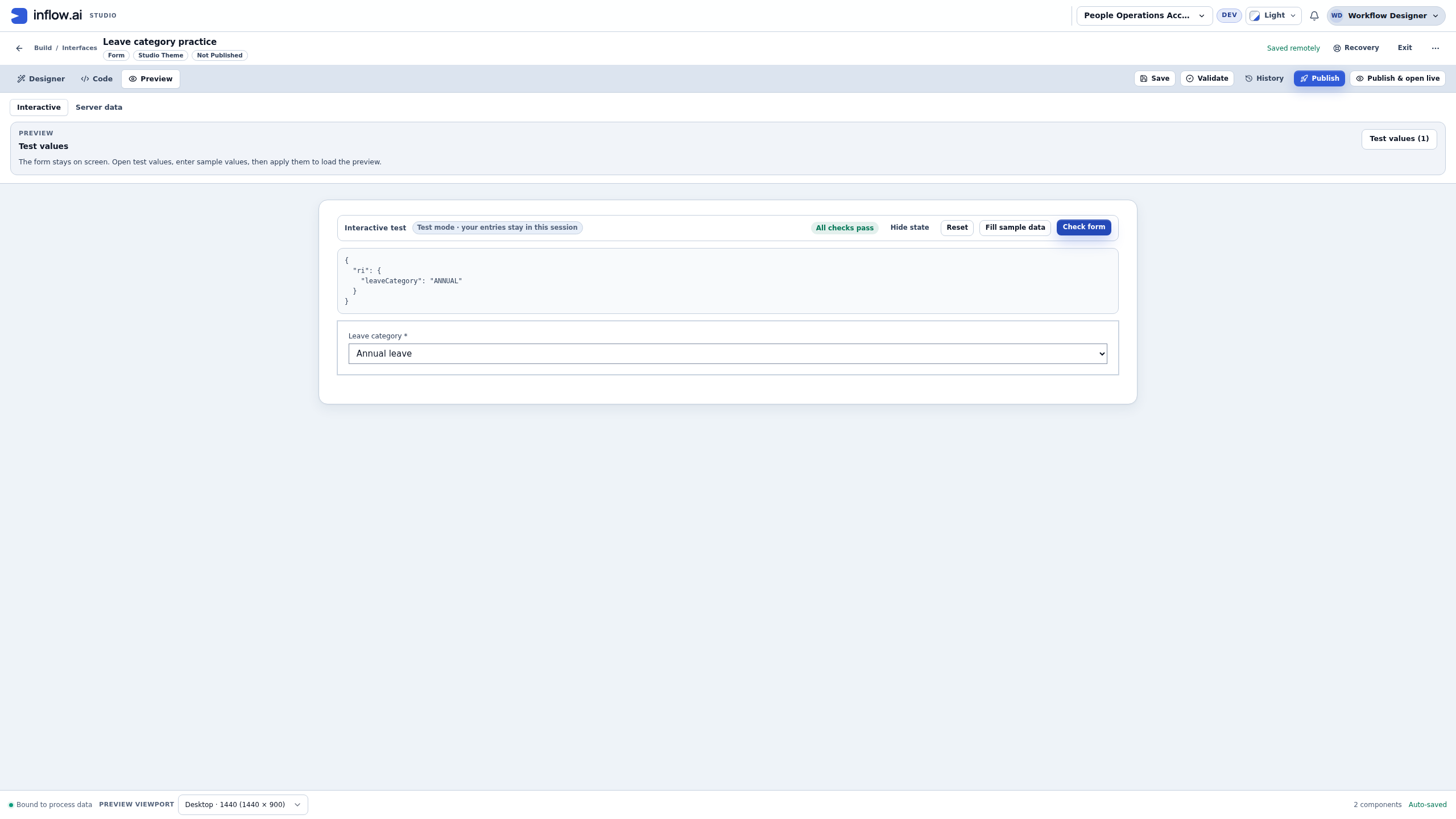
The first test shows Annual leave to the user while the answer is ANNUAL. The state viewer uses ri for the declared inputs destination. Full-size numbered guide · Unchanged original screenshot.
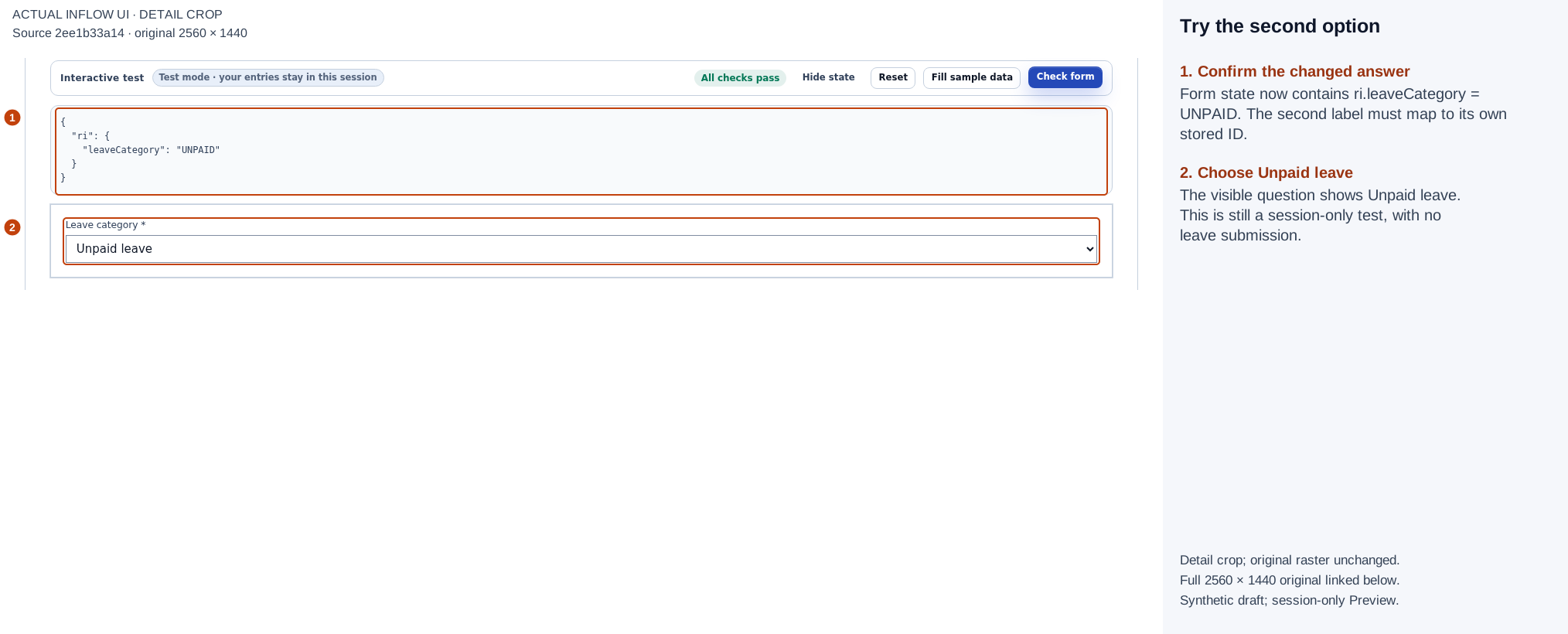
The second test changes both the visible choice and its stored code. No leave record is submitted by selecting it here. Full-size numbered guide · Unchanged original screenshot.
5. Change the label, save and reopen the same question
The owner now prefers Annual vacation. Nadia should update presentation without inventing a new category.
- Return to Designer, select the existing Leave category question, and open Properties → Choices.
- Change only the first Label shown from Annual leave to Annual vacation. Leave its Stored id as
ANNUAL, and keepUNPAIDpaired with Unpaid leave. Keepinputs:leaveCategoryand Required Yes unchanged. - Save and wait for the remote-save status. Reopen the same saved draft, or reload after it is safely saved. Select the existing question again and inspect both rows, its destination and Required setting. Do not add another Select after reloading.
- Open Preview → Interactive, choose Annual vacation, then Check form. The new label should be visible while Form state still shows
ri.leaveCategoryasANNUAL. - Before changing a stored ID in a real application, review every rule, integration or saved record that relies on that code. A label-only change and a code migration are different changes; this lesson performs only the label change.
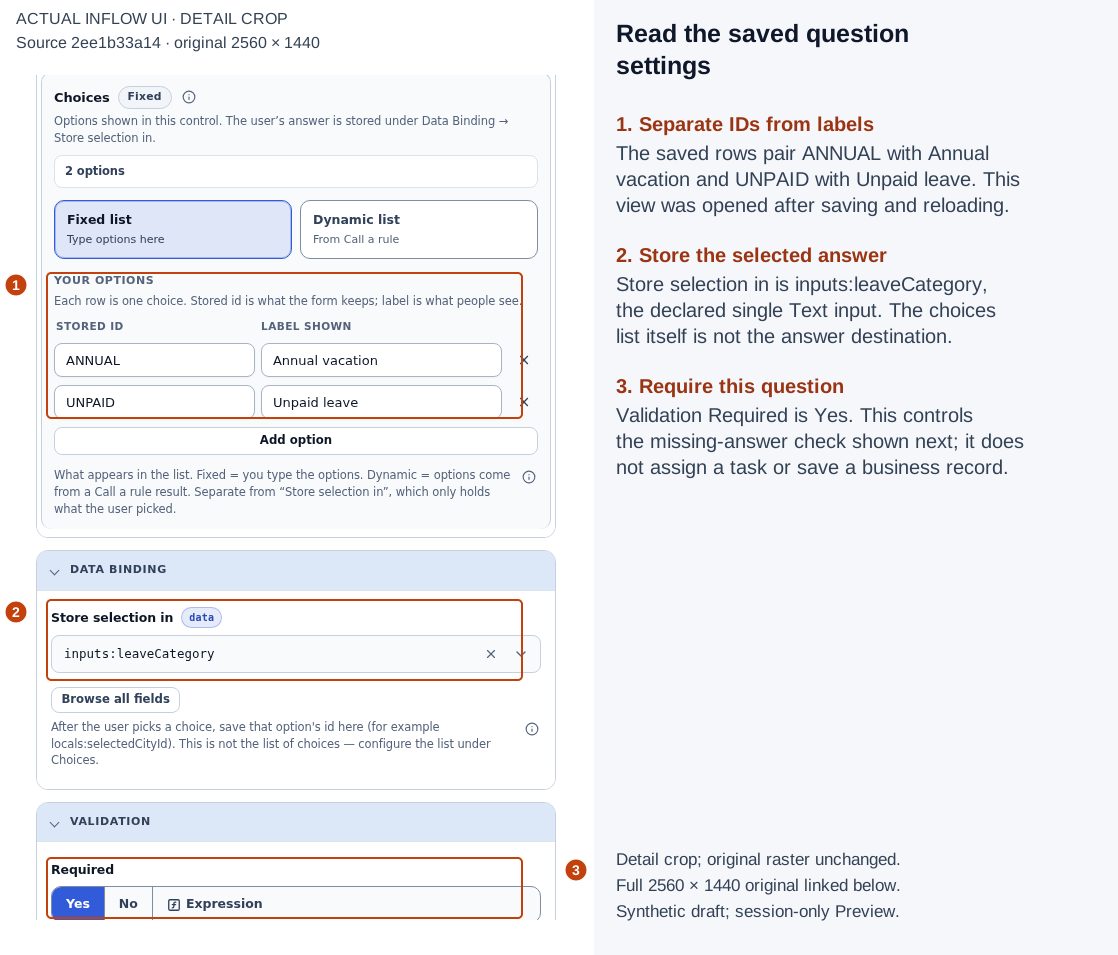
After saving and reloading, both final label/code pairs, the inputs:leaveCategory destination and question-level Required Yes remain present. Full-size numbered guide · Unchanged original screenshot.
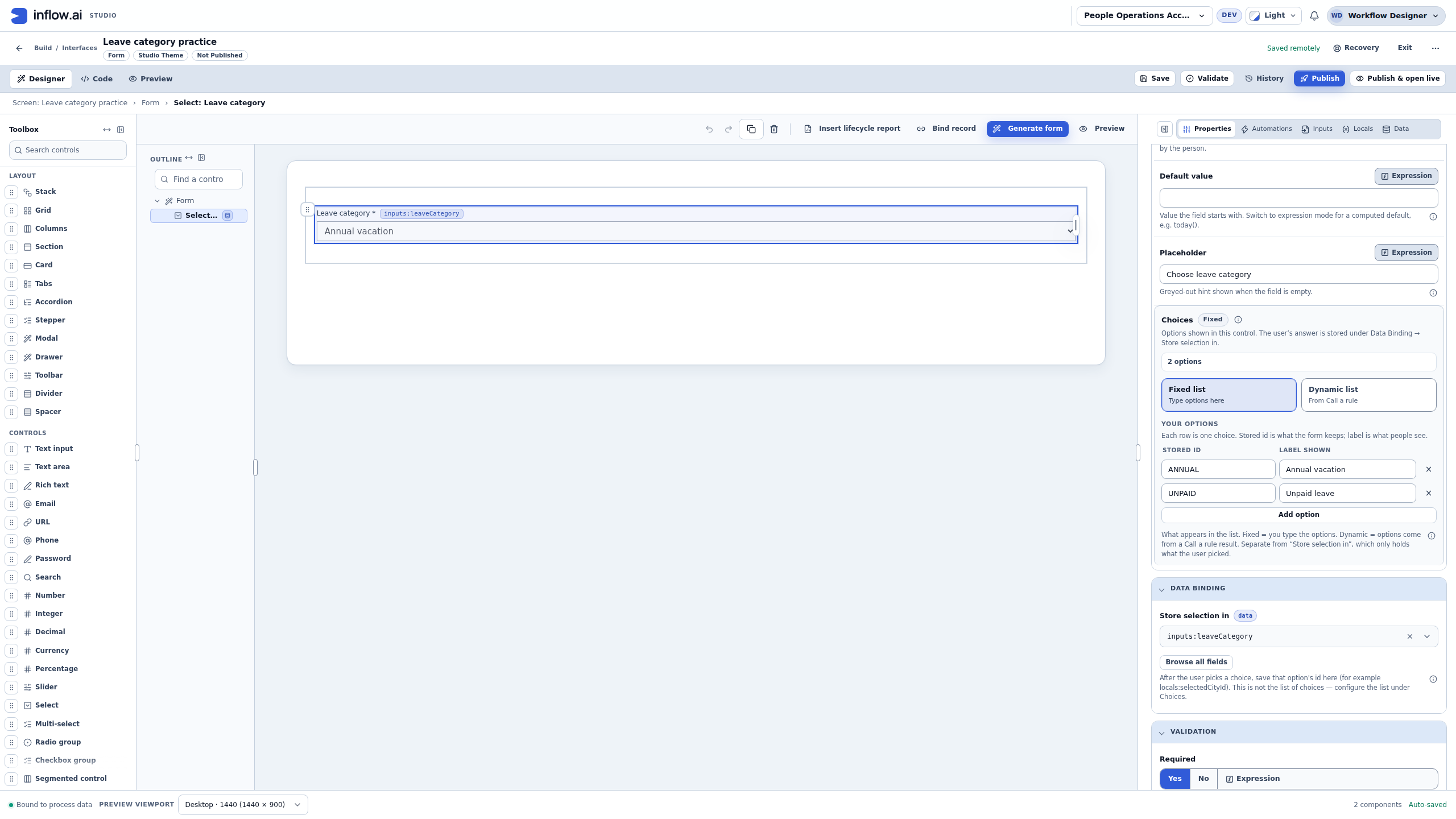
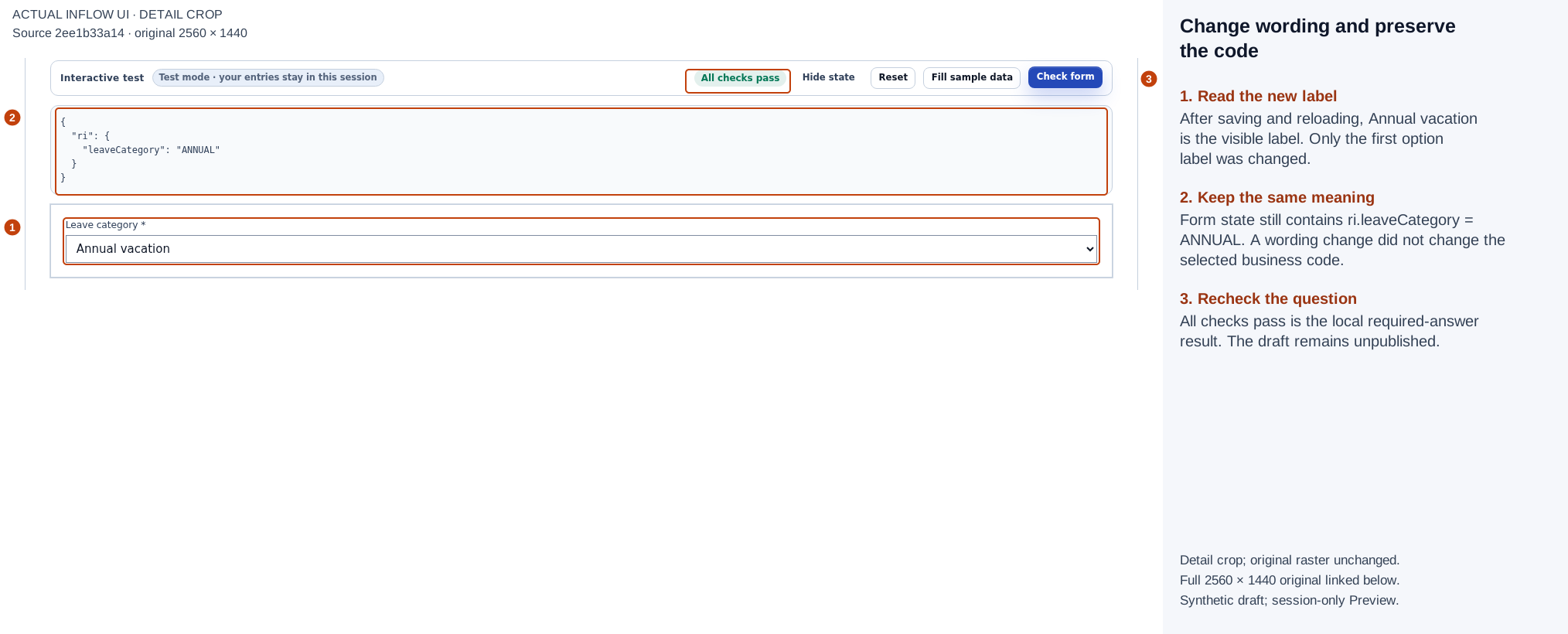
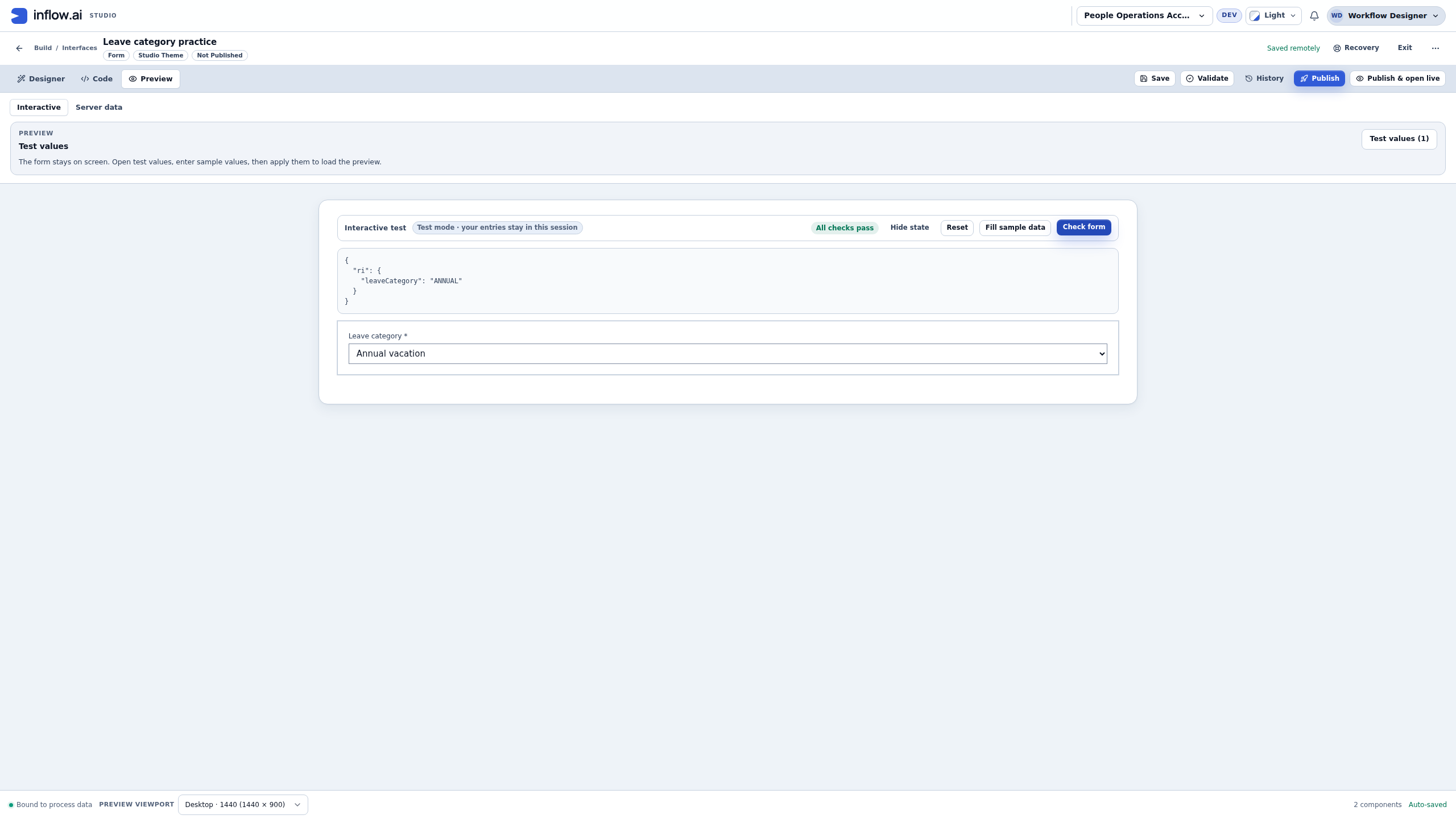
Annual vacation is now the visible label, while the answer remains ANNUAL. The saved form is still unpublished. Full-size numbered guide · Unchanged original screenshot.
6. Reset the test and recover deliberately
- In Interactive Preview, choose Reset, then Check form again. The test answer clears, Form state is empty, and the required-answer issue returns. Reset does not delete the saved Select or its choices.
- Choose Annual vacation again and run Check form. The required message clears and
ri.leaveCategoryreturns toANNUAL. - Return to the saved draft when finished. The captured draft remains at revision 6, with the same input, two fixed choices and Required setting. The Preview choices and Reset did not change that saved definition.
- Stop here for this exercise. Publishing, connecting a submission action, recording a leave request and testing a manager task are separate journeys. Use the application tutorial and human-task lesson when that work is authorized and prepared.
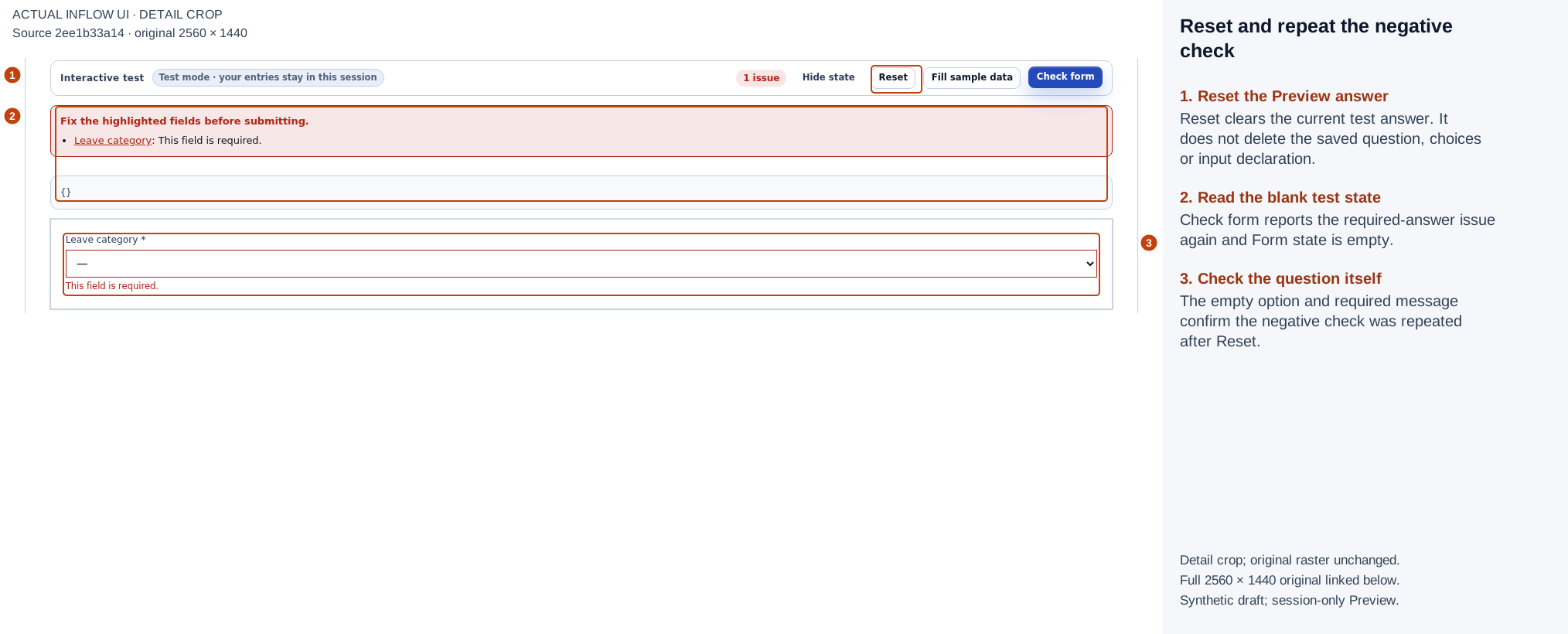
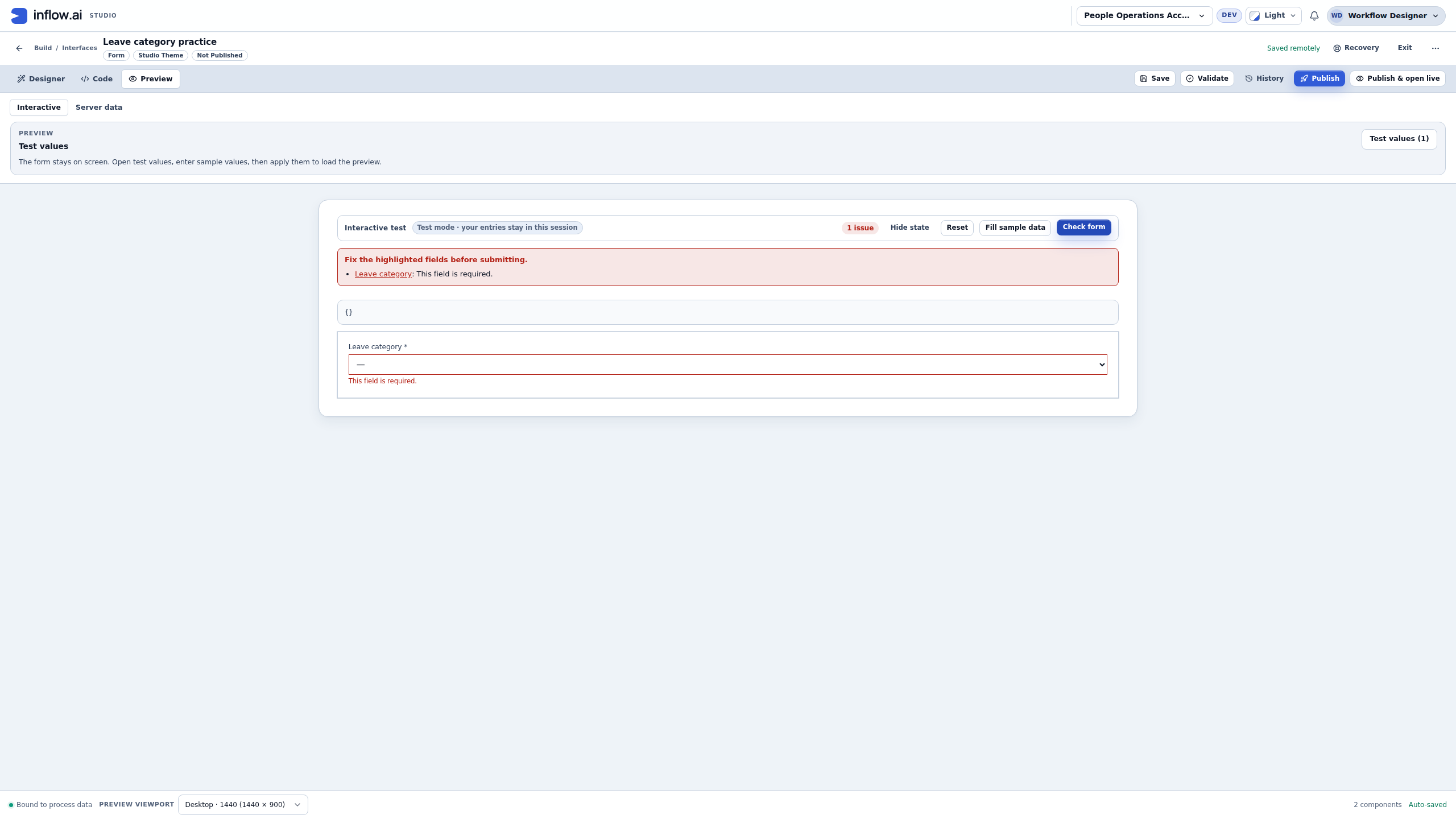
Reset is followed by a new Check form, so this picture demonstrates the repeated missing-answer check rather than an old message left on screen. Full-size numbered guide · Unchanged original screenshot.
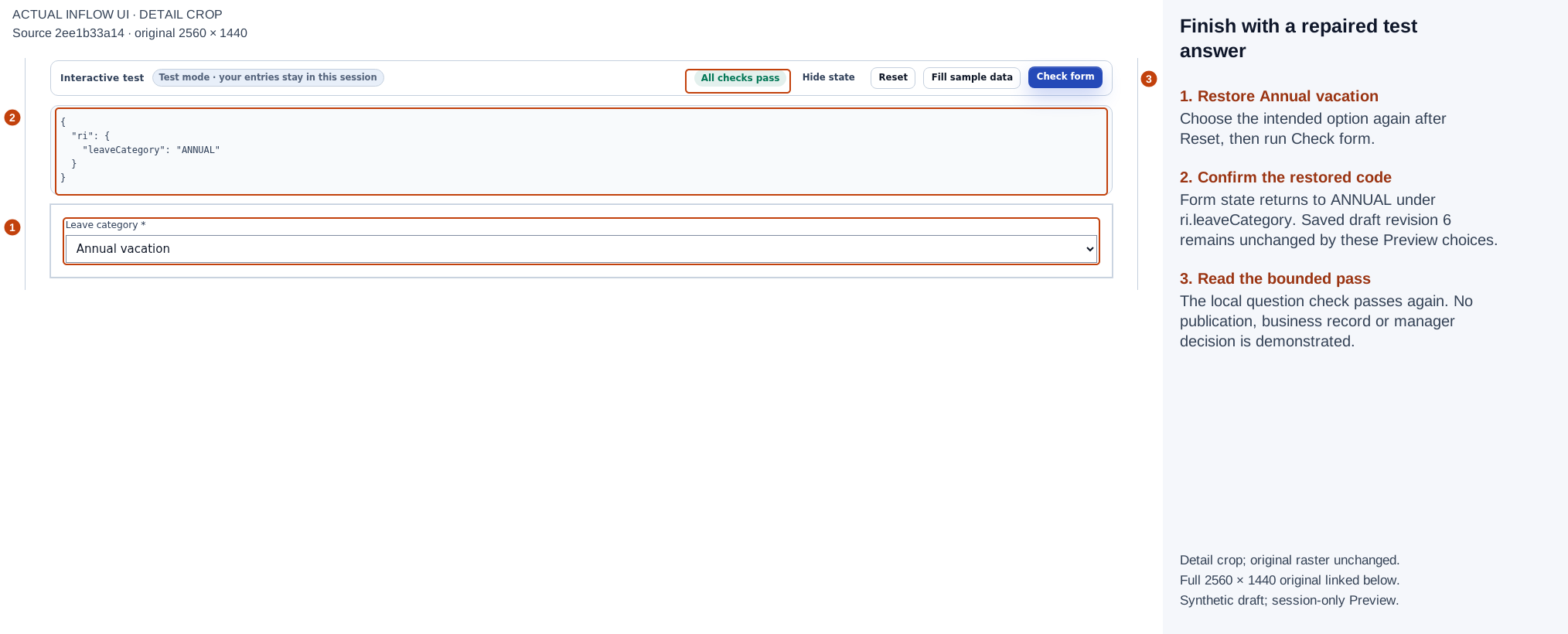
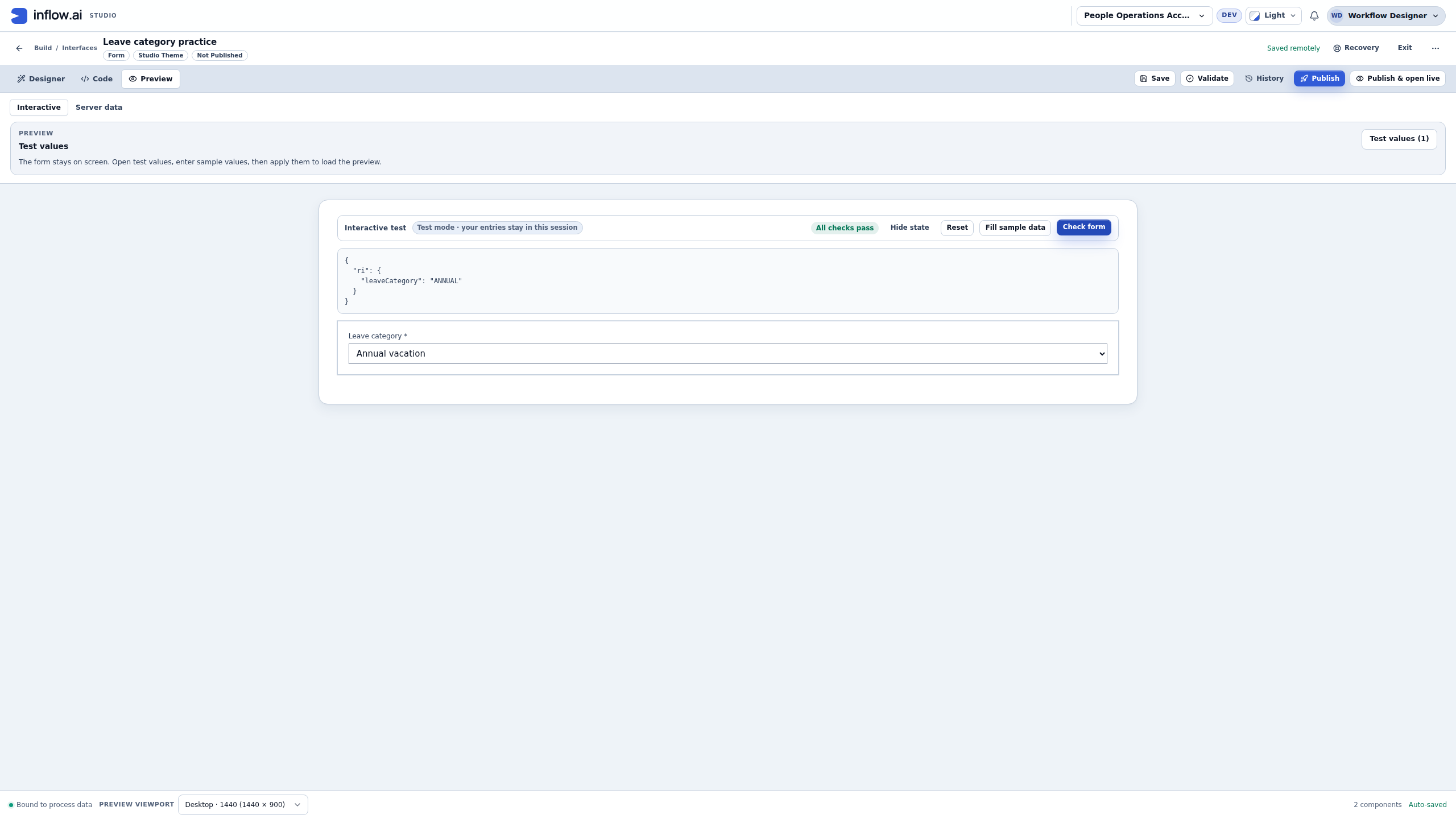
The repaired session answer passes again. The normal saved-draft readback remained unchanged; no application publication or business submission occurred. Full-size numbered guide · Unchanged original screenshot.
Troubleshooting this story
| What you see | What to inspect | Safe next action |
|---|---|---|
| The canvas already shows the first label. | Is this the design illustration or Interactive Preview? | Inspect Form state in Interactive Preview before concluding an answer exists. |
| A duplicate-value warning remains. | Stored IDs in every fixed option row. | Repair the duplicate code, save and recheck; changing only its label is insufficient. |
| A choice looks correct but Form state is empty. | Store selection in and the declared input's type/cardinality. | Select the intended compatible input, then choose and check the option again. |
| Form state contains words you expected only as a label. | The actual Stored id column. | Correct the teaching option pair. Review downstream dependencies before changing codes in an established app. |
| Required does not behave as expected. | Question Validation Required, Default and the separate input declaration. | Reproduce with Reset and Check form; do not confuse input metadata with the question setting. |
| Settings seem missing after reopening. | The workspace, form key, save status and selected existing component. | Open the intended saved draft and wait for its readback; preserve unsaved work before navigating. |
| The draft passes locally but nobody has a task. | Whether a published application, workflow and eligible task exist. | Follow those separate journeys; a Select control does not create or assign work. |
Input choices at a glance
| What you ask for | Suitable starting point | Example |
|---|---|---|
| A short line | Text | Request reference. |
| A short explanation | TextArea | Reason for leave. |
| A whole quantity | Integer | Requested days. |
| A day or time | Date / Time / Date and time | Start date. |
| One agreed option | Select / Radio group | Leave category. |
| Several agreed options | Multi-select / Checkbox group | Applicable training topics. |
| A true/false answer | Checkbox / Toggle | Acknowledgement where the business needs it. |
| A governed record selection | Lookup | An employee chosen from an admitted source. |
| A document/file | The appropriate upload/document control | Supporting material allowed by the application. |
For choices, the Label is what people read and the stored value is what the application uses. Keep those meanings stable when changing wording or language.
Example 2: choose a list, details or assigned work
Nadia wants three different pages: a list of requests, the details of one request and Sara's approval work.
- For browsing many requests, choose a suitable Data grid or Table and configure its supported source and columns.
- For details of one selected request, use Record view and deliberately choose which record supplies it.
- For repeated cards with an authored layout, consider Repeater and configure the supported collection.
- For an eligible existing manager task, use Task viewer in its supported host composition. Let that task supply its own decision form.
- Test the intended interaction, including an empty result or an unavailable source.
These views should not all be homemade approval forms. Displaying a record does not assign work, and a task control does not create the task.
Example 3: show an assigned task beside its list
Suppose Nadia is building an app page where Sara can find and work on her leave-review tasks. The page should show only the signed-in user's eligible tasks, then show the selected task's own form beside the list. It is a way to reach work that already exists; it does not create a task or assign one to Sara.
- In the host Form inputs, declare a single-value Text input named
taskId. Leave its default empty and Required off. The user will not type an ID; the selected row supplies it. - Add a Data grid to that Form. Use Connect data and choose My assigned tasks. This source is scoped to open tasks assigned to the current signed-in user. It is not an organization-wide task directory.
- Keep the task Id, Runtime task name and Status fields in the grid. The Id identifies the task; it is not the leave request's business reference.
- In the grid's Actions, set Selection mode to Single and choose its suggested local result name, such as
selectedTask. - In Automations, add Set a field under When the selection changes. Set the declared
taskIdinput fromlocals:selectedTask.id. - Add a Task viewer as a sibling beside the grid in the same Form layout. In Task id, bind the viewer to
ri:taskId. Choose Perform only for a work page where the person is allowed to act; use Read only when the page should show task metadata without the executable form. - Save, validate and publish the Form, then add that existing interface to the App Shell. Test with the intended person's normal account after an eligible task exists. Before any task is selected, the viewer's empty message is shown. Choosing a different task ID points the viewer at that task, subject to the task's normal access checks.
The viewer is not a way around permissions: keeping a row in the grid does not grant access to its task, comments, attachments or process. Each remains subject to the person's existing authorization. A cleared selection or row that disappears does not necessarily clear a viewer that already opened a task; the mounted viewer keeps its current task session. Do not describe deselection as closing or resetting unfinished work.
If Sara has an unsent comment on one task and selects another, the viewer asks before discarding the current task's unsaved work. Cancel keeps her on the current task with the comment; Discard changes abandons that unsent work and allows the latest selected task to open if Sara can access it. The prompt does not post the comment or grant access, and the viewer will not open an outdated selection if the grid changes while the prompt is open. See the worked task-switch example for the dialog wording and a safe try-it sequence. For the full task-page draft and resume controls, follow the human-task workflow lesson.
For the complete App Shell wiring, including the page input, grid setup and authorized result check, follow the assigned-task page tutorial. If the list is empty before an assignment exists, keep it empty; do not invent a task ID or sample row.
Example 4: add an approved installed control
Some workspaces offer administrator-approved custom controls alongside the built-in controls. For example, Nadia may need a Region picker that the organization already reviewed for its leave form. An installed control is part of the screen; it is not a data connection or an authorization grant.
- Open the screen Nadia is allowed to edit and inspect the Toolbox. If this screen's authorized catalog contains controls, the Toolbox shows Installed controls. Each item identifies its publisher and version. Search by the visible name or ask the administrator which approved item to use.
- Compare the publisher and version with the application owner's handoff. If Installed controls is absent, the item is missing, or its version does not match, stop and ask the administrator to review the screen's available controls. Do not copy an ID, version, or property from another app to make a control appear.
- Add the approved control from the Toolbox or drag it into the intended section. Select it and inspect Properties. Configure only fields and choices that are actually offered; do not guess bindings or enter passwords, tokens, or other secrets.
- Try the interaction with fictional values. Check the visible label, choices, and intended answer destination. The Designer's interactive test may update a bound value in that test session; it does not save a business record. Confirm the saved result in a separately authorized published journey.
- Before publishing, have the application owner review the control's purpose and data use. For a release, the receiving administrator must already have the exact approved package installed and enabled. The screen's release does not carry the package, its approval, provider setup, or credentials.
Treat an installed control as administrator-approved browser code, not as a sandbox. The control SDK limits how code requests platform data, but the code runs with the page's browser privileges. If the exact saved version becomes unavailable, ask the screen owner and administrator to review the behavior; do not silently substitute a similar control. See the detailed installed-control workflow and Region picker example and the interface-control SDK and manifest reference.
Arrange and explain
Use Section, Card, Stack, Grid or Columns to arrange content. A Heading or Prose control supplies explanation. An Image can illustrate or identify something when its source is appropriate. A Metric summarizes a supported measure, while a Chart explains its supported aggregate data. Follow their own source editors rather than copying a grid binding into them.
Use Button or Link for a deliberate action with a clear label, such as Submit request or Open details. A label alone does not configure what happens; the app tutorial covers the relevant actions.
Common mistakes
An empty Lookup may need its source prepared, rather than a fabricated list. A grid with design samples is not proof that live requests loaded. A visible disabled business-state choice may explain why it cannot be chosen; a page/action outside your access needs the administrator's help. Do not substitute another person's account.
Continue with Properties and answers or use the business control lookup. The optional technical control-library chapter is separate.