Add a helpful AI summary to Leave requests
This tutorial gives Nadia a reusable AI task that prepares a factual summary for the Leave requests application. It also shows how she can use Ask Inflow while improving the application. Sara still makes the business decision through her real task.
A task rule is a reusable piece of configured work. A model is the approved AI service producing the answer. A conversation is a Studio discussion with Ask Inflow. These are different tools: a chat answer is not automatically a published rule, saved record or completed approval. App Chat is a separate optional conversation for people using a published app; its owner configures it on that app's App Shell and selects approved sources and actions. This summary-only AI Task tutorial does not configure App Chat. Its answers still follow the signed-in person's access, and a response never completes Sara's manager task; use the App Shell App Chat milestone when that experience is part of the app.
What you need
Use the intended workspace, permission to create rules and an available model prepared by the AI administrator. Complete the basic app lesson far enough to understand the request and manager decision. You can learn the AI task separately with fictional text before connecting it to a released app.
The data lesson already created leave-2026-014: Mohammad requests five days, 14–18 December 2026, and the request is pending. This tutorial summarizes that existing fictional request; it does not create it again. A later create-form exercise uses a fresh request such as 017.
Milestone 1 — Decide what the summary should do
- Write the purpose: help Sara understand the supplied facts and any missing information.
- Choose the smallest useful input: request reference, name, dates, requested days and pending review.
- Exclude private notes, medical information and unrelated history.
- Agree that the task must not approve or decline the request.
- Before adapting the example to real records, ask the information/AI owner which data may be sent to the selected service.
Being able to read a record is not automatic permission to send it to AI. Use fictional text for this course so the first lesson does not depend on a personnel disclosure decision.
Checkpoint: you can describe a good answer in business language: accurate facts, no invented entitlement and no approval decision.
Milestone 2 — Create a named AI task
- Open Build → Rules → New rule.
- Choose AI Task when it is offered, name it Summarize leave request and create it.
- On Goal, choose Summarize Text and read the listed inputs/result.
- On Inputs, choose Provided when the rule runs for the request text.
- Go to Instructions and insert the actual text input chip offered by this task.
Think of the chip as a space reserved for each request's information. Do not replace it with Mohammad's complete request permanently; then every later run would keep summarizing the same sample.
If AI Task or a suitable model is not available, ask the administrator to prepare AI. The model guide explains what information to give them. Do not guess a model name or paste credentials into the instructions.
Checkpoint: a named draft task exists, with a changing Text input rather than a hardcoded employee record.
Find the workspace and rule creation controls
Nadia first confirms People Operations, chooses Build, then Rules. The numbered details show where she opens New rule before looking for the AI Task choice.
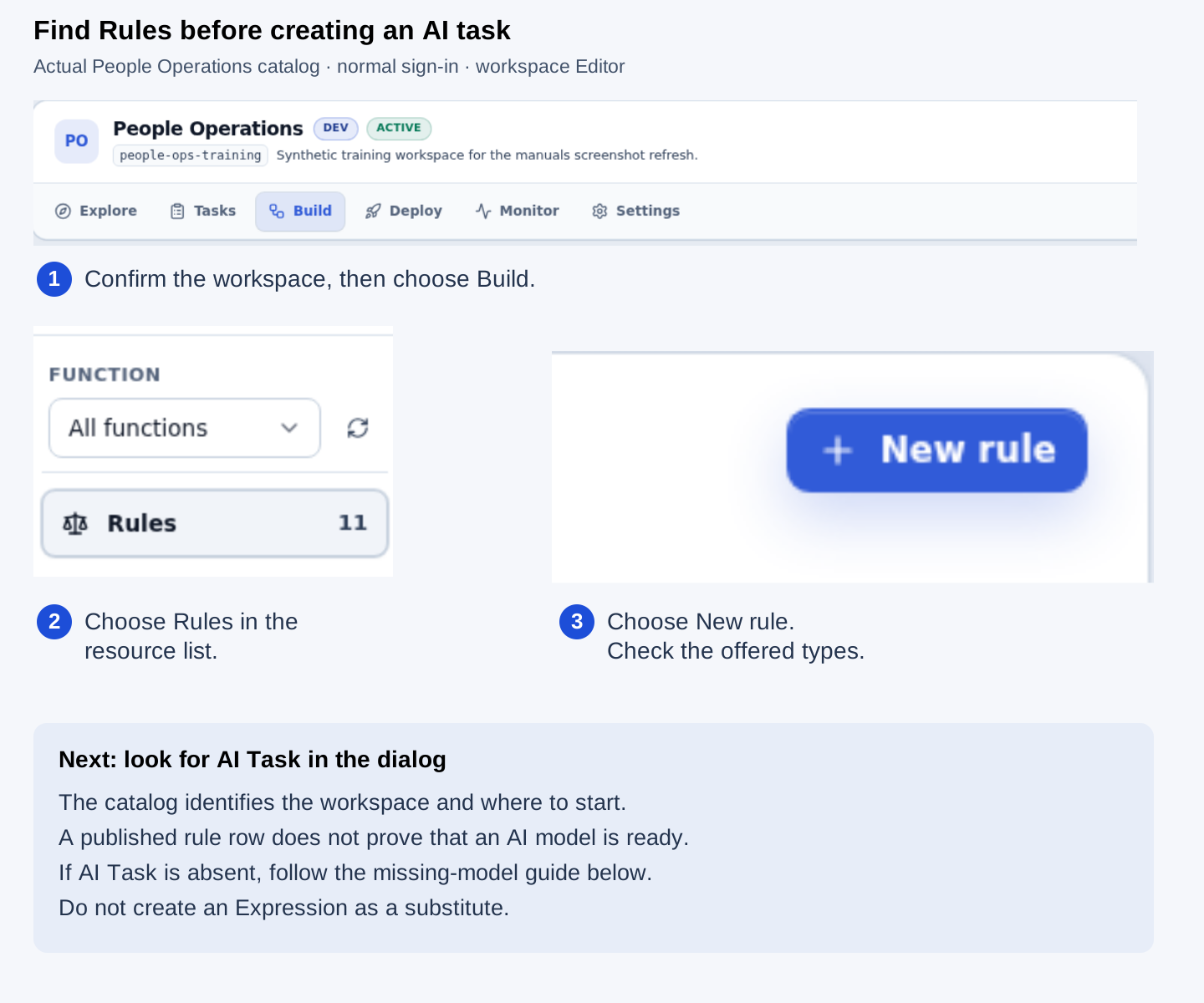
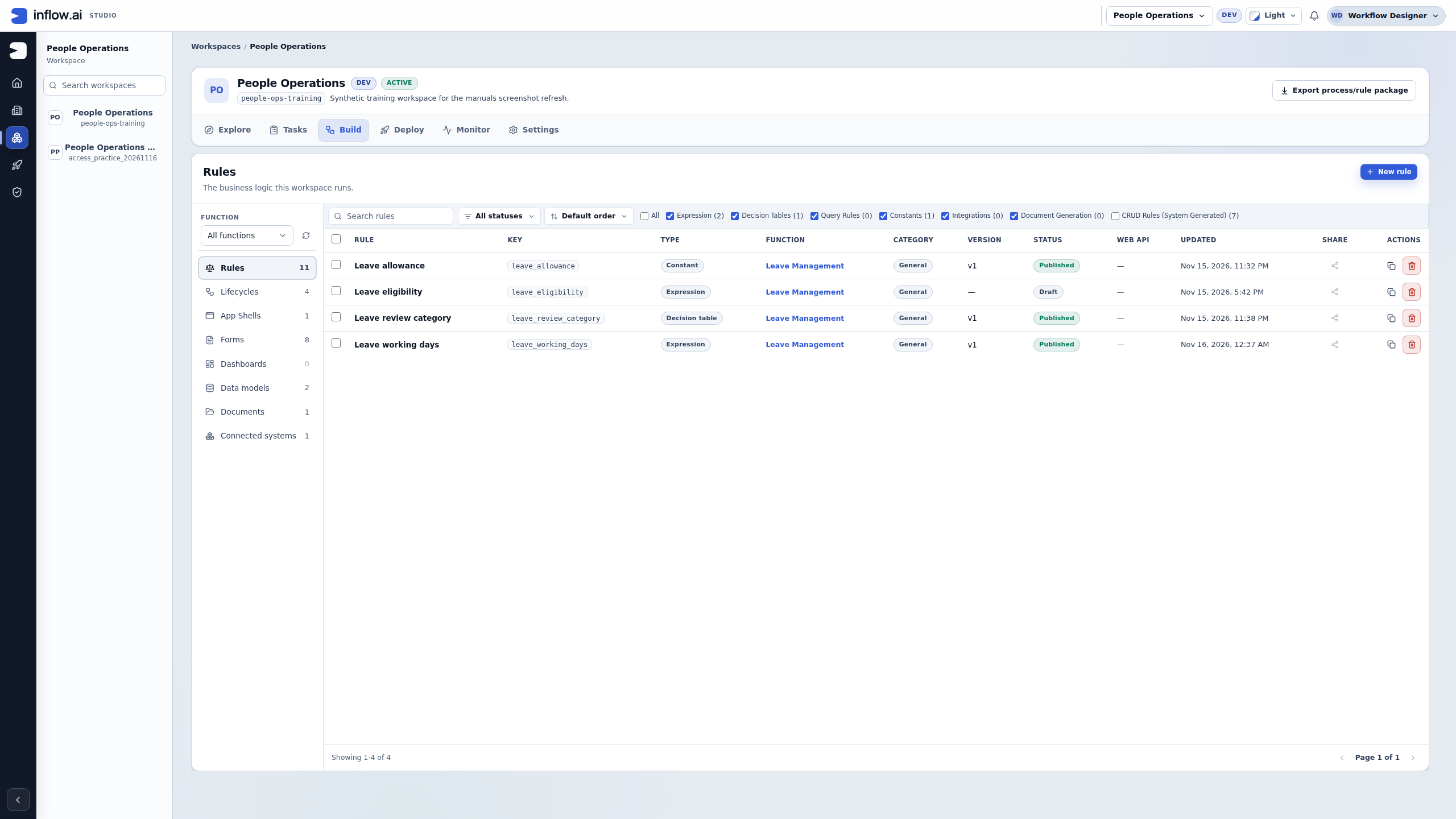
Open the unmarked Rules catalog screenshot. This is the entry view, with existing synthetic leave rules. Their published versions do not show that AI is configured. The next visual explains what to do when the AI Task choice is absent.
If AI Task is missing, finish the prerequisite first
Nadia opens Build → Rules → New rule in the intended workspace before following the AI task steps. Compare the available choices with the actual practice dialog:
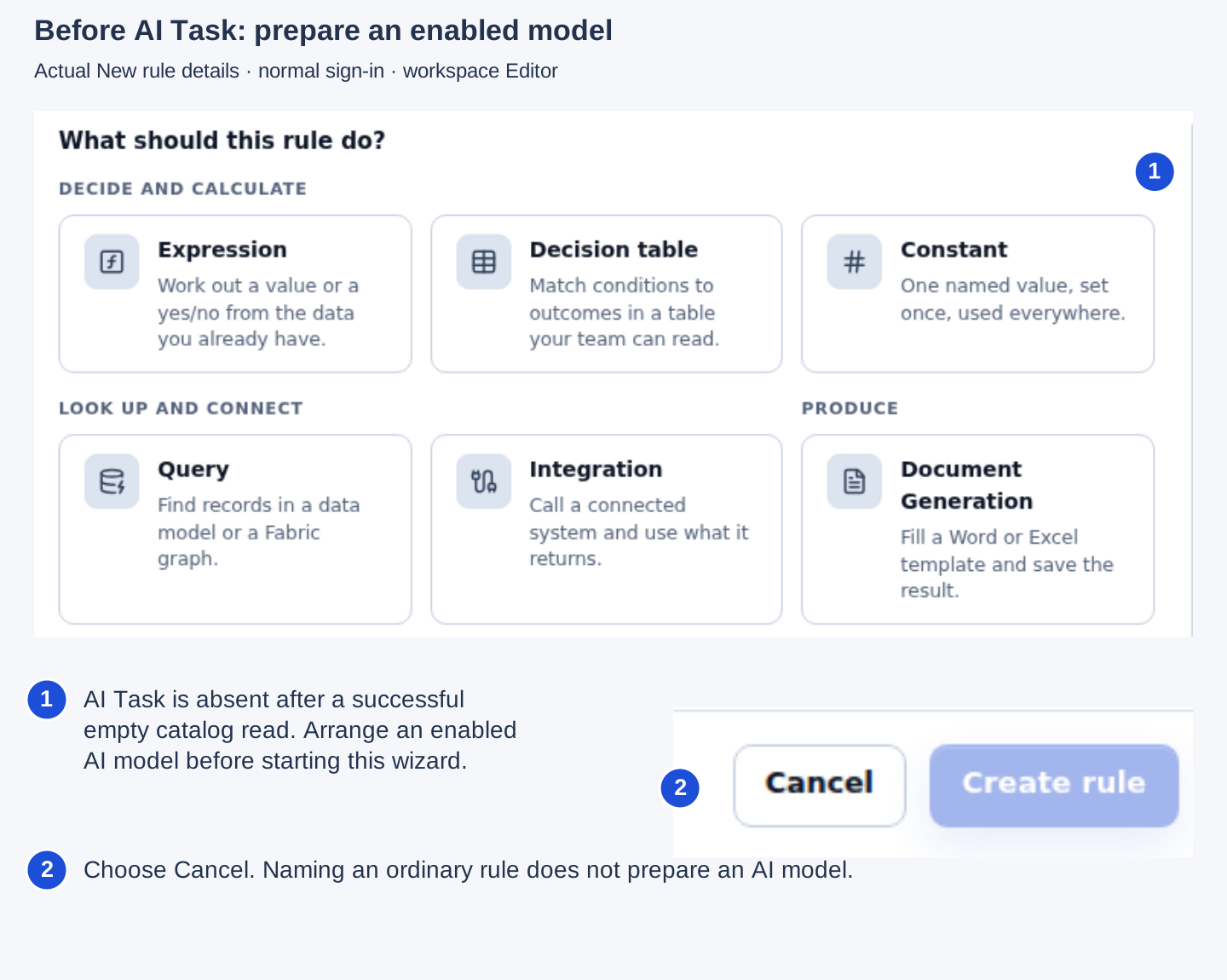
This practice workspace had a successful empty model-catalog response. Nadia chooses Cancel and asks the AI administrator for an enabled model appropriate for the fictional leave text. She resumes Milestone 2 only when AI Task is offered. She does not create an Expression as a substitute, enter provider credentials in a rule, or put a sample answer into the Summary field. An unreadable catalog is a separate problem to report; an empty successful catalog does not establish how an outage should behave.
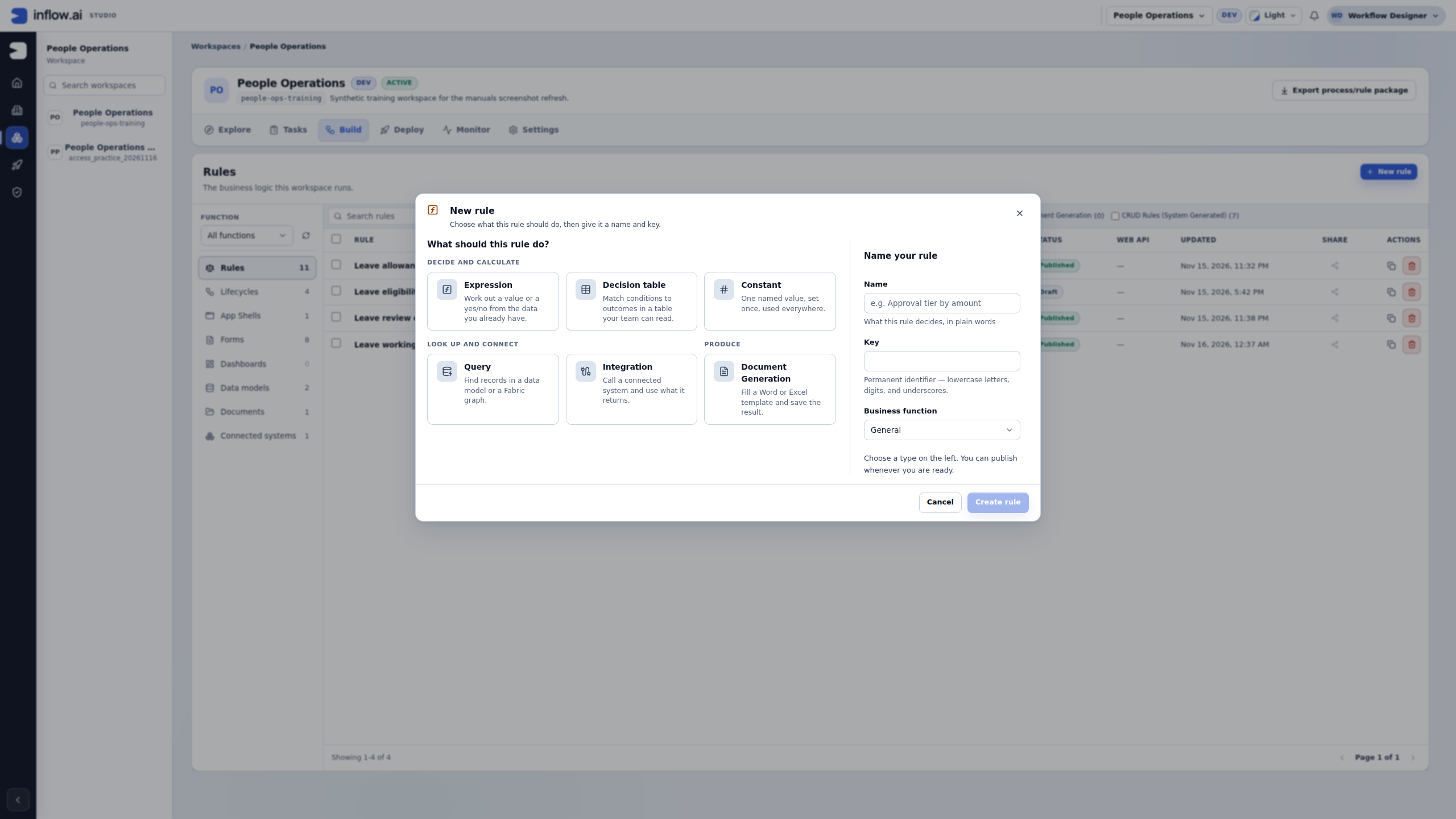
Open the original full screenshot. This visual covers the prerequisite check; the generated-answer exercises later in this tutorial still need an available model and deliberate real tests.
Milestone 3 — Write instructions you can assess
- Keep the input chip in the request-reading portion of the instructions.
- Add: “Summarize only the supplied facts in two sentences. Include the requested dates and days. State whether manager review is pending. Do not approve or decline leave. If a fact is missing, say so.”
- Read the instructions from the perspective of a person who knows nothing about your organization.
- Repair unknown or unused input notices before continuing.
- On Result, choose a Text answer. On Model, choose the actual approved model or offered default.
Clear instructions make checking easier. They do not grant access to another system, calculate an employee's entitlement or make the model infallible. Keep the first task focused instead of asking it to infer the whole HR policy.
Checkpoint: you know what information enters the task and what kind of answer should come back.
Milestone 4 — Try the complete fictional request
Example 1: five days awaiting review
- On Try & publish, enter: “Fictional request leave-2026-014. Mohammad requests five days of annual leave from 14 to 18 December 2026. Sara has not yet decided.”
- Choose Run test once and read the actual result.
- Check the person, dates and quantity against the input.
- Confirm that the answer leaves the manager decision pending.
- If it invents a fact, improve the instructions and run the corrected task deliberately.
A possible answer is: “Mohammad requests five days of annual leave from 14 to 18 December. Sara's review is pending.” This illustrates the expected meaning; your model's wording can differ. Judge the facts and business purpose rather than requiring one exact sentence.
If the run fails, read the plain-language repair guidance. A missing required value needs input; a model/service problem needs the administrator. Stop ends the browser's wait, but the service may still finish its request. Avoid repeated runs while the earlier outcome is unclear.
Save this example now: Once the complete request has a successful, factually correct result, enter Complete five-day request in Example name, then choose Save as example. The button is unavailable until the successful test and a valid name are present. Save before changing the input so the saved case keeps the input and answer from this run.
Milestone 5 — Try incomplete information and keep a useful example
Example 2: the end date is missing
- Replace the test text with: “Fictional request. Mohammad asks for five days of annual leave starting 14 December 2026. The end date has not been provided. Manager review is pending.”
- Run the test deliberately.
- Check that the answer identifies the missing end date rather than inventing 18 December from the previous example.
- Compare the pending-decision wording with the first example.
- Once the missing-end-date run has a successful, factually correct result, enter Missing end date in Example name, then choose Save as example. The button needs the successful run and valid name. The complete-request example was saved in the previous milestone, before changing this input.
These two examples test different behavior. The first checks accurate summarization; the second checks that missing information stays missing. Do not copy a wrong answer into the expected result just to make an example appear successful.
After changing instructions, re-check the saved examples and inspect differences. Use fictional inputs throughout. A list of saved examples is useful only when someone has understood what they test.
Milestone 6 — Publish the task and show its answer in the app
- Complete the wizard's publish checklist, repair the named issues and publish the intended task. Confirm that Summarize leave request is published on its rule page.
- Open the Form where the deliberate summary action belongs. In Inputs → Add input, create requestText and summaryText, both Type Text, with one value and empty defaults. Do not add duplicate inputs if you already created them for this purpose.
- Add a TextArea labelled Request details and connect Store value in to requestText. Add another TextArea labelled Summary, connect it to summaryText and set Behavior → Read only to Yes. The Summary field shows the answer; the user does not edit it.
- Add a Button labelled Generate summary. Open its Automations, add Call a rule to its deliberate click action and choose the published Summarize leave request.
- For the task's declared Text input, select the requestText form input from the offered values.
- In Store rule result in, choose + Enter custom variable… and enter leaveSummary. Leave the field to apply it. This names the local result of this call.
- After Call a rule, add Set a field. Set Field to the declared summaryText input. Open the Value formula editor and enter locals:leaveSummary.
- Save, validate and publish the form. Open the current published Live page, enter the fictional complete request in Request details and choose Generate summary once.
- Check that the Summary field displays the actual returned text. Change the fictional request and deliberately run again to check that the displayed answer changes. Check dates, days and pending review each time.
This Text task returns its answer as Text, so locals:leaveSummary is the answer itself. The formula reads the named local result and copies it into summaryText; there is no extra output field to extract for this Text example. A structured-field task has a different result and needs its own mapping.
The two automation steps run in order: first obtain the rule's result, then put it into the visible Summary answer. If the rule fails, repair the visible failure before trying again. Do not fill Summary with a sample sentence to disguise an unavailable model. Changing Request details does not automatically refresh an earlier Summary. Until a new run succeeds, do not treat an old answer as a summary of the new text. A generated summary remains advice: Sara makes the actual business decision through her task.
Checkpoint: a deliberate action on the published form produces a visible, read-only summary of the supplied fictional text. The application now has an observable result to check, not merely a named local value hidden from the user.
Milestone 7 — Use Ask Inflow while improving the app
- Open the intended workspace/form and choose Ask Inflow.
- Ask: “Explain where this app collects a request, where it stores it and where the manager decides. Tell me which part is still missing.”
- Read the answer against the application you can see.
- For an offered improvement, inspect Changes and the actual proposal before making the offered decision.
- Use Plan, Activity and Evidence when available to understand intended work and reported results.
Ask Inflow helps Nadia build and understand the application. For a chat launcher used by people in the published application, configure App Chat on that application's App Shell; the App Shell lesson's optional App Chat milestone shows how to choose its published sources and actions. App Chat's enabled sources are scoped to that App Shell and still follow the signed-in person's access. This consultant-facing Ask Inflow conversation, an App Chat answer and an AI summary are all different from the workflow itself: a response saying “approved” does not perform Sara's manager task.
Milestone 8 — Return later and keep reusable facts appropriate
- Read History saved or History is off in Ask Inflow.
- Use Switch conversation to return to the relevant saved discussion, or New for another topic.
- Check the workspace/page before continuing.
- If a Proposed memory appears, read it and choose Approve memory only for an appropriate reusable fact or preference; otherwise choose Reject.
- Keep private personnel details and actual leave decisions out of reusable project preferences.
A sensible memory might say the team prefers short explanations. It should not say Mohammad is approved merely because someone discussed the request. Sara still opens her actual task, makes her decision and reads its completion result through the normal workflow.
Finish the business check
Compare the AI summary with the actual request and confirm that it does not alter the decision. Check a real application's current released behavior with the intended account after the configuration is complete. If any part is unavailable, report that specific limitation rather than substituting sample text as if it were live output.
Continue with AI Task details, Ask Inflow and the handover checklist. The optional technical AI tutorial preserves the integration/agent/Fabric examples for specialists.