Follow a request while it is running
A lifecycle is the process design. A case is one request following that design. Mohammad's five-day leave request is one case; Sara's review is a task inside it.
Use this lesson when someone asks, “Where is this request now?” You can answer that question through the latest Live view without reading server storage or guessing what the latest published design means for an older request.
Before you begin
You need permission to view the process and the relevant requests. Have the business reference, such as Leave request 014, or use the allowed case list to find the request. A person's ability to open the designer does not automatically mean every business record or task is visible to them.
If a link shows a neutral unavailable state, check the intended process, workspace and access with the owner. Do not try a different person's account to reveal it.
Walkthrough: separate the published design from its cases
Before searching for Mohammad's request, Nadia checks that she is looking at the intended process and revision. A published design can be ready even when no business request has started.
These illustrations use the ordinary Workflow Designer account in the synthetic People Operations workspace, with workspace Editor access and no super-administrator or platform bypass. They show the currently retained training build from source 5bd4bae3 on 18 November 2026. The three states belong to Manuals Demo Leave Approval, published version 1. A separate draft exists; it is not a running case. No employee request, manager task or decision was created in this walkthrough. These images explain the visible reading controls and actual empty state; later populated-case examples remain instructions to follow with appropriately prepared fictional work.
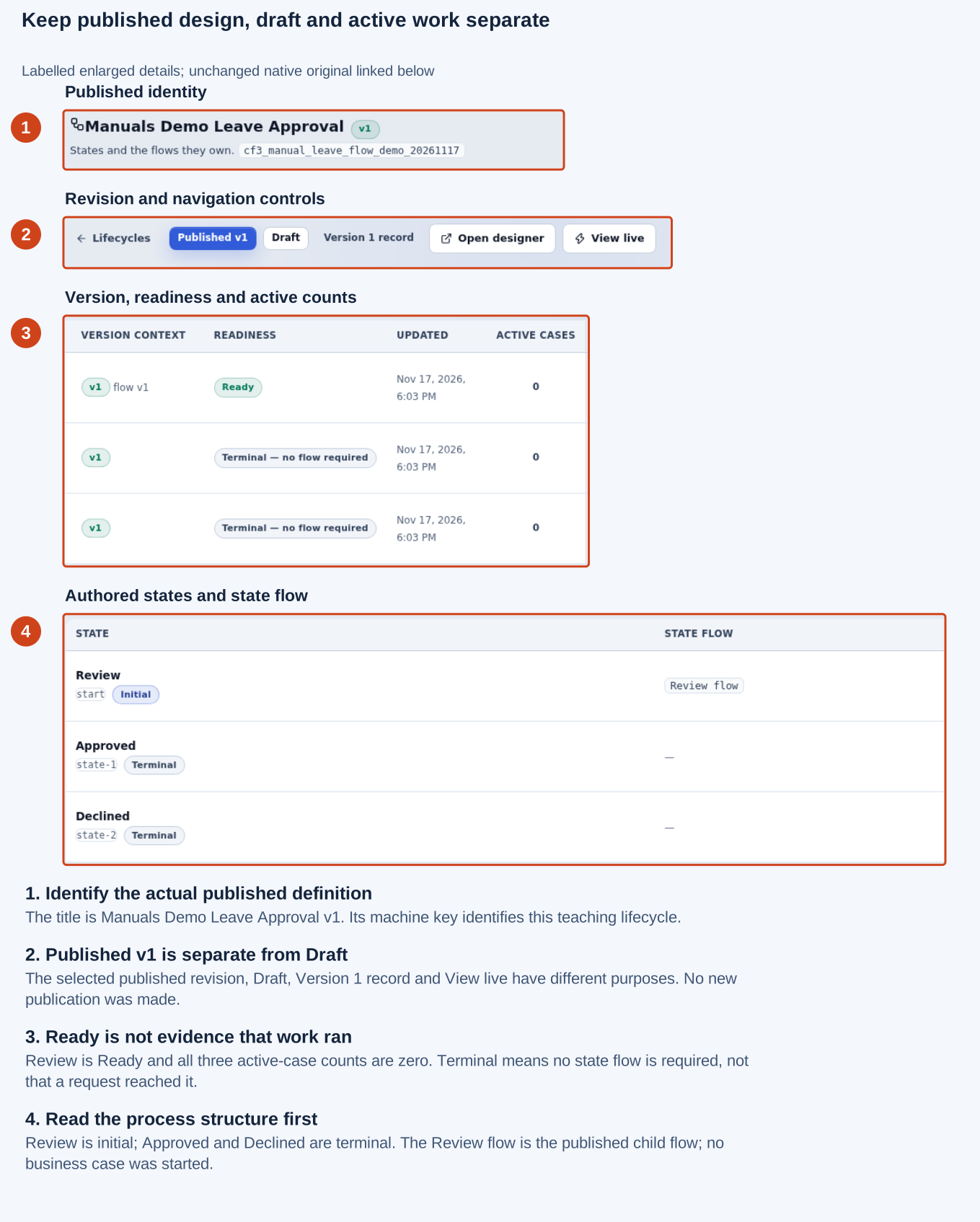
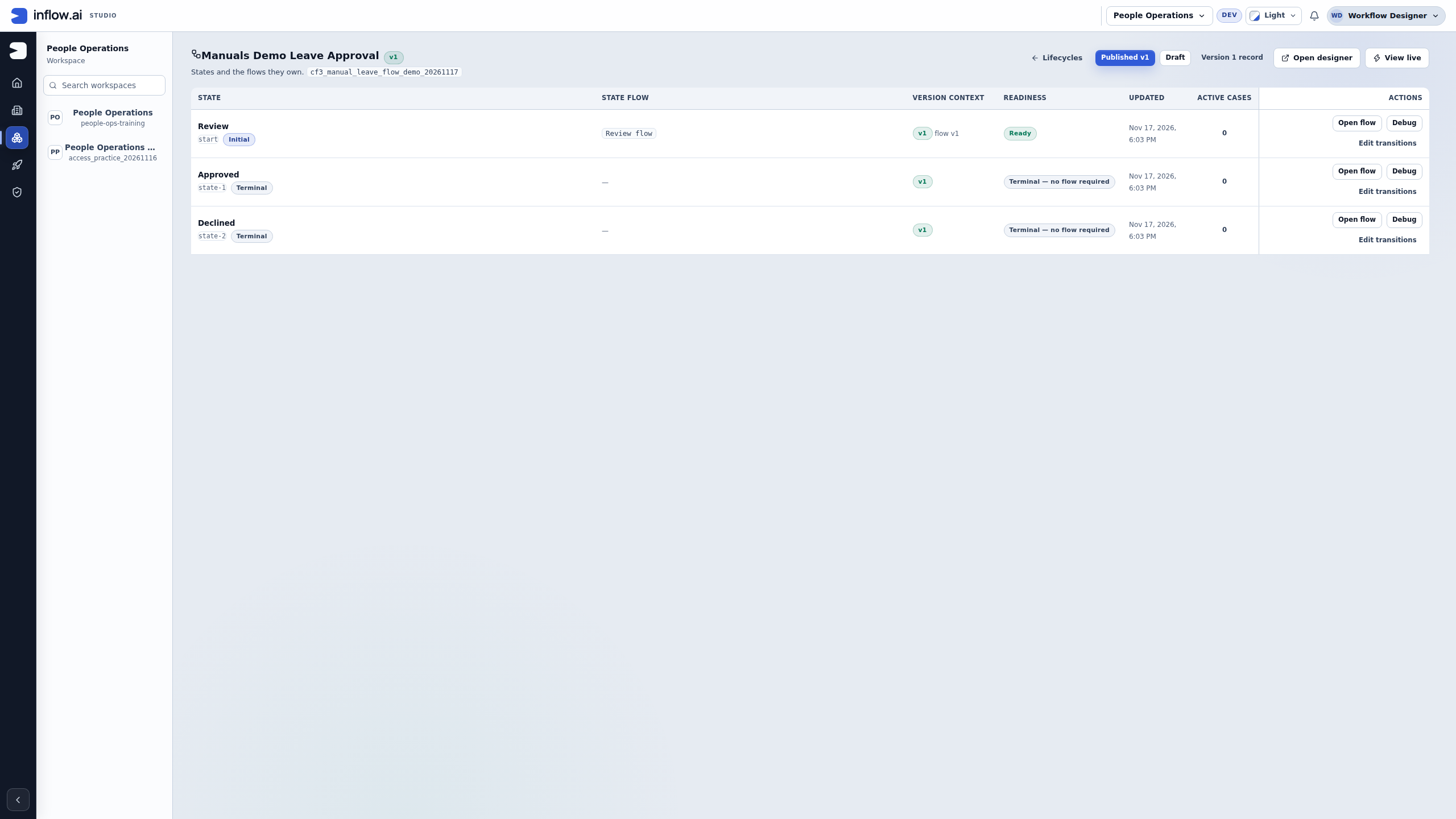
Actual published-definition page: Published v1 is selected, Review is initial, and Approved and Declined are terminal. Ready describes Review’s published flow. All active-case counts are zero; readiness does not prove a request ran. Open the unchanged native 2560×1440 screenshot. The numbered guide enlarges labelled details from that single capture.
-
Identify the actual published definition. The title is Manuals Demo Leave Approval v1. Its machine key identifies this teaching lifecycle.
-
Published v1 is separate from Draft. The selected published revision, Draft, Version 1 record and View live have different purposes. No new publication was made.
-
Ready is not evidence that work ran. Review is Ready and all three active-case counts are zero. Terminal means no state flow is required, not that a request reached it.
-
Read the process structure first. Review is initial; Approved and Declined are terminal. The Review flow is the published child flow; no business case was started.
-
Read the lifecycle's name and published revision before following View live. The title and machine key identify this teaching process; use your own intended process in a real application.
-
Keep Published v1, Draft and Version 1 record separate. The draft is editable authoring work; the published revision is the selected released structure. A version record is a publication record, not an employee's leave request.
-
Read the state-flow relationship. The initial Review state owns Review flow. A terminal state needs no outgoing state flow merely to be terminal.
-
Inspect Active cases as current runtime information, separate from design readiness. A Ready state with zero cases can be a perfectly valid unused process.
-
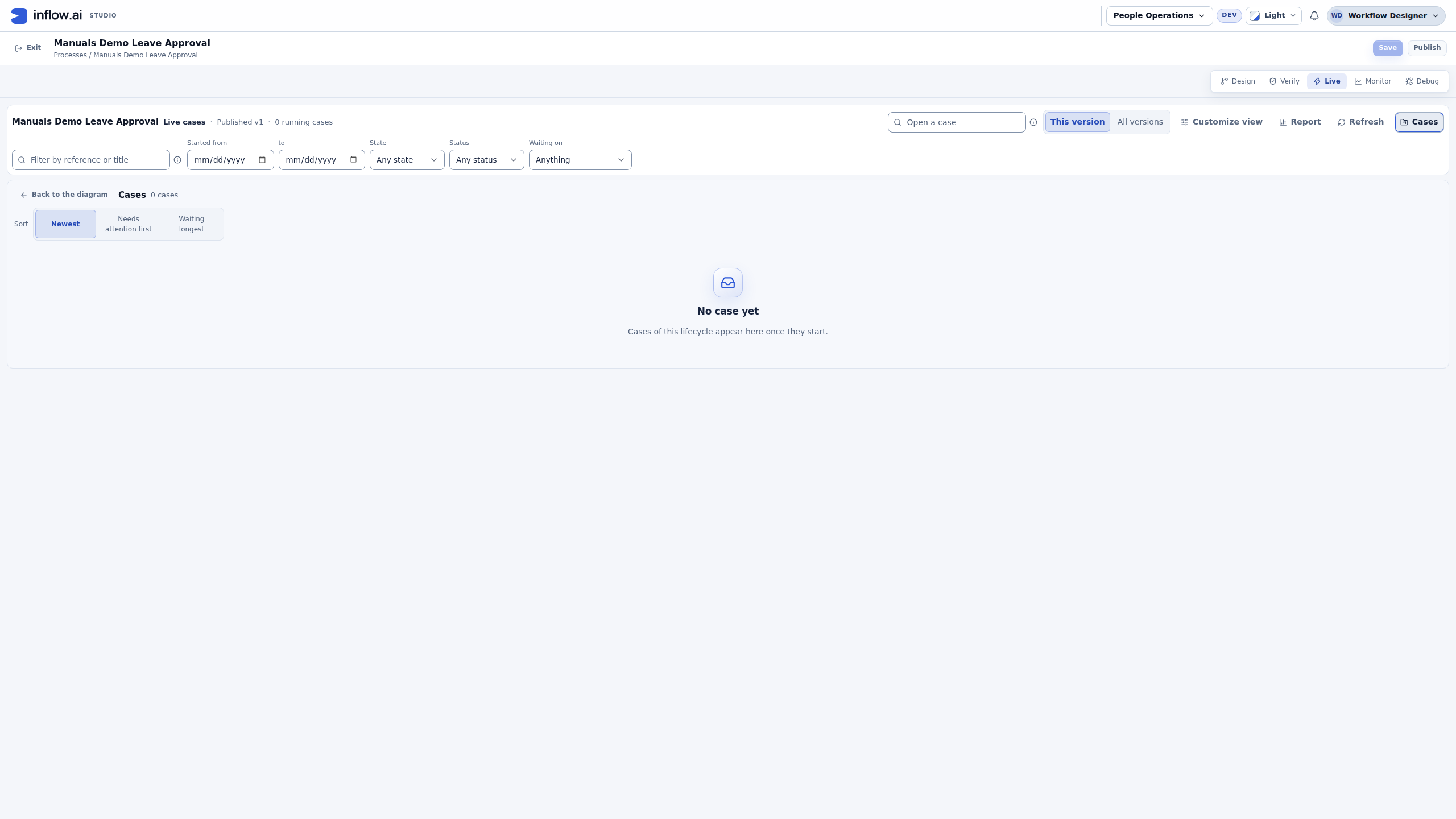
Choose View live, then Cases, and read the actual list for the selected version and filters.
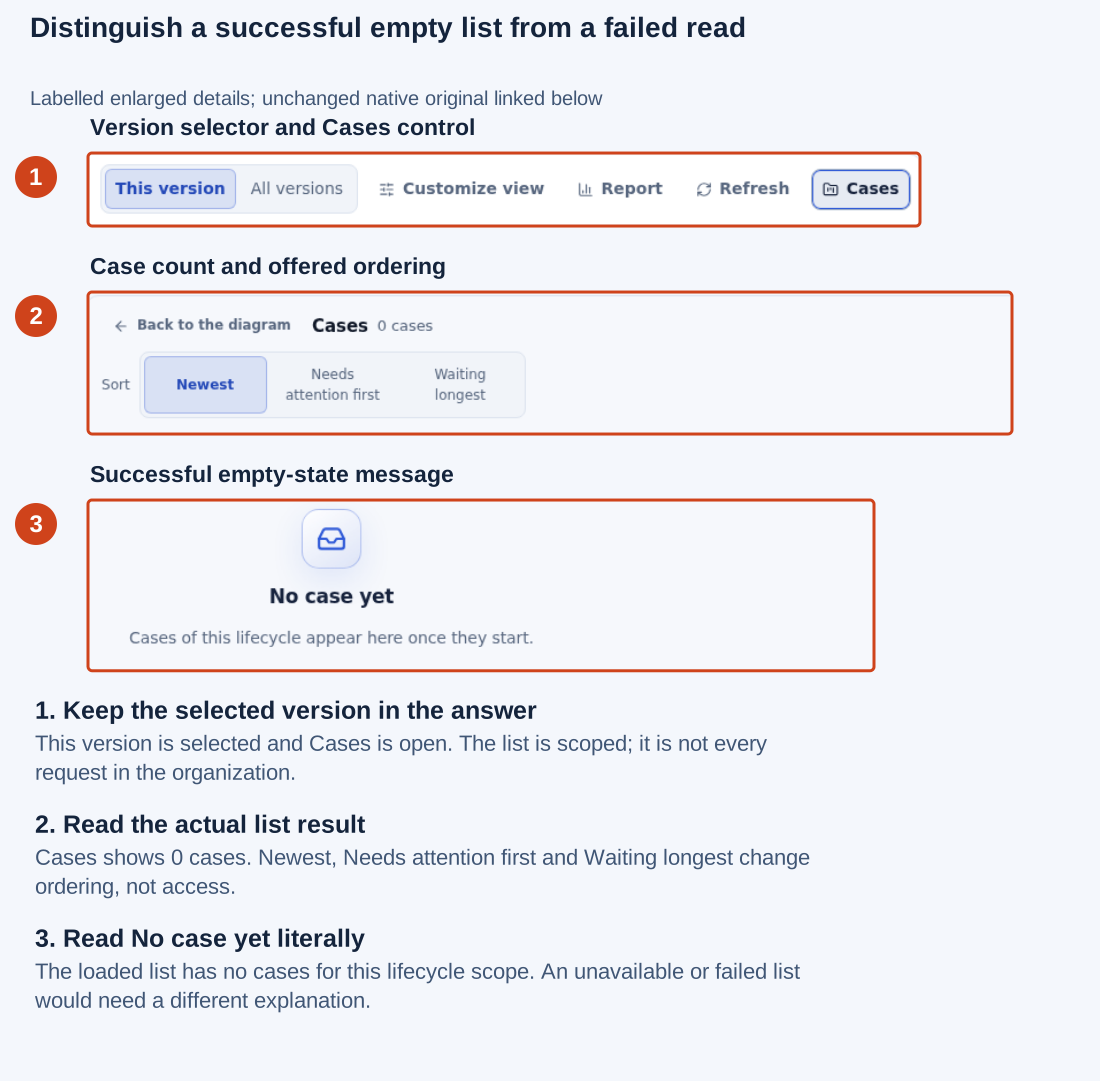
Actual list after opening Live: the successful empty result says No case yet. This establishes no rows in this lifecycle scope, while a failed or refused read would establish a different limitation. Open the unchanged native 2560×1440 screenshot. The numbered guide enlarges labelled details from that single capture.
- Keep the selected version in the answer. This version is selected and Cases is open. The list is scoped; it is not every request in the organization.
- Read the actual list result. Cases shows 0 cases. Newest, Needs attention first and Waiting longest change ordering, not access.
- Read No case yet literally. The loaded list has no cases for this lifecycle scope. An unavailable or failed list would need a different explanation.
Check your result: identify the process, the selected released design and the absence of cases in this view. Opening a definition, a version record or an empty list does not open a business request, allocate a manager task or prove a completed decision.
The populated examples below are separate procedures for an environment where authorized fictional cases already exist. If there is no case to inspect, retain the honest empty state and arrange the connected employee/manager walkthrough through the normal application; do not substitute an administrator's display or an authored state name for a real request.
Find and read one request
- Open the relevant published process and choose Live.
- Read the scope of the figures. An overview can cover a population of requests; an opened case shows one request. Make sure you are answering the right question.
- Use the current case table or the chosen state to find the business reference you need. Keep filters in mind: a filtered list is not the complete population.
- Open the request and choose Details if the information panel is closed.
- Read its current business stage, current work and actual published design version.
- Open the permitted task or step details for the information you need. Read earlier activity as history rather than assuming every previous stage is still active.
- Use the displayed navigation to return to the process overview when you want population figures again.
Check your result: you can explain the request in a sentence: “Mohammad's request is in Review, waiting for Sara's decision, following the version on which it started.” Do not substitute an internal identifier for the business explanation.
Turn the screen into a careful answer
Start by deciding whether the person is asking about one request or a population. Those are different views, even when the same case appears in both.
| The person asks… | Read this in Live | A careful answer sounds like… | Do not conclude… |
|---|---|---|---|
| “Where is Leave request 014?” | Open that permitted case; read its current state, open work, task owner when shown, status and version. | “014 is running in Review and waiting on Sara's open task, on version 3.” | That Sara has opened or is currently filling in the task. An open task only shows that work is waiting. |
| “Are there no requests in Review?” | Check the population scope, version and active filters first. Read the grouped result or case table after those choices are clear. | “No cases match the Review and date filters I have selected.” | That no Review request exists anywhere, or that a filtered view covers records outside the viewer's access. |
| “Why is this case missing?” | Separate a real zero-match result from Not available and from a temporary failed read. Search only the permitted population. | “This group has no matches,” or “The case isn't available in my current view.” | That the case was deleted, or that access should be broadened without the owner's review. |
| “Does the latest process change affect 014?” | Open 014 and read the version it actually follows; compare that with the new published version. | “014 still follows version 2; version 3 is the current design for new starts.” | That publishing automatically moves work already in progress. |
| “Can we pause it to undo the email?” | Check the case's current state and the external action history available to you. | “Pausing stops further process progression where supported; it cannot recall an action already sent.” | That a pause reverses a message, payment, connector call or other completed external effect. |
Use the active scope as part of every count. For example, 12 of 24 cases describes the current group and population shown by Live; it is not automatically the total number of requests in the business. If the scope or access is unclear, say what the screen establishes and ask the process owner to check the intended population.
A short decision path
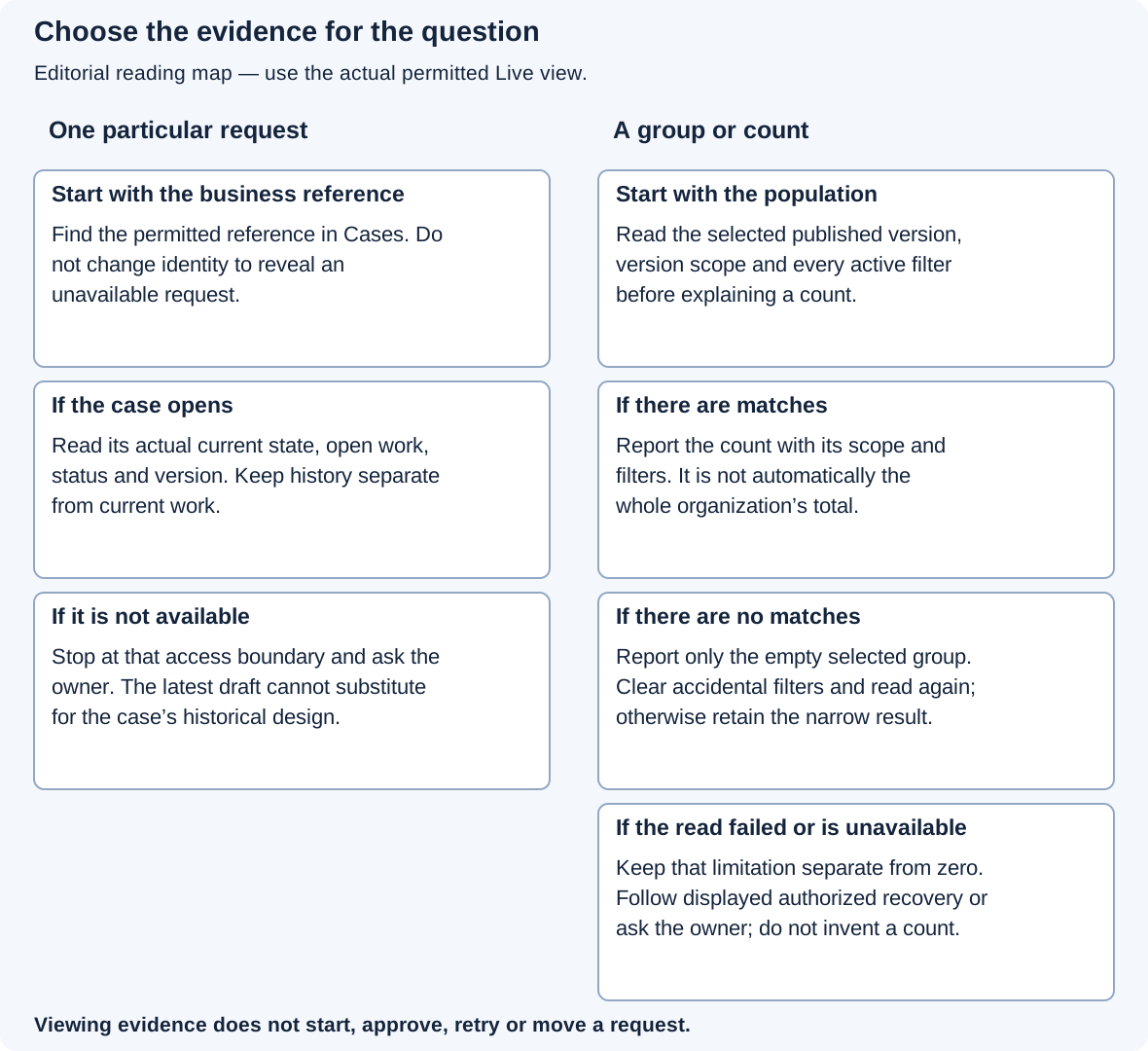
This is an editorial reading aid, not a product screenshot. The added scoped illustration below shows an actual Approved filter, empty-state message and Clear filters together. It is separate from the original planned WF05-filter scene; the original scene is not relabelled or accepted by this additional context.
Running does not always mean someone is working right now
A request can still be running while it waits for a person, a due time or an automatic service. “Waiting for Sara” is a business explanation; it does not mean the request has completed or failed.
A paused request is also different from an unfinished task. An authorized operator may pause progression while investigating a problem. That pause cannot undo a message already sent or a payment already requested. Do not tell a user that all external effects have been prevented merely because the case is paused.
Example: explain a leave request waiting in Review
Sara is asked whether Mohammad's leave has been approved.
- Open Leave requests in Live and find the permitted business reference.
- Open the request and read the Review stage and its open task.
- If the task is assigned to Sara and currently available to her, open it through the permitted task link. Otherwise, identify the responsible person through the information the screen allows you to see.
- After a normal authorized decision, refresh the same request and read its new stage.
- If the application also stores a leave record, check that record separately where you are allowed to do so.
The useful answer may be “It is waiting for the manager,” not “the process is broken.” If the task was completed but the record still says Pending, the application may be missing its explicit record-update action. The case stage and the row's Status field are different things.
Example: an empty filtered list is not a missing request
Nadia is checking the Review work and has narrowed Live to one state and one start-date range. The grouped case view reports No case matches these filters and offers Clear filters. That message says the current combination has no matching cases; it does not mean the process has no requests, that a request was deleted, or that the viewer has lost permission.
- Read the active state, date range and other visible filters before changing anything. A count describes only the population named by the current Live scope.
- If the filters are accidental, use Clear filters and wait for the refreshed figures. This clears the grouping choices in the current view; it does not widen the viewer's underlying access.
- Open Cases and search for the allowed business reference in the resulting population. If the reference appears, open that case and read its actual stage and version. If it does not, report only what this permitted view shows; do not search with a different person's account.
- If Live instead says information is Not available, keep that separate from a genuine zero-match result. Follow the access or owner handoff. If a temporary read failed and Try again is offered, retry that read once the owner or service condition is understood; never create or change a business request to test the view.
For example, “No Review cases match this date range” is supported by the empty grouped view. “There are no open leave requests” is not supported until the question's broader population, filters, and access scope have all been checked. The following additional native illustration shows those three items in the empty teaching fixture. It establishes only this filtered result, not that a known existing request was found or a decision was made. The original planned WF05-filter scene remains separate.
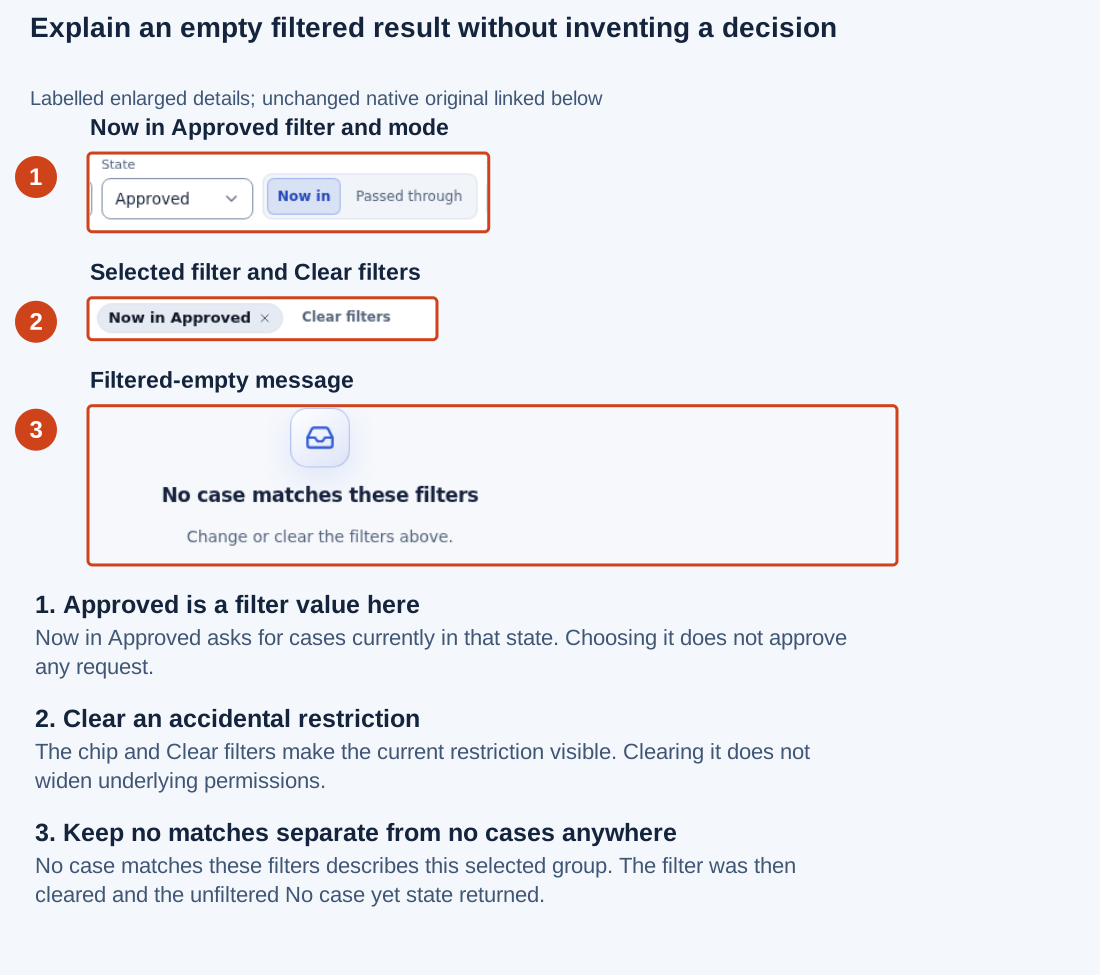
Actual filter inspection: Approved is a selected state filter. Clear filters removes that local restriction; it does not approve work or broaden permissions. Open the unchanged native 2560×1440 screenshot. The numbered guide enlarges labelled details from that single capture.
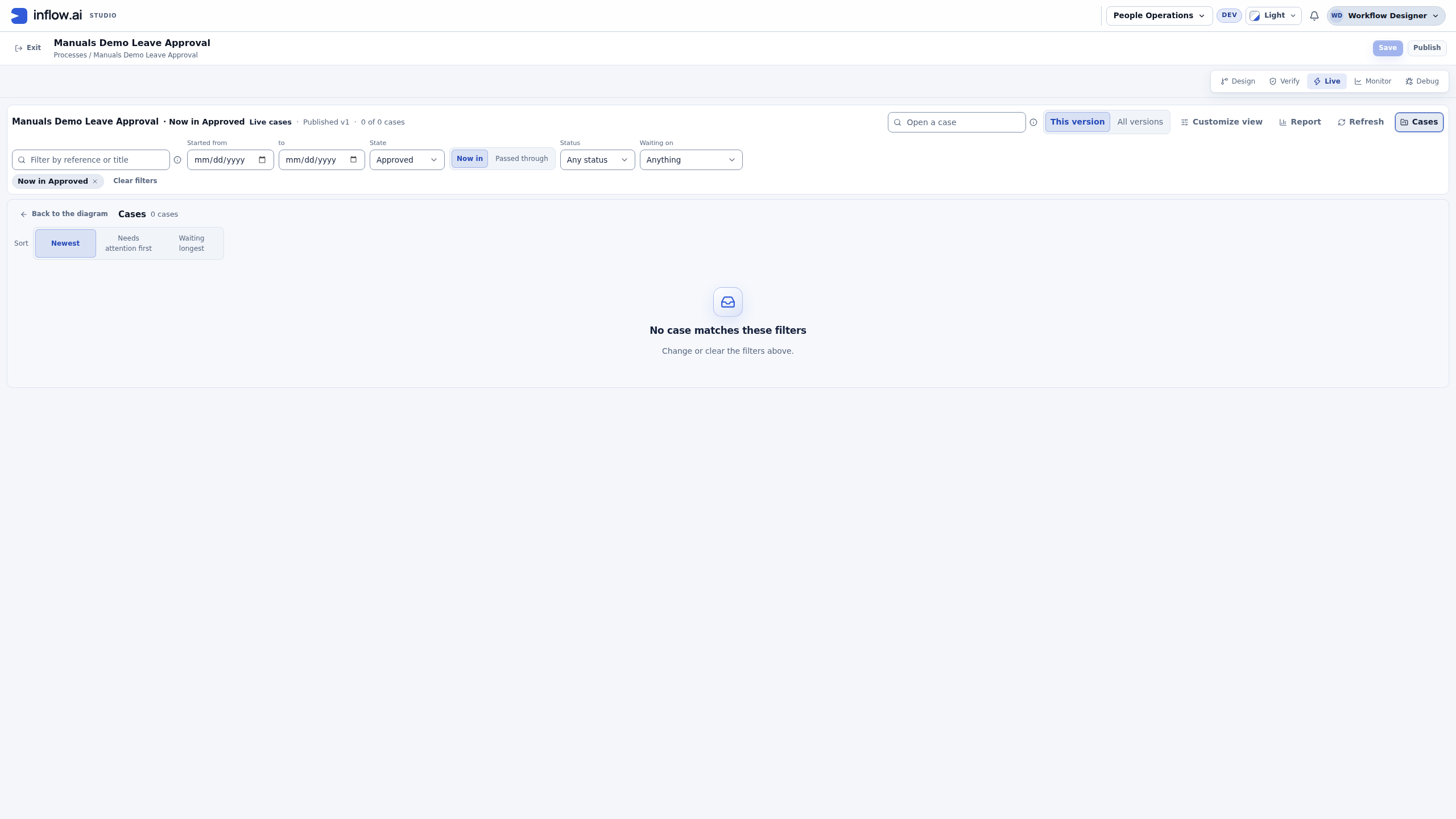
- Approved is a filter value here. Now in Approved asks for cases currently in that state. Choosing it does not approve any request.
- Clear an accidental restriction. The chip and Clear filters make the current restriction visible. Clearing it does not widen underlying permissions.
- Keep no matches separate from no cases anywhere. No case matches these filters describes this selected group. The filter was then cleared and the unfiltered No case yet state returned.
Example: explain why yesterday's request uses an earlier design
Nadia publishes a new leave process today. A request started yesterday still uses the earlier version.
- Open yesterday's request in Live and read its actual version.
- Compare the change described in the new version's publication notes with that older request.
- Explain that new publication affects the available design for new starts; existing work retains its own design unless it is deliberately moved.
- If a move is requested, hand it to an authorized person who can review the affected work and the proposed destination. See choose which requests use a new version for the current Live choices, the publication review and the separate dry run. Do not present a move as a harmless screen refresh.
This separation protects people in the middle of a process from an unexpected new form, missing step or changed decision. If the historical design is unavailable, say that the old view cannot currently be shown. Do not fill the gap with the latest draft and call it the original.
Check before intervening
Viewing a request and changing it are different responsibilities. Reassign, retry, pause, continue or move actions appear only when your current access and the case state allow them.
Before choosing any consequential action, read its explanation, check the selected request and its current work, and understand whether an external action may already have happened. Afterward, inspect the original request's result instead of repeating the action because the page was slow.
For the complete current Live controls and grouped-case operations, continue to Understand and manage live work.
Common mistakes
| Misunderstanding | Better interpretation |
|---|---|
| “It says running, so Sara must be filling the form.” | The process may be waiting for her to begin. Read the actual task. |
| “The newest diagram must describe every request.” | Open each request's actual design version. |
| “The list has no rows, so there are no requests.” | Check filters and whether the figures loaded. Unavailable information is not a zero count. |
| “Refreshing did not show a result, so submit again.” | Reopen the same case/task and inspect its recorded status first. |
| “Paused means nothing external happened.” | An already-dispatched external action is not recalled by pausing. |
Where to go next
Continue with Understand and manage live work. For implementation contracts and administrator/developer details, use the optional technical reference. You do not need that reference to follow this lesson.