Check your form before handing it over
A useful handover checks what someone can understand and do, not just whether a page opens. This guide helps a consultant check a Form and its published application with fictional examples.
A draft is the version you are editing. A published version is the released version people can use. Preview helps you inspect your work while authoring; the current published Live experience shows the released application. They serve different purposes.
Prepare a small checklist
Have the intended form, its expected record or workflow behavior, and the normal employee/manager roles ready. Use fictional details: Mohammad requests five days, 14–18 December 2026, with reason Annual leave. Agree whether this exercise is creating a new request or inspecting an existing one. Do not create the same request twice to restart the lesson.
Write down what success means: clear questions, helpful validation, the intended saved result and a manager task where the workflow calls for one. If a record or workflow step is not yet configured, say which check must wait.
Practise an authoring check before testing submission
Nadia first checks a small Control selection practice form. It has two Date questions and a required Text area. This saved draft has no Submit action. The pictures below show its interactive test, where entries stay in the session. They are separate from Mohammad's employee request and Sara's manager task later in this guide.
1. Start with one known missing answer
- Open the intended saved draft and choose Preview, then Interactive. Confirm the form title and read Test mode · your entries stay in this session.
- Use the format configured for each question. In the pictured form, both Date controls explicitly use yyyy-mm-dd with the Gregorian calendar. Enter
2026-12-07as Start date and2026-12-11as End date. - Leave Reason for leave empty. Its placeholder is a hint, not an answer.
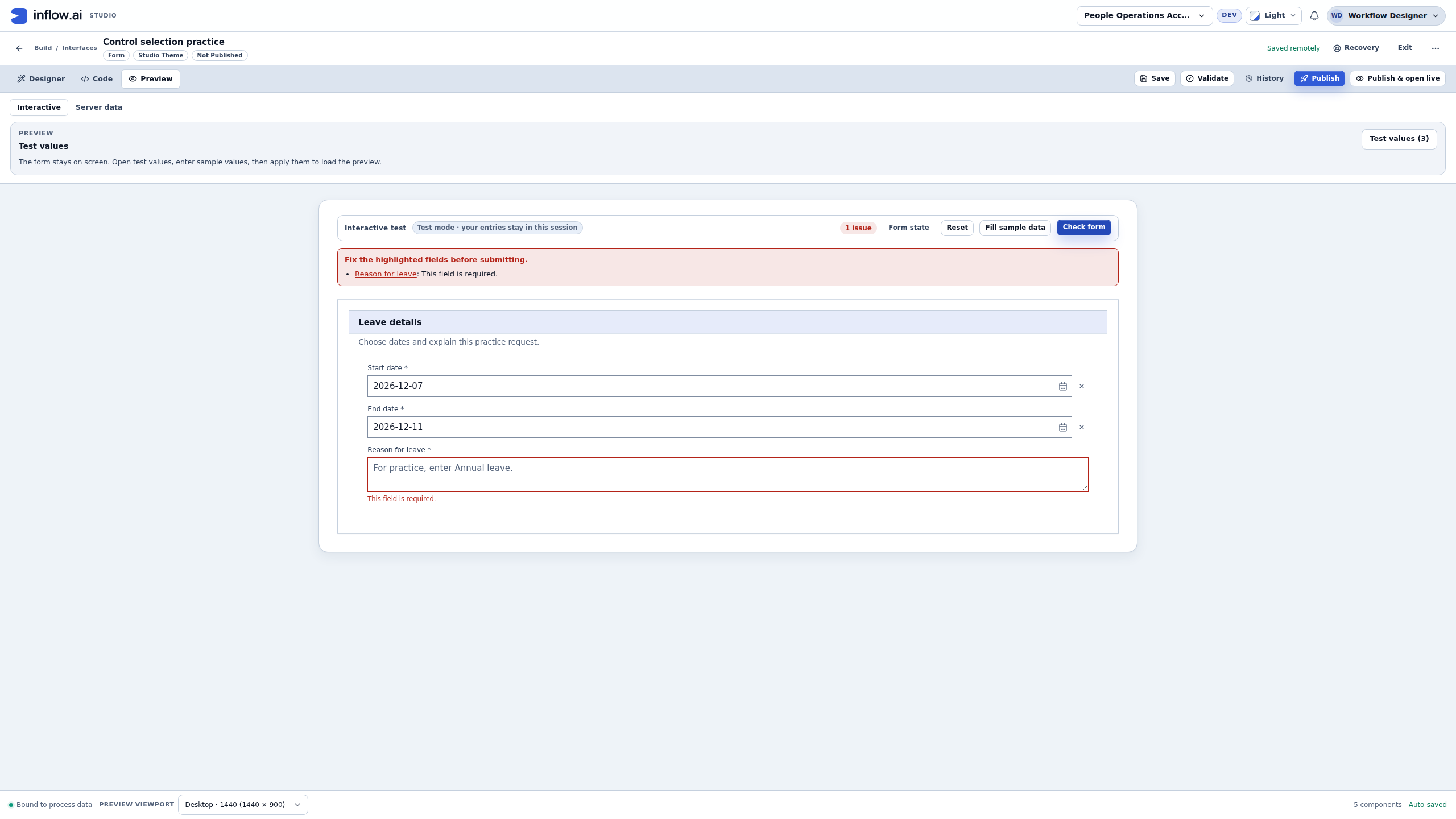
- Choose Check form. Expect 1 issue, identifying the missing reason while the dates stay entered.
- Read the linked summary and the message at the actual field. If a different field fails, compare the selected form and saved question settings before changing a rule.
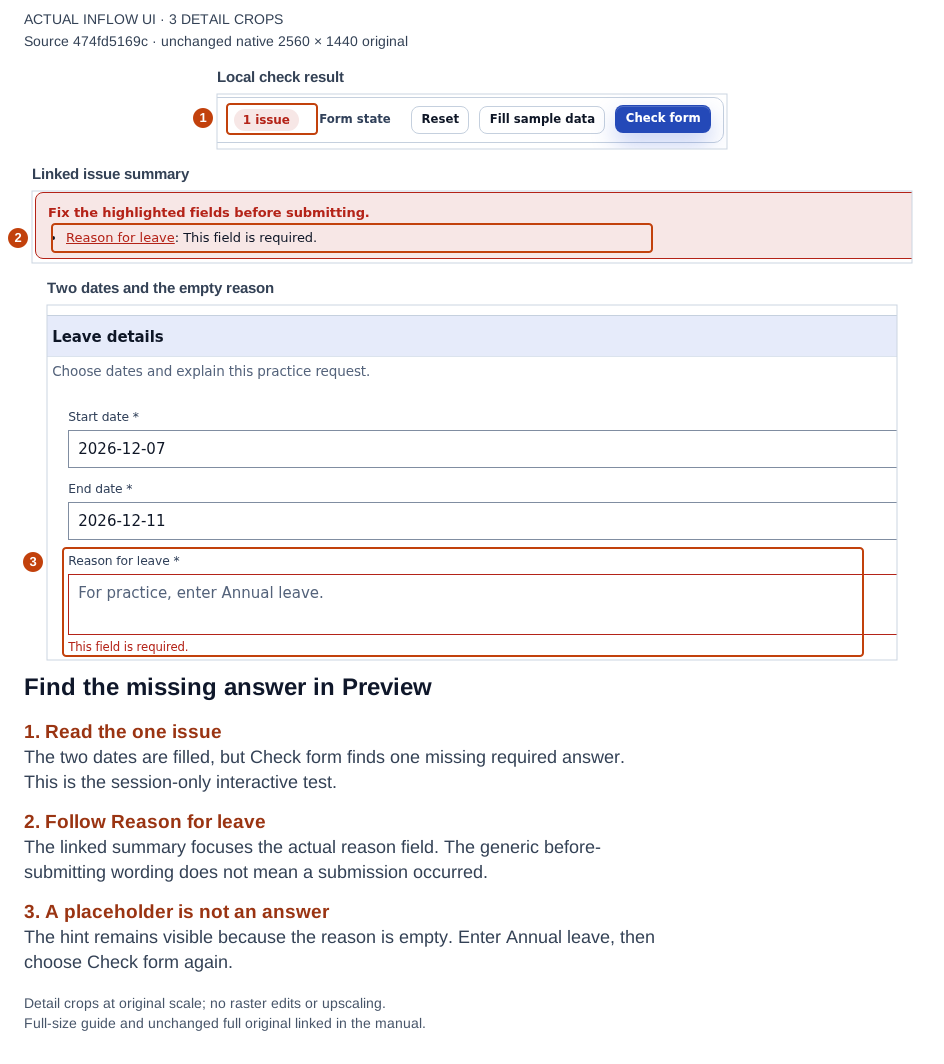
Two dates are entered and the required reason is empty. Check form identifies one local issue and retains the date answers. Open the full-size numbered guide; open the unchanged original screenshot.
2. Repair the named field and inspect its destination
- Choose Reason for leave in the issue summary. In this exercise it moves focus to the reason text area.
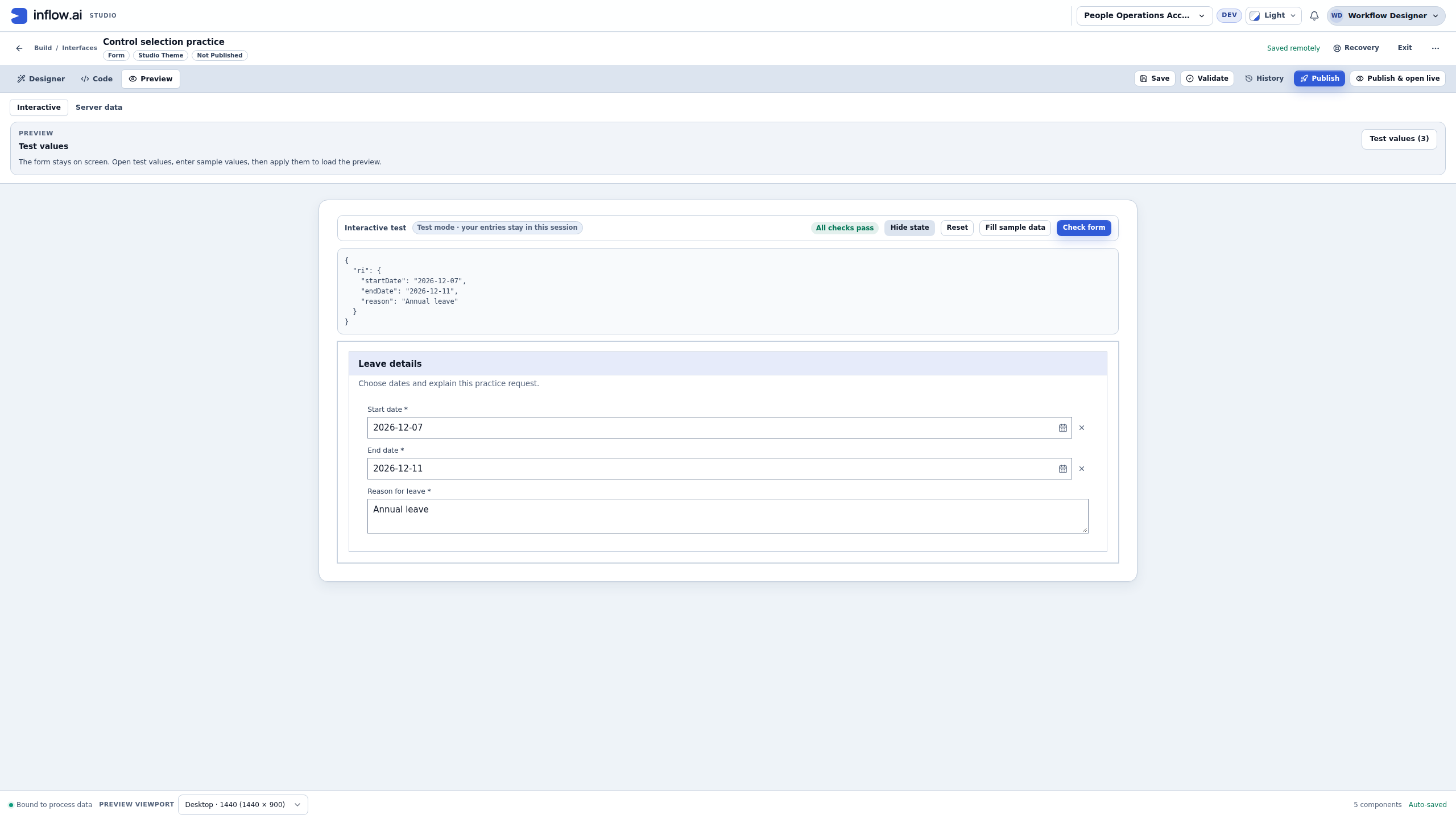
- Enter Annual leave, then choose Check form again. The result is All checks pass.
- Open Form state if you need to inspect the answer destinations. The displayed
riobject contains separatestartDate,endDateandreasonvalues. - Compare those values with the intended Inputs and binding chips. A friendly label alone does not confirm where an answer goes.
- Record the bounded result: these three local answers passed the form's configured checks. There has been no employee submission, saved request, workflow task or manager approval.
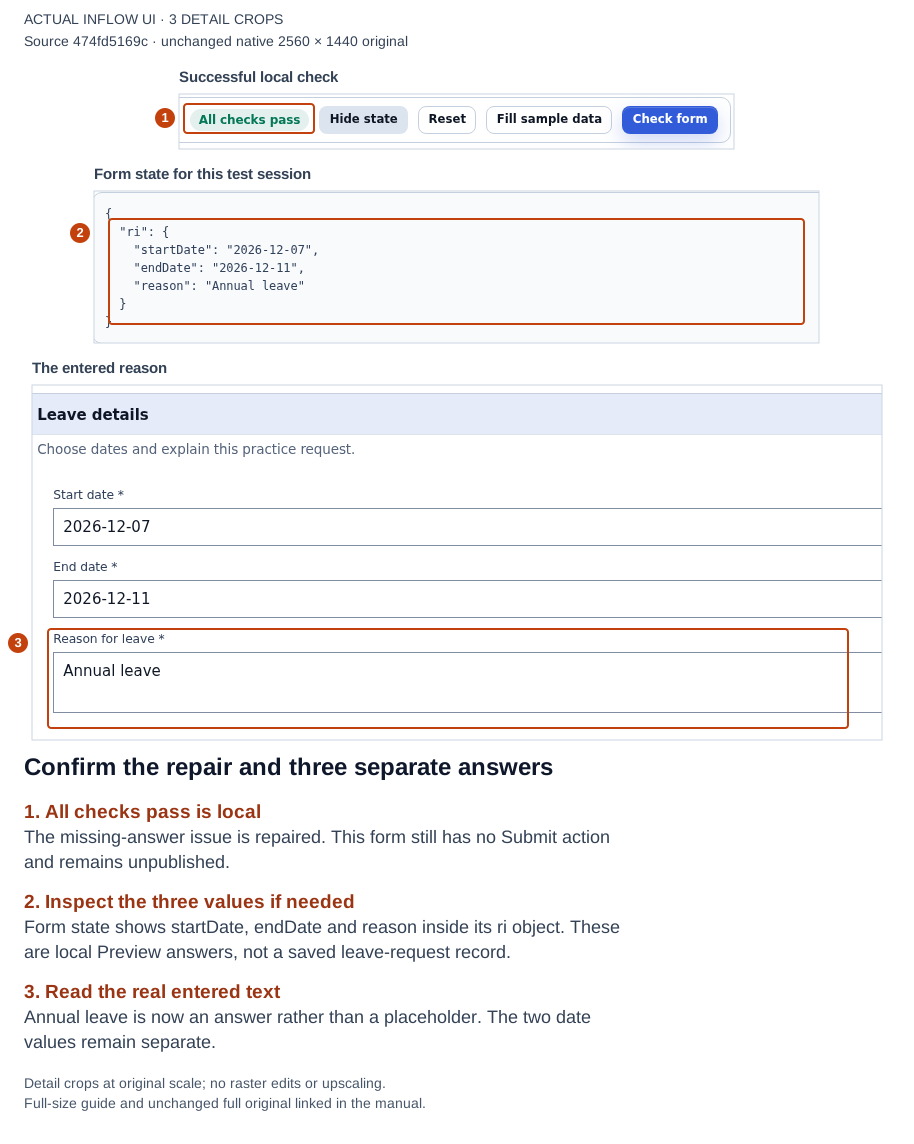
Annual leave repairs the local required-answer issue. Form state shows the three separate answers; no business record was submitted. Open the full-size numbered guide; open the unchanged original screenshot.
3. Reset test answers without changing the definition
- In the same interactive test, choose Reset, then Check form.
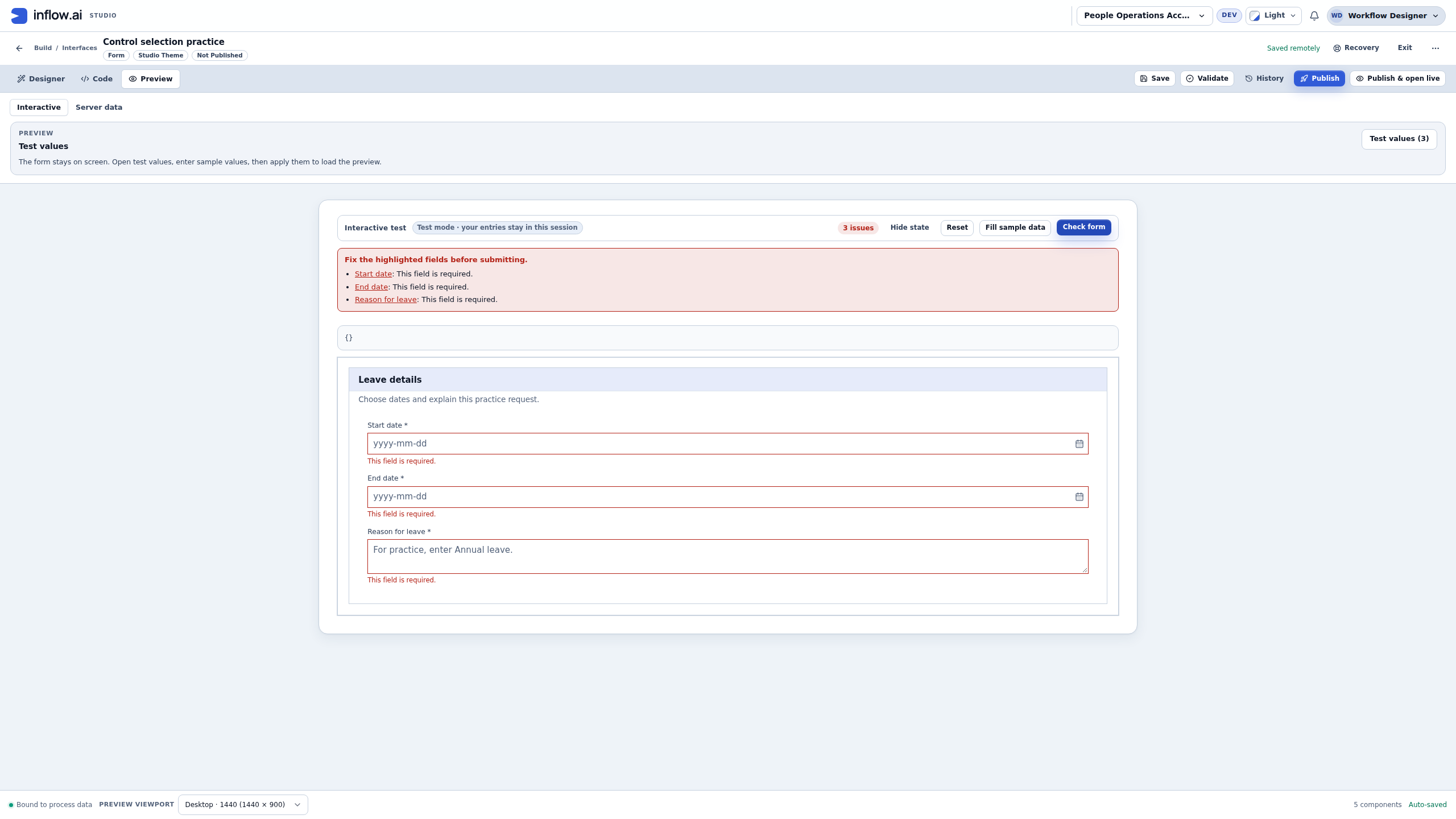
- In the pictured form, all three direct entries clear and 3 issues identify the empty required questions. Form state is empty, but the three questions still exist.
- Reopen the saved draft and return to Preview. Check the empty form again: the saved requirements should still apply.
- Enter the fictional dates and reason again. Recheck that the three answers pass.
- Keep this result separate from persistence. Reset here clears local test entries; it is not a procedure for deleting a real leave request or resetting a manager's task.
In another form, Reset can restore its starting values, including configured defaults or applied test values. Read that form's setup before expecting every field to become blank. This pictured exercise starts empty, which is why all three questions need answers again.
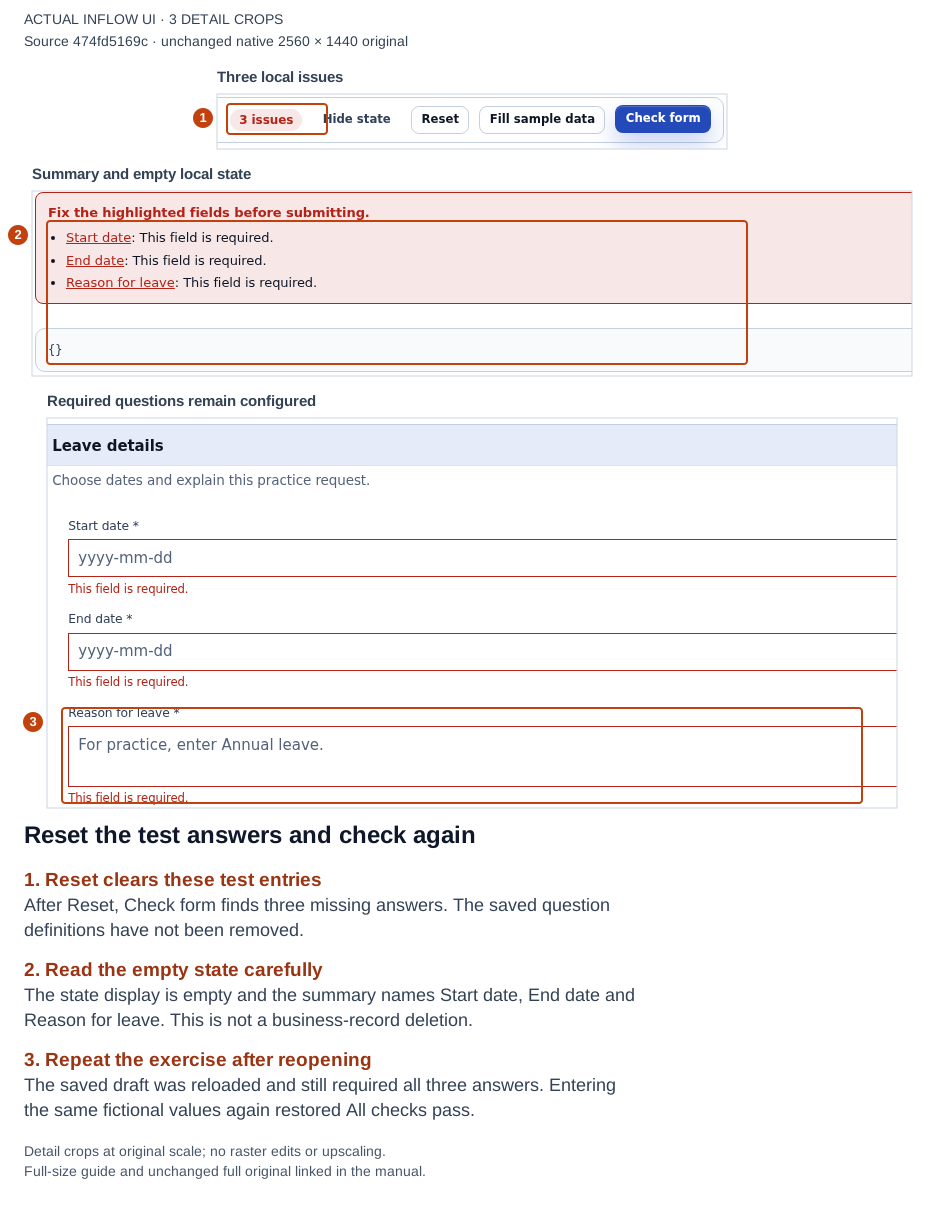
Reset clears the direct test entries, and Check form reports three required answers. The saved questions remain. Open the full-size numbered guide; open the unchanged original screenshot.
4. Inspect the built-in narrower frame
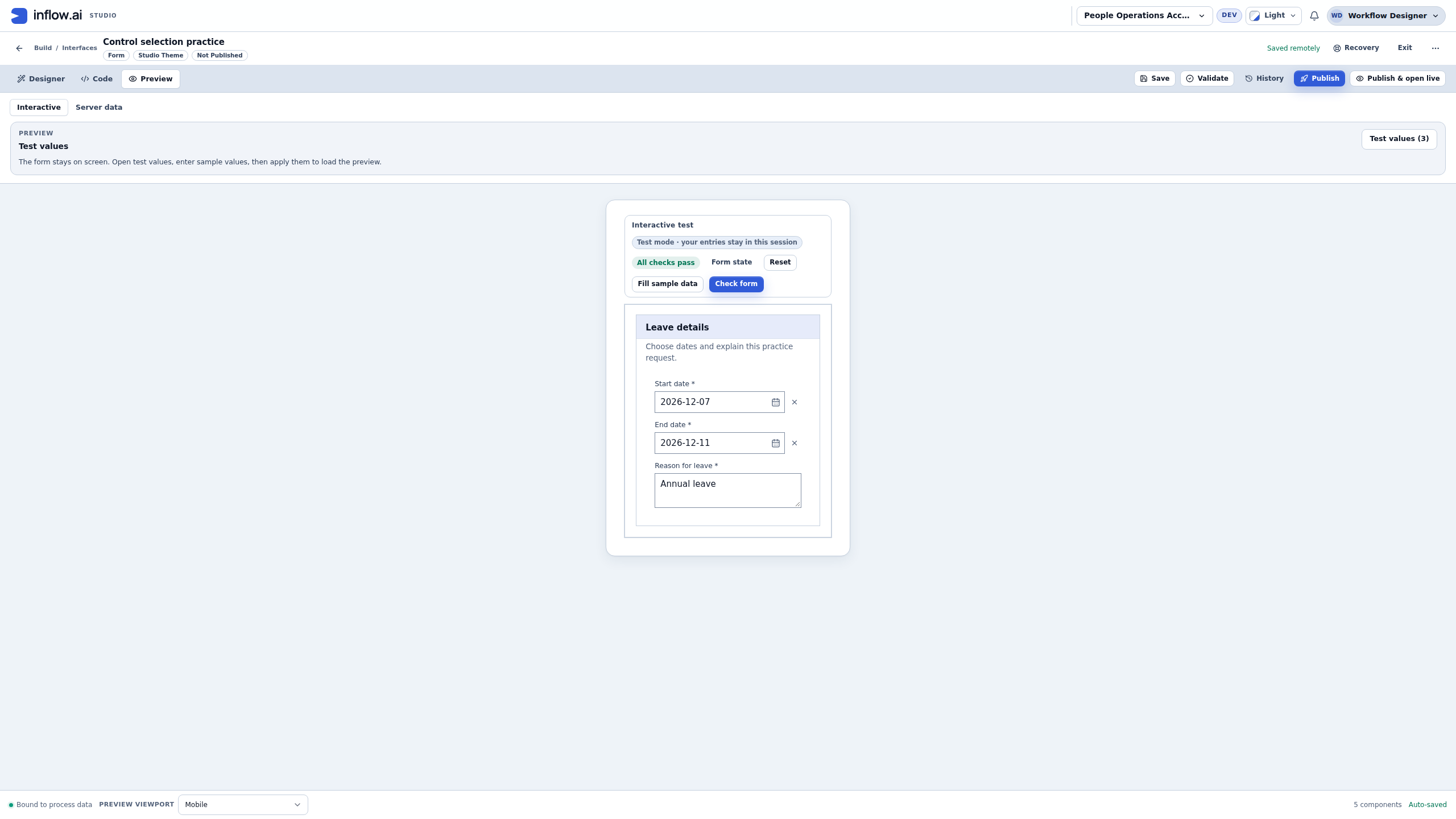
- Use Preview viewport → Mobile for a narrower authoring frame.
- Read the labels, values and help without guessing from a desktop layout. Use the frame's scrolling to reach every question.
- Repeat a missing-answer check in the frame when evaluating your own form, and follow its actual summary link.
- Check keyboard focus and any device-specific interaction separately in the browsers and devices your users need.
- Return to the intended desktop setting before continuing design. A Mobile frame inside a desktop browser is an authoring check, not a completed physical-phone or published-application test.
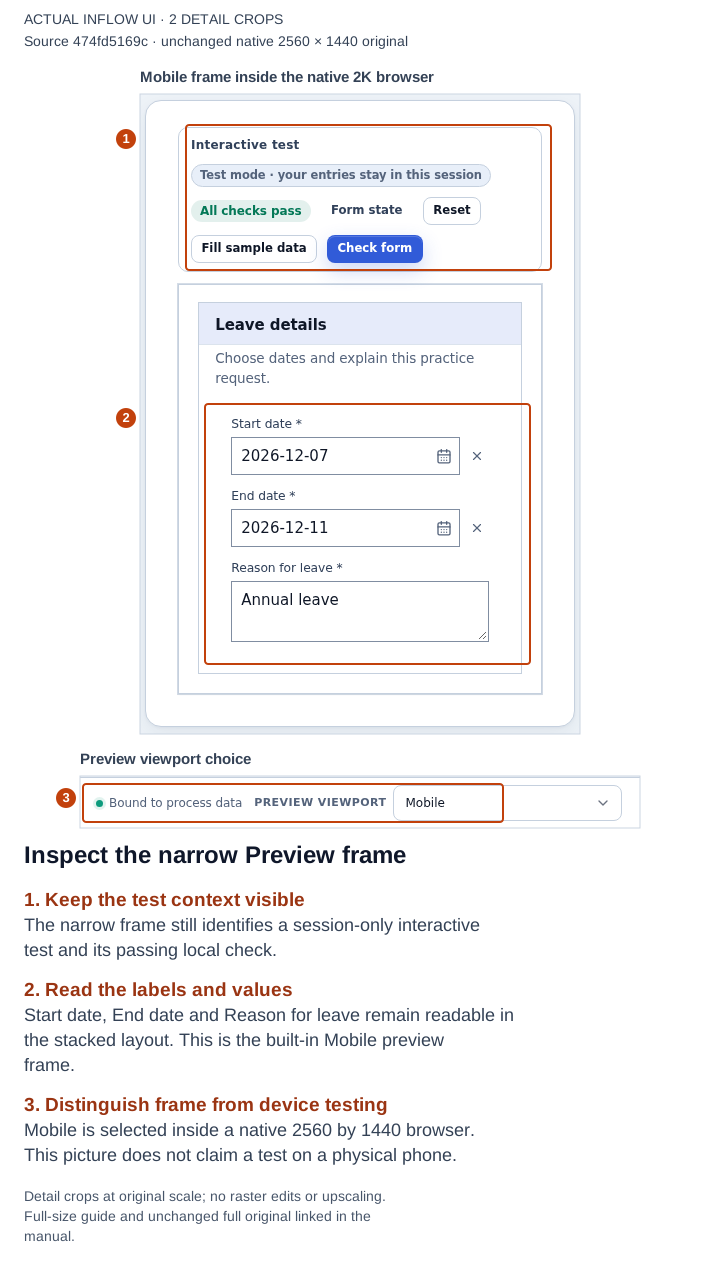
The built-in Mobile frame shows the filled practice form inside the desktop browser. This is separate from physical-device testing. Open the full-size numbered guide; open the unchanged original screenshot.
| What Nadia observed | Result she can record | Check still needed for the real application |
|---|---|---|
| Two dates stay present while the reason is missing | One local required-answer issue, with the entered answers retained | Published employee submission and saved request |
| The summary focuses the reason; entered text clears the issue | The pictured error has an understandable repair path | Keyboard and assistive-technology checks for the full application |
| Separate answers appear under ri | The local values occupy the intended separate destinations | Approved record/action mapping and durable result |
| Reset empties local answers; the reopened draft keeps its questions | Test entries and saved definition have different lifetimes | Task-answer persistence and business-record lifecycle |
| The built-in Mobile frame shows the stacked form | The depicted narrower frame is readable | Intended devices, browsers and the published journey |
The control-selection lesson explains how this particular practice form was built. Use the following examples to prepare the separate application checks; these local screenshots do not stand in for employee, record, task or approval results.
Example 1: complete a normal request
- Open the form in Designer and read its title, labels and help as a first-time employee would.
- Use Preview to enter the fictional dates and reason. Check the layout at a smaller width too.
- Move through fields with the keyboard. Check that labels, focus and messages are understandable.
- Check each result you expect from this authoring exercise. Capturing a value is different from saving a record or starting a workflow.
- After publication, repeat the supported journey in current Live with the intended normal employee account and an agreed fresh teaching request.
The person should know what to enter and what happened after submission. A success sentence is not enough if the expected request cannot be found through its normal application view.
Repair: if the wrong value is shown or saved, inspect Store value in and the configured action mapping. Do not change the label and assume that repaired the destination.
Example 2: make an understandable mistake
- Leave a required answer empty. In authoring Preview, use Check form. For the separately authorized published application test, use its intended submit action.
- Read the visible message. It should identify what to repair without losing the other answers.
- Fill that answer and try the valid case.
- If a date-order check was configured, enter an End date before the Start date. Read its message, then repair the order.
- If a conditional question exists, test both sides of the condition. For a five-day threshold, try two days and seven days.
A validation message should help the user continue. It should not expose a formula or a technical error as the only explanation. Do not create a condition just to hide a field whose permissions are wrong; access belongs to the application setup.
Check saving and leaving
- Change one recognizable field label, then wait for the saved status.
- Reopen the draft and check that the intended change remains.
- If you try to leave unfinished work, read the actual choices. Stay lets you repair or keep editing; Save and leave waits for saving; Discard and leave abandons remaining unsaved edits.
- When someone else changed the item, reload and compare the work before deciding what to keep. Preserve text you still need rather than overwriting the other change.
These checks concern the form's design. A manager's task answers have the behavior supplied by that task page. Do not promise that every embedded task surface automatically saves answers in the same way.
Example 3: check the employee and manager separately
- Publish through the normal review and open the current released application.
- Have Mohammad use his normal account for the employee journey.
- Have Sara use her normal account to open the eligible manager task after the workflow creates it.
- Check the question wording, supplied information, offered decisions and the actual result of the chosen action.
- Confirm that each person sees the pages and work intended for their role. Ask the administrator to investigate an unavailable page or task rather than borrowing a broader account.
An administrator seeing every page is not proof that employees have the right experience. The employee request form and the manager decision form should have distinct jobs.
Check each claim with the right evidence
| Check | Where to observe it | What this confirms | What it does not confirm |
|---|---|---|---|
| Wording and layout | Form Designer and Preview | The draft presents questions and messages as expected. | A published version or saved business record. |
| Save and publish | Draft save status and publication review | The edited draft was saved and a specific version was published. | That an ordinary user can open it or use its action. |
| Employee submission | Current published application as Mohammad | The allowed actor can perform the agreed submit action. | That a task was created or completed. |
| Saved request | Mohammad's normal permitted request view | The expected request is available through its ordinary record route. | That Sara can act on a task. |
| Manager task | Sara's assigned-task route (claiming it first when it is group-assigned) and that task's result | Sara can reach the eligible task and the selected action has an observed result. | That every downstream system or unrelated user's access was checked. |
If one stage is missing, stop at the last confirmed result and report that boundary. Do not use an administrator account to fill in an ordinary-user check.
Example 4: trace one request from form to task
Mohammad submits the fictional five-day leave request. Nadia checks each boundary separately instead of treating the form's success message as proof that the full process completed.
- In the published employee application, Mohammad submits the request once through the intended action. Record the visible confirmation and the request's business reference, if the application displays one.
- In Mohammad's normal permitted request list, check that the expected request appears with the five-day dates and the submitted reason. A row in the designer's Preview is not a saved request.
- If the configured workflow creates a manager task, have Sara sign in with her ordinary account and open it from her task list. For a group-assigned task, first choose Available to claim, then Claim and open; for a task already assigned to Sara, use its offered open action. Confirm it refers to Mohammad's request and offers only the configured choices.
- Sara chooses the agreed fictional decision once. Read the task's resulting status, then inspect the request through its normal application view to confirm the business state changed as the process specifies.
- If no task appears, keep the request reference and report the last confirmed step. Do not submit a second request to see whether the first attempt eventually created work.
| Observation | Evidence it supports | It does not prove |
|---|---|---|
| Form Preview shows the entered values | The draft form can display those values in Preview. | A record was saved or a task was started. |
| The submit screen shows success | The application displayed its response to that submit attempt. | The request is visible in the normal record view or the workflow completed. |
| Mohammad's permitted list contains the request | The intended user can read that saved request in that view. | Sara is eligible to perform a manager task. |
| Sara sees the matching task and completes the allowed decision | The task was available to that actor and the recorded task action completed. | Unrelated users can access the record or every downstream integration succeeded. |
| The published application shows the expected final state | That bounded user journey reached the observed business state. | Other roles, data sets or system failure cases were verified. |
Keep one reference for the original request and task when reporting a missing or uncertain step. The manuals on task persistence and live process views explain why an answer, task completion and business-state change can be separate observations.
Handover notes
Record the form/app name, the checked business examples, what you observed and any remaining issue. Use plain descriptions such as “End date can be before Start date without a message” or “Sara cannot open the expected review task.” Keep confidential information out of screenshots and reports.
Finish with Publish your changes and the connected app tutorial. Test engineers have the optional detailed manual-testing reference for specialist acceptance and evidence procedures.