Prepare and move an application release
A release is a numbered package of published application work. It lets a team move the reviewed design from one environment to another. An environment is the place where that application runs, such as development or staging.
This is application delivery, not server installation. Building a release does not add Inflow servers, upgrade the platform database or configure every target connection for you.
Before you begin
Agree the source workspace, the permitted target and the release owner. Publish the actual data models, rules, forms, App Shells and processes that belong in the release. Unpublished edits are not a substitute for those versions.
An authorized deployment administrator must prepare the environment's trust, permissions and any target connections. Trust lets the receiver recognize the sender; it does not give every person permission to release or import work. If you cannot see the required controls, ask that owner rather than changing the target's classification.
For learning, use an approved development or staging target. Moving to production follows the organization's supported release process and its separate restrictions.
Set up a release destination
An administrator with the platform-level deployment administration capability can define the named destinations that workspaces use for release planning. This creates an Inflow environment record; it does not provision a server, install Inflow, create a database replica or make the destination resilient. Choose a name that describes the real receiving system and its transfer direction rather than a topology promise such as “active-active.”
-
Open Authorization → Deployment → Environments, then choose Add environment. If the page is unavailable, ask the platform administrator who owns Deployment administration; do not borrow another person's access.
-
Enter a display name of up to 80 characters, such as User acceptance, and an immutable key, such as
uat. A key is 2–40 characters: it starts with a lower-case letter, then uses lower-case letters or digits, with any hyphen separating nonempty letter/digit groups. It cannot end in a hyphen or contain repeated hyphens. Choose the intended key before saving; avoid the reserved keysall,orderandhistory. -
Select the environment's purpose: Development, Test, User acceptance, Staging, Production or Other. Choose the purpose that matches its governance. The type is a release-destination classification, not a server topology selector. Production has additional confirmation when it is retired and has separate release safeguards.
-
Choose a colour label to help people scan the pipeline. Colour does not authorize an action or change how a release moves.
-
Choose how the release reaches the environment. The transfer choice decides who calls whom. It is fixed when the environment is added: editing an environment shows it read-only. To transfer another way, add a new environment. A pushing environment's saved address is also probed for a health observation from this server; a pulling environment is never called from here.
Transfer choice Select it when Connection direction The environment pulls The target must not accept inbound calls, or should initiate everything itself. The target initiates pairing and every exchange: it checks in with this source and picks up work. This source never calls it, not even to check its health, so no address is needed. This server pushes The source is allowed to initiate an outbound connection to the target. The source calls the target. Offline transfer The package is carried between separately controlled systems by an approved human procedure. No address is entered and there is no online connection check. Package inspection and the target's own import admission still apply. -
For a pushing destination, enter its full HTTPS address, for example
https://uat.example.com. A pulling destination needs no address (you may record one for reference; it is never called). Do not place usernames, passwords, query strings or fragments in the address. Private destinations may be refused by the server's outbound-address policy; ask its authorized owner to review the exact destination. Do not route around that control. -
Choose the responsible environment owner from the active people directory. The owner field is a person assignment, not a server credential or transfer grant.
-
Save and review the environment row. Confirm its name, type, transfer direction, address, owner and active status. The key cannot later be renamed; if the key is wrong, resolve it with the administrator before linking workspaces or grants to it.
Do not start pairing inside the creation dialog. First save the environment, then confirm that both administrators are working with the same source and target names.
Pair after saving the environment
Use the transfer direction chosen above to select the pairing flow. Both server administrators must independently compare the displayed fingerprints and confirm that they match before the relationship becomes trusted.
If the target pulls:
- On the source server, open Authorization → Deployment → Environments and use Issue pairing code on the saved pull environment.
- On the target server, open Authorization → Deployment → Trust, choose Pair with a source, and enter the source server's address and the pairing code.
- The target calls the source. Compare the fingerprints using the organization's approved independent channel; confirm on both servers only when they match.
- If the target's call reached the source but its answer was lost, the target's Trust page lists the pairing under Waiting to hear from a source. It holds one of the target's 64 pull links until it ends. The pairing cannot be completed once its answer was lost: choose Abandon on the target (a late answer is then refused). On the source's Trust page, Reject the pairing if it is still undecided there; one already confirmed there ends when it expires. Then ask the source for a new code and pair again.
A target can pull from at most 64 sources. Pairing is refused before any call when that limit is reached, or while calls of an earlier, revoked link are still stuck (try again when they end). When the server is busy with calls to other sources, Trust says a link is waiting for transport capacity: the source has not been asked yet, and nothing is wrong with it.
An environment that was paired the old way (this server calling it) before it became a pulling environment shows Paired the old way. On the source's Trust page, Revoke a trusted pairing or Withdraw a pending one. Withdrawing ends it on this server without contacting the target. Then issue a pairing code, so the target pairs from its side.
If the source pushes:
- On the target server, open Authorization → Deployment → Trust, choose Accept a source, and give the pairing code to the source administrator through the approved channel.
- On the source server, find the saved push environment and choose Pair. Enter the target-issued code. The source calls the target.
- Compare the fingerprints using the organization's approved independent channel; confirm on both servers only when they match.
Pairing establishes server identity only. The target administrator must still configure the specific peer access grants, and workspace-level release and asset permissions still apply. If the pairing reply is lost or the fingerprints are uncertain, read both Trust pages and the existing link status before issuing another code.
For example, Nadia creates User acceptance with key uat, type User acceptance, The environment pulls, the target's HTTPS address and its active owner. The source administrator issues a pairing code for uat; the target administrator enters the source address and code on the Trust page, then both compare and confirm the fingerprints. The row now describes an online target relationship. It does not say a release has been built, approved, transferred or imported.
Read the connection result correctly
For a pulling environment, nothing is probed. The row shows when the environment last checked in (it checks in by itself about every 15 seconds while it runs), plus its last health and inventory answers. Test and Refresh inventory queue a job that the environment picks up at its next check-in. The row follows the job in words: waiting for the environment to check in, running on the environment, then answered or failed with a reason. Jobs lists recent jobs; a person who may run them can Cancel a waiting or running job. A retired environment keeps Jobs (so waiting jobs can still be read and cancelled) but offers no Test or Refresh inventory. A job that is not picked up within a day expires. One that runs longer than ten minutes, or stops answering three times, fails. The environment admits each job with its own peer grant: without a server grant for this source it answers not allowed. A scheduled health check also queues a job for each paired pulling environment.
These controls follow your permissions on that environment. Reading its jobs needs deployment administration and the environment's View permission; running and cancelling them also need its Administer permission. Without them, the controls are not shown. While an environment pulls, its workspace targets, configuration choices, credential checks and comparisons cannot be read from here yet; those screens say so and send no request. They arrive in a later release.
For an active pushing environment, Test connection asks this server to probe the configured address through its outbound policy. Read the result and check time; a refusal such as Address not allowed, Not reachable, Certificate not valid or No answer in time identifies a different issue. The background check also records observations for active online destinations. Retired and offline environments are not probed.
A reachable, trusted HTTPS endpoint is only a connectivity observation at that time. It is not proof that the peer link is confirmed, the caller has a deployment grant, target configuration is populated, a package will pass inspection, or a business application works. Those are separate checks with their own owners and results. Offline transfer has no address to probe; inspect and admit the original package at the receiving system under its approved procedure.
If a destination needs retirement, review the affected workspace mappings and release plans first. Retirement preserves its history and existing grants, blocks new grants and health checks, and removes it from the active pipeline. Retiring a Production environment requires typing its exact displayed name. An authorized administrator can restore an environment later; restoration does not create a new peer link or prove its connection.
Example — inspect the UAT destination before saving
Nadia is preparing a fictional User acceptance destination for the Leave requests handover. She first checks what the destination record controls. This practice stops at Cancel, so it does not add a destination or contact another server.
Identify the page and the saved state
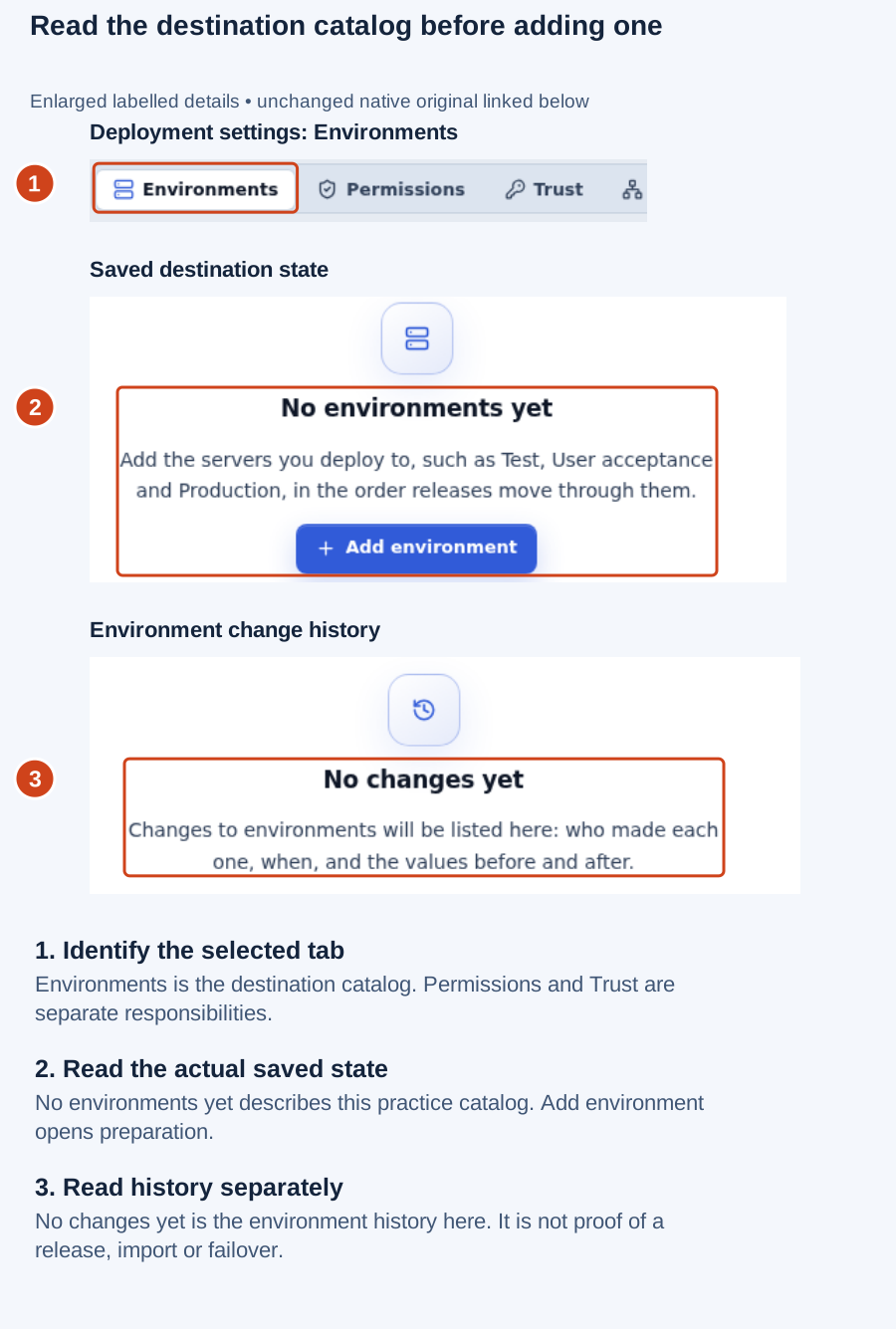
Practice observation, 18 November 2026: this signed-in administrator sees No environments yet and No changes yet. These are platform destination settings, separate from the workspace name in the top bar. The numbered guide enlarges labelled details from the same screenshot. Open the original screenshot.
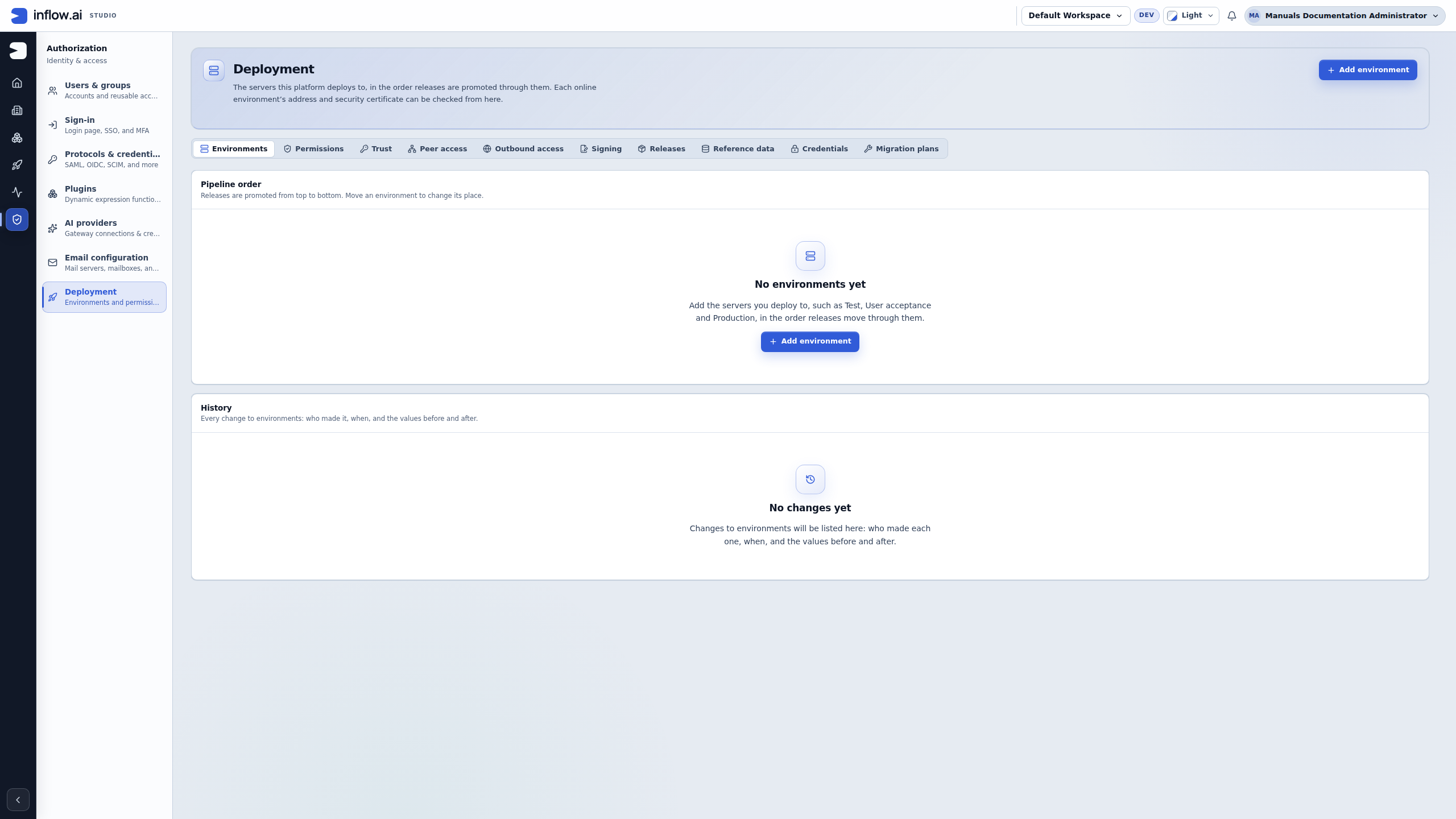
Read Environments as the catalog of destination records on this platform. The neighboring Trust, Permissions and Releases tabs answer different questions: which server is recognized, what actions a person may perform, and which published work has been packaged. An environment name, color or connection label cannot answer all three.
Prepare an online destination
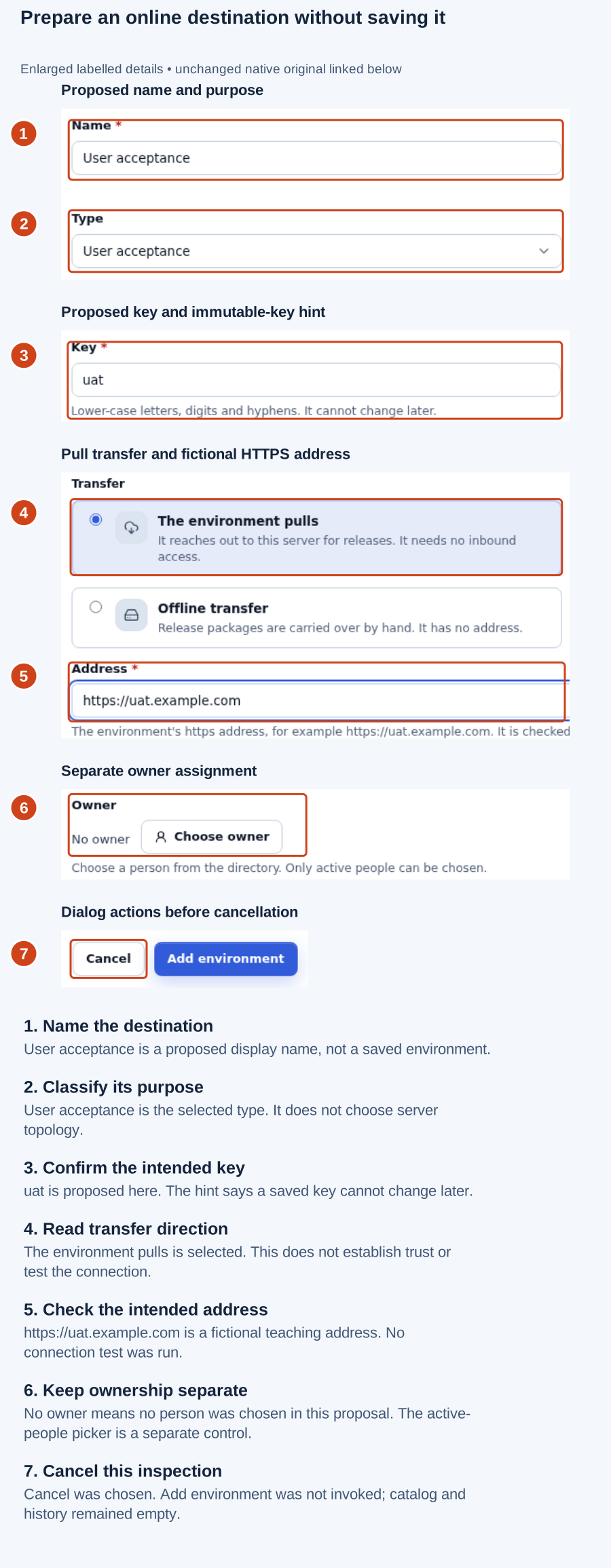
Proposed values: User acceptance, uat, The environment pulls, https://uat.example.com and no selected owner. The form was cancelled. The numbered guide enlarges labelled details from the same screenshot. Open the original screenshot.
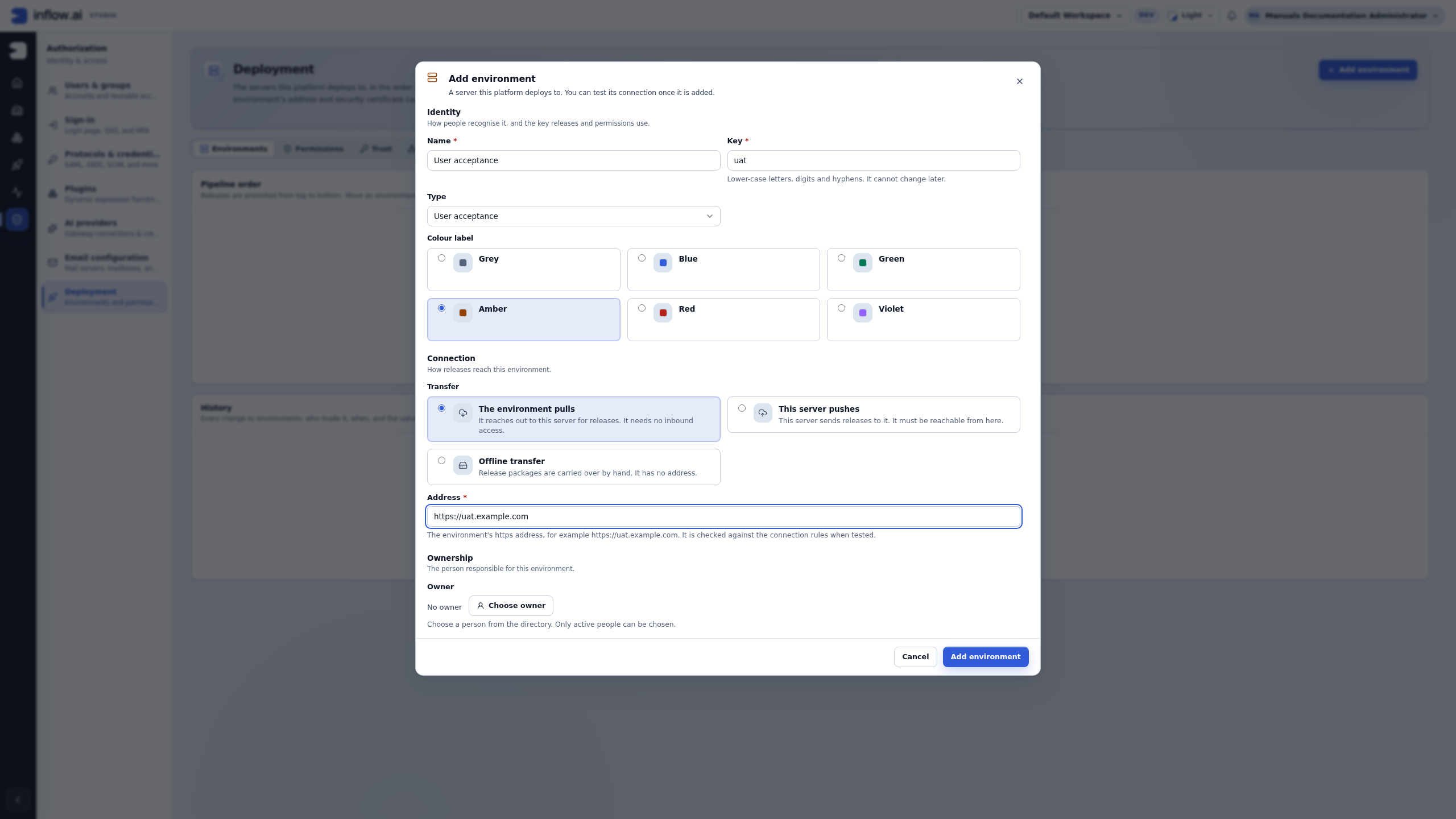
- Open Add environment. Enter User acceptance as the name and
uatas the intended key. Confirm the key before the first save because a saved key cannot be renamed. - Select User acceptance as its type. This describes the destination's purpose; it does not select a node topology.
- Read The environment pulls as the release-transfer direction. Enter the agreed HTTPS address.
https://uat.example.comis a fictional teaching address, not a tested destination. - Review the separate owner assignment. No owner means no person has been selected in this proposal. When your procedure requires one, use Choose owner and an offered active person; typing a contact into the address cannot assign ownership.
- Check the fields with the receiving administrator before saving in real work. In this practice, continue to compare the offline choice and then cancel.
A complete-looking form is still a proposal. No environment has been created at this point. An enabled button does not establish that the address is reachable or trusted.
Compare offline without changing the deployment pattern
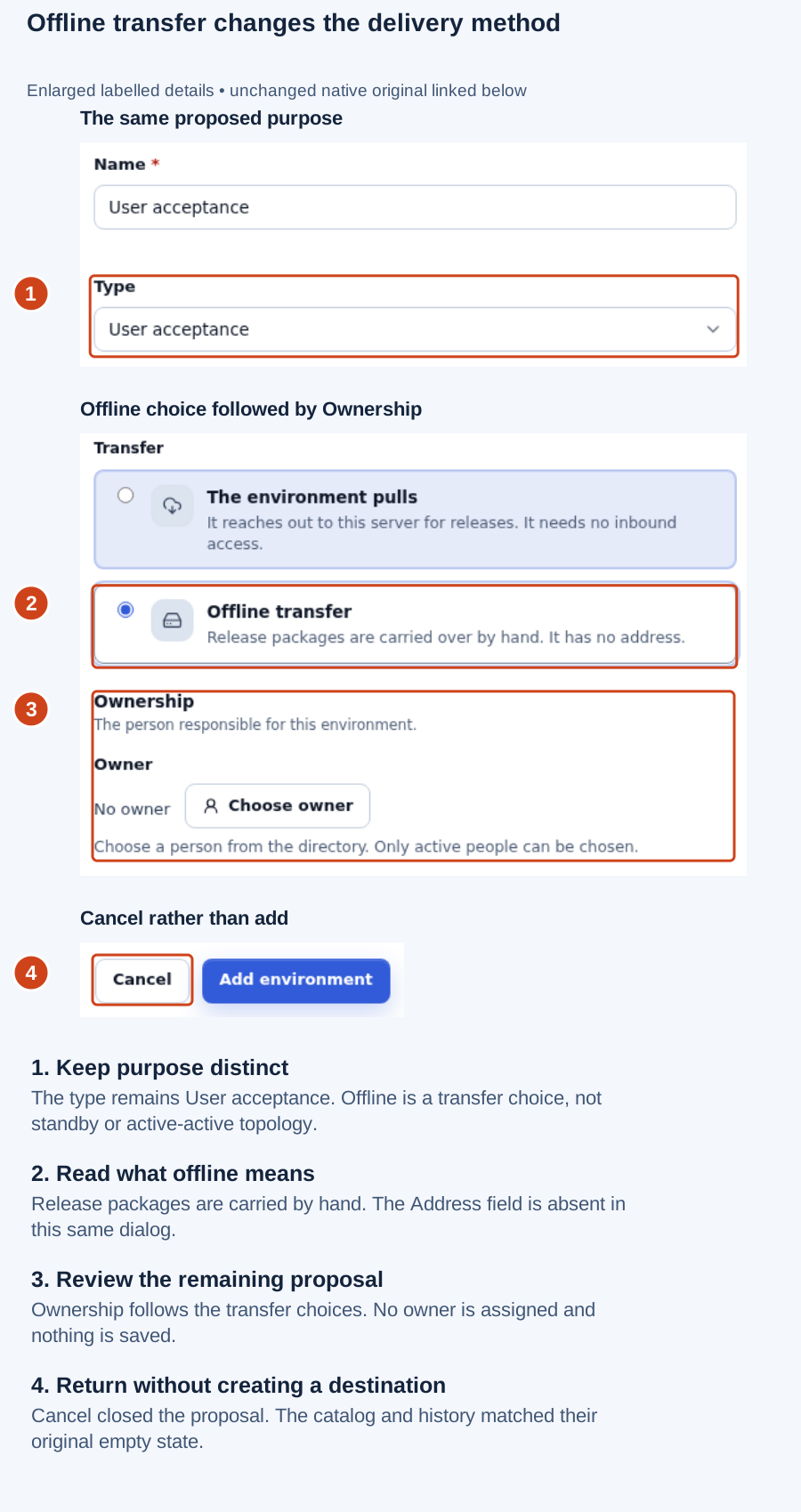
Compare the same proposal: Offline transfer is selected, Address is absent and Ownership remains. Cancel returns to the unchanged empty catalog. The numbered guide enlarges labelled details from the same screenshot. Open the original screenshot.
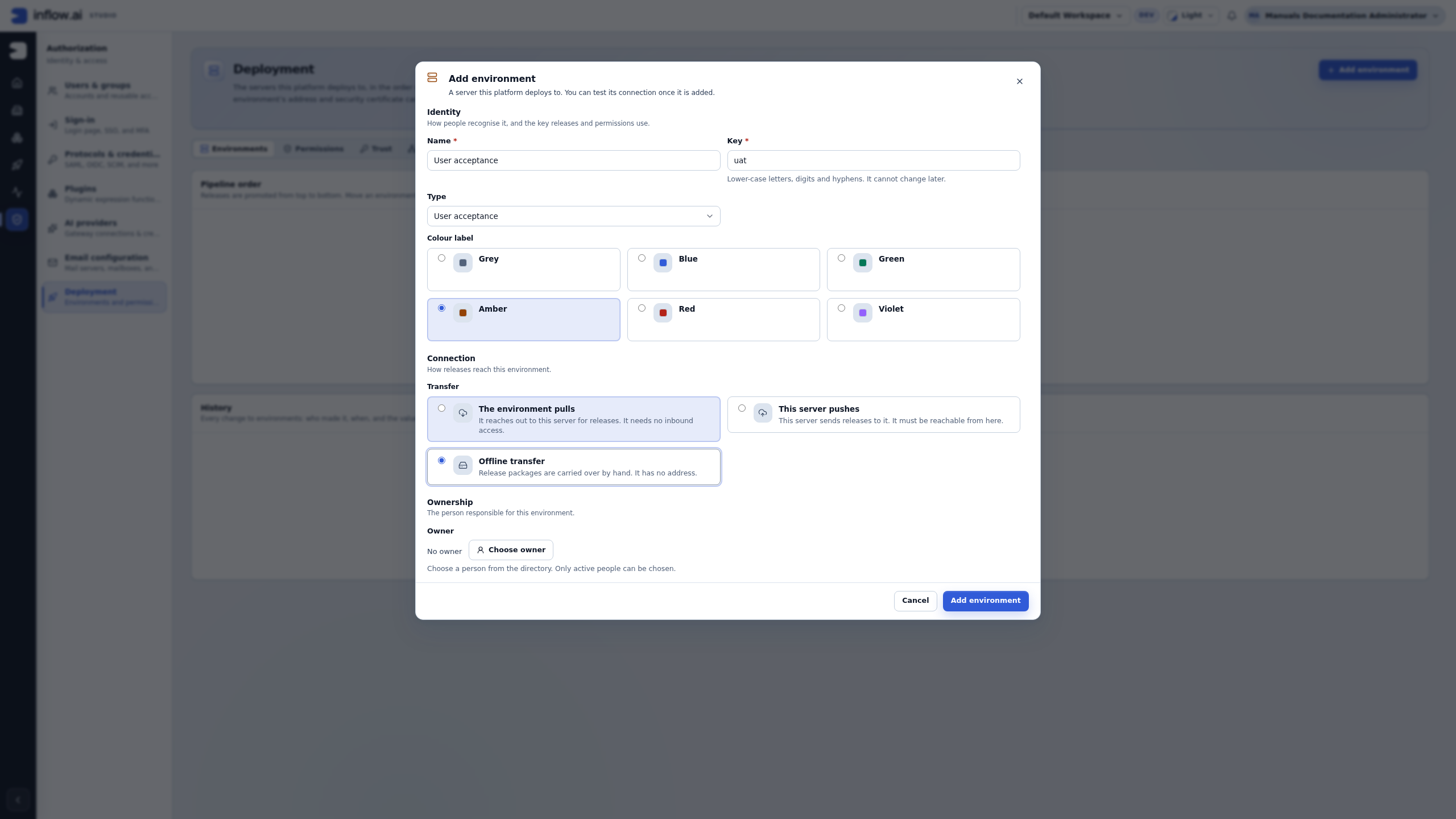
Choose Offline transfer and observe that Address disappears. Packages are carried through the approved human procedure; this choice does not create a standby site, install Inflow or remove the receiving server's signature, content and import checks. Read the final proposed name, key and type, then choose Cancel. The environment catalog should still describe the original saved state. If your real save reply is uncertain, inspect that state before attempting another creation.
What can an administrator automate today?
Studio is the documented workflow for preparing and reviewing a workspace release. The platform also exposes HTTP operations for parts of that preparation. Those operations do not add up to a supported end-to-end deployment CLI. The server makes the same authorization and target checks on HTTP requests as it does through Studio.
| Administrator task | Current route | What a successful result means | What it does not mean |
|---|---|---|---|
| Select and build a release | Studio's release page, or the release API described in the technical reference | A numbered, signed package exists for the selected source workspace and scope. | The target has received or imported it. |
| Check release requirements | Release detail and configuration views | The package's requirements and the recorded state of values for environments visible to your account. | The destination server has those values, credentials are valid, or the application can connect. |
| Prepare trust, grants and target mapping | The administrator pages, with corresponding server APIs described in the technical reference | Named servers are paired and the required scoped permissions or workspace mapping are recorded. | A peer link alone grants transfer permission, or the release contents have moved. |
| Create a workspace on a paired push target | The workspace's Deploy → Deployment targets action, when the target and server configuration allow it | A destination workspace has been created or the creation request has reached its recorded outcome. | The source release was deployed into that workspace. |
| Inspect a package | The target's workspace import screen and the documented inspection API | The target reports whether that specific import path can proceed. | An inspection is not an import receipt, completed deployment or business acceptance. |
| Import a package | The target's workspace import screen and its import API, when the inspected release and target are admitted | The target returns an import result for that specific package and workspace. | Every whole-app release is eligible for direct import, or that the resulting application works for its users. A release requiring governed delivery may be refused. |
| Deploy a complete release or roll it back | No complete supported workflow or customer-facing CLI is present in this repository | Nothing beyond the separately available preparation and target operations. | Do not report a release rollout, production deployment or rollback as completed. |
Visual map: supported preparation, conditional delivery, and the operator boundary
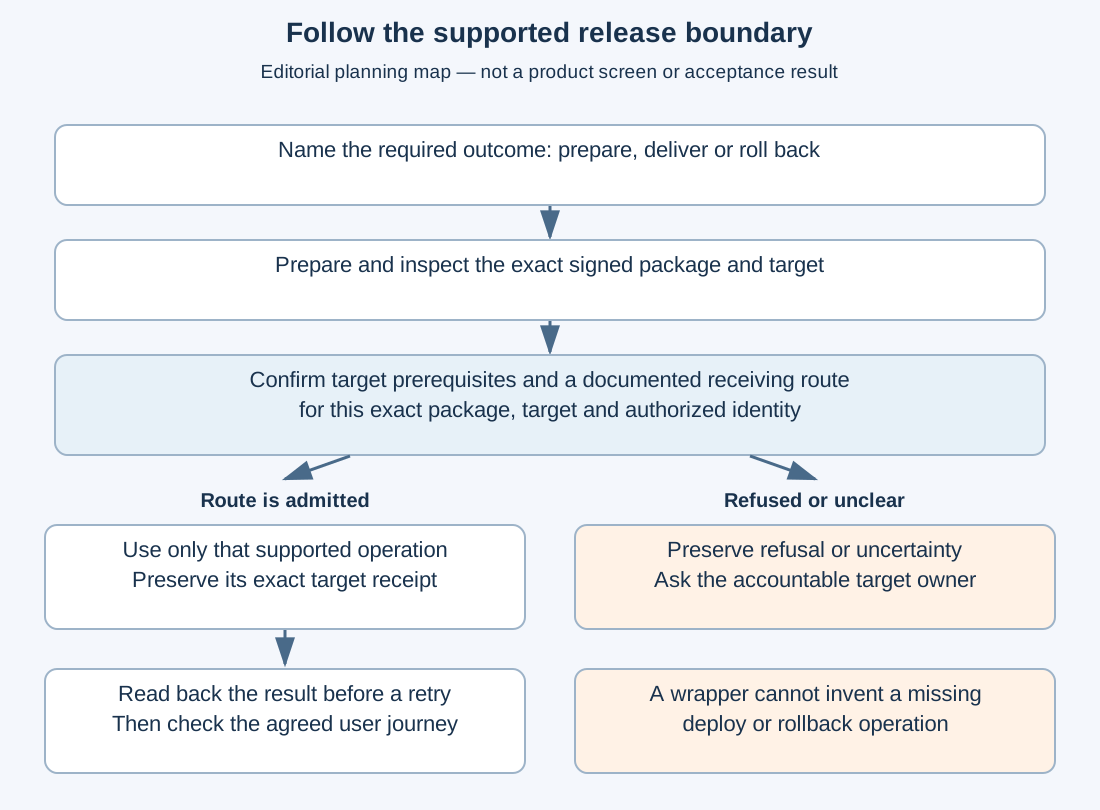
How to use the map: first identify the result the organization needs. Package preparation, package inspection, target delivery and business acceptance are separate outcomes. A script can make a reviewed sequence easier to repeat only when each step has a documented operation and approved identity; it cannot turn a missing full-release deploy or rollback route into a supported Inflow feature. If the target refuses the package or the response is uncertain, keep that exact result, ask the target owner to read back the original operation and pause before retrying. A package fingerprint, successful HTTP response or operator-owned status label is not a substitute for checking that employees and managers can complete the intended journey.
This is a planning schematic, not a screenshot, API contract, or evidence of a live release. Use the linked technical reference for current request/response shapes and permissions. The administrator illustrations above show destination preparation and release eligibility. They do not complete the planned ROOT-P13 release and ordinary-user outcome scenes. This editorial diagram is separate from screenshot evidence.
Choose an automation boundary
Use the following sequence when an operations team asks for a script or command-line tool:
- Name the desired result. “Build a signed release” is different from “apply that release to staging,” and both are different from “roll staging back to release 11.” Record the workspace, release scope, target and final user journey.
- Check the current supported operation. If the task is release listing, candidate review, building, configuration review, download or inspection, the technical reference documents the relevant HTTP contract. Use its current request and response shape rather than guessing from a UI network trace.
- Keep target preparation separate. Pairing, peer grants, outbound policy, configuration values and target workspace mappings have their own owners and checks. Do not bundle their setup into a convenience script unless the platform administrator has approved that specific change path.
- Stop at an unavailable operation. A missing complete deploy or rollback workflow is a product boundary. Do not simulate it by combining export/import calls, reclassifying a target, disabling an admission check or retrying after an uncertain result.
- Require an operator review for internal automation. Before a team writes an internal wrapper, the deployment owner should confirm the exact identity, scoped grants, supported endpoints, secret storage, audit trail, timeout/retry behavior and how the operator will read back the final target state. The wrapper must report “prepared,” “inspected,” “refused” or “pending” accurately; it must not label a release “deployed” merely because a build or download returned successfully.
- Keep the business acceptance check. After an admitted delivery route is used, the application owner still needs to verify the agreed employee and manager journeys through the normal target address. A healthy API response or a package fingerprint does not prove those journeys.
For example, Nadia can use an approved API client to list the current People Operations release candidates, build a signed package and record its release number and fingerprint. The target administrator separately confirms the staging pair, grants, plugin availability, configuration requirements and workspace mapping. If staging refuses direct import because the release requires governed delivery, Nadia preserves the signed file and refusal, reports release prepared; staging delivery pending, and asks the deployment owner for the supported route. She does not script around the refusal. When a supported route is available, the owner records its target result and the application owner checks the agreed leave-request and manager-review journey.
An administrator can make the handoff more repeatable with a small review record containing the source workspace, release number and fingerprint, intended target, selected scope, target-owned connections, outstanding requirements and the agreed user journey. An internal check can compare those values before a person continues in Studio. That comparison confirms package identity and plan only; it does not prove that the target accepted the package or that an employee can use the application.
Example: report what an operator-owned wrapper actually knows
The following is an illustrative report format for an organization's own script. It is not an Inflow CLI, an Inflow response schema or a promise that every step has an API. The wrapper owns the field names and status words. Copy the release number, scope and fingerprint from the actual release detail; never fill them from a guess. A wrapper's case_ref is only its own support reference. It is not an Inflow operation ID, idempotency key or permission to repeat a request.
If inspection says the direct import is refused because the release needs a separately governed route, an operator-owned report could show:
| Wrapper-owned field | Example value |
|---|---|
case_ref |
ops-uat-2026-11-10-004 (the organization's support reference) |
source_workspace |
People Operations |
release_number |
12 (copied from release detail) |
release_fingerprint |
The exact fingerprint copied from release detail |
target / scope |
User acceptance / WHOLE |
package_state / inspection_state |
PREPARED / REFUSED |
delivery_state / business_acceptance |
NOT_ATTEMPTED / NOT_RUN |
next_action |
Preserve the signed package and refusal; ask the deployment owner for an admitted route. |
This record says a package was prepared and the inspected route was refused. It does not say the target changed. If a request was sent but the response was lost, the wrapper must preserve the ambiguity instead of converting a timeout into success or failure. Its report could show:
| Wrapper-owned field | Example value |
|---|---|
case_ref |
ops-uat-2026-11-10-005 (the organization's support reference) |
release_number / release_fingerprint |
12 / the exact fingerprint copied from release detail |
target |
User acceptance |
delivery_state / retry_state |
UNKNOWN / PAUSED_PENDING_READBACK |
business_acceptance |
NOT_RUN |
next_action |
Ask the target owner to reconcile the original request and target state before any retry. |
Use the approved readback available to the target owner. If it cannot establish what happened to the original request, keep the state UNKNOWN and escalate to that owner; do not submit a second request just to obtain a cleaner report. Even a confirmed native import result is a separate statement from employee/manager acceptance of the application journey.
Check whether your workspace is offered
Open Authorization → Deployment → Releases before expecting a release-building action. The example below uses the same demo administrator as the destination walkthrough.
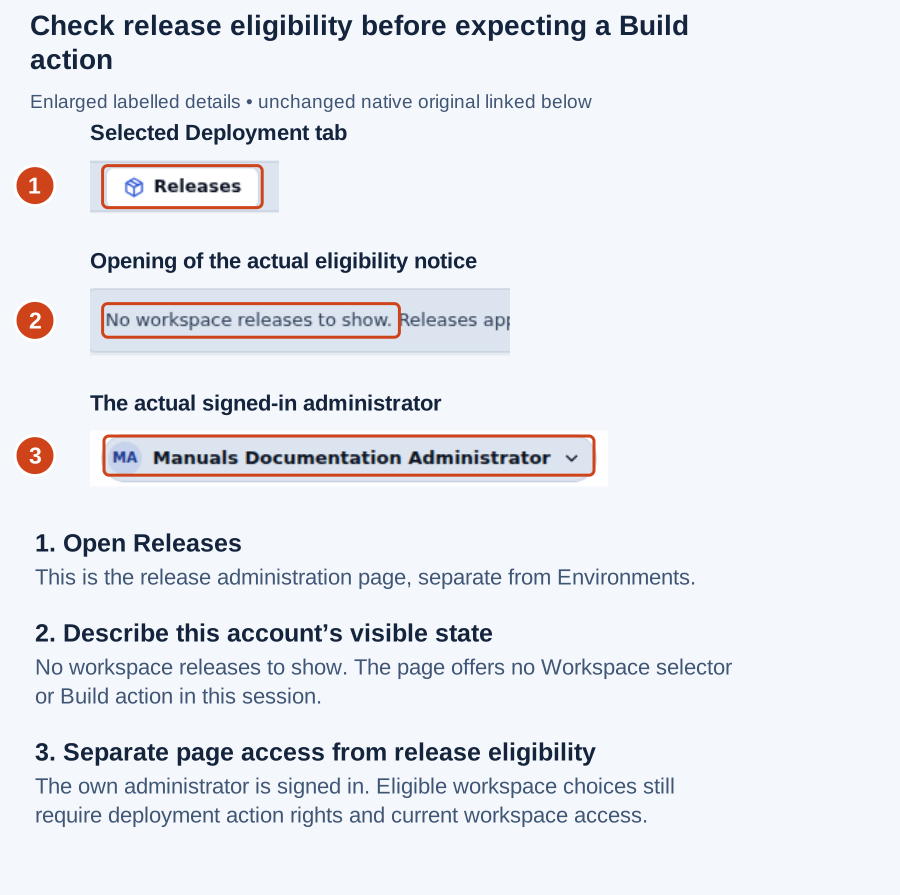
Actual observation: No workspace releases to show appears, with no Workspace selector or Build a release action. This describes the choices available to this account at this time; it is not a release count for People Operations or for the server. The numbered guide enlarges labelled details from the same screenshot. Open the original screenshot.
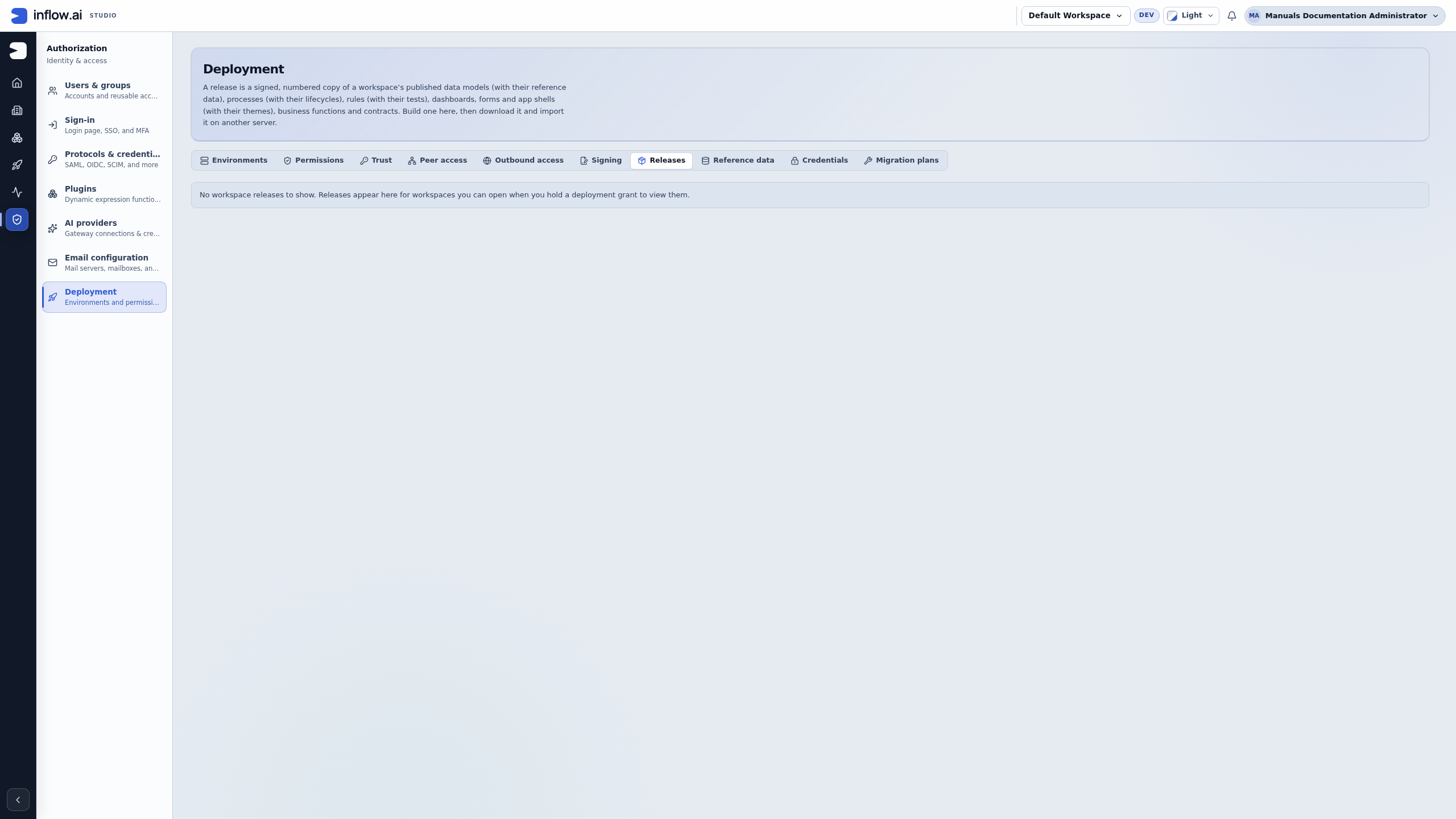
Ask the deployment owner to check the intended active workspace, your current workspace access and the relevant deployment action grant. Opening Deployment administration does not itself confer release VIEW or BUILD. A grant also does not widen your workspace access. The owner should resolve the actual missing prerequisite rather than infer one specific cause from this notice.
The actions are separate. These conditional examples explain what may be offered after the owner checks access; only the empty-choice state above is illustrated here.
| Offered workspace rights | What you may be able to do | What to avoid assuming |
|---|---|---|
| VIEW with the required workspace access | Read the releases and assets you are currently allowed to see. | Viewing gives you permission to build or download a package. |
| BUILD with the required workspace access | Build an allowed release; the resulting package can open when that build completes. | The existing release list must also be readable. BUILD-only workspace choices are possible. |
| Both actions, with the required workspace and asset access | Use the offered list and build actions within that scope. | The same rights authorize a receiving target, import or production deployment. |
Continue the next procedure only when the intended Workspace and required action are actually offered. This walkthrough did not open a build dialog or asset picker, create a release, change a grant or inspect hidden release state.
Build a release of People Operations
Use this procedure when the release owner has confirmed the intended workspace and the build action is offered. The earlier eligibility screenshot stops before these steps.
- Open Authorization → Deployment, then Releases.
- Select People Operations in Workspace. Check that this is the intended project and source environment.
- Review the Package contents panel before building. It shows the default scope for new releases, whether reference data travels in whole-workspace releases, and any assets left out. If the panel is still loading, wait for it before opening the build dialog; the build action waits for this policy so it cannot silently use a guessed default.
- Choose Build a release. Under What to release, the dialog starts with the workspace's saved default. Confirm The whole workspace when all published application work belongs together, or Selected assets when the owner agreed a smaller release. You can choose the other scope for this release; the setting is a starting choice, not a lock.
- For selected assets, choose the actual items in Assets to release. The release also includes the published items those choices need; a smaller list is not permission to leave dependencies broken.
- Review the selection and choose Build and sign. Signing lets the receiver check who produced the package and whether its protected contents changed.
- Open the resulting release. Read its number, source workspace and included items. Check why dependent items were included when the release explains that relationship.
- On builds that show Configuration it needs, read it before handing off the release. It lists connected-system settings (for example
connector.crm.base-url), credential requirements such asconnector.crm.credential, and target bindings such asref:group:air-checkin,ref:role:crew-scheduler, a contract alias, or a document location required by the release. It reports requirements and presence, never credential values. Older releases may show that the list was worked out from the package contents instead of being saved when the release was built. If your installed build does not show this section, do not infer that a target is ready; ask the deployment administrator which version-matched check to use. - Check the environment columns that you are permitted to see. Ready means the required items in this workspace's configuration plan for that environment have the expected kind and a value recorded. It does not mean the destination server has received or applied those values. An environment marked with a missing count needs attention before deployment. If no environment columns appear, you may not have permission to view configuration for any environment. You can still read what the release needs, but you cannot conclude that a target is ready.
- Read each item state and ask the deployment configuration owner to resolve it in this workspace's Deploy → Configuration grid, in the column for the intended receiving environment:
- Set means a value for that environment is recorded in this workspace's deployment configuration. The release view reports its presence and kind, not the value itself; it does not read or change the destination server.
- Missing means the item is defined but has no value in that environment. The target owner supplies the environment-specific value.
- Not defined means this workspace has no configuration item with that key. If you have configuration-management access, choose Add to this workspace on that row. The action above the rows reads Add the missing item when one item is missing, or Add all N missing items for multiple items, where N is the displayed count. This creates the release-required key, kind and required flag without a value; the owner then supplies the approved value for the intended receiving environment in the configuration grid. People, groups, roles, contract aliases and document locations are selected from choices offered by the paired destination server for the workspace mapped to that environment; do not type or guess those values. If the target workspace is not mapped, or the expected choice is no longer offered, ask the deployment owner to review that target mapping or target-side item. If you cannot manage configuration, ask its owner to do this.
- Different kind means this workspace already has an item under that key, but its kind does not match what this release needs. Because the item's kind is shared across its environment values, this mismatch can appear in every environment column. Have the owner resolve it; do not rename or repurpose an item without checking its other uses.
- Optional items can be absent without contributing to the environment's missing-required count. Keep them in the handoff if the application needs them for a particular optional journey.
- Use the release's download action when the agreed delivery method requires a package file. Keep the file unchanged for the target review.
For example, a release may show Test — Ready and User acceptance — 2 missing. In User acceptance, the required connector.crm.base-url and ref:group:air-checkin may both be Missing. The deployment configuration owner checks the User acceptance column in this workspace's configuration grid and records the approved endpoint and group mapping for that environment. Do not copy a credential or endpoint value from Test simply to turn the status green. Recording these values does not deliver them to the destination; the authorized deployment process must separately confirm what was applied. Reopen the release and confirm the requirement status after the owner has completed the change.
What you should see: a numbered, signed release for the chosen workspace. You can inspect or download that same release again. A successful build is not a successful target import, and it does not change a running employee request by itself.
Compare a release or run its checks before handoff
Use Compare with an environment on the opened release when you want to ask a mapped, trusted receiving environment what it can read and what may block this release. This check does not install the release or change the target. The panel is offered only when the source workspace has an eligible mapped environment and your deployment access allows the request. The target administrator must also have enabled comparison for that workspace. If the panel is absent, ask the deployment administrator to check the mapping, trusted link and grants; do not try a hidden URL or another account.
- Open the specific signed release and confirm its release number and source workspace. Do not compare a different release just because it has a similar name.
- In Compare with an environment, choose the intended destination, such as User acceptance, then choose Compare. This asks the receiving server how the release relates to the workspace mapped there. Nothing is installed.
- Read the result timestamp and every blocking finding before you prepare a handoff. The asset rows can say New there, New version there, Added by this release, Changed, Same, Conflict, Not compared or Not readable there. The version shown for the target belongs to that target server; each server numbers its own versions.
- Read notices separately from blockers. A notice gives context, such as a running case staying on its current version; it is not the same as a release refusal. A blocker means the release needs an owner to resolve the named issue before the team treats this target as ready.
- Choose Dry run when the target's asset checks should also run. Read the completed, failed and blocking counts, then inspect each named row. The receiving server rolls back the validation transaction, so the dry run does not keep those validation writes. It checks asset validations; it does not rehearse the deployment runner, guarantee import, or prove that the application works for an employee.
- After an owner resolves a blocker through the supported workflow, run a fresh comparison or dry run. A previous result is a dated record, not a live refresh. Opening it from Earlier comparisons shows the saved result and says it was not run again.
Read each target row before you decide what it means
Read the target version, release version and Change label together. The label describes this release against the selected destination; it is not a deployment receipt. If a difference panel is available, open it before asking an owner to resolve the row. The receiving account may be unable to read target details, and secret-like differences are deliberately withheld.
| Change shown | What it means in this comparison | Safe next step |
|---|---|---|
| New there | This release adds the asset to the destination. | Check that this is the intended new asset and that its prerequisites are included or already available there. |
| New version there | The release will add a version for an asset already present on the destination. | Check the target version and activation choice, then ask the asset owner to review any reported impact before handoff. Each server numbers versions independently. |
| Added by this release | This release contributes the asset to the destination. The label alone does not reveal whether the receiving account can see an existing matching asset or its version. | Use only the row details the target permits this account to read. Ask the target owner if you need an authorized review of its state. |
| Changed | An asset is present there, with content that differs from this release. The row may offer a before/after view. | Review the changed fields and target context with the asset owner. If values are withheld, ask an authorized owner to compare them through the approved channel; do not copy a secret into chat or the release notes. |
| Same | The destination already has the same content for this asset. | Treat this as a comparison result only. It does not prove the full application journey or deployment succeeded. |
| Conflict | The destination cannot accept this asset as-is. The finding can describe ownership, changed content, an open local draft, a moved function, a changed contract or a newer active version. | Read the specific finding and route it to the relevant target or asset owner. Use an adoption or ownership workflow only when the finding specifically identifies that condition and an authorized owner approves it. Compare does not adopt, overwrite or import the asset. |
| Not compared | This comparison cannot determine the result for that asset; governed deployment handles it through its own process. | Keep the row visible in the handoff and ask the deployment owner which approved governed path applies. Do not interpret it as Same or remove it to make the report look clear. |
If the Change label says Not readable there, the receiving deployment account could not read that asset. The report intentionally withholds target-side detail; ask the target administrator to investigate with an authorized account. Do not infer that the asset is absent. If a dry-run row says Validation failed, share the named asset and the safe failure summary with its owner. A validation badge is separate from a comparison difference, and a failed check is not repaired by rerunning the same saved result.
Recover from a result you cannot use
- The panel is missing: check whether this release has an eligible mapped environment, then ask the deployment administrator to confirm the trusted link and your deployment access. Do not try a guessed URL.
- The target refused the request or could not be reached: record the displayed refusal and time, then ask the target owner to check its link, workspace grant, deployment account and network. A refusal, timeout or empty report is not evidence that there are no blockers.
- The result is old: use Earlier comparisons to identify the saved timestamp, then run Compare or Dry run again when the owner is ready. Opening history does not contact the target.
- A row is blocked: route the finding to the named asset, configuration or target owner. After the authorized correction, request a new comparison or dry run; the old result remains historical.
- The result is clear: use it only as one handoff input. Follow the separately approved deployment process, then check the agreed employee journey in the destination before describing the application as ready for users.
Example: find a blocker before the User acceptance handoff
In this fictional example, Nadia opens People Operations — release 12, chooses User acceptance and runs Dry run. The target reports three asset checks: two pass and one fails. A required CRM address is missing from that environment's release configuration, and one rule differs from the release. The report also notes that an existing case remains on its current version.
Nadia records the failed validation and missing setting as blockers for the deployment owner. She asks the configuration owner to enter the approved User acceptance value in the source workspace's environment configuration, and asks the rule owner to review the difference. She treats the existing-case message as a notice and follows the application's normal case-migration decision; Compare does not migrate it. Once the owners have completed their work, Nadia opens the release again and runs a new check. She does not describe the old result as current, call a clean dry run a successful deployment, or claim that employees can use the target app before the agreed business journey has been checked there.
If the receiving environment refuses the check or cannot be reached, preserve the refusal and ask its deployment owner to reconcile the link, workspace grant, deployment account or network condition. An empty or unavailable report does not mean that nothing blocks the release. The technical reference explains the bounded report and the exact source/target checks.
Set package contents for future whole-workspace releases
The Package contents panel on Authorization → Deployment → Releases lets a workspace deployment owner set what future whole-workspace releases include. It is a per-workspace package rule. It does not edit published assets, change releases already built, provision a destination, or authorize an import.
Read the current policy
- Open Authorization → Deployment → Releases and choose the source workspace.
- Wait for Package contents to finish loading. Read these rows before building:
- New releases start with says whether a new build dialog begins at The whole workspace or Selected assets. You can still choose either scope in an individual build.
- Reference data says whether the workspace's reference datasets marked to travel are included in a whole-workspace release. This is one workspace-wide choice; it does not select individual datasets.
- Left out names the published assets excluded from whole-workspace releases. The rule is by asset family and key, so it applies to that asset across its versions; it is not a list of version pins.
- Last changed, when present, identifies when and by whom a saved policy was last changed. A workspace with no saved policy uses the original behavior: whole-workspace as the starting scope, reference data included, and nothing excluded.
- If the policy cannot load, use Load the package contents again only after checking that Studio is online. If access was refused or the panel disappears after access is rechecked, ask the deployment administrator to confirm your current workspace grant. Do not infer the hidden policy from a missing panel.
People with a deployment View or Build grant for the workspace can read the policy. Editing requires Build. The page omits controls the current person cannot use, and the server checks the grant again on each request. Exclusions the reader is not allowed to inspect are not shown; they remain part of the stored policy when another authorized editor saves changes. Do not use a different account to discover them.
Change the policy
- Select Edit package contents. If it is not offered, ask a deployment administrator to review your Build grant; do not try a guessed URL or API call.
- Choose the starting scope for new build dialogs. The whole workspace starts from every published asset before the exclusions below. Selected assets opens the dialog asking which published assets to select. This default does not prevent an authorized builder from choosing the other scope for one release.
- Leave Carry reference data in whole-workspace releases checked when those marked datasets belong in a whole-workspace package. Clear it to omit the reference-data family from future whole-workspace releases. Selected-assets releases are explicit selections and do not follow this reference-data switch.
- To exclude assets from whole-workspace releases, choose Add assets to leave out, search the published-asset picker by name, key or family, and choose the exact rows. The picker uses assets published in this workspace; there is no free-text identifier field. The policy accepts up to 200 excluded assets. Review each selected chip and its family before saving. Remove a chip if the owner still expects that asset in the package.
- Choose Save package contents and wait for the saved panel. The revision and last-change details update when the policy changed. The change is audited. A save that changes nothing does not create another revision.
If another editor saved first, the page reports a stale policy and reloads the current version. Read the refreshed scope, reference-data setting and exclusions, then make a new decision and save again; do not blindly repeat the old save. If the refreshed policy is read-only or the editor closes, your Build permission changed while the dialog was open. Ask the deployment administrator to review access and leave the current policy in place until an authorized editor can proceed.
Understand what a build contains
The policy filters only a whole-workspace release. A Selected assets release contains the selected roots and their required published dependency closure; package-policy exclusions and the reference-data switch do not rewrite that explicit selection. A whole-workspace build checks the actor's authorization over the complete workspace export and its dependency closure, including branches that the policy will leave out. A selected-assets build checks the chosen roots and their required dependency closure. Package exclusions do not grant access to otherwise unreadable assets.
An exclusion is a preference to leave an asset out, not permission to create a broken dependency. If an included published asset requires an excluded asset, the builder adds the exact dependency version needed to keep the package valid. That returned dependency is marked Needed by in the release details; the receiving server's current active version stays active. Dependencies needed only by a left-out asset stay out too, although the build still checks the actor's authorization over that dependency branch. In the Left out release note, the asset appears only if it remains absent from the package after dependency closure.
For example, Nadia sets claims/leave-request to be left out of whole-workspace packages because the destination team maintains that process separately. She leaves the Employee Leave form included. If the form's published version depends on claims/leave-request@3, the release includes that exact process version as a dependency and explains which item needs it. The process is not listed as still left out. Nadia should stop and ask the release owner to review the dependency before handing off if that inclusion conflicts with the intended delivery boundary.
In a second example, Nadia turns off reference data because the destination owns its own airport list. If no included asset requires an excluded reference dataset, it remains absent and the release's signed Left out note identifies it. If an included asset requires one, the needed exact dataset version returns as a dependency. A policy change affects only releases built afterward; a package already numbered and signed keeps its original contents.
When a release's signed notes list assets that remain left out, Inflow checks read access to those named assets when a person lists, opens or downloads that release. This check is all-or-nothing. If a release is not available to you, ask a deployment administrator to verify your access to the workspace and release contents; do not assume the package is missing or try another identity.
What this setting does not do: it does not make a refused direct import work. A whole-workspace release that contains governed items still needs the supported governed-delivery route described below. Selecting fewer assets or excluding reference data does not bypass a governed-import restriction when the selected package still contains a governed item or dependency. Keep the package unchanged and the delivery pending until its owner confirms a supported route and target result.
Example: exclude assets without breaking an included dependency
Nadia and the People Operations owner agree that a whole-workspace release should omit a retired claims dashboard, while the Employee Leave form must still work. She opens Package contents and checks that the scope, reference-data setting and current exclusions match the handoff. With the Build grant, she leaves the dashboard out by choosing it from Add assets to leave out; she does not type a guessed key. She saves once and confirms the updated policy and last-change row.
When she later opens Build a release, the whole-workspace default is selected. She reads the scope summary and left-out sentence before choosing Build and sign. In this synthetic example, the form depends on the excluded published process claims/leave-request@3, so the builder includes that exact version and the release detail explains Needed by Employee Leave form. The separate retired dashboard remains absent and appears under Left out by the package policy. Nadia records both facts in the handoff. If the returned process is outside the approved target boundary, she stops and asks the release owner to change the plan; she does not hand off the package as if that process were excluded.
The setting controls package contents, not the delivery result. Nadia preserves the signed release and uses only the route the deployment owner has confirmed for the target. If the route is refused or its result is uncertain, she records that state and asks the target owner to reconcile it before anyone retries.
Example: add a missing release requirement without inventing a target value
Nadia opens a release and sees connector.crm.base-url and ref:group:air-checkin as Not defined for User acceptance. She has permission to manage this workspace's deployment configuration, so she chooses Add all 2 missing items once. The page creates exactly the keys, kinds and required flags the built release needs; it does not ask Nadia to type an artifact key or a destination value. A key needed by releases with conflicting kinds cannot be added from this screen.
After Nadia adds the items with the Add all 2 missing items action, the release shows Missing for each required environment value: the keys now exist, but adding them supplies no values. Nadia opens Deploy → Configuration, selects the User acceptance column, enters the approved CRM endpoint and chooses the receiving server's offered group for ref:group:air-checkin; she never types a guessed group name. These are workspace configuration values for the named environment, not changes pushed to the destination server. After saving, she reopens the same release. The populated rows should read Set; the environment reads Ready only if every required item for that release has the expected kind and value. Neither Add nor Ready proves that values were applied on the destination or that the app works there. In this example, the direct import still refuses the whole application because a governed delivery route is not available, so the release stays pending.
Example: bind a release to the items available in the target workspace
A selected-assets release also needs the role ref:role:crew-scheduler, the alias item crew-alias, and the document item crew-docs. After adding those release-required rows, Nadia opens the User acceptance configuration column. She chooses Crew scheduler from the target server's role choices. For crew-alias, she selects the listed contract Shared tax (Rule contract of tax-desk); the saved binding is tax-desk/shared.tax, which identifies the owning workspace and contract. For crew-docs, she selects Crew documents / 2026; Inflow saves its cabinet/folder identifiers rather than treating the readable path as a typed location.
The choices come from the destination workspace mapped to User acceptance, not from a similarly named source item. If the target offers no matching role, contract or folder, Nadia asks the target administrator to review that workspace and its contents; she does not type a display name or reuse a value from Test. If the target mapping changes or the choice is withdrawn before save, the value is refused and she must review the current mapping and choose again. Even after the values show Set, the configuration is still a source-workspace record for that environment; it has not been applied to the destination, and the release has not thereby been deployed or imported.
Configuration readiness is a pre-deployment check, not an import receipt or a business acceptance test. A target can still refuse a release for another reason, and a ready configuration list does not prove that the employee or manager journey works there. Keep target review, import result and the agreed user checks as separate handoff evidence.
Prepare a credential on the destination server
Credential setup has two sides. A deployment administrator on the destination server stores the secret and decides which of that server's deployment accounts may bind it. A workspace administrator on the source server then chooses the named credential for the mapped destination. The source workspace stores only the destination credential reference; it never receives the secret value.
Use the destination page before setting the credential on the source:
- Sign in to the receiving server as a deployment administrator. Open Authorization → Deployment → Credentials. If Credentials is not available, ask the deployment administrator for that server to do this step. Do not borrow another person's account. The page requires the deployment-administration capability; it does not load the credential list for someone without that access.
- Choose the destination workspace that the source workspace is mapped to for the environment, such as the UAT workspace. Nothing is selected for you. The credential's workspace scope is fixed for its whole life, so check the server and workspace before creating one.
- Review the list by credential name, Created here or Used by another feature, active/revoked state, created/last-rotated dates, and Who may bind it. The page does not show a vault reference or secret value. If the page says Nobody yet, no deployment account is currently allowed to bind the credential.
- For a credential this page should own, choose New credential. Give it a recognizable name, such as CRM integration — UAT, and enter the required field names and values. Values use password fields and are sent once to the destination vault; they are never displayed again. Do not put them in a release, manual, screenshot, support message or ordinary text field. The form accepts up to ten named secret fields. Use the actual field names required by the connected system; do not invent a value to make the form pass.
- Choose Who may bind for that credential. Select only the destination's approved deployment service account for this source-to-target relationship and the Connected systems purpose, then save. Choose the account from the list; do not type an account key. If the correct account does not exist, ask the deployment administrator to prepare it under Peer access first. With no account or no purpose selected, nobody can bind the credential.
- Confirm the destination workspace, credential name, active state and binder/purpose. Then continue at the source server using the next section, Set a connected-system credential without exposing it.
Credentials created by another feature, such as a connected system, can appear in this list and their Who may bind policy can be reviewed here. The page does not offer Rotate or Revoke for those credentials; manage their secret from the feature that created them. Credentials marked Created here can be rotated here. Rotation replaces only the secret fields; the name, workspace scope and binder policy stay. If the page says the credential changed while it was open, read the refreshed list and dialog, check the new state, and make a fresh decision rather than repeating a stale request.
Revoke is permanent. For a credential created here, the page asks you to type its exact name. Revocation cannot be restored or followed by another rotation; source workspaces that selected it will see it as revoked and must choose an allowed replacement. Before revoking, ask the owners of connected systems and source workspaces to confirm that they have a replacement plan. Do not revoke a shared credential just to test the screen.
Example: prepare CRM credentials for UAT
Nadia is preparing the CRM connection for People Operations UAT. On the destination server she selects the UAT workspace, creates CRM integration — UAT, and allows only the approved UAT deployment service account to bind it for connected systems. She then returns to the source workspace's UAT configuration column and chooses CRM integration — UAT from the destination's offered credentials. The source column may show Resolves after the destination checks the current binding. That confirms the binding policy and credential reference are usable for that workspace and purpose now. It does not prove the CRM accepts the credential or that the employee application can complete a CRM-backed action; the application owner checks that separately after an admitted release.
Set a connected-system credential without exposing it
A release can require a setting such as connector.crm.credential for the receiving server. This is a reference to a credential held by the destination's vault; it is not the secret value, and it does not travel in the signed release. Configure it in this workspace's Deploy → Configuration grid, in the column for the intended environment.
- Confirm that the environment is paired with the intended destination and that this source workspace is mapped to the correct target workspace there. Credential choices are scoped to that mapped workspace, not to the entire target server or another environment.
- Ask the destination deployment administrator to ensure the intended credential belongs to that workspace, is not revoked, and has a binding policy allowing the deployment service account named by the workspace grant to bind it for Connected systems. Without that policy, nobody may bind it and the credential is not offered. The administrator can now review or change the binder/purpose choices at Authorization → Deployment → Credentials → Who may bind. A credential created by another feature must still be rotated or revoked from that feature's own page. Changes are audited. See the deployment configuration and credential reference for the detailed policy and credential behavior, or ask that administrator to review the setup.
- On the source workspace's Deploy → Configuration page, choose Set value for the credential row in the intended environment column. Search Credential on that server and choose the offered credential by its name. Nothing is preselected. Do not type a vault reference, paste a secret, or copy a credential from Test into User acceptance.
- Save the choice. Inflow checks it again against the same target before recording the reference. The grid displays the credential name and the destination's current status; when the destination reports a rotation date, the grid displays that date too. It never displays the reference or secret.
- Read the status in the same environment column. Resolves means the destination currently permits this deployment binding for that workspace and purpose; it does not prove the credential can authenticate to the external system or that the connected application works. Revoked, Not allowed or Not found needs the destination administrator to resolve the credential or policy. No target means the workspace mapping is missing; Not paired means the trusted server relationship is absent; Not checked means the destination could not be asked. After a destination rotation or revocation, choose Check secret references again to request a fresh status.
For example, Nadia sees the required connector.crm.credential row for User acceptance. The destination administrator confirms the credential belongs to the mapped UAT workspace and that its policy permits the UAT deployment service account for connected systems. Nadia selects the offered CRM integration credential, saves it, and sees CRM integration — Resolves. She has not seen or copied its secret. That status records a current binding check only: it does not deliver the release or verify a CRM login. The delivery owner must use the separately supported delivery route, and the application owner must check the agreed CRM-backed employee journey on UAT. If no credential is offered, Nadia asks the target owner to inspect workspace scope, revocation, pairing, the workspace grant, deployment service account and binding policy; she does not widen the grant or copy another workspace's credential. If the credential was revoked or rotated after the earlier check, she requests a new status and selects an allowed credential again; the deployment apply step can refuse a stale rotated generation, so the owner must read its actual result before reporting success.
Prepare a release handoff
Before sending a package to the receiving environment, write a short handoff that lets the target owner check the right project and business behavior. Use the values shown in the release; do not copy private signing material or embed credentials in the handoff.
| Handoff item | Record from the reviewed release or release plan | Why the receiving owner needs it |
|---|---|---|
| Source and intended target | Workspace name and the approved target environment/workspace | Prevents importing a valid package into the wrong project. |
| Release identity | Release number and displayed fingerprint | Lets the receiver confirm they inspected the same signed package. |
| Scope | Whole workspace or the selected assets, plus dependencies shown by the release | Explains why the package contains more than the explicitly selected item. |
| User journey | One fictional employee action and its expected business result | Gives the receiver a bounded way to check the delivered app. |
| Target preparation | Connections, access and other target-owned choices the review may need | These are not made available merely by signing the source package. |
| Known boundaries | Any item that remains unavailable, untested or outside the release | Prevents a package success from being reported as full application acceptance. |
For example, a handoff for the staging release might say: “People Operations, release 12, fingerprint shown in the release; whole workspace; validate that an authorized test employee can reach the Leave requests start page and submit the fictional 14–18 December request; the staging owner must confirm the target connection and employee/manager access.” Do not write that the request succeeded until someone performs and reads back that actual test.
Keep the package unchanged between build and target inspection. If the handoff details or target have changed, stop and ask the release owner to reconcile them against the displayed release before import.
Review an allowed test-target import
Important current limitation: Inflow can build, sign and let you inspect the release, including its governed items and impact information. The package-import screen says that items such as data models, processes, interfaces, themes, connected systems, and dependent versions arrive only through a governed deployment, which this server does not offer yet. This limit can apply to a whole-app release or a selected-assets release that includes one of those items; selecting one form does not bypass the limit if its package includes a governed interface or other governed dependency. The review can therefore correctly say nothing was imported. Keep the release file and record deployment as pending; do not promise that continuing with direct import or another file format will apply those items.
Use this path only when your deployment administrator has prepared and permitted it for the target.
- On the target environment, open Workspaces and choose Import release or package.
- In Import into, select the agreed target workspace. Check the name and environment before selecting the file.
- Choose the original release under Package file. Let Inflow check its sender and contents.
- Read the resulting inspection. If the sender is not trusted, an item is unavailable or the target cannot accept the release, ask the responsible owner to resolve that exact problem.
On builds that show an Interface controls check, read every listed control before importing. A screen or App Shell can depend on a plugin control, so the release records the exact plugin, control, contract version and plugin artifact. The release does not carry the plugin file or its provider configuration (provider keys and settings stay on each server). A value typed directly into a control property, such as a literal map key, is interface content and does travel in the release; keep provider credentials and settings in the receiving server's provider configuration. When a property contains a non-empty literal and its key matches a provider setting of the exact pinned control served on the receiving server, the release review shows Provider setting set as a literal in this release under that control. The warning and Compare with an environment notice show control/property names only, never values, to every reviewer; the notice alone does not block import. An unavailable control gets the separate unavailable-control result and may block import. To prevent the value travelling, clear that property on the source, publish again, then build a new release. A comparison names a control the receiving server does not serve only as not available there, never why; its plugin administrator checks the reason there. Available here means this receiving server has that exact plugin artifact installed and active with the required control contract. Not available here blocks the import. If you are not a plugin administrator, the page may hide the reason; ask the receiving server's plugin administrator to check whether the package is missing or inactive, or its control and contract do not match the release. A new package that passes the upload checks becomes active immediately when uploaded; verify its publisher and SHA-256 before upload, then configure any external providers separately for this server. Plugin administrators also see, under each available control, every provider it uses and its state in this environment: Configured and on, Needs settings or Off. A provider that is not ready does not block the import; the control uses its offline alternative until the provider is configured and turned on on this server. Packages left pending from an earlier Inflow version need the administrator's explicit Enable action. For example, if a training dashboard uses a control that staging does not serve, rebuilding the release on the source server cannot prepare that control on staging. If any required control is unavailable, the import is refused. This check does not remove other limits: a whole-app release may still require a governed deployment that this server does not offer.
For the target-side checks an Inflow administrator performs on interface-control packages, see Interface control plugin operations.
- Continue to Review. Read the actual additions, changes, dependencies and required target choices. A connection on the source server may need an approved counterpart on the target.
- Complete the supported target selections and confirmations. Choose Import only when the review permits it. If the review reports no new work, use Close as offered.
- Read the import result. Open the affected application through its normal permitted route and check the business journey agreed with the release owner.
What you should see: an import result for the exact target. The imported design and its ready-to-use business behavior are separate checks. Existing data, target configuration and access still matter.
Managed targets and Production need receiving-side admission
The receiving Inflow server decides whether a workspace is a managed deployment target and whether it is Production. An active peer grant, a declared target class, or the Production tier can make the workspace managed. A Production class or tier is Production; a managed workspace with no declared class is also treated as Production. The source environment label cannot lower that target's safeguards. Ask the target administrator to confirm the workspace's classification before preparing an import. Do not relabel a real Production workspace to make an import succeed.
Every workspace import requires the caller to have Admin access on the target workspace. A managed target adds receiving-server admission: its deployment-release setting must be on, and the caller must still have that scoped Admin access. The platform administrator owns the server-wide setting; the workspace administrator confirms the caller's scoped Admin access. A disabled setting refuses the managed-target operation; the release owner cannot enable it by retrying, changing package format, or using another account. The receiver's checks also remain separate from the release signature, compatibility inspection, target bindings, and any governed-delivery requirement. A typed confirmation is not a way around a refusal for an unsupported import route.
For a Production target, the authorized workspace administrator must use an interactive signed-in Studio session and type the target workspace's exact displayed name when Studio requests confirmation. The confirmation is tied to that workspace, the confirming administrator, one operation—Import or Adopt—and that operation's exact release or asset. The same administrator must carry out the matching operation; another administrator cannot use the confirmation. It expires after 15 minutes and can be used once. API keys, scoped tokens, MCP clients, and agents cannot create this confirmation. A new release, a different target, or a separate adoption requires its own confirmation. This is a one-time, audited confirmation for the named change, not a standing approval for future deployments.
- Confirm the target workspace and its receiving-server classification with the target administrator. The source environment label does not decide the target's Production status.
- Read the exact release inspection and target result. For a managed target, ask the receiving platform administrator to confirm the server-wide release setting and confirm that the caller has Admin access on the target workspace.
- If the target is Production, use the same authorized administrator's interactive Studio session to review the exact operation and type the exact workspace name when prompted. Do not hand the confirmation to another person or script.
- Continue only if the import or adoption route is supported and the review permits it. Record the target's returned result, then have the application owner check the agreed business journey separately.
| What the receiving review shows | What to do next |
|---|---|
| The workspace is an ordinary, unmanaged test target and the import review permits this package | Have a caller with Admin access continue with the target's normal import flow, then record the actual result and test the agreed user journey. |
| The target is managed and the deployment-release setting is off, or the caller does not have Admin access to the workspace | Stop. Ask the receiving platform administrator to resolve the server-wide setting or the workspace administrator to resolve the scoped access grant through its normal governance. |
| The target is Production and Studio asks for the workspace name | Confirm the target and exact operation, then type the name only if the change is intended and authorized. If it does not match, stop and re-read the target identity. |
| The package requires governed delivery that this server does not provide, or another target check refuses it | Preserve the release and refusal as pending. Do not use typed confirmation, adoption, or a different package format to bypass the missing route. |
| Studio says an item "is being changed elsewhere right now" and the step is Stopped | Another change to that item was in progress. Wait until it is saved or closed, then press Resume; nothing already imported is repeated. |
| The review lists an item under Removed by this release as "Cannot be removed" | Something still uses it. If it says another workspace uses it, ask that workspace's administrator to stop using it; if it is used here, change or remove what uses it; then review the release again. |
| An import stopped at a "Revoke", "Retire" or "Delete" step because another workspace uses the item | Ask that workspace's administrator to stop using it, then press Resume; nothing already imported is repeated. |
| An import stopped at a "Revoke", "Retire" or "Delete" step because something in this workspace uses the item | The workspace stays reserved for the import, so that use cannot be changed now. A deployment administrator ends the import (Abandon; what was imported stays); then change what uses the item and review the release again. |
| Binding a contract says it "is being removed by a deployment in progress" | A deployment that removes it is still running or stopped part-way. Bind another contract, or wait until that deployment ends. |
| The review says the release "removes something this server cannot remove yet" | Ask the source for a new release that does not remove it. Do not edit the release file: a changed file is refused. |
| The review says "Importing changes" a setting (Monthly token limit, Require Live for Automations, Deletion policy, ...) | A release can carry the source workspace's AI policy, publishing governance and deletion policy. On a managed workspace the import applies them as its "Apply · Workspace settings" step, through the same checks and audit as changing them on the workspace's settings page. Read each change before importing: a release can loosen a rule (for example turn off "Require Live for Automations"). Import complete lists what changed. |
| The review says a business calendar is "Created here", "Updated here" or "Same here" | On a managed workspace the import applies the release's calendars first, as "Apply · Business calendar · <name>" steps, through the same checks and audit as editing a calendar. A calendar is matched by name ignoring case. It keeps its holidays and exceptions exactly as the source has them; dates still to review stay to review. This workspace's default calendar is never changed. |
| The review shows a business calendar as a conflict | A calendar of that name was made here by hand: an administrator adopts it (typed confirmation) to let this source update it; adopting keeps it as it is until the next import replaces its zone, week and dates. If it is this workspace's default calendar, or another source owns it, it cannot be adopted: rename the calendar on the source, or make another calendar the default here, then review again. |
| The review says "A business calendar in this release cannot be stored here exactly as the source has it" | Ask the source for a corrected release. Nothing was imported or held. |
| The review says workspace settings "arrive only by a governed deployment into a managed workspace" | This workspace is not managed. Choose a managed workspace, or ask a deployment administrator to manage this one, then review the release again. |
| The review says only a person who can view this workspace's settings can import the release | Ask an administrator of this workspace (who can view its settings) to import it, so each change is seen before it applies. |
| An import stopped because "this workspace's settings were changed outside this import" | Settings cannot change through Studio while an import holds the workspace, so the change came from outside the product. A deployment administrator ends the import on Authorization → Deployment → Peer access (what was imported stays); then check the settings and review the release again. |
| You want to know what the workspace had before an import changed it | A workspace administrator who can view every kind of item the import touched opens Before this import under the import's steps (also after Import complete). Each line says what was here before: "not here before", "was here" (with a contract's status), the workspace settings' earlier values (one per line), or a calendar's time zone, holidays and working days. Nobody else is offered it. It is recorded when the import is admitted, before anything changes, and never changes afterwards; the full detail stays on the server for a later rollback. |
| A managed workspace's import shows its steps and stops part-way | Read the reason shown. Resume continues from the stopped step without repeating anything. If Studio says the workspace was changed meanwhile, a deployment administrator ends the import (Abandon) and you review the release again. |
| Studio says the workspace changed after the review, or that the review is more than an hour old | Choose Review again, read the fresh review (it shows what changed), and import only if the change is still intended. The earlier review and its confirmation can no longer be used. |
Example — Confirm one Production import without bypassing a delivery gate
Nadia inspects signed release 12 on the receiving server and sees that its destination workspace is managed Production. The platform administrator confirms that the server's release setting is on; the workspace administrator separately confirms Nadia has Admin access to that workspace. Studio asks Nadia to type the workspace name for this exact import. She confirms the workspace and release fingerprint, enters the name, and reads the actual import result. If the release contains items that still require an unavailable governed-delivery route, that route's refusal remains decisive; the typed confirmation does not make those items importable. Nadia records the last confirmed step and asks the deployment owner for the supported route instead of trying a legacy package or repeating the import.
The receiving-side confirmation screen is not represented here by a current-source screenshot: current capture admission remains pending. Use the live, authorized Studio screen and the linked technical contract for exact current wording; the historical captures above do not evidence this feature.
Pressing Import fixes what Nadia reviewed: if another administrator publishes one of the release's rules, revokes the server's access or reclassifies the workspace before the import runs, the import is refused and Studio asks her to review the release again. Her earlier confirmation cannot be reused for the changed workspace.
For the exact source behavior, status codes and request contract, see Governed admission and Production confirmation and The frozen deployment intent.
If the release review identifies an existing item
The Review can show a Conflict or Adopt to continue row when the target already has an item with a key used by this release. A matching key or identical-looking content does not prove that this source owns the target item. The deployment ledger records which trusted release source created or adopted particular items.
Use Adopt… only when the review offers it, you are authorized to make that ownership decision, and the displayed signer and source workspace are the intended source. Read the confirmation carefully: it names the trusted source, explains what adoption changes, says the choice is audited, and asks you to type the item's exact key before choosing Adopt. Adoption records the source relationship; it does not import the release. Inflow checks the release again afterward, so read the full review again before continuing.
For a Business function, adoption leaves the target function as it is and lets the release place its assets in that function. For a Contract binding, adoption leaves the current contract in place until import; the import then points the binding to the target contract you select. For a versioned rule or contract, adoption keeps the target's existing versions and the release can publish its version on top. The platform's default General business function is an exception and never needs adoption.
If the review says that another server or workspace owns the item, do not try to take it over. If a business function differs from what the release expects, the review does not offer adoption; ask its owner to align it and inspect the release again. A governed-deployment requirement also remains a blocker: adopting an item does not turn a restricted package import into a supported delivery. If no Adopt… action is offered, follow the displayed result and ask the responsible deployment owner rather than using another account or changing the package.
After import, record the target's own result: which workspace received the release, whether review/import completed or was refused, and which agreed user journey was actually checked. Keep the package fingerprint with that result so another administrator can distinguish this delivery from a later build. If a journey fails, report the last confirmed step—such as “package inspected and imported; employee page opens; request did not start a case”—to the owner of that boundary. Do not repeat the import just to retry a business action that happens afterward.
The direct package-import path has production and policy restrictions. If it refuses the selected target, do not rename production as development, edit the signed package or try another file format to evade the refusal. Use the supported deployment route with the authorized release owner.
Check the business outcome after delivery
Prepare a small handover checklist before the release:
- Does the employee's normal application open at the expected page?
- Are the intended records visible without exposing somebody else's information?
- Can an approved test request start the intended published workflow?
- Does the eligible manager receive and complete the correct task?
- Do important documents, integrations and reports use the intended target resources?
- Are unrelated actions still unavailable to ordinary employees?
Use the current published application and latest Live experience where relevant. A screenshot of the release list is not a complete business handover.
Example: move a complete leave application to staging
Nadia has published the leave model, its rules, employee and manager forms, App Shell and process. The release administrator has prepared the staging workspace and its required connections. Nadia builds the whole-workspace release and inspects the included versions.
Only if the release owner confirms a separately supported, authorized route for this exact release and that route returns a successful delivery result does the staging operator continue with the target-user checks. The operator reviews the unchanged package and resolves only the offered target choices. Nadia then checks an approved employee request and manager decision using the intended staging accounts; she checks record information, case progression and task completion separately.
If that route is unavailable or the direct import refuses the governed release, the package remains pending and no target-user test is claimed. If a supported delivery succeeds but the app opens without its data source, Nadia reports that target dependency. Rebuilding the same release repeatedly does not prepare the missing connection.
Example: release one changed form
The team changes wording on the employee form. Nadia saves, reviews and publishes the form, then agrees whether a selected-assets release is appropriate. She chooses that form and reads the dependent items included in the package. If the package includes an interface or another item that the import screen marks as governed, the direct-import path remains unavailable even though the form was selected by itself.
Only if the release owner confirms a separately supported, authorized delivery route for this package and that route returns success does the target operator review the actual changes and Nadia check the employee page. If no such route is available or inspection says the package needs governed delivery, keep the unchanged package pending and make no target acceptance claim. After a successful delivery, Nadia remembers that a current App Shell page can use its latest published page while an existing manager task keeps its captured form behavior.
She does not promise that updating one form changes every task already in progress. If a running request needs a separate supported change, the release owner reviews that need explicitly.
Common mistakes
| Problem | What to do |
|---|---|
| A recent edit is missing from the release. | Check whether the intended item was actually published before the release was built. |
| The target does not trust the sender. | Ask the deployment administrator to review the approved server relationship. Do not edit the package. |
| The review shows an ownership conflict. | Follow the row's Adopt to continue or Conflict message; same key or identical content is not enough to take over another source's item. |
| A target resource cannot be selected. | Resolve the real target configuration or access with its owner. |
| Production refuses the direct import. | Use the supported authorized release process; keep the target classification truthful. |
| Delivery confirmation was lost. | Inspect the original release/import result and target state before repeating the action. |
| The design imported, but the business flow fails. | Check the actual target dependency, publication and user rights; import is only one part of readiness. |
Continue
Use the release and handover tutorial. For platform installation or availability, involve the administrator described in application availability.
Further reading
Optional technical reference — detailed contracts and implementation information for your administrator or developer. You do not need it to follow this lesson.