Connect a screen to the right data
A form or dashboard needs to know where its information comes from. Connect data helps you choose that source, inspect its fields and decide how a supported control will show the result.
For example, Nadia adds a Data Grid to a practice Form. The source is Leave request, and the fields include request number and status. Nadia can check the resulting table in an author preview. Whether Sara can read those rows in the released application depends on Sara's effective permissions and separate user checks. The grid does not create an approval process merely because its rows describe leave requests.
The words you will see
- Source: the place this control gets information from, such as a published data model or a compatible Query rule.
- Record: one business item, such as one leave request.
- Field: one piece of that item, such as its start date.
- Preview: a sample view that helps you check the selection while designing.
- Interaction: what the control should do when someone selects or opens information, where that control supports it.
You may also see Fabric, which presents related business data through a published data design. Use it when the application has such a design available; it is not required for the simple model example below.
Before you begin
Save the screen first and select a control that supports Connect data. The intended source must be published, ready to use and available to your account. Data-model records need a successful Make live step before the application can rely on their live storage.
If you are using the leave tutorial, prepare a small fictional set with two PENDING requests and one APPROVED request. Do not use private employee records as learning samples.
A control can support some sources and not others. The choices offered by a Data Grid, a chart and a single-number display are not necessarily identical. Use the choices shown for the selected control.
Example — Connect the fictional request list
Nadia first builds an all-requests practice list, using the three records from the model worksheet. This is deliberately separate from Sara's eventual pending-only application. The captured 17 November build uses model version 1 on training_postgres / cf3_manuals_leave. No Query rule is created or run in this example.
- Open the intended workspace and its saved practice Form. The captured Form is Leave request list practice 20261117. Select its Data Grid, rather than the Form container or another list on the page.
- Choose Connect data. A newly added grid may show sample orders and say Preview-only representative data. Those orders are layout examples, not your leave records. Do not conclude that the model connection is working from those sample values.
- On Source, choose Data models. Read the Leave request source's connection and schema, then select it. Similar display names in other workspaces or destinations are not interchangeable.
- Continue to Preview. Compare the three fictional request references with the worksheet. This bounded view helps discover the source's fields. It is not a saved copy of those records and does not establish what an ordinary employee can access.
- On Fields, retain the identifiers the chooser requires. In this run, four fields are marked key and cannot be unchecked: Record ID, Request number, Employee business number and Manager business number. Add Requested days and Business state. Uncheck both dates and both explanation fields for this particular list.
- On Interactions, enable the offered search, filter and sort capabilities. Keep Selection → None. A learning list has no need for a row decision, deletion or task action. Enabling a filter is not the same as applying a permanent pending-only business condition.
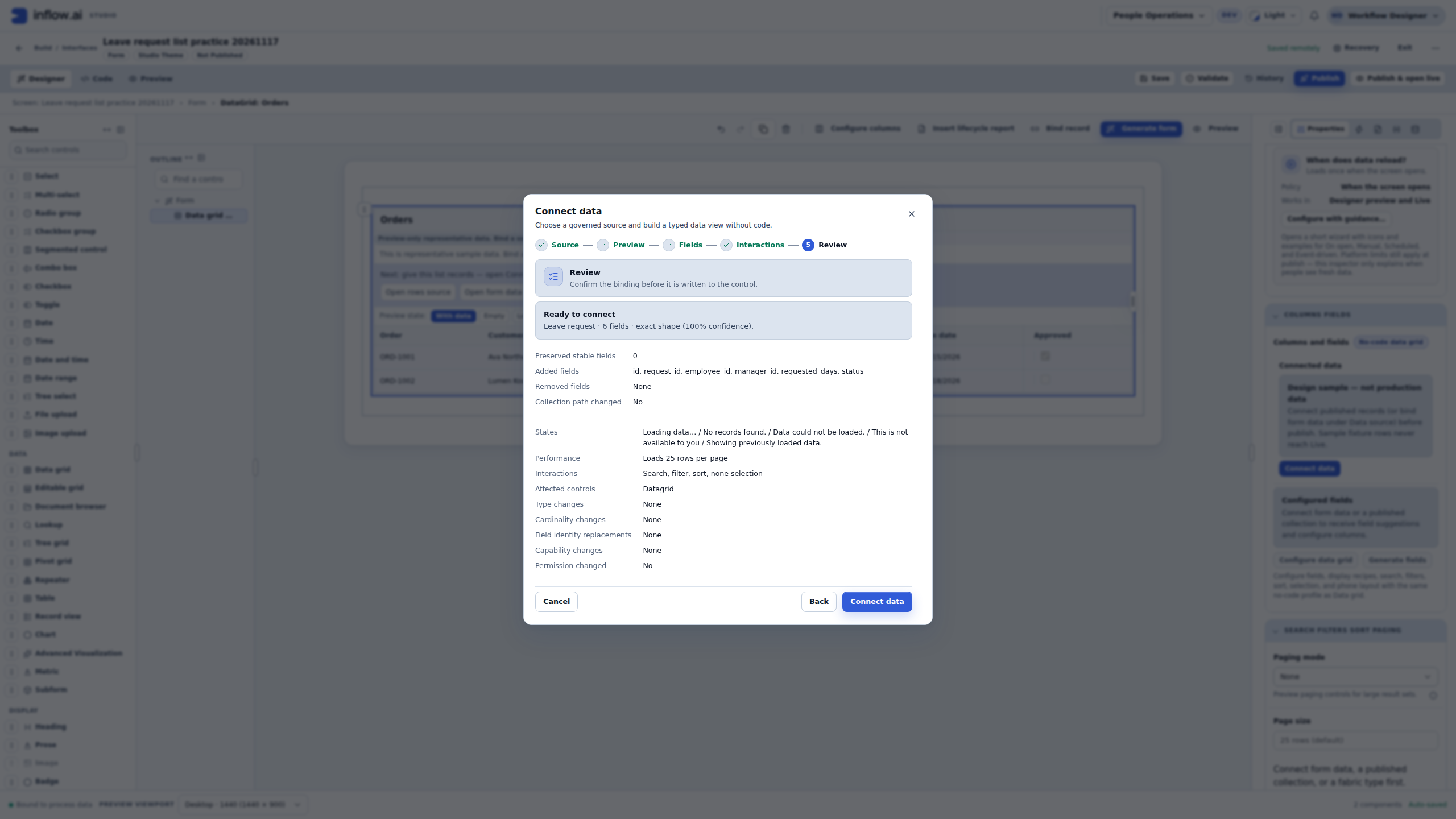
- Read Review. Check the intended source, six fields, 25 rows per page and no selection. Review the reported changes; an exact-shape confidence percentage describes the field match, not access approval or runtime acceptance for every user.
- Finish with Connect data, then give the grid a clear title such as Fictional leave requests — training states, no workflow approvals. Save the intended draft and open Preview → Interactive. In this run the draft returned the three persisted worksheet rows; the Form remained Not Published.
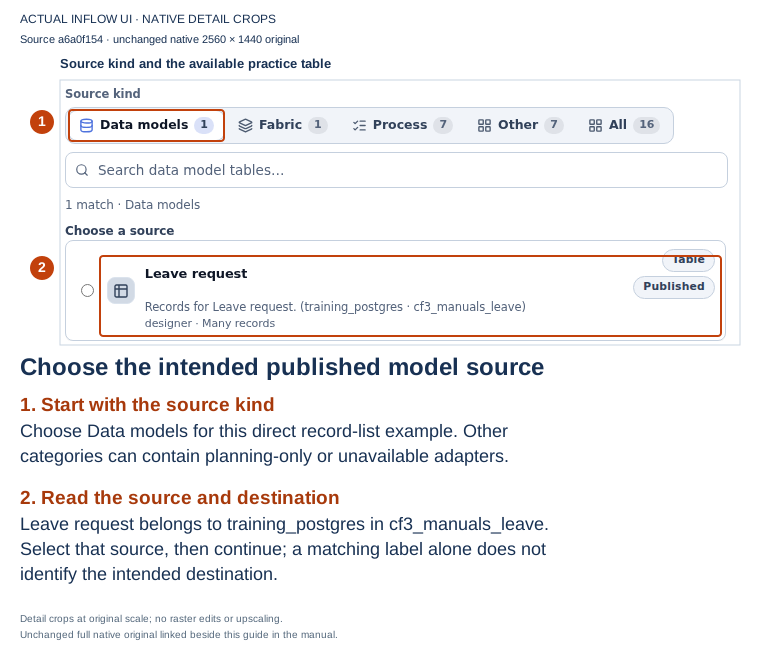
17 November, source a6a0f15454. The full native original is unchanged. This image precedes selection of the source radio button. Numbered detail crops are editorial guidance.
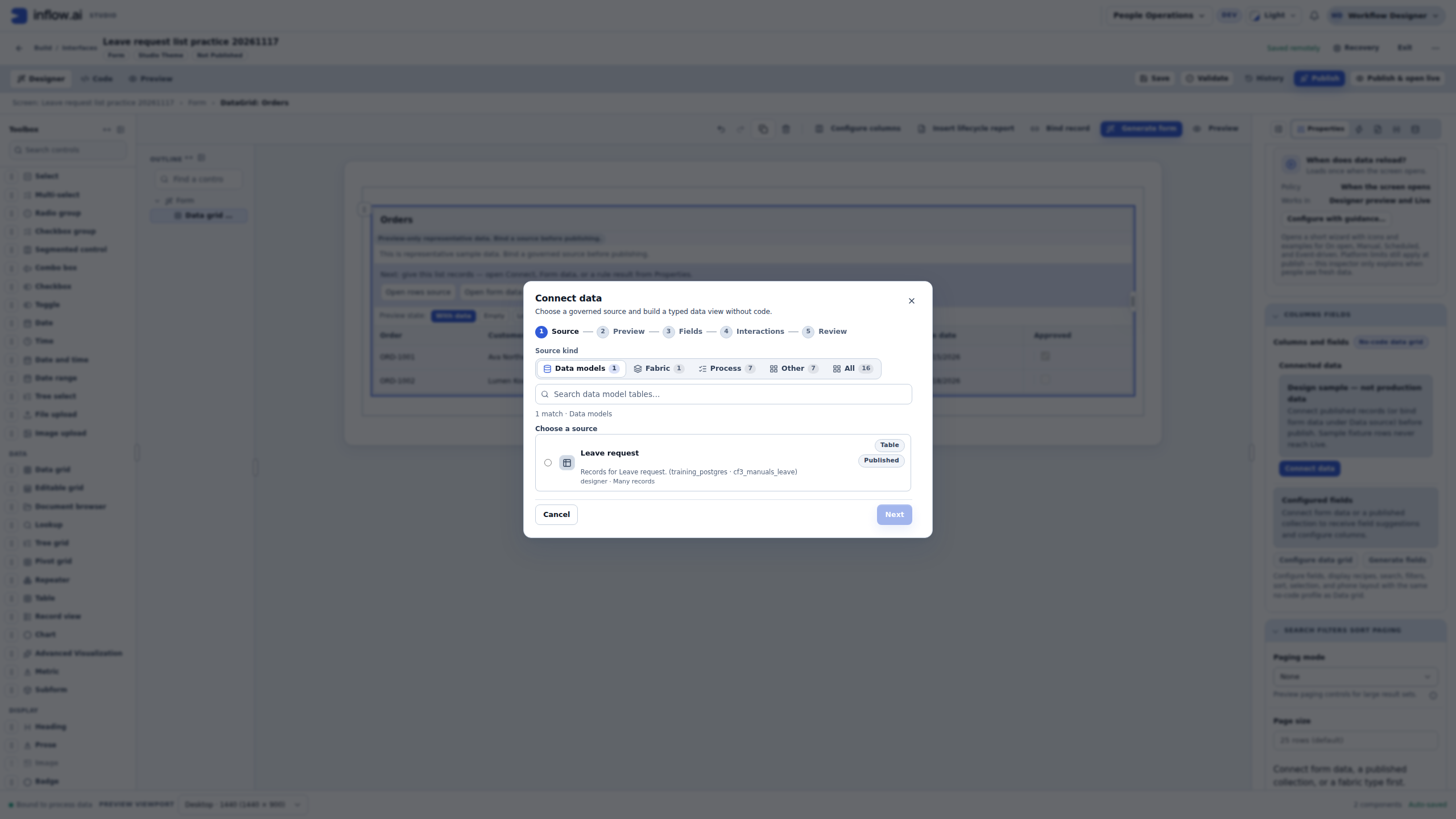
Check the destination, not only the name: the source card identifies training_postgres and cf3_manuals_leave. Published describes the source; it does not mean this Form has been published. If your intended source is missing, check its workspace, published design, destination readiness and current permissions with its owner. Do not pick another accessible source simply to get rows.
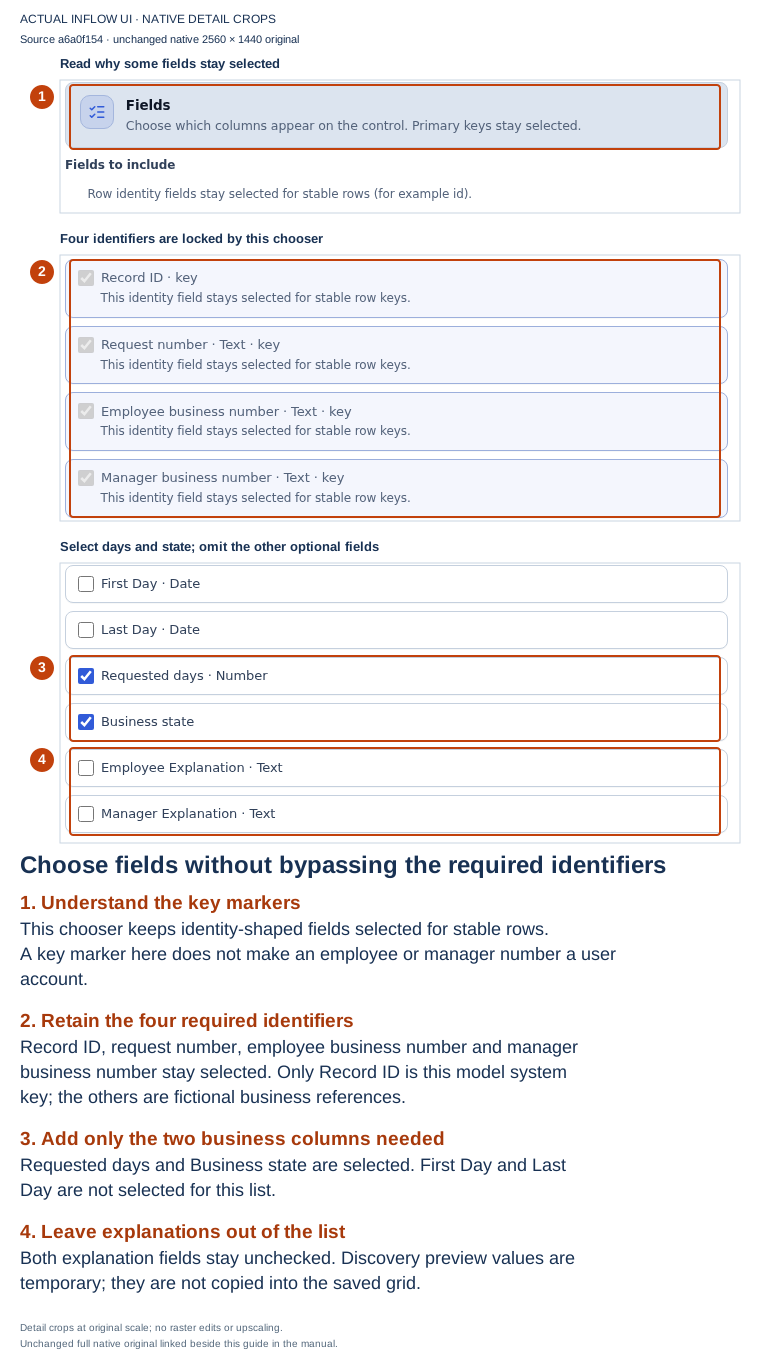
The original field-selection view shows six selected fields. The manager number is the fictional MGR-001 reference already present in the worksheet. It is retained because this chooser requires it; it is not an extra real-person data source.
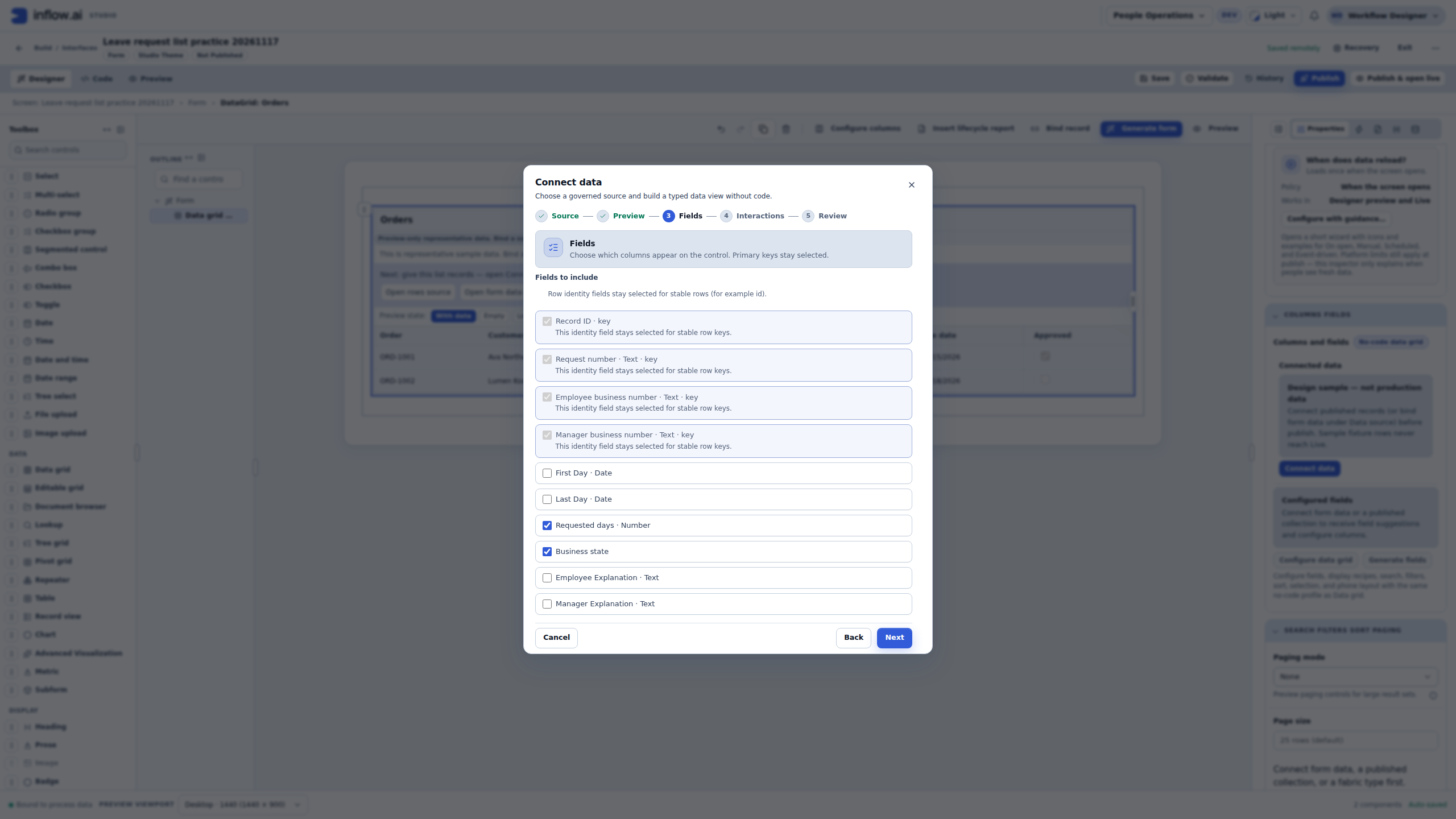
Read the key markers carefully: the current chooser can retain non-null identifier-shaped fields as well as the system ID. That presentation does not prove a business field is unique, make it a database primary key, or bind it to an Inflow user. In this model, Record ID is the actual system record identity. Preserve the offered required fields; do not invent internal IDs or change the model's key rules merely to remove a column from this exercise. For a production list needing a different disclosure policy or projection, review that design with the data and access owners.
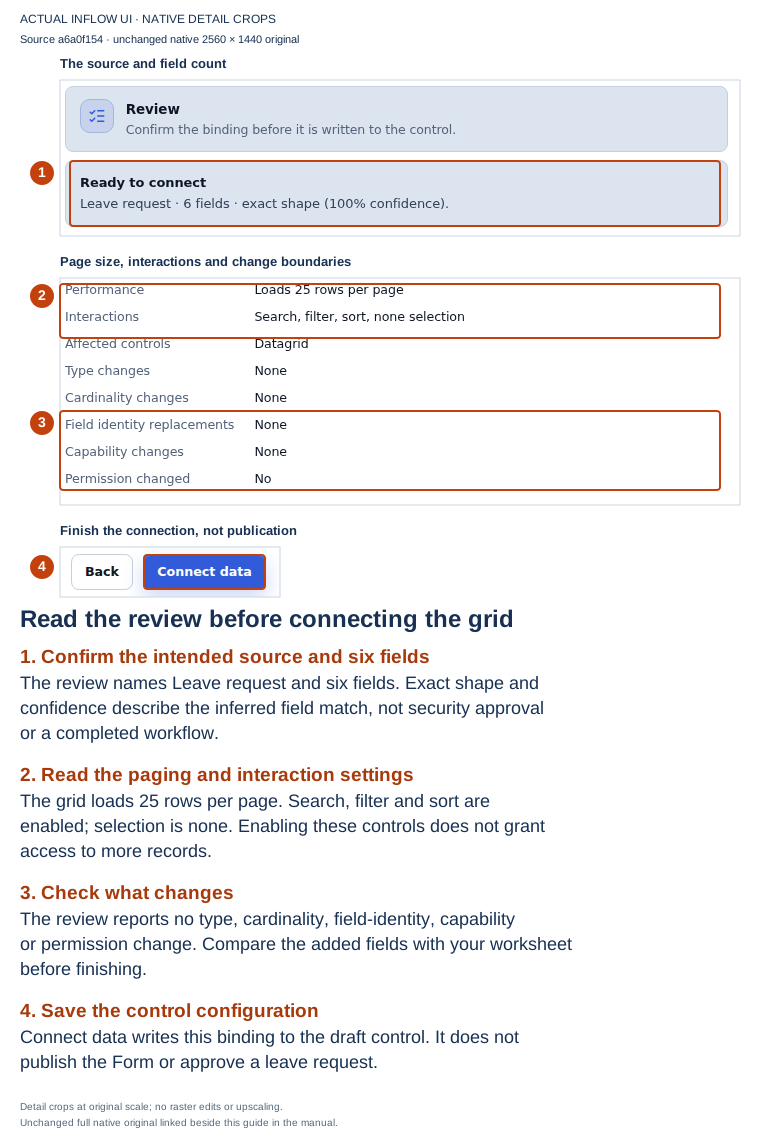
The full review original is unchanged. Finishing this wizard updates the control's draft configuration. It does not publish the Form or grant records to its viewers.
What you should see: the saved grid has the intended source and columns, and its draft preview shows the known fictional rows. The toolbox's sample orders are removed from the saved connection. The grid lesson shows the actual three-row result, temporary search and no-match recovery. Ordinary-user and released-application checks remain a separate stage.
Check the connected draft result
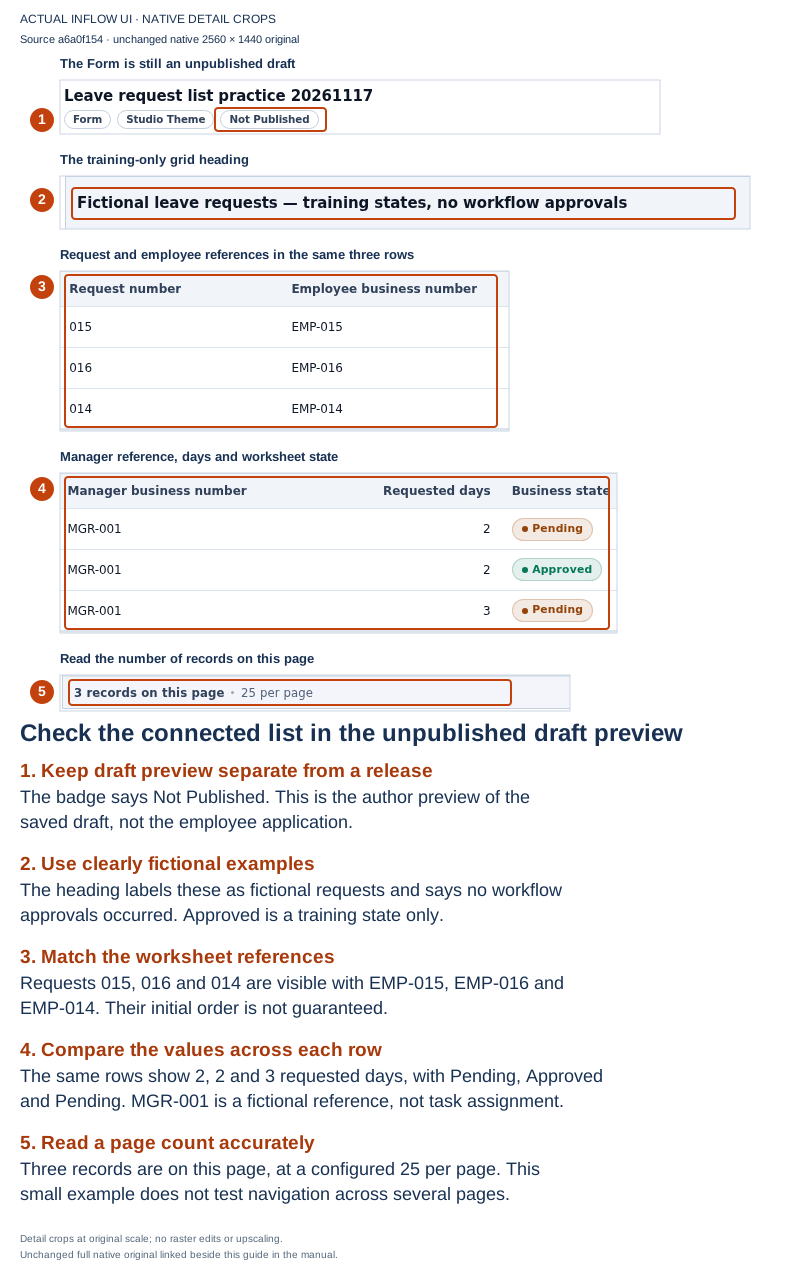
The unchanged native result, captured on 17 November from the same source, shows the saved connection reading three persisted fictional rows. The Form is still Not Published. This is a designer's interactive draft preview, not a released application or ordinary employee session.
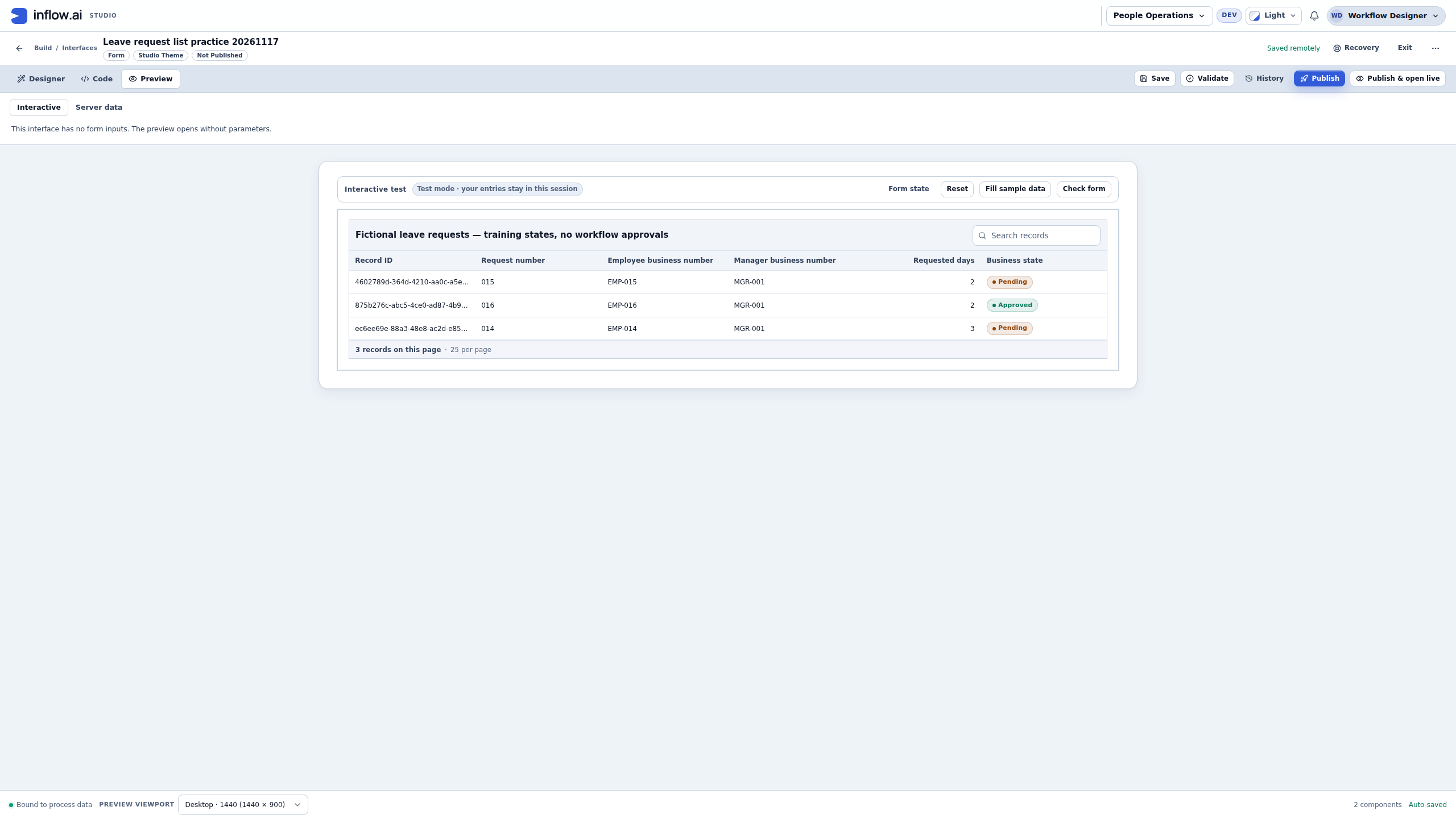
Compare Request number, Employee business number, Manager business number, Requested days and Business state with the worksheet. The APPROVED value on request 016 was entered only as a training state; no workflow approval happened. The source connection retrieves the stored rows at preview time. It does not turn the toolbox's sample orders into business records or grant another person access. If the result differs, reconcile the saved source, selected fields and permitted record read before attempting a replacement or another record creation.
Distinguish an available source from a planning category
The illustrated source chooser lists several categories, but their presence does not mean they can all execute. In this run Rule results says that its rule-query adapter is unavailable. Fabric, integration and other planning entries also carry their own availability statements. The successful connection above uses the available published-record source; it does not prove those other adapters work.
Read the selected control's actual actions. The property panel separately offers Connect query rule for a published Query returning a compatible record collection without inputs. A Query requiring inputs has the distinct Use a rule result mapping path. Those are separate authoring choices, not permission to execute an unavailable category in this source chooser. This capture did not exercise either Query path. Do not tell a reader to choose an unavailable Rule results entry, and do not infer that every Query integration is unavailable just because this category is.
Some source kinds offer a settings step instead of the ordinary Preview step. Follow that source's supported instructions. Do not skip its required settings to force the five-step sequence illustrated here.
Choose fields deliberately
A good manager list is short enough to scan. Start with fields needed to identify the request and understand its state. Include a private field only when the business need and access policy justify it.
For related information, distinguish one value from a list. An employee's name is one value. The employee's requests are a list. A control that expects complete record rows cannot display just an arbitrary collection of names in their place.
The list-building tools may show Collect. For record-row controls such as Data Grid, Repeater and Editable Grid, Collect keeps the complete rows the control requires. Other generic calculations shown by the builder are not automatically valid for that control. For a count, create the appropriate Query or use another supported calculation/display combination.
Example — Replace a connected source after the business question changes
Nadia's first page shows all available leave requests. Sara later asks for a pending-only list with a simpler set of columns. The grid already has a saved connection, so Nadia must replace that connection rather than open the first-time setup again.
- First confirm which Query connection route this control supports. The illustrated general source catalog reports its Rule results adapter unavailable; keep the working all-requests list while the owner reviews the separate Connect query rule or Use a rule result route. When that route is available, look in the rule catalog for a published Pending leave requests Query whose answer shape is Records and whose filter matches the agreed pending state. Reuse it if its source, filter and fields are right. Create and publish a Query only when the matching one is missing or the owner intends a change. See the Query Builder lesson.
- Return to the saved page and select the existing Data Grid. Record its current source before an intentional replacement. Replace connected data changes a saved general-source connection; the separate Query field offers Connect query rule or Replace with query rule according to its current state. Use Configure data grid for a presentation-only change.
- Through the supported Query connection route, select Pending leave requests only if it is offered as compatible for this control. Do not choose the unavailable Rule results placeholder in the illustrated general source catalog. Inspect its available source fields and preview/settings. A published Query is not automatically usable by every control.
- Choose the columns Sara needs, then review the source, fields and supported interactions before finishing the replacement. A source change can change which columns are available; do not assume the old columns still match. Keep the read-only learning list free of decision or deletion actions.
- Inspect the saved grid's headings and values, check the agreed fictional rows, and republish the intentionally changed screen through its normal review.
What you should see: the pending-only question is represented by the connected Query and the grid has the intended fields. The rows a person can see still depend on that user's current permissions; this designer preview does not prove ordinary-user access.
Recover a connected source with no saved columns
If the property panel says Source is connected, but no columns are saved yet, use this recovery path:
- Read the full message and note the currently connected source. Do not switch to another source just to make the preview load.
- If the selected lifecycle data grid explicitly directs you to Replace connected data to choose fields, follow that source-specific route and review the offered fields before applying it.
- For an ordinary configurable grid, choose Configure data grid → Fields, select the intended governed fields, choose a stable row identity when the editor asks for one, then select Apply columns now. If the property panel offers Generate fields for this source, you can use that shortcut instead.
- Inspect the draft's saved column list and preview. If it still has no columns, or the actions are unavailable, ask the application/data owner which supported fields and source this screen should use.
Without saved columns the connected source cannot populate the grid preview. Do not paste a raw result into a property or replace a working source with an unrelated one.
Common mistakes
| What happens | What to check |
|---|---|
| No matching sources | Correct workspace/model, publication and current access |
| Source cannot be loaded | Service availability; retry the permitted load or contact the owner |
| Preview has no rows | Whether the source is readable and simply has no matching data |
| Field disappeared after a change | Which published design the screen uses and whether the field was changed or removed |
| A connected table will not accept a calculation | Whether it needs records rather than a number or text list |
| A user sees fewer rows than the author | The user's actual record permissions and business filters |
An unavailable source is not proof of an empty result. Likewise, hiding a column in the designer is presentation; the server must still decide which fields the user may receive.
Continue
Learn to show, search and page through records, or follow the query-driven page tutorial. Developers can use the optional catalog and preview reference.