Share a published business API safely
An API is an address another approved system can call to request a business result. An API key is a secret credential the calling system uses. Think of the API as the service offered, and the key as a controlled way to use it.
This is an advanced consultant or application-administrator task. You can prepare the business operation and its management settings in Studio; the other system's developer normally handles client code and protected credential installation.
Walk through the API setup screens
Sara is the application administrator for a fictional People Operations workspace. An employee portal needs one approved read-only leave-status result. The portal must not receive general employee records or a credential covering unrelated services. Sara first agrees the operation and its consumer with their owners, then prepares the following settings.
These illustrations show an actual administrator in a synthetic development workspace. There are 0 published APIs, 0 managed API keys and 0 request-log entries. The dialogs were opened and cancelled. They show how to prepare the configuration; no endpoint, credential or successful consumer call was created for these screenshots.
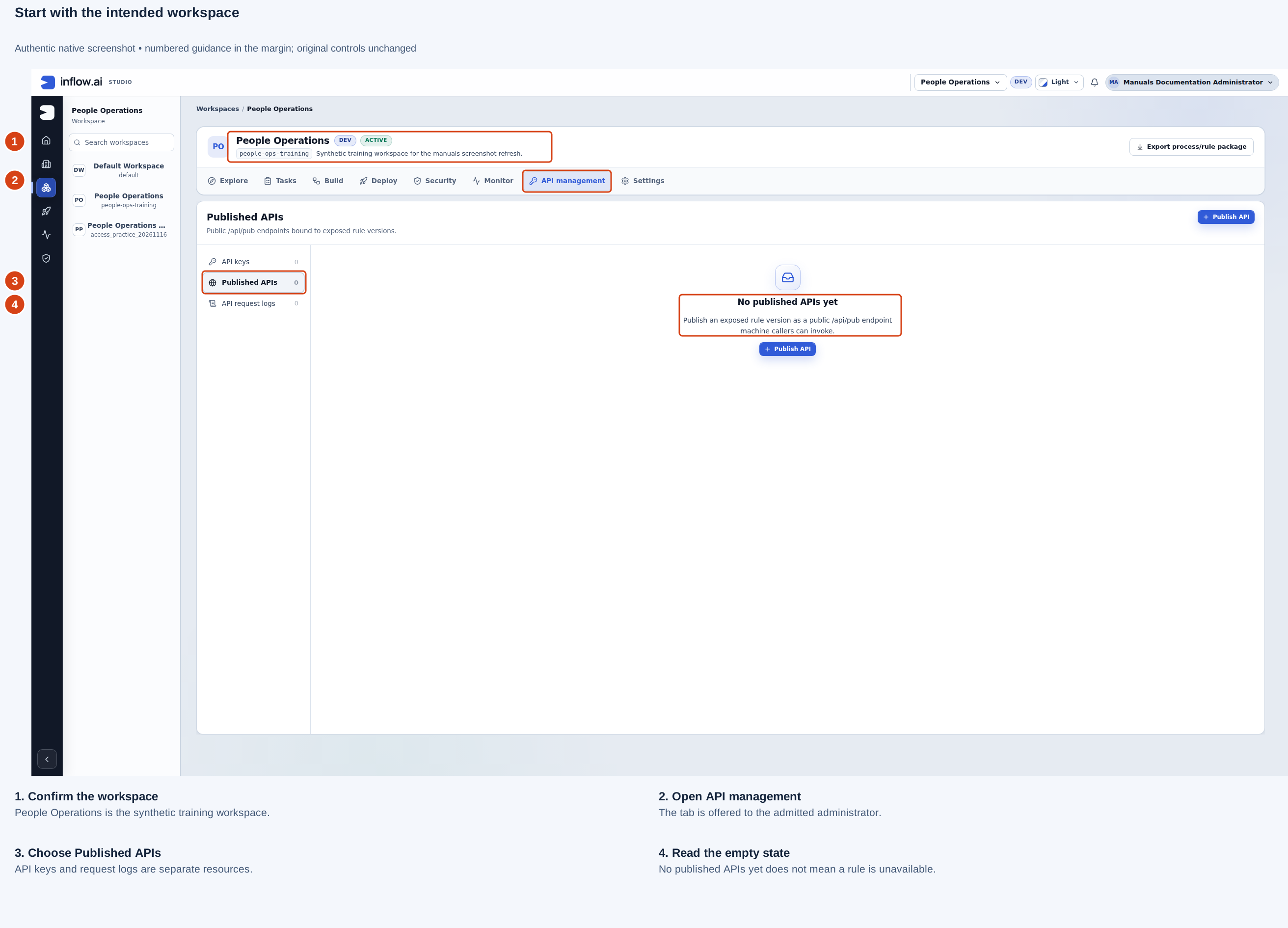
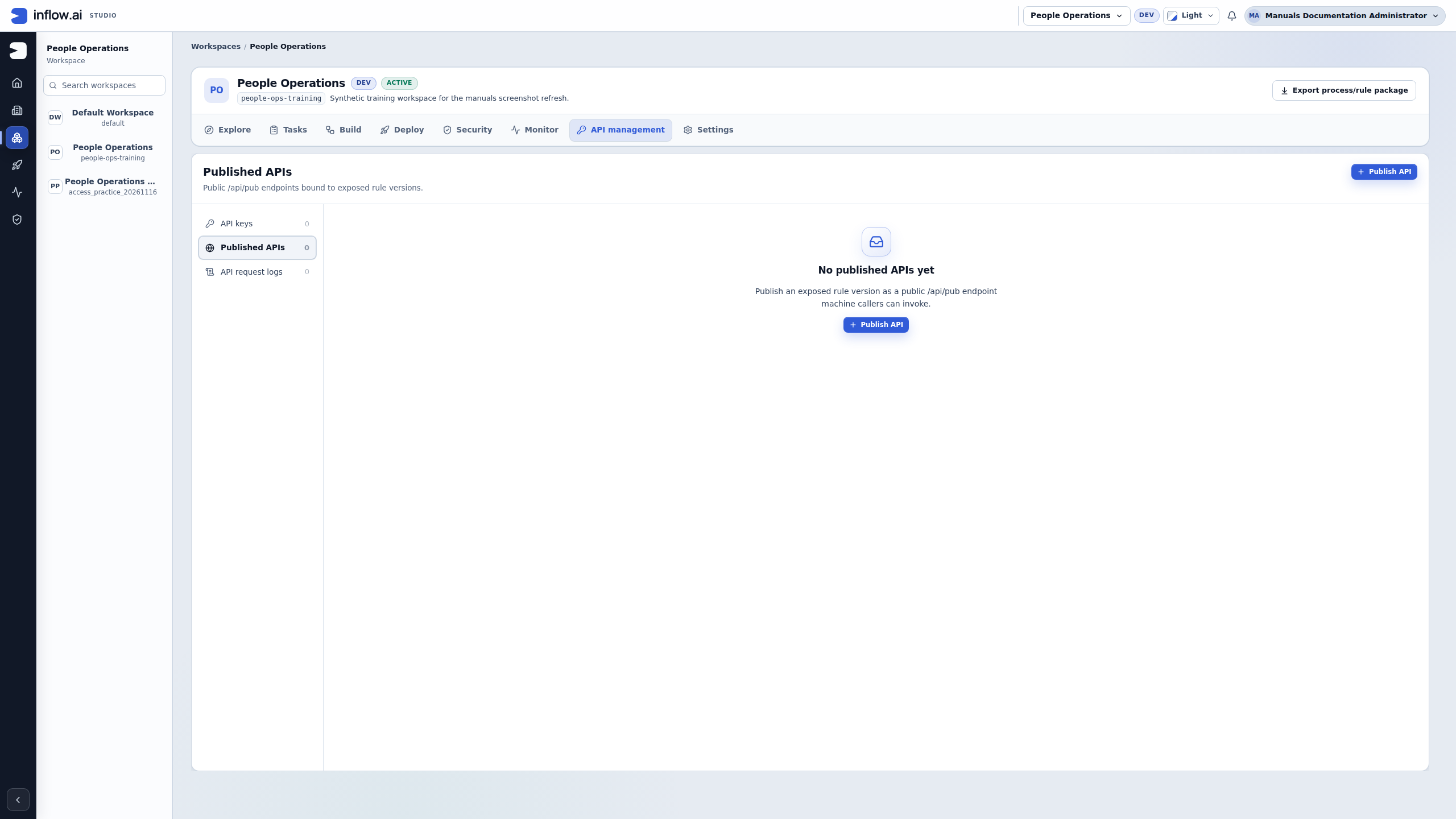
- Check the workspace name before preparing an endpoint. The illustration is People Operations, identified as a synthetic training workspace.
- Open the workspace’s API management tab using an account with the required effective workspace administration access.
- Select Published APIs. API keys manages caller credentials; API request logs displays recorded calls. A count in one resource is not evidence of success in another.
- Read No published APIs yet as the current catalog state. It does not tell you whether an intended rule has been published or exposed, and it does not justify publishing a different rule.
Check the rule before publishing its address
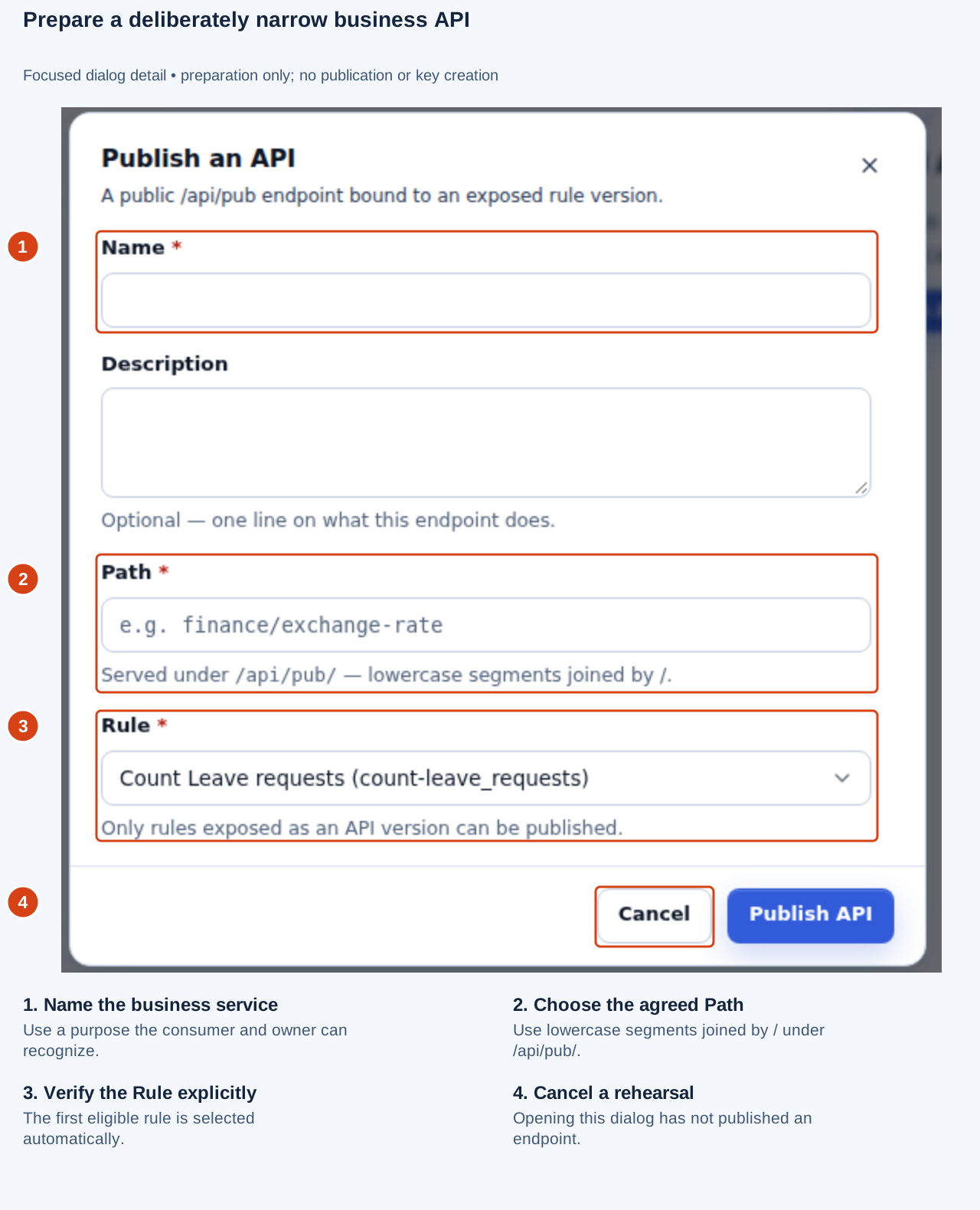
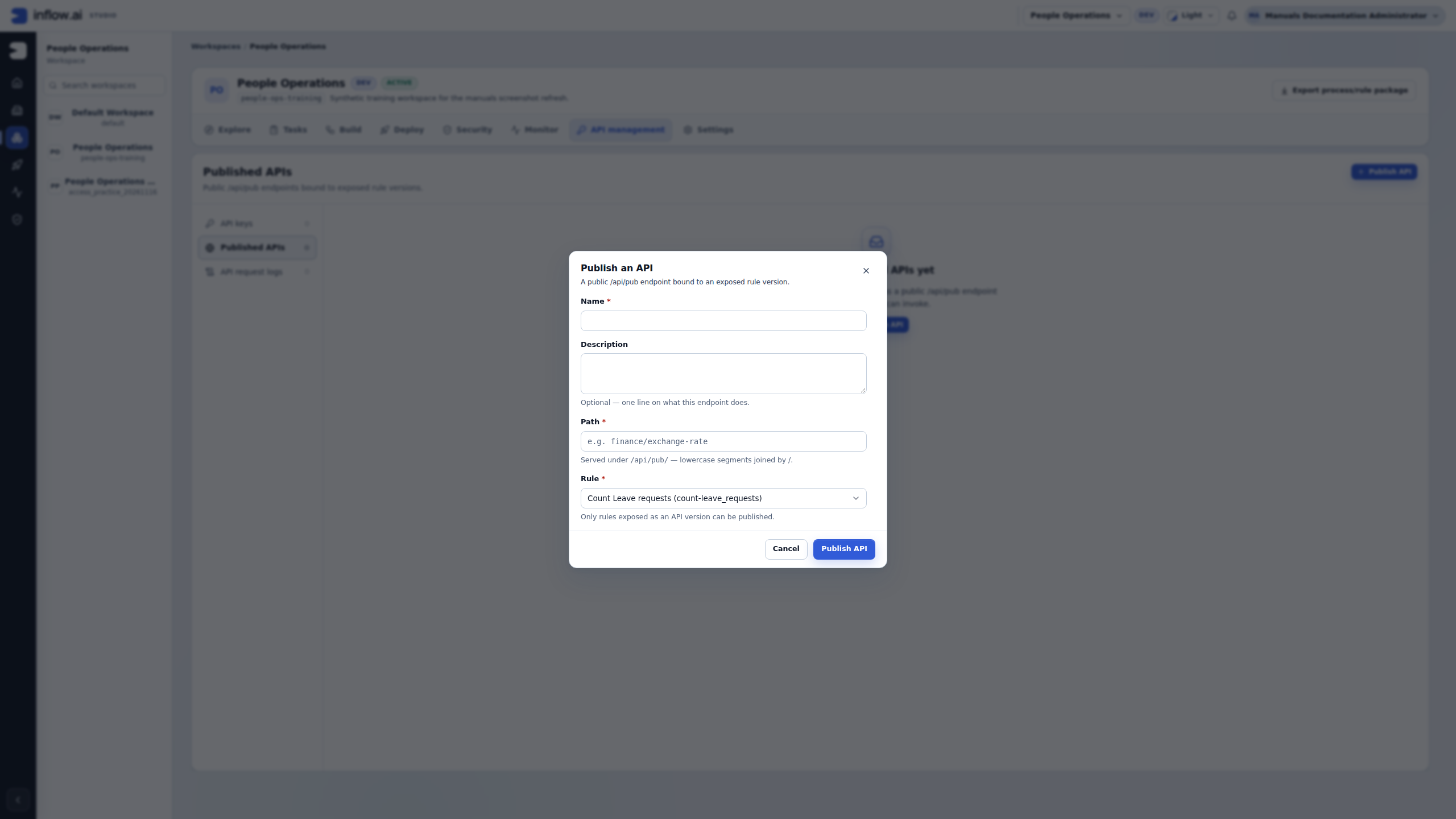
Choose Publish API to inspect Publish an API. For a rehearsal, stop before submitting and use Cancel.
| Mark | What to check | Fictional preparation example |
|---|---|---|
| 1 — Name | Identify the narrow business service and consumer purpose | Leave status for employee portal |
| 2 — Path | Use the approved lowercase address segments | leave/status, served below /api/pub/ |
| 3 — Rule | Explicitly choose the intended exposed business rule | The reviewed Leave status rule, once available |
| 4 — Cancel | Exit a rehearsal without publishing | Close the dialog after reviewing the worksheet |
The dialog automatically selects the first eligible rule. In the captured workspace that is Count Leave requests. This is the actual offered choice, not an instruction to publish it for the leave-status example. An eligible rule may still serve the wrong purpose, return too much information or change data. The Rule selector’s eligibility filter cannot replace the owner’s review of the operation, its published version and its allowed result.
If the approved Leave status rule is absent, return to that rule’s publication and API-exposure settings with its owner. Prepare and test the intended operation first. Do not publish the count, create or update rule merely because it appears in the selector.
Prepare a key for a specific consumer
Open API keys → New key. Choose Selected published APIs when the portal needs only the agreed operation. This selection was made locally for the next illustration and then cancelled; no key was issued.
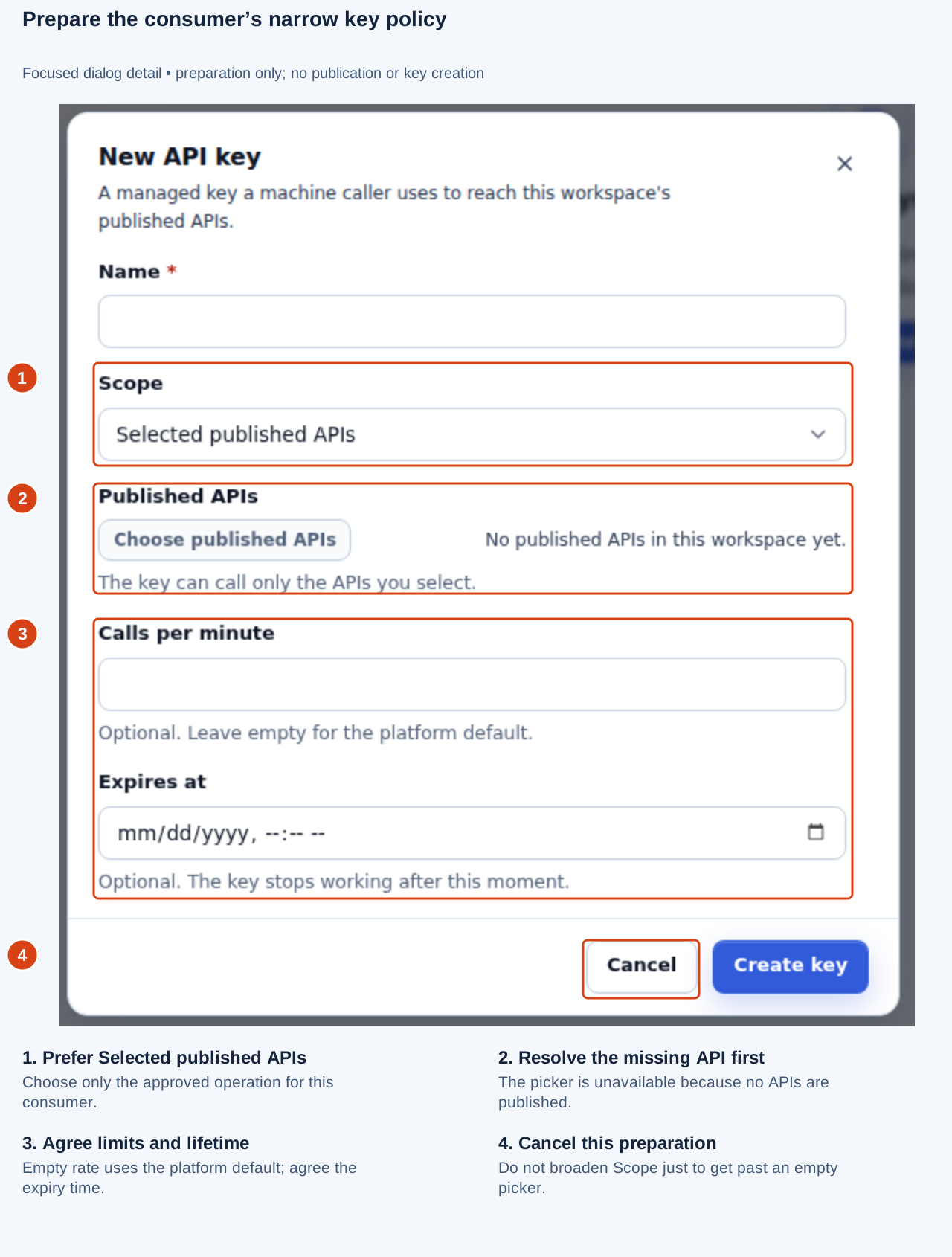
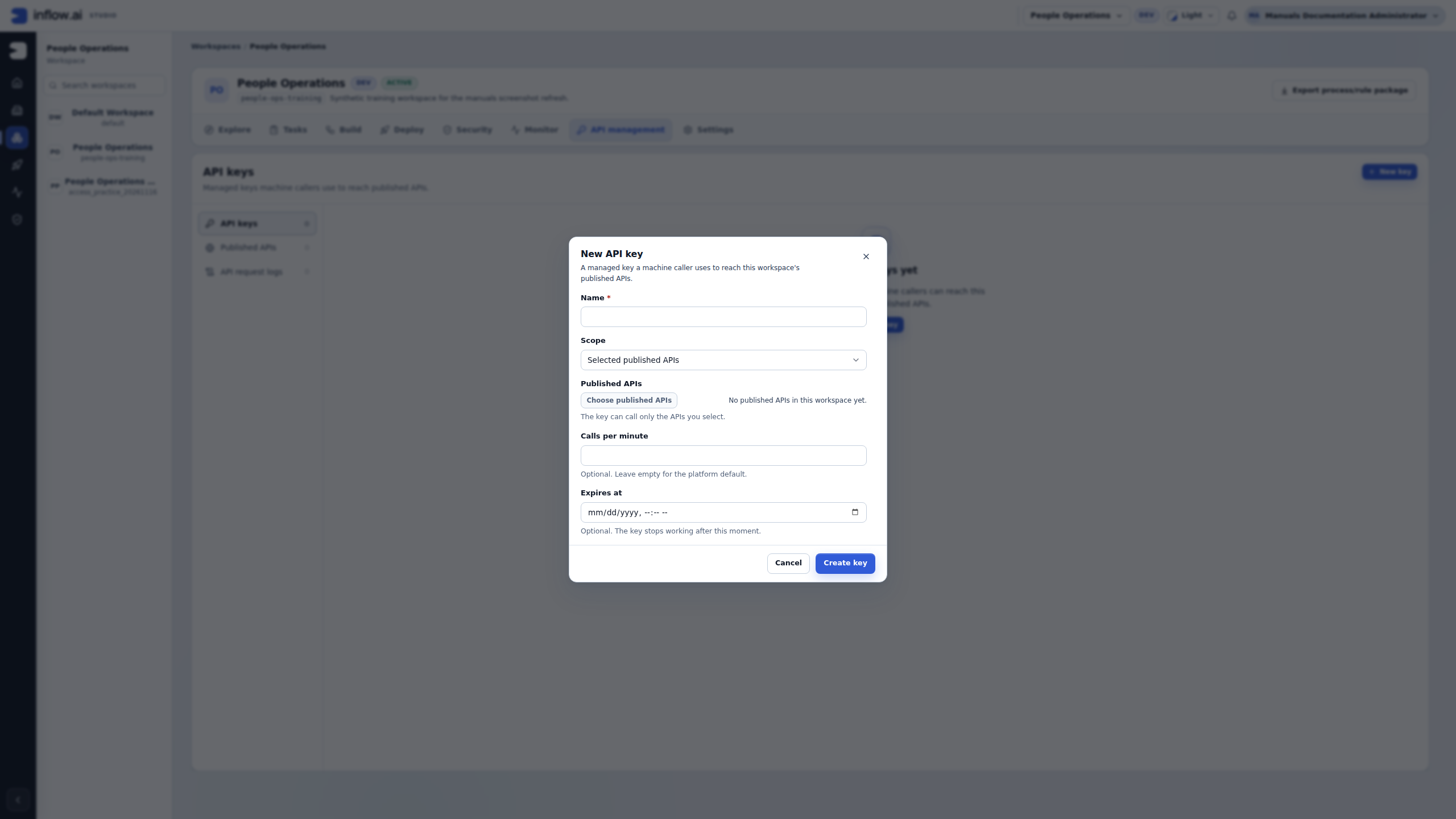
- Scope controls the API set this consumer can call. The illustration selects Selected published APIs deliberately; the broader All published APIs choice is not a workaround for missing setup.
- Published APIs shows No published APIs in this workspace yet. Its chooser is unavailable because there is nothing to select. Publish the approved operation first, then return and select that exact API. Do not create an all-APIs key merely to get past this state.
- Agree Calls per minute and Expires at with the consumer owner. Leaving the rate blank uses the platform default. An empty expiry means no expiry; it does not mean “end of this test.” The date/time control uses local time, so agree the intended cutoff and time zone.
- Use Cancel to leave this preparation. When a separately approved real key is created, retain its one-time secret through the protected credential process before closing that secret dialog. The preparation screen above contains no secret to copy or install.
For example, the portal owner might request only Leave status, 30 calls per minute and a specific acceptance-test cutoff. Those are fictional values to discuss, not universal defaults. Record the actual approved API, limit, expiry, owner and protected handoff destination before issuing the key.
Find the consumer’s actual call
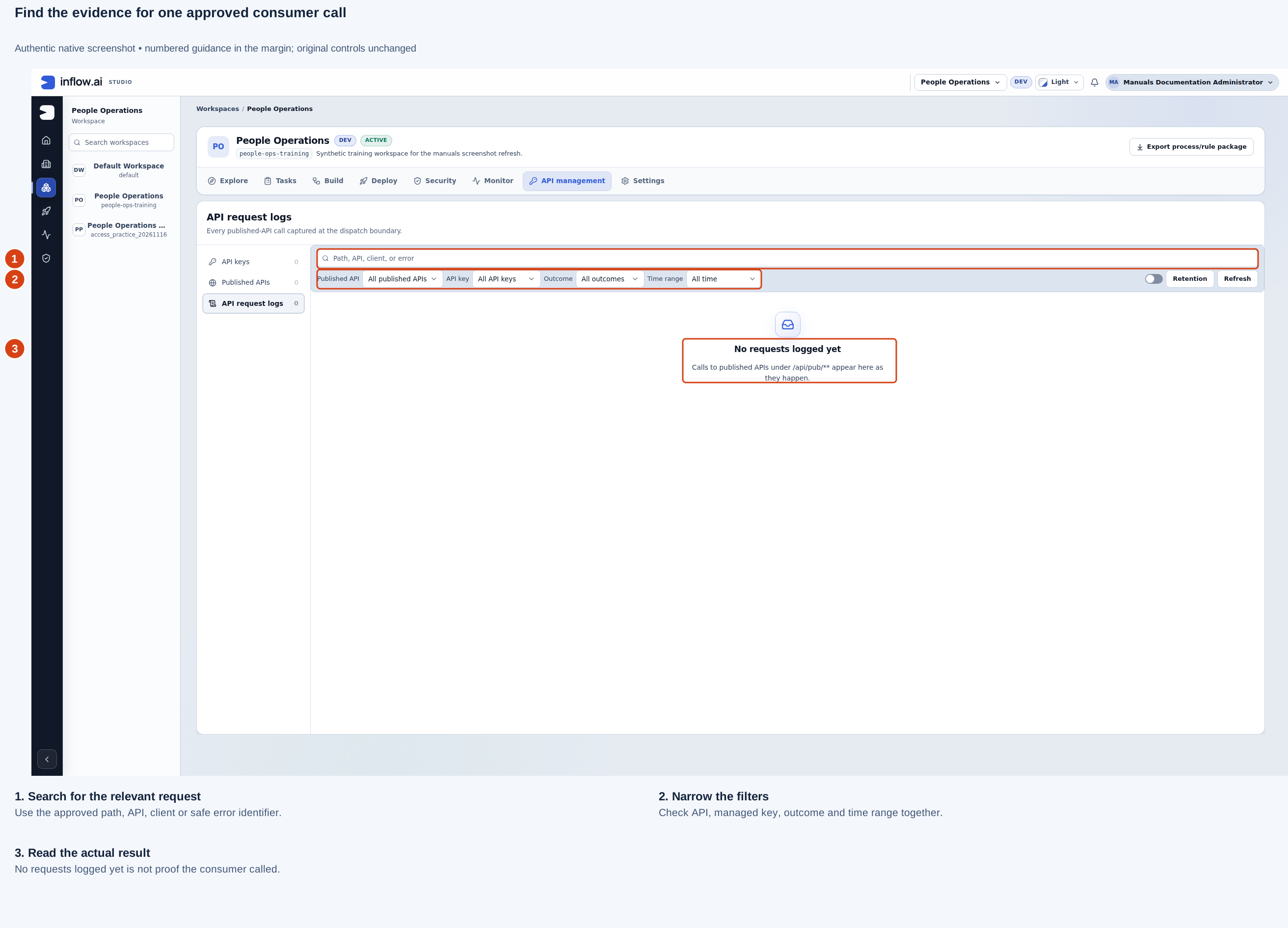
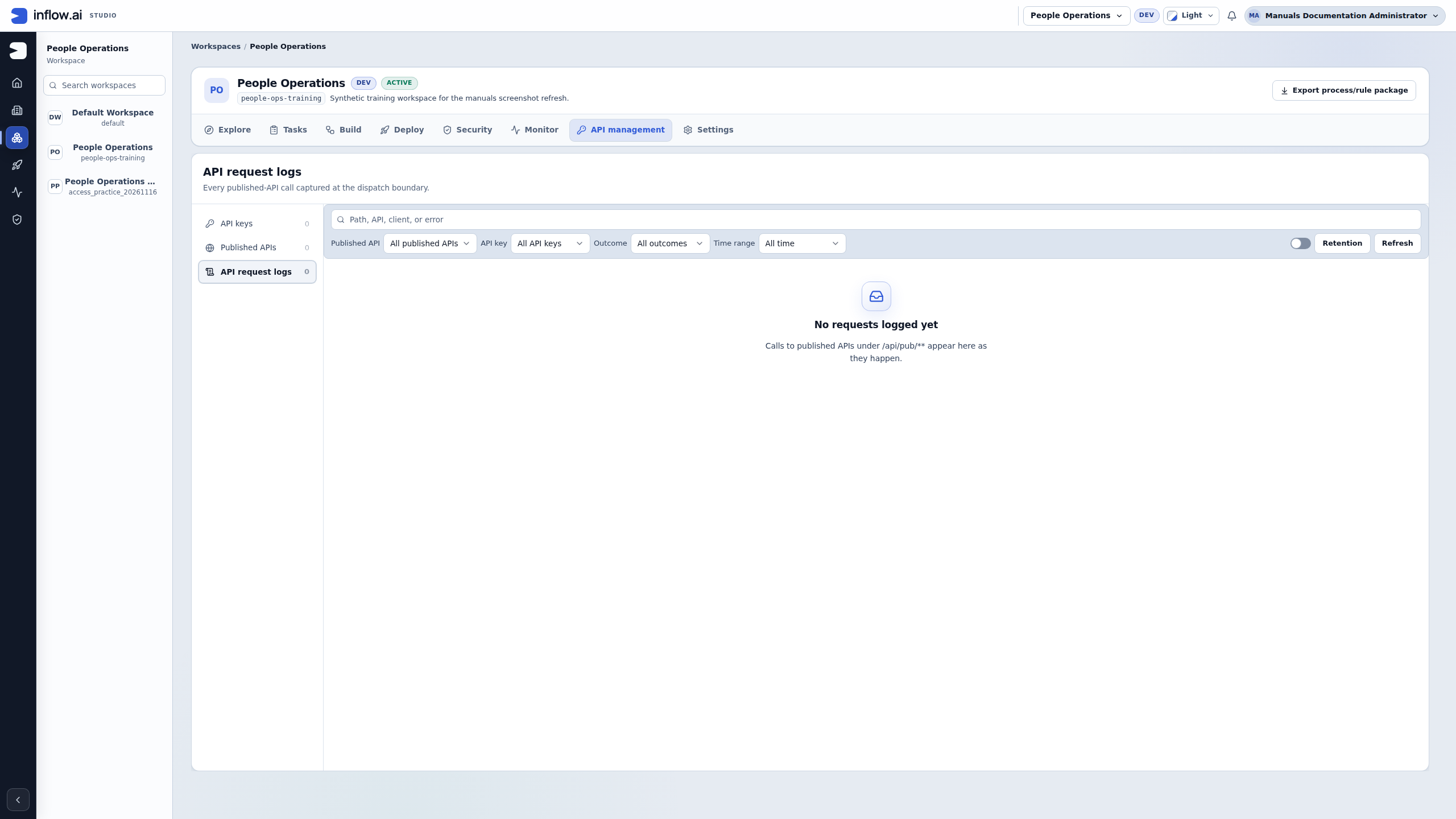
Use the three marks as a reading sequence:
- Search for the approved path, API, client label or safe error identifier.
- Narrow Published API, API key, Outcome and Time range together. Check the selected window and filters before concluding that a call is missing. A key may exist without ever having been installed by its consumer.
- Read the actual result. No requests logged yet in this training workspace establishes no successful call. After the consumer owner installs the protected credential and performs an approved test, compare the expected operation, time and outcome with its actual entry.
Retention changes which log records are kept; it is not a search filter or a way to repair a failed consumer call. Follow the separately approved retention procedure if cleanup is intended. Leave it alone while investigating this example.
If the consumer reports an error but the expected call is absent, first reconcile the environment, address, approximate time and filters with that owner. Avoid distributing credentials or raw private request bodies as troubleshooting evidence. Publishing an address, creating a key, installing its secret and observing a successful permitted business result remain separate steps.
Before you begin
Agree which system will call, what it needs to do and which information it may receive. Use an appropriately published rule whose API exposure is intentional. Ordinary Publish does not automatically expose every rule as a Web API.
In the normal workspace path, you need Admin access in the selected workspace. Viewing published-API and key information uses the platform API_MANAGEMENT_VIEW capability; publishing, changing or deleting APIs and creating, editing, rotating or revoking keys use API_MANAGEMENT_MANAGE. The platform WORKSPACE_MANAGE path can satisfy the workspace-side check; the separate API-management capability still applies. The server checks these rights for each request, as well as access to the rule being exposed. If controls are absent, ask the workspace/platform owner to review the correct grant; do not borrow another administrator's identity or credential. Credentials and private response data do not belong in screenshots, issue descriptions or teaching examples.
Example — Offer a read-only leave-status lookup
An approved employee portal needs to ask for the status of a request. Nadia prepares a narrow business rule that returns only the intended request information.
- In the rule editor, test the business operation and its permitted result. Use Publish & expose as Web API only when that exposure is intended and allowed.
- Open the workspace's API management area and choose Published APIs.
- Choose Publish API. In Publish an API, give it a clear Name and Description.
- Enter the approved Path, such as
leave/status, following the field's instructions. This is the address suffix, not a secret. - Select the intended Rule. Only appropriately exposed rules appear; if it is absent, review its publication/exposure rather than choosing an unrelated rule.
- Publish and read back the resulting API information.
- Give the consuming system owner a small business worksheet: required inputs, allowed result, expected no-match behavior and the intended use. Do not send private test data as an example.
What you should see: a published business API for the selected operation. Publishing an address does not remove the selected operation's own access restrictions or promise that every record is readable.
Create a key for the intended consumer
- Choose API keys, then New key.
- Give the key a name that identifies the consumer, such as Employee portal status lookup.
- Under Scope, prefer Selected published APIs when the consumer only needs a small set. Select the actual approved APIs; do not choose All published APIs merely for convenience.
- Set Calls per minute according to the agreed use and Expires at when a limited lifetime is appropriate.
- Choose Create key and store the one-time secret using the organization's protected credential channel. It cannot be retrieved later as ordinary display data.
- Have the consuming system owner install it privately and perform an approved end-to-end test.
- Use API request logs to inspect the result with the relevant owner.
What you should see: a named credential with the intended scope, limit and lifetime. Keep the secret out of this manual's examples and out of your rule's ordinary inputs.
Change an active key's policy without replacing its secret
Use Edit when an approved consumer will keep using the same secret but should have a different call limit, expiry or narrower API scope. This is a key-policy update; it does not issue a replacement credential. The key list shows metadata such as its prefix, scope, limit, last use, expiry and status, never the secret.
- Identify the exact key and consumer with their owner. Confirm the API set the consumer still needs, an owner-approved calls-per-minute limit, and whether the key should expire. Do not infer a safe limit or remove an expiry merely because either field is blank.
- In API keys, choose Edit on the intended Active key. The Edit action is not offered for an expired or revoked key. If it is missing, review the signed-in administrator's workspace and platform rights instead of trying another route.
- In Calls per minute, enter an approved positive whole number. Leave it empty only when the platform default is intended. In Expires at, choose an approved future date/time; an empty value means the key does not expire. The control uses your local date/time, so agree on the exact cutoff and time zone with the consumer owner first. To end a key now, use the separately confirmed Revoke action.
- Narrow Scope only to APIs the consumer is approved to call. An All published APIs key can be narrowed to one or more selected APIs. For a key that already lists selected APIs, clear the ones it no longer needs; the editor does not let that key add APIs, and at least one must remain. If the consumer genuinely needs a wider scope, issue a new key with that approved scope and complete the protected handoff; editing cannot widen an existing selected-API scope.
- Select Save changes once. Read back the key row and compare its scope, limit, expiry and status with the approved request. Editing does not change or reveal the secret. Ask the consumer owner to make an approved call and review its request-log entry with them.
Fictional example: the employee-status-portal key currently covers every published API, allows 120 calls per minute and has no expiry. The API owner confirms that the portal needs only Leave status, no more than 30 calls per minute, and access through 31 January 2027 at an agreed cutoff time. The workspace administrator opens that active key, selects Leave status, sets 30 and the approved future local date/time, then saves. Readback should show one API, the new rate and the expiry. The portal continues using its existing secret; the administrator does not copy, rotate or send a new one. The consumer owner then verifies one approved request and its log entry. These sample names and values are illustrative, not a configured tenant or measured traffic pattern.
If another administrator changes, revokes or rotates the key while the editor is open, a save conflict means your copy was not saved. Reload the key row and compare the current policy before deciding whether another edit is still needed. A temporary catalog outage offers Try again; use it when the service recovers. A permission refusal instead shows the neutral unavailable state. Neither means the workspace has no published APIs. If a request to widen scope is refused, do not retry with a different route; confirm the consumer's need with the API owner and use a separately approved new-key handoff if broader access is truly required.
Example — Replace a key without losing track of the consumer
The employee portal's key must be replaced because its secret may have been exposed. Changing the key's label is not enough.
- Identify the actual key and the system that uses it. Review its current allowed APIs, rate limit and expiry. Contact the consumer owner before confirming rotation so they can be ready to install the replacement. If exposure is suspected, follow the incident owner's timing; do not delay an urgent response just to wait for a routine change window.
- Choose the supported Rotate key action. Read Rotate key “…”? carefully: the current secret stops working immediately when you confirm, and the replacement is shown only once. Without a coordinated install, the consumer's calls can fail as soon as rotation is confirmed.
- Confirm only when the protected credential process is ready. In the one-time secret dialog, transfer and store the new value through that approved process before selecting Done. Copy secret copies text to the clipboard; it does not install the credential in the consumer.
- Have the consumer owner install the replacement in the consumer's protected secret store, make an approved call, then inspect its API request logs with the owner. Confirm the expected API, time and outcome; a displayed or copied secret alone does not prove the consumer is using it.
- If the one-time dialog was closed before the secret was retained, do not expect the value to be retrievable and do not keep retrying with the old secret. Coordinate with the consumer and incident owner on an approved new rotation/replacement before making another change; a further rotation will also invalidate the then-current secret.
What you should see: the consumer has installed the one-time replacement and its approved call appears with the expected outcome in the request log. Editing a name, expiry or scope is different from replacing the secret. Do not rotate repeatedly after a lost reply without first checking the key and consumer status with their owners.
Read request logs as a business check
Logs can help answer which API was called, whether it succeeded, when it happened and which managed key was involved. Start with the relevant key or API and time window.
A failed call can mean wrong inputs, an expired/revoked credential, insufficient access, a limit or an unavailable dependency. Give the system owner the safe visible message and identifiers they need. Do not copy an entire private request or response into a shared conversation.
An access failure is not a reason to broaden the credential to every API. Check the intended operation and its actual permission boundary instead.
Common mistakes
| Problem | What to do |
|---|---|
| Rule is absent from Publish API | Check its published API exposure and your access |
| An active key should call fewer APIs | Edit it to narrow its selected-API scope, read back the row and validate with the consumer owner; the same secret remains in use |
| A key needs a wider scope | Issue a separately approved key and coordinate its protected handoff; editing a selected-API key cannot add APIs |
| Key policy changed while the editor was open | Reload and inspect current scope, rate, expiry and status before deciding whether to edit again |
| Rotation dialog was closed before storing the secret | Treat it as unrecoverable, coordinate a new approved replacement with the consumer/incident owner, and check the new key state; do not assume the old secret still works |
| Consumer stopped after rotation | The old secret is invalid immediately after confirmation; coordinate installation of the one-time replacement and inspect the approved request log |
| Key can call too many operations | Review and narrow its selected published APIs |
| Traffic is limited | Review the agreed usage and configured limit with the owner |
| Published API works for one identity only | Inspect the actual key and business/data permissions; do not borrow a stronger credential |
Continue
Follow the integration and API tutorial for the wider handoff. Developers and security administrators can use the optional API technical reference.