Understand and manage live work
Live is the place to understand what a published process is doing. It brings together the business stages, work inside a stage, running requests and the actions your role may take.
For the leave application, Live helps answer: How many requests are waiting for a manager? Which request is delayed? What happened to Mohammad's decision? You do not need to read storage tables to answer those questions.
Before you begin
Open the intended process in Studio and choose Live. You need the appropriate access to view the process and its cases. Some people can inspect work but cannot change it. A control that you are not allowed to use may be absent.
This guide describes the current Live view. Follow the visible process diagram and its Cases, Details, Report, Customize view and Refresh controls. Do not use the older parent/child case operations screen as an alternative route.
Live opens lifecycle cases only. A process without a lifecycle has no Live tab, and an old Live link to it explains this and points to Monitor, where its runs are followed. The old runtime screen for such processes has been removed, and with it the actions it offered on their runs (retry, cancel, suspend, repairs and migration): Monitor shows the permitted published-version summary and problems for those processes; it does not offer a general run catalogue or change runs. Lifecycle cases keep their actions in Live.
Have a recognizable business reference when investigating one request. Use fictional requests for training and ask the responsible administrator to prepare any missing access or dependencies.
Learn the three scopes
| Scope | The question it answers | A common mistake |
|---|---|---|
| Process overview | What is happening across the selected population? | Treating a filtered total as every request ever created. |
| State or step | What work is happening here? | Assuming everyone in Review is waiting for the same reason. |
| One opened case | What is happening to this particular request? | Reading today's latest design instead of that request's actual version. |
A population is the set of requests covered by the figures. A filter narrows that set, for example to work in a particular stage. Always read the selected scope before explaining a count to someone else.
Walkthrough: inspect a published process before the first request
Nadia has prepared the leave process and wants to check what an empty operational view means before handing it to employee and manager testers. She can inspect the published design and its figures without starting work merely to fill the page.
These illustrations use the ordinary Workflow Designer account in the synthetic People Operations workspace, with workspace Editor access and no super-administrator or platform bypass. They show the currently retained training build from source 5bd4bae3 on 18 November 2026. The three states belong to Manuals Demo Leave Approval, published version 1. A separate draft exists; it is not a running case. No employee request, manager task or decision was created in this walkthrough. These images explain the visible reading controls and actual empty state; later populated-case examples remain instructions to follow with appropriately prepared fictional work.
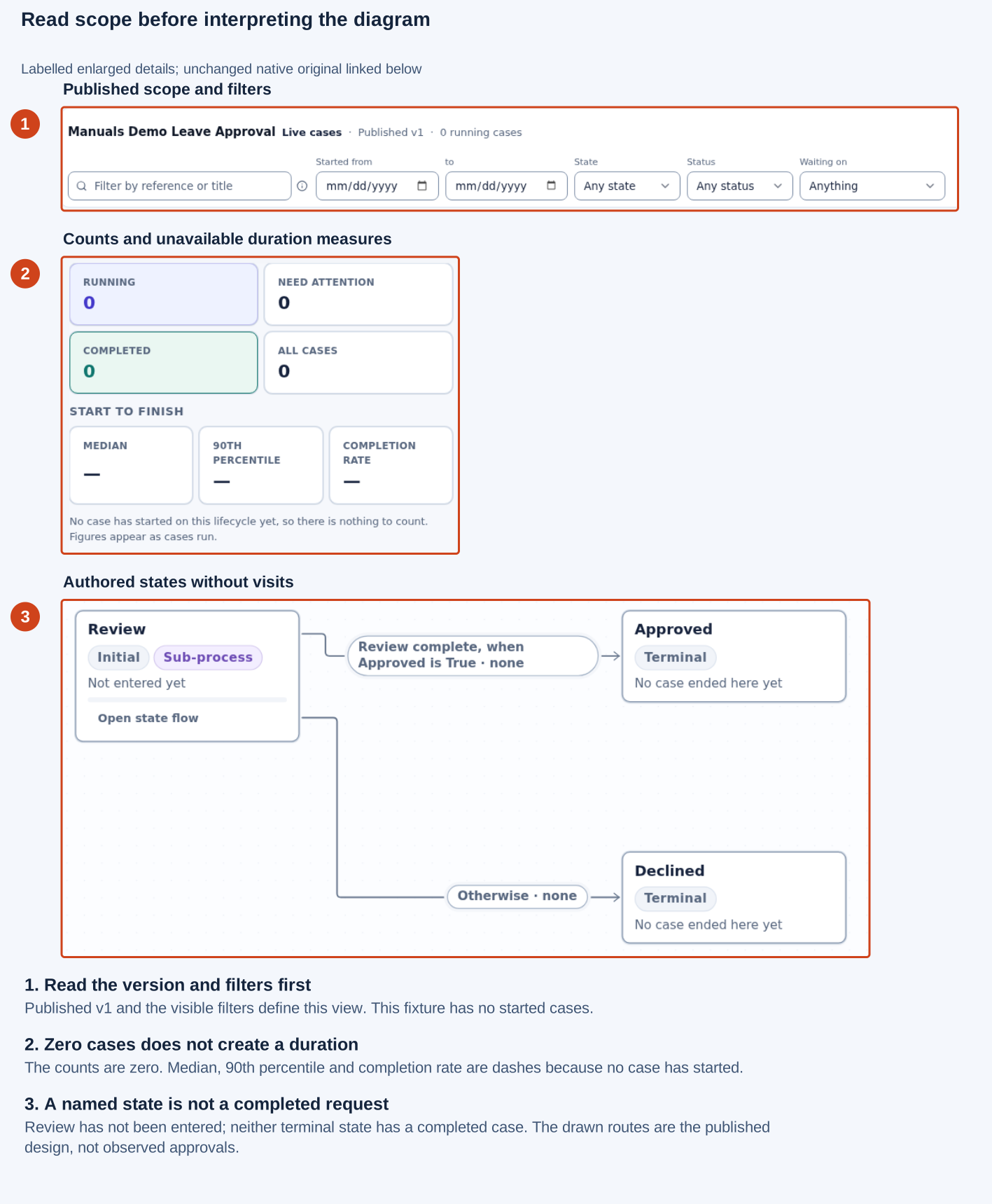
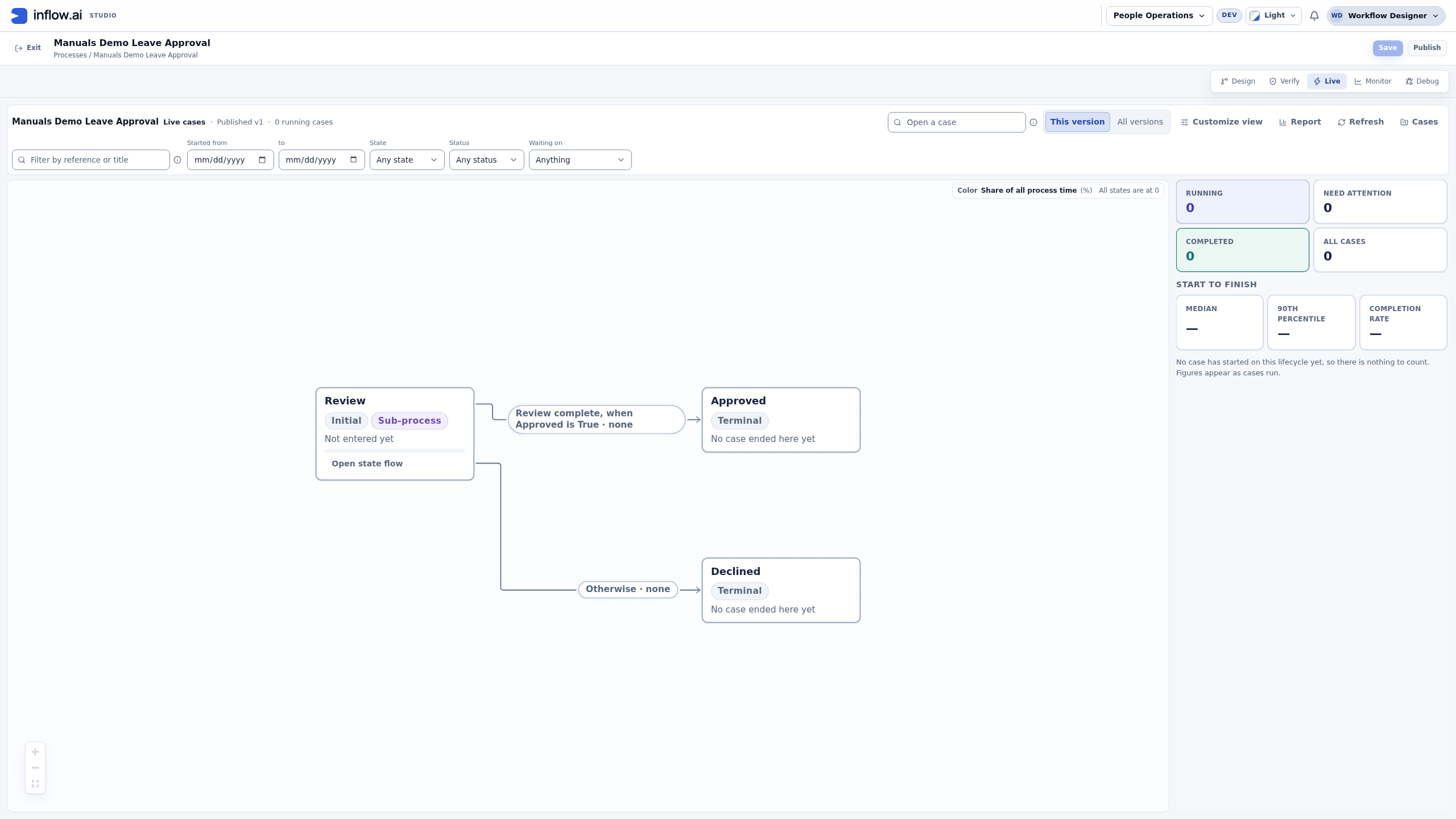
Actual Live overview: Published v1 has zero running, completed and total cases. The Review stage says Not entered yet, while both terminal states say no case ended there yet. The routes describe the published design; they are not recorded approvals. Open the unchanged native 2560×1440 screenshot. The numbered guide enlarges labelled details from that single capture.
-
Read the version and filters first. Published v1 and the visible filters define this view. This fixture has no started cases.
-
Zero cases does not create a duration. The counts are zero. Median, 90th percentile and completion rate are dashes because no case has started.
-
A named state is not a completed request. Review has not been entered; neither terminal state has a completed case. The drawn routes are the published design, not observed approvals.
-
Open the intended published lifecycle and choose View live or Live from its supported entry point.
-
Read Published v1, This version and every visible filter before interpreting a number. All versions is a different population choice; it does not mean every business record in the workspace.
-
Compare the zero counts with the duration measures. A dash for median, 90th percentile or completion rate means there is no observation to display here. It is not a measured zero-second approval.
-
Read the diagram as a combination of authored structure and current observations. In this fixture the Review and two terminal states exist, but none has received a case.
-
Choose Cases to inspect the list belonging to the current scope.
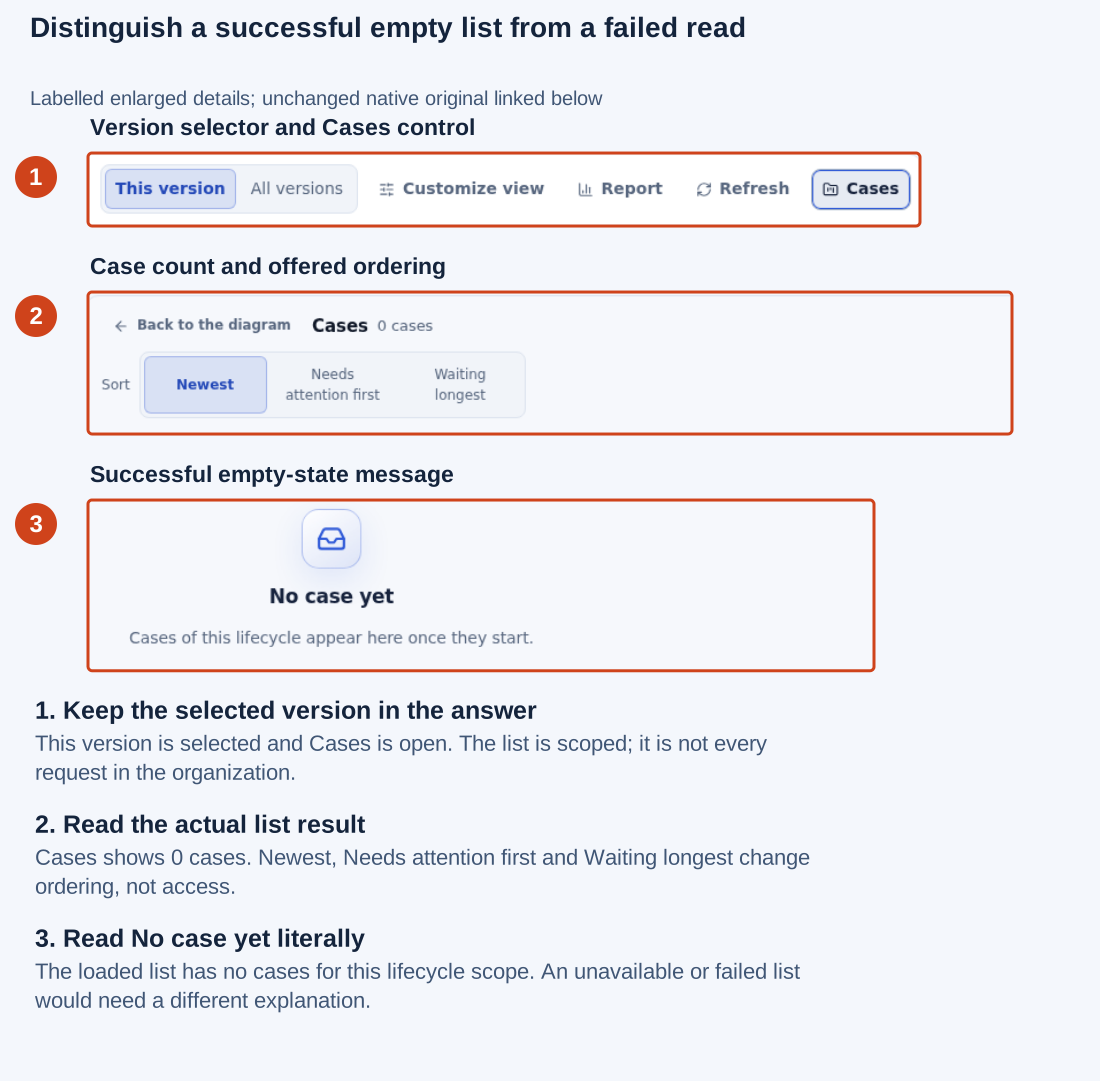
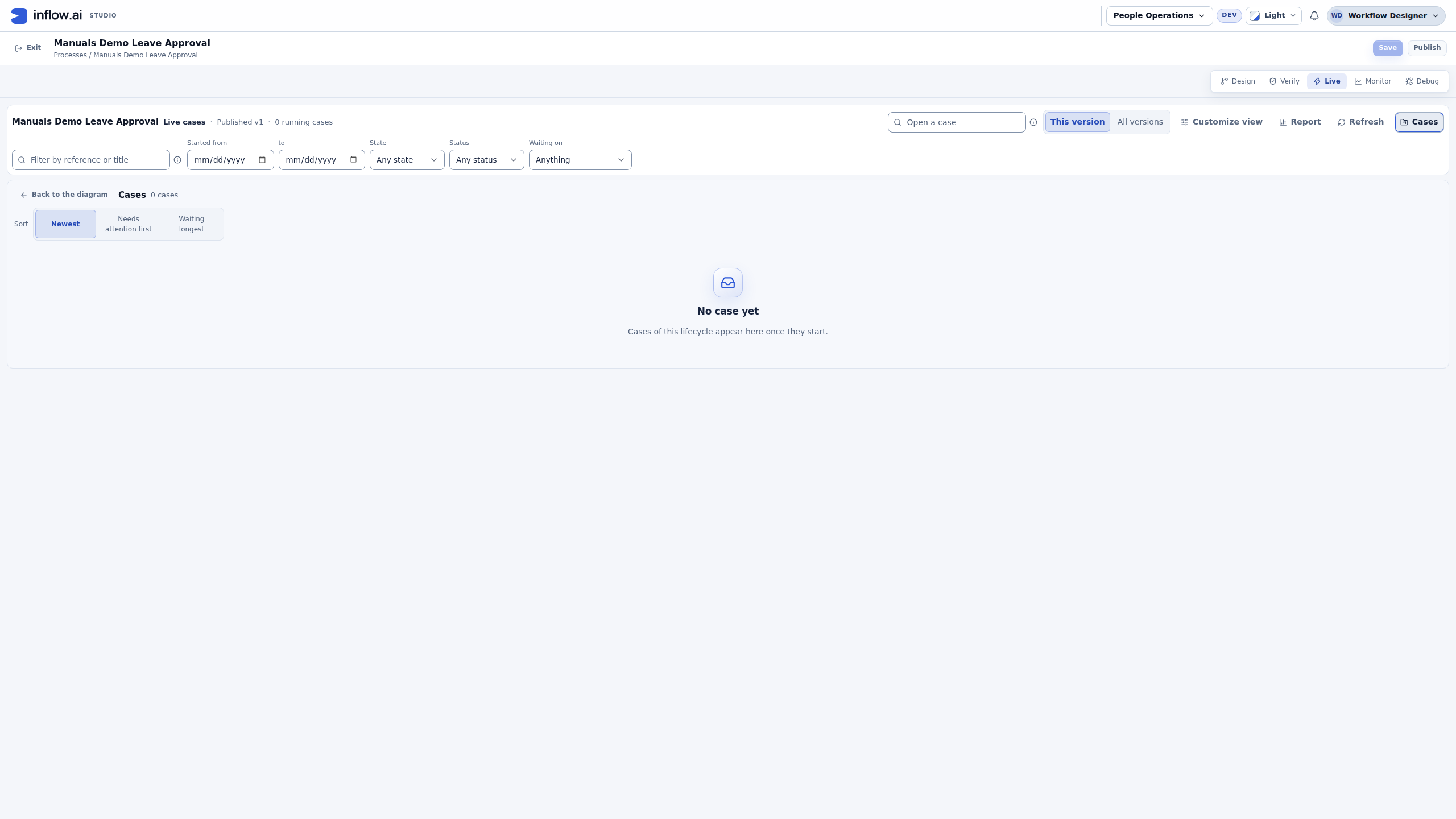
Actual loaded case list: Cases shows 0 cases and No case yet. The list is ready; this is distinct from a list that could not be read or is unavailable to the current person. Open the unchanged native 2560×1440 screenshot. The numbered guide enlarges labelled details from that single capture.
- Keep the selected version in the answer. This version is selected and Cases is open. The list is scoped; it is not every request in the organization.
- Read the actual list result. Cases shows 0 cases. Newest, Needs attention first and Waiting longest change ordering, not access.
- Read No case yet literally. The loaded list has no cases for this lifecycle scope. An unavailable or failed list would need a different explanation.
Check your result: Nadia can accurately say, “This published training lifecycle has no cases in the selected version view yet.” She cannot say that an employee submitted leave, that a manager approved it, or that the organization's other leave applications have no work.
Compare the unfiltered and filtered empty states
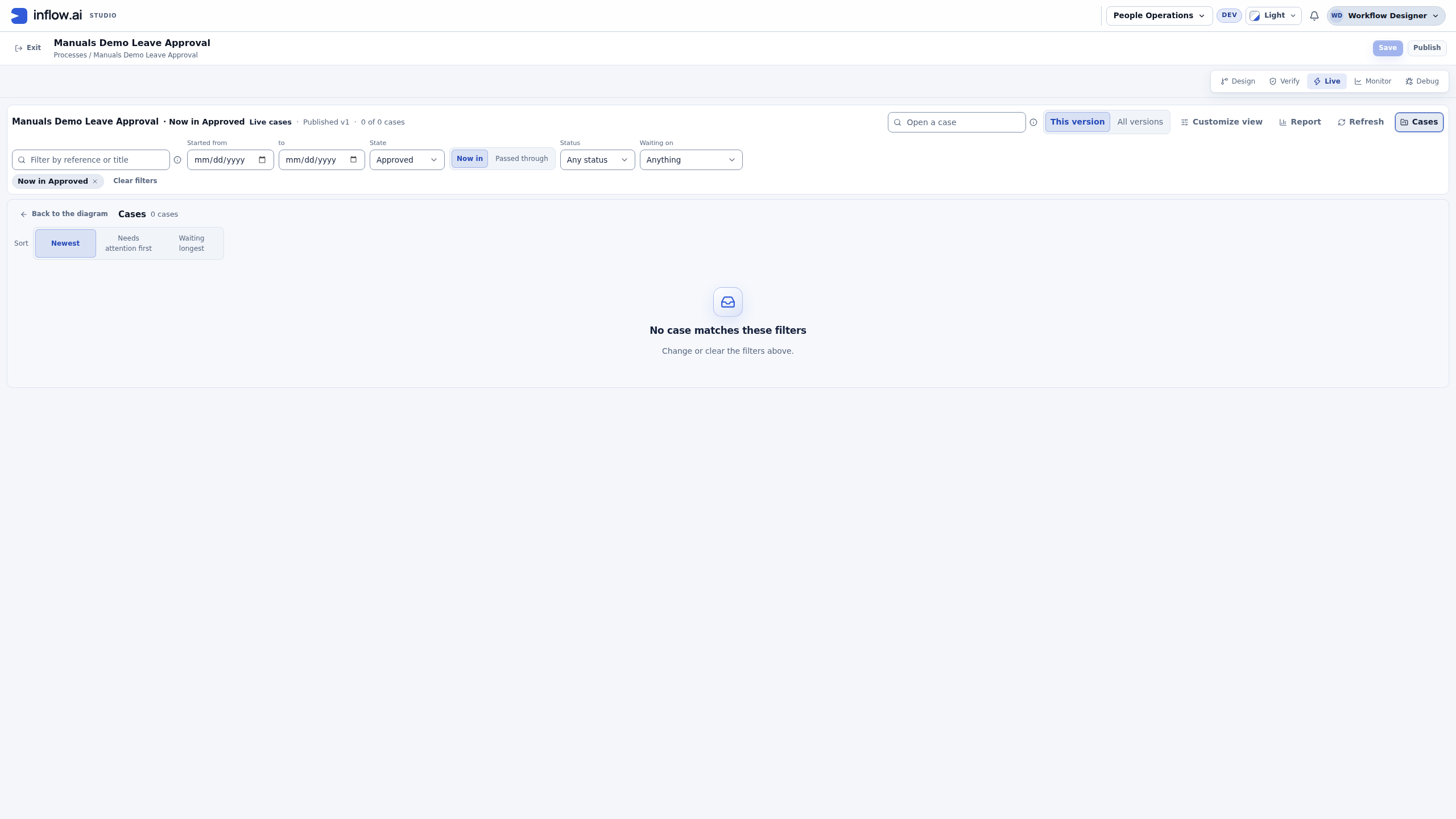
Selecting Approved in State is an inspection filter. It never performs an approval. The default Now in choice asks where cases are currently located; Passed through asks a different history question. Keep that choice in the explanation, especially for terminal stages.
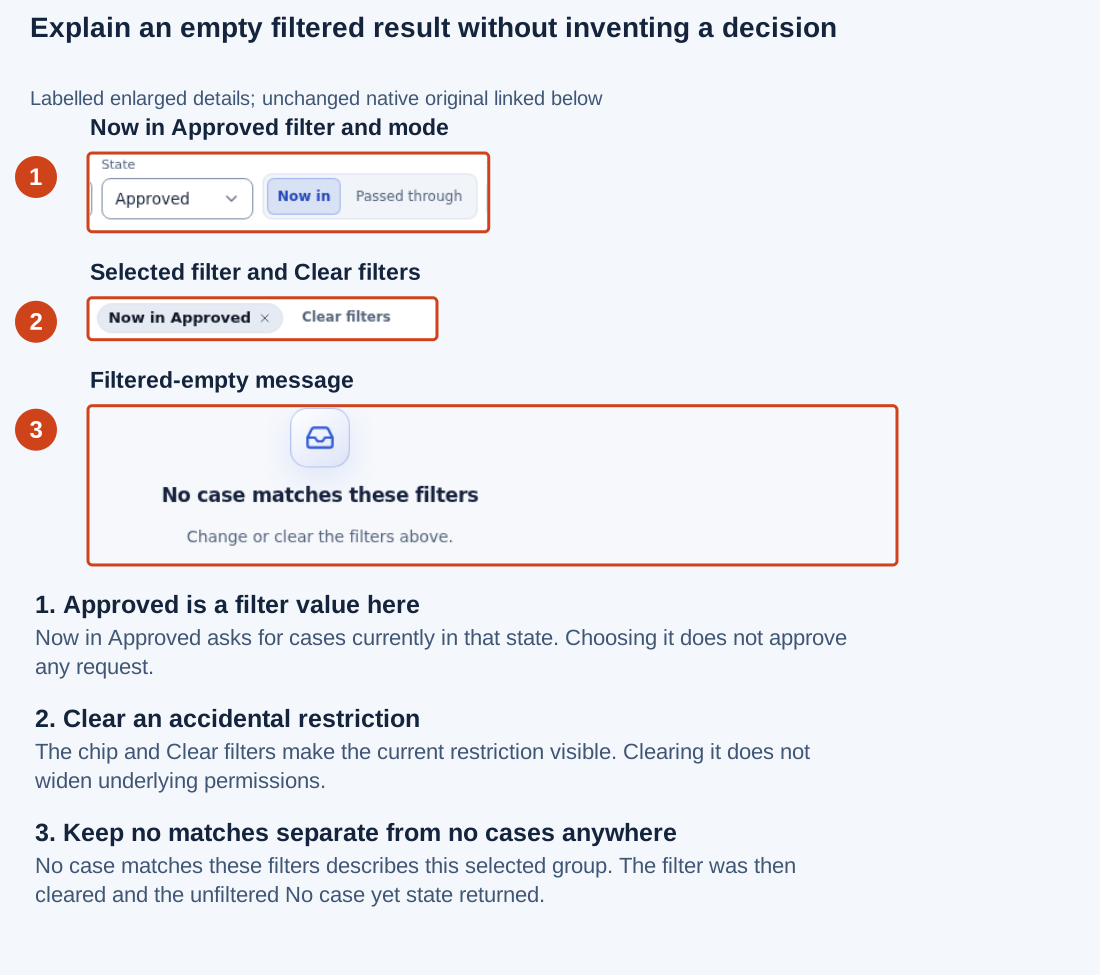
Actual filtered group: Now in Approved, the filter chip, Clear filters and No case matches these filters appear together. The header reads 0 of 0 cases for this empty fixture. Changing this filter did not create or decide any request. Open the unchanged native 2560×1440 screenshot. The numbered guide enlarges labelled details from that single capture.
-
Approved is a filter value here. Now in Approved asks for cases currently in that state. Choosing it does not approve any request.
-
Clear an accidental restriction. The chip and Clear filters make the current restriction visible. Clearing it does not widen underlying permissions.
-
Keep no matches separate from no cases anywhere. No case matches these filters describes this selected group. The filter was then cleared and the unfiltered No case yet state returned.
-
Read the chosen state and Now in or Passed through mode.
-
Describe the result as the matching group, not the complete organization. A different environment might have other cases outside this state, version or permitted scope.
-
If the filter was accidental, choose Clear filters, or return the state choice to Any state, and wait for the refreshed list.
-
In this walkthrough the unrestricted No case yet state returned. Clearing a filter changed the question, while the underlying access stayed the same.
Expected result: both readings can be empty for different stated questions. Keep their scope in your answer; do not create a new request to make an empty list look successful.
Read the process overview
- Open the published process and choose Live.
- Read which cases the figures cover. Check the selected version and any filters.
- Look at the lifecycle diagram to see where cases are currently located. State names are business stages; they are not task assignments by themselves.
- Select a state to inspect its work and the cases associated with it.
- Use Details when available to open the information panel. On a narrow screen this may open over the diagram instead of beside it.
- Choose Refresh to read the latest permitted information. Check the time/scope again before comparing it with an earlier figure.
Check your result: you can name the selected population, the busy stage and what work is actually waiting there. A missing or unavailable figure should be explained as unavailable, not reported as zero.
Find one request with Cases
- Choose Cases to open the case table.
- Use the available filters to narrow the list to the business question. Clear an old filter before concluding a request is missing.
- Find the allowed business reference, such as Leave request 014, and open that case.
- Read the case's current stage and version. Select its relevant task or step and open Details if needed.
- Follow the permitted task link if you need to carry out work; the task still checks whether you may act on it.
- Return to the process overview when you want whole-population figures again.
Opening a case changes the meaning of what you see. An earlier publication may be the correct design for that case. If the original design cannot be shown, keep that limitation clear; the latest draft is not a substitute historical diagram.
Example: find the manager-review bottleneck
Nadia wants to know why leave requests are taking longer this week.
- Open Leave requests in Live and choose the intended population.
- Select Review on the diagram and inspect the work inside it.
- Open Cases and look at the permitted requests in that stage.
- Open two representative requests and inspect their tasks. One may be waiting to be claimed; another may already be assigned but not completed.
- Explain the finding in business terms: Several requests are waiting for a manager to begin, rather than assuming the automatic process has failed.
If a figure cannot be loaded, investigate that display problem separately. If the task is not visible to Nadia, an authorized manager or administrator must inspect it; the lesson does not require broadening her access to every employee request.
Use Report and Customize view
Report provides the current Live report for the selected overview. Customize view controls what the diagram, routes and report show. These controls help tailor the operational view; they do not publish a new process design or grant access to data.
- Return to the overview if you have one case open.
- Choose Report and read the population and measures it covers.
- Choose Customize view when you want to change the available display choices.
- Read each offered choice and select the figures that answer your business question.
- Close the customization dialog and compare the resulting view with the question you started with.
- Refresh only when you need a new reading; do not confuse refreshing with applying a business action.
For a permanent report inside an application, use the separate process-report lesson. A Live operational report and a consultant-authored application report serve different purposes.
Example: investigate one failed automatic step
A request has not produced its expected PDF approval letter.
- Open the specific request in Live and select the relevant automatic step.
- Read the displayed failure or waiting explanation and inspect any result that your role may see.
- Check whether the required document exists and whether the administrator-prepared conversion service is available. Do not change server settings as part of this consultant task.
- Before any permitted retry, check whether a PDF was already created despite a lost confirmation.
- If Live offers Other actions → Retry the failed step, read its confirmation. It reruns that step where it failed; use it only when the original operation's result is understood and the step can safely run again.
- If Live instead offers Move to version N and retry…, treat it as a version change plus a rerun, not an ordinary retry. Read the dry run and impact details for the target version and steps that will run; confirm only when the move is intended and you are authorized to change this case's flow version.
- Inspect the same original case and the step's returned result. If the original outcome remains uncertain, stop before another attempt and ask the responsible owner.
The useful outcome may be a successful PDF, a clear business correction or an administrator handoff. It is not a repeated click until the warning disappears. Some automatic steps affect an outside system, and repeating them can have another business effect.
Read the case's work and history
In a case's Details, distinguish what is happening now from what happened earlier. A stage that was passed is not a second current task. A history entry explains an event; it does not by itself offer permission to repeat it.
When inspecting a human task, check who is responsible, whether it is still open and which decision was recorded. When inspecting an automatic step, check whether it is waiting, finished or failed and whether a business result was produced.
A related child flow is the work carried out inside a lifecycle stage. You normally do not need its technical identity to understand the request. Follow the current Live navigation to inspect that work, and return to the enclosing case when explaining the whole request.
Example: read an incident after a signal
Mohammad’s request is waiting at Payment settled and has an open incident attached to that waiting step. The payment signal arrives, and the case consumes the waiting position. The incident no longer describes current work, so Inflow closes it automatically. In Work, the resolved incident remains in the list with the reason Closed automatically: the case moved on past this step.
| What happened | What to check in Live | What it means |
|---|---|---|
| The signal consumed the waiting position and the request moved forward. | Read the current stage and task, then inspect Work and the case history. | The old incident may be resolved automatically and retained in history. This is not a person using Resolve. |
| The signal arrived but the request stayed at the same waiting position. | Read the current waiting step and its open incident. | The incident remains open because it still describes the current position. Do not treat delivery by itself as proof that the case moved. |
Do not retry the old step or manually resolve its incident just to clear the history. First check whether the request advanced and whether it has a new current failure or task. If the case did not move, follow the visible incident’s current explanation and ask the responsible owner when the cause is outside your access. Resolving one old incident does not repair another failure or grant permission to intervene. Manual Resolve appears only for an active case with an open incident but no failed step, and only when your effective incident-resolution permission covers that incident. If the case itself has failed, use its supported Retry or Cancel case recovery instead; Resolve is not a substitute.
Change live work only when it is your responsibility
The actions available depend on the selected case, its state and your current role. A consultant may be allowed to inspect but not reassign, retry, pause, cancel or move cases.
Before changing anything:
- Check the selected business reference and the current version.
- Read the action's explanation, especially whether it affects one task, one request or a group of requests.
- Understand the intended result and whether an outside action may already have occurred.
- Enter a meaningful reason when requested.
- Confirm once, then inspect the same original case or task for its result.
If the confirmation is lost, use the screen's supported check/recovery path. Do not start a new intervention simply because the first result is uncertain.
Moving requests to a different version
The Migrate control, when available, is for deliberately moving eligible running cases to another published version. This is different from publishing a version for future requests.
Read the exact population and proposed target before proceeding. Review where the cases will continue, what the assessment says, and any acknowledgement required. A case in the middle of manager review may not be equivalent to a new case starting from the beginning.
Do not use a group operation as a convenient way to fix one misunderstood request. Start by understanding an individual case, then review the entire selected group if the business change truly requires it.
Moving one stage's flow of a single case
Each stage of a lifecycle runs its own flow. When a newer version of that flow is published, a request already in the stage keeps running the version it started on. To move just that flow of one request, open the case and choose Other actions → Move this flow to another version….
- Choose a version. Only versions that one of the 30 newest published lifecycle versions uses for that stage are offered; versions that belong to one request's own design are never offered. A request that runs its own case-specific design cannot move its flows this way.
- Read the dry run: from which version to which, and where each open step continues. If it cannot move, the dry run says why and nothing can be confirmed. If someone else moved the flow meanwhile, Live reads the request again and makes the dry run from where the flow really is.
- Confirm. Only this stage's flow moves; the rest of the request stays as it is. The move is recorded with your name.
- To undo the latest eligible flow move, first refresh the case and review this stage flow’s current version and history. Use Undo this move on the result, or later Other actions → Undo the last flow move…. This action targets the latest recorded move that still matches this stage flow's current version; it is not permanently tied to the earlier gesture. If a later move changed the current destination or the flow ended or became ineligible, Live refuses the undo. Follow the current result; do not treat a stale undo action as a rollback.
After a move, Live draws the stage with the flow version the request now runs. While the request is in that stage, the case panel says so: a line such as "Start flow: Runs version 2; this case's design uses version 1." The current position and the timeline name the steps as that version calls them when Live can read that version; until then, or when it cannot, they name the stage without its steps rather than show another version's names. If no published lifecycle version uses that flow version, Live says which version it runs instead of drawing a different diagram. You need the right to change running cases; without it the action is not shown.
Changing the design while work is running
Current Live may offer design-editing and apply-to-case tools to an authorized author. Treat these as a separate change process: inspect the actual running design, make an intentional edit, review its impact and apply it only to the identified work.
Saving a general draft does not mean all running cases use the change. If you are learning process design, complete the ordinary author/test/publish lessons first and ask an experienced authorized operator to review changes to live work.
Common mistakes
| What you see or assume | What to check |
|---|---|
| A case is missing from the table. | Check filters, population, version and current access. |
| The diagram shows many waiting cases. | Open a state and inspect actual tasks; waiting is not automatically failure. |
| A count or detail fails to load. | Keep it distinct from a true zero or empty result. Use the displayed recovery or contact the owner. |
| A task disappeared after another person acted. | Refresh the original case and inspect its recorded result; it may be completed or reassigned. |
| A new version looks different from an open case. | Read the case's actual version. |
| An action is absent. | It may not be permitted for your role or the selected work. Do not seek a hidden route to it. |
| Refresh did not repair the process. | Refresh updates the view; it is not a business retry, reassignment or migration. |
Where to go next
Use human tasks to understand the participant's experience, or process reporting to build a report into an application. The optional technical Live reference contains implementation and detailed contract material for specialists.