Show, search and page through records
A Data Grid is a table of business records. Use it when people need to scan several items, compare their fields and open the right one. A manager's list of leave requests is a good example.
A grid is a view of data, not an approval process. Displaying a row does not approve it, edit it or give its viewer extra access.
Before you begin
Prepare a saved screen and a published, usable source. The data-model lesson explains the preparation for model records; the Query Builder lesson explains a reusable question such as “which requests are pending?”
Keep three fictional rows available while learning. Make their request numbers and statuses different so you can tell whether the grid is showing the intended result.
Plan the table before styling it
Write down who uses the page and which decision it supports. Sara needs to identify a request, see who requested it, read the dates and understand its status. She probably does not need every employee detail in the table.
| Column | Useful question it answers |
|---|---|
| Request number | Which request is this? |
| Employee | Who asked? |
| First day | When does the leave begin? |
| Requested days | How long is the request? |
| Status | Is it waiting, approved or declined? |
Use readable labels. Keep codes such as PENDING as the underlying business value, while the interface may display a friendlier label if you configure one.
Example — Build a readable manager list
- Open the saved page in the Interface Designer and add or select Data Grid.
- If this grid has no source yet, choose Connect data and select the intended source; for the first exercise, use the Leave request model. If the intended source is already connected, keep it. Choose Replace connected data only when the source itself needs to change; use Configure data grid for a presentation change. When retaining the saved connection, skip steps 3–5 below and continue at step 6; those wizard steps apply only to a new or replaced connection.
- Inspect Preview and select the needed Fields. Keep a stable record identity available to the connection where it requires one; do not replace it with the employee's display name.
- If the sample result is an empty collection, the preview can identify it as a collection but cannot infer its fields. Studio may show This collection is empty, so its fields could not be inspected. Check the published source contract or ask its owner which fields are available; do not treat an empty sample as proof that the source has no schema or add dummy records just to fill the preview.
- Review Interactions. Start with read-only display, adding row opening or selection only when the application has a supported destination for it.
- Finish the connection and inspect the column headings, long text and date display.
- Configure the control's supported search, sorting and paging settings for this source. These options depend on the connection; do not assume every source has the same behavior.
- Save and preview the intended draft. Publishing is a separate reviewed release step; the current illustrated exercise below stops at the unpublished preview.
What you should see: the fictional requests in a table that makes them easy to distinguish. Open the finished page as the intended ordinary user during application testing; the author's preview alone does not show every viewer's access.
If the table needs to show only pending work, connect a compatible published Query returning records, or use the supported filter configuration for the chosen source. An ordinary display filter is not a substitute for record security.
Example — Check the current draft against the worksheet
The following 17 November sequence uses a saved unpublished Form, a single read-only Data Grid and the exact live Leave request model from the connection lesson. It reuses three fictional worksheet records; no employee or manager task is submitted. The grid heading says Fictional leave requests — training states, no workflow approvals.
| Reference | Employee reference | Days | Stored state | Meaning in this exercise |
|---|---|---|---|---|
| 014 | EMP-014 | 3 | PENDING | A fictional waiting request |
| 015 | EMP-015 | 2 | PENDING | A second matching example |
| 016 | EMP-016 | 2 | APPROVED | A comparison value entered directly, not a workflow decision |
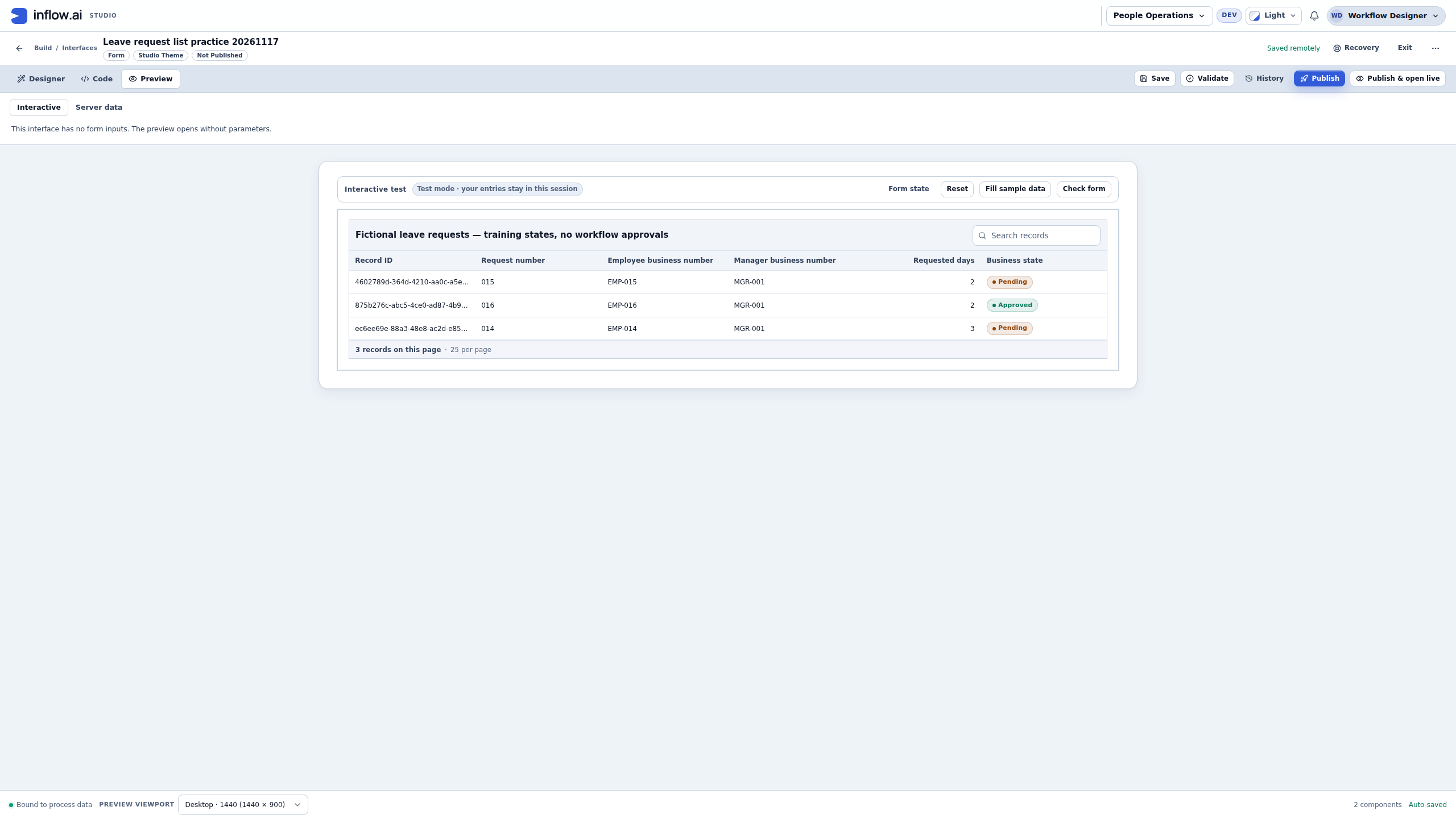
- Save the intended draft after connecting its source and choosing fields. Open Preview → Interactive. Allow the current source request to finish; a loading message is not a zero-row result.
- Read the six headings. The chooser retained four identifiers and added Requested days and Business state. The recorded connection uses the exact model publication, rather than an unpinned substitute. The saved list contains no copied sample-order rows.
- Compare all three request references and quantities with the worksheet. The initial row order in this capture is 015, 016, 014. A successful first row alone does not establish that the other examples are correct.
- Read the footer as 3 records on this page, with 25 per page. This is a small one-page result. It does not demonstrate navigation across a larger set or prove that three is a global business total for every user.
- Keep the Not Published badge in mind. These are actual source reads in the author's draft preview. They do not show Sara's ordinary-user access or a released application.
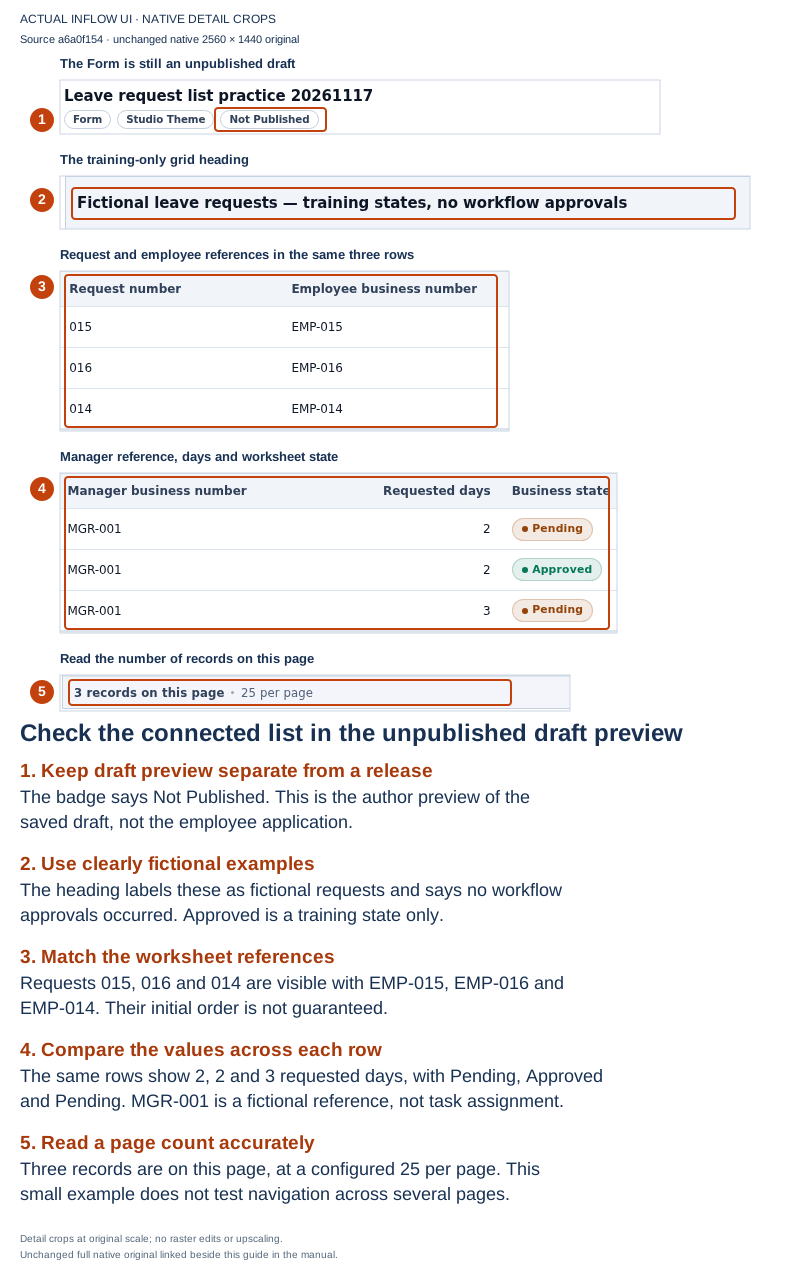
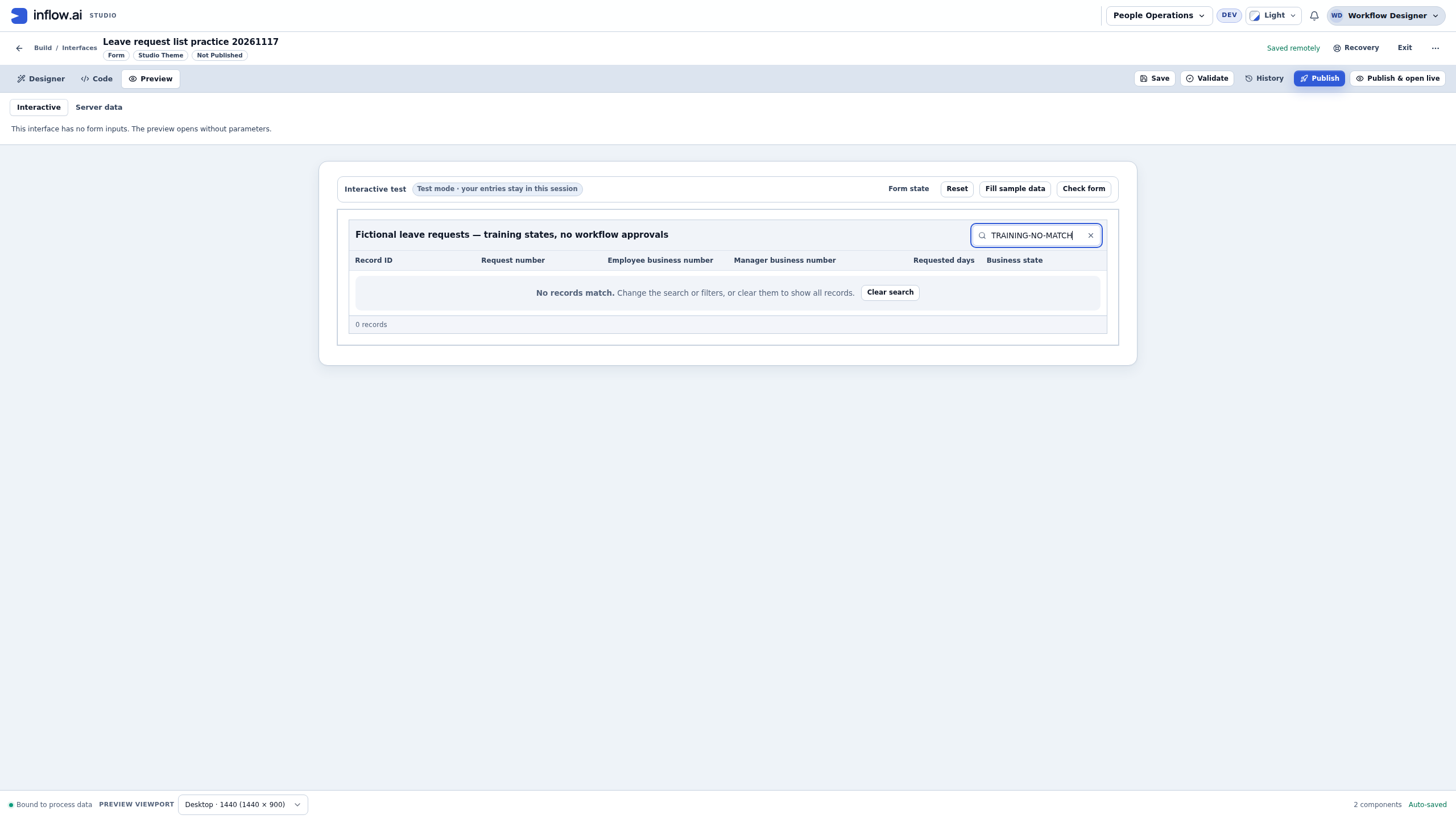
Source a6a0f15454, captured at native 2560×1440 on 17 November. The full original is unchanged. Detail insets preserve the same row order. The Form remains unpublished; no ordinary-user or workflow acceptance is implied.
Search for the pending worksheet values
- In Search records, enter PENDING. Wait for the new result rather than reading the old rows while loading continues.
- Check that the result contains 014 and 015, with 3 and 2 requested days. Their display badge says Pending; the underlying worksheet value is PENDING.
- Check that 016 is absent from this temporary search. Its stored APPROVED value does not match this search term.
- Read the page count again. This run shows two matching records on the page.
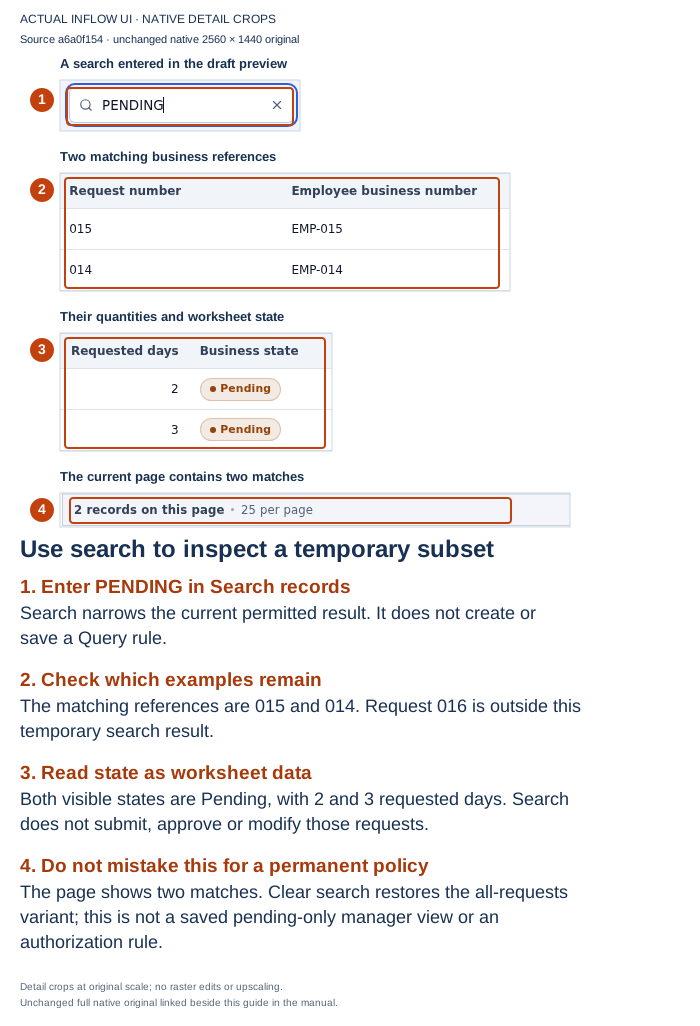
The native original shows a search within the unpublished author preview. No Query rule was created, no condition was saved into the source, and no request was approved or modified.
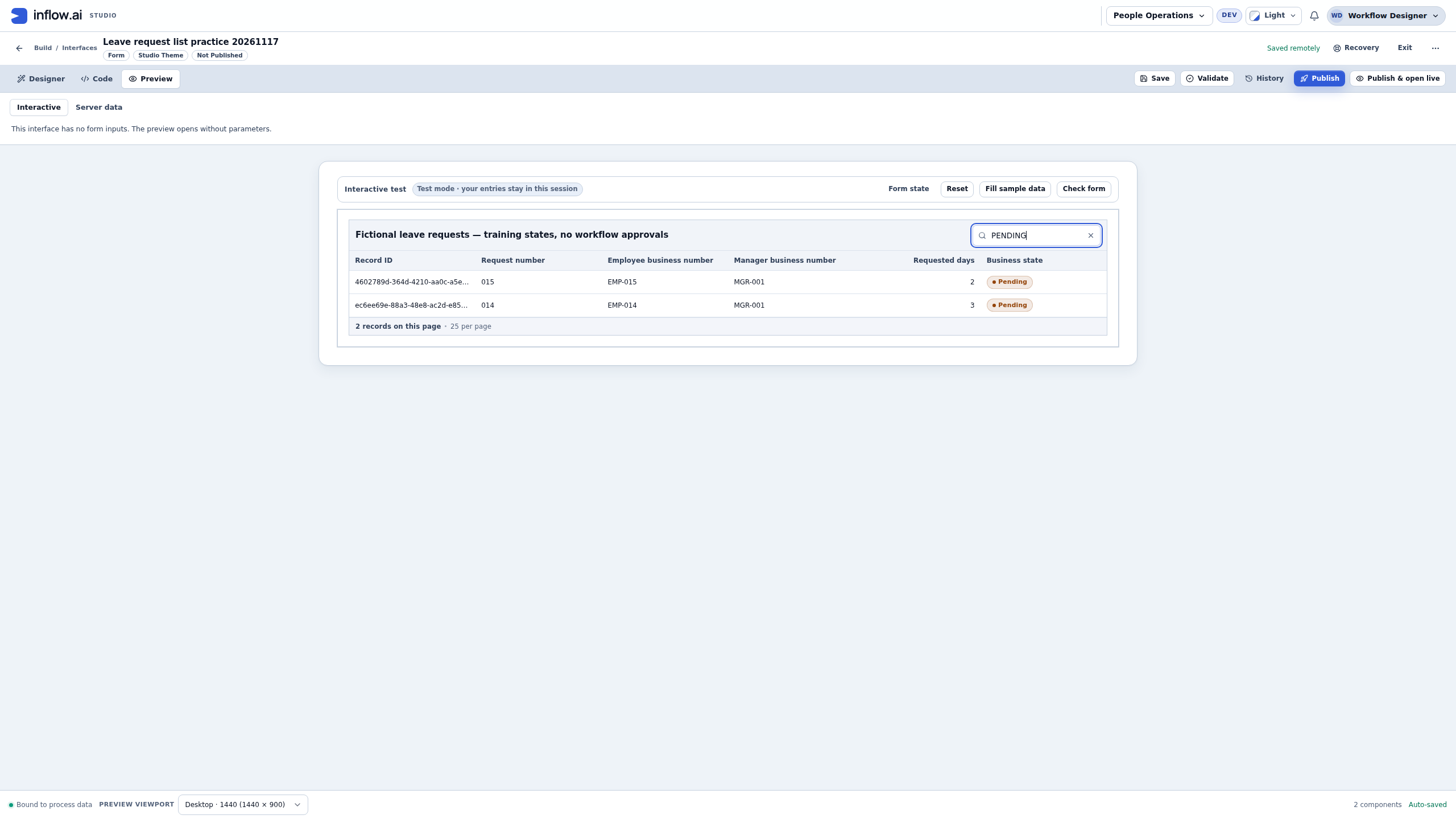
What this proves: the configured searchable fields support this term against the admitted worksheet. It does not mean every field is searchable, that search can read private fields, or that this page is permanently pending-only. A search term is a reader's current view state. It is not a record-permission policy.
Recover when the search has no matches
- Enter TRAINING-NO-MATCH in Search records for this fictional set.
- Wait for the completed result. The message says No records match. Change the search or filters, or clear them to show all records. Read that explanation before diagnosing the data source.
- Choose the actual Clear search action offered beside the message.
- Check the restored result and count. In the captured sequence, all three original rows returned. Their saved values remained unchanged.
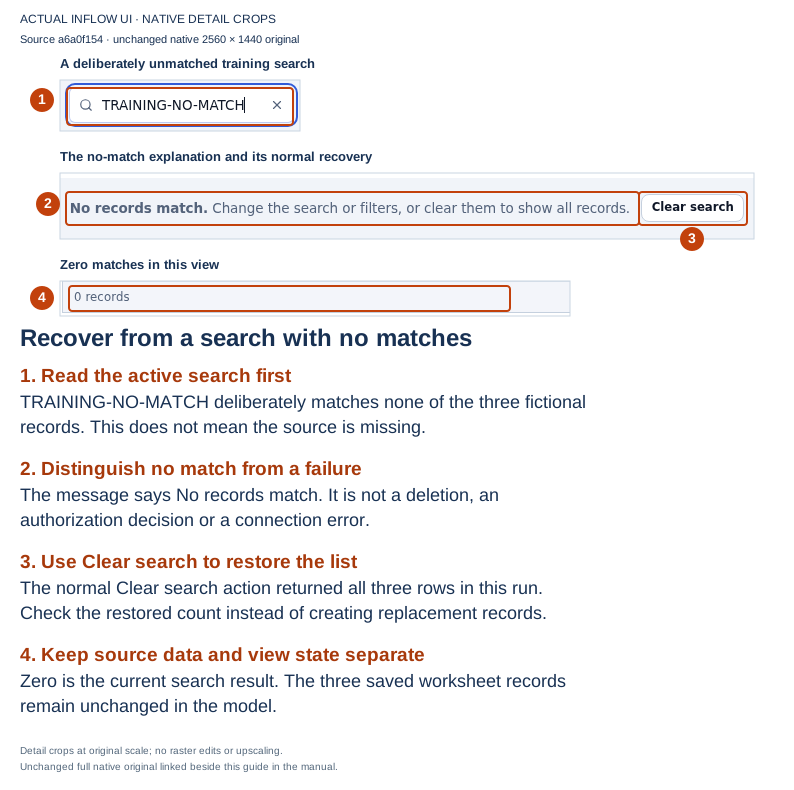
The full original is unchanged. Zero is the current search result. It is not a failed connection, a deletion or a proof of denied access.
Do not create replacement records to repair an empty search. If Clear search still does not return expected records, compare the active filters, allowed searchable fields and selected source with its owner. A permission difference needs the access owner's review; an unavailable service needs its own diagnosis. Avoid treating all of those situations as “no pending work.”
Check a deliberate sort after restoring all rows
Choose the Request number column's sort action and read its direction. In this run, ascending order returned 014, 015, 016. The direction indicator changed before the new rows finished arriving, so check both the indicated order and the settled records. Sorting did not change any stored request number or business state.
The current capture checked ascending request number, the pending search, a no-match search and restoration. It did not exercise a separate filter editor, descending order, next-page navigation, row opening, editing, an App Shell release or an ordinary employee account. The broader exercises below describe those separate checks where the source and application support them.
Understand search, sort and pages
- Search helps find a row using supported searchable fields. It does not promise a search through every private field in the model.
- Sort changes the order. Choose a meaningful field, such as first day, and check both ascending and descending behavior where offered.
- Page size controls how many matching rows the person sees at once.
- Total count, when the source supplies it, describes the matching allowed set. The number of visible rows on one page is not automatically that total.
Some sources work with a complete local set; others retrieve one page at a time. A consultant should use the connection's supported settings rather than promise that a small preview represents all production records.
In a published Live page or form, a server-backed source can expose only the search, filter, sort, relationship and paging controls that it declares. When those remote controls appear, Live sends the selected operations through the source loader that owns that result; it does not filter or sort only the rows currently visible in the browser. Changing a search, filter or sort starts the query again at its first page. A page-size choice is also sent to that source. Check the changed result and its page information together, especially when a matching record was on a later page. A complete-local result follows its own interaction path, so do not treat one remote page as a complete local set. If a control is absent, confirm that the connected source declares that capability; do not promise the behavior or imitate it with browser-only filtering. If the user is not allowed to read the control's data, its remote controls are not shown and Live does not issue another source request for that denied control. These controls do not grant access: the source and application still determine which records the current user may receive.
Example — Check paging without losing a request
Nadia uses the three fictional requests to check the configured page size and the meaning of the visible result. Keep the designer setting and the published runtime control separate: the Data Grid profile's Page size setting offers 10, 25, 50 or 100 rows, while a server-paged source may declare the choices in its runtime menu. When the source declares page-size options, the runtime menu uses those choices; for a legacy source without an explicit list, it offers that source's configured default and maximum. The initial runtime choice is the source default. Choose only values actually shown, and do not promise that every connected source offers all four common sizes or accepts an arbitrary number.
- In the Data Grid profile, choose Paging → Pages. If the source does not support paging, keep its supported behavior and explain that limit instead.
- In this Data Grid profile, choose Page size → 10 rows. When checking the published page, treat its runtime menu separately and select only a value offered by that connected source.
- Apply a deliberate sort, such as request number ascending, so the visible order is easy to check.
- Open the published or previewed table through the appropriate test route and read the page. Check request numbers, not only employee names: two employees can share a name, and one person can submit multiple requests.
- Change a supported filter or search and check what the resulting page means.
What you should see: the three-row teaching fixture fits on one page of up to 10 rows. This confirms that those matching rows are visible in this example; it does not show how the grid divides a larger result. To practise moving between pages, use a separate approved fixture with at least 11 matching, permitted records, keep page size at 10 and choose a stable sort. Then check the first 10 rows and the remaining row or rows on the next page. Do not silently expand the canonical three-row fixture for this exercise.
If no next page appears, first check the matching count and the source's paging support. A successful result with three matches correctly needs only one page; an unavailable or failed load is a different state from an empty or short result.
Example — Read the request list on a phone
Sara often checks pending requests between meetings. On a narrow screen, she needs to identify a request and see its state without dragging a wide table back and forth. Keep the same data source and row interactions; adjust only how the existing Data Grid presents its selected columns.
- Open the screen and select its existing Data Grid. In Properties, check that the published pending-requests source is still selected and whether a row-opening action is configured. Keep an intended existing action unchanged. Choose Configure data grid. If the source is wrong, stop and review that separate configuration instead of silently replacing it during a layout change; do not add a row action just to practise phone layout.
- In Fields, keep the existing selected columns and stable row identity. Find the request-reference column (
request_id) and set its Phone priority to primary. Set the status column's Phone priority to secondary. Keep other useful columns as secondary or optional according to the question this screen answers. If an existing cell link uses a different display field, review that mapping and destination with its owner: the linked display field leads the phone card. Preserve the working link and destination; do not silently remap or remove it just to force a request number into the heading. Do not remove fields just to make the cards shorter; check field access at the source and application permission boundary. - Continue to the behavior settings and choose Phone layout → Priority cards. With no linked display field, the primary value leads each card; a status-like column is shown as status, and up to three other non-optional columns can support the card. When a cell link is configured, its linked display field takes the lead instead. Keep the existing desktop/table columns, sort, paging, selection and row action. Choose Scrollable table instead when comparing many columns side by side is more useful than compact cards.
- Review the profile summary and choose Apply data grid. Save the screen through its normal save flow. Do not change the source, row action or permissions as part of this presentation adjustment.
- When an authorized current build and ordinary viewer are available, inspect the saved page at a narrow phone viewport. Check the visible request references and statuses, and confirm that the desktop layout and selected fields still behave as expected. If a row-opening action is already configured, open one row using that action; if not, check the cards without inventing an action for this exercise. If using Scrollable table, verify that users can reach the far-right columns and return to the request reference.
What you should see: with the fictional pending fixture, one card per permitted matching request. When no cell link overrides the heading, each card is led by its request reference and accompanied by its status. If a cell link is already configured, inspect the intended linked display value and destination with the owner; preserve that working link. A card priority only changes presentation. It does not hide a sensitive field from someone who can fetch the source, grant permission to a row or replace server-side access rules. This phone-width check is planned; it has not been captured or run on the current build.
Keep display and business actions separate
A row might link to a request page or an actual manager task. Configure that destination using the application designer's supported actions. The action still checks the current user and item.
Do not make an approval icon look like a working decision when it only displays status. Actual task decisions belong to the supported task form and its permitted submit actions. Similarly, switching a grid to an editable control requires a deliberate editing design; a Data Grid connection does not automatically make every field writable.
Common mistakes
- Rows appear twice or open the wrong item: review the connection's record identity and selected fields. Names are not reliable identifiers.
- A column has the wrong kind of value: check the model field and the chosen display format before changing the stored data.
- A source or field is unavailable: ask its owner to review publication/access. Do not issue an extra hidden fetch just to fill the cell.
- Search or filter returns no matches: Live says No records match and suggests changing or clearing the search or filters. This means the active narrowing matched no rows; it is not proof that the source has no records and is not a load failure. Clear the narrowing to see the rows the same source returns under the current user's access. If expected rows are still missing, review the searchable fields, active filters, declared source capabilities and access with the source owner.
- The first page looks correct but later pages do not: test the sort and paging together with more than one row.
- No rows versus a load failure: keep those states different. A failed request does not mean there are no pending requests.
Continue
The query-driven page tutorial combines data selection and a complete page. The optional grid runtime reference is for developers who need the technical contracts.