Test a process before people use it
Debug lets a consultant run a process with example data, pause before a business step and see what happens next. It is useful for finding mistakes before employees use the application.
A test session is one saved test run. It is separate from an ordinary employee request. Testing a manager's task in Debug does not prove that the real manager can sign in and use the published application; you will check that separately.
Important: Debug runs the actual process runtime. Its session and catalogs are separated from ordinary production work, but Debug is not a fixture-only, zero-effect sandbox. A configured service or integration step may call an external system and cause a real effect. Before starting, use only an approved training environment and fictional data; inspect every connection and action the selected path can reach, and have the connection owner explicitly approve the test destination and effects. If you cannot establish that boundary, do not start Debug. Stopping or pausing a session does not undo an external action that was already sent. For a modeled walkthrough without live connector calls or operational task records, use the Interactive Token Sandbox in Simulation Studio. Simulation Studio also has a separate Inject simulated data operation that writes synthetic process and document records into a workspace; use that only in an approved nonproduction training workspace, as explained in the guide.
Before you begin
You need a saved process design, permission to test it, and fictional sample data. For the leave example, prepare the process's declared request values (requestId, employeeId, dates, requestedDays and reason) and the published manager decision form. Its Approved checkbox selects the answer; Submit decision actually submits it. The task recipient is configured separately in the task's Assignment → Specific user settings; it is not an Employee or Manager startup field. For Debug, use only the dedicated non-production test participant confirmed in preflight, and confirm any task notification is routed to an approved test destination. Do not assign a production employee to the test. Have the process-authoring lesson ready if Verify identifies an authoring problem.
If you want to test an existing published version, select that version deliberately. “Saved draft” means the design you are currently preparing; “published version” means the design released for use. They may differ.
Prepare your first test
- Open the process and save your intended design changes.
- Open Debug. Start preparing a new test if a previous session is displayed.
- Choose where debugging should begin. For a first end-to-end test, begin at the initial state. To investigate a later stage, choose that stage and understand that earlier stages will not run in this test.
- In Choose where to pause, select the step before which you want execution to stop. This is called a breakpoint. For the leave example, pause before the manager's review task.
- In Add example business data, supply only the declared values required by the chosen starting point. For the complete leave example, enter requestId (for example
leave-2026-017), employeeId as business Text such asM014, startDate, endDate, requestedDays such as5, and reason. These are sample process values, not authenticated identities. - Review the Start Test Scenario dialog. Fill the required data, give the test a recognizable Case reference, and choose Start test.
Check your result: the debugger shows the saved design being tested, where it began, and the current position. If you started at Review, do not expect a missing earlier step to calculate values for you: supply those example values yourself.
Worked example — inspect setup without starting a test
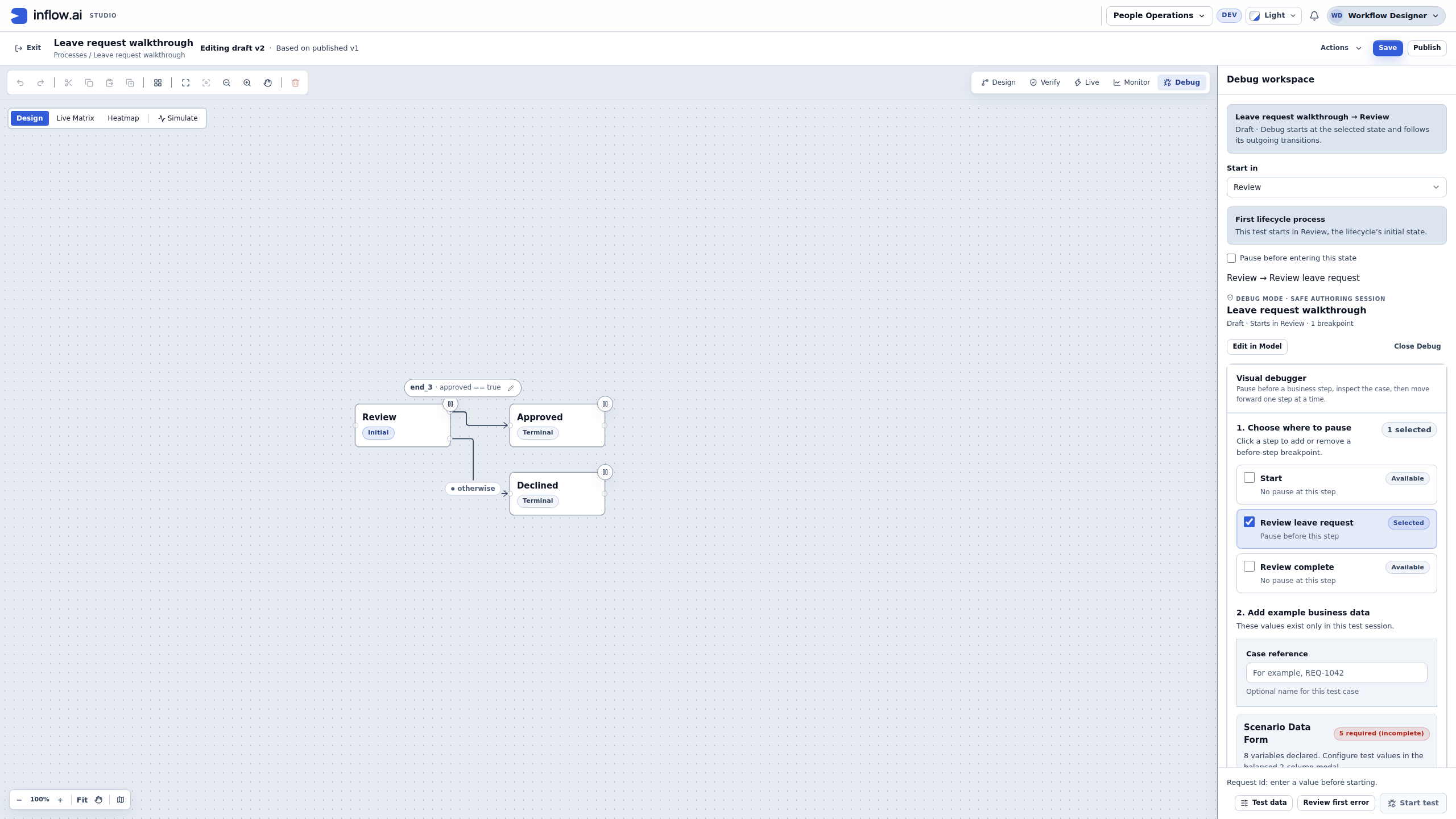
Nadia first reads the proposed test configuration with the process owner. The two pictures below stop before execution. They show a fictional training draft, Leave request walkthrough, whose header says Editing draft v2 · Based on published v1. A draft based on a release is still the draft; these pictures do not show a test of published version 1 or a running Debug session.
Use this as a reading exercise. Do not choose Start test to reproduce the pictures. A later real test needs the environment, participant and outside-effect checks described above. The Debug pane's “safe authoring session” label does not make every reachable connector harmless when execution begins.
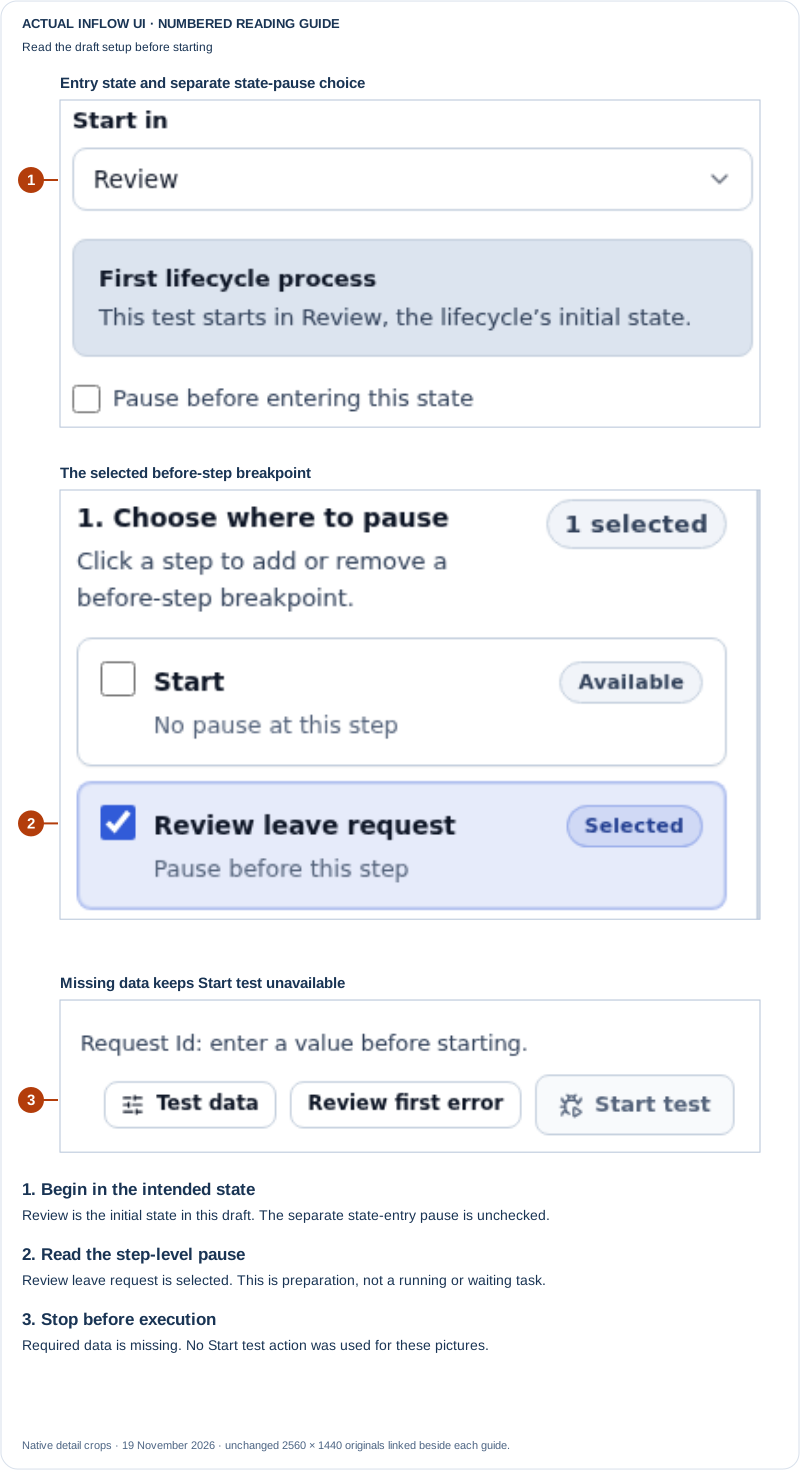
Open the unchanged native 2560×1440 Debug setup screenshot
Read the first guide in order:
- Check the entry state. Start in → Review is paired with First lifecycle process and an explanation that Review is this lifecycle's initial state. This is a choice about where a future test begins; it does not mean that Review has run. In another process, a similarly named stage may be later in the journey. Confirm its actual initial-state label instead of copying the name.
- Distinguish the two pause choices. Pause before entering this state is unchecked. Farther down, Review leave request is selected under Choose where to pause. The first choice concerns entering the lifecycle state; the selected checkbox concerns pausing before a step inside it. “1 selected” counts that prepared breakpoint. It is not a count of manager tasks, running cases or approvals.
- Read the current reason before starting. The footer says Request Id: enter a value before starting, and Start test is unavailable. Opening Debug has not supplied the required business values. The setup's Test data button opens their dialog; it is separate from Start test.
Only the relevant native details are enlarged in the guide. The lower setup panel continues below the first image's visible area; the original is not evidence that every declared field is visible at once. Read the test-data dialog for the actual input groups.
Read the proposed inputs and the remaining gap
Nadia opens Test data. The dialog is titled Start Test Scenario and names State: Review. She prepares a new, unused fictional Case reference, CF3-DEBUG-PREP-20261119-01, and a different Request Id, LEAVE-DEBUG-20261119-01. She enters Employee Id → DEMO-014 and Requested Days → 3. In the captured state, both calendar dates remain blank, so the setup is intentionally incomplete. No test is launched.
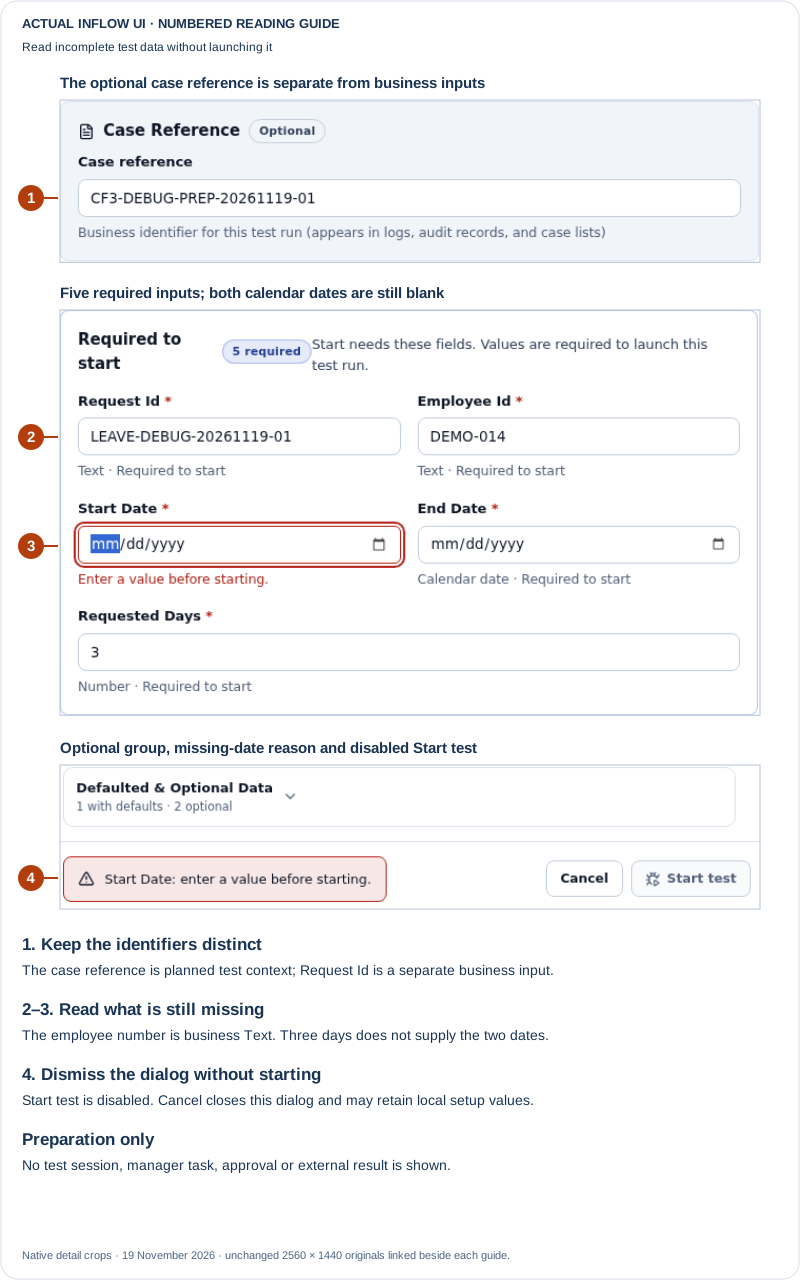
Open the unchanged native 2560×1440 test-data screenshot
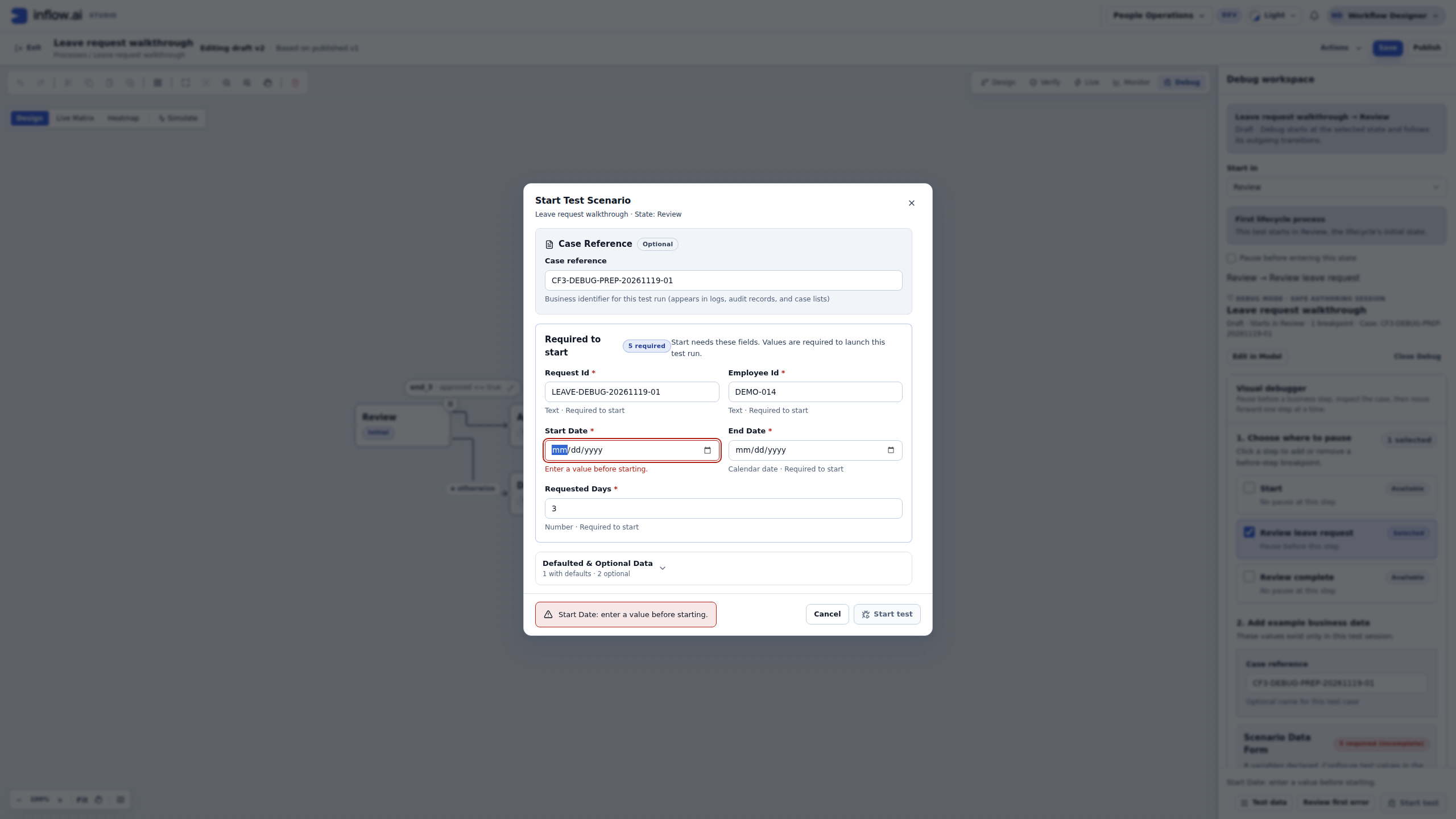
Use the picture to answer concrete questions before proceeding:
| What Nadia reads | What it means here | What it does not establish |
|---|---|---|
| Optional Case reference | Planned context to identify this test if it is later started | A saved case, audit entry or existing employee request |
| Required Request Id | A declared business input for the process | The Case reference, an authenticated identity or a delivery receipt |
| Required Employee Id shown as Text | Fictional business data, DEMO-014 |
The signed-in operator or assigned manager account |
| Required Start Date and End Date are blank | The example still needs both calendar dates | A tested date range, accepted date entry or a server rejection |
| Requested Days → 3 shown as Number | One entered value | A calculation of working days, a leave allowance or support for every numeric type |
| 5 required | The number of inputs classified as required in this design | The number still missing after every edit, or the required fields of another process |
| Collapsed Defaulted & Optional Data | This design also reports one defaulted and two optional inputs | Their names, values, business suitability or later effect |
| Start Date: enter a value before starting | The current first missing-value explanation | An attempted Start test, a runtime failure or proof that the other fields are sufficient |
The form's groups come from this saved design. A manager form can have its own required answers, and another starting state can need different inputs. Do not make employee or manager access depend on a text value entered here; the task's assignment and current authorization remain separate.
Nadia chooses Cancel in this dialog. It closes the dialog and returns her to Debug setup. In this preparation, the Case reference remains in the setup pane and the missing-date reason still prevents Start test. Cancel is not a promise to discard every local value, and closing this dialog is not the same as stopping or cancelling an executing test session. Read the current values again before using the setup for a later approved test.
This exercise shows opening setup, reading the pause choices, preparing incomplete inputs and dismissing their dialog. It does not show Start test, a created case, a waiting manager form, a submitted decision, a session stop or a connector result. Continue with the execution procedures below only for a separately approved test and inspect that run's own outcome. If the designer reports an unexpected screen error, preserve the saved work and ask its owner for the supported recovery; do not operate a remaining canvas as though the error had cleared.
Move through the process deliberately
- Read the current-step explanation before pressing a control. A process may be paused before a step, waiting for a person, waiting for time to pass or unable to continue because of a problem.
- Choose Step once to let the next allowed step run and inspect the result.
- Use the displayed run/continue control when you want execution to proceed to the next waiting point. Use Pause when you need to stop its progression for inspection.
- Select a step to inspect the information it received and produced. Check the business field values, not just the success colour.
- If the process reaches a human task, open that task through Debug's supported participant/form controls. Choose only an eligible participant offered by the test.
- Complete the form using the authored action, then inspect what happened to the flow and case file.
A breakpoint and a waiting task are different. A breakpoint stops before a step so you can inspect it. A human task waits until its allowed participant supplies a decision. An automatic step waiting on an external service does not have a human form to fill.
Choose the right kind of test
These three actions have different effects. Choose by the question you need to answer, not by which screen is already open.
| Option | What it is for | What it can affect | Use it when |
|---|---|---|---|
| Interactive Token Sandbox | Walk through a modeled process path with teaching inputs and fixtures. | It does not invoke configured external services/connectors or create an operational human task; an unresolved fixture means the connector behavior was not tested. | You want to understand routing or expected modeled outputs without calling live integrations or creating operational task records. |
| Debug session | Run the selected process through the actual runtime with a test participant, inputs, breakpoints and session history. | A configured connector may contact an outside destination, and an action may already have an effect before you pause or stop. | You need to test the full runtime path, the selected integration behavior and the task participant flow in an explicitly approved test environment. |
| Inject simulated data | Create synthetic lifecycle, task, document and KPI records in a workspace for demo or analysis. | These are physical workspace records that can appear in ordinary operational views, subject to access. | You intentionally need those synthetic records in an approved non-production training workspace and have confirmed the target lifecycle and workspace. |

The decision map is guidance, not a screenshot or permission control. A fixture-based result does not prove a real connection works, and a stopped Debug session does not undo an outside action that already happened.
Before Start test, be able to answer all of these:
- Which workspace and process version will this session use?
- Which start stage and breakpoint will you select, and which earlier stages will therefore not run?
- Which connectors, email actions, task notifications, document operations or other outside effects can the selected path reach?
- Has the connection owner confirmed the exact test destinations and acceptable effects, with production recipients and live accounts excluded or safely intercepted? Is the assigned task user a dedicated test participant in this non-production environment?
- Are all business values fictional and limited to the declared fields needed by this starting point?
If any answer is unknown, stop before starting the session. Ask the process or connection owner to confirm the boundary. Do not use access to a screen or a successful-looking prior test as evidence that the destination is safe.
Example: check that approval reaches the right final stage
Use Leave test — approved as the Case reference. Set requestId to a distinct fictional test reference such as leave-debug-approved, employeeId to business text M014, the sample dates and 5 days, and a fictional reason. “Sara” is a fictional test participant: assign only the dedicated non-production test account approved for this workspace through Assignment → Specific user, and verify that any task notification is intercepted by the approved test destination. Never route the test to an employee's production account.
- Start before Review and pause before Review leave request.
- Check that the task receives the dates, request reference, employee business number, days and reason you entered, and that the task's eligible participant matches the separately configured assignment.
- Open the captured manager form through the participant controls.
- Select Approved, enter Cover is arranged, and choose Submit decision.
- Continue the test and inspect the case's final stage and its retained decision comment.
The useful result is not merely “the test completed.” It is that the right form appeared for the right participant, the action chose Approved, and later work received the intended answer. If one of those is missing, return to the corresponding form, assignment or result mapping.
Example: prove that a required answer really is required
Create another test named Leave test — missing comment.
- Use the same dates and people so that only the comment changes.
- Open the manager decision task and leave the required decision comment blank.
- Attempt the authored decision and read the displayed validation message.
- Correct the comment, then submit the decision.
- Inspect the retained answer and resulting stage.
The test should explain the missing answer and keep you at the task until the form is valid. If the form accepts an empty comment but the business policy requires one, correct the form's validation settings and publish the intended manager form before rebuilding the workflow's form selection as needed. A test captured from an older form does not silently become a test of your new form.
Test a previous version without confusion
A saved test has the design and form context it started with. If you publish a newer process afterward, the earlier test still explains the earlier design.
- Read the version or saved-draft label shown for the test.
- Compare it with the version you intended to investigate.
- For a new design, choose New test and prepare the new run deliberately.
- Keep the earlier test's explanation available when comparing a regression. Do not relabel its result as a test of the new design.
Finish or leave a test safely
Use Stop session when you want to end execution of the current test. Read the confirmation. Leaving the Debug screen and stopping its execution are separate decisions; follow the displayed choices about keeping it running or stopping it.
If an action's confirmation is lost, return to the same test and inspect its current step before trying the action again. A refreshed screen does not by itself mean a decision or external action failed.
Example: Nadia reviews Sara's completed approval after a later step fails
This fictional Debug run helps explain a confusing screen. Nadia is operating the test, “Sara” is the dedicated non-production test participant who submits the manager's approval, and a later decision step then fails. The owner has already confirmed the test account and notification destination during preflight.
- Read the test-session status and current step first. In this example, the session reports a failure at the next decision step after Sara submitted the approval.
- Check the token's current position. The session may still list the old human-task work item, but that row alone does not mean the approval form is waiting again. The form stays open only while that token remains at the human task.
- Inspect the failed decision step and its explanation. Do not submit Sara's completed approval again to try to clear the later failure. Correct the test design or its sample inputs as the failure requires.
- If the session is Failed, save the correction and start a deliberate new test; use the new run's status and current step to confirm the result. A Debug-session display rule does not prove anything about an employee's live request.
Common mistakes
| What happens | What to do |
|---|---|
| Start test asks for values you expected another step to calculate. | Check whether you chose a later starting stage; earlier stages do not run in that test. |
| No participant is offered. | Check the task's actual assignment and the test user's eligibility. Do not select an unrelated user or broaden permissions just to finish the test. |
| The form looks older than the one you edited. | Check which published form the tested workflow selected and start a new test when you intend to test a new captured design. |
| The old manager task is still listed after a later step failed. | Check the session's current step and whether its token is still at the human task. A leftover work item does not reopen a task whose token has moved; inspect the later failure instead of submitting the same decision again. |
| A value disappears after a state finishes. | Check the state's declared results and the task-to-field mapping. |
| An automated step waits instead of displaying a form. | Inspect its explanation and prerequisite connection or service. It may not be a human task. |
| The test passes but an employee cannot use the application. | Check the application's publishing, access and real-user journey separately. Debug does not give the employee permission to use the application. |
Where to go next
Continue with Publish a process for people to use. For implementation contracts and administrator/developer details, use the optional technical reference. You do not need that reference to follow this lesson.