How saving and published process versions fit together
This page helps a consultant understand what is saved and when to ask a platform specialist. The underlying storage design is an administrator/developer topic, not a prerequisite for building an application.
What a consultant needs to know
A process has a draft you can edit and published versions that people can use. Save stores your current design changes. Publish releases a reviewed version. A running request usually continues with the published version it started on; saving another draft does not change it. An authorized owner can separately apply a reviewed case-only edit or use the supported process to move that request to a published version.
For example, Nadia saves a new check in Leave requests. Sara's existing review task should not be described as using that new check merely because the draft was saved. The owner may apply an approved edit only to Sara's selected case through the case-only Live path, without publishing it, or release a new version for future requests and separately review any move of running cases.
Tell a draft, a published version and a running request apart
These labels answer different questions. Read the workspace and process name with the version; a familiar name by itself does not identify the design that a case is running.
| What you are looking at | What it tells you | What it does not tell you |
|---|---|---|
| Saved draft | The current design work that its author saved, including changes not released to employees | That the changes are in use by employees or existing cases |
| Published version | A reviewed release that an application or new case can use, subject to its selected version and configuration | That every existing case moved to it when it was published |
| Running request / case | Its originating published release, together with any case-only edit or supported release move explicitly applied to that case | That the newest draft or newest release has replaced the case's current design |
Example — Read an unpublished draft without creating a release
Nadia is collecting context for a version question. In this actual training screen, Leave review practice 20261116 says Editing draft v1 · Not published yet. The Save control is present, Publish is unavailable, and the notice says two errors block publication. Nadia can explain that state without saving, publishing or starting a request merely to obtain a screenshot.
- Read the workspace and process name together. The pictured process is the practice lifecycle in People Operations. A similarly named process in another workspace would be a different support context.
- Read Editing draft v1 together with Not published yet. Here v1 identifies the first prospective design version, not a release that employees already use. It is not a count of successful saves.
- Distinguish the Save control from a completed save result. The button offers an operation; this picture does not show that Nadia just performed it or received an All changes saved confirmation. Report the save outcome as unknown from this picture when the question requires that result.
- Read the publication notice before interpreting Publish. This draft has two publication-blocking errors. An unavailable button and its explanation are not a failed publication request; no publication attempt is shown here. Use the offered Open Verify route to investigate the findings when that is your assigned work.
- Give the owner the visible facts: People Operations / Leave review practice 20261116 / Editing draft v1 / Not published yet / two errors block publication. Keep any actual save or publication receipt separate. Do not say that a manager task or an employee application changed.
- If the question is about stored data, a service restart or a particular running request, pass that question and its permitted identifying context to the authorized specialist. This designer image does not establish those results.
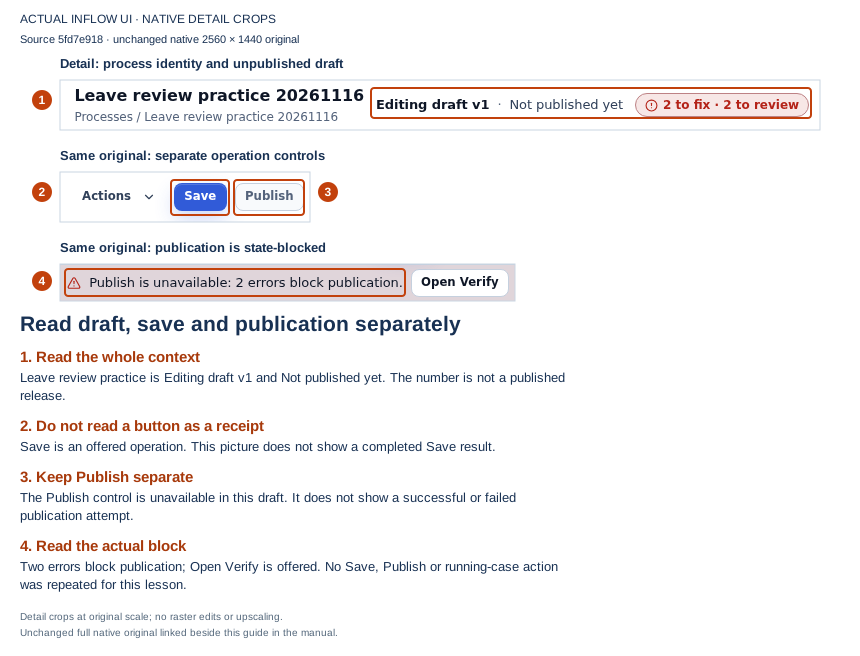
Use the numbered guide to record what this screen actually says. The original training screenshot is reused unchanged; no Save or Publish operation was repeated for this lesson. Open the unchanged native 2K screenshot.
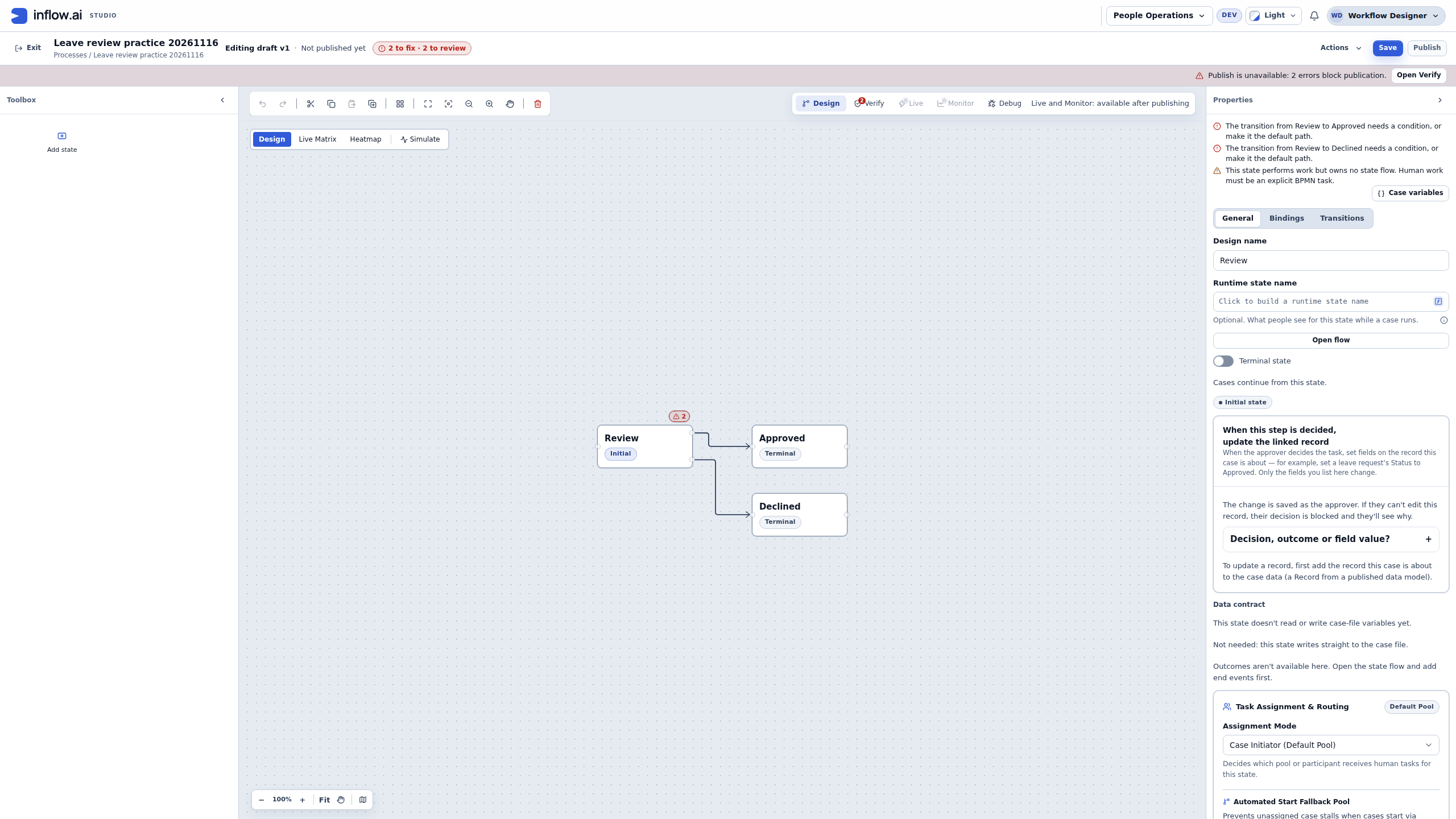
Expected result: Nadia can give a precise draft/publication question to the owner while leaving the design and live work untouched. She has identified an unpublished, publication-blocked draft; she has not demonstrated a completed save, released version, database persistence check or running-case update.
On another process, Editing draft v4 · Based on published v3 would identify draft work based on release v3. It would not mean that a running request already uses v4, or that four saves occurred. Read a case's own allowed view before describing its version or any case-specific design.
Read the designer's save status
The status line is evidence about the designer operation it names. It does not tell you that unrelated running work changed.
The compact lifecycle header may omit the repeated Lifecycle designer · prefix when the context line already identifies the mode. For example, All changes saved can appear beside the draft/version context. Read the complete line and its result, rather than requiring the longer wording in the table below. A later unsaved edit also matters: a previous save confirmation does not mean newly changed content has been saved.
| Status shown | What it confirms | What to do next |
|---|---|---|
| Lifecycle designer · All changes saved | The current lifecycle draft was saved. | Decide whether this is still draft work or is ready for a publication review. Do not describe it as released yet. |
| Lifecycle designer · Saved, not published | The save completed, but publication did not. | Read the displayed publication error and ask the process owner to resolve it before saying the new version is available. |
| Lifecycle designer · Not saved | The current changes were not confirmed as saved. | Preserve the error and ask the designer owner to resolve the save problem; do not assume the new design is stored. |
| Lifecycle designer · Saving… or Publishing… | The operation is still in progress. | Wait for its completed status. Do not start another operation because the status has not finished. |
| Lifecycle designer · Published | The designer reports a published lifecycle version. | Check the version and the intended audience. Existing cases still need their own explicitly reviewed scope change. |
To answer “Is the process updated?”:
- Read the workspace and process name, then check whether the page is showing Draft or Published vN.
- Read the complete status line. If it says Saving… or Publishing…, wait for the operation to finish.
- If the draft says All changes saved, describe it as saved draft work. Do not say employees or running cases use it.
- If the status says Saved, not published, keep the publication error and ask the process owner to resolve it.
- If a version is published, write down that version and check which application or new-request path selects it.
- If the question concerns one running request, look at that same request in its permitted Live view and let an authorized owner review any case-only change or version move.

The diagram is a reading aid, not a screenshot or a control. The current publication review and Live case review are authoritative. If the intended scope is unclear, stop at the owner-review step rather than choosing a publication or case move on the team's behalf.
When someone says “the process is updated,” ask which of these they mean. Saving is not publishing. Publishing is not, by itself, moving running work. A Live edit can also be applied to one selected case without publishing; that case-only path is different from releasing a version for new work. Only use the scope shown by the supported Live review, and only when an authorized owner intends that change.
Example — A saved draft is not yet the new employee experience
Nadia changes the Leave requests design to require a manager comment and saves it. A separate employee opens the published application and creates a request, but the comment step has not been deliberately released.
- Nadia checks whether she is viewing a saved draft or an already published version. She keeps her draft save confirmation as evidence of authoring only.
- The process owner decides the intended scope. For new requests, the owner reviews the exact change and publication impact, then publishes only when the release is intended and the review is acceptable.
- If the edit was opened from one running case and only that case should change, the owner may choose Apply to this case only when the supported Live review offers it. This applies the reviewed case-specific edit without publishing a new version; other running and future cases do not thereby receive it.
- If an existing case should instead use a newly published version, the owner follows the supported scope, publication review and separate case-move dry run. Do not infer that the case moved because a new release exists.
Expected result: the team can say “draft saved,” “version published,” “case-only edit applied,” or “existing case moved” accurately. If only the draft was saved, an employee continuing to see the older published behavior is not evidence that draft saving failed.
Example — Diagnose an older running case without replacing its history
Sara reports that Leave request 014 shows the earlier manager task, while a newly started request displays the revised task. Both cases belong to People Operations, but they may have started on different published versions or the older case may have received a case-only edit.
- Find Leave request 014 in the permitted Live view and read the version and stage shown for that case. Keep its business reference; do not create another request to compare the screens.
- Ask the process owner to compare that case's originating release, any applied case-only design and the release selected for new cases. A matching title or process key does not prove the designs match.
- If the older task is correct for that case, explain the observed design and let Sara continue the existing work. Do not copy a newer draft onto it.
- If the business requires a change, ask the authorized owner to assess the intended case-specific edit or published-version move, its review and downstream effects before confirming. Preserve the original case history and check the same case afterward.
Expected result: the answer describes the design the case actually uses: its originating release, any case-only edit, or a published release to which it was explicitly moved. A new release may serve new cases while other running cases keep their current design unless an owner applies one of the supported scoped changes.
Example — The same process key appears in two workspaces
An administrator sees a process named leave-request in a training workspace and in People Operations. Nadia wants to compare the production task with the training example.
Treat the workspace as part of the identity. Open the intended workspace first, then use its permitted process and case views. Compare the release shown in each workspace only for the question being asked. Do not assume that identical names or keys mean the same saved draft, published chain, access policy or running case.
If the relevant workspace or version is not visible to Nadia, record it as not visible to this account and ask its owner to check. Do not request a broad role or reuse an identifier copied from another workspace to make the comparison easier.
Hand the version question to the owner
When support is needed, report the smallest set of facts that distinguishes design from live work:
Workspace and process:
Question about: saved draft / published version / running request
Business reference, if a running request is involved:
Version shown in the allowed view, if visible:
What changed in business language:
What the user actually sees:
Expected behavior and where it was expected:
Save or publish result already shown:
Possible outside action already started: yes / no / unknown
Owner asked to check: release selection / case version / access / intended move
Sensitive record or credential data included: none
Write unknown rather than guessing a version or an operation result. Do not include private case fields, credentials, raw database rows or identifiers copied from another workspace. If a case's version is not visible to you, leave the interpretation to the authorized owner.
Prepare a useful support question
If the saved or published design is not what you expected:
- Read the process name and the workspace you opened.
- Note whether you are looking at a draft, a published version or one particular running request.
- Describe the change in business language: I added a required manager comment, rather than the process is wrong.
- Keep the visible save/publication result and the request reference, if one is involved.
- Ask the authorized process owner or platform administrator to investigate. Do not edit stored database rows or paste a process definition from another environment as a repair.
Where to continue
For ordinary design work, read Design a business process and Publish a process. For a running request, use the latest Live view.
For platform developers and operators, the complete technical process-storage reference retains the detailed storage and implementation explanation. It is optional specialist reading, not a Studio walkthrough.