Choosing an assistant: when to involve an integration specialist
This page is for consultants helping a team choose the right kind of assistant. The detailed agent catalog is a specialist reference. You do not need to edit it to use Ask Inflow, configure App Chat on a published App Shell, or build an AI Task in Studio.
An assistant helps someone understand or prepare work. An AI Task is a reusable piece of work you configure, such as summarizing a request. A platform agent can be part of a larger integration that uses approved tools. These are related ideas, but choosing one does not create the others.
Choose the assistant by where the person works
| Option | Where the person sees it | Best fit | Important boundary |
|---|---|---|---|
| Ask Inflow | Studio, while a consultant designs or reviews an app | Understand a workspace or prepare an authoring change | It is a Studio assistant, not the chat panel used by an employee in a published app. Review proposed changes separately. |
| App Chat | Inside a published App Shell when its publisher enables it | Help an employee or manager work with that app's configured records, tasks or guidance | The publisher selects the published sources and allowed operations. A source binding does not give the user permission to records they could not otherwise access. |
| AI Task | A configured button or workflow action in the app | Reusable, bounded work such as summarizing declared input fields | It runs as the configured task; it is not an open-ended chat or a business approval. |
| Background integration | Where the integration owner provides its run and result view | Specialist-built work that needs an integration, scheduled process or approved tool | An operator owns run state and failures. A “finished” run does not by itself complete the business workflow. |
The App Chat switch belongs to the App Shell as a whole. It is off by default. Turning it on and choosing a launcher label does not publish the shell, connect a source, grant record permission or enable a task action; those are separate publisher choices and the user's existing authorization still applies.
Read the application-level choice before requesting specialist work
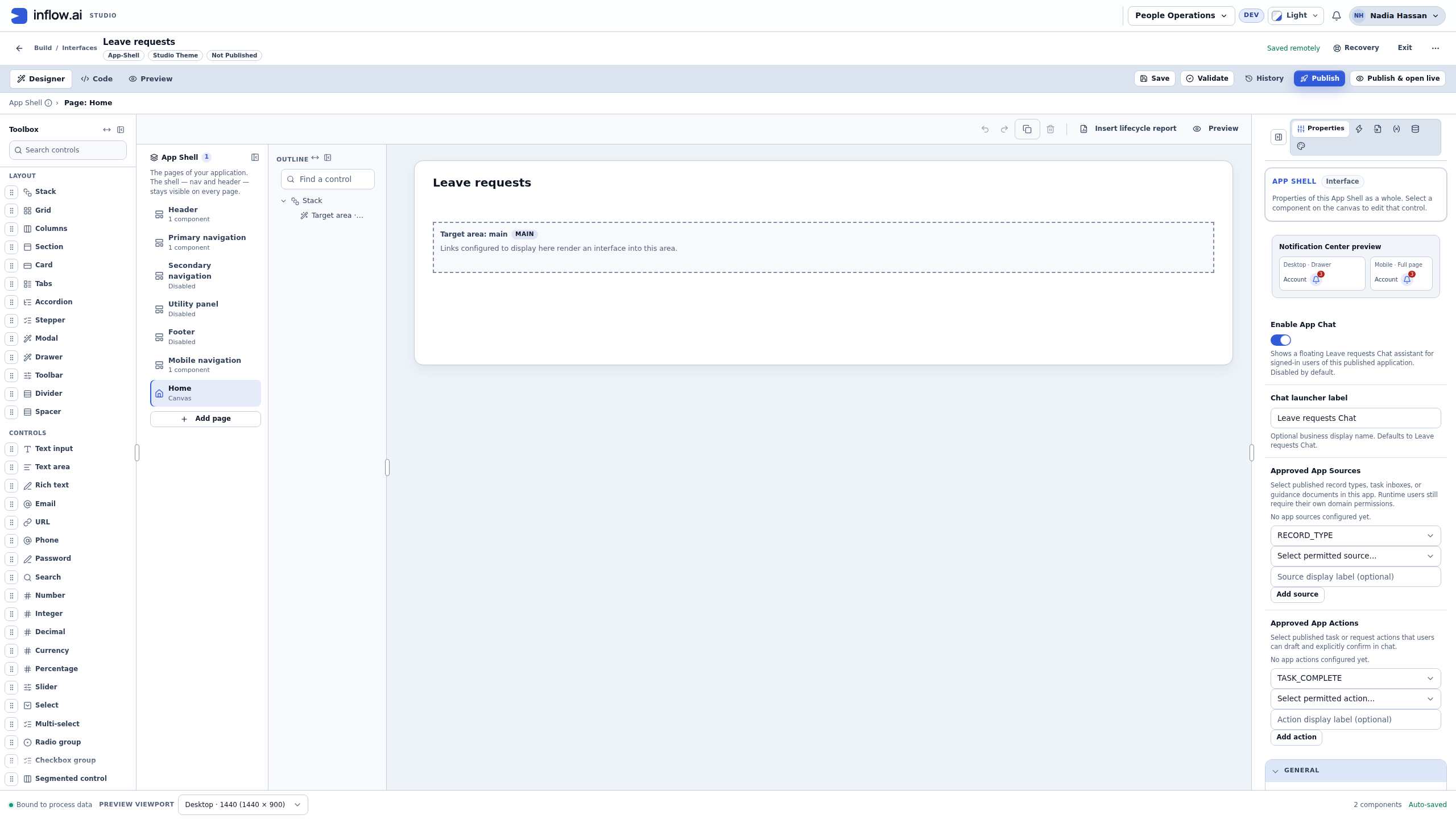
Start with the application and the people who will use it. In this training example, Nadia opens Leave requests in Studio and reads the App Shell's Properties. She is checking where the user-facing assistant is configured; she is not starting an agent or asking a model to process employee information.
- Match the application title and the App-Shell badge. The Properties card should say that it applies to the App Shell as a whole. Selecting an individual canvas control opens a different editing context.
- Read Enable App Chat. It is off in this example. A Studio workspace, a model connection or a launcher label does not turn it on.
- Read Chat launcher label as the name people will see when the feature is enabled and published. A name is not a source binding, an access grant or a publication result.
- Inspect Approved App Sources and Approved App Actions separately. Here both are empty. An empty source configuration does not establish that there are no business records, and an empty action area does not prepare or execute an approval.
- Give the application owner the intended questions, published sources, allowed operations and reviewing person. Use the existing access rules to decide what each person may read. Involve an integration specialist when the brief calls for a background integration or tools beyond this configured application experience.
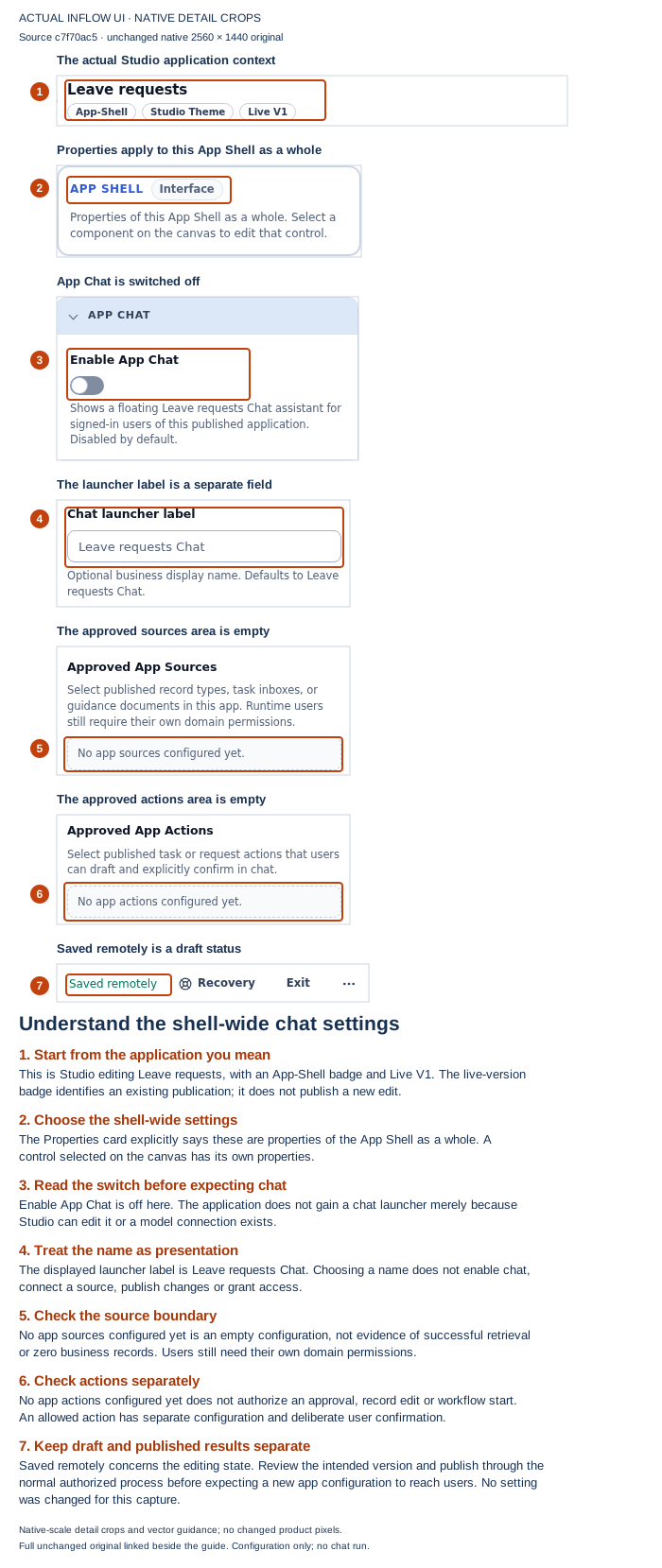
Figure 1. This actual Studio context was captured on 17 November 2026 from compiled and served revision c7f70ac5, using the approved normal designer. The existing draft and published version both had chat omitted, which resolves to disabled; neither was changed for the picture. Live V1 identifies the existing publication, while Saved remotely concerns the editing state. Those labels do not say that a new configuration has been published. The numbered native detail crops explain configuration only: this is not a chat response, retrieval result, ordinary-user access check or completed task. Open the unchanged full 2560 × 1440 original.
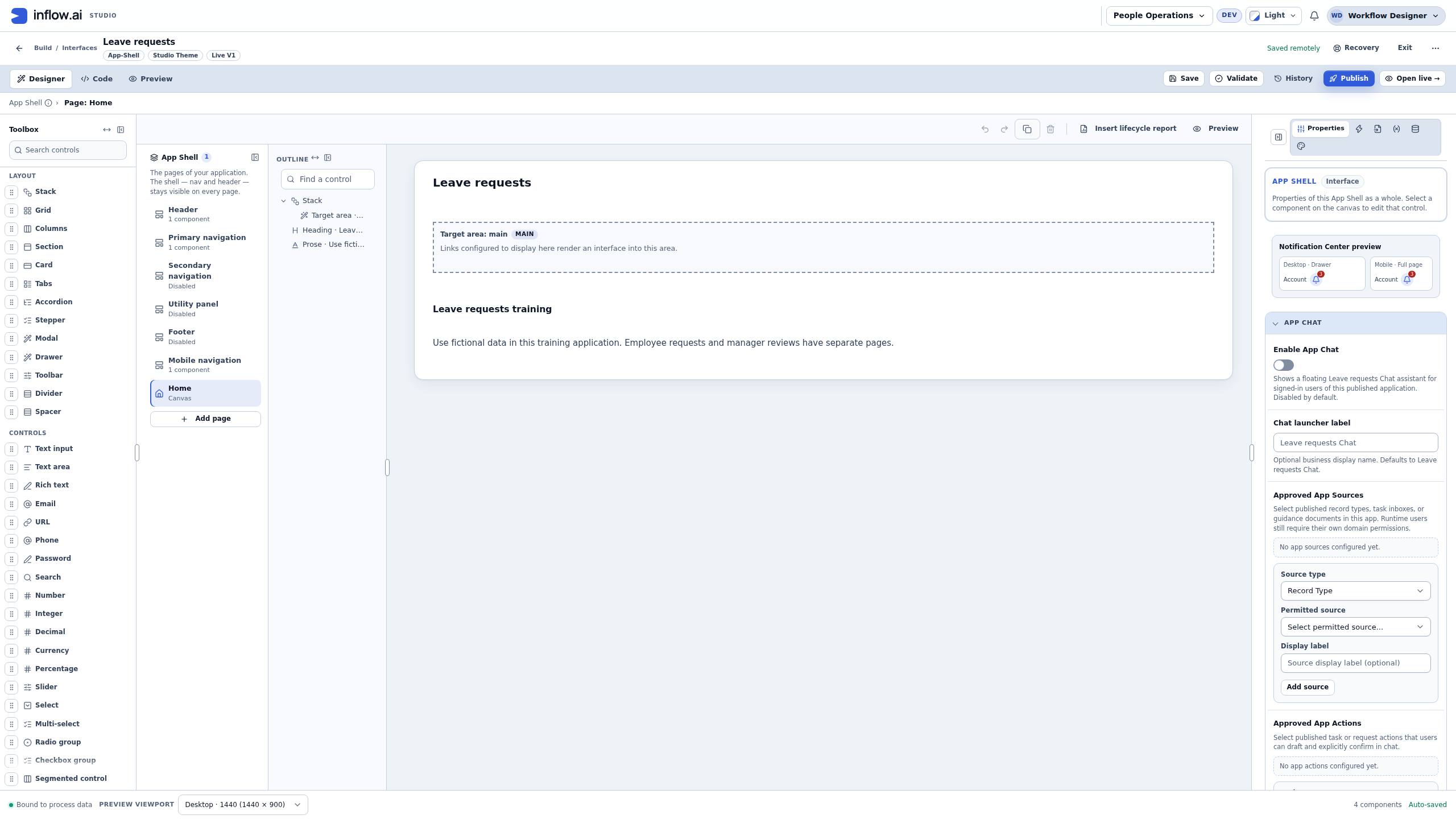
If the publisher cannot see these settings, use the ordinary application-owner and access-support path. Do not create a catalog definition, borrow another person's account or add broad permissions to make the controls appear. Continue with the App Shell configuration lesson when the team has chosen this experience.
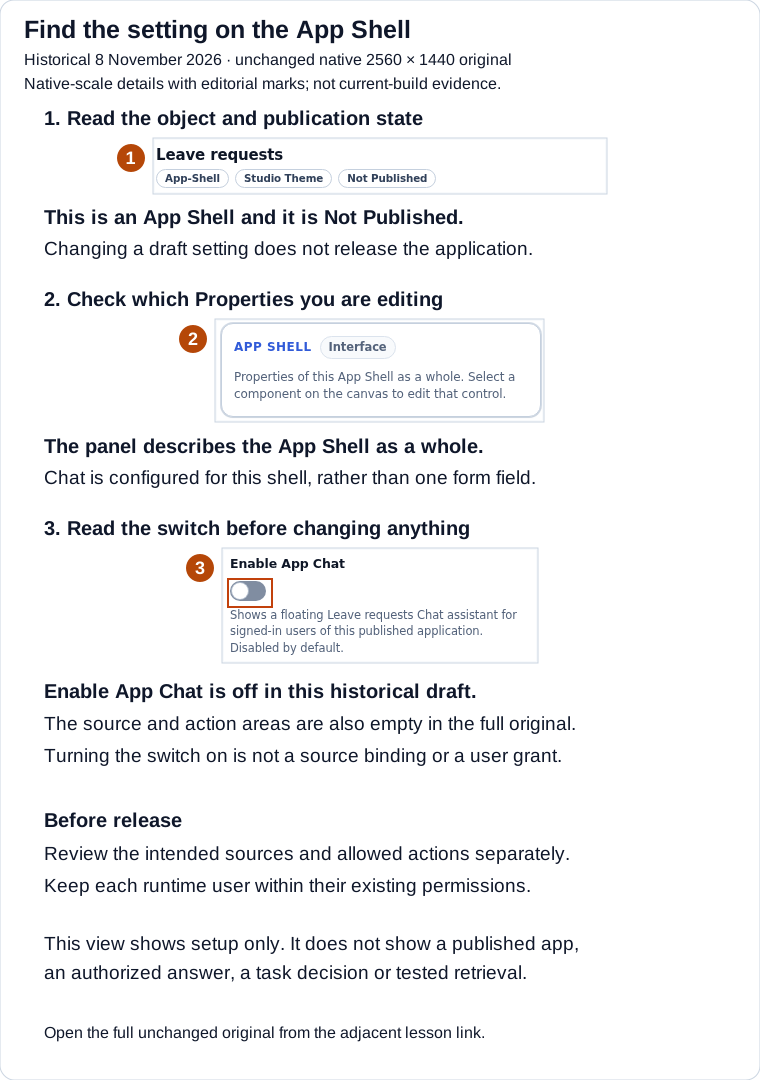
Historical Studio illustration captured 8 November 2026 in the admitted synthetic People Operations training build. Native-scale details and numbered guidance identify the unpublished App Shell, its Properties and the disabled switch. Open the unchanged original screenshot. The full original also shows empty source/action areas. This setup view is not a current-build screenshot, publication result, or end-user chat answer.
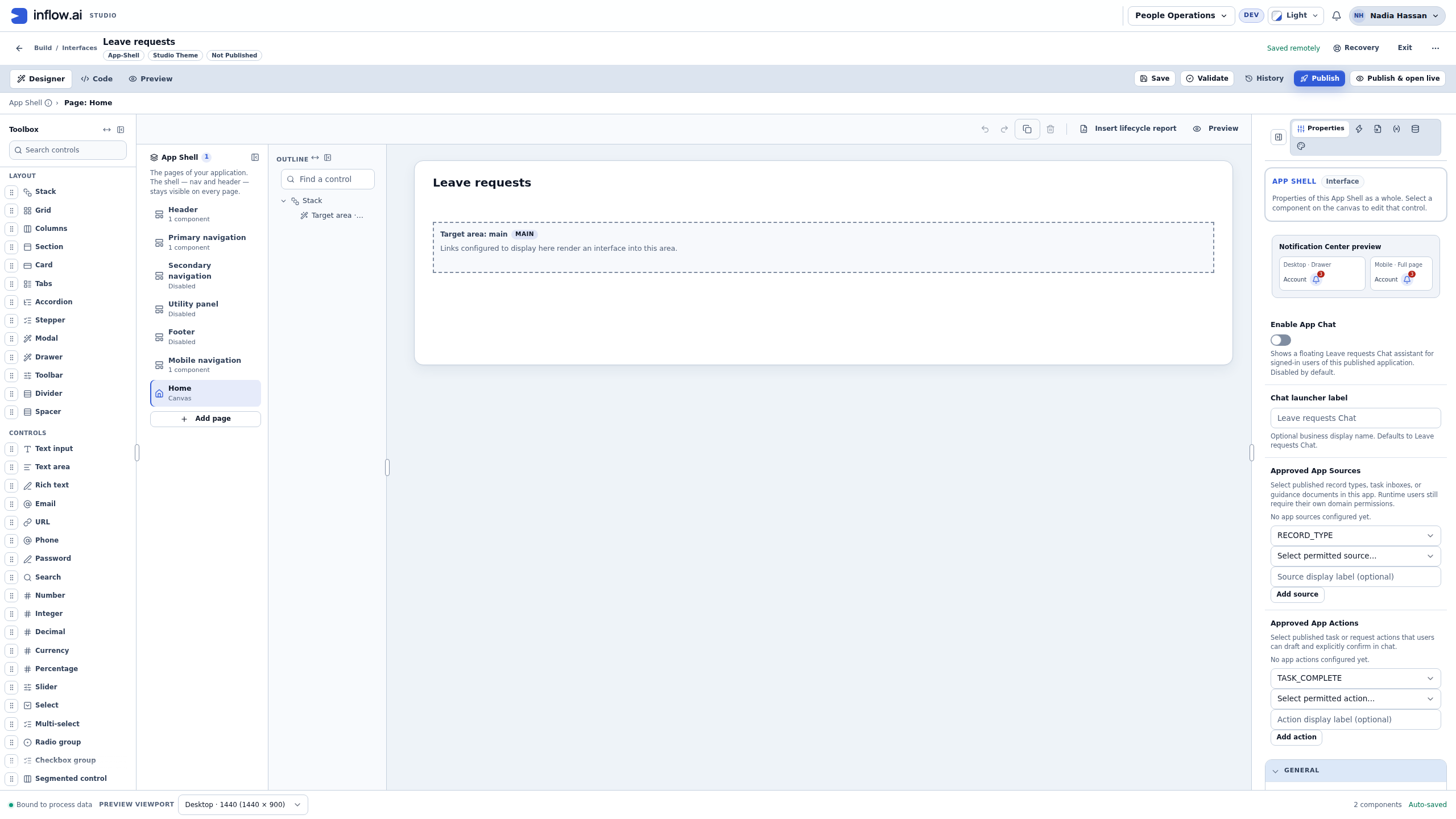
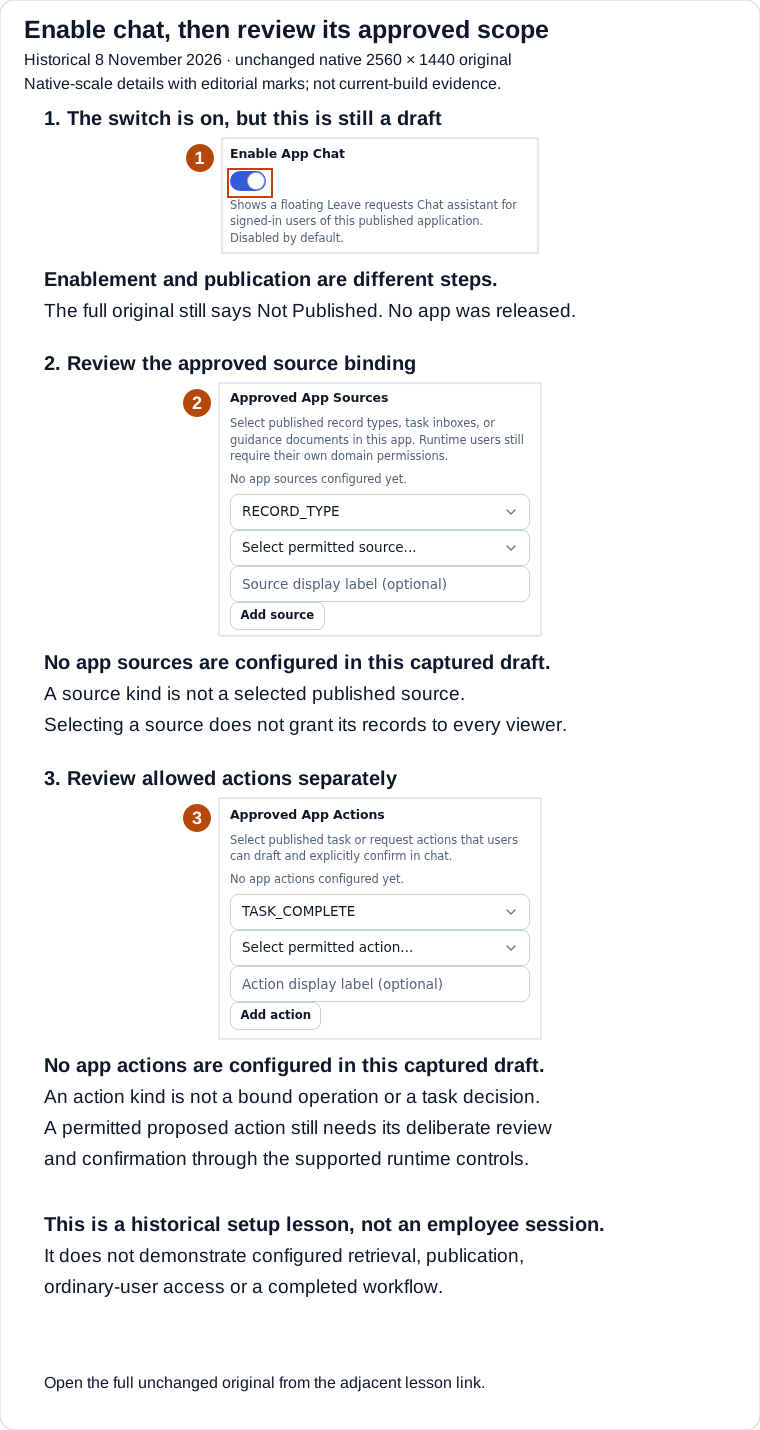
Historical Studio illustration captured 8 November 2026 in the admitted synthetic People Operations training build. Callout 1 is the App Shell-wide switch; callouts 2 and 3 are source/action configuration areas, which are empty in this saved draft. Open the unchanged 2560×1440 original. The detail crops and explanations are editorial. This shows setup only—not a published shell, configured retrieval, an authorized record answer or a task decision, and not current-build evidence.
For an App Chat record question, the app owner binds the intended published record type and operations in the App Shell. Inflow checks the signed-in person's actor and record access and applies the configured field and AI-disclosure limits. The chat is scoped by the app configuration as well; it is not a search across every workspace record. If the relevant source is not bound, the user does not have access, or the allowed fields exclude an answer, the team must use the app's normal access and support path rather than ask the assistant to bypass the restriction. When an answer includes a source chip with a permitted destination, open it and compare the cited record before relying on the answer; a chip is a short label, not the record contents or proof that everyone can open it.
Decide whether the question needs guidance or a record
An App Shell can bind published guidance documents, process guidance and interface help as well as business record types. For a policy or “how do I?” question, App Chat retrieves relevant passages from the guidance sources explicitly connected to that App Shell, then uses those admitted passages to prepare an answer. This is retrieval-augmented generation (RAG): search over selected application guidance followed by an AI-written response. It is not web search, an automatic crawl of every workspace document, or permission to inspect an unbound source. Retrieved passages are checked against their current source access before use. An answer may show compact source chips with short labels. When a source has an available permitted destination, selecting its chip opens that app page; the chip itself does not show the retrieved passage or a detailed citation panel. An unavailable source is shown as Not available. The As of time, when shown, is the observation time for the available evidence, not the guidance revision. Do not treat a chip or observation time as proof that a policy is the current version: use the app's permitted guidance page or ask its owner when the applicable version is unclear. A cited passage does not prove that the same guidance applies to every other application.
For a question about a particular request, person, task or current status, the publisher must bind the relevant record or task source and permitted operation. Inflow checks the current signed-in person's access to the matching row and fields before the record evidence is used. A policy passage cannot establish the status of a request, and a retrieved passage from an index cannot substitute for checking the live record. If one question combines both—for example, “Is my request complete, and what does the policy require?”—review the record evidence and guidance evidence separately.
If the needed source is not connected, is not offered to the publisher, lacks the required operation, or has no currently usable evidence, do not fill the gap by broadening access or treating a fluent response as a result. A source outage or conflicting passages may leave coverage partial; an answer without admitted evidence should not be relied on. Use the ordinary permitted page or ask the source owner. Source text and the question are still subject to the app's configured AI disclosure rules; do not submit secrets or ask the publisher to bypass classification policy. See the App Shell lesson's source and evidence guide for the configuration choices and worked examples.
Example: Mohammad checks the policy, then his request
Mohammad opens the published Leave requests app and asks, “What does the leave policy say about advance notice?” The App Shell owner has connected the published leave guidance and enabled retrieval for it. App Chat searches that selected guidance, prepares an answer from admitted passages, and may show a short source chip. If that citation has an available permitted destination, Mohammad selects the chip to open the connected guidance page; the chip is not a display of the full passage. He reads the displayed As of time as the evidence-observation time, not a policy revision. If there is no usable page link or the applicable version is unclear, he checks the ordinary permitted guidance page or asks its owner before relying on the rule. The question names guidance directly, so it demonstrates the policy-retrieval path without asking for any current employee or request details.
He then asks, “Has request 017 been submitted?” That is a current-record question, so he checks the answer against the connected Leave request record and its source chip when a permitted destination is available. Inflow still applies his current access to the row and disclosed fields. If request 017 is another employee's record, unavailable or outside his permitted fields, the assistant must not infer its status from the policy passage or disclose the row. For “Does my submitted request meet the notice policy?”, inspect both evidence sources: the record establishes the request's dates and the guidance explains the rule. Neither source alone proves the overall business decision.
If Mohammad follows a clear record answer with “Which one has the longest leave?”, App Chat should use the readable results it just inspected and answer directly, with a brief statement of its assumption. It asks a clarifying question only when two interpretations remain equally likely. The follow-up's citations show only the records it names, and the assistant checks their current access again; earlier conversation does not expand his permissions.
Example: ask a filtered question without spelling out the data query
The publisher has connected the Leave request record type and approved READ and AGGREGATE for it. The signed-in user asks, “How many high-priority requests are still waiting for review?” App Chat can translate the phrasing into a source-bound search and an exact count. The question does not let it search other record types; ordinary row and field permissions and AI-disclosure rules still apply within the selected source. The word “my” does not add an owner filter by itself. If the answer must cover only the current person's rows, the source's row policy must enforce that scope. Otherwise, App Chat can answer only for all rows that person is authorized to read; it should clarify the scope or direct the person to the ordinary permitted app view rather than claim an owner-specific count. If two readings of “high priority” or “waiting for review” remain equally likely after considering the conversation, the assistant should ask which declared field or value the user means; when context resolves the meaning, it answers with a brief stated assumption.
Suppose the source declares priority values High, Medium, and Low, and has a readable free-text status field. “Show high or medium requests” can use an allowed-values filter; “show requests that are not high priority” can use a negative match. If the stored status is Pending, the text filter pending matches it without regard to capitalization. App Chat also lets people describe a category in ordinary wording in the same language: for example, “still waiting for review” can select the recurring Pending value. For a free-text category without declared values, App Chat may give the model a short list of recurring values it observed in this person's readable rows. Those hints come from the signed-in actor's authorized, AI-disclosable rows; they are bounded and are not a catalog of every value in the app.
Language matters for category filters. If an English question asks for “pending,” App Chat does not silently add a different-language free-text value such as قيد الانتظار. Likewise, an Arabic question can select Arabic category values from the readable rows. A value used in an earlier turn can be reused in a follow-up. Cross-language matching is limited to a localized label declared on that field's same schema option. The published source schema now carries the designer's declared translations. When a source declares translations, label-to-option matching uses labels for the reply's language. A schema without translations can still supply its ordinary declared option labels. A separately stored Arabic free-text status is not automatically the same option as Pending. Ask the app owner to check the configured field and option labels when the intended mapping is unclear. The model is instructed to use values that fit the person's question and prior turns, but the server-side language guard checks the script of a category value, not whether those exact words appeared in the question. A same-script value can therefore pass even when the person did not say it. Language-neutral values such as numbers and codes can also pass without being written in the question. If a particular status or code matters, name it explicitly and inspect the returned records or citation; this language check does not prove the chosen value was intended.
For a free-text category, a different-script value in an in list is left out and reported to the model; if no value passes the language check, App Chat refuses the filter rather than removing it and broadening the read. For a field with declared choices, a value that is not one of those choices is rejected by schema validation; the server does not treat an unknown choice as a value it can safely omit. Ask the person to name the intended value or restate the question in the language used by the records.
A bounded lookup that cannot establish every spelling cannot support an exact count or aggregate; App Chat withholds that total and may mark a search incomplete. The model selects fields and values from the source schema and admitted category hints, and the server checks them before reading. An undeclared value on a field with a declared value list, unsupported operator, non-disclosable field, or source without the needed operation is refused. Flexible wording therefore does not give the model arbitrary database access.
Search results are bounded. App Chat may show only a subset and indicate that more records exist; that is not a complete list. Use count for an exact matching total when the source permits aggregation. An exact count or sum comes from the server's authorized aggregate read, not from counting records or guidance excerpts visible in chat. If the source lacks AGGREGATE, the field is not an eligible numeric measure, or access is incomplete, treat the total as unavailable or partial and use the ordinary permitted app view or ask its owner.
The provider must support tool calling for this query-led path. If routing refuses the needed capability before a provider call, App Chat uses its existing conservative query path. A first reply that does not follow the tool format may instead appear as a plain or unfinished response; it does not automatically trigger another query. If the same model refuses the tool format again, tool use pauses temporarily and the conservative path handles that turn. That fallback may need a clearer question or a clarification; it is not proof that every matching record was searched. Name the source topic, status and value you mean, then check cited records or exact totals against the ordinary permitted app view. For operation limits and how incomplete spelling discovery affects results, see the App Chat tool-calling reference.
Example: prepare an action, then decide whether to confirm
Sara asks, “Prepare an approval for request LR-017.” App Chat may read the matching record through the approved source, validate the target against the configured action, and present a proposal for Sara to review. For a task-inbox action, the assistant may use a short about summary, such as a person's name and requested days, only when those values are AI-disclosable through the App Shell's bound record source. This summary helps distinguish a task; it is not the full task form. A task citation chip is a short evidence label, not a unique task ID or a task count: Sara identifies the exact work from Your tasks and the task card. An App Chat answer may mention a linked record key when the permitted lookup establishes one unique match. If no key appears, do not conclude that the task is unrelated to the record; the lookup may be incomplete or unavailable. Ask App Chat to clarify or choose among the offered tasks, then inspect the exact task card and proposal. The server also verifies that the task belongs to the lifecycle targeted by the configured action.
Action-target resolution is stricter than an ordinary question follow-up. When Sara says “this request” while a record is open, App Chat uses that record only if the configured action applies to it. If it does not, the target stays unresolved; App Chat does not substitute another task or an older answer. For “approve it” after an answer about one record, a task action may be matched to one of Sara's own open tasks by comparing the task's subject/business-key values with access-checked lookup results from bound, readable record sources. A source that returns one unique match can contribute a link; an ambiguous or unavailable lookup contributes no match and does not prove that the source contains no competing record. The match uses the task's own values, not a guess from the model.
When the action proposal is still ambiguous, check the target selector on its card. If Inflow has a safe display label for each candidate, it shows those labels so Sara can choose the exact request or task; for example, Leave request · LR-017 (Mohammad) and Leave request · LR-021 (Huda). A display label can omit a business key or name when that value is not safe to show. If one or more candidates cannot be identified safely, App Chat does not offer an unlabeled choice and keeps confirmation unavailable. Sara should name the intended request more precisely or open it in the app, then prepare a fresh proposal. She must not choose by list position or assume that a hidden candidate is the one she meant. Even a labeled selection is only a draft target: inspect the full proposal and explicitly confirm it.
| What the signed-in user has | What App Chat does |
|---|---|
| One matching task and a complete task list | Uses that task to prepare the draft proposal. |
| Several tasks linked to the record | Asks Sara to choose among those linked tasks. |
| A possibly incomplete task list, even with one linked task | Offers the linked task as a choice; it does not assume it is the only match. |
| Complete lookups return no link | Applies the usual rule to Sara's own open App Shell tasks; older answers are not searched. |
Separately, when Your tasks displays recordKey links, incomplete or unavailable task-list link coverage means a missing key is not proof that a task is unrelated. The model is instructed to ask the person to choose rather than infer a relation from that partial list. This task-list guidance does not control the separate action-target resolver.
For a back-referencing action such as “approve it,” the resolver uses linksComplete before considering tasks linked to the record. If that check is incomplete or unavailable, it does not use partial link matches. The resolver then falls back to the signed-in user's action-applicable open tasks; when the list is complete and contains one task, that task can still be proposed even though its relationship to the record was not established. Sara must inspect the proposal's exact task and record context and cancel or name the intended task if the relationship is unclear. She must not assume that this separate action path will ask her to choose.
When the server has resolved one task proposal, the chat response is composed to agree with the proposal card instead of asking the language model to paraphrase it. For example:
Sara: Approve it
App Chat: “Approve leave” is ready for Huda Nasser (LR-1005).
Check the details, then confirm below.
The name and business key appear only when they are available from fields the person may read and the app permits AI disclosure. Machine-shaped UUIDs used as internal task, case, proposal or record identifiers are removed from the assistant's text; a business key such as LR-1005 remains when it is a disclosed value. The proposal card is still the place to inspect the exact task, action and inputs. Nothing is submitted until Sara uses the explicit confirmation control. If the response omits the key, do not infer that no record is linked; the safe lookup may not have returned one unique, disclosable key.
The record and fields named on the proposal card are also evidence for the assistant's answer. For example, if the card identifies Huda Nasser · LR-1005 · 5 days, the same linked record and the disclosed days field are checked again before that answer is shown, even if the initial record citation did not include days. If the record becomes unreadable, the binding changes, or AI disclosure of a card field is revoked, the answer and proposal are withheld. Reopening the conversation checks saved-answer lineage too; a previously shown approval explanation may then be refused. This does not report the task's new business outcome and does not undo an action Sara already confirmed. She must check the ordinary permitted task/record view to determine current state, and must still confirm a valid proposal before any action runs.
The link is a candidate for a draft, not an action. Sara checks the exact task, action name, request, revision and required inputs before explicitly confirming. The chat does not approve the request merely because the model called a tool or wrote “approved.” If a required field is missing, the target is unavailable, or the action is not configured for this App Shell, she uses the ordinary permitted task or form flow instead.
A recheck can time out while App Chat is checking access to evidence for an answer, including evidence cited in earlier turns. If the reply says This took too long to check. Nothing was changed. Try again., the answer was withheld because current access could not be revalidated within the time budget. This message does not mean access was revoked. Depending on when the recheck timed out, the AI provider may already have received the turn; the refusal means its answer was not shown. Wait briefly and retry the question once. If it repeats, use the ordinary permitted app view or ask the application owner to check the source; do not infer a record's status from the previous answer. A confirmed denial has a different response, so do not describe this timeout as an access change.
After a confirmed task decision or comment, the receipt uses human-readable words rather than machine IDs. For example, it may read Approved: Huda Nasser · Approve leave request or Comment added: Huda Nasser · Approve leave request. The subject and task/case label come from the task outcome; they do not replace checking the task's authoritative state. If confirmation says Not sent. Nothing was changed. Try again., the unchanged proposal remains available after Sara rechecks the target and values. If it says Outcome not confirmed, she chooses Check status and reads the task or receipt before acting again. For a task-comment proposal, same-operation recovery can return the already-saved comment instead of appending a duplicate, but only while current authorization and target binding still pass. Sara must not change the text or target, or create a replacement proposal, while the result is uncertain.
Short follow-ups and completed tasks
After App Chat answers a record question, a short name or phrase can refine that same question. For example:
Sara: Show me Nasser's leave request.
App Chat: I found the leave request for Sami Nasser. It is waiting for review.
Sara: Sami
App Chat: The leave request for Sami Nasser is waiting for review.
App Chat treats a short reply as a refinement only when it matches a whole word or phrase in a currently readable, AI-disclosable text field within a record source cited in the immediately preceding answer. The lookup runs against that cited source under the signed-in person's current access and field policy; the matching value may be on another row in that same source, not just a row named in the answer. A short name alone does not broaden the App Shell's connected-source scope or authorize reuse of older evidence; if no eligible match is returned, ask a fuller question or use the ordinary permitted record view. Greetings, thanks, acknowledgements and new commands such as “My tasks” remain their own messages, not refinements. If the follow-up could mean two things equally well, App Chat should ask which one Sara means.
This also works after a multi-record answer. If Sara sees a bounded list that includes “Sami Nasser” and replies “Sami,” App Chat can answer the narrower question after it verifies that “Sami” occurs in an AI-disclosable field of the source cited by that immediately preceding answer. It still checks current access and the source's bounded results; it does not rely on the name merely because it appeared in chat, nor does the reply reveal every row in the source. A matched name is a filter hint, not proof that only one matching record exists.
After Sara confirms a task decision, the receipt names the business result and, when available from the permitted linked record, its readable record key—for example, Approved: Huda Nasser · LR-1005. It does not expose internal case keys or replace the authoritative task state. The completed task leaves the Your tasks open list and its open count after confirmation. If the task still appears in an older list response while the change is settling, the completed card is not offered again as an actionable approval; use Check status or the task page to verify the result before doing anything else.
For a back-referencing task command such as “Approve it,” App Chat does not run the unrelated five-record listing that used to add a misleading Partial coverage note. A genuinely incomplete or unavailable task/source read is still reported as partial or unavailable. Do not interpret the absence of a partial notice as evidence that every task or record in the workspace was searched.
Sara can also name the task by whom it is about, for example “Approve the one for Huda Nasser” or “Reject Huda Nasser's request.” App Chat prepares the card itself only when her words are the full name shown on exactly one of her open tasks in this app, with nothing but the decision word and connecting words such as “the one for” around it. If two of her open tasks are about Huda Nasser, it asks which one. A first name alone, or the name with anything else, is answered the usual way. The card is still only a proposal: check the task it names and confirm it explicitly.
Teach the difference between an approval queue and a submitted request
Use Sara's own signed-in session for the manager questions in this exercise. Sara is a manager with approval work and also an employee who submits leave. Configure only the published sources intended for this app; the exercise does not grant extra permissions.
- Ask “What is waiting for my approval?” and compare the offered task evidence with Sara's ordinary permitted work view. The answer may use her currently available open tasks. Explain any partial or unavailable results; do not present a short task list as a company-wide total.
- Ask “Is my leave request still awaiting approval?” or name LR-1005. The answer needs the permitted request record. Sara's approval queue is not evidence for the status of a request she submitted, even when that queue contains other open tasks.
- Repeat the question as an ordinary requester with no approval work, using that person's own authorized session. An empty task inbox is not evidence that their submitted request has no pending approval. Check the request in its normal permitted view.
- Try “How many leave requests are pending?” only when the record source supports the approved aggregate operation. Check the filter and row scope. The word Pending describes records; it does not mean “tasks assigned to me.”
- In an Arabic shell, distinguish كم من طلباتي بانتظار الموافقة؟ from work awaiting the signed-in person's decision. Queue wording such as بانتظار الموافقة is not an instruction to approve. Finish without confirming any action unless a separate, deliberate decision exercise calls for it.
Current limitation for this exercise: an own-request question can still supply Sara's permitted open tasks as context to the assistant. The distinction above teaches which evidence is needed; it is not a guarantee that Chat excludes task context or always selects the right evidence. Verify the exact request in the ordinary record view before teaching or relying on its status. Do not infer source isolation from a missing task chip.
“My” indicates the user's intent, not an ownership or authorization rule. The ordinary row policy must implement any required restriction to that person's records. A manager may legitimately read more than their own rows; teach the person to check the request identity and answer scope instead of assuming the pronoun enforces a filter. If the question could mean the request queue or the task queue, name the intended request or ask explicitly about my approval tasks.
Teach a refusal, a partial answer and a zero result separately
These are fictional teaching situations, not provider transcripts. Prepare the sources and permissions first; do not assume a leave app contains salary information.
| Exercise | What the consultant should explain |
|---|---|
| Ask for salary when the available evidence cannot answer it. | App Chat can omit source chips when it recognizes a refusal, including an explanation that mentions an earlier leave request. Chip suppression is not guaranteed for every wording. Neither an old mention nor a remaining leave citation establishes salary evidence. Do not infer whether the missing information exists elsewhere or which permission is missing. |
| Ask about LR-1005; the current permitted read establishes Pending, and the answer adds that salary is not included. | A grounded answer can keep the leave-record citation alongside that caveat. The source supports the request facts only. The caveat does not invalidate every fact or authorize disclosure of another field. |
| Run a permitted search for rejected requests that returns none. | Zero matches in the stated scope can be a real answer. It is distinct from an unavailable source and does not establish a whole-organization total. |
| Find LR-1005 but no additional matching requests within the search scope. | “I couldn't find any other requests” can accompany a grounded answer. Check bounded results and partial-coverage notices before interpreting “only one.” |
| Ask for an action that does not apply to the selected record; no proposal is created. | A not-applicable answer has no source chips and no completed action. Return to the ordinary task/form path or identify the correct target. |
Citations and follow-up context remain subject to current access. A record named earlier can support a later answer only after the system establishes its current relevance and permission; for a counted selection, a fresh record read may establish membership in one of this question's selections when all supported exact-match filters match. This is not permission to promote arbitrary old records or to treat the first page as the full set. If the relationship cannot be established, ask for the matching list or a named record.
After a grounded record answer, “Approve it” can still be a request to prepare a proposal, including when the answer had a caveat. Inspect the exact target and required inputs, then explicitly confirm if appropriate. A refused answer, a missing chip or an action-not-applicable response does not report a task's business outcome. Use the ordinary task view or Check status for that. Never teach the prose of an answer as a substitute for the confirmation and reconciliation flows.
Read translated labels without changing the record
App Chat can show a cited record field's translated name and a declared value's translated label in a non-English reply. The translation must already be configured for that field in the published source, and the field must be readable and disclosed by the answer's own record evidence. It does not translate an unconnected source or reveal another field. An English-language turn keeps the model names and stored codes. An Arabic question can receive Arabic reply wording even in an English app; this does not change the app's published navigation language.
Example: Mohammad reads the same request in Arabic
This is a fictional illustration of configured labels, not a captured answer or a transcript. Suppose the permitted Leave request record is LR-1049, its stored leave type is Annual, and its stored status is Pending. The publisher's source declares سنوية as the Arabic label for Annual and قيد الانتظار for Pending. Mohammad can read those fields, and the answer cites them.
He asks, أخبرني عن طلب الإجازة LR-1049 (“Tell me about leave request LR-1049”). An answer that quotes those isolated codes can display the configured Arabic labels, for example:
طلب الإجازة LR-1049: نوعه سنوية، حالته قيد الانتظار.
Read this as “Leave request LR-1049: type Annual, status Pending.” The request key remains LR-1049. The status is still pending: seeing the Arabic label does not submit, approve or edit the request. Mohammad opens the permitted cited request, when a destination is available, and checks that it is the intended record. He uses a separate deliberate task decision only if the app offers one and his normal role permits it.
| What Mohammad reads | How to interpret it | What to check |
|---|---|---|
| سنوية or قيد الانتظار beside the cited request | A configured display label for a cited, readable field value | Match the request key and the meaning of the field in its ordinary permitted view |
| A translated field name | The configured name of a field disclosed by this answer | Its wording is not access to additional fields or records |
| LR-1049, a person's name, a URL or quoted free text | Identity and authored text are not general translation targets | Keep exact references when reporting a discrepancy; do not rename a person or change a key to match the reply language |
Annual leave or Pending approval inside an English phrase |
English prose can remain as written even in an Arabic answer | A mixed-language phrase is not a new status or proof of a failed action |
| An untranslated code | A label may be missing, ambiguous between cited fields or unsuitable for safe replacement in that wording | Check the configured labels with the application owner; do not guess an unknown business meaning |
The same narrow display rule applies to other non-English languages with configured translations. For example, an isolated Pending in “Statut : Pending.” can read “Statut : En attente.” when that French label is configured. It is not a promise to translate every sentence: a code embedded in surrounding Latin-script prose can stay unchanged.
When Mohammad reopens the conversation, a permitted retained answer can keep its displayed labels. Older answers may be relabelled from their currently visible record evidence. History still undergoes the current access checks described below; a translated old sentence is not a fresh read of the request or evidence of its current status. Do not assume that editing a field label will rewrite every old answer.
If wording is unclear, preserve the question, request reference and the wording shown, within the team's normal disclosure rules. Ask the app owner to check the published field's configured label and language. Use the ordinary permitted record view to establish the business fact. Do not broaden permissions, change the stored value, or repeat an approval merely to make the wording look right. These examples explain source-supported display behavior; the historical setup screenshots above do not demonstrate an Arabic record answer.
Read the task queue before choosing a task
The App Chat task area lists the signed-in person's open tasks bound to this app, oldest first. Its total describes that app-bound listing, not every task in the company. A conversational answer can name only a few of the oldest tasks while reporting a larger total when the permitted evidence supports it. Read the count, the cards and any partial-coverage notice separately.
- Open the task area and read its waiting count. Wait for loading to finish before treating a number as the result.
- Distinguish an exact 7 tasks waiting from a lower-bound label such as 26+ tasks waiting. The plus means at least that many; it is not an exact total or a prediction.
- Read the displayed task cards in their oldest-first order. Choose by the task's subject and request reference, never by position alone.
- When offered, use Load 2 more tasks or Load more tasks to continue the list. The numbered label means the remainder is known for that read; the unnumbered label does not supply a missing total.
- Before any decision, inspect the intended task's current details and required inputs in the permitted task card or task page. A list, count or question about waiting work does not approve anything.
A count is a read-time result. Tasks can be completed or withdrawn while Layla pages through the list, and a task past the current page may remain counted until its own page checks it. The number can therefore change as later pages load. An unreadable task or partial listing also limits what the cards and chat answer establish. A task-area count and a conversational count can cover different currently readable evidence; do not force agreement by widening access or treating an unavailable detail as an empty task. Use the ordinary permitted work view or ask the app owner about a persistent discrepancy.
Example: Layla has seven tasks but sees five in the answer
This fictional example explains the reading experience; it is not a product screenshot or a captured seven-task queue. Layla has seven open tasks bound to the Leave requests app, all available to this question. She asks, “What is still awaiting my approval?” A source-grounded answer can report seven waiting tasks and name the five oldest, LR-1052 through LR-1056. That short answer does not mean LR-1057 and LR-1058 are absent.
| What Layla sees | What it establishes | Her next step |
|---|---|---|
| 7 tasks waiting, with five cards loaded | The listing reports an exact seven for that read; the first page is shorter | Use Load 2 more tasks when offered |
| An answer naming the five oldest | A bounded summary of the tasks admitted to that answer | Check its task references; use the task area for additional cards |
| 26+ tasks waiting | A lower bound, not exactly 26 | Continue with Load more tasks when offered; keep the plus when reporting the number |
| Loading, a partial result or unavailable task details | The current read is incomplete or still in progress | Wait for the result or use the ordinary permitted work view; do not infer zero tasks |
With seven available tasks, the sixth and seventh cards can appear when Layla loads the remainder. She checks the request reference on each card. Reading another page does not submit a task decision, change a request's status or extend her access to another person's queue.
Example: a task-page rejection appears in the conversation
Continue with a fictional task for LR-1058. A later answer in Layla's own conversation has explicitly cited that task; being present only in the drawer is not the same prerequisite. She opens its permitted Open task page control, verifies the request and required inputs, and deliberately submits the offered rejection with a reason through that task page. The page's completion result is the first place she checks the decision.
When the conversation can reread that completed task's receipt under Layla's current access, it can add a compact note such as:
Rejected on the task page · LR-1058
· Reason: Overlaps with the audit week
· By Layla Haddad · 10:02
The names, reason and time here are fictional. A note can omit details that were not supplied. It is a record of the task-page decision, not another assistant answer or another execution. An earlier answer that cited that task can also show LR-1058 was decided since this answer. That qualifier is about the named task; it does not rewrite every earlier statement about the request or establish that the whole business process has finished.
Do not infer failure from a missing note. A task that the recorded conversation never named has no note to add through this path; an unreadable receipt or failed read can also leave it absent. Reopening the conversation checks access again and can withhold an older or no-longer-readable note. The conversation keeps only a bounded recent set of these notes visible. Use the ordinary permitted task result to establish the outcome, and report a missing or inconsistent note without repeating the task decision to create one.
Example: a later approval phrase is not an undo
Suppose the LR-1058 rejection note is present, its completion receipt is still readable, and no current open task carries that request key. If Layla later types “Approve LR-1058”, App Chat can answer that the request was already decided, name the recorded decision and say Nothing was changed, without preparing another approval card. That reports the earlier decision; it does not approve the request or reverse the rejection.
A reworked or resubmitted request can have a new open task with the same request key. That is a different situation: an old rejection note does not automatically block the new task, and the ordinary target-resolution path can prepare a new proposal or ask for clarification. An incomplete lookup also prevents relying on the narrow already-decided response. Inspect the current task, revision and proposed action, then deliberately confirm only the intended new decision. Never reuse an old card or treat a business key alone as proof that two tasks are the same work item.
Example: Mohammad asks App Chat about his request
The Leave requests publisher enables App Chat on the published App Shell and binds the published Leave request record type for permitted reads. Mohammad signs in to the app and asks, “What is the status of my 14–18 December request?” The request can be answered from the bound source only if the current actor can access that row and its disclosed fields. A row belonging to another employee is excluded only when the ordinary row policy denies it; the word “my” does not create a separate permission rule or owner filter. If the row policy does not limit the source to Mohammad's rows, App Chat can only report matching rows he is otherwise authorized to read and should clarify that scope rather than present it as personal. If the date range is ambiguous, it should ask for clarification too. If the answer is unavailable, Nadia checks whether the app has the intended published source and whether the normal access setup allows Mohammad to see his record; she does not broaden the record permission to make the chat more helpful.
Example: read a source chip before relying on the answer
This text mockup is a teaching illustration, not a verbatim transcript or screenshot. The wording may vary with the question and the evidence returned. The short source-chip label and As of time reflect the App Chat source row; the sample names and time below are fictional.
Mohammad: Has request LR-017 been submitted?

App Chat: The permitted request record shows LR-017 awaiting manager review.
Sources: LR-017 ↗ · As of 14:22
When the citation supplies a permitted page link, Mohammad selects LR-017 to open that page and compare the business reference and status with the request he meant to ask about. The chip is a route to cited evidence, not a guarantee that the request is current, complete or visible to every signed-in person. As of 14:22 is the observation time for the available evidence in this response; it is not the record's last-edited time or the policy's revision date. If no page link is available, he checks the citation shown in chat and uses the ordinary permitted request page or asks its owner. If the chip says Not available, or a field is shown as hidden, Mohammad does not try another person's identity.
An answer can combine a named request with a count when it has separate evidence for both. For example, the authorized record read may show LR-017 as pending, while a separate authorized count query reports 12 pending requests under the same filter and access scope. If the answer displays the named record chip, the count does not get a second chip beside it. The count still contributes evidence and remains in the turn's revalidated lineage; the record chip is not proof of the scalar total. An aggregate-only answer can still show its aggregate source. Verify the record through its permitted page and the total through the ordinary permitted count view or an aggregate-only answer; do not infer one from the other's chip.
For a policy question, the evidence check is different:
Mohammad: What does the connected leave guidance say about advance notice?

App Chat: The connected guidance has a section about advance notice.
Sources: Leave guidance · As of 14:22
When the citation supplies a permitted page link, he opens the connected guidance page and checks the relevant passage. Without that link, he treats App Chat's answer as a summary of cited guidance—not as the passage itself—and opens the ordinary permitted guidance page or asks its owner before relying on the rule. The example intentionally does not invent a notice period: the answer must use the passage actually retrieved from the App Shell's connected guidance. A record citation supports facts about that record; a guidance citation supports what the retrieved passage says. Neither source can stand in for the other.
If Mohammad asks, “Does request LR-017 meet the notice policy?”, he checks both sources: the request evidence supplies its dates, and the guidance evidence supplies the applicable rule. If either source is missing, unavailable or conflicts with another passage, the answer remains incomplete until the source owner resolves the gap. A fluent answer, a recent observation time or an old conversation does not settle which published policy applies.
Example: follow up without repeating the subject
The publisher has connected the Leave request source and enabled READ and AGGREGATE. The signed-in person can read the matching rows, and the source's row policy determines which rows are in scope:
Mohammad: How many pending Leave requests can I read?
App Chat: The exact count is two pending requests.
Mohammad: Which has the longest leave?
App Chat: I searched the same connected source and pending filter again.
LR-017 is the longer of the two returned requests at four days.
Sources: LR-017 ↗
The exact count returned a scalar, not the rows behind it. For the ranking follow-up, App Chat makes a new bounded search of that same connected source and keeps the validated Pending filter only if the earlier answer is still allowed. This applies to both the tool-calling and conservative keyword paths. The new read rechecks Mohammad's current access, and its citations include only records it names; the count itself is not treated as a list of requests. If the search is incomplete, the answer must say it covers only the returned rows; if two interpretations of the follow-up remain equally likely, it asks one short question before searching.
The filter carry is narrow: if the earlier answer was withheld or refused, or no validated filter was saved, App Chat does not reconstruct a filter from old chat wording. Mohammad should ask the full question again. A new category value in the follow-up, such as Approved, starts a new question rather than being silently combined with Pending. A missing or revoked result never widens the read.
Example: Sara reviews Mohammad's request in App Chat
The workflow has assigned Sara a manager task for Mohammad's fictional 14–18 December leave request. The publisher connected the task inbox to this App Shell and deliberately enabled the task action. Sara signs in with her ordinary account and opens Leave requests Chat from the published application.
- App Chat displays a task card only for task information admitted to Sara's signed-in session. She checks the employee, dates, request details and any attachment references against the task she intended to review. Fields excluded by the current disclosure and access rules are not recovered by asking the question differently.
- She chooses an action actually offered by this task, such as Approve or Decline. The action row is replaced by a review step headed Review your decision: Approve (or the action she chose). Sara checks the task and selected action, supplies any required inputs that the task declares, then chooses Confirm approval or Confirm rejection. Writing “approve” in chat or reading a generated summary does not complete the task.
- If a required control cannot be completed in chat, Sara opens the full task form and finishes there. A task changed or reassigned before confirmation requires her to refresh its current details and select an action still available to her.
- After confirmation, she checks the task's visible completion result. If the response was interrupted or marked uncertain, she chooses Reconcile status when offered and waits for the authoritative status before trying anything again. She does not send a second decision just because the conversation lacks a reply.
The exact controls depend on the published task form, task state and Sara's permissions. A publisher may enable task reading without enabling task actions; the current user's normal task and field authorization still applies. The business case, task state and workflow result remain authoritative. See the full App Shell task journey for the published setup, separate ordinary task-form path and recovery details.
A textual view of Sara's task
This is a fictional reading example, not a transcript or screenshot. App Chat displays a task card from the task's current details and permitted form fields. The labels and values vary by task; fields hidden by access or disclosure rules are not filled in from another source.
Task card: Leave approval · Request 017
Employee: Mohammad
Start date: 14 December
End date: 18 December
Requested days: 5
Reason: Family vacation

Actions offered: Approve | Decline
Those lines are visible only if the assigned task exposes them to Sara. The task view is not a search across all leave requests, and the five-day example does not itself establish that the request meets policy. Sara can inspect the fields that are shown, but she still makes the decision through the offered task action.
After Sara chooses Approve, the action row changes to a confirmation step. The current UI uses the exact heading and confirmation control below; a required input appears only when that task defines one:
Review your decision: Approve
Required input (Decision comment): [value, if this task requires one]
Confirm approval | Cancel
If the completion result is uncertain, Sara reads the status and uses Reconcile status before retrying. The card's structured task details make the work readable in chat; they do not convert an unconfirmed answer or an approval phrase into a saved task decision.
Example: Sara cancels the proposal before sending a decision
Continue the fictional request above. Sara has chosen Approve, but notices that the dates need clarification before she confirms. The review card is still waiting for her decision; she has not selected Confirm approval.
- Read the task subject, request reference, proposed action and any required comment again. A sentence saying what will change describes a proposal, not a completed update.
- Choose Cancel on that proposal while the action is offered. The card shows Cancelled — no decision was made. Nothing changed. It no longer offers confirmation or presents the proposed field change as a successful update.
- Interpret that message as the outcome of this unconfirmed card. It does not cancel Mohammad's leave request, reject his task, remove his record or undo a decision made elsewhere.
- If Sara needs the current business state, open the permitted task or request and inspect it. The task may still await a decision, or another authorized person may already have dealt with it. Do not infer either result from the cancelled card alone.
- Return to the ordinary permitted task flow when the clarification is complete. Inspect the current target and offered action before preparing a new decision; the old cancelled proposal is not a reusable confirmation.
For example, Sara can explain, “I cancelled the approval proposal because I needed to check the dates.” She should not tell Mohammad, “I cancelled your request.” Those statements describe different business actions.
Cancel is not an undo control. It is not offered while confirmation is being carried out or while that proposal has an uncertain outcome. If the result is uncertain, use its offered status-reconciliation path instead of looking for a way to cancel an operation that may already have completed. Closing the chat panel is also not a task decision.
If a previously cancelled card unexpectedly appears again after reopening the conversation, inspect the current task and card before doing anything. A local cancelled display does not by itself prove that a server-side dismissal was recorded. Retain the task reference and ask support about an inconsistent state; do not confirm the card merely to clear it from the conversation.
Example: the reply is lost after Sara confirms
Sara reviews the intended task, supplies its required inputs and chooses Confirm approval once. The connection is interrupted before she can read the result. She does not know yet whether the decision completed.
- Keep the same task and proposal context. Do not send “approve it” again, change the target, or create a replacement proposal to obtain a clearer reply.
- Read the offered recovery action. An action proposal can offer Check status; the task-card path can offer Reconcile status. Use the control shown on the affected card rather than assuming every card has the same action.
- Inspect the returned outcome. A confirmed receipt, a definite refusal and an unresolved outcome need different next steps. A visible old proposal or a loading message is not evidence that nothing was sent.
- Compare a confirmed result with the permitted task's authoritative state. If reconciliation remains unavailable or uncertain, preserve the task reference and visible message for the responsible support owner. Leave the unresolved operation intact.
The following decision guide is an illustration, not an application screenshot or an executed approval:
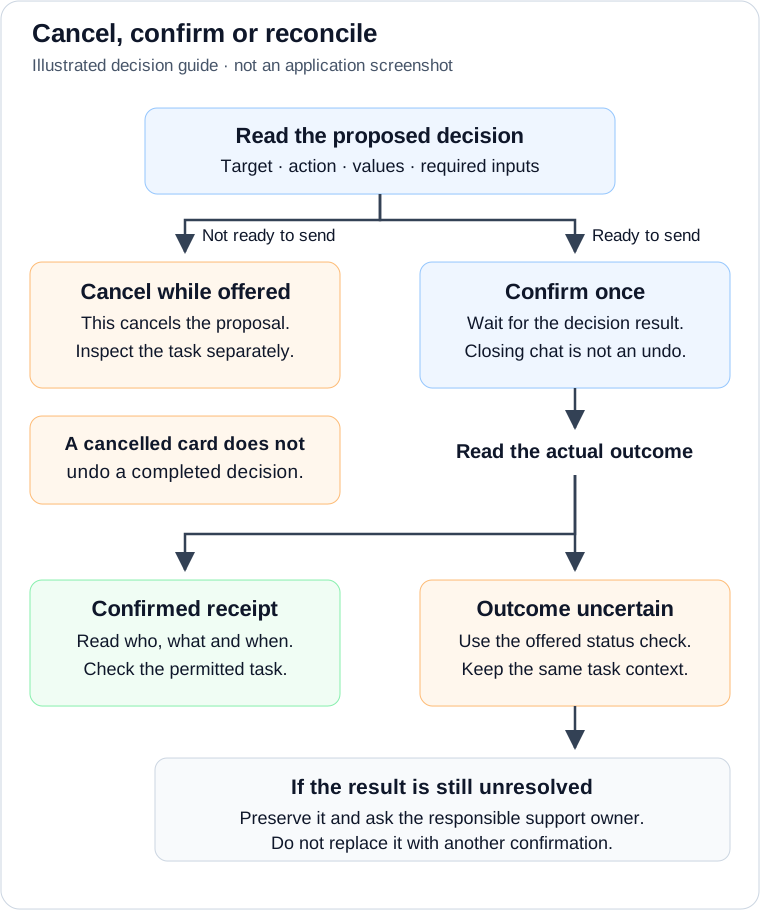
Teaching illustration, not a product screenshot. Use the controls offered by the actual task or proposal. The status check establishes what happened; it is not another confirmation.
| What Sara sees | What it establishes | What to do next |
|---|---|---|
| A review card with a confirmation action | A proposed decision still needs deliberate confirmation | Inspect the target, values and required inputs; confirm once or cancel while offered |
| Confirming | A confirmation is in progress | Wait for its result; do not treat closing the panel as cancellation |
| Outcome not confirmed or another uncertain-result message | Completion is not established in this view | Use the offered status check and inspect the authoritative task before another attempt |
| Cancelled | This card is displayed as cancelled | Keep it separate from the current request/task state; cancellation is not an undo |
| No longer pending | The old proposal is not currently offered as a live decision | Read any current task-outcome note; do not infer that this proposal succeeded |
| A confirmed approval or rejection receipt | A specific decision result has been reconciled for this view | Read its subject and result, then compare with the permitted task; do not confirm again |
A definite Not sent. Nothing was changed. Try again. result is different from an uncertain one. Follow that specific refusal after rechecking the target and inputs; do not apply its retry instruction to a different card whose result remains unconfirmed.
Example: Sara reopens yesterday's conversation
An old message saying “I prepared an approval” is a record of the conversation. It does not mean its approval card is still live. When history is loaded, App Chat checks the current proposal and task context before offering controls or a receipt.
- If the permitted decision is confirmed, the restored card can show its receipt, who completed it and when. Where the supported task outcome supplies an allowed record update, it can also show a line such as Status changed Pending → Approved on Leave request LR-017. That is a read-back of a particular outcome, not another update caused by reopening chat.
- If Sara's cancellation was recorded and can be identified for that restored card, it can show the cancelled note. An older card or an unavailable dismissal lookup may instead show a neutral No longer pending state. Neither wording is permission to reconstruct the old confirmation.
- If the task was decided differently elsewhere, the card can show a neutral note describing that task decision. For example, a rejected task must not appear as a successful approval merely because the old proposal said Approve.
- If the proposal is still valid and the current target and permissions allow it, the applicable review controls can be offered again. History does not preserve a right that has since been revoked. An inaccessible target is not recovered by asking for another person's conversation or private fields.
For example, Sara prepared an approval yesterday, but the request was rejected through its ordinary task page before she returned. She reads the current task-outcome note and checks the permitted task. She does not confirm the old approval to make the conversation match her earlier intention.
Read a restored record-change line field by field. A protected value is not revealed merely because it changed, and the absence of a line does not prove that every record field stayed unchanged. The task decision, any displayed record update and the source record answer three related questions; none is a substitute for all the others.
History restoration is bounded. Do not expect every old card to retain live controls or every earlier task to have a complete receipt in this panel. Use the permitted ordinary task view for the current business state. If a task was completed in another tab and an older list is still settling, inspect its current status rather than selecting the old decision again.
Example 1: Nadia needs help understanding a form
Nadia has built the Leave request form and wants to know which questions still need configuration. Her starting place is Ask Inflow, on the relevant workspace page. She can ask, “Explain this form and list what I still need to configure.” She reads the answer and reviews any offered change separately.
She does not need a catalog entry, a background worker or a new model connection for this consulting question. If Ask Inflow is unavailable, she asks the AI administrator whether it has been enabled for the environment.
Example 2: a project needs a background assistant
A different project needs an assistant to read approved information, prepare a summary and hand the result to an operator. An integration specialist must establish which tools it can use and how it runs. Before asking for that work, prepare this brief:
- The business purpose: prepare a summary, rather than decide whether leave is approved.
- The information it may use, with fictional examples while learning.
- The person who reviews the result.
- The actions it must never take without a separate authorized decision.
- What a useful result looks like and what should happen when information is missing.
Give the brief to the integration owner. Ask them to show the supported way your team will start and inspect this particular integration. There is no general Agent catalog setup screen assumed by this guide.
What to check before accepting the result
A persuasive summary can still be wrong. Compare names, dates and quantities with the source information. Ask who is responsible for a failed or incomplete run. A message saying “done” does not establish that a request was approved, a record was saved or an application was published.
If the integration asks for broader access than the business brief needs, pause that change and involve the data or application owner. Do not supply another person's account or private information just to make an example work.
Choose your next step
For ordinary consulting work, continue with Build an AI task or Work with Ask Inflow. To prepare a user-facing launcher, follow the App Shell tutorial's App Chat milestone. Integration developers can use the optional agent catalog technical reference.