Choose an AI model and get setup help
A model is the AI service that produces an answer. Your administrator prepares the available services; a consultant chooses an approved option while configuring an AI Task. You do not need to manage the underlying connection to write a useful summary task.
An input is information you send for this particular question. An instruction says what the model should do with it. Changing an instruction can improve an answer, but it cannot create a missing model or grant permission to use private data.
Before you start
Open an AI Task you may edit, using Build and test an AI task. Use fictional information. Ask the AI/data owner which service is suitable before using real business content; permission to read a record does not automatically mean it may be sent to an external AI service.
Example 1: choose a model for a leave summary
- Open Summarize leave request and go to the wizard's Model step.
- Read the offered model or administrator-default guidance. Choose from the actual available options.
- Keep the simple text-summary goal in mind. You do not need to change advanced settings just because they are present.
- Continue to Try & publish and enter a fictional five-day request.
- Choose Run test and check the actual answer against the supplied facts.
You should see the selected model information and either a usable result or a clear explanation of what prevented the run. A model name copied from someone else's manual is not necessarily configured in your environment.
If the answer changes the dates or says leave is approved, first correct the instructions and test again. Do not assume that choosing a larger model removes the need to check the result.
Example 2: no suitable model is offered
- Read the message on Model or the AI Task creation surface.
- Check that you are in the intended workspace and using a task type the team supports.
- Give the administrator the workspace name, the intended task and the nonconfidential message you see.
- Explain the business need: “I need a model approved to summarize fictional leave text now, and an approved policy before using real personnel data.”
- Return to the task after the administrator confirms setup. Choose the actual offered model and try the example once.
Do not paste a provider password into Ask Inflow, a formula or a task instruction. Do not keep guessing model names. If a control is absent because your role does not include administration, that is a handoff to the administrator rather than a reason to use another account.
Recognize the missing-model starting point
These two retained views show Nadia's synthetic People Operations setup before an AI model was prepared. The numbered guides enlarge the actual controls. They show the Rules entry and the New rule dialog; the wizard's Model step and provider-administration page are not pictured.
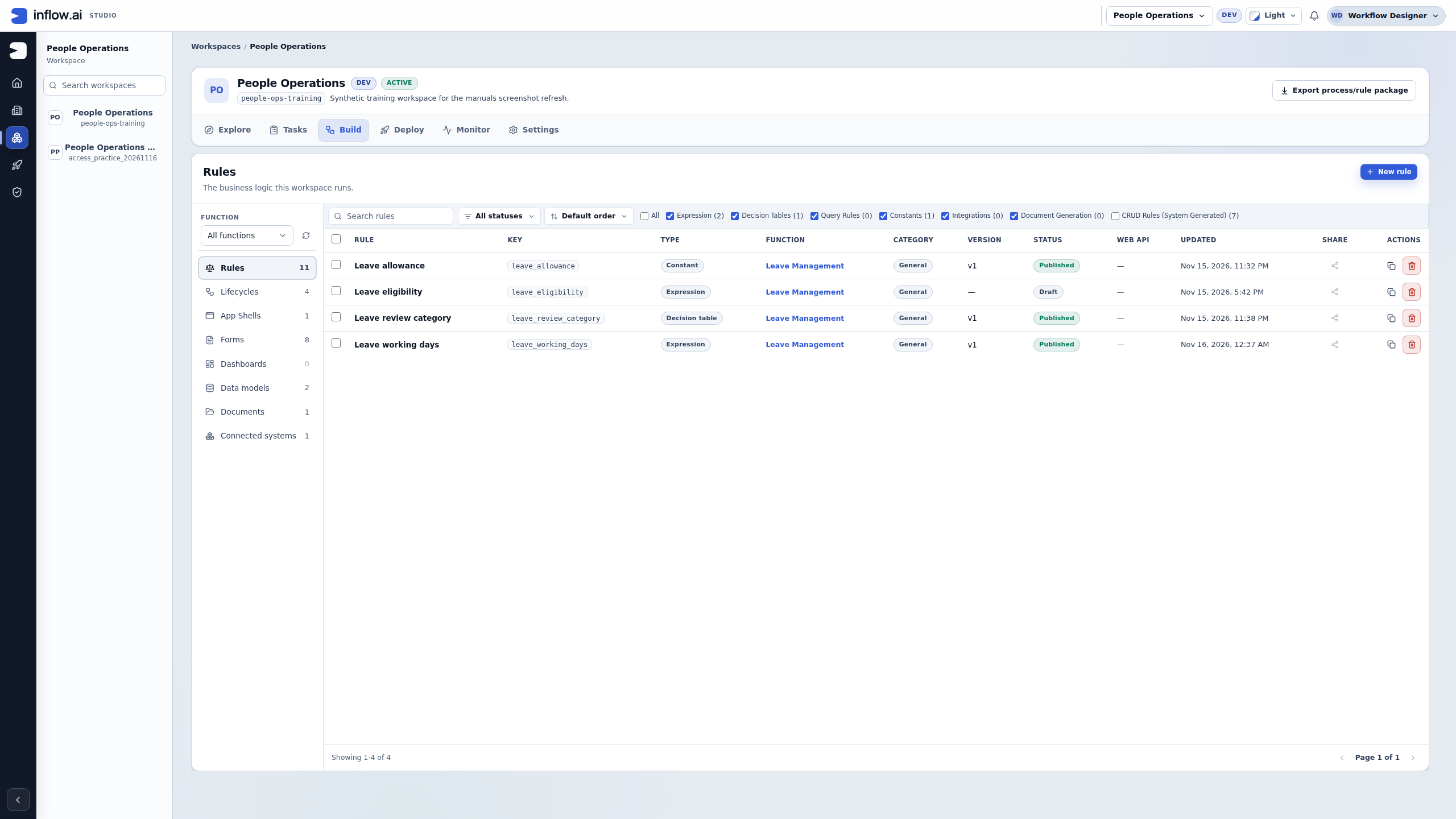
Start in the intended workspace's Build → Rules. Search for the task the owner prepared before creating another one. Existing non-AI rules and the current catalog filters do not establish that an AI model is ready.
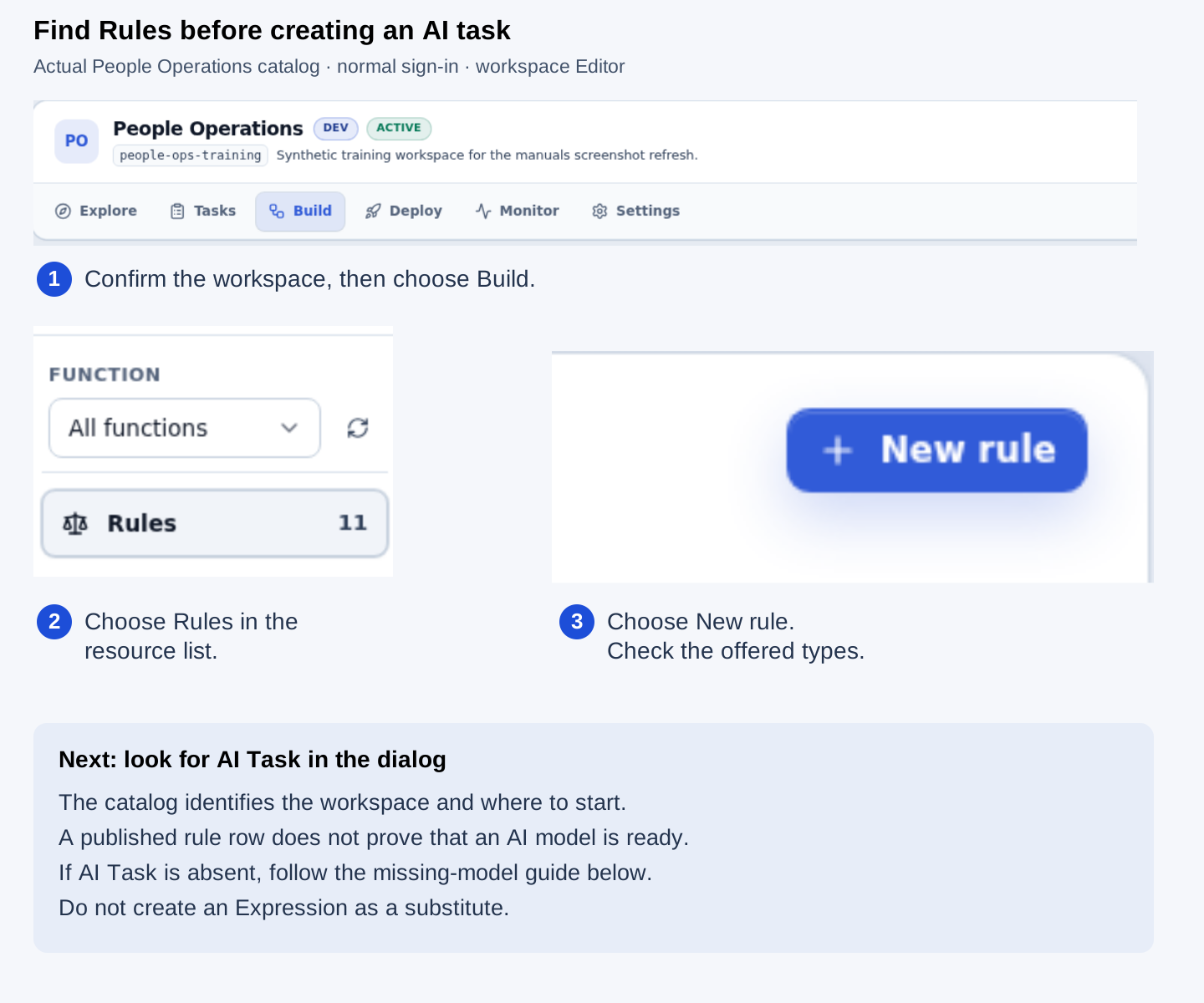
Use New rule only when the intended task is absent. This view is an entry point, not evidence that a summary task exists or has run. Open the unmarked Rules screenshot.
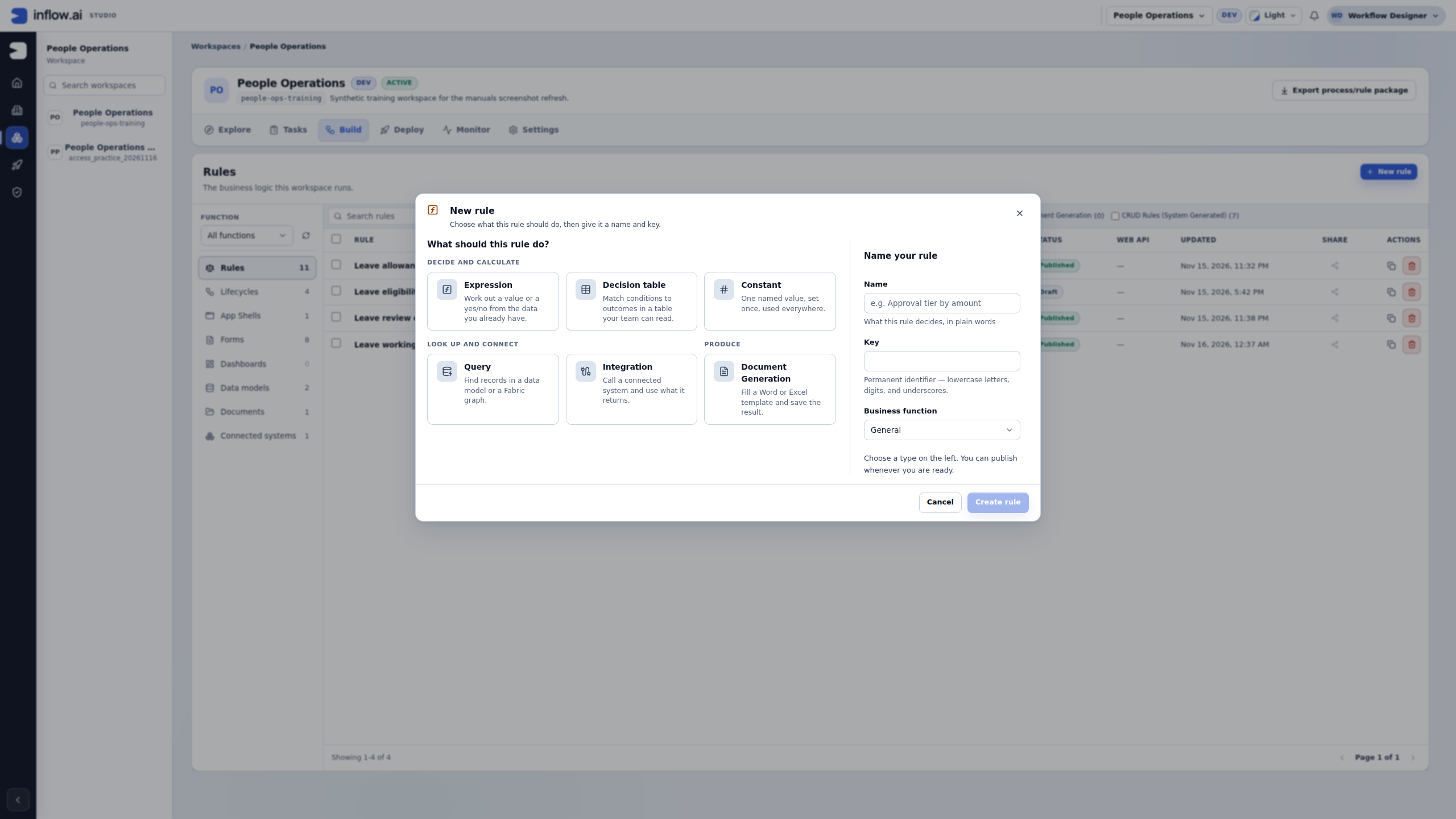
In the settled dialog below, six non-AI rule types are offered and AI Task is absent. For this particular setup, a successful model-catalog read also confirmed that no enabled model was offered. That extra check matters: an unreadable catalog or another person's missing control does not establish that AI is disabled.
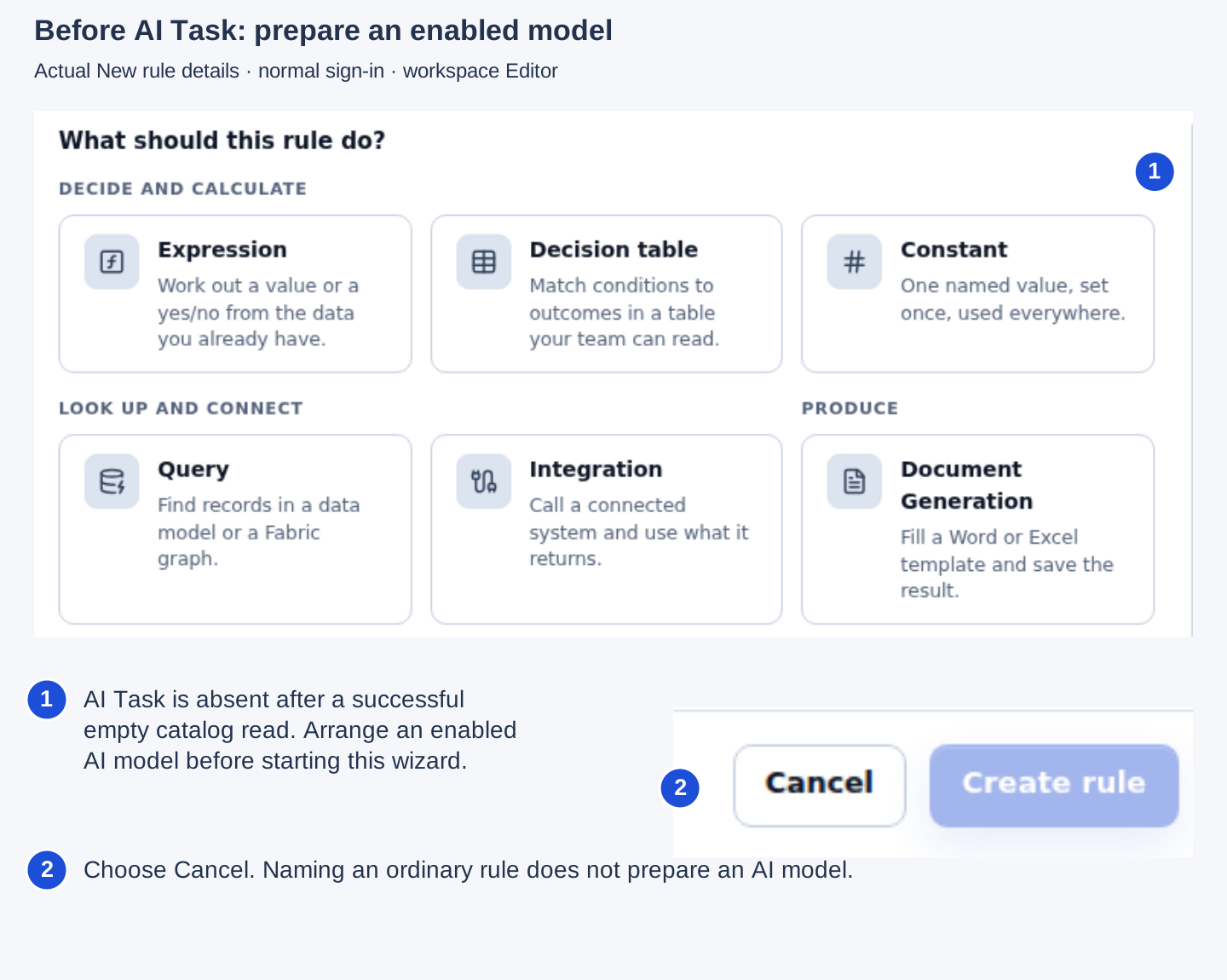
Nadia chose Cancel without creating a rule. Do not choose another type as a substitute, guess a model name or paste a provider key into the naming fields. Open the unmarked dialog screenshot.
Send the administrator a short handoff such as: “In People Operations, Build → Rules → New rule does not offer AI Task. I need an approved model for the fictional leave-summary lesson.” Keep personnel content and credentials out of that message. After the owner confirms setup, return to the same permitted task or creation surface and read the actual options. These setup views do not show a selected model, provider connection test or successful task answer; check those separately using the steps below.
What the administrator may need to prepare
An administrator with the appropriate role uses Authorization → AI providers. That page offers New connection, connection testing, model discovery/selection and enablement. These are separate from your task's instructions. The administrator should confirm which model is ready and what information it may process before you use it.
Give the administrator a short, nonconfidential setup request. Include the workspace, the task's purpose, its input kind (text, document or image), the task's displayed data class, and whether the proposed use requires an on-premise model. Do not send employee requests, documents, provider keys or passwords in the ticket or chat. For example:
Please prepare an enabled chat model for the fictional leave-summary lesson in the People workspace. It will use synthetic text only. The task shows its data class as standard. Please tell me which model is available and whether it is approved for this use; I will test with a made-up request.
For a real task, replace this with the actual workspace and data-handling need, but do not include record contents. The information owner and administrator must decide whether the service is allowed for that data. A consultant who can read a record may still be unable to send it to an external service.
Administrator setup path
The following steps are for an administrator who already has permission to manage provider connections and has the provider details through the approved internal process. If you do not manage connections, use the handoff above rather than borrowing another account.
Before selecting any model, coordinate with the AI owner responsible for Ask Inflow. Choosing Use this model can set the shared model used by Ask Inflow's Studio assistant, including the first selection on a new connection. The change is not limited to the fictional task being configured. New connections also start enabled. Confirm the intended shared effect and data policy before making that selection.
- Open Authorization → AI providers and choose New connection. Enter a unique lowercase connection key using letters, digits and dashes; give it a recognizable name; select the provider type; and enter its full endpoint URL from the approved provider setup. Use the screen's instructions when a provider type requires the OpenAI-compatible endpoint option.
- Enter a credential only through the password field and the approved internal credential process. The application stores it in the credential vault and never shows it again. When editing an existing connection, leave the field blank to keep the current credential. A provider such as local Ollama may not need one. Never place the credential in an AI Task prompt, a screenshot or a support message.
- Save the connection. Choose Test and read the actual outcome. A successful connection test means this connection could be reached for that check; it does not prove a chat model is selected, enabled, compatible with a particular task, or approved for a data class.
- Choose Models. The page may discover model IDs. Search the list and choose a chat model for ordinary AI answers; embeddings and batch variants are hidden by default. If discovery is unsupported or lists no models, ask the provider owner for the correct vendor model ID before entering it manually. Do not guess an ID from a different account or environment.
- Choose Use this model, then inspect the connection's Enabled state in the AI providers list. New connections start enabled. For an existing disabled connection, enable it only after the provider and information owners approve the use. Model selection and connection enablement are separate choices. Confirm that the list shows the selected model and the intended enabled state before asking a consultant to try the task.
- Return to the AI Task and check its Model step. Run one synthetic test there. The provider connection test and the task test answer different questions: the first checks the connection; the second checks the actual AI Task request and result.
Choosing a model can also set the model used by Ask Inflow's Studio assistant when that connection-backed model is available. It is therefore a shared AI configuration change, not just a private setting for the one AI Task being tested. Coordinate before first selection or replacement, and tell affected users what model will be used.
If the administrator edits the connection later, the credential field will be blank by design. Leaving it blank preserves the vaulted value. Re-enter a credential only when rotating it through the approved process; do not use a screenshot or remembered copy to reconstruct the secret.
Example: connection works, but the task has no model
Suppose the administrator sees a successful Test result, while the consultant's AI Task says no model can run it. Check the provider row first. If Selected model says No model chosen, coordinate with the AI owner because Use this model can change the shared Ask Inflow Studio assistant default even on this first selection. Then use Models to choose a chat model and Use this model. Inspect the Enabled state; new connections already start enabled, while an existing disabled connection should only be enabled after the provider and data owner approve its use. Return to the task and refresh its model list. If the task is marked restricted, an enabled cloud model is still unsuitable; prepare an eligible on-premise model instead.
If Models reports that model discovery is unsupported, that is not the same as a failed connection. Use a model ID supplied by the provider owner. If discovery fails with an error, use its retry only after checking the endpoint or credential with the authorized administrator. Do not repeatedly test or paste confidential task inputs while the cause is unknown.
Consultants can stop at that confirmation. Detailed connection fields, credentials and service operation belong in the optional technical reference. A saved connection record alone is not proof that an actual test answer succeeded.
Example 3: a run stops or fails
Suppose Nadia has selected a model, but the leave-summary test does not finish normally.
- Read the plain-language message on Try & publish.
- Repair a missing required value before another run.
- If the message points to the model/service, give the administrator the task name and nonsecret details. Do not repeatedly send personnel content while investigating.
- If you choose Stop, understand it as stopping the browser's wait. The AI service may still finish processing.
- Try again only after the specific issue is addressed and the earlier outcome is understood.
An unsuccessful run is not a successful empty answer. When an allowance or policy prevents further use, ask its owner for a decision rather than removing limits to finish the lesson.
Read the Model step you actually have
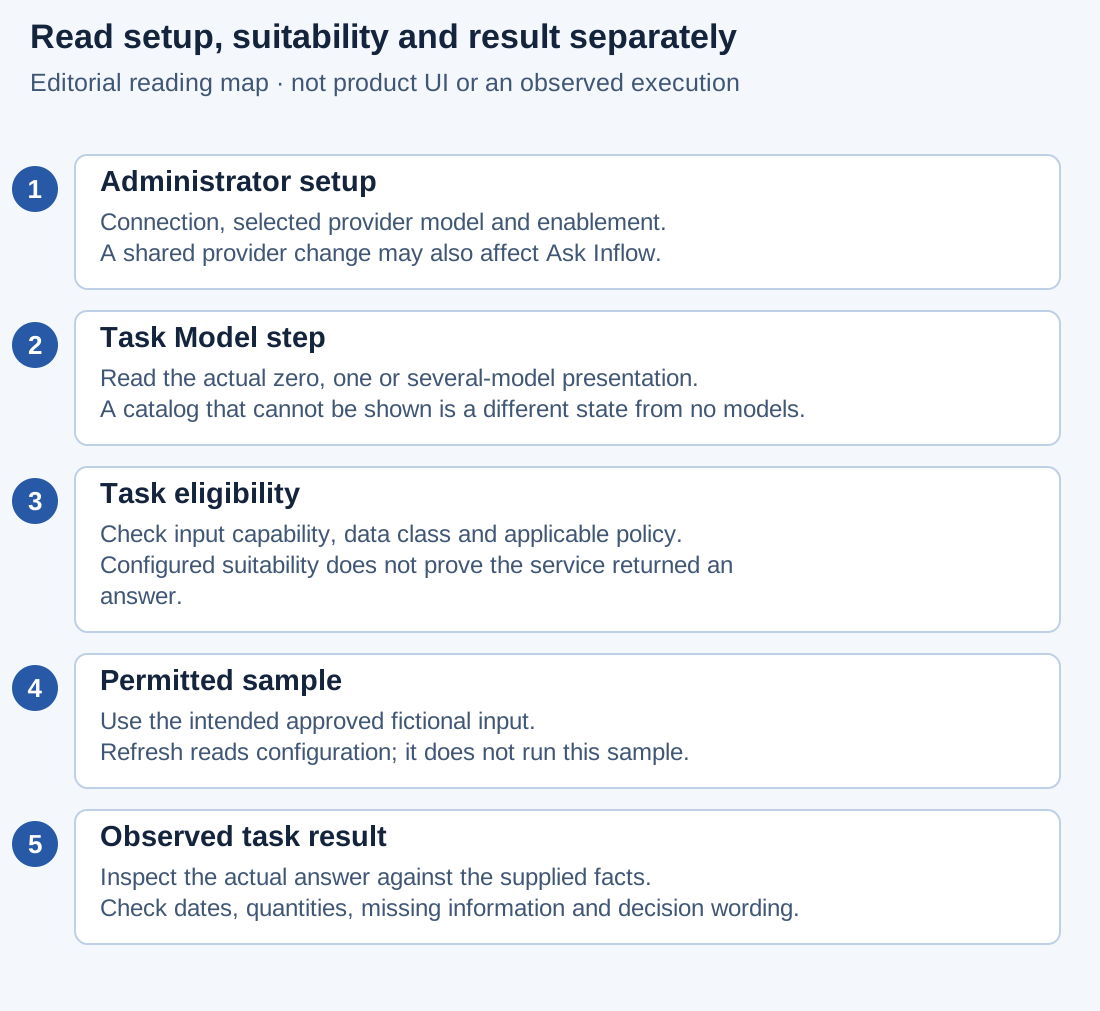
This is a planning and reading map, not an AI providers screenshot or a completed test. Each stage answers a different question.
The Model step does not always show a selector. Its presentation depends on what is enabled and what your account may read. Keep the current task open and read the offered state before asking for changes elsewhere.
| What you see | Meaning for this step | Useful next action |
|---|---|---|
| Loading placeholder | The model list has not finished loading | Let the list settle; preserve the task's current settings |
| The list of AI models could not be loaded | Loading failed | Use the offered retry after checking the reported issue; do not infer an access grant or an empty catalog from an outage |
| Uses the AI model enabled by your administrator without catalog details | The step is using administrator configuration without offering this person the catalog | Follow the displayed task guidance; a missing chooser is not permission to inspect another account's catalog |
| AI Tasks unavailable until an administrator enables a model | No enabled model is offered through this path | Send the nonconfidential setup handoff to the administrator |
| One enabled model is named without a selector | This step uses that enabled model | Read its task eligibility; there is no second choice to make here |
| AI model with several choices | More than one enabled model is available | Choose an appropriate offered model or Use the administrator's default |
| Can run this task or Cannot run this task beside an enabled model | The model's configured suitability for this task is being explained | Read the reason and use an eligible option; do not mistake configuration for a successful answer |
The administrator link is offered only when that person may manage AI providers. Its absence is not a reason to borrow an administrator's account. A read-only task also does not become editable because another person's manual shows a chooser.
When the Model step offers Refresh, use it after the owner has corrected model setup. Refresh reads the current offered models; it does not enable a connection, select a shared provider model, run the task or approve sending private information to a service. A model-list loading error has its separate offered retry. If the step shows only the administrator-model guidance without catalog access, follow that guidance and return to the same permitted task after the owner confirms setup, preserving unfinished work. Do not search for a Refresh button that this state does not offer.
Worked example: three colleagues see different model controls
Nadia and two colleagues inspect the same kind of fictional summary task in their own permitted settings. These are teaching cases, not claims about a running demo environment.
- Nadia sees one enabled chat model named on the step. She checks its eligibility and continues with the supplied model; she does not search for a missing selector.
- Jordan sees several enabled models. The selector includes Use the administrator's default and the actual enabled choices. Jordan chooses only an appropriate offered option and reads whether it can run this task.
- Sam does not have catalog-reading access and sees the administrator-model guidance without the catalog. Sam follows the ordinary task path and asks the authorized owner for help if the task cannot proceed. This state does not establish that no models exist.
- Each person separately reviews the permitted input and, when authorized to test, the actual task result. None can infer factual accuracy from a model label or another colleague's options.
Expected result: each person understands the controls their own account actually has. The team changes model administration only when a real setup issue calls for it.
Resolve eligibility before changing the task's purpose
An enabled model may still be unsuitable for the configured task. For example, a model that handles text may not read images. A task handling restricted data needs an eligible on-premise model; an enabled cloud model does not satisfy that requirement.
- Read the task's purpose and input kind. If the goal is a text summary, use approved fictional text. If the intended task genuinely needs an image, preserve that requirement while investigating suitability.
- Read the model's Cannot run this task explanation, if shown. Distinguish a missing capability from an unavailable connection or an error loading the model list.
- Check the task's displayed data class. Do not relabel restricted information as standard just to make another model eligible. The information owner must decide any legitimate classification change.
- If cloud image processing has not been approved for the workspace, follow the displayed explanation. An authorized workspace administrator must decide that policy; a consultant should not toggle it solely to finish a tutorial. An on-premise image-capable model may be an appropriate alternative when approved and available.
- If the workspace image setting could not be checked, read that as uncertainty, not as permission. Use Refresh if offered; if the model list itself failed to load, use its offered retry. Follow the displayed administrator-model guidance when the catalog cannot be shown, and keep real image content out of the test while the question is unresolved.
- After the authorized owner fixes the particular setup issue, use Refresh when offered and reread eligibility. If your account instead sees administrator-model guidance without catalog details, follow that path when returning to the same permitted task. Preserve unfinished work and perform only the intended approved test. Eligibility is checked again when the task runs.
Expected result: the original business purpose, data classification and permission boundaries survive troubleshooting. A successful configuration check still needs a real approved task result before the answer can be assessed.
A model choice disappears
An AI Task draft may refer to a model that is no longer enabled. The Model step can explain that the chosen model is no longer enabled and that the rule uses another enabled model. Read the current step rather than treating the saved old name as a guarantee of which service will receive the next request.
Before another test, confirm that the actually available model is suitable for the input, data class and organization policy. Ask the AI owner if the fallback changes the intended service or data handling. Do not restore an old provider or enable a connection merely to make the draft's historical label reappear.
Use a test worksheet that separates setup from answer quality
For the leave-summary lesson, agree this fictional sample before testing: request leave-2026-014, five requested days, 14–18 December 2026, manager decision pending. These are supplied facts, not a calculation of entitlement or working days.
| Check | Record from the actual step or result | Why it matters |
|---|---|---|
| Task and sample | Correct task, approved fictional text and intended output | Prevents a test of the wrong request or data |
| Current model guidance | Actual offered model/default guidance and eligibility | A saved historical name alone is insufficient |
| Setup boundary | Administrator reports connection/model setup separately | A provider connection test is not the task's result |
| Factual output | Reference, dates, five days and pending decision | A polished answer can still change a fact |
| Unsupported additions | Any claim of approval, entitlement or another action | The summary must stay within its input and purpose |
| Missing information | Whether the answer clearly identifies what it was not given | Missing facts should not become invented conclusions |
| Failure or stopped viewing | Safe message and what is known about the original attempt | Browser Stop does not establish provider cancellation or an empty successful answer |
If the answer says the request is approved, treat that as a failed factual check for this sample. Keep the observed answer and ask the owner whether the instruction or input mapping needs correction. If a response was cut off, check the task's Advanced: answer length and creativity settings with the task owner; changing those settings is a draft change, not proof that a subsequent response will be correct.
Model choice, creativity and answer length are tools for the intended task. They do not change the leave workflow's authorized decision path. Sara's real approval or decline must still be recorded through the ordinary manager task.
Continue
Return to AI Task rules to configure the business task. Administrators and integration developers can use the preserved AI Gateway technical reference.