Choose the right kind of field or input
A value's type tells Inflow what kind of answer it is. A date can be selected with a calendar. A quantity can be compared or added. An employee reference can contain letters and leading zeros. Choosing the right type makes later forms, rules and mappings easier to understand.
Screenshot context: The three-answer practice below uses native 16 November 2026 screenshots from source 899ce1a1. The separate 8 November model, five-input and date-recovery images are retained as historical examples and are labeled individually. Use each example's named design and expected result; do not duplicate or alter a published model to reproduce an older picture.
This lesson uses Nadia's Leave requests example. You will distinguish stored model fields from form inputs, inspect their types, and recognize a compatible binding. You do not need to memorize every type in the technical reference.
Before you begin
Use the People Operations training workspace and the existing Leave management model and Leave request practice form from the earlier lessons. You need permission to inspect the relevant designs and to save a draft if you make changes. A missing edit control is a reason to ask the owner about your task and access.
Open and inspect the existing design before adding anything. Repeating this lesson should not create a second model, another form, duplicate inputs or additional business records. Keep the existing draft and any unsaved work.
Decide these four things for each answer:
- Meaning: is this a reference, quantity, date, person, file or choice?
- Number of answers: should this contain one value or several?
- Missing answer: may it be unanswered at this step?
- Next use: which rule, question, record field or action will receive it?
For example, requested days is a quantity, not the employee's reference. Start date and end date are separate calendar days. Neither date automatically calculates working days or deducts a leave balance.
Choose by business meaning
| You need to keep | Choose this kind of value | Example and decision |
|---|---|---|
| A name, reference or code | Text | Employee 000123 keeps its leading zeros. Request leave-2026-014 is a reference. |
| A whole quantity | Integer or whole number | Five days, if the agreed policy permits only whole days. |
| A quantity with fractions | Decimal or number | An expense of 125.50, with an agreed precision and rounding policy. |
| A two-state answer | Boolean or yes/no | An eligibility result that is true or false. Decide what an unanswered question means separately. |
| A calendar day | Date | Leave starts on 14 December 2026. |
| A clock time | Time | An office opens at 09:30. |
| A day and clock time together | Date and time | An appointment. Confirm the intended time-zone meaning with the business owner. |
| One permitted business state | Enum or choice | PENDING, APPROVED or DECLINED, from the agreed list. |
| A selected Inflow person | User | Sara, selected from the permitted directory. |
| A managed attachment | Document | A permitted file selected through the document controls. |
| A structured business item | Record | One employee or one leave request, with its defined fields. |
| Several answers | A compatible type with Multiple, or the editor's list/record-list choice | Several records returned by a query. One record and a list of one record have different shapes. |
Labels vary by editor. The data-model picker uses names such as string, integer, decimal, boolean and date. The form Inputs panel in this example shows Text, Integer and Date. Read the choices in the editor you are using. Do not turn everything into text just to make the labels match.
Business policy still matters. A type does not decide whether half-days are allowed, how money is rounded, which dates are working days, or who may see the answer.
Practice — follow three typed answers from design to local Preview
Nadia wants to check a small form before anyone connects it to a real leave-request action. The saved Control selection practice Form contains Start date, End date and Reason for leave. Its three answer names are startDate, endDate and reason. There is no requested-days answer in this particular practice form, and it does not create a business record.
The four new guides below use unchanged native 2560×1440 screenshots from 16 November 2026, source 899ce1a1. They show the approved designer inspecting an existing unpublished draft and entering session-only Preview values. The saved draft was not edited, saved again or published. The separate older model and five-input pictures later in this lesson remain dated historical examples.
Inspect the three declared answers
- Open the existing Control selection practice Form in its practice workspace. Confirm the title before inspecting its inputs; do not create another form to repeat this exercise.
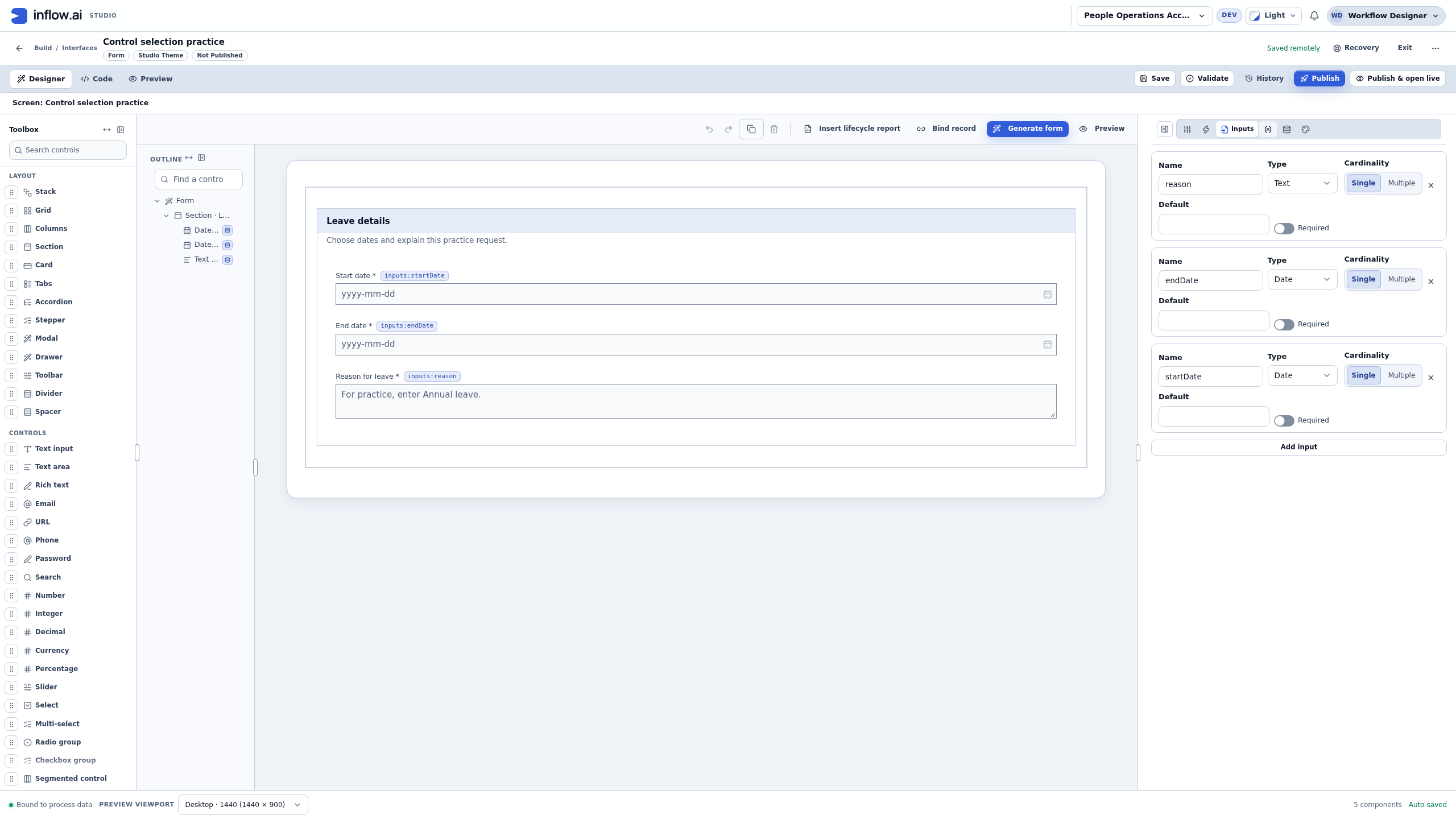
- Open Inputs and locate each answer by name. The recorded order is reason, endDate and startDate, but the names—not their position—identify them.
- Read the Type beside each name.
reasonis Text;endDateandstartDateare Date. - Read Cardinality. All three are Single. Two separate Single Date answers are not a list of dates.
- Observe the input-level Required switches. They are off in this draft. Leave them unchanged while comparing the control settings in the next step.
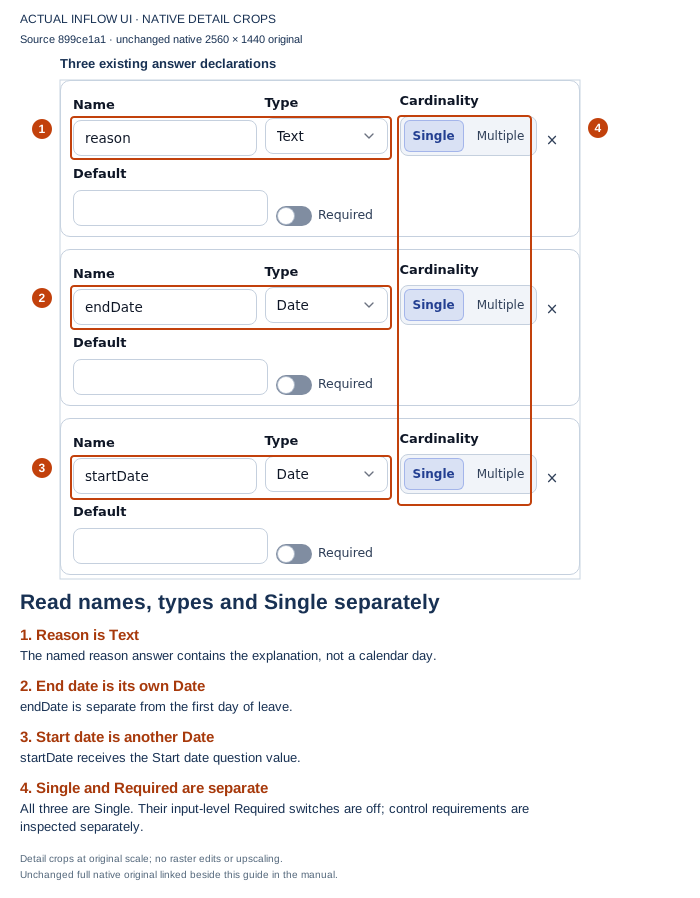
Open the unchanged native original.
| Named answer in this practice | Declared type | Cardinality | Meaning |
|---|---|---|---|
startDate |
Date | Single | The first calendar day entered in the Start date question. |
endDate |
Date | Single | A separate last calendar day entered in End date. |
reason |
Text | Single | The explanation entered in Reason for leave. |
This is an answer declaration inside the form design. It is not a physical model field or an existing employee record. An input named startDate does not create or update the model field start_date. An intended record operation still needs its own mapping, authorization and result checks.
Compare the Date control with its answer declaration
- Return to Properties and select Start date in the Outline. Confirm that you selected the question rather than its parent Section.
- Scroll within Properties to inspect Display format, Calendar, Store value in and Required.
- This practice already uses
yyyy-mm-ddand Gregorian. Keep those deliberate settings; changing the display format is not a reason to change a Date answer into Text. - Read Store value in. The current destination is
inputs:startDate. - Read the control's Required setting. It is Yes, although the input-level Required switch inspected above is off.
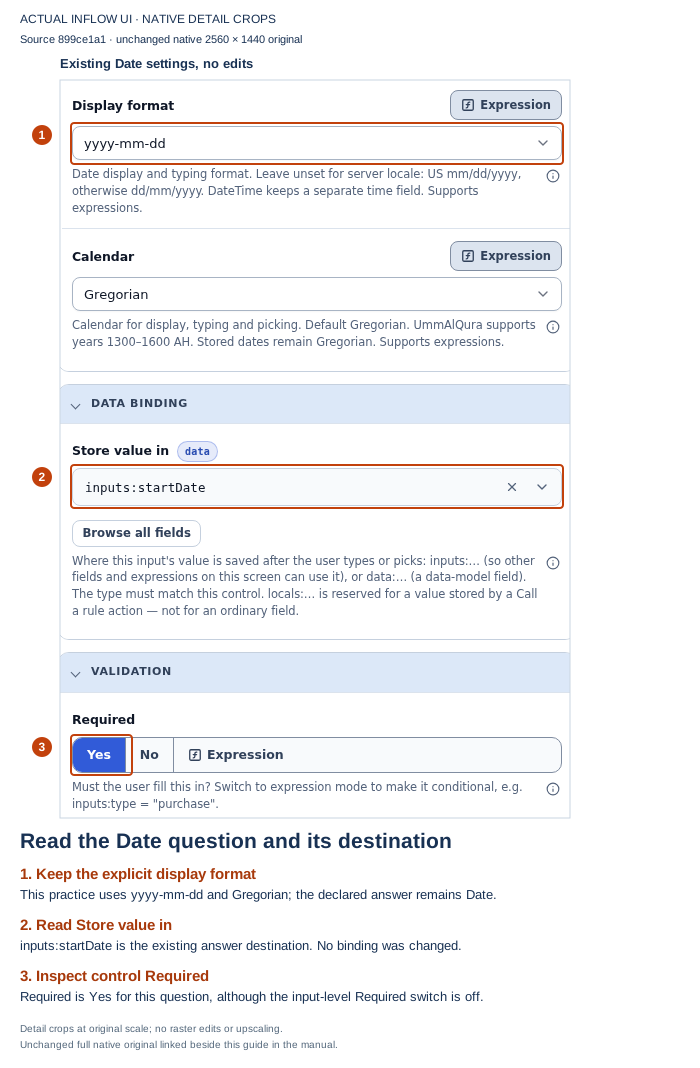
Open the unchanged native original.
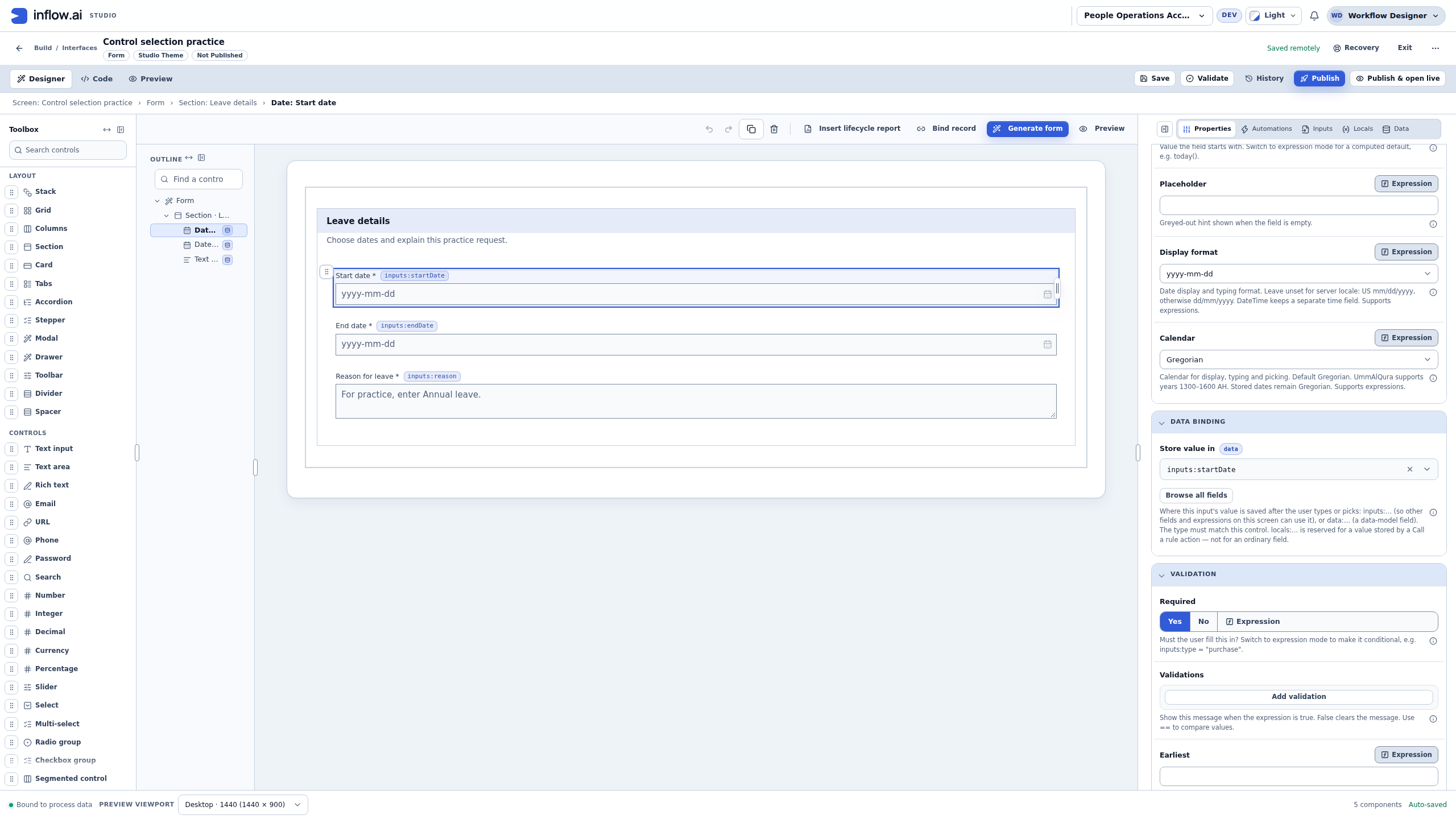
The two Required settings belong to different layers. In this form, the Start date question asks the person to supply a value. That does not require Nadia to change every input-level setting to make the pictures agree. Inspect the layer that produces the behavior you need, and keep the existing configuration while learning from it.
A label also has a different job from a binding. Start date is what the person reads; startDate identifies the answer being edited. Renaming a visible question does not automatically rename the declared answer or its eventual model destination. Rebinding a question is a behavior change and needs a deliberate review of its consumers.
Read the binding choices without applying a change
- Open Browse all fields below Store value in.
- Read the Interface inputs group. The dialog shows human-friendly names together with their types and actual paths.
- Compare Reason with Start Date and End Date. Reason is Text and has the state explanation Date expects Date / DateTime, not Text. The two Date inputs are compatible choices.
- Match the business meaning as well as the type. Start date belongs with
startDate; another compatible Date answer is not automatically the right destination. - Choose Cancel for this inspection. Do not choose a new path, add an answer or apply another field merely to close the dialog.
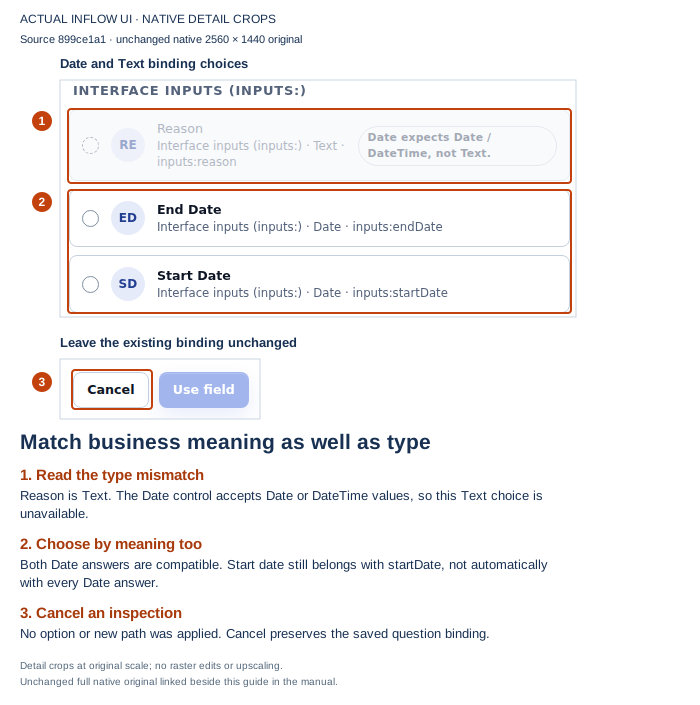
Open the unchanged native original.
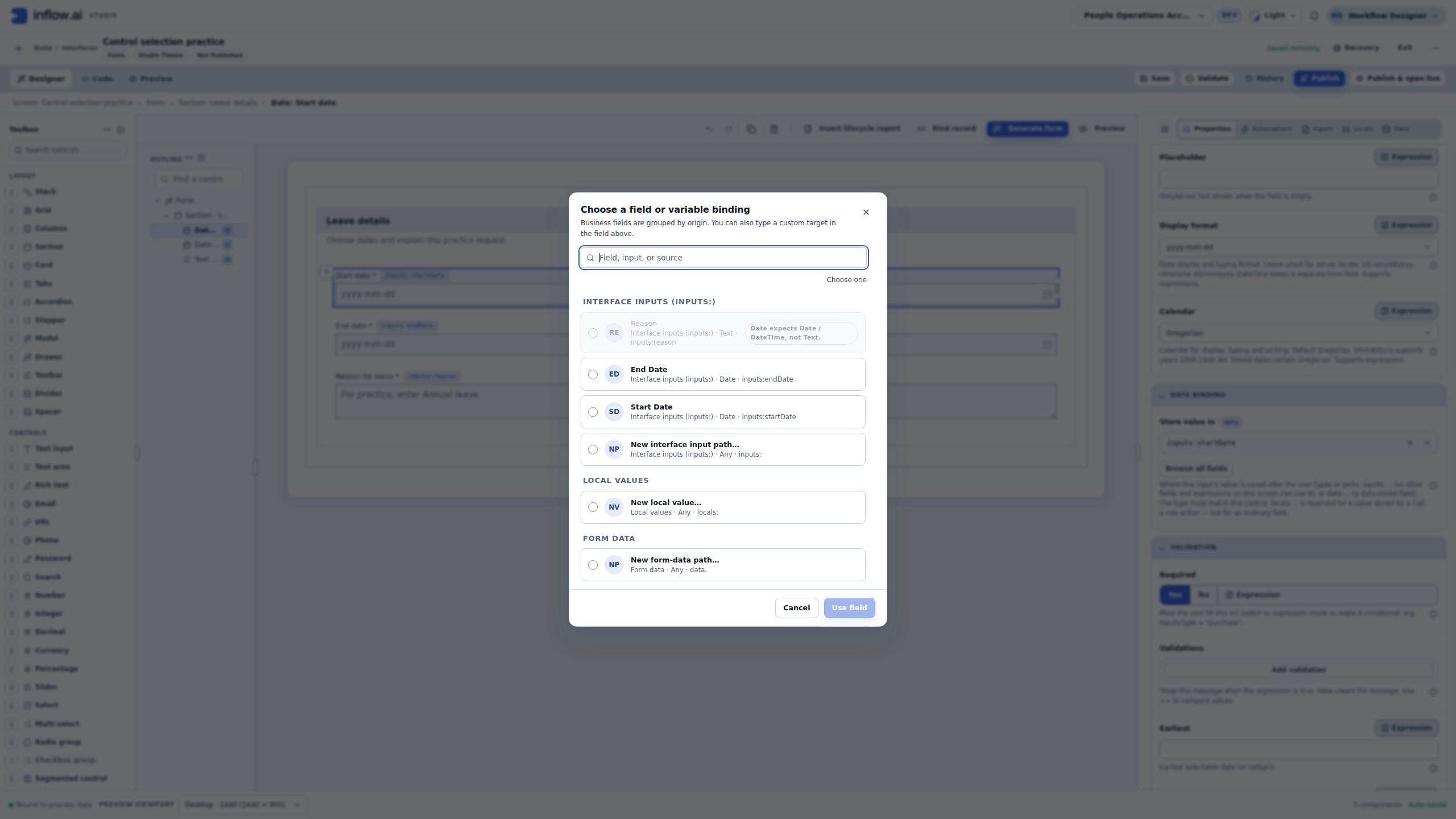
The dimmed Reason option explains a type mismatch. It is not a statement that Nadia lacks permission to read the input. Conversely, an available option is not proof that a later business action is authorized. Type compatibility and access answer different questions.
The dialog's Date/DateTime compatibility message describes what this control accepts; it does not choose the business definition for you. Use Date for the calendar-day example. A separate appointment or timestamp design needs its own date/time and time-zone decision. Do not introduce a time component simply because it appears compatible in a picker.
Read the local answers after Check form
- Open Preview → Interactive for this same saved form. Inspect any existing local answers first. The captured run began with all three questions blank.
- In this practice only, enter
2026-12-14in Start date,2026-12-18in End date andAnnual leavein Reason for leave. Use the format that the control actually shows. - Choose Check form. The recorded result is All checks pass for the configured form checks.
- Open Form state. If the button already says Hide state, the state is open; read it instead of hiding it.
- Compare the names and values:
startDateis2026-12-14,endDateis2026-12-18, andreasonisAnnual leave.
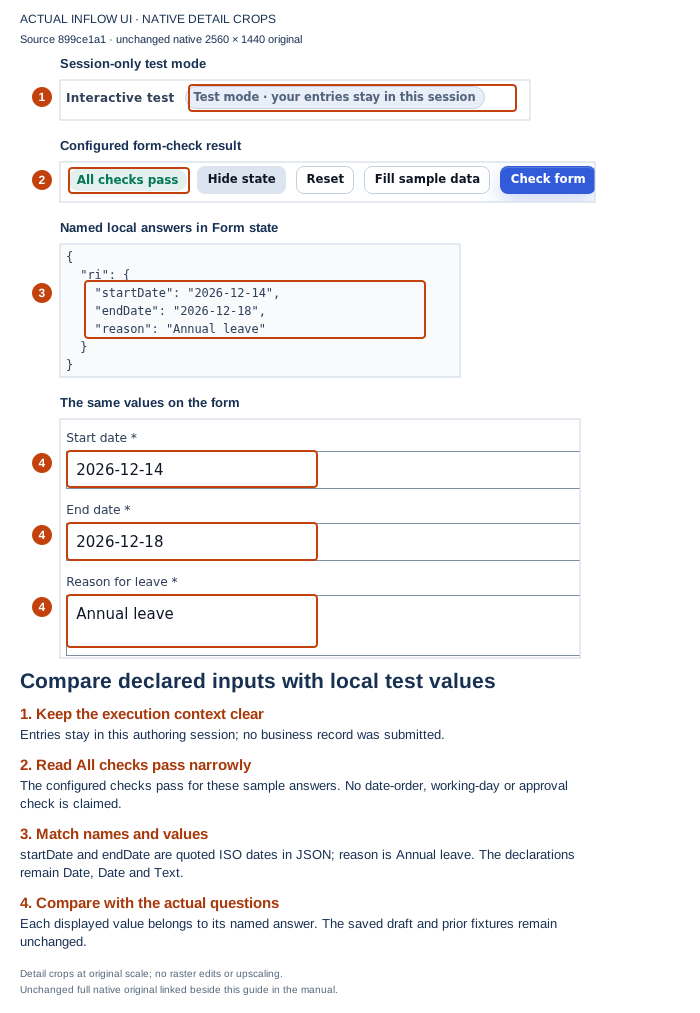
Open the unchanged native original.
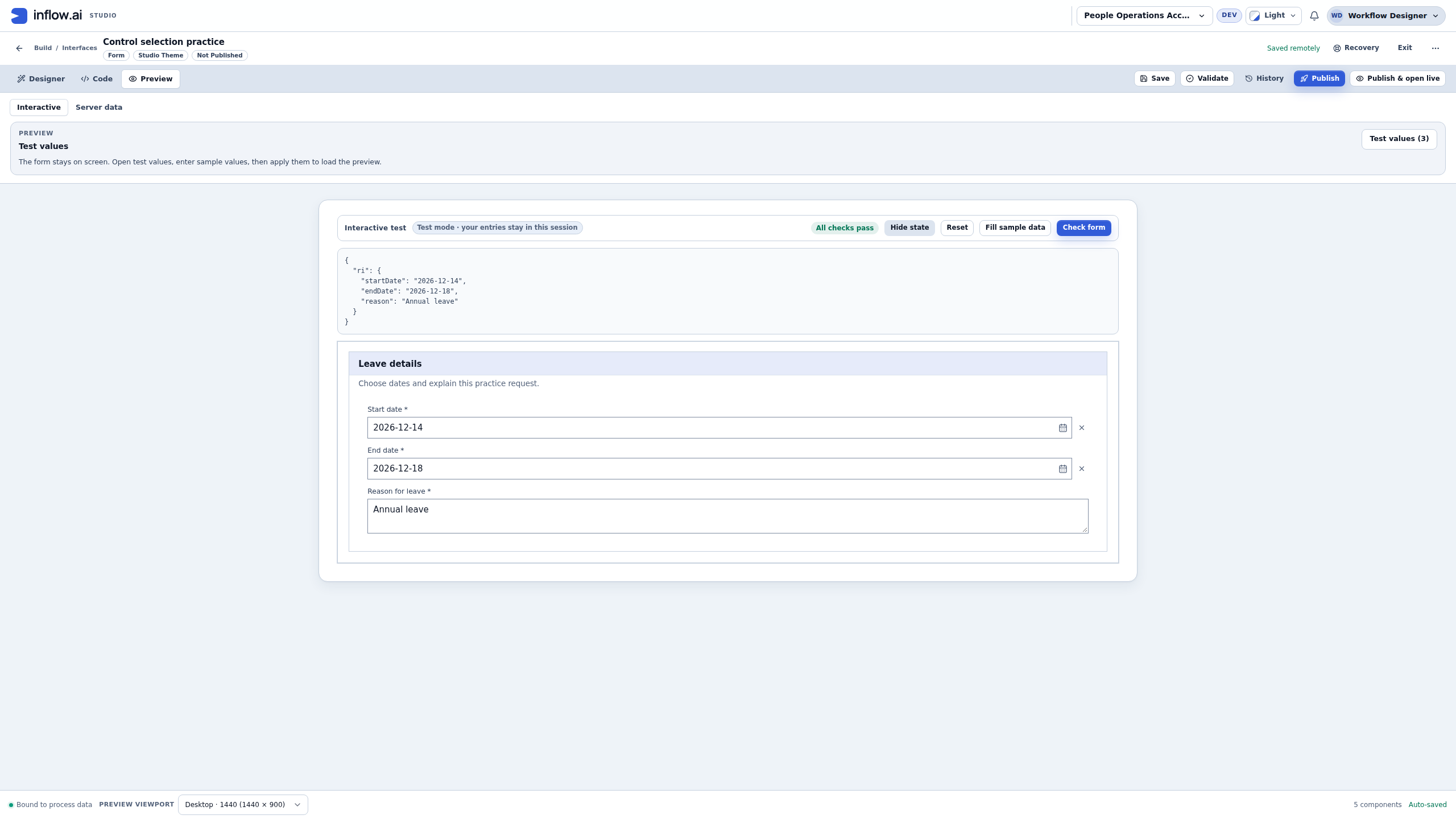
The state viewer groups these test answers under ri. The dates appear as quoted ISO date strings in that JSON view. Quotation marks in the viewer do not change the declared input types: the Inputs panel still defines two Dates and one Text answer. Use the declaration, the control and the named value together when diagnosing a mismatch.
All checks pass is limited to the checks actually configured in this practice. The draft requires the questions and uses valid date entries; it has no cross-field date-order rule. This run does not demonstrate that an end date before a start date is rejected, that working days were calculated, that a leave balance is sufficient, or that a manager approved anything. Those requirements need their own configured rules and tests.
The Preview banner says that entries stay in the session, and this form has no visible Submit action or record-writing configuration. The sample did not create a leave request, start a workflow or save a model row. The saved Form definition and its revision remained unchanged after the inspection and local test.
Decide what to check next
| What Nadia observes | Useful next check |
|---|---|
| The value is a quoted date in Form state | Compare its named Date declaration and the control's displayed calendar day; do not infer Text from JSON punctuation. |
| A Date question offers another Date answer | Match the business meaning and path before changing the binding. Compatibility alone does not decide between start and end. |
| Input Required is off while the question has an asterisk | Inspect that question's control-level Required setting and the configured form checks. |
| All checks pass with ordinary dates | List which checks exist. Add and test a business rule through the normal authoring process if date order or another policy must be enforced. |
| Preview looks correct but no request appears in Records | Identify the intended submit or record action and its authorization; local answers do not imply persistence. |
The older worksheet's Integer quantity, employee-reference text, multiple answers, User, Document and Record examples remain separate decisions. The four Date/Text practice pictures do not demonstrate those types or complete the stored-record and ordinary-user journeys. Keep each example's fixture and expected result clear when handing the application over.
A suggested type needs your review
When you add a model field, Inflow may suggest a type from its name. The guessed marker tells you that the suggestion needs an author's decision.
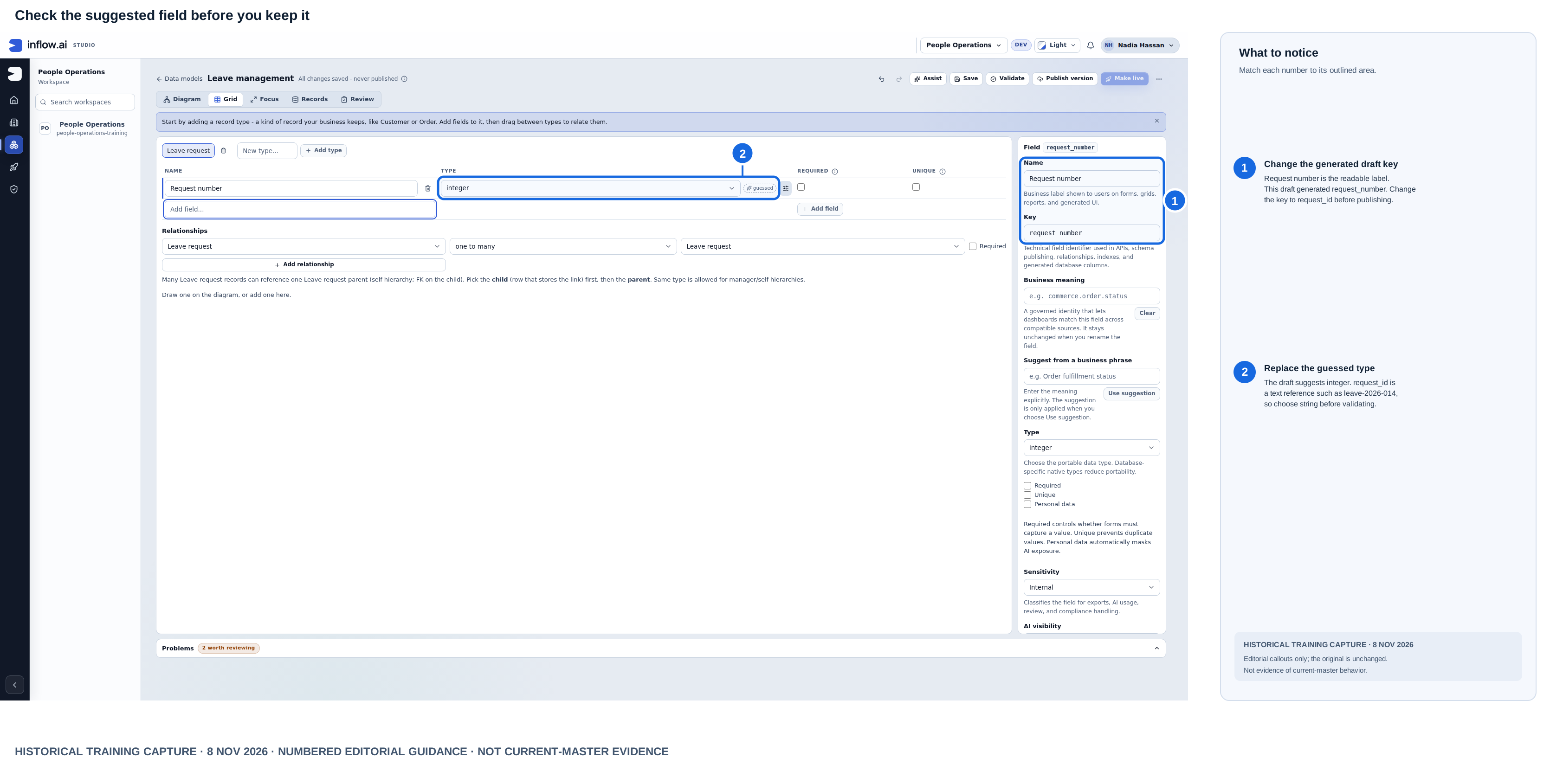
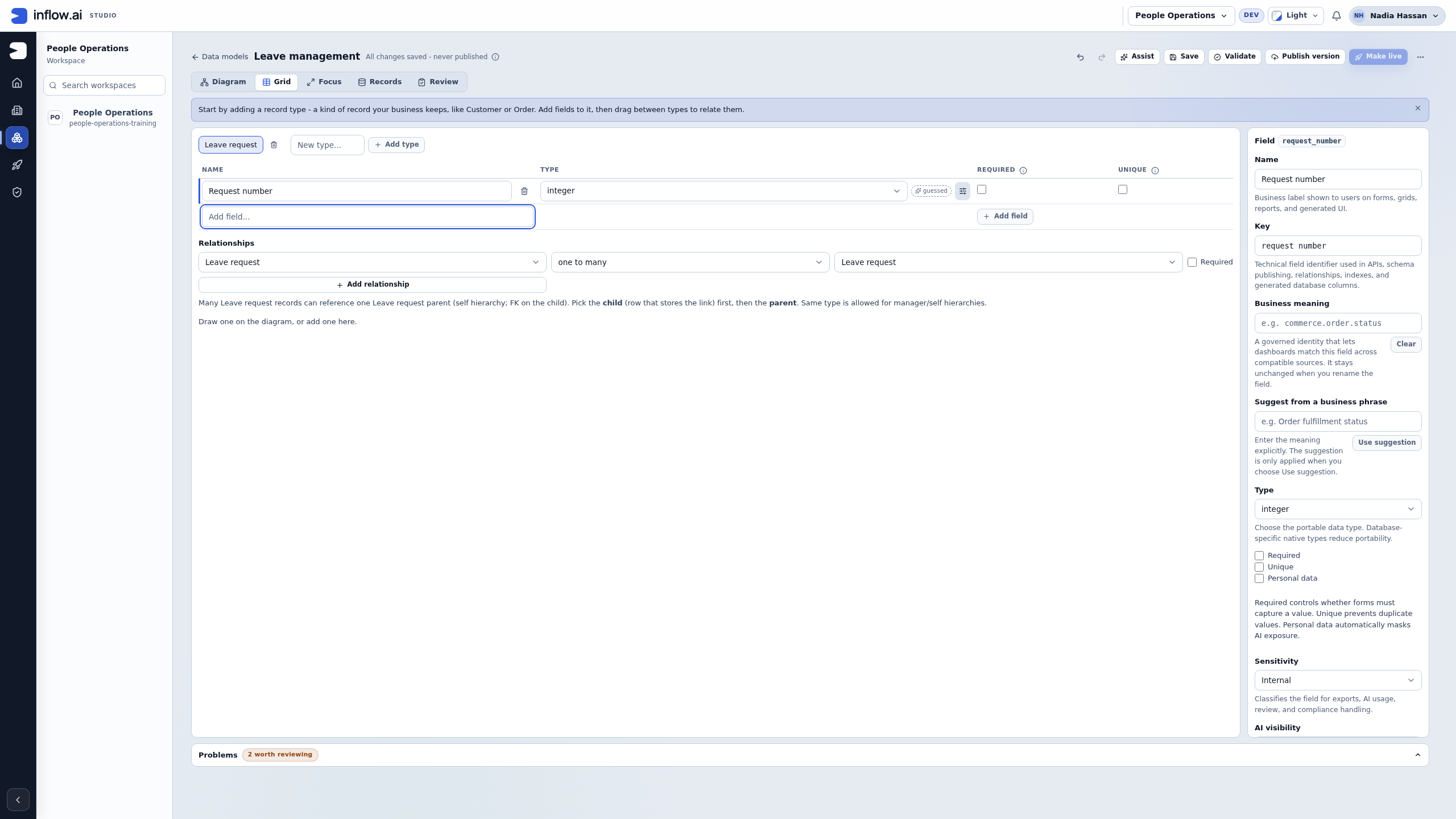
Historical training capture from 8 November 2026 with editorial callouts. Open the unchanged original screenshot. “Request number” is shown with a generated key and guessed integer type; choose a text field for a reference such as leave-2026-014.
- Read the proposed field name and type together.
- Write down two realistic values. For a request reference, use
leave-2026-014andleave-2026-015. For requested days, use 2 and 5. - Ask whether arithmetic makes sense. Adding two request references does not produce a useful business answer.
- Choose the appropriate type deliberately in the field editor. Also review Required and any permitted choices.
- Follow the model's Save and Validate steps. Read any findings before publishing.
The illustration shows the proposal during creation. Your existing model may already have the corrected field and key. Reuse it; do not rename a published field or add a duplicate to make the screen look exactly like an earlier step.
Example 1: match the model's dates and quantity
The earlier model worksheet stores start_date, end_date and requested_days. The practice form uses the separate input names startDate, endDate and requestedDays. Those names belong to different designs. A mapping connects them when you build an actual record action.
| Meaning | Existing model field | Existing form input | Kind of answer |
|---|---|---|---|
| First day of leave | start_date |
startDate |
Date |
| Last day of leave | end_date |
endDate |
Date |
| Agreed quantity | requested_days |
requestedDays |
Integer for this whole-day example |
| Reason | reason |
reason |
Text |
- Open the existing Leave management model and select its Leave request type.
- Find
start_dateandend_date. Inspect their date types. Checkrequested_daysas a whole-number quantity for this example. - If the fields already match the worksheet, leave them in place. Do not add a camel-case copy because the form uses a different input name.
- If a draft needs correction, review what consumes that field before changing it. Use the model's validation and normal publication/Make live process when appropriate. Saving a draft alone does not change the physical record store.
- Return to the existing practice form and open Inputs.
- Find the named inputs and inspect Type and Single. Match by name rather than assuming the rows appear in a particular order.
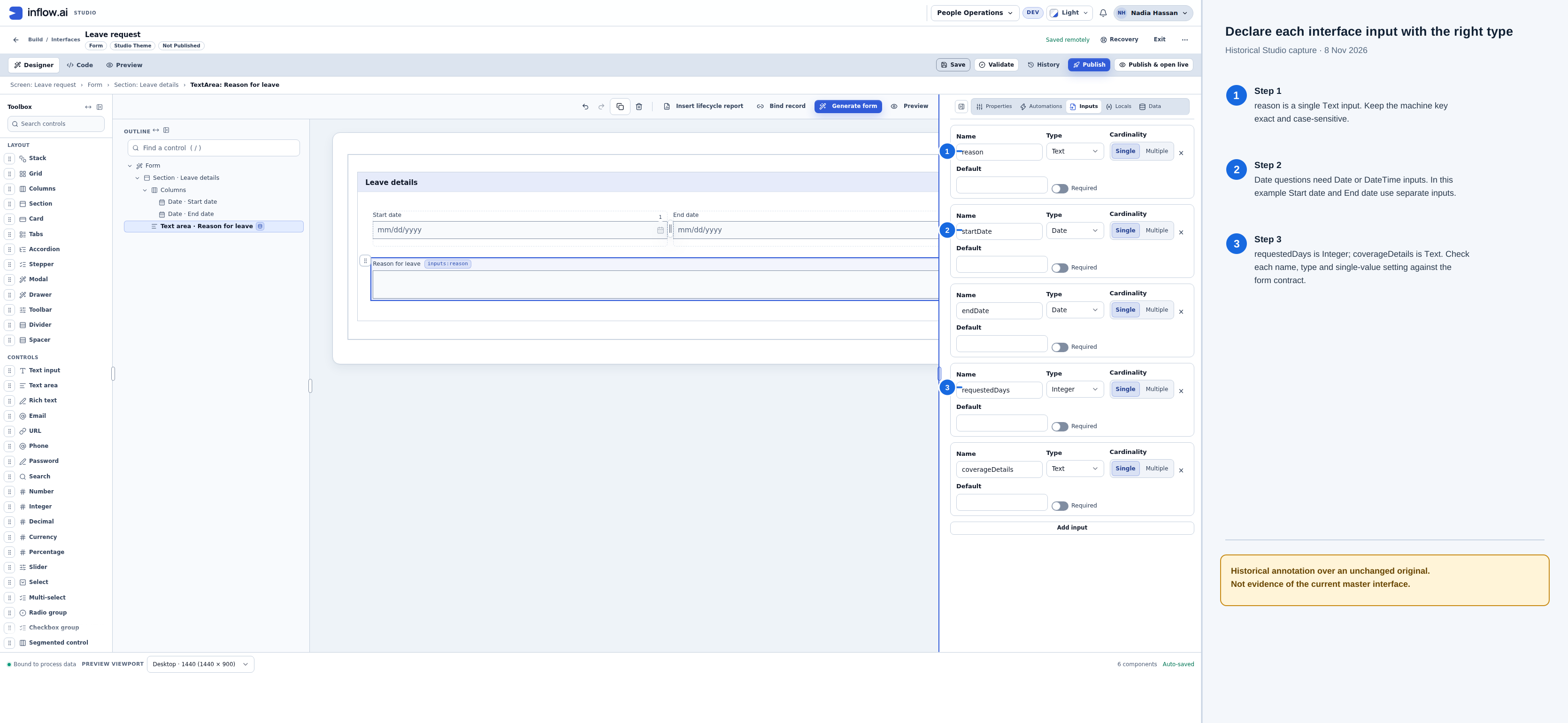
Historical visual guide composed from the unchanged 8 November 2026 screenshot. Five separate answers in the practice form. Their Type and Single settings describe the answers the form receives or edits. These inputs are separate from persisted model fields; this is not current-interface evidence.
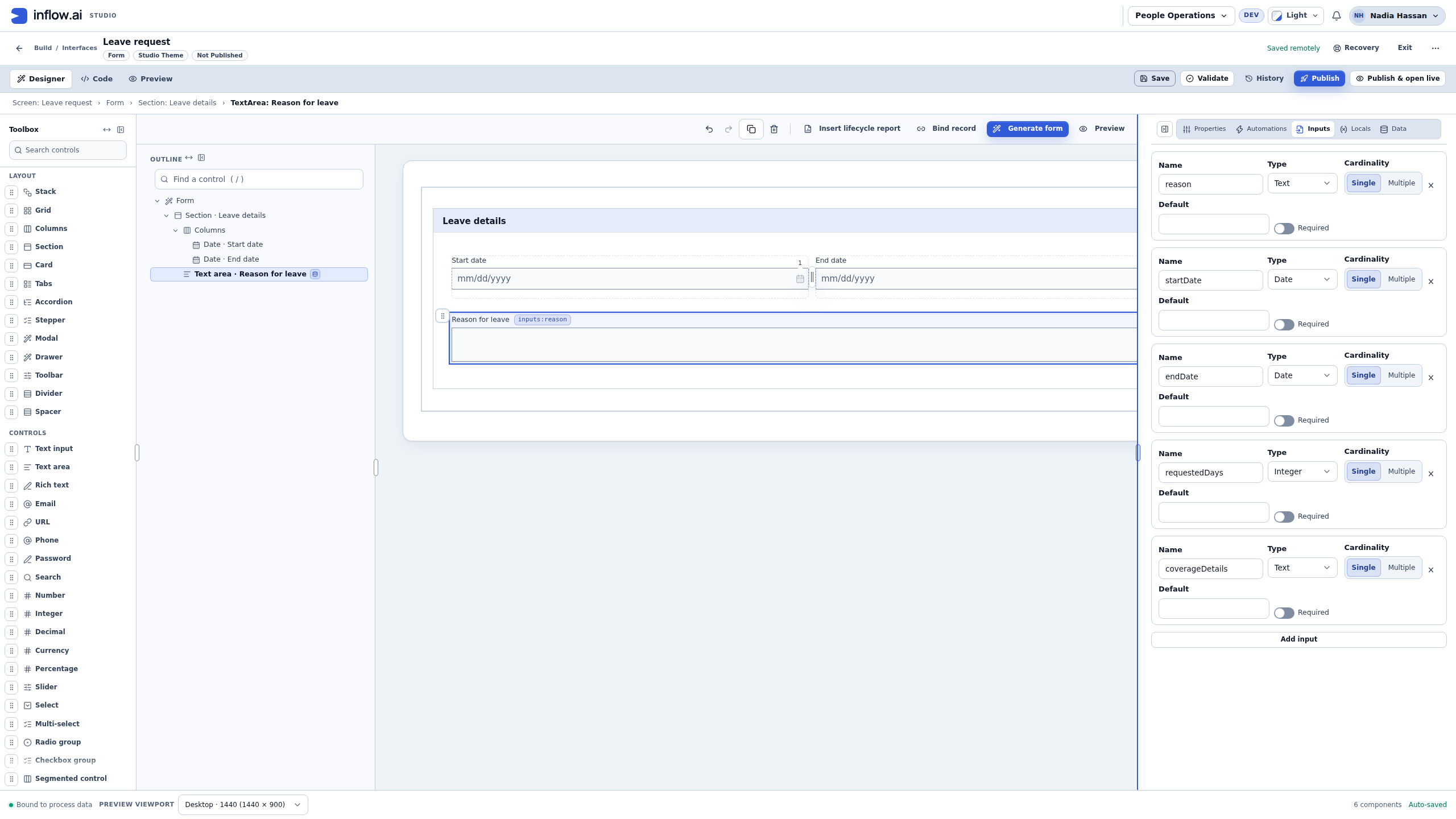
Expected result: the two dates stay dates, the quantity stays an integer, and explanatory answers stay text. The Inputs panel does not prove that a business record was saved. The earlier model and record lessons explain publication, Make live and record readback separately.
Example 2: connect a Date question to a Date answer
The label Start date helps a person understand the question. Its binding tells Inflow where the answer belongs. A well-named question can still have the wrong binding, so inspect both.
- In the existing practice form, select Start date in the Outline.
- Open Properties and find Data binding.
- Open the Store value in picker.
- Find the existing
startDateDate input. Use the offered compatible input rather than typing a new path without checking it. - Observe the incompatibility guidance for a Text answer such as Reason. A date question should not store its calendar answer in a reason string.
- Repeat the inspection for End date and its separate
endDateinput. - If the bindings already match, keep them. Otherwise make the supported correction, save the draft and reopen it to inspect the names and types again.
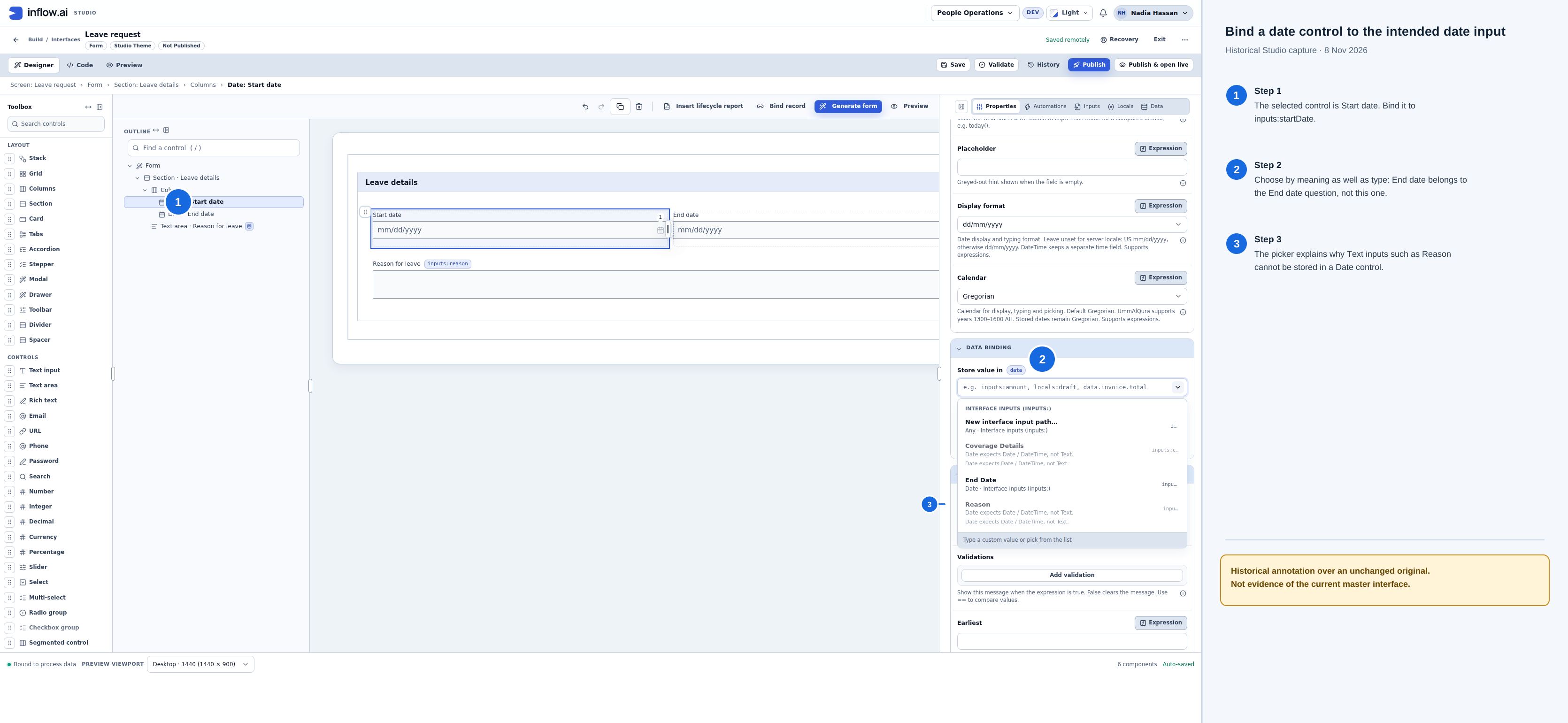
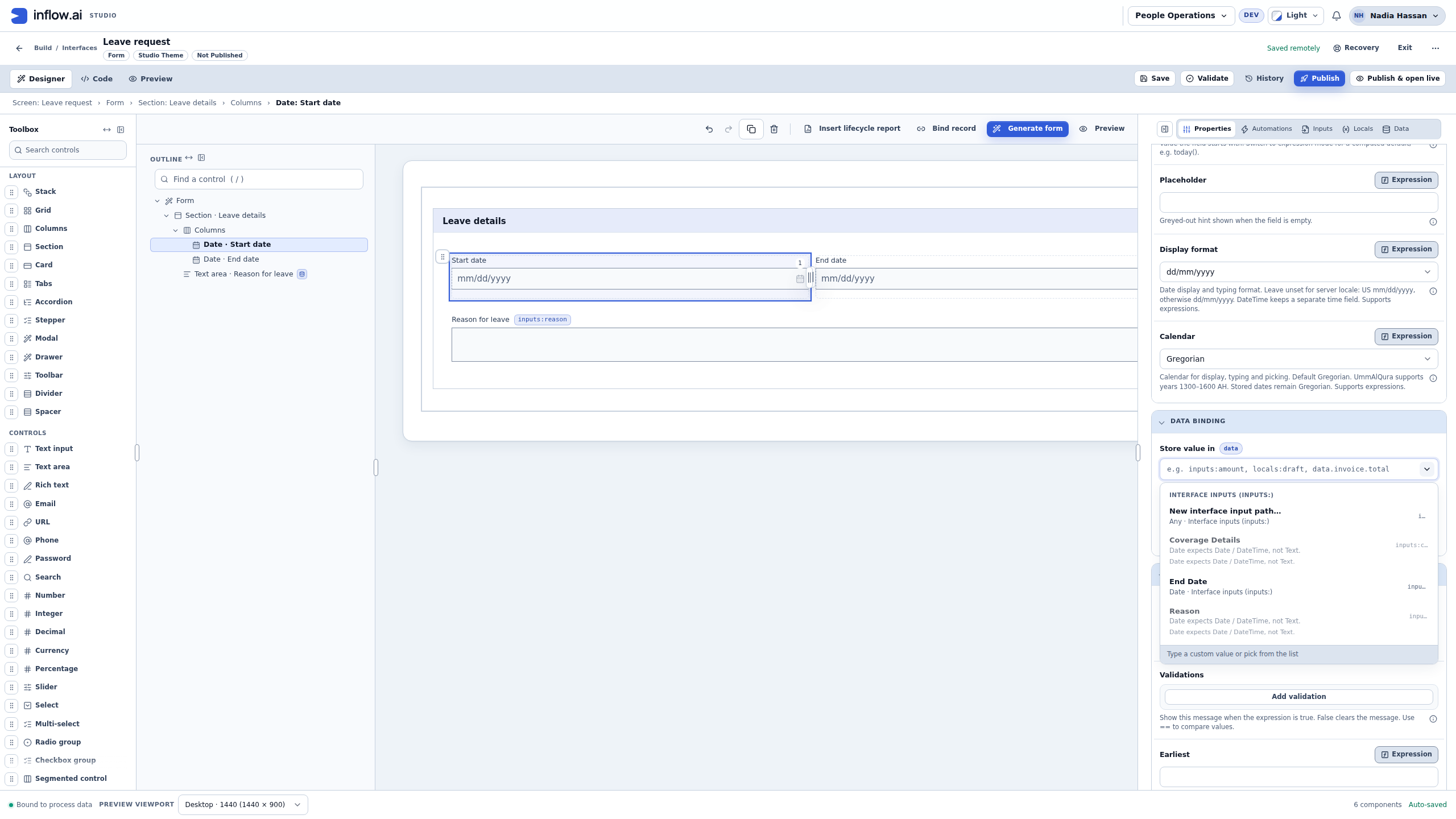
Historical visual guide composed from the unchanged 8 November 2026 screenshot. The Date question accepts an appropriate Date input. The picker explains why the visible Text inputs are incompatible; their readable labels do not make them dates. This capture is not current-interface evidence.
Expected result: each Date question has its own compatible answer destination. Preview can help inspect the form's answers, but Preview answers do not themselves create a leave request, start a workflow or save a database row.
For the complete answer-binding, Required and date-order recovery procedure, continue with Properties and data. Do not submit another record merely to repeat this type-selection lesson.
Inspect the calendar answers in Preview
- Open the existing practice form's Preview → Interactive view. Inspect any answers already present before entering another sample.
- For a blank exercise, use 14 December 2026 and 18 December 2026 in the two Date questions, and Annual leave in Reason. Use the calendars or the date format shown by the control.
- Choose Check form, then choose Form state to inspect the answers. If Hide state is already shown, the state is open; inspect it without toggling it away. Compare each displayed date with its own named answer.
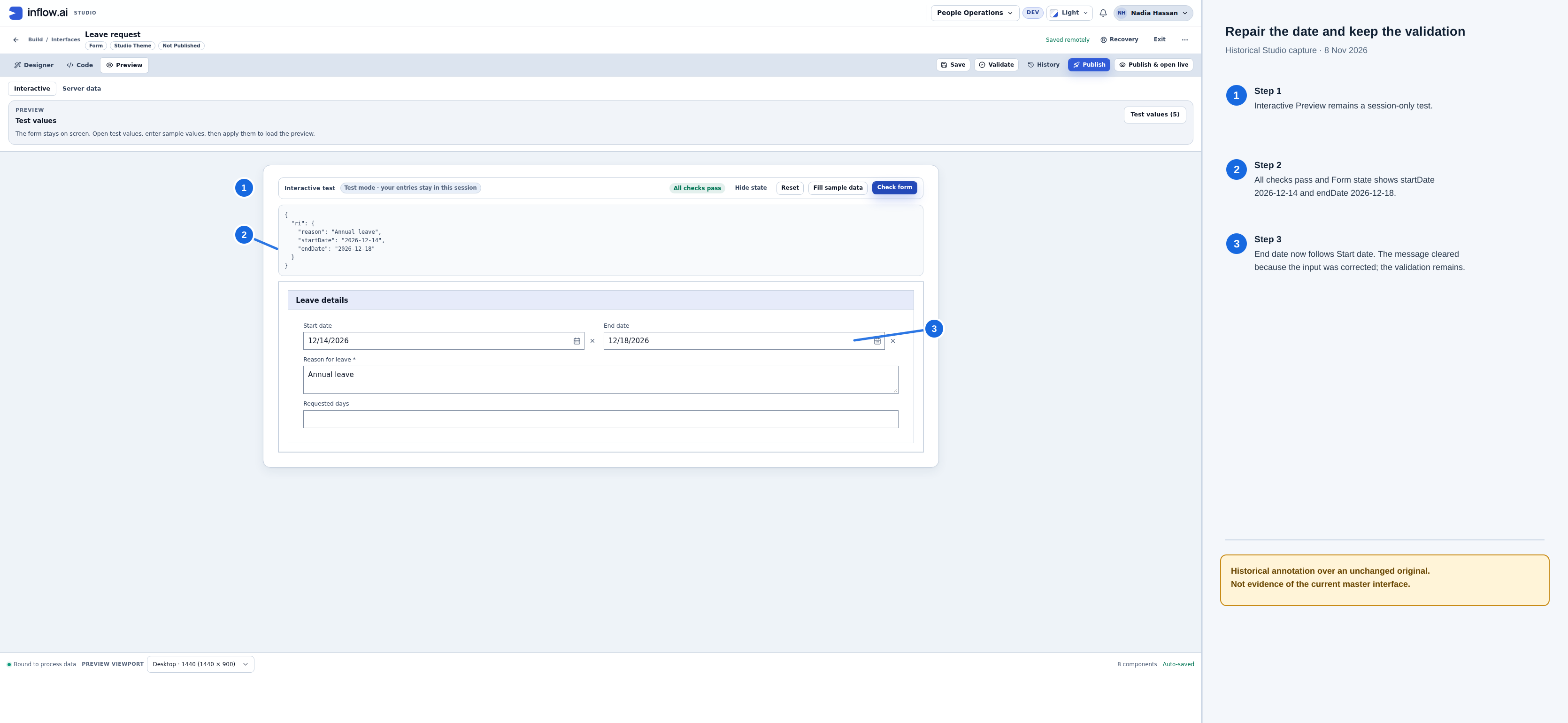
The calendar answers appear in local form state as 2026-12-14 and 2026-12-18. Requested days is unanswered in this capture and optional here. All checks pass applies to the configured form checks; it does not calculate working days, save a record or approve leave.
Example 3: preserve an employee reference
The organization uses employee references such as 000123. Later it may introduce A00123. Nadia chooses text because these values identify people; they are not quantities.
- Inspect the employee-reference field in the draft model or its existing definition.
- Confirm that it is a text kind and that its name explains the business reference.
- Review the input or mapping that supplies it. It should preserve the same meaning and the original characters.
- Use the approved test surface for that design and inspect the displayed value. Do not create extra business records solely to check formatting.
- If leading zeros were already lost in stored data, ask the data owner to reconcile the original values. Changing the display format cannot prove what the missing characters were.
A business employee reference is also different from a User selected from Inflow's directory. The text S002 does not grant Sara access or assign her a manager task. The workflow and access lessons use actual selected accounts and current permissions.
Single, Multiple and an unanswered value
Single means one answer of the selected kind. Multiple means several. This is separate from whether an answer is required.
| Situation | What to decide |
|---|---|
| One start date | Date, Single. Decide separately when it must be answered. |
| Several selected people | A supported multiple-user or list design, with the required selector and receiving input. |
| A query returns several records | Keep a record-list result or deliberately ask for one record when that is the business question. |
| A manager comment before review | It may legitimately be unanswered until the manager reaches that step. |
| A yes/no answer | Decide whether false means “No” and how an unanswered question is represented. Do not silently replace a missing answer with an approval. |
An empty list, an empty text box and an unanswered yes/no question are different situations. Test the relevant ones. A list containing one employee is still a list; selecting its first member without a business rule can send a decision to the wrong person.
The practice form illustration shows the input-level Required switches off. The separate Reason question can still be required by its control settings, as the properties lesson demonstrates. Inspect the relevant layer instead of assuming that one switch describes every place an answer is used.
Check the next step before handing over
- Identify the actual receiving rule, query, form or action.
- Read its expected type and whether it needs one answer or several.
- Map the intended business value. Read the source and destination names together.
- Test an ordinary value, a permitted missing value and a boundary that matters to the business. A decimal amount, zero days and a missing manager are different tests.
- Inspect the result in the surface that actually owns it. A form preview shows local answers; a rule test shows a test result; a Records refresh shows stored rows.
- If the next step refuses a mapping, correct the mismatch deliberately. Avoid converting a person, document or structured record to a pasted string simply to remove the warning.
Choosing User, Document or Record does not grant anyone permission to use the selected item. Keep the actual person's access and the action's supported authorization in scope.
Recover common mistakes
| What you notice | What to inspect | Safe next action |
|---|---|---|
| A reference loses zeros | Field type and original legitimate source | Use text for the intended reference; reconcile existing data with its owner. |
| A date appears on the wrong day | Calendar-day versus date/time meaning | Confirm the intended meaning and time-zone handling before changing the design. |
| A binding is unavailable | Source type, destination type and Single/Multiple | Choose a genuinely compatible answer; preserve the existing draft while comparing. |
| An input appears twice | Exact existing names and bindings | Reuse the correct answer and review consumers before any removal. |
| A quantity allows unwanted fractions | Agreed policy and chosen type | Use the whole-number or fractional design the business actually requires. |
| A selected person or document cannot be opened | Current access and selected item | Ask its owner to review the relevant access; a pasted link is not a repair. |
| A saved design has not changed Records | Publication and physical Make live status | Follow the owning model lesson and inspect actual status before taking another action. |
Continue
Apply these decisions in data models, formulas, queries and form properties. Developers can consult the optional complete type reference.