Work with Ask Inflow
Ask Inflow is the assistant available while you work in Studio. Use it to explain a feature, plan a small change or review an offered improvement. It can help you build, but you remain responsible for understanding the result.
A conversation is one discussion you can return to when history is enabled. A proposal is a suggested change that still needs the offered review or action. A memory is a particular fact or preference proposed for reuse; it is not the same as the conversation transcript.
Before you start
Open the intended workspace and page. Use fictional examples during learning, especially for personnel information. Your administrator must have prepared AI for the environment. If this Studio launcher is absent, ask whether AI has been enabled; there is no need to create another account or look for an App Shell chat setting.
Ask Inflow helps a consultant while working in Studio. App Chat is a different, optional assistant for people using a published application. An app owner enables and scopes App Chat on that application's App Shell, including its approved sources and any actions; this Studio guide does not configure that user-facing chat. For the end-user setup and examples, continue with the App Shell and App Chat lesson. Enabling one assistant does not enable the other.
Walkthrough: get a supervised answer in your own workspace
Nadia is planning a fictional Leave requests form. She wants an explanation of three fields and a useful validation rule before she edits anything. She opens People Operations, checks the DEV environment, and uses the floating Ask Inflow control beside her work. The example below follows the real interface from provider setup to a saved answer.
These pictures use two separate training identities. The setup picture uses an authorized superadministrator. The consultant pictures use Workflow Designer, an administrator-class Studio account with Editor access to People Operations and no platform superadministrator privileges. They illustrate consultant-side Studio; ordinary employees and managers use the separate published application experience described in application access.
1. Have an authorized administrator check the connection
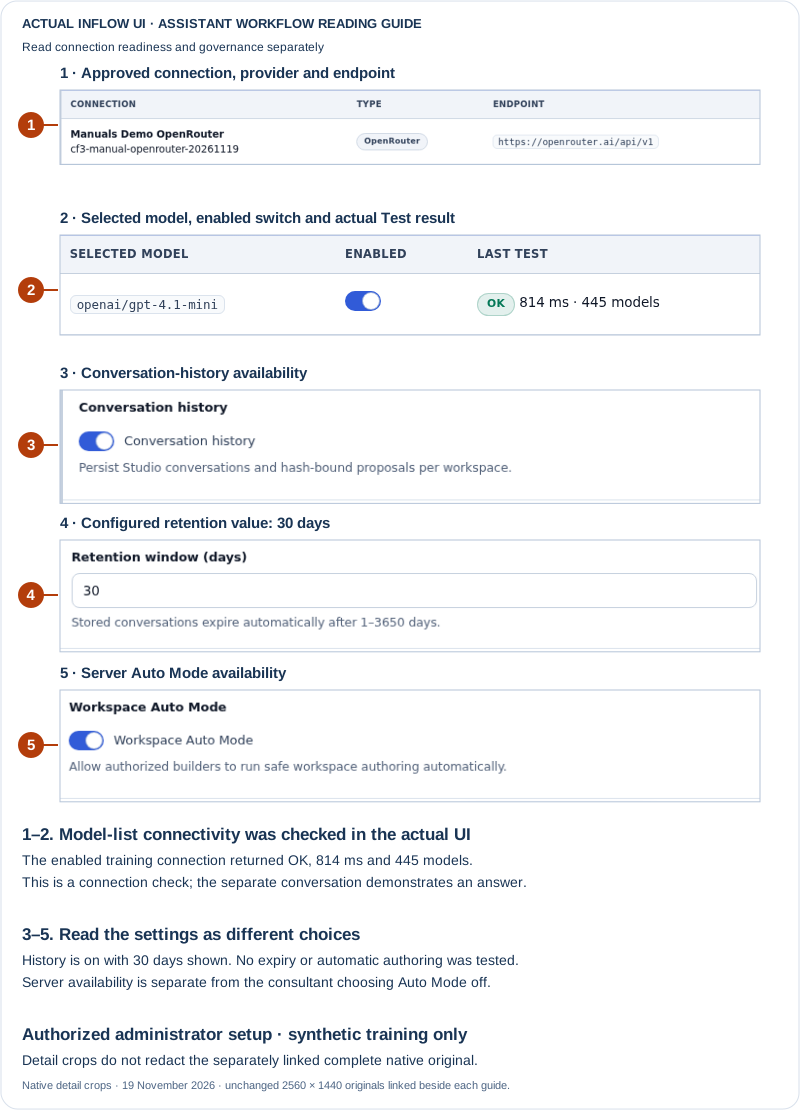
A real setup check. The pictured connection is Manuals Demo OpenRouter, with openai/gpt-4.1-mini selected and the connection enabled. OK · 814 ms · 445 models is the result of the administrator's actual Test action. This checks the provider's model-list connection; the separate chat step below demonstrates an answer. The model name is the training environment's selection, not a requirement that every organization use this model or provider. Credential values are not displayed. Open the unchanged full 2560 × 1440 screenshot.
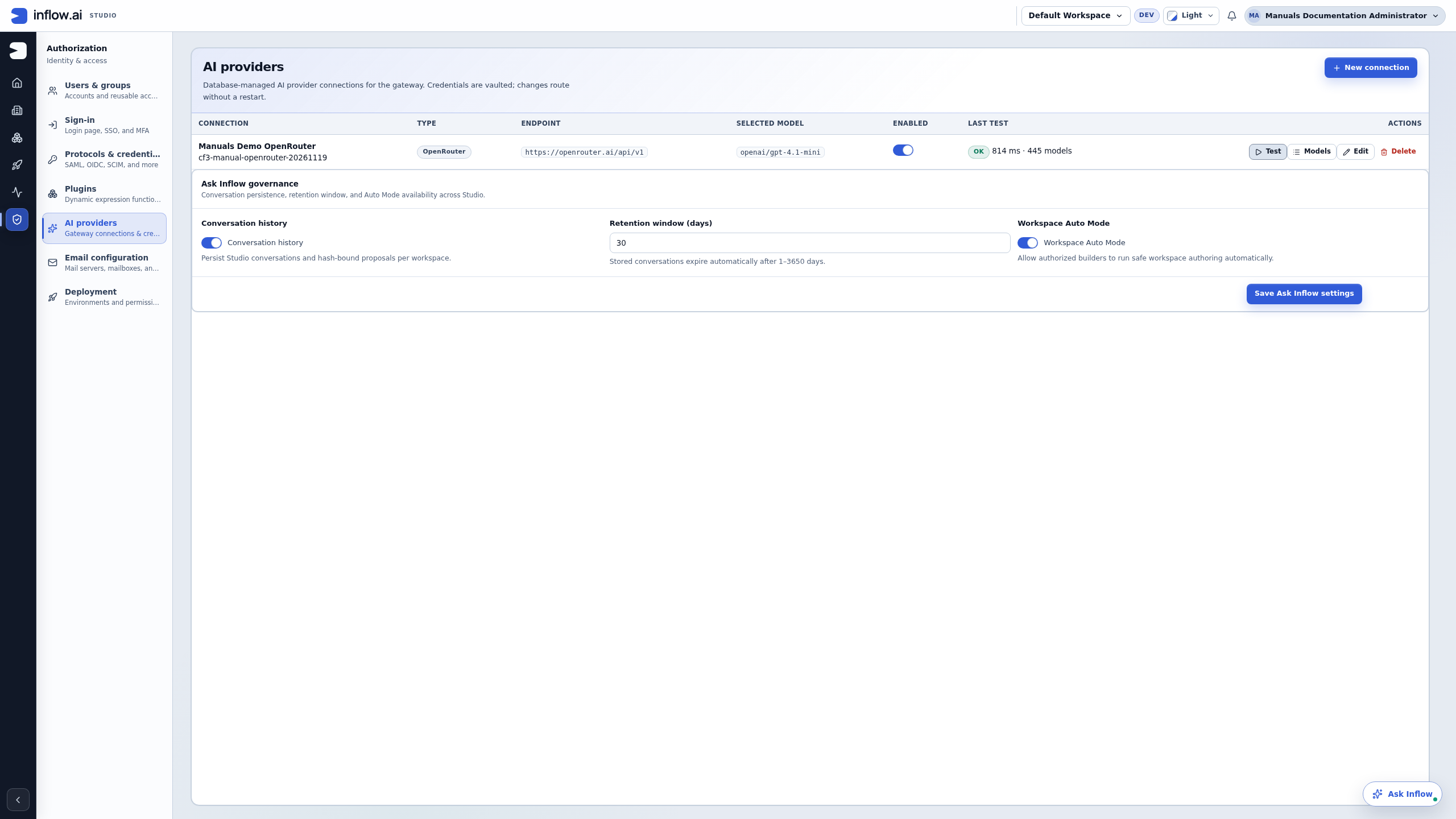
Read the three governance controls separately:
- Conversation history is on, allowing this exercise to return to its saved discussion.
- Retention window (days) displays 30. This is the configured value; the walkthrough does not wait for expiry or test deletion.
- Workspace Auto Mode makes that mode available across Studio. It does not show what the consultant's particular turn requested or which actions ran. Default Workspace in the page header does not make these server settings exclusive to that workspace.
The consultant does not need the administrator's credentials or access to this setup page. If the assistant is unavailable, the administrator checks the approved connection and model through the normal administration route. Nadia continues inside her own permitted workspace.
2. Check the mode before writing the prompt
Nadia opens Ask Inflow and checks CONTEXT: Workspace in People Operations. She also checks the Auto Mode switch and the short description beside it. For this explanation-only exercise she chooses off, with Proposes changes for approval shown.
Check the switch you actually have. In this captured build, a fresh browser without a saved choice follows the administrator's Auto Mode availability setting. The isolated training browser initially showed the switch on because that setting was enabled. Nadia turned it off through the actual control before sending. This saved a choice only in that new browser profile for her account and workspace; the administrator setting and other browser profiles were unchanged. Do not assume that every new browser opens with Auto Mode off.
3. Ask one clear, bounded question
Nadia sends this prompt once:
For a synthetic training example, explain a leave-request form with Employee, First day and Last day fields. Include one validation example. Do not read workspace records, call tools, propose actions or change any application. Keep your answer under 100 words.
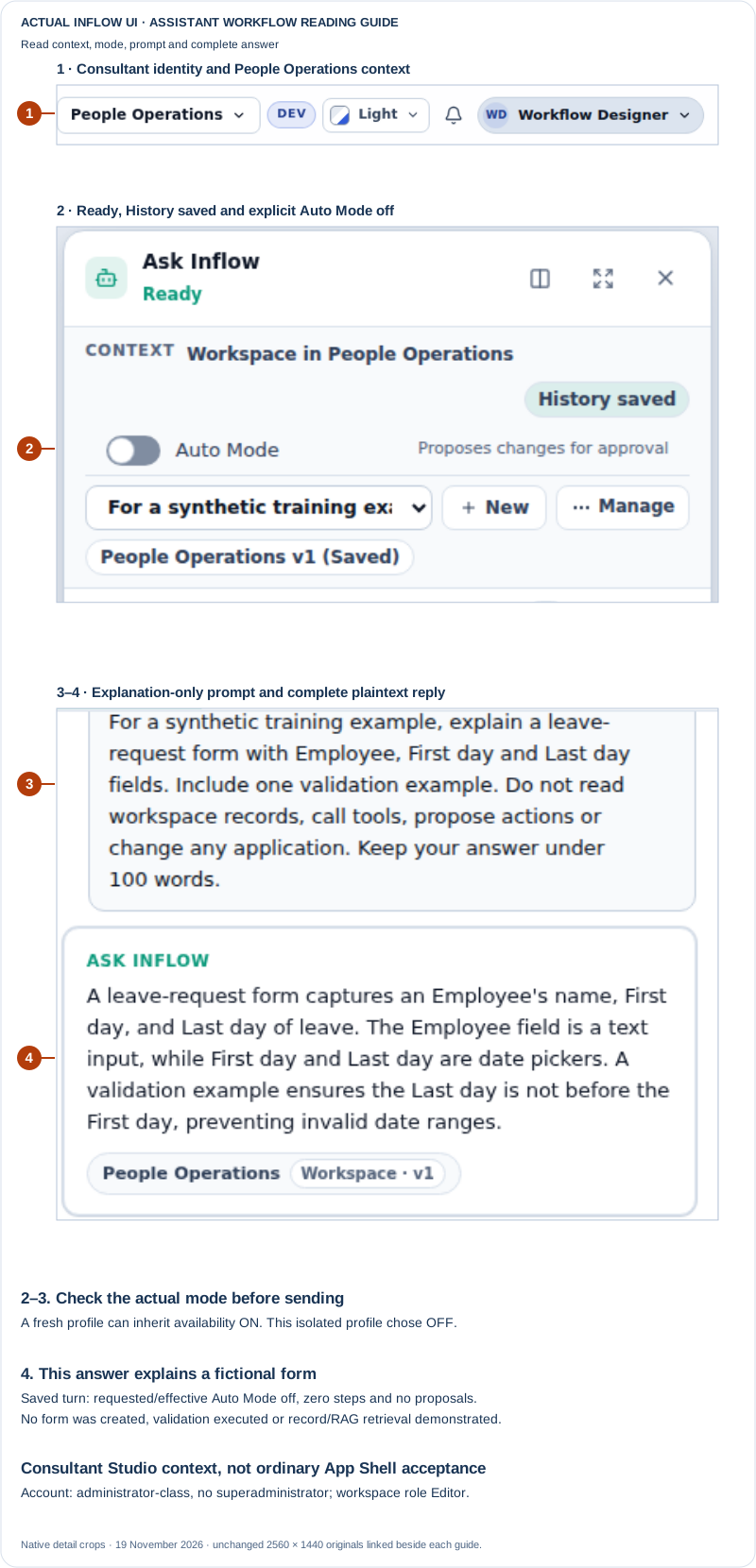
A working conversation. Ask Inflow explains the Employee field and the two dates, then suggests checking that Last day is not before First day. The answer is a design explanation for a fictional form. No form was created and no real form submission was validated. The saved turn was separately checked: it completed with Auto Mode requested and effective off, zero executed steps and no proposed actions. The visible workspace reference supplies conversation context; it is not evidence that the assistant retrieved records or performed a RAG search. The pictured consultant is administrator-class, has no platform superadministrator privileges and has workspace Editor access. Open the unchanged full 2560 × 1440 screenshot.
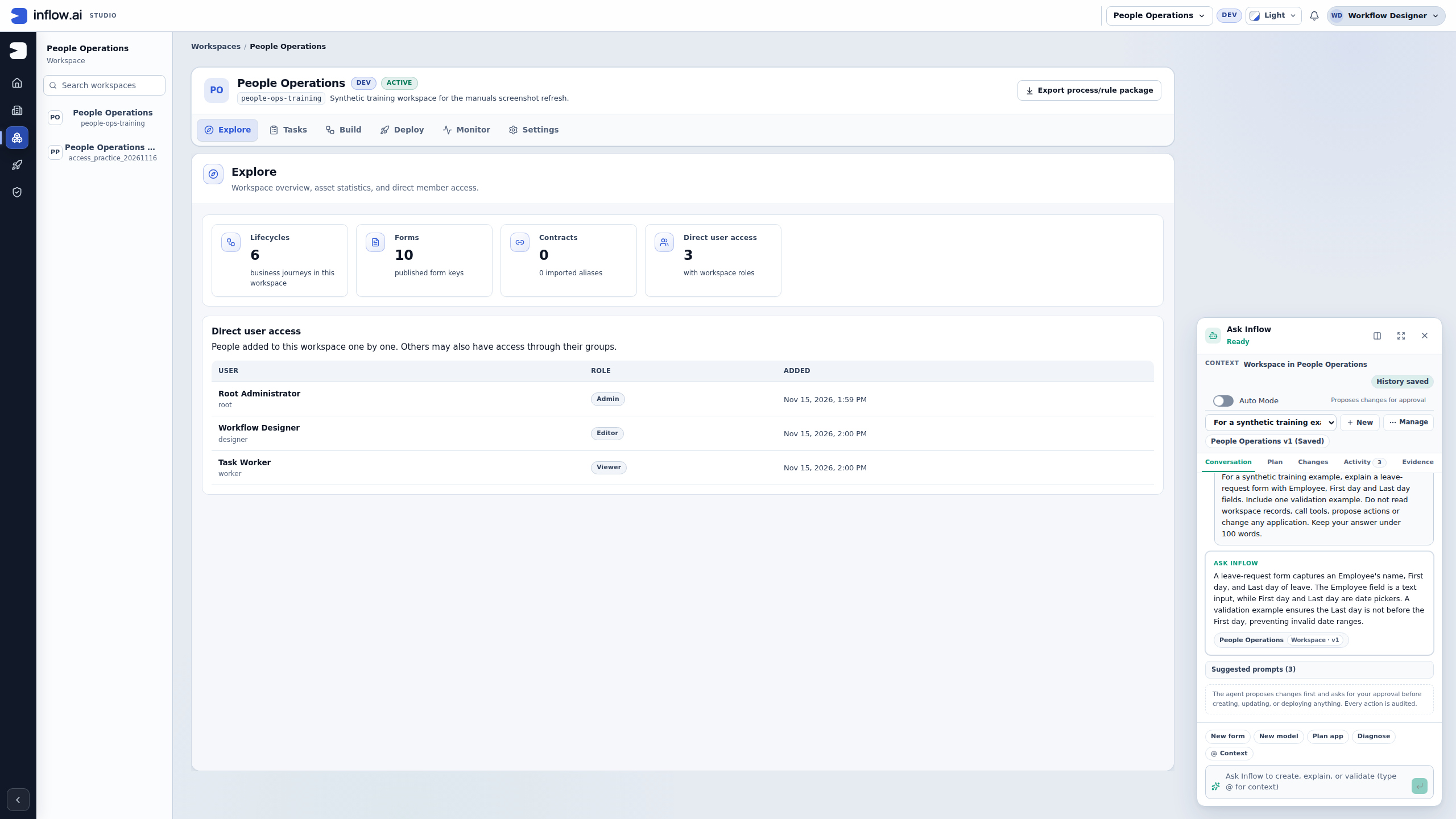
Nadia reads the whole reply before using it in her design. A useful date rule still needs to be implemented and tested in the real form through its normal designer workflow. The assistant's example does not establish the organization's leave policy, calculate an employee's balance or approve a request.
4. Return to the saved discussion
The rail displays History saved. Nadia can choose New to start an empty discussion view, then use Switch conversation to return to the saved title beginning “For a synthetic training example, explain a leave-request form…”. Returning to the discussion restores the actual prompt and answer. Choosing New alone does not send another prompt or erase the previous discussion.
Check the title, workspace and messages together when several discussions look alike. Continue in the correct discussion instead of copying another person's transcript or submitting the same consequential request again. In this exercise the saved conversation belongs to the consultant and contains two messages: her question and the assistant's answer.
Expected result: Nadia has a readable saved explanation to help her next design step. She has not created an application artifact, changed a record or made a business decision. The memory-review walkthrough continues with a separately supplied candidate and shows the difference between saved history and a reviewed memory.
These unchanged native screenshots were captured on 19 November 2026 from source 359e55b9. All names and data are synthetic. Numbered detail crops enlarge the controls for reading; they do not redact the linked originals. This bounded walkthrough demonstrates setup, one supervised plaintext answer and saved history, rather than ordinary App Shell users, autonomous authoring, record retrieval or a complete business process.
Worked example — Studio opens, but Ask Inflow is not available
Earlier pre-setup state. The following unchanged pictures preserve the training environment before the approved model connection was added. The working walkthrough above uses the later current-source setup.
Nadia opens the fictional People Operations workspace to work on the Leave requests application. Studio opens and shows its usual workspace tools, but there is no Ask Inflow launcher or conversation rail. She keeps working through the normal Studio pages while the administrator checks the assistant setup.
This example records an unavailable assistant, not a conversation or a repair. No message was sent, no proposal was created, and no setting was changed for these pictures. The later chat examples in this chapter apply when the assistant is actually available to the signed-in consultant.
1. Check the workspace and account that actually opened
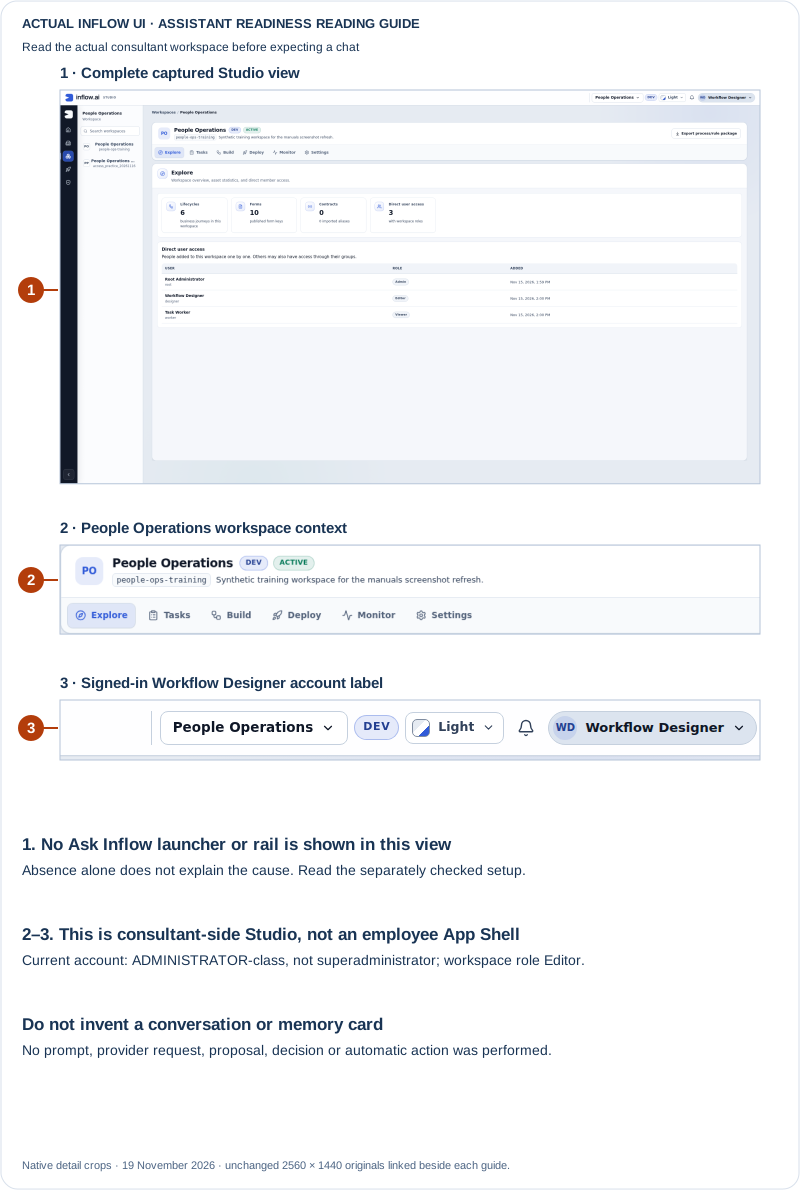
Figure 1 — Studio is available; the assistant is not shown in this captured view. The signed-in consultant is Workflow Designer, with the Editor role in People Operations. Its account was separately checked as administrator-class and not a platform superadministrator. This is consultant-side Studio evidence, not ordinary employee or manager App Shell acceptance. The picture alone does not explain the absent launcher; the checked setup below supplies the bounded explanation for this training environment. Open the unchanged full 2560 × 1440 screenshot.
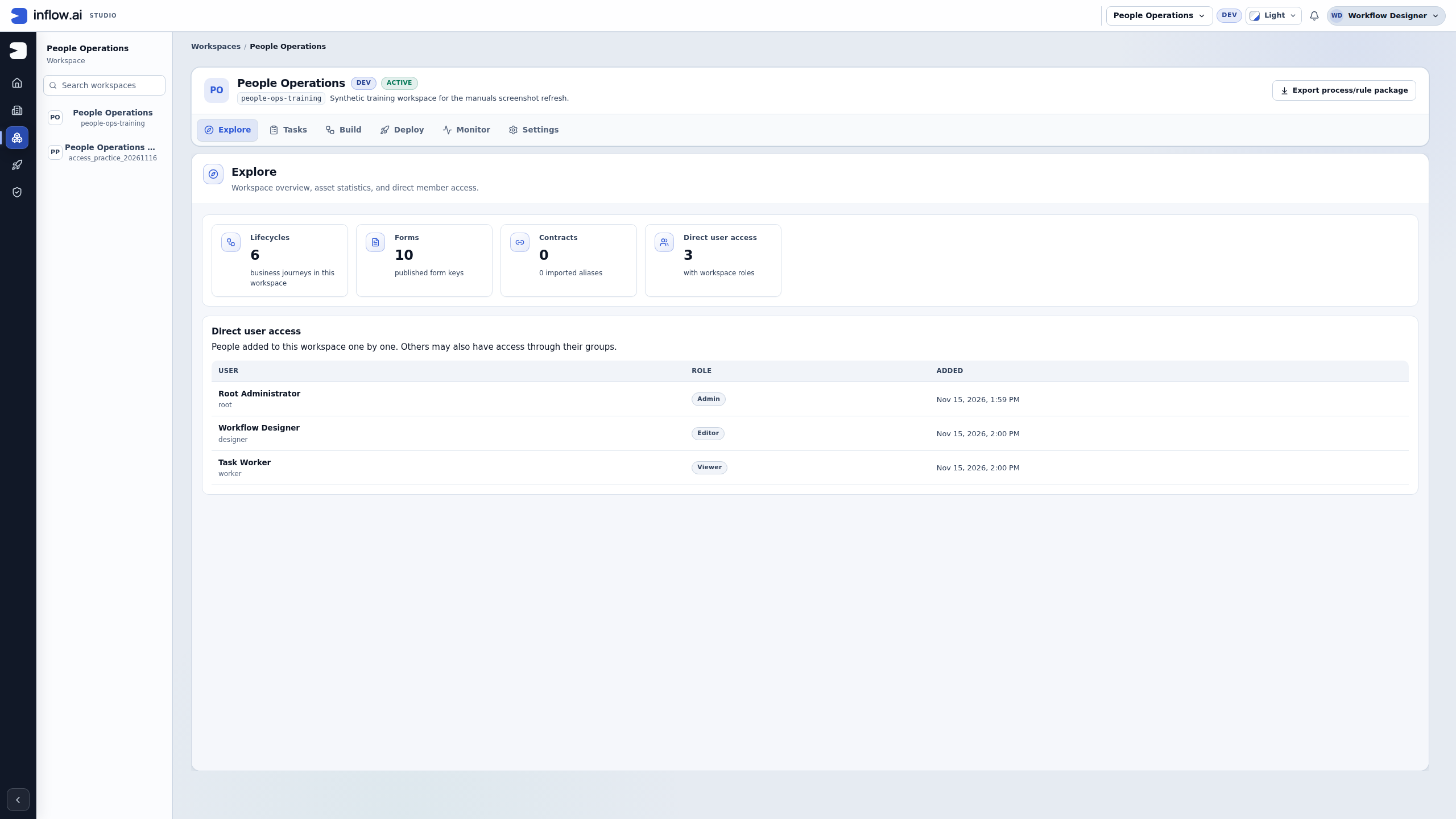
- Check the workspace name and signed-in account before looking for an assistant. Opening a published employee application is different from opening Studio.
- Look for the actual Ask Inflow launcher. If it is absent, do not invent a chat link, borrow another person's account or change an App Shell chat setting to make the Studio assistant appear.
- Ask the environment's AI administrator to check whether a model has been enabled. An absent launcher by itself is not a diagnosis of a permission problem, network failure or provider outage.
- Continue permitted work through the regular Forms, Rules and other Studio pages. A missing assistant does not mean Nadia must recreate the workspace or her existing form.
2. Read the administrator's setup separately
The following is the administrator's view, not a page every consultant or application user is entitled to open. Here the administrator followed the available Open Workspaces route after sign-in, then Authorization → AI providers. A requested direct administration return link had first led to the application chooser; it was not the successful route pictured below.
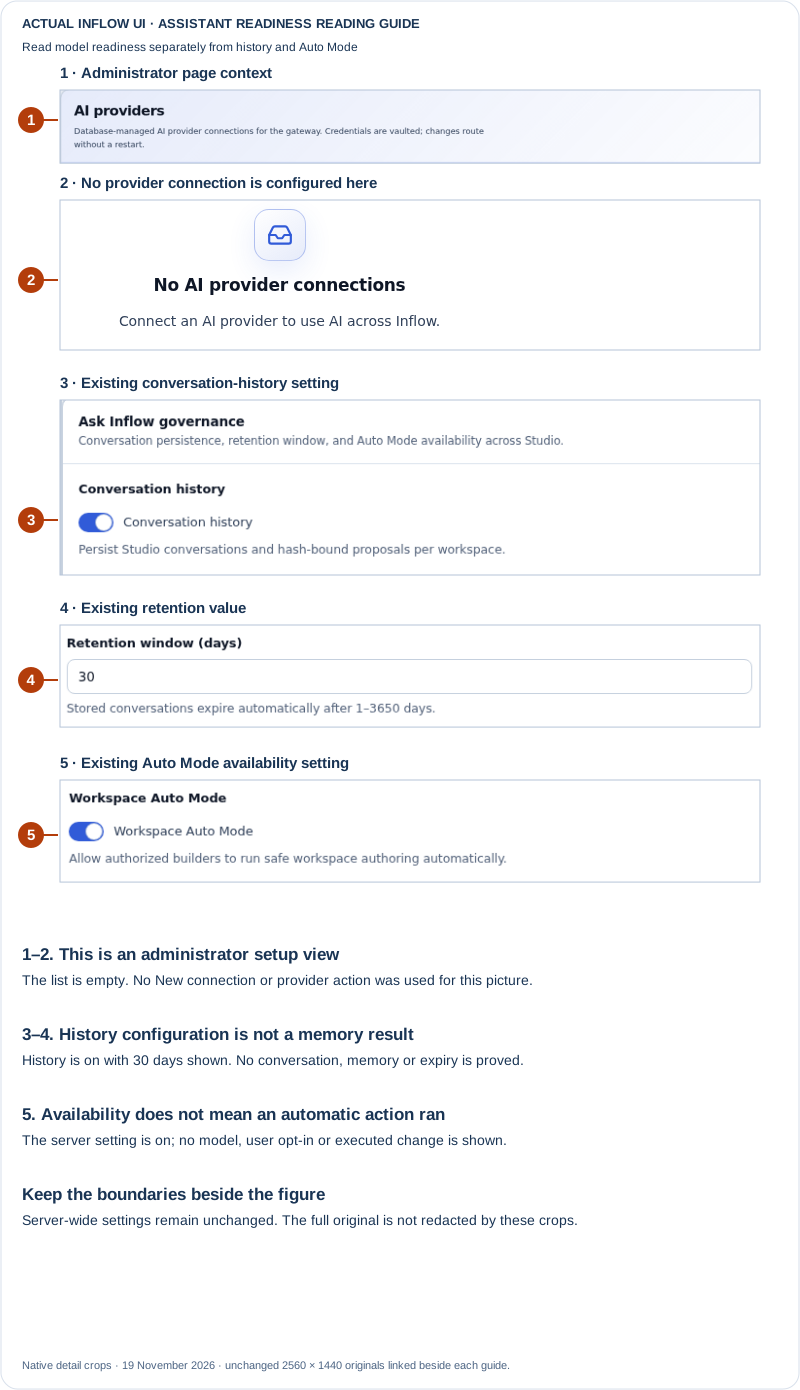
Figure 2 — Enabled history settings do not supply an AI model. This normal, authorized superadministrator setup view shows No AI provider connections, Conversation history on, 30 retention days and Workspace Auto Mode on. Those are existing settings: New connection, the switches and Save Ask Inflow settings were not used during this reading exercise. The settings apply across Studio; Default Workspace in the top selector does not make them settings for that workspace alone. No working chat, memory decision or automatic authoring action is demonstrated. Open the unchanged full 2560 × 1440 screenshot.
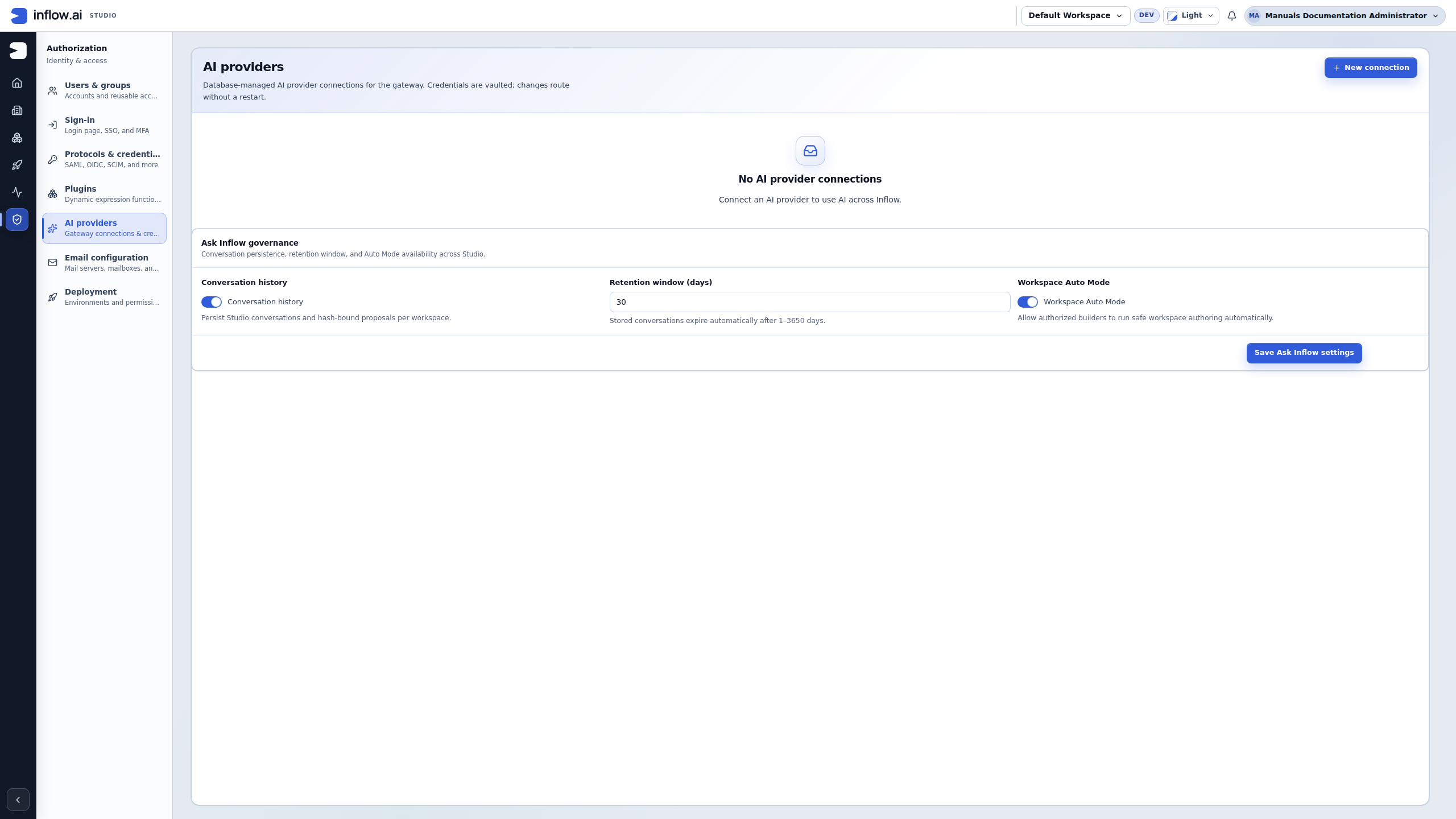
The administrator's configuration and the consultant's actual assistant state were checked together for this recorded environment. No model was enabled, so Ask Inflow was unavailable. History could still be configured for future conversations. This is a valid combination of settings, not evidence that history or Auto Mode is broken.
| What the team can observe here | What it does not establish |
|---|---|
| People Operations opens in Studio for the designer | A model is ready or a chat has run |
| No provider connection is configured in the pictured setup | An external provider is down |
| Conversation history is on with a 30-day setting | A conversation or memory was saved, or retention deletion was tested |
| Workspace Auto Mode is enabled in server settings | Nadia opted in, her model is qualified, or an automatic change executed |
| No memory proposal is pictured | A preference was approved, rejected or erased |
Expected result: Nadia and the administrator can explain the missing assistant without confusing model readiness, conversation history, reusable memory and App Chat. The AI owner retains any separate decision about preparing an approved model. This exercise does not instruct readers to create a connection, discover models, test a provider or save new settings.
These unchanged native pictures were captured on 19 November 2026 from source/build revision f9e3131f. They document this synthetic readiness example, not a full chat or memory walkthrough. The marked details are crops of the linked originals; cropping does not redact anything from those full files.
Example 1: ask about a form you are building
- Open the Leave request form in the intended workspace.
- Choose the floating Ask Inflow launcher.
- Check the workspace/page context shown in the panel.
- Enter: “Explain what this leave form does. List the questions I should check before giving it to employees.”
- Send the message and compare the answer with the form you can see.
- Ask a follow-up about one specific point, such as where the Reason answer is stored.
A useful answer helps you understand the current work. It may identify an unconfigured field or ask for more information. It does not prove that a request was saved or that the application works for every user. Do not supply real confidential records just to make the answer more detailed.
Example 2: review a small proposed change
- Ask: “Help me improve the wording of the Reason question so employees know what to enter.”
- Read the response before choosing any offered action.
- If a change is proposed, open Changes and inspect the available preview and decision controls.
- Check the target and wording. Accept only the offered change you understand, or reject it and explain what you want instead.
- Return to the form and inspect the actual result. Publish separately through the normal form flow when appropriate.
The workbench also has Conversation, Plan, Activity and Evidence. Use Plan to understand intended work, Activity to see reported actions and Evidence to inspect the information actually offered for a result. A confident sentence in Conversation is not a substitute for checking the application. A proposal you can no longer access should not be recreated by pasting private information from an old answer.
Example 3: continue the right discussion tomorrow
- Check whether the panel says History saved or History is off.
- When saved history is available, use Switch conversation to choose the discussion you need.
- Choose New for an unrelated task instead of mixing every project question into one discussion.
- Before continuing, check the current workspace/page and explain any relevant changes since the earlier discussion.
For example, yesterday's conversation concerned the employee form. Today's manager decision form is a different piece of work. State that change explicitly. Reopening old text does not grant new access to a record or prove that yesterday's suggested change was applied.
When an answer is slow, interrupted or stopped from view
A saved conversation handles one active turn at a time. Wait for the current turn to settle before sending another request into that conversation; a second concurrent send can conflict with the current revision. Keep the original conversation open when possible so you can review the same turn.
If the answer says that the turn outcome is unknown because the model connection was interrupted, do not repeat the same create, update or publish request. Open Activity and inspect the steps that actually completed. Then open the named object in its ordinary Studio page and check its current state. A timeout or missing final answer does not prove that an earlier write failed.
The Stop viewing control stops the response stream in your current view and sends a best-effort request to cancel the server turn. Cancellation takes effect at a loop boundary; a tool step that already completed is not undone, and the turn may retain partial work. The button stopping locally is not proof that the server accepted or completed cancellation. Return to the same conversation, inspect the turn's final activity, then check the actual object in Studio before deciding what to do next.
- Read each step's status and result; separate completed work from proposals that still need your decision.
- For an unknown result, inspect the actual object and current version before asking for a reconciliation read.
- Continue only from the state you verified. If the intended change is already present, do not create it again.
Example 4: decide whether to remember a preference
Suppose Ask Inflow offers a Proposed memory card saying the team prefers short explanations for this project.
- Read the proposed subject and content.
- Choose Approve memory only if it is useful and appropriate to reuse.
- Choose Reject for an inaccurate, temporary or inappropriate fact.
- Keep employee medical details, credentials and actual approval decisions out of reusable preferences.
Approving a memory is not approving Mohammad's vacation. Sara must respond through her real manager task. If you need clarification about stored information or removal, ask the responsible administrator rather than moving the discussion into a different storage feature.
Example 5: plan a larger application change before approving actions
On builds that include the guided authoring tools, Ask Inflow can propose a coordinated application build across data models, lifecycles, screens, rules and connected-system integrations. Depending on the installed tool catalog, it may also offer separate actions for records, Fabric or documents. The available actions depend on the build, selected workspace and your existing access. Ask Inflow works as you; it does not supply administrator access or fill in missing permission. If a required detail is missing, answer the question or narrow the proposal instead of asking it to guess.
The current authoring flow uses the selected tool and its checked arguments. If it reports a missing prerequisite, conflicting key or validation issue, review that exact result and the named object in Studio. Ask Inflow no longer silently switches to a different screen tool, invents a new key, creates unrelated prerequisites or applies sample data to make a request appear successful. Prepare the missing item deliberately through the normal Studio path, then continue with its exact key. A tool result or linked post-create step still needs the review described below.
Ask Inflow builds a lifecycle, a form, or a data model with the tool that owns that artifact. A lifecycle request creates the lifecycle and can configure its states. A form request creates or refines a screen. A data-model request defines the model. The confirmation card names the artifact and the change. It does not ask you to approve a raw planning document when that owning tool can do the work. If the platform refuses the change, the card lists each validation issue with its location, code, and message, and that same card cannot be confirmed again. Ask for a repair that addresses those issues. If the turn stops before the artifact is finished, say continue. Resume on a running goal does the same: it continues from the completed steps and does not repeat catalog reads that already succeeded. After a successful build, Studio opens the lifecycle, form, or data model. An uncertain result is not run again automatically; check the artifact before asking for another change.
Check how Ask Inflow will act
Before sending a change, read the mode shown beside the Auto Mode switch in the Ask Inflow rail. Proposes changes for approval means a change that needs confirmation is shown as a proposal for you to review. If the effective mode says Creates & updates automatically, some eligible changes may run during the turn. If you asked for Auto Mode but the current turn cannot use it, the rail says Supervised for this turn. The preference is scoped to you and the workspace; it is not available in every workspace or build.
Check the actual Auto Mode switch before sending. When this browser has no saved choice for your account and workspace, the current Studio interface follows the administrator's availability setting, so an enabled setting can open with Auto Mode on. For an explanation-only exercise, choose off and check Proposes changes for approval. Effective Auto Mode also requires the enabled administrator policy, saved conversation history and a qualified model profile. Even then, it does not grant permission or approve every operation: read-only actions still follow their normal access checks, the current server policy determines which changes are eligible to run automatically, and actions that always require confirmation still stop for your review.
For example, Nadia may use Auto Mode to let an eligible screen-draft change proceed, but she should still read the turn's completed steps and inspect the exact form and revision. If Ask Inflow presents a confirmation card, she checks its target, summary, values and described effects before confirming that specific proposal. A card can be superseded when its target artifact changes; do not confirm it. Re-read the current artifact and ask Ask Inflow for a proposal based on that state. If an old proposal was already consumed, do not replay it or assume the repeated request was harmless: inspect Activity and the target artifact's current state before deciding whether any new change is needed. Auto Mode is not a reason to skip the review of the resulting object, publish unrelated work, or assume that a multi-step build was all-or-nothing. If the rail says Supervised for this turn, continue with the proposals and confirmations shown for that turn.
| Proposed work | Check before confirming |
|---|---|
| Data model | Review record types, field types, keys and relationships. A confirmed model action may also publish the model and generate its record operations; check the exact card summary before you confirm. |
| Lifecycle | Check the lifecycle name, states, transitions, assignment and task forms. A larger coordinated build may also prepare its case file and process configuration. |
| Screen or form | Check the target page, field names, control types, labels and data bindings against the business process. |
| Rule | Check the rule purpose, inputs, conditions and result shape. Open the saved rule in its normal Studio editor and test representative boundary cases. |
| Integration | Check the connected-system name, protocol, target and required configuration keys. Put secret values only in the approved configuration flow; do not paste credentials into the chat. |
| Records, Fabric or documents, when offered | Confirm the exact workspace, synthetic fixture, record/document scope and side effects. Keep real employee information out of training requests unless the data owner has approved that scope. |
A full-application request can produce several related action cards. Studio performs the described planning and any linked generation or publication only after you confirm the proposals. Read every card, including its linked effects, before confirming; one confirmation is not a blanket approval for later cards.
- Open Ask Inflow in the workspace where the application belongs, and check the workspace and current page shown in its context.
- Give it a short business brief using fictional information. For example: “Help me plan a Leave requests app. Employees provide dates, requested days and a reason; managers approve or decline. Reuse the published leave model and workflow where possible. First show the plan, existing items you found and questions. Do not create records or publish anything.”
- Open Plan. It may say there are no active business goals yet until you ask Ask Inflow to plan work. When steps appear, check their order, named objects and readback status. Compare those names with the workspace's existing models, forms, rules, pages and workflows; ask it to reuse the right items instead of duplicating them.
- If you want to proceed, ask for one bounded next step and request a proposal without running it. Keep the scope small enough that you can inspect the target and every displayed value.
- Review each proposed action card in Conversation. Read its target, domain-specific preview summary (for example, Workspace Summary, Data Model Schema, Screen Controls, Workflow Stages, Record Operation or Plan Summary), values and missing inputs before deciding. Some authoring actions trigger linked work when confirmed—for example, a data-model action may also publish the model and generate record operations, while a larger build may initialize a case file and configure a process. On an actionable card that you own, you can choose Confirm & run, Revise (which pre-fills a targeted revision prompt in the composer without consuming the proposal) or Skip (which dismisses an unwanted proposal so a multi-screen or multi-rule sibling batch can continue once the siblings you kept succeed). When a workflow proposal is prepared in a workspace where operational or manager roles have no admitted members yet, check any Task routing fallback note indicating that workspace role
adminwill be assigned as a fallback and confirm with the process owner before using the workflow for real cases. Once a proposal settles—whether executed, refused, held by deployment, skipped, superseded or left with an unknown outcome—its button is replaced by a terminal status badge and cannot be run again. - In Supervised Mode within a saved conversation, once every proposal in the current batch settles with at least one successful action and no refused, held or unknown result, Ask Inflow automatically continues to the next step of your workspace request (up to the server-enforced limit of eight automatic continuation hops per prompt) unless you choose Stop viewing or switch workspaces. Creating a new named workspace takes one confirmation and switches Studio into that workspace's own clean conversation without carrying prior messages across workspaces. Reloading the browser restores your still-pending proposals as actionable when you still hold the required workspace and object access, while shared read-only viewers see non-executable Shared conversation — view only badges and never see Confirm & run, Revise or Skip.
- After you deliberately confirm an action, inspect Changes (which lists and counts only proposals and applied mutations you are authorized to view), Activity and Evidence, then open the actual object in its normal Studio area. Open Data Model Records tables refresh automatically when Ask Inflow seeds or updates records—deferring any background refresh while you have a record create, edit or delete dialog open until you close it. Check what was created or changed and whether it is a draft or published. Test access through the ordinary user path before telling employees it is ready. A plan, proposal or assistant message saying “done” is not proof that anything was saved or published.
- If the result is uncertain (including a network drop or gateway timeout), the card shows Outcome unknown; check the action history and the object itself before retrying. Preserve the original result; repeating a create or publish request can make duplicate work.
This staged approach lets the team use the assistant to coordinate a larger build while keeping each confirmation visible. The confirmation applies to the action shown on that card, including its described linked effects. It does not replace the ordinary access review, employee and manager testing, or the check of a real published result. Use only fictional sample records until the data owner approves another scope.
Example 6: distinguish a session plan from a durable build
Nadia asks: “Sketch a fictional leave-request application and list its main screens and records. Keep this as a proposal for this conversation.” Ask Inflow can return a non-empty, session-only blueprint proposal. This lightweight planning step can be eligible for Auto Mode. Nadia checks the mode shown in her rail and any offered confirmation; a session plan does not itself make a durable build or publish decision for her.
If she wants to change a session proposal, she asks for a specific revision and reviews the result. When the request names a durable application or build, includes its revision/fence, or advances construction, she reads the confirmation card and checks its exact workspace, target and described effects before approving. Empty or malformed planning requests can also require confirmation or return a refusal. In every case, she checks the result in Studio; a conversation proposal is not evidence that an application was built, saved or published.
Use a fictional scope while learning. Do not add real employee data to a blueprint request. Continue with the technical policy and limits for the source-level tier and bounded-loop details.
Example 7: start from a different business area
Ask Inflow's guided authoring includes starting data-model and lifecycle proposals for several business areas. On a build with these authoring tools available, use a focused request such as one of the following, then inspect the proposal before confirming it:
For a first data-model proposal, try one fictional-scope request at a time:
- “Create a data model for payroll management.”
- “Create a data model for a manufacturing plant.”
- “Create a data model for schools management.”
- “Create a data model for leasing and properties management.”
On current guided-authoring builds, each of these patterns proposes six related record types. Treat that as a draft structure: verify every record type, field, natural key, relationship and sensitive-data boundary against the organization's actual requirements. Remove fields the task does not need. Before confirming or publishing a model that retains salary, bank, tax, student, guardian, applicant or credit information, have the data owner and security owner define who may read and change it, what retention applies, and which existing controls enforce those decisions. A generated schema or workflow does not itself protect sensitive fields, grant access, or set retention. Do not add real payroll, student, tenant or applicant information to make the proposal look more complete.
| Business area | Example request | Review the proposal for |
|---|---|---|
| Payroll | “Create a lifecycle for payroll run processing.” | Time and attendance cutoff, gross-to-net calculation, variance audit, finance sign-off and an explicit hold path. Never treat the proposal as authority to calculate or disburse real payroll. |
| Manufacturing | “Create a lifecycle for manufacturing production work orders.” | Work-order target, facility, production progress, quality inspection and what happens when an inspection fails. Keep material and production data fictional while learning. |
| Schools | “Create a lifecycle for school student admissions.” | Application completeness, academic evaluation, decision and the intended reviewer at each step. Do not paste actual student information into the conversation unless its owner has approved that use. |
| Leasing | “Create a lifecycle for property lease onboarding.” | Property and applicant matching, credit screening, review, decision and any hold or rejection path. Use fictional applicants and financial details in training. |
These are starting proposals, not ready-made policy for every organization. Replace states, thresholds, roles and review steps with the approved process. Check that a real user can perform only their assigned step, try each outcome through the normal test path, and have the process owner review the result. Ask Inflow to explain or revise unclear steps rather than accepting a plausible-sounding workflow. Confirm one action card at a time after reading its target and linked effects. Confirmation does not grant a reviewer new access or authorize a payment, production release, admissions decision or lease approval.
Example 8: continue a long model-and-form discussion
Nadia starts in the HR workspace and asks Ask Inflow to plan an Employee Management model with Department and Employee record types. She asks to see the proposed model and unresolved questions first, without creating records or publishing the wider application. The proposal names the model key employee_management and the two record types. Nadia reviews the action card and its linked model-publication effect. If that is the intended change, she confirms that specific action; she does not seed records or publish the rest of the application.
Later in the same discussion, she asks: “Create an employee intake form for it. Show me which model and record type you selected, but do not run the proposal.” Ask Inflow can use the current workspace/build information and the conversation's recent messages and proposal history to resolve “it” to the model she proposed and then confirmed. If Nadia asks to seed synthetic test rows in that model, the same context can help it select the model rather than invent a placeholder. When saved conversation history is enabled, long discussions are summarized automatically so earlier proposed artifact names can continue to inform later requests; this summary is conversation context, not a Proposed memory card and does not need a separate memory approval.
Before confirming the form proposal, Nadia checks that the action card names employee_management, the intended employee record type and the current publication where applicable. She also inspects field bindings and the generated screen summary. If Ask Inflow names a generic model, selects a different record type, or says it cannot see the current model, she does not confirm it. She asks it to re-check the current workspace, provides the exact model or record-type key, or narrows the request to one artifact. She opens Plan, Changes and Activity to confirm what was proposed and later inspects the actual form in Studio.
This continuity helps with follow-ups but does not make a prior proposal current authority. A workspace change, revoked permission, or stale publication can make old conversation details unusable. Ask Inflow works with the signed-in consultant's access, and any write still needs the explicit action control shown for that proposal. Continue with the administrator and API details for the exact API contract and source boundaries.
How context carries forward in a saved conversation
When saved conversations are enabled, each message is assembled with current workspace/build facts when those authorized reads are available, a bounded recent conversation window and the stored conversation summary. The most recent six prior messages are available to the assistant; each message's content is limited to 1,200 characters. When there are more than eight prior messages or more than 10,000 characters of prior message content, Ask Inflow automatically compacts older messages into a summary and records a compact ledger of proposed artifact identifiers. The summary is saved after the turn settles. It is different from Proposed memory, which is an item a person must review and explicitly accept or reject.
The workspace/build context has a size limit. When the inventory is too large, Ask Inflow progressively compacts it: field details can be reduced to key/type summaries or omitted, and secondary artifact lists can become counts. The inventory remains a navigation aid; a missing detail in the chat context does not mean that the Studio artifact, its fields, or its records were deleted. Ask Inflow can inspect one named workspace entity for more detail when that read is available to your current workspace and account. It supports data models, record types, screens, rules, lifecycles and case files. For example, ask: “In the current workspace, inspect the leave_request model and tell me its record types and relationships. Do not change anything.” Use the exact key shown in the workspace or the assistant's answer; if you cannot identify it, ask Ask Inflow to help locate the name rather than inventing a key.
For a large entity, narrow the question to one section, such as a model's recordTypes or relationships, or a screen's controls or dataSources. Detailed collections are paged, so if the answer says more items remain, ask for the next section of items instead of assuming the first page is complete. If available, a record count can be the exact total returned by an authorized, bounded size-one records probe; the probe does not include a sample row in the chat response. That count does not prove that a particular person can view every record. Check the actual object in Studio before acting on a proposal. If the assistant reports that an entity is unavailable, do not treat that as an empty entity or try another person's access.
The ledger and summary are continuity aids, not a permission grant, a current-read receipt, an execution receipt or an approval. Current workspace authorization still decides which artifacts the signed-in consultant can use. Keep sensitive employee details out of training conversations; use synthetic values and inspect the real object through its ordinary Studio page.
Example 9: check an interrupted draft update before retrying
Nadia asks Ask Inflow to make the requester email required on the fictional Employee intake draft. The response stream stops before she can tell whether the draft changed, and the turn reports an unknown outcome. She wants to avoid applying the same change twice or publishing an unreviewed form.
- Nadia stays in the same saved conversation and does not send “make requester email required” again. If she chose Stop viewing, she checks whether the server turn settled: the button requests cancellation, but the server observes it at a loop boundary and may retain steps already completed.
- She opens Activity and checks the original turn status. If it is still active or dispatching, she waits; she does not send a reconciliation request or a second update into that conversation. She continues only after the original turn reaches a terminal status, including an explicit unknown-outcome status. If it does not settle, she asks the workspace owner or administrator to investigate rather than competing with the in-flight request.
- After the turn settles, she reads its step results. A completed tool step is evidence of that step's recorded result, but she still checks the actual target in the ordinary Studio editor: the Employee intake draft in the intended workspace, its current revision, and the requester email setting. She does not assume the draft is unchanged just because the final chat answer is missing.
- If the outcome is unknown and the current build offers an authorized read-only reconciliation, she asks for that bounded check, for example: “Inspect the current Employee intake draft in this workspace. Report its current revision and whether requester email is required. Do not change or publish anything.” She uses it only after the first turn is terminal and only if the source is available to her role; an unavailable or denied source is not an empty result. If no such read is available, she asks the workspace owner or administrator for the supported reconciliation path; an external check alone does not clear the conversation’s unknown-outcome gate.
- If the field is already required, Nadia reviews the draft and stops—she does not repeat the edit. She makes a fresh Ask Inflow mutation only after a successful in-conversation read-only reconciliation has matched and cleared the uncertain target, and the field is still optional. If that supported read is unavailable or unsuccessful, the mutation stays on hold while the owner provides a supported reconciliation path. Nadia then reviews any new proposal and tests it; publishing remains a separate decision.
The name and form are fictional. An unknown turn outcome means “check before acting,” not “the operation failed.” When a read-only reconciliation is not available, ask the workspace owner or administrator to verify the object rather than issuing another consequential request.
Example 10: ask about an artifact that is not fully in the chat context
Nadia's people-ops workspace has several models and a long leave form. Ask Inflow's initial workspace summary names the leave_request model, but does not include every field and relationship. Nadia needs to understand the record shape before proposing a screen change.
- She asks: “Inspect the
leave_requestdata model in this workspace. Summarize its record types and relationships; do not modify it.” This is a read request, not approval to create or change anything. - She checks the answer for the exact model and record-type keys. If the assistant used a similar display name or cannot resolve the key, she stops and asks it to identify the available exact key; she does not guess.
- She asks a narrower follow-up: “For the
leave_requestrecord type, list the fields and explain which ones are required.” If the answer says the collection is paged, she requests the next page and keeps the pages together before drawing conclusions. - She compares the answer with the model in Studio. If she then asks for a form proposal, she checks that proposal against the actual record type and fields before accepting any offered action.
The inspection is read-only and workspace-scoped. It can return metadata such as relationships and, when available, an exact row count obtained by a bounded authorized size-one records probe. The chat response does not include a sample record row. The compact summary and detailed inspection do not bypass permissions or make an old conversation current again.
When validation returns structured findings, Nadia uses the issue code, severity, location and any suggestion provided to find the affected screen element or model path. For example, a screen issue can point to a JSON document location such as /body/0/children/0/dataSource; she checks that exact control in Studio before requesting a targeted correction. A suggested fix is still a proposal: she reviews its target and result, and separately decides whether to publish.
Common problems and useful next steps
- The answer refers to the wrong work. Check the selected workspace/page and correct the question. Begin a new conversation when the topic has changed substantially.
- A proposed change is unavailable. Do not try another person's account. Ask the application owner whether your role should include that work.
- A response is slow or unclear. Read the visible status. Avoid sending the same consequential instruction repeatedly while its outcome is uncertain.
- The answer sounds right but the form has not changed. Distinguish a suggestion from an applied change, then inspect the actual form and published app.
Continue with Build an AI task for a repeatable summary/translation, or the leave app tutorial for the business flow. The optional Studio assistant technical reference is for administrators and integrations.