Screen language: optional help for advanced customization
You can build ordinary forms, dashboards and application pages in Designer without writing the screen language. Start with the Interface Builder handbook if you want to configure fields, layouts, choices or task pages.
A screen's visual design is saved as a structured document. The Code tab shows that document. It is useful to a developer investigating an advanced customization, but it is not the first step in the consultant course.
App Chat is configured on the App Shell
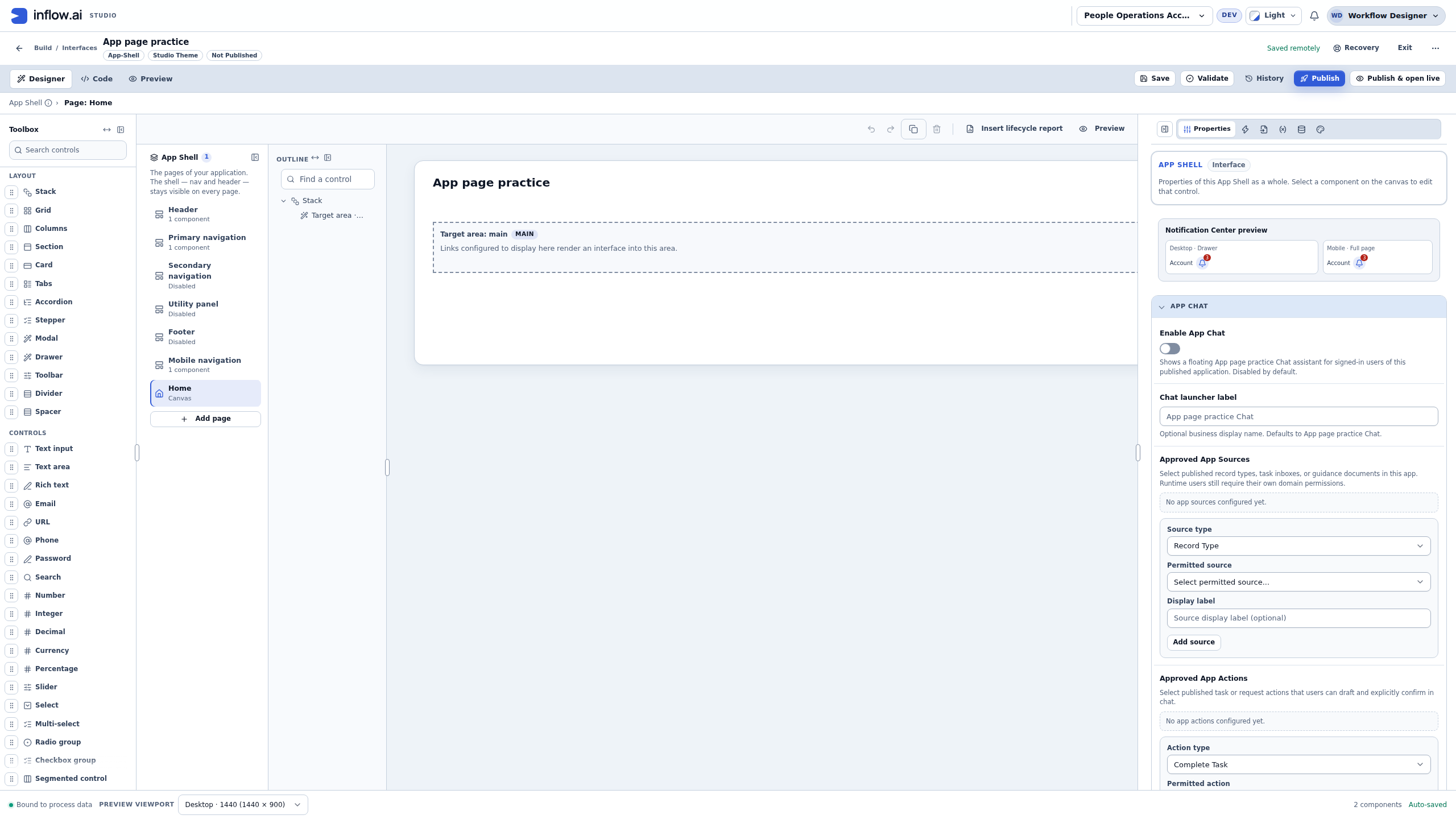
If a project needs an assistant attached to its published application, configure App Chat on the whole App Shell in Designer. It is a separate app-level feature, not a page control, form question, screen-language action, or a way to turn on Studio's Ask Inflow. Select the App Shell itself; its Properties panel contains Enable App Chat, Chat launcher label, Approved App Sources and Approved App Actions. Selecting an individual control changes Properties to that control. A page selection with no control selected can leave the whole App Shell Properties visible; use the page's Page settings for its own title, address, visibility and displayed interface.
Choose only connected and published sources and actions that the application owner has approved. These bindings narrow what the assistant can use; they do not grant the signed-in person access to records, fields or tasks. A saved App Shell draft does not add a launcher to the released application: validate, review and publish through the normal application process before users can see the configured chat. For the source-by-source setup, end-user story and confirmation/recovery examples, follow the App Shell and App Chat lesson. The schema stores this configuration under appShell.chat, but consultants should use Designer rather than hand-editing that JSON.
Example: Nadia wants Mohammad to ask about his own leave request from the Leave requests app. She selects the Leave requests App Shell, connects the intended published request source, and asks its owner to approve the fields and operations. She does not add a chat control to the request form or give Mohammad a workspace-builder role. The chat source list narrows what can be consulted; Mohammad's ordinary record access still decides what he can see.
Example 1: change a label without editing code
Nadia wants “Reason” to read “Reason for leave.” She selects the TextArea in Designer, changes Label in Properties and checks the result on the canvas. She uses Store value in separately to choose where its answer belongs.
This distinction matters: changing the text people read does not create a data field or save a request. The properties lesson explains it with a complete example. There is no need to find the corresponding line in Code for this change.
Example 2: hand an advanced screen problem to a developer
An application has a custom layout that the ordinary editor cannot express as expected. Before involving a developer, Nadia prepares the screen's visible name, the business result she wants, the steps that show the problem and a fictional example. She keeps a copy of her own unsaved work and explains which published application people currently use.
The developer can inspect the screen document and its supported control properties. They should preserve the existing input, data and action behavior rather than replace the whole application with an unrelated sample. Changes still need to be checked in Designer and reviewed before publication.
Example 3: recover an unfinished Code edit
Nadia is making a small advanced adjustment in Code. While typing, she leaves off a closing brace. The status changes to Invalid JSON. This reports a syntax problem; it does not tell her whether the screen is a good design, whether its controls are supported, or whether a business action will work. She should not try to publish this version.
The unfinished text can remain in a browser-local recovery copy even though it is not valid enough to save as the server draft. If Nadia closes the tab or returns to the same interface later, she can use the recovery flow to continue rather than retype from memory:
- Open the same interface in the same Studio account and browser profile. Check the recovery status before making another edit. A recovery copy is local to this browser, can contain interface content, expires 24 hours after its last edit and may be removed when Studio accesses browser storage. It is not an access-control boundary, so use a trusted browser profile rather than a shared profile. Sign-out or an account change clears local copies when browser storage is available.
- Open Recovery and choose Restore local copy for the entry based on the revision she was editing. An entry that contains unfinished or invalid Code opens Code so she can continue. Restoring that invalid text does not send it to the server as an updated draft.
- Repair the syntax, then check for Valid JSON. That label confirms JSON syntax only. Read any validation issues and use the visual Designer or Preview to verify the page, labels, bindings and behavior that matter to the request.
- If Studio reports Conflicted, the server revision changed since the local copy was made. Saving is blocked until Nadia compares the server version with her recovered work and resolves the conflict. She should reconcile the intended changes instead of overwriting the newer version. Export the current work first if she needs a separate safety copy.
- After resolving errors, confirm the screen in its intended context and follow the normal review and publication process. A successful syntax check or a local recovery is not evidence that a request was saved or that a published action produced its intended business result.
If Nadia needs to keep a copy longer, she can use Export current work. The downloaded JSON contains the screen document and may include pending property edits; sign-out does not delete a downloaded file. Store it only in an approved secure location, do not send it through an unapproved channel, and remove it according to the team's retention rules when it is no longer needed. If Recovery reports an error, or the needed copy is absent, do not discard other drafts or assume that a server save occurred. Export any work still visible and ask the application owner or developer for help with the screen and the base revision shown by Recovery.
Check the published frame before inspecting its pages
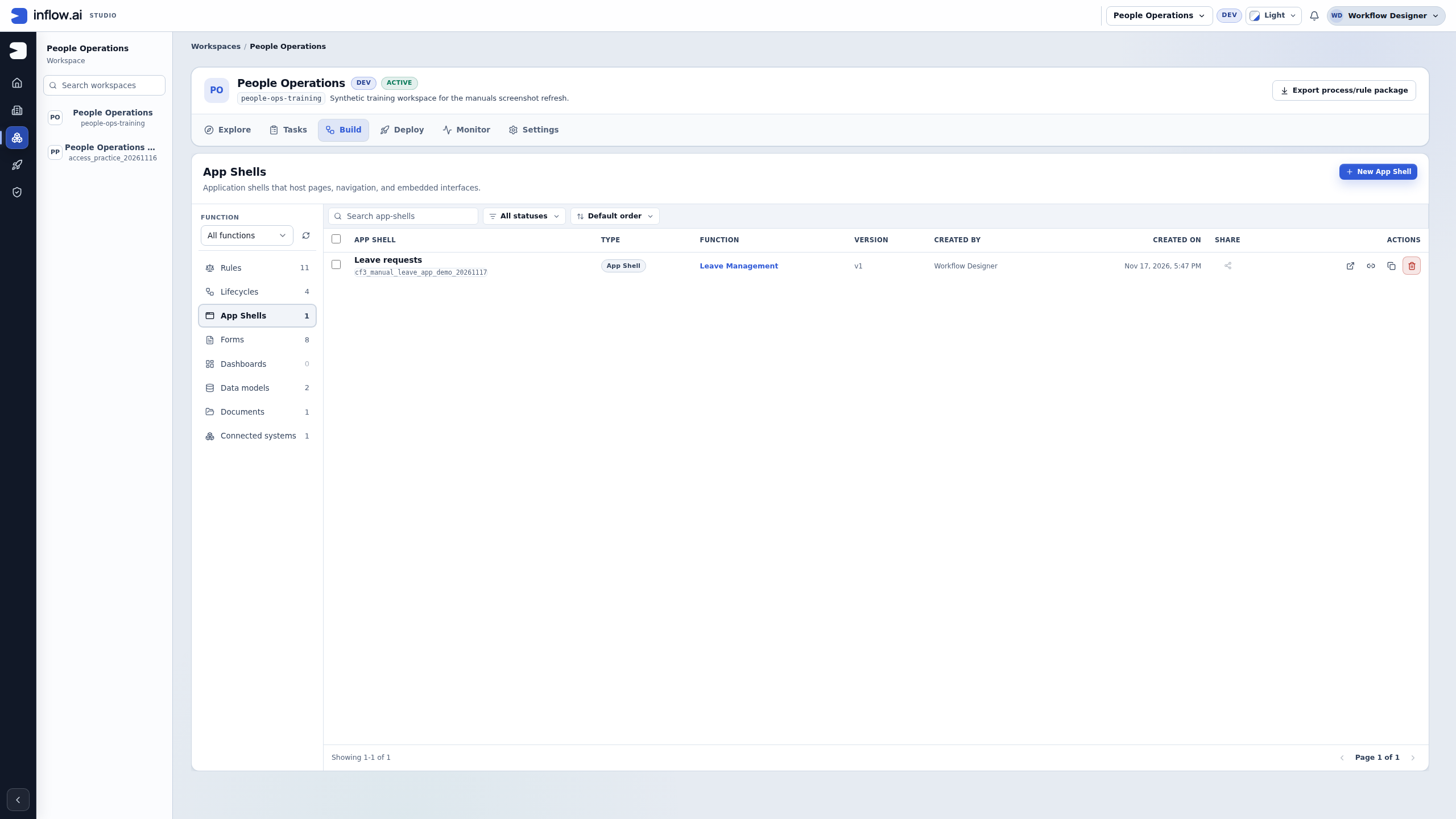
The Build → App Shells list helps Nadia identify the application frame and its published version before she connects the employee and manager pages.
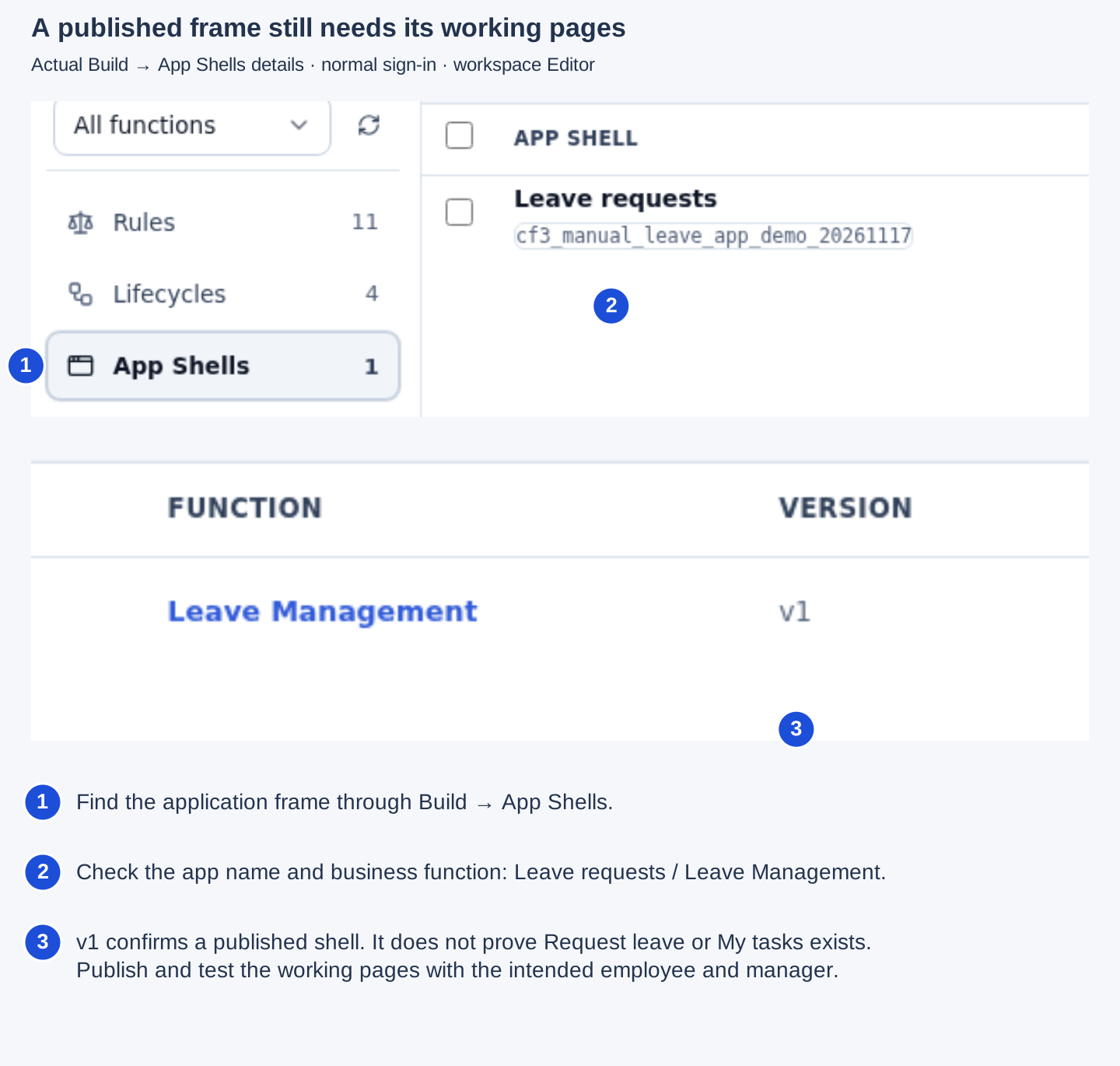
In this practice row, v1 confirms that a shell was published. That version contained only Home. Its introductory text mentioning employee requests and manager reviews did not create those pages. Do not treat a published shell row, a Home page or successful sign-in as a finished approval application. Complete the employee form, the separate manager form, the published workflow binding and the assigned-task host in the connected Leave requests lesson; then check the actual pages and outcomes with each intended account. Missing pages that have not been configured are different from configured pages hidden by access rules.
Open the full original screenshot. This visual shows the builder handoff, with no employee submission, started case or manager decision.
Example 4: understand a three-page app before opening Code
Nadia is asked to adjust an application's welcome text and navigation. A colleague suggests editing the document directly. First she checks which part of the design needs to change. A page title, a control label and the content of an embedded form are three separate things, even when they appear next to one another in the finished app.
The recorded App page practice example contains Home, Overview and Published example. It is a synthetic saved App Shell draft, not the released Leave requests application. The four pictures below reuse unchanged native 2560×1440 captures from 16 November 2026, source 93afd995. They show ordinary designer access with Admin rights in the practice workspace. No Code edit, recovery operation, employee request, manager decision, App Chat conversation or business submission is demonstrated by these pictures.
For the full creation exercise, follow Build and reopen a three-page app. Here, concentrate on choosing the right editor and explaining the result.
Read the structure from Designer
- Open the intended saved practice App Shell and confirm its visible name. Reuse the definition you already created; do not create another shell to repeat an inspection.
- In the Pages panel, distinguish Header and Primary navigation from Home and the other pages. The first two belong to the application's frame; the page entries choose the content being edited.
- Select Home and look for its Stack and Target area: main. An empty target area is a place where an interface can render. It is not a saved request or a list of the user's tasks.
- Select Overview when you want to edit its content. Keep Home intact so you can compare the initial page with the page you designed.
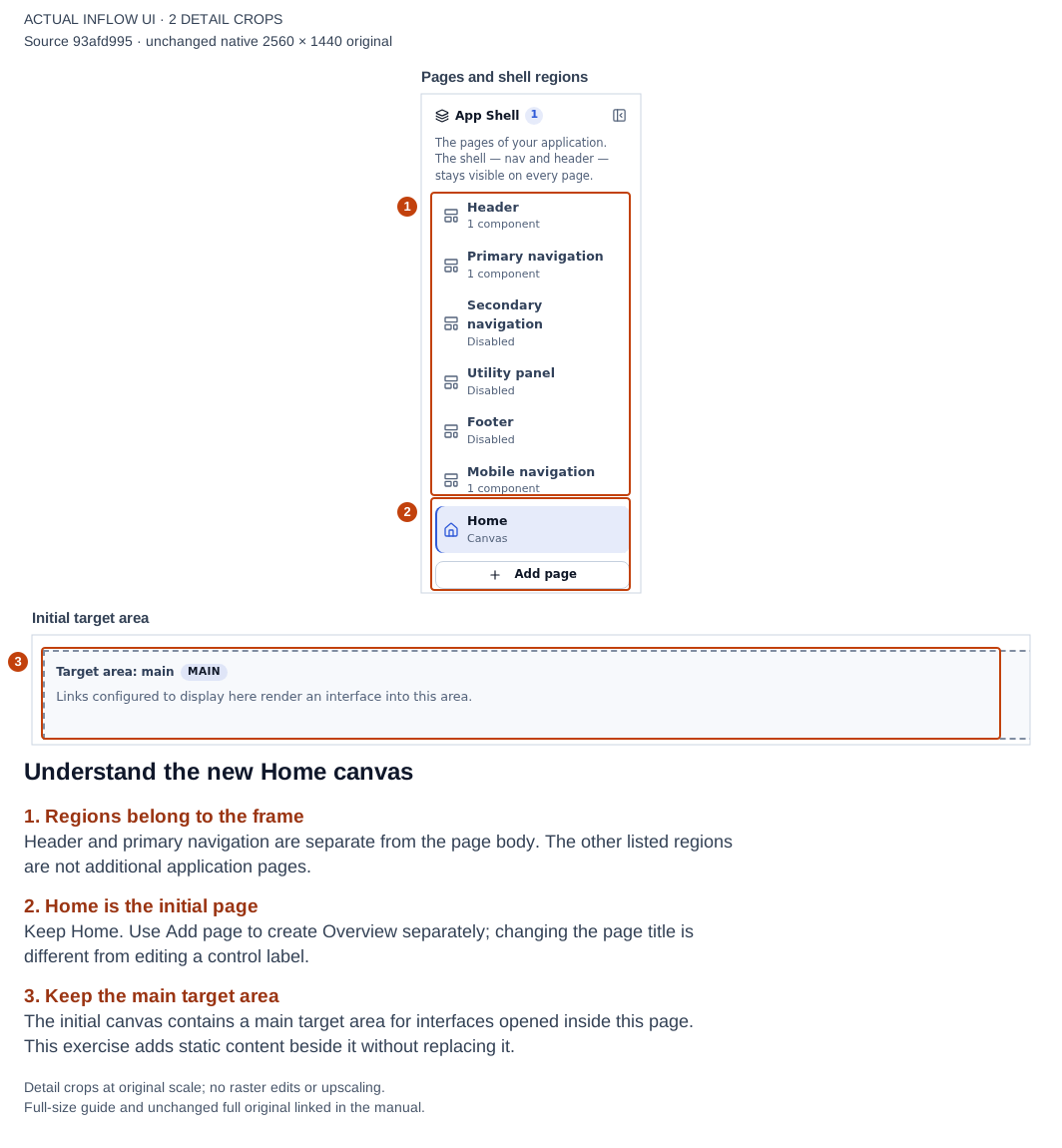
This is the newly created, unpublished practice shell. Open the unchanged native original.
The visual outline already answers an important question: “Which page owns this control?” A control under Overview's Stack belongs to Overview, even if the app's name remains visible above it. Changing a shared header is a different operation from changing a Heading on one page.
Change the words through Properties
Nadia wants the Overview heading to read Explore your app pages. She selects that Heading and edits its Label in Properties. The control's Name, overviewHeading, identifies it within the design. It does not have to repeat the sentence shown to the reader.
The Prose control has Name overviewExplanation. Its Label explains that the menu moves between Home, Overview and Published example and that this practice app displays text only. Those are static words; this explanation does not need an input declaration, a business record field or a data-source query.
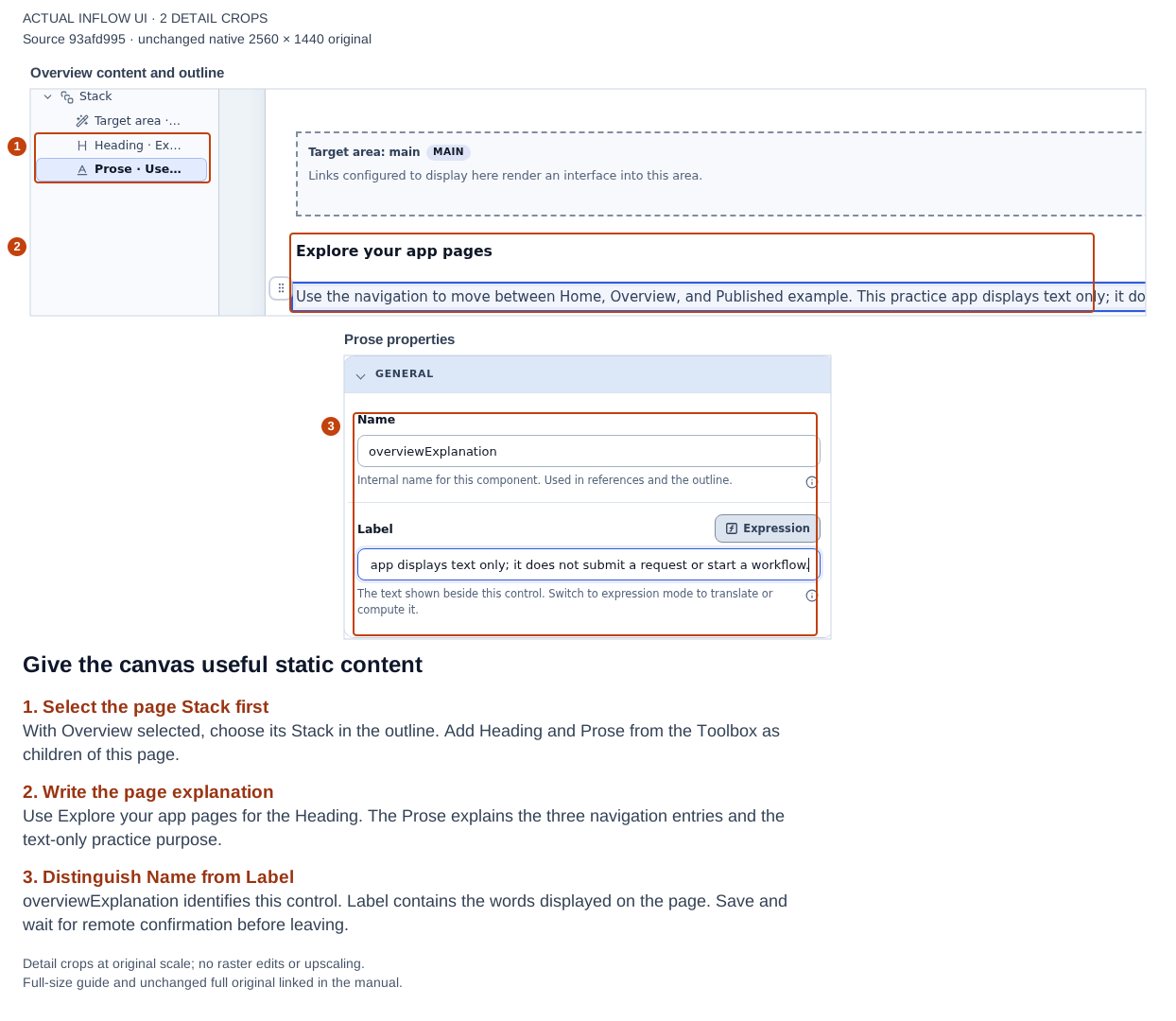
This picture records editing while remote save is still pending. Later reopening confirmed the saved content. Open the unchanged native original.
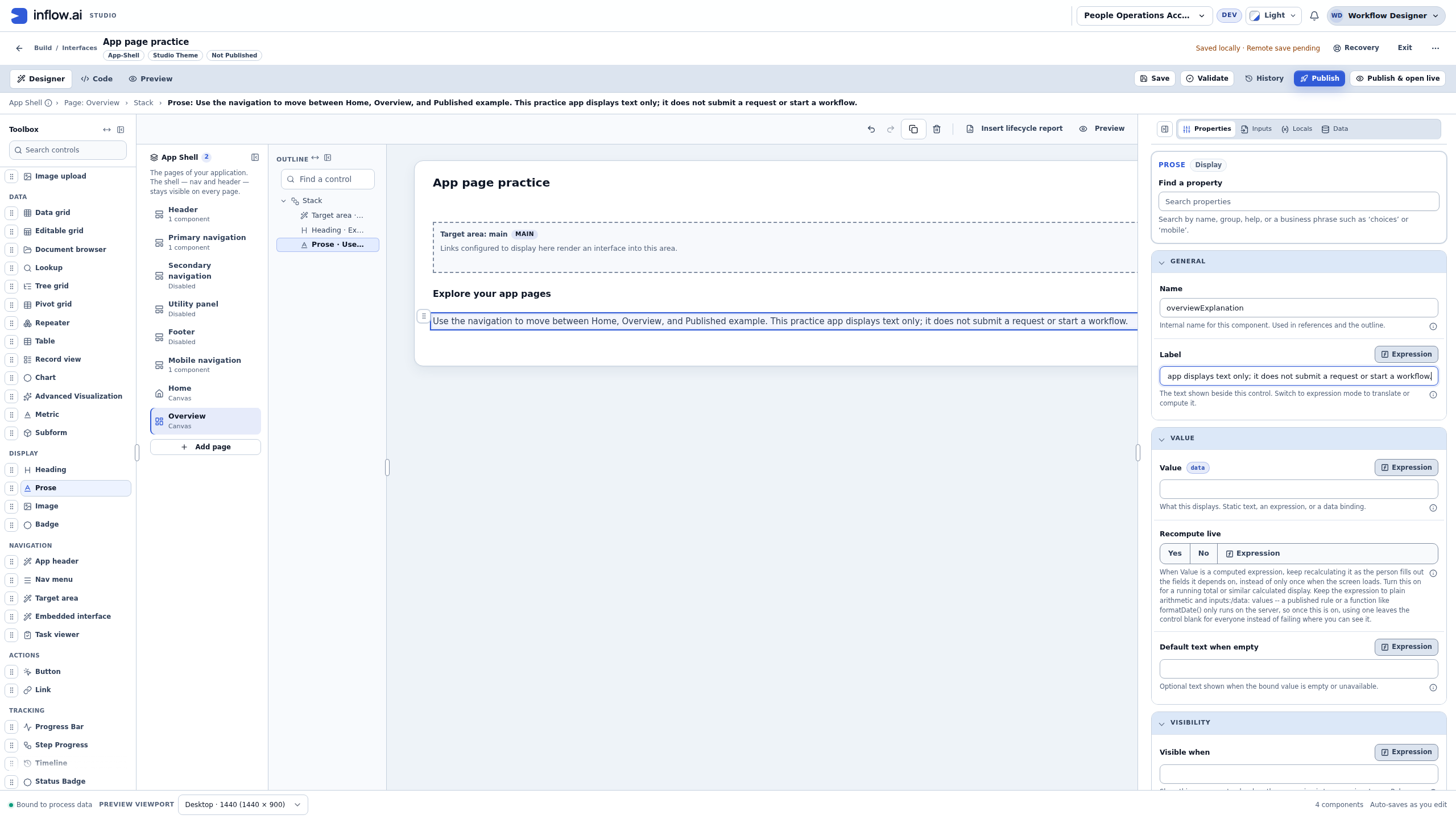
For this change, use Designer rather than opening Code to search for the label. Save and wait for Saved remotely, then check Preview. If a property is still pending or invalid, resolve the named field before leaving the editor. A browser-local copy or a pending remote save is not the same as a confirmed server draft.
Use the same distinction in the business form: the words Reason for leave belong in Label; the answer destination belongs in Store value in. Rewording a question does not move its answer to a different field. Conversely, changing an answer destination is a behavior change that needs its own review and relevant checks.
Inspect the page's binding separately
Published example shows a published Publication practice form. It has no editable local canvas for that form's controls. The binding card explains what it shows, and Page settings contains the page-specific choices.
- Select Published example in the Pages panel.
- Open Page settings from its card or page actions.
- Read the Page title and URL stub. In this example they are Published example and
published-example. - Read Interface to show. The selected form is Publication practice, with published v1 available during capture.
- Read the note explaining that the page follows the interface's latest published version. Choose Cancel if you are only inspecting; do not switch modes or save a different target accidentally.
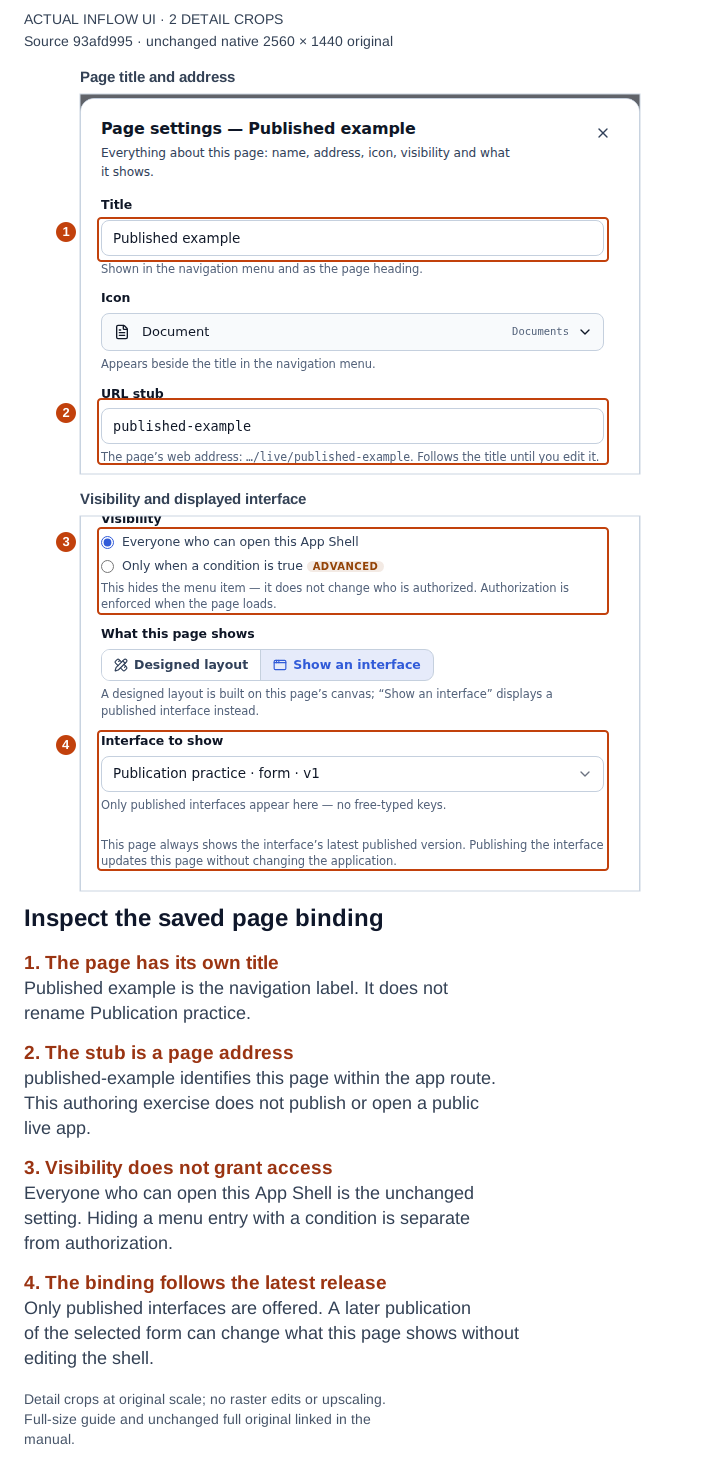
Settings were reopened on the same saved practice shell. Open the unchanged native original.
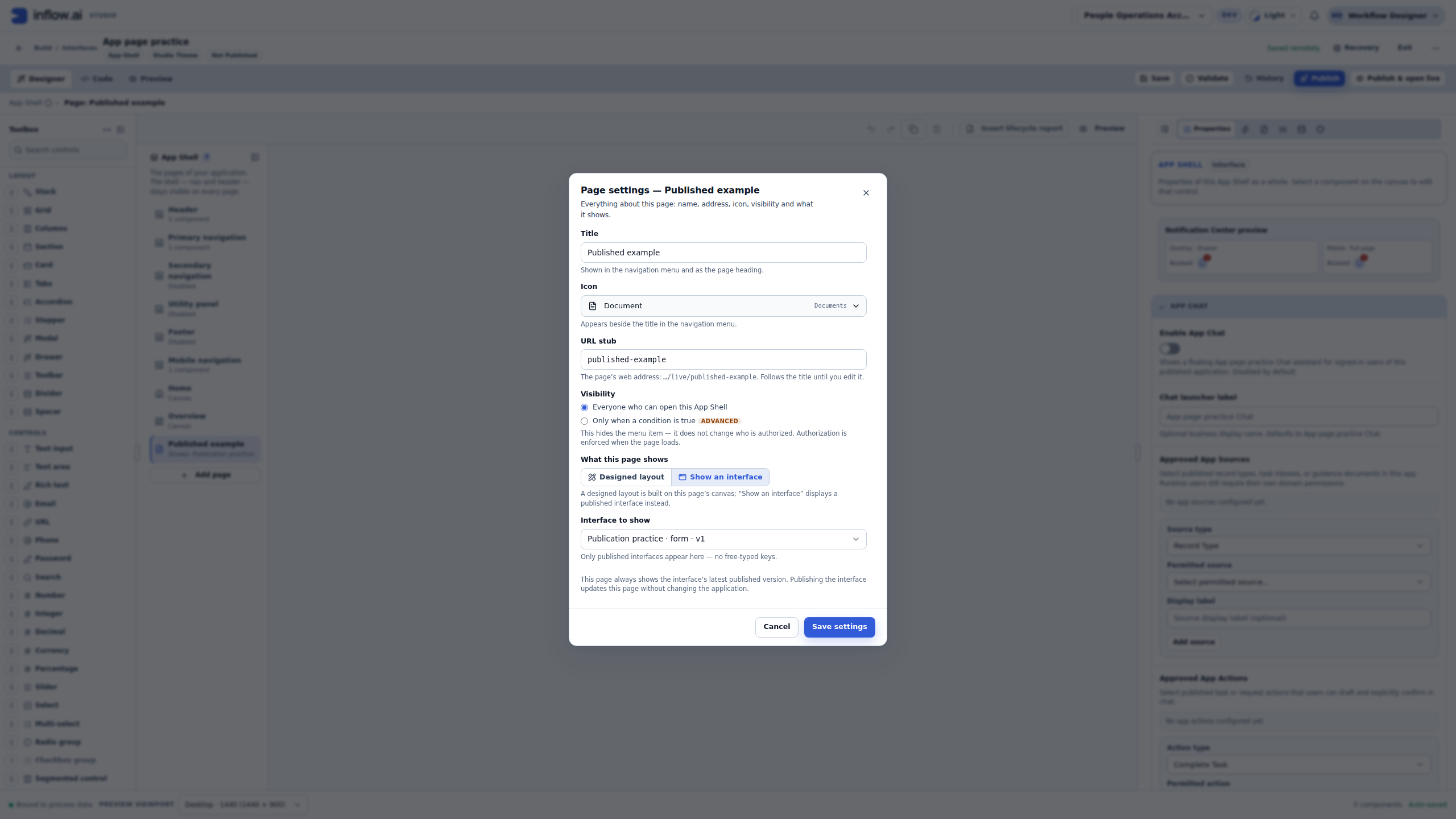
The v1 displayed in the picker is the version available at that moment. It is not a fixed version setting for the page. If the form owner later publishes another release, this page can display that later published content. Saving a later draft alone does not do that. Do not edit a JSON version number to make this page hold an older release; the supported page binding follows the latest published interface.
When someone reports “the old wording is still visible,” check whether they are comparing the original form's working draft with its published release. In this example, the draft contains later wording while the published form still says Publication practice — first wording. That is the expected result, and opening Code in the shell will not publish the form. Plan an intended form release with its owner instead of repeatedly publishing or changing the page target just to force a refresh.
Check the result in its proper context
Open Preview → Interactive on the saved shell. Choose Published example in its menu, read the displayed first wording, then return to Overview. The app name and menu remain visible while the selected page content changes. The recorded shell was reopened before these checks, so the result is more than an unsaved canvas edit.
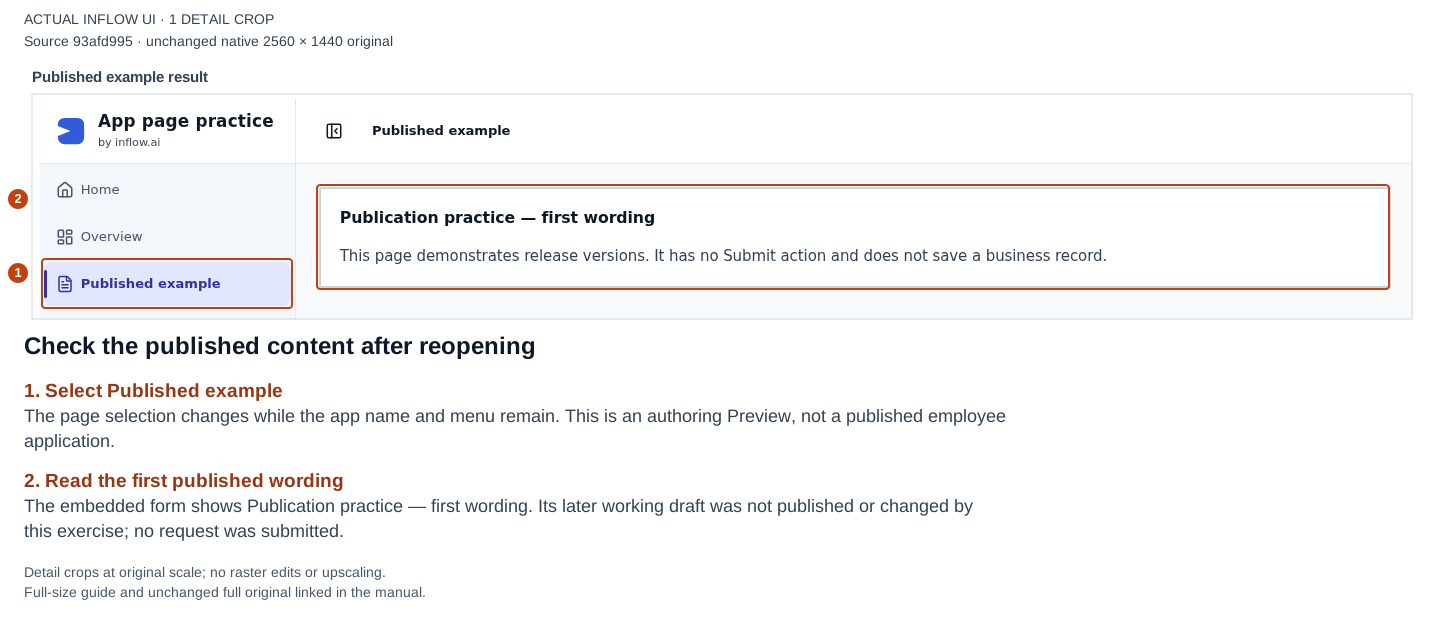
Open the unchanged native original.
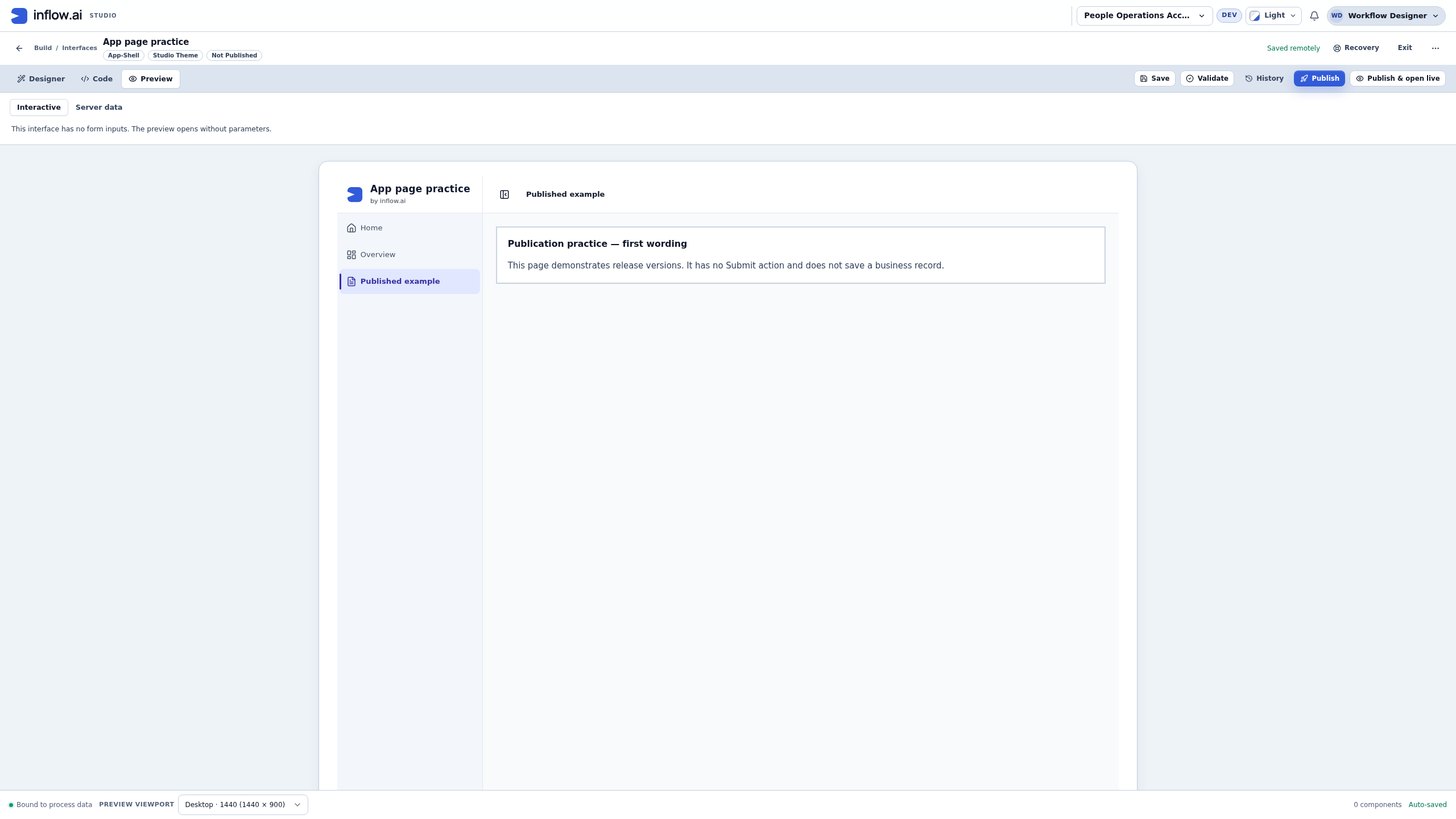
This is still authoring Preview under the designer's own access. The shell is unpublished, and the form displayed here has no visible Submit action or record-writing configuration. The picture does not establish what Mohammad or Sara may see, whether a request was saved, or whether a workflow created a task. Those checks belong to the ordinary-user journeys in the application course.
In Page settings, Everyone who can open this App Shell describes who sees the page in the menu. A visibility condition is presentation, not an authorization grant. An underlying form or record keeps its own permissions. Do not make an app look correct in a designer account and assume that this also proves the employee's access.
Choose the next action from the symptom
| What the consultant wants or observes | First place to inspect | What to check before asking for code changes |
|---|---|---|
| Rename the words above one page's explanation | Select that Heading → Properties → Label | The intended page is selected, and the correct Heading owns the text. |
| Rename a menu entry | That page's Page settings → Title | A page title and the title of its bound form can differ deliberately. |
| Change the page's address | Page settings → URL stub | Use the intended valid, unique address; consider existing links before changing it. |
| Show an existing form inside the app | Add page → Show an existing interface, or the existing page's binding settings | The intended interface is published and available through the permitted picker. |
| A bound page shows earlier wording | The original form's draft and published release | A saved draft is separate from a release; a bound page follows the latest published release. |
| The right panel shows App Chat while a page is selected | The panel's whole App Shell heading and the current control selection | With no control selected, whole-shell Properties can remain visible. Use Page settings for page-specific choices. |
| Syntax or a supported custom property needs investigation | A developer's focused Code inspection | Capture the exact screen, expected behavior and safe reproduction first; preserve existing work. |
Leave Enable App Chat off while inspecting page layout unless configuring the assistant is the agreed task. Seeing that whole-shell setting does not mean the selected page has its own separate chat feature. The App Chat configuration and its permissions review remain the separate process described earlier in this manual.
Prepare a useful developer handoff
When Designer does not express the intended result, give the developer a specific problem rather than asking them to replace the screen document. For example: “On the Overview page, this selected Heading's Label changes on the canvas but the same saved draft still shows the old text in Interactive Preview.” Include which save state you observed and whether you reopened the same definition.
- Identify the workspace and interface by their visible names and an approved link. Include the page title and the selected control's Name when known.
- Describe the expected result and actual result in one short example. Distinguish the current draft, authoring Preview and published application.
- Record the ordinary steps that reproduce it, including any save or validation message. Keep the original message if confirmation is uncertain; do not repeat a create, publication or business action blindly.
- Provide a screenshot containing synthetic or permitted content. Check it for confidential values, credentials and unrelated people's work before sharing.
- Explain which work is unsaved or held and which changes are out of scope. A developer can inspect supported document structure without changing a data model, record destination, task assignment or released application merely to make a visual example match.
A useful handoff preserves the existing application behavior. The developer may need to investigate a custom control, unsupported property, malformed document or state issue, but the cause should follow evidence. A valid JSON document, a passing local Preview and an accepted business operation answer different questions.
The older invalid-JSON and Recovery procedure in this manual remains written guidance. The four new pictures demonstrate the page/control/binding distinctions above; they do not show someone creating a Code error, restoring local text, resolving a conflict or publishing a release. Follow the actual Recovery state and retain your work if those situations arise.
Use formulas through their own editor
A formula for a conditional question is different from editing the entire screen document. For example, “show the coverage question when the request exceeds five days” can be taught through Visible when and its formula editor. See Useful formulas for explained examples and test values.
Do not paste a large document from a forum or another project simply because it looks similar. It may refer to fields, records, rules or pages that your application does not have. It may also use controls that are not offered in the current Toolbox.
Next steps and specialist reference
Consultants can return to Create your first form. Developers who need the full document structure, action format, schema and authoring tools can use the preserved screen-language technical reference. The exact control-property reference is also optional.