Prepare an application for a platform database upgrade
A platform database upgrade changes the storage structure required by a new Inflow version. The platform administrator plans and runs that work. It is different from a consultant publishing an application's data model and choosing Make live.
You do not need to run database commands to build the leave application. You do need to help the upgrade owner understand the business work that must continue to function.
What to prepare with the specialist
- Ask the platform owner which environment and application version are changing, and when people may be affected.
- List the important user journeys: open a record, start a request, handle a task, view a document and run a key report.
- Agree the approved test accounts and fictional or otherwise permitted examples.
- Let the administrator handle compatibility, backups, the upgrade and any required recovery plan.
- After they confirm readiness, repeat the agreed user journeys and report the actual visible results.
Example: prepare a clear business check
People Operations is moving to a new Inflow release. Nadia records a simple employee request and manager decision scenario for the test environment. The platform owner performs the actual platform upgrade.
Nadia then checks that the released forms open, the intended records remain readable and an approved test request can follow its workflow. If the application reports that its storage is unavailable, she gives the upgrade owner the environment and non-secret symptom. She does not edit database version records to make the warning disappear.
Example: keep the responsibilities separate
Nadia adds a field to the leave data model. This is ordinary application design, so she follows the model's Save, Publish version and Make live flow. She reviews the actual proposed data change with the appropriate owner.
She does not treat that wizard as permission to run an unrelated platform upgrade. If the destination cannot accept the model change, she asks the data/platform owner to resolve the specific problem. The optional reference gives the operator the actual upgrade tooling and restrictions.
Prepare the upgrade as a business change
The migration owner decides when the platform database can change, what backup and recovery plan applies, and which Inflow build is compatible with the resulting schema. The consultant contributes the application knowledge: which released apps matter, what records people must still be able to find, which actions create follow-up work, and which normal users can confirm the result.
Write a small, named acceptance plan before the maintenance window. Avoid “the app looks fine” as the only check. A page can load while record search, task creation or a dependent document path is still broken.
| Record in the plan | Example for People Operations | Why it matters |
|---|---|---|
| Environment and app | Staging; Leave Requests; the release currently approved there | The same application name can exist in several environments. |
| Owner and window | Platform operations owner; agreed change window | The consultant must know who is performing the platform operation and when to run checks. |
| Ordinary test actors | An approved employee account and an eligible manager account | A root or administrator session can hide an ordinary-user access problem. |
| Existing information to find | One approved fictional request created before the window | It checks that retained business data is still reachable after the platform change. |
| New action to try | One new synthetic leave request with an agreed future date | It checks that the current application can perform its ordinary write journey. |
| Follow-up to inspect | The matching manager task and its permitted decision form | A saved record alone does not prove that the workflow started or that a task was assigned. |
| Recovery contact | Named platform owner and the approved escalation route | The consultant does not repair migration history or repeat an uncertain write. |
Share this plan with the owner. Confirm the test data is permitted, synthetic where required, and will not trigger real notifications, payroll or external integrations. If the environment cannot safely accept the planned action, replace it with an approved read-only check and record that the write journey remains unverified.
Read the business portion of an acceptance check
Nadia and the upgrade owner agree which ordinary-user results they need to observe. The two retained views below come from one completed fictional leave walkthrough in the training environment. They illustrate how to read the case/task part of a business check. They are not pictures of a migration command, backup, restored database or rollback, and they do not certify a whole platform upgrade.
This example uses request CF3-LEAVE-20261119-02, employee DEMO-014, 21–23 December 2026 and three whole days. It is separate from any five-day, 14–18 December example elsewhere in the manuals. The pictures were captured on 19 November. They are reused here without changing their values, roles or timestamps.
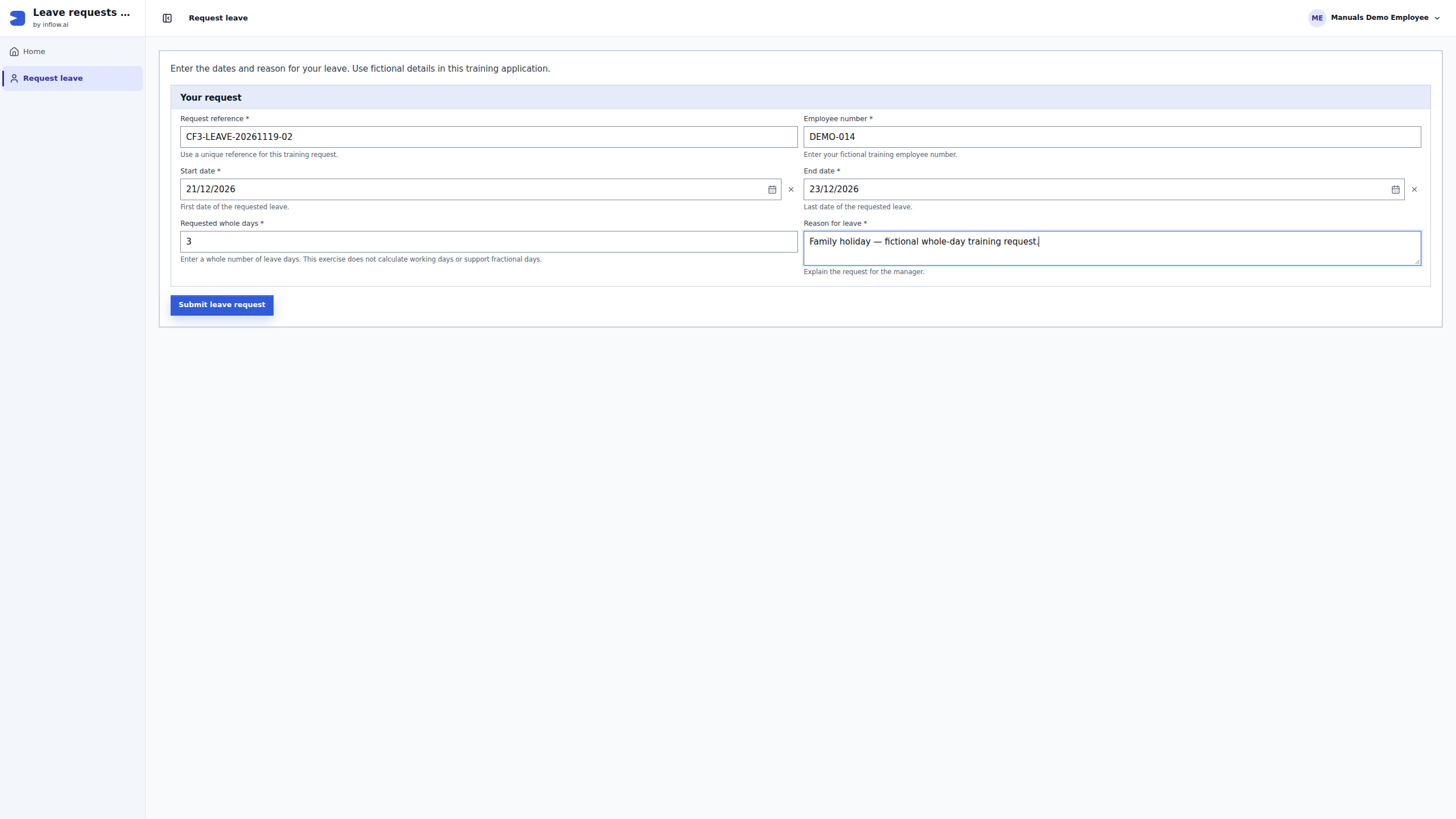
Retained completed training case. Read these images; do not resubmit or replay it. The first picture is the filled form before Submit, not an acceptance receipt. The button instructions inside its unchanged guide belong to the original exercise.
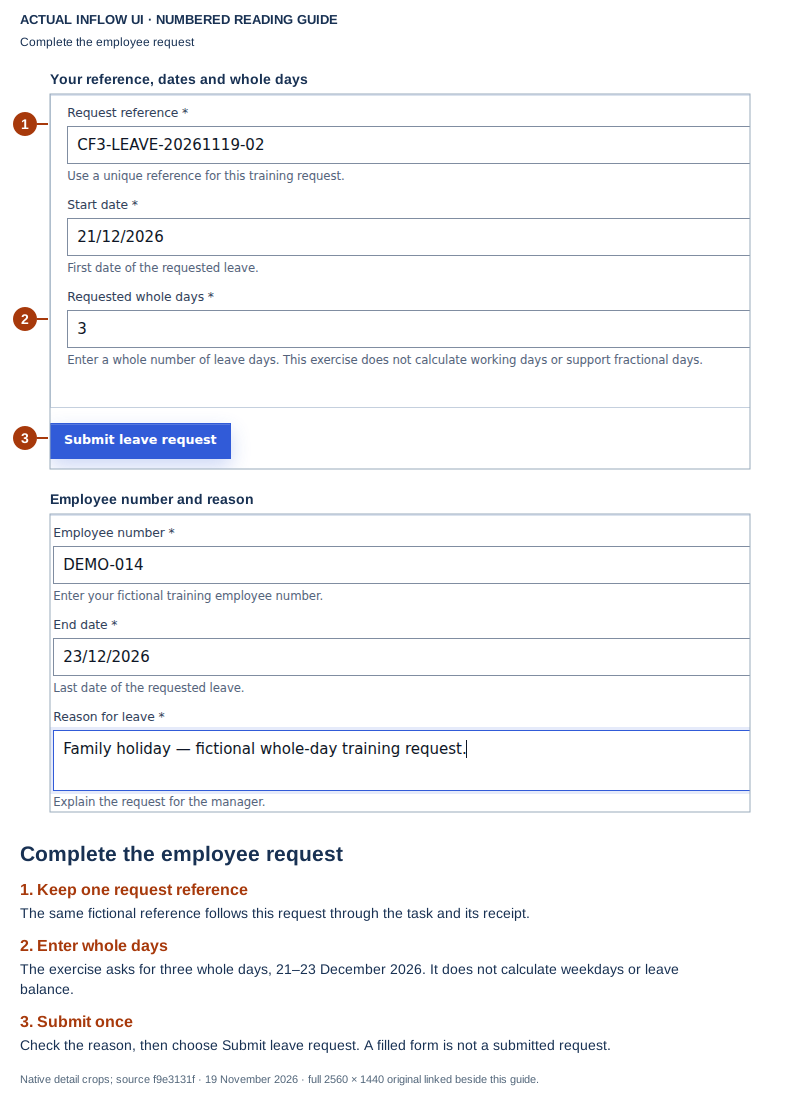
Open the unchanged native 2560×1440 employee screenshot
Read the first guide as the proposed input to the check:
- Match the approved fictional request reference and intended app page. A repeated display name is not enough to identify a different test run.
- Check the displayed dates and Requested whole days → 3. These are entered values; this form does not calculate working days or demonstrate fractional-day support.
- Record the current stage accurately: the employee has filled the form. This picture alone does not show a successful start, saved business record or assigned task. When performing a newly approved check, its own actual submission response must establish what happened next.
Retained completed training case. Read this later receipt; do not complete or replay the task again. This is the manager's result, not the employee's earlier submission page.
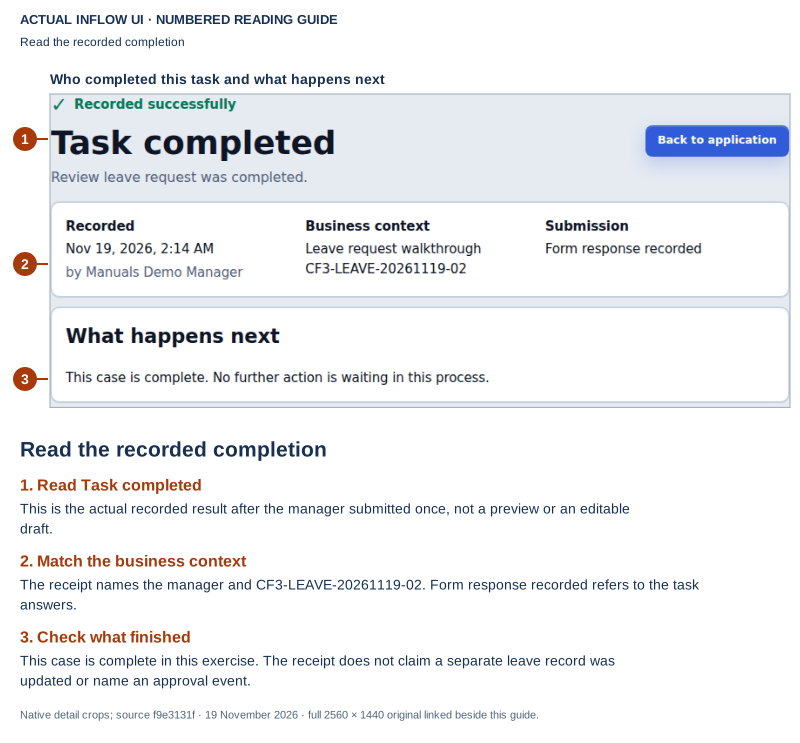
Open the unchanged native 2560×1440 manager screenshot
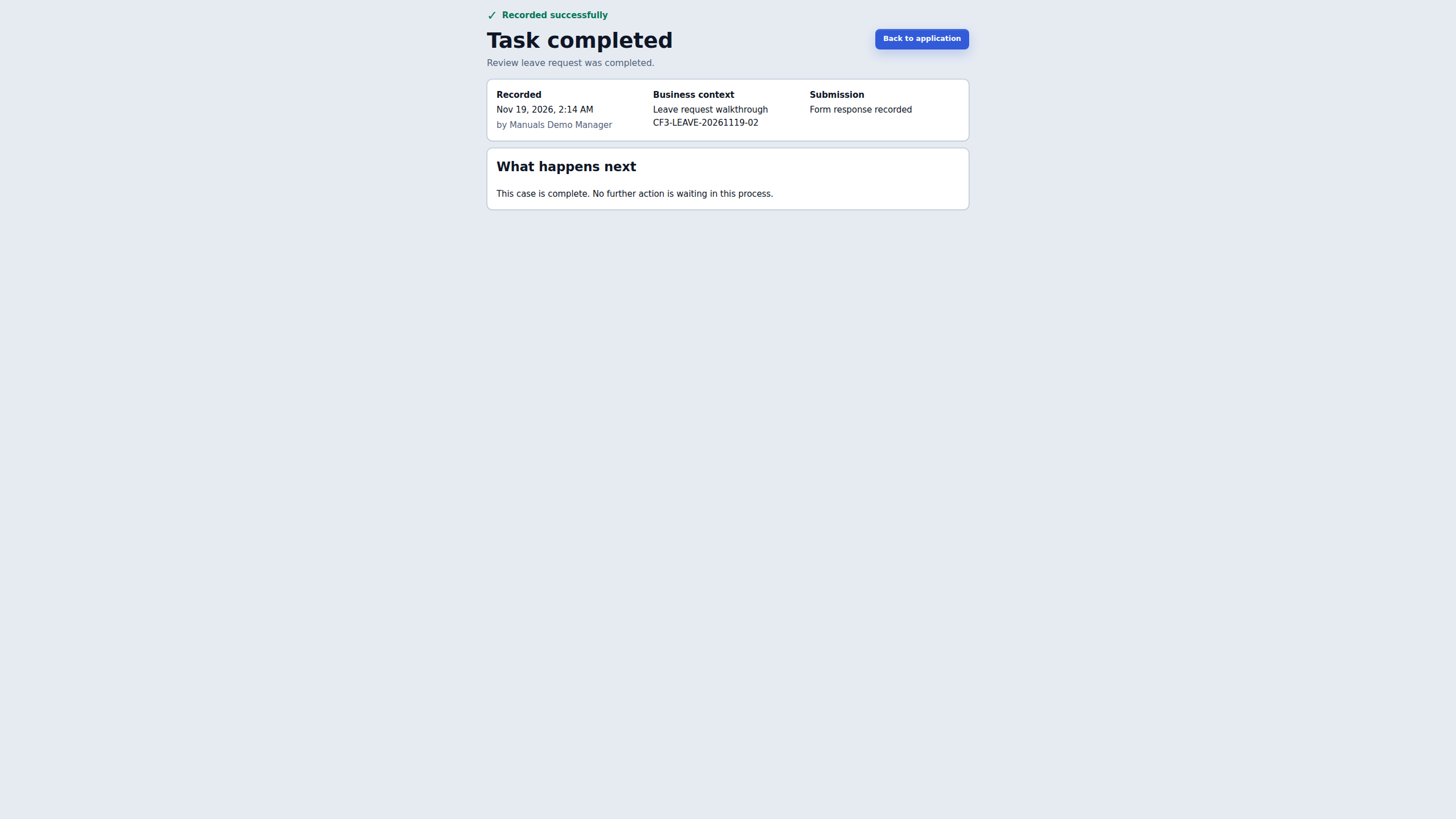
Read the second guide as a separate, later observation. The reference matches the employee's original example. The manager sees Task completed, Form response recorded and a message that the case is complete. Those are useful ordinary-user results to include in the acceptance report. The receipt does not name an approval activity or show a leave-record status being updated. Back to application is navigation; it is not another decision.
Several real intermediate steps occurred in the original walkthrough: the employee submitted once, a case and manager task were created, the assigned manager used a permitted task link and the manager submitted a decision once. This short reading exercise omits those screens. Follow the complete request-and-manager pilot for that context. The supplied task-link handoff remains a prerequisite; these pictures do not demonstrate a configured in-app worklist.
| Acceptance question | What these pictures let Nadia record | What still needs its own evidence |
|---|---|---|
| Can the intended input be entered? | The approved reference, dates and whole-day value are visible on the employee page | A newly approved run's actual submission result |
| Did the manager's work complete? | The later matching task receipt says it completed and recorded a form response | Every required alternate outcome or assignment scenario |
| Did an existing business record survive the upgrade? | No record-search result is pictured | The approved retained record, read by the intended ordinary user |
| Did a record field change with the decision? | No record update is pictured | The configured record action and its actual readback |
| Is the platform upgrade complete? | These are only two business-view observations | The platform owner's compatibility, backup, migration, recovery and full acceptance evidence |
In a real maintenance window, use the owner's current environment and readiness handoff, not the date of these retained screenshots. Keep the user-facing results and the administrator's migration evidence together in the report, with separate labels. Continue with the staged procedure below for any newly approved test; never recreate this already completed request to fill a gap in evidence.
Follow a staged post-upgrade check
Wait for the platform owner to say that the intended environment is ready for user checks. Then use the normal application address and the approved accounts. Do not infer that a successful migration command means the app is ready, and do not use an administrator's elevated access to stand in for an employee.
- Confirm the destination. Read the environment name and app release from the agreed handoff. If the page points to another environment or version, stop and ask the owner to confirm the target before creating anything.
- Check ordinary sign-in and navigation. Sign in as the approved employee, open the Leave Requests app, and confirm the intended page is available. Record the page and any neutral unavailable state without copying private diagnostics into the manual or a public report.
- Find an existing permitted record. Search for the agreed fictional request or use the approved list view. Confirm the expected fields remain readable to that employee. Do not broaden access to make the record appear.
- Try one approved new request. Enter only the agreed sample values and submit once. Read the visible result. A timeout or missing confirmation is uncertain: first ask the owner to inspect the original request and application state. Do not submit a duplicate to see whether the first one worked.
- Check the process separately. If the plan expects a manager task, sign in using the eligible manager account and look for that specific request. The task's presence is a separate result from the employee record's save confirmation.
- Complete only the planned decision. If the owner has approved the synthetic task decision, use the expected choice and record what the application confirms. Do not decide real employee work or an unapproved test task.
- Check each promised outcome. Record whether the record was saved, the process reached its expected state, the manager task completed, and any explicitly configured record status changed. These are distinct observations; one does not prove the others.
- Close with the owner. Share the environment, time, approved actor roles, sample request reference and observed results. Report failures at the last confirmed step so the owner can investigate the right boundary.
Example: the employee record is visible, but no manager task appears
After the staging window, Nadia signs in as the approved employee and finds the earlier fictional request. She submits one new sample request and sees a save confirmation. Sara signs in using the approved manager account, but the related work item is not in her task list.
Nadia reports two confirmed facts: the employee record was saved and the expected manager task was not observed. She includes the environment and sample reference so the platform/application owner can inspect the form's start action, the published process and its assignment rules. She does not submit the request again, create a task manually, or conclude that the database migration failed. The missing task could be at the application handoff even when the stored record is present.
Example: the manager approves, but the record still says Pending
Sara opens the planned synthetic task and uses its approved decision form. The process shows its approved result, while the employee's record list still displays Pending. Nadia records the task decision and the record display as separate outcomes. She asks the application owner whether an explicit configured business action is supposed to update that field. A database upgrade does not promise that independently configured application values will synchronize automatically.
If a new application configuration is required, the consultant and application owner design that change through the supported application tools and test it in the approved environment. They do not edit the platform migration journal or manually alter production rows to make the list match the task.
Report an incomplete or uncertain check
Use a short factual handoff. For example:
Environment: Staging
App/release: Leave Requests / the release named in the change plan
Actor roles: approved employee, then eligible manager
Last confirmed: employee record saved and visible in the list
Expected next result: manager task linked to the same sample request
Observed: no matching task was visible to the manager
Action taken: no duplicate submission; platform/application owner asked to inspect
Still unknown: whether the workflow start or assignment step completed
Do not attach credentials, tokens, personal records or raw database logs to this handoff. If the platform owner is still investigating, report the business journey as not yet confirmed rather than calling the upgrade successful or failed based on an unrelated screen.
Example: the page reports a service unavailable result
Nadia opens the expected application after the owner announced readiness, but the page displays a service unavailable state. She notes the target environment, time and page, then stops the application checks. She does not retry a form submission, change environment settings or copy a private stack trace. The platform owner first confirms that the intended application and its dependencies are ready. Once the owner gives a new ready signal, Nadia resumes at the first unconfirmed user-facing step; she does not repeat any write whose outcome is uncertain.
If the result is not clear
Keep the original result and explain what is missing. Ask the responsible owner to investigate before repeating an uncertain action or widening access. A missing control is not an instruction to use somebody else's account.
Continue with the consultant guides
Read create and publish a data model and release an application. The specialist reference below contains the detailed setup; it is not ordinary consultant preparation.
Further reading
Optional technical reference — detailed contracts and implementation information for your administrator or developer. You do not need it to follow this lesson.