9. Understand the terms and fix common problems
When a form does not behave as expected, begin with the business task and the visible message. Check the current workspace, selected item and saved/published state before changing settings. Most repairs should preserve what the person already entered.
Words used in this handbook
| Term | Meaning in the Leave requests example |
|---|---|
| Workspace | The shared project area holding the app's related work. |
| Business function | A grouping of related work inside that workspace. |
| Form | The questions Mohammad answers or Sara's separate decision form. |
| Input | A declared answer the form works with, such as Start date. |
| Label | The words a person reads beside a question. |
| Record | Stored business information about one request. |
| Case | One request moving through its workflow. |
| Task | Work a person must do, such as Sara reviewing that case. |
| App Shell | The frame containing the app's pages and navigation. |
| Draft | Working changes still being edited. |
| Published version | A released design available for its intended use. |
| Formula | A calculation or condition using available values. |
| My assigned tasks | Open tasks assigned to the current signed-in user. |
| Available to claim | Open tasks that are unassigned and that the current user is eligible to claim. |
| Task Viewer | An App Shell control for an existing task; selecting an ID does not grant access to it. |
| Model | The configured AI service selected for an AI answer. |
Example 1: an answer goes to the wrong place
Nadia changes the label to Start date, but the question still writes to an old Text answer.
- Select the question in Outline and check the selected control.
- Open Data Binding → Store value in.
- Choose the actual declared Start date input with the compatible Date type.
- Check any default or formula separately; those are not the destination.
- Try a fictional date and inspect the intended answer/result again.
A label helps the person understand the question. It does not declare the answer type or create a database field. If the destination is missing, prepare the appropriate input or generated record form rather than guessing a path.
Example 2: the app still shows the old wording
- Check the workspace and form/app name.
- In Designer, confirm that the intended edit is saved.
- Check whether the changed form has actually been published. Draft edits do not automatically change the released version.
- Read the normal publish review if you intend to release the change.
- Inspect the current/latest published Live application again.
If the app page shows a published interface, later publication of that interface can affect the page. A task already created can still use the form version captured for that task. These are different situations; do not repeatedly republish every item without checking which one supplied the view.
Example 3: Sara cannot find the task or the viewer looks empty
Nadia configured My assigned tasks beside a Task Viewer, but Sara does not see the expected review task.
- Have Sara sign in with her normal account and open the intended published app page. The My assigned tasks source shows open tasks assigned to the current signed-in user; it does not show every task in the organization.
- Ask the workflow owner to confirm that this request actually created an open task assigned to Sara. A completed task or an unassigned task will not appear in My assigned tasks. If it is open and eligible but still unassigned, use the separate Available to claim route only when the workflow's assignment rules permit Sara to claim it.
- If the work exists, check the page setup: its grid should use My assigned tasks, retain the task Id, and pass the selected row's Id through the declared host input to the sibling Task Viewer. Follow Choose the right control and the assigned-task page tutorial for the exact bindings. Do not type a guessed task ID or replace the current-user source with an organization-wide list.
- Before a task is selected, the viewer's empty state is expected. If an already opened task later disappears from the grid or its input clears, the mounted viewer can retain that task and its unfinished session. Deselecting is not proof that work was closed or completed; use the full task page for its save and resume controls.
- If Sara can see the eligible row but cannot open or perform the task, ask the application/workflow owner to check her actual task and form access. Perform and Read only change the viewer interaction; neither creates the task nor overrides the service's authorization checks.
Keep the evidence for these questions separate: list eligibility, task assignment, opening the task, and completing its business decision are different outcomes. The human-task workflow lesson explains the full task-page save and decision steps.
Example 4: a green expression test says false
Nadia sees Pass, but the result beneath it is Boolean false. She expected the explanation question to appear. Start by asking which check produced the result.
The following examples reuse unchanged 16 November 2026 guides from the actual Coverage condition practice walkthrough. They retain its recorded build and normal Designer account. They are an authoring/Preview exercise with no business submission, not new captures, employee-access tests or a task decision.
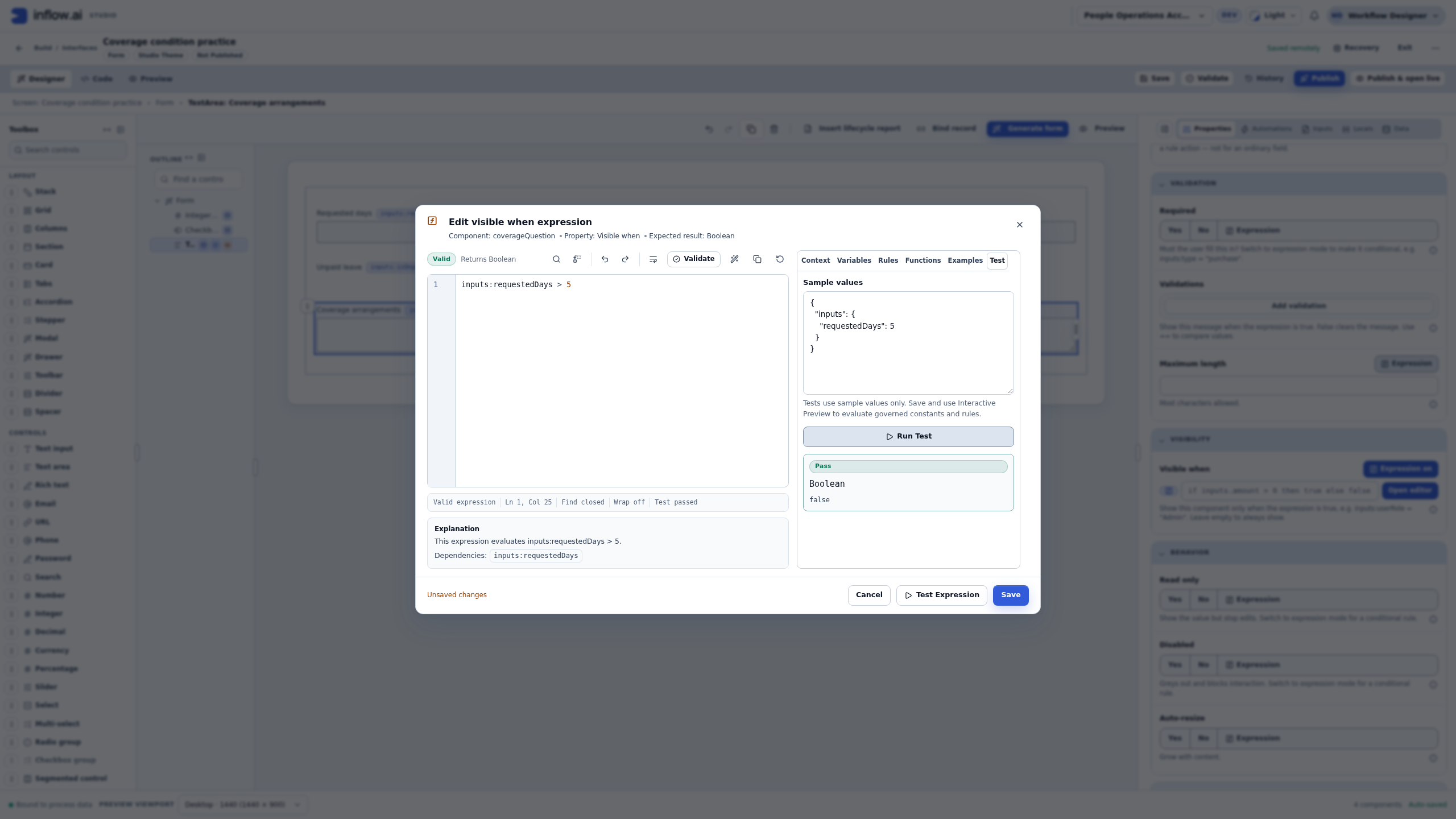
- Read the editor title. In this first example it is the Visible when expression for Coverage arrangements, expected to return Boolean.
- Read the comparison: requestedDays is greater than five, not five or more.
- Read the Sample values input. The captured sample supplies the number 5; it is a number, not quoted Text.
- Read both the status and returned value. Pass → Boolean → false means the expression evaluated successfully and this sample did not match.
- For the first one-input condition, change only the sample number to 6 and run again. The captured result is true. Save the expression and the draft before checking the visible form.
Run Test evaluates its Sample values. It does not type those answers into Interactive Preview. If the expression result is correct but the form behaves differently, inspect the saved expression, the actual question destination and the answers entered in Preview. Repeating Run Test alone cannot prove that those separate pieces agree.
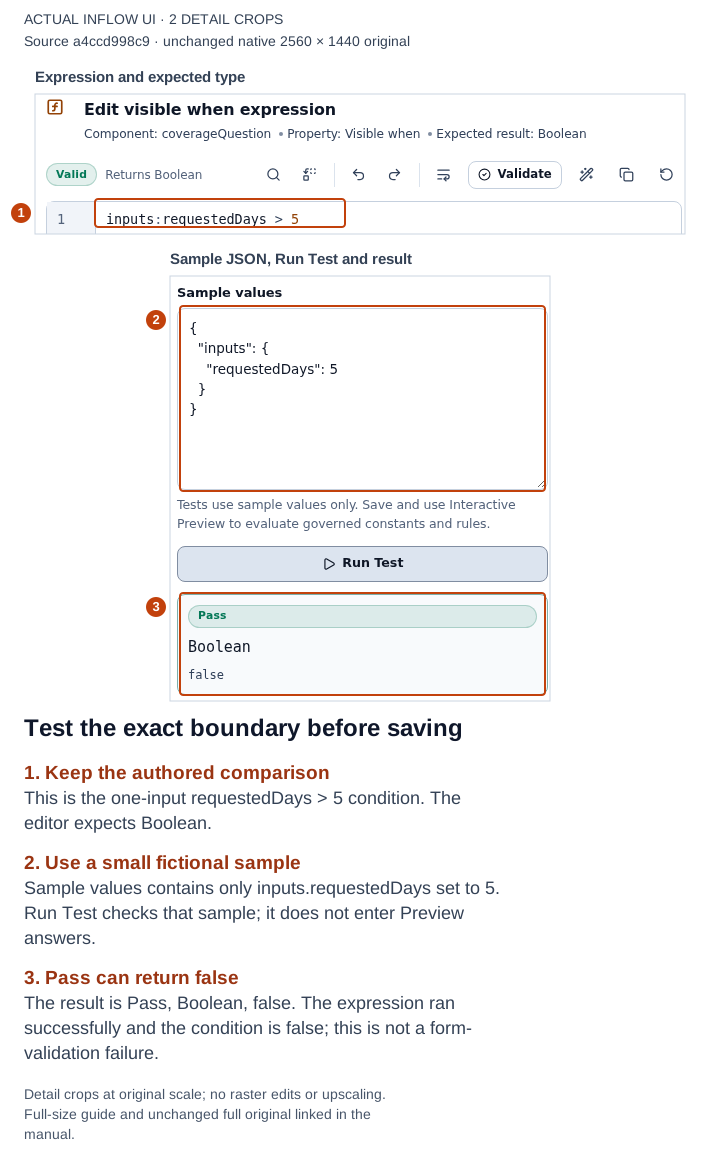
1–3: the comparison, five-day sample and actual Pass/Boolean/false result. This is a successful false evaluation of the earlier one-input rule, not a required-answer error. Open the full-size numbered guide · Open the unchanged full 2560 × 1440 screenshot.
Compare the checks before changing a setting
| What you are doing | What the result tells you | What it does not establish |
|---|---|---|
| Run Test in the expression editor | The expression's result for the supplied Sample values. | Which visible question is bound to an answer, or what was entered in Preview. |
| Save the expression and draft | Whether the authoring changes have reached their normal saved state. | Whether a released app now uses them. |
| Check form in Interactive Preview | The local form's current validation result for its session answers. | A business record, task completion or approval. |
| Form state in this practice | The answers actually present in that local session. | A database save or a permission grant. |
Example 5: the explanation is hidden at exactly five days
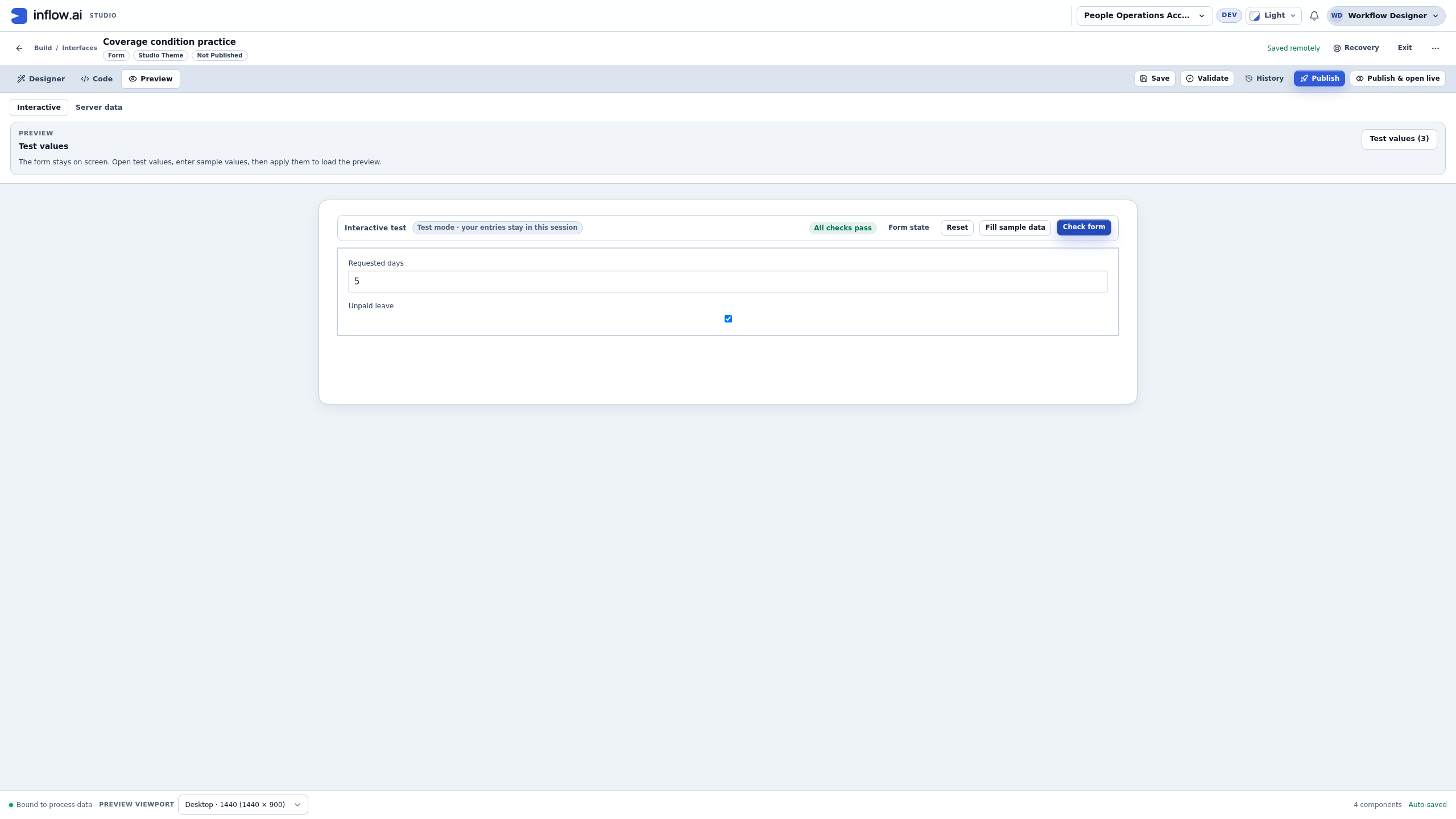
The final fictional training condition is Unpaid leave is true and Requested days is greater than five. Nadia checks Unpaid leave and enters five. Coverage arrangements remains absent, and Check form reports All checks pass. This is the exact boundary, so it should not match that condition.
- Confirm whether the intended policy says greater than five or five or more. They are different rules.
- Inspect the complete saved Visible when condition using the actual declared Integer and Boolean inputs.
- Test a false-checkbox case as well as the numeric boundary. In this captured practice eight days with the checkbox unchecked also leaves the explanation hidden.
- Enter six days with the checkbox checked. This is the matching case, so the explanation should appear and its matching Required condition should apply.
- If the observed matrix disagrees, preserve the current draft, inspect both full conditions and the actual bindings, and make one deliberate correction before retesting.
Do not turn off Required or change the Integer input to Text merely because the exact-five example did not show the question. A condition that returns false may be doing precisely what was configured.
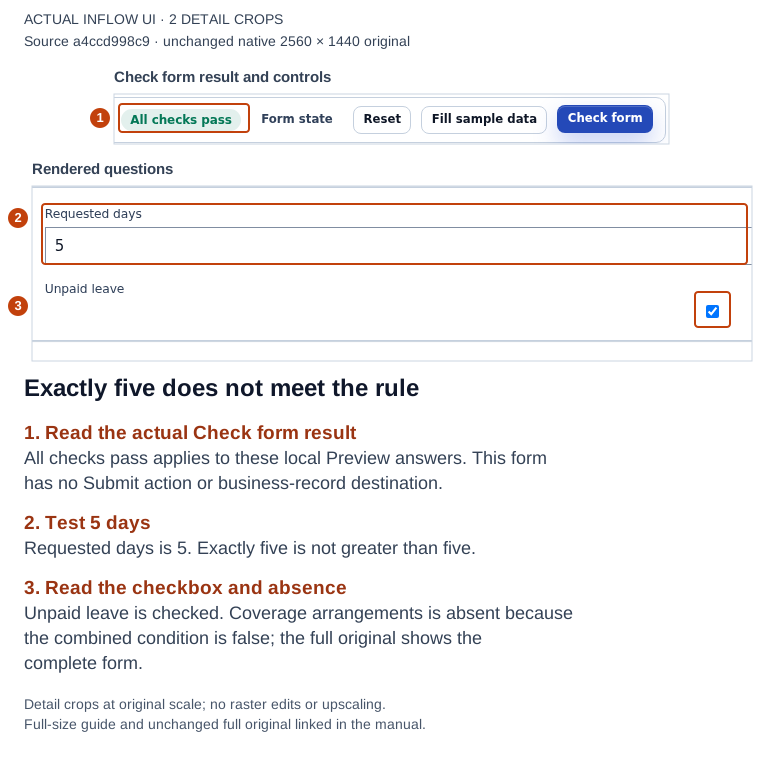
1–3: the final combined condition leaves the explanation absent at exactly five days even when the box is checked. Check form passes for this nonmatching case. Open the full-size numbered guide · Open the unchanged full 2560 × 1440 screenshot.
Example 6: follow a missing-answer message to its question
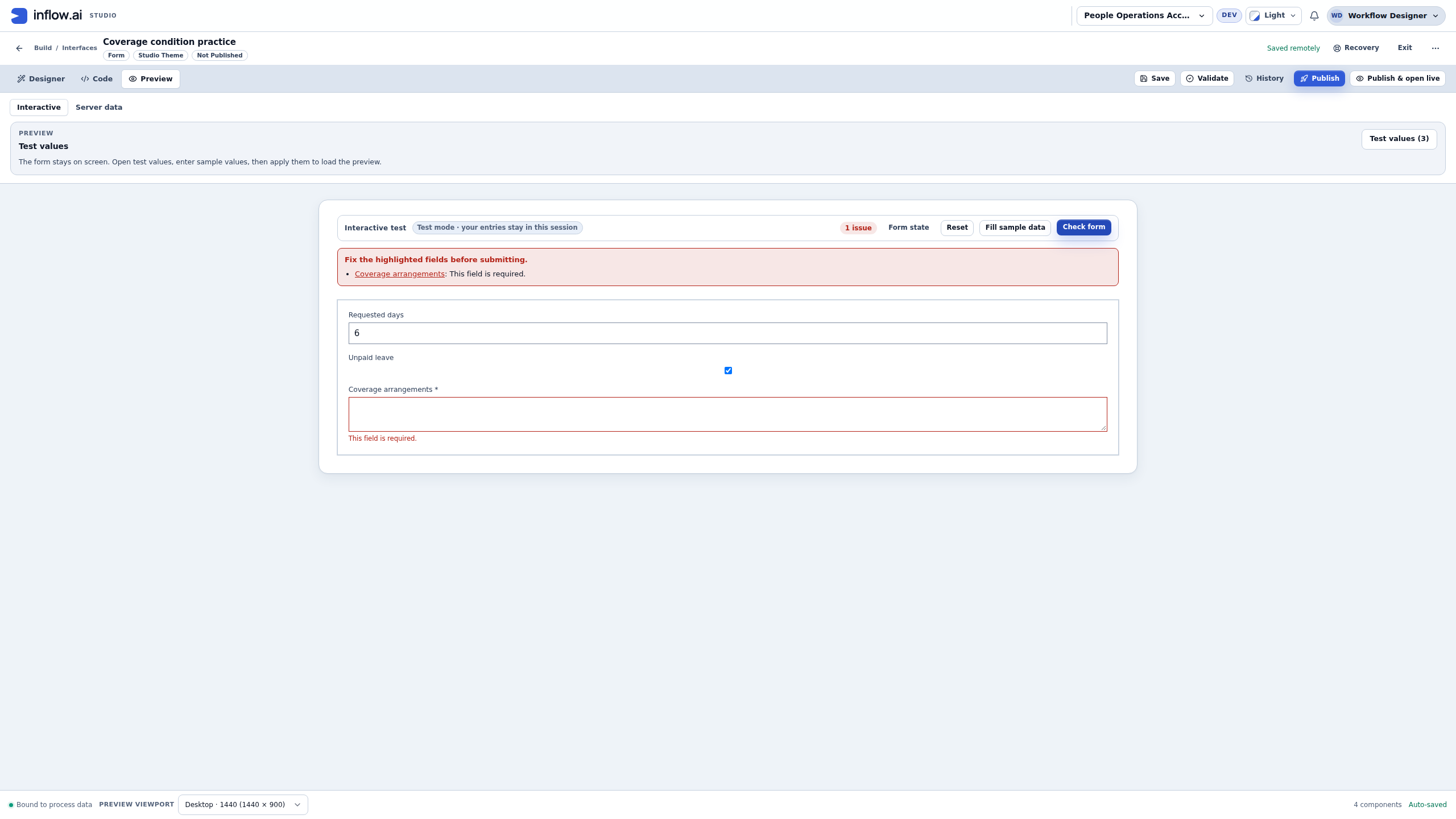
At six days with Unpaid leave checked, the explanation is visible and required. Nadia leaves it empty and chooses Check form. This produces an actual local validation issue, which is different from the successful false expression test above.
- Read 1 issue and the linked Coverage arrangements entry in the validation summary.
- Choose that named entry. In the captured run it focused the actual explanation field, so the repair happened at the question that reported the issue.
- Inspect the field's asterisk and This field is required message. Do not substitute an unrelated answer in another Text field.
- Enter a meaningful fictional answer such as Team cover arranged with the duty coordinator.
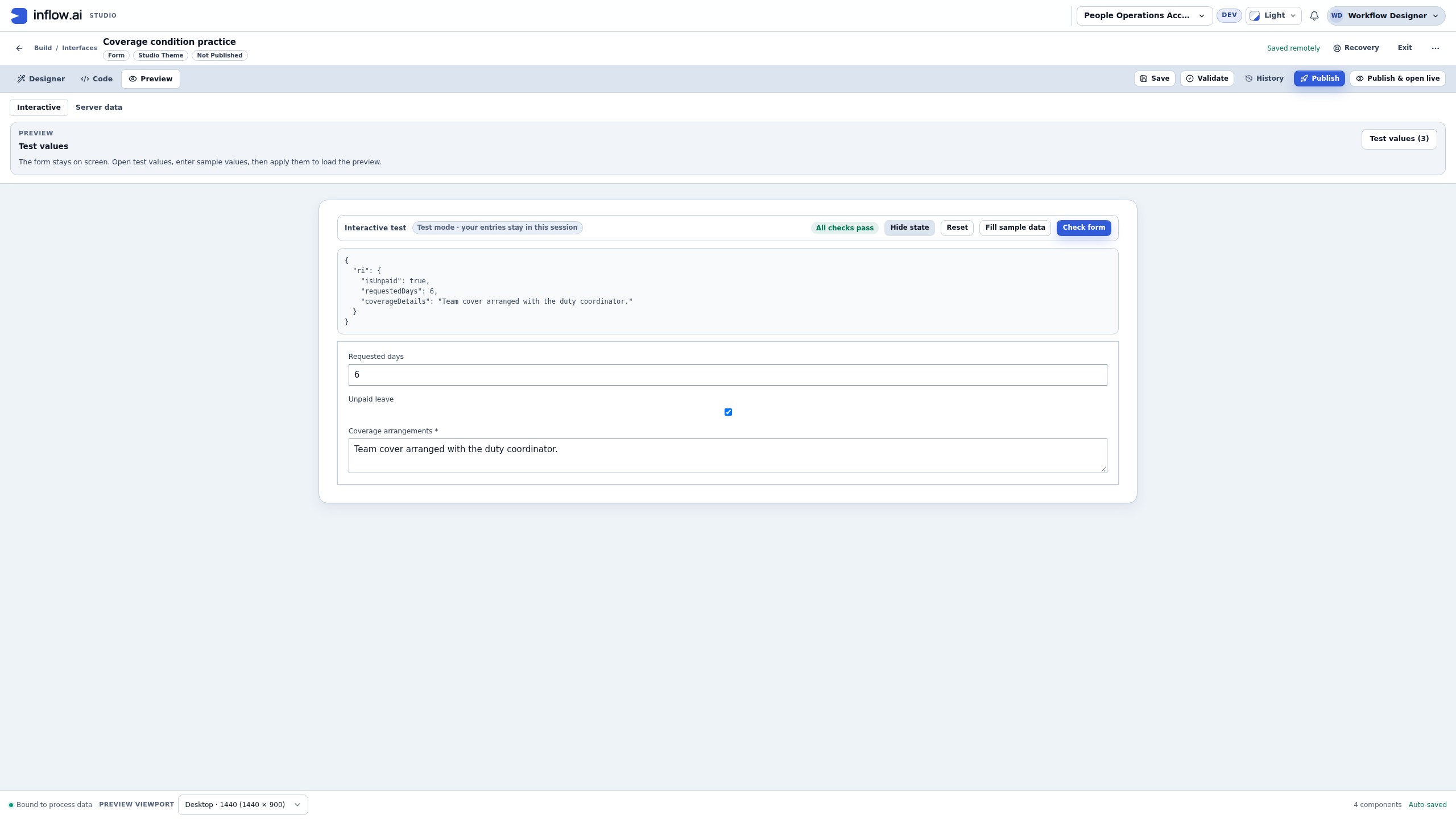
- Choose Check form again and confirm All checks pass and the disappearance of that field's required message.
The generic summary says to fix fields “before submitting.” Here the action was Check form, and this practice draft contains no Submit action or record destination. Repairing this message does not submit anything. In an actual business app, use its documented save/submit flow and inspect that action's own confirmation separately.
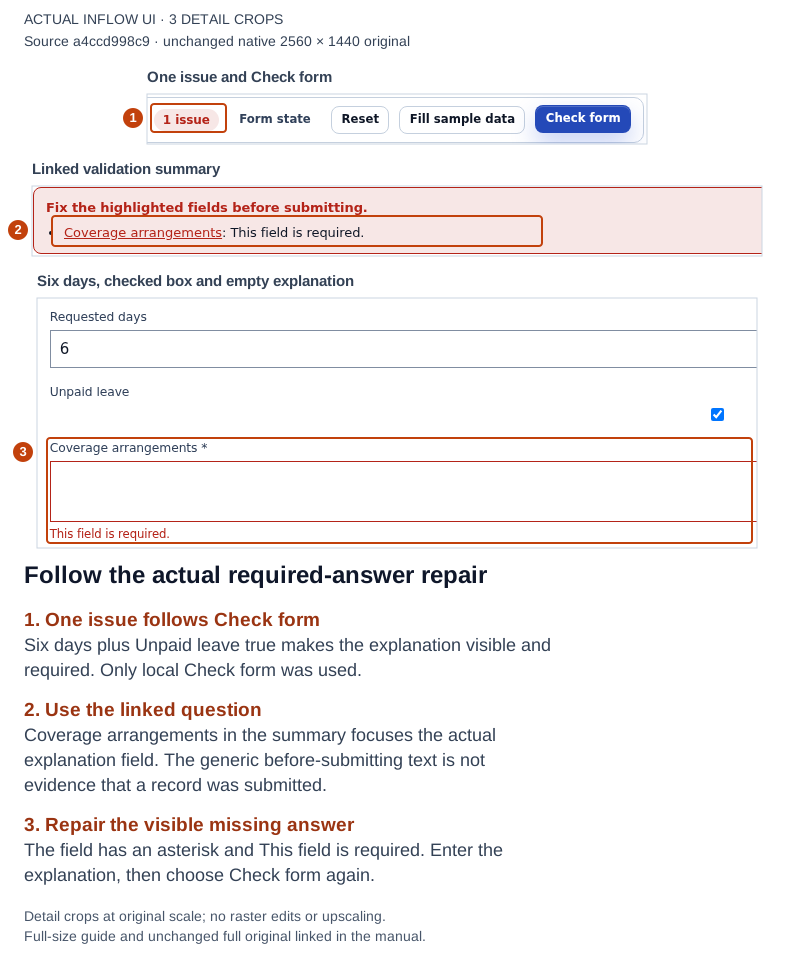
1–3: the issue count, linked question and actual empty required explanation. The captured action is local Check form; the summary wording is not a saved-record receipt. Open the full-size numbered guide · Open the unchanged full 2560 × 1440 screenshot.
Inspect the repaired answer without inventing a save
- After the passing check, open Form state.
- Inspect the three local answers: isUnpaid true, requestedDays 6 and the fictional coverageDetails explanation.
- In this run the answers appear under
ri. That is the displayed local state structure; do not rename the declared inputs to copy the state panel. - Use Hide state when finished. Closing the inspection does not submit the form.
A visible value is useful evidence that this control reached this session answer. It is not enough to conclude that a database row was created, a manager was notified or staffing was actually arranged. Keep that distinction when describing results to an application owner.
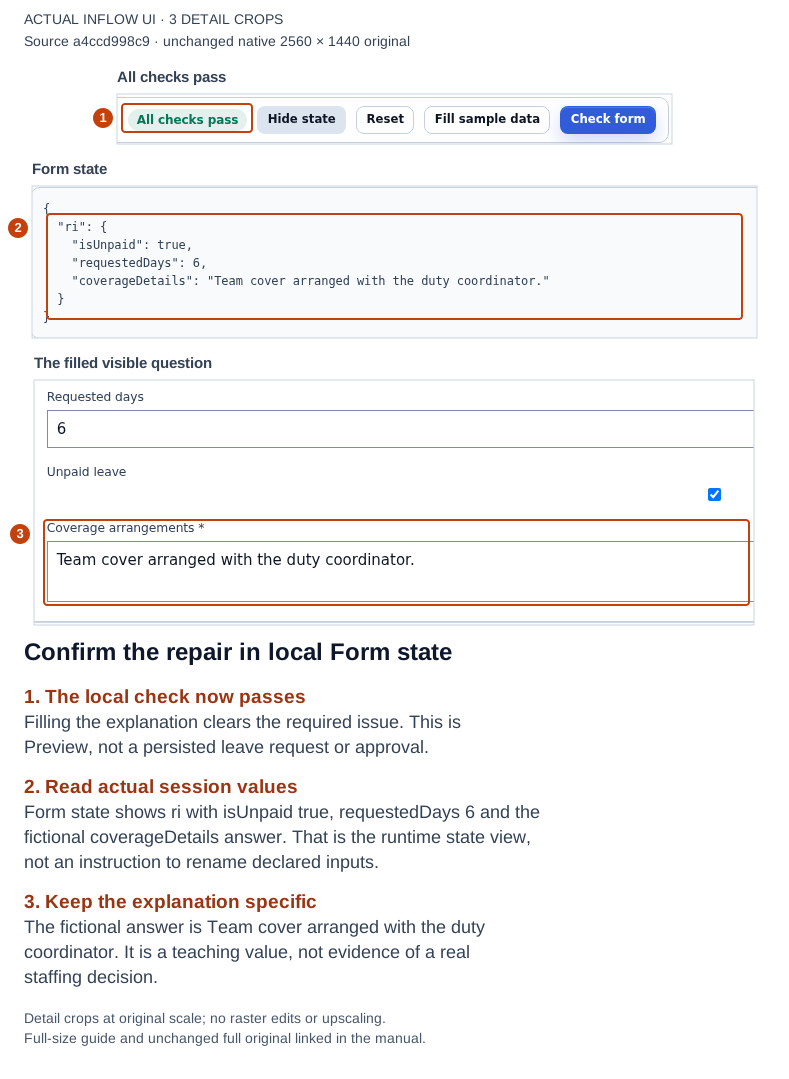
1–3: All checks pass, the actual local ri values and the filled explanation. The typed fictional answer has reached the intended local destination; no record save or approval was performed. Open the full-size numbered guide · Open the unchanged full 2560 × 1440 screenshot.
Example 7: Reset, then confirm that the saved rule remains
Nadia wants to repeat the check without keeping her previous test answers. In this run she entered values directly in Interactive Preview and did not apply host Test values. Reset therefore cleared those direct entries and showed an empty Form state. Reset did not remove the saved visibility or Required conditions.
- Preserve any real work before resetting. Use this exercise's fictional answers only.
- Choose Reset and inspect the actual resulting fields and Form state. In this direct-entry practice the number becomes blank, the checkbox is unchecked, the explanation is hidden and the state is
{}. - Choose Check form. The condition does not match, so the absent explanation is not required and the local check passes.
- Reopen the same saved draft in Preview → Interactive. Confirm the correct form and workspace rather than creating a second practice form.
- Enter six days, check Unpaid leave, leave the explanation empty and choose Check form. The saved rule still shows the explanation and reports its missing answer.
- Fill the same fictional explanation and check again. The captured final result is All checks pass, while the saved form remains draft revision15 and unpublished.
Reset is not a universal instruction to clear every supplied value. A form can start from caller-supplied values or authored defaults; Reset restores its starting state. If another exercise applied values through the host Test values panel, inspect that panel before expecting an empty form. This run's empty-state observation does not prove that every form resets to blank answers.
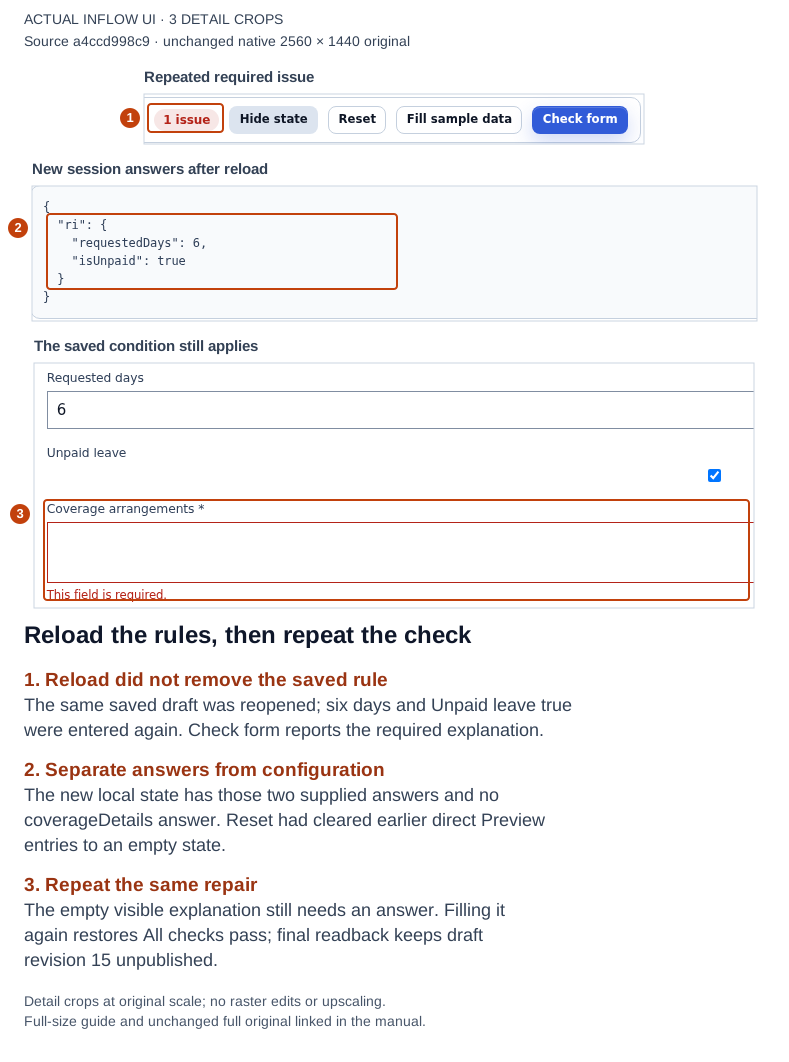
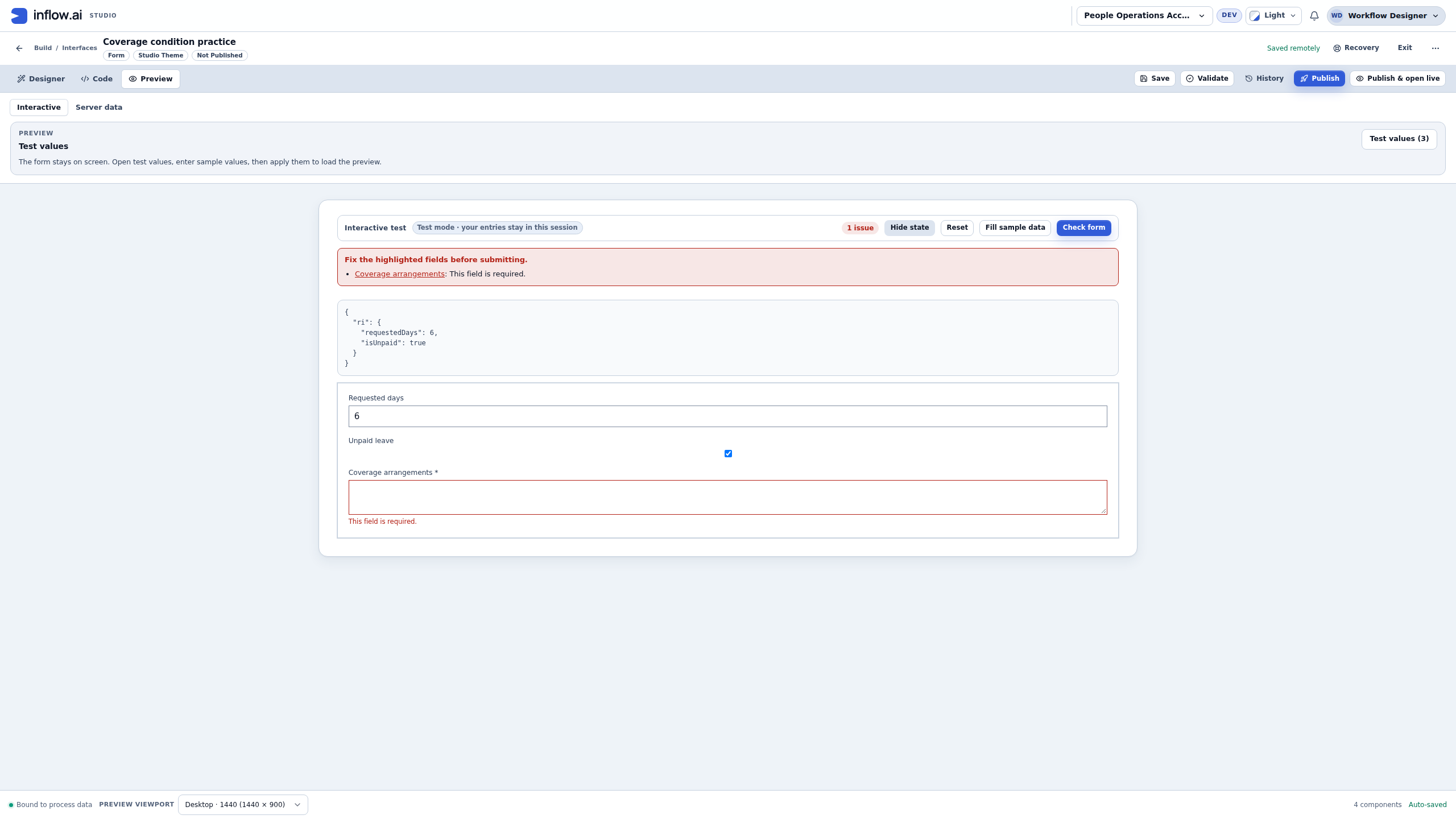
1–3: after reopening the saved draft and re-entering six/checked, the missing explanation is required again. The settings persisted independently of the previous session answers. Open the full-size numbered guide · Open the unchanged full 2560 × 1440 screenshot.
A short diagnosis before retrying
| Symptom | First useful check | Avoid changing blindly |
|---|---|---|
| Pass with false | The actual sample and strict comparison. | Input types, Required or publication. |
| A question is absent | Its complete Visible when condition, parent and current answers. | Roles or record permissions. |
| A visible empty question passes | Its own Required setting and intended policy. | A default answer that only hides the missing-answer problem. |
| The wrong answer changes | The selected question and actual destination. | The visible Label alone. |
| Reset restores a value | The starting supplied values and defaults. | The saved business rule. |
| A released page still has old wording | Saved draft versus the actual released version supplying that page. | Repeated consequential Publish actions. |
These checks narrow the question; they do not replace the separate workflow, access or publishing guidance. Keep any unresolved outcome uncertain until the normal UI or owner can establish what actually happened.
Common symptoms
I cannot find a page or action. Check the intended workspace and your role with the administrator. Do not borrow another account or create a duplicate item just because it is unavailable to you.
The control is not visible. Select it in Outline. Check its parent and Visible when condition with both matching and nonmatching inputs. A false condition may intentionally hide it. Do not use that setting to repair access rules.
A choice list is empty. Check its configured choices or prepared source. A temporary loading problem and an unavailable source are different from a successful list with no matching values.
A tracking control shows sample values in Designer but is empty or different in Live. Designer samples help arrange the page; they are not the request's status. Check the control's Data Binding → Bind value and confirm the host supplies the approved input. See Explain progress and responsibility. A blank display alone does not prove that a request is missing, denied or complete.
The formula says a name is unknown. Choose the actual declared input through completion. Read Practical formulas before copying more notation.
The form says someone else changed it. Reload, compare the changes and save again only after deciding what to keep. Preserve text you still need.
I clicked and did not get confirmation. Read the visible state and check the existing result before repeating a consequential action. Ask the application owner if the outcome remains unclear.
An AI answer is unavailable or wrong. Fill required sample values, check the offered model and read the task's message. Ask the AI administrator about setup; check generated facts yourself.
An App Chat answer shows a source chip, but there is no page to open. The chip may show only a short source label and an observation time; it does not display the full guidance passage. A permitted page opens only when that citation supplies an available destination. Treat the answer as a summary of its cited evidence, then use the ordinary permitted page or ask the source owner before relying on a policy. As of is the evidence-observation time, not the record's edit time or the guidance revision. If the chip says Not available or a field is hidden, do not use another person's account or a copied old link. See the App Chat evidence examples.
Ask for useful help
Give the owner the visible item name, what you expected, the steps you took and the nonconfidential message shown. For example: “In Leave request, choosing 13 December as End date after 14 December Start date does not show the expected date-order message.” That is more useful than “the form is broken.”
Return to the handbook start or handover checklist. The optional technical glossary retains specialist diagnostic details.