Find the records your application needs
A Query rule asks a question about existing records. “Which leave requests are pending?” is a query. “How many are pending?” is another query with a different kind of answer.
Screenshot context: The catalogue and New Query inspection below uses native 16 November 2026 screenshots from build-start master f20305d4. It ends with Cancel. The separate configuration and results pictures are labeled historical captures from 8 November; they do not show results from this new inspection.
The Query Builder lets you choose data, fields, conditions and ordering in Guided mode. You do not need database query code for the ordinary steps in this guide.
Before you begin
You need a workspace and the appropriate permission to inspect or author rules. Configuring and running the examples also needs a published data model that is ready to use, or a published Fabric source that is available to you. The catalogue and dialog inspection below stops before creating a Query and does not read business records. If the intended source does not appear when you configure the rule, ask its owner to check publication and access rather than selecting a similarly named item from another project.
For the later query tests, use a small fictional set whose answer you can check:
| Request | Employee | Status | Requested days |
|---|---|---|---|
| leave-2026-014 | M014 (Mohammad) | PENDING | 5 |
| leave-2026-015 | A015 (Amal) | PENDING | 2 |
| leave-2026-016 | Y016 (Yusuf) | APPROVED | 1 |
Use the data-and-rules tutorial to prepare these fictional records. Inspect and reuse a matching sample before creating it; do not add duplicate requests to make the query lesson work. APPROVED on 016 is entered comparison data, not proof that an approval workflow ran.
A filter narrows a business question. It does not grant permission to see a record the user is otherwise not allowed to read.
Practice — check the catalogue before creating a Query
Nadia is preparing Pending leave requests. She first checks whether that reusable question already exists. In this 16 November practice workspace, the permitted Rules catalogue contains four other rules: two Expressions, one Constant and one Decision table. The Query count is zero. The following inspection ends with Cancel; it does not create a Query draft or run a question against records.
Check the workspace and the existing kinds
- Open People Operations → Build → Rules. Confirm the workspace name and key before looking for an existing rule.
- Read Function. The captured list uses All functions. A narrower function scope can hide a matching design from the table.
- Check the rule-type counts beside the checkboxes. Here Query Rules (0) appears beside the other kinds. The workspace rail still says Rules 4.
- Read the Type column as well as each name and status. Leave allowance is a Constant; Leave eligibility and Leave working days are Expressions; Leave review category is a Decision table. A published version of another kind is not the missing Query.
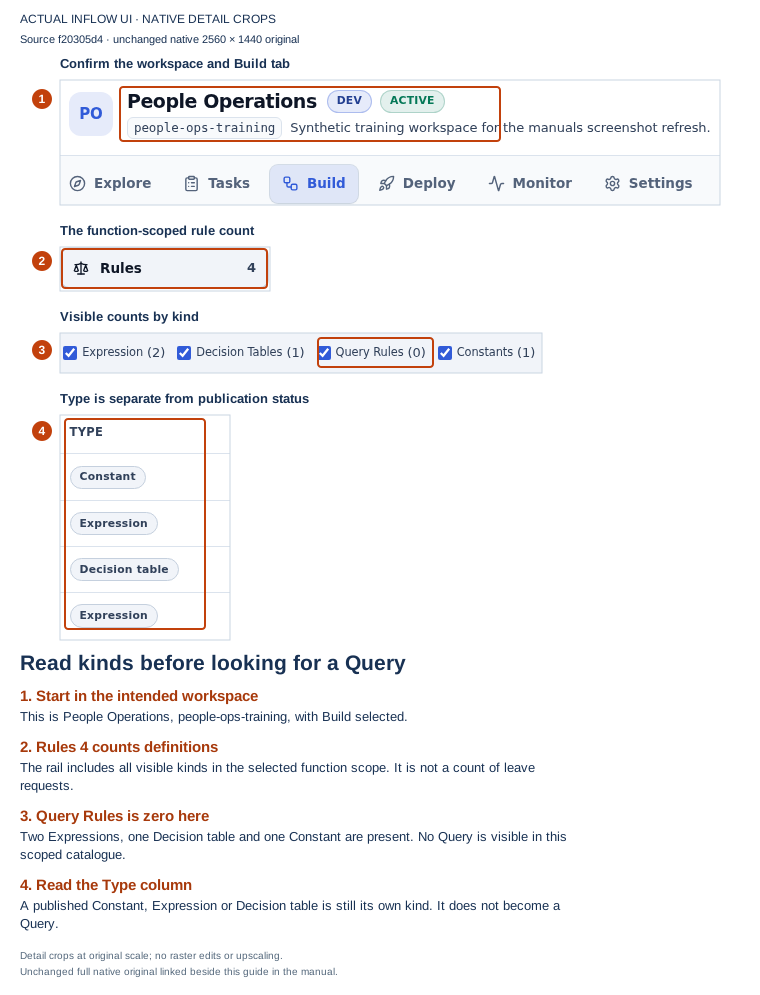
Open the unchanged native original.
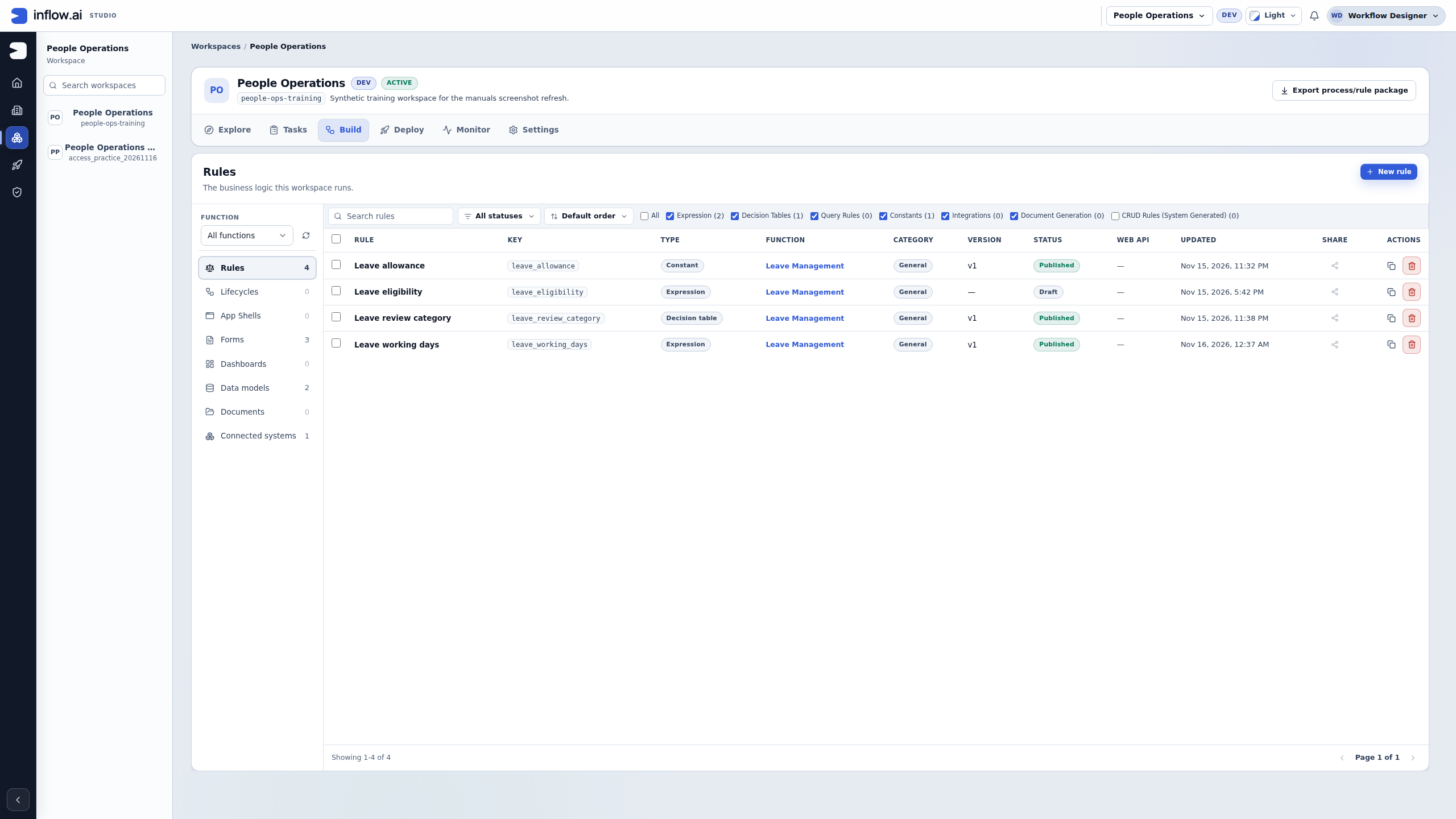
These are counts of visible rule definitions, not employee requests. Four rules does not mean four leave records. Query Rules (0) does not mean that a data model is empty. A query must be configured and run against an available, permitted source before it can answer a records question.
A rule's kind also differs from its answer's value type. A Constant can hold a number; a Query with Count can return a number. Those designs have different jobs even though their answers may both be numeric. Use the intended question and its consumers to choose the kind; the value-types lesson explains the separate type decision.
Show only Query rules and read the empty state
- Inspect any existing search text, status selection and function scope first. Keep a note of them before changing the list.
- Leave Query Rules selected and clear the other selected type checkboxes for this inspection. The All checkbox includes the system-generated CRUD category too; an unchecked All box does not mean that no individual types are selected.
- Read the resulting table state. The captured view says No rules for these types and offers Reset filters. The Query count is zero while the workspace rail still says Rules 4.
- Treat the message as a statement about this visible catalogue and these filters. It is not a successful Query result with zero matching records, a deleted rule, or proof about another user's access.
- Use Reset filters to return to the default type selection when appropriate, or restore the choices you recorded. Keep a deliberate search or function scope when it is part of your actual task.
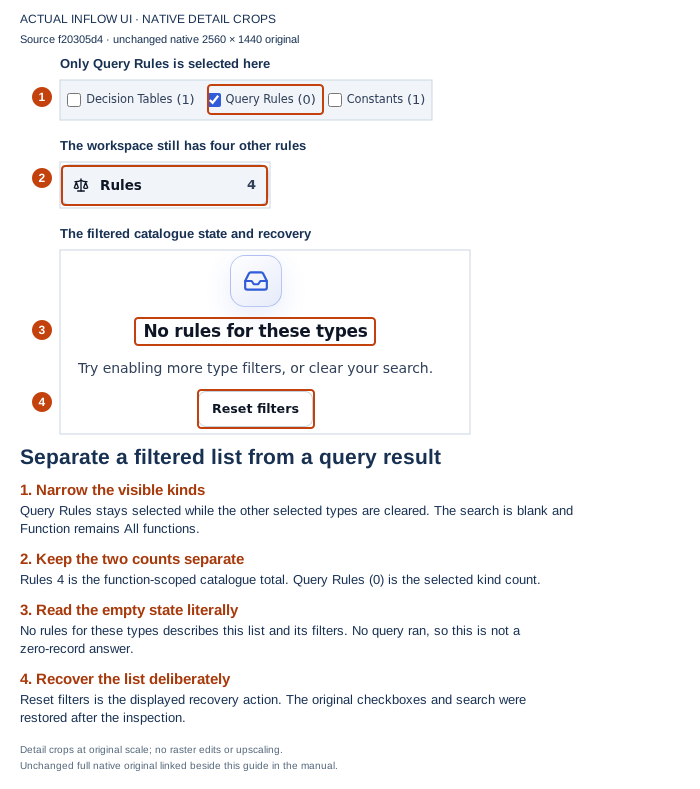
Open the unchanged native original.
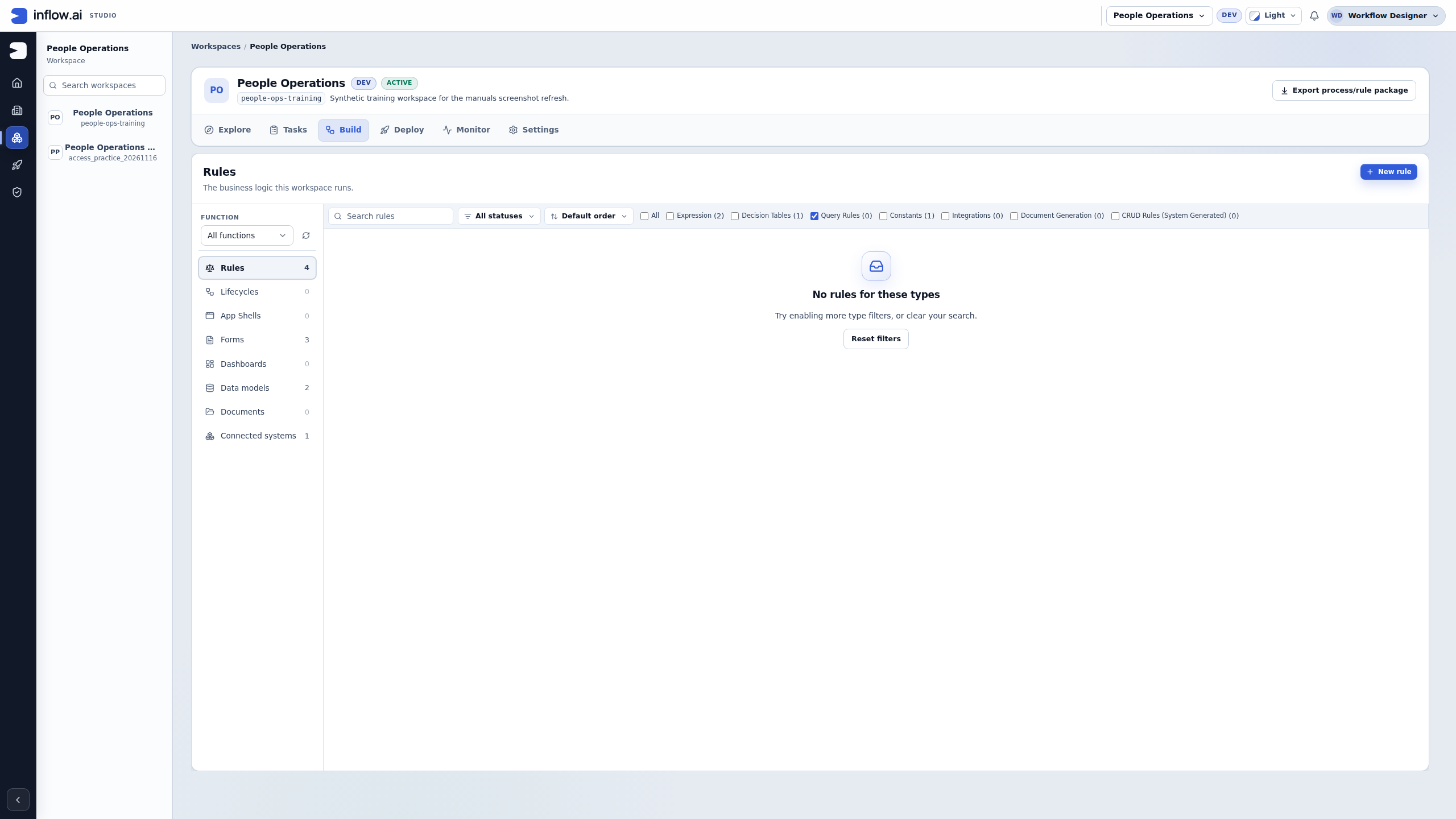
The type checkboxes change the table view. They do not convert a Constant into a Query or change an existing rule's body. If you expected a Query to appear, check the workspace, function scope, search and selected types before proposing a duplicate. If the required design is still unavailable, ask its owner about the intended design and access.
Inspect the New Query details, then cancel
- When preparing an intended new design, choose New rule and select the Query tile. Its description is Find records in a data model or a Fabric graph. Choosing the tile changes the local dialog selection; it does not run that question.
- Enter the proposed Name Pending leave requests. In this example the generated Key is
pending_leave_requests. Read both fields; the friendly name and the stable reference key have different jobs. - Choose the existing Leave Management business function for this example. This groups the proposed rule. It does not select the data model, Fabric source or employee whose records a later query may read.
- Read the dialog's next-step explanation. Source, filters and fields are configured in the guided lookup after the draft is created. A ready Create Query button is not proof that a source is selected, published or readable.
- For this inspection, choose Cancel. The captured run did not choose Create Query or press Enter to submit the dialog.
- Return to the catalogue and compare it with your starting point. In this run the four rule summaries and Query count remained unchanged, and the original type selections and search were restored. No Query draft, published version or business record was added.
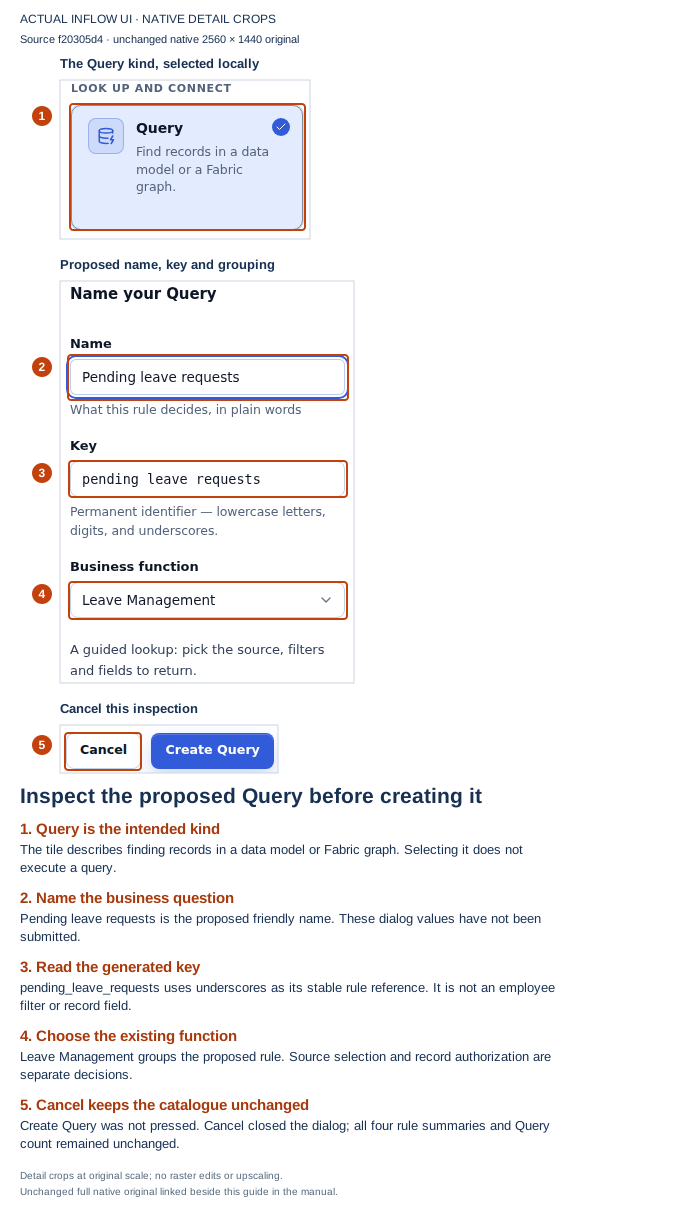
Open the unchanged native original.
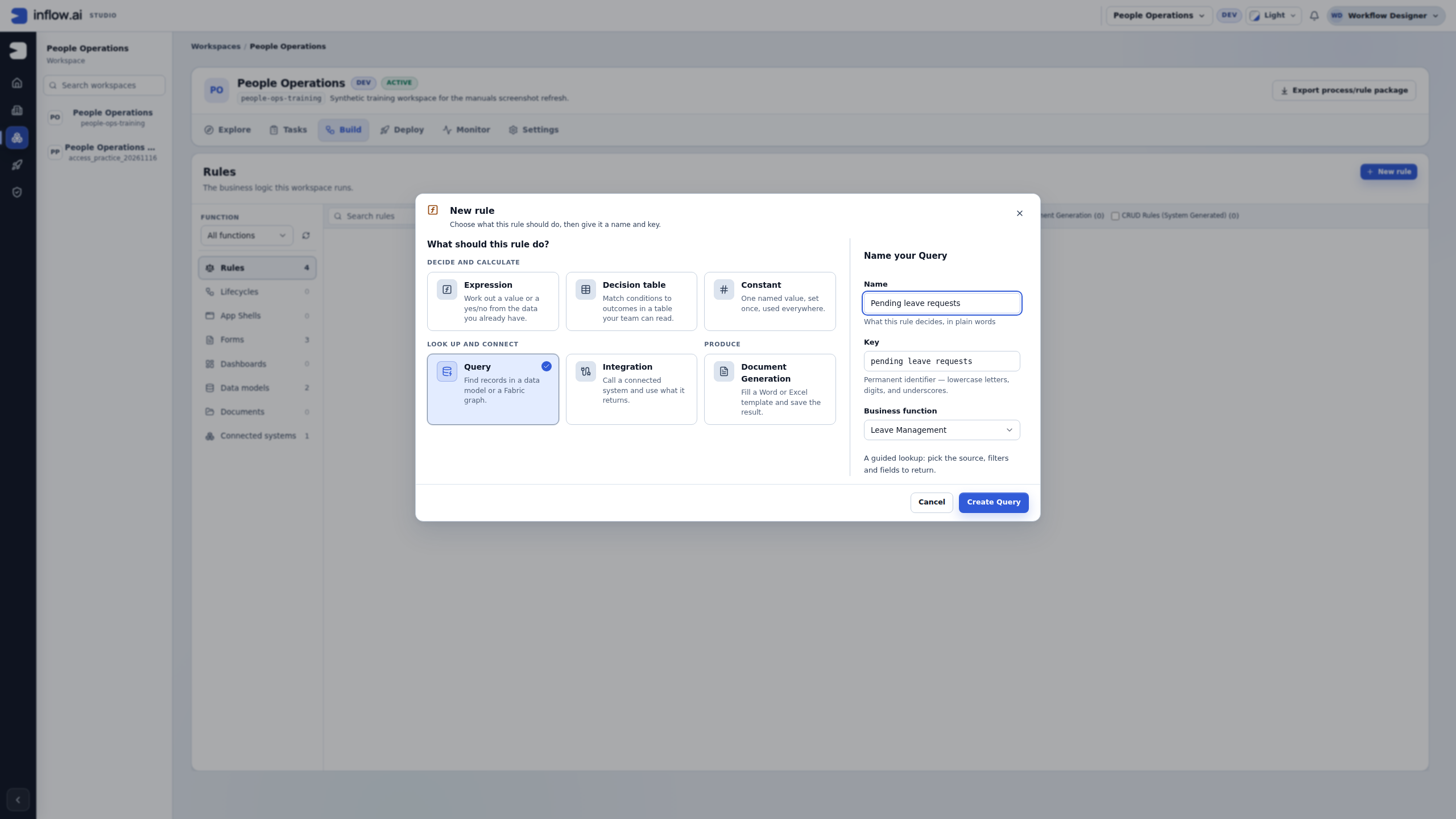
| Dialog choice | Its job | What it does not establish |
|---|---|---|
| Query | Choose the kind of reusable rule | A successful records result or a published release. |
| Name | Explain the question in business words | The machine reference used by another rule or page. |
| Key | Identify this rule for references; the generated example uses underscores | A filter for an employee or a data-model field. |
| Business function | Group the rule in the workspace | A source selection or an access grant. |
When you actually intend to add the missing rule, Create Query opens its draft; continue with the source and result-shape steps below. Reuse an existing matching rule instead of creating another copy to reproduce a picture. If an existing shared key or contract needs to change, review its callers with the owner before altering it.
The three new guides illustrate catalogue inspection, local filters and an unsubmitted creation dialog. The separate configuration and result examples below use the older, explicitly dated training fixtures. Their two-row and count answers are not results from this new catalogue inspection.
Understand the choices
| Query setting | Plain meaning | Start with |
|---|---|---|
| Source | The records you want to ask about | Leave request |
| Fields | The pieces you want back | Request number, status and requested days |
| Filters | Conditions a matching record must meet | Status is PENDING |
| Sort | The order of the answer | Most recent first, if the chosen field supports it |
| Result size | How much to return at once | A small bounded result |
| Return shape | Whether the answer is rows, one row, a count or yes/no | Records |
Example — Show the pending leave requests
- Open Build → Rules in the workspace. Open a matching Pending leave requests rule if it already exists from the connected tutorial; inspect its source and saved settings. Create a new rule only when it is missing.
- For a new rule choose New rule → Query, enter Name Pending leave requests, check Key pending_leave_requests, select Leave management as Business function and choose Create Query.
- In Guided mode, inspect Source kind and Data model type. Retain an existing correct Data model type / Leave request selection. For a new or genuinely different draft, choose that source deliberately before configuring its fields.
- Under Fields, inspect the selected chips. Keep the existing request_id, employee_id, status and requested_days selections. Select a field only when it is missing; clicking an already selected field would toggle it off. These are the stable keys in the prepared model. For a new query, select the four fields once.
- Under Filters, retain an existing status is 'PENDING' condition. Use Add filter only when that condition is missing, then set Field status, Operator is, Value 'PENDING'. Keep All filters (AND) for this single-condition example; do not add a second copy on repeat visits.
- The quote marks mean “this is text.” They are necessary because the small value box accepts a formula, not only plain text. A word without quotes can be interpreted as a name rather than the status you intended.
- Under Sort, retain an existing request_id / Ascending sort; use Add sort only if it is missing. Inspect Result size → First N records → Page size 10 and Transformations / Return Shape → Records. Set these using the visible cards/buttons only when the draft differs. A new query needs one intentional sort and this explicit bounded size.
- Choose Validate. In Live query test, enter any declared inputs and choose Run.
- Compare the answer with the worksheet. Reuse an existing matching published version. Choose Publish once only when preparing an intended new or changed release; a repeated test does not require republishing.
What you should see: the two PENDING requests that your current access allows. The APPROVED request does not match the condition. A smaller result than the worksheet can also reflect access or a different selected source, so check those facts before changing the filter.
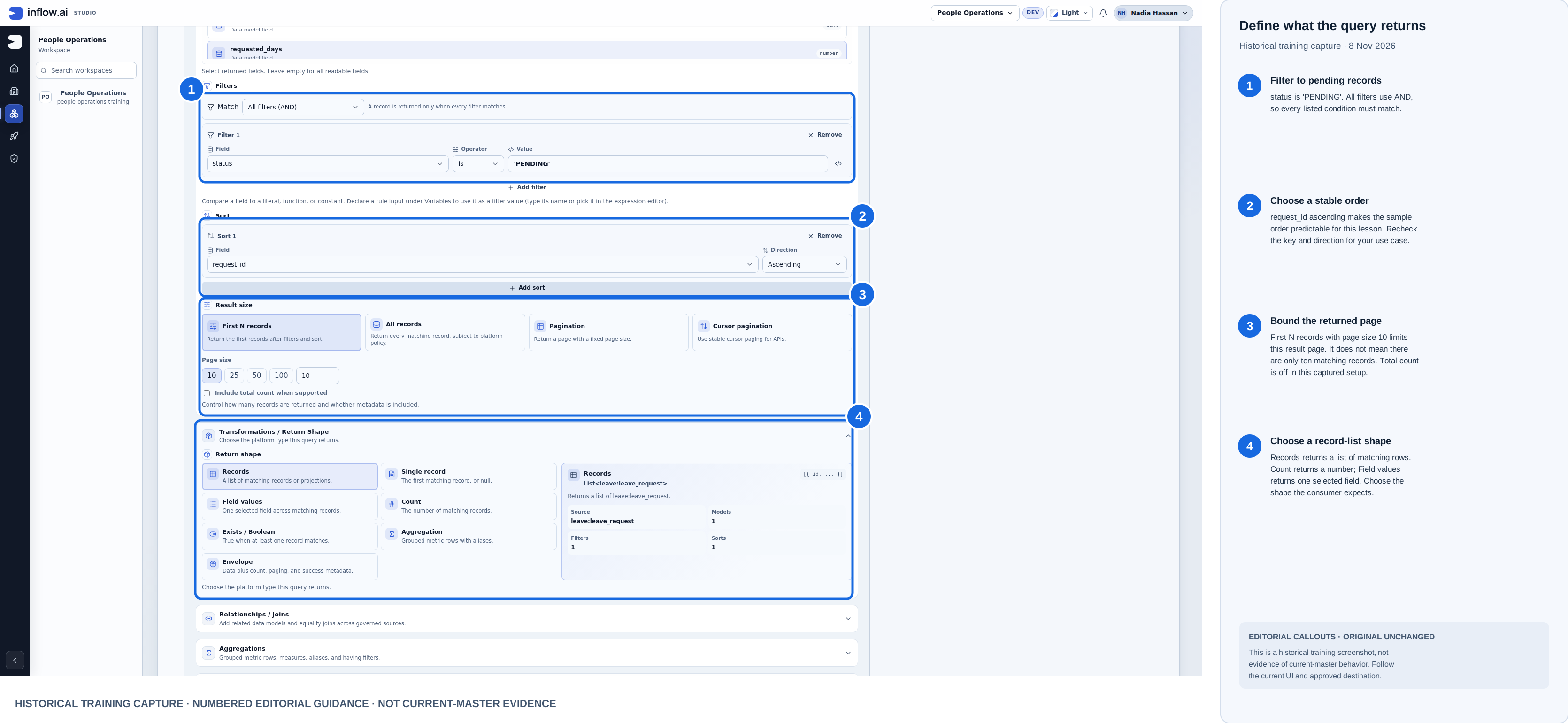
Historical training capture from 8 November 2026. Blue outlines and numbered labels are editorial guidance; the raw screenshot is unchanged. This composite is not current-master evidence.
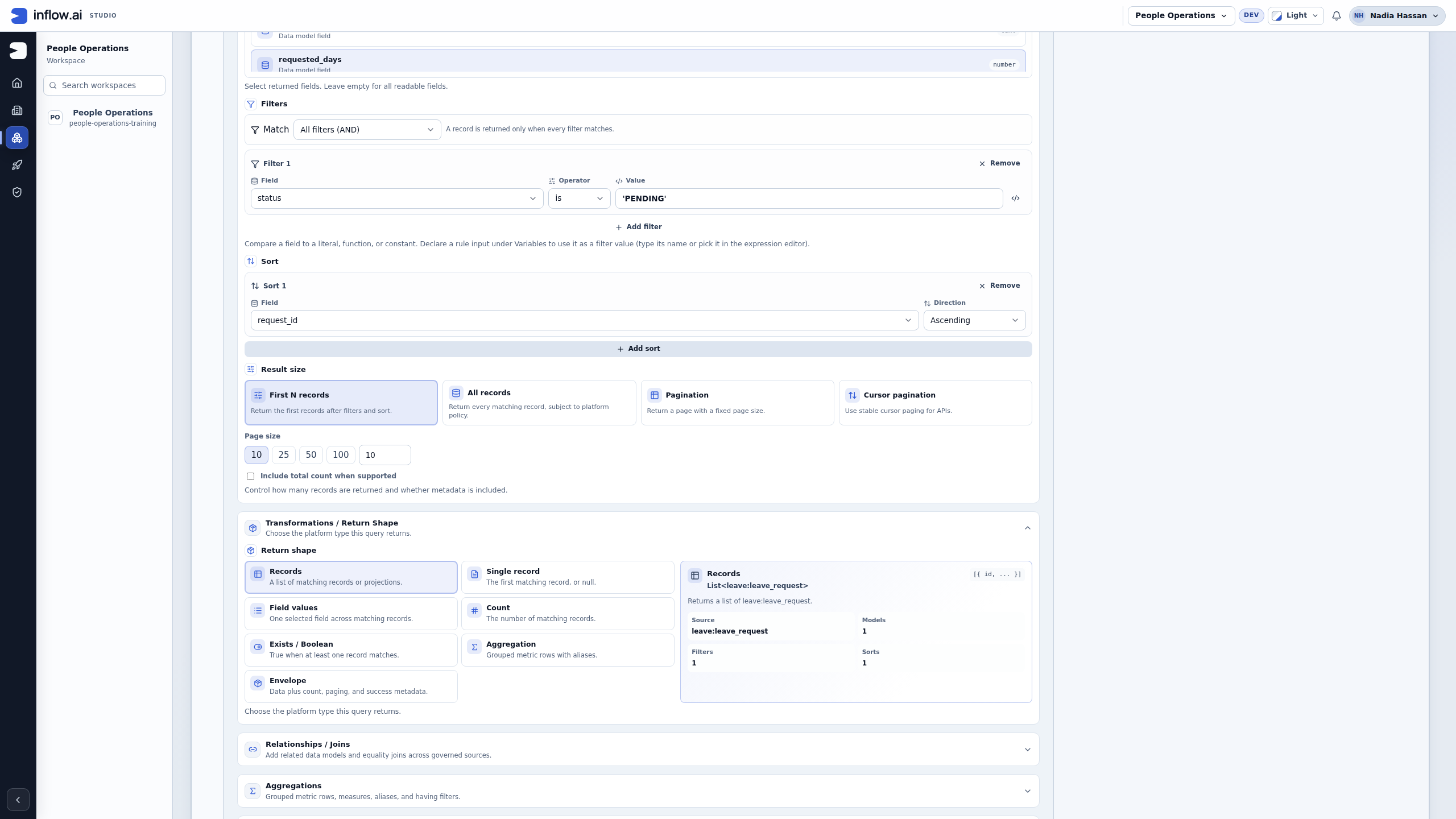
Check the visible settings: Scroll within the editor when necessary to see Filters, Sort, Result size and Return Shape. This lesson filters status to PENDING, sorts by request_id ascending, and returns the first 10 records. Page size bounds a page; it does not establish the total matching-record count. The Records card returns a list, unlike Count or Field values. The screenshot shows a reopened matching published rule, so reuse it rather than republishing an unchanged draft.
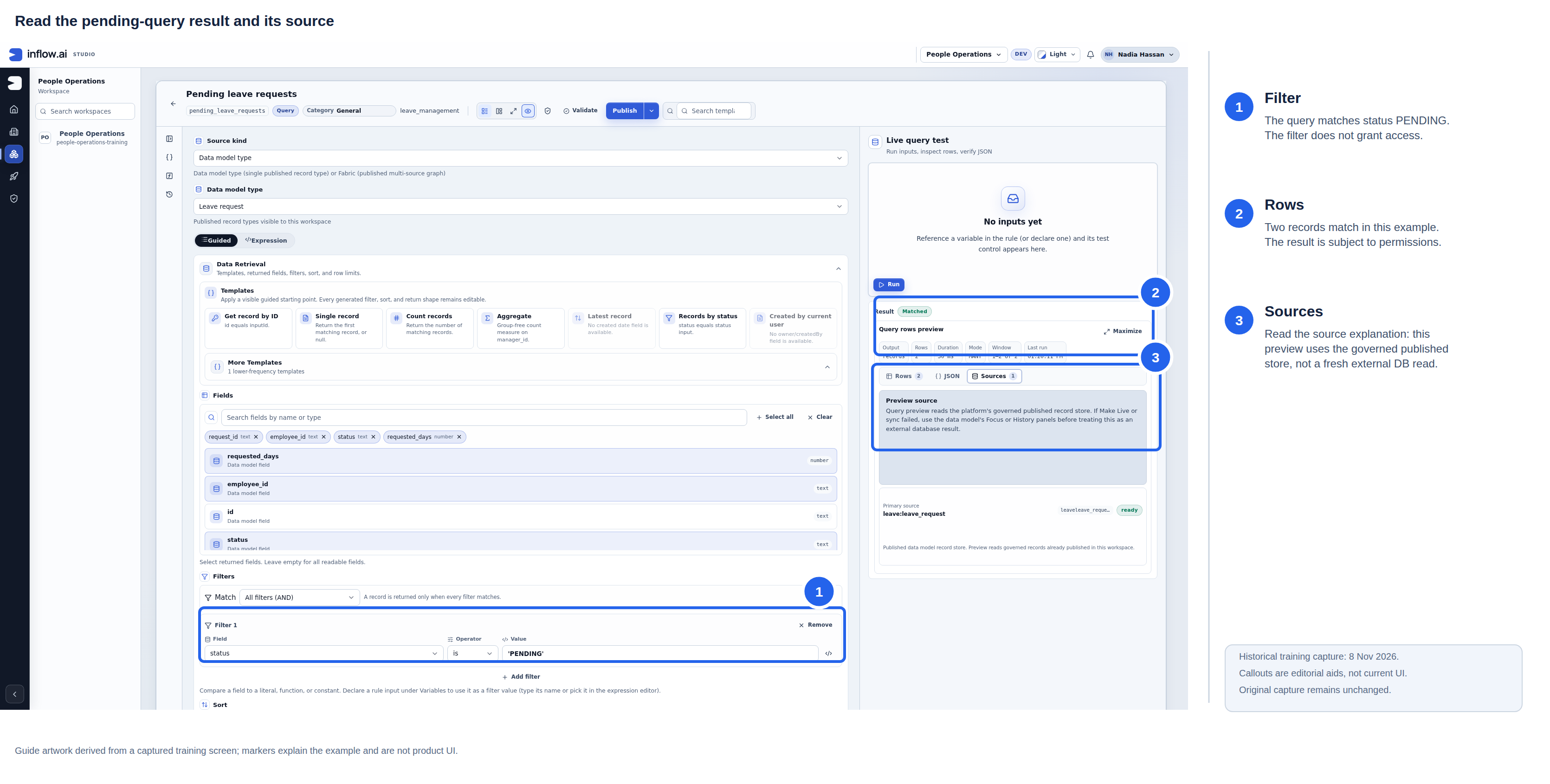
Historical capture from 8 November 2026. Blue outlines and numbered labels are editorial guidance; the raw screenshot remains unchanged. This image is not current-build evidence.
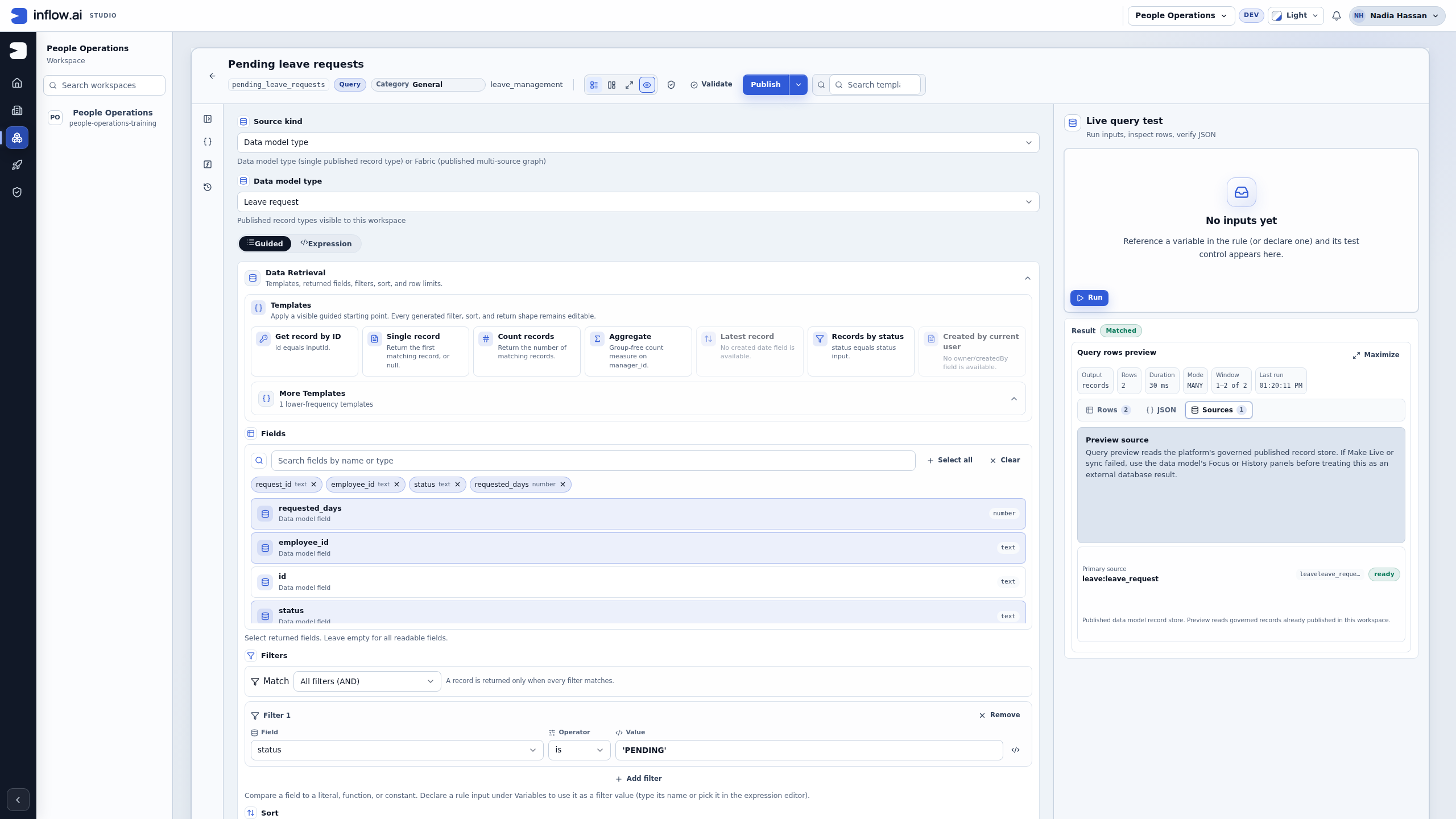
Check the result and its source: In this example, Output is Records and Rows is 2. The Sources tab identifies the published Leave request source and explains that preview reads the governed published store. The two matching business references are 014 and 015; the Approved comparison 016 is excluded. Use Rows to inspect the actual business fields in your permitted session.
Read the preview's source explanation
- After running the query, open Sources in the preview.
- Read the source name and readiness. Here it is leave:leave_request, ready, using the published data-model record store.
- Read Preview source. Studio explains that this preview reads the platform's governed published record store. It is not a promise that every run queries an external database freshly.
- If Make live or sync failed, inspect the model's Focus or History with its owner before drawing conclusions about external data. Check source, publication, synchronization and access separately.
No inputs yet is expected for this fixed PENDING query: it has no declared test inputs. The filter is a quoted literal. A parameterized employee query later in this guide has a different test-input form.
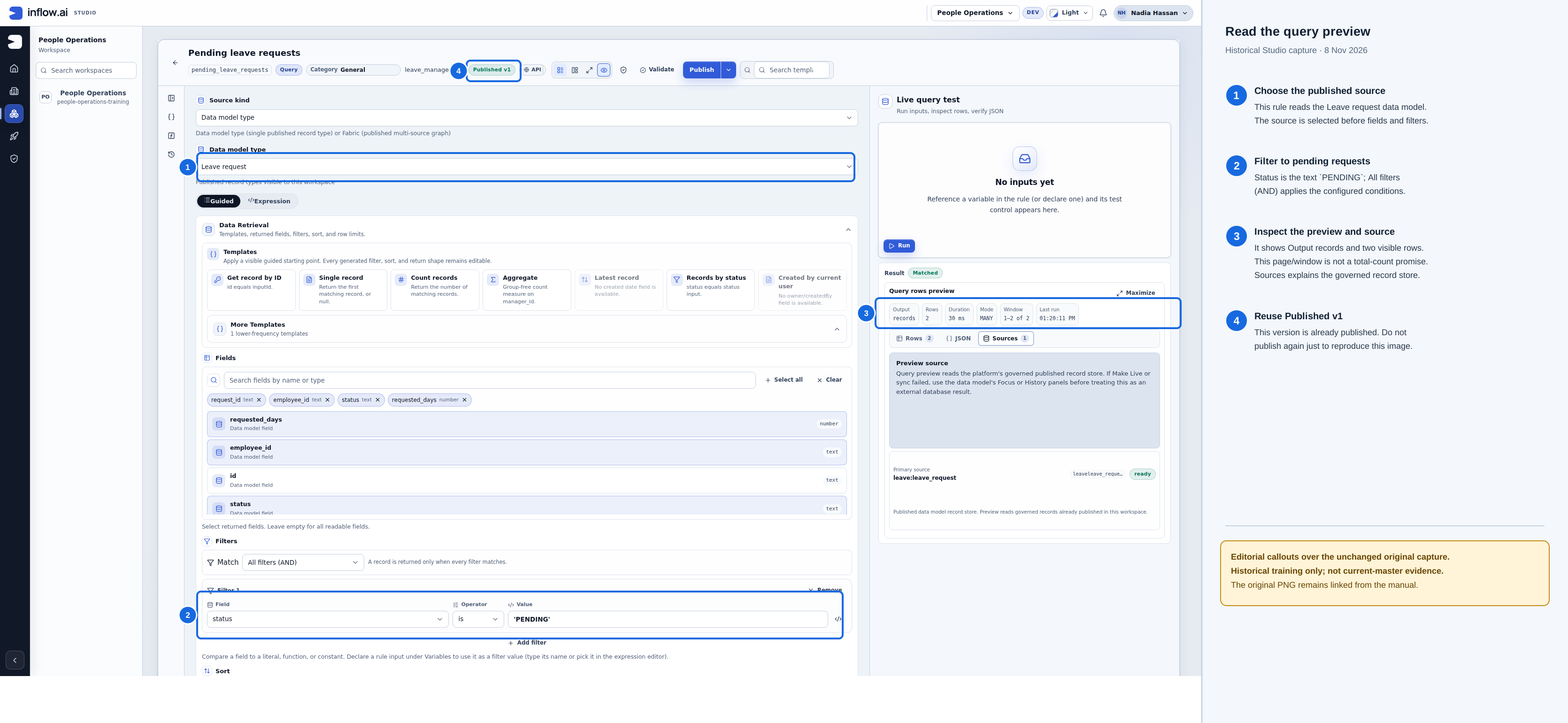
- The query uses the published Leave request data model as its source.
- The
status is PENDINGcondition limits the records returned by this example. - The preview shows Output records and two rows in its visible window. It does not promise a total count; use Sources to inspect the governed-store explanation.
- Published v1 is already available. Reuse it; do not publish again solely to reproduce the capture.
Historical capture from 8 November 2026. These are editorial callouts over the unchanged raw PNG, not a new capture. Open the original PNG. This is not current-build evidence.
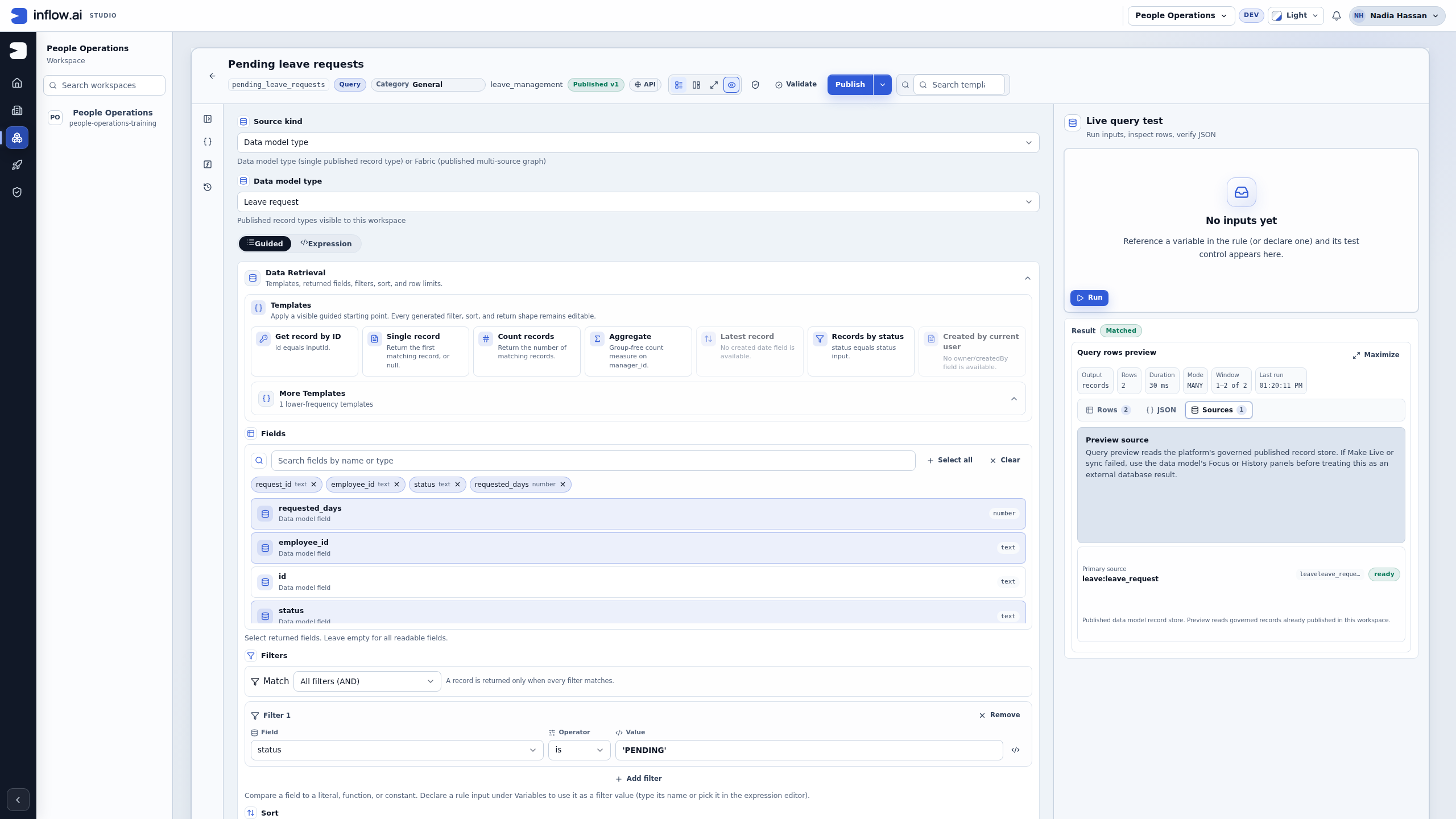
Check publication: Read Published v1 after choosing Publish. The draft preview and runs of the published rule are separate; a No runs yet history is not a failed preview. A query filter and successful publication do not grant employees or managers new permissions.
Example — Count requests instead of returning rows
Sara wants a number for a summary, not a table of requests.
- Keep the published Pending leave requests list query unchanged. Open an existing matching Pending leave count, or create a separate Query with Name Pending leave count, Key pending_leave_count and Business function Leave management.
- In Guided mode, inspect and retain the same Data model type → Leave request source and status is 'PENDING' condition when already correct. For a new query, choose that source and add the condition once; use Add filter only when it is missing. A count does not need the four selected projection fields used by the list.
- Expand Transformations / Return Shape. Retain an existing Count selection, or choose its visible card for a new count draft. Its description says that it returns a Number. The Records result-size controls are absent for this return shape.
- Choose Validate, then Run against the same prepared data. Read the scalar Value, which is 2 in this exercise.
- Keep an existing matching published count version. Publish once only for an intended new or changed release of this reusable question. Keep its name/version separate from the Records query: a table that expects records cannot consume a scalar count as a row list.
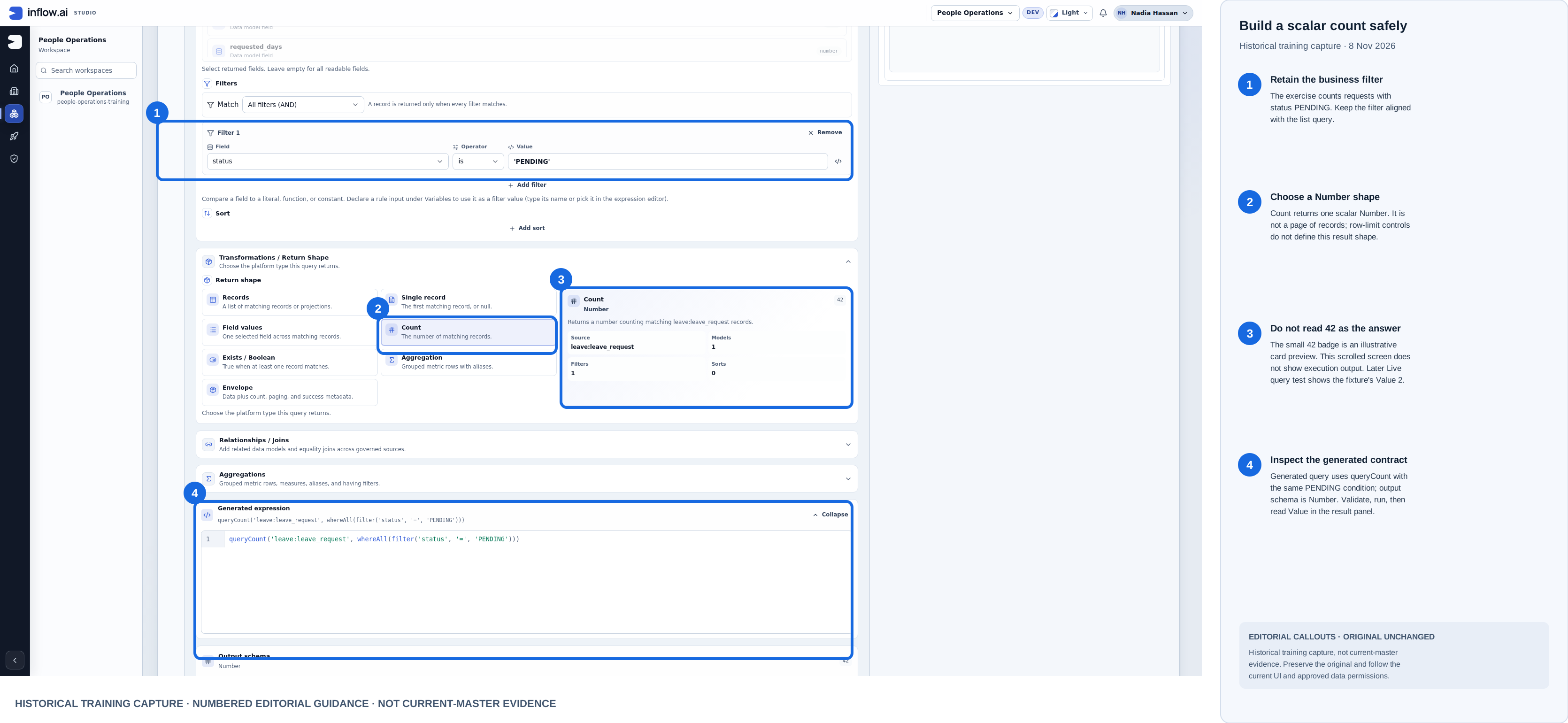
Historical capture from 8 November 2026. Blue outlines and numbered labels are editorial guidance; the raw screenshot remains unchanged here. This composite is not evidence of current-master behavior.
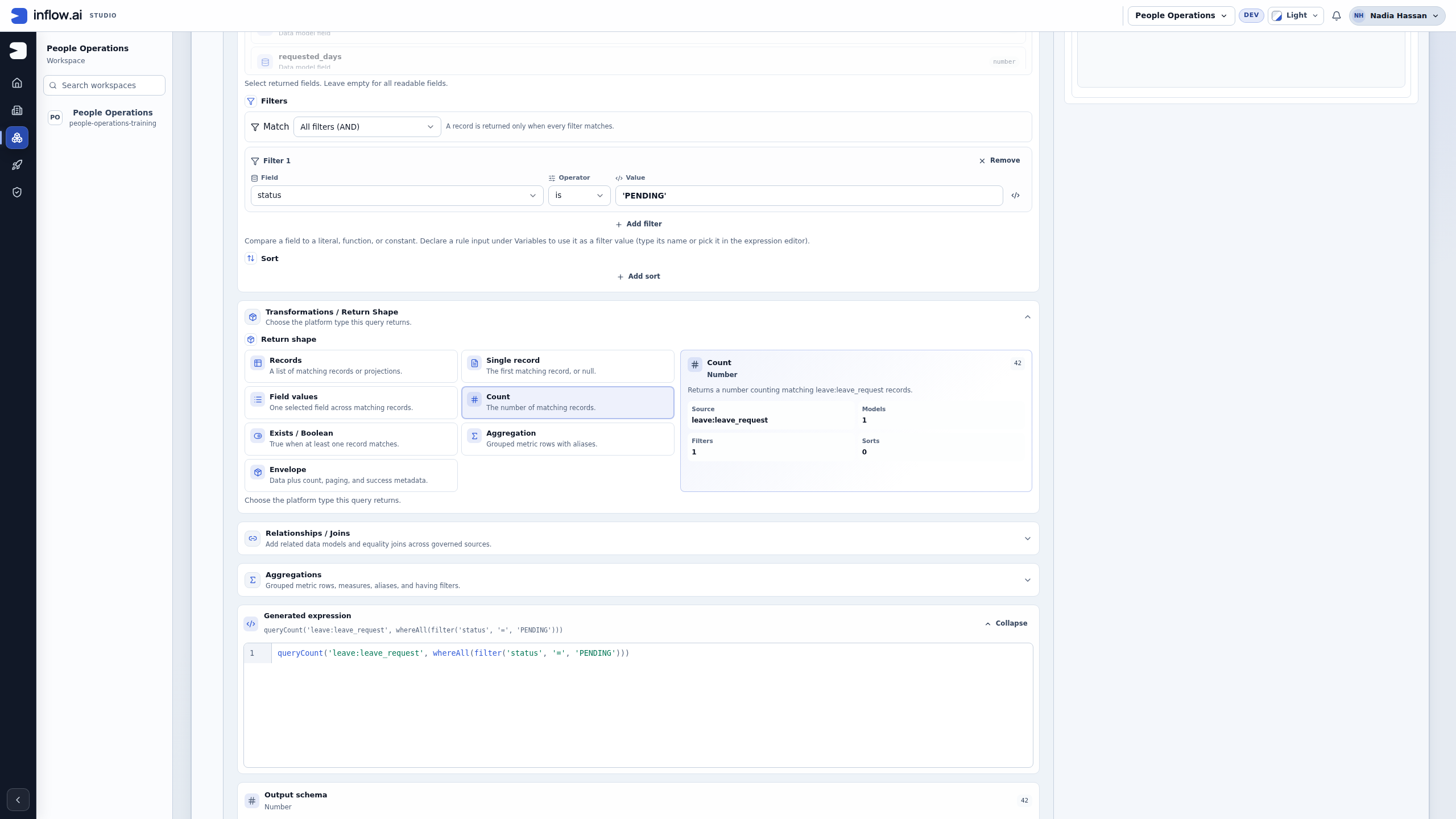
Check the contract: This view is scrolled to the Count card and generated query. The actual numeric answer appears in Live query test, shown next.
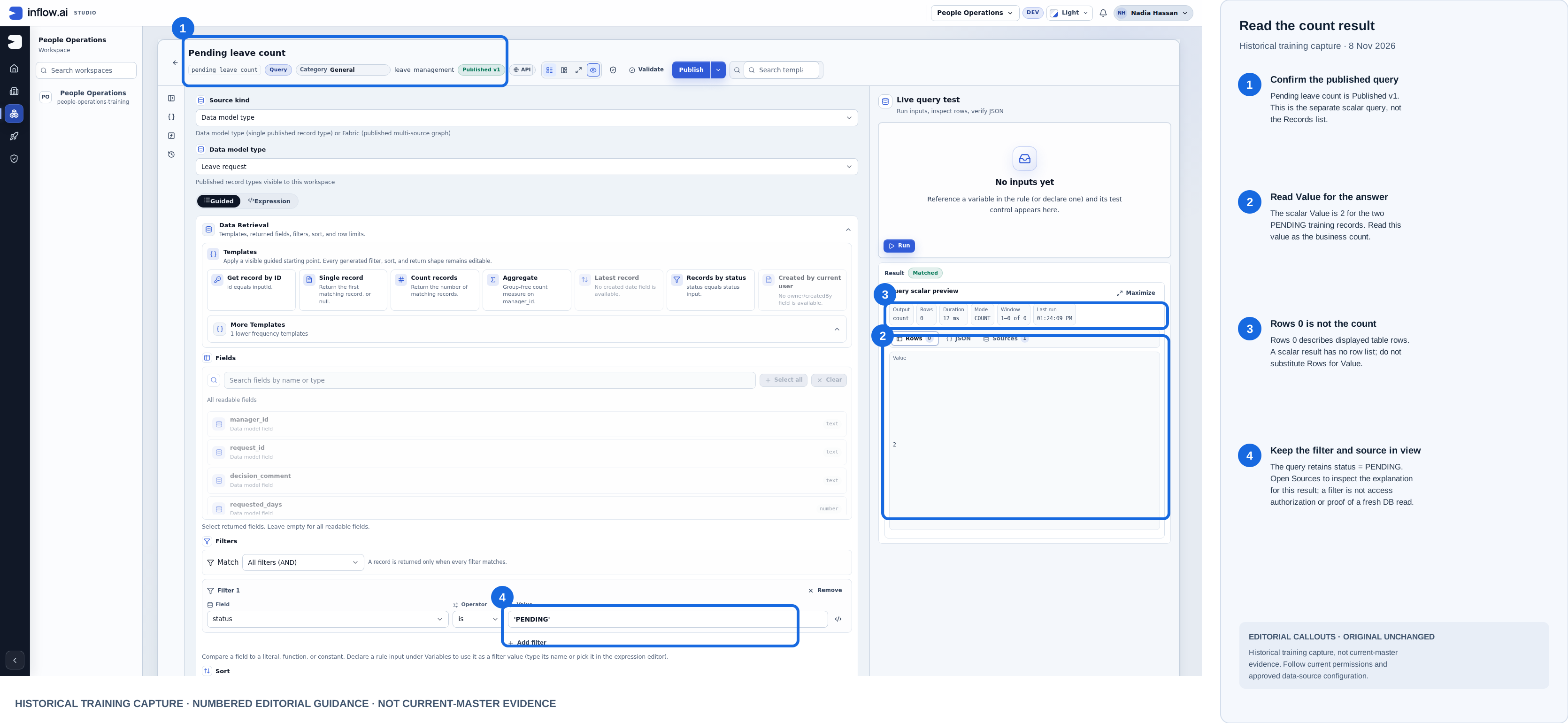
Historical capture from 8 November 2026. Blue outlines and numbered labels are editorial guidance; the original PNG is unchanged here. This composite is not current-master evidence.
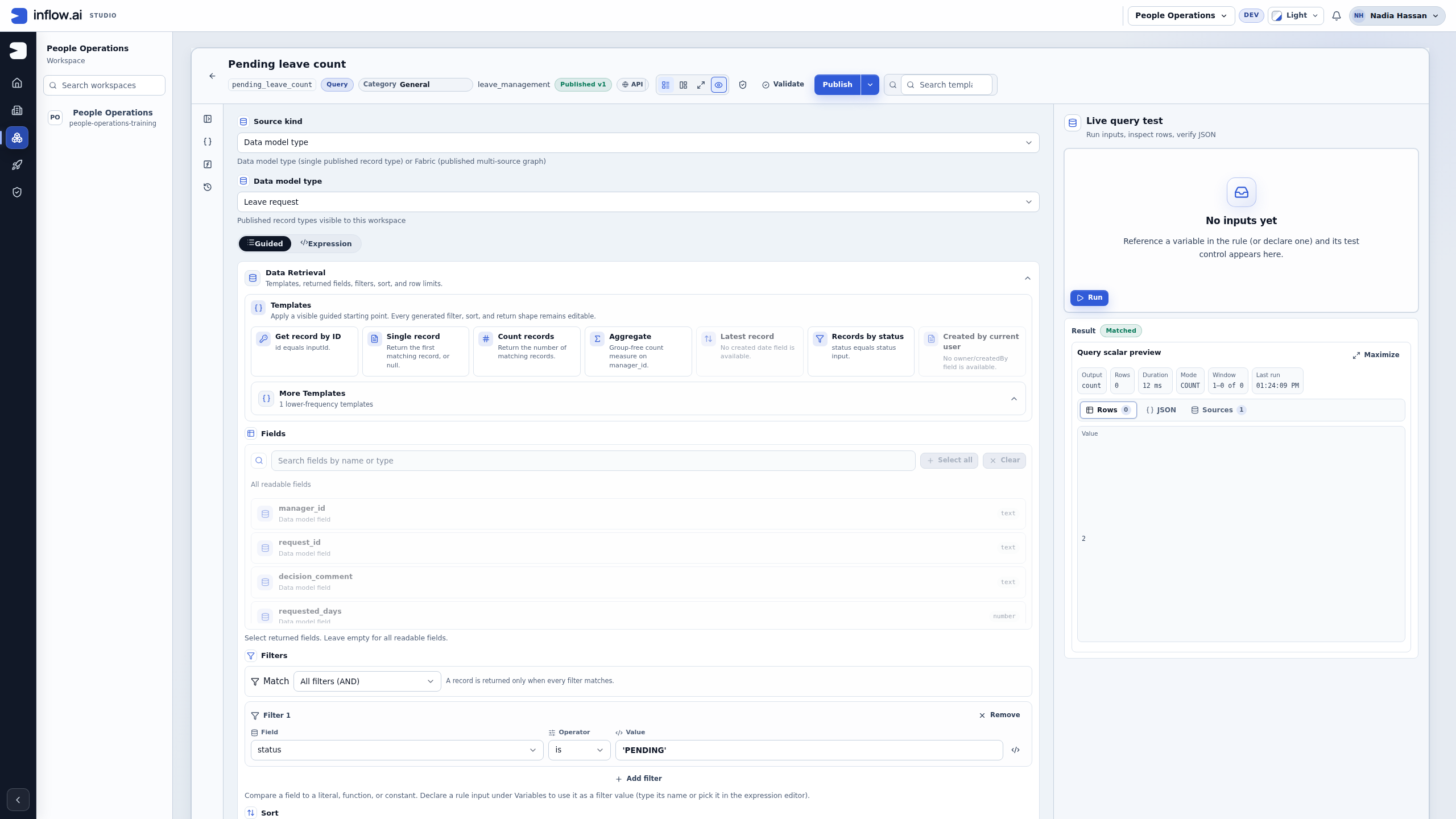
What you should see: Value 2, a number rather than a list of two rows. The preview also shows Rows 0 because a scalar answer has no displayed table rows; that metadata is not the number of pending requests. Read the Value for Count. Do not calculate a business total by counting only one page of a records table.
For “Does this employee have any pending request?”, use Exists / Boolean and the relevant employee condition. The answer is true or false, not a request record.
Example — Find pending requests for one employee
The first query answers “show every pending request I may read.” A page that asks for one employee number needs a different reusable query. Keep the list and count examples unchanged; create or reuse a separate Pending requests for employee Query so pages that need all pending requests still have that answer shape.
- Open the separate query in Guided mode and inspect Source kind → Data model type → Leave request. Reuse that source when it is already correct. If you need a new rule, name it Pending requests for employee, use key pending_requests_for_employee, and select the same published Leave request source.
- Open Variables. If
employeeNumberis absent, declare Name → employeeNumber, Type → Text, Cardinality → Single value, turn Required input on, and describe it as “Employee business number to filter pending leave requests.” Choose Declare once. If an input with that name already exists but has different settings, stop and ask its owner to review the current contract and callers before making a deliberate change; do not try to declare a duplicate or silently alter a shared input. - Under Filters, keep All filters (AND). Retain the existing status is 'PENDING' condition; if it is absent in this separate query, add it once with Field → status, Operator → is, Value → 'PENDING'. Then add the employee condition only if it is missing: Field → employee_id, Operator → is. In its Value, choose Insert input… → employeeNumber. The picker inserts the declared input reference (currently written
inputs:employeeNumber); do not enter an employee number as a fixed literal. Together, these conditions mean that a row must be pending and have the supplied employee number. - Keep Transformations / Return Shape → Records and the bounded First N records result. Retain the selected request fields and sort if they are already correct; add only a missing field or sort. Validate the draft, then in Live query test enter one employee number and choose Run.
- With the three fictional rows above,
M014returns pending requestleave-2026-014;A015returnsleave-2026-015.Y016returns no matching pending request because its sample row is APPROVED. That is a valid no-match answer for this fixture, not evidence that a record was deleted. A different permitted data set may return different rows. - Enter a value for this required input before running the test. A missing required value is an input/validation problem; it is not a successful query with zero matches. Reuse a matching published version; publish once only when this separate reusable query has an intended new or changed release.
This employee-number condition narrows the business question; it does not authorize access. A caller can supply someone else's number. The server must still enforce the signed-in user's workspace, record and row-level permissions, and the query can return only records that user may read. Do not treat a browser-supplied filter, hidden control or successful test as proof of ownership.
Planned illustration: Show the separate rule, Text / Single value / Required input declaration, the original status condition, the employee_id condition using Insert input…, All filters (AND) and Records return shape. The native screenshot has not been captured or reviewed, so this is a shot plan rather than a current UI illustration.
Add complexity only when the question needs it
- Match all means every condition must be true. Match any means at least one condition is enough. “Pending and more than five days” differs from “pending or more than five days.”
- Single record returns the first match, or no record. Add an intentional order when “first” matters.
- Field values returns one chosen field from matching records, such as a list of names.
- Relationships add information from related records. Check how missing relationships affect the answer.
- Aggregation groups and summarizes data, such as requested days by department. Name the resulting totals clearly.
- Envelope includes rows and additional result information. Use it only when the receiving page or rule expects that structure.
Expression mode is available for more advanced work. If a formula cannot be shown correctly in Guided mode, Inflow keeps that explanation instead of discarding the logic. Do not switch modes and assume every expression has a visual equivalent.
Common mistakes
- No results: check source, sample values, filters and access separately. An unavailable source is not a known zero.
- Wrong type of answer: check Return shape before rewriting the query. Count, Records and Single record are intentionally different.
- Unrecognized filter value: quote literal text or choose a declared input using the picker.
- The page rejects the rule's result: use a page control that supports that source and answer shape. A chart, table and single value do not consume every result identically.
- Someone changed the source design: review the changed fields and test the draft again. Do not assume a matching label means an unchanged field.
Continue
Use Connect data to put the answer on a page. The query-driven application tutorial shows the complete learning path. Developers can use the optional Query Builder technical reference and the separate design specification.