Add supporting documents and a PDF approval letter
Extend the leave application so that people can supply evidence, a manager can review the intended document, and the process can create a checked PDF approval letter.
Use fictional documents and the working leave application from the workflow tutorial. Before uploading, agree a fresh fictional request reference with the data owner and confirm that it is unused. The original leave-2026-017 task is already completed; do not label evidence for this extension as 017. The administrator should already have prepared document access and conversion for the development workspace. This lesson does not require you to configure server storage or install a renderer.
Understand the four useful objects
| Object | Meaning in the story |
|---|---|
| Cabinet | The People Operations document library. |
| Folder | Leave evidence inside that library. |
| Document | The approval letter or supporting file. |
| Version | One edition of that continuing document. |
A task can retain the version that somebody reviewed. The current document can later have a corrected edition. Ordinary PDF conversion reads the source's current version when it runs; an older task attachment does not choose an older conversion source for you.
Milestone 1 — Prepare the evidence folder
Goal: give the application one understandable place for its learning files.
- Open the intended workspace's Documents library.
- Select the prepared cabinet, or choose New cabinet if creating one is your assigned responsibility.
- Use New folder, enter Leave evidence in Create folder and check its parent destination.
- Open the new folder and check which upload/browse controls your role actually has.
- Ask the administrator to prepare the intended employee/manager sharing before relying on an ordinary user's access.
Check your result: the folder is in the right workspace and cabinet. Its name alone is not a grant, and a similarly named folder elsewhere is not a substitute.
If it does not match: resolve the actual library/access prerequisite. Do not move real employee documents into a public location to make a training exercise work.
Milestone 2 — Upload and inspect a fictional document
Goal: create an actual learning file before adding it to a form.
- Choose Upload or Upload documents inside Leave evidence.
- Select a small fictional Leave approval.docx whose title and contents identify the fresh agreed request reference from the workflow extension; for example Approval letter — request [your agreed reference]. Use the same reference later when the new case and task are created.
- Read the type/size warning and any displayed upload result for each file.
- Open the stored document's details and note its current version in ordinary business terms: the first letter, for example.
- Preview or download it where allowed. Check its employee name, dates and intended content before using it as evidence.
Check your result: the file is actually stored and readable through your permitted library experience. A selected filename in an upload dialog is not proof of storage.
If it does not match: read the file-specific message. After a lost confirmation, use the displayed stored-content check or inspect the folder before uploading again; a duplicate file does not resolve uncertainty about the first upload.
Milestone 3 — Add the library to the form
Goal: let the intended participant browse or select evidence without exposing unrelated folders.
Nadia first prepares the evidence picker in a draft. Sara's later manager task is a separate check in milestone 4. The illustrations below show the actual Supporting letter practice draft in the People Operations training workspace, captured on 16 November 2026. It remains unpublished. Its library is Document library practice 20261116 / Leave letters, prepared in the illustrated Documents lesson. The Word letter is at v2 and its separate PDF is at v1; the fictional corrected end date is 18 December 2026.
Use your own approved practice folder when following the broader Leave evidence story. Do not rename or move an existing library merely to match a picture. The pictures show what the signed-in builder could configure and read; they do not establish Sara's document access or a submitted task answer.
Choose the library and its boundary
- Open the intended editable form. Reuse an existing matching Document browser control; add Document browser from the toolbox only if the form needs one. Give it a useful label, such as Supporting letter.
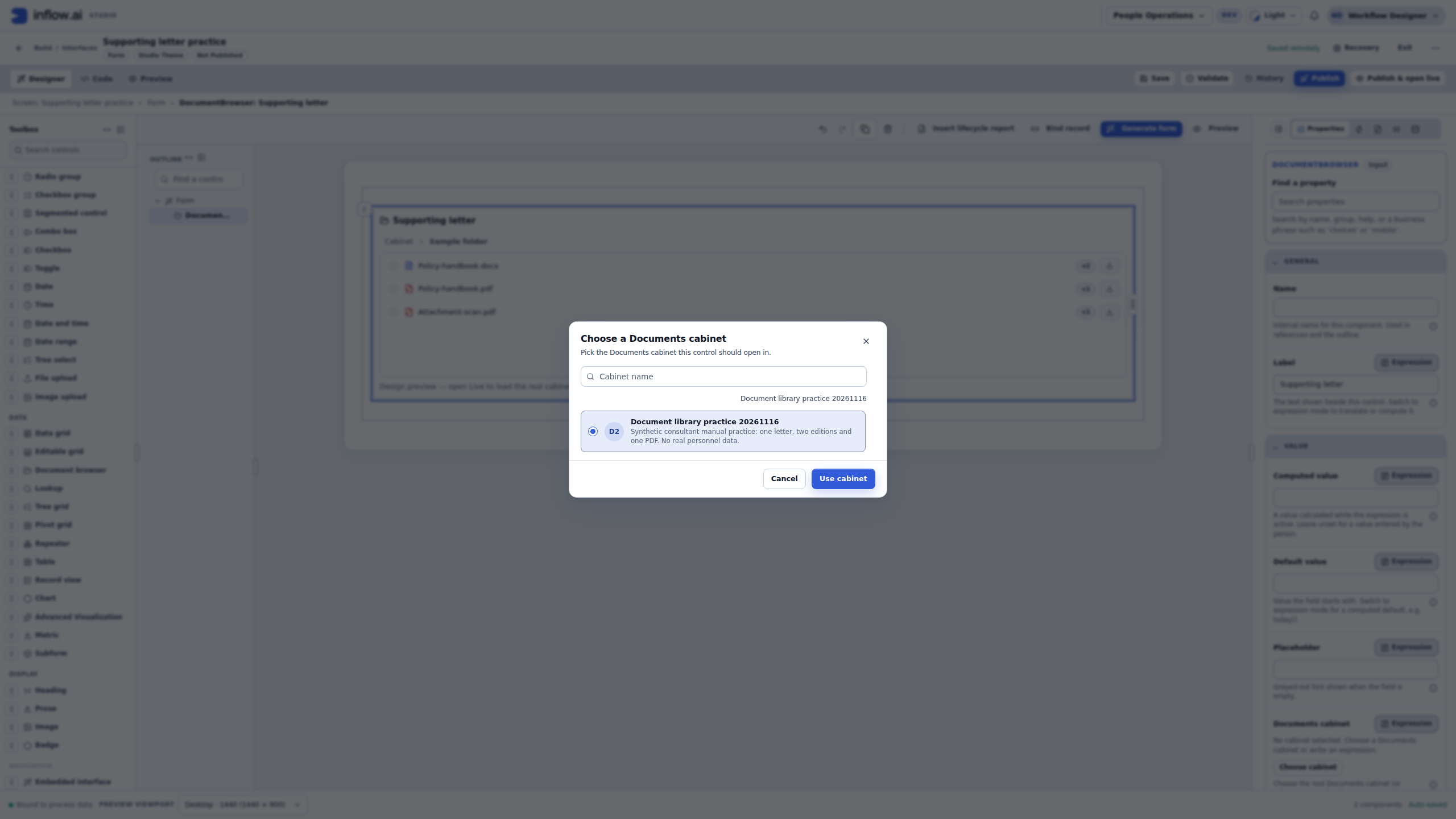
- Open Documents cabinet, read the workspace and actual cabinet name, select the intended cabinet and choose Use cabinet. A typed name is not a selected library reference.
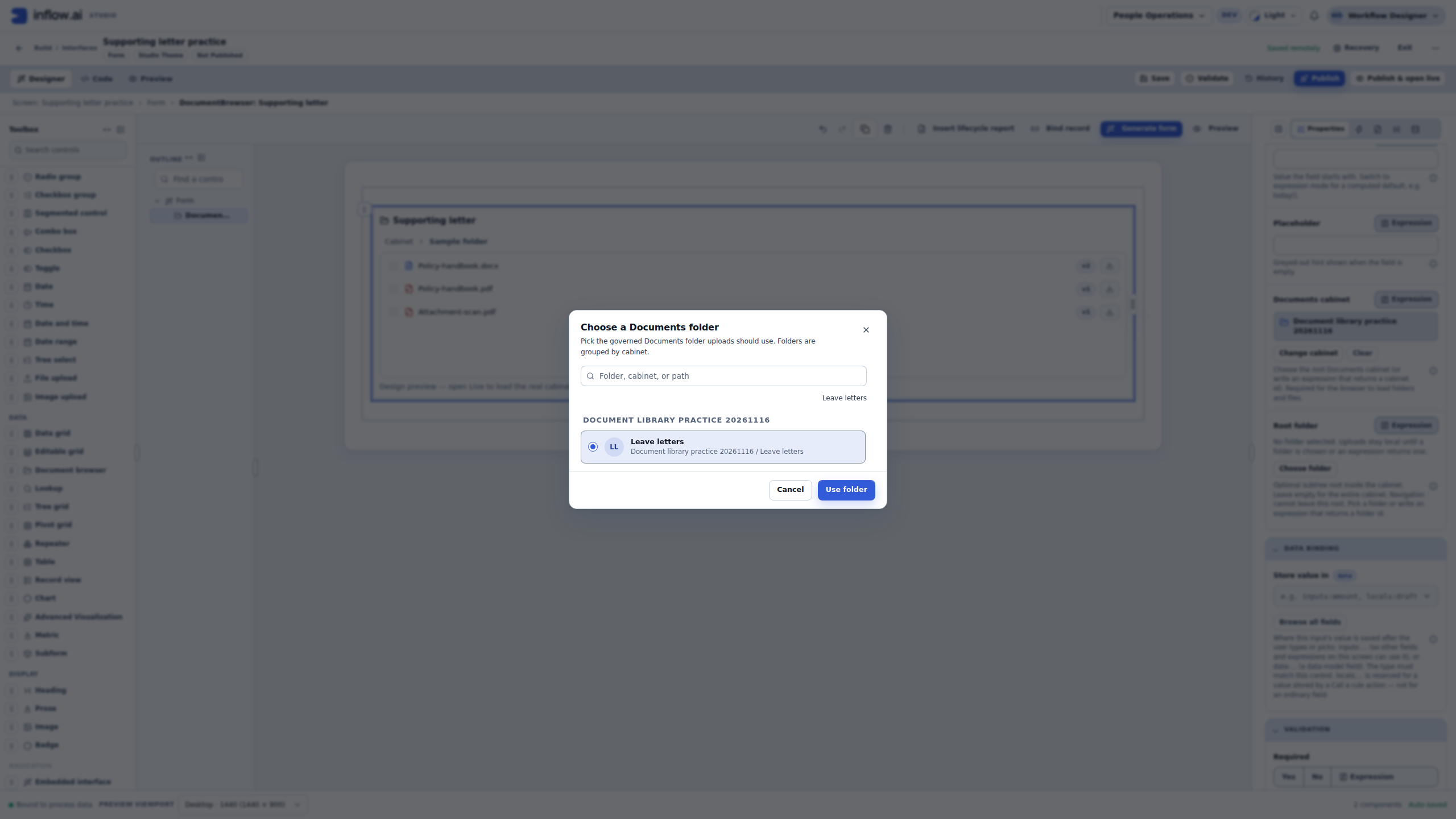
- Open Root folder, choose the intended evidence folder beneath that cabinet, then choose Use folder. Recheck both settings together after any cabinet change.
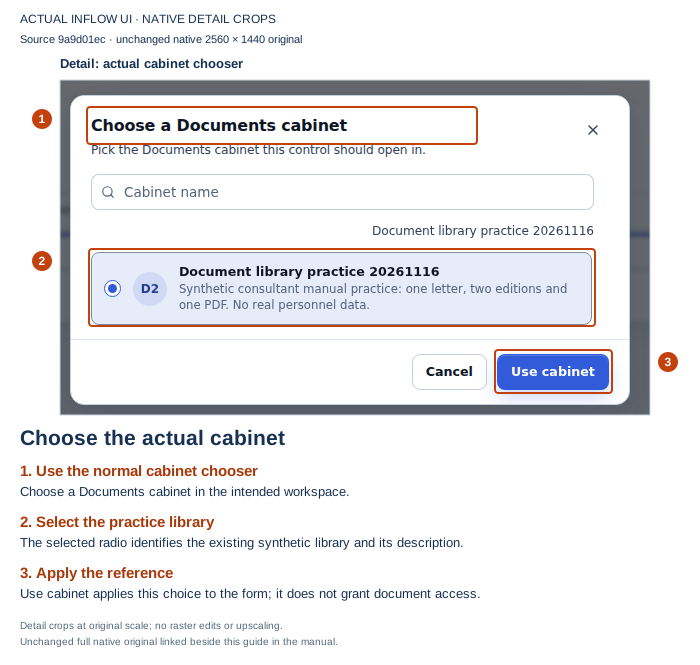
Choose the real cabinet, rather than copying its display name into another setting. Open the full-size original.
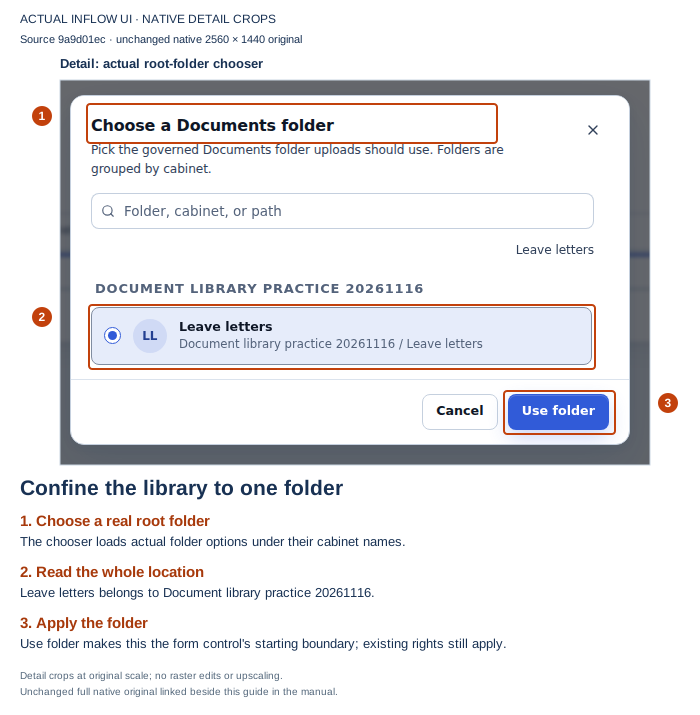
Check the folder's parent before applying the root. The choice limits browser navigation; it does not grant file access. Open the full-size original.
Inspect the real library before collecting an answer
- Set Selection to none for the first browse. Turn off Allow upload, Allow move, Allow delete, Allow convert to PDF and Allow share / security for this exercise. Keep Allow download only when intended. These options choose the offered controls; the server still checks actual document access.
- Finish or apply the current field edit and wait for Saved remotely. Saved locally · Unapplied field edits means the field is still being edited. Do not test the last saved draft as though it already contained those unapplied settings.
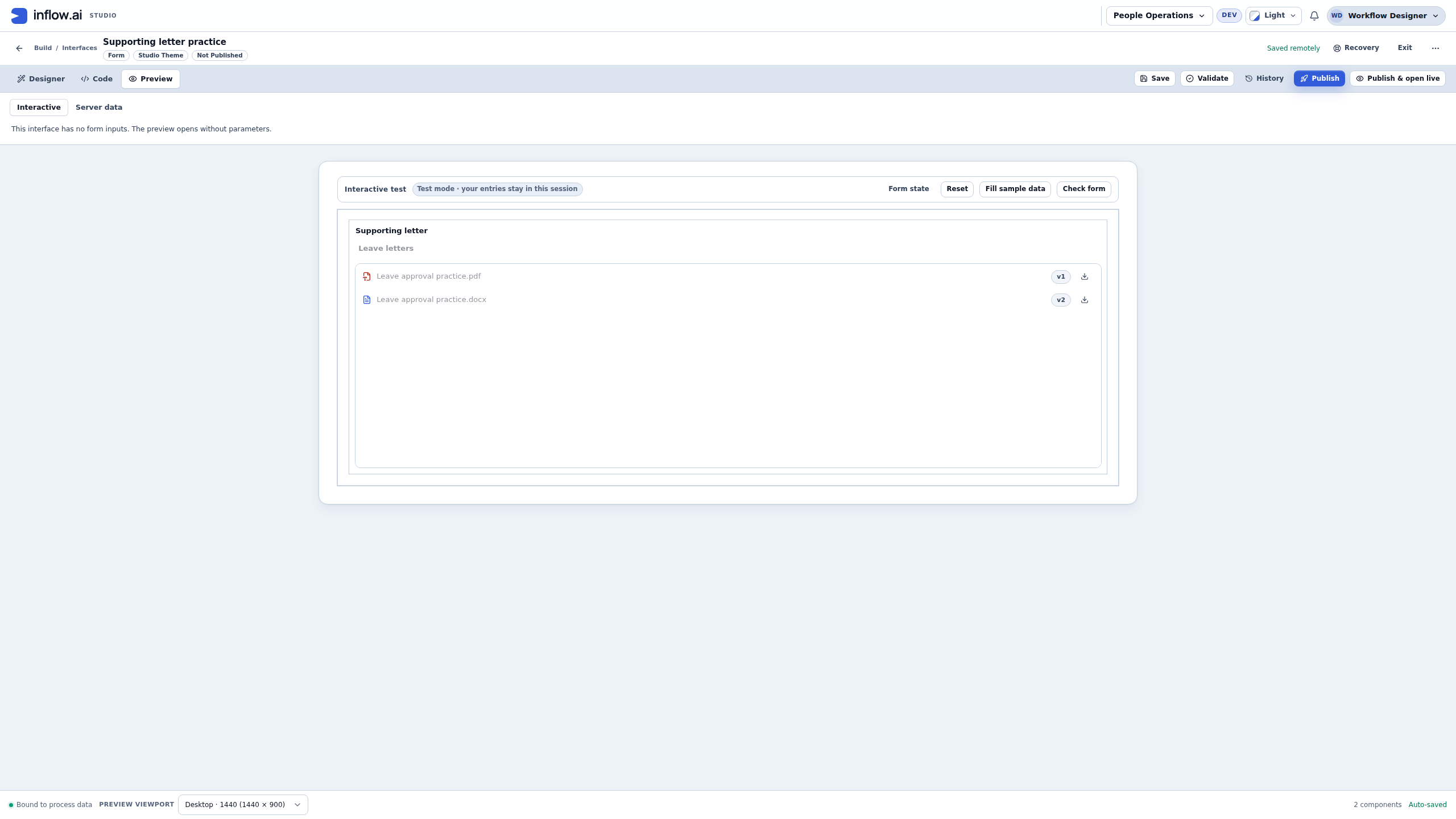
- Open Preview → Interactive. Read the actual folder, filenames and version badges. Design's fixed Policy-handbook and Attachment-scan sample rows are layout examples, not proof of library contents. If the real list fails to load, reconcile the saved cabinet/root, workspace and signed-in person's access before retrying or uploading anything.
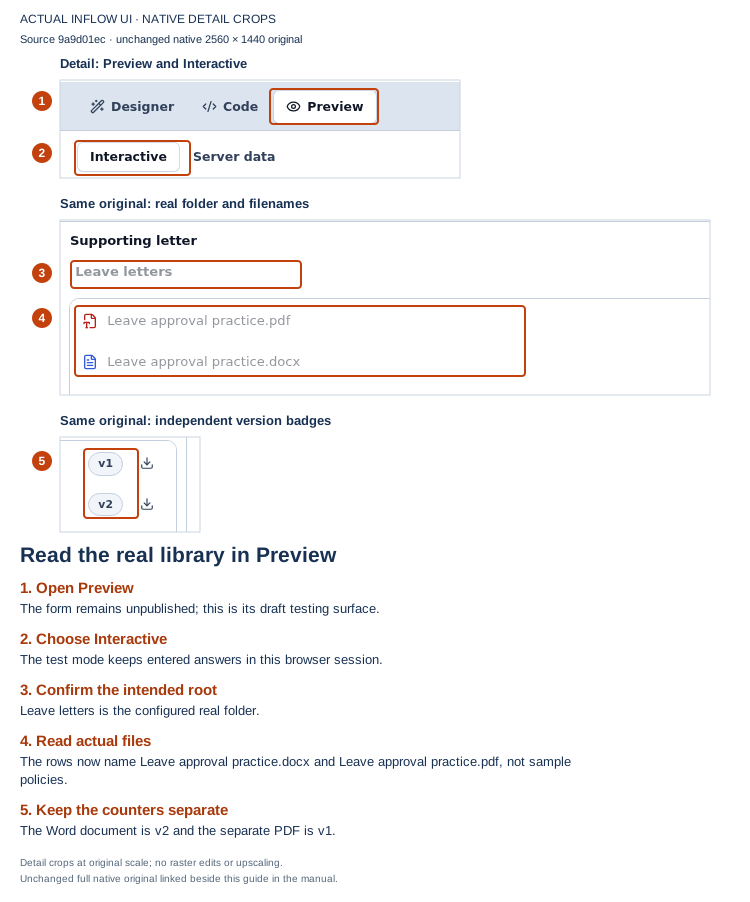
These are two real library documents with independent version counters. Interactive can read the configured library; its Preview label does not make file operations disposable. Keep the mutation options off. Open the full-size original.
Connect one compatible answer
- Inspect the form's Inputs for
supportingLetter. Reuse the intended matching field. If it is absent, declare NamesupportingLetter, Type Document, Cardinality Single. Finish/apply the input edit and check Saved remotely before continuing. - Select the Document browser and change Selection to single. Keep the intended cabinet, narrow root and offered operations. Use multiple only when the answer is deliberately declared to hold several documents.
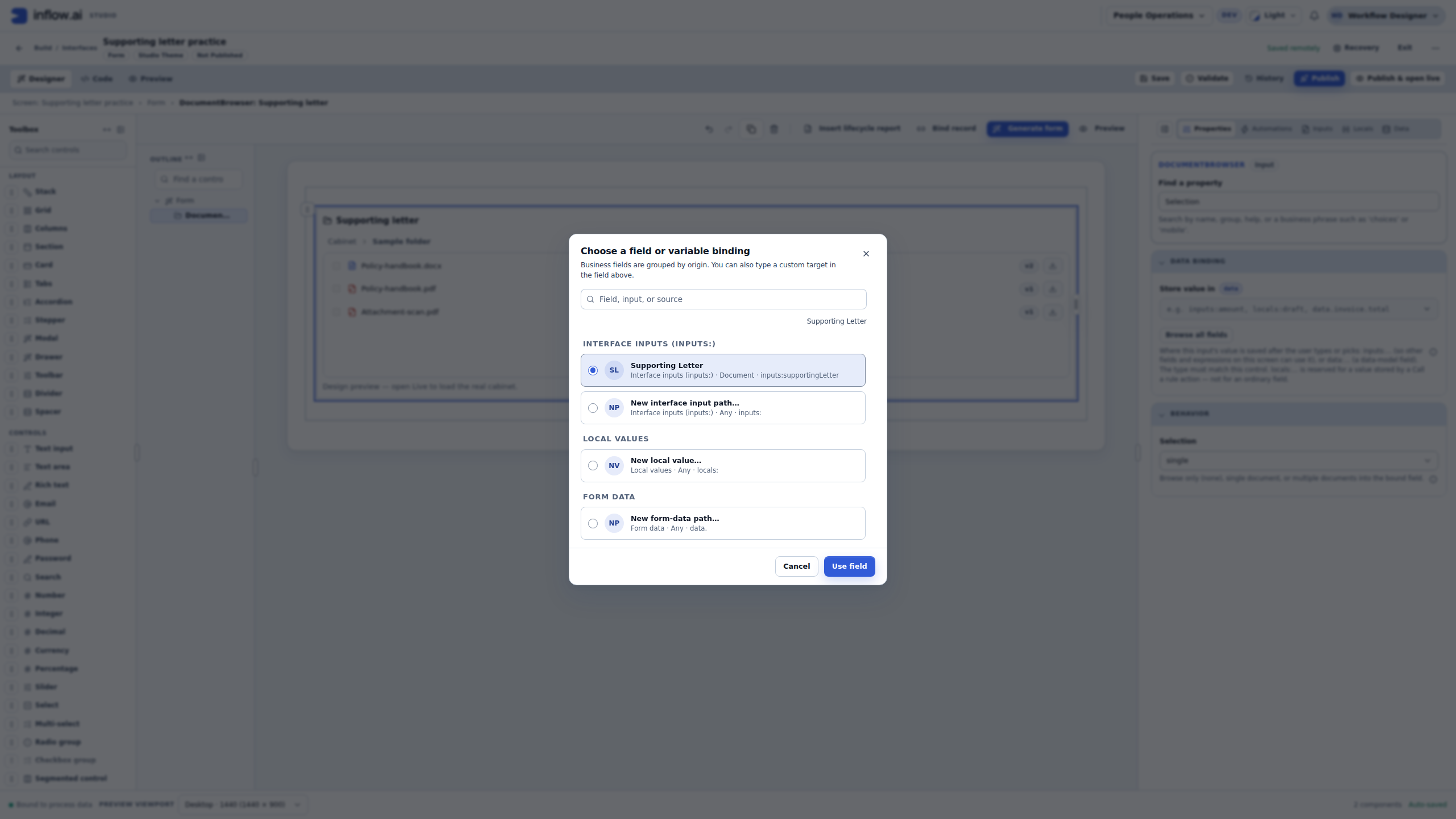
- Open Data Binding → Store value in → Browse all fields. Read the displayed type and path, select the compatible
supportingLetterinput and choose Use field. In this practice the path isinputs:supportingLetter. The chooser can offer other types; a familiar name alone is not enough. Finish/apply the edit and confirm its remote save.
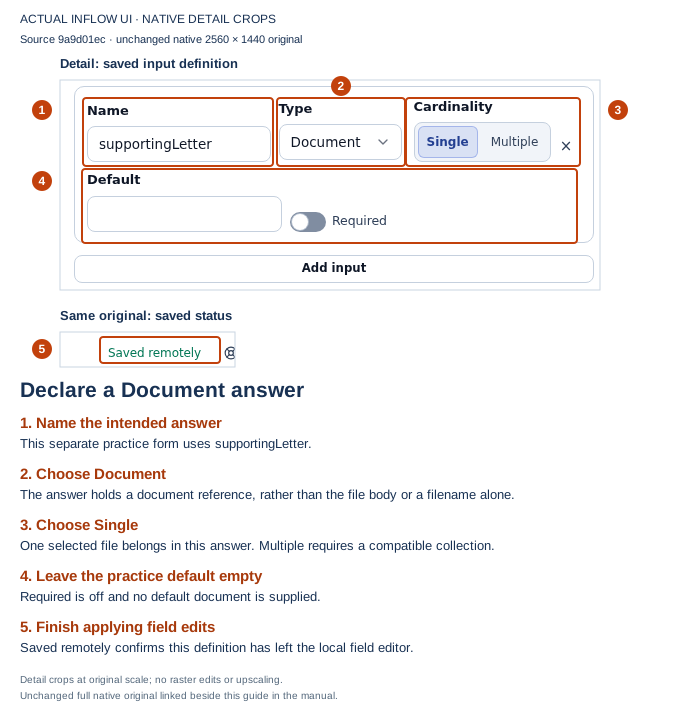
The answer holds one document reference. It does not contain the file's raw bytes. Open the full-size original.
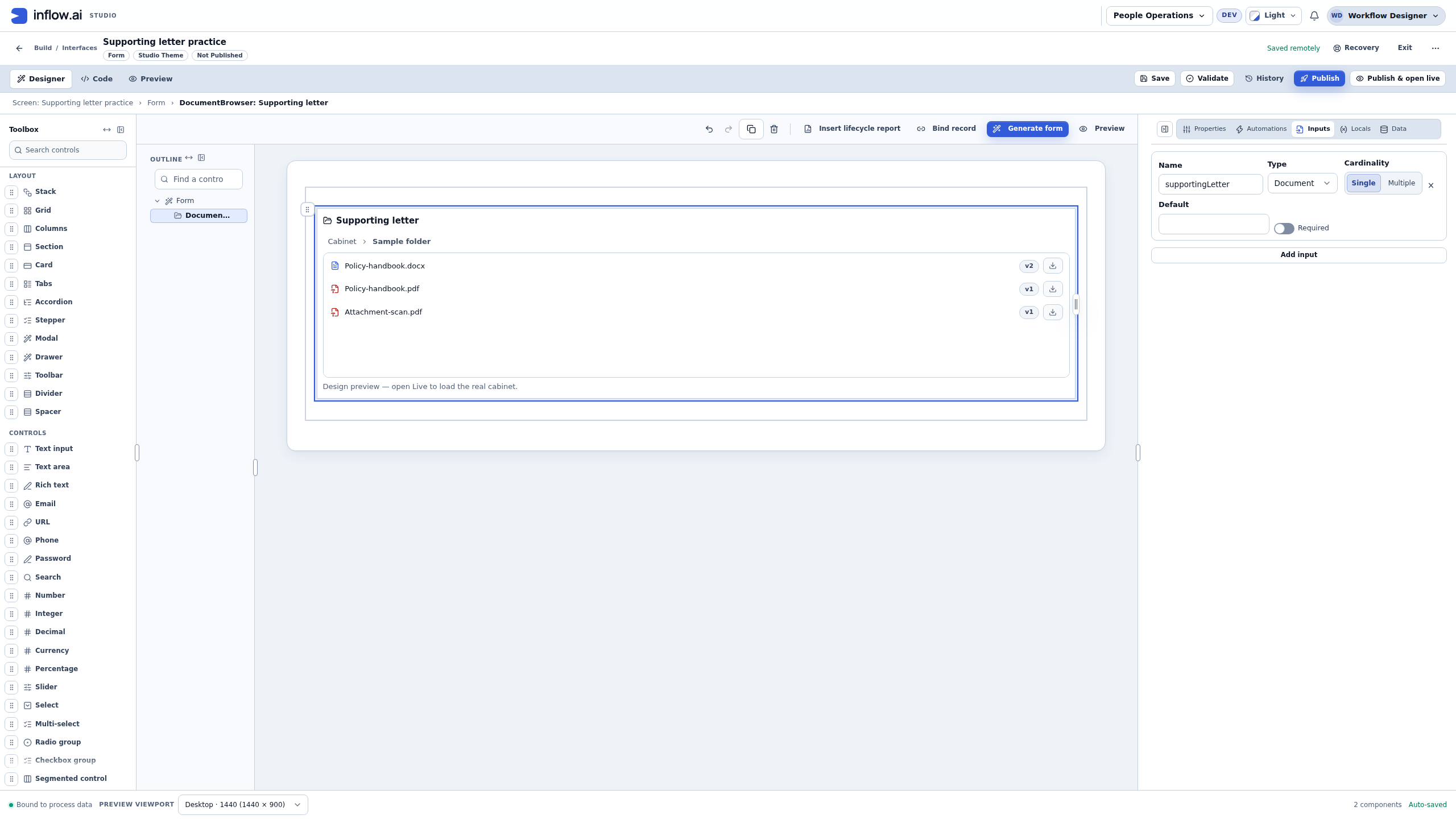
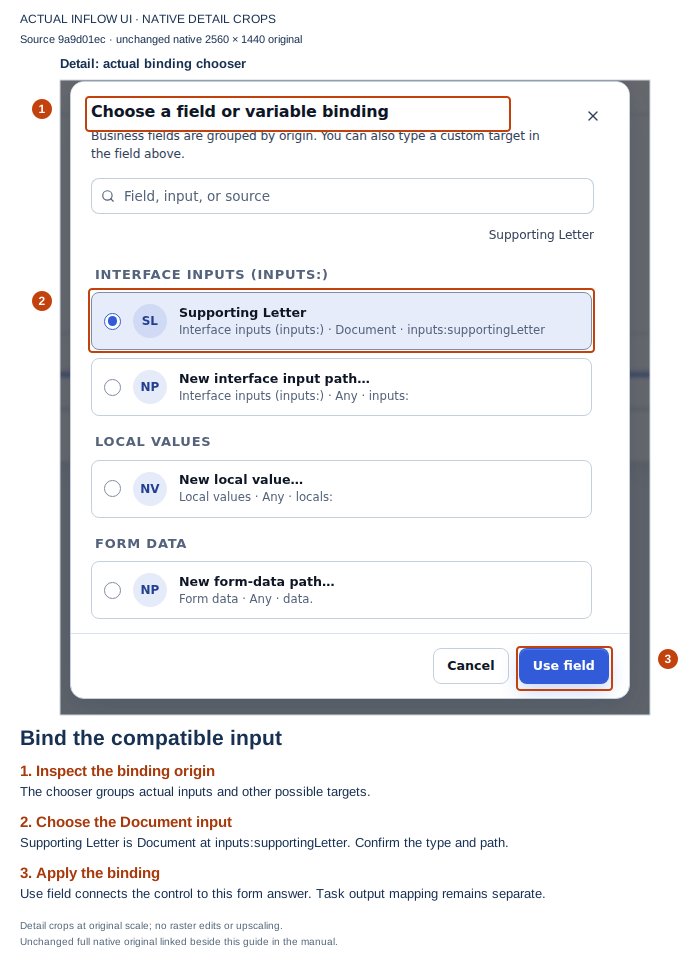
Check the type and path before choosing Use field. This connects the control to the form answer; workflow output mapping is a later connection. Open the full-size original.
Try a choice, its replacement and Clear
- Return to Preview → Interactive, select Leave approval practice.pdf and open Form state. Inspect the produced
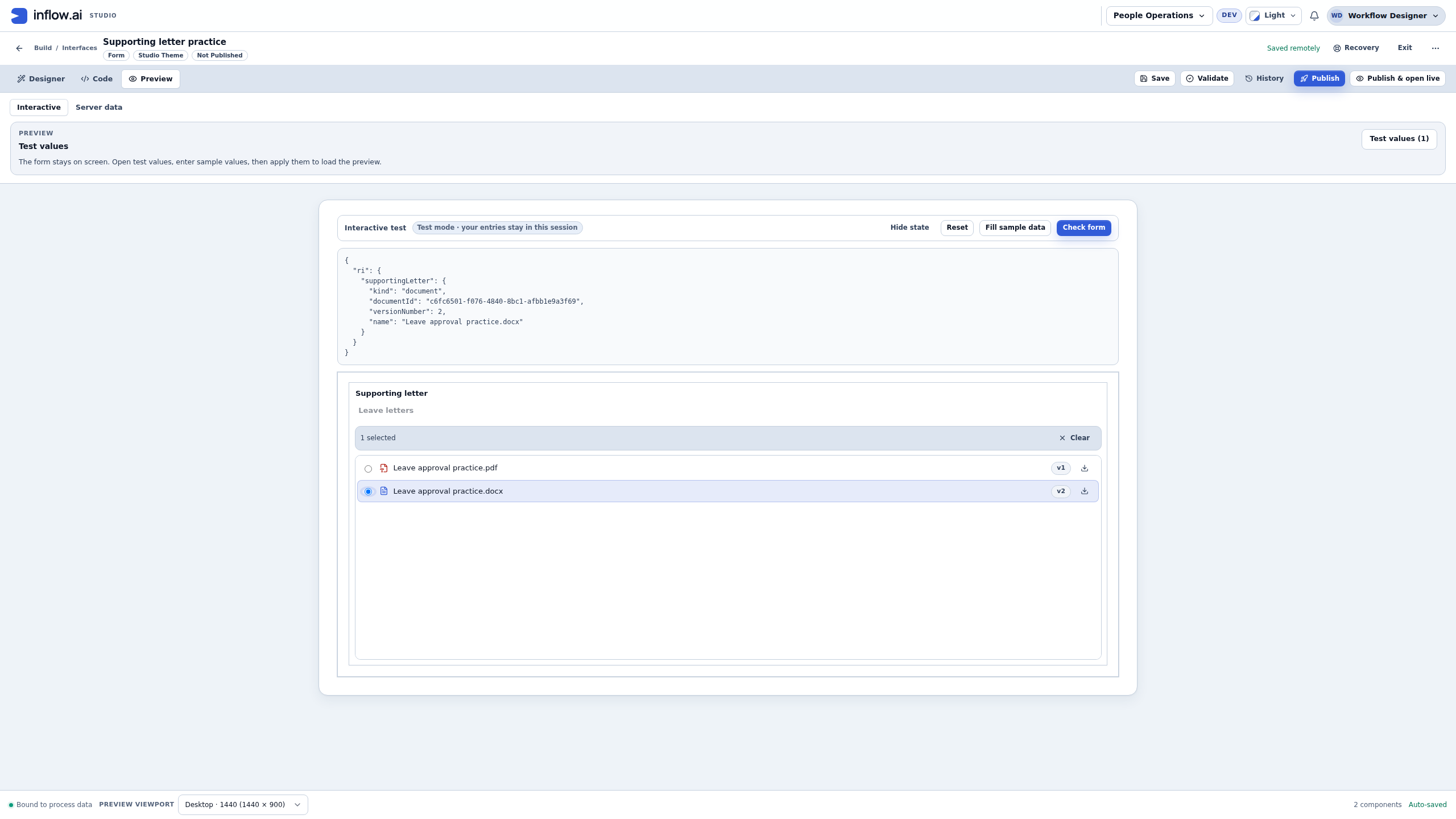
supportingLetteranswer:documentIdidentifies the PDF,versionNumberis 1, andnameis the displayed PDF name. Do not type the screenshot's identifiers into another form. - Select Leave approval practice.docx to test replacement. Its current version is 2. In single-selection mode this replaces the PDF reference with the Word reference; it does not merge the files or change either document's version.
- Choose Clear and inspect Form state again. The answer becomes
null, both radios are clear, and both files remain in the list. Decide how the real form should handle missing evidence before making the answer required or offering a dependent business action. - Check the saved draft's cabinet, root, selection and binding separately. In the pictured practice a reload after clearing preserved the whole saved draft and began with an empty local answer. This is a local test; retain the selected answer through the real task's supported output mapping and inspect its authoritative result when you reach milestone 4.
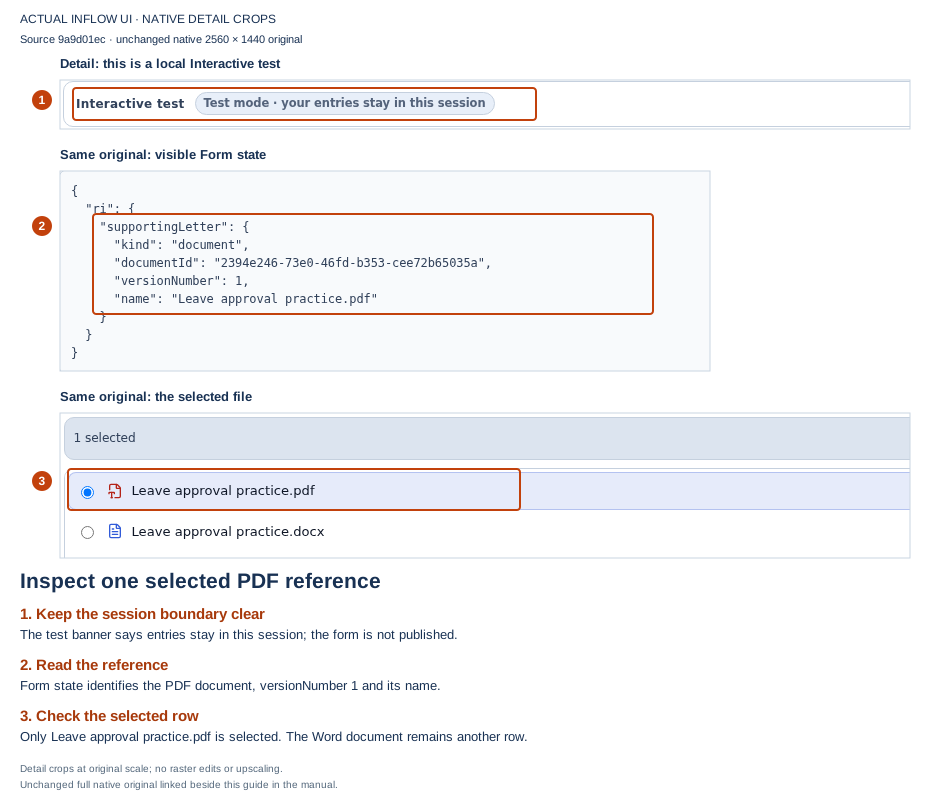
Read the selected identity and version together. The answer belongs to this test session. Open the full-size original.
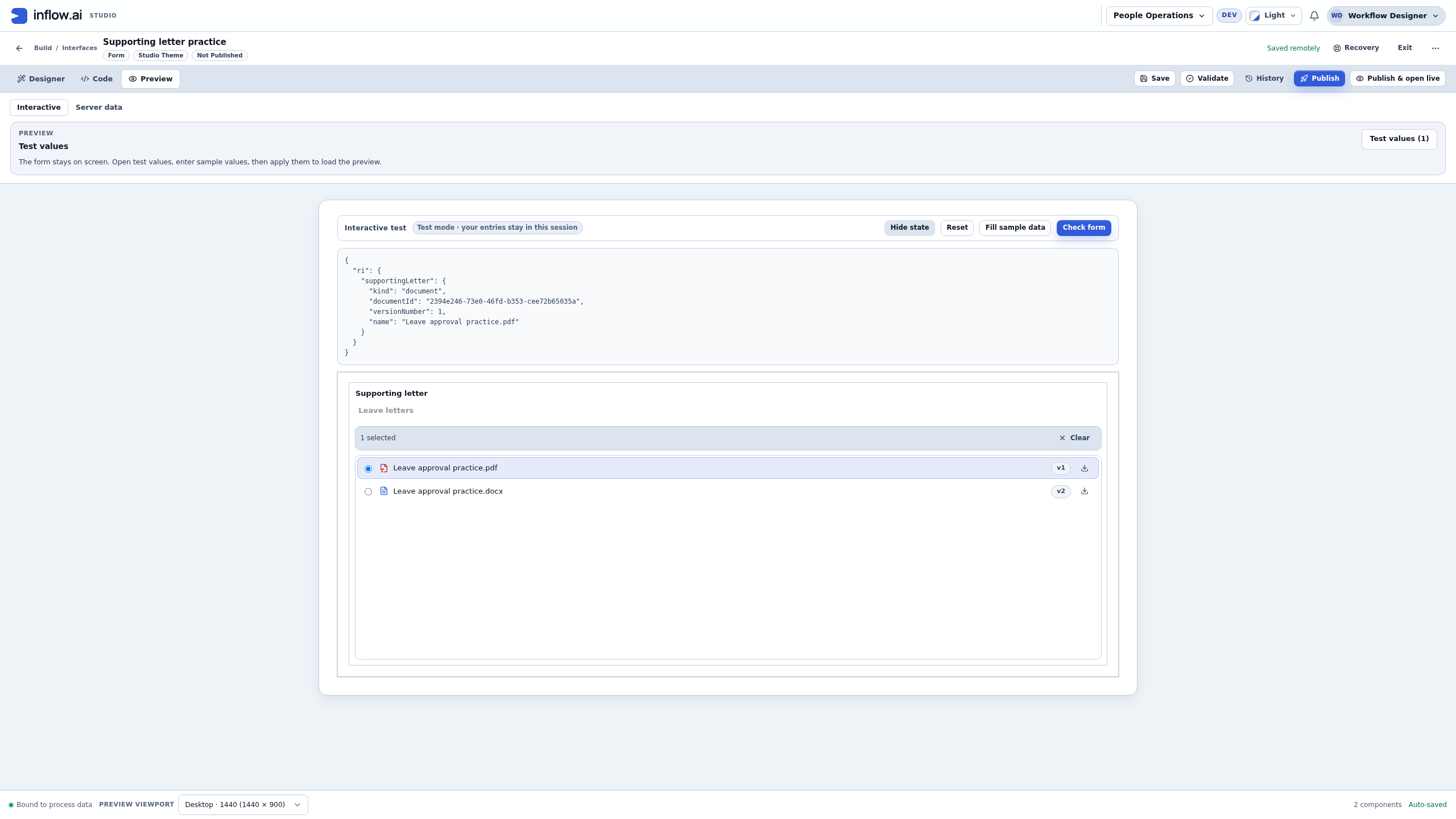
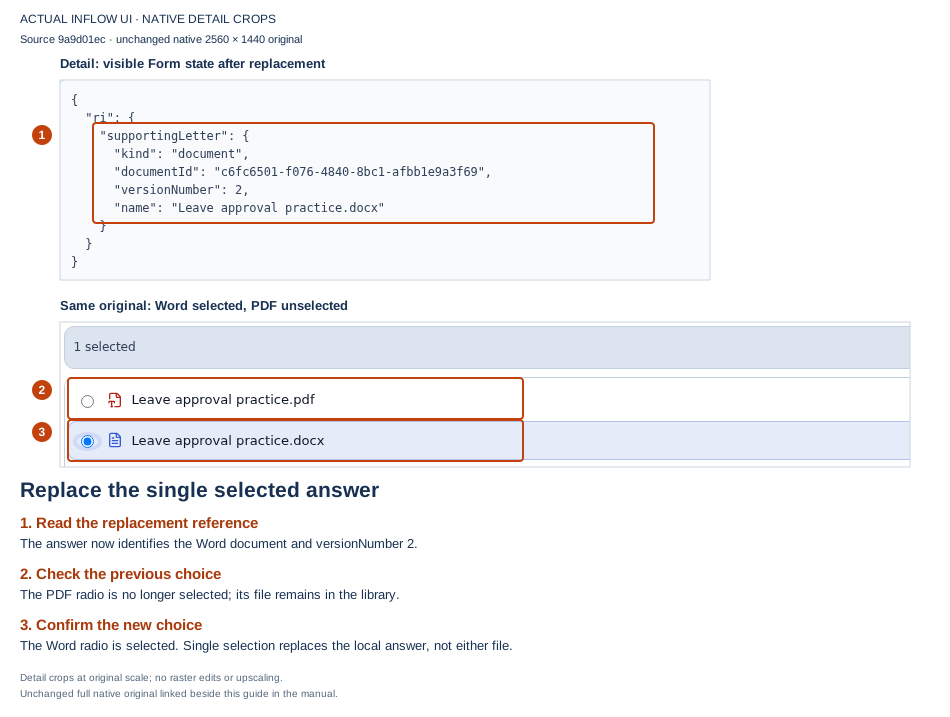
One selected document replaces the other local answer. The PDF remains a separate library document. Open the full-size original.
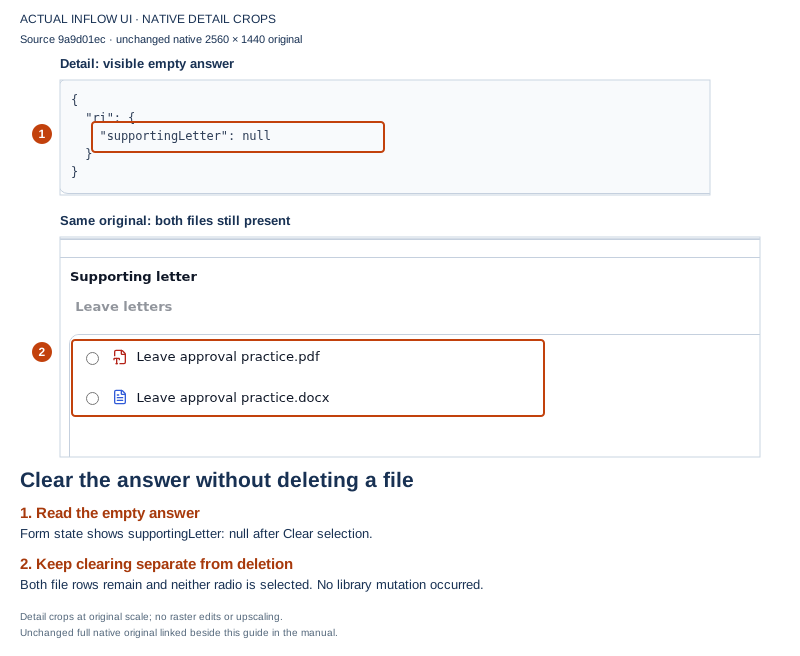
Clear empties the answer and leaves the files intact. It does not withdraw or alter a previously submitted business decision. Open the full-size original.
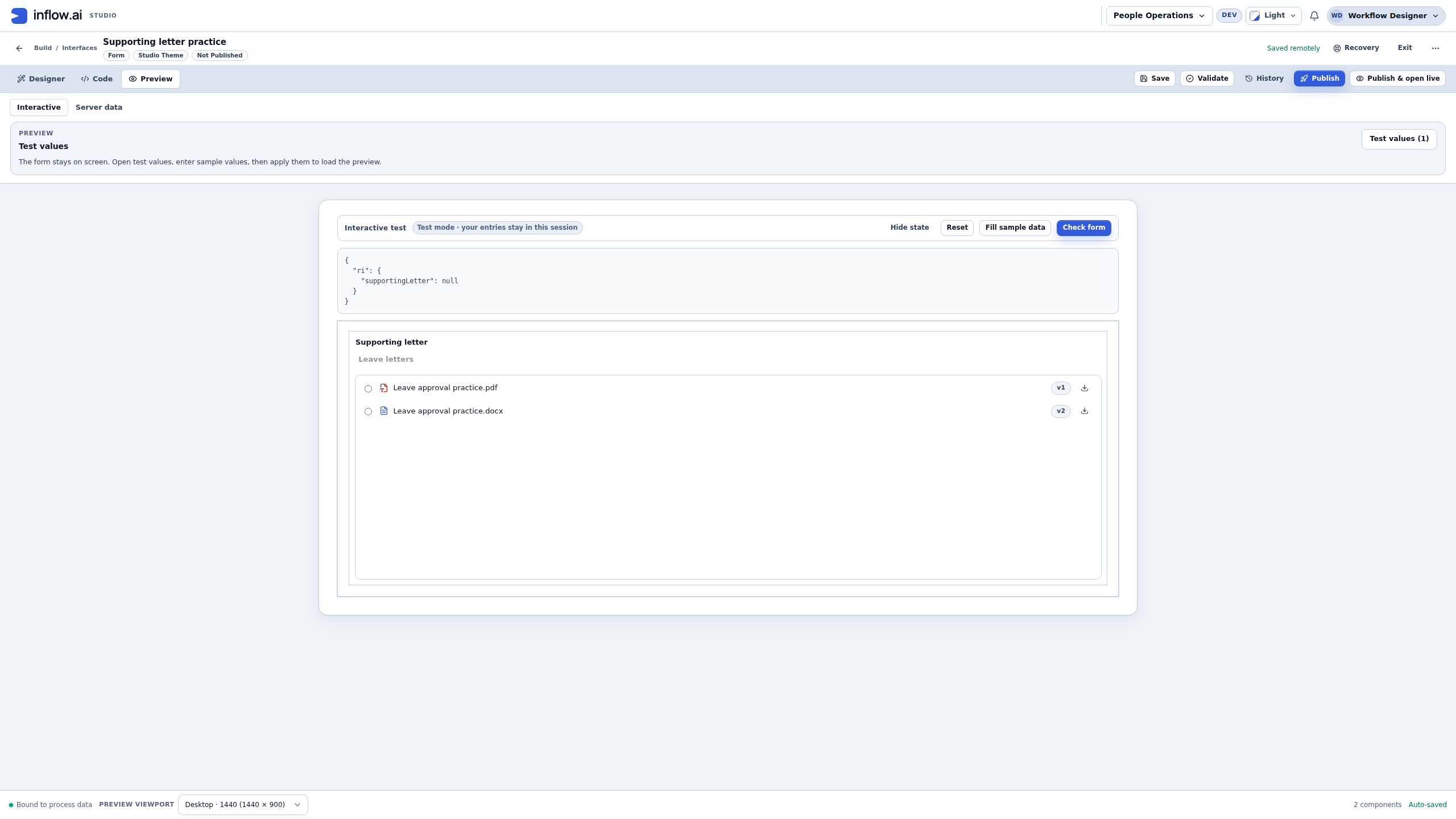
Configure the task's supported output mapping separately when the process must retain this answer. Review and publish the interface through the ordinary change process only after the actual source, intended participant access and mappings are ready. The draft illustrations stop before those operations. The complete Document browser lesson explains browsing-only settings and binding in more detail.
Check your result: the browser stays under the chosen root and produces the intended answer type. The options control the interface; actual document permissions still control what the participant may read or change.
If it does not match: distinguish a missing cabinet, a wrong root, an incompatible answer and a real permission problem. Do not bind the file title as a substitute document selection.
Milestone 4 — Use evidence in the actual manager task
Goal: carry the intended document through the published process and real task.
- Select the intended published form in the workflow's human task and configure its supported input/output mapping.
- Review the task's attachment or document-selection behavior with the business owner. Decide whether the task must retain a particular reviewed version.
- Save, Verify, test and publish the process change as appropriate; later form edits are not silently the form of every existing task.
- Complete the application's intended access preparation before an ordinary employee or manager uses it.
- Publishing the changed form/process does not retrofit an already completed task such as the original leave-2026-017 task; that task keeps its captured form and evidence context. Use the fresh reference agreed before uploading and confirm it remains unused. Then sign in as the approved ordinary test employee, submit that request once through the current published employee app, and read the actual create/start result. Check the resulting business record and running case separately, then confirm that the new task is assigned to the intended participant and uses the current published form/process version. If the result is uncertain, inspect the existing record/case before any retry.
- In that new permitted task, select/open the evidence through the form's supported controls and make the separate business decision. Do not reopen or relabel the completed 017 task as a test of newly published document behavior.
Check your result: the manager can review the intended file and the task retains the configured evidence/answer. Selecting a file is not an approval, and completing a task is not a blanket document-access grant.
If it does not match: inspect the selected form, mapping and participant/document access. If the title is visible but content is unavailable, resolve sharing with its owner instead of using a different identity.
Milestone 5 — Create and check a PDF
Goal: create a usable PDF from the intended current source.
- Return to Documents and inspect the source letter's current edition. Check its folder for a PDF with the generated output name. If a matching PDF already exists, confirm with its owner that adding a version to that exact document is intended and that you have version-upload authority before converting.
- Select the source and use the offered PDF action, or use Convert to PDF for inline preview from the supported preview. Conversion uses the source's current version when it runs.
- Wait for the actual result. Read the returned PDF document identity and version, then locate that exact output in the source folder. With no same-name PDF, conversion creates a document; with a same-name PDF, it adds a version to that document.
- Open the identified PDF version and check names, leave dates, decision text, table/page layout and any mixed-language content that the letter uses.
- If the next task needs it, select the exact PDF document/version through the supported business attachment/document control. Keep this reference distinct from the Word source and its display name.
Check your result: the Word original remains. The PDF output may be a new document or a new version of an existing same-name PDF. Confirm its identity and version and read its contents; “conversion completed” does not replace that check.
If it does not match: if conversion is unavailable, ask the owner of the prepared service. If the source edition was wrong, preserve the explanation and correct the business source choice rather than calling the PDF evidence of an earlier file. If the reply is uncertain, reconcile the request, source folder and PDF version history before retrying; another conversion may append yet another version to the same PDF.
Milestone 6 — Automate conversion after approval
Goal: make the automatic process step explicit and testable.
- Open the intended state flow after the manager's successful decision.
- Reuse a matching conversion activity if it already exists. Otherwise, add the available Convert Document To PDF activity. In Document, use Choose for one fixed library document, or Use an expression for a case-specific source. The expression must resolve to the scalar document ID: for a Document reference called
approvalDocument, use=approvalDocument.documentId; for a Text field already holding the ID, use that field's scalar value. Do not pass the whole Document object or a filename as the document ID. - In Outputs, inspect the effective primary-result row. It is an Object output (normally named
pdfDocument, though an existing setting can rename the row); map it to an already declared compatible object-shaped case field, or choose Don’t store when the process does not need the result. The conversion result is a structured object with conversion metadata and a nestedpdfDocumentreference. For a downstream step that accepts a Document reference, map the nested reference (for example,conversionResult.pdfDocumentwhen the chosen case field isconversionResult), not the whole result object, its flat ID, or its display name. Check that step's input contract before mapping; see the conversion result and mapping guide. - Read its Reliability and On failure choices with the owner. Decide what the business process should do if the service is not available.
- Save, Verify and test with a fictional letter, then inspect the actual output and following step.
- Publish through the ordinary process change review once the behavior is understood.
Check your result: the next business stage uses the PDF the configured conversion step actually produced. A PDF activity in the toolbox alone does not prove the environment's service is ready.
If it does not match: check the source selection, current document version, access and output mapping. For an uncertain result, inspect the request, source folder and current output identity/version before retrying; if the generated name already exists, another conversion may append a version to that same PDF.
Milestone 7 — Correct a letter without rewriting the old review
Goal: preserve the distinction between what Sara reviewed and the latest business document.
- Open the existing letter and choose Upload new version for a correction, rather than creating an unrelated document with a similar name.
- Use Versions to check the original and corrected editions.
- Inspect the task's retained evidence. If it names the earlier version, describe it accurately as the earlier review.
- Decide whether the business process requires a new review or a supported update; do not silently replace the explanation of a completed decision.
- Before converting the corrected current letter, check whether a same-name PDF already exists and confirm owner intent and version authority. Read the conversion result’s PDF identity/version; the output may be a new document or a new version of the existing PDF. Inspect that exact version before use.
Check your result: the history can explain both the earlier review and the corrected current letter. The current document and an older task reference do not have to be the same version.
If it does not match: ask the document/process owner to choose the intended review/update path. A manual change to a status label is not evidence that the correction was reviewed.
Two business examples
Example: one supporting letter for the manager
The employee supplies one fictional supporting letter. The form uses a single-document answer beneath Leave evidence. Sara opens the permitted letter, enters a separate decision comment and sets the Approved checkbox for the intended answer and chooses Submit decision. The workflow's configured output retains the intended evidence; the browser does not grant Sara unrelated file access.
Example: a corrected approval letter and its PDF result
The first letter has the wrong end date. Nadia uploads a corrected version of the same Word document and checks its version history. The completed task still identifies what was reviewed earlier where it retained that version. Before a later step converts the corrected current letter, Nadia checks the folder for a PDF with the generated name and confirms the owner intends the result. If that PDF already exists, conversion adds a version to the same document and needs its version-upload authority; otherwise it creates a new PDF document. She reads the returned document identity/version and checks that exact output before use.
Common mistakes
| Mistake | Correction |
|---|---|
| Uploading again without reading an uncertain result. | Check the stored-content result/folder first. |
| Using a filename as the supporting-document answer. | Select the actual document through the supported control. |
| Turning on upload and assuming users gained permission. | Prepare the intended library rights separately. |
| Forgetting to map the selected answer out of a task. | Check the form output and the state's declared result. |
| Converting the current letter while claiming it is the earlier reviewed edition. | Compare the source version and task evidence deliberately. |
| Assuming a PDF was sent because it was created. | Sending is a separate authored business step. |
| Assuming every conversion creates a separate PDF. | Check the returned document identity and version; a same-name output in the same folder receives a new version. |
Use Documents, DocumentBrowser and PDF conversion for their focused lessons. The optional technical document-workflow companion retains specialist contracts and details.