Design and complete human tasks
A human task is a piece of business work assigned to a person or offered to a group of eligible people. In a leave application, the request is the whole case; Review leave request is Sara's task inside it.
This lesson covers both sides: what the consultant must configure and what the participant sees. It also explains why answering a form, saving unfinished work, commenting and making a decision are separate actions.
Before you begin
A consultant needs permission to edit the process and a published task form. A participant needs access to the application/task and must actually be eligible to perform the work. Being named Manager in a business record is not enough by itself.
For the leave example, prepare a manager decision form with the required decision comment, Approved checkbox and Submit decision action. Have the administrator prepare the ordinary test people and intended application access.
Configure the task as a consultant
- Open the process in Design, select Review and choose Open flow.
- Select the human-task step and give it a recognizable business name, such as Review leave request.
- Open its Form settings and bind the actual published manager decision form.
- In Fill the form’s inputs, map requestId, employeeId, startDate, endDate, requestedDays and reason from the same-named case fields into the manager form’s declared read-only context inputs. Employee number, request reference and reason are Text; the dates are Date; the case Number requestedDays maps into a compatible form Decimal input. For the simple approval form, also map a declared case Boolean Approved value with Default
falseinto the form’s approved input. Leave the form declaration’s text Default empty and do not make the checkbox Required. - In Save the form’s outputs, connect only Approved and Decision comment back to their intended Boolean/Text fields. The read-only request context is not a manager update to write back.
- Choose the intended performer or eligible group through the task's assignment settings. Decide whether a person receives the task directly or claims it from available work; see the optional group-review example below when one person may complete work for a whole team.
- Connect the authored decision to the state flow's intended outcome. Declare any Review results that later stages need.
- Save, Verify and test both decisions before publication.
Check your result: the task has a real published form, understandable input, allowed output, an eligible performer and an intentional route after the decision. If no outputs are mapped, a participant may see the form but be unable to save its answers as a completed decision.
Inspect the decision form before assigning work
Nadia checks two different things before asking Sara to test a task: whether the form permits both intended answers, and whether it requires the explanation the business needs. These retained views show a separate fictional Manager leave decision practice in the designer. They are not Sara's assigned task or evidence that an approval was submitted.
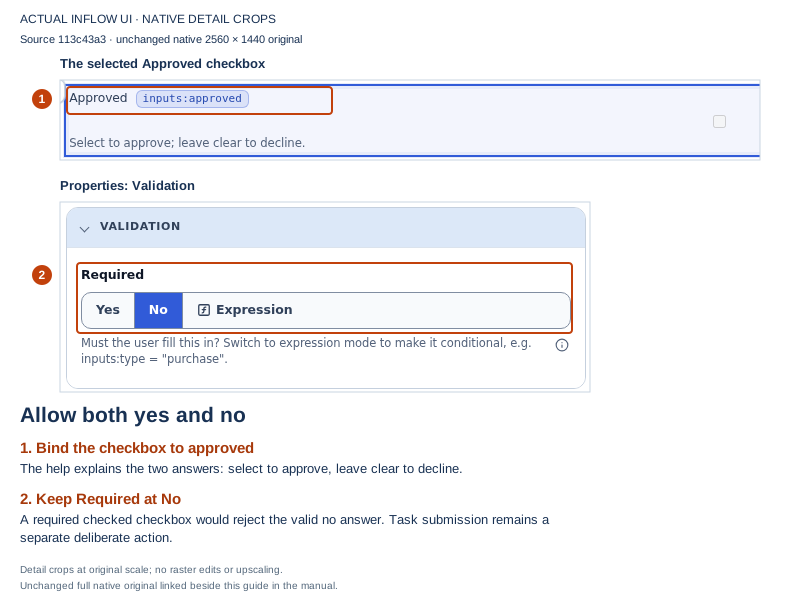
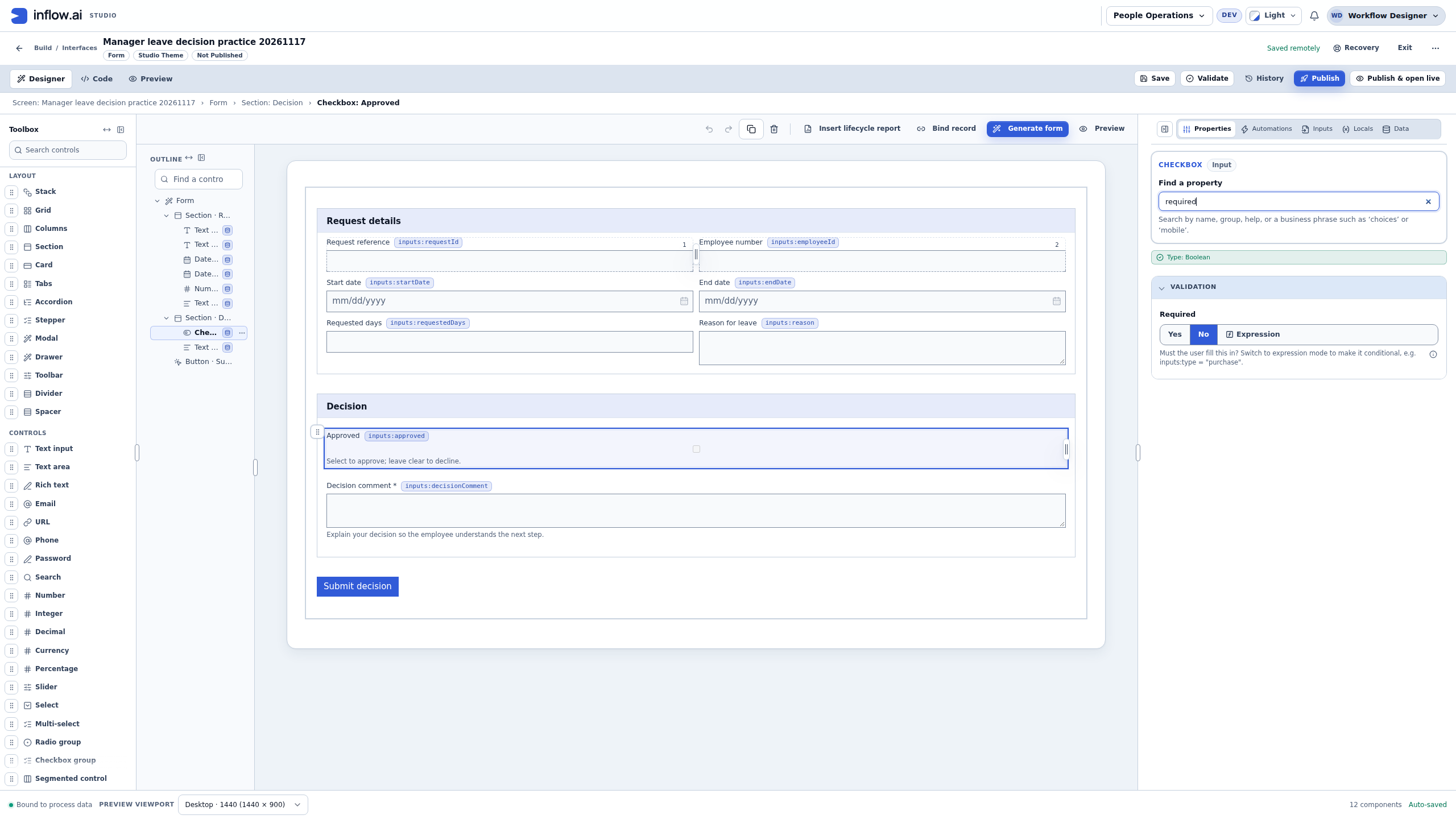
The full view identifies Checkbox: Approved, bound to inputs:approved, and the form is Not Published. Required → No lets the form accept a clear checkbox as well as a selected one. For this lesson, the task binding supplies a genuine Boolean starting value of false. Leaving that checkbox clear is the intended no answer when the real task is submitted; this designer view records no decision. Making this checkbox required would require it to be checked and prevent the intended no answer. Open the unmarked designer screenshot.
The next view uses fictional request values in Preview → Interactive. Its Test mode banner says the entries stay in this session. Check form reports 1 issue: Decision comment: This field is required. Approved remains clear without being named as an error.
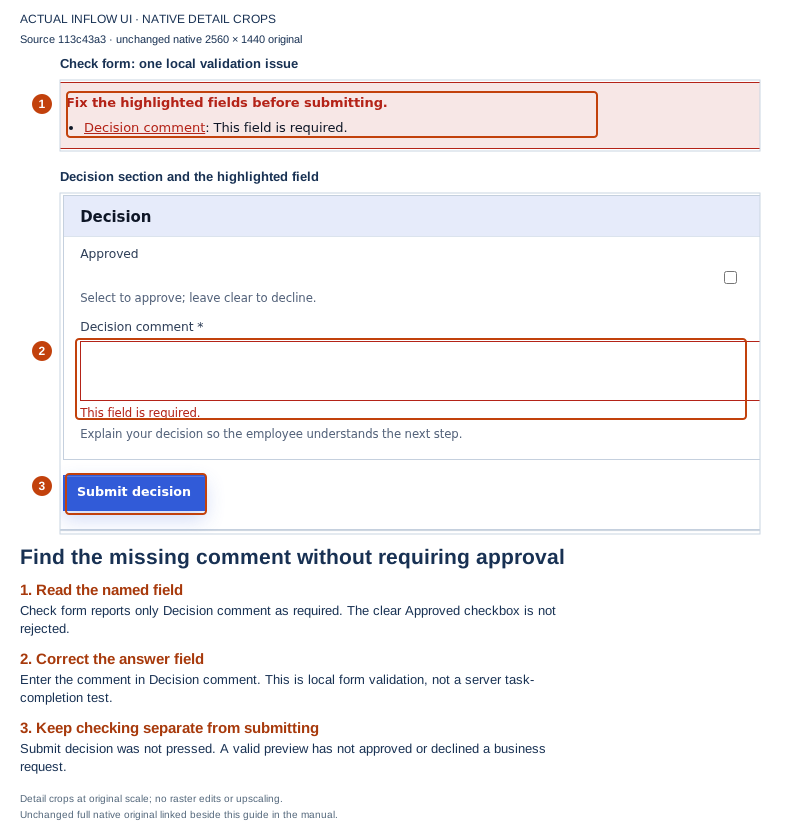
Read the named field before changing the design. Nadia should supply a fictional explanation in Decision comment, not make Approved compulsory or remove the comment requirement simply to get a green check. The read-only request reference, dates and employee business number are context; they are not the manager's identity or permission to act. Open the unmarked preview screenshot.
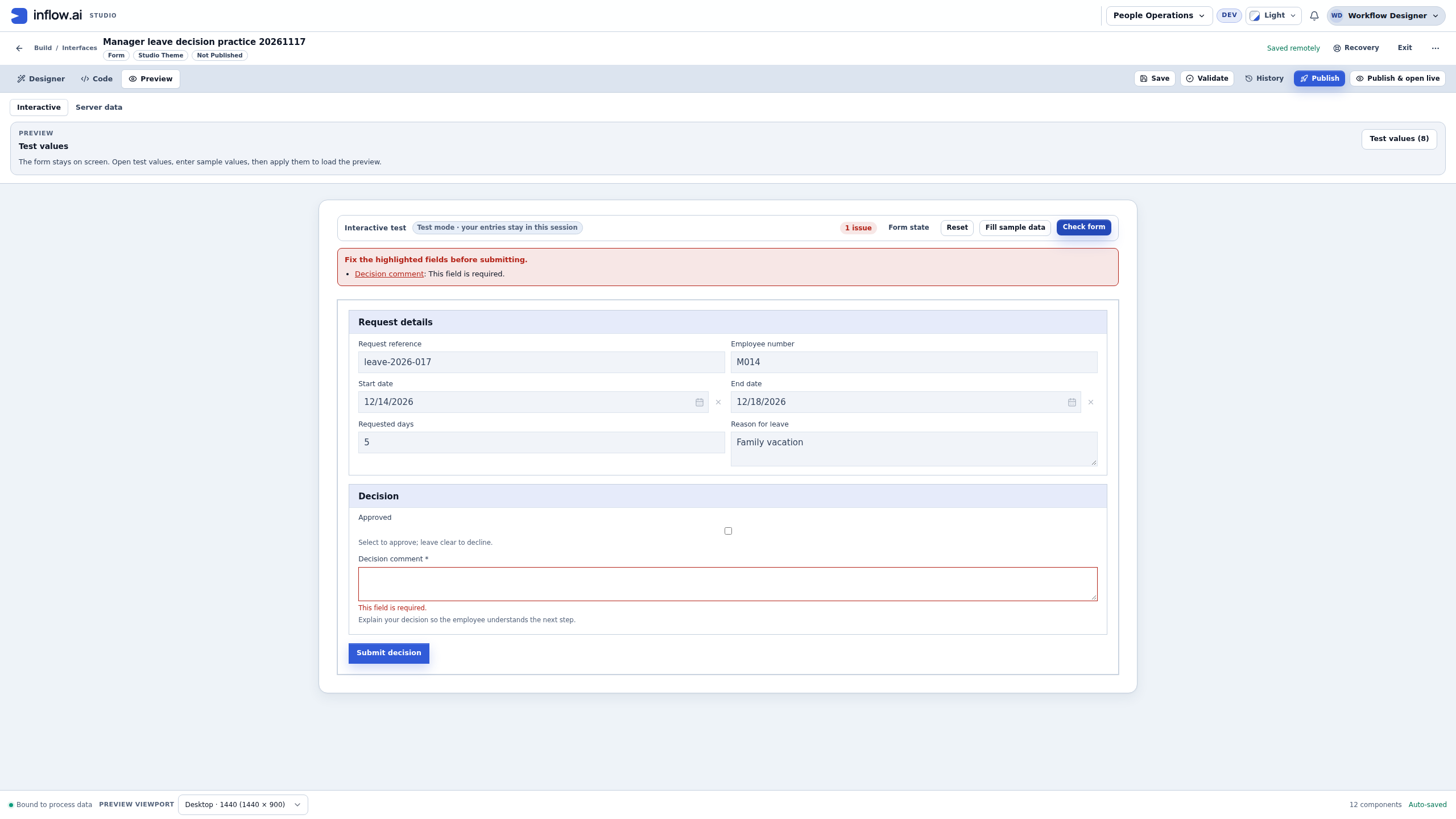
Submit decision was not pressed in these views. A successful local check would establish only that those preview answers pass the displayed checks. It would not publish or bind this form, assign a task, authorize Sara, complete a decision or update the leave record. Finish the intended form publication and task binding, then use the separately prepared eligible participant and unfinished test task for the real journey below. Keep its actual result and case reference separate from this designer practice.
Optional example: one claimable review for a group
Use a shared task when any one eligible member of a team can review a case and complete it for the group. This is one shared task per case, not a separate task for every group member. Keep Sara's named-performer example below as written when the work must belong specifically to Sara.
- Inspect the task's current assignment first. Reuse it if it already targets the approved team. To add a team only when one is needed, choose Add assignee source → Group / team → Choose… and select the intended directory group. Do not add a second source just to make an existing assignment easier to see.
- Open Repeat settings… and inspect Repeat this step. For this group-based example, the source must be Each assignee. If the current choice is A fixed number or An expression, do not silently switch it: those choices create the authored number of claimable tasks, and the Shared/Individual distribution control is hidden. Ask the process owner whether replacing that counted workload with one task for the resolved team is intended. Only when Each assignee is approved, set Distribution to Shared and select Done. Shared creates one task for the resolved people; the first person to act completes it for everyone. Individual creates a task for each resolved person and is a different workload.
- Have an eligible participant open Available to claim and confirm the task for the intended case appears there. In that list, choose Claim and open; that action claims the task and opens it. If someone instead opens an unclaimed task directly, the task page offers Claim task before completion. After responsibility is clear, follow the authored form and Submit decision action.
- If the designer warns that nobody in the group is an active workspace member, read the whole warning. If it says the case will stop, ask the directory owner to confirm the intended active, eligible group members before publishing. If it says another assignment source can still do the task, that source may handle it, but this group has no eligible member. Do not broaden group or case access to make the task appear. If another eligible person claims first, refresh the work list and check its current status; do not attempt a second claim or submit from a stale page.
Expected result: one eligible person can claim and complete the shared review, after which the task is complete for that case. If the team must each provide a separate review, use the Individual distribution only after the process owner confirms that one task per resolved person is intended.
Optional example: return a claimed group task to the queue
Use this when the person who claimed a pooled task cannot continue. It returns the same unfinished task to its eligible queue; it does not complete the task or create a replacement. This action is for claimed pooled work, not a task assigned directly to one person.
- Open the same task you claimed and check its current responsibility. Use this path only if you are the person who currently holds the claimed task.
- If you need to keep answers you have already entered, follow Save unfinished answers without deciding first and wait for its saved-state confirmation. The return dialog still warns that page changes you have not submitted are not sent; do not promise another claimant will receive a draft.
- Choose More task actions → Return to queue when the task offers that action. If it is not offered, do not try to force it or change assignment permissions; a directly assigned task needs its supported reassignment route.
- Read Return this task to the queue? The dialog says you will no longer hold the task and anyone eligible in the queue may claim it. Confirm with Return to queue once.
- Expect Task returned to the queue. and return to the work list. The same unfinished task can appear under Available to claim for another eligible participant; its return is not a decision or completion.
- If the action is refused or the result is unclear, reload the current task/work list and check who holds it before trying again. Another eligible person may already have claimed it.
Expected result: the task returns to its eligible queue without completing the case. A person who was assigned the task directly cannot use this pooled-task action to send it to a queue.
Find your work
The current work list has three tabs:
| Tab | What it means |
|---|---|
| My work | Open tasks assigned to you, within the scope your role may see. |
| Available to claim | Work you are eligible to take responsibility for. |
| Completed | Work that has been finished and is available for you to review. |
- Open My work through the application or your permitted task entry point.
- Search for the task name or case reference using Search work.
- Use Priority or Overdue only when you need them. Choose Clear filters before concluding a task is missing.
- Open the intended task and read its description, current state and business context.
- If it is available to you but not yet assigned, choose Claim task when offered.
Claiming makes you responsible for the work; it is not the final business decision. Another eligible person may claim an available task before you do. If that happens, refresh its status instead of trying to force another claim.
When a task changes while the claim list is loading
The broad, unfiltered Available to claim queue checks that a task row is still the same before it returns the page. If another eligible person claims a task while the page is being read, the changed row can be omitted rather than shown as stale, and the page total is reduced to exclude that row. This check does not add a task that becomes eligible after the page snapshot; refresh to see newer work.
- Open Available to claim with Search, Priority and Overdue filters cleared when you need the broad queue.
- If a row disappears or the total changes as the page loads, refresh once and read the task's current status and responsibility. Do not assume the task was deleted or that your access changed from the count alone.
- Claim only a task that is still offered to you. If it has already been claimed, do not repeat the action; check the current task status before continuing.
- If the expected item is still absent, confirm the case reference, assignment and current eligibility through the views you are allowed to use. Keep an unavailable/failed list read separate from a successfully loaded empty result and ask the task owner when the assignment is unclear.
This row-omission behavior applies to the broad queue request. A search term, priority choice, overdue filter, or another narrowing condition makes a different request; do not rely on the same concurrent-change behavior when filters are active. Clear filters and refresh if you need to inspect the broad queue. This behavior changes neither who is eligible nor the case, workspace or access checks for the list.
Example: a claimable task changes while the list loads
Priya opens the unfiltered queue while another eligible teammate claims Review leave request 014. The in-progress page does not show a stale claim button for that changed task, and its displayed total excludes that row. Priya refreshes and reads the current owner before doing anything else. If a different task becomes eligible just after her page snapshot, it appears only after the next refresh.
Example: Sara approves Mohammad's request
- Sara signs in as her normal account and opens her work list.
- She finds Review leave request for Leave request 014, or claims it from Available to claim if that is how Nadia configured the task.
- She checks the employee, dates and requested days, selects Approved and enters Cover is arranged for the full week as the decision comment.
- She chooses Submit decision. In this teaching form, selected means approve and clear means decline. A different application can use other authored actions; follow its actual form.
- She reads the recorded completion result and follows the permitted link back to the request where useful.
The expected result is one completed task with the intended decision. The case can then move to Approved according to the published process. A separate leave record changes status only if the consultant configured that business update.
Follow the decision across four checkpoints
Treat these as separate observations for the same fictional request, not four buttons to press:
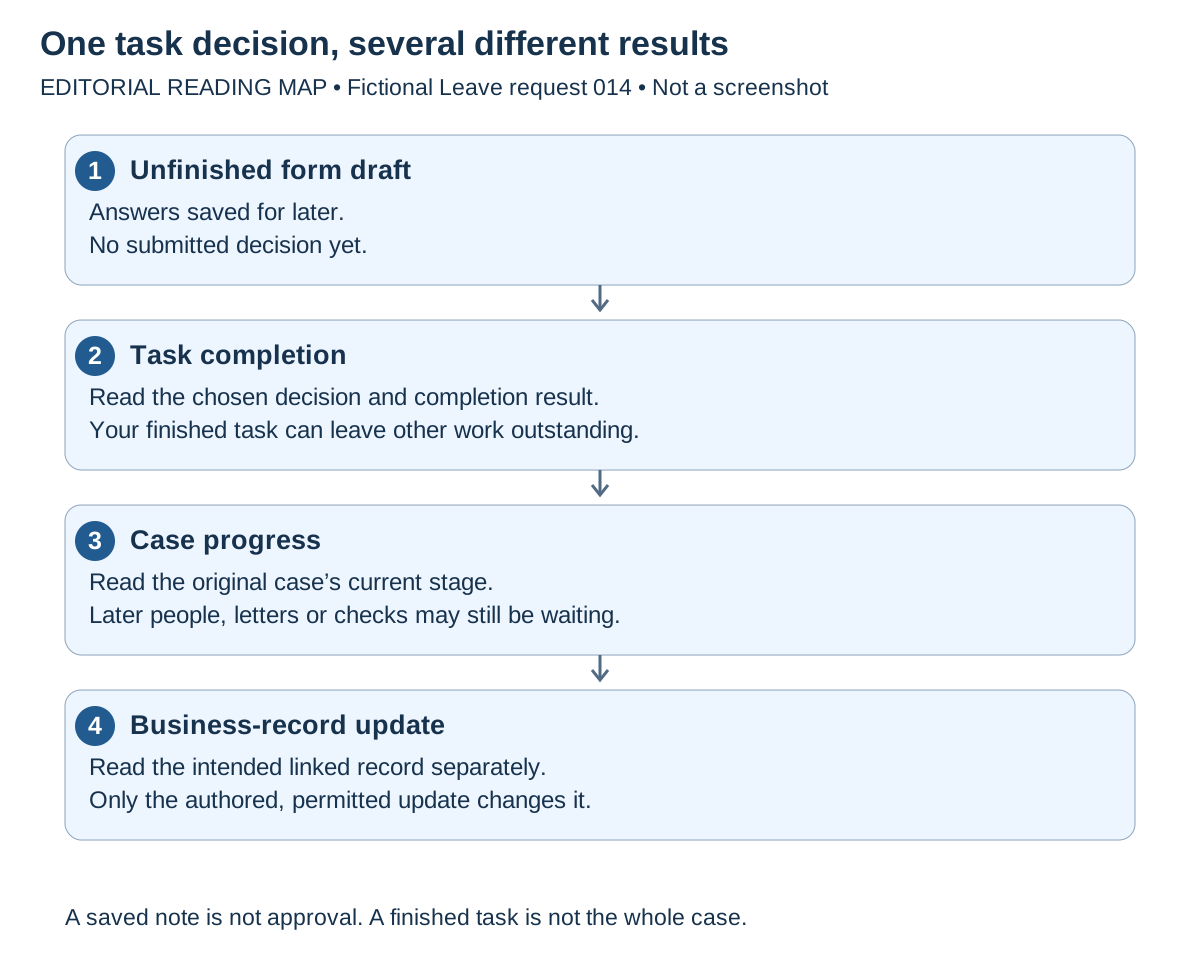
Reading map, not a task-page screenshot. Each checkpoint needs its own current evidence. A saved draft does not pass the decision checkpoint; a completed manager task does not prove a later automatic action or record update finished.
| Checkpoint | Example for Leave request 014 | What Sara should conclude |
|---|---|---|
| Unfinished answers | Her note is saved; she has not chosen Submit decision. | She can return to unfinished work while the task remains available to her. There is no approval yet. |
| Task decision | The completion result records her chosen approval and note. | Her task is finished. Read the actual result and any next-work explanation; do not submit again. |
| Case progress | The original case is now waiting for letter generation. | The process continued to its next authored stage; the whole request is still open. |
| Separate business record | The linked leave record still says Awaiting letter. | The record has its own authored update. A completed task is not permission to edit that record manually. |
If several people must respond, one person's completion may leave the process waiting for the remaining required responses. Read the completion result's progress explanation. Do not complete somebody else's task or reduce the required number merely to make the case move.
Consultant worksheet: build the manager handoff before testing
Nadia uses this worksheet to review a proposed form/task binding. The names are fictional business examples, not an import file or a universal task schema. Use the actual names and types declared in your design.
| Boundary | Example | Check before a synthetic test |
|---|---|---|
| Case → form context | Text request reference and employee business number; dates and requested days. | Map compatible inputs from the intended case fields. An employee number is not the signed-in identity or the task assignee. |
| Form answer → state field | Boolean Approved and Text Decision comment. | Map only intended answers; read-only request context is not a manager edit to write back. |
| Task → routing | Selected Approved plus submitted decision. | Check the authored action/outcome and each branch, including decline. A checkbox change alone is unfinished input. |
| State → parent case | Retained approval and comment needed later. | Declare the state results and compatible case destinations explicitly. |
| Case → business record | Update the original request record at the intended stage. | Check the linked record reference, update action and current authorization separately. |
Use only owner-approved non-production tasks, ordinary eligible test people and fictional records to perform the test. Check external notifications and other reachable effects first. A designer's preview or a successful administrator test does not prove that the intended employee or manager can use the published app. The Debug lesson explains runtime effects and dedicated test-participant preparation.
Alternative form: separate Approve and Reject buttons
Some published forms have two decision buttons instead of the checkbox and generic Submit decision action above. For example, the form may contain a hidden root decision field and visible Approve and Reject buttons. Each button is authored with its own fixed decision and outcome. The participant's button choice is the decision; a hidden field value is not an extra question the participant must answer.
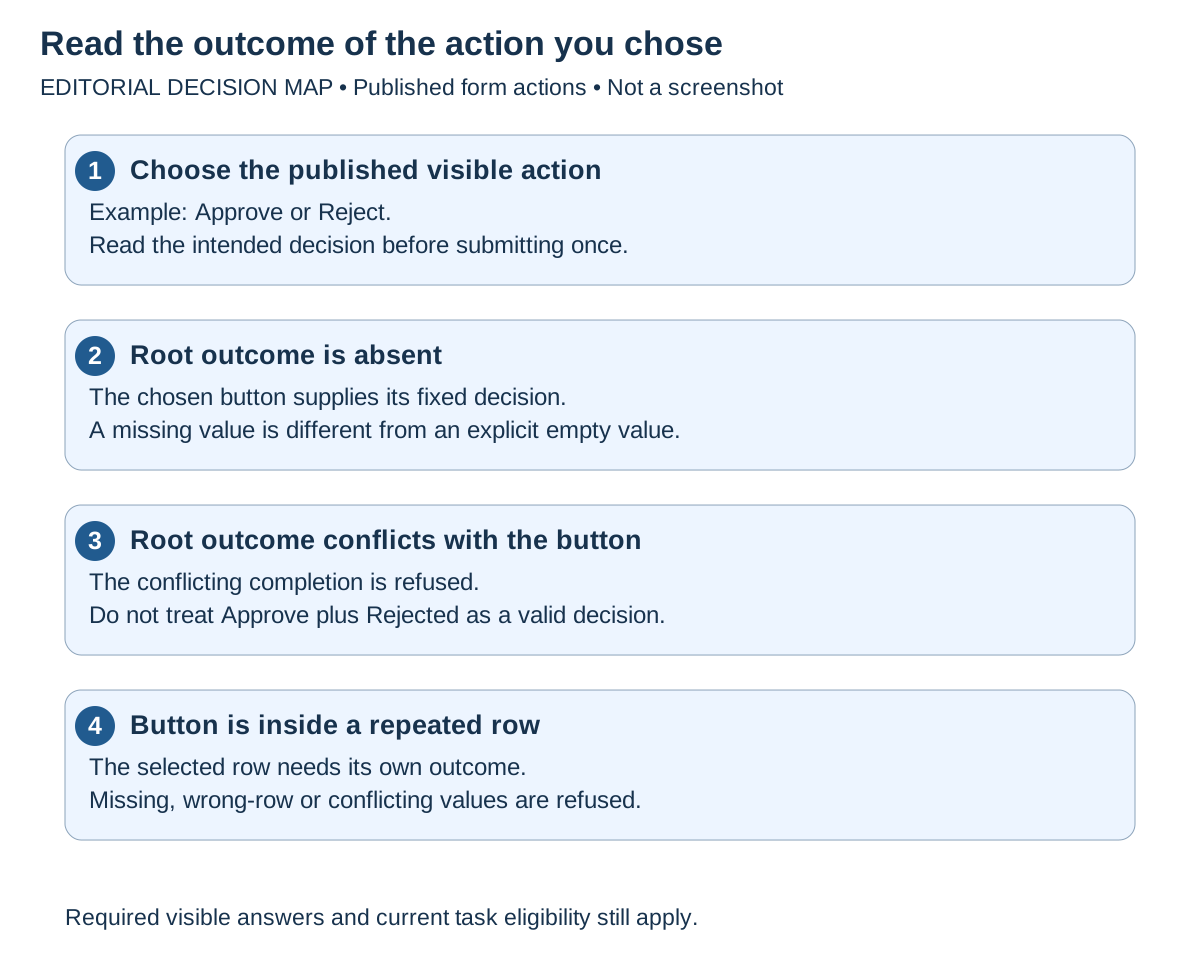
Decision map, not a form screenshot. These are the narrow root-field and repeated-row cases explained below; they do not waive required visible questions or authorize a decision.
If the root hidden outcome is absent from the answers sent with the chosen button, the task can still complete: the server records the fixed outcome on that selected, published button. It does not need to copy the missing outcome into the form's saved answers. For example, Sara can choose Approve while the form answers contain her note but no decision; the completion receipt should report the button's Approved decision. A separate case update still occurs only when the process has an authored mapping or business action for it.
The absence rule is deliberately narrow. If the submitted root decision says Rejected while Sara chose Approve, the server refuses the conflicting result and does not save the completion. If these buttons are inside a repeated row, the selected row must carry its own outcome: an omitted route there, or a value placed only on another row, is refused. An explicit empty value is present and can conflict; it is not the same as leaving the root field out.
Consultant check: configure distinct fixed outcomes on the visible buttons and make sure they share the intended root route field. Test each button and a conflicting answer only in an owner-approved non-production environment with synthetic actors, records and task fixtures; confirm the test cannot affect live business work before publication. Do not use a real employee request or production task as a test. Do not remove a required visible question to imitate this behavior, and do not treat a completed task decision as a universal update to every related business record. See the optional technical task-persistence reference for the exact server boundary.
Save unfinished answers without deciding
The full task page reached from My work supports saved form drafts when your task and form permissions allow it. Its save status distinguishes Saving…, Changes not saved yet and All changes saved. A task embedded inside a custom application can have a different host experience; do not assume that every embedded form has the full task page's draft-saving features.
For this exercise, use a separate owner-approved review task that is still unfinished. The preceding example completes Leave request 014; if that task is already complete, inspect its recorded result only. Do not create or submit another decision just to repeat the draft lesson.
- Open the full task page for a task you currently own.
- Enter the answers you can provide now, leaving the decision unfinished.
- Read the save status. Wait for All changes saved before relying on the draft being available later.
- Use Save and close when offered, or leave through the page's normal navigation. If it warns about unsaved work, read the choice rather than discarding automatically.
- Return to the same task and inspect the restored answers before continuing.
Read the save indicator before leaving
The status beside the task title describes the draft, not the business decision:
| What the page shows | What it tells you | What to do |
|---|---|---|
| Saving… | The latest edit is being sent as saved work. | Wait for a final status before closing the page. |
| Changes not saved yet | An edit is still local, navigation is being held, or the last save has not completed. | Stay on the task and wait. If the page offers Try saving again, use it and confirm the status changes. |
| All changes saved | The full task page reports no unsaved local draft edits. | You may leave the unfinished task; this does not submit its action or complete the task. |
| Your saved work was restored | The page loaded an earlier draft for this task. | Review the restored fields. Protected answers may be retained but shown blank; do not replace them unless you mean to. |
| Newer saved work is available | Another save is newer than the version you are editing. | Compare your options. Use Use newer saved work to load it, or Keep my changes only if you intend to replace the newer draft. Read the confirmation before replacement. |
| We couldn't save your changes | The latest local edits are not confirmed as saved. | Keep the page open. Use Try saving again if offered; verify the status before leaving. |
| Saved work could not be loaded | The page cannot confirm what draft is available. This can be a temporary read failure or a permission boundary. | Use Try again only when offered. If the page says the saved work is not available with your access, do not infer that the draft is empty or ask for broader task access; continue only with work you can see and are authorized to change. |
If the page warns about unsaved work during navigation, stay on the task until the save result is clear. Save and close saves the unfinished draft and exits; it does not invoke the form's decision action. The embedded Task Viewer may not offer these draft controls, so use the full task page when the lesson specifically asks you to save and resume.
If saving fails, the task remains unfinished. Try saving again is the page's retry for a save failure; it is not another business approval. If newer saved work is found, compare it using the offered choices such as Use newer saved work. Keep my changes can replace the newer saved version, so choose it only after deciding that your current answers are the ones to keep. Do not overwrite another saved answer simply to remove a warning.
Example: wait for a clarification, then return
Sara has checked the leave dates but must confirm team cover.
- On the full task page, enter the information she knows without choosing Submit decision.
- Wait for the saved-state confirmation and leave the task open as unfinished work.
- After obtaining the clarification, reopen the same task and check its current ownership and answers.
- Complete the missing comment and make the appropriate authored decision once.
- Read the task's completion result.
If the task was reassigned or completed while Sara was away, the old draft is not authority to continue acting. Use the current task state. If the saved answers cannot be read with her current access, follow the displayed explanation and ask the responsible administrator for the intended form-draft access.
Comments, attachments and decisions
A comment records discussion. It does not approve the request, and it is not automatically the decision reason. If the manager must explain a decision, use the form field specifically configured for that purpose.
Attachments are governed documents. Seeing an attachment row does not automatically permit opening its contents, and being able to read a file does not imply upload or delete rights. Follow the document controls your task actually provides.
For retained evidence, a task may refer to a particular file version. A later corrected file can have a newer version without rewriting what was originally reviewed. The document lesson explains the distinction.
When a decision's result is uncertain
If the task page says The completion could not be confirmed, use Check the task. It refreshes the authoritative task status. The current form may also need to reload if the process now points to a different form version; inspect the task's current state, responsibility and any answers still shown before choosing what to do next. If the task is complete, inspect the recorded completion result; do not submit again. A network interruption may hide a successful completion, so an absent receipt is not proof that the first submission failed.
Do not turn a refreshed blank form into a new approval attempt without checking the task's state. A refusal shown by the server is different from a lost response: for a confirmed refusal, read the task page's explanation and correct the stated issue or contact the process owner. If the task is already complete, its recorded result is the place to understand what happened.
Common mistakes
| Problem | What to check |
|---|---|
| The task appears in Available to claim but cannot be claimed now. | Someone else may have taken it or its current eligibility may have changed. Refresh the task. |
| Answers are visible but completing is blocked. | Check required fields, mapped form outputs and whether you are the permitted performer. |
| A root Approve/Reject form fails when its hidden outcome is omitted. | On current master, the selected root decision button supplies its fixed outcome when that field is absent. Check whether a conflicting value was submitted and whether the button is nested in a repeated row; those cases remain refusals. |
| A saved draft is mistaken for approval. | Only the actual authored completion action finishes the task. |
| All changes saved is mistaken for a completed decision. | It confirms draft persistence only. Read the task's completion receipt after submitting the authored action. |
| The task says Newer saved work is available. | Choose which draft to continue with. Replacing another saved version is intentional; do not click through the warning as a routine retry. |
| The completion response was interrupted. | Use Check the task before attempting another submission; the first decision may already have committed. |
| A restored protected answer looks blank. | The value may be retained but hidden. Check the access explanation and do not overwrite it merely because it is not displayed. |
| A comment was entered, but the decision reason is empty. | Use the designated reason field, not the discussion comment box. |
| An attachment opens as unavailable. | Document access is checked separately; ask its owner to resolve the intended sharing. |
| The case completed but a business record did not change. | The application needs an explicit record update step; task completion is not a universal record mutation. |
Where to go next
Continue with Build the complete leave-approval story. For implementation contracts and administrator/developer details, use the optional technical reference. You do not need that reference to follow this lesson.