Use company sign-in with your application
Company sign-in lets a person use the organization's identity service to enter Inflow. You may hear it called single sign-on, or SSO. A directory service may also supply information about people and groups. These are related arrangements, but signing in and being allowed to use a particular application are different questions.
A consultant usually prepares the application's people, groups and access expectations. The identity or IT administrator prepares the sign-in connection. This guide helps both people agree what to configure and what to test without requiring every consultant to learn the underlying protocols.
Follow the administrator’s company sign-in setup
Nadia is preparing a Leave requests application. The identity administrator owns the company login connection; Nadia needs to understand which settings to discuss and which result to request. Begin with Authorization → Sign-in → SSO providers. This is an administration screen, so an ordinary employee should not expect this navigation in their app.
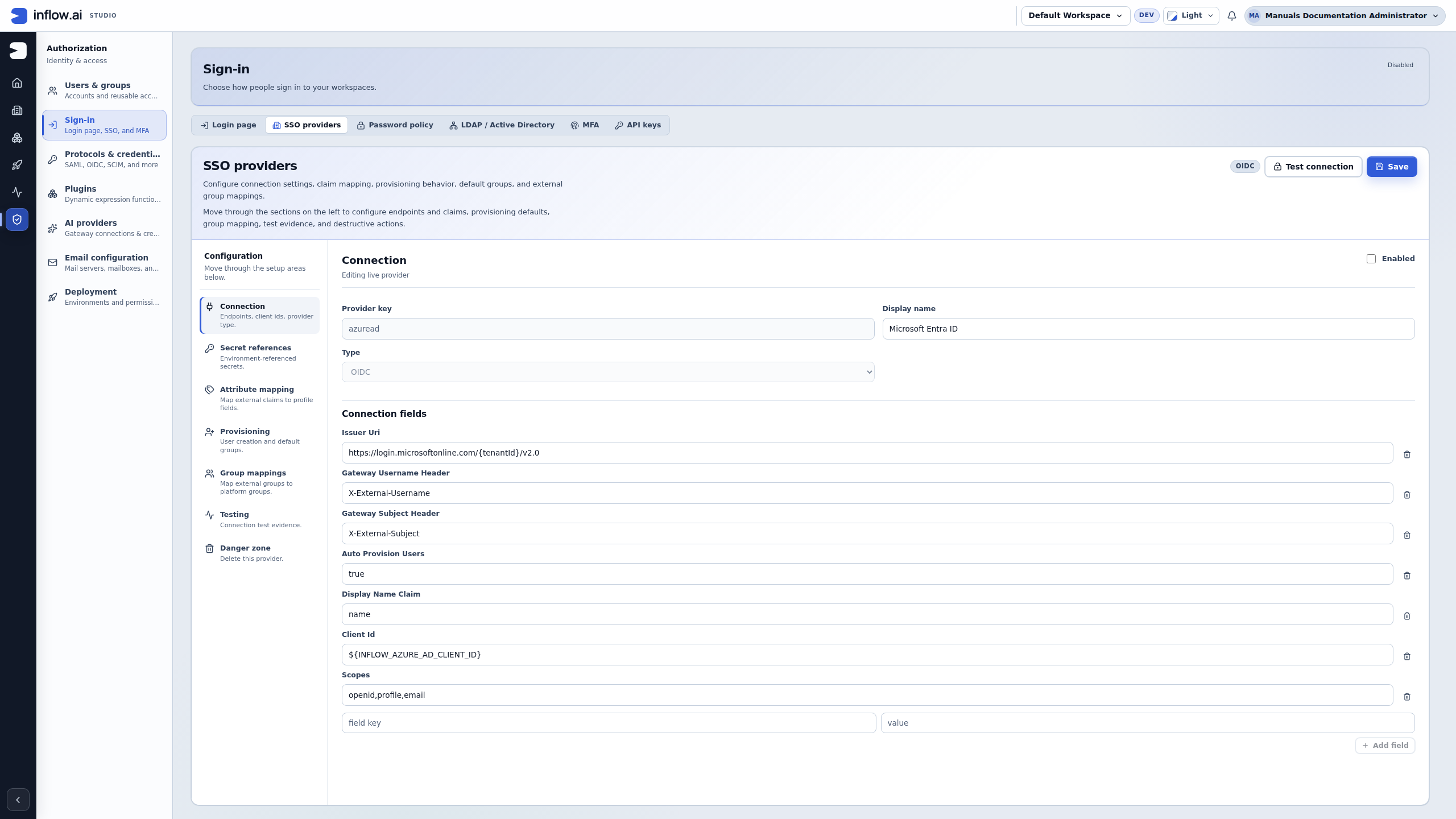
The following example is an actual development-environment administrator view. It shows an existing Microsoft Entra ID provider with Enabled unchecked. Its tenant and client configuration contain placeholders. They illustrate where issued values belong; they are not a working company connection to copy.
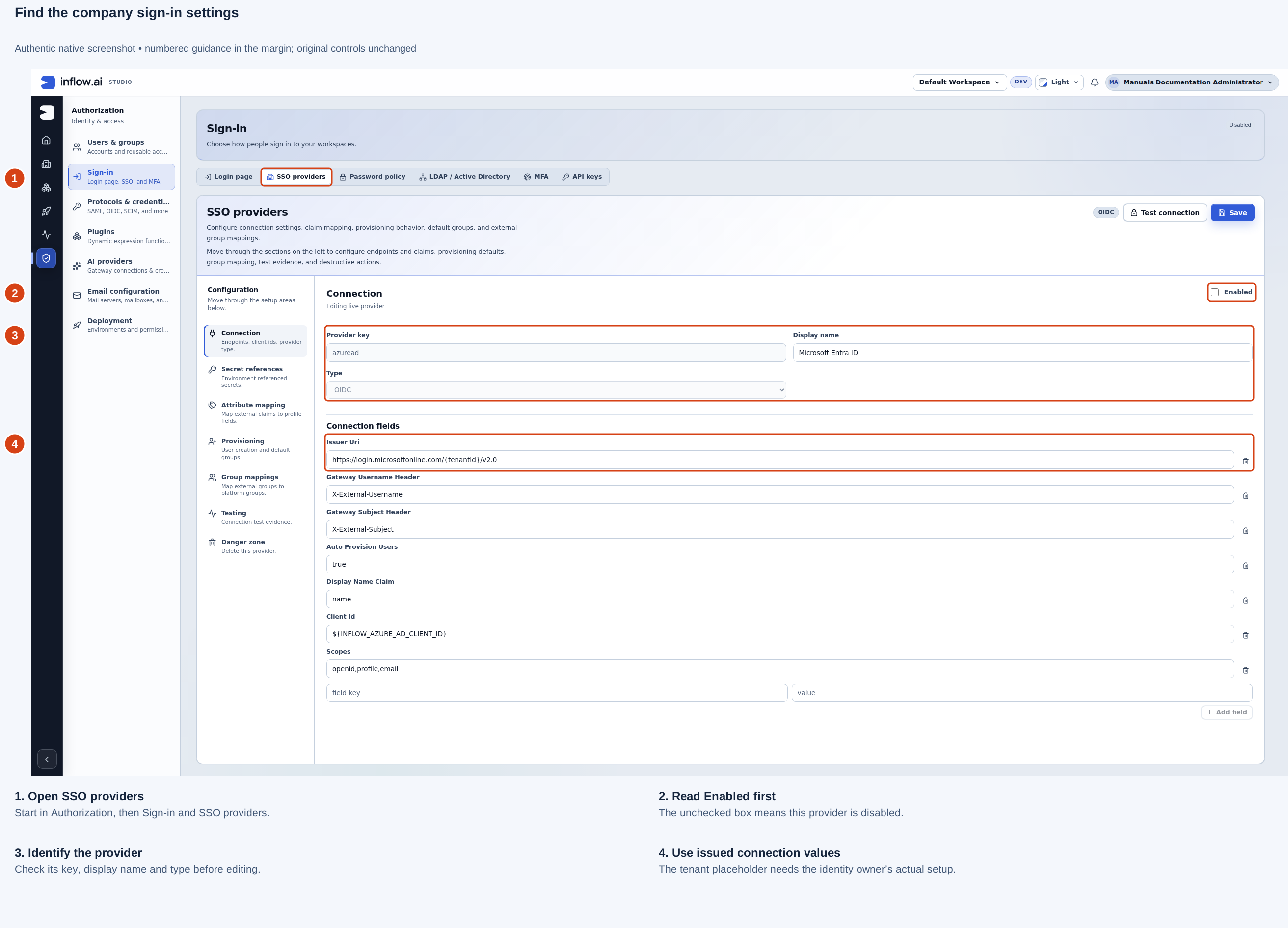
Read the numbered marks in order:
- SSO providers identifies the setup area. LDAP / Active Directory and the protocol-specific settings are different choices; use the one agreed with the identity owner.
- Enabled describes whether this provider is enabled. The unchecked state in the illustration must not be described as a successful company sign-in.
- Provider key, Display name and Type identify the selected provider. Check all three before changing any connection. In this existing provider, the key and type cannot be edited in this form.
- Issuer Uri belongs to the issued company identity configuration. The visible
{tenantId}placeholder needs that owner’s real tenant value. The client ID lower in the form is an environment reference, not a credential supplied by this manual.
Prepare a small worksheet before the administrator saves anything:
| Question | Fictional Leave requests example | Confirm with |
|---|---|---|
| Which environment? | Employee acceptance environment | Platform owner |
| Which company identity service? | The organization’s approved Entra tenant | Identity owner |
| Which identity should be tested? | Mohammad’s approved ordinary employee test account | Identity/access owners |
| What should the person reach? | The released Leave requests starting page | Application owner |
| What should remain unavailable? | Unrelated applications and administrator controls | Access owner |
| Who retains recovery access? | Named recovery administrator, stored privately | Identity owner |
These are planning examples. An actual connection needs the values and access decisions issued for that environment. Do not replace a missing value with a different customer’s tenant, a colleague’s credential or a guessed callback address.
Read provisioning before choosing default groups
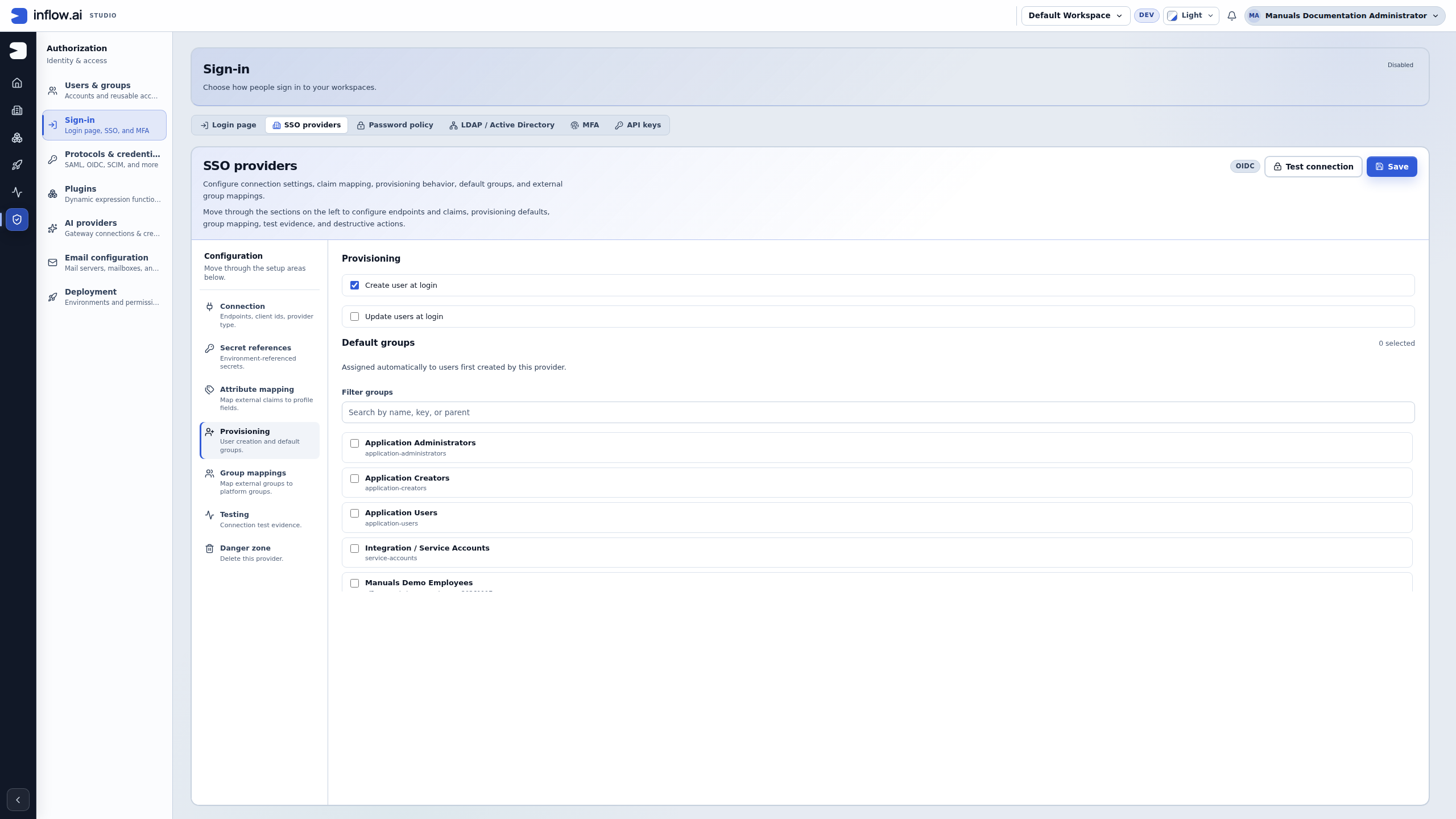
Continue to Provisioning in the provider’s configuration rail. The example shows Create user at login selected, Update users at login cleared, and 0 selected default groups. No choice was changed for the illustration.
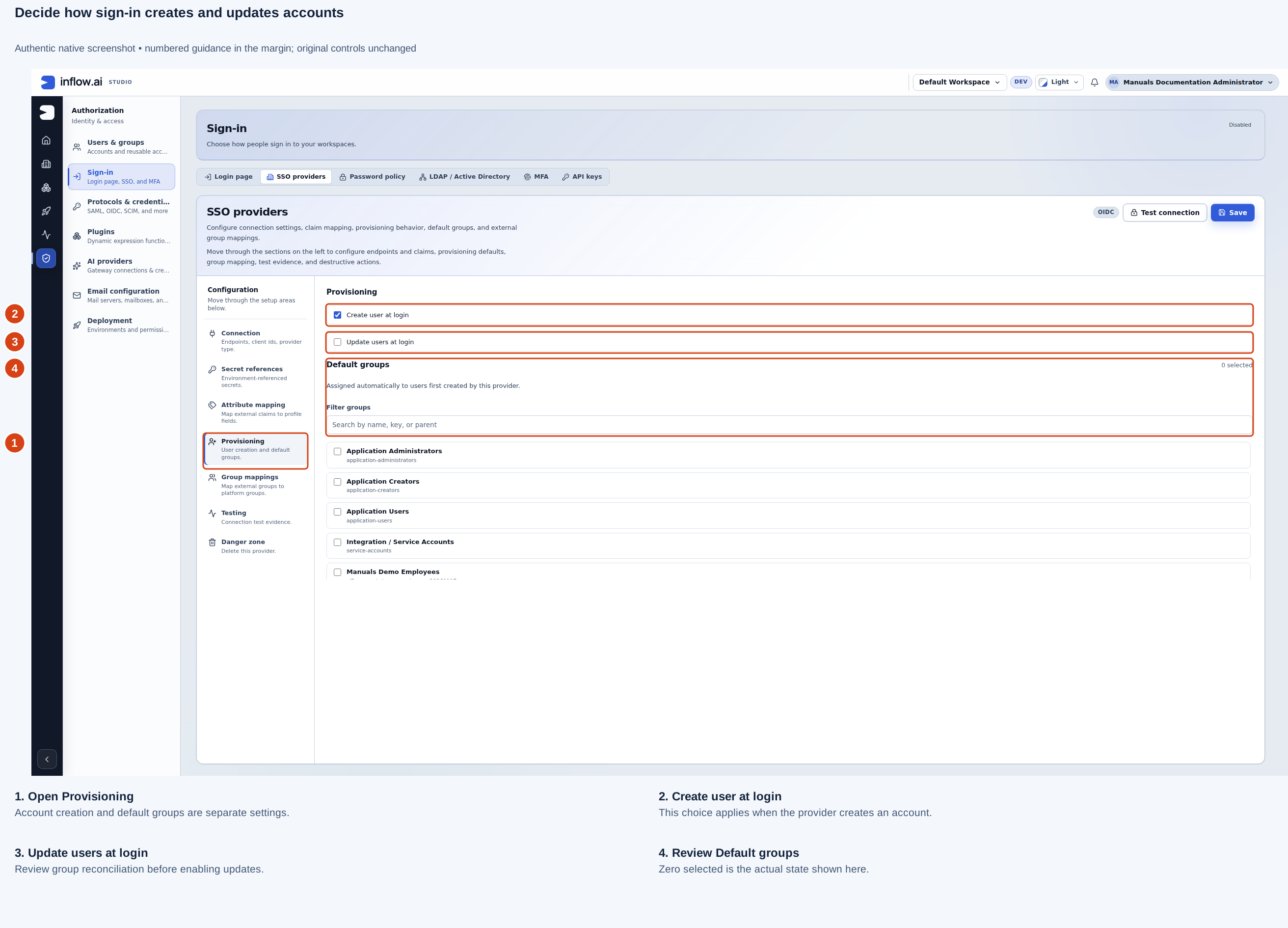
- Open Provisioning for the same intended provider.
- Read Create user at login separately from the update option. Creating an account at first sign-in does not automatically give it Leave requests access.
- Before enabling Update users at login, agree the complete resulting group membership. The later reconciliation described below can remove ordinary memberships that are absent from the mapped set.
- Review Default groups deliberately. They apply to accounts first created by this provider. The list is scrollable; the visible rows are not a complete membership report. 0 selected means no default groups are selected in this example.
For example, the access owner may intend a newly created employee to receive an ordinary Employees group and the app contribution attached to that group. They must select and verify the actual approved group; choosing a group named Application Administrators would grant a different kind of access. A manager’s eligibility for a particular task still needs its own workflow check.
Read the Testing section honestly
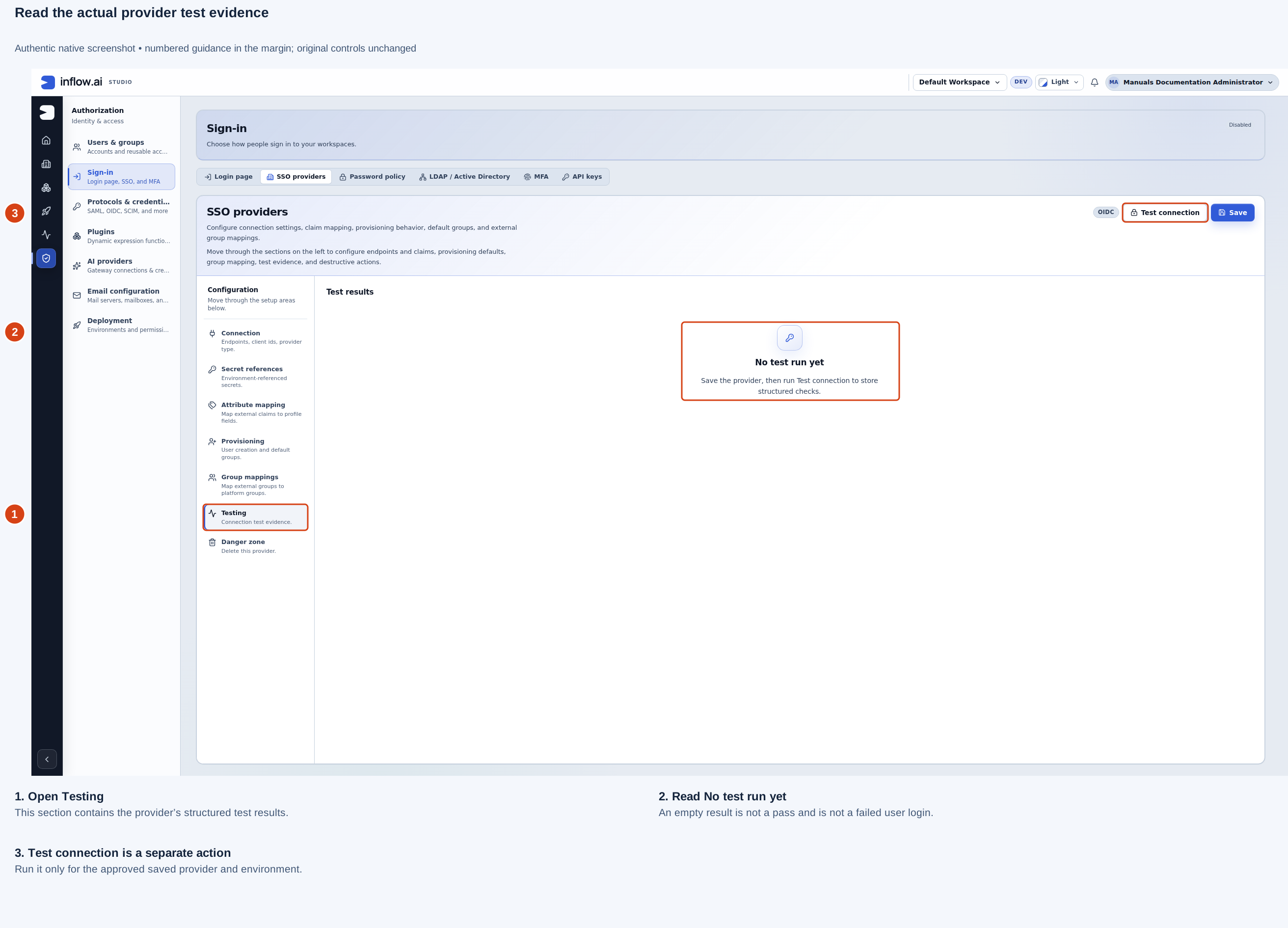
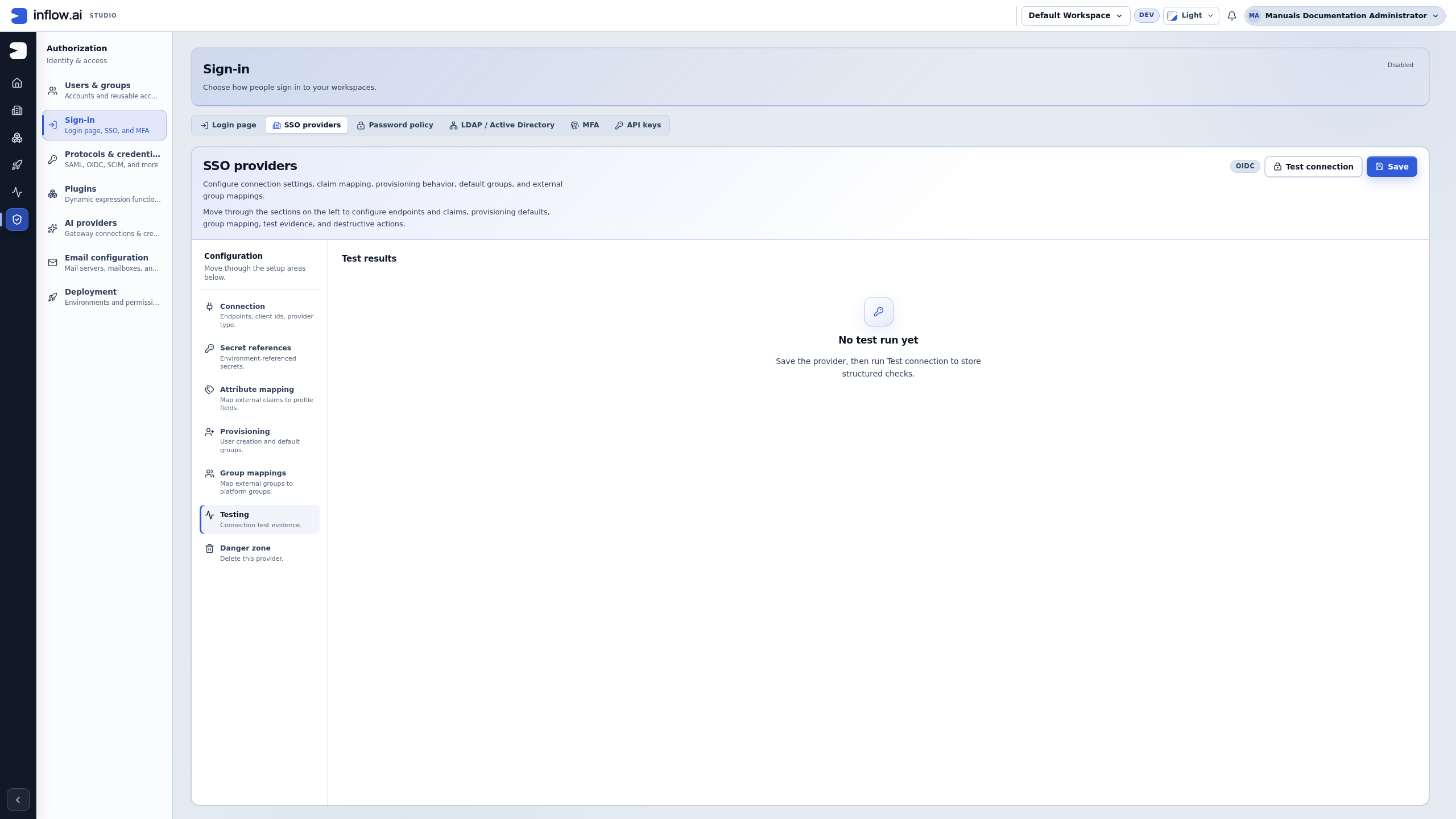
The visible No test run yet message means there is no stored test result shown here. It is neither a passing provider check nor evidence that Mohammad tried to sign in. The screenshot was taken without running Test connection, changing the provider or contacting an external identity service.
When the responsible administrator has the approved saved configuration and test environment ready, they can run its offered connection test and read the structured results. They must then check normal sign-in with the intended ordinary account and check application access separately. Follow the examples below for the distinction between those results.
Before you begin
Ask the identity administrator which sign-in method the organization supports. Agree on the exact Inflow environment, an approved ordinary test user and a recovery administrator who must keep access while the new arrangement is checked.
Do not experiment on the production sign-in settings just to follow an example. Do not collect the identity service's private credentials in a spreadsheet or project document.
Recognize the settings without guessing them
In Authorization → Sign-in, the visible areas can include SSO providers, LDAP / Active Directory, password policy and additional verification. LDAP / Active Directory refers to an organizational directory connection. Additional protocol-specific settings are for the administrator who owns that connection.
| Question | Person who should answer it |
|---|---|
| Which company login should people use? | Identity or IT administrator. |
| Which test environment and address are correct? | Platform/environment owner. |
| Which people and groups may use Leave requests? | Business owner with the access administrator. |
| Where should employees arrive after sign-in? | Application administrator. |
| Who can recover access if setup fails? | Identity/security owner. |
Prepare and check the company sign-in arrangement
- Tell the identity administrator which Inflow environment and application you are preparing. Name the ordinary employee and manager scenarios you need to check.
- The authorized administrator opens the appropriate Sign-in provider settings and supplies the values issued by the company's identity service. They should use the actual service settings, not copy a different customer's example.
- They save or create the provider before using Test connection, where that action is available.
- They read Test results and resolve the specific failed check. A successful connection test is useful, but it is not the whole employee journey.
- Using the approved test user, sign in through the intended company method. Complete any required additional verification normally.
- Confirm the actual person's profile and intended starting page. Open the published Leave requests application and check the permitted work.
- Check an action that should remain unavailable, such as editing the application as an ordinary employee. Company sign-in must not turn the employee into a consultant or administrator.
What you should see: the correct person signs in and can use only the intended application and business information. A connection being saved does not establish that the company login or the application's access is complete.
Read a connection test as one layer of evidence
Select Test connection only after the provider exists. The saved provider shows a latest pass/fail badge, while Test results lists the individual checks and any warnings. Read the failed check itself and give its non-secret message to the administrator who owns that part of the connection.
The checks depend on the provider type. For example, an OIDC check reads the provider metadata and checks whether the JWKS and token endpoints are reachable. A SAML check reads and parses the identity provider's metadata and inspects its signing-certificate information. LDAP checks the configured directory connection and its required search details. Use the result the current provider actually reports; do not assume two different provider types have the same test.
A passing connection test is not an interactive login. It does not prove that the ordinary employee account completed sign-in, that its claims mapped to the intended profile, that the correct external groups arrived, or that the employee can access the Leave requests application. Continue with the normal-user journey in the previous section. Keep those results separate in your handoff:
| Check | What it answers | What to check next |
|---|---|---|
| Provider test | Did the configured checks for this provider pass or report warnings? | Read every warning and confirm whether it affects the intended login. |
| Ordinary sign-in | Can the approved test person complete the expected login flow? | Check the person's resulting profile and sign-in method. |
| Group and application access | Does that person reach only the intended app and work? | Review group membership, app assignment and the allowed business actions. |
Example: provider test passes, employee still cannot enter
The OIDC provider's reported endpoint checks pass. Nadia then signs in with the approved ordinary test user, but the user does not reach Inflow. She records the provider-test result separately and asks the identity administrator to inspect the interactive sign-in and returned profile for that test account. The access administrator checks whether the person's group membership grants the Leave requests application.
The team does not repeat the provider test and call that a user-login test. They identify which stage failed, correct it with its owner, then repeat only the approved ordinary-user journey. If the user can sign in but the application is missing, they repair the intended application access; they do not grant a broad administrator role.
Separate first-time groups from external group mappings
In the provider's Provisioning section, Create user at login and Update users at login describe whether account details are created or refreshed during sign-in. Default groups are assigned to users first created by that provider. They are not a substitute for checking an existing person's current access.
Group mappings connect an external group name to an Inflow group. Use the exact external group value supplied by the identity owner and map it only to the ordinary Inflow group approved for that job. For example, the identity owner might confirm PeopleOps-Leave-Employees; Nadia and the access administrator can map that value to their existing Employees group, then confirm the result with the approved test user. A similar-looking group name is not proof that the user's identity token contains the expected value.
Prefer purpose-built groups such as Employees and Leave Managers. The provider group's selector excludes the built-in super-administrators group; never work around that boundary or give a normal employee an administrative group to make the application appear. Check the actual saved group membership and application access after sign-in, especially when an existing account is being updated.
Review the full membership effect before enabling updates
When Update users at login is enabled, an existing account's group membership is reconciled from the external groups supplied at sign-in and the provider's mappings. This can replace the person's ordinary Inflow memberships: groups absent from the resulting mapped set can be removed. A default group is included when the provider first creates an account; it is not automatically carried forward as a permanent exception during later reconciliation. For example, the account's initial Employees default can be removed later if no current external claim maps to Employees.
Before enabling or changing this behavior, have the identity and access owners review the complete expected membership after the next sign-in. Confirm that the external provider reliably supplies every intended group, that each exact value has the intended mapping, and that the approved test account is safe to use for the check. Keep a recovery administrator and record how to restore a mistaken ordinary membership. Do not enable Update users at login just to make a missing app or manager task appear; first determine whether the issue is in identity claims, group mapping, application access or task assignment.
Example: a manager can enter, but cannot review requests
Sara completes company sign-in and sees the Leave requests app, but the manager review page is unavailable. Nadia verifies that Sara's account is the expected test user, then asks the access administrator to compare her actual Inflow groups with the approved Leave Managers access. The identity owner confirms the exact external manager-group value before anyone changes a mapping.
After the authorized change, the team signs in again through the normal flow and checks Sara's manager task. They also confirm that Mohammad, the employee test user, still sees only employee actions. A successful login or a visible application tile does not prove that task assignment is correct.
Work with externally managed information
Some account fields and group arrangements may be managed by the company directory. Before correcting a name or membership, identify its owner. Ask the administrator whether the change belongs in Inflow or in the external directory.
Keep application access and starting-page configuration separate. A company identity can be valid while the user has no assigned application. The correct repair is to review that access, not to weaken sign-in or add a broad administrator role.
Example: company login works, but Leave requests is missing
Mohammad signs in through the company identity service and reaches Inflow. He does not see the expected employee application. Nadia first confirms that this is the intended account and environment. The access administrator then checks his current group membership and the Employees group's saved application setup.
They leave the working company login alone unless its own evidence identifies a problem. Once the missing legitimate application setup is corrected, Mohammad signs in or refreshes through the supported flow and checks the released application.
The result is an employee with the right app, not a broadly privileged account. A sign-in success proves identity; it does not by itself prove every business permission.
Example: a second environment uses a different address
The team prepares a separate test environment for a new release. Its identity-service registration and allowed return addresses must match that environment. The identity administrator checks the actual issued values and saves the correct provider setup.
Nadia then tries the ordinary employee journey using the test environment's intended address. If the identity service refuses the return, she gives the administrator the non-secret error and the environment name. She does not paste private credentials into a ticket, disable the check or change production settings until the test happens to work.
A successful test is recorded for that environment. It is not automatically evidence for a different server or identity-service registration.
Common mistakes
| Symptom | What to check |
|---|---|
| Company login never returns to Inflow. | Give the identity owner the correct environment address and the non-secret message. |
| Test connection passed but the employee cannot enter. | Test the actual normal sign-in, account state and application setup. |
| A directory-owned field cannot be edited. | Correct it through the owning directory process. |
| The employee lands on an unexpected page. | Review group starting-page settings and conflicts separately. |
| The proposed change could remove the last recovery path. | Preserve recovery access and have the identity owner review the plan. |
Continue
Use users and groups and application access for the business side of the setup. The optional reference contains the protocol and provider details for the responsible specialist.
Further reading
Optional technical reference — detailed contracts and implementation information for your administrator or developer. You do not need it to follow this lesson.