Build and test an AI task
An AI Task is a reusable instruction that turns supplied information into a useful answer. You might summarize a request, translate a notice or extract a few fields from a document. You configure it once, try examples and publish it for use elsewhere in your application.
An AI answer still needs checking. In our example, Nadia builds a summary for Sara; Sara makes the leave decision herself.
Before you start
Use a workspace where you can create rules and an AI model prepared by your administrator. A model is the AI service selected to produce the answer. If AI Task is not offered or no model is available, ask the administrator; changing the prompt cannot create the missing service. Use fictional data while learning.
The wizard has six steps: Goal, Inputs, Instructions, Result, Model, Try & publish. An input is information supplied to this task. The result is what the task returns. Publishing makes your checked task available as a reusable rule.
Find the Rules entry point
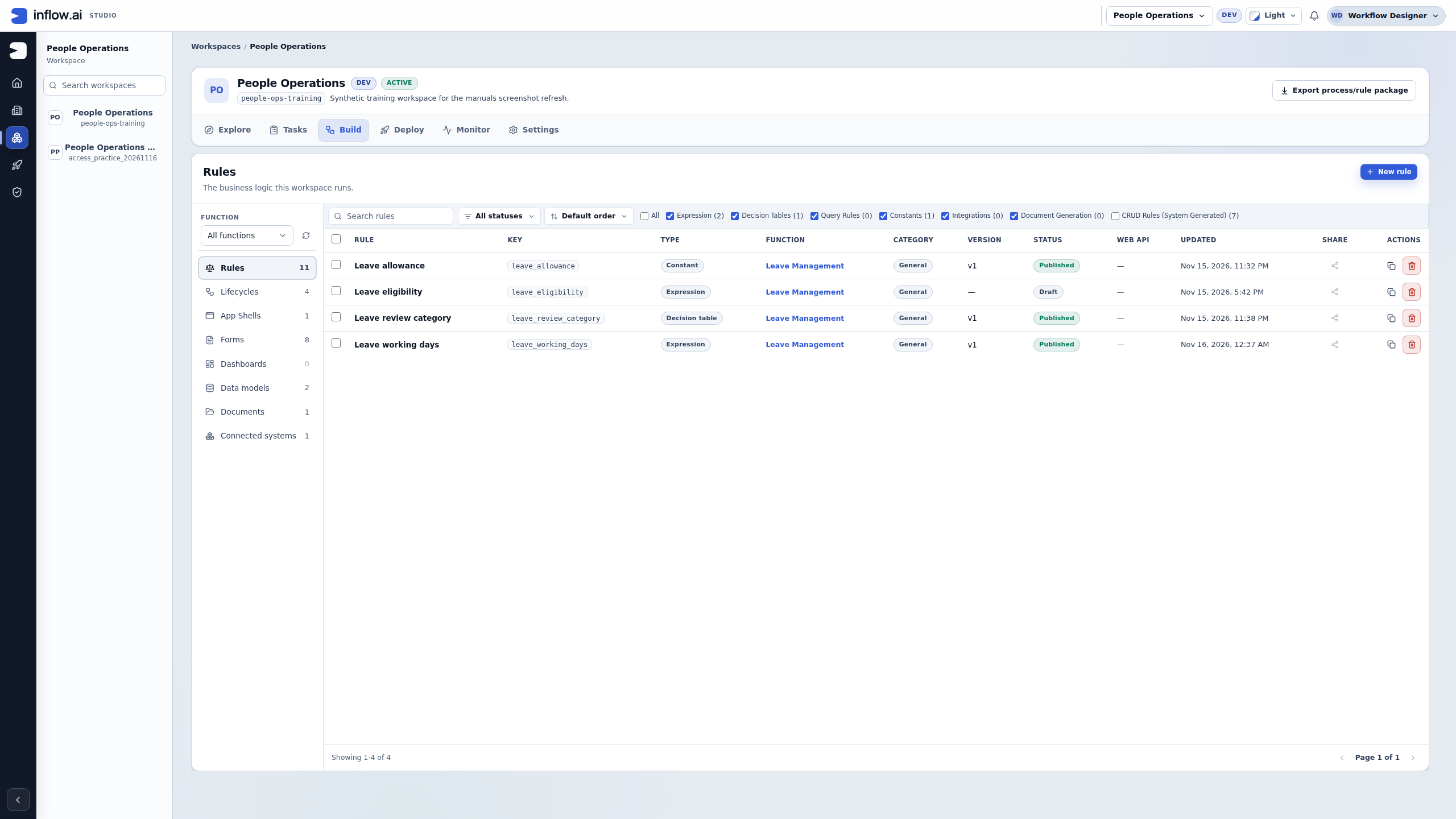
Start in the workspace where the task will belong. The numbered guide follows the actual People Operations → Build → Rules catalog. Choose New rule, then inspect the offered rule types before naming the task.
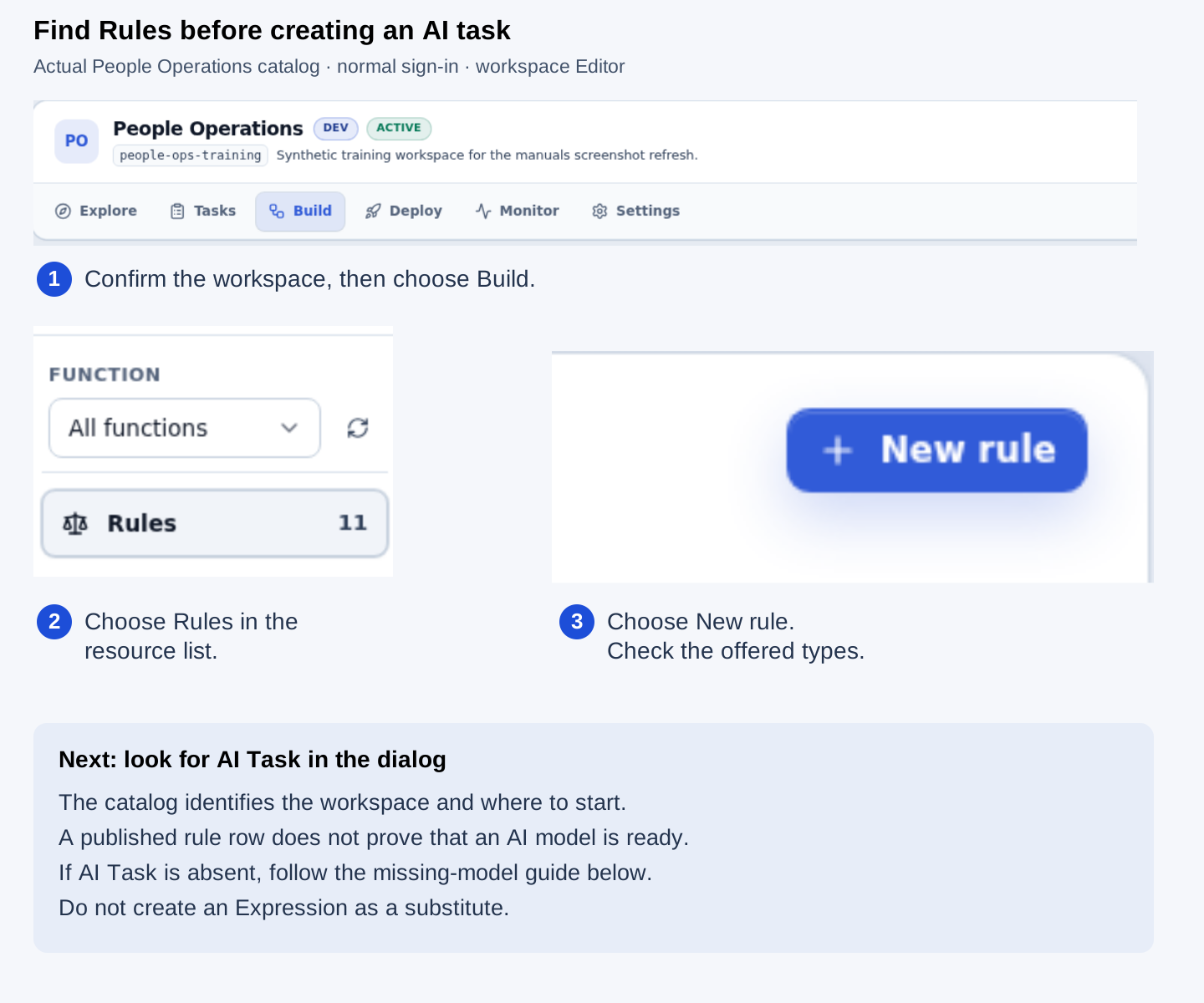
Open the unmarked Rules catalog screenshot. This is the entry view, with existing synthetic leave rules. Their published versions do not show that AI is configured. The next visual explains what to do when the AI Task choice is absent.
Recognize the missing-model starting state
In Build → Rules → New rule, look for AI Task before naming the task. In the practice workspace below, the model catalog was read successfully and contained no enabled AI provider model. The dialog therefore offers six other rule types and leaves AI Task absent. This is a model-setup prerequisite; creating an Expression instead will not provide the AI task wizard.
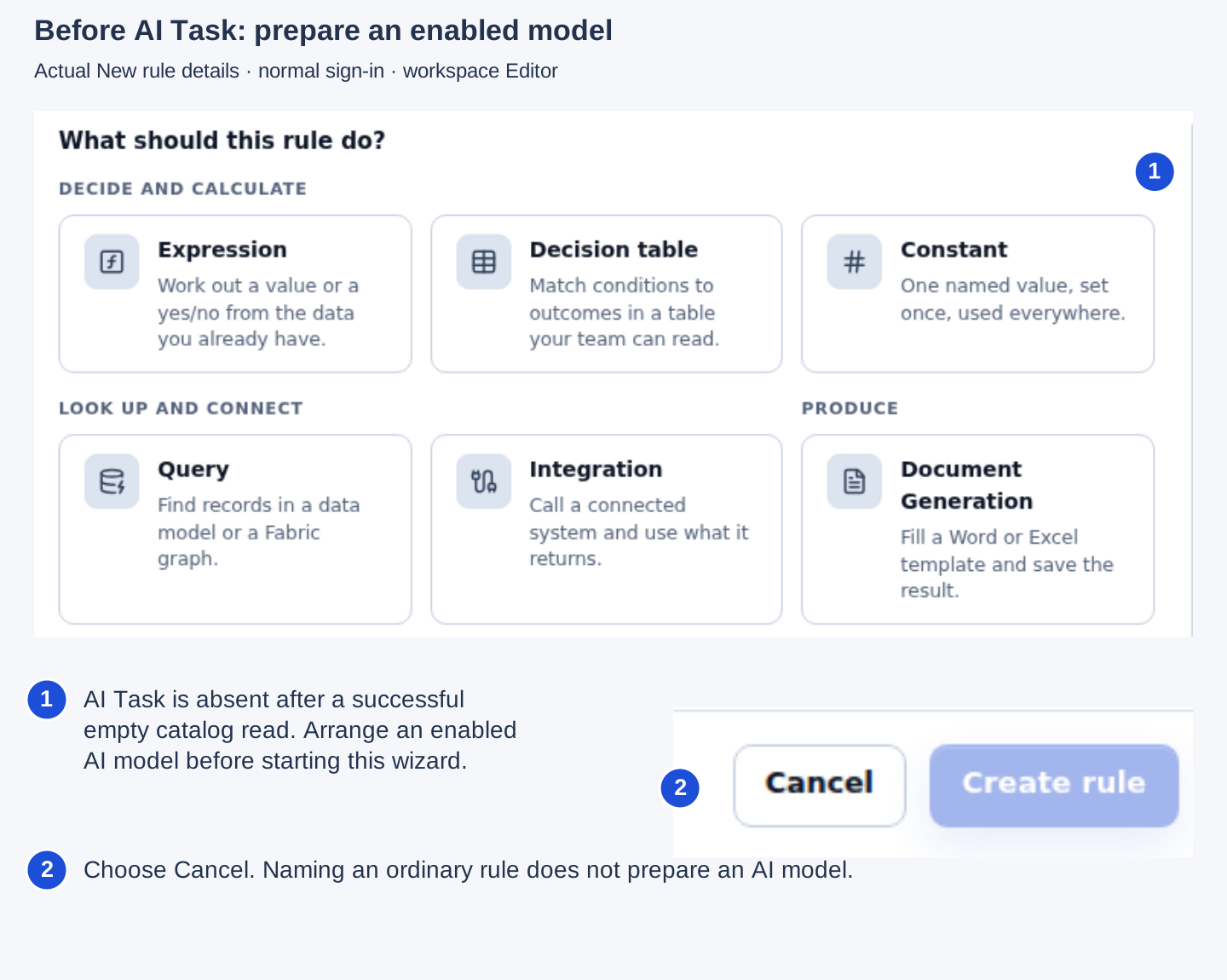
Read the numbered marks in order. If your dialog looks like this, choose Cancel and ask the administrator to enable an appropriate model in AI providers. Return after that setup is complete, open New rule again and choose the actual AI Task option. A failed or unreadable catalog needs its own repair; the screenshot shows a successful empty catalog, not every reason AI might be unavailable. See Choose an AI model for the administrator handoff. Open the unmarked full screenshot.
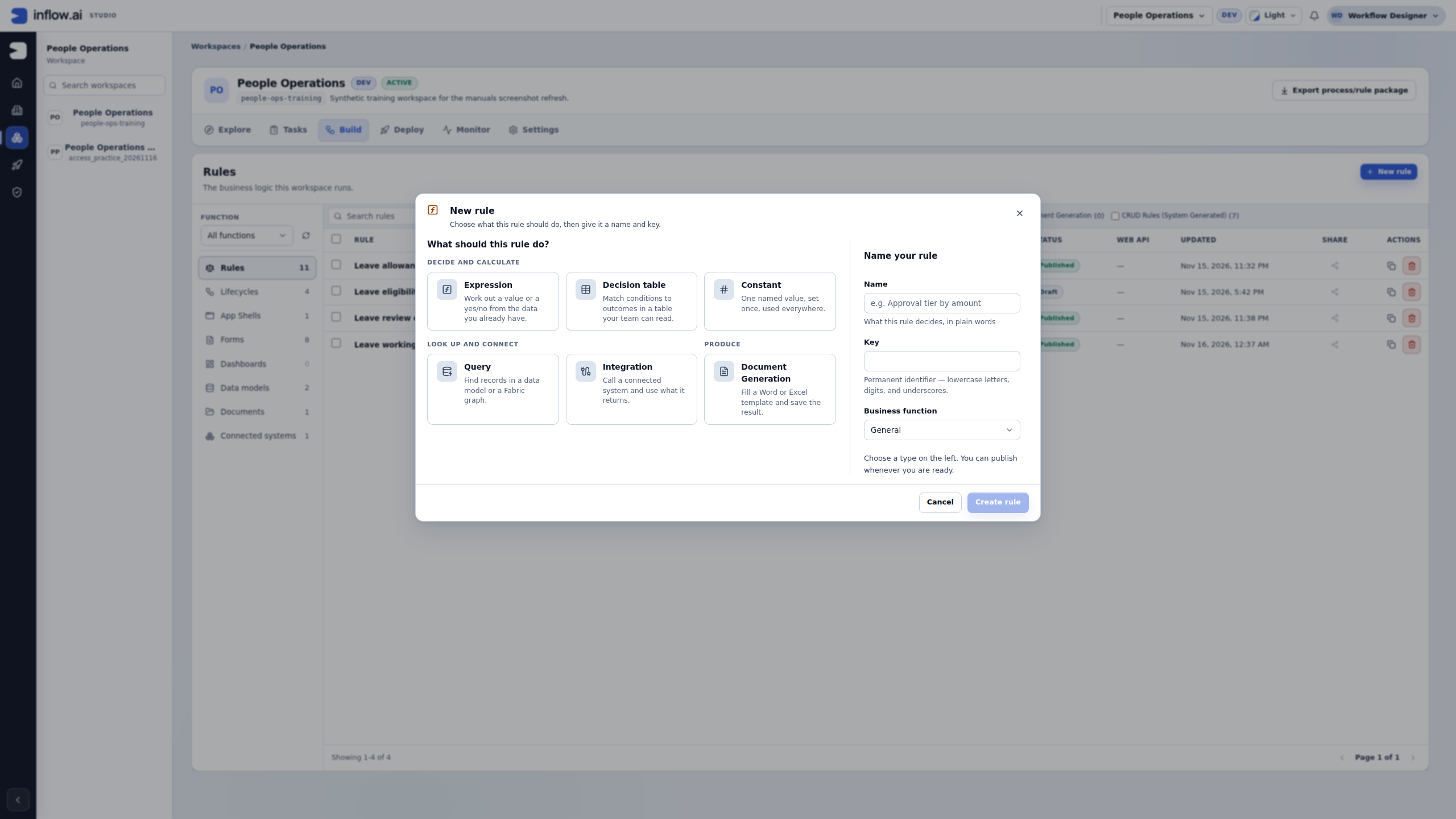
The screenshot shows the starting prerequisite only. It does not demonstrate a configured model, a completed wizard, a test answer or publication.
Example 1: summarize Mohammad's request
- Open your workspace's Build area, choose Rules, then New rule.
- Choose AI Task when it is offered. Name it Summarize leave request and create it.
- On Goal, choose Summarize Text. Read what it accepts and returns before choosing Next.
- On Inputs, choose Provided when the rule runs for its text input. Keep the input name suggested for that task unless you have a reason to change it.
- On Instructions, use the input chip to insert the request text. A chip is the placeholder where each request's content will be inserted. Keep it in the instructions rather than typing a particular employee's request permanently into the task.
- Add this instruction in ordinary language: “Summarize only the supplied facts in two sentences. State that manager review is pending. Do not approve or reject leave.”
- On Result, choose a Text answer. On Model, choose an available approved model or the offered administrator default.
- On Try & publish, enter: “Fictional request 014. Mohammad requests five days of annual leave, 14–18 December 2026. Sara has not decided.” Choose Run test.
Read the actual answer. It should retain the person, dates, quantity and pending decision. Its wording may differ each time. A possible answer is: “Mohammad requests five days of annual leave from 14 to 18 December. Sara's review is pending.” That is an illustration, not a result you should accept without checking your own run.
If it goes wrong: fill a missing required input, reconnect an unused input chip or ask the administrator about an unavailable model. A blank answer after a failed run is not a successful summary. Do not publish just because a sample sentence sounds plausible.
Example 2: translate a notice into a fixed language
- Create another AI Task called Translate employee notice and choose the offered Translate goal.
- On Inputs, keep the notice text as information supplied for each run.
- For the target language, choose Fixed value and enter Arabic. Fixed means the same text is used every time; callers do not need to choose it again.
- On Instructions, insert the actual text and language chips offered by this task. Explain whether names, dates and formatting should stay unchanged.
- Choose the Text result and an approved model. Try the fictional notice: “Your leave request is waiting for manager review.”
- Read the translation with someone who can assess it. Check that “waiting” has not become “approved.”
The visible difference from the summary lesson is the fixed language: the test asks for the changing notice, while the task already knows the target language. If you later need different languages per request, deliberately change that input back to a supplied value and check the task's consumers.
Example 3: return a few named fields
A later application may need a request number, a quantity and a Yes/No flag rather than a paragraph. Use a suitable offered extraction or classification goal. On Result, define the fields through its controls and give each a clear meaning: Text for a reference, Number for the requested quantity, Yes/No for whether information is missing. Try a synthetic document or text that the goal actually supports.
Check each returned field, including missing or ambiguous information. Returning a number does not save a business record, and returning “approved” does not perform Sara's approval task. Do not send a private document to the model merely because you can open it in the library.
Choose and connect inputs carefully
The Inputs step lists the values the selected goal reads. Each input shows its kind and whether it is required. The kind matters: Text is the text you enter or pass; Document and Image refer to items in the workspace library. A file reference is not the file's contents. For a test, choose an available document or picture from the library, or paste its item ID. If an item cannot be checked, the page may still let you try the task, but that does not prove the runtime can read its contents.
For each input, choose where the value comes from:
- Provided when the rule runs means the process, form or other caller supplies the value under the input's name. This is the usual choice for a changing leave request. For example, the caller supplies
requestTextfor each employee. - From a record field means this task reads a field from a record type the caller can pass. Choose both the record type and the field. For example, connect
requestTextto theLeaveRequest.requestDetailsfield when the caller supplies that record. If several types have the same display name, choose the exact type shown in the list. - Custom path (advanced) is for a known input path that the ordinary source choices do not cover. Use it only when you know the value shape the caller supplies. A path that looks plausible can still be empty at runtime.
- Fixed value is available for text inputs when the same text should be used on every run. In Example 2,
targetLanguageis fixed toArabic; the caller supplies only the changing notice.
For a translation task, compare these two designs before publishing:
| Need | Source for targetLanguage |
What the caller supplies |
|---|---|---|
| Every notice is translated to Arabic | Fixed value Arabic |
The notice text only |
| Each team chooses a language for its own notice | Provided when the rule runs | Both the notice and target language |
Required inputs must have a source. If the task asks you to fill in a required value before Run test becomes available, supply a realistic fictional value or select an allowed library item. Do not put a particular person's private request into the saved instructions just to avoid an input.
Write instructions for changing requests
Instructions are a template for future runs. Insert each changing value with the input chip; do not type one sample person's request into the instruction itself. State the task, boundaries and desired shape in plain language. For Example 1, this is a useful starting point:
Summarize only the supplied facts in two sentences. Include the employee, requested dates and duration when present. Say that manager review is pending. Do not approve or reject leave. If a fact is missing, say that it was not supplied.
When a field has a business meaning, say what the meaning is. “Return missingInformation as Yes or No” is clearer than “return a flag.” For a document-extraction task, ask the model to leave uncertain facts empty or say they are not stated; do not instruct it to guess a date or employee name.
Use a made-up request to check that the input chip is in the right place. Open Technical details after a successful test and inspect Request sent to the AI. Confirm that it contains the sample request and your instructions in the expected positions. This preview represents the request shown by the test UI; provider-side redaction or handling is a separate concern. If the request contains a real person's details, stop and follow your workspace's approved data process before continuing.
Define the result the next step needs
Choose Text when the next step needs a sentence or paragraph, such as a summary for a read-only text area. Choose a structured result when a form, expression or later rule needs separately named values. The result fields are an answer contract: their names and types tell callers what the task intends to return.
For a leave-request summary, a small structured result might be:
| Result field | Type | Required | Meaning |
|---|---|---|---|
employeeName |
Text | Yes | Name stated in the request |
requestedDays |
Number | No | Number of requested working days, only if stated |
dates |
Text | No | Date range as written in the request |
missingInformation |
Yes/No | Yes | Whether a required request detail is absent or unclear |
Choose types that match what consumers need. A number is not free-form text; a Yes/No field is not the approval decision. If you need several items, use a list only when the offered task and its consumer can use a list. Mark a field required only when a missing value should make the result visibly incomplete.
When available, Suggest fields asks the selected model to propose names from the goal, instructions and input names. It is an optional, metered model request. Suggestions are not applied automatically: review their names and meanings, select only the useful new ones, and add them. Suggestions that already exist are shown as already present. You can discard them; if you add the wrong set, the wizard offers one Undo until you next edit a result field. If no model is available, the suggestion action is not offered; add fields manually or ask the administrator to prepare a suitable model.
The optional Save to record field choice maps a result field to a field offered by a record type. It controls a mapping; it does not by itself write a record. For example, mapping employeeName to LeaveRequest.employeeName describes where a consumer may map that output. A later form, rule or workflow still needs an authorized action that actually saves data. Check both names before relying on the mapping: the test table shows the result name and, when it differs, the mapped destination.
The Result step may offer Create a type from these fields, Publish type or Update type, depending on the link already present. Creating a new type publishes its first version immediately from the result fields; it does not show the update confirmation first. Publish type confirms that the linked type's first version will be published. Update type confirms a new version following the task's fields; the confirmation lists removed fields, and earlier published versions stay unchanged. These actions require the relevant data-model permission and may not be shown to every author. Read the visible confirmation before publishing or updating an existing type. A result type is a schema, not a database table and not a saved leave request. Save the AI Task draft after linking the type.
Choose a model with the data in mind
The Model step lists enabled models and whether each can run this task. A provider administrator prepares and enables models; a consultant selects among eligible choices. If only one enabled model can run the task, the wizard can use it without asking you to choose. If no suitable model is enabled, changing the instructions will not make one available. Ask the administrator named on the screen, then refresh the model list.
The goal sets the task's data class. It is shown in the advanced model details and is not an author-editable classification field. For a task marked restricted, the UI states that data stays on premise and only an enabled on-premise model can run it. For image inputs, the workspace may also require approval before images are sent to a cloud model; if that setting cannot be checked, refresh or ask the workspace administrator. A visible model choice is not permission to use real business content. Follow the data owner's rules for the particular records and service.
The advanced Answer length setting is the upper limit on the model's response; raise it when the answer is cut off, understanding that longer responses can use more tokens. Creativity ranges from more literal wording to more varied wording. Start with the offered values. Change one setting at a time and re-check your examples so that you can see what changed.
Run a useful test and read the answer
The Try & publish step runs the task with the values on the page, using its current instructions, model choice and result checks. It is a real AI request and can use the workspace's AI allowance. Use fictional values while learning. A successful response is still a model-generated answer, so compare it with the input before accepting it.
For Example 1, a good fictional test might say: “Fictional request 014. Mohammad asks for five working days of annual leave, 14–18 December 2026. The manager has not reviewed it.” Check that the answer preserves the person, duration, dates and pending review. If the answer says “approved,” it has failed the task's boundary even if the rest is fluent. Tighten the instruction and run it again.
For a structured result, inspect every row in the result table. It shows the field, expected type, returned answer and whether the value is present in the expected form. A missing required value, text where a number was expected, or “yes” written as text instead of a Boolean is a reason to revise the task or clarify the source information. A matching type does not prove the value is true; compare it with the request.
The answer panel also shows the model label, token counts and elapsed time when the run reports them. Expand Technical details to compare the rendered request with the raw answer. Use those details to diagnose a misplaced chip, unexpected input or formatting issue; do not treat raw output as a second verified result.
If you choose Stop, you stop waiting in this page. The provider may still finish the request, and the usage log records it as usual. The stopped response is not a successful answer. Do not repeatedly click Run test while the first outcome is uncertain.
Save examples that protect the task's meaning
Save examples for cases the task must handle consistently, not just easy inputs. For a leave summary, useful fictional examples include:
- A complete request with employee, dates and duration.
- A request with dates but no stated duration.
- An unclear or contradictory date range.
- A message asking for leave but not saying whether the manager has reviewed it.
After a successful test, name the example and choose Save as example. The example keeps the test values and expected result in the task draft. If you save another example with the same name, it replaces that named case. Keep the expected answer faithful to your requirement; do not change the expected result to make an incorrect answer appear acceptable.
After you edit instructions, model settings or result fields, save the draft and choose Re-check examples. Re-checks run from the saved draft, so the action waits until the draft is saved. Review each same or changed result and the displayed expected/new field values. AI wording can vary; a changed answer is a cue to inspect whether the business meaning changed, not automatic proof of failure. A failed re-check, missing required field or unsupported answer should lead to a task edit and another test.
The previous test result is no longer current after you change its inputs or the task setup. Run the task again before saving that answer as a new example. This prevents pairing an answer with values it was not produced from.
Repair common problems
| What you see | What to check next |
|---|---|
| The goal or task type is unavailable | Confirm that your role can create rules and that the workspace exposes AI Tasks. Ask the workspace owner about access; the prompt cannot enable a hidden feature. |
| No model can run this task | Read the model step's reason, then ask the AI provider administrator to enable a capable, policy-eligible model. Refresh after they do. |
| Image processing is blocked | Check whether the workspace requires approval for cloud image processing, or whether an enabled on-premise model can read images. Do not move the image to another provider to get around the policy. |
| A document or image ID is unavailable | Choose an item you can access from the library and check the selected name. A temporary lookup problem is different from an item that is unavailable to you. |
| The answer leaves out a fact | Verify that the input is connected and appears in the rendered request; make the instruction name the required fact; run the same fictional example again. |
| The answer invents a fact or makes a decision | Tell the task to use only supplied facts, mark uncertainty, and avoid deciding. Keep the human decision in the separate workflow. Add a counterexample to the saved examples. |
| The structured result has the wrong type or a missing required field | Clarify the field definition and instruction. Check the actual row and destination mapping, then rerun and re-check examples. |
| The answer is cut off | Increase Answer length modestly, then test again. Do not assume a longer limit fixes a missing input or unclear instruction. |
| The test fails with a provider or access message | Follow the visible next step or ask the named administrator. Do not copy private request content into another service. |
Publishing makes the checked task available for use elsewhere in the application; it does not approve the business request, save a record or guarantee a particular future answer. Before publishing, confirm the goal, every required input, the instruction boundaries, result fields and mappings, eligible model and data classification, and saved examples. Resolve each issue named in the publish checklist. After publishing, return to the rule page and confirm that the published state is shown. If a consumer is not ready, leave the task as a draft and coordinate its integration separately.
Publish and hand off
- Review the publish checklist and follow each issue link to the step that needs attention.
- Save the draft and re-check the examples after the last instruction, field or model change.
- Publish only after the answer boundaries and caller-facing result are clear to the person who owns the business decision.
- Back on the rule page, confirm the published state. Open the AI task returns to its setup. Tell the person connecting the task which inputs it expects and which result shape it returns.
If the rule needs to be called from a form, workflow or application page, treat that as a separate integration step. The AI Task is the reusable operation; the consumer still chooses when to call it, where to display the result and whether a human must confirm an action.
Continue with Add an AI summary to the leave app. The optional AI Task technical reference is for integrations and advanced troubleshooting.