Create a PDF from a Word document
Conversion keeps the Word source and writes its PDF to the source's folder. If no same-name PDF is there, conversion creates a new document. If a document with the generated PDF name already exists in that folder, conversion adds a version to that existing document instead of creating a second document. Before converting, check the folder and ask the owner to review any matching PDF and your authority to add a version.
For a leave application, the PDF can be the approval letter a manager checks or the version the next business step sends to an employee. Always inspect the actual output before treating it as a finished letter.
Before you begin
Your administrator must prepare the document-conversion service. You need access to read the source and create the PDF in its folder. If a same-name PDF already exists there, you also need authority to upload a new version of that document. A reader who can open a Word file does not necessarily have either permission.
Use a small fictional Leave approval.docx in the intended folder. The service supports its prepared document formats; a file's name or extension alone is not proof that its contents are suitable.
Convert a selected document in Documents
- Open the intended workspace's Documents library and locate the source letter.
- Open its details or preview and check the current edition. Confirm that you intend to convert that document now. Check the source folder for a PDF with the generated name; if one exists, confirm the owner intends to add a version to that exact document and that the operation has version-upload authority.
- Select the document in the library and choose the selection action PDF when it is offered. The selection must contain appropriate documents, not folders or cabinets.
- Wait for the displayed conversion result. If converting several documents, read the success/failure information rather than assuming all files finished.
- Open the generated PDF in the source folder. Check its document identity and version, then inspect its title, contents, dates, page breaks and language layout. If it is a new document, confirm the Word original is still present. If it is an existing same-name PDF, confirm the expected version was added to that document.
- Keep the Word source and the PDF's actual document/version reference distinct when selecting an attachment for the next business step.
Check your result: inspect the generated PDF document and its version in the source folder while the Word source remains. The PDF may be a new document or a new version of an existing same-name PDF. A successful operation does not prove that every page has the exact appearance you want; reading the identified PDF version is part of the business review.
Illustrated practice: convert the corrected current letter
This continues the document-library practice. Nadia has Leave approval practice.docx in Document library practice 20261116 / Leave letters. The Word document’s first edition ends leave on 17 December; its corrected current v2 says 18 December 2026. She wants a readable PDF of that correction.
The small letter explicitly identifies Mohammad and Sara as fictional training characters. It contains no real approval, employee record or delivery instruction. This exercise uses the Documents library’s PDF selection action; it does not start an automatic workflow step.
Check the current source and the destination
- Open People Operations → Documents and select the practice cabinet and Leave letters folder. Read the actual folder heading before selecting a source.
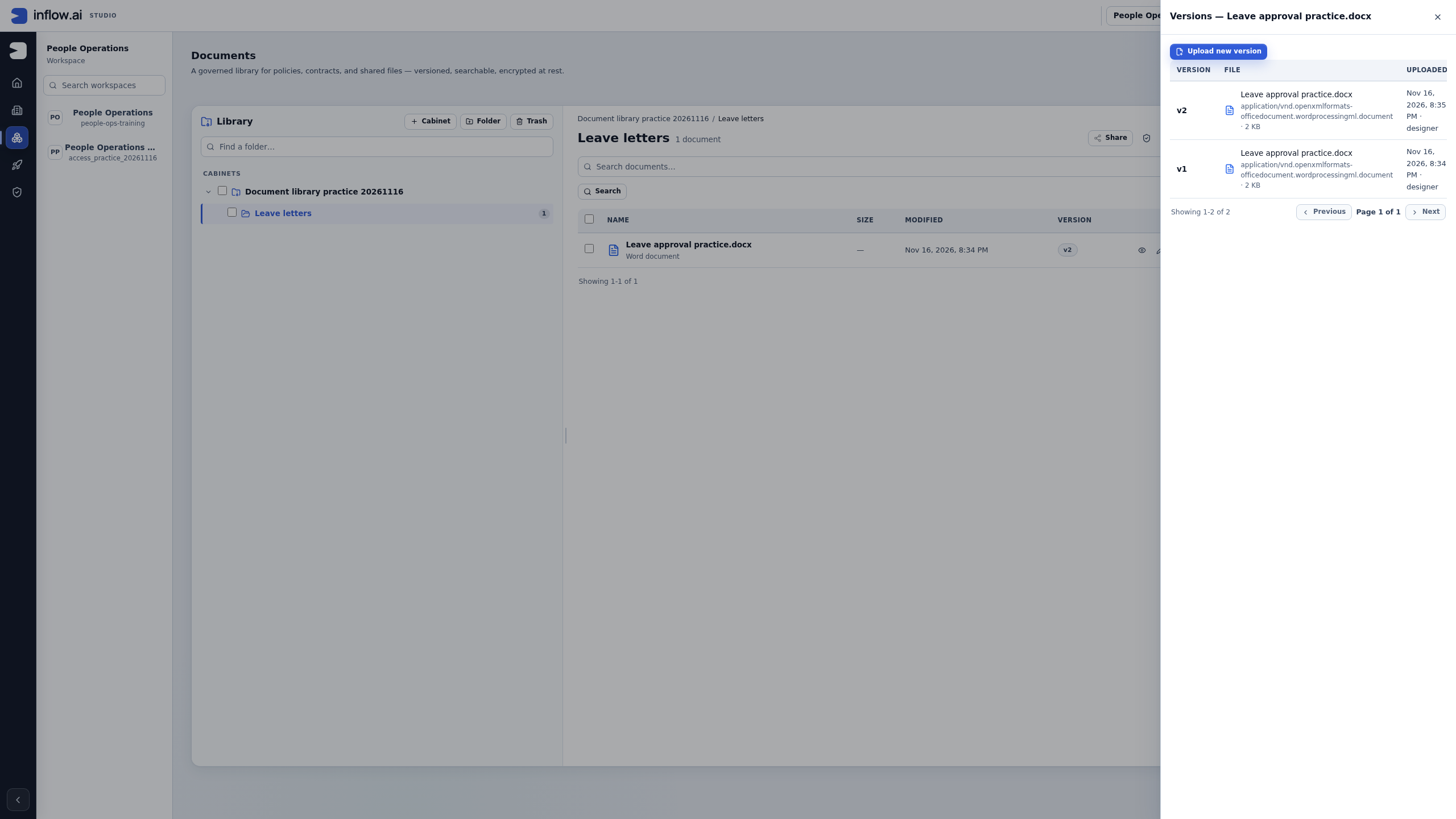
- Find the Word row Leave approval practice.docx and confirm v2. If you have just uploaded the correction, inspect Versions: v2 and v1 belong to one document, rather than two files with similar names.
- Confirm that v2 contains the intended corrected date. Use its permitted download and a suitable Word reader if needed. An older task’s selected attachment is a separate reference; it does not change which current edition this library action will read.
- Check the same folder for Leave approval practice.pdf. The illustrated folder initially contains only the Word source, so the conversion can create a new PDF document. If a matching PDF already exists, stop and confirm the owner intends to add a version to that exact document and that you have the required authority.
- Confirm that the intended conversion service is prepared and the relevant controls are offered for your access. Reading a Word file does not necessarily permit writing a PDF into its folder.
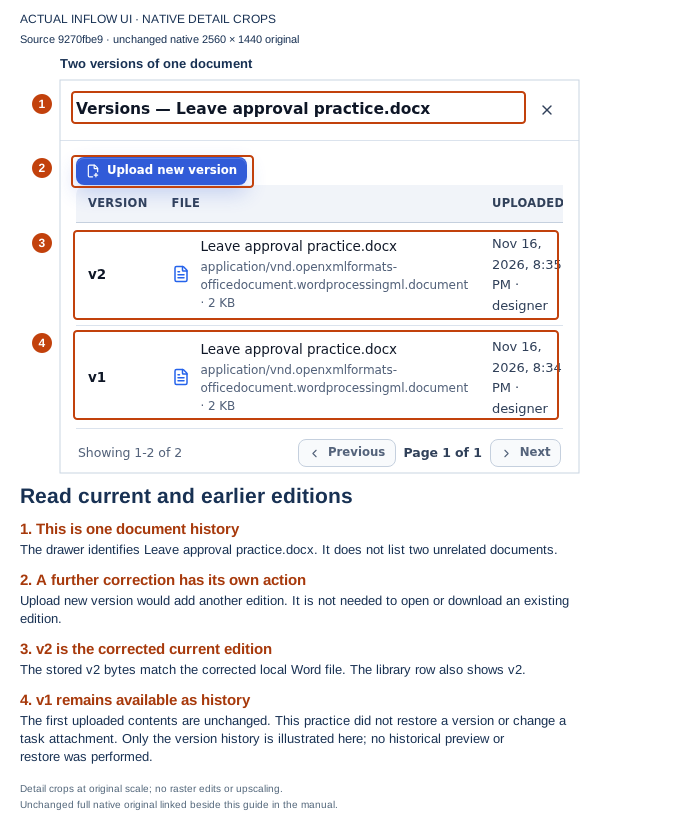
Choose the intended edition deliberately: the source remains one Word document. This practice converts its current v2; it does not restore v1 or ask an old task attachment to choose a source edition.
Open the unchanged full-size screenshot.
Convert the selected Word document once
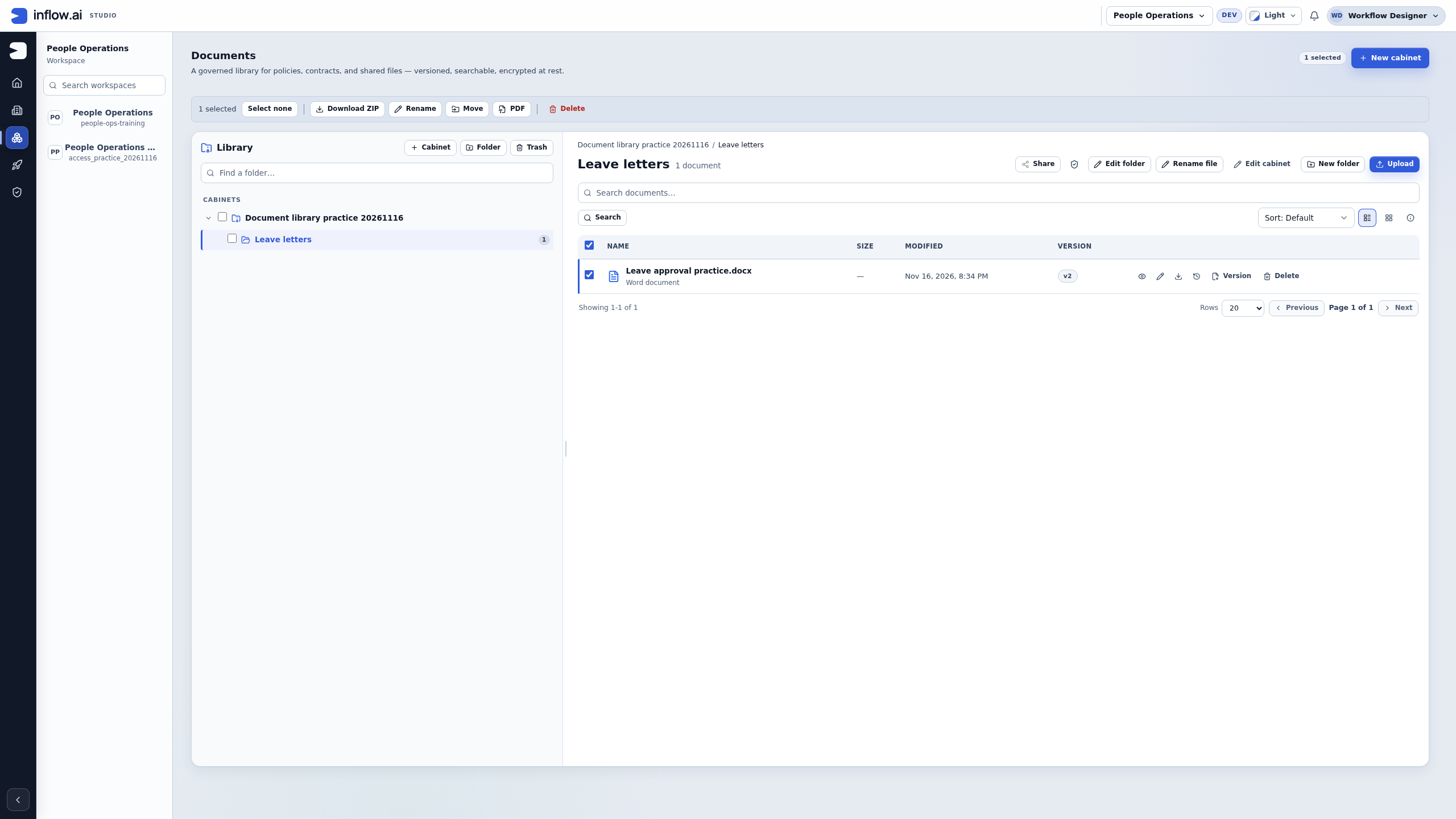
- Close the Versions drawer. Use the Word row’s checkbox, rather than selecting the cabinet or folder in the library tree.
- Read 1 selected in the selection toolbar and check that the highlighted row is Leave approval practice.docx, at v2. Clear any unrelated selection before proceeding.
- Choose PDF in that selection toolbar once. It starts a conversion; it is not merely opening a read-only preview. Keep the current folder available while waiting for the result.
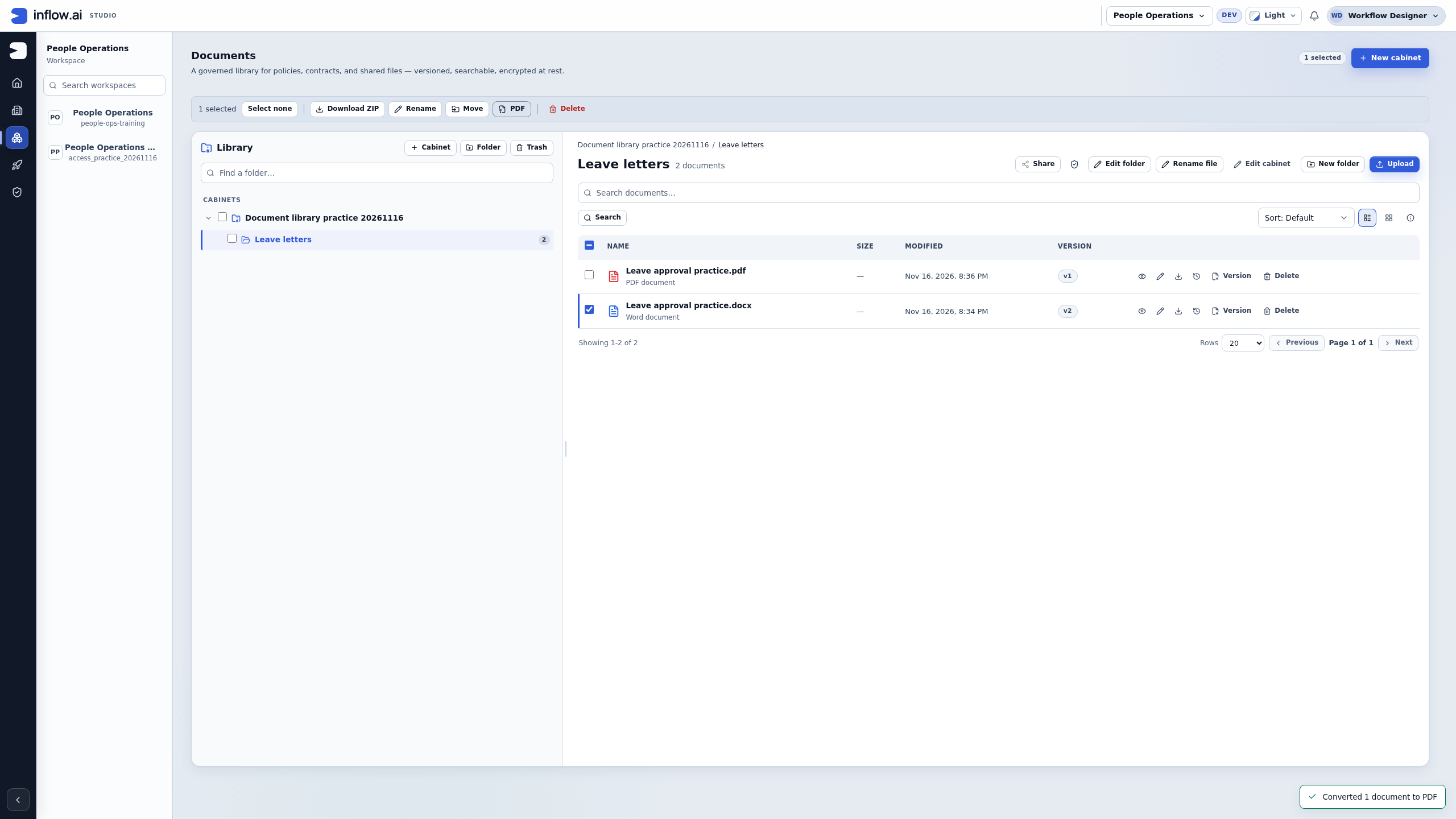
- Read the actual result. In this practice it says Converted 1 document to PDF, and Leave approval practice.pdf appears beside the Word source.
- Check the two rows separately. The PDF shows v1, its first edition, while the Word document still shows v2. These version counters belong to different document identities.
- If the action reports a failure or its confirmation is lost, inspect the folder and the PDF’s versions before deciding whether to try again. Do not infer that a missing toast means no PDF was created; a repeated successful conversion can append another version to an existing PDF.
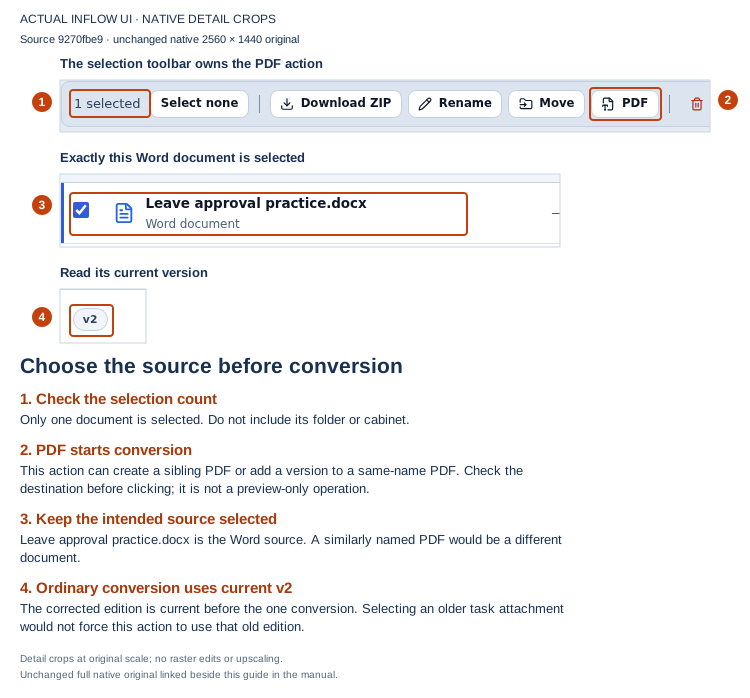
Check before clicking PDF: only the intended Word document is selected. The corrected edition is current, and the generated PDF name has been checked in the same folder.
Open the unchanged full-size screenshot.
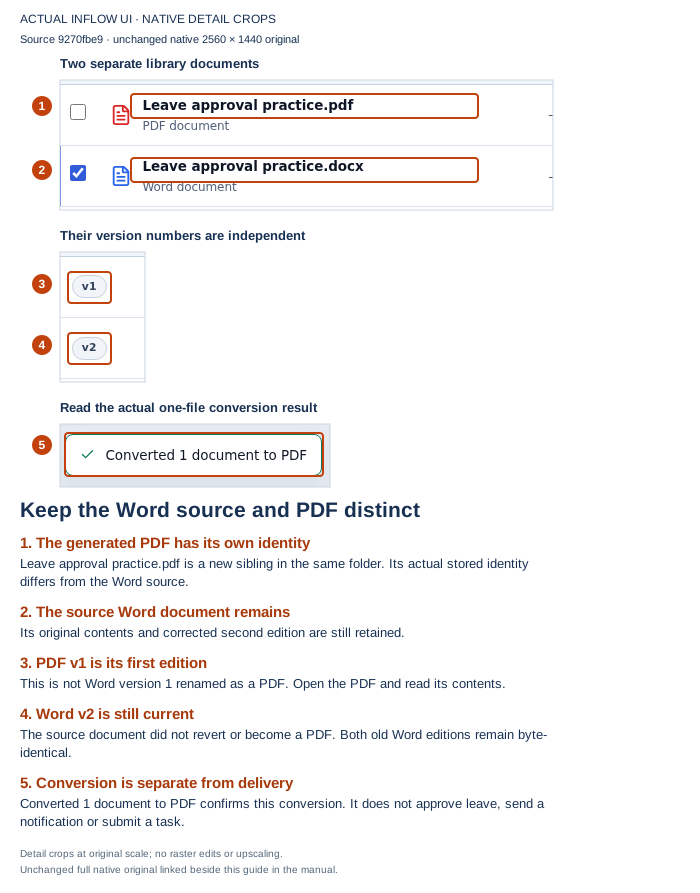
Read the result as two documents: the new PDF’s v1 is not the Word source’s old v1. The Word source remains at v2, and its earlier edition is still in its history.
Open the unchanged full-size screenshot.
Read the PDF before using it
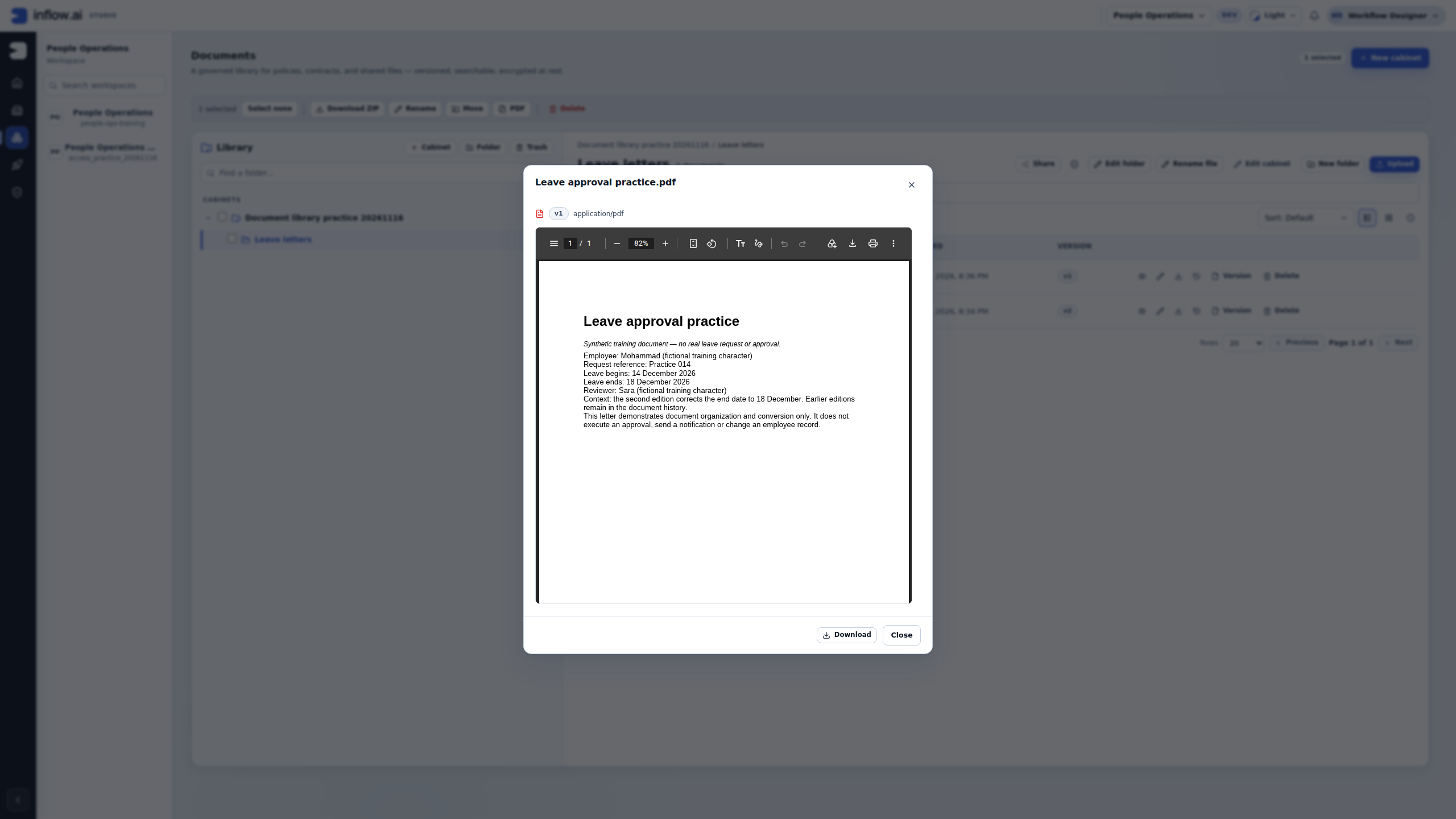
- On Leave approval practice.pdf, choose Preview. Check the PDF name at the top of the dialog and the v1 badge before reading the page.
- Read the displayed page count. The illustrated viewer shows 1 / 1, so this fixture has one page to inspect. For a longer real letter, check every page, including the last page and any table or signature area.
- Read the business values in the actual PDF: the training employee is Mohammad, leave begins 14 December 2026, and leave ends 18 December 2026. The reviewer line names the fictional Sara. The end date must match the corrected v2, not the original 17 December date.
- Check that the title, paragraphs and line breaks are readable. This simple English letter does not demonstrate complex tables, mixed Arabic/English layout or every font your business documents may use. Inspect those features when they occur in your actual source.
- Use Download when you need the actual PDF file for an allowed next step. Choose the real document/version through that step’s supported picker or attachment control; typing its display name is not the same as selecting its reference.
- Keep any later business decision separate. This exercise produces and reads a PDF. A task submission, approval, employee update or notification requires its own intended action and result.
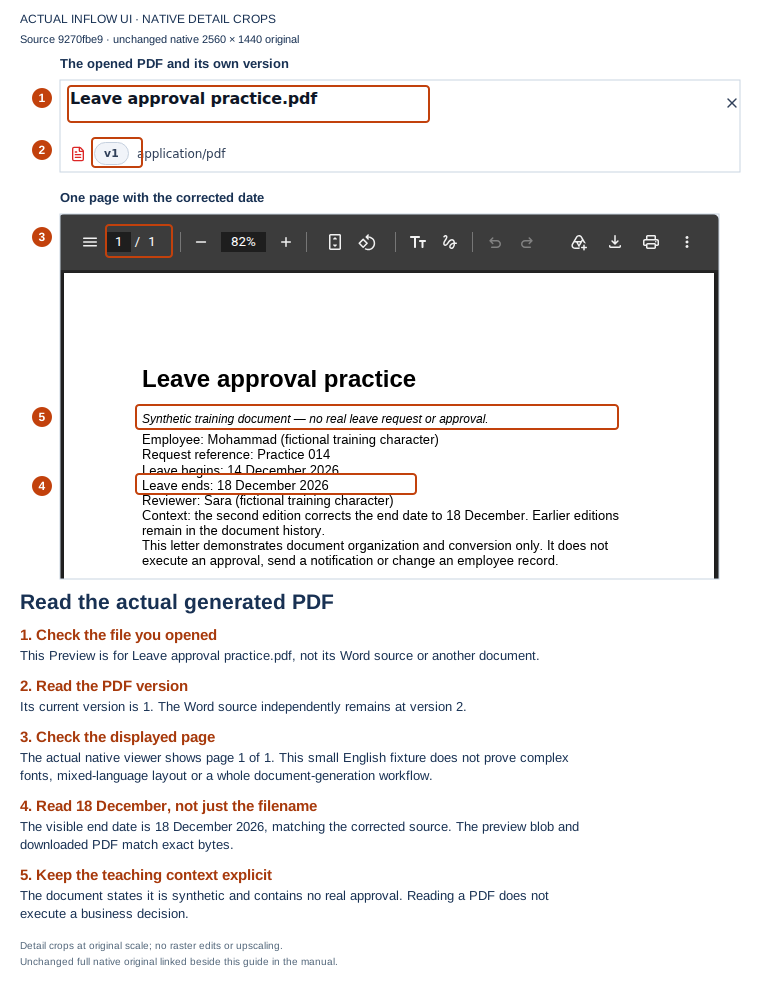
Inspect the contents: the generated page visibly says Leave ends: 18 December 2026. The same PDF bytes were also downloaded and checked; a familiar filename alone would not establish that result.
Open the unchanged full-size screenshot.
| Checkpoint | What this practice actually shows | What to check in your application |
|---|---|---|
| Source | One Word document with current v2 and earlier v1 retained. | The current source edition is the one the next business step intends to use. |
| Destination | No matching PDF before conversion; a new PDF v1 afterward. | An existing matching PDF needs an intentional version update and the right authority. |
| Conversion | One selected Word source and Converted 1 document to PDF. | Read each result for a larger selection; do not treat partial success as an empty destination. |
| Content | One readable page with the corrected end date. | Inspect your actual dates, names, tables, fonts and every page. |
| Next step | The Word and PDF remain separate library documents. | Select the intended PDF version through the real attachment/document control, then verify that step separately. |
The alternative Convert to PDF for inline preview action below also performs conversion. Once the intended PDF already exists, use its own Preview when you only want to read it. Repeating conversion just to reopen a preview can create another PDF edition.
Preview a Word file as a PDF
Where your access and the conversion service allow it, the document preview offers Convert to PDF for inline preview.
- Open the supported source document's preview.
- Read the explanation and choose Convert to PDF for inline preview if it is available.
- Wait for the converted PDF to appear in the preview.
- Check the displayed pages and follow the available download/library actions as needed.
This still creates a converted PDF; it is not a promise that the original Word file can be rendered directly by every browser. If conversion is unavailable, download the original where allowed and ask the responsible administrator about the prepared service.
Example: make the approved leave letter
The current fictional source letter contains Mohammad's approved dates, 14–18 December 2026, and Sara's decision comment.
- Inspect that current source in Leave evidence.
- Use the offered PDF action and wait for its result.
- Find the generated PDF in the source folder and check its document and version. Open that exact PDF version and check the employee name, dates and comment; confirm whether the conversion created a document or added a version to an existing PDF with the same name.
- Check a page with a long line, a table or mixed Arabic/English text if those appear in the actual letter.
- Choose the identified PDF document/version through the supported attachment/document control when the business process needs it. Keep its identity distinct from the Word source and its display name.
If a font or page break looks wrong, keep the source and output available for the document/platform owner to inspect. Do not change the document's business status to “sent” merely because a PDF file exists.
Add conversion as an automatic workflow step
- Confirm that the process has a governed document value for the approved letter and that the intended conversion service is available in the deployment. A toolbox entry means the activity is described to the designer; it does not mean the conversion engine is enabled or reachable.
- Open the appropriate state flow and inspect existing activities before adding anything. Reuse a matching conversion step and its downstream mappings. If there is no matching step, add the catalog activity Convert Document To PDF.
- In the activity's Document input, choose a fixed library document with Choose when the same source is intended every time. For a case-specific source, select Use an expression and make the expression resolve to the document ID as a scalar: use
=approvalDocument.documentIdwhenapprovalDocumentis a Document reference, or=approvalDocumentIdwhen the case field already contains a Text ID. The converter does not accept the whole Document reference object as its ID. A selected literal is checked when the process is published; a dynamic expression is checked again when the case reaches the activity. A display filename is not a document reference. - Open Outputs and read the effective primary-result row name. The catalog declares an Object output named
pdfDocumentby default, but a legacy result-variable setting can rename the displayed row; a problem with that setting has a separate recovery message. Keep the effective row's valid existing target. If it needs a new mapping, select an existing declared case-file variable that Verify accepts for an object result. In the variable editor, the broad object-shaped choice is labeled Record (any shape); the catalog's word “Object” is not itself the case-file type label. If the process does not need to retain the conversion result, choose Don’t store deliberately; do not create an undeclared field just to silence a warning. The input document and output variable are separate mappings. - Inspect the next activity's declared input and mapping. It must consume the converted document reference from the stored result using a supported typed binding. Do not pass the whole conversion result where a document reference is required, and do not substitute
pdfName(a display name) for a document identity. - Save and use the process's normal Verify and review steps. Before execution, check the source folder for a PDF with the generated name and confirm that the process's authorized runtime can create it or add a version to that exact existing document. Keep execution pending until the administrator has prepared the service and an authorized, fictional source is available. When an approved exercise is run, compare
sourceVersionNumberwith the intended source edition, read the returned PDF identity and version, open that actual PDF, and check its contents before allowing later business work to use it. - Review the full process impact and publish through the normal owner-approved route. Publication and a successful conversion are distinct checkpoints.
Map and inspect an automatic conversion result
Nadia's leave process has an approved Word letter in a case-file field called approvalDocument. A later step needs the generated PDF. The workflow already contains the approval and document steps, so this example adds only the missing conversion configuration and keeps existing contracts intact.
Example: retain the result for the next business step
- Inspect the current state flow and locate any existing conversion activity. If its selected source and output mapping already match this process, leave it in place and continue to the downstream contract check.
- Add Convert Document To PDF only if no matching activity exists. In Document, select Use an expression and use
=approvalDocument.documentIdbecause this example's case field is a Document reference. If its declared case field instead stores the ID as Text, use that Text variable's scalar value, for example=approvalDocumentId. Do not pass the whole Document object or type a filename such asLeave approval.docxas if it were the document identity. - Open Outputs and inspect the effective primary-result row. In this example the node uses the default result name, so the row is
pdfDocument; an older result-variable setting may rename that row. Keep its existing valid mapping if it already targets the process's declared conversion-result variable. Otherwise, use the target picker to select an existing variable whose declared type is compatible with the Object output; the process-variable editor calls its broad object shape Record (any shape). If no compatible variable is declared, ask the process owner to review the data contract before adding one; do not invent a field name in this exercise. - In the next activity, inspect the declared input type and current expression editor. Map the nested document reference from the conversion result only if that input accepts the document-reference shape and the expression is supported there. The conversion result is an object: it includes source/PDF identities, version numbers, the output name, engine and size/timing values, and a nested
pdfDocumentobject withdocumentId,versionNumberandname. The nested object is the document reference; the outer result andpdfNameare not interchangeable with it. - Run Verify. If the service, source, or compatible target is unavailable, leave the workflow unpublished and report which prerequisite is missing. Do not represent a skipped or refused conversion as a successful PDF.
- In a separately admitted fictional exercise, inspect the completed step's source identity/version and PDF identity/version. Open that exact PDF through the permitted document action and read it before the next activity uses it. A task that retained an older attachment does not force the conversion activity to use that historical version.
Reading the result correctly: the service task writes an object under its effective result output (default pdfDocument). The output row name and the destination case-file variable are separate: a row named pdfDocument can be mapped to a declared variable named conversionResult. The result object carries sourceDocumentId, sourceVersionNumber, pdfDocumentId, pdfVersionId, pdfVersionNumber and pdfName, plus conversion metadata and a nested document object. If that case-file variable is named conversionResult, the nested document identity is conversionResult.pdfDocument.documentId; if you named the case-file variable pdfDocument, its path is pdfDocument.pdfDocument.documentId. The flat identifier is conversionResult.pdfDocumentId in the first example (or pdfDocument.pdfDocumentId in the second), while pdfName is only a display name. A later activity must use a mapping that its own input contract accepts; the existence of this output alone does not configure that mapping.
Recovery: if the activity refuses publication, read the exact Verify finding and fix the declared input/output contract with its owner. If execution is unavailable, stop at that prerequisite. If a reply is lost after an authorized run, inspect the case output, source folder, PDF identity and version history before retrying. The generated name is deterministic; if a same-name PDF already exists, another successful conversion can add yet another version to it. Reconcile the recorded identity and current version first, and confirm owner approval and version authority before any retry.
Example: convert a corrected current letter
Sara reviewed version 1 of a supporting letter. Nadia later uploads version 2 with a corrected date.
- Read the task's retained evidence and the document's current version separately.
- Decide which source the next business step is supposed to use.
- Understand that ordinary conversion reads the document's current version when it runs. Attaching the older version to a task does not force this conversion to use that older edition.
- Convert only when the current source is the intended one, then inspect the resulting PDF.
- If an earlier edition is specifically required, stop and use an approved document-owner procedure rather than describing a PDF of the current letter as evidence of the earlier one.
This distinction prevents a manager's historical review from being silently rewritten by a later correction.
Common mistakes
| What happens | What to check |
|---|---|
| PDF is not offered. | Check the selected document, source/destination permissions and prepared conversion capability. |
| A batch includes folders or unsuitable files. | Select the supported documents and read the actual refusal. |
| The output looks different from Word. | Inspect fonts, layout and source content with the document owner; exact appearance is a separate requirement from creating a file. |
| Another PDF may already have been created after a lost reply. | Check the source folder and current results before converting again. |
| An old attachment was expected, but the current letter was converted. | Task attachment versions and ordinary conversion source selection are different. |
| The automatic step cannot store its result. | Check its current Outputs mapping, declared destination and allowed business type. |
Where to go next
Continue with Add supporting documents to the leave story. For implementation contracts and administrator/developer details, use the optional technical reference. You do not need that reference to follow this lesson.