Connect Inflow to another system
Applications often need information from elsewhere: an employee directory, an accounting system or a document service. A Connected System keeps the connection settings. An Integration describes one action that uses it.
Screenshot context: Seven numbered screenshots were captured at native 2560×1440 on 15 November 2026 from master source 6311724154, using the approved normal designer login in the isolated People Operations workspace. They show a PostgreSQL draft, protected credentials, the actual SELECT 1 test, published v1 and its Active history row. They do not demonstrate database deployment, business-record writes or employee access.
Think of the connection as the address and approved way to sign in. “Find an employee by number” is an integration built on that connection. Creating the connection does not automatically discover every operation, publish a rule or give employees access to the outside system.
Know which object you need
| Object | What it is for | Who normally prepares it |
|---|---|---|
| Connection template | The available kind of system and its setup fields | Platform administrator |
| Connected System | One configured connection to a particular system | Authorized consultant or administrator |
| Integration | One reusable business action, such as employee lookup | Consultant with the required access |
| Rule or workflow step | Uses the published integration in an application | Application consultant |
This guide covers the consultant setup. Installing a new connector, configuring database accounts and changing server networking are specialist tasks linked at the end.
Before you begin
Ask the external-system owner for the approved service address, login method, credential source and a harmless sample you may test. Confirm whether the operation only reads information or changes something. Do not use a create, payment or delete operation as your first connectivity test.
Open the correct workspace and ensure that you may manage and test the connection. Credentials belong in the supported protected sign-in controls. Never put a real password or token in the connection's name, description, screenshots or shared examples.
Example — Prepare an employee-directory connection
Nadia is building the leave application. The directory owner supplies an approved read-only connection so the application can look up an employee's name and manager.
- Open the workspace's Build area and choose Connected systems.
- Choose Connect a system.
- In Template, choose the available template agreed with the directory owner. Read its setup information before continuing.
- In Draft details, enter a clear connection name, such as Employee directory, a suitable short key and the service settings the chosen template asks for.
- Finish the wizard. Draft saved means the connection draft exists; it is not yet a published, working application action.
- Open that connection's settings. Complete System settings and Sign-in details using the approved values. Some templates use a protected credential reference; others offer their supported sign-in flow.
- Choose Save, then Test connection. Read the result and correct a failed sign-in or unreachable address before continuing.
- When the saved connection test is current and successful, choose Publish version.
What you should see: a published connection version and its test result. You still need to create or choose the specific employee-lookup integration. A connection test does not prove every possible operation or every user's access.
Example — Prepare PostgreSQL for the leave records
The leave application also needs somewhere to keep its own request records. This is a different connection from the read-only employee directory. Nadia uses Training PostgreSQL in the People Operations practice workspace. The screenshots show an isolated development database with fictional data; ask your database owner for your environment's values.
Collect the connection details
Before opening the wizard, agree on these values with the database administrator:
| Setting | Value in this training environment | What to check in your environment |
|---|---|---|
| Name | Training PostgreSQL | A readable name that identifies the intended environment |
| Key | training_postgres |
A permanent lowercase identifier with digits or underscores |
| Host | postgres-dev |
A host reachable by the Inflow server, which may differ from your laptop's address |
| Port | 5432 | The administrator's actual PostgreSQL port |
| Database name | inflow |
The database that owns the approved practice area |
| Schema | cf3_manuals_leave |
The separate namespace reserved for this example |
| Database time zone | UTC | The zone for stored date/time values without a zone; follow the template's explanation |
| Sign-in account | Supplied privately | An account approved for the intended database and operations |
The host in these screenshots is a service name inside the training environment. Copying it into another deployment will not make that deployment's database reachable. The schema is the database area in which tables will live. Entering its name in the connection does not create it. In this exercise the database administrator prepares an empty schema before Make live, so the consultant can select the intended namespace without using database commands.
Create the inactive draft
- Open People Operations, choose Build, then Connected systems. Check the workspace name and look for training_postgres before creating anything. Reuse a matching existing connection; do not replace credentials or create another copy just to replay the lesson. Create the draft below only when the intended connection is absent.
- Choose Connect a system. In Template, select PostgreSQL. Read the preview: it lists the required server, database and sign-in information.
- Choose Continue with PostgreSQL. In Draft details, enter the Name and Key from the worksheet.
- Keep the offered jdbc credential authentication. For this template, leave Base URL blank to derive the database connection URL from the template and the fields below. Do not put a username or password in the URL.
- Enter Host, Port, Database name, Schema and Database time zone. Review their spelling against the administrator's values.
- Enable Allow schema deploy (data-model make-live) for this approved schema-deployment exercise. Leave change data capture, data sync and written read queries off: those are separate capabilities that this exercise does not need.
- Choose Next. Wait for the actual Draft saved result, then choose Open draft. Do not create another connection because saving takes a moment.
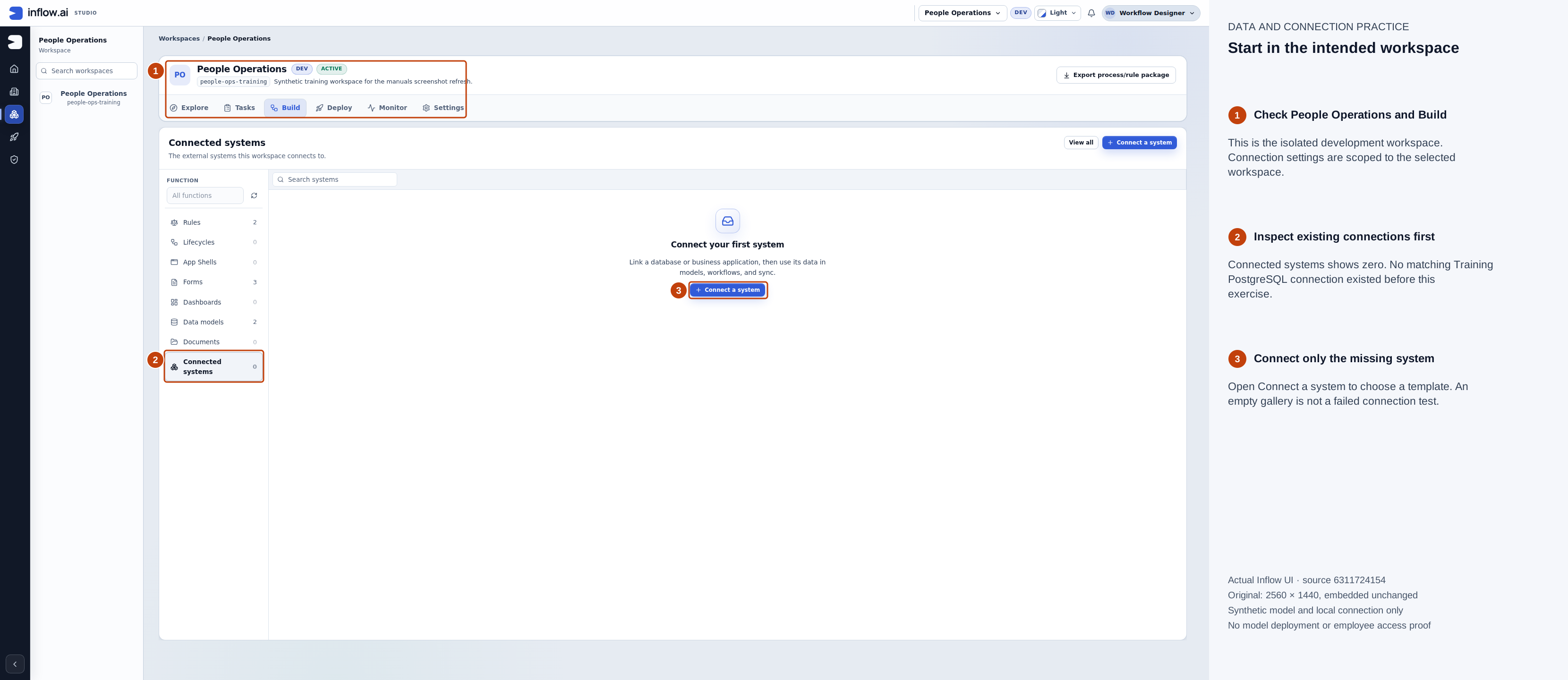
Actual native 2560×1440 capture, 15 November 2026, source 6311724154. Numbered outlines and the side legend are guidance; open the original or open the full-size guide. No matching connection existed before this run.
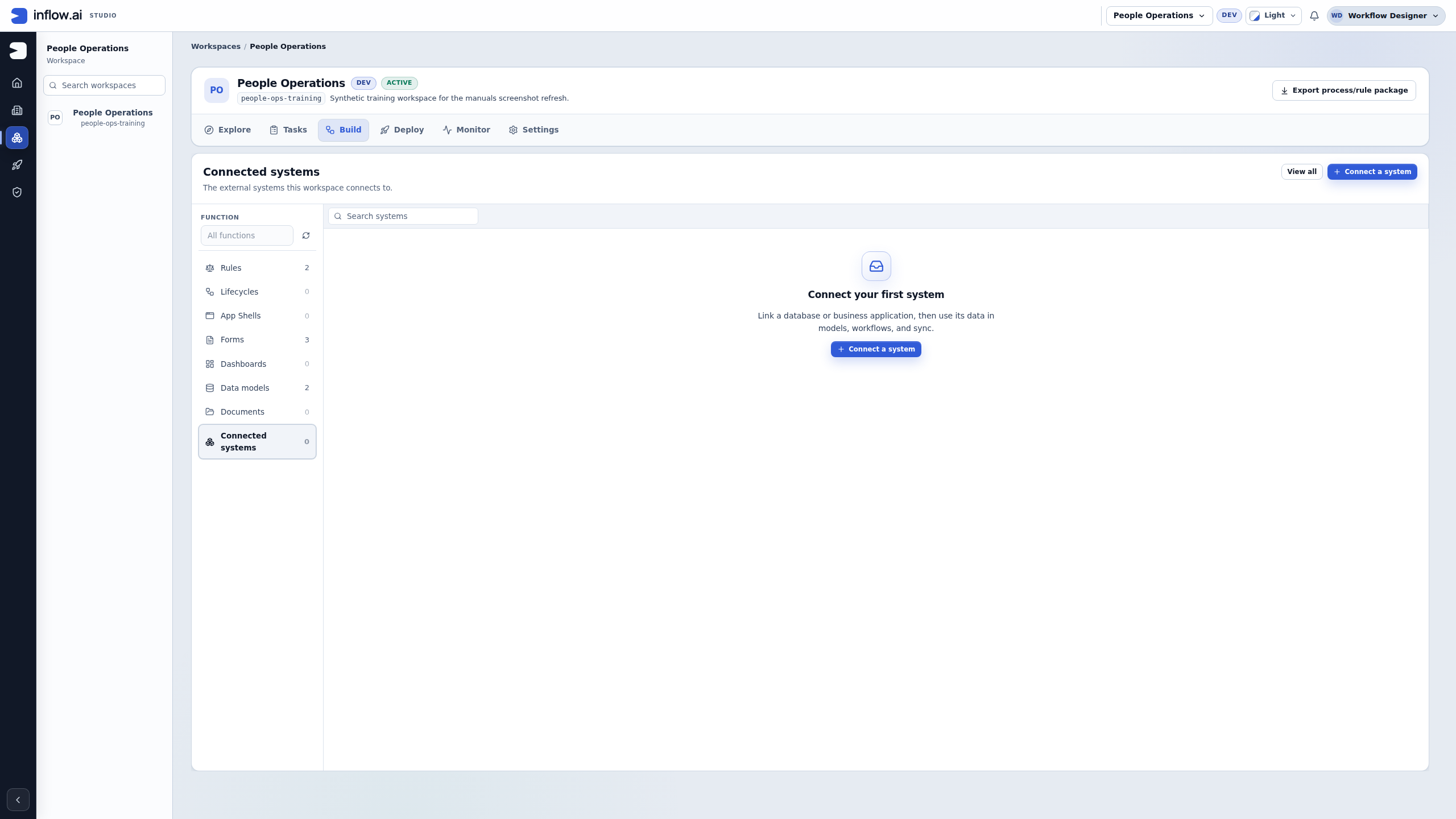
Check the entry point: The current workspace navigation is Build → Connected systems. The empty gallery is a starting state, not a failed connection test.
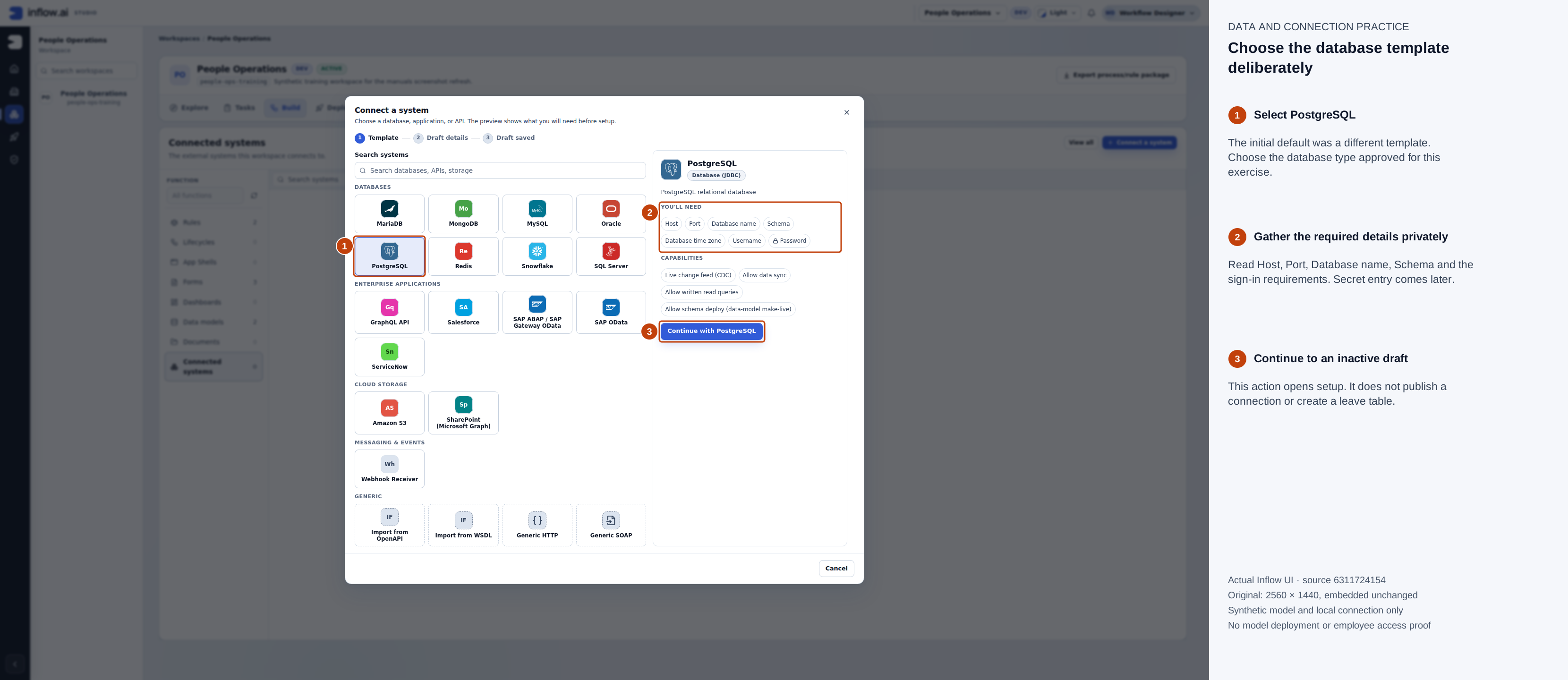
Actual native 2560×1440 capture, 15 November 2026, source 6311724154. Numbered outlines and the side legend are guidance; open the original or open the full-size guide. Selecting a template does not save credentials or deploy a schema.
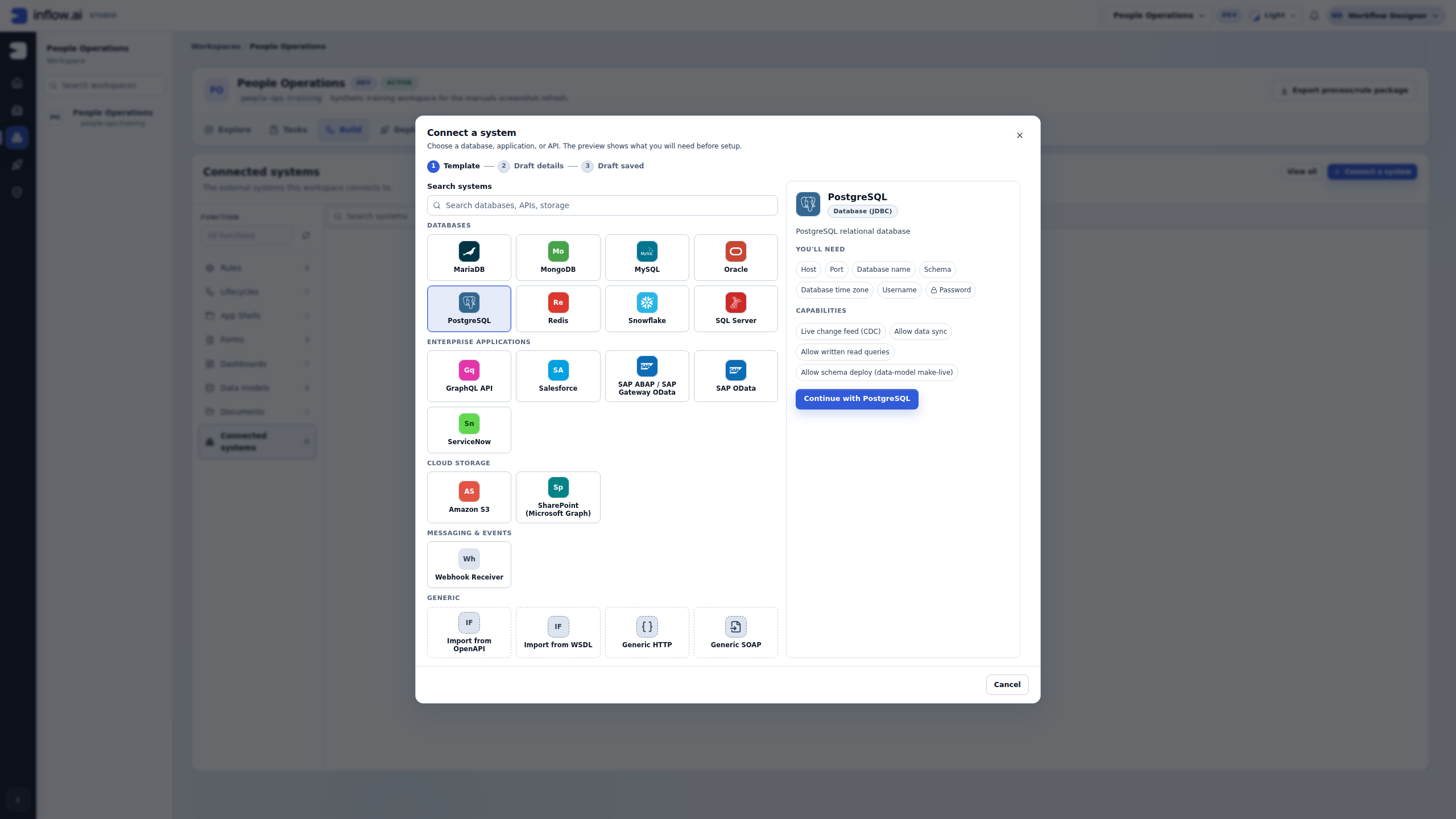
Check the template: PostgreSQL is selected before continuing. Another template may ask for different settings and use another sign-in method.
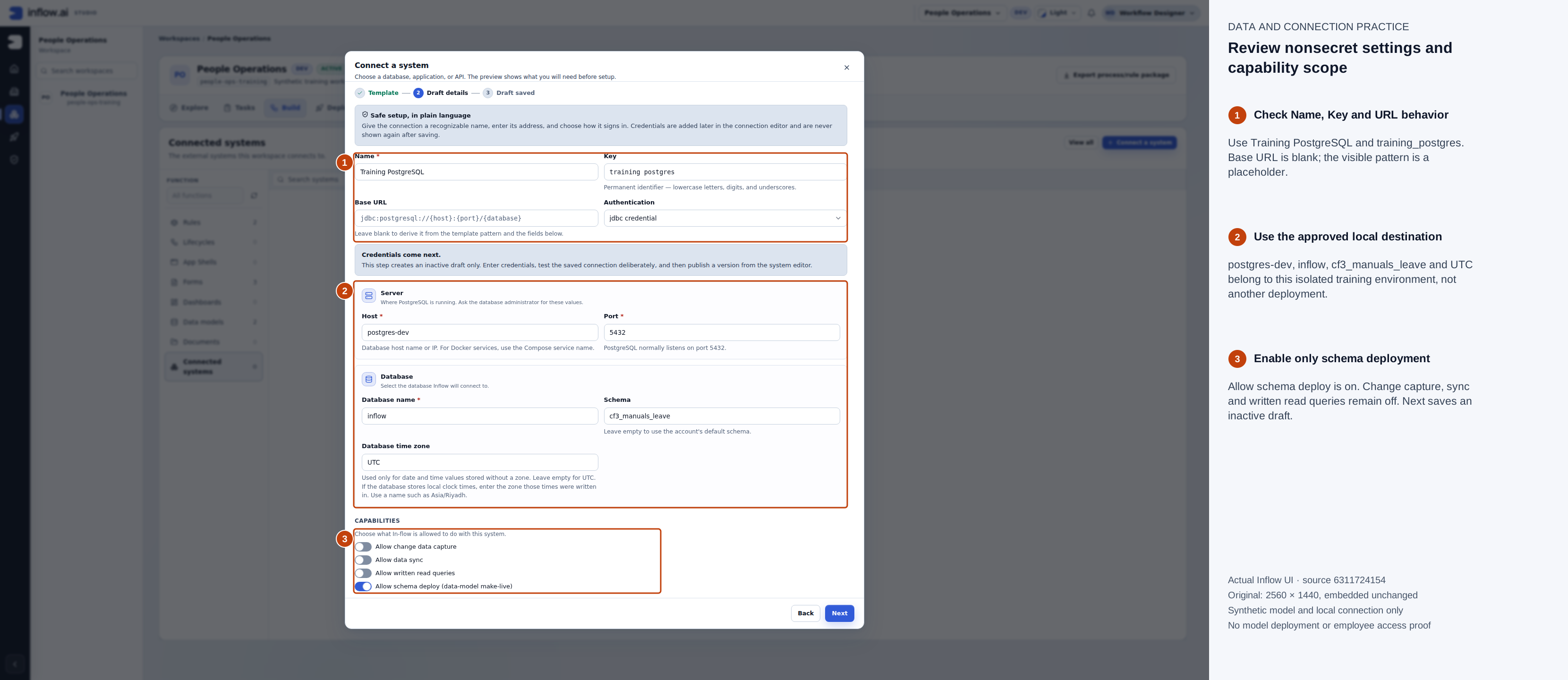
Actual native 2560×1440 capture, 15 November 2026, source 6311724154. Numbered outlines and the side legend are guidance; open the original or open the full-size guide. Base URL is empty at this step; the visible JDBC pattern is a placeholder.
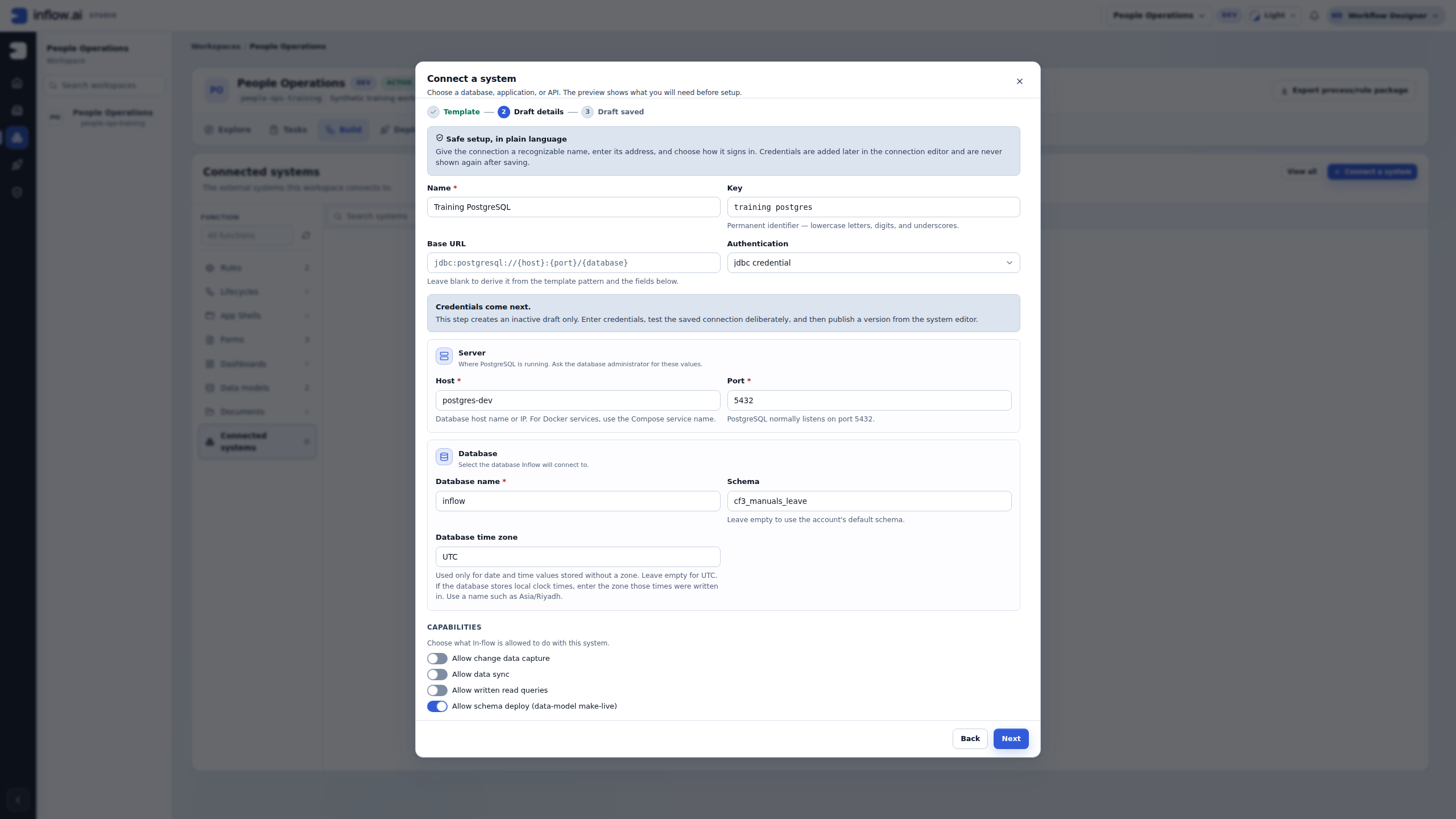
Check the settings: This example permits schema deployment only. Turning on every capability is not a setup requirement.
Set sign-in details privately
- In the saved connection editor, find Sign-in details. For a new PostgreSQL connection, choose Enter new credentials under Credential source if it is not already selected.
- Enter the approved New username and New password in their protected fields. Use This account has no password only when the database owner explicitly configured that account that way.
- Choose Set credentials. Save any remaining non-secret changes when Save is available. Read the page's saved state before testing.
- Check for Credentials set. Reopen the draft if needed: Keep current credentials retains the saved sign-in details without displaying their secret values.
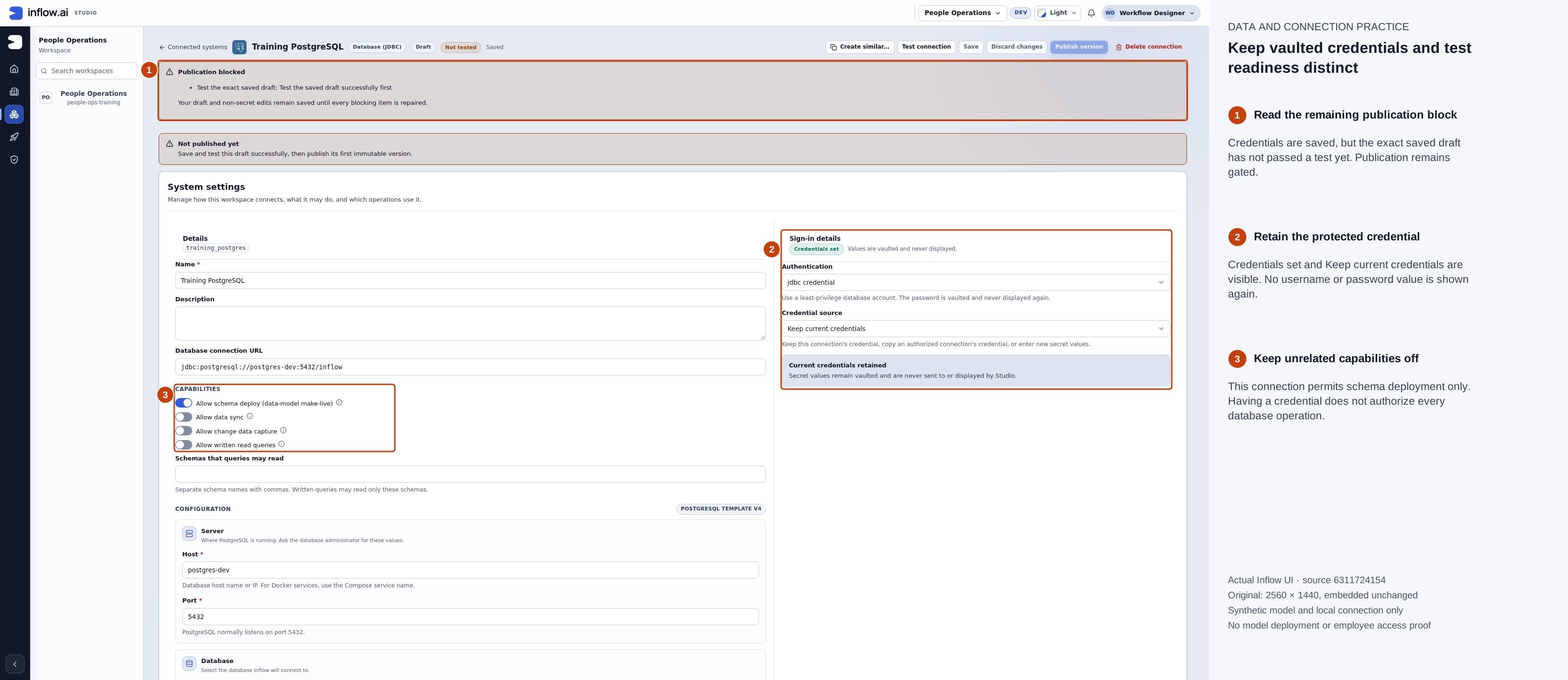
Actual native 2560×1440 capture, 15 November 2026, source 6311724154. Numbered outlines and the side legend are guidance; open the original or open the full-size guide. No credential values are displayed. Credentials were entered privately before this capture.
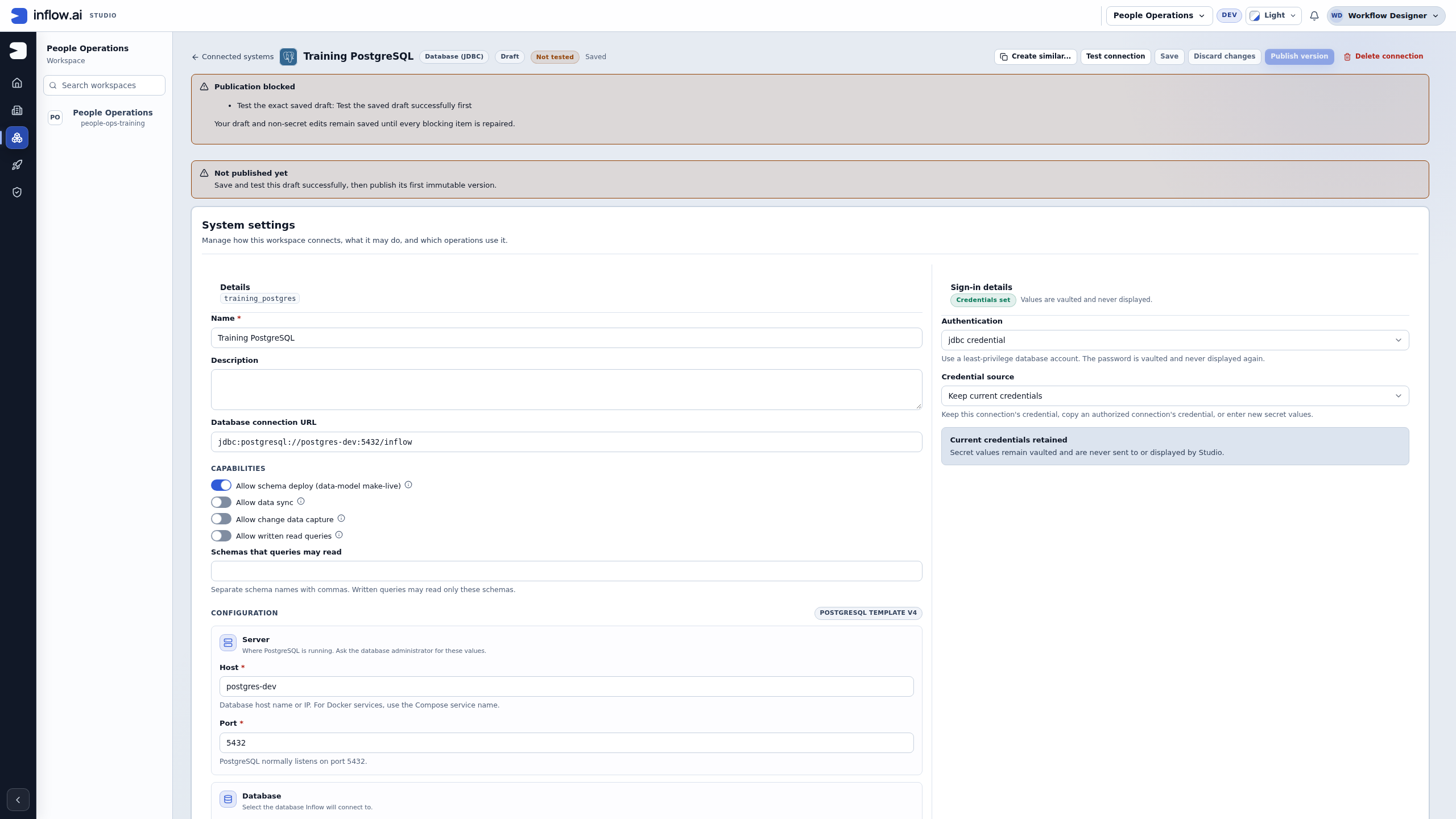
Check the saved state: The password is not shown again. The page still asks for a successful test of this exact saved draft. Having credentials is not the same as having a tested connection.
The credential-source choices serve different purposes:
| Choice | Use it when |
|---|---|
| Keep current credentials | You are retaining this connection's existing saved sign-in details |
| Use credentials from another connection | You are authorized to reuse one of the credential sources the picker actually offers |
| Enter new credentials | The owner supplied a new account or an intentional credential replacement |
Do not enter a password into Description, Host, an example request, a chat message or a screenshot. Sharing a connection name does not require sharing its sign-in details.
Test the saved draft, then publish the connection
- Choose Test connection after the intended settings and credentials are saved.
- Read the whole result. In this exercise it reports Saved draft test passed and JDBC probe succeeded (SELECT 1). This harmless database probe confirms basic access for these saved connection settings.
- If the result fails, correct the particular address, sign-in or database-access problem with its owner. Save the correction, then test that new saved revision. Do not publish using an earlier successful result from different settings.
- When the current result succeeds, choose Publish version. In this run it directly publishes version 1; wait for Published version 1 and the version entry rather than expecting an additional confirmation dialog.
- Check Published connection versions. The new immutable version should be present and Active. No leave-request table or record has been created by this connection publication.
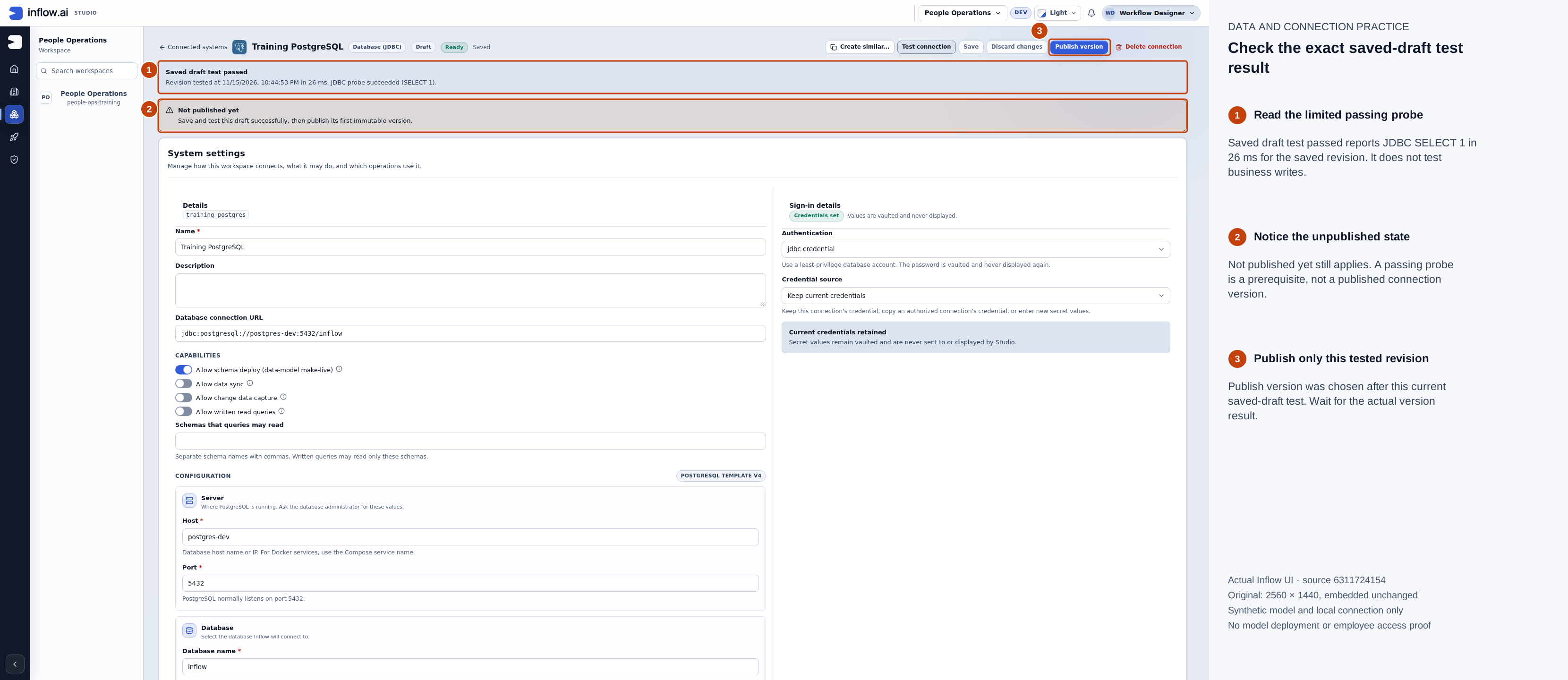
Actual native 2560×1440 capture, 15 November 2026, source 6311724154. Numbered outlines and the side legend are guidance; open the original or open the full-size guide. The actual probe took 26 ms. Its scope is basic connectivity for this exact saved revision.
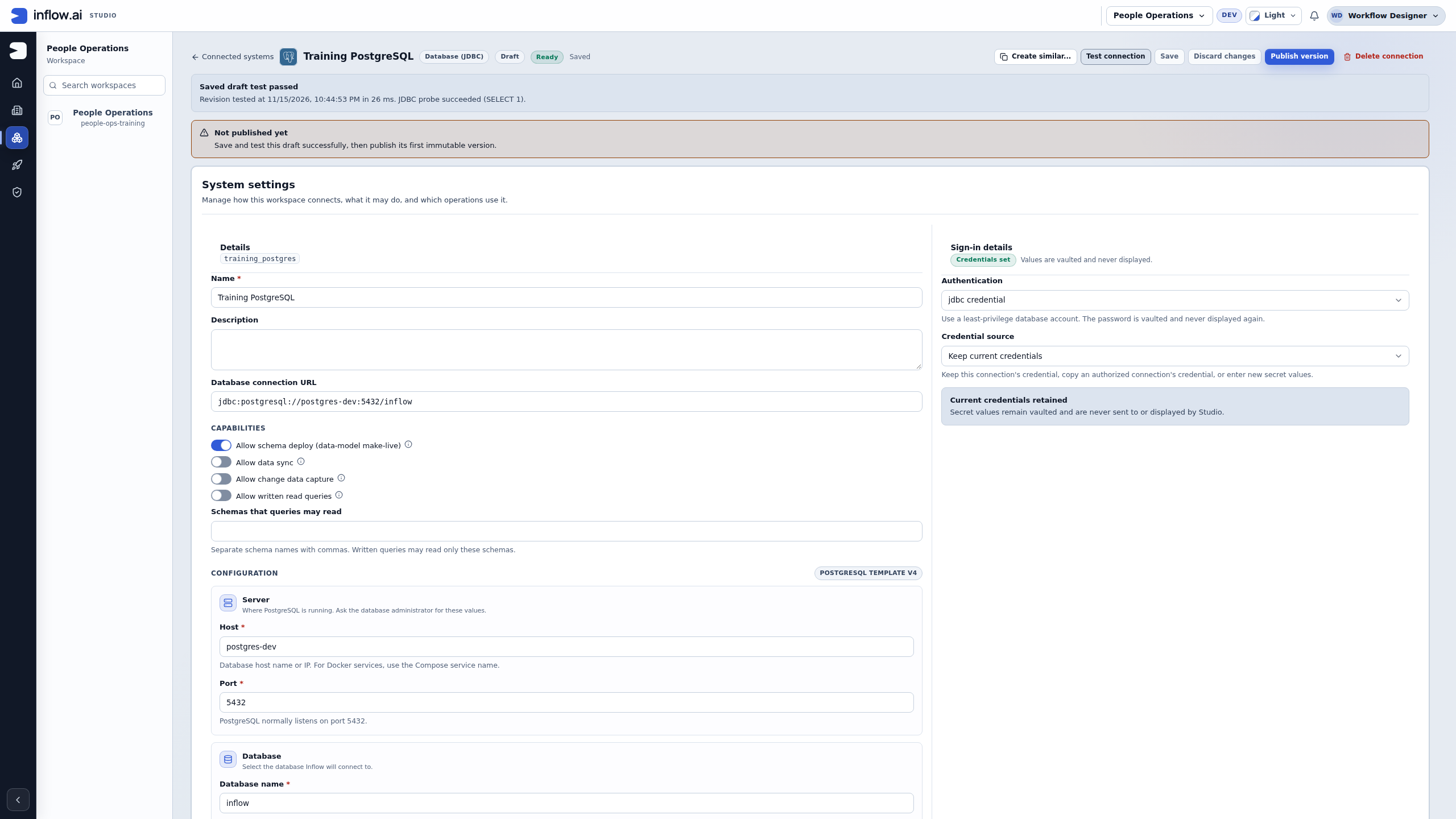
Check the distinction: Ready and a successful saved-draft test make the connection publishable. The separate Not published yet notice still matters.
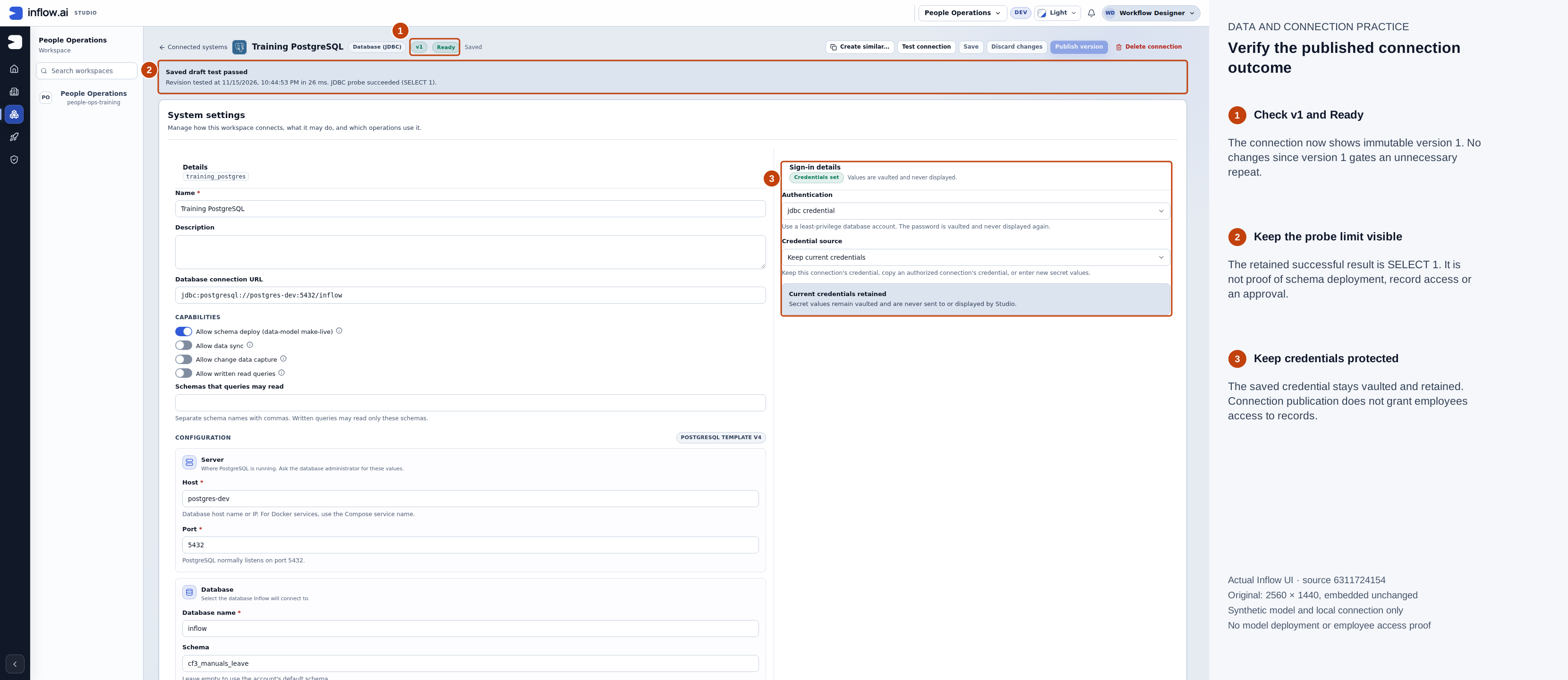
Actual native 2560×1440 capture, 15 November 2026, source 6311724154. Numbered outlines and the side legend are guidance; open the original or open the full-size guide. Publishing the connection creates neither the model tables nor a leave request.
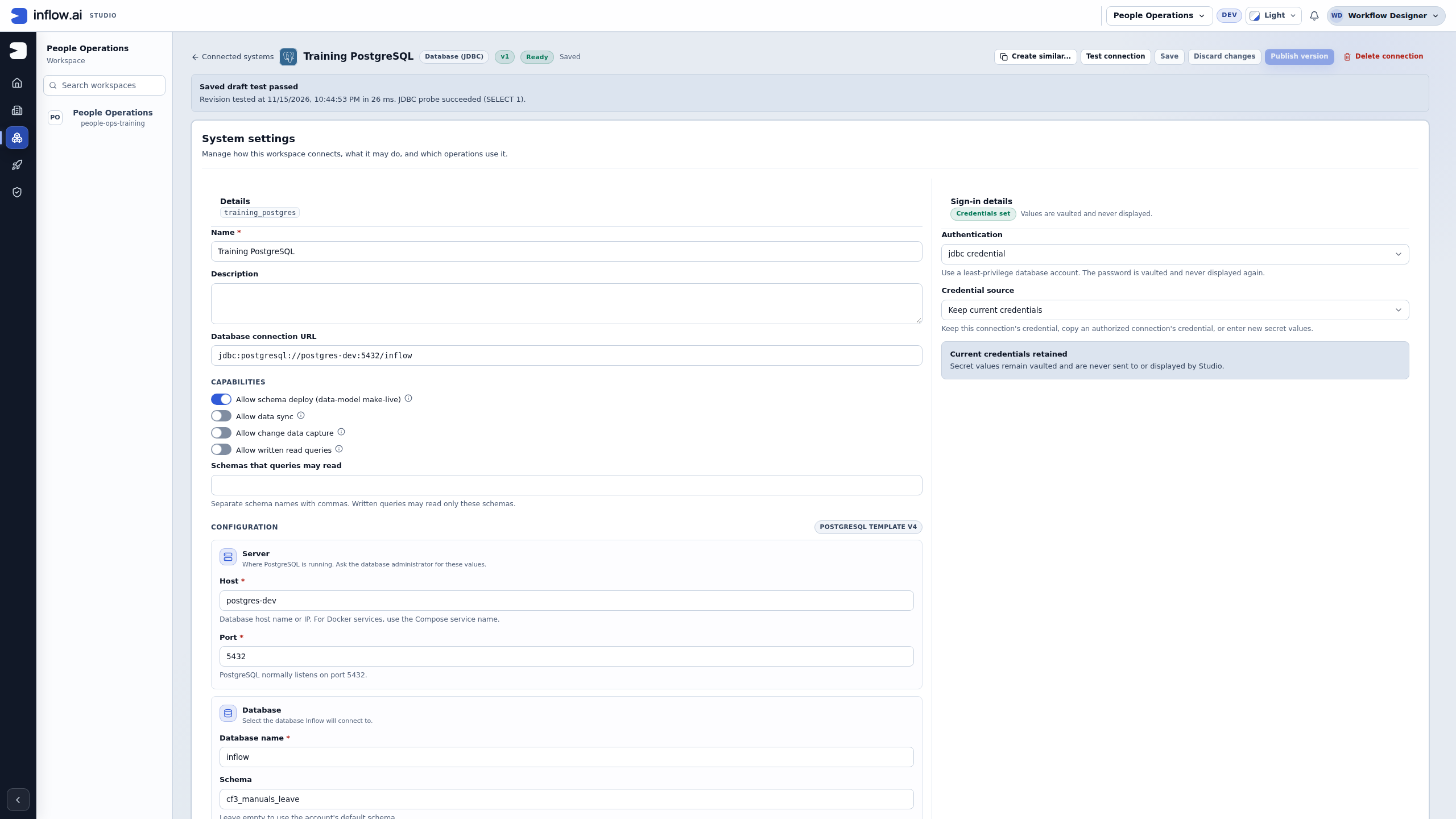
Check the outcome: The connection now shows v1. Before using it for the model, read the model publication and Make live procedure. If Publication outcome unconfirmed remains on the model, follow its recovery procedure and stop before Make live until that outcome is resolved. A ready connection does not resolve a model publication receipt. Once the model is ready, review its actual database changes separately. A connection test does not prove the database account may perform every future operation, and connection publication does not grant other users access to records.
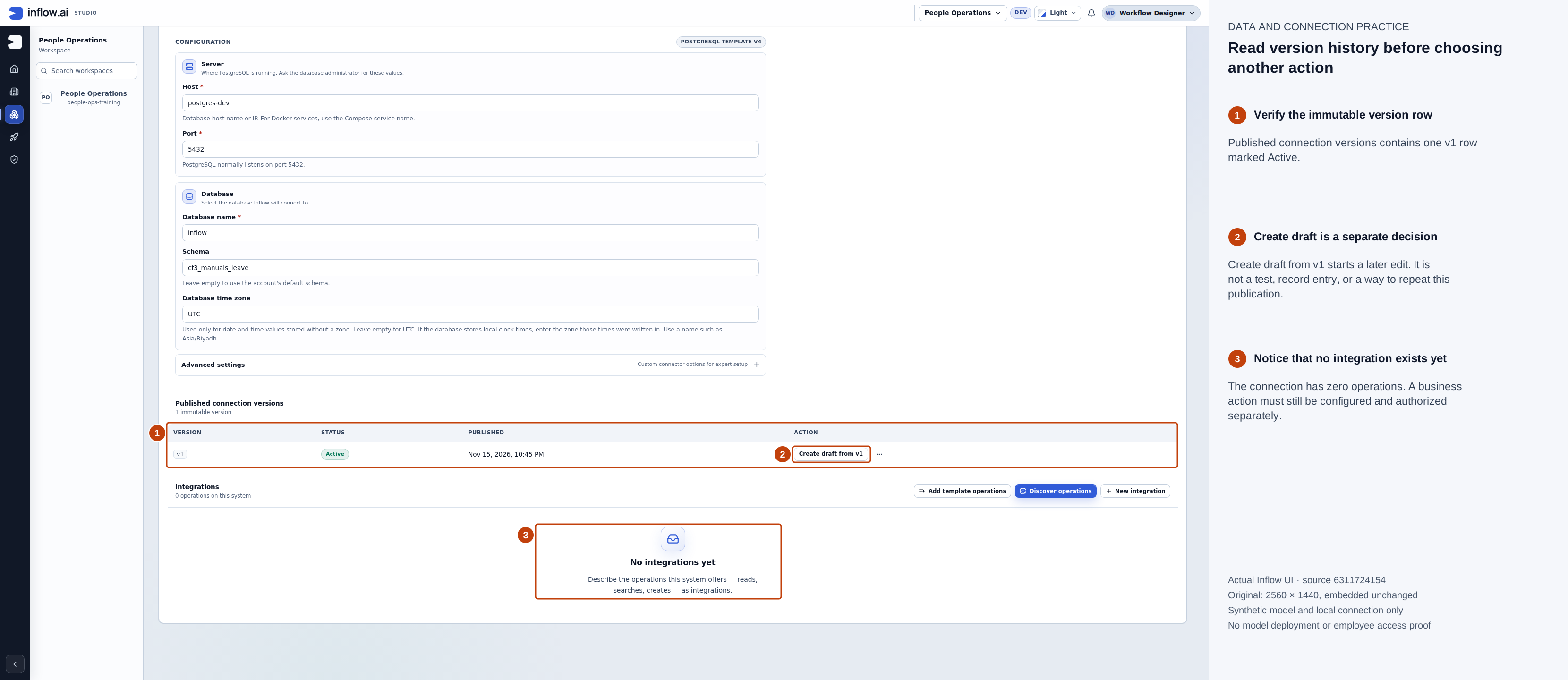
Actual native 2560×1440 capture, 15 November 2026, source 6311724154. Numbered outlines and the side legend are guidance; open the original or open the full-size guide. The existing connection is ready for its permitted next use; no integration or leave record was created.
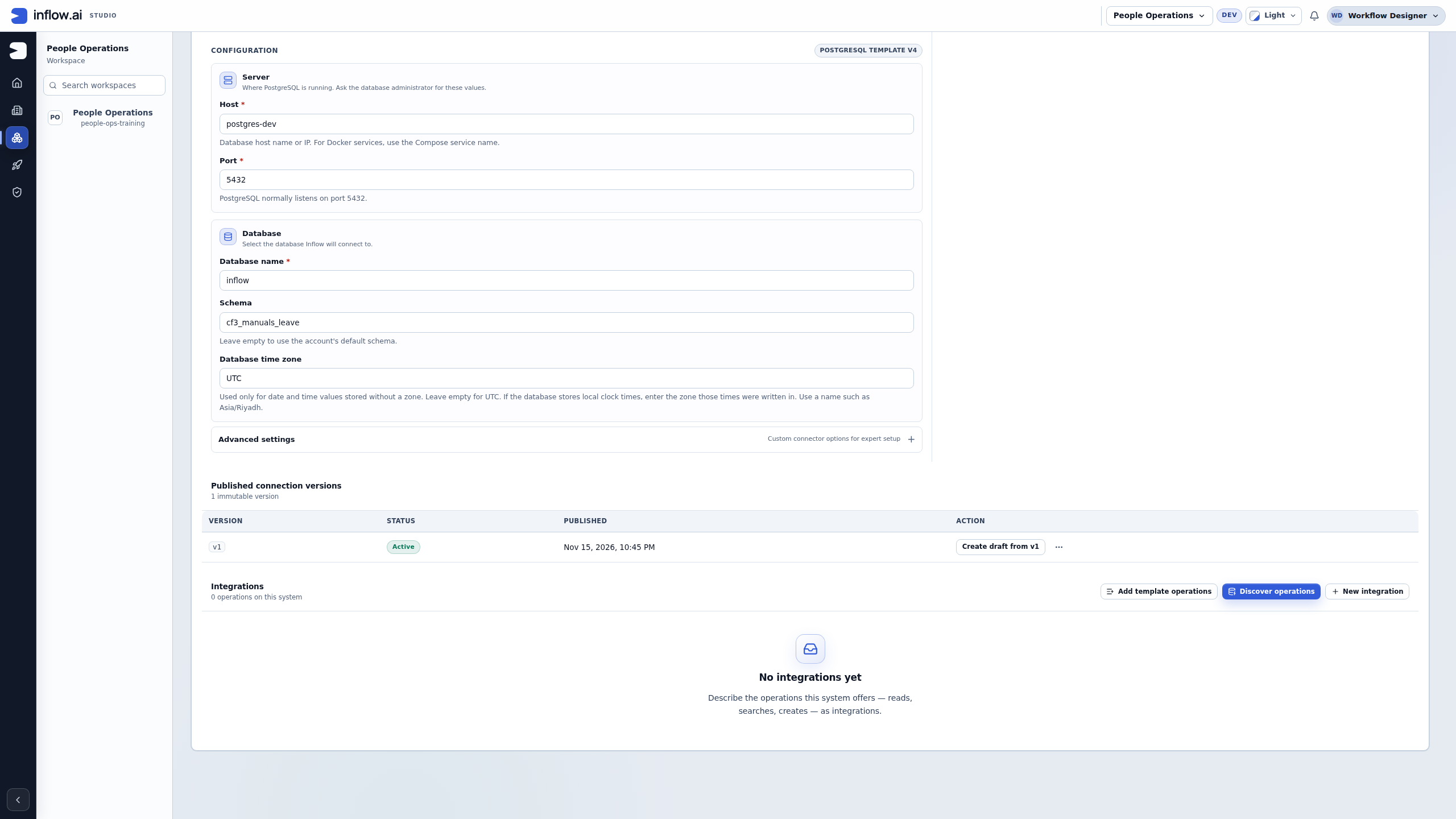
Read the history: v1 is Active. Create draft from v1 starts a separate later change; it is not a record-entry or repeat-publish control. No integrations yet means the business operation still needs to be configured and authorized.
For a later connection change, use Create draft from v1 in the version history if a new editable draft is needed. Keep the intended current credentials, save the changed settings and run a new test before publishing the next version. Do not change an address on a shared connection without checking the applications that use it.
Add the business action
Open the saved connection's Integrations section. Depending on the template and service, you can use:
- Add template operations for supplied starting actions.
- Discover operations when the service can describe what it offers.
- New integration when you are deliberately defining the required action.
Choose only what the application needs. Discovery or importing a description prepares drafts; it does not silently publish them. Continue with building an integration to define its inputs, test the request and map the useful result.
A database connection may need its administrator to enable particular capabilities and permitted schemas. Do not broaden those settings merely because another table would be convenient.
Example — Change a service address safely
The directory owner provides a replacement address for a test environment. Nadia must update the connection without pretending the earlier successful test still applies.
- Open the intended connection and read its current name and environment before editing.
- Change only the approved address/settings in the draft. Keep unrelated sign-in details unless their owner also changed them.
- Save the draft. If the page says someone changed it since you opened it, reload and compare their changes before deciding what to reapply.
- Run Test connection against the saved settings.
- Review the result and publish the intended version through the normal confirmation or impact review shown by the page.
- Test an affected read-only integration with its approved sample before offering the changed application to users.
What you should see: a current successful test for the changed settings and a deliberate published update. A healthy result from yesterday does not qualify a newly edited address or a changed credential.
Common mistakes
| Symptom | Useful next step |
|---|---|
| No suitable template | Ask the platform administrator which supported connection to use |
| The service cannot be reached | Check the approved address with the service/network owner |
| Sign-in was refused | Check the selected credential source or approved sign-in flow privately |
| Test is stale | Save the current settings and test again |
| No published version | Finish the successful saved-draft test and Publish version |
| Discovery shows no operations | Ask whether discovery is supported/permitted; use a reviewed operation instead of inventing one |
| Delete is blocked | Review the applications and data that depend on the connection with their owners |
For an uncertain result from an operation that changes the external system, find out whether the original operation completed before trying again. A lost reply is not proof that nothing happened.
Continue
Follow Build, test and publish an integration, then use it in a supported rule or workflow. The optional connector reference is for administrators and extension developers.