Let people use an application and choose their starting page
Publishing an application and letting a group use it are separate tasks. This guide helps an authorized administrator give Employees access to the published Leave requests application, choose where they arrive after sign-in, and decide whether they should also use Studio.
A published application is the released App Shell and the pages it presents. A group is a set of people, such as Leave employees. A starting page is where people land; choosing it does not grant access by itself.
Before you begin
The App Shell and its intended pages must already be published. Prepare the actual employee and manager groups and the people in them. You need permission to administer application access; changing a starting page or Studio policy may require additional authority. A group-level Block Studio access policy applies across workspaces, so assess its effect beyond the application setup you are reviewing.
The application should already contain its real links and actions. In the leave story, build the employee form, published manager form, workflow start and task host before reviewing the completed application's access.
Review and apply access for Employees
- Open the intended workspace's Security area. Under Application access, choose Manage application access, then Choose group.
- Select the actual Leave employees group. Check its identity rather than choosing a similarly named group in another project.
- In Which application should this group use?, select the published Leave requests application.
- Continue to Sign-in & Studio. Under Application access, review Use Leave requests and read the explanation of what its application use includes.
- Under After sign-in, choose the desired behavior. If you choose the application's home, select the intended Starting page.
- Review Studio access separately. An application-only employee may not need Studio. Block Studio access is a group policy across workspaces, not a restriction limited to this app or workspace. Do not change it just because you are granting an app, consider other applicable group policies, and do not block the organization's recovery administrators.
- Continue to Review. Read what will be added, removed and retained. Resolve a missing or unsupported application dependency with its owner.
- Confirm the reviewed changes and choose Apply access. Wait for the saved result before leaving the page.
What you should see: the application-access setup has a saved outcome for the intended group. Employees can use the permitted published pages and the work they are eligible to perform. The setup does not make every employee a manager or disclose every record.
Worked example — review access, then check the employee's Home
This example uses two newly created fictional accounts: Manuals Demo Employee and Manuals Demo Manager, in separate groups with matching names. An authorized administrator performs the setup. Each person then signs in with their own ordinary account. No builder or administrator login substitutes for that check.
At this point Leave requests has a small published Home page containing a training heading and explanatory text. The request and task pages are still being prepared. This makes application entry a useful first checkpoint before the full business journey.
1. Read the review before saving
In People Operations → Security → Application access, the administrator chooses Manuals Demo Managers and Leave requests, selects Home after sign-in, and deliberately selects the group Studio block. On Review, they expand View detailed access changes and check the effect:
| Review item | Value in this example | What to check in your application |
|---|---|---|
| Application access | Leave requests · use application | Select the intended published application, including its stable key when names are similar. |
| After sign-in | Leave requests → Home, priority 100 | Choose an existing published destination. This choice alone grants no access. |
| Studio access | Blocked by this group | Assess the policy across workspaces and preserve recovery administrators. |
| Global keys added | 0 | Read the actual impact; do not assume every application's dependency review has this same count. |
| Affected users / applications | 1 / 1 | Compare the membership and app to the intended teaching setup. |
| Added operation and role | SCREEN_VIEW / VIEWER, Human | This small Home-only publication needs an app screen view. Additional pages, workflow starts or task actions can require other reviewed dependencies. |
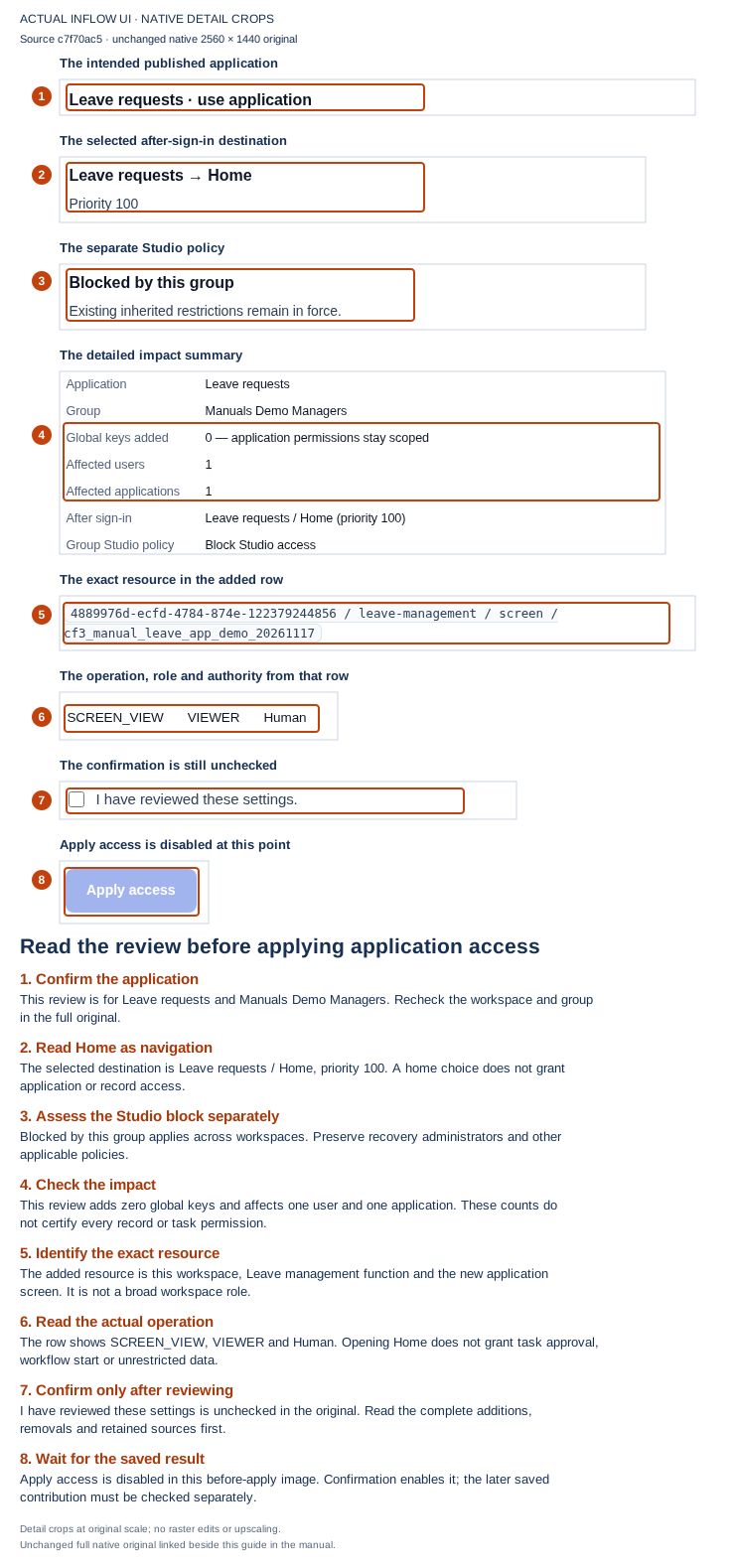
Figure 1. The administrator is reviewing the Managers group before applying access. The checkbox is still clear and Apply access is disabled. The guide keeps separate crops from the same unchanged original; the numbered notes explain their relationship. Open the unchanged full 2560 × 1440 screenshot.
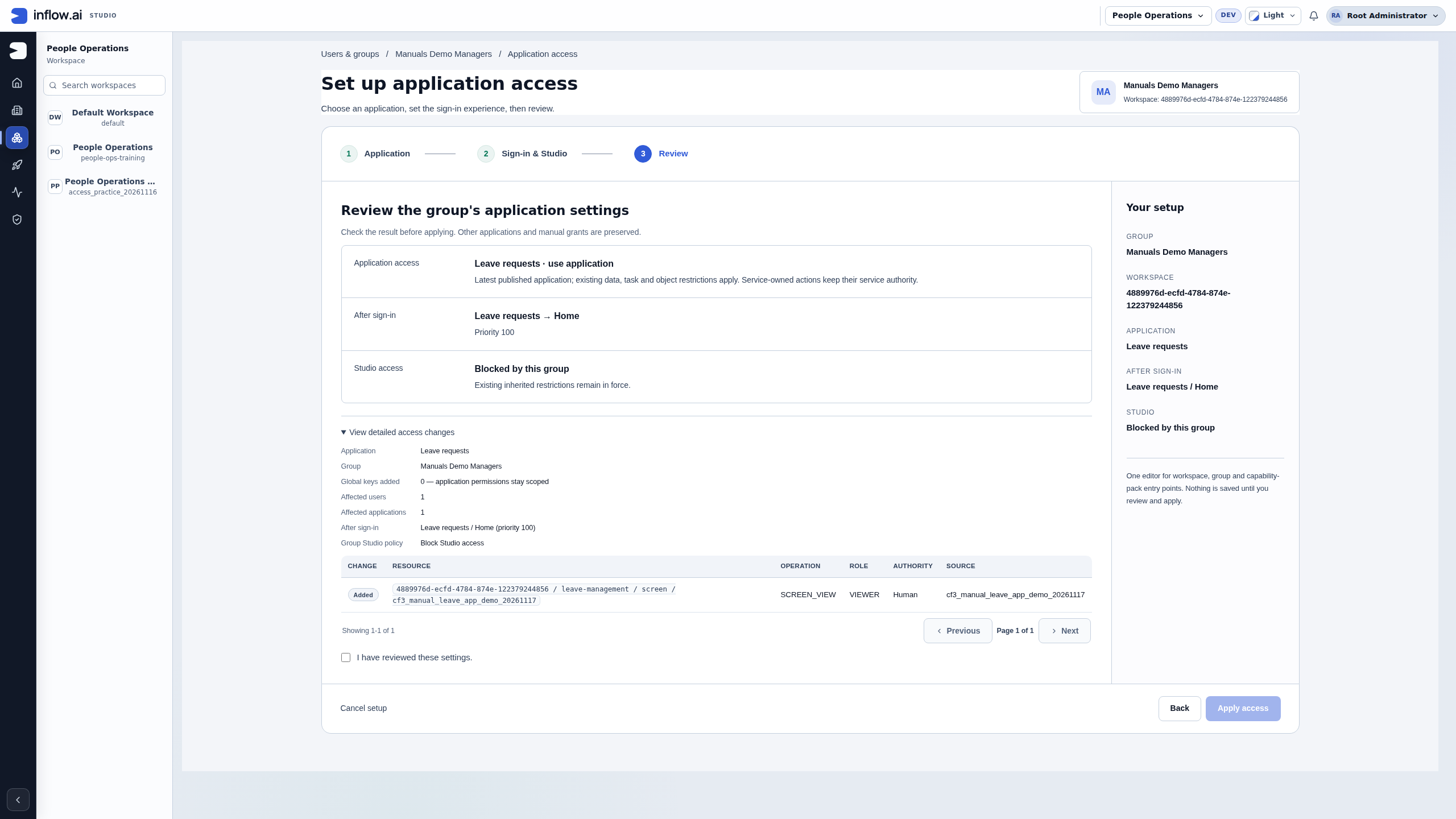
Read all additions, removals and retained sources before selecting I have reviewed these settings. Then choose Apply access and wait for the saved outcome. The screenshot shows the review, not the later successful save. In this example the saved contribution was also read back before either ordinary user entered the app. The administrator repeats the appropriate review separately for Manuals Demo Employees; saving the Managers contribution does not grant the Employees group access.
2. Check through the ordinary employee account
- Sign out of the administrator's session using its account menu. Keep account setup details private.
- Sign in normally as Manuals Demo Employee. Complete any required first-password setup through the normal sign-in flow.
- Check the account name at the top of the application and its Leave requests identity.
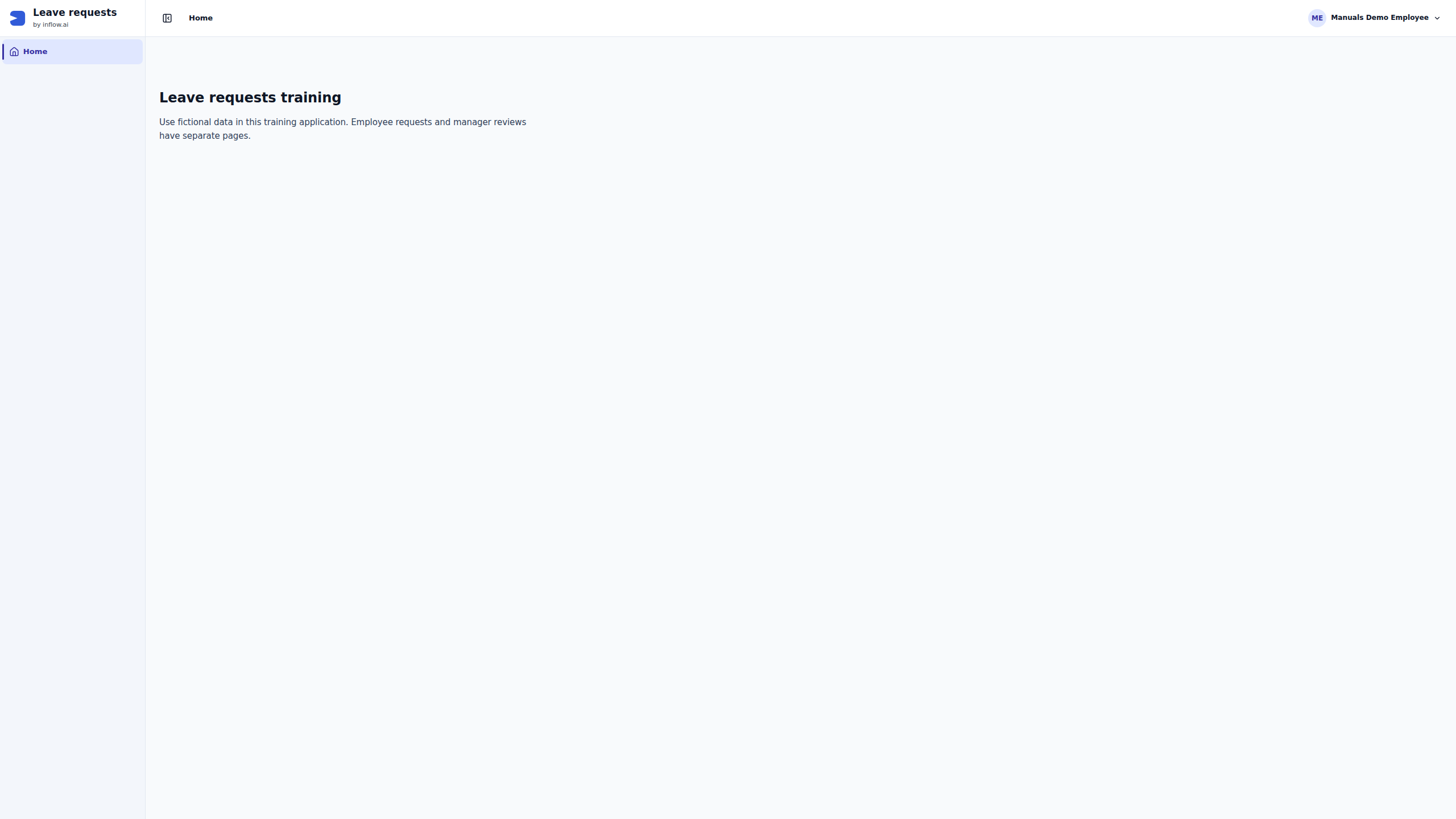
- Read the published Home content. In this small publication, Home is the only navigation entry. There is no employee submission, manager inbox or App Chat launcher here yet.
- Record application entry as the result. Test submission, row and field access, task eligibility and decisions separately after those pages are published and their access review is saved.
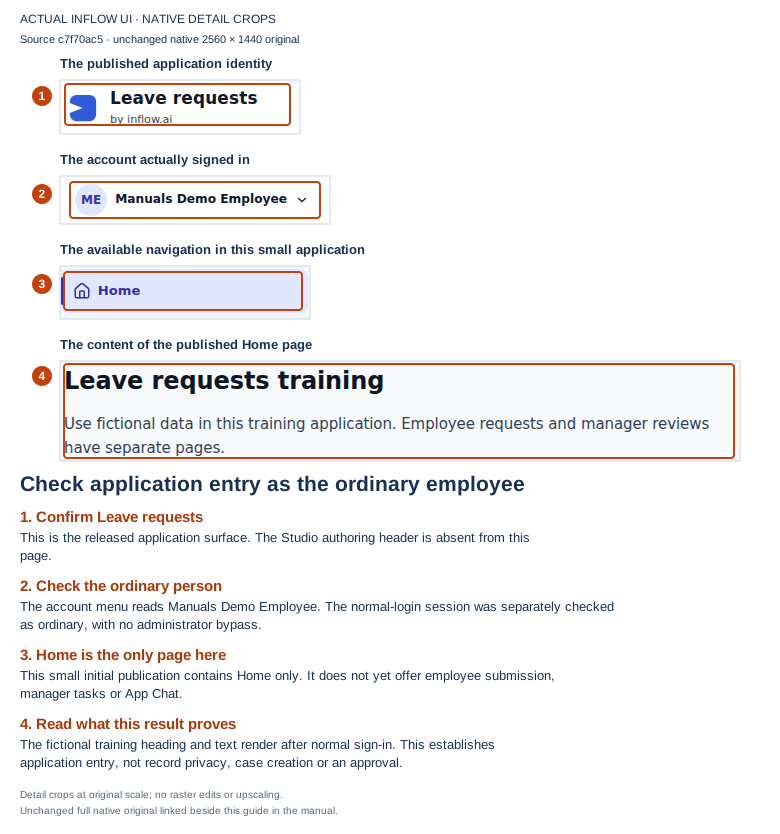
Figure 2. Manuals Demo Employee has signed in normally and can read the published Home. The numbered detail crops preserve the original pixels. The account name and visible page establish who entered and what rendered; the session was separately checked as ordinary, without an administrator bypass. Open the unchanged full 2560 × 1440 screenshot.
If an old administrator or Studio return link leads to a neutral not available message, do not give the ordinary person an editor role. Use the supported sign-in/application entry route or an authorized link to their published application. Check the resulting account and destination again. In the companion manager check, a stale administrator return context initially produced that neutral state; application entry then reached the configured Home. This is a recorded recovery, not a claim that the manager's first landing was clean.
When the publisher adds the real request form, workflow start or manager task page, review application access again for both groups. Keep the earlier Home check as its own checkpoint. It does not certify the new dependencies or business actions.
These native screenshots were captured on 17 November 2026, from the compiled and served source revision c7f70ac5. They document this specific development example. Later source changes and the complete leave approval journey require their own checks.
Worked example — separate application entry, a task Form and its receipt
Sara's application entry, her task's Form and a completion receipt are separate views. The following three observations use the same ordinary Manuals Demo Manager account in the fictional People Operations example. They do not show a successful task-list discovery or a repair of unavailable access.
The practice request CF3-LEAVE-20261119-02 was already completed. Its earlier submission and manager answer are documented in the whole-day pilot. No request, answer, group contribution or permission was changed for these pictures. Keep that earlier completion separate from this later attempt to read existing work.
1. Identify the application that actually opened
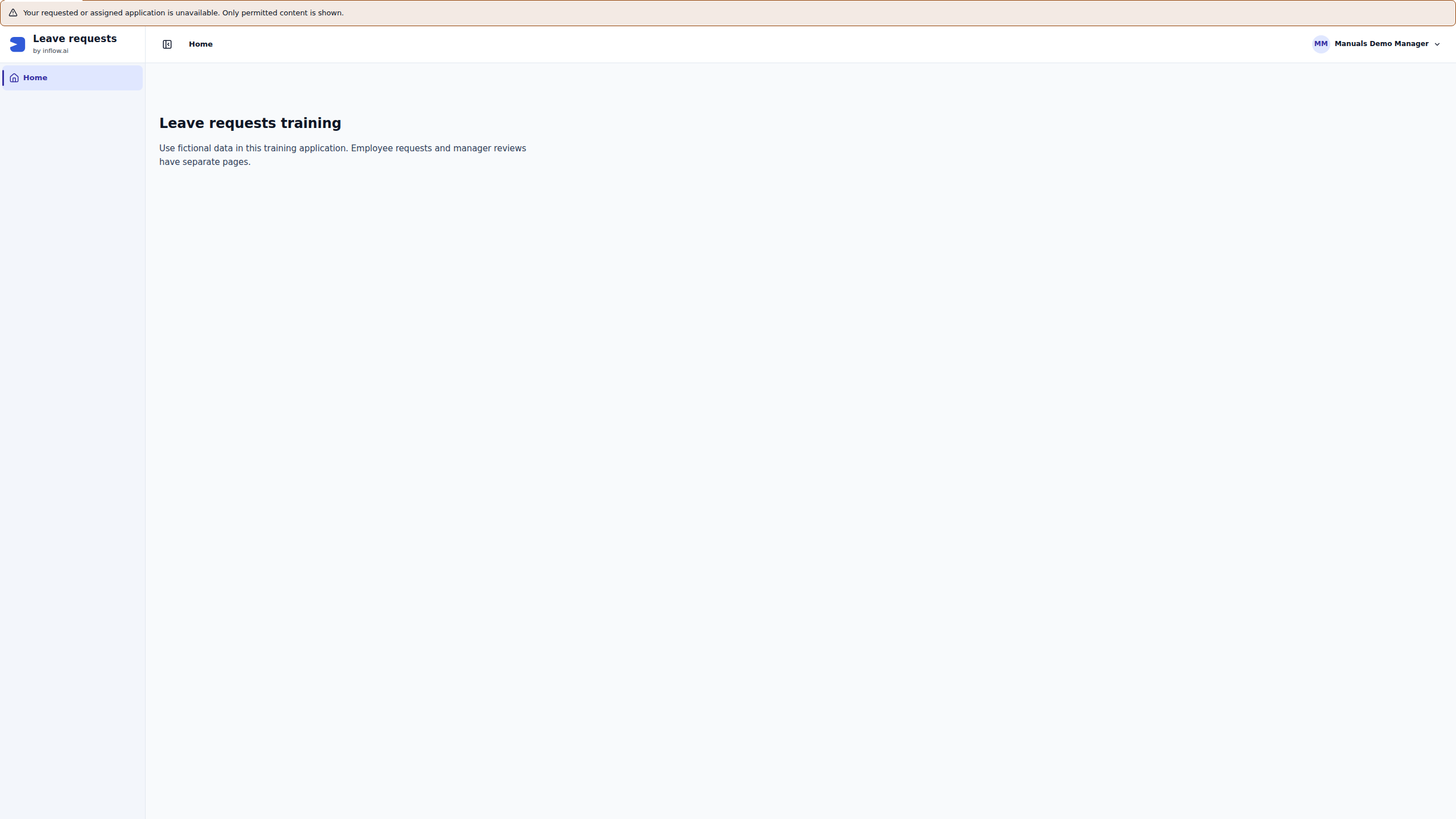
Sara signs in normally after requesting Inflow Home. In this observation she arrives at the published Leave requests → Home page instead. The notice says Your requested or assigned application is unavailable. Only permitted content is shown. The page displays fictional training guidance and a single Home navigation item.
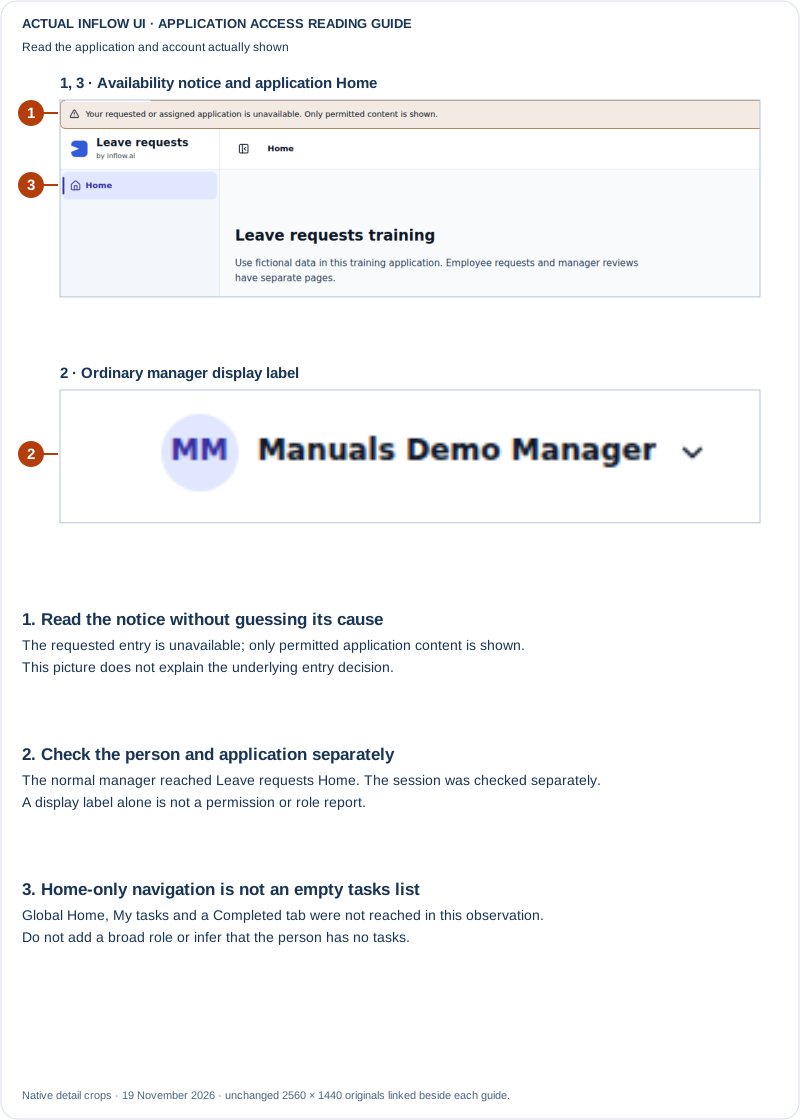
Figure 3 — a permitted application landing, not a tasks list. The notice, application identity and account display are actual captured content. This is the App Shell's Home page; it is not a successful visit to global Home, My tasks or a Completed tab. The underlying reason for the unavailable requested entry is not established by this picture. Open the unchanged native 2560×1440 screenshot.
Read this result with the person preparing the application:
- Check the signed-in person's display name and the application title. A page called Home can belong to a published application; the name alone does not identify Inflow's global Home experience.
- Read the full notice and the navigation actually offered. Here there is no My tasks control. That is not evidence that Sara has no tasks or that a task was deleted.
- Preserve the requested destination and actual landing in the handoff. Ask the responsible owner to check the intended entry and current published setup. Do not change Sara to a builder account or add a broad workspace role to make another navigation item appear.
- Continue only through an available permitted route. If the coordinator has already supplied a task link, assess that task independently; application entry alone does not guarantee its Form will open.
2. Keep an unavailable Form as an unresolved result
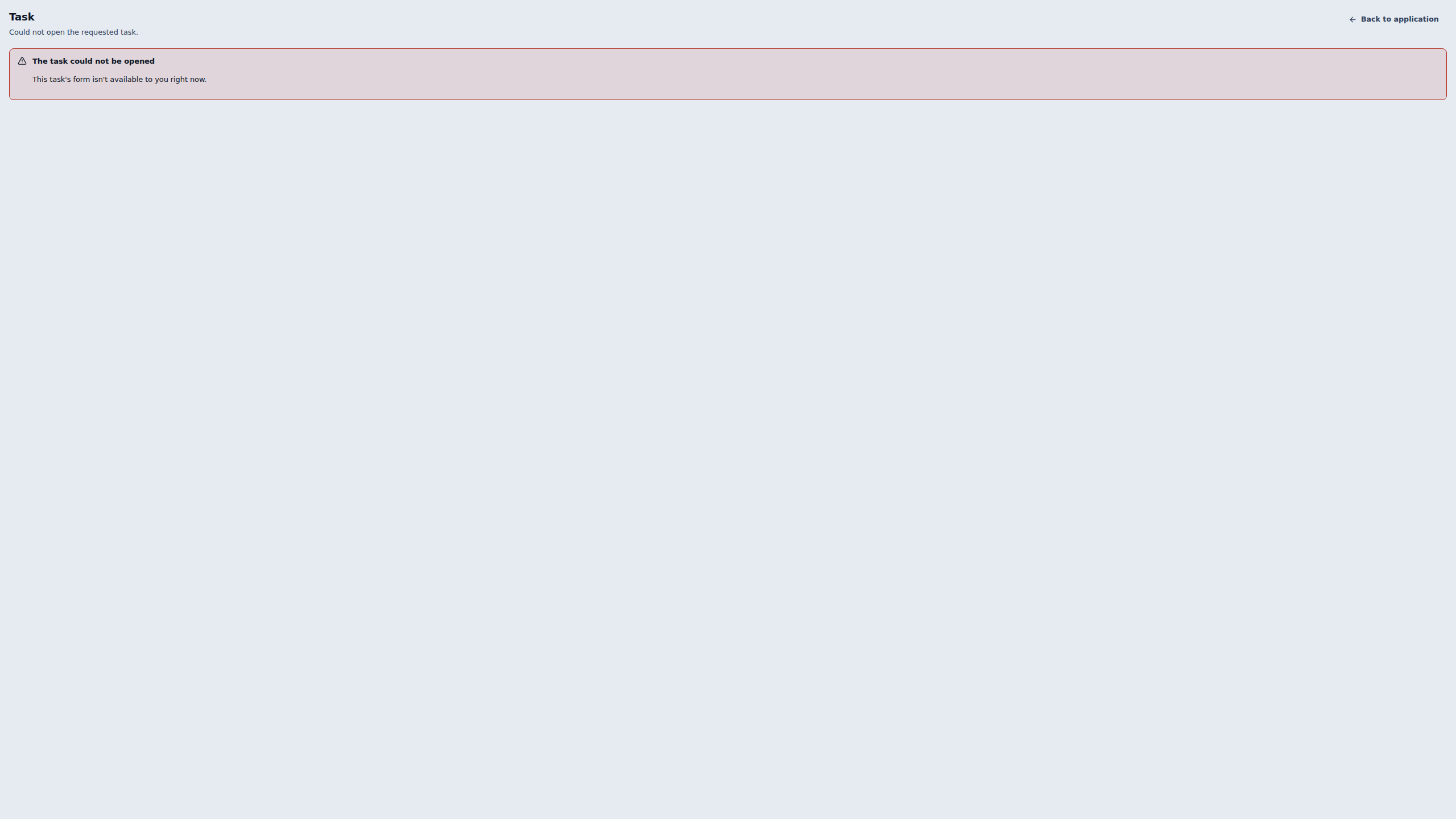
Sara next uses the already-known link for the same practice task. The page says Could not open the requested task and This task's form isn't available to you right now. It offers Back to application. No Form fields or submitted answers are displayed.
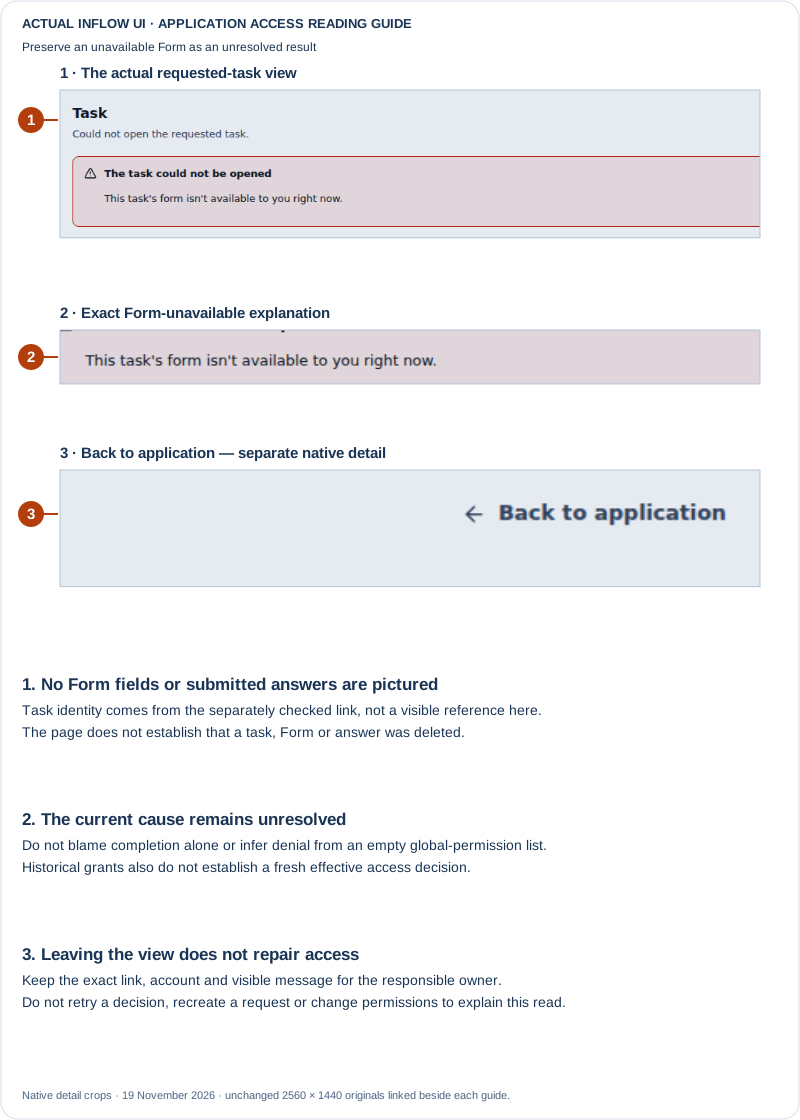
Figure 4 — the Form remains unavailable. The screenshot does not display the task's business reference or an answer; the link's identity was checked separately. It does not establish that the Form was deleted, that Sara lost permission, or that completed tasks always behave this way. The cause of this observation remains unresolved. Open the unchanged native 2560×1440 screenshot.
The technical readback distinguished readable task details from the unavailable Form. That distinction is useful for the responsible owner, but it does not supply a cause. An earlier saved access review included access to this exact published Form; an earlier grant is still different from a fresh effective decision. Do not infer denial merely from an empty global-permission list, and do not infer that permission is still sufficient from an old review.
Keep the exact ordinary account, workspace, supplied link, approximate time and visible message in a small support report. Ask the application and workflow owners to inspect the current task, pinned published Form and effective scoped access. Retain the original request and its known result. Repeating Submit decision, creating a replacement request or changing somebody's access would not explain this read failure.
Back to application is a way to leave this view. It is not an access repair, a task retry or a new submission. Keep the unresolved Form result even if another independently permitted view can be read.
3. Read an already supplied receipt as its own evidence
The coordinator had retained the original completion-receipt link from this same practice case. In a separate read, Sara opens that exact already-supplied receipt through her normal account. Its current visibility is checked independently. This is not a technique for changing an unavailable task URL or recovering Form access.
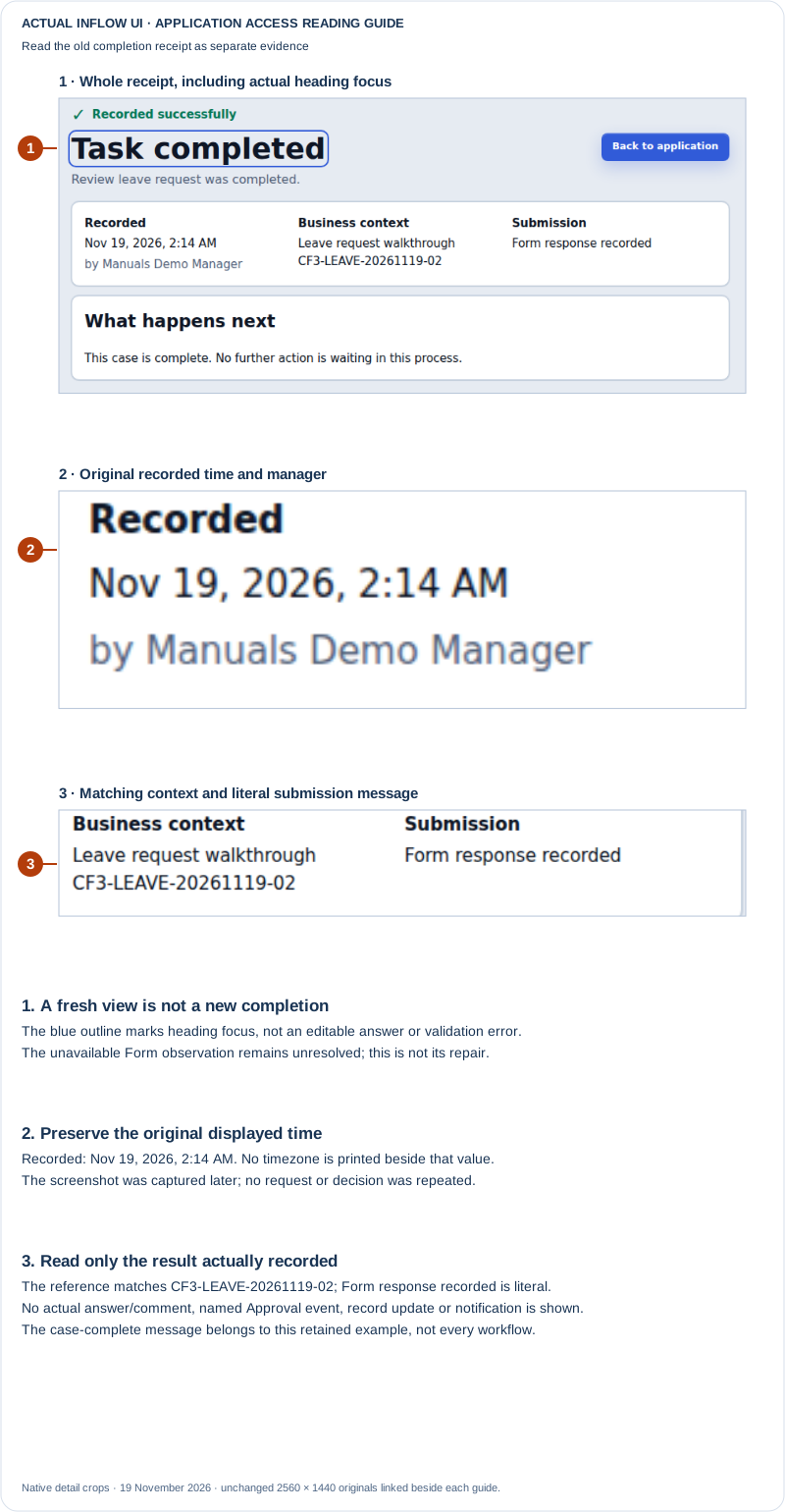
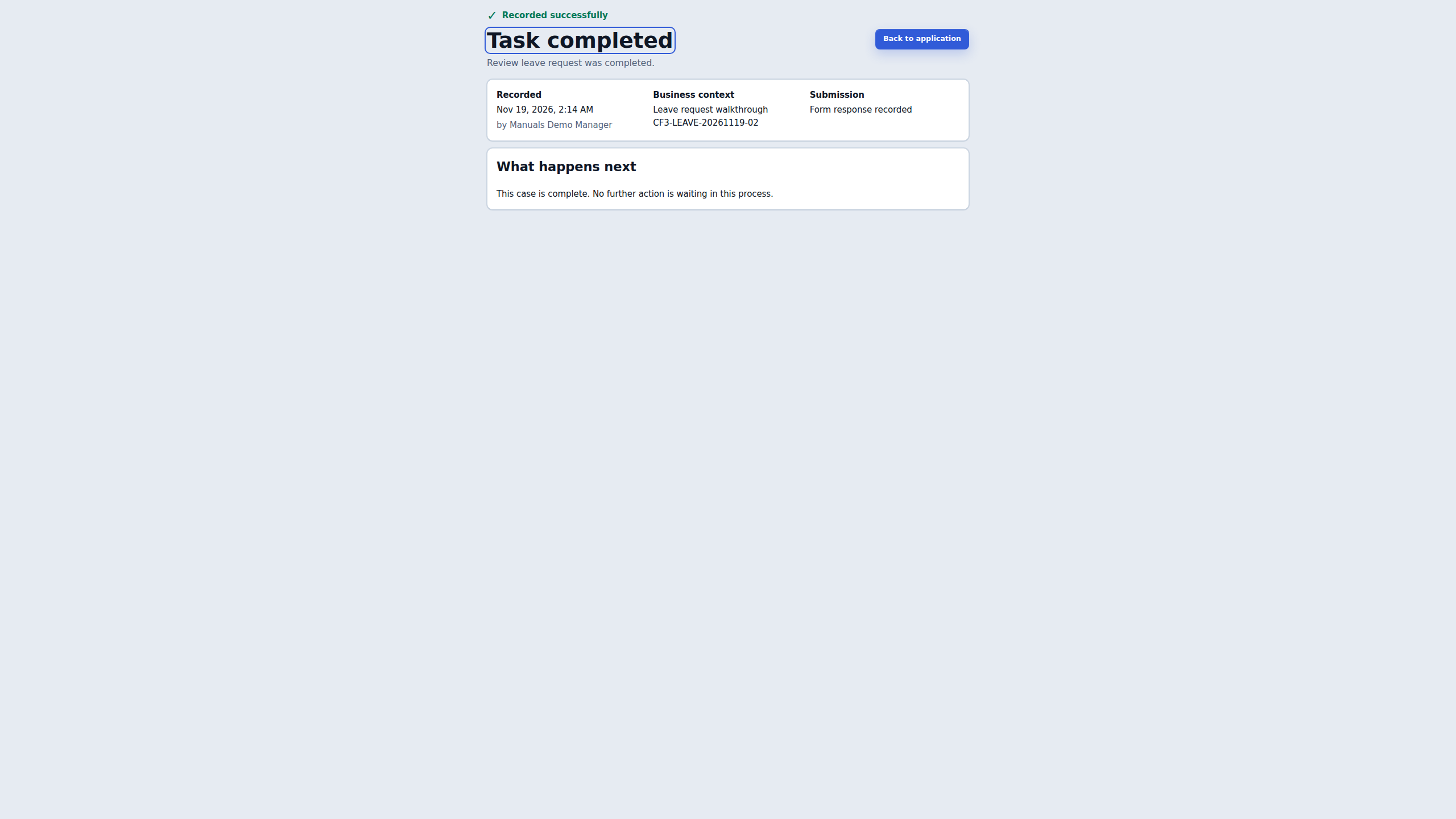
Figure 5 — a fresh view of the old receipt, not a new completion. The picture was captured later, but the receipt still displays Nov 19, 2026, 2:14 AM for the original result. That displayed time has no timezone label. The blue outline marks focus on the Task completed heading; it is not an editable answer or validation error. This receipt does not repair Figure 4 or demonstrate task discovery, current closed-Form answers or a business-record update. Open the unchanged native 2560×1440 screenshot.
Read only what the receipt actually provides:
- Match Review leave request, Manuals Demo Manager and CF3-LEAVE-20261119-02 to the intended completed work.
- Preserve the original recorded time. Opening the receipt again does not mean that the decision happened again.
- Read Form response recorded and This case is complete. No further action is waiting in this process. Those messages describe this retained result. They do not show the actual Approved value or comment, a separate named Approval event, a notification or a leave-record Status change.
- Keep the receipt and Form observations separate in the handoff. If a supplied receipt is also unavailable, preserve that result and ask its owner. Do not edit link parameters, borrow another account or submit the task again to obtain a new receipt.
Record three different conclusions
| Observation | Supported conclusion | Still unresolved or unshown |
|---|---|---|
| Leave requests Home opens with an availability notice | The ordinary manager reached this permitted application page | Global Home admission, a task list and the reason for the original entry result |
| The supplied task link reports its Form unavailable | The attempted Form read did not produce a Form or answers | Current Form authority, publication and access cause; no repair was demonstrated |
| The original receipt opens separately | This account can read that retained completion receipt now | Form access, task discovery and any separate record or notification result |
These native pictures were captured on 19 November 2026 from the identified source/build f9e3131f. They preserve three bounded observations, not a complete recovery sequence. No access settings, task answers or business records changed in this exercise. Use only fictional references in training and handle real receipt links and screenshots through the approved support route. Detail crops do not remove anything from the linked full originals.
Diagnose the result at the right boundary
The access review changes a group's published-application contribution and, when deliberately selected, its sign-in destination or direct Studio policy. It does not merge those decisions into one broad “user role.” The Studio block is group-wide across workspaces. Application contribution controls whether the group may use the selected app. A group's saved home chooses its sign-in destination; changing it can move the existing home from another workspace, and a home choice grants no application or data access by itself. Use the symptom to find the owner of the missing behavior:
| What the person reports | First place to check | What that check does not prove |
|---|---|---|
| The application is not offered. | Current membership, saved application contribution and publication | A group name or starting-page choice alone does not grant application use. |
| The application opens at a different page. | Each applicable group's saved home and priority | Changing the home does not add application or data access. Higher priorities win; if the top priorities tie, the person may need to choose. |
| The application opens, but Studio is unavailable. | Group Studio policy and any inherited group policy | Allowing application use does not automatically allow Studio. One group's lack of a block does not remove another applicable block. |
| The request appears, but a record is missing. | The record's current row/field rules and the user's access | Opening the application does not disclose every record or sensitive value. |
| Sara sees no manager task. | The actual case, task assignment, participant eligibility and task state | Membership in Leave managers or application access does not assign every task to Sara. |
For example, Mohammad can be in Leave employees, have a saved Leave requests application contribution and still see only records his policy allows. Sara can open the same application and still have no manager task until the workflow assigns an eligible task. Keep these as separate checks in the handoff so one successful result is not used to claim the others.
If a group policy or access read is unavailable, preserve that as an unresolved check. Do not turn it into a grant or denial by assumption, and do not give the person a broader workspace role to make the symptom disappear. Ask the owner of the unavailable boundary to restore the supported review; continue checking the independent results that are available.
Keep App Chat setup separate from application access
Application access and App Chat are related but separate decisions. A reviewed group application contribution can grant the runtime access explicitly included in that contribution; a saved starting-page choice only selects where a person lands and grants no access on its own. App Chat is configured separately on the published App Shell: its publisher enables the chat launcher and selects the sources and operations the assistant may use. Neither a group contribution nor a starting-page choice turns chat on or binds a chat source. Showing the chat launcher does not grant the signed-in person access to every configured source, and the contribution does not bypass record, field, disclosure or task rules.
When an employee says chat is missing or cannot answer, check these boundaries in order:
| What the person sees | Check with the responsible owner | What to keep separate |
|---|---|---|
| The application is missing. | Membership, the group's saved application contribution, and the published destination. | A chat setting cannot substitute for application access. |
| The app opens, but its chat launcher is missing. | The exact published App Shell version and whether its publisher enabled App Chat before publishing. | A draft setting or a group starting page does not change the published shell. Do not add a broad workspace role. |
| Chat opens, but a source is not offered or an answer is unavailable. | The published shell's approved source, its allowed operation, the source's current publication, and the user's normal access to the record or task. | A source binding narrows the assistant's scope; it does not override actor, row, field or disclosure rules. An empty app-specific allowed-field list removes that additional restriction; it does not remove the user's ordinary readable-field or disclosure limits. |
| The user can read a record but cannot ask for a total. | Whether that source offers and has the AGGREGATE operation enabled, and which records and fields the user may include. | A guidance document or a count of visible answer excerpts is not a record aggregate. |
| The user asks chat to approve or change something. | Whether the publisher configured the relevant task operation or published action, and whether the user's current task/action permissions allow it. | A proposed action is not a completed action. The user reviews and explicitly confirms a proposal; verify the record, case or task result afterward. |
For example, Nadia has already given Leave employees access to the published Leave requests application and chosen its employee page as the starting page. Mohammad can open that page, but the chat launcher appears only if the published App Shell also has App Chat enabled. If Nadia's published shell binds the Leave request record type for permitted reads, chat still answers about Mohammad's row only when his current actor can read that row and the answer's fields. It must not reveal Sara's request merely because both rows share a model. If Mohammad asks to submit a request, Nadia should verify that the shell has the intended published action and normal form path; a conversational proposal still requires his review and confirmation, and the resulting request must be checked in the ordinary app.
Use Choosing an assistant for the end-user story and distinctions among App Chat, Ask Inflow, AI Tasks and background integrations. Use the App Shell tutorial for the publisher's configuration steps. If chat or a source is absent, correct that App Shell's approved configuration with its owner; do not widen workspace or record access just to make the assistant appear more helpful.
Check one user's configured access to a published action
When the workspace Security page is opened in a specific published-application context and the authorized Check application access section is available, an administrator can inspect one person's saved access to an application or a named action. This is a read-only configuration check. It is separate from Manage application access, which changes a group's contribution, home or Studio policy. The check is shown only when the current build, session and administrator scope support it; if it is absent, do not infer that access is denied or that the application has no actions.
- Choose Check application access for a user and select the exact employee account. The picker searches users; it does not check a group or guess from a role name.
- Choose Check configured access. For an application-level action check, read the Published action list and choose the exact action. Each option includes its published label, required permission and minimum role; use all three to distinguish similar actions.
- Choose Check selected action. Read Configured access or Access not configured, along with any disclosed source and revision. If the action needs an access review, the result says Review required. If an independent source limits it, the result may say Configured restriction.
- If two actions have indistinguishable labels, do not guess between them. Ask the application owner to make the published action labels distinct, then refresh the check. If the configuration changed while you were checking, choose Reload access check and select the action again.
- Treat Not available as an unavailable answer, not as proof of denial. For a temporary Access check unavailable result, reload only after the service is ready; do not forward hidden response details or ask for a broader role as a workaround.
The check reports current saved configuration only. An Access not configured result is a reason to ask the responsible access owner to review the intended policy, not to add a broad workspace grant. Configured access does not show that the person can sign in, execute the action, see every record or field, or complete a task in its current business state. The user still needs valid credentials and task eligibility, and record restrictions and current state still apply. A check of a published action also does not establish access to the application destination; use a destination-specific check only when the authorized workspace context explicitly provides that destination.
Example: Sara can open the app but cannot find her review task
Nadia opens the supported application-specific check, selects Sara's normal account and checks the published Review leave request action. The result says Configured access, but Sara still has no task in her inbox. Nadia records that the action's saved access is configured, then checks the specific request's assignment, participant eligibility and task state with the workflow owner. She does not conclude that Sara has a task, change Sara to a broader workspace role, or approve a request from the configuration-check screen. If the result instead says Review required or Access not configured, Nadia asks the access owner to review that exact action and retests through Sara's normal account after any approved change.
Remove one group's access to an application
Use the access review when a group should stop using one application. Removing a group's contribution does not remove the people from the group, delete the application, change its publication, or erase another group's contribution. A person may still have access through another group or source, so check the resulting sources before telling them that all access is gone.
- Open Security → Application access → Manage application access in the intended workspace and choose the exact group.
- Open Manage retained application access and choose Review removal of [application ID] for the exact active contribution. Verify the group and application in the setup summary.
- On Sign-in & Studio, verify the group's home and Studio settings are unchanged, then continue to Review. The review should say remove application access for the chosen application.
- Read the review's added, removed and retained effects and affected-user summary. Confirm the review, then choose Apply access. Wait for the saved/current result; a button click alone does not prove that the change was stored.
- Check the group's current contribution and the affected person's effective access through the authorized view. If another independent source still allows access, resolve that source with its owner rather than repeating the same removal or deleting data directly.
If the publication itself is no longer available but an active contribution remains, the setup can offer a retained-access removal path. In that case the screen should identify the publication as unavailable and state that home and Studio settings stay unchanged. Review that narrow removal; do not interpret the missing publication as evidence that the contribution has already been revoked.
Example: Nadia removes only the Employees contribution
Mohammad belongs to both Leave employees and Benefits. Nadia's review shows an active Leave requests contribution for Leave employees. She selects the removal row identified by that application's stable ID, checks that the review removes that contribution and keeps the group's existing home and Studio settings, then applies it. She verifies the resulting access. Mohammad may still reach the Benefits application because that is a separate contribution. Nadia asks the Benefits owner whether that access should remain; she does not remove Benefits just to make the Leave removal appear broader.
Change an existing group's starting page
The same saved destination can be managed through the group's Experience settings or the workspace's After sign-in settings.
- Open the intended group and its After sign-in area.
- Choose Choose published application, select the correct application and confirm Use application.
- Select the Published page and enable Use this home after sign-in where that is the intended result.
- Usually leave Advanced: home priority alone. If a person belongs to several groups with different homes, the priority helps decide which applies. Equal highest priorities can require a choice.
- Choose Save after sign-in. If a Move home confirmation appears, review the destination before confirming it.
- Sign in as the intended ordinary test user and check the result after the settings are saved.
A valid direct application link can still take a person to the requested permitted page. If the configured page is no longer available, the person should receive the appropriate recovery experience; changing a landing setting is not a permission bypass.
Example: Mohammad enters the leave application
Nadia has published the employee form and the App Shell. The administrator reviews Leave employees → Leave requests, chooses its employee page as the starting page and saves the approved changes. Mohammad is a current member of that group.
Mohammad signs in normally and reaches the intended application. He can start only the actions he is permitted to use. If the form contains his own request list, that list still follows its data restrictions. Application access does not turn a filtered page into unrestricted employee-record access.
If Mohammad cannot enter, the administrator checks group membership, the saved access review and the published destination. They do not send him a builder account or give him a broad editor role as a shortcut.
Example: Sara needs manager work without Studio
Sara uses the same released business application, but the workflow has an actual manager task for her. The administrator reviews the Managers group's application access and its starting page. They keep Studio policy as a separate decision.
When Sara opens the task, Inflow still checks that she may handle that task. A group named Managers does not approve leave or assign every task to all its members. The process's assignment and the person's current rights must match the intended scenario.
If two of Sara's groups have equally preferred starting pages, she may need to choose. Resolve that configuration deliberately; do not assume the most recently opened application always wins.
If something goes wrong
| What you see | What to do |
|---|---|
| The published application is missing from selection. | Ask its owner to check publication and your administration scope. |
| The access review identifies a dependency it cannot include. | Correct the supported application configuration and review again. |
| The review expired or another person changed the setup. | Choose Review again, read the current result and confirm it afresh. |
| The application opens but one task or record is unavailable. | Check that business item's access or eligibility. Landing access is not enough. |
| The service cannot determine the current policy. | Treat it as unavailable, not as an empty list or a reason to allow more. |
| A change would block a recovery administrator. | Preserve that recovery path and ask the authorized identity owner. |
Continue
Use the identity and permissions tutorial to prepare the people and groups. Use the leave workflow tutorial to check the complete employee-to-manager journey after access is configured.
Further reading
Optional technical reference — detailed contracts and implementation information for your administrator or developer. You do not need it to follow this lesson.