Use ready-made functions in a formula
A function is a named calculation that already knows how to perform a task. Instead of rebuilding every text or calendar calculation yourself, choose an available function, supply its inputs and test the answer.
The Functions reference in the rule editor shows what is available in the current environment. A familiar spreadsheet name is not a promise that every spreadsheet function or every optional Inflow function is installed.
The reusable weekday-count walkthrough below follows Nadia in the synthetic People Operations workspace. Its twelve numbered figures show actual authoring, live tests, required-input recovery and one intentional publication from master source a8f47dc725, captured at native 2560×1440 on 16 November 2026. The normal designer account is an application author; this does not demonstrate employee record access or approval authority. Other worked examples explain expected behavior and are not presented as screenshots of executed journeys. If a function or screen is absent, check the current installed function reference and access with your administrator.
Read a function like a small instruction
Consider this example:
networkDays("2026-12-14", "2026-12-18")
networkDaysis the function name.- The parentheses hold the values you give it.
- The comma separates the first value from the second.
- The quoted dates use year-month-day order.
- Its result is a number of weekdays, using the function's stated calendar rules.
When you use a function with rule inputs, insert those declared inputs from the editor. Do not replace a required date with a text label such as “next Monday” unless that function explicitly supports it.
Two calendar functions answer different questions:
| Business question | Function | What it returns |
|---|---|---|
| How many weekdays are in this date range? | networkDays(startDate, endDate, holidays?) |
A count. Its range includes both end dates when they are weekdays. |
| What date is this many working days from a start date? | workday(startDate, days, holidays?) |
A date. It steps away from the start date, which is excluded from the count. |
Read the selected function's description in the current Functions reference. Similar names do not mean that two functions have the same boundary rules or result type.
Before you begin
Create or open an Expression rule in the intended workspace. You need access to the rule and any data or objects it uses. Use the function's description to check what inputs it expects and what its answer means.
If the organization has special rules for weekends, public holidays, finance or names, obtain those rules from the relevant business owner. A convenient default is not an approved policy.
Example — Count the weekdays in a leave request
Mohammad requests Monday 14 December through Friday 18 December 2026. The available networkDays function counts Monday–Friday dates, including both the first and last day.
- Open an Expression rule and find
networkDaysin Functions. - Read its description and input names. In particular, notice that holidays are supplied separately.
- Insert the function and use the two quoted dates shown above.
- Choose Validate, then Run in the live test.
- Compare the answer with the calendar: the expected result is 5.
- Now supply the Wednesday as a holiday:
networkDays("2026-12-14", "2026-12-18", ["2026-12-16"])
The square brackets mean a list. Here the list contains one holiday date. Run again and expect 4.
What you should see: a count that follows the function's stated Monday–Friday rule. It does not automatically read the organization's business calendar, deduct leave or approve the request. If your organization uses a different weekend, choose or build the appropriate approved rule instead of silently calling this result correct.
Example — Make a display name easier to read
A fictional imported display label is mOHAMMAD aLI. Nadia wants a readable label on a test page, while leaving the original business record unchanged until its owner approves any data correction.
- Find
properin Functions and read its description. - In a test Expression rule, enter:
proper("mOHAMMAD aLI")
- Validate and run it. The expected display result is Mohammad Ali.
- Try another fictional label with more than one word and read it back.
- Decide whether the result is suitable for this application. Real names can have intentional spelling and capitalization; do not overwrite authoritative names just because a formatter returns a different appearance.
What you should see: a text result you can inspect before using it. Calculating a cleaner-looking label is separate from saving a changed person record.
Example — Reuse networkDays with declared Date inputs
Mohammad's fictional request runs from Monday 14 December to Friday 18 December 2026. Nadia needs one reusable calculation that receives the two dates from its caller. The agreed practice calendar is Monday–Friday. A different weekend or an employer holiday policy needs a separately approved calculation; this example does not select one automatically.
Open the matching calculation or create one missing draft
- In Build → Rules, look for Leave working days, Key
leave_working_days, in Leave Management. Open a matching Expression and inspect its inputs and formula before changing anything. - Only if that intended rule is missing, choose New rule → Expression. Enter Name Leave working days, inspect Key
leave_working_days, choose Business function Leave Management, then select Create Expression once. - Keep the different Leave eligibility comparison rule. A rule that compares requested days with an allowance serves a different question; do not overwrite it with a date calculation.
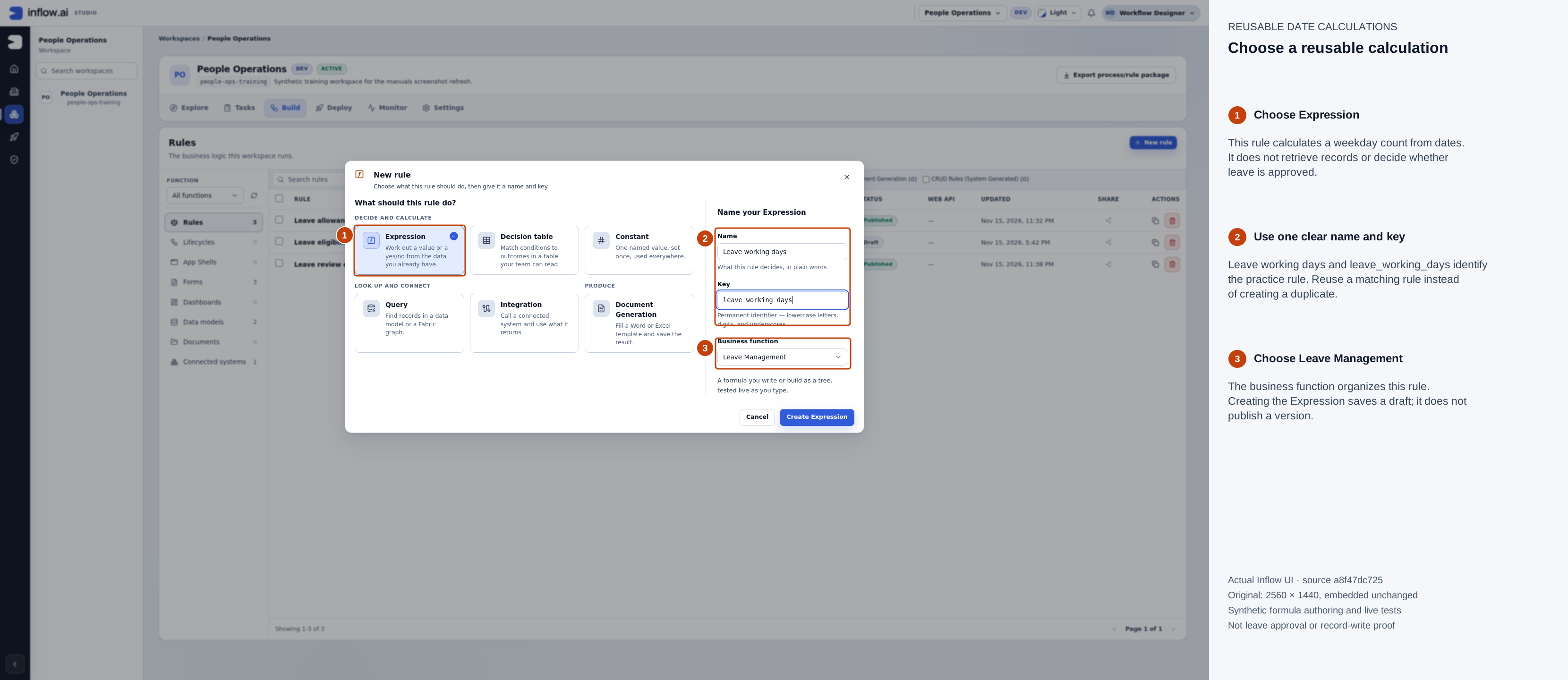
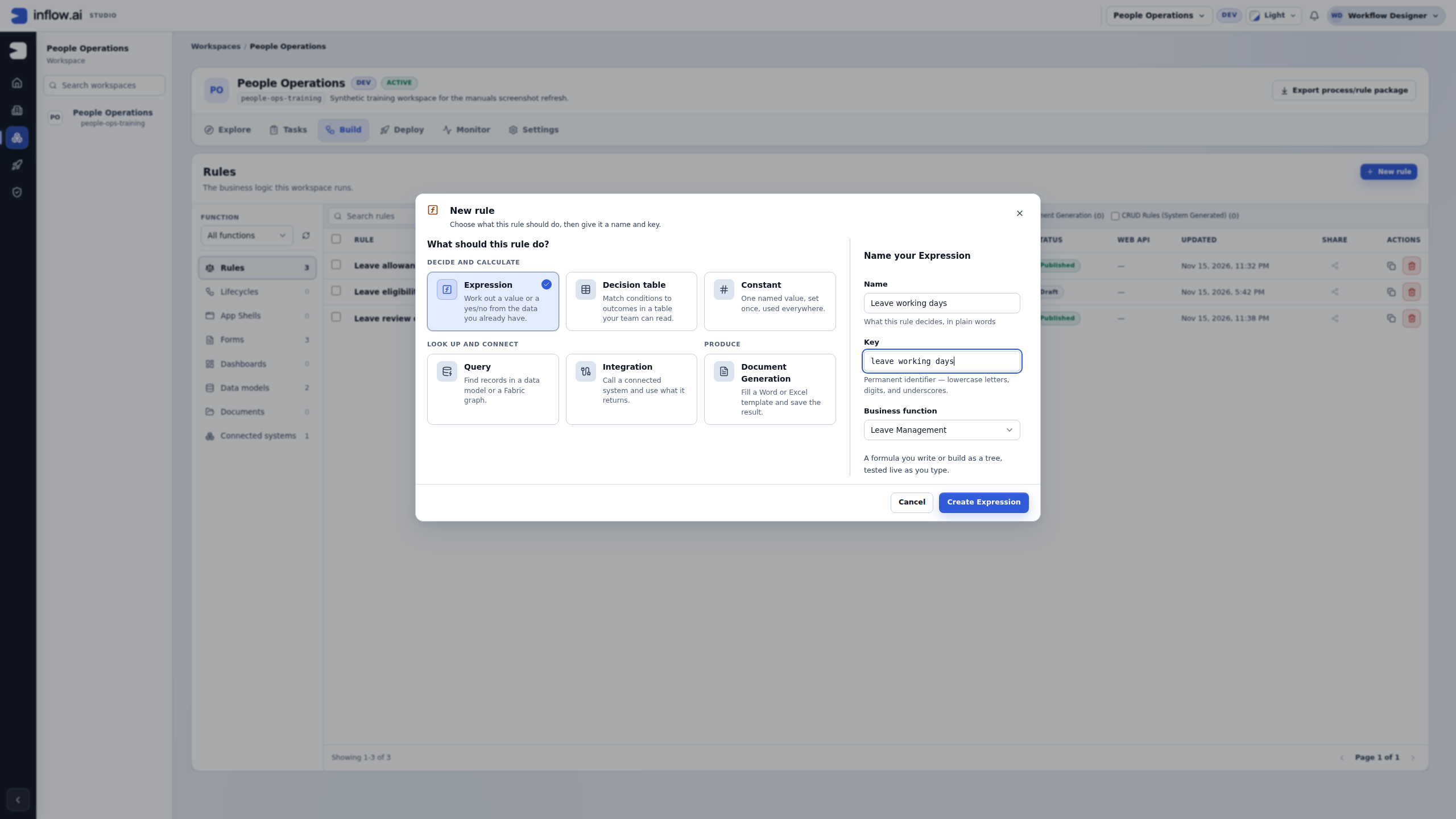
Choose the calculation kind and check its identity before creating the missing draft. Creating it does not publish a version. Numbered outlines and the side legend are guidance; the original pixels are unchanged. Open the native original or open the full-size guide.
Declare the dates the caller must supply
Use these two declarations. Each is a single civil Date, without a time of day:
| Name | Type | Cardinality | Required input | Suggested description |
|---|---|---|---|---|
startDate |
Date | Single value | On | Inclusive start date supplied by the caller. |
endDate |
Date | Single value | On | Inclusive end date supplied by the caller. |
- Expand the editor outline or open Variables. Inspect any existing declarations first.
- For each missing input, choose Declare, enter its exact Name, select Type Date, keep Single value, turn on Required input, add the description and confirm with Declare.
- Confirm both names appear in Variables with Date. For a newly created practice draft, correct an accidental declaration through its Edit datatype action before proceeding. For a shared existing rule with a different contract, review its consumers and owner-approved design before changing the type or requirement.
- Required means the caller must supply that value. It does not map a form field, look up an employee or provide a default date. The consuming form or workflow must configure the actual mapping separately.
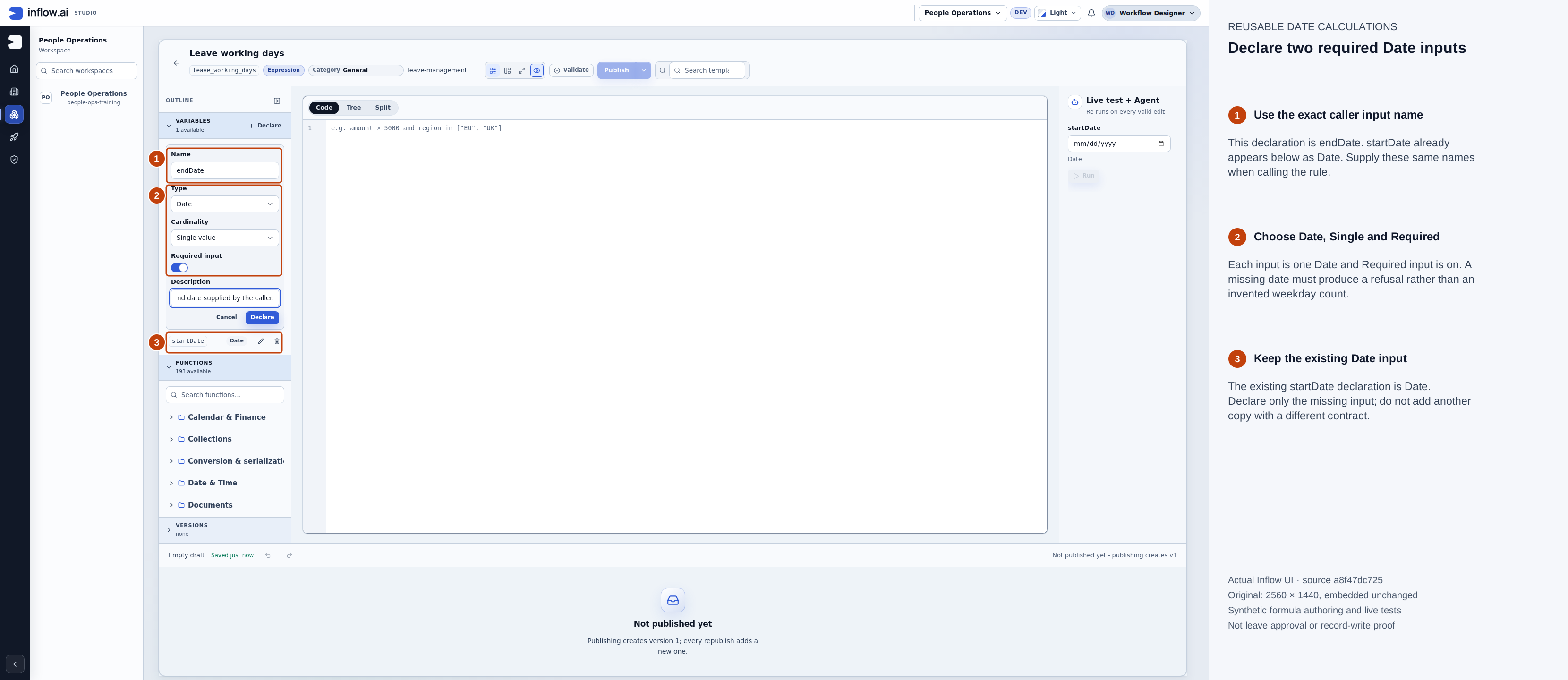
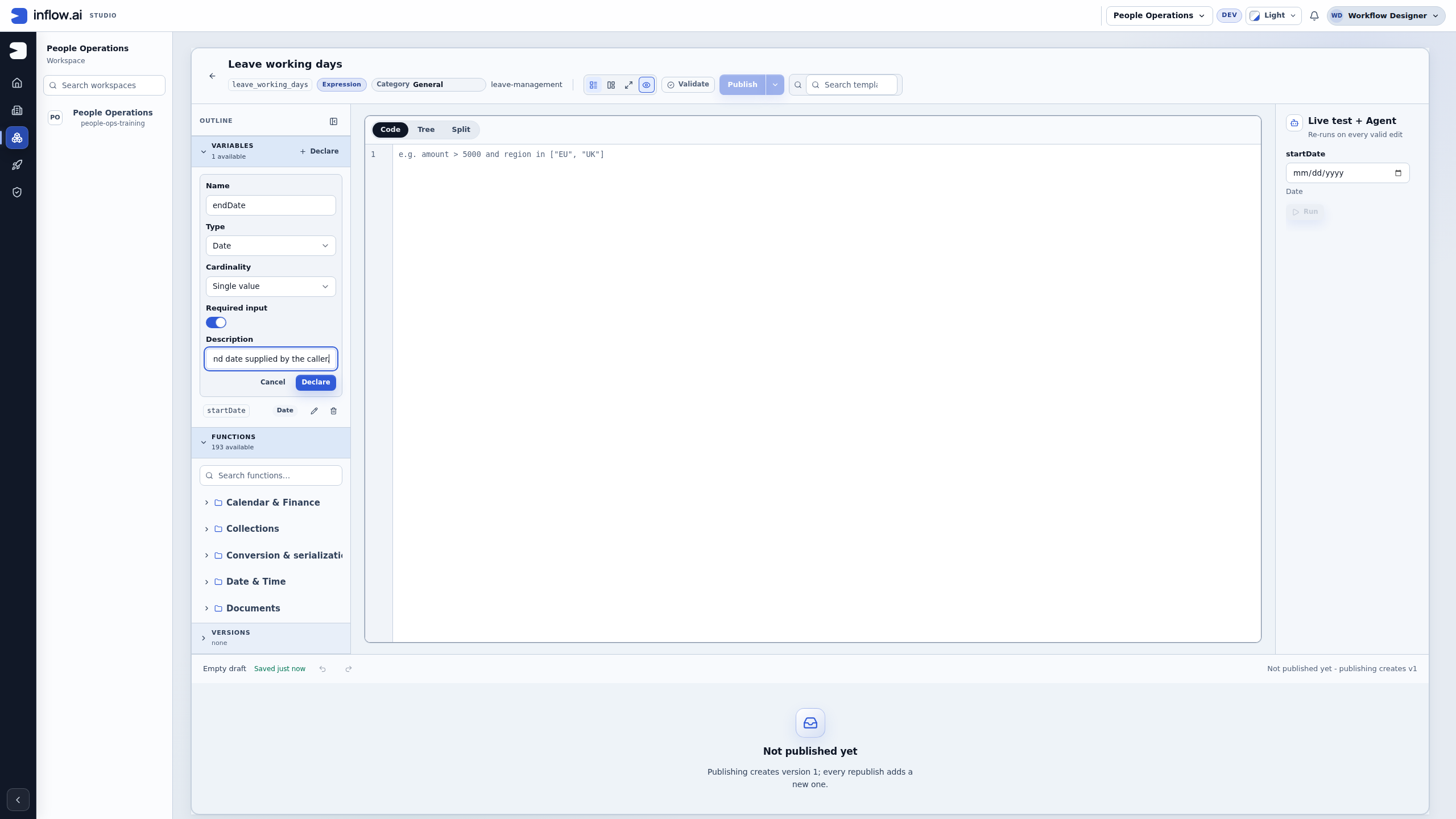
The second Date is being declared. The description field is horizontally scrolled in this capture; the table above supplies its full suggested wording. Numbered outlines and the side legend are guidance; the original pixels are unchanged. Open the native original or open the full-size guide.
Find and read the installed function
- Open Functions in the outline. If needed, expand the outline first.
- Search for
networkDays, then expand Calendar & Finance in the filtered list. - Read
networkDays(startDate, endDate, holidays?). It returns a Number. The?indicates that the holidays argument is optional. - Hover the entry to read its full description: it counts Monday–Friday dates inclusively, de-duplicates holidays, and returns a negative count for a reversed range. The installed function also caps very large ranges; this lesson uses a few days.
- When you need a date a number of working days away, read
workdayinstead. Counting an inclusive range and moving away from an excluded start date are different calculations.
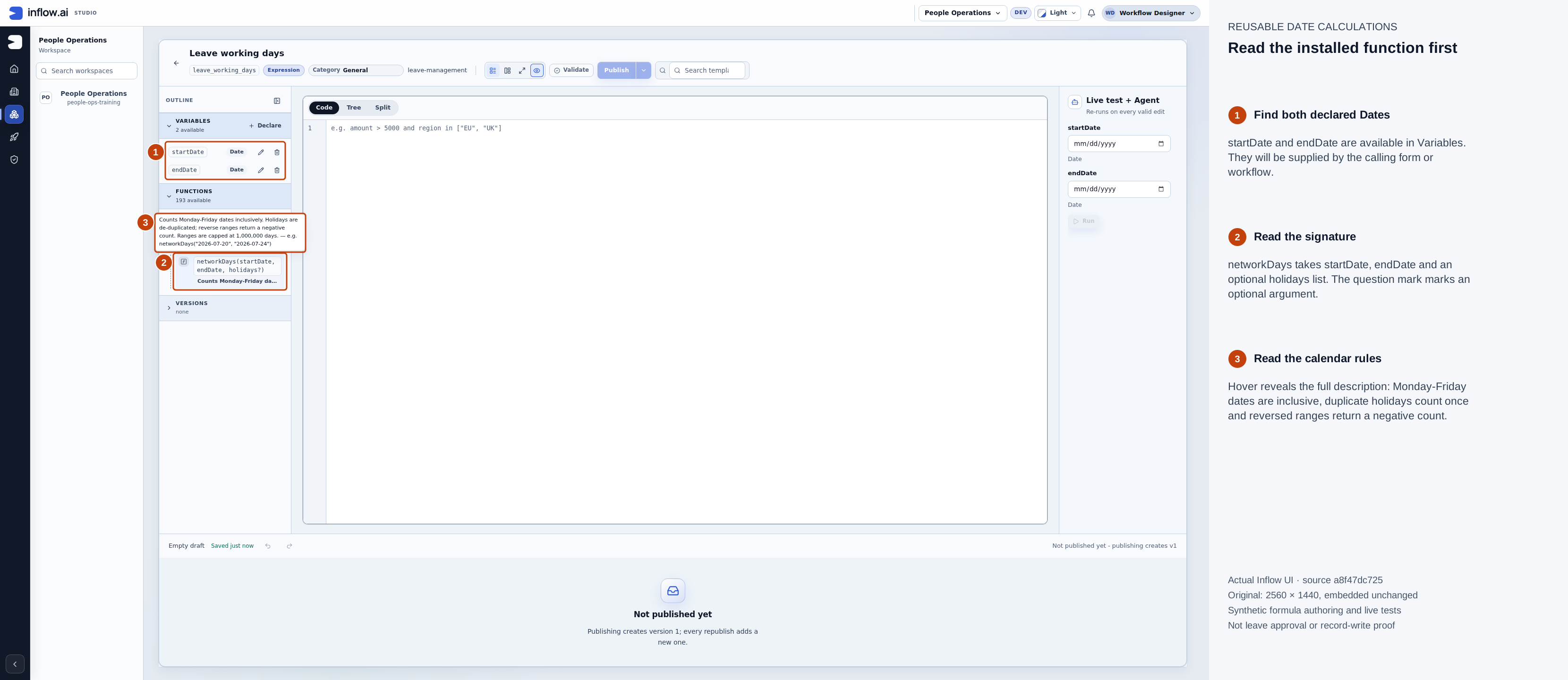
The hover description explains the calendar and reversed-range rules before Nadia inserts the function. Numbered outlines and the side legend are guidance; the original pixels are unchanged. Open the native original or open the full-size guide.
Complete one formula and validate the definition
In the Code tab, use this complete call for a new practice draft:
networkDays(inputs:startDate, inputs:endDate)
- Insert the available function and complete its arguments, or enter the complete call. Replace an unfinished template in the new draft rather than leaving a second incomplete call beside it. Reuse a matching existing formula unchanged.
- Check the spelling and case of both declared names.
inputs:means a caller-supplied rule input; it is not a request to fetch a record. - Notice that this formula supplies two arguments. It does not supply a holiday list, so it excludes no employer holidays. The earlier literal-date holiday example shows how an explicit third argument changes the calculation.
- Choose Validate, inspect Valid, and wait for the saved state. Validation checks the definition; you still need to supply test dates and inspect the answers.
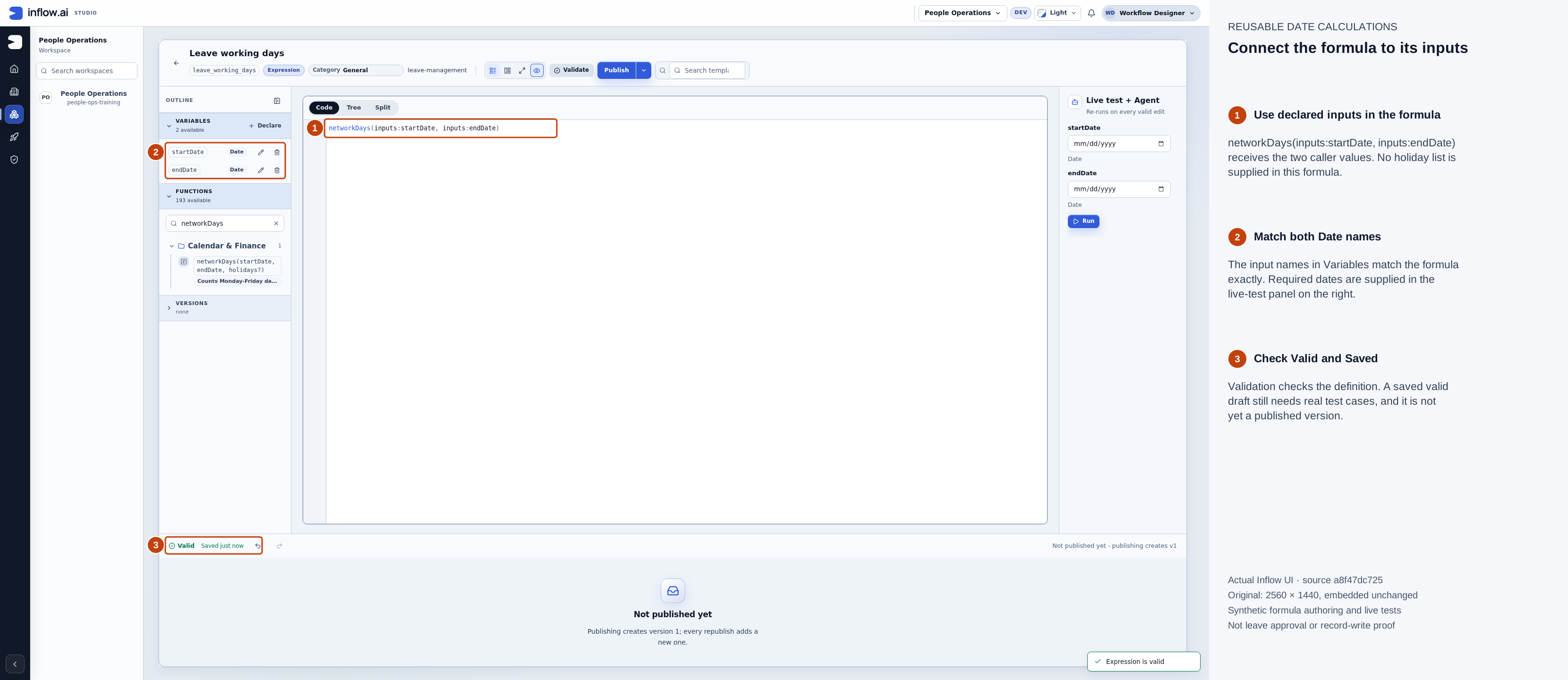
Both required test dates are still blank at this checkpoint. A valid saved definition is separate from a successful test or a published version. Numbered outlines and the side legend are guidance; the original pixels are unchanged. Open the native original or open the full-size guide.
Run the ordinary five-day example
- In Live test + Agent, supply 14 December 2026 for
startDateand 18 December 2026 forendDate. - Check the date order displayed by your browser or use its date picker. These captures display month/day/year: 12/14/2026 and 12/18/2026. The case tables use unambiguous ISO year-month-day values.
- Choose Run and wait for the current Result → Exact value. Read 5 and compare it with Monday through Friday, counting both endpoints.
- Read the input values together with the result. A previous answer left on screen after an edit is not a new answer for the changed dates.
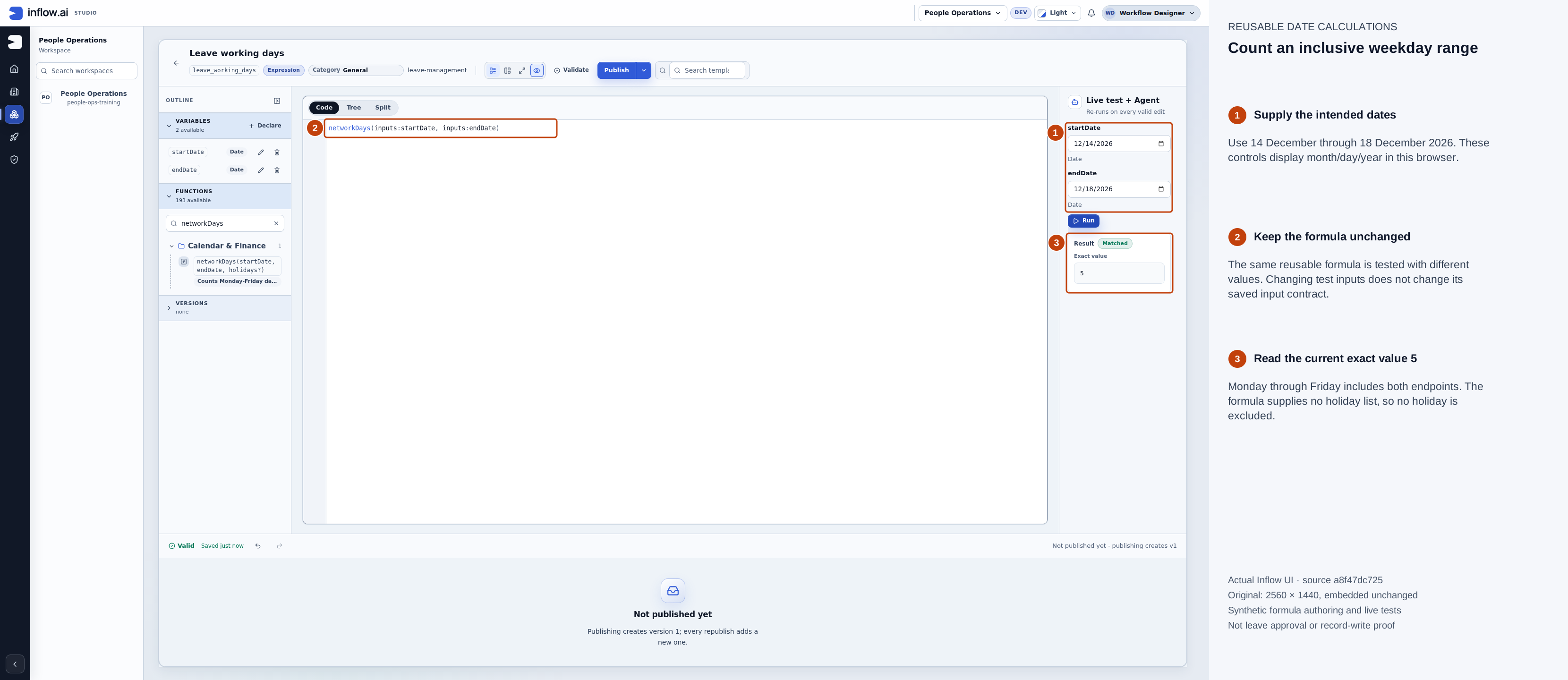
The ordinary inclusive Monday–Friday range produces the actual count 5. No holiday argument is supplied. Numbered outlines and the side legend are guidance; the original pixels are unchanged. Open the native original or open the full-size guide.
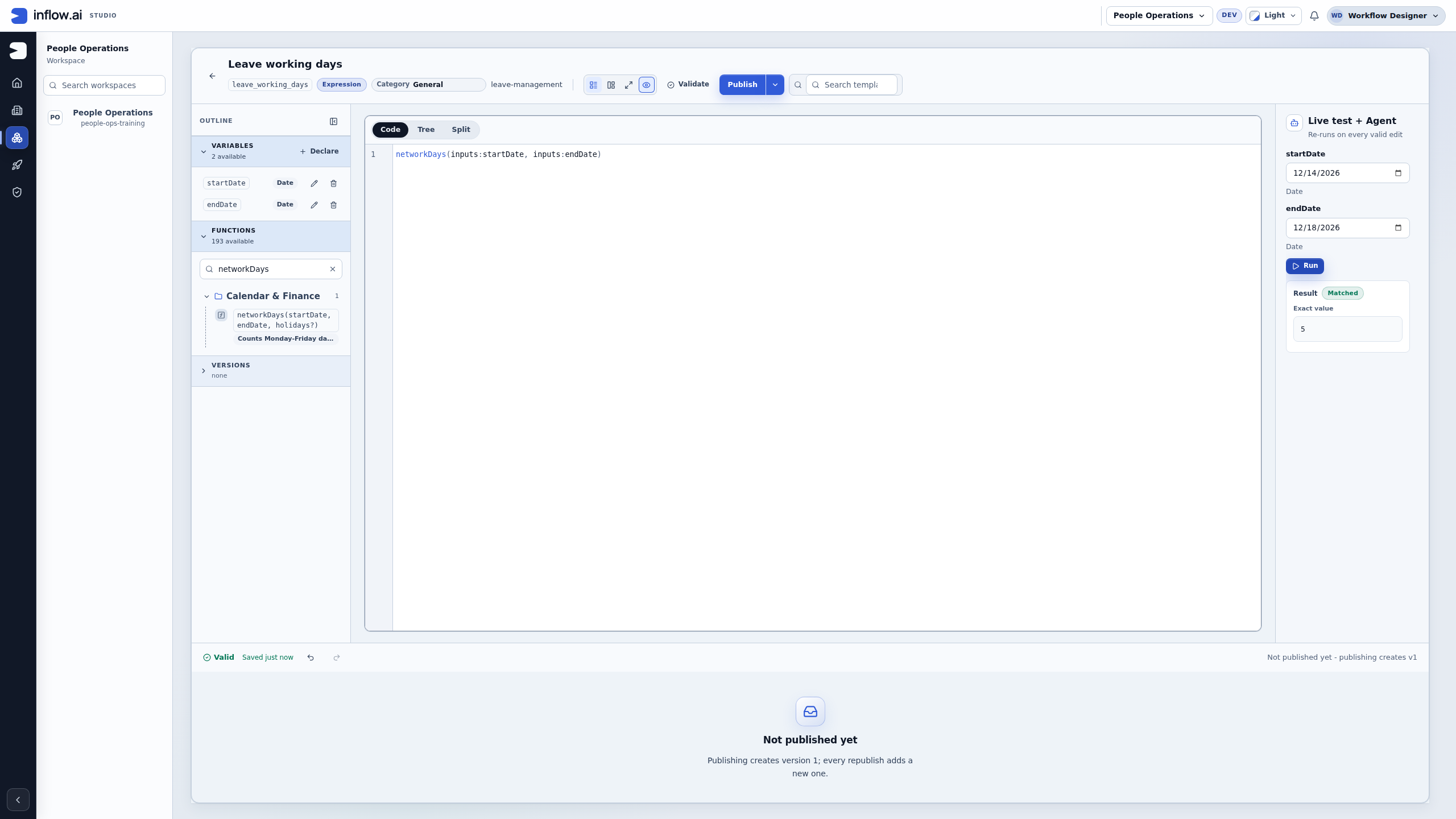
Check the boundaries with the same formula
Run each pair separately. After changing the test inputs, choose Run again and inspect the current answer; do not change the formula between cases.
| startDate | endDate | Expected result | What it checks |
|---|---|---|---|
| 2026-12-14 | 2026-12-18 | 5 | Monday through Friday, counting both ends |
| 2026-12-14 | 2026-12-14 | 1 | A single included weekday |
| 2026-12-19 | 2026-12-20 | 0 | A range containing only Saturday and Sunday |
| 2026-12-18 | 2026-12-14 | -5 | Reversed ranges return a negative weekday count |
Same weekday: use 14 December for both dates. One included Monday counts once; the result is 1.
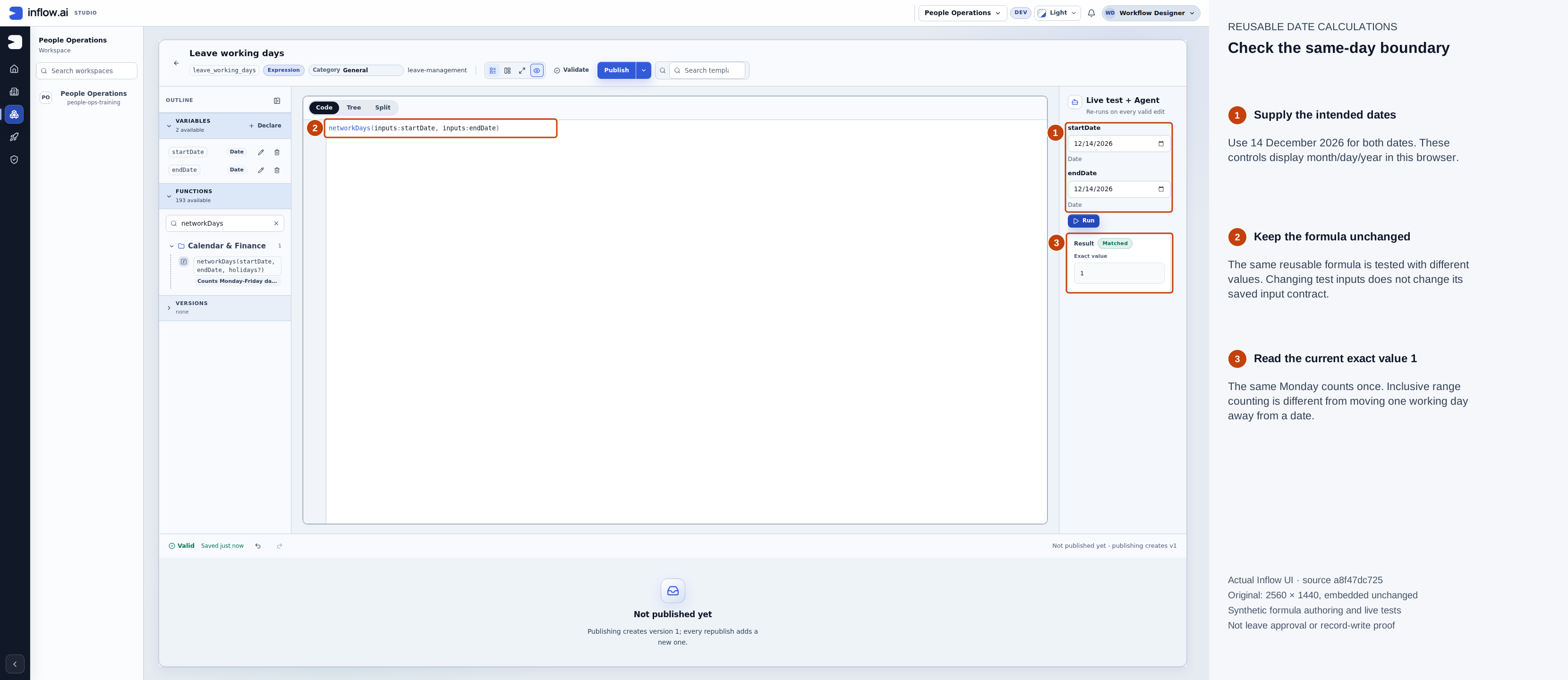
The inclusive same-day boundary is confirmed by an actual fresh run. Numbered outlines and the side legend are guidance; the original pixels are unchanged. Open the native original or open the full-size guide.
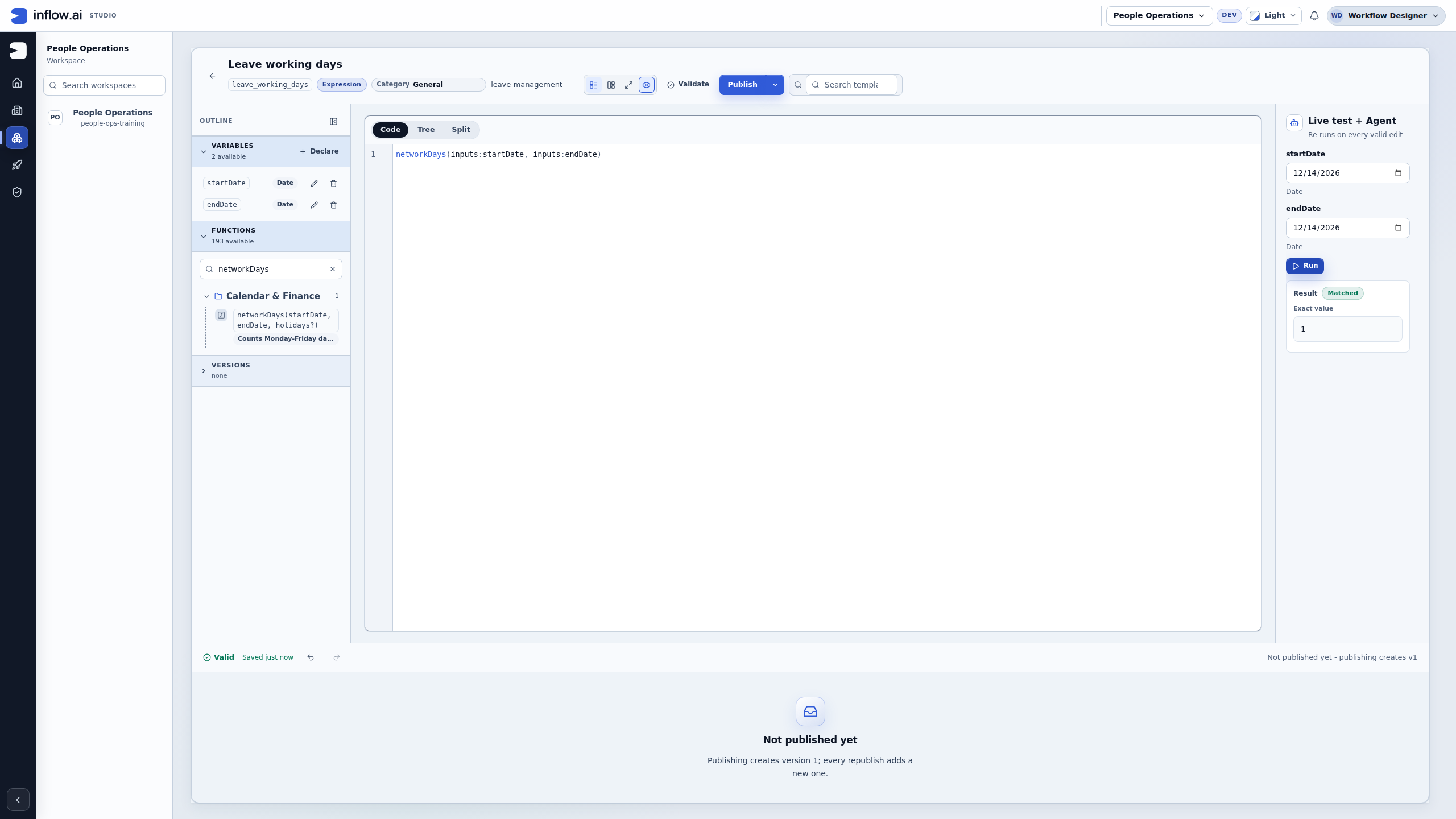
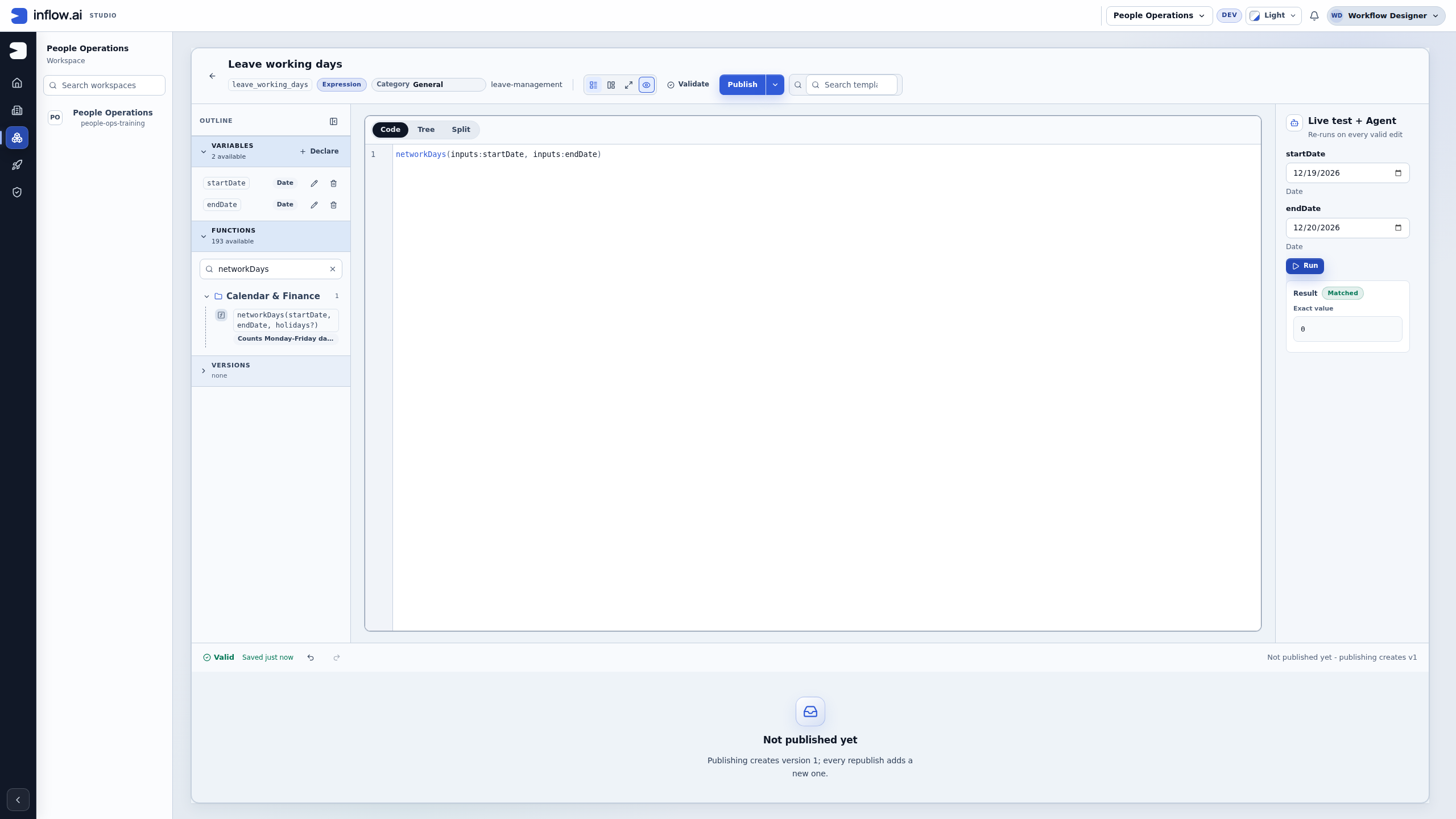
Weekend only: use Saturday 19 December through Sunday 20 December. The current answer is 0. Zero is a valid numeric result for this range, not an error or a missing value.
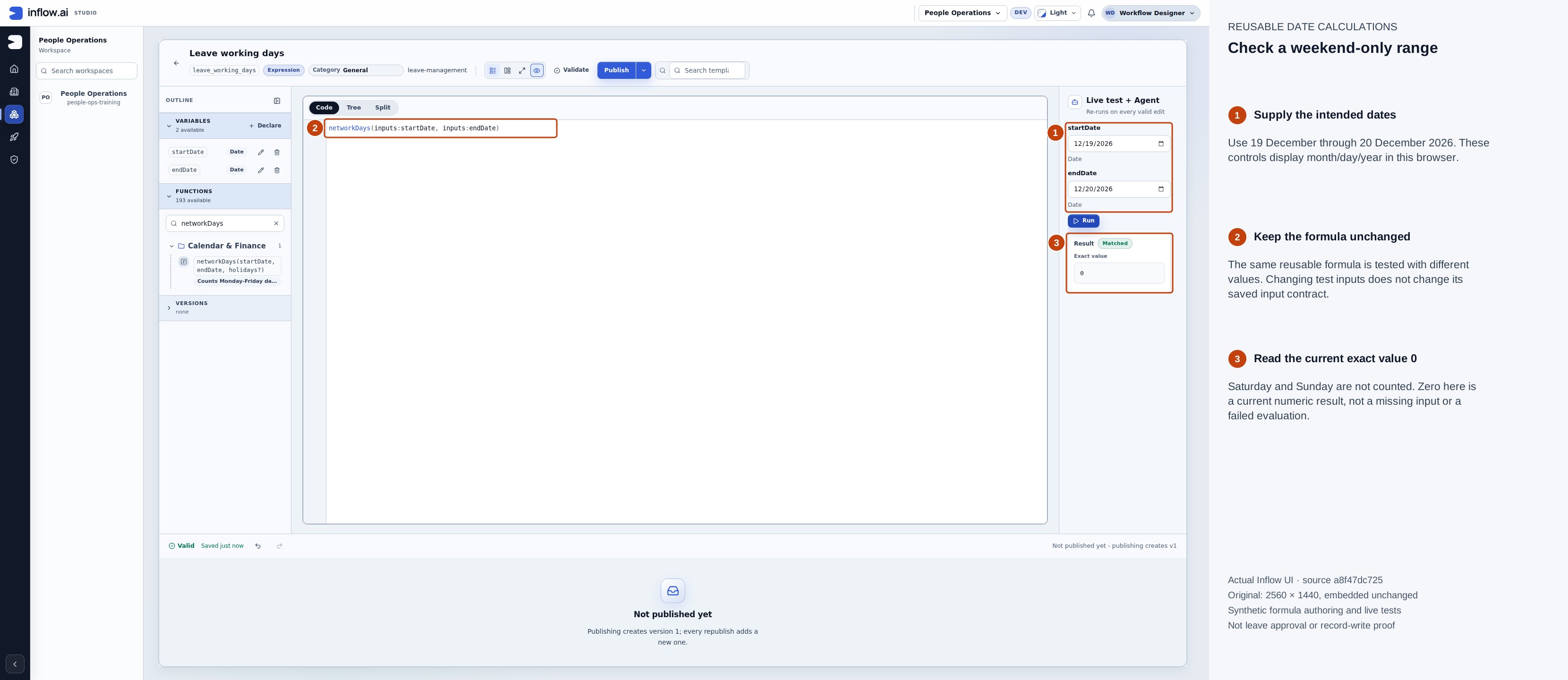
Both dates are outside this function’s Monday–Friday calendar. Numbered outlines and the side legend are guidance; the original pixels are unchanged. Open the native original or open the full-size guide.
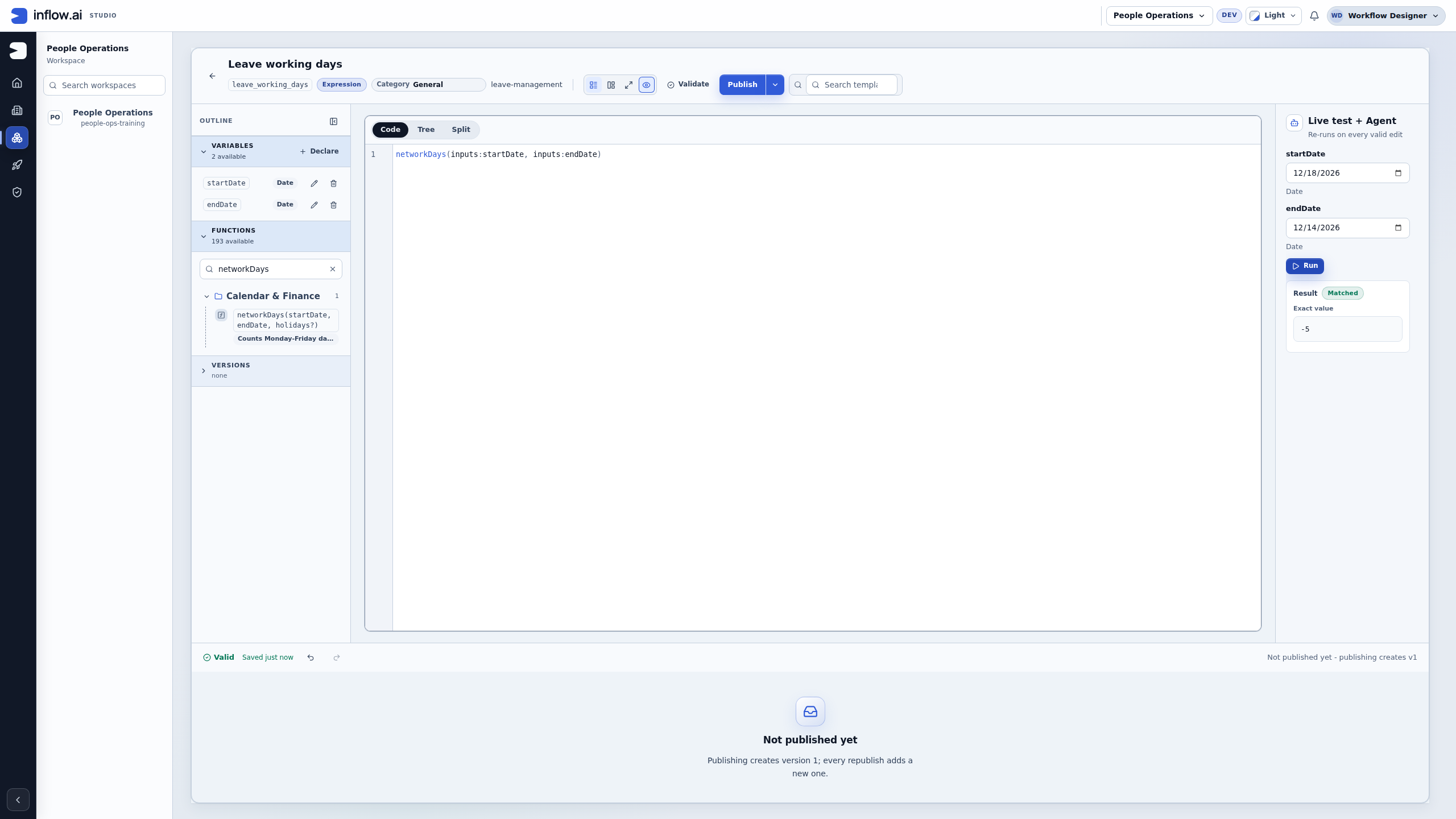
Reversed range: use 18 December as the start and 14 December as the end. The defined answer is −5. The function does not automatically enforce an End date on or after Start date policy. If the form requires that validation, follow the separate date-order example and confirm its behavior in the consuming form.
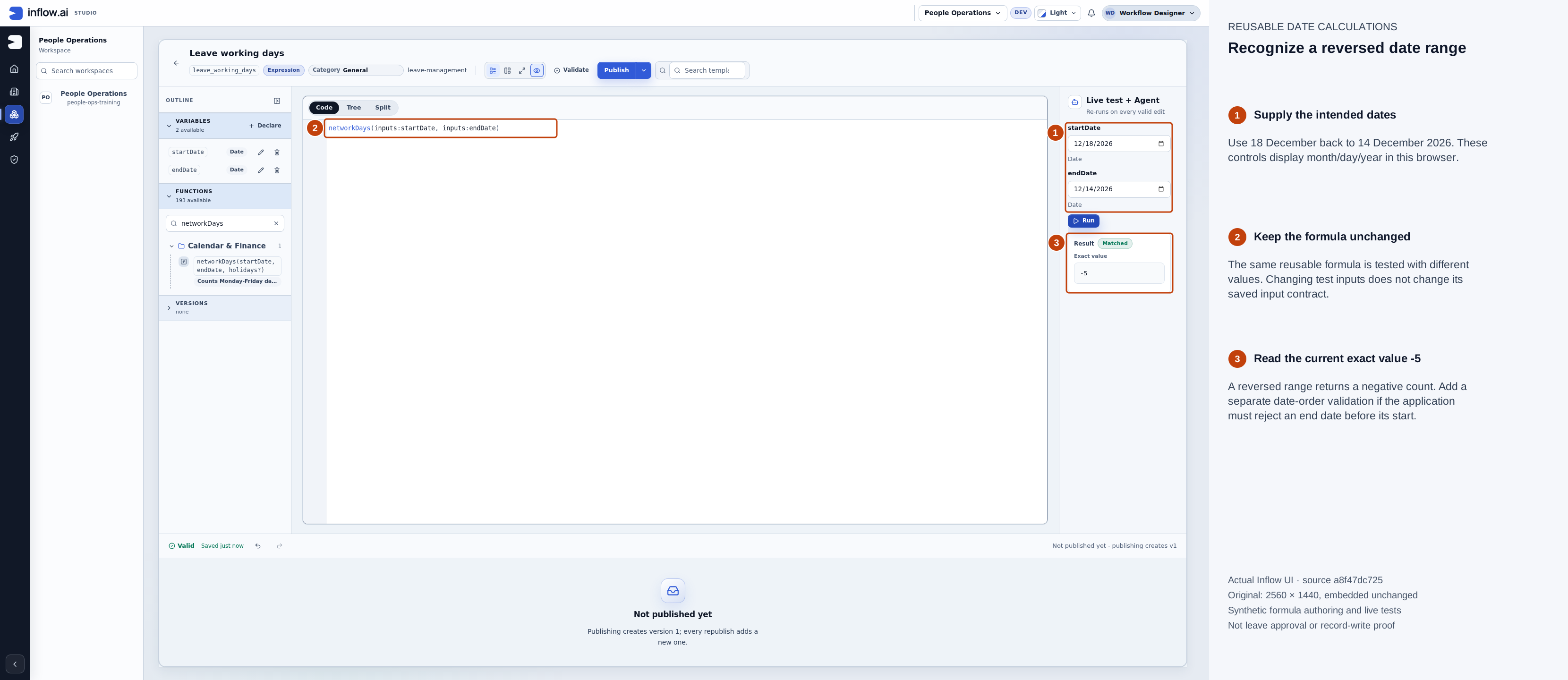
A negative weekday count is the function’s specified behavior; it is not a manager decision or automatic refusal of a leave request. Numbered outlines and the side legend are guidance; the original pixels are unchanged. Open the native original or open the full-size guide.
Refuse a missing date and verify the repair
- Clear
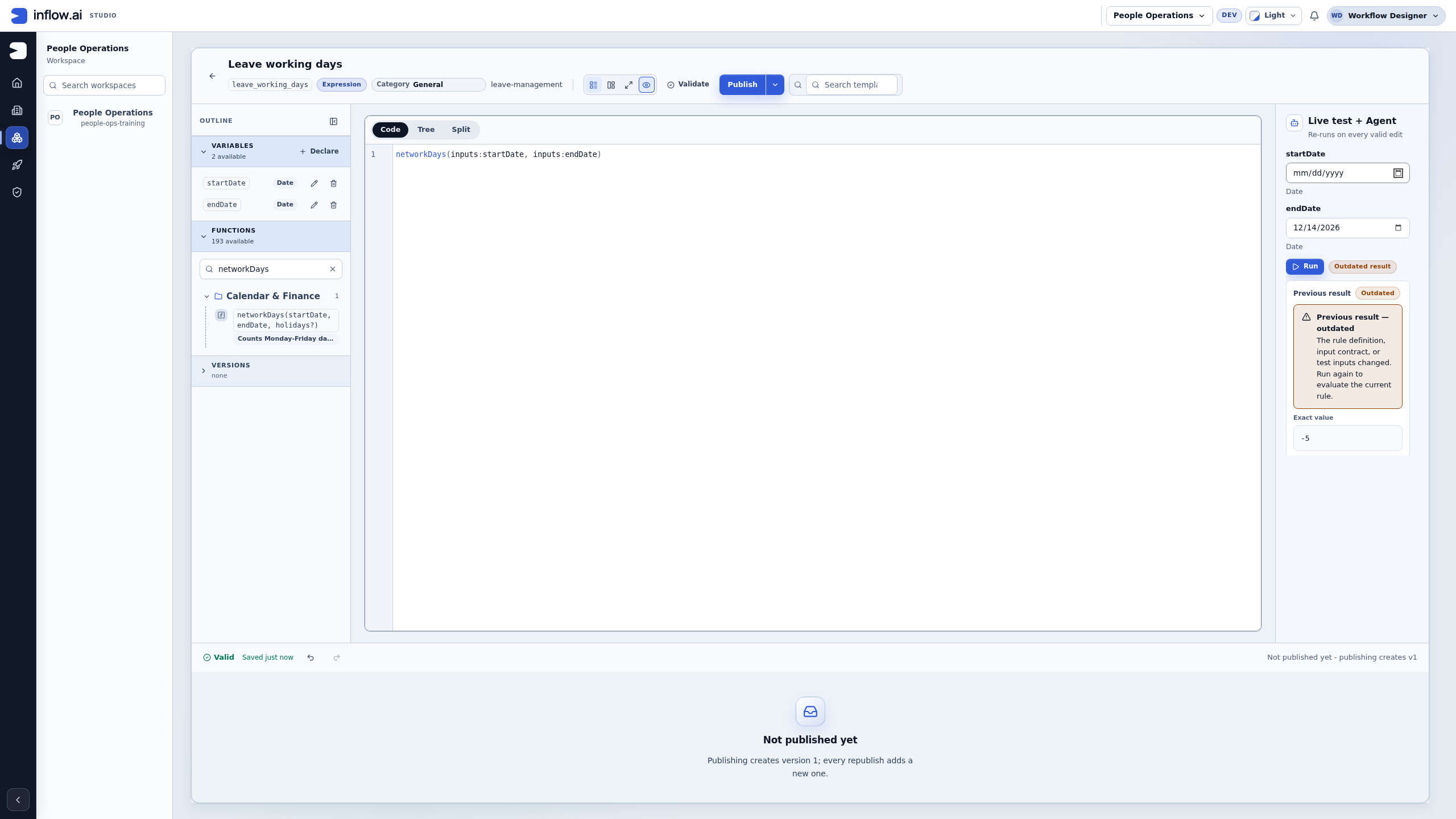
startDatecompletely and move focus away, leaving the other date supplied. - Before running again, read Outdated result, Previous result, or Previous result — outdated. The older −5 is still visible as history; it is not an answer for the blank start date.
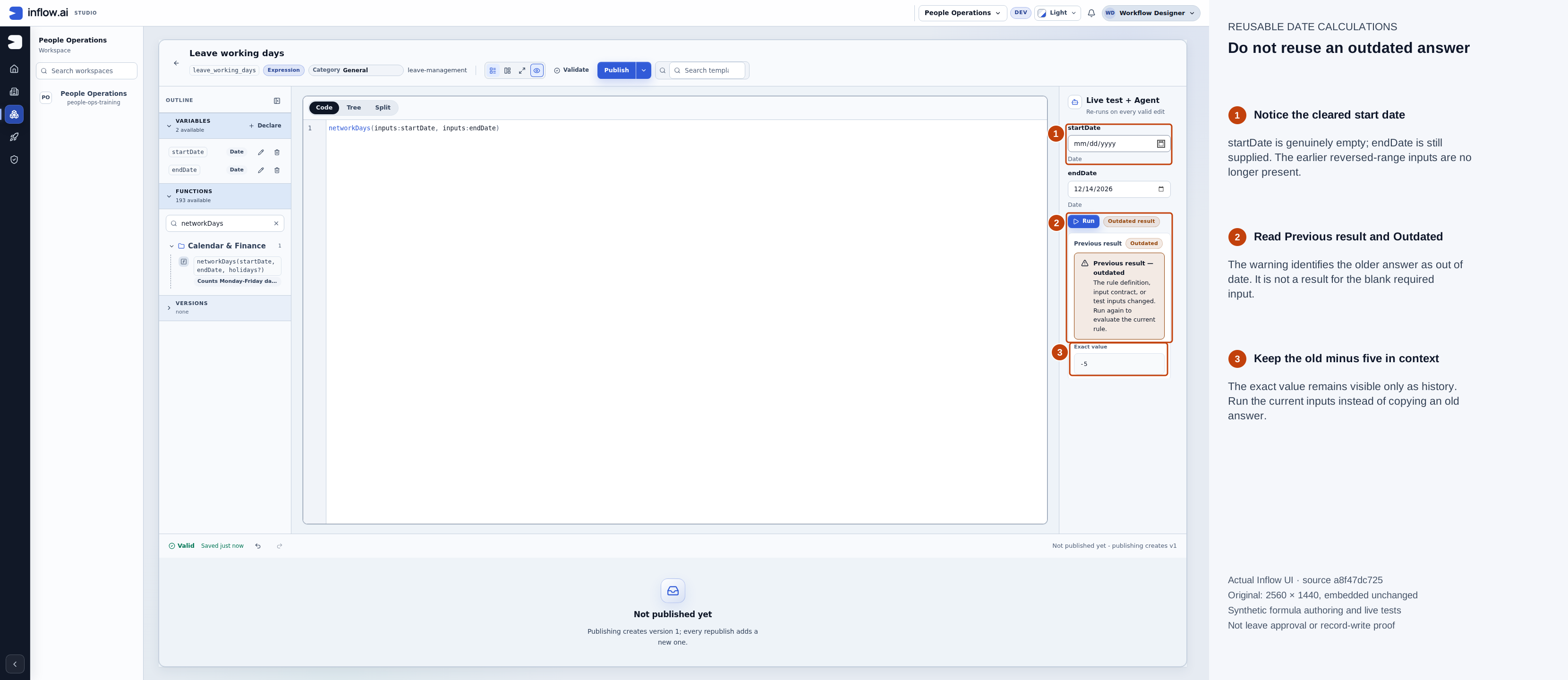
The input changed, so the old answer must be kept in context instead of copied into a business decision. Numbered outlines and the side legend are guidance; the original pixels are unchanged. Open the native original or open the full-size guide.
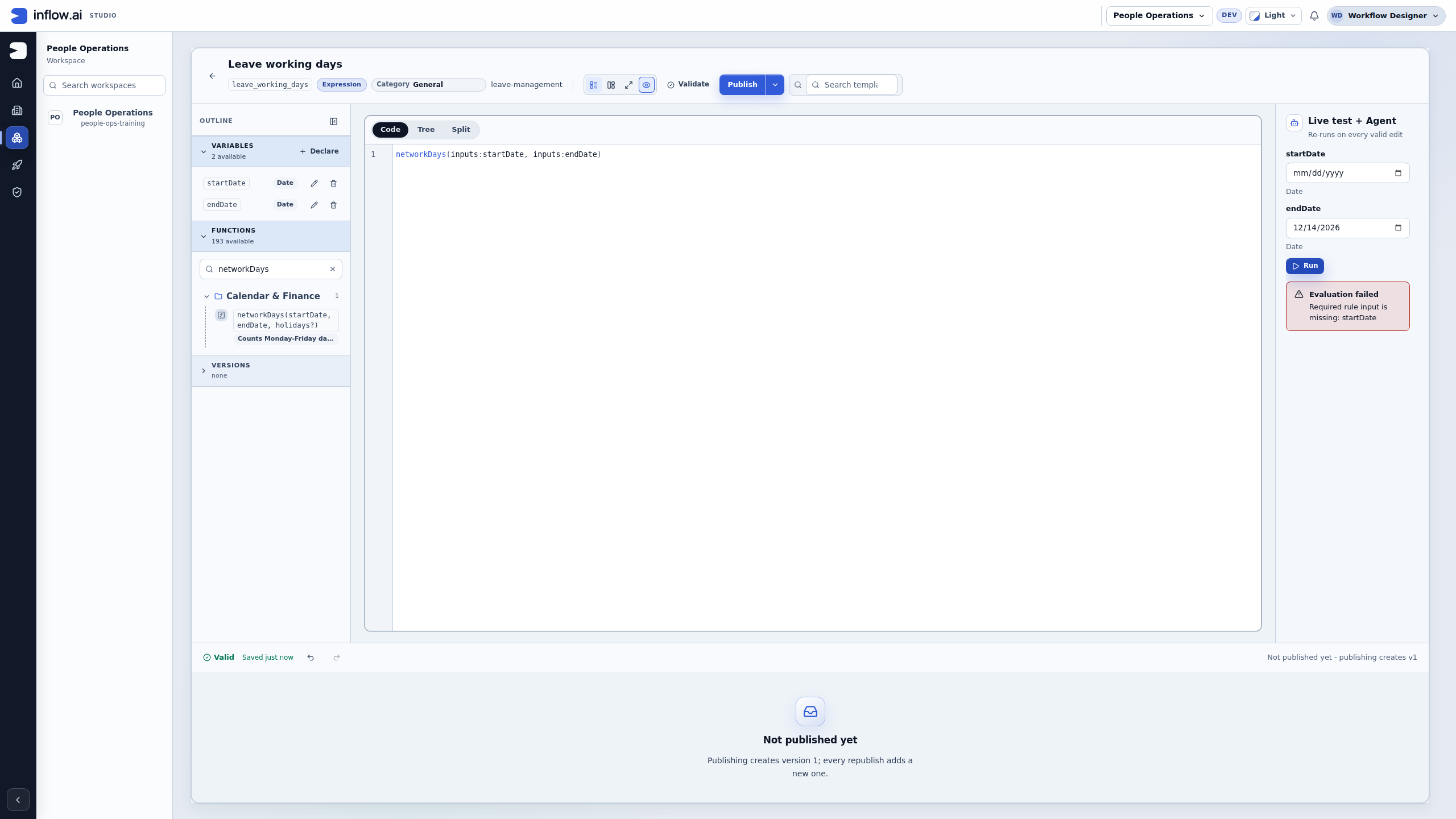
- Choose Run with the required Date missing. Read Evaluation failed — Required rule input is missing: startDate. Do not interpret this refusal as zero weekdays or a false policy answer.
- Keep the required Date declarations and formula intact. Repair the caller value instead of removing the requirement to obtain an answer.
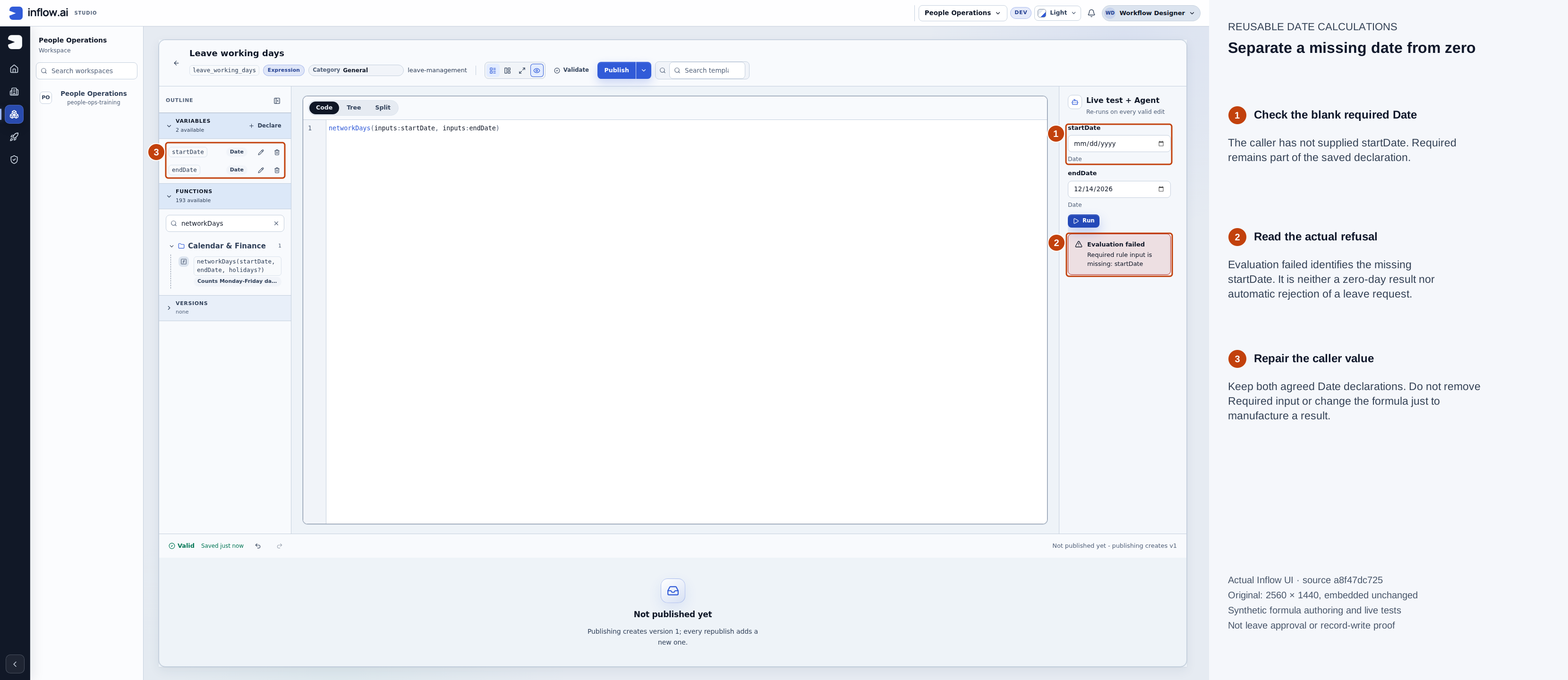
This is a real refused evaluation with an incomplete caller input, separate from the earlier weekend result of zero. Numbered outlines and the side legend are guidance; the original pixels are unchanged. Open the native original or open the full-size guide.
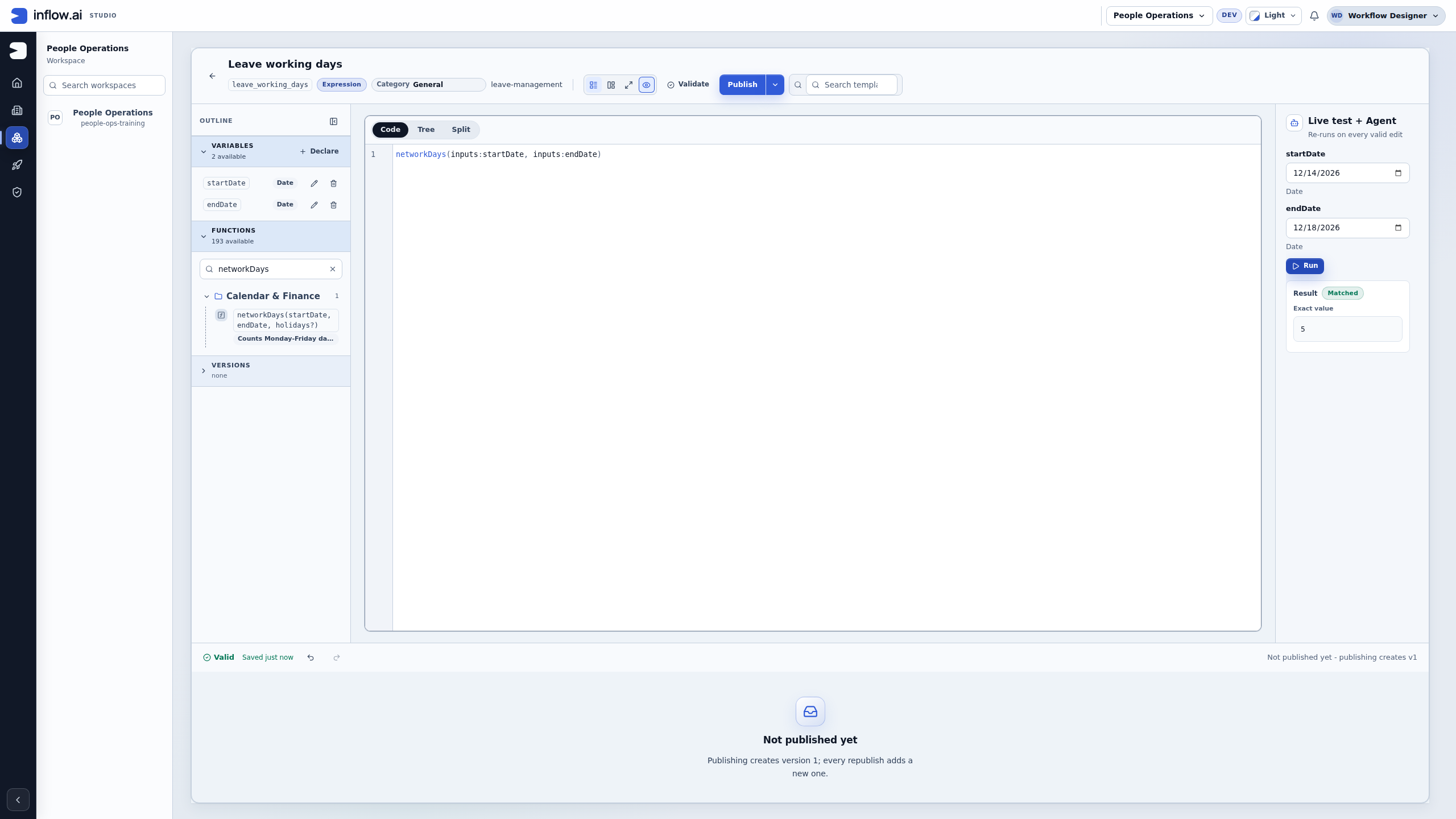
- Restore
startDateto 14 December andendDateto 18 December 2026. Choose Run again. - Confirm the refusal and Outdated labels are gone, and the current Exact value is 5. Check the same saved formula and input declarations remained in place.
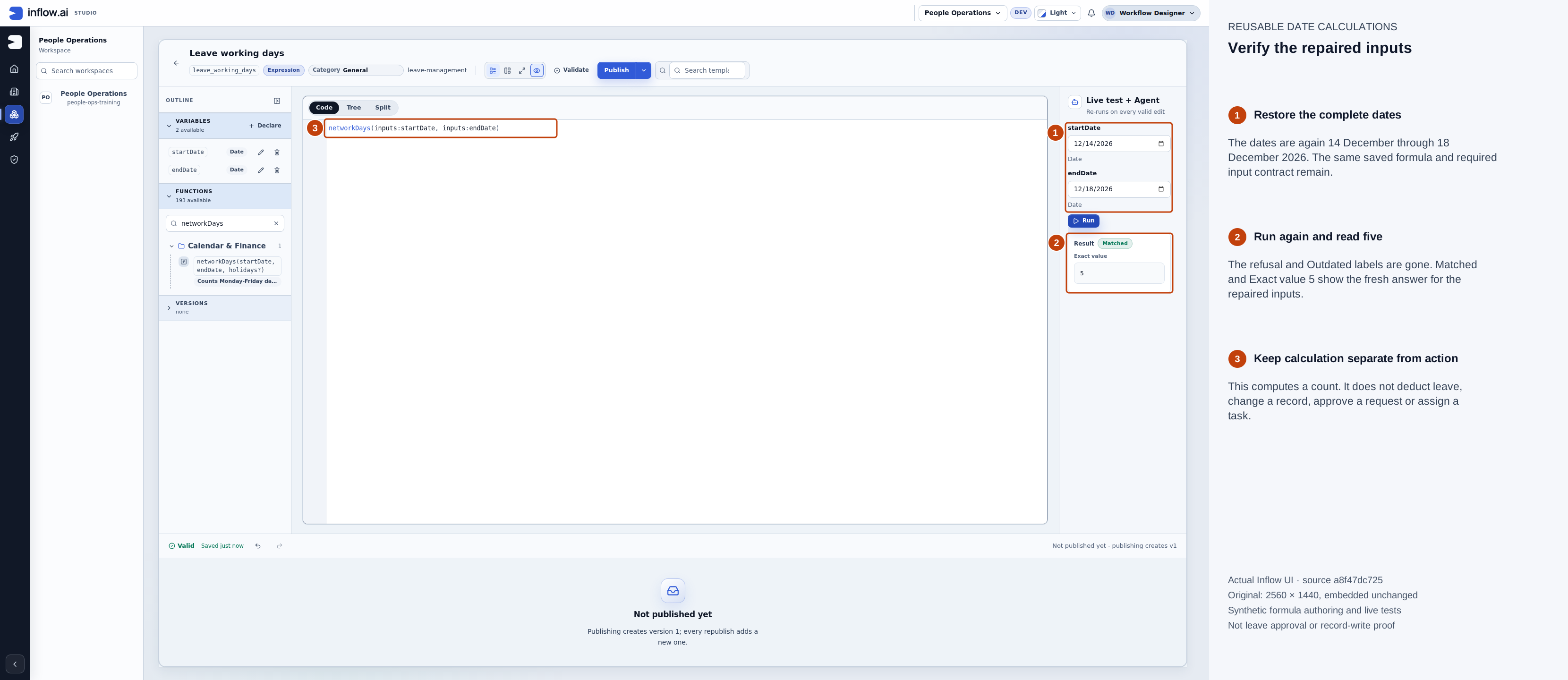
The repaired run replaces the error with a current answer. Calculating this count does not save a request, deduct leave or approve anything. Numbered outlines and the side legend are guidance; the original pixels are unchanged. Open the native original or open the full-size guide.
Keep or intentionally publish the checked version
- If the matching published rule already exists, keep it. Repeating the boundary tests does not require another publication.
- For an intended new or changed release, confirm Valid, the saved state and the tested contract, then choose the regular Publish action once.
- Wait for Published v1 for this first release and inspect the actual version-history row. In this example, the Web API column is a dash; the regular publication did not expose a Web API. Do not choose a different exposure action merely to repeat this lesson.
- Read No runs yet in the published-run history separately from the right-side live-test result. The tests evaluated the authored definition. A form or workflow calling the published version is a separate configured journey.
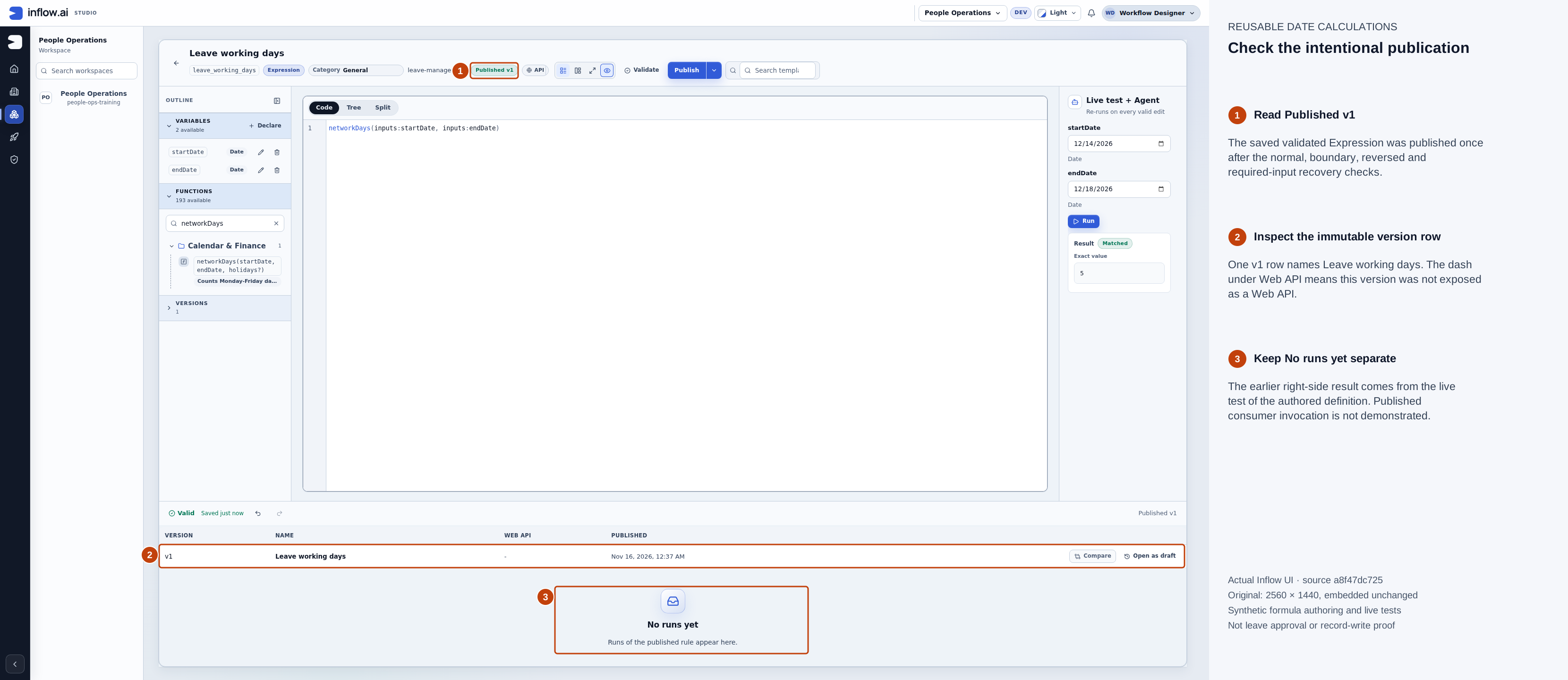
One intentional publication follows the checked cases. This screenshot does not demonstrate a published consumer invocation. Numbered outlines and the side legend are guidance; the original pixels are unchanged. Open the native original or open the full-size guide.
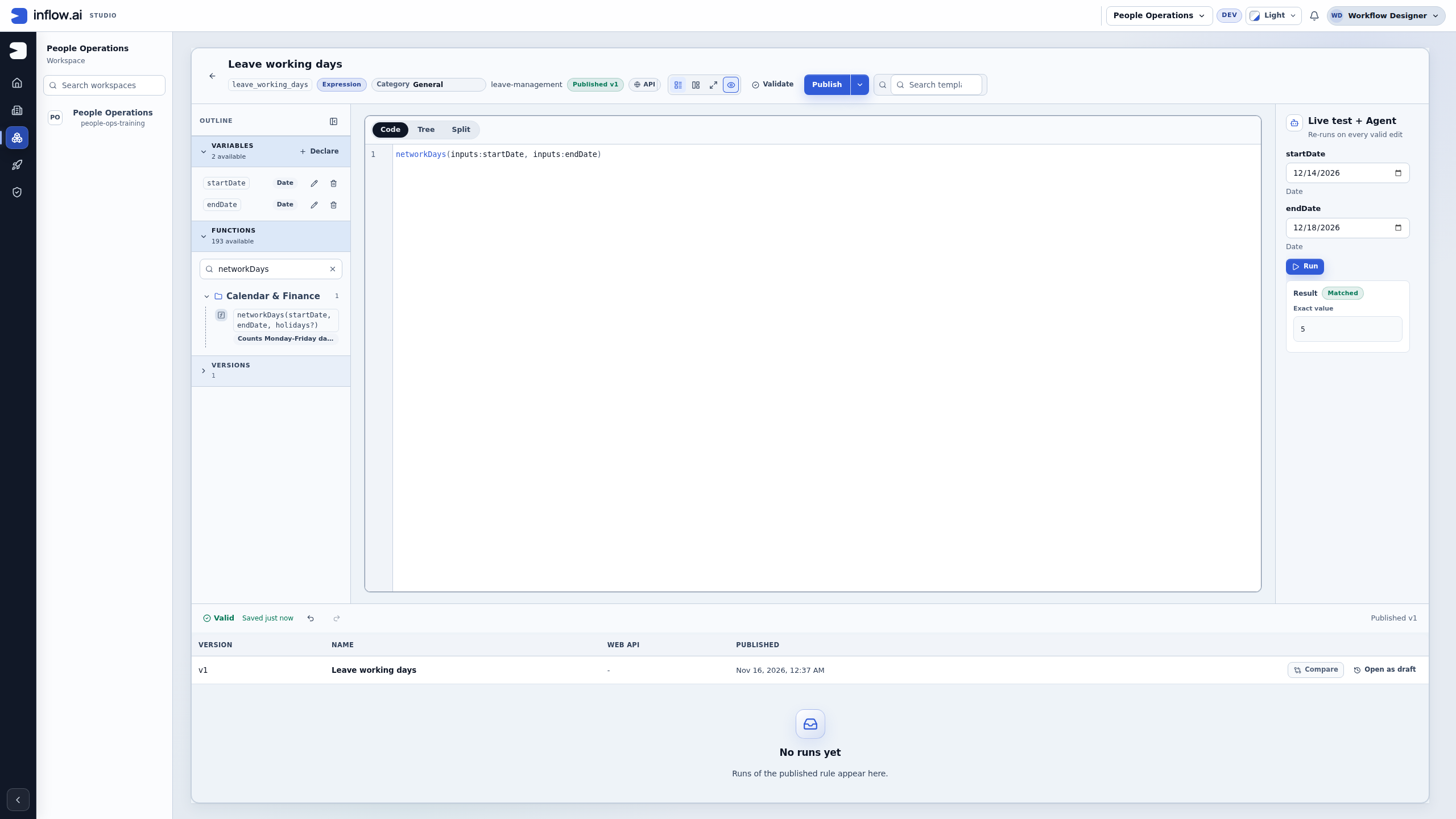
What you should see: the same reusable formula returns 5, 1, 0 and −5 for the supplied pairs; a missing required start date is refused; restoring the normal pair returns 5. There is one intended published version without Web API exposure. Mapping form answers to the rule, using its result, authorizing an employee and writing a record remain separate application steps.
Example — Find a date a number of working days away
Nadia needs a review-date calculation for a sample request received on Friday, 18 December 2026. The policy owner has supplied Monday, 21 December as a holiday for this example. workday returns a date; it does not schedule a task or change a request's due date.
-
In Functions, find
workdayand read its signature:workday(startDate, days, holidays?). Check thatstartDateis a date,daysis a whole-number offset, and the optional third argument is a list of holiday dates. -
In a test Expression, enter the formula without a holiday:
workday("2026-12-18", 1)The start date is excluded. One Monday–Friday workday after Friday is Monday, 21 December, so expect
2026-12-21. -
Supply the owner-approved holiday explicitly:
workday("2026-12-18", 1, ["2026-12-21"])Expect
2026-12-22because Monday is skipped and Tuesday is the next non-weekend, non-holiday workday. Without that third argument, the function does not know that Monday is a holiday. -
Check a negative offset separately:
workday("2026-12-21", -1)Expect Friday,
2026-12-18. A negative number moves backward; it is not converted to a positive offset. -
Check the zero boundary with a weekend start:
workday("2026-12-19", 0)Expect Saturday,
2026-12-19. A zero offset returns the supplied start date unchanged; it does not move a weekend date to Monday. -
Choose Validate, then Run after each formula change. Compare each returned date with the expected result stated immediately after its formula. If a declared input is used instead of a literal, run the same cases with values supplied to that input.
What you should see: a date value computed from Monday–Friday steps, the signed offset and only the holidays actually supplied. Duplicate holiday dates do not subtract additional workdays. The function does not read the organization's calendar, choose an employee's working pattern, or update a task. Confirm that the business owner approves the calendar and have the consuming workflow or form handle any authorized due-date change separately.
networkDays and workday are not interchangeable: the first counts dates in an inclusive range, while the second moves from an excluded start and returns a date. Use the one that matches the business question, then check the result type before mapping it to another rule or workflow.
Example — Resolve an effective date in the employer's time zone
For a workflow that waits until an approved civil date, the employer's named time zone matters. startOfDayInZone(date, zone) returns the first valid time on that date as a UTC Date-time value. Give it a date and an explicit time-zone ID; it never guesses from the server's local time.
- Ask the policy owner for the approved effective date and the employer's named region, such as
Asia/Riyadh. Do not infer a zone from the user's browser, the server or an abbreviation. - In Functions, find
startOfDayInZoneand read its signature: the first value is a Date and the second is Text containing a valid time-zone ID. It returns a Date-time. - Enter the sample formula in the test Expression. For a reusable rule, declare Date and Text inputs and use the exact input names supplied by the editor.
- Choose Validate, then Run. Compare the returned UTC date-time with the policy owner's intended local date. Check a second region/date case before using it in the scheduled workflow.
- If validation or evaluation refuses the date or zone, keep the schedule unpublished and correct the policy input with its owner. Do not replace it with the server's local zone or a guessed UTC offset.
For example, if the approved effective date is 1 December 2026 in Riyadh, test:
startOfDayInZone(date("2026-12-01"), "Asia/Riyadh")
Expect 2026-11-30T21:00:00 UTC. This is still the start of 1 December on the Riyadh civil calendar. Kathmandu uses a different offset, so the corresponding result is 2026-11-30T18:15:00:
startOfDayInZone(date("2026-12-01"), "Asia/Kathmandu")
Check the zone and daylight-saving boundaries
| Expression date | Explicit zone | Expected UTC date-time | Why it differs |
|---|---|---|---|
2026-12-01 |
UTC |
2026-12-01T00:00:00 |
The civil date and UTC date start together. |
2026-12-01 |
Asia/Riyadh |
2026-11-30T21:00:00 |
Riyadh is ahead of UTC, so its midnight is on the prior UTC date. |
2026-03-08 |
America/New_York |
2026-03-08T05:00:00 |
This date starts before the seasonal offset change. |
2026-03-09 |
America/New_York |
2026-03-09T04:00:00 |
The next civil date starts after that change. |
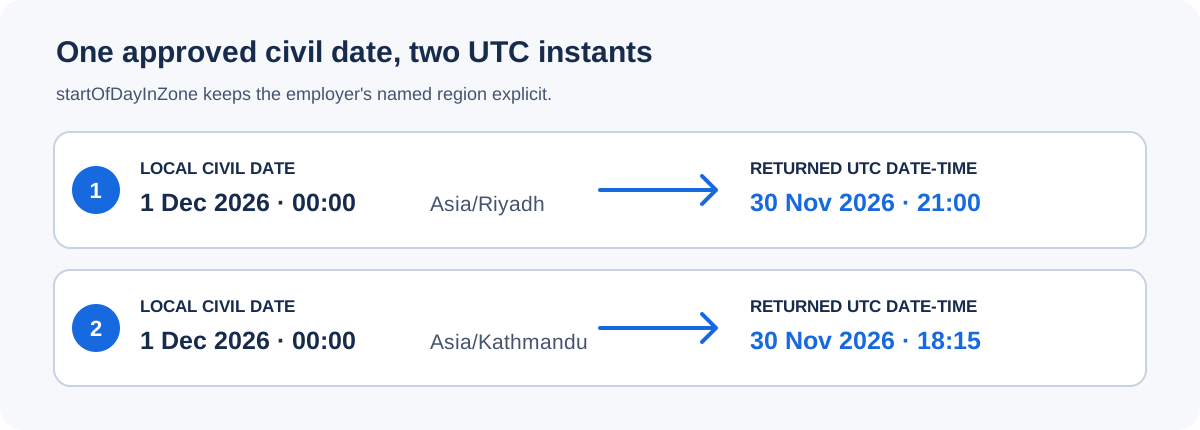
Schematic of the two worked examples, not a product screenshot. The numbered lanes show the approved local start and its corresponding UTC Date-time; they are teaching guidance, not runtime evidence.
Use region IDs such as America/New_York, Europe/London, Asia/Riyadh or Asia/Kathmandu, as provided by the employer's policy owner. Do not substitute a short label like EST, an assumed server zone, or a fixed offset when the policy names a region whose seasonal rules matter. At a midnight daylight-saving gap, the function chooses the first valid time on that same civil date; where midnight occurs twice, it chooses the earlier occurrence.
An invalid zone such as Mars/Phobos is an error. A civil date skipped completely by a region's historical clock change—for example 2011-12-30 in Pacific/Apia—is refused rather than silently moved to another date. Correct the source date or have the policy owner select the intended valid date and region; do not replace a refused value with UTC as a workaround.
For a scheduled workflow: use this calculation only for a Scheduled date-time expression whose business rule is “start at the beginning of this approved civil date in this named region.” A date is not a duration. The timer resolves the expression when it creates the wait and stores the resulting due instant; a resumed wait reuses that instant, while a later new wait resolves again. If the resolved instant is already in the past when a new wait begins, the existing timer behavior clamps its effective due time to the current entry instant, so the workflow can proceed immediately instead of waiting for a past time. Confirm the date and the possibility of immediate continuation with the workflow owner before publishing. The scheduled wait does not update a request record, approve it, or notify a person by itself.
What you should see: a UTC Date-time for the requested local day's first valid time, or a clear refused expression when the zone/date cannot be resolved. The time-zone function and the workflow's wait are separate from any business-state change.
Example — Assemble a small Object from key/value pairs
The cast function can build an Object from a list of two-item lists. This is useful when a rule needs to return a few named values together. Follow these steps with a fictional request:
-
Find
castin the current Functions reference. Function packs vary by environment, so read the available entry's description and insert it through the editor. -
Make one pair for each output value. For a fictional leave request, Nadia wants a status, business reference and completion flag:
cast([["status", "READY"], ["requestKey", "LR-017"], ["complete", true]], "Object")Each inner list is one pair: the first item is a Text key, and the second is its value. The outer list contains all pairs.
-
Choose Validate, then Run in the Expression rule's test. Inspect the Object result: it contains
status,requestKeyandcomplete; it is not a JSON string. -
If a value is itself a list, pass the list as that pair's second item. For example, this
tagslist remains the value for thetagskey:cast([["status", "READY"], ["tags", ["approval", "leave"]]], "Object") -
Try a malformed pair or duplicate key from the table below. The expression should be refused; fix the pair or choose distinct keys before continuing.
-
Map the successful result only where the consuming rule declares a compatible input. This function constructs a value; it does not create or update the leave request, start an approval, or grant access to a record.
The pair format applies only to the outer list. A list nested as a value remains data; it is not recursively re-read as another set of key/value pairs. Values still have to satisfy the function's ordinary supported type and size limits.
| Input problem | Example | What to do |
|---|---|---|
| A pair has only one item | cast([["status"]], "Object") |
Supply exactly a key and a value. |
| A pair has three items | cast([["status", "READY", "extra"]], "Object") |
Remove the extra item or give it its own key. |
| A key is not Text | cast([[1, "READY"]], "Object") |
Use a quoted Text key such as "status". |
| A key is repeated | cast([["status", "READY"], ["status", "PENDING"]], "Object") |
Choose one value or use distinct keys. The function refuses duplicates rather than silently keeping one. |
Existing Object casts from a Map or JSON object text keep their supported behavior. A JSON string containing an array is still not an Object; pass the expression list of pairs directly instead. If the function refuses a nested value for size or shape, simplify the value or use the existing application flow designed for that data. A successful test result does not save it to the business record.
Example — count text code points or list items
If length appears in the current Functions reference, it measures text by Unicode code points and lists by item count. This is useful when a form validation must follow the same length rule as Inflow's native function.
length("A🚀")
The result is 2: A is one code point and 🚀 is one supplementary code point. For example, a form rule can reject a reason when length(string(inputs:reviewReason)) > 256; 256 emoji pass this limit and 257 fail. length(["LR-017", "LR-021"]) returns 2, the number of list items.
Code points are not the same as user-perceived symbols. length("é") returns 2 because the e and combining accent are separate code points; a joined emoji can also contain several code points. The legacy expression alias len("A🚀") returns 3, because it counts UTF-16 code units for text. Do not substitute len() when the rule must match native Unicode-aware length validation. See the formula guide's validation example for boundary cases and the limit of this counting unit.
Example — Saudi invoice: VAT and the ZATCA QR payload
The Saudi compliance functions are one of Inflow's built-in function packs. They are on every Inflow server and need no upload or approval. In the rule editor, open Functions (the function icon in the outline, labelled "Open functions"), search for saudi and open the Saudi compliance group to see all 16. Each function's description gives its exact rules.
A fictional invoice has a net amount of 1000.00 SAR. Your organization tells you the VAT rate to use. The functions never assume a rate, so you always pass it, as a number or any expression (for example a declared input or a setting). This example uses 15.
- Open an Expression rule. Enter this formula, choose Validate, then Run in the live test:
saVat(1000.00, 15)
Expect 150, the VAT on the net amount. 2. Replace the formula with this one and run it again:
saVatAdd(1000.00, 15)
Expect 1150, the amount including VAT. 3. Go the other way, from the amount including VAT back to the net amount:
saVatRemove(1150.00, 15)
Expect 1000.
VAT is calculated with exact decimals and rounded half up, once, to 2 decimal places. An optional third value sets a different number of places, from 0 to 6. The live test leaves off trailing zeros, so 1150.00 shows as 1150. 4. Build the payload for a simplified invoice's QR code (ZATCA Phase 1):
zatcaQr("Bobs Records", "310122393500003", "2022-04-25T15:30:00Z", 1150.00, 150.00)
The values are the seller name, the seller's VAT number, the invoice time, the total including VAT, and the VAT total. Expect text that starts with AQxCb2JzIFJlY29yZHM. The result is Base64 text: the content to encode in the QR code, not an image. To show it in a form, add the built-in Barcode and QR control, set Mode to Show, set Format to QR code, and supply the returned text as Value to show. See Barcode and QR for the control settings. Showing the code in a form does not add it to a generated invoice PDF; check that document workflow separately.
5. Check a payload by reading it back. Here the payload from step 4 is built and read in one formula:
zatcaQrRead(zatcaQr("Bobs Records", "310122393500003", "2022-04-25T15:30:00Z", 1150.00, 150.00))
Expect an object with sellerName "Bobs Records", vatNumber "310122393500003", timestamp "2022-04-25T15:30:00Z", total 1150 and vatTotal 150. In a real rule, pass the stored payload instead of the inner zatcaQr(...). Reading back checks the payload's structure and its two amounts; it does not check the VAT number or the time format.
When the values are not accepted: the live test shows only "Evaluation failed" and "The plugin operation failed.", without the reason. To see the reason, run zatcaQrProblem with the same five values. It returns the reason, for example "The total has more than 2 decimal places; round it first.", or null (no problem) when the values are accepted. In a real form, check the values with zatcaQrProblem before you build the payload.
Rules to know:
- Timestamps: a date and time without a time zone is treated as UTC, and the payload always carries UTC, in whole seconds. That matters for Saudi invoices:
- A date-time field where someone typed Saudi local time is still read as UTC. Subtract the three hours first, for example
zatcaQr(..., addHours(invoiceTime, -3), ...), whereinvoiceTimeis your declared input. now()gives the server's clock time, which is UTC on Inflow's standard servers. Only if your server runs in Saudi time, useaddHours(now(), -3)instead.- Text can carry its own offset, for example
2026-11-15T09:30:00+03:00, and is then converted correctly. - A date without a time is not accepted.
- A date-time field where someone typed Saudi local time is still read as UTC. Subtract the three hours first, for example
- Amounts: each amount may have at most 2 decimal places. An amount with more is not accepted; it is never rounded silently.
- Seller names: a name may contain Arabic. It is limited to 255 bytes, which is about 127 Arabic letters or 255 Latin letters. A longer name is not accepted, never shortened.
- Signatures: signed (Phase 2) QR codes are not part of these functions.
Check identity and registration numbers on a form:
| Check | Function | Reason when it fails |
|---|---|---|
| National ID: 10 digits, starts with 1, valid check digit | isSaNationalId(value) |
saIdProblem(value) |
| Iqama number: 10 digits, starts with 2, valid check digit | isSaIqama(value) |
saIdProblem(value) |
| Either kind of number | isSaIdNumber(value) |
saIdProblem(value) |
| VAT number: 15 digits, starts and ends with 3 | isSaVatNumber(value) |
saVatNumberProblem(value) |
| Unified national number (10 digits, starts with 7) or legacy CR number (10 digits, not starting with 0 or 7) | isSaCrNumber(value), saCrNumberKind(value) |
saCrNumberProblem(value) |
- One kind only:
saIdProblemexplains why a value is not a valid national ID or Iqama number, so it returnsnullfor a valid number of the other kind. For a field that accepts only national IDs, show your own reason for that case, for example:
if(isSaIqama(x), "This is an Iqama number; enter a national ID.", saIdProblem(x))
- Digits and spaces: the checks accept Arabic-Indic digits and ignore spaces and invisible marks from pasted Arabic text.
saNormaliseDigits(value)shows the digits they check. - Empty values: an empty value is "not valid", never an error, so an optional field can use
isBlank(x) or isSaVatNumber(x).isBlankalso treats a value of only spaces as empty. - Format only: these are offline checks of format and check digit. They do not confirm that a person or company exists. A legacy CR number has no check digit, so any 10 digits not starting with 0 or 7 pass. That includes a national ID such as 1000000008.
What you should see: the same amounts and checks in every rule, screen and integration. Confirm the VAT rate and invoice rules with your finance owner.
Example — Vendor bank details and a voucher amount in words
The Banking and payments functions are one of Inflow's built-in function packs. They are on every Inflow server and need no upload or approval. In the rule editor, open Functions (the function icon in the outline, labelled "Open functions"), search for iban or words, and choose a function to see its description, parameters and examples.
- Check a vendor's IBAN. Enter this formula, choose Validate, then Run in the live test:
isIban("SA03 8000 0000 6080 1016 7519")
Expect true. Spaces, lower case, a leading "IBAN" and Arabic-Indic digits are accepted. The check covers the country, its IBAN length and account structure, and the check digits (mod-97, ISO 13616).
2. Change the last digit to 8 and run ibanProblem with it:
ibanProblem("SA03 8000 0000 6080 1016 7518")
Expect "The IBAN's check digits do not match (ISO 13616)." For a valid IBAN, ibanProblem returns null, so it can feed a form's error message directly.
3. Show the IBAN as printed, and name the bank of a Saudi IBAN:
ibanFormat("sa0380000000608010167519")
Expect "SA03 8000 0000 6080 1016 7519". Then saBankOfIban("SA0380000000608010167519", "ar") returns «مصرف الراجحي», and "en" returns "Al Rajhi Bank". An unknown bank code returns null. The pack names only bank codes confirmed by public sources and never guesses.
To store the IBAN, save ibanNormalise(value): the IBAN without spaces, in upper case, or null if it is not valid. ibanCountry(value) gives its country, for example "SA", and saBankCodeOfIban(value) gives a Saudi IBAN's two-digit bank code, for example "80".
4. Check a SWIFT/BIC code for a foreign transfer: isSwiftBic("RIBLSARI") returns true. swiftBicProblem("RIBLSAR") returns "A SWIFT/BIC code has 8 or 11 characters; this one has 7." This is a format check; it does not confirm that the bank exists. Store swiftBicNormalise(value), the code in upper case without spaces.
5. Write a voucher amount in words:
amountInWords(1250.50, "ar", "SAR")
Expect «ألف ومئتان وخمسون ريالًا سعوديًا، وخمسون هللة». With "en", expect "One thousand two hundred fifty Saudi riyals and fifty halalas". For a cheque, add the style as a fourth value, amountInWords(1250.50, "ar", "SAR", "cheque"), which returns «فقط ألف ومئتان وخمسون ريالًا سعوديًا، وخمسون هللة لا غير».
When the values are not accepted: the live test shows only "Evaluation failed" and "The plugin operation failed.", without the reason. Run amountInWordsProblem with the same values to see it, for example "SAR has 2 decimal places; 1.005 has 3." An amount is never rounded silently.
Rules to know:
- Currencies: 25 currencies, each with its own decimal places: 3 for KWD, BHD, OMR, JOD, IQD, LYD and TND; 0 for JPY; 2 for the others. The pack README lists every currency with its Arabic and English names.
- Arabic wording: Modern Standard Arabic counting.
- 2 takes the dual (ريالان سعوديان، هللتان); 3–10 take the plural (ثلاثة ريالات سعودية); 11–99 take the accusative singular (أحد عشر ريالًا سعوديًا).
- Above 100, an amount ending in 01 or 02 repeats the noun: «مئة ريال وريال سعودي واحد». Thousands and millions do the same: «مئة ألف وألفا ريال سعودي» for 102,000.
- Cheque style adds «واحد» to an amount of exactly 1.
- A comma comes before the minor part, and an amount below one riyal still names the riyal: «صفر ريال سعودي، وخمسون هللة».
- Negative amounts: refused unless the fourth value is an Object with
allowNegativetrue, for examplecast([["allowNegative", true]], "Object"), and always refused in cheque style. - Limits: amounts must be less than one trillion. An empty amount gives an empty result (null), so a computed field stays empty until the amount is entered.
- Sources: the IBAN registry and the Saudi bank-code table are dated tables in the pack; the pack README lists their sources and dates.
What you should see: the same results in every rule, screen and integration.
Use declared inputs in the finished rule
After understanding a small literal example, make it reusable:
- Declare the needed inputs in Variables, using their actual types.
- Insert each input in the function call where its sample value appeared.
- Run the rule with two normal examples and an appropriate missing or invalid value.
- Explain the business result in the rule's description.
- Publish the checked rule through the normal flow and test the form or workflow that uses it.
Do not paste a date into every screen if the application should receive the date from the user. Conversely, do not assume that a value named employeeId proves who is signed in. Identity and access remain the responsibility of the actual application and services.
Calculations and actions are different
Some functions only calculate an answer from supplied values. Other available operations may read people, documents or application data, or have business effects. Read the function's description and use the appropriate authorized operation.
A calculation's presence in the Functions list is not permission to read a private document, change a person or send data to an AI service. Keep those operations in the supported business flow and involve the owner when access or disclosure is unclear.
Common mistakes
| Problem | Useful next step |
|---|---|
| Unknown function | Check spelling and whether it appears in this environment's Functions reference |
| Wrong number of inputs | Read the function's signature; do not guess extra options |
| A date is rejected | Use the stated date format or a declared Date input |
| Unexpected working-day total | Check the inclusive dates, Monday–Friday rule and explicit holiday list |
| A result changed after editing | Run the current rule again; do not rely on Previous result |
| Function missing in another environment | Give the administrator the rule name and visible message; installation is a separate responsibility |
Continue
Practice simple formulas, then connect the checked rule to its intended application. Operators and developers can use the optional function-pack reference and execution reference.