Understand how an Inflow application fits together
You do not need to understand Inflow's server internals to build an application. You do need to know which business object to create next and how it connects to the others.
This guide uses one story: Mohammad requests five days of leave and Sara decides whether to approve it. Nadia, the consultant, builds the application that supports their work.
The building blocks
| Building block | What it means | Leave example |
|---|---|---|
| Workspace | The team's shared project area. | People Operations. |
| Data model | The definition of business information: fields and their kinds. | A leave request has dates, days and status. |
| Record | One item of that business information. | Mohammad's request for 14–18 December. |
| Rule | A reusable calculation, lookup, decision or business action. | Check whether requested days exceed an allowance. |
| Form | A page that asks for or presents information. | Employee request form or manager decision form. |
| App Shell | The application's surrounding pages and navigation. | Leave requests, with request and work pages. |
| Process/workflow | The stages and work needed to handle a request. | Review, then Approved or Declined. |
| Case | One running request following that process. | The approval journey for Mohammad's request. |
| Task | Work someone must perform inside a case. | Sara reviews and decides. |
| Document | A managed file with its own access and versions. | Supporting letter attached to the request. |
| AI Task | A reusable configured AI operation called with declared inputs. | Summarize the request facts for Sara; the answer does not decide leave or update the record by itself. |
| App Chat | A conversation enabled and configured on a published App Shell. | Mohammad asks about his request using sources the app owner connected and his own current access. |
Find the building blocks in Studio
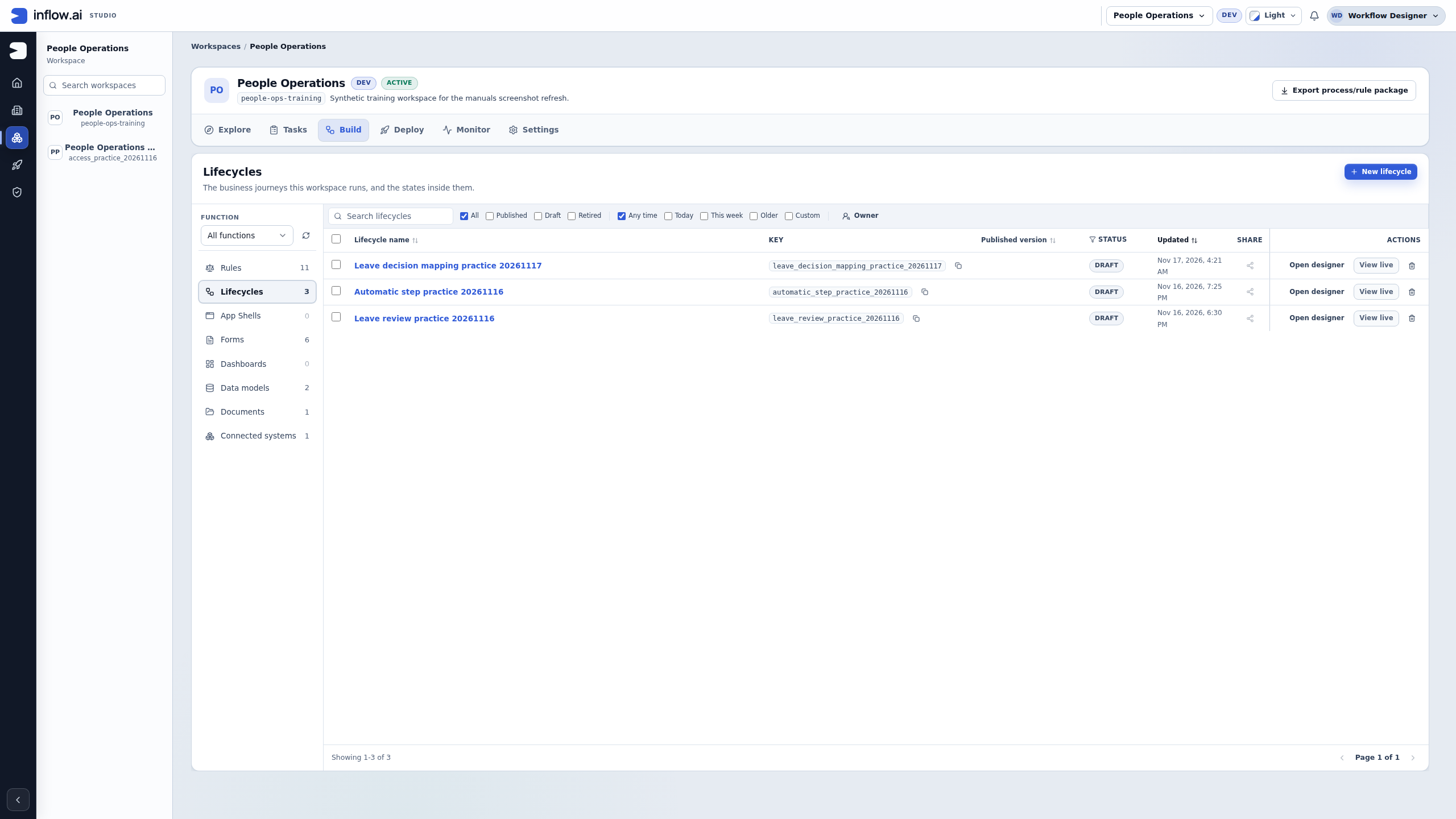
Open the intended workspace, select Build, then choose the resource list. In this training workspace, Lifecycles contains the workflow definitions; Forms and Data models lead to different authoring assets. The numbers beside these lists count assets, not employee submissions.
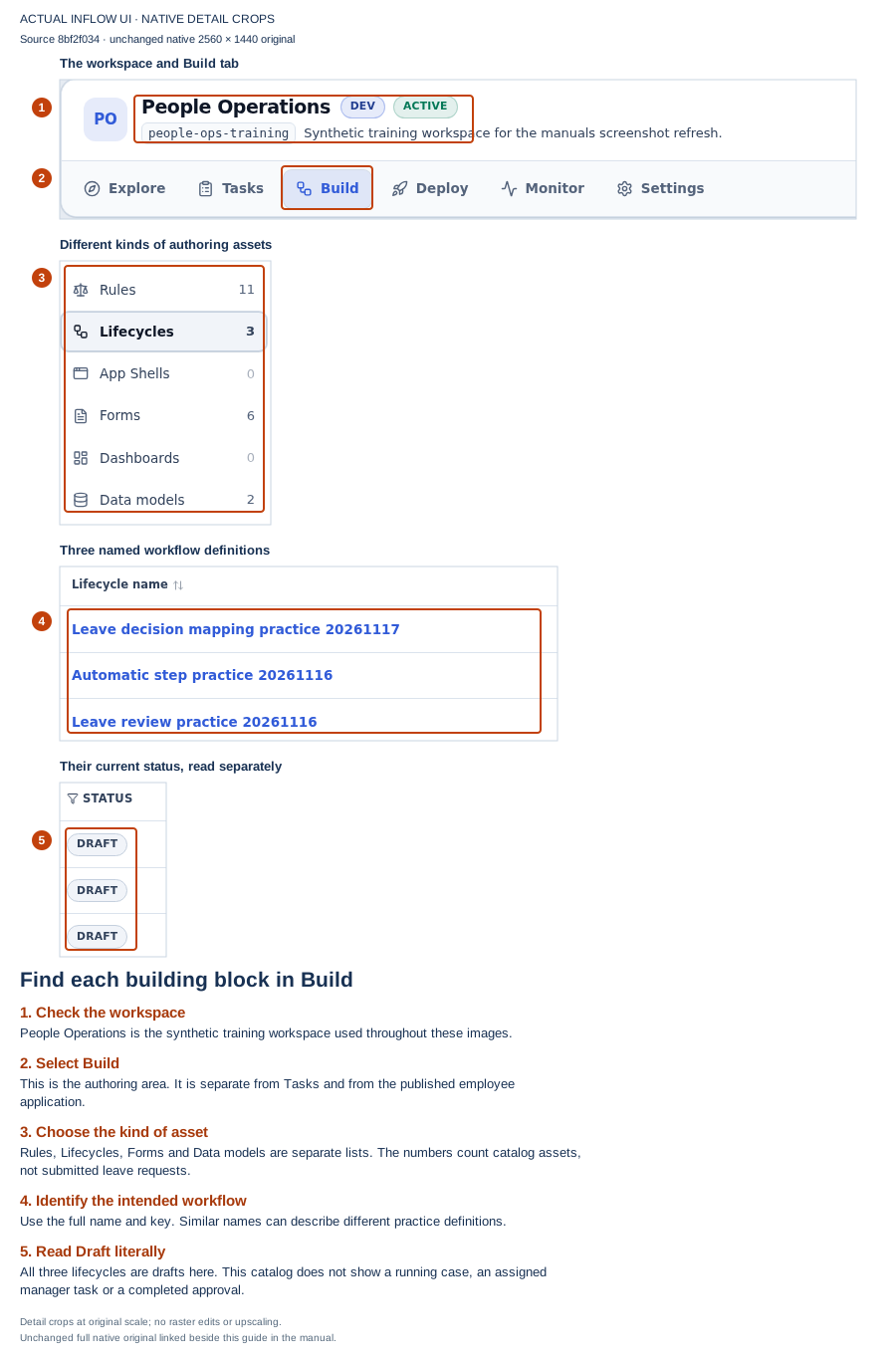
Read the names and states together: all three workflows shown here are drafts. This is the consultant's authoring catalog, not Sara's task inbox. Open the full guidance image · Open the unchanged native 2K screenshot.
Keep these AI experiences separate from each other and from the workflow. Ask Inflow helps a consultant author and understand work in Studio. App Chat is a user-facing conversation inside the published application; its configured sources narrow where it may look, and the signed-in person's row, field and task permissions still apply. When an App Chat action is enabled, a proposed change or task decision is a separate step that the user must review and confirm. An AI Task is a configured operation used by a form or process; its answer is an input to the application design, not a human approval or a saved business outcome. None of the three grants access that the person otherwise lacks.
Example: record questions and guidance questions use different source paths
The publisher's approved source bindings define what an App Chat can try to answer. A question about business records follows a structured, published record source and its supported read operation. Inflow checks the current actor's row access and readable fields before returning record data. Exact counts use the supported aggregate path; they are not estimated by counting chunks in a search index.
A question about approved guidance uses retrieval over the App Chat source index. An indexed passage is only a candidate: Inflow checks that the signed-in person may still read the underlying source before the passage is admitted to reranking and answer generation. The answer can cite the source, but a citation is not an access grant; opening the corresponding application page still follows ordinary authorization.
For example, Mohammad asks “How many of my requests are waiting?” The answer must come from a permitted aggregate over rows he can read. If he instead asks to inspect a particular request, a permitted record query can retrieve that item; a bounded page of results is not an exact total. He then asks “What does our leave policy say about carry-over?” That question can use a publisher-approved guidance source. A passage about another employee's request is not admitted merely because it resembles his question, and the guidance index is not a way to bypass row or field rules.
The two paths matter to the consultant configuring the shell. Bind only the record types and operations the application needs, and only the guidance sources the publisher has approved. Test record questions with an ordinary signed-in user who has a known row and field scope. Test guidance questions as a user whose source access is deliberately narrower than the publisher's. A useful answer from an administrator account does not prove that the employee experience is permitted or complete.
Example: a chat answer is not a leave decision
Mohammad asks App Chat, “What is the status of my request?” The publisher has enabled chat on the Leave requests App Shell and connected the published request source. App Chat can answer only from sources allowed for this app and information Mohammad may currently read. It cannot reveal Sara's unrelated tasks or another employee's request just because they share the same model.
Sara's approval still belongs to the configured workflow task. If its task inbox and a permitted decision action are enabled for App Chat, Sara reviews the visible proposal and explicitly confirms it; otherwise she opens her ordinary task page. Nadia may use an AI Task to prepare a factual summary, but its generated wording does not complete Sara's task. After a decision, the team checks the task/case result and the record's displayed status separately when the application is designed to store that status.
The important distinction is between information, a running request and a person's work. Creating a record does not automatically start a case. Completing a task does not automatically update every related record. Configure the desired connection explicitly.
Trace one leave request through the application
Use this sequence to reason about where a problem belongs. The names are examples; select the actual published assets and supported actions in your workspace.
| Moment | What exists | What to inspect if the next step is missing |
|---|---|---|
| Nadia designs the request | A model definition, rules and an employee form draft | Is the intended field present, and does the form bind to the right model question? A draft or Preview is not a submitted employee record. |
| Nadia prepares storage | A published model and an approved live data destination | Did the model's own setup complete? Publishing the schema and making its data destination live are separate lifecycle steps. |
| The employee submits | A record is saved through the released application | Did the user receive a saved result? A form screen rendering successfully does not prove that a record exists. |
| The process starts | A case runs using a configured process definition | Is the form's start action connected to the intended published process? A saved record does not itself prove that a case started. |
| Work is assigned | One or more tasks exist in the case | Does the task use the intended published form, and is its assignee/participant eligible under the actual task configuration? Group membership alone is not task assignment. |
| Sara decides | The task is completed and the case moves to its configured next state | Does the process have a decision path for both approve and decline? A button or form response is not proof that the case followed the intended path. |
| The employee sees the outcome | A page displays the current permitted business result | If the record must reflect the decision, is there an explicit supported action that writes it? Case status and record status are separate values unless configured otherwise. |
When tracing a failure, write down the last confirmed result and the next expected result. For example: “The employee received a save confirmation and the request appears in Records; the case is absent.” That points to the start-action/process connection. “The case is Approved, but the record still says Pending” points to the explicit record-update design. This description is more useful than saying only that “the workflow did not work.”
See the difference in existing records
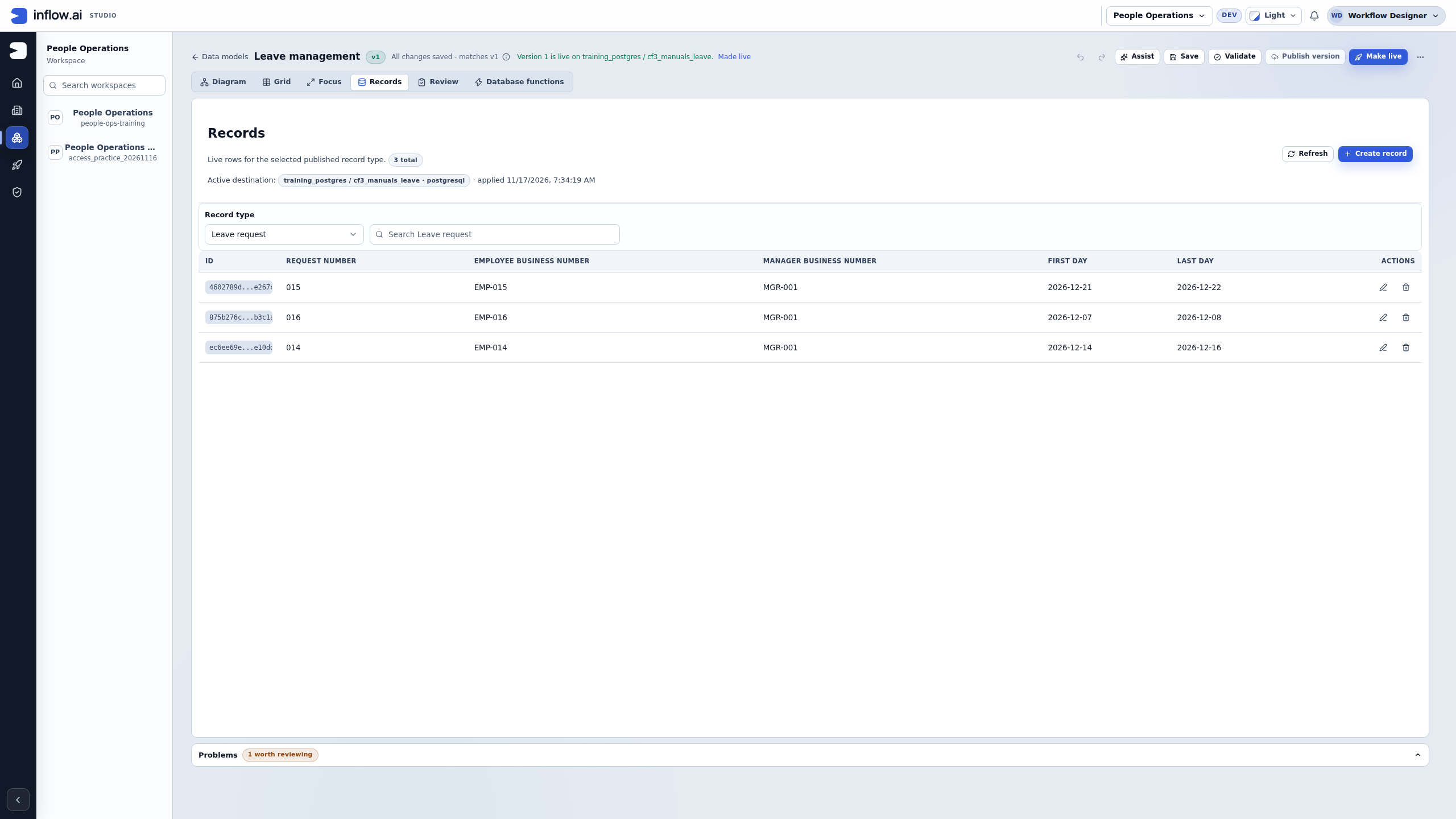
From Build → Data models, open the intended model and select Records. Read the active destination before interpreting the rows. In the image below, three fictional requests already exist in the training destination. Locate request 014 by its reference, even though it appears last. Its stored dates are 14–16 December; this is a separate three-day practice example from Mohammad's five-day story above.
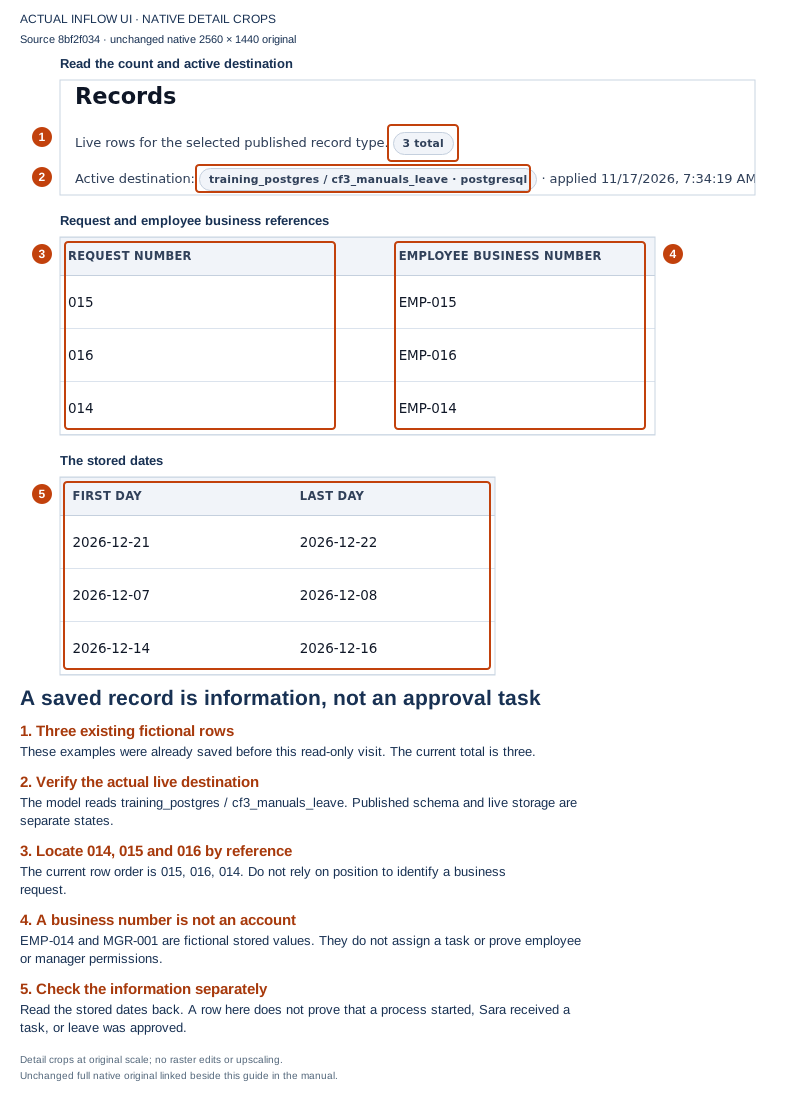
These are saved business rows viewed by the approved training designer. Employee and manager business numbers are stored values; they do not assign work or demonstrate those people's access. This read-only visit did not submit a request, start a case or approve leave. Open the full guidance image · Open the unchanged native 2K screenshot.
Read artifact state before repeating a step
Inflow has several lifecycle words that sound similar but answer different questions:
- Draft is editable authoring work. A draft can be incomplete and need not be available to a released user.
- Saved confirms the draft or record was stored by that feature. Check which object the confirmation names.
- Published makes a reviewed version available to features that consume published assets. Check the version selected by the consuming workflow or task.
- Live concerns a runtime data destination or current application state where the feature explicitly uses that concept. It is not a general synonym for published.
- Started means a supported action created a process instance/case. It does not follow merely from opening a form or saving unrelated data.
- Completed can describe one task, one case, or a record action. Read the named result and confirm the other business objects separately.
Before repeating an action, inspect the relevant list and its current state. A timeout or missing confirmation leaves the outcome uncertain: read back the target artifact first. If the earlier step succeeded, continue from that result or ask its owner to reconcile the state. Recreating a record, publishing another version or starting another case can duplicate work rather than repair the missing connection.
Follow a sensible build order
- Agree the business outcome and the people involved. Write a small example before opening an editor.
- Create or select the workspace and the correct builder access.
- Define the information in a data model. Publish it and make it ready for records through its supported setup.
- Build the rules the application needs, with sample inputs and expected results.
- Create the employee and manager forms. Explain what each answer means and publish the required forms.
- Design the workflow, select the manager form and map its decision outputs. Test both approval and decline, then publish the process.
- Finish the App Shell's actual start action and task-viewing composition.
- Have the administrator review the completed application's intended user access.
- Try the released employee and manager journeys using normal test accounts. Check business information, case progress and task result separately.
What you should see: each step creates an artifact the next step actually uses. You are not relying on a similar display name or assuming one object's creation generated the rest of the app.
Understand Save, Publish and Make live
Save keeps your work in progress. It is useful while the team is still editing.
Publish makes a reviewed version available to the features that use published work. A task form and a running process can use a particular published version, so a later edit is not a promise that an existing task changed.
For a data model, Make live prepares the chosen data destination so the published model can hold the intended records. Publishing the model's design alone is not the same result.
App Shell page bindings have their own behavior: a bound page can follow that page's latest publication. Do not assume all references work exactly like a captured task form. Follow each feature's publish and review explanation.
Compare each asset's own state
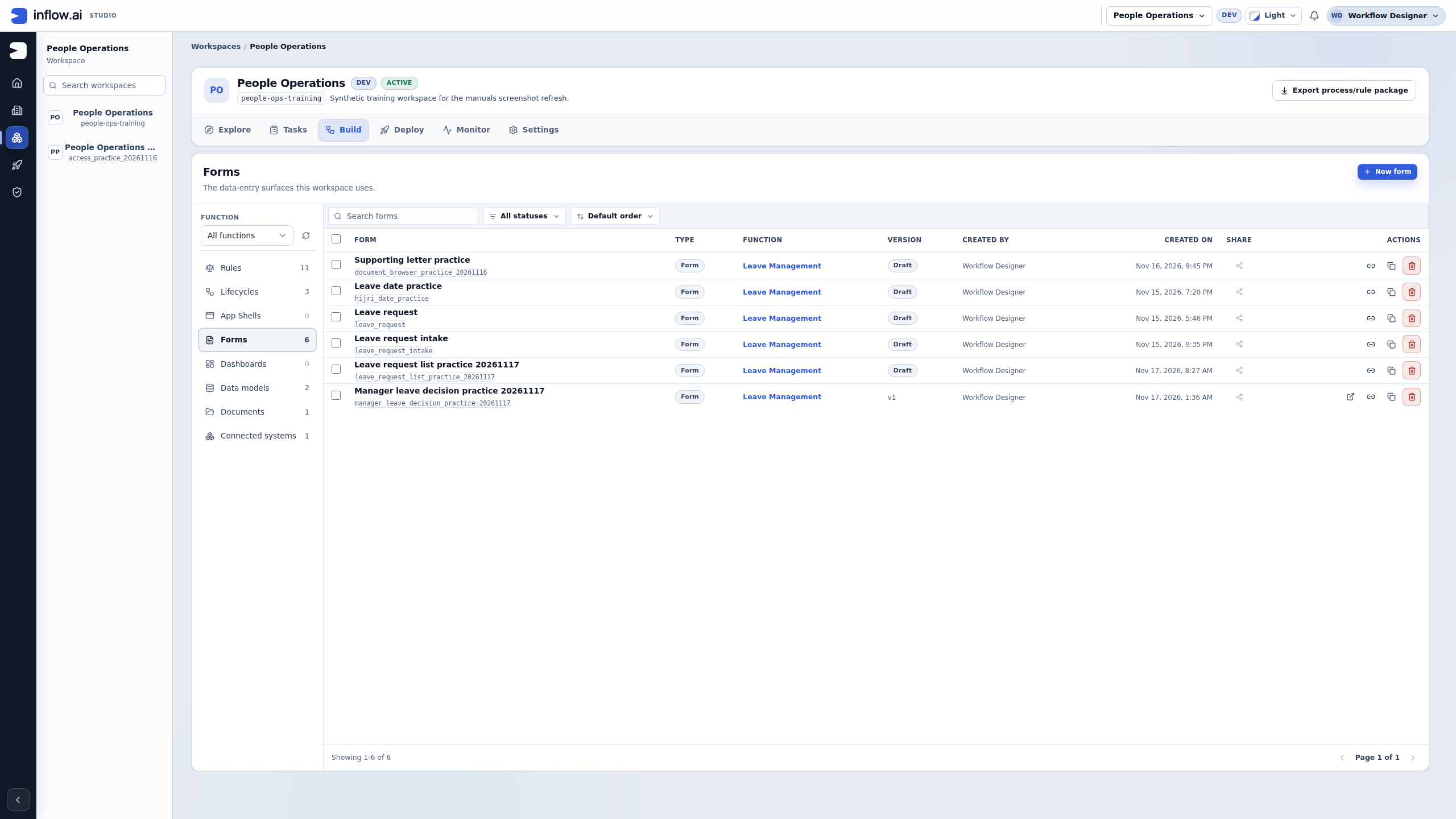
Choose Forms and read the Version column. Here, Manager leave decision practice 20261117 shows v1, while Leave request list practice 20261117 is Draft. Publishing the manager form did not publish the draft workflows shown earlier or give Sara a task.
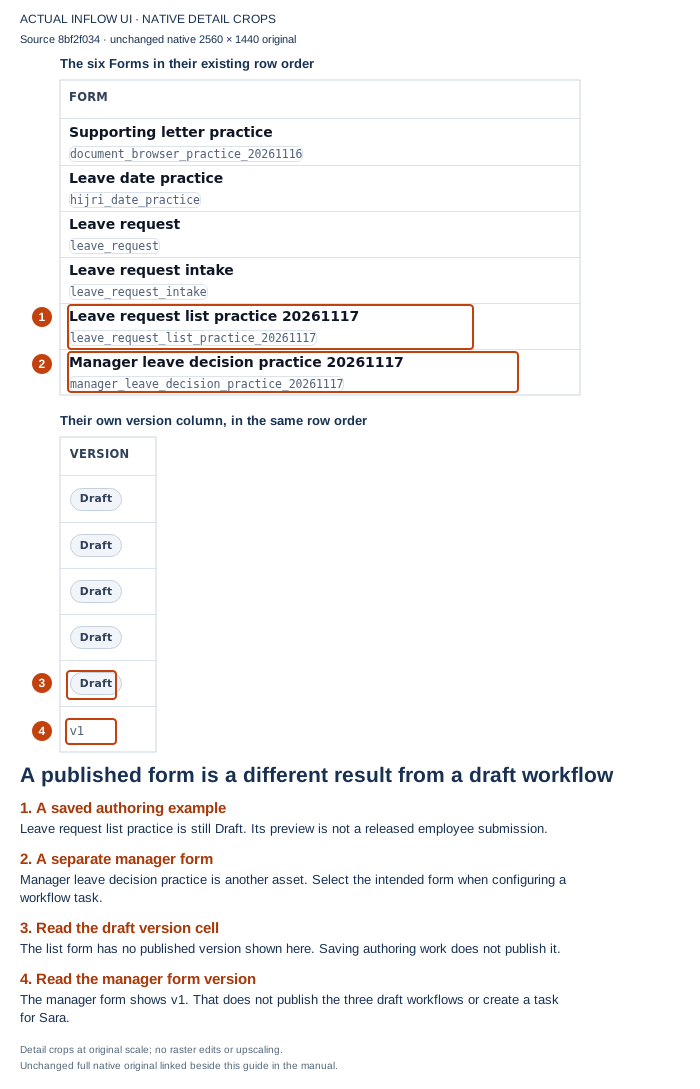
Match the intended form and version when configuring its consumer. Open the full guidance image · Open the unchanged native 2K screenshot.
Now choose Data models. Leave management, key leave, shows Published v1. Leave Request, key leave_request, is a different draft model. Select by identity and purpose, not by the shared word “leave.” The published model's Records view above separately shows its live destination and saved rows.
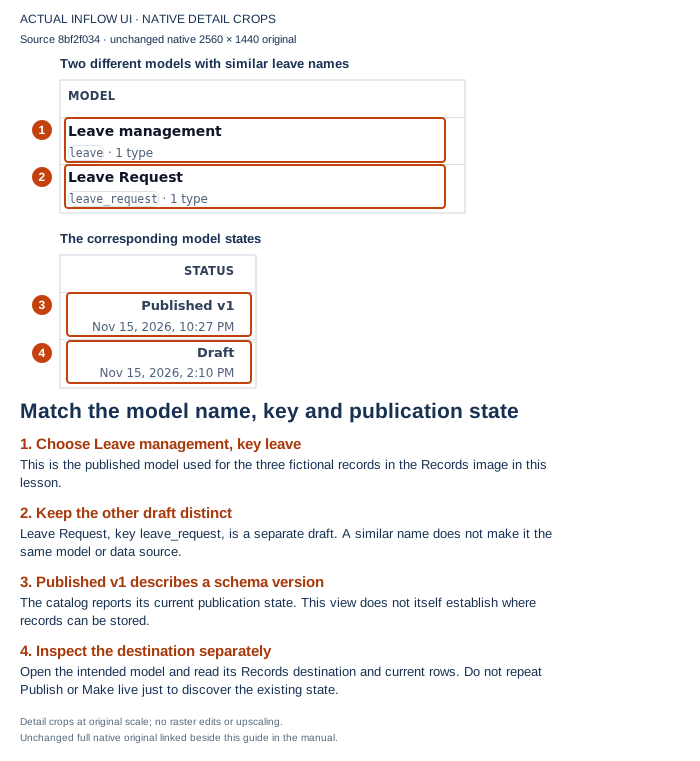
A published schema is one result; a live destination and saved records are other results. Inspect the existing state before repeating an action. Open the full guidance image · Open the unchanged native 2K screenshot.
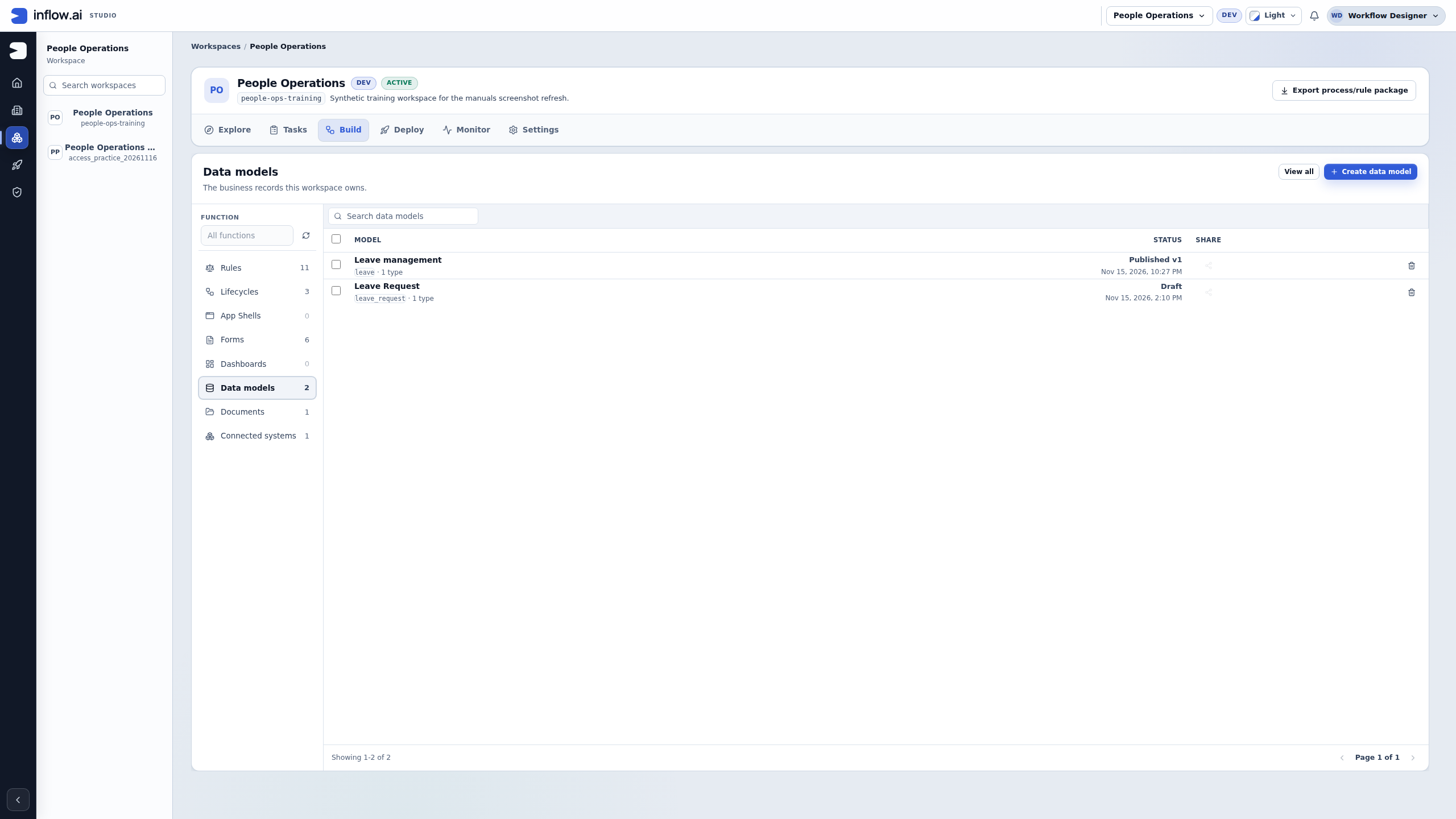
These screenshots were captured from the 17 November training build, source 8bf2f034, using an approved designer account. Numbered outlines and explanations are separate guidance over unchanged native details. They show authoring catalogs and existing records; the ordinary employee, manager and App Chat journeys still need their own checks.
Example: a record exists, but Sara has no task
Nadia creates a fictional leave record and can see it in Records. Sara's work list is empty. That can be entirely correct: the row is business information, while a manager task belongs to a running process.
Nadia checks whether the employee form has the intended supported start action and whether the process creates a task assigned to the selected manager. She starts a new ordinary test request only after those pieces and their access are ready.
The expected result is a case and the manager's eligible task, linked through the configured business data. She does not create another row repeatedly or assume a task is missing because a record was saved.
Example: an approval does not change the list's status
Sara approves the manager task and the case reaches Approved. The employee record list still says Pending. Nadia compares the intended design with what was actually configured.
If the application must store the decision in the leave record, it needs an explicit supported business action and the appropriate field mapping. Case progression is not an automatic update of arbitrary records with a matching name.
After correcting and publishing the appropriate configuration, Nadia checks a new admitted test request and inspects each result. She keeps the distinction visible in her acceptance notes: task completed, process stage changed, and business record updated are three checks.
When you need another specialist
A consultant configures the application's business behavior. A platform administrator prepares servers, databases, messaging, document conversion and sign-in services. An integration developer may supply a connector or custom function when no supported option covers the business need.
Tell that specialist what the application needs, which environment is affected and what the user sees. You do not need to edit a database or restart servers to learn the application designer.
Continue
Start the connected application tutorials. Use workspace setup, data models, forms and process design as topic guides.
Further reading
Optional technical reference — detailed contracts and implementation information for your administrator or developer. You do not need it to follow this lesson.