Publish a process for people to use
Publishing makes a reviewed process design available as a numbered version. Saving protects your draft work; publishing releases it for use. Keeping those two actions separate lets Nadia improve the leave process without silently changing every request already underway.
Know which design you are looking at
| What you see | What it means |
|---|---|
| Unsaved changes | Work currently in the editor that has not finished saving. |
| Saved draft | Your current stored design, still being prepared. |
| Published version | A released design that new requests can use. |
| A running case's version | The design that this particular request started on or was deliberately moved to. |
A lifecycle includes its own stage flows. Publishing the parent business process brings those owned pieces together as a release. Do not treat publishing a disconnected task or changing a form as publication of the whole leave application.
Before you begin
You need permission to change and publish the process, a saved design, the required published forms and other referenced objects, and useful tests of the business paths. For leave review, check both Approve and Decline, required comments and the actual manager selection.
Read Test a process if you have not tested those paths. Use the application tutorial later to connect the published process to its real start control and task page.
Example — Read a draft's release readiness
Nadia has prepared the leave review in the workflow tutorial. She has saved its case values, connected the manager Form, mapped the answers and configured the final routes. Before choosing Publish, she checks what each screen actually establishes.
The following illustrations come from one practice draft captured on 17 November. They show preparation before its first release. The numbered detail views use unchanged portions of the original screenshots; each caption links the full native 2K image. No release or running employee request is shown.
1. Read saved and published as separate states
Open the intended lifecycle and read its header. In this example it says All changes saved and Not published yet. The current design is stored, and the first lifecycle release is still outstanding. The Editing draft v1 label belongs to the draft view; use the published indicator and eventual publication result to identify an actual release.
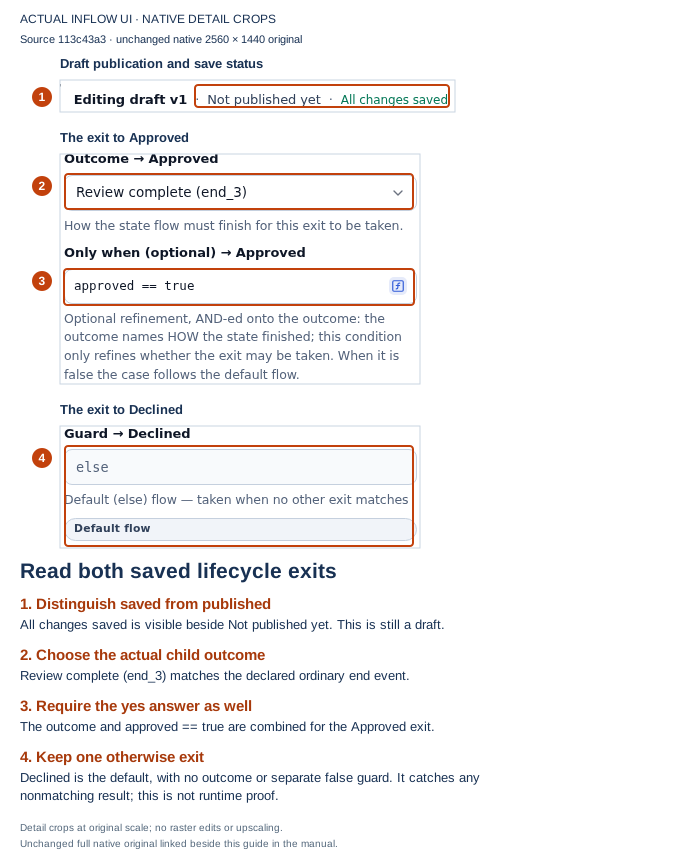
Read the header before the routes: the stored draft contains Review complete plus the Boolean approval condition and a Declined default. Those settings describe what Nadia has authored. The screenshot does not show a published version or a request taking either route. Open the unchanged native 2K screenshot.
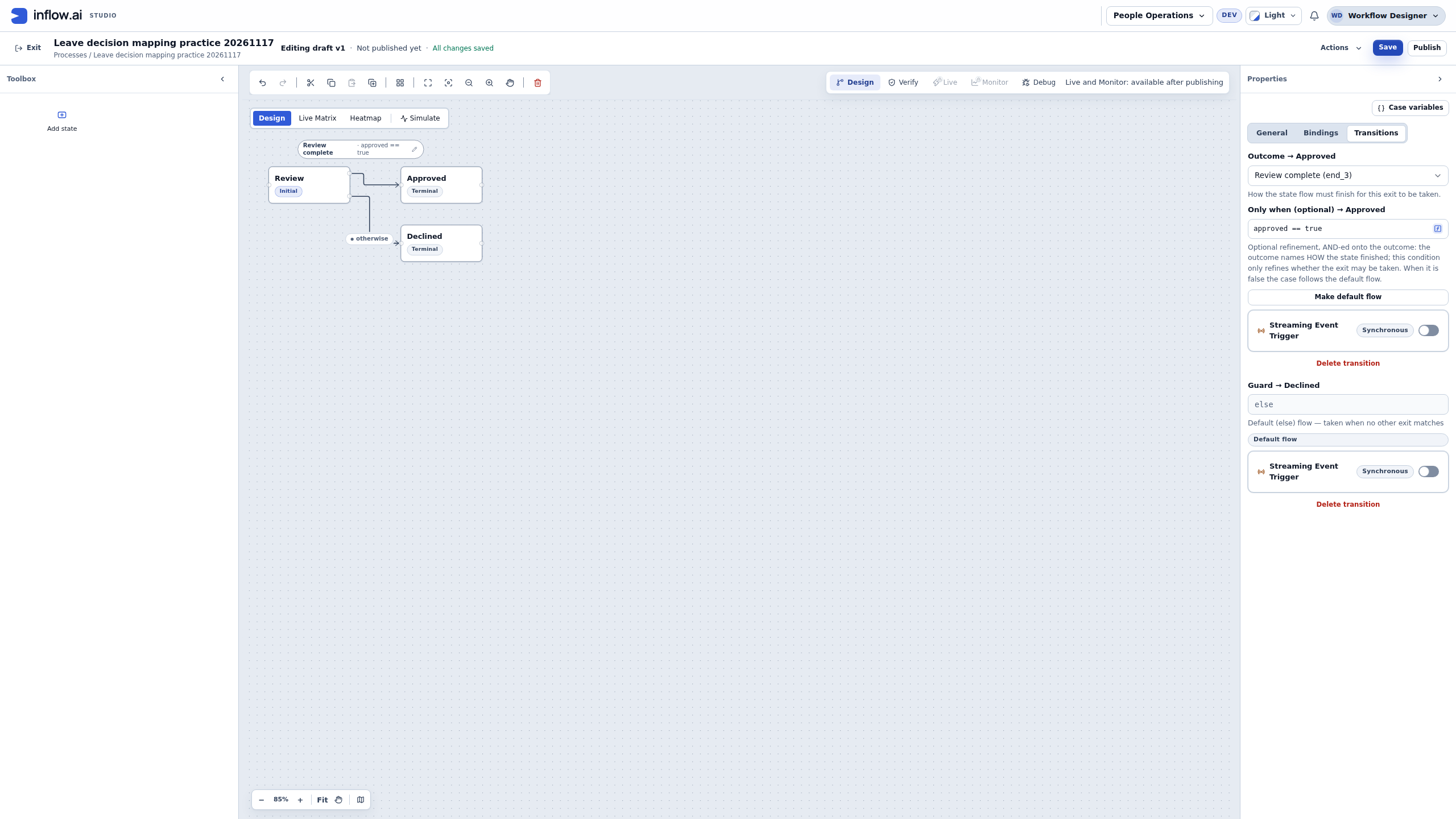
Check the particular objects you intend to release:
| Item to check | What Nadia checks in the leave example | What still needs its own result |
|---|---|---|
| Lifecycle draft | Correct process name and All changes saved. | Publication of this lifecycle. |
| Manager Form | The task is bound to the intended published Form and version. | A Form release does not release its calling process. |
| Request context | Seven Form inputs include the six request values and the initial Boolean answer. | A real request must supply its actual starting values. |
| Manager answers | Only approved and decisionComment are returned to their existing case values. | A real manager must submit the task before there is a submitted decision. |
| Final routes | Approved uses the declared child outcome and approved == true; Declined is the otherwise route. |
Both business paths need testing. A default is a fallback for any nonmatch. |
| Performer | The intended authorized manager or supported assignee source is selected. | A business employee number by itself does not route a task to a directory user. |
For example, seeing v1 on the manager Form tells Nadia which Form release the task will use. It does not replace the lifecycle's Not published yet indicator. Likewise, seeing a terminal state named Approved does not show that a request was approved or that a business record changed.
2. Resolve the blocking findings that belong to the design
Choose Verify → Run check and wait for the result to settle. Read the named findings before deciding which setting to change. In the earlier preparation state below, Review had no owned work and its outgoing branch was incomplete. The report showed 2 errors, 0 warnings and 9 checks passed.
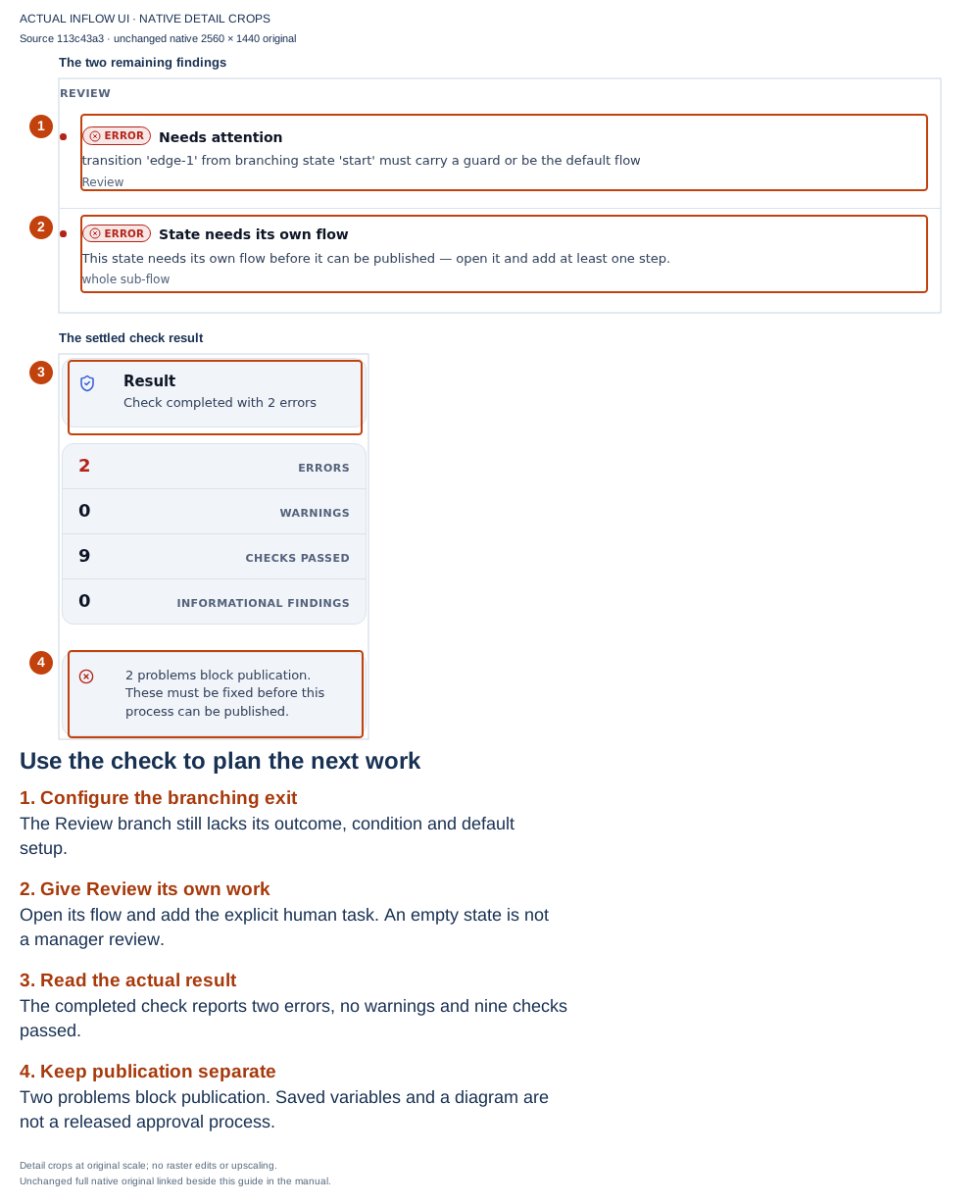
Use each finding to choose the repair: the first points to the lifecycle's branching exit; the second points to Review's own flow. Nine passing checks do not remove these two errors. This is the earlier, unfinished design, before the connected draft shown in the next step. Open the unchanged native 2K screenshot.
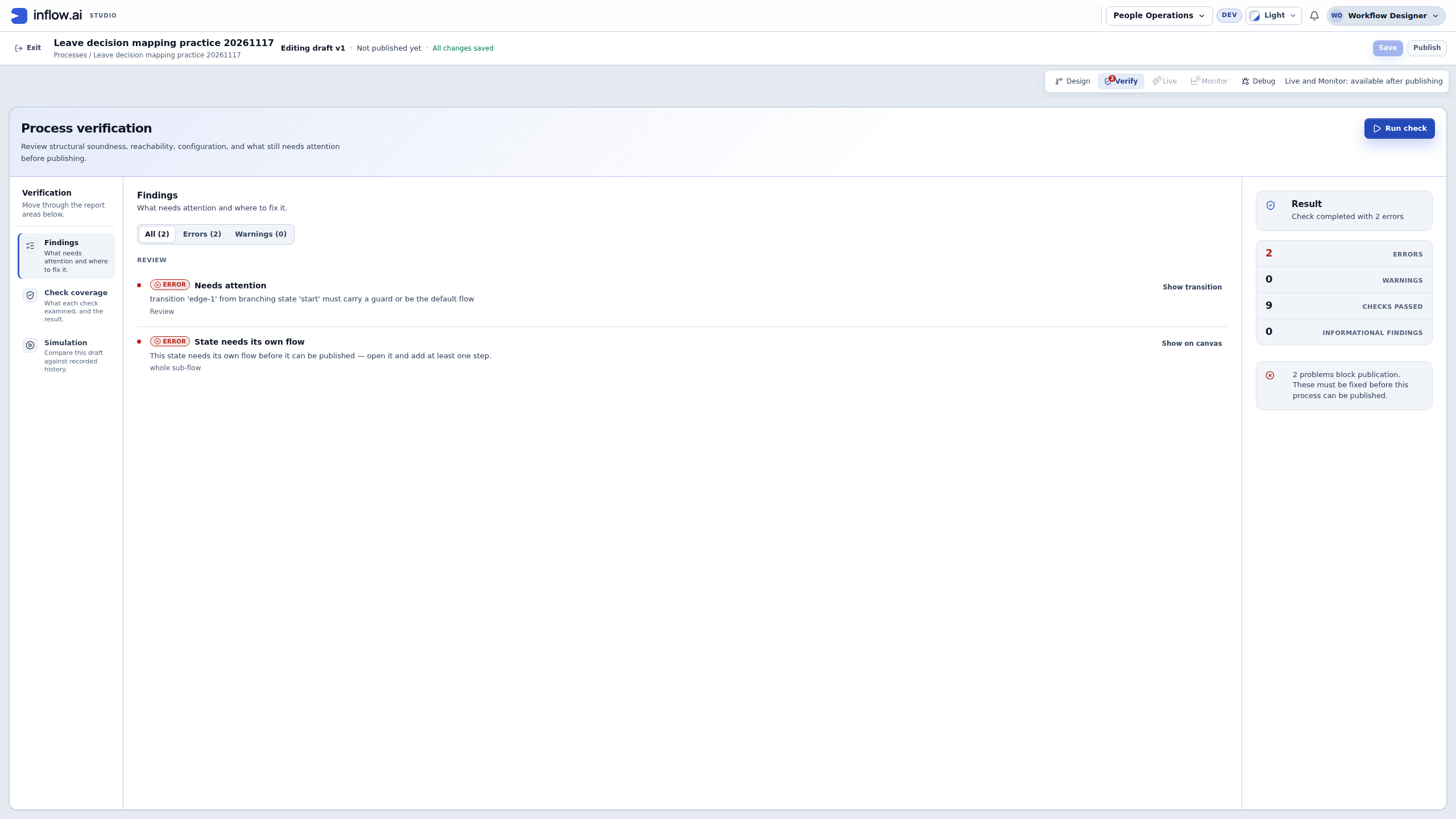
Nadia follows the workflow tutorial to add the explicit human task and ordinary declared end, connect the manager Form and answers, and configure the approval/default exits. She saves the corrected draft before checking again. Repeatedly running the same check without changing the named cause would leave the same work outstanding.
If your report differs, follow your own finding and selected object. Do not copy this example's totals as a target, replace every type with Text, or change the manager Form merely because the error names a lifecycle transition. A failed or unavailable check also needs its own investigation; it does not mean there are zero findings.
3. Read the remaining warning against the intended work
The later saved draft has 0 errors, 1 warning, 9 checks passed and 1 informational finding. No assignee names Review leave request. No SLA target describes its optional deadline settings.
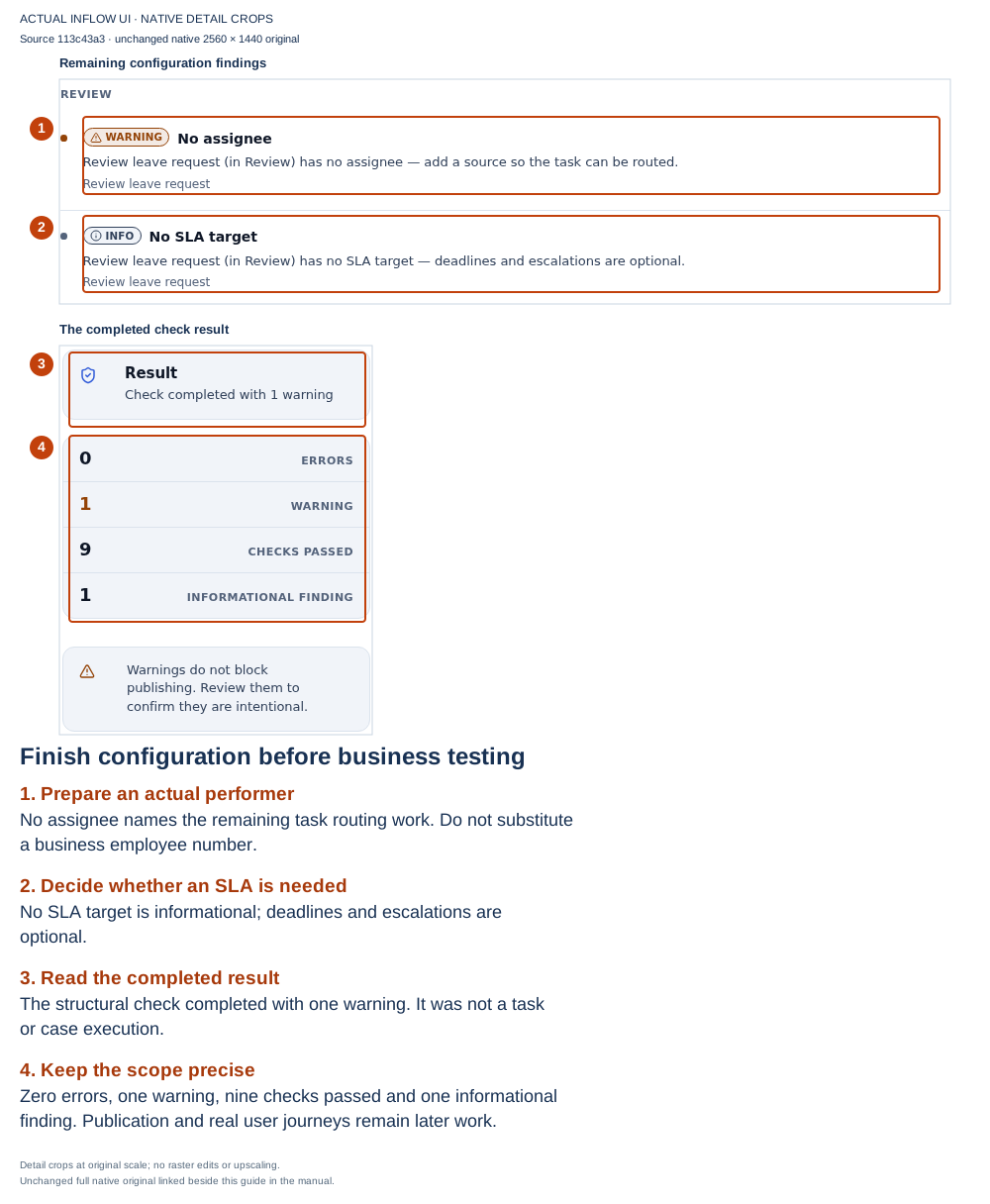
Read the remaining work, not just the zero: the report says warnings do not block publishing and asks the author to review them. Nadia's example still lacks the person who should receive the review. This screenshot stops before selecting that person or publishing the lifecycle. Open the unchanged native 2K screenshot.
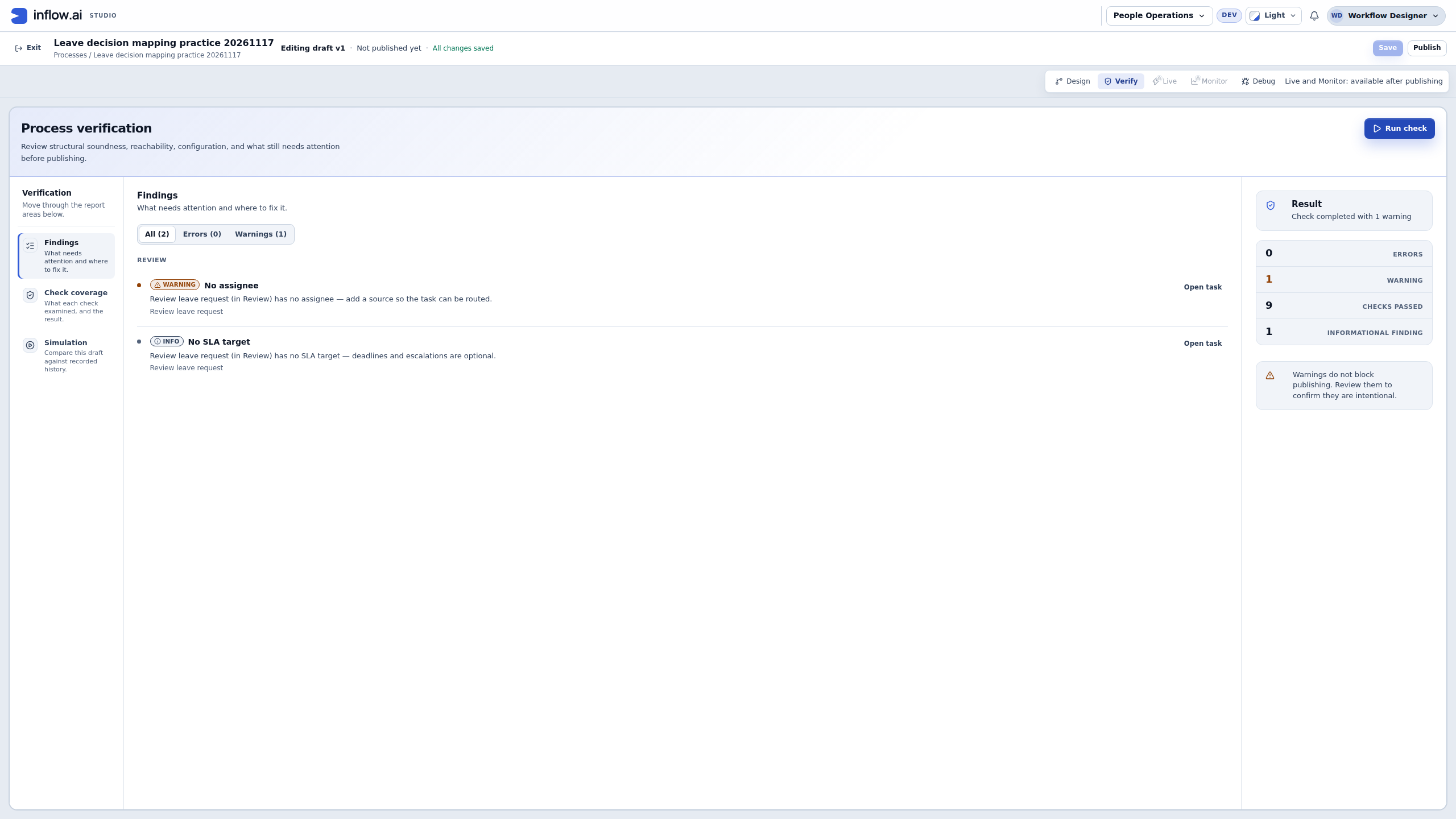
| Finding or result | What the screen establishes | Nadia's next step |
|---|---|---|
| A publication-blocking error | The named design problem must be resolved before release. | Open that state or step, correct the cause, Save and check again. |
| No assignee | The review task has no configured recipient source in this draft. | Prepare the intended manager through Assignment using an authorized account, then test routing. M014 is still a business employee reference. |
| No SLA target | A deadline and escalation target have not been configured. | Decide whether this process needs them. Do not invent an SLA merely to remove an informational item. |
| 0 errors | This completed check reports no errors at this design state. | Review warnings, Form bindings, actual performers and business-path tests, then read the separate publication review. |
Warnings are advisory, and the server remains the authority when the release is submitted. A clean-looking Verify result does not guarantee that every dependency, permission or saved revision will still satisfy the publication review. For this leave story, Nadia also needs a real task recipient and useful tests of both decisions before people rely on the application.
4. Carry clear facts into the publication review
Nadia writes a short preparation note so the process owner can see what is ready and what remains. For the exact draft illustrated above, an honest note would read:
| Preparation note | Current fact in this example |
|---|---|
| Draft | Saved; first lifecycle release has not been made. |
| Manager Form | Intended published version selected and mapped in the task. |
| Structural check | Zero errors; No assignee warning remains; SLA target is optional. |
| Actual manager routing | Still to prepare and test. |
| Employee submission and both decisions | Still to test with the intended ordinary users. |
| Publication | Still to review and explicitly confirm. |
After completing the outstanding business preparation, Nadia follows Review and publish a first version below. She reads the proposed version and scope, confirms the intended publication once, and checks the resulting release. If the confirmation reply is lost, she checks the existing publication history and current version before trying again. The three preparation screenshots above cannot establish whether a later publication succeeded.
Review and publish a first version
- Open the process in Design. Read its name and saved/published indicator so you know which process you are changing.
- Choose Save and wait for the save to finish.
- Open Verify. Work through the blocking findings. Select the finding's state or step, correct its settings, save again and recheck.
- Return to Design or the appropriate editable flow. Choose Publish when it is available. A read-only Live or Monitor view does not save edits; Live also has a deliberate edit path with its own case-scope choices, explained below.
- Read the publication review. Check the proposed change and any impact explanation. If an acknowledgement is requested, understand what it means before accepting it.
- Enter useful publication notes where requested, such as First leave approval process, with required manager comment.
- Confirm the publication once. Read the resulting published version and return to the design's published view to confirm it is available.
Dependency updates are separate from publishing this lifecycle. An unavailable reverse-dependency review does not add another consent step. The publication review still checks the lifecycle itself, its owned flows, the saved revision and any breaking-change acknowledgement.
Check your result: you can distinguish the new published version from the draft. The release has the intended stages, owned work and chosen form. The employee application's start control still has to be configured to start that published process.
Decide which requests should use the new version
A normal publish makes the new version available to new requests. A request already in progress remains on the version it started with unless an authorized person deliberately chooses a Live option to include selected running cases. Do not treat publishing as an automatic migration of active work.
When you edit a lifecycle from Live, the What should your edit do? step describes the scope before publication. Read the selected choice, case groups and proposed version in the table. If you opened the edit from one running case and a case-only edit is allowed, Studio may select Apply to this case only; that option does not publish. Never accept a preselected choice until it matches the intended business scope.
The Live dialog title also depends on how you opened it: a case-specific edit asks What should your edit do?; a group or general edit says Publish your edit. For a publish choice, select Review impact. Studio then opens the publication review for the proposed version. Read its current/new version summary, running-case impact, lifecycle and state-flow changes, and any “not checked” items. When the review offers Publish anyway, it is the breaking-change path and asks you to type the confirmation phrase. Do not skip this publication confirmation or confuse it with the later case-move dry run.
For a choice that includes running cases, the sequence is: select scope → Review impact → read the publication review → confirm Publish version N (or the explicit breaking-change confirmation) → read the publication result → review the separate dry run → explicitly move the permitted cases → read the move result. The version is published once, before any running case moves. Closing the dry run leaves those cases on their prior versions. With the all-running-cases choice, each move is limited to a batch of up to 500. After reading that batch's result, repeat only the dry-run → explicit-move → read-result steps for the next batch; do not publish another version for each batch.
| Live choice | What happens | Check before continuing |
|---|---|---|
| Apply to this case only | The edit is not published. A dry run previews the change for this case; new and other running cases keep the published version. | Confirm the case and the consequences in the dry run. This is a case-specific change, not a new release for future requests. |
| Publish for future cases | The next version is published for new requests. Running requests remain on their current versions. | Choose this when active work should finish on the process it already started with. |
| Publish and include this case or Publish and include these cases | The next version is published. Only the case or group you opened the editor for is considered for a move; other running requests stay on their versions. | Review the dry run for the selected cases. If a flow failed at a step, the dry run may include running that failed step again after you confirm. |
| Publish and include running cases | The next version is published, then running cases are considered in batches of up to 500. | Review each dry run and its unmovable cases. A batch is not moved merely because the release was published; follow the explicit move and read its result before proceeding to another batch. |
See the release and move as separate decisions
The following map is a reading guide to the order of decisions. Publishing creates the version; the later dry run and explicit move decide whether selected running work changes to it.

This diagram is an editorial guide, not a screenshot of the Studio interface. Use the live review and dry-run details as the source of truth for the actual case list, warning, count and permitted action. If the case list is unavailable or differs from the agreed scope, do not infer that the preview is empty or proceed from this diagram.
The publication review separates new cases, cases already running, lifecycle changes and changes inside individual state flows. Read the change descriptions (for example, a route change, data/binding change, removed step or moved work) against the business process. It also lists what the review could not establish. If affected case counts are hidden or unavailable to your role, treat that as unknown, not as zero. Ask an authorized process owner to review the impact when you cannot see enough to make the decision.
If the reviewed draft changes before confirmation, the publish may be refused because the review no longer matches what will be released. Save the current design, run Verify and review the updated publication again. Do not confirm from an older screenshot or a previous assessment.
Example: release the initial leave process
Nadia has tested Review with two answers. Approve reaches Approved; Decline reaches Declined; both preserve the decision comment.
- Save the tested design and verify it without further edits.
- Review the manager task's form and recipient one last time.
- Publish with notes that explain the business behavior, not just “updates.”
- Continue to the application tutorial to choose this published process for the start action.
- Ask the authorized application administrator to review the complete application's intended employee and manager access before ordinary people use it.
A published process is not automatically an application access grant. A person may be able to see the App Shell but still be ineligible for Sara's task, or able to handle a task without being allowed to edit its process design.
Example: improve next month's review without rewriting existing requests
Nadia adds another business check to a later version. Mohammad already has a request waiting in the earlier Review flow.
- Identify the business change and test it in the saved draft.
- Review publication compatibility and any change acknowledgement carefully.
- If the new version is for future requests only, publish it with notes explaining the new check. Mohammad's existing request stays on the version it already follows after an ordinary publish.
- If the owner wants selected active requests to receive this version as part of the release, start from the agreed case selection in Live before publishing and choose that scope in the publication flow. Review the impact, publish once, inspect the publication result, then review the separate post-publish dry run and explicitly confirm the move.
- Do not reopen a new publish flow after publishing just to move cases. For a later move decision, follow the existing Live case-move flow for the already-published version, including its dry run and explicit move confirmation; do not create another version unless the design actually changed.
The fact that a newer release exists does not make a move safe for every case. A Live move is an explicit, separately authorized choice; it may change a running request's process state and, for a failed step, run that step again.
Example: publish the new review step for exactly two agreed requests
The regional team approves a new review step for future leave requests. Three requests already wait at Sara's decision, and the business owner wants only two of them included in the next release after checking their current answers.
- Before publishing, Nadia opens the lifecycle edit from the agreed two-request group in Live. She checks the selected group and confirms that the saved draft contains the new review step.
- At Publish your edit, she selects Publish and include these 2 cases and checks the proposed design table: those two requests and future requests are set for version 4; the third running request stays on its version.
- She chooses Review impact. The publication review describes the version and the lifecycle/state-flow changes. Nadia resolves any required rebind review and checks every visible impact and warning. If the page says an impact is not shown with her access, she pauses for the process owner.
- She confirms Publish version 4 (or follows the explicit typed confirmation if the review classifies the change as breaking). She reads the publication result to confirm version 4 exists. This confirms publication only; the two running requests have not moved yet.
- After publication, Studio presents a separate dry run for the selected requests. Nadia checks the proposed changes and any request that cannot move. After the authorized owner confirms the result, she chooses the explicit move action and reads its completion report. This does not publish a second version.
- She checks the two requests' actual versions and states, then records that future requests use version 4 and the third request remains on its original version. A successful publish alone would not have moved the selected requests.
If the preview says counts or details are not available with Nadia's access, she stops and asks the process owner to check them. If the dry run cannot move a request, she preserves that result and asks its owner what to do; she does not retry the move blindly or start a duplicate request.
What to do when publishing cannot continue
| What you notice | Safe next step |
|---|---|
| Publish is unavailable and errors are shown. | Choose Open Verify, fix the named problems, Save and check again. |
| Publish is not visible for you. | Ask the process/workspace administrator to check your intended role. Do not use another person's account. |
| The design changed while you were reviewing it. | Reload and compare the latest saved design. Recheck the new change before confirming publication. |
| A selected form or rule is no longer available. | Resolve that dependency with its owner, then choose the intended available published object. Do not replace it with a similarly named object without checking its behavior. |
| The confirmation did not arrive. | Check the existing publication history and current version before repeating Publish. A lost reply does not prove no release was made. |
| An already-running request behaves as before. | Read that request's actual version in Live. Publication and moving existing cases are different actions. |
Write useful publication notes
A future consultant should understand why a version exists. Prefer Manager must explain a declined request to Fixes, and Adds the regional review step for new requests to a list of internal settings. Mention a business-visible compatibility concern where relevant, but keep passwords, confidential record content and secret connection details out of the note.
Where to go next
Continue with Understand and manage live work. For implementation contracts and administrator/developer details, use the optional technical reference. You do not need that reference to follow this lesson.