Create and organize a workspace
A workspace is a shared project area. It keeps an application's forms, business information, rules and processes together. For example, Nadia uses a workspace called People Operations for leave requests. A separate Purchasing workspace keeps supplier work away from that project.
Screenshot context: The nine numbered guides below use actual 2560×1440 Inflow screens captured on 16 November 2026 from the build of master commit e5d0c65356. They show a synthetic existing People Operations workspace and a cancelled, unsubmitted creation preview. The numbers and side notes are added guidance; each caption links to the unchanged original. The preview did not create another workspace, save people or change anybody's role. Earlier 15 November screenshots remain historical evidence for their recorded run.
You will create the project area, organize its work and decide who can help build it. Creating a workspace does not create a finished application or give every employee access.
Before you begin
Ask your administrator for permission to create workspaces, or ask them to create the workspace and add you. Use a development environment for learning. Do not use real personnel information in the examples.
Have a short description ready: “Leave requests and manager decisions for the People Operations team.” Agree who will build, review and administer the application.
Understand the names you will see
| Term | Everyday meaning | Example |
|---|---|---|
| Name | The readable project title. | People Operations |
| Key | A short, stable identifier used in links and references. | people_ops for a new workspace; the existing training workspace keeps its legacy people-ops-training key. |
| Business function | A group of related work inside the project. | Leave management |
| Member | A person who has been given a workspace role. | Nadia, the consultant |
| Development environment | The place to build and try changes before releasing them. | DEV |
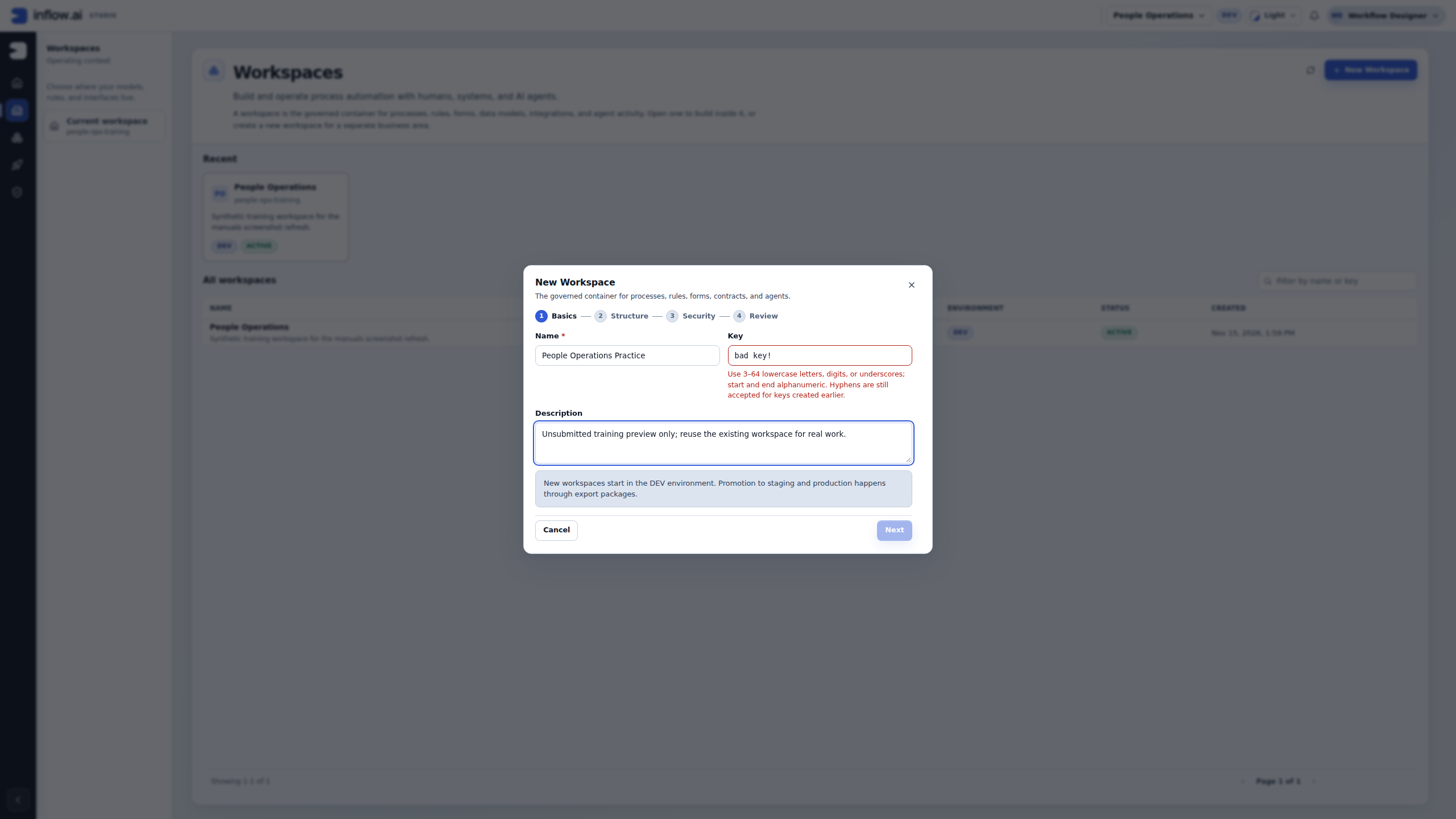
A name can describe the project naturally. A workspace key accepts 3–64 lowercase letters, digits, underscores or hyphens, starting and ending with a letter or digit. Use people_ops for the underscore convention in this tutorial. Manually entered hyphenated keys such as people-ops also satisfy the accepted format; spaces and punctuation such as bad key! do not. Keep the existing people-ops-training key as it is. Review the suggested key and availability before using it elsewhere; the key is permanent once created. The pictured error message describes the underscore convention and mentions older hyphenated keys; its wording is narrower than the accepted format. The screenshot tests spaces and punctuation, not rejection of hyphens. Do not rename the existing business-function keys shown later to match this tutorial convention.
Choose the right place for the work
Before creating anything, describe who owns the work, which assets belong together and who should use the result. These choices solve different problems:
| If you need to… | Use… | Example |
|---|---|---|
| Keep a governed business project and its processes, rules, forms, models and integrations together | A workspace | People Operations owns leave requests; Purchasing owns supplier onboarding separately. |
| Organize related assets, or apply a narrower access decision inside that project | A business function | Put leave forms and rules under Leave management while keeping them in People Operations. |
| Let employees open a published application, or choose where an application opens for them | Application access and its starting-page choice | Give the Employees group access to Leave requests without making those people workspace builders. |
| Build, validate or deliver an application for a particular deployment target | An environment and release/deployment process | Prepare and inspect a staging release separately from the People Operations workspace itself. |
Do not create a workspace for every form, team role or environment. A new workspace is useful when the business area needs a distinct governed project, ownership or broad access boundary. A function can organize part of one project and have its own access review. Employee access to a published app is configured separately, and a person's eligibility for a manager task is decided by the workflow. A workspace's DEV or other environment label does not by itself publish or deploy the application.
Example: one leave application, two kinds of user
Nadia and Omar build the leave model, forms and process in People Operations. Mohammad submits a request, and Sara receives a manager task only when the process assigns her as an eligible participant. They do not need separate workspaces merely because their jobs differ: builders receive the intended workspace/function roles, employees receive the published application's access, and Sara's task eligibility comes from the workflow. If Mohammad cannot open the app, changing his workspace role is not the first repair. If Sara can open the app but has no task, changing application access does not create one.
The owner can check these boundaries independently: workspace membership for building, the function or asset scope for the relevant work, application access for opening the published experience, and the process assignment for the manager task. Record which check failed before asking for a change. This avoids solving an application or task problem by widening builder access.
Create the People Operations workspace
- Open Workspaces. Look for an existing People Operations workspace before making another one.
- Choose New workspace. In the Basics step, enter People Operations in Name.
- Review Key. Use a valid, unused new key such as
people_ops; the tutorial uses lowercase letters, digits and underscores, and manually entered hyphens are also accepted. Keep any existing legacy workspace key unchanged. - Enter the description above. Continue to Structure.
- Choose the template that best fits the work. Review Business functions and keep or add the names your team needs. These organize assets; they do not create the complete business process for you.
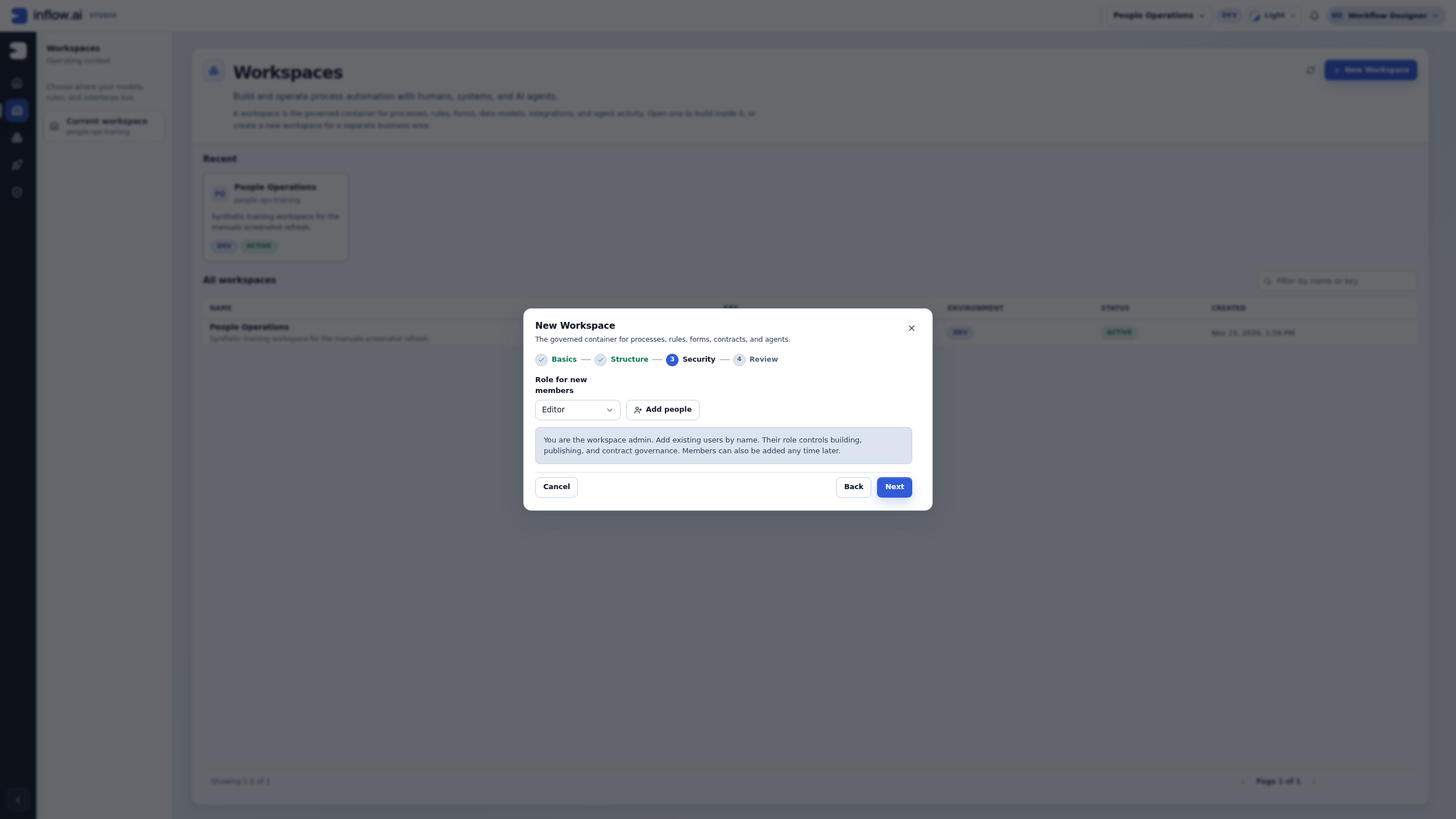
- Continue to Security. Review Role for new members before choosing Add people for approved existing users. The pictured default is Editor; review the intended role rather than accepting it automatically. Give builders the access they need; do not make ordinary employees administrators simply so they can use the final app.
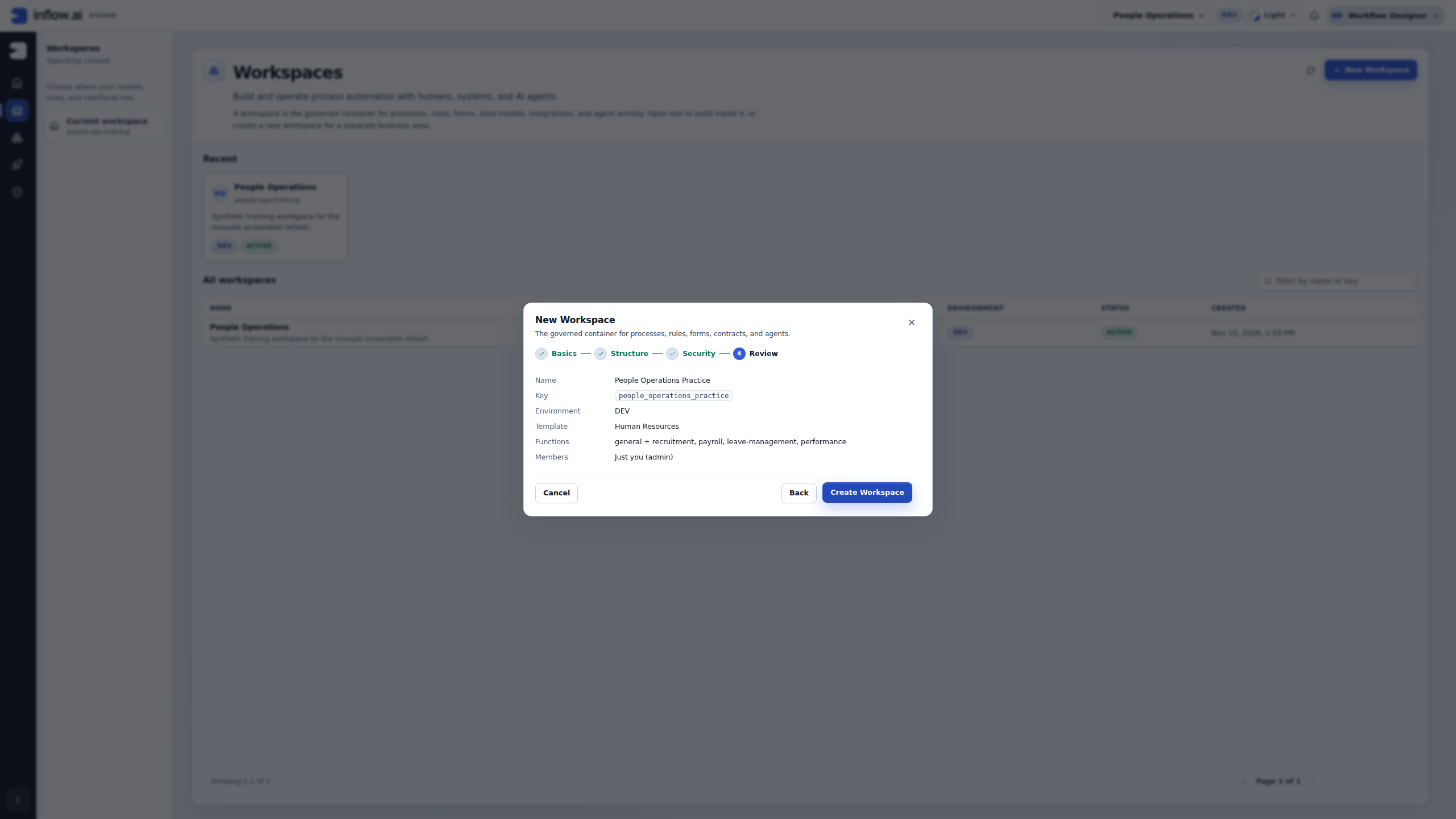
- On Review, read the name, key, environment, functions and members together. Correct a mistake by going back to the relevant step.
- Choose Create Workspace. When creation finishes, open the workspace and confirm its name before adding your first model or form.
Follow one workspace story
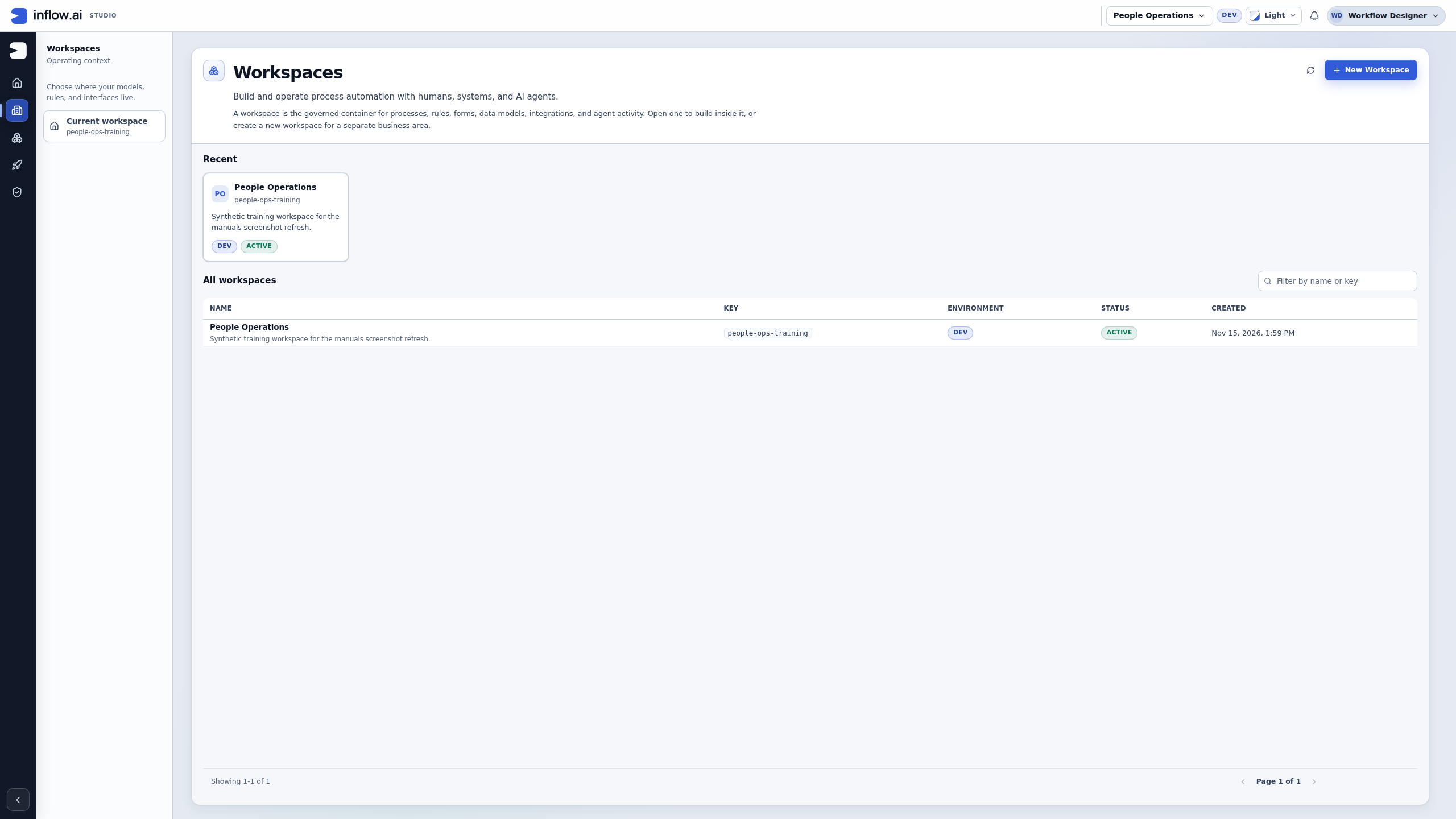
Nadia is preparing a leave application. She first checks whether the shared project already exists. In this training run it does: People Operations, key people-ops-training. She can use that project for the later model, form and rule lessons. She previews the creation choices only to understand them, then cancels the preview.
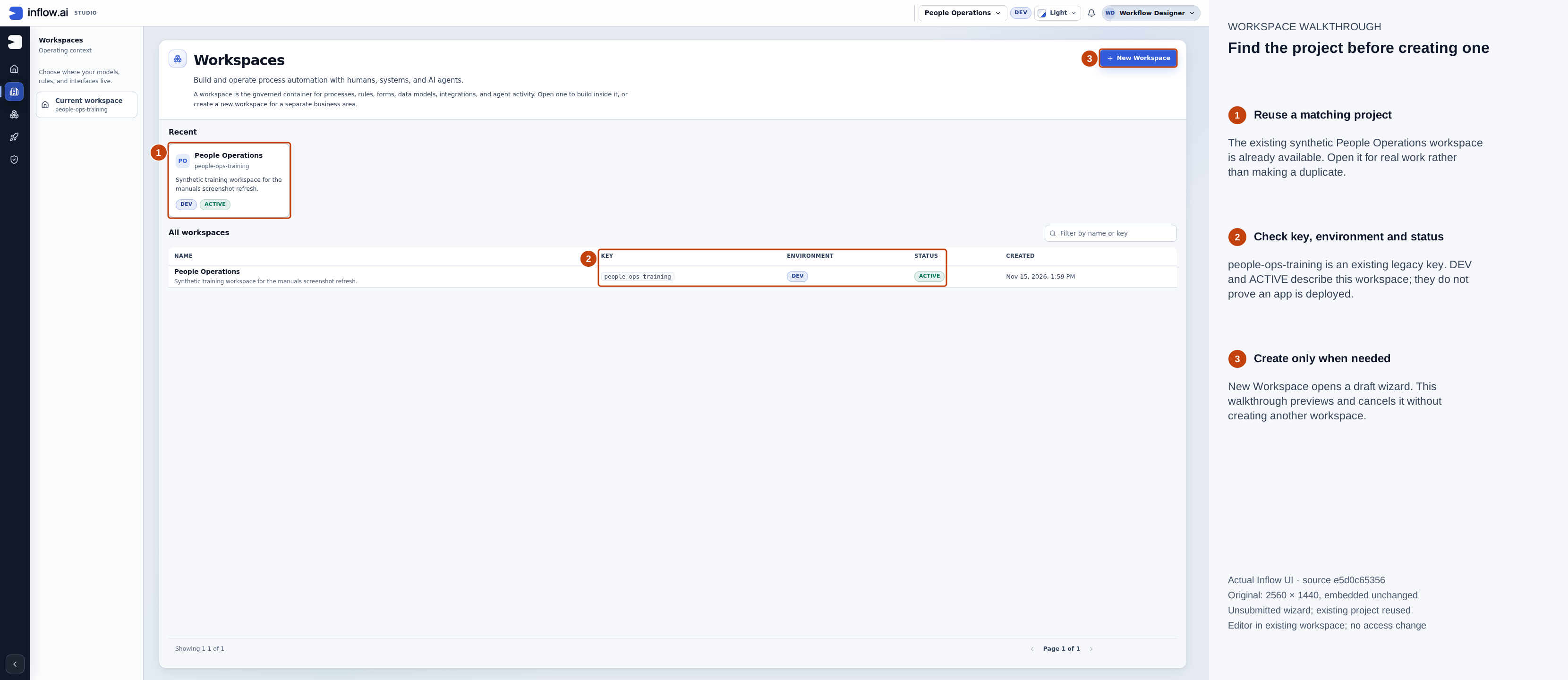
16 November 2026, source e5d0c65356. Open the unchanged original. One existing synthetic workspace is visible. Open its card to work there; New Workspace is only for a genuinely needed new project.
Notice and repair a key mistake
Suppose Nadia types bad key! in the preview. The field shows the format error and Next is unavailable. She reads the message before changing anything else. This is a local input mistake; it does not mean that the existing project has failed or needs replacing.
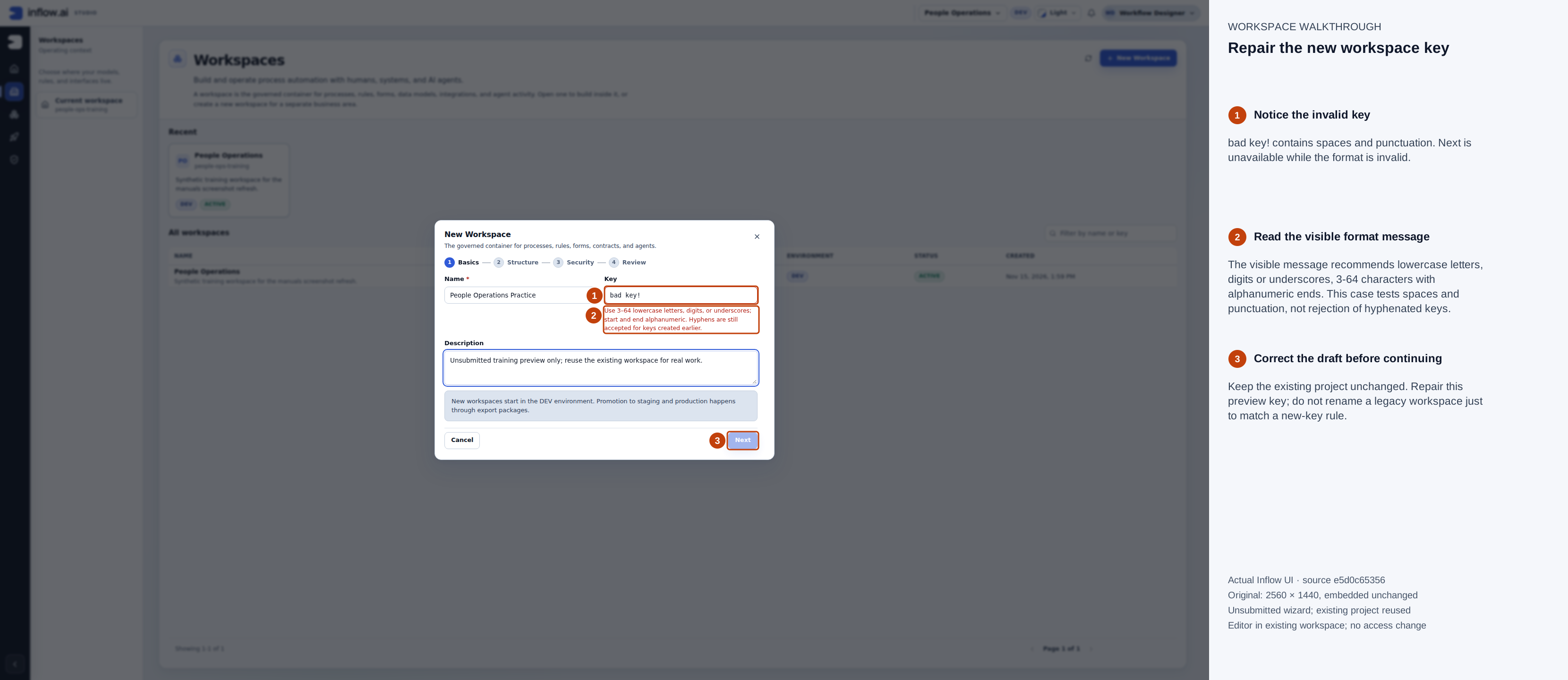
16 November 2026, source e5d0c65356. Open the unchanged original. The invalid preview key contains a space and punctuation. The visible hint recommends underscores, but manually entered hyphenated keys are also accepted by the current format check. This example demonstrates rejected spaces and punctuation; no existing key is renamed.
Nadia corrects the preview to people_operations_practice. Once the availability check has finished, the normal key hint returns and Next is enabled. A valid format alone does not guarantee that a key will remain free in every environment. Use your approved name and an available key when creating a real workspace.
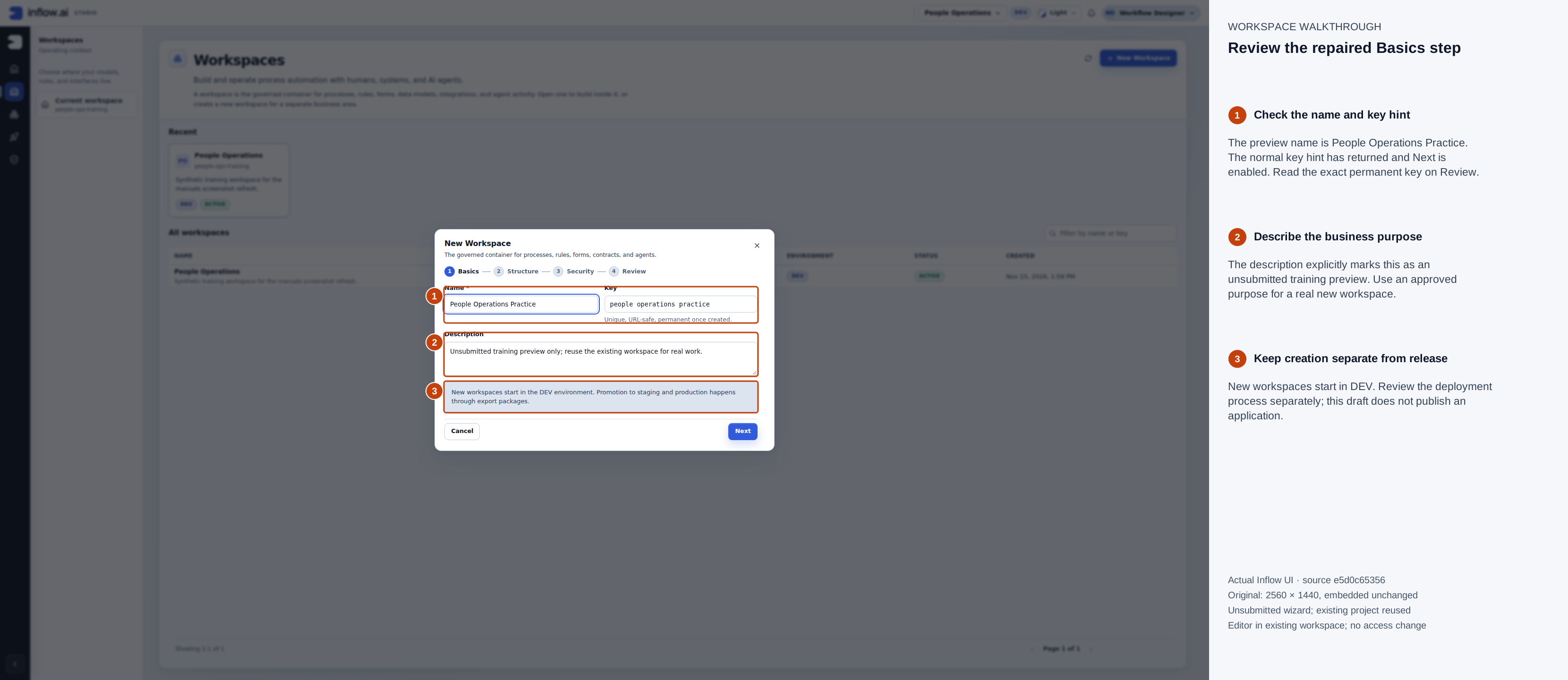
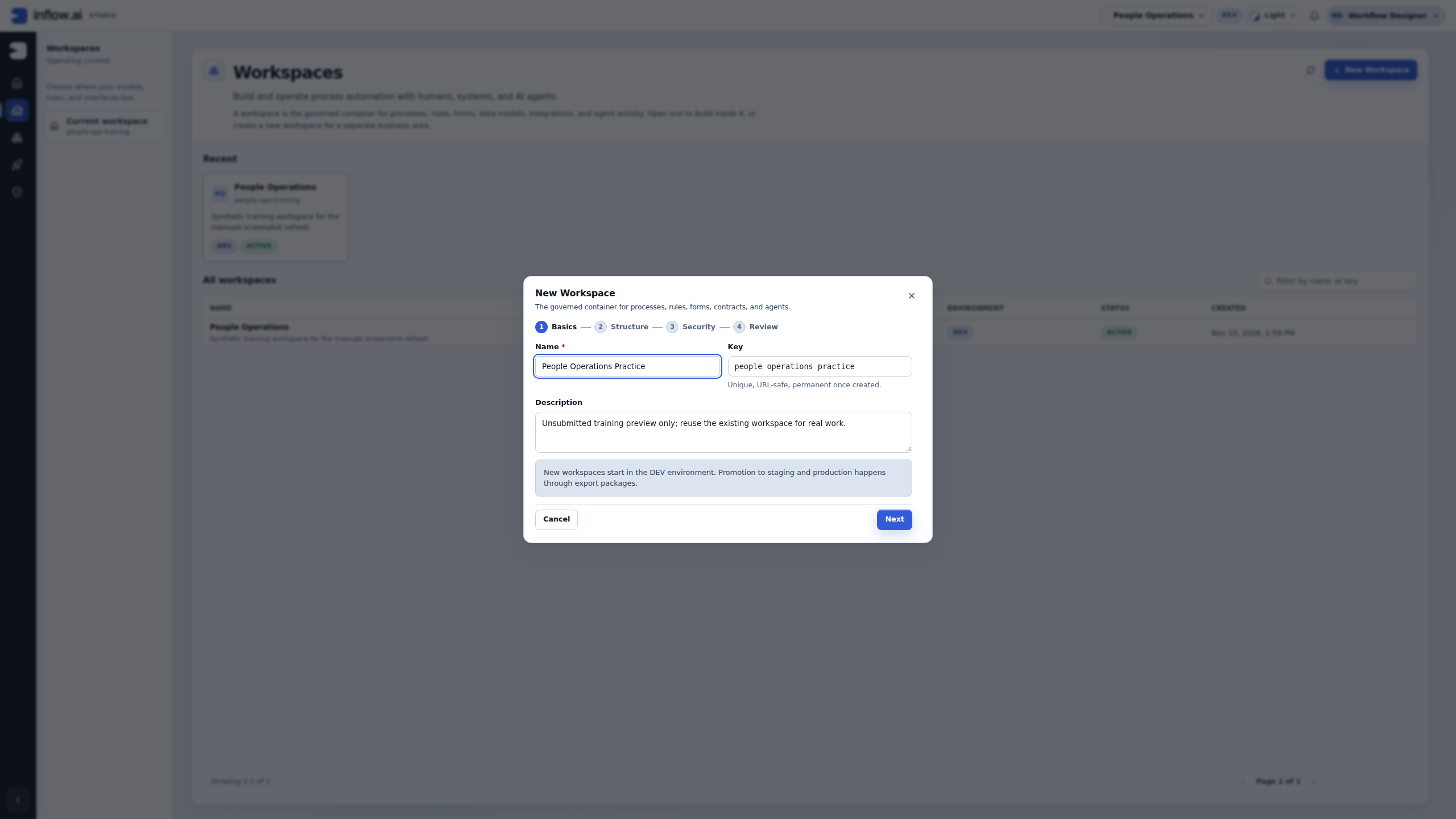
16 November 2026, source e5d0c65356. Open the unchanged original. The normal key hint and enabled Next are visible. Read the exact people_operations_practice key on Review below; the underscore characters are not legible in this Basics image. This remains an unsubmitted preview, separate from the existing workspace.
Review the starting functions
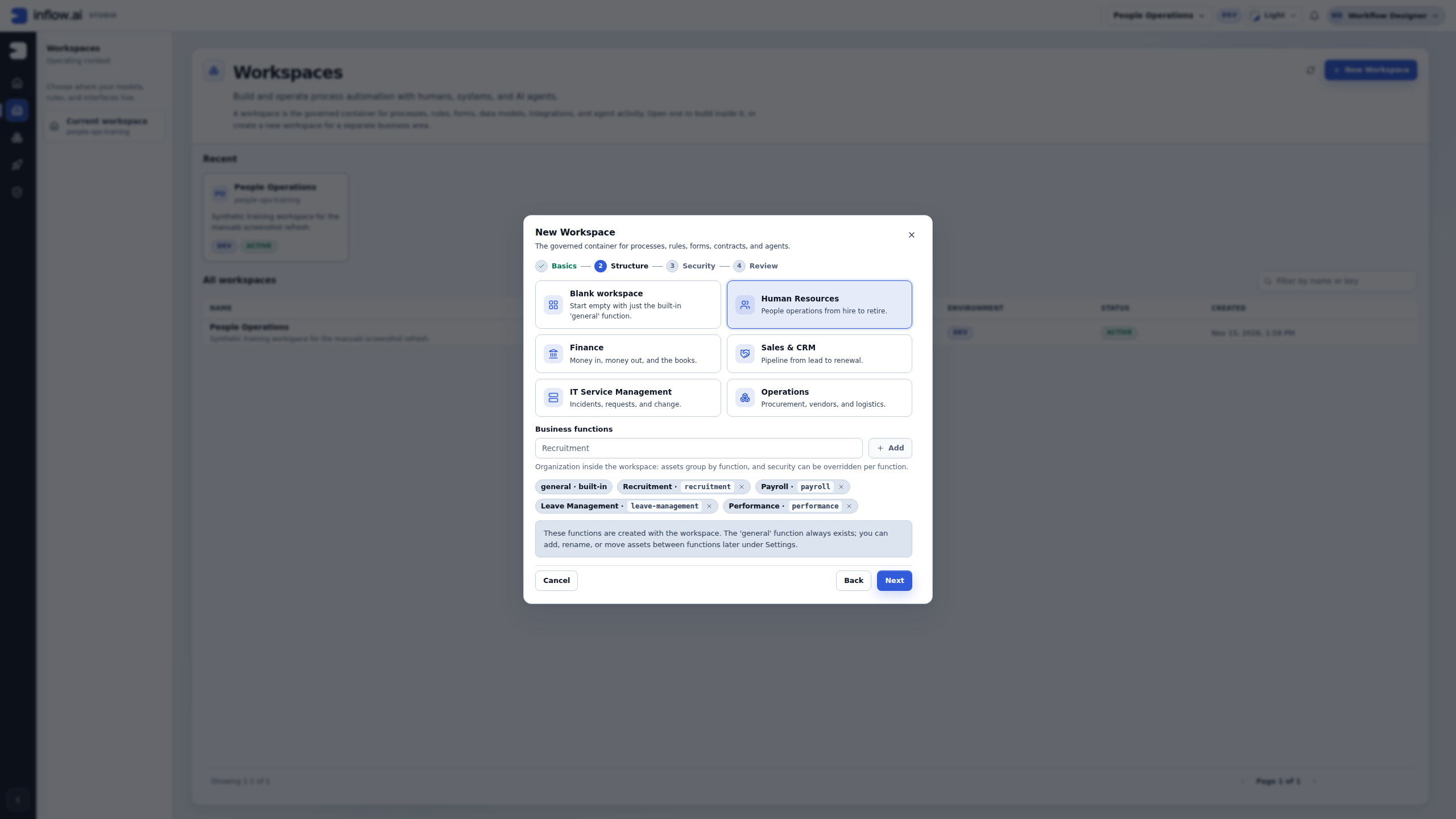
For the People Operations example, Nadia selects Human Resources. It proposes Recruitment, Payroll, Leave Management and Performance, plus the built-in General function. She checks that this structure fits the team before continuing.
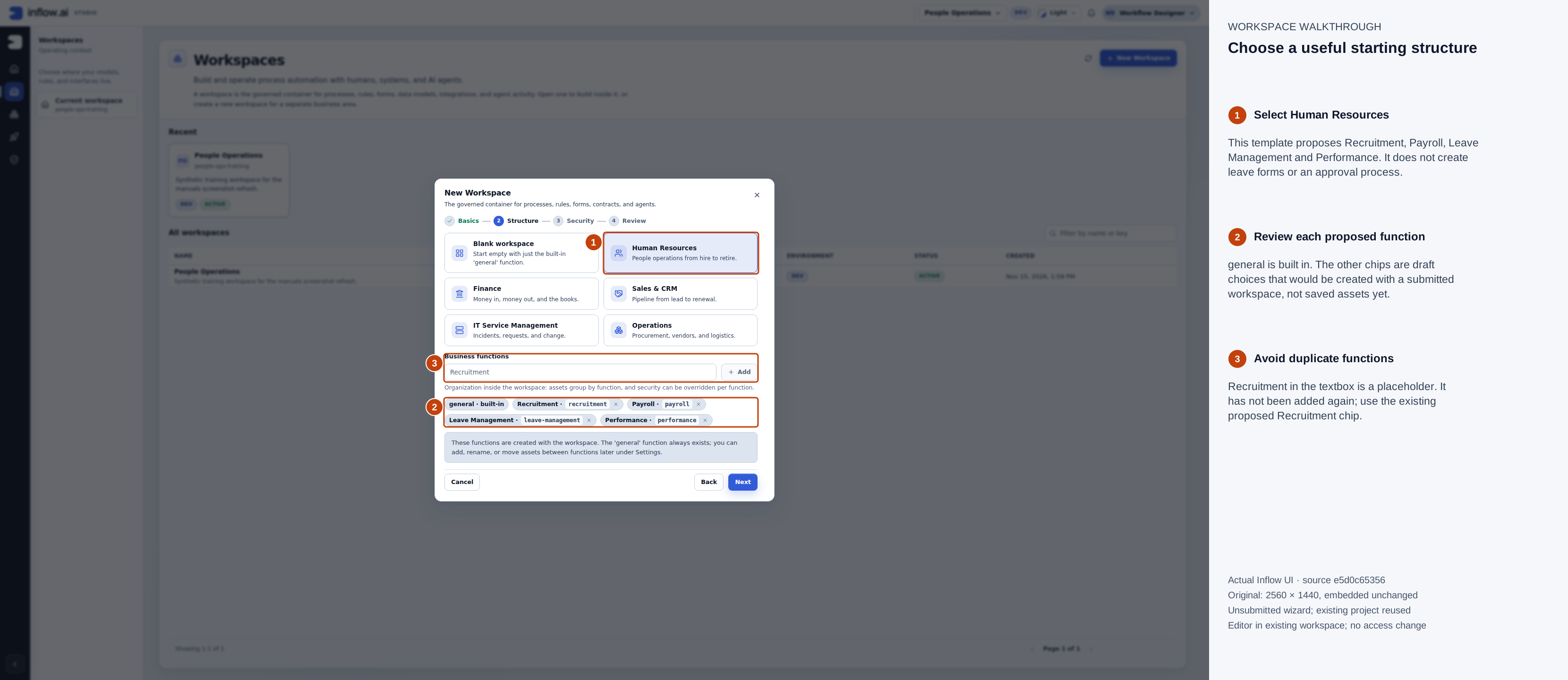
16 November 2026, source e5d0c65356. Open the unchanged original. The functions in this wizard are proposed choices. Recruitment in the textbox is a placeholder; another Recruitment function has not been added.
A template gives a starting structure. It does not build a leave form, store a request or implement manager approval. If a function already appears as a chip, do not add another one with the same purpose. For an existing workspace, inspect its saved functions under Settings instead of replaying creation.
Review people without confusing the access boundaries
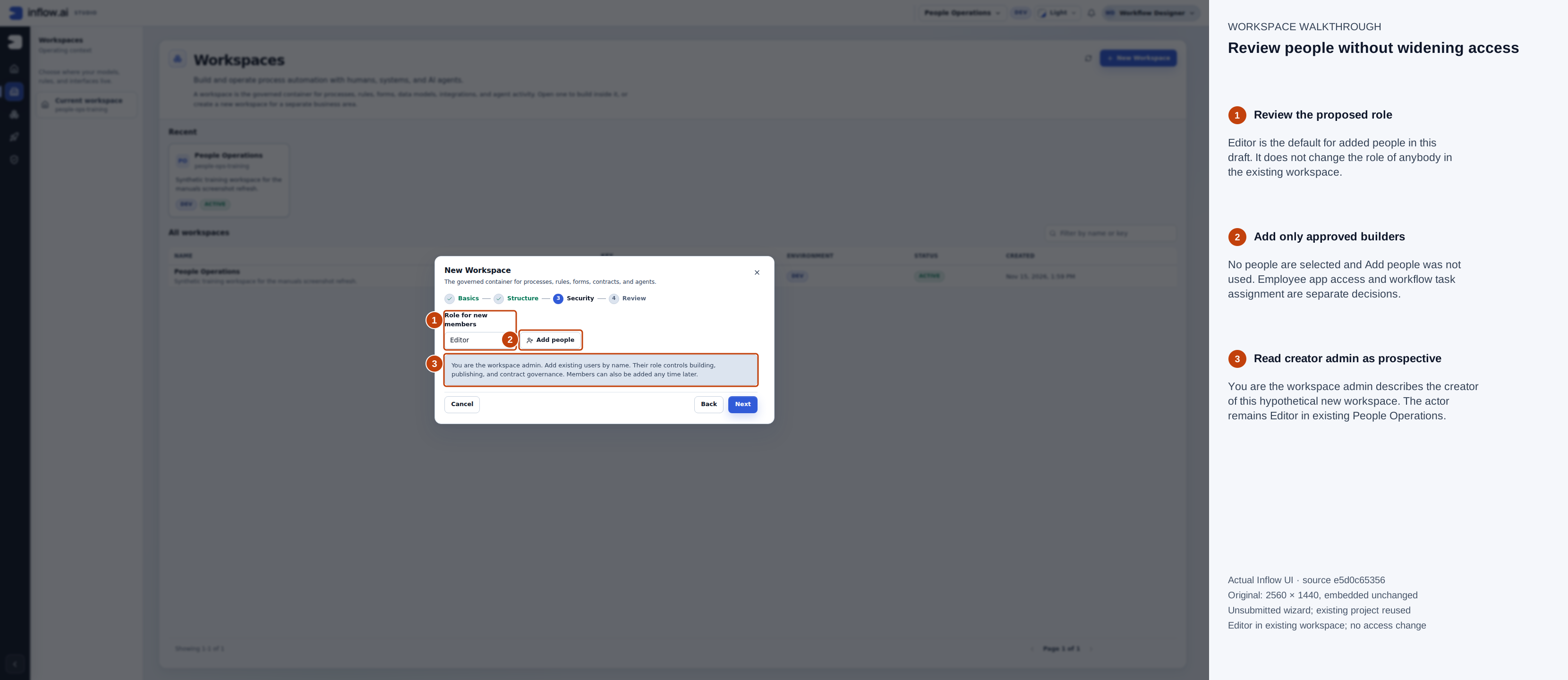
16 November 2026, source e5d0c65356. Open the unchanged original. No additional people are selected. “You are the workspace admin” describes the prospective creator of this new workspace; the signed-in designer remains Editor in the existing project.
For a real new project, select only approved people who should help build or govern it. Role for new members applies to the people you add in this draft. It is not a permission change for the existing workspace, and it does not enroll all employees in the published application. App access and task assignment need their own checks.
Compare the whole proposal, then cancel a practice draft
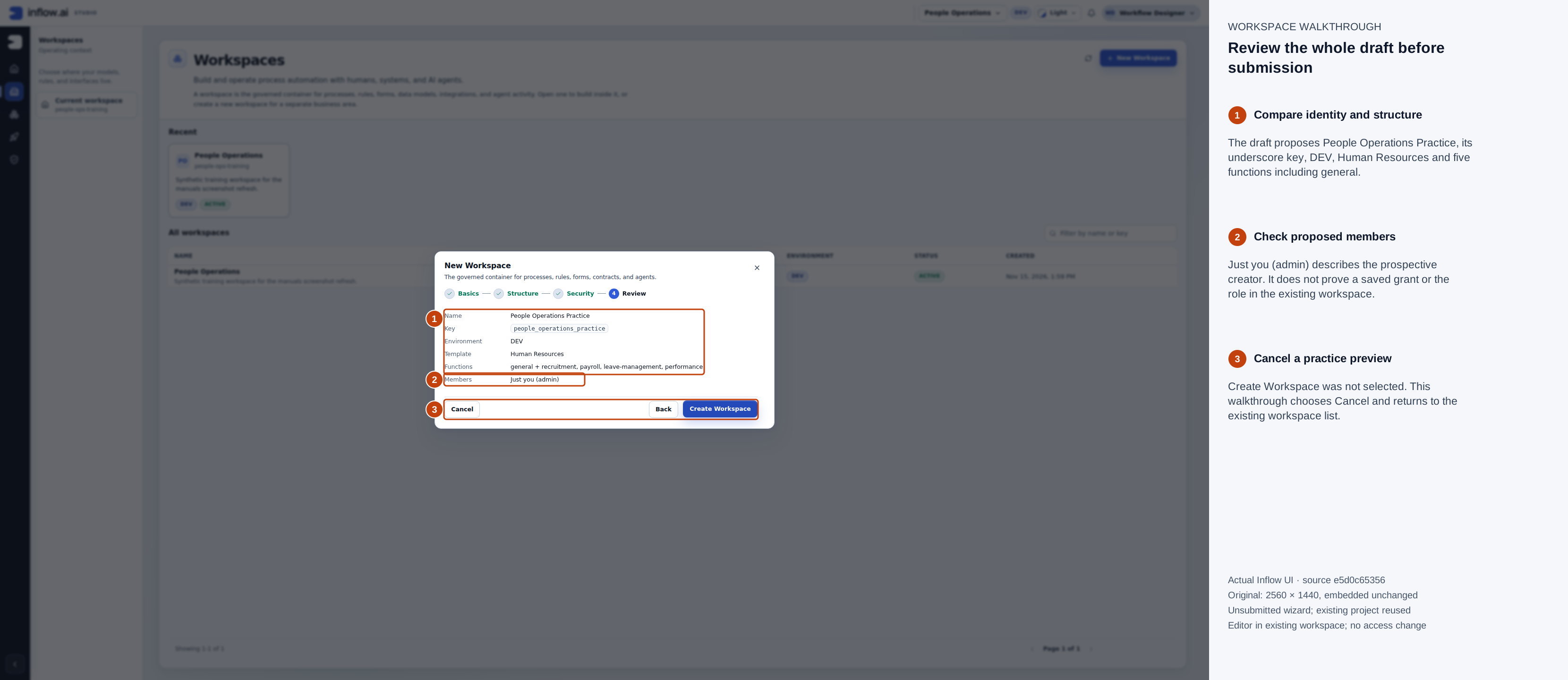
16 November 2026, source e5d0c65356. Open the unchanged original. Create Workspace was not selected. Just you (admin) is the proposed creator membership, not a saved grant or proof of an existing workspace-admin role.
Read all the rows together. A correct name with the wrong key or member list is still the wrong proposal. Use Back to repair it. Choose Create Workspace only for an approved real creation. For this practice preview, Nadia chooses Cancel.
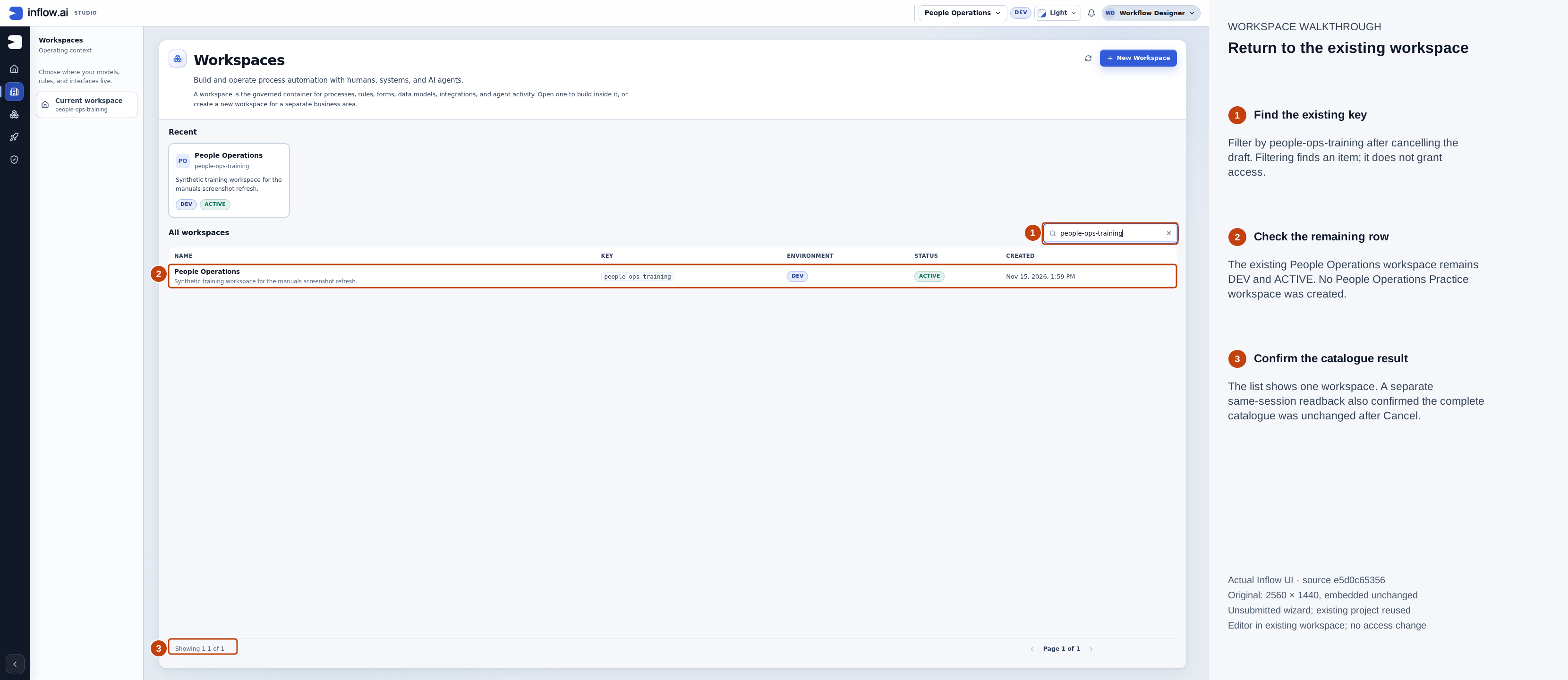
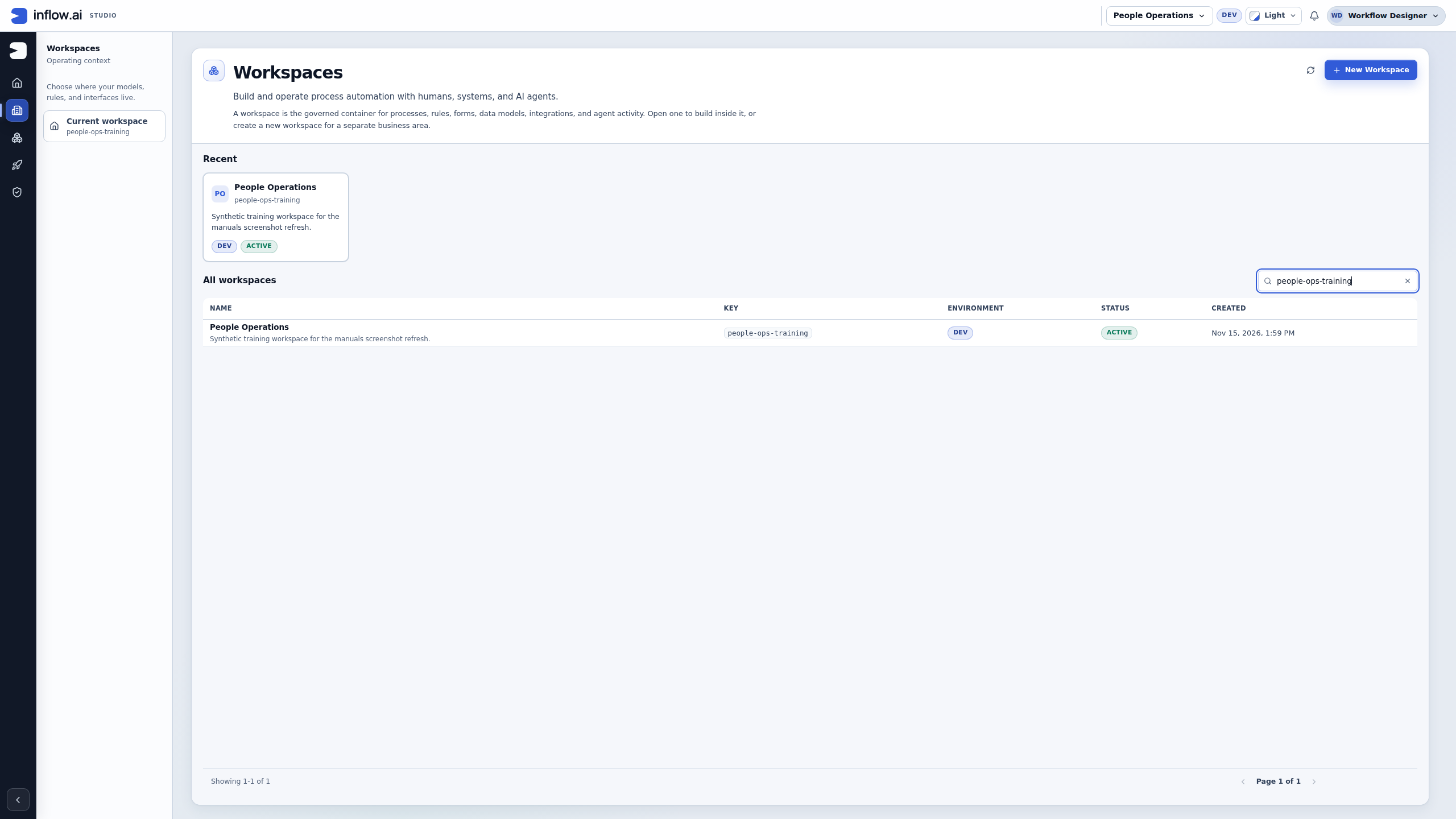
16 November 2026, source e5d0c65356. Open the unchanged original. The wizard is closed and the list still contains only the existing workspace. A same-session readback confirmed the complete workspace catalogue was unchanged.
Open the existing project and read the result
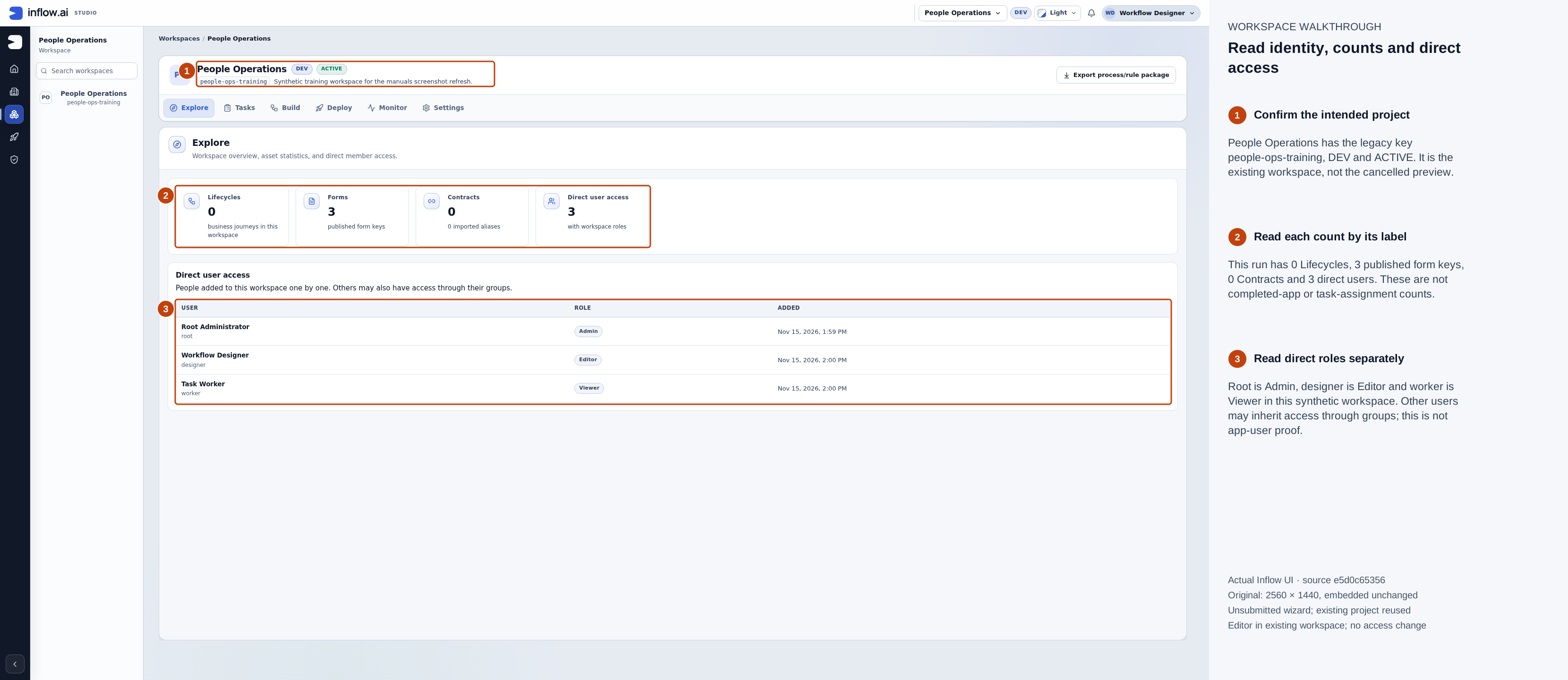
16 November 2026, source e5d0c65356. Open the unchanged original. This run has 0 Lifecycles, 3 published form keys, 0 Contracts and 3 direct users. The displayed direct roles are synthetic existing assignments; none was changed during this walkthrough.
The Explore counts have different meanings. Three published form keys do not mean that three applications are deployed. Zero lifecycles means no business journeys appear in this workspace at capture time. The direct-user count lists people added one by one; other people may also have workspace access through groups.
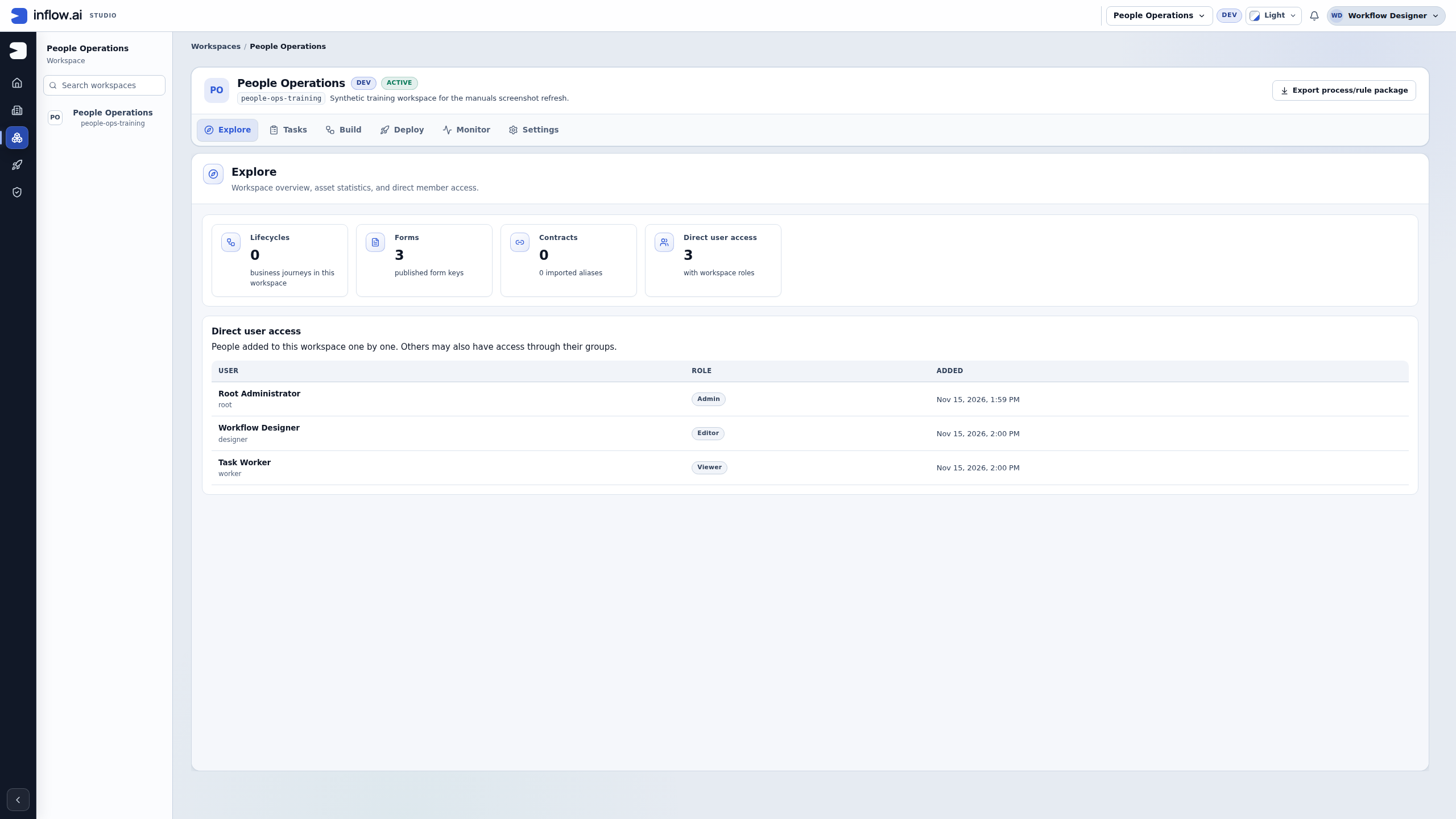
In this example, Root Administrator is Admin, Workflow Designer is Editor and Task Worker is Viewer. These are roles in the existing workspace. They do not establish whether an employee can open a published app, read a particular business record or complete a manager task. The missing Security and management controls are the visible view of this particular actor, not a complete permission-enforcement test.
Check the result: confirm the workspace name, stable key, environment and status before creating assets. Review the labels beside each count and use the appropriate owner to resolve access questions. The screenshots demonstrate navigation and cancellation; successful creation, partial-setup retry, saving member assignments and employee authorization remain separate journeys.
Recover when creation finishes only part of the setup
The following is guidance for a real creation result; this walkthrough did not submit the wizard or force a partial-setup failure. Workspace creation, function scaffolding and member assignment are separate saved outcomes. The wizard keeps the created workspace when some functions or members fail; its result step names the remaining work and offers Retry remaining setup. Retrying uses the saved workspace rather than creating another one.
- Read the result step's Workspace created message. Confirm that it names People Operations before continuing.
- Read Some functions could not be created and Some members could not be added separately. Note the exact function keys and people shown; do not infer that the whole setup failed.
- Choose Retry remaining setup once the cause is resolved. The wizard retries only the functions and members that remain. Existing successful setup is not a reason to create the workspace again.
- Review the refreshed result. If only member assignment remains, you may open the workspace and add those people from its Explore tab, if you have permission. If a function remains, retry it or add it later under Settings. Ask the workspace owner to complete any action you cannot perform.
- Check the workspace header and the Business functions and Members lists. Confirm that each required person and function is present before telling the team setup is complete.
Example: the workspace exists, but one collaborator is still missing
Nadia creates People Operations with Leave management and adds Omar as an Editor. The result step confirms that the workspace exists but reports that one function could not be created and Omar could not be added. Nadia does not restart the wizard or create a second workspace. She resolves the reported cause, chooses Retry remaining setup, and reviews the result again.
If the function setup is still incomplete, the result tells Nadia that it can be retried or added later under Settings. If Omar's assignment is still incomplete, she can retry it or open the workspace and add him from Explore if she has the required permission. The workspace is not ready for Omar to build until the Members list and his effective role confirm the assignment. The project header alone proves only that the workspace exists.
If Nadia chooses Open workspace without them, that opens the existing workspace; it does not complete the pending function or member work. She records what remains and asks an owner with the required access to finish it.
Organize work with business functions
A small project can start with the functions provided during creation. Add more when they make the project easier to understand, not simply to create folders for every form.
- Open the intended workspace, choose Settings, and find Business functions.
- Check the list for the function you selected during workspace creation. If Leave management is already there, open and use it; do not create a second function with the same purpose.
- If the function you need is missing and your workspace role permits function management, choose New function, enter its clear name, review the Key, and add a short description. If the action is absent, ask the authorized workspace owner to review the need; do not change your own role to expose it.
- Choose Create only for that new function, then check that it appears in the list.
- When you create or organize an asset, select the intended function through its supported controls. Review function access separately when different teams should have different rights.
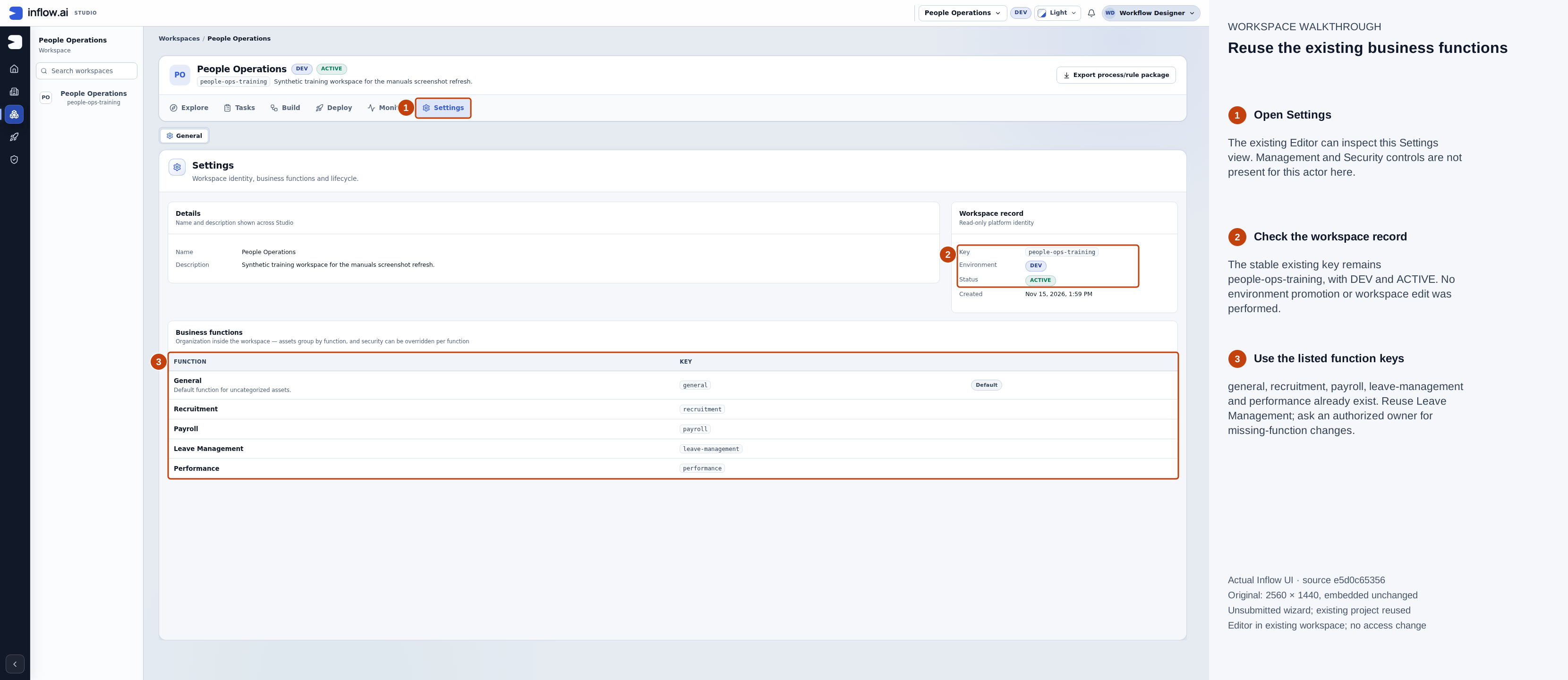
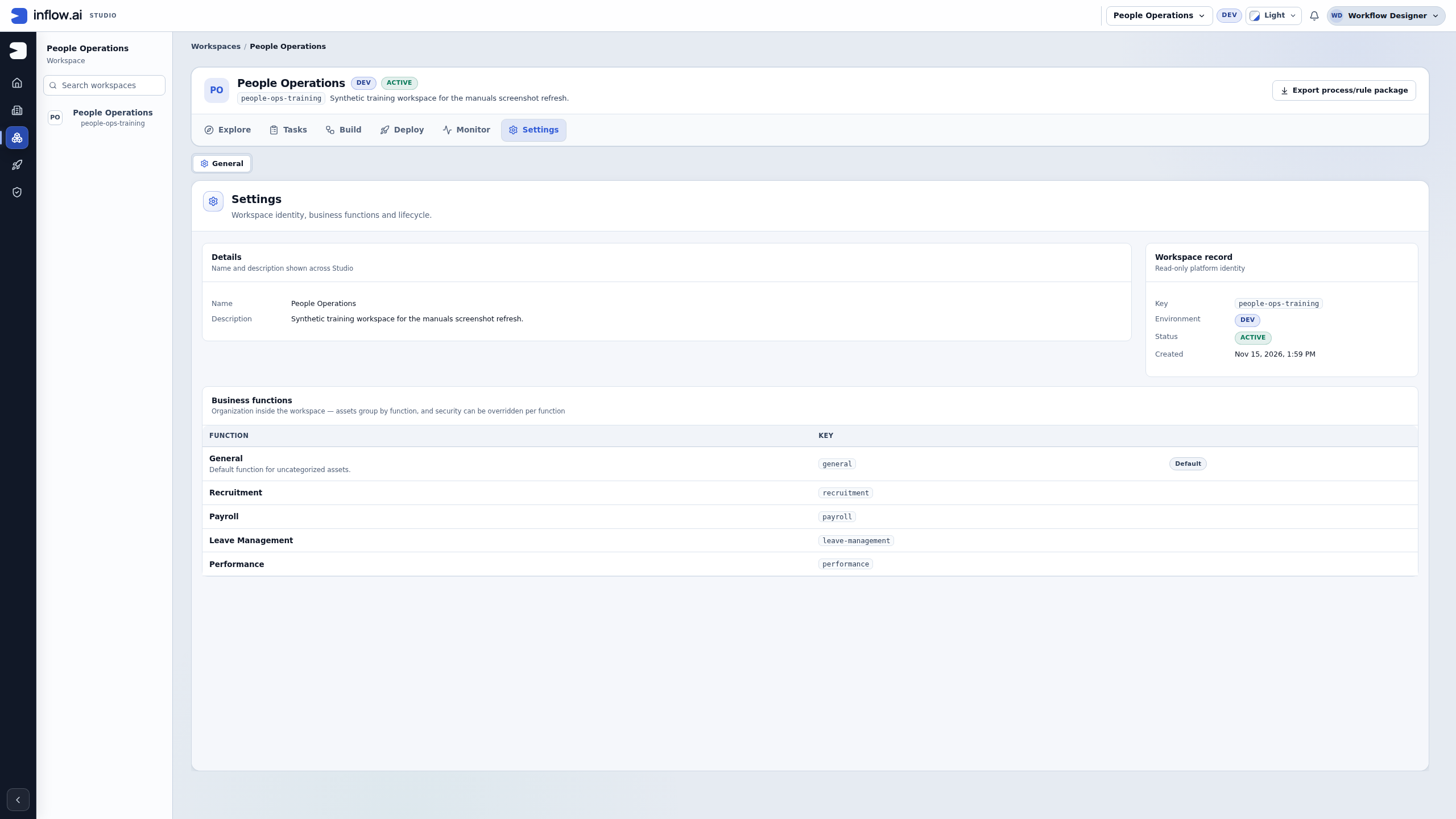
16 November 2026, source e5d0c65356. Open the unchanged original. The existing Editor can read this list. New function, management menus and per-function Security actions are absent in this view; no function or access change was made.
The saved list already contains Leave Management with key leave-management. Reuse it in the later lessons. The underscore convention used in the wizard example does not require renaming existing function keys. General is the built-in default function. Ask an authorized owner to create or change a missing function; the pictured Editor view is read-only here.
A function helps organize assets and can affect their access. Moving something to another function is therefore worth reviewing with the workspace owner.
Example: one team builds the leave application
Nadia and Omar both configure forms and rules. Sara reviews the result, while Mohammad will use the published application later. Nadia creates People Operations, adds Leave management, and asks the owner to give the two consultants the intended builder roles. Sara receives only the review access the project requires.
After creation, Nadia opens People Operations, confirms the workspace and creates the leave model there. She organizes the assets that support function selection, such as the related forms, rules and process, under Leave management using their supported controls. Omar can find the same project rather than creating a second workspace with a similar name. Mohammad does not need a builder role: application-user access is prepared after the app is published.
The useful result is a clear shared starting place. If Omar cannot see it, the owner checks his actual membership and effective access. Sending him the URL does not add him as a member.
Example: separate Purchasing from People Operations
A purchasing team asks Nadia to add supplier onboarding. Some of its information and administrators differ from People Operations. Nadia first asks whether this belongs in the same project. If ownership and access should be separate, she creates a Purchasing workspace with its own members and business functions.
She does not assume that the two workspaces share access because both are in Inflow. She selects the correct workspace before creating supplier records or forms. A collaborator who belongs to both can choose between them; a collaborator who belongs to one should not receive the other's information through a copied link.
If a shared rule or service is needed later, use the supported sharing arrangement with the owners. Do not duplicate confidential data as a shortcut.
Common mistakes
| What happens | What to check |
|---|---|
| New workspace is absent. | Ask the administrator whether you may create one. A direct link does not replace that permission. |
| The key format is rejected. | Use 3–64 lowercase letters, digits, underscores or hyphens and start/end alphanumeric. The tutorial uses underscores. Remove spaces and punctuation; keep existing workspace keys unchanged. |
| The key is already used. | Open the existing project if it is yours, or choose a different valid key. Do not overwrite somebody else's workspace. |
| A colleague cannot see the project. | Ask the owner to review that person's membership and access. |
| A business function looks wrong. | Review its name, assets and access before moving or deleting anything. |
| You expected employees to see the final app. | Workspace creation and application-user access are separate tasks. |
A short handover example
Nadia records: “Use existing People Operations (people-ops-training), DEV/ACTIVE. Leave Management already exists as leave-management. Designer is Editor. The creation preview was cancelled; no workspace or member assignment was saved. Next: build the leave model and form, then check published-app access and manager assignment separately.” Omar can now continue in the same project without recreating it or assuming that Mohammad has employee access.
Continue the project
Read workspace and function access, then create the leave data and rules. Keep the workspace name and intended team roles in your project notes.
Further reading
Optional technical reference — detailed contracts and implementation information for your administrator or developer. You do not need it to follow this lesson.