7. Use a few useful formulas
A formula calculates a value or answers a question using information available to the form. A condition returns true or false. For example, “are the requested days greater than five?” can decide whether a coverage question appears. Start with the business meaning, then test a matching case, a nonmatching case and the exact boundary.
You do not need to edit the whole screen in Code for this lesson. Use the selected control's Properties and its focused expression editor. The same condition has different effects in different properties: Visible when decides whether the control appears; Required decides whether its answer is needed; a Validations condition shows its message when true. Configure the property that matches your purpose.
The current story below uses a separate Coverage condition practice draft. Its twelve numbered guides come from native 2560 × 1440 captures on 16 November 2026, build of master a4ccd998c9. They show the normal Designer account with Admin in People Operations Access Practice, without platform bypass. This author Preview is not evidence of employee access, a saved leave request, an entitlement calculation or an approval. The three clearly historical illustrations near the end remain from 8 November and are not current-build proof.
Before you start
Use a workspace where you may author a synthetic practice Form. Keep existing forms intact. If the named practice already exists, inspect its actual inputs, bindings and saved conditions before repeating the lesson; do not create duplicates or overwrite another person's work to make your screen look like a picture.
- For a new practice only, choose Build → Forms → New form, keep Form, and select the appropriate placement. The captured run uses Leave Management.
- Give it a distinct title such as Coverage condition practice, an available key such as
coverage_condition_practice_20261116, and a description saying it is a fictional draft/Preview exercise with no submission. - Review the details before Create interface. Creating this draft is separate from publishing it.
- Keep the exercise to the Form root and the three questions described below. Add no Submit button, automation, record connection, rule, task or provider action. Inspect the configuration; a description alone does not make a form inert.
- Keep the form Not Published throughout this chapter. Use Check form in Interactive Preview, not Publish, Publish & open live or a business submission.
The captured form ends as saved draft revision 15 with no published version. Earlier choice, tracking and publication practice forms were retained unchanged. Your revision number may differ after saved edits; there is no need to reproduce that number.
Example 1: show an extra question for a longer request
For this first exercise, the training rule is simply: show Coverage arrangements when Requested days is greater than five. The Unpaid leave checkbox is present but does not affect this first rule. Example 2 changes that policy deliberately so you can see why two conditions differ from one.
1. Declare three typed answers
- Open Inputs in the designer's right panel. Inspect existing names first.
- Retain each matching answer. Add only a missing answer, using the names and types in the table.
- Keep each answer Single, with Default empty. Leave the declaration's Required switch off; the visible question will get its own conditional requirement later.
- Leave each Name field, for example with Tab, so the name is committed. Check the three distinct names and types, then Save and wait for Saved remotely.
| Input Name | Type | Meaning |
|---|---|---|
requestedDays |
Integer, Single | The whole number entered in Requested days. |
isUnpaid |
Boolean, Single | The Unpaid leave checkbox answer. |
coverageDetails |
Text, Single | The explanation entered in Coverage arrangements. |
A Label is the wording a person sees. An input Name identifies the answer selected by the picker and formula. The control's own Name identifies that component; it is a third concept. Keep them deliberate rather than renaming several things just to match the visible question.
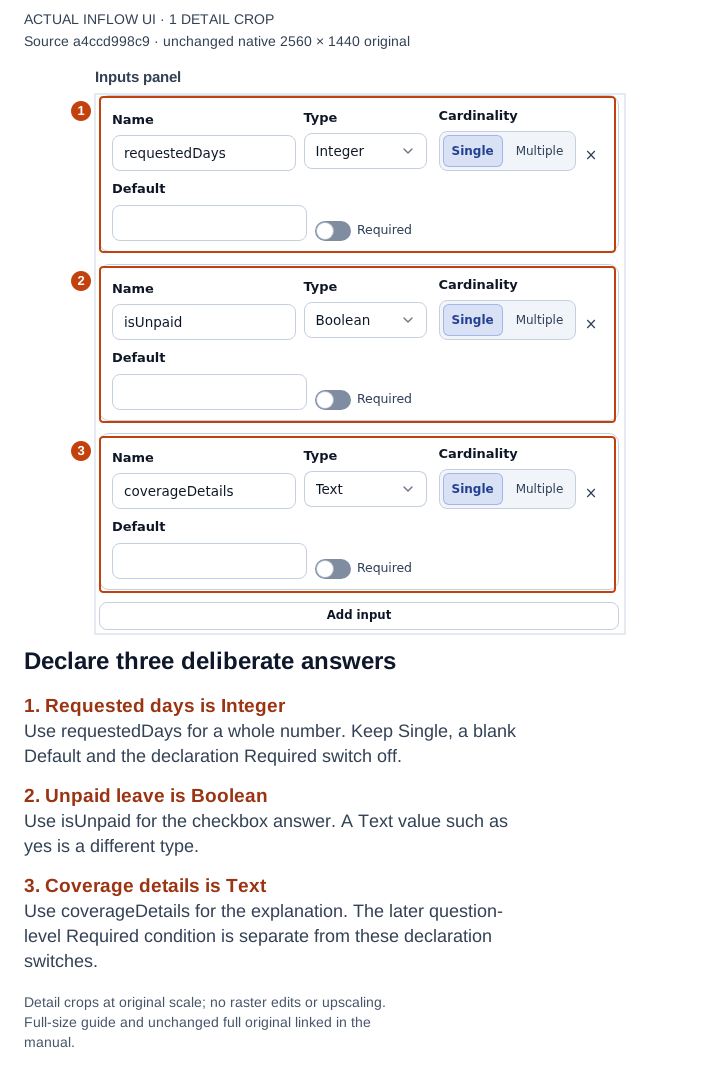
1–3: the three saved declarations have distinct types, blank Defaults and Single cardinality. These declaration switches are separate from conditional Required on a question. Open the full-size numbered guide · Open the unchanged full 2560 × 1440 screenshot.
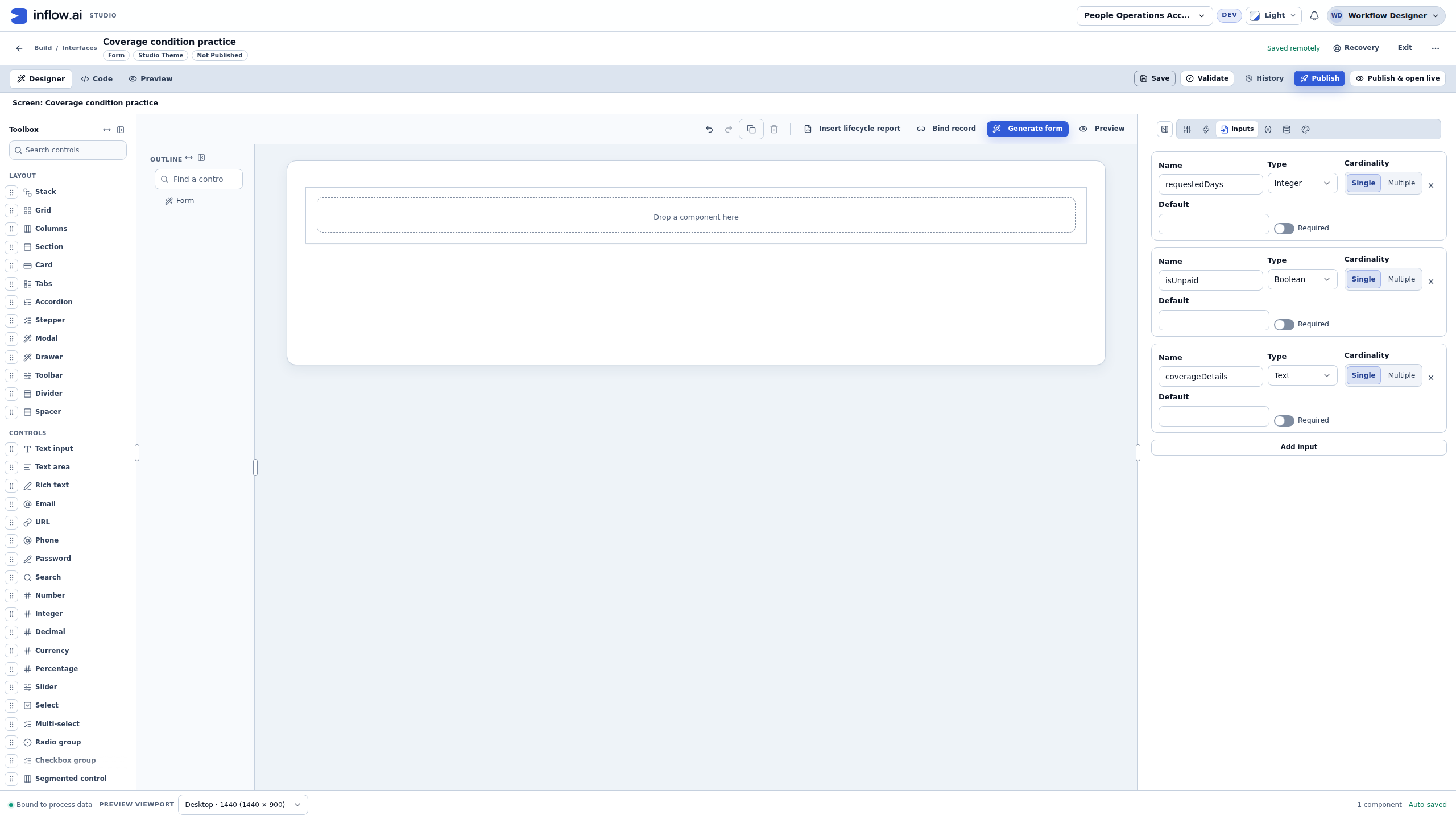
2. Add questions and connect each answer
- Add an Integer control. Set Name to
requestedDaysQuestionand Label to Requested days. - In Data Binding → Store value in, choose the actual Requested Days Integer answer,
inputs:requestedDays. Retain the ordinary minimum of zero for this exercise; do not type negative days to test the five-day threshold. - Add a Checkbox, with Name
isUnpaidQuestionand Label Unpaid leave. Choose Is Unpaid,inputs:isUnpaid, as its destination. - Add a Text area, with Name
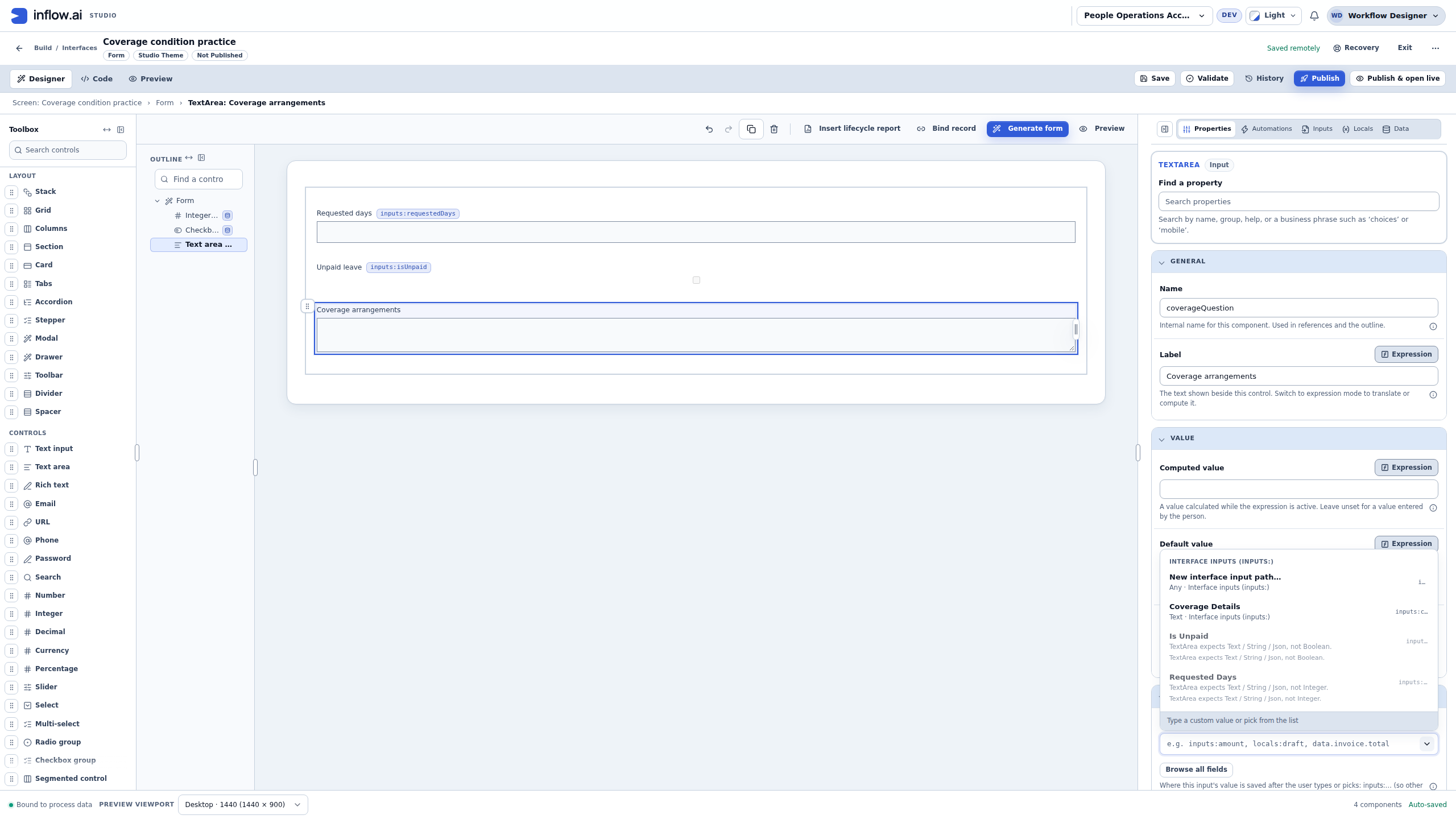
coverageQuestionand Label Coverage arrangements. Choose Coverage Details,inputs:coverageDetails. - Keep Computed value and Default value empty on these questions. People will enter their answers in Preview.
- Save and inspect the binding badges. Each question must point to its intended answer.
The picker checks type compatibility. A Text area cannot use this Boolean or Integer answer as its Text destination. Do not turn the input into Text merely to remove that warning: that would change what the number or checkbox means to the formula. Compatible types also do not identify the business answer by themselves; choose the actual intended name.
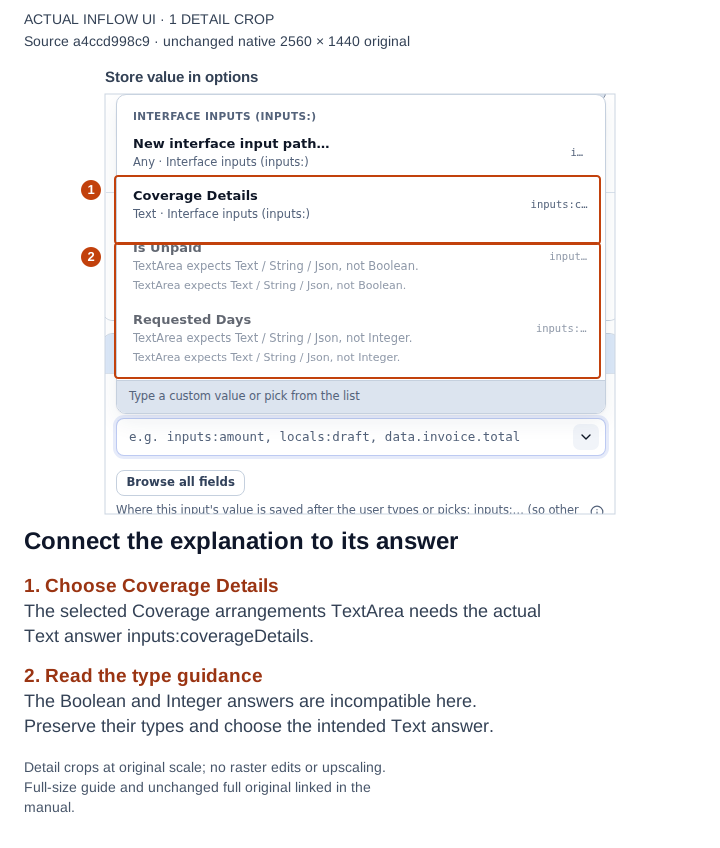
1–2: choose the Text answer for the selected Coverage arrangements question. The other two declared types remain deliberately incompatible with this Text area. Open the full-size numbered guide · Open the unchanged full 2560 × 1440 screenshot.
3. Build the single condition in the focused editor
- Select Coverage arrangements in Outline and confirm the selected component path.
- Open Visibility → Visible when. Use its Expression affordance, then Open editor.
- Read the dialog title and context: this is the Visible when property of
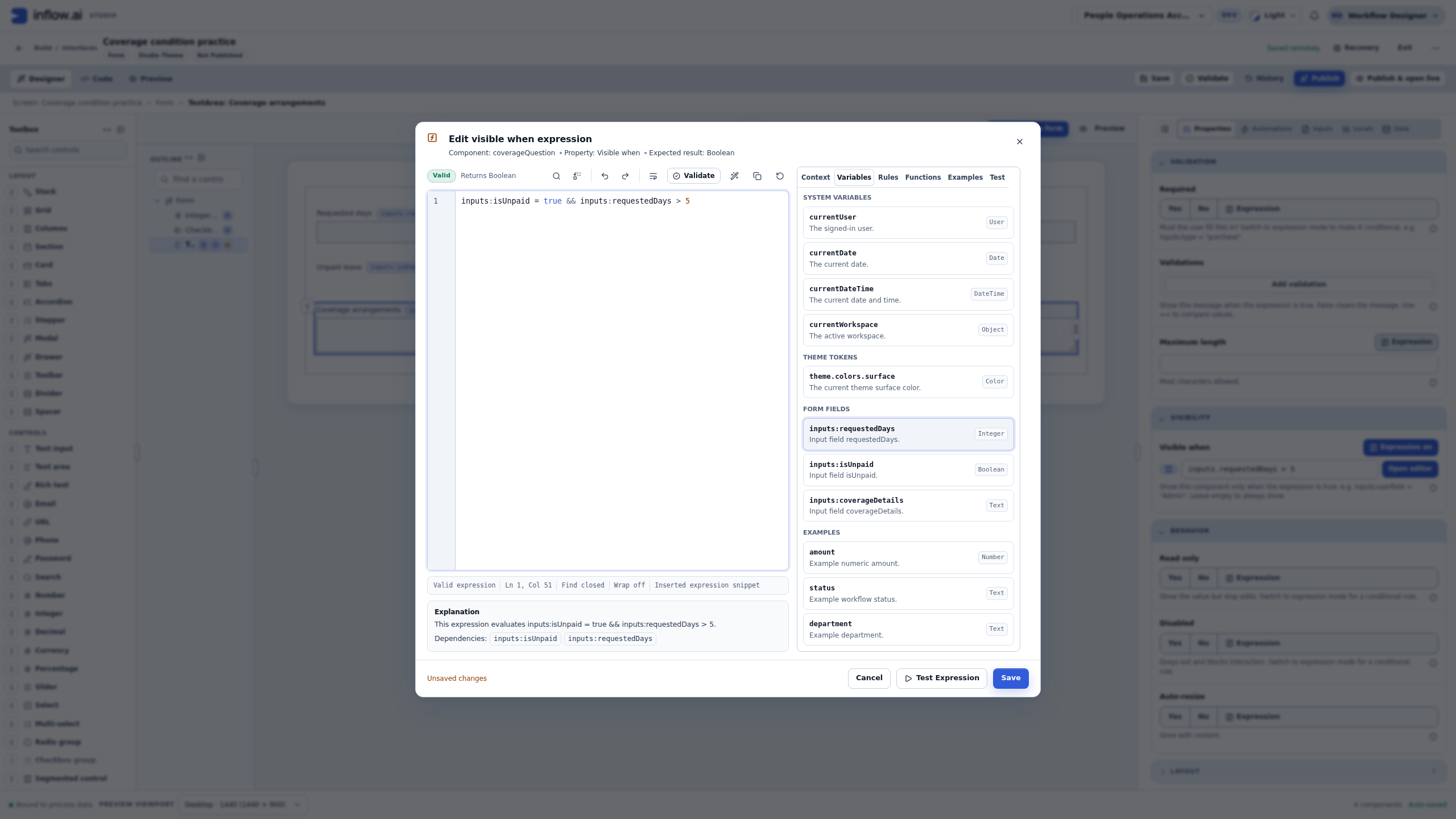
coverageQuestion, with an expected Boolean result. - Open Variables → FORM FIELDS. Choose the actual Integer field inputs:requestedDays.
- Append the comparison
> 5. The expression in this editor is:
inputs:requestedDays > 5
| Piece | Meaning |
|---|---|
inputs:requestedDays |
The declared answer selected from this form, not the visible Label. |
> |
Strictly greater than. |
5 |
This exercise's training threshold. Exactly five does not match. |
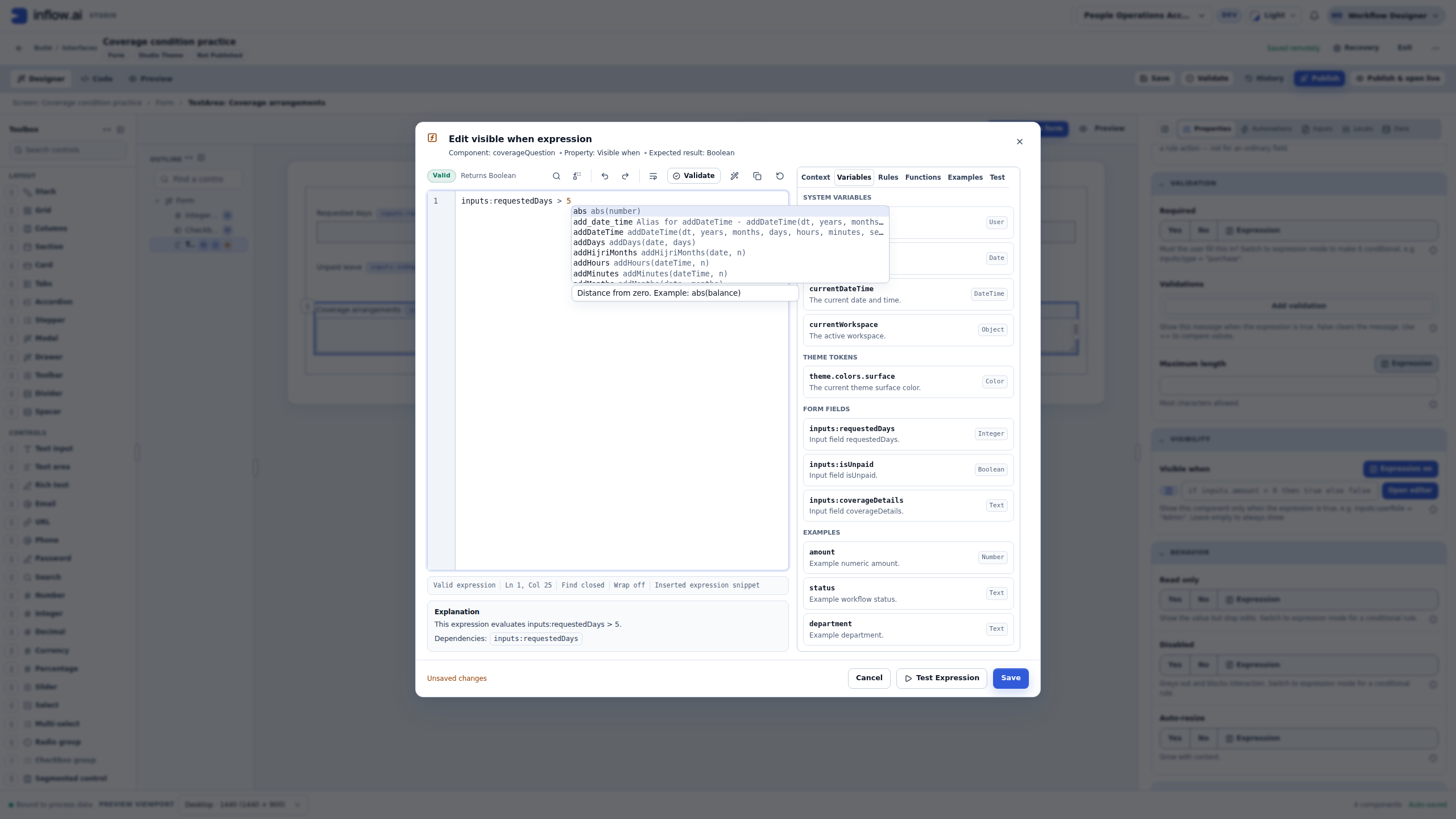
The editor can normalize the chosen field to inputs.requestedDays when you save and reopen it. Keep the editor's supported representation; do not add a second input or manually edit the whole screen document to imitate a different spelling. A suggestion popup is a choice list, not proof that the expression was saved or tested.
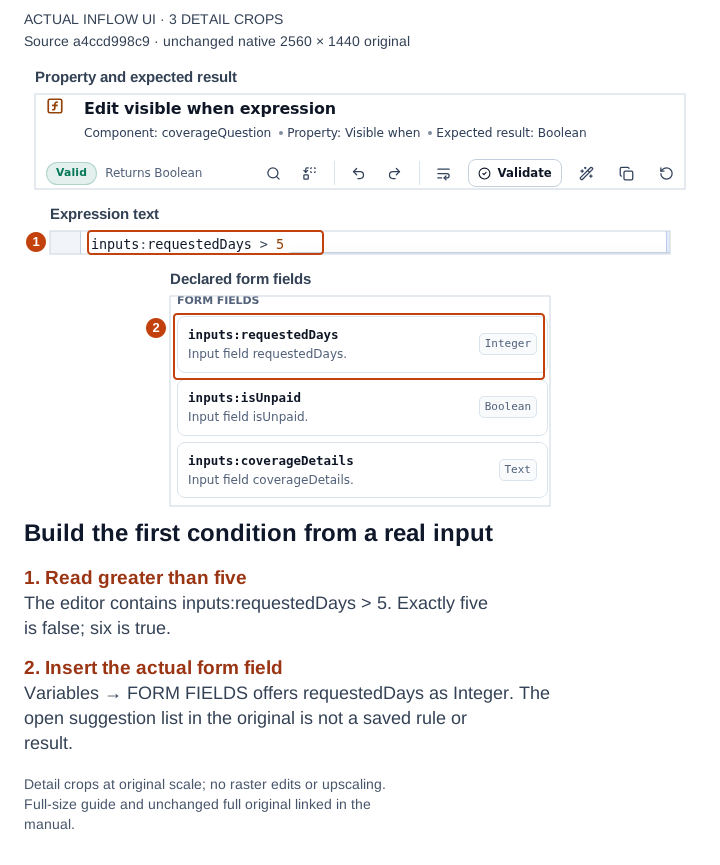
1–2: the actual field choice and the one-input comparison. The original contains an open suggestion popup; the detail guide separates the relevant property, expression and declared-field areas without changing their pixels. Open the full-size numbered guide · Open the unchanged full 2560 × 1440 screenshot.
4. Test a small sample before saving
The expression editor's Test tab and Interactive Preview answer different questions. Run Test evaluates the expression against the Sample values JSON. It does not fill the visible form's answers, publish anything or perform an approval.
-
Open Test in the expression editor.
-
In Sample values, enter
{"inputs":{"requestedDays":5}}. This supplies only the one fictional number needed for the test. Keep 5 as a number, not quoted Text. -
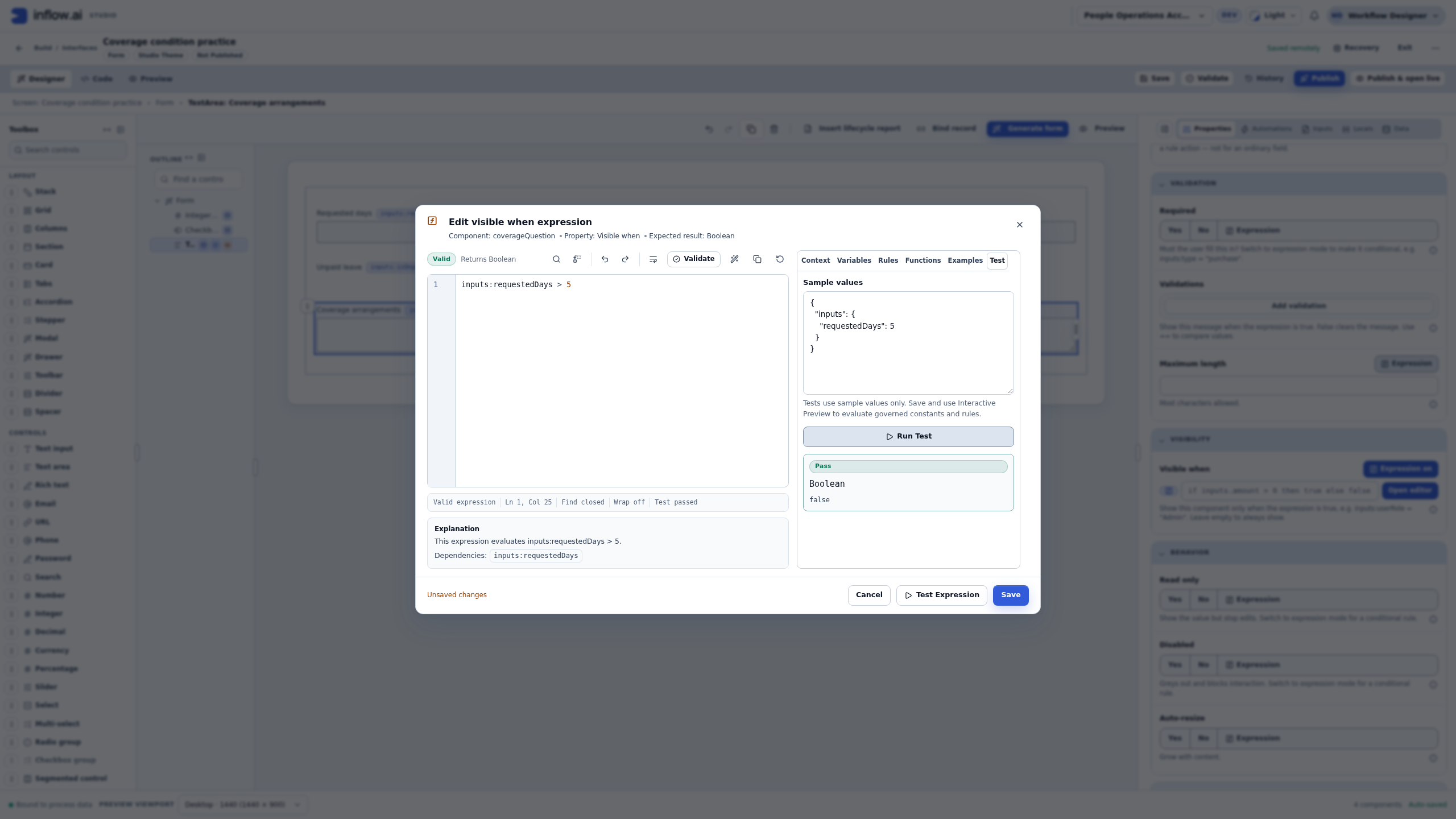
Choose Run Test. Read the type and value, not only the green status. The captured result is Pass → Boolean → false.
-
Change only requestedDays to 6 and run again. The observed result is Pass → Boolean → true.
-
Choose the expression dialog's Save, then the designer's Save and wait for Saved remotely.
Pass with false is a successful expression evaluation. It says the condition did not match that sample. It is different from a form reporting a missing required answer. Likewise, a successful sample is not proof that a question is bound correctly in the form; test that next.
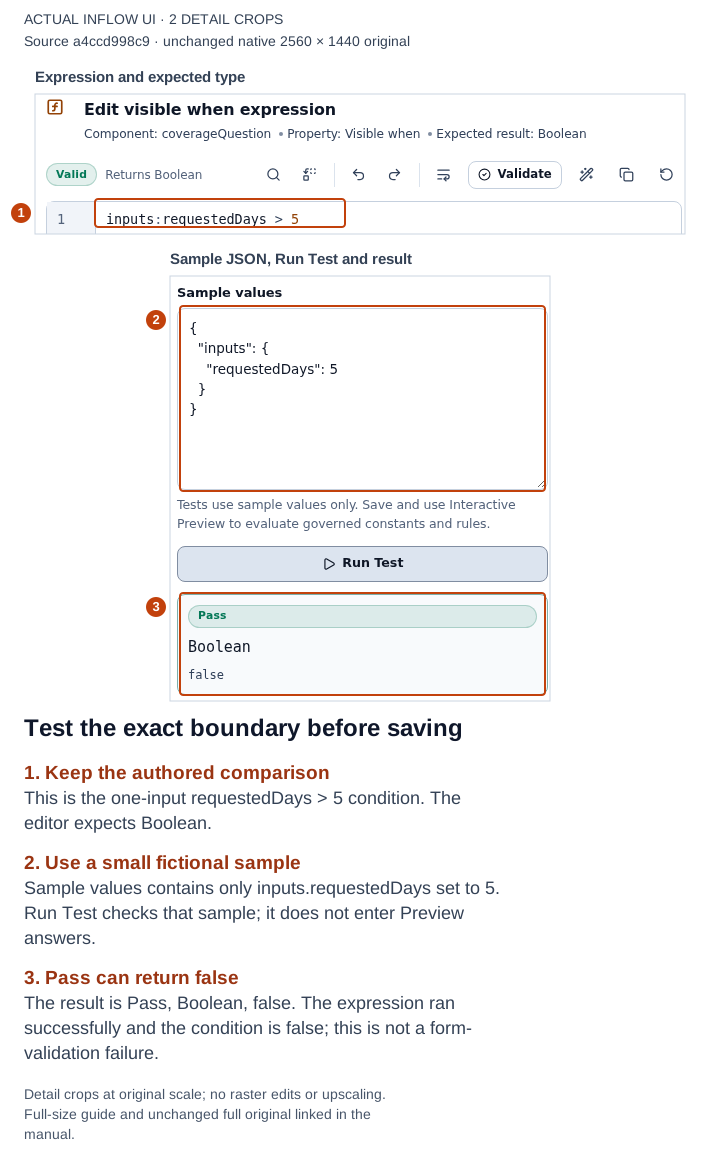
1–3: one-input comparison, minimal five-day sample and the actual Boolean false result. The dialog still has its separate Save action. Open the full-size numbered guide · Open the unchanged full 2560 × 1440 screenshot.
5. Check the saved condition in Interactive Preview
- Open the top Preview tab and keep Interactive selected. Read Test mode · your entries stay in this session.
- Type directly into Requested days. For this exercise, do not use Fill sample data or apply host Test values; control the few answers yourself.
- Keep Unpaid leave unchecked. Try the three rows below and choose Check form after each.
- Inspect whether Coverage arrangements appears. It is still optional at this stage, so an empty visible explanation does not produce a required issue.
| Requested days | Condition | Observed question | Check form in this first stage |
|---|---|---|---|
| 2 | false | Hidden. | All checks pass. |
| 5 | false | Hidden. | All checks pass. |
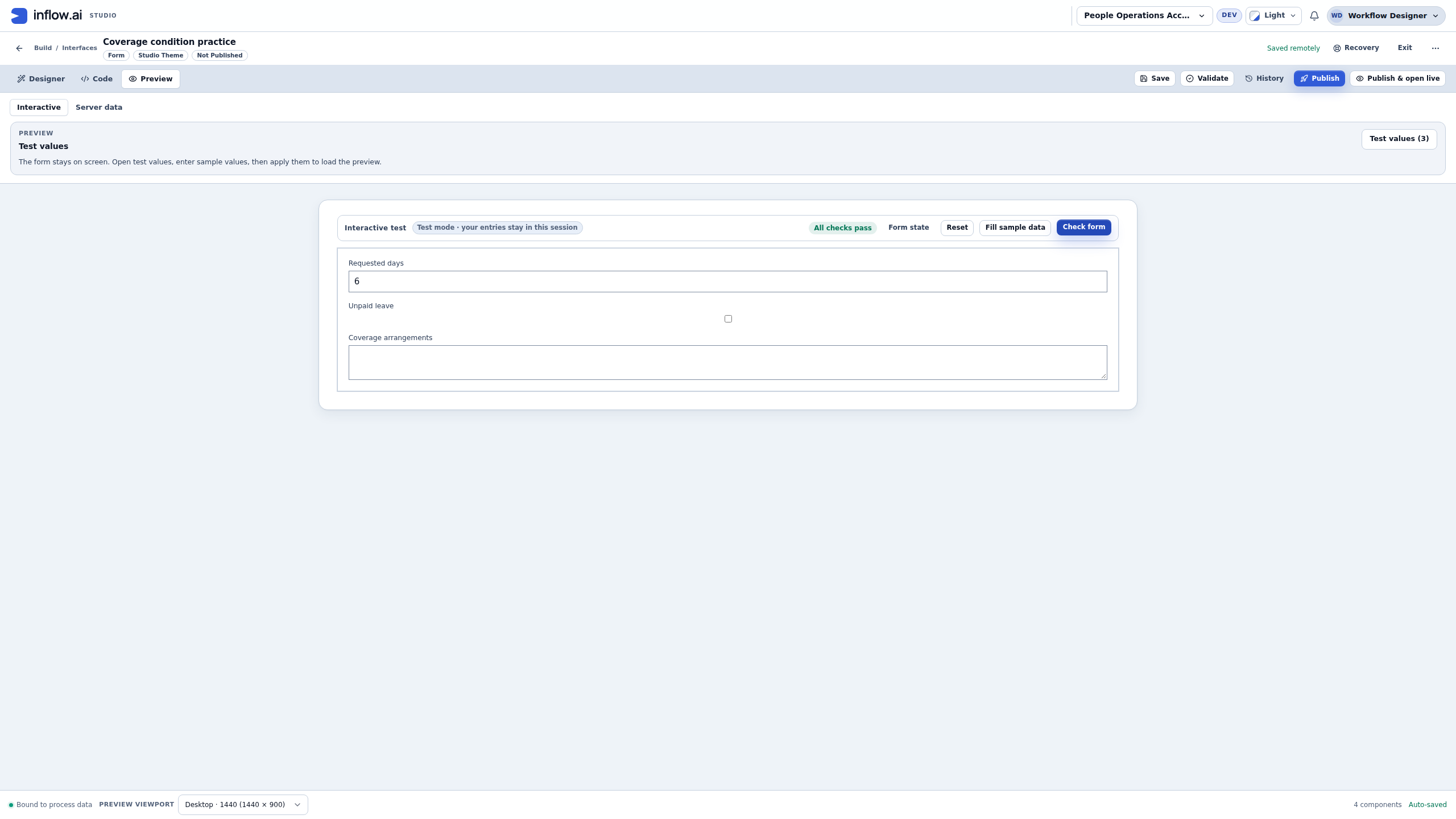
| 6 | true | Visible. | All checks pass even while the explanation is empty. |
The last row is deliberate: the first rule does not ask whether the request is unpaid. A checked or unchecked box cannot affect a formula that never reads that answer.
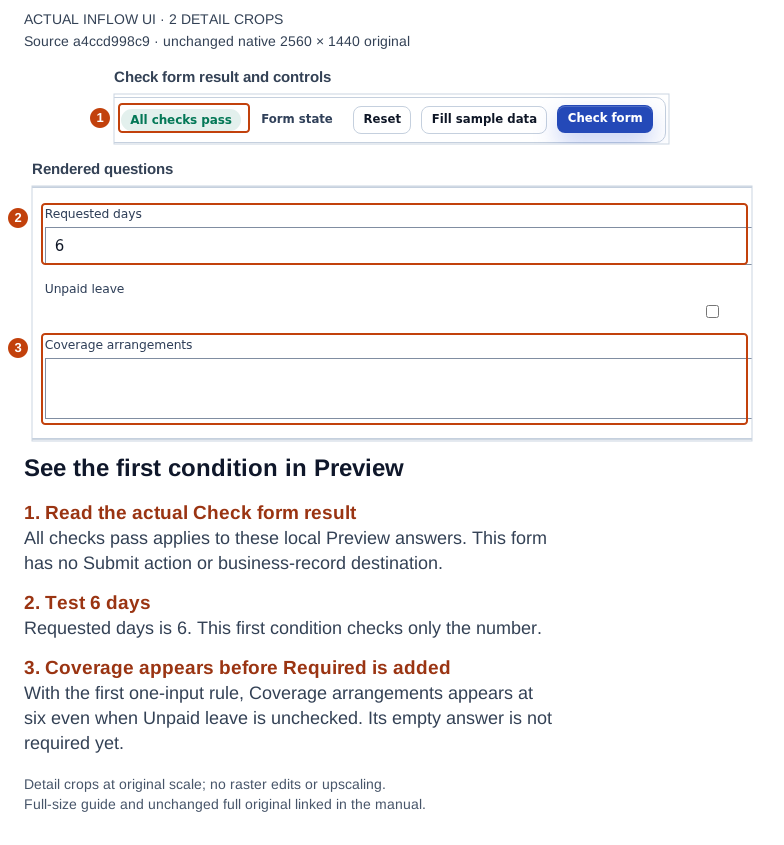
1–3: the first saved condition shows Coverage arrangements at six days even with Unpaid leave unchecked. Required has not yet been added; the local check passes with an empty explanation. Open the full-size numbered guide · Open the unchanged full 2560 × 1440 screenshot.
If the real policy means “five or more,” >= 5 expresses a different boundary. Confirm that meaning before changing the rule, and repeat the below-boundary, exact-boundary and above-boundary tests. Do not choose a threshold merely to make a demonstration pass.
Example 2: require an explanation only for unpaid leave over five days
Now change the fictional training policy: unpaid leave longer than five days needs a coverage explanation. Both facts must be true. A real application owner must confirm its policy; these examples do not calculate entitlement or decide whether leave is approved.
1. Combine the two actual inputs
- Return to Designer, select Coverage arrangements, and open the Visible when editor again.
- Replace the one-input comparison using the actual FORM FIELDS choices for
isUnpaidandrequestedDays. - Build this condition:
inputs:isUnpaid = true && inputs:requestedDays > 5
- Read each part aloud: “Unpaid leave equals true and Requested days is greater than five.” Here
=compares the Boolean value;&&means both conditions must match. - In Test, use small sample inputs and run all three cases: unpaid true/five days returns false; unpaid false/eight days returns false; unpaid true/six days returns true.
- Save the expression. The property can display its normalized dotted input names afterward.
true is a Boolean value, not the quoted word "true" or the Text answer "Yes". Use the Checkbox and its Boolean input. Changing && to || means “or,” which is a different policy: a long request alone or unpaid leave alone could then match. That alternate policy was not configured in this practice.
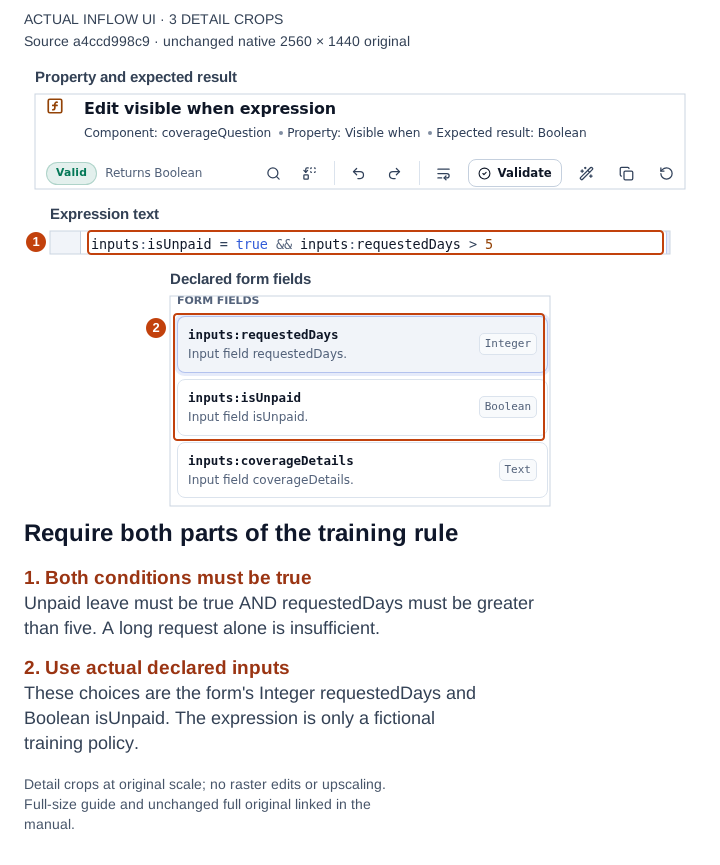
1–2: the current two-input expression and the actual Integer/Boolean field choices. Both parts are required by this training condition. Open the full-size numbered guide · Open the unchanged full 2560 × 1440 screenshot.
2. Keep Required consistent with visibility
Showing a question and requiring its answer are separate settings. Use the same combined condition for this exercise so the extra answer is needed when the question is displayed.
- Keep Coverage arrangements selected.
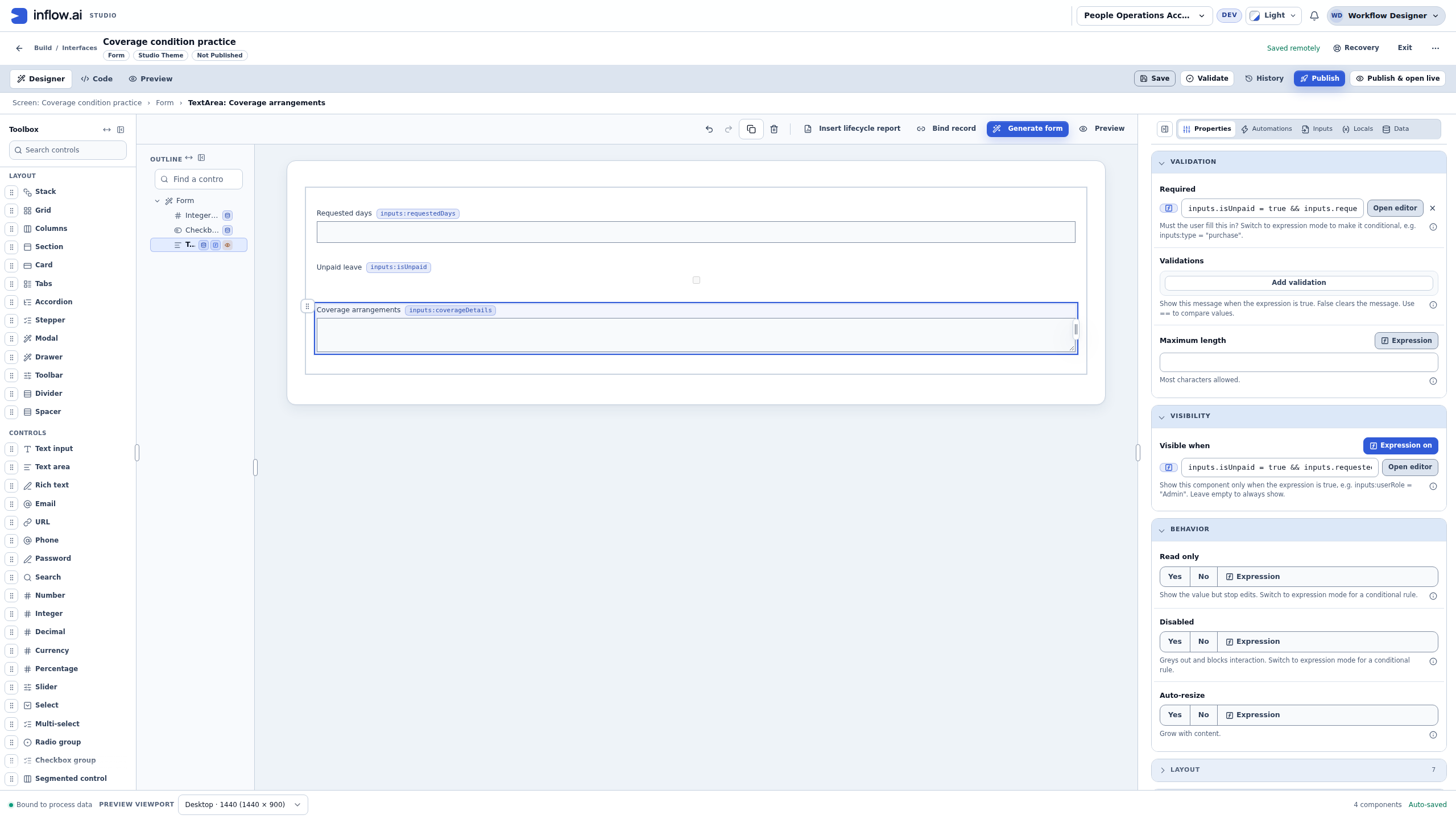
- Under Validation → Required, choose Expression using the control offered for that property.
- Enter the same complete condition used by Visible when. Use Open editor if you need room to read or select the actual fields.
- Compare both expressions, including
> 5. Narrow property textboxes can clip the end of a long expression; seeing the same beginning does not prove the whole condition matches. - Save the draft and wait for Saved remotely. The captured saved definition has the same complete condition in both properties; the input declarations themselves still have their separate Required switches off.
Do not set Required to an unconditional Yes merely to reproduce the asterisk in a screenshot. The point is to make the requirement follow the agreed condition. Check the actual person-facing form after saving.
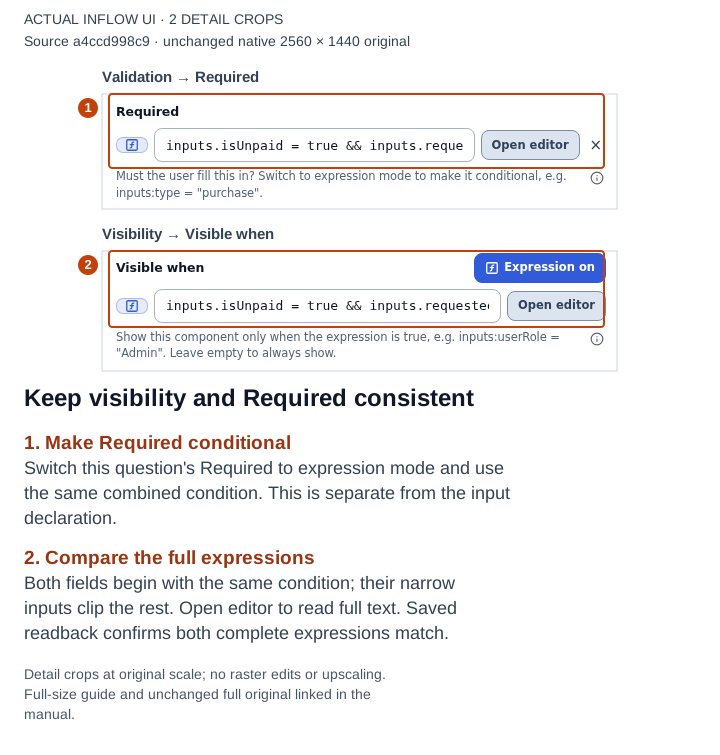
1–2: Required and Visible when are both in expression mode. Their narrow fields show only the beginning; open the editor for the complete text. The saved readback confirms the full conditions match. Open the full-size numbered guide · Open the unchanged full 2560 × 1440 screenshot.
3. Check both false cases and the exact boundary
- Return to Preview → Interactive and start with the explanation empty.
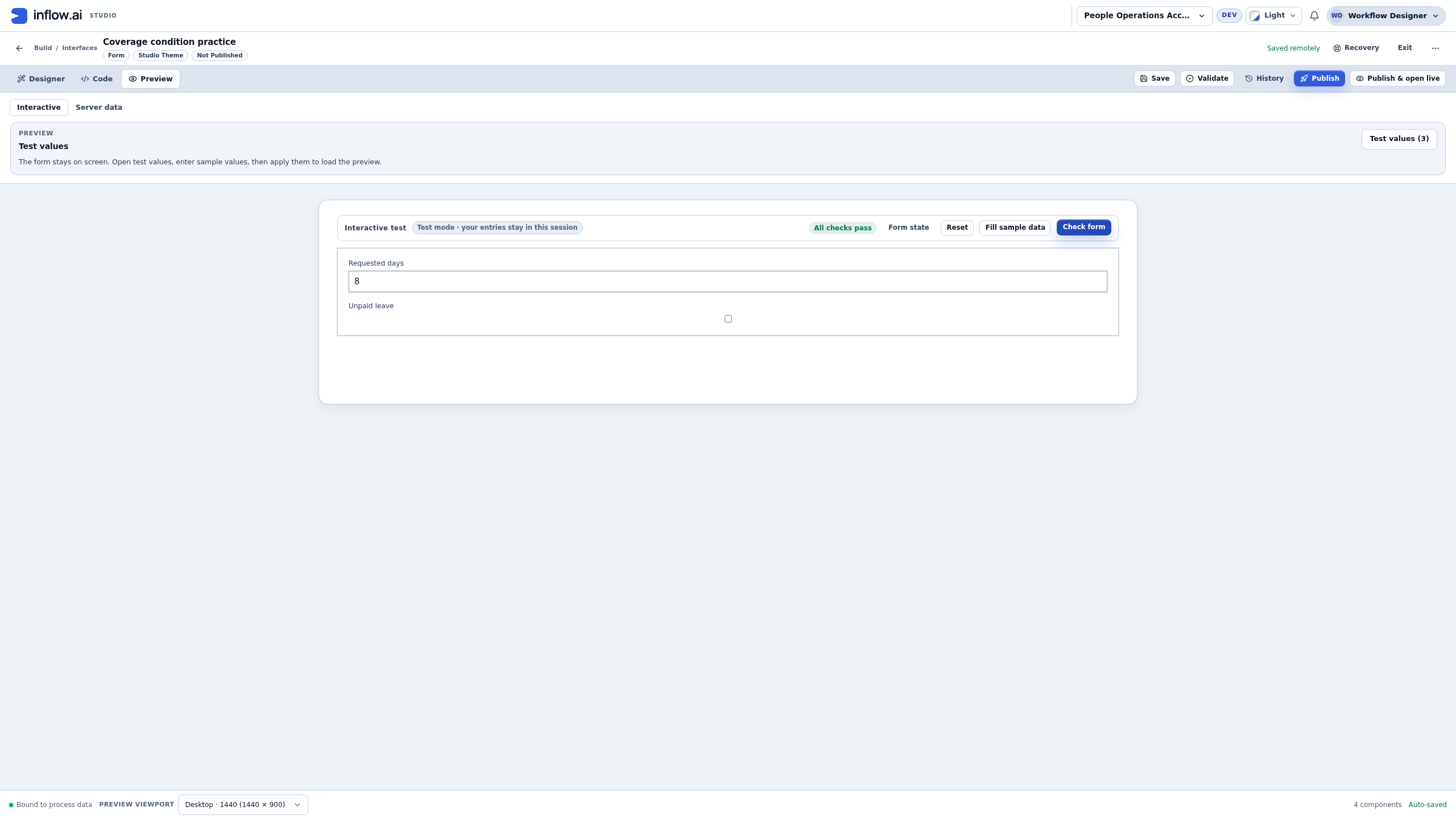
- For each row, enter Requested days, set Unpaid leave as shown, and choose Check form.
- Compare the question's presence and check result with the matrix before moving to the next row:
| Unpaid leave | Requested days | Explanation should be | Observed check with explanation empty |
|---|---|---|---|
| Unchecked | 8 | Hidden: a long request alone is insufficient. | All checks pass. |
| Checked | 5 | Hidden: exactly five is not greater than five. | All checks pass. |
| Checked | 6 | Visible and required. | One issue for Coverage arrangements. |
The first two rows stop common mistakes: checking only the number, or accidentally treating > 5 as “five or more.” These are form behavior checks with the authoring account, not authorization tests for another user.
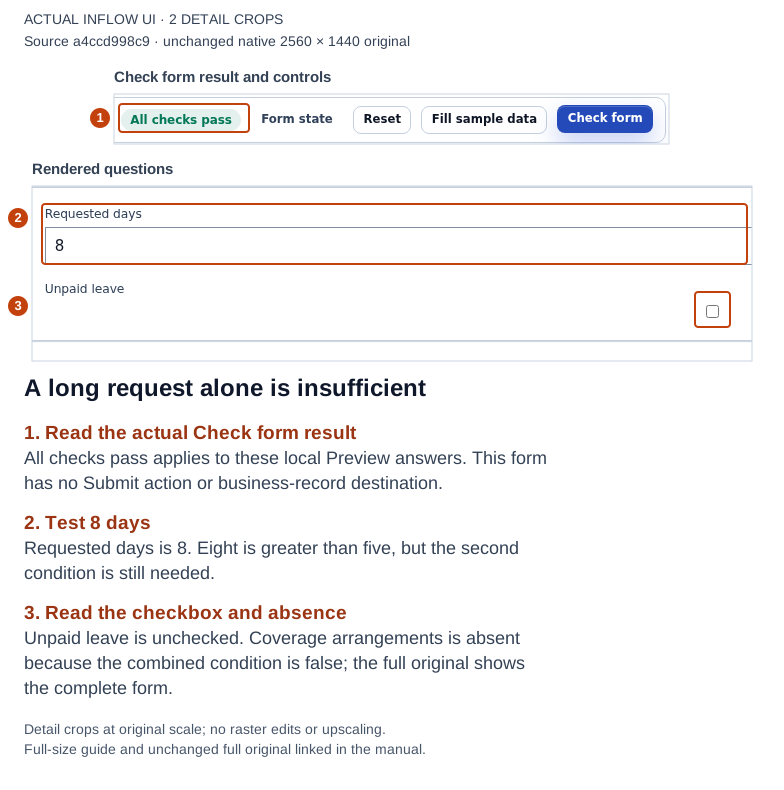
1–3: eight days with Unpaid leave unchecked leaves the explanation absent and the local check passes. Compare this with the earlier one-input six-day example. Open the full-size numbered guide · Open the unchanged full 2560 × 1440 screenshot.
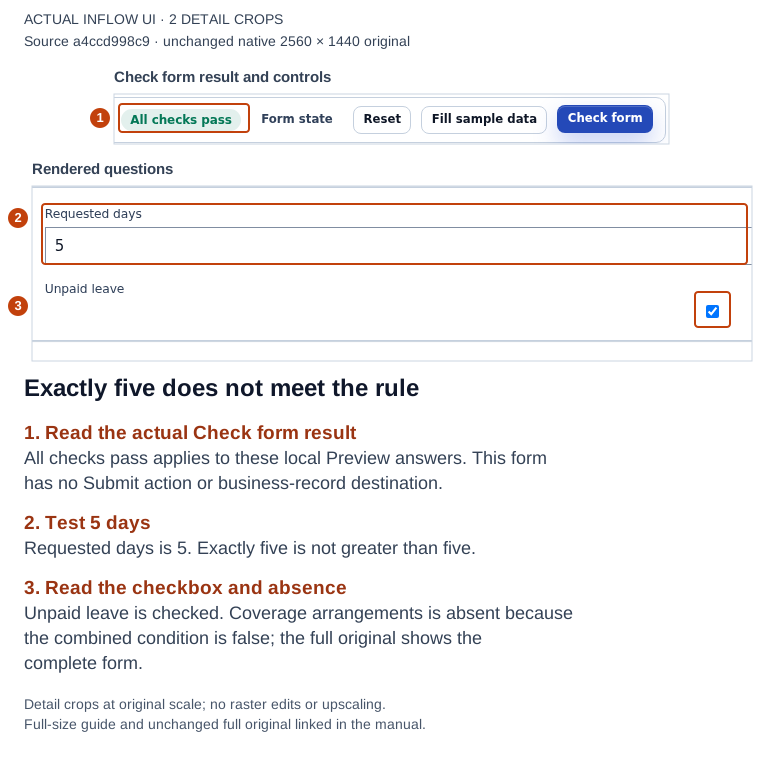
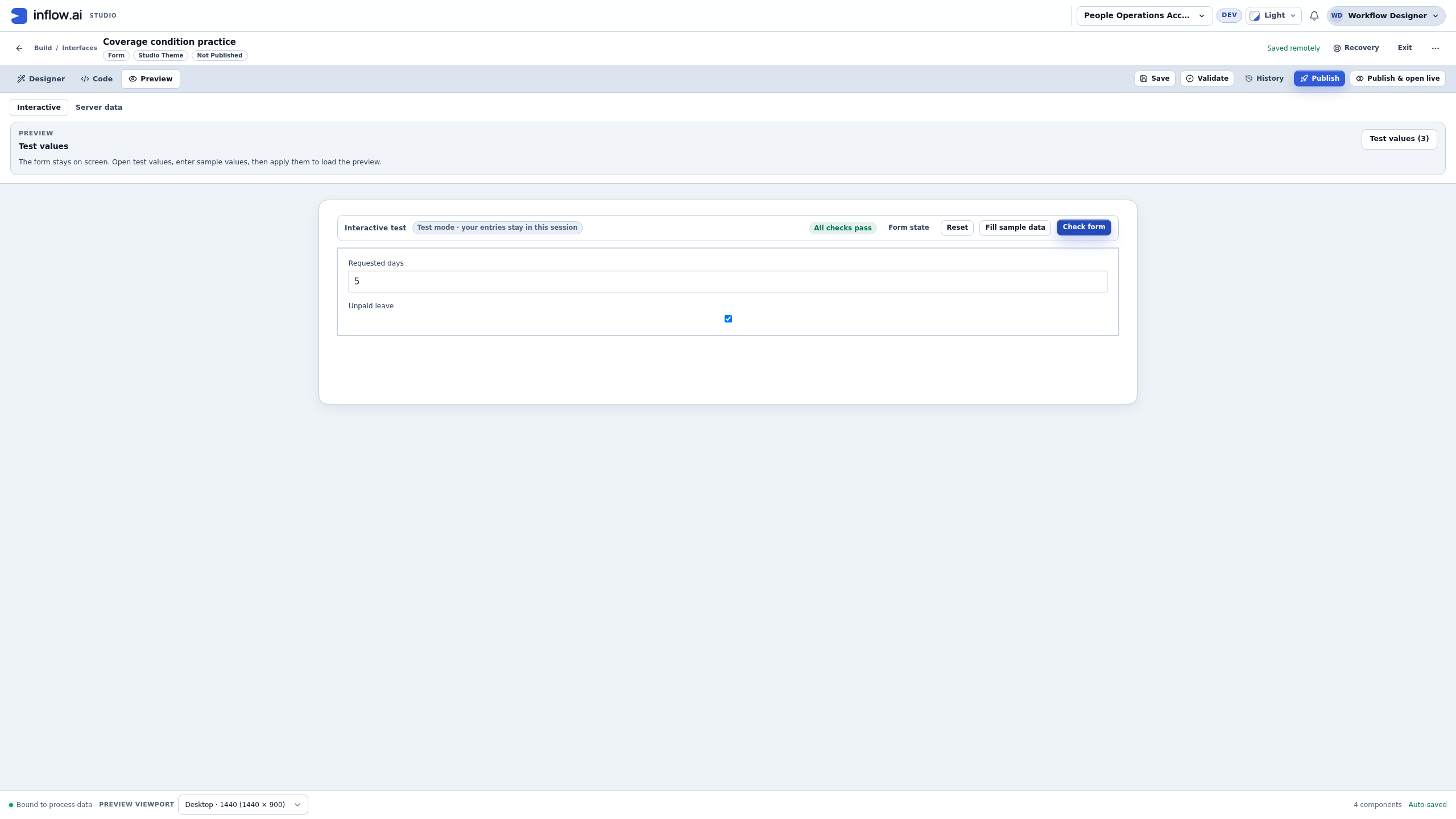
1–3: checking Unpaid leave still does not make exactly five days greater than five. The explanation stays absent. Open the full-size numbered guide · Open the unchanged full 2560 × 1440 screenshot.
4. Repair the required answer and inspect local state
- Set Requested days to 6 and check Unpaid leave. Leave the explanation empty.
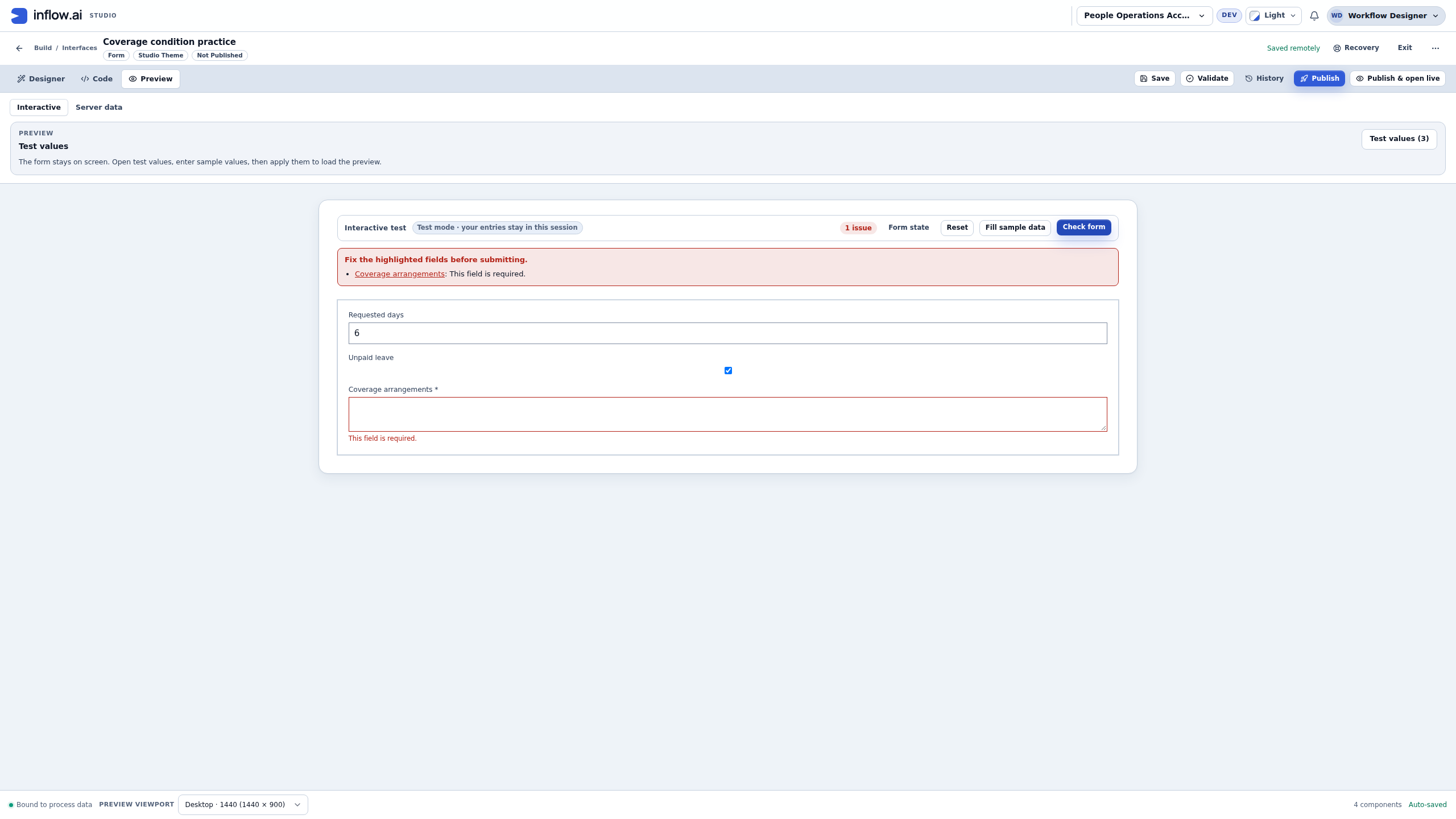
- Choose Check form. Read 1 issue, the linked Coverage arrangements summary entry, the field's asterisk and This field is required.
- Choose the linked question in the summary. In the captured run it focused the explanation field; repair the actual named question.
- Enter a fictional explanation such as Team cover arranged with the duty coordinator.
- Choose Check form again. Expect All checks pass and no required-field message.
- Open Form state. In this run its
riobject shows isUnpaid true, requestedDays 6 and the explanation as coverageDetails. Hide state closes the inspection without changing the answers.
The generic validation summary includes “before submitting,” but the action exercised here was Check form. This draft has no Submit action or record destination. All checks pass means these local form checks pass; it does not mean a leave request was saved, staffing was arranged or a manager approved anything.
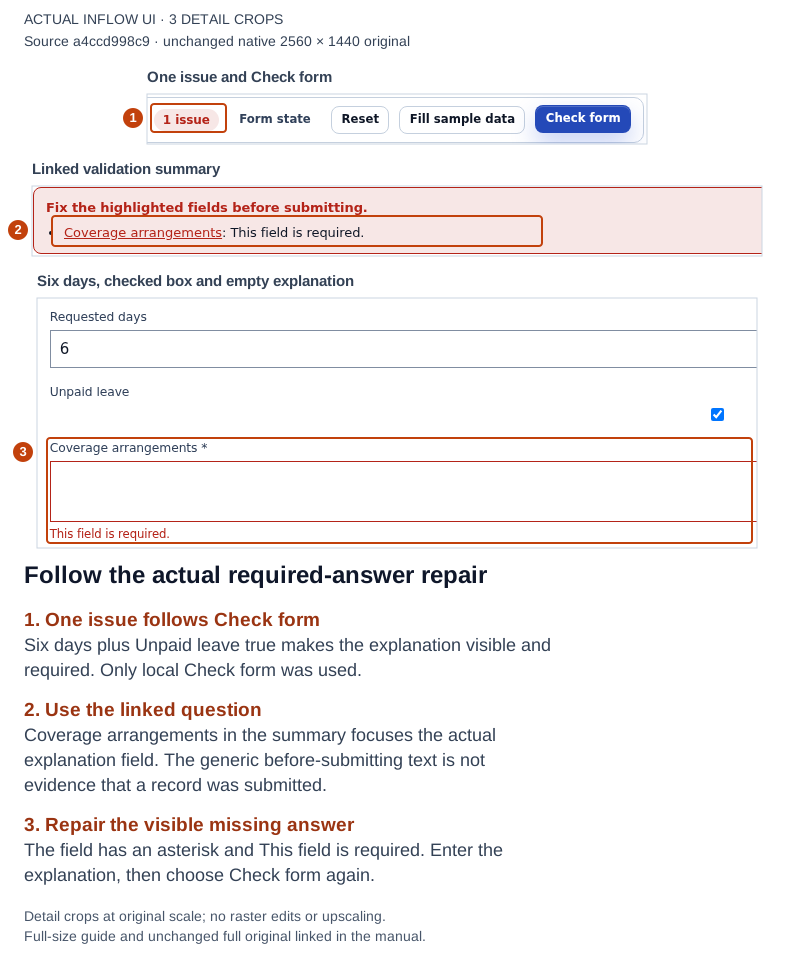
1–3: the actual required issue, linked repair target and empty visible question. This is the local Check form result. Open the full-size numbered guide · Open the unchanged full 2560 × 1440 screenshot.
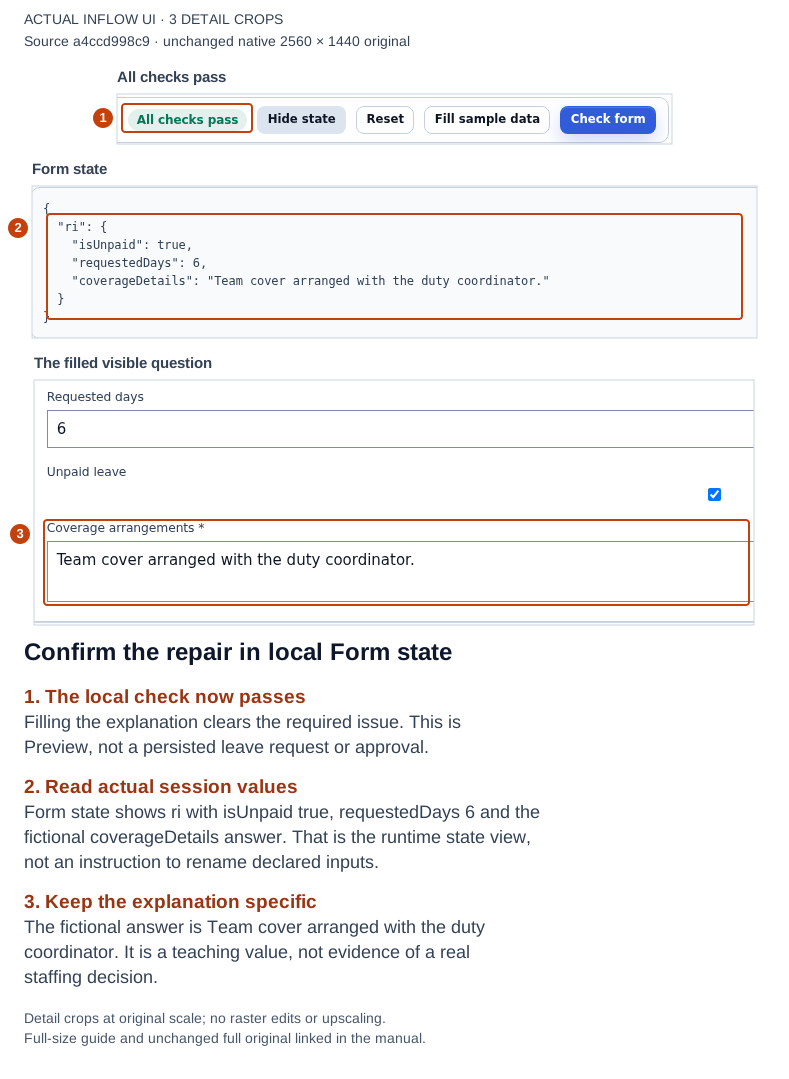
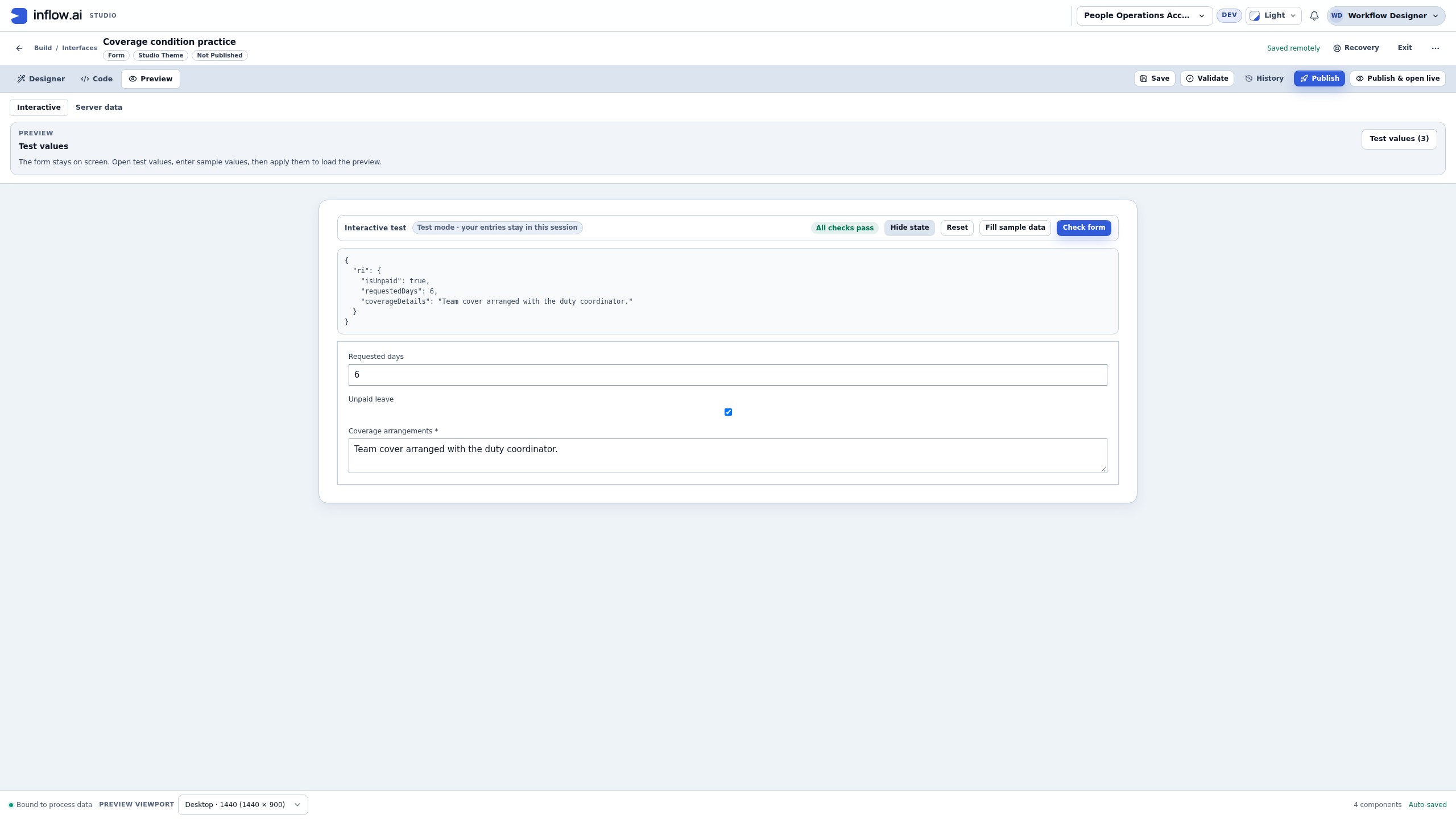
1–3: the filled fictional answer clears the issue, and Form state shows its actual session values. The ri state view is not an instruction to rename the declared inputs or their bindings. Open the full-size numbered guide · Open the unchanged full 2560 × 1440 screenshot.
5. Reset answers and reopen the saved draft
- After the successful check, choose Reset. This run used direct Preview entries, without applied host Test values; Reset cleared those entries, unchecked the box, hid the conditional question and showed an empty
{}Form state. - Choose Check form once more. With no matching longer-unpaid request, the explanation is absent and All checks pass.
- Reopen or reload this same saved draft through its normal designer route. Confirm you are in Preview → Interactive, not a published application.
- Enter six days and check Unpaid leave again. Leave the explanation empty and choose Check form.
- Confirm the saved condition still displays the explanation and reports its required issue. Open Form state if you need to inspect the two supplied answers.
- Fill the explanation again and repeat Check form. The captured final result is All checks pass, while the saved definition remains draft revision 15 with no published version.
Resetting direct test answers is different from removing applied host Test values. If another exercise supplied values through Test values, inspect that panel rather than assuming Reset removes its supplied inputs. Reset and reload are not ways to change the saved policy or establish that an employee can access data.
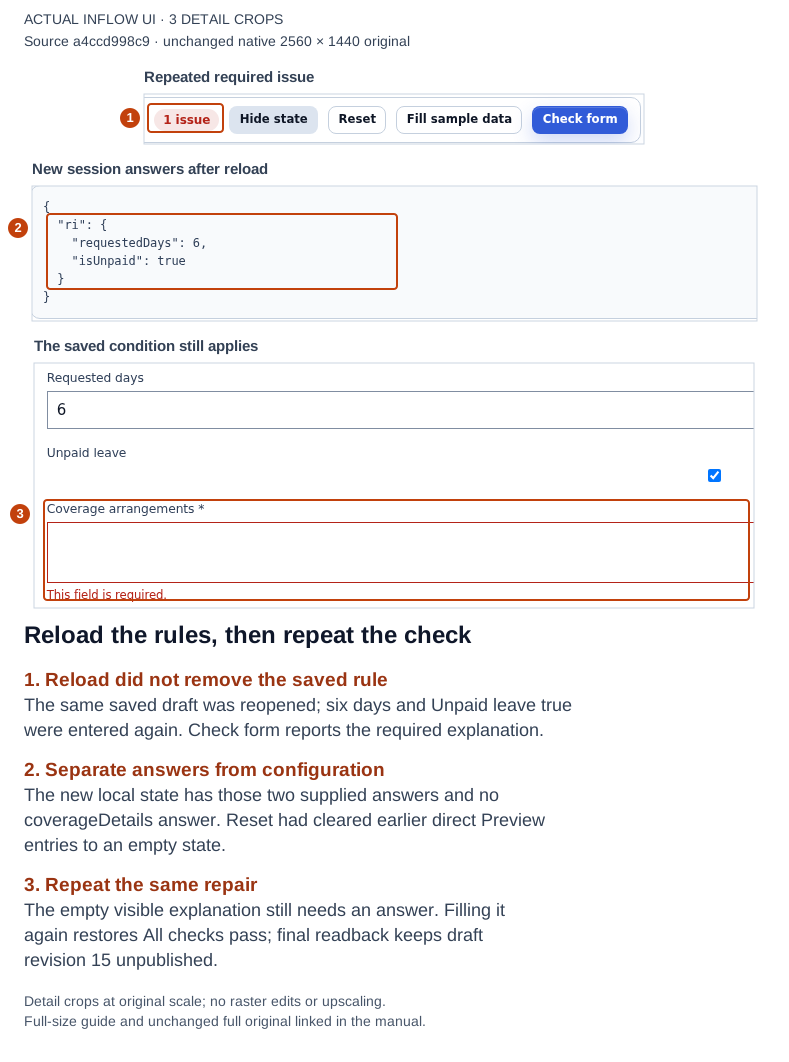
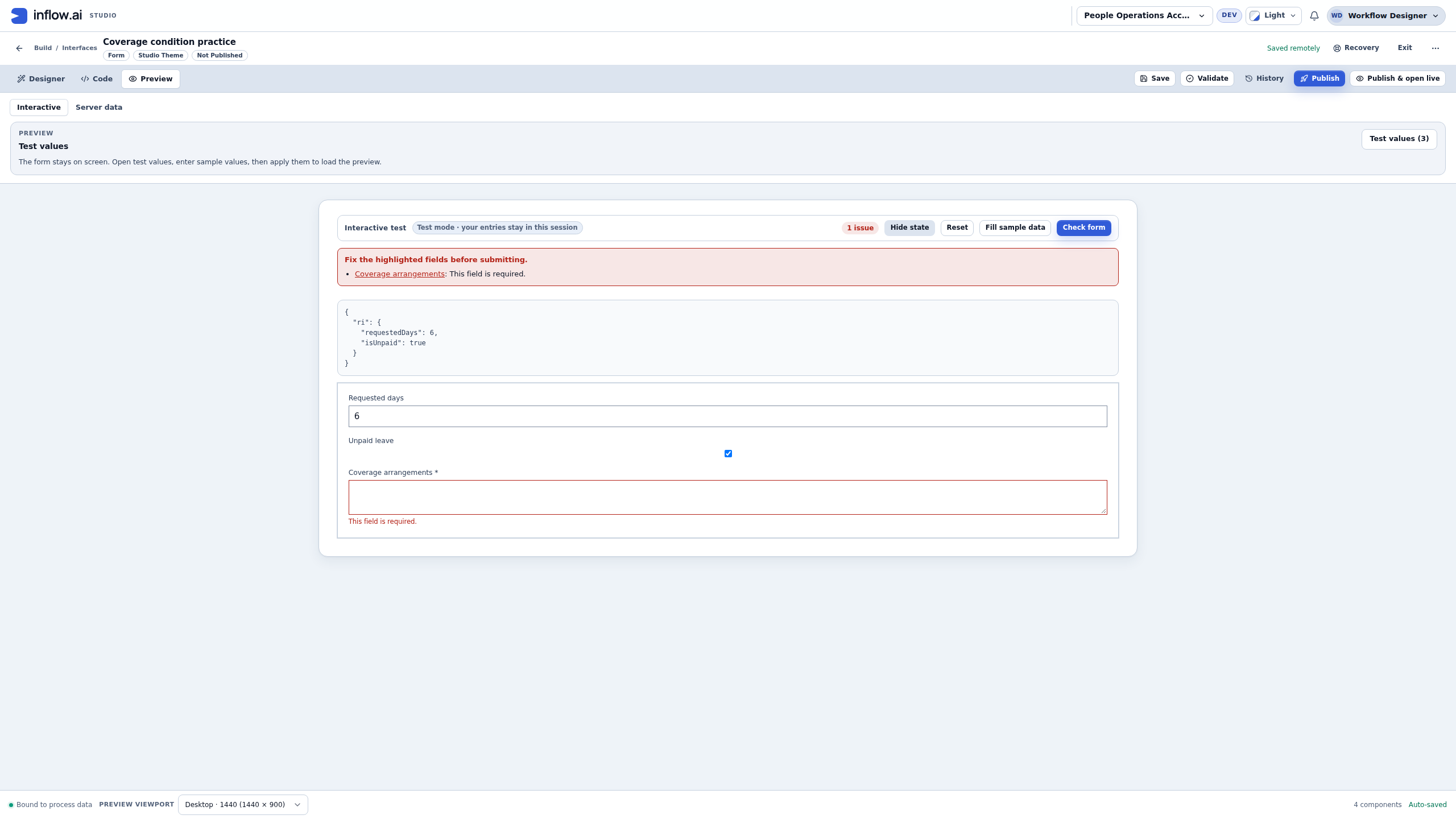
1–3: after the saved draft is reopened and six/checked is entered again, the missing explanation is still required. Repeating the same repair then restores the passing result; no publication or record save is involved. Open the full-size numbered guide · Open the unchanged full 2560 × 1440 screenshot.
Example 3: a separate date-order check
Date ordering is another useful condition, but it is a different exercise. Continue with the actual declared Date inputs in Properties and answers. The new screenshots above do not demonstrate date entry, calendar conversion, missing dates or date validation.
- Select the End date question and inspect its actual Date destination; do not copy the label as though it were an input Name.
- Under Validations, add the supported expression condition that asks whether End date is earlier than Start date. Select those actual Date inputs in the editor. With the teaching names, the comparison is
inputs:endDate < inputs:startDate. - Use a message such as End date must not be before Start date. A true validation condition shows its message; false clears that message. This is a different property effect from Visible when.
- Test Start date 14 December and End date 13 December using the Date controls' explicitly selected typing format. Inspect the actual error.
- Change End date to 18 December and check that the order error clears.
- Check missing dates separately with Required. An ordering condition alone is not a complete missing-answer policy.
This source-guided example does not count working days, public holidays or available leave. It was not recaptured in the current formulas run; follow the separate date exercise's stated context and actual results.
Read the older illustrations in their own context
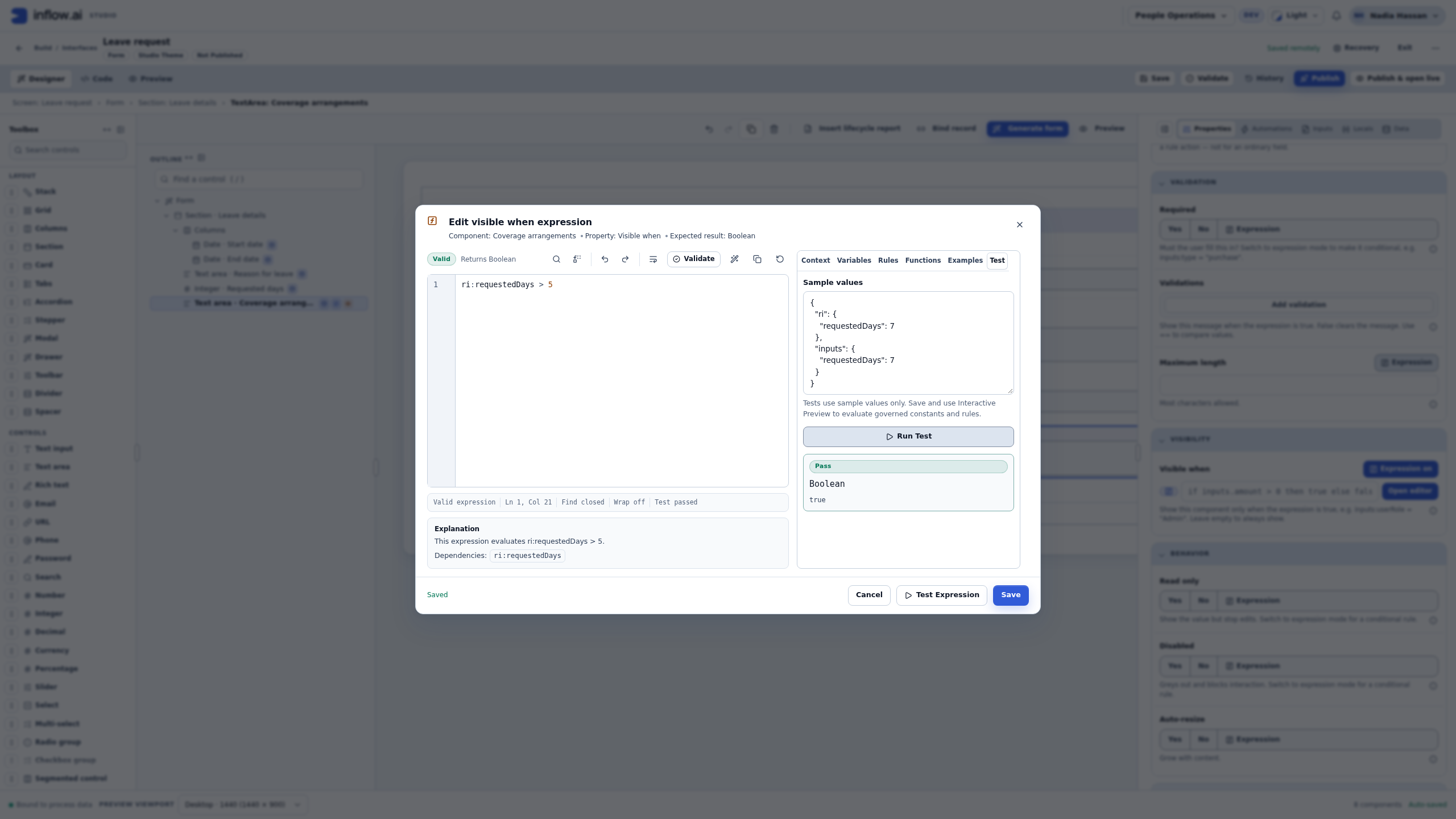
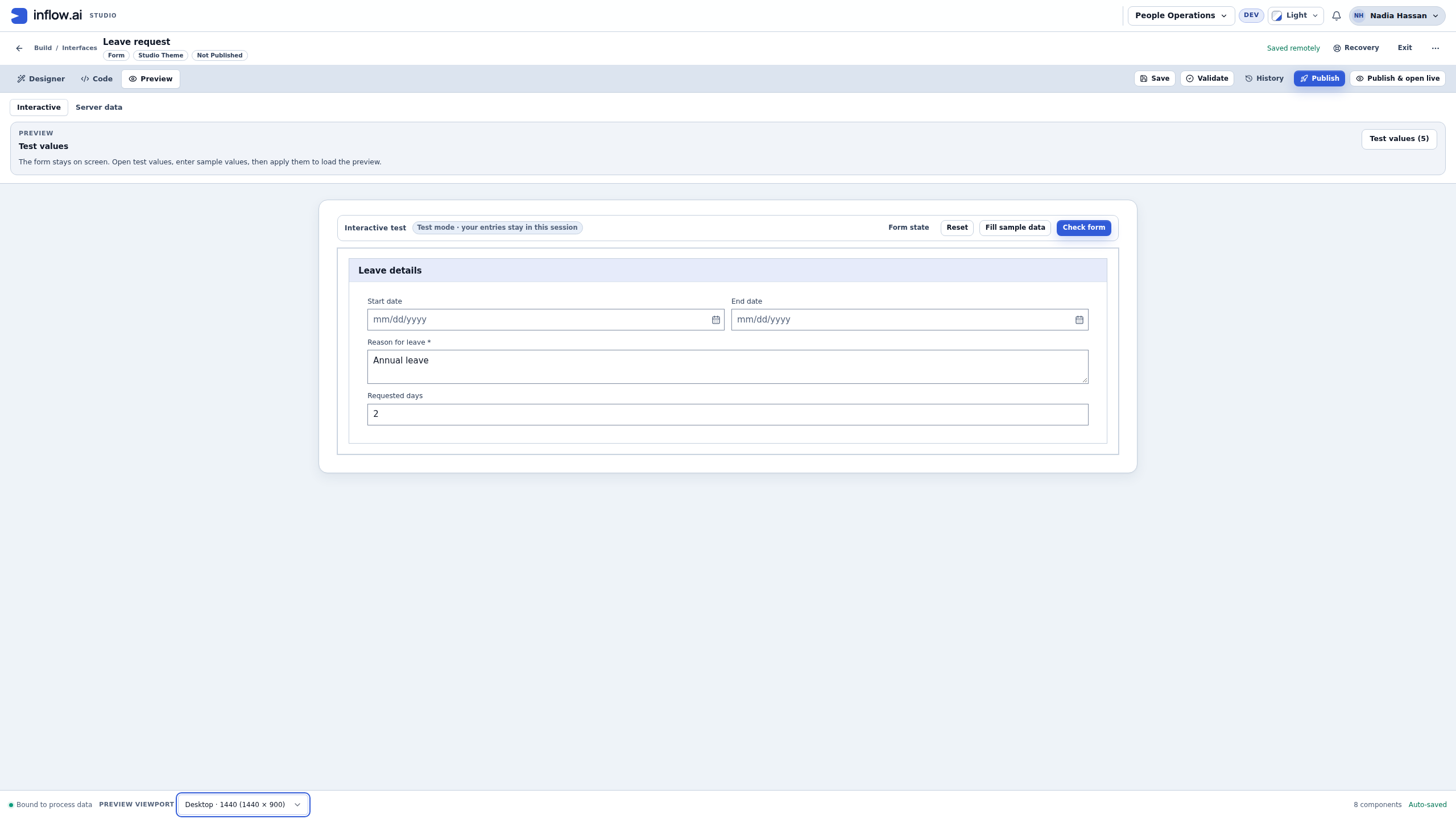
These three numbered illustrations remain from the fictional People Operations training run on 8 November 2026. They show the older one-input requestedDays > 5 example with two and seven days. They do not show the current two-input condition, the exact-five boundary, conditional Required or a current saved draft. Keep their original context; use the current walkthrough and your actual declared fields for new work.
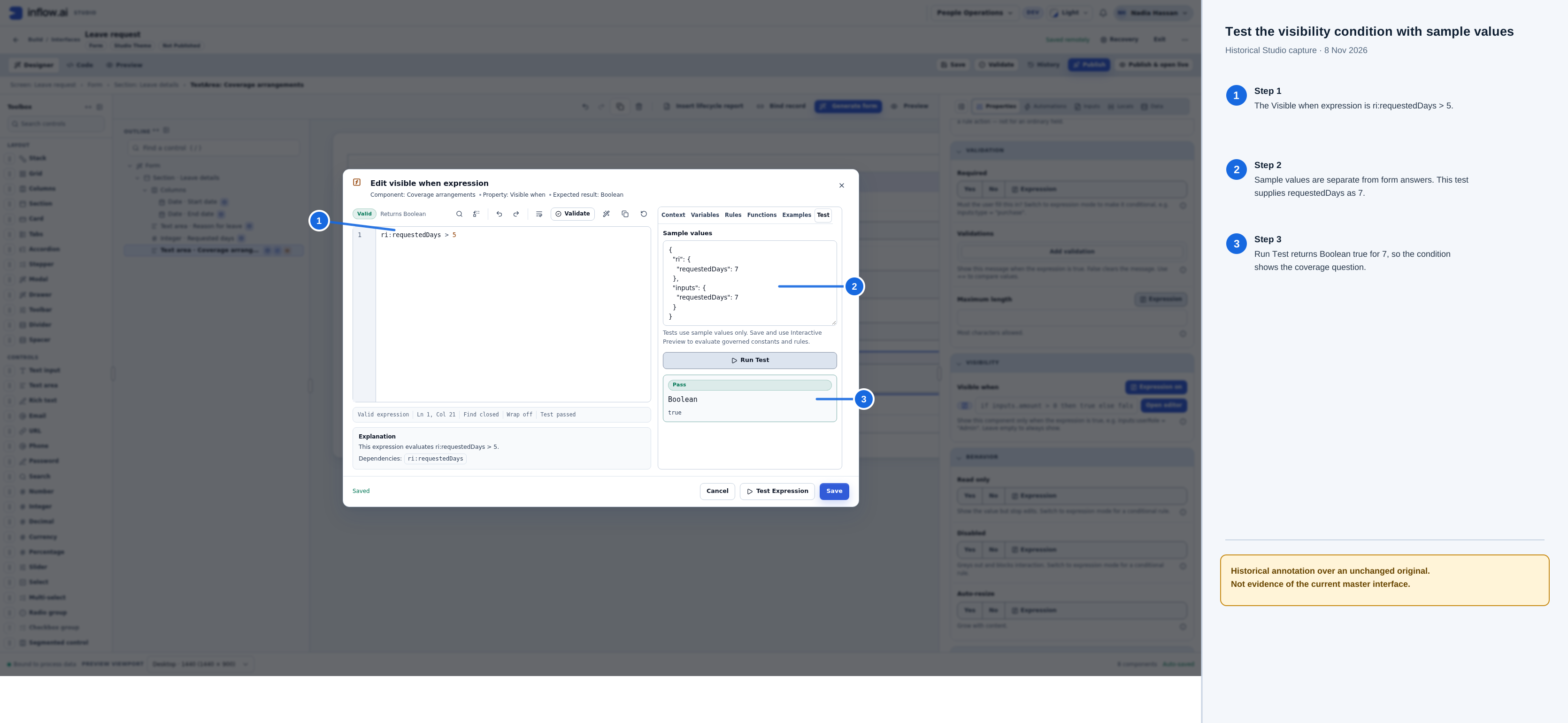
Historical single-input editor illustration. Unchanged 8 November original. It is not current-build or two-input-condition evidence.
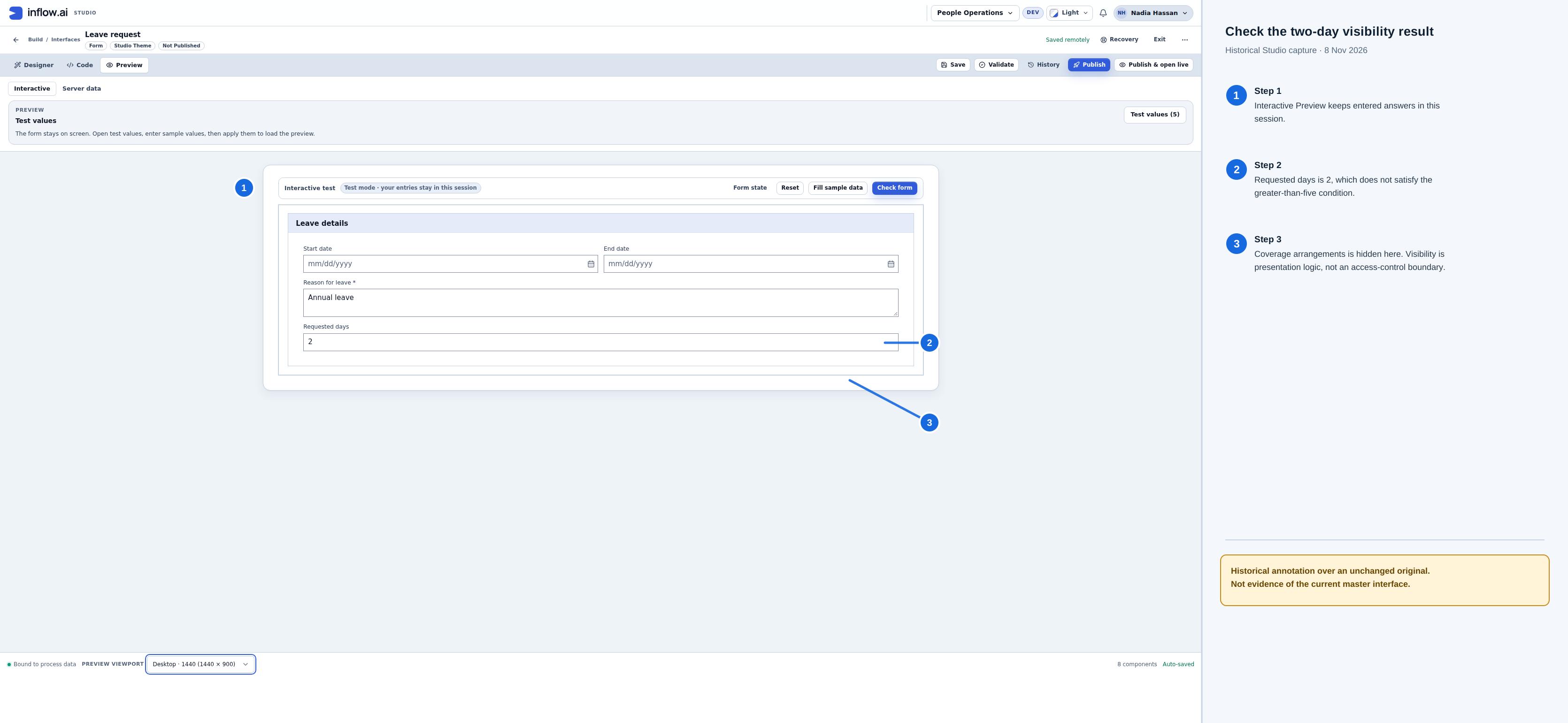
Historical two-day Preview illustration. Unchanged 8 November original. The exact-five boundary is established by the current example, not this older picture.
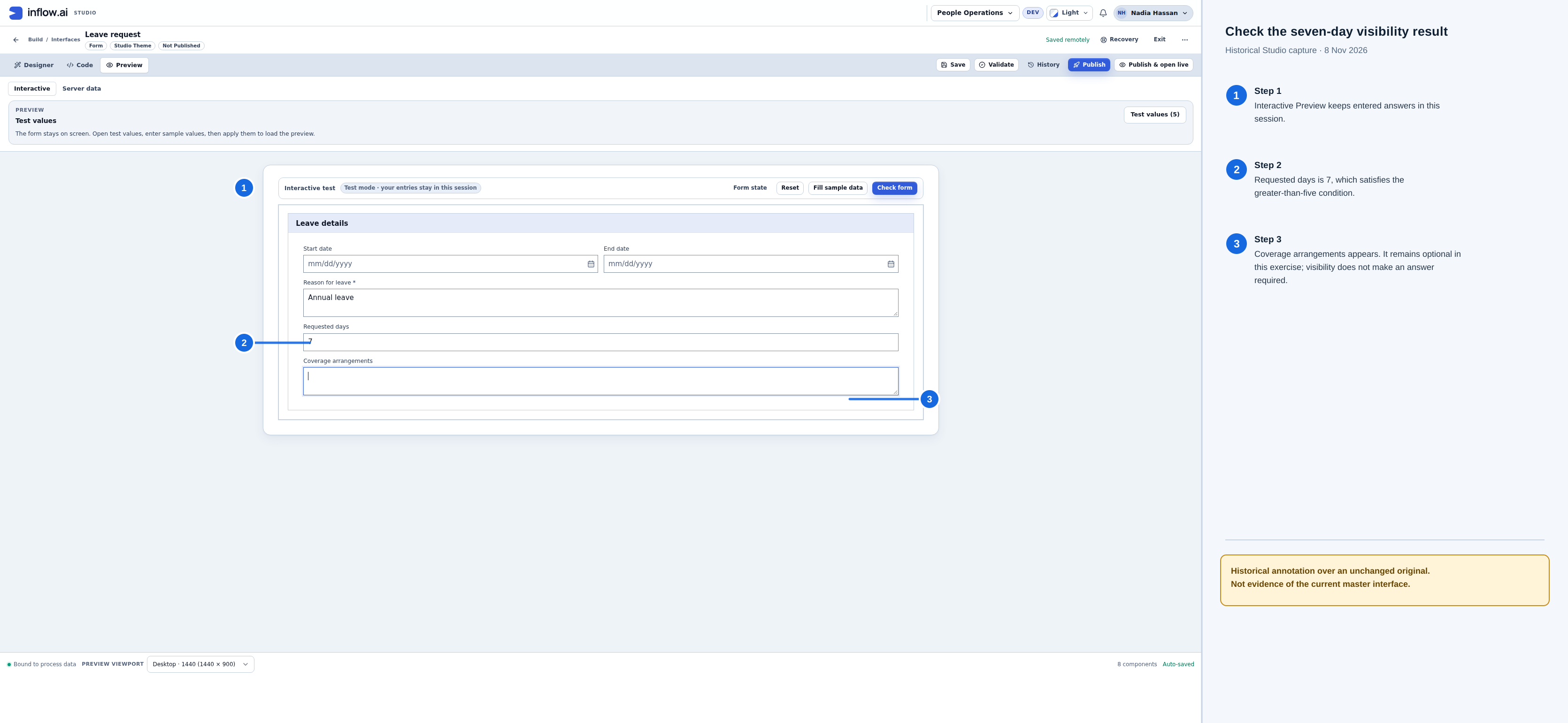
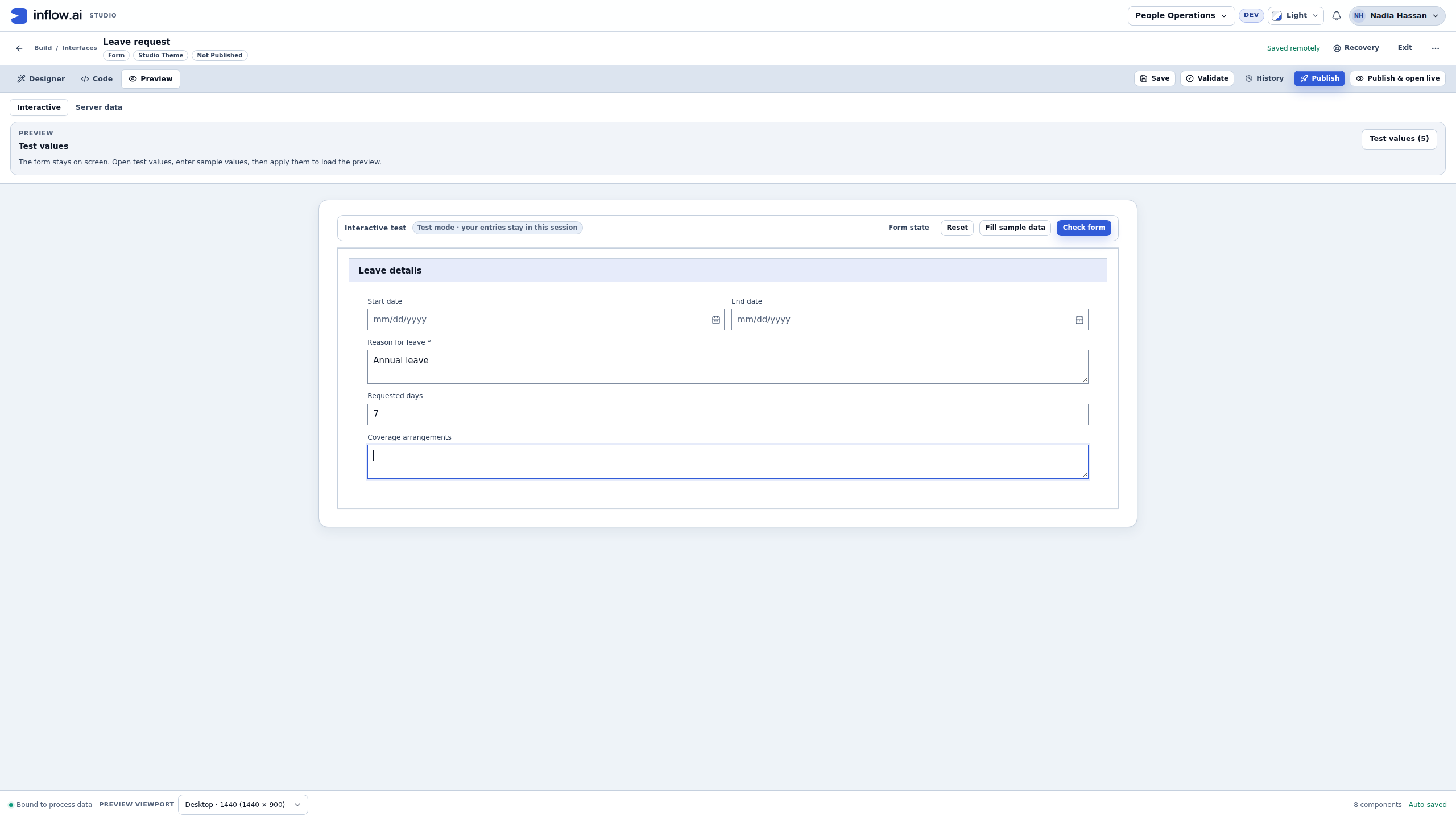
Historical seven-day Preview illustration. Unchanged 8 November original. It does not establish a current record, required answer or manager decision.
Common formula mistakes
| Symptom | Inspect and repair | Repeat the useful check |
|---|---|---|
| Unknown field or unexpected value | Check the actual input declaration, type and question's Store value in. Choose the field from FORM FIELDS. | Enter a known value and inspect Form state. |
| Five unexpectedly matches | Read the complete comparison; distinguish > from >=. |
Try 2, 5 and 6. |
| A long request always shows the question | Check whether the rule still has only the number comparison, or uses “or” instead of “and.” | Try eight days with Unpaid leave unchecked. |
| Explanation appears but stays optional | Inspect question-level Required separately from Visible when and the input declaration. | Try six/checked with the explanation empty. |
| Green Pass seems to mean the question must show | Read the Boolean result. Pass/false means a valid expression returned false. | Compare the editor's sample with actual Preview answers. |
| Both property fields look alike but behavior differs | Open each focused editor; a narrow textbox can hide the end of a long formula. | Compare complete expressions, save, then repeat the matrix. |
| Preview still has unexpected values after Reset | Distinguish direct answers from values supplied through Test values. | Inspect the actual state and supplied test inputs before retesting. |
| A hidden field is being used as a permission rule | Visibility is presentation, not permission to read a record or perform an action. | Verify governed application/record access separately with the intended ordinary user. |
Before handover
Record the form and workspace, actual input Names/types/bindings, the business meaning of each condition, its property and the below/exact/above-boundary results. Include the nonmatching checkbox case, missing-answer repair and saved-draft reload. Keep test answers separate from saved configuration, and identify which users and connected actions still need their own checks.
Continue with Properties and answers or Check and publish. The former whole-screen coding material remains in the optional screen-document technical chapter.