Automate application access and group membership
Some business processes need to prepare access after an approved onboarding decision. Inflow includes two workflow steps for that work: Manage Application Access and Administer Tenant Security. They ship with the platform, but the steps and functions actually offered depend on the installed environment and your current access. This lesson explains business automation and the settings an authorized designer reviews before an operation runs.
Use these steps only with the application and identity owners. They can make real access or directory changes, so a convenient workflow must never become a way for an employee to grant themselves more rights.
Know which step matches the business task
| Step | What it is for | Example |
|---|---|---|
| Manage Application Access | Check or bring a project's persona access into line with a published access profile. | Prepare the agreed roles for the training-reviewer group. |
| Administer Tenant Security | Carry out an allowed people/group operation using the identity that the step runs as. | Add an approved trainee to an ordinary training group. |
A persona is a business role represented by a group. An access profile describes that group's intended access to the project, its business functions and its items. An owner prepares and publishes the profile before a process selects it.
This project-level profile is separate from an App Shell's Use application setup. Application access and starting pages still explain how people enter a published business application.
Before you begin
Prepare an approved learning process and ordinary training group with the owner. Have a published access profile ready for the first example. Agree who may author, publish and run the operation.
The platform administrator must allow tenant-wide identity operations for the intended application before Administer Tenant Security can run. That permission is not created by dragging the step into a flow.
Runs as means the person or service account whose rights the step uses. A service account is an administrator-prepared account for automated work. It does not inherit the consultant's browser session. Choose only the option offered and authorized for the operation.
Illustrated practice: find the offered identity step
Nadia is preparing an onboarding design with the identity owner. Before they discuss who should receive access, she needs to find the right workflow step and understand what her current account can configure. Begin with a practice draft, not a live onboarding case. Reading a published process is different from editing its draft: use the native Open draft action when the published view offers it, then open the intended state's flow.
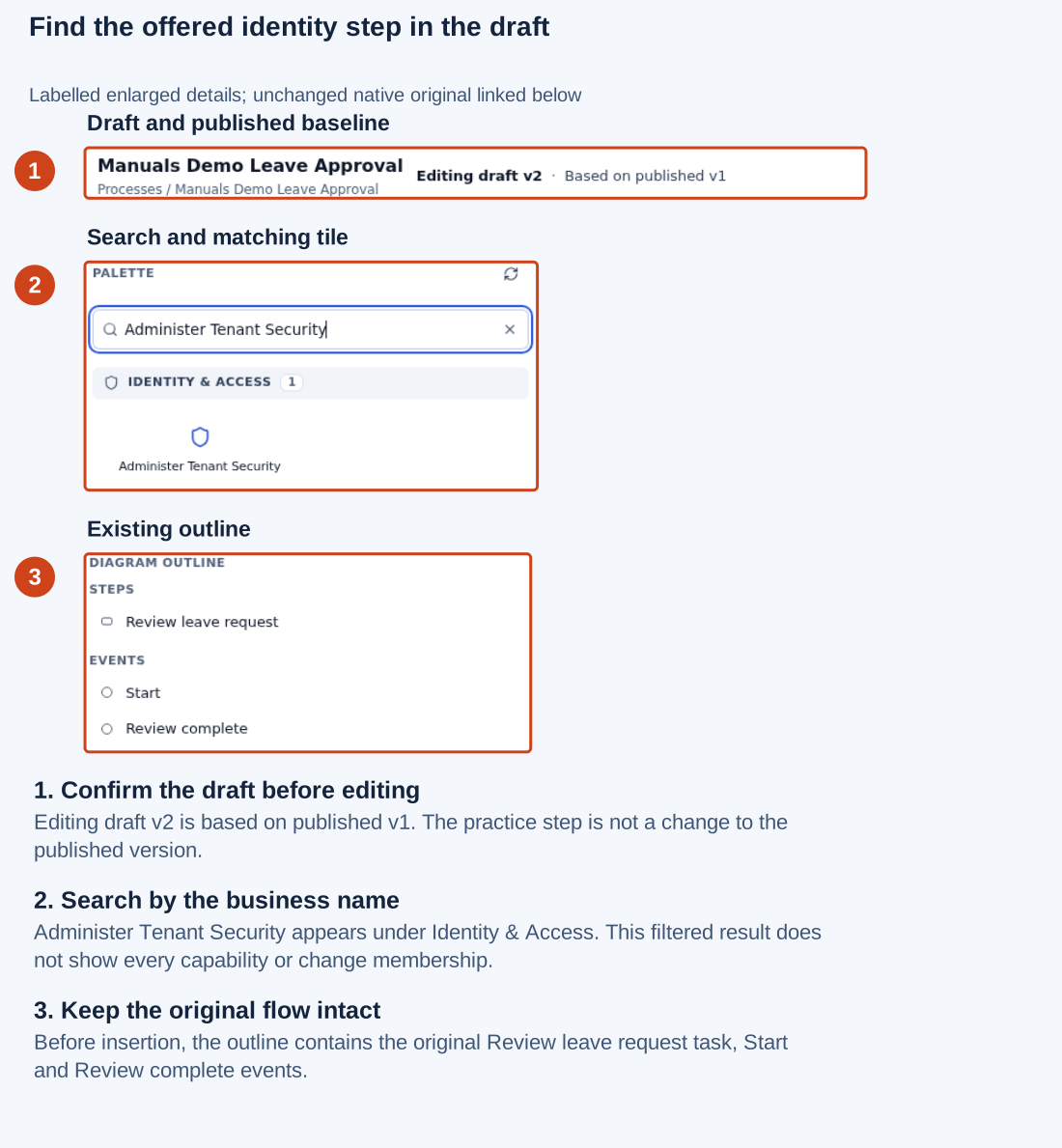
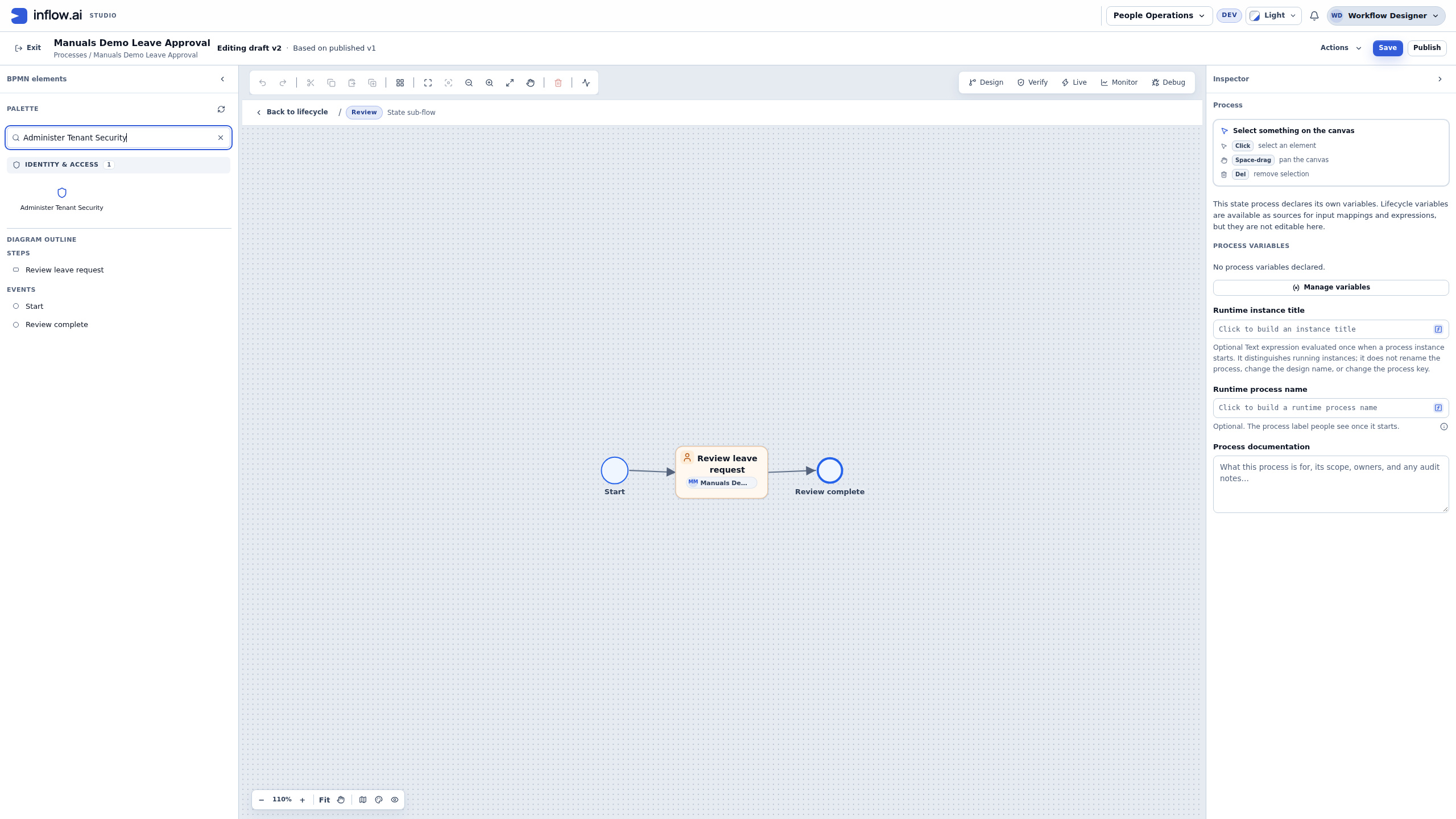
The following screenshots use the ordinary Workflow Designer account in the synthetic People Operations workspace. The header says Editing draft v2, based on published v1. The existing leave-approval flow is only a convenient practice canvas for locating the controls. Adding an identity step to that leave flow is not a recommended business design. The inserted step is unconnected, never saved or published, and removed with Undo after the pictures. No group membership, account, permission, e-mail or running case changes in this walkthrough.
Find the step by its business name
- Check the workspace and process title before editing. Keep the published version and draft distinction visible.
- In Search palette, enter Administer Tenant Security.
- Read the Identity & Access result. In the pictured account there is one matching tile. Search has filtered the toolbox; it has not selected a group or carried out an operation.
- Select the offered tile once to add a local draft step. You can also drag the tile to the intended place when working on a reviewed design. Inspect its function settings before connecting it into a real process.
Open the unchanged native 2560×1440 screenshot
Read the marks: 1 identifies the draft and published baseline; 2 locates the search and matching tile; 3 shows the existing flow outline. The picture stops before insertion, so the existing outline still contains only the original review task and its start/end events.
If a step from this lesson is not offered, do not replace it with an unrelated service or type a hidden capability identifier into the model. In this practice account Manage Application Access was absent even with an unfiltered palette. That observation does not identify the cause or show that the account should receive more privileges. Ask the application owner to confirm which operation belongs in the design and whether it is available through the supported authoring route.
Read the actual function choices
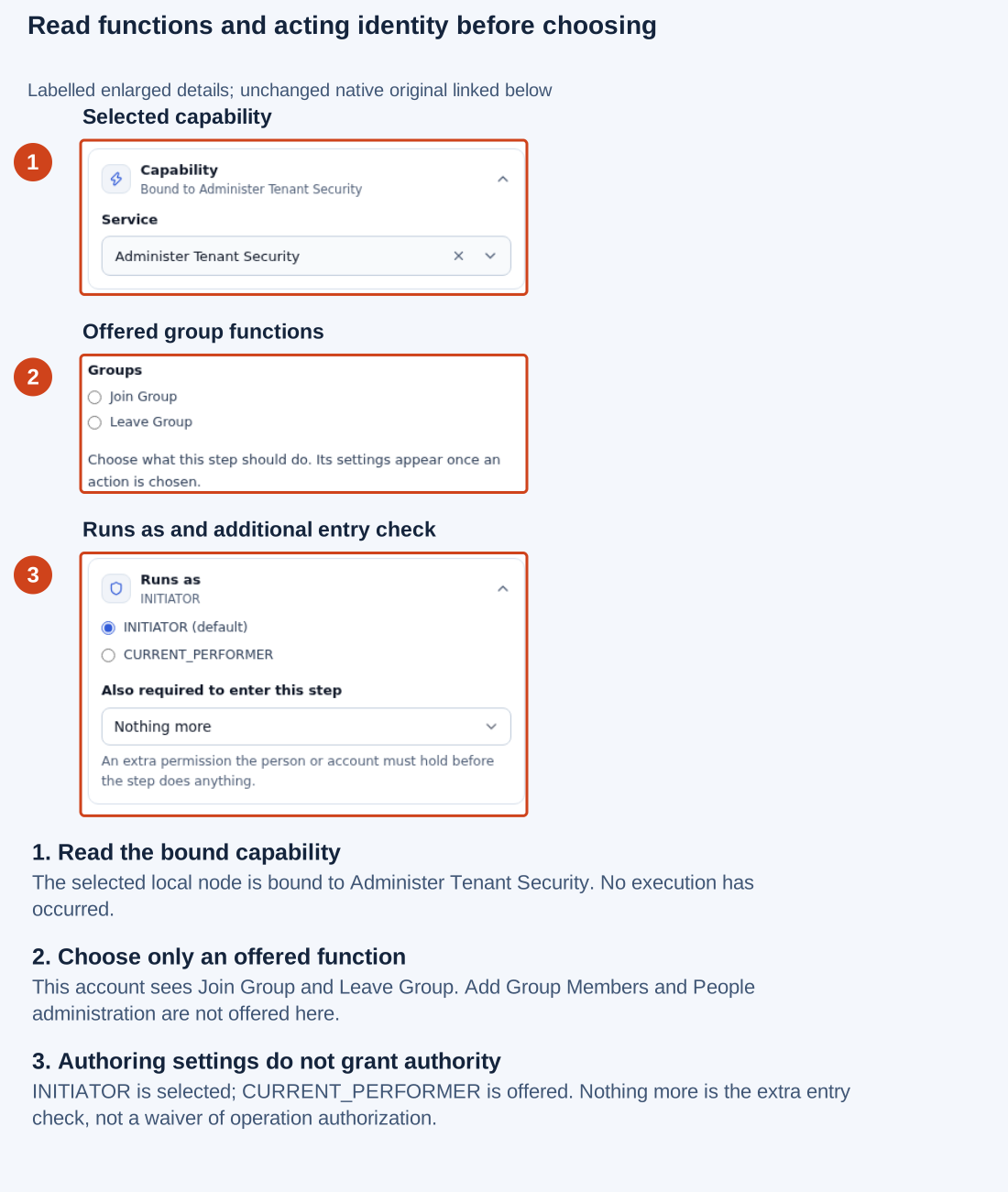
Selecting the pictured Tenant Security tile adds one local step and selects it. The inspector shows the bound capability and the function choices that this account is offered. Here those choices are Groups → Join Group and Leave Group. The broader People and group-administration examples later in this lesson are conditional procedures for an authorized account that is actually offered those functions.
Open the unchanged native 2560×1440 screenshot
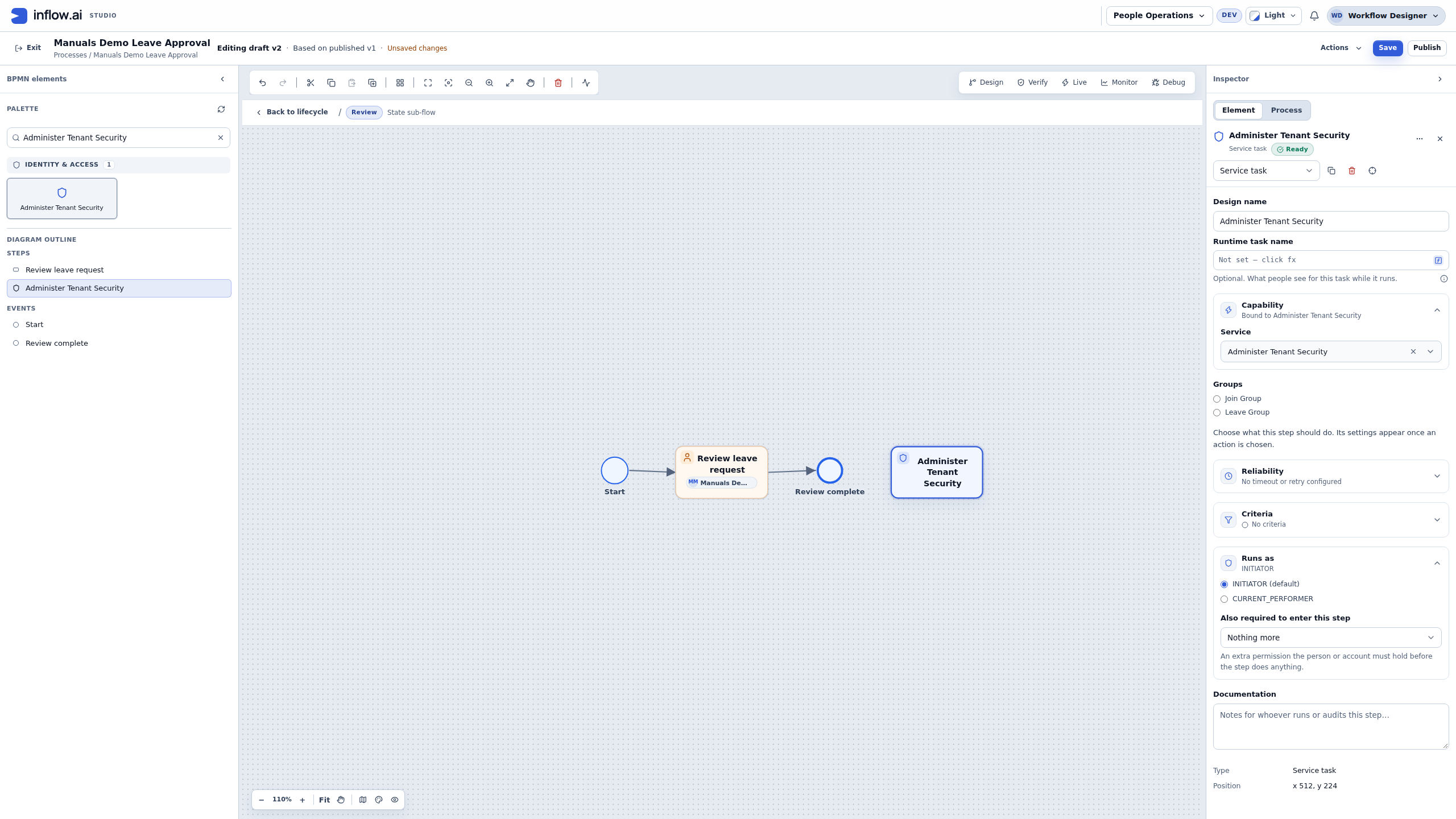
Read the marks: 1 confirms which capability the selected node uses; 2 shows the two offered group functions; 3 locates Runs as, including the selected INITIATOR (default), the offered CURRENT_PERFORMER alternative and Also required to enter this step. These are authoring settings. Their presence does not grant an actor the right to run the operation.
Do not use Join Group as a substitute for Add Group Members. The first concerns the identity the operation acts for; the second names people to add and needs its own authoring and runtime authority. A label that mentions a group is not enough to establish the same effect. Likewise, Leave Group is not a way to remove every member of a group.
Both Join Group and Leave Group act for a person: the case's INITIATOR, or the CURRENT_PERFORMER from a preceding completed task. They do not offer a service-account actor. The target must be an ordinary group whose owner has enabled People may join or leave this group themselves; both operations refuse a closed group. A privileged group is not a self-service target. If the intended group does not meet these conditions, stop and ask its owner to review the business request. Do not change the group's settings or permissions merely to finish this practice.
Select a function, then read what is still missing
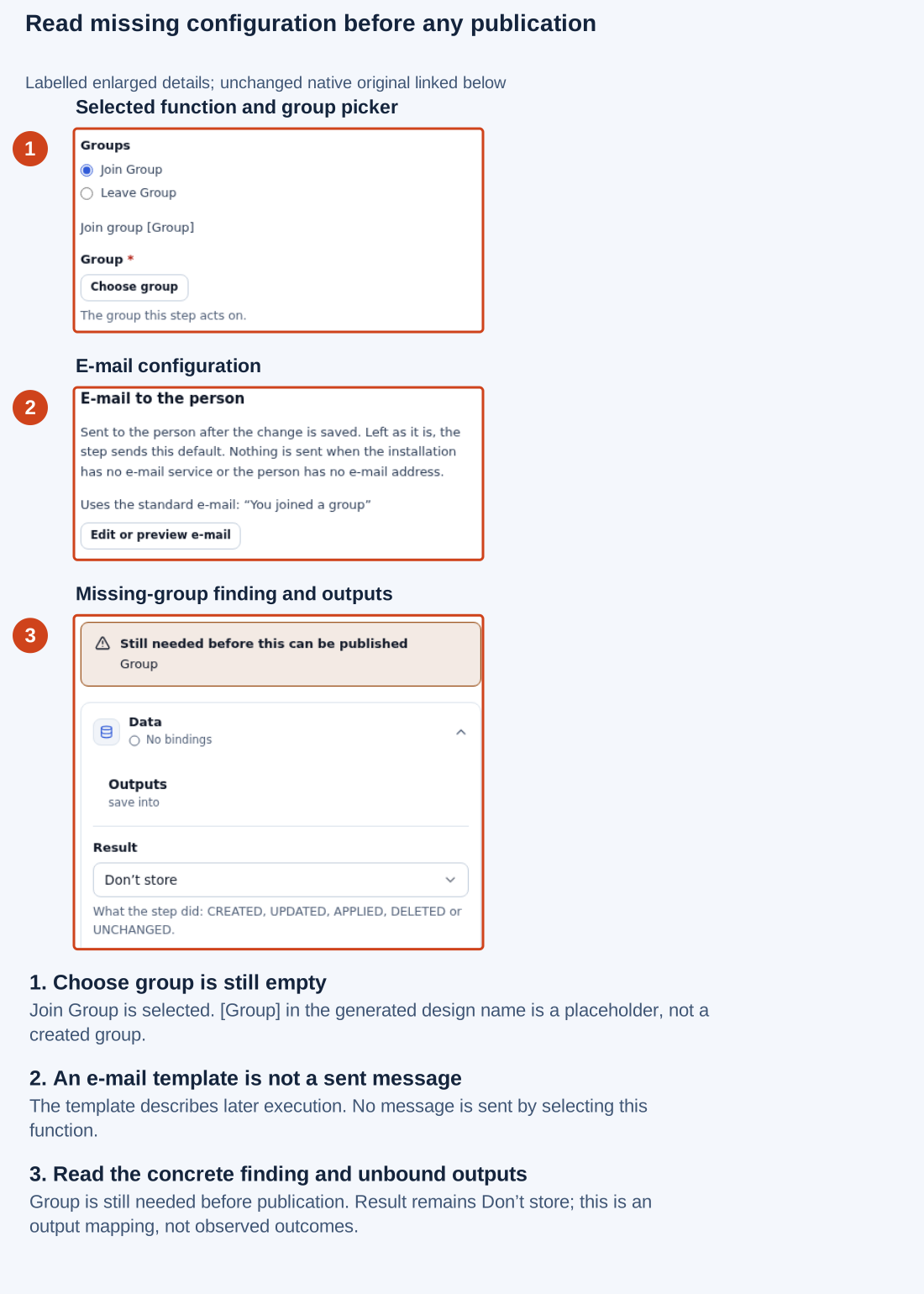
For a local practice check, Nadia selects the offered Join Group function and leaves its Group unset. The design name changes to Join group [Group]. The bracketed word is a placeholder for the missing selection, not a group that has been created.
Open the unchanged native 2560×1440 screenshot
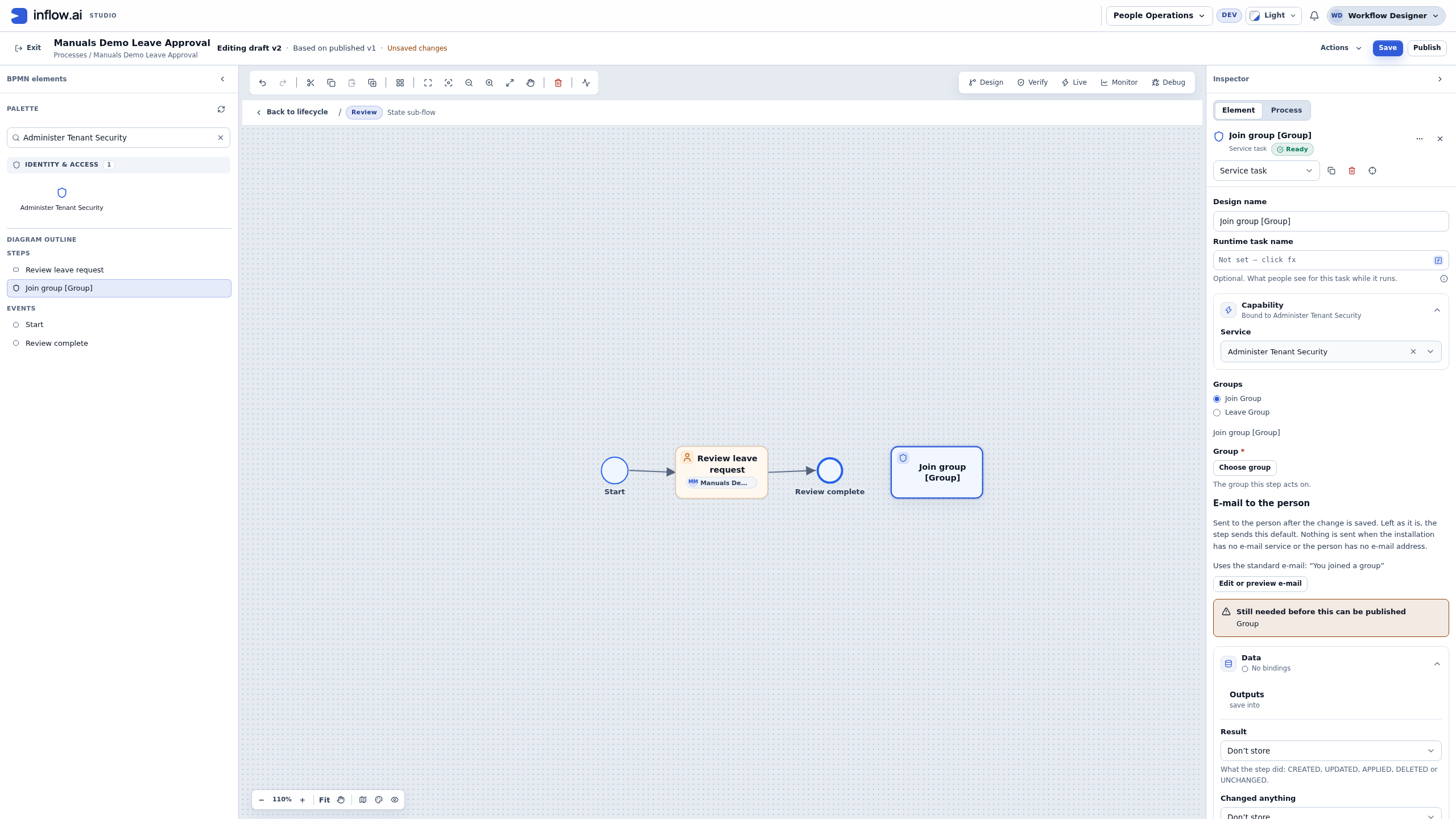
Read the marks: 1 shows the selected function and empty Choose group picker; 2 identifies E-mail to the person as configuration; 3 shows Still needed before this can be published → Group and the unbound Data outputs. The small Ready badge by the node title does not resolve the specific missing-group finding below. Read the whole inspector before deciding whether the design is complete.
The displayed e-mail text describes what an executed operation can send after a change is saved. It is not a sent-message receipt. Opening this function has not sent an e-mail. The pictured Result output is Don't store; it has no execution value yet. If a later reviewed process needs that result, map it deliberately to a suitable case field. Do not invent a successful membership result from an unfilled picker or an output definition.
When practicing without an approved target, stop here. Undo the function selection and then the node insertion that you just made; check that your original nodes and connections remain. Do not undo earlier work you did not create. In the pictured walkthrough those two Undo actions restored the original three nodes and two connections. No Save, Publish, simulation, debug run or process start was used. For a real onboarding process, continue only with the identity owner's agreed target, actor and review route.
Work through the access decision before the automation
Use a small written example with the owner before configuring the mutation. For Nadia's fictional training intake, the request is: add Sara to the ordinary Training attendees group after her intake is approved. The intended outcome is one approved membership change. It is not an administrator promotion, a change to every group Sara belongs to or a blanket grant to the whole application.
| Question to settle | Example answer | Why it matters |
|---|---|---|
| What business decision permits the change? | The intake reaches its approved branch. | Merely opening or submitting the request is not the approval. |
| Who is the intended person? | Sara, selected through the supported People picker. | A fixed person and a case-provided person must not conflict. |
| Which group is affected? | The owner's ordinary Training attendees group. | Similar display names can describe different groups. |
| Which operation matches that intent? | Add Group Members, when offered and authorized. | Join Group is not an equivalent way to add arbitrary people. |
| Who runs it? | The owner-approved identity with the required current authority. | Authorship and execution authority are separate. |
| What proves the outcome? | The original operation result and authorized membership readback. | A preview, saved process or e-mail template is insufficient. |
| What happens if confirmation is lost? | Reconcile the original attempt before another request. | Repetition can duplicate effects or notifications. |
There are three separate checks. First, the designer must be allowed to author and publish the intended function. Second, the person or account chosen in Runs as must be allowed to perform it when the case reaches the step. Third, any additional entry permission configured for the step must also be satisfied. Choosing Nothing more for that extra check does not remove the operation's own authorization requirements.
For example, an intake approver may be permitted to decide the business request while still lacking permission to administer memberships. Do not solve that by granting the approver every identity permission. Agree the supported actor model and least authority with the owner. If the intended service-account choice is not offered, do not assume the current initiator has equivalent rights.
The remaining examples describe the configuration and review procedure when those functions and prerequisites are available. They were not executed by the illustrated practice account.
Example: prepare a group's project access
The training-reviewer group should receive exactly the roles described by its published profile. Nadia uses Set persona access to bring that group into line with the reviewed design. This can remove access the profile no longer describes as well as add missing access, so she reads the change preview first.
- Confirm Manage Application Access is actually offered in your approved environment. If it is absent, leave the process unchanged and ask the application owner to check the available capability and your intended authoring access. Open the approved process and the relevant state's Open flow. Use the process design lesson if you have not prepared a flow yet.
- In the toolbox's Identity & Access category, add Manage Application Access to the intended path and select the step.
- In Function, choose Set persona access. The editor now shows the settings for that function.
- In Access profile, use the named picker to choose the owner's published training-reviewer profile. Do not type a guessed profile identifier.
- Review Which profile version the step applies. For a controlled training check, choose Only version… for the displayed current publication. If the profile is later published again, the step can require a fresh review instead of applying an unreviewed change.
- Open Runs as and read Who this step runs as. Select the agreed authorized person or approved service account. If a service account is chosen, use its picker and confirm the displayed account.
- Read What this step changes, then choose See what it would change now. Check the application, group, profile version and access changes with the owner.
- If the process needs a readable result field, prepare a Text field such as Access result in its case file. In the step's Data outputs, map Result to that field. Leave unneeded outputs as Don’t store.
- Save, Verify and review the process before publishing. Run only the agreed training scenario through the supported process route.
- Inspect the result and the group's effective access with the authorized owner. A preview describes current conditions; it is not proof that the future step executed.
What you should see: the selected group matches the reviewed profile after a successful allowed run. A group that already matches can require no change. An unavailable profile or acting account is a setup problem to resolve, not a reason to grant every right.
Example: add an approved trainee to an ordinary group
The onboarding process has an explicit approved outcome. After that decision, an authorized identity operation adds the selected person to the ordinary Training attendees group. This is different from creating a new administrator account or changing every group the person belongs to.
- Confirm Add Group Members is offered to you and the identity owner has approved the intended targets. If you see only Join Group and Leave Group, stop this example there: they are different operations. In the approved onboarding flow, add Administer Tenant Security from Identity & Access after the deliberate business approval.
- In Function, find Groups and choose Add Group Members.
- Use Group to select the intended ordinary training group.
- In People, choose the actual approved training account through the picker. For the learning scenario, use a specific owner-approved account so the effect is easy to check.
- Leave unrelated group membership choices alone. If an E-mail to the person is configured, agree the message and approved test-mail setup before running it.
- Review Runs as with the identity owner. The selected actor must already be allowed to perform this operation on these targets.
- Save and Verify, resolve reported configuration problems, and publish the reviewed process.
- Run the agreed training scenario. Read the operation result, then inspect the intended group's membership with the authorized administrator.
What you should see: the intended person belongs to the selected group after the allowed operation. Membership alone does not automatically grant App Shell access or every task. A refused operation remains refused even if the process was saved or published successfully.
For a reusable process that selects a different person for each case, configure its declared person input and the step's supported mapping with the process designer. Do not set the same person both in a fixed picker and from case data; the editor identifies that conflict. Begin with the explicit learning example before generalizing it.
Other useful functions
Manage Application Access also offers Check effective access, Verify complete persona permissions and List eligible users and groups. Use these when the business needs to inspect access before acting. Remove persona access removes every access grant the persona group holds in this application, including access outside the selected profile. It leaves the group and its memberships intact. Review that full removal scope with the owner before configuring or running it.
Administer Tenant Security separates People and Groups operations. Creating, changing, deactivating or deleting identity information is a distinct business decision. Choose only the function the approved process actually needs.
Example: check a published profile before deciding whether to change access
Use Check effective access when the question is what one person may do in an application, function or selected item. Use Verify complete persona permissions when the question is whether the persona group matches its whole published profile, optionally including one person's eligibility and role. These read-only checks answer different questions; neither should be treated as the authorization itself or as proof that a later change ran.
Example: verify a persona before changing access
An owner asks whether the published Training reviewers profile is fully applied to its group and whether Sara can use that persona. Nadia places Verify complete persona permissions before any access-changing operation:
- In the approved flow, choose the owner's published Training reviewers profile in Access profile.
- In Data, choose Only version… and select the reviewed publication version. This makes the step stop if someone publishes a newer profile before the process reaches it; Nadia can then review the new version deliberately.
- If the check should also cover Sara, select her once in the step's person field. Do not also bind a second person into the same step from the case.
- Confirm Runs as uses an identity authorized for this check. Save and Verify the flow before running any scenario.
- In What this step changes, choose See what it would find now. Inspect the preview's missing, below-profile, above-profile and already-matching access. It describes current conditions and does not execute the step.
- Map Persona complete, Missing platform permissions, Missing access, Access changes, or Warnings to case fields only when the process needs those values later. The Result output reports COMPLETE or INCOMPLETE. Leave unneeded outputs as Don't store.
- Run only the approved training scenario and inspect the result recorded by the step. The earlier preview is not the result of an execution.
A complete result means the checked persona matches that pinned profile under the verifier's rules. If it is incomplete, the owner reviews the listed differences and any person warning. The verifier changes nothing. A separate Set persona access operation is a mutation and needs its own authorization, change preview and process review.
Common mistakes
| Problem | Useful next step |
|---|---|
| The intended tile or function is absent. | Confirm the supported capability and intended authoring access with the owner; leave hidden operations alone. |
| Only Join Group / Leave Group appears. | Use only the offered function that matches the agreed intent; do not substitute it for adding named people. |
| No published access profile can be selected. | Ask the application owner to prepare and publish the right profile. |
| A step cannot run as the chosen person/account. | Review that actor and its legitimate current rights with the owner. |
| The same person is selected twice. | Choose either the fixed setting or the intended case input, as the editor explains. |
| The preview differs from what the owner expected. | Review the profile and current group access before publishing or running. |
| Access removal leaves people in the group. | Review the separate membership decision; do not delete accounts to hide the result. |
| Confirmation is lost after an identity change. | Inspect the original operation and current membership/access before repeating it. |
Continue with process design, user and group preparation or application-user access.
Further reading
Optional technical reference — detailed contracts and implementation information for your administrator or developer. You do not need it to follow this lesson.