Write and test simple formulas
A formula turns known values into an answer. Inflow calls a reusable formula an Expression rule. You might use one to check whether a leave request is within an allowance, calculate a total or choose a label.
Screenshot context: The declaration and live-test walkthrough below was captured on 15 November 2026 from a build of master at 169cd3374a, using fictional People Operations data. Its new figures show an unpublished draft. The later publication and Constant figures are explicitly historical captures from 8 November; they are not new runtime evidence. Your installed version and available actions may differ.
Start with one small business question. Write down the inputs, expected answer and what should happen when an input is missing. You do not need to learn the whole expression language before building your first rule.
The essential ideas
| Idea | Meaning | Example |
|---|---|---|
| Input | A value supplied when the rule runs | requestedDays is 5 |
| Formula | The calculation or condition | Requested days are no more than the allowance |
| Result | The answer produced | Yes, the request is within the allowance |
| Function | A named calculation you can reuse | Count working days between two dates |
| Published rule | A checked version other parts of the application can use | Leave eligibility version 1 |
A rule can answer a question without carrying out the business action. An eligibility result does not approve the request or deduct a balance. The workflow or form must deliberately use the result in its own permitted action.
Before you begin
Open the correct workspace and confirm that you may create or change rules there. Use fictional values while learning. Agree the policy with its business owner; the example allowance below is a teaching value, not an organization-wide leave policy.
Example — Check a request against an allowance
Nadia wants the rule to answer: “Are the requested days no greater than the allowance?”
- Open Build → Rules. If a matching Leave eligibility rule already exists from the connected tutorial, open and inspect it instead of creating another. For a missing rule choose New rule → Expression.
- For a new rule, enter Name Leave eligibility, check Key
leave_eligibility, choose Leave management as Business function, then choose Create Expression. The readable name, permanent key and business function have different purposes. - Open Variables in the outline; use Open variables if the outline is collapsed. Choose Declare. Enter Name
requestedDays, Type Number, Cardinality Single value, and turn Required input on. Add a description explaining that this is the requested quantity, then choose the inline Declare button. If the input already exists, inspect its declaration instead of adding it again. - Declare or inspect a second required single Number input,
allowance. Describe it as the approved allowance supplied by the consuming application. Declaring an input makes a place for a value; it does not automatically read the leave model or another constant. - In the formula editor, enter:
inputs:requestedDays <= inputs:allowance
Read it from left to right: inputs: means “use the value supplied to this rule”; requestedDays and allowance are the names you declared; <= means “less than or equal to.” You can insert input references from the editor instead of typing their names repeatedly.
- Choose Validate. Correct any issue before testing.
- In Live test + Agent, enter the sample inputs and choose Run.
- Check the result against this table. Continue through the missing-input exercise below before the single final publication step; do not publish here.
| requestedDays | allowance | Expected result | Business explanation |
|---|---|---|---|
| 5 | 10 | true / Pass | The request is within the allowance |
| 10 | 10 | true / Pass | Exactly the allowance is permitted |
| 11 | 10 | false / Fail | The request exceeds the allowance |
A false answer is a valid business result. It is different from a formula that cannot run because an input is missing or has the wrong type.
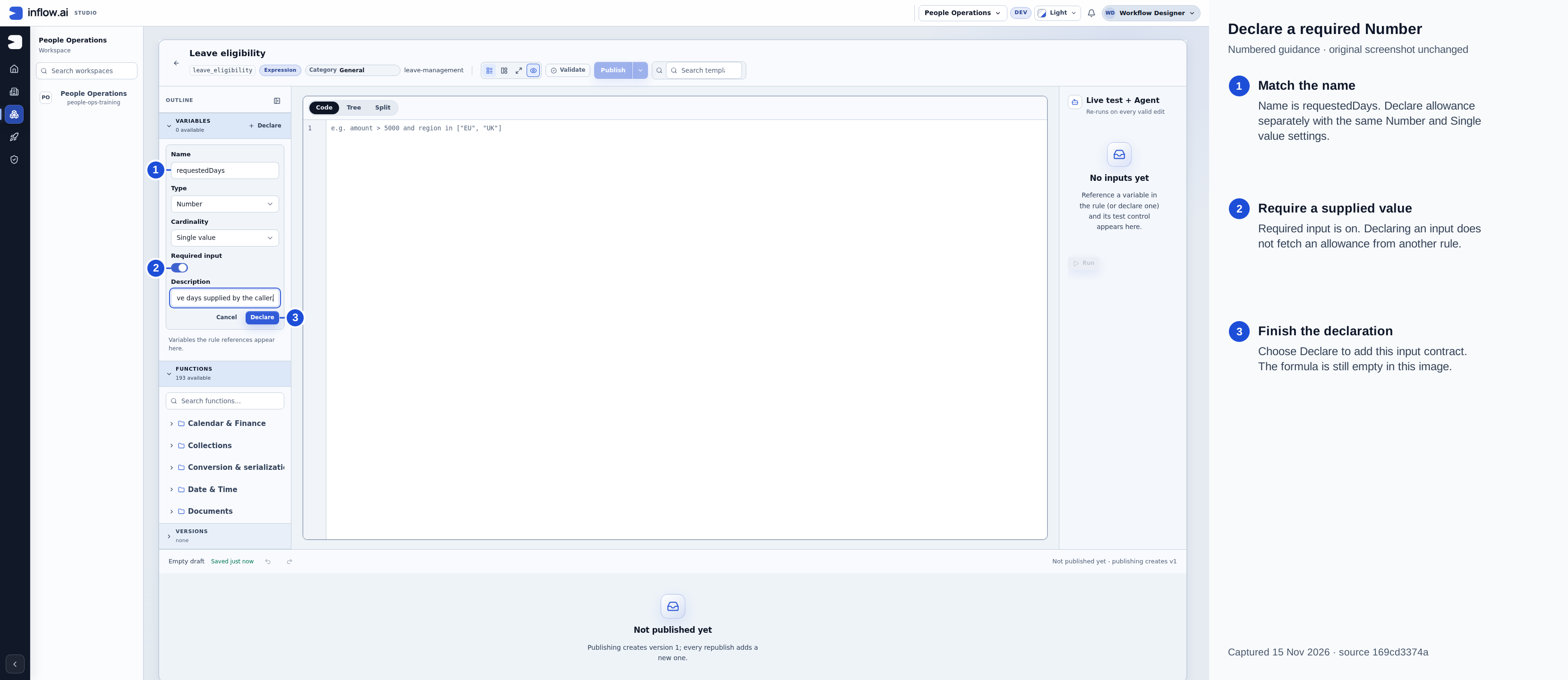
Captured 15 November 2026 from source 169cd3374a. Numbered guidance is editorial; the native 2560×1440 original is unchanged. The declaration is still being entered; the editor is an empty draft, not yet a validated expression.
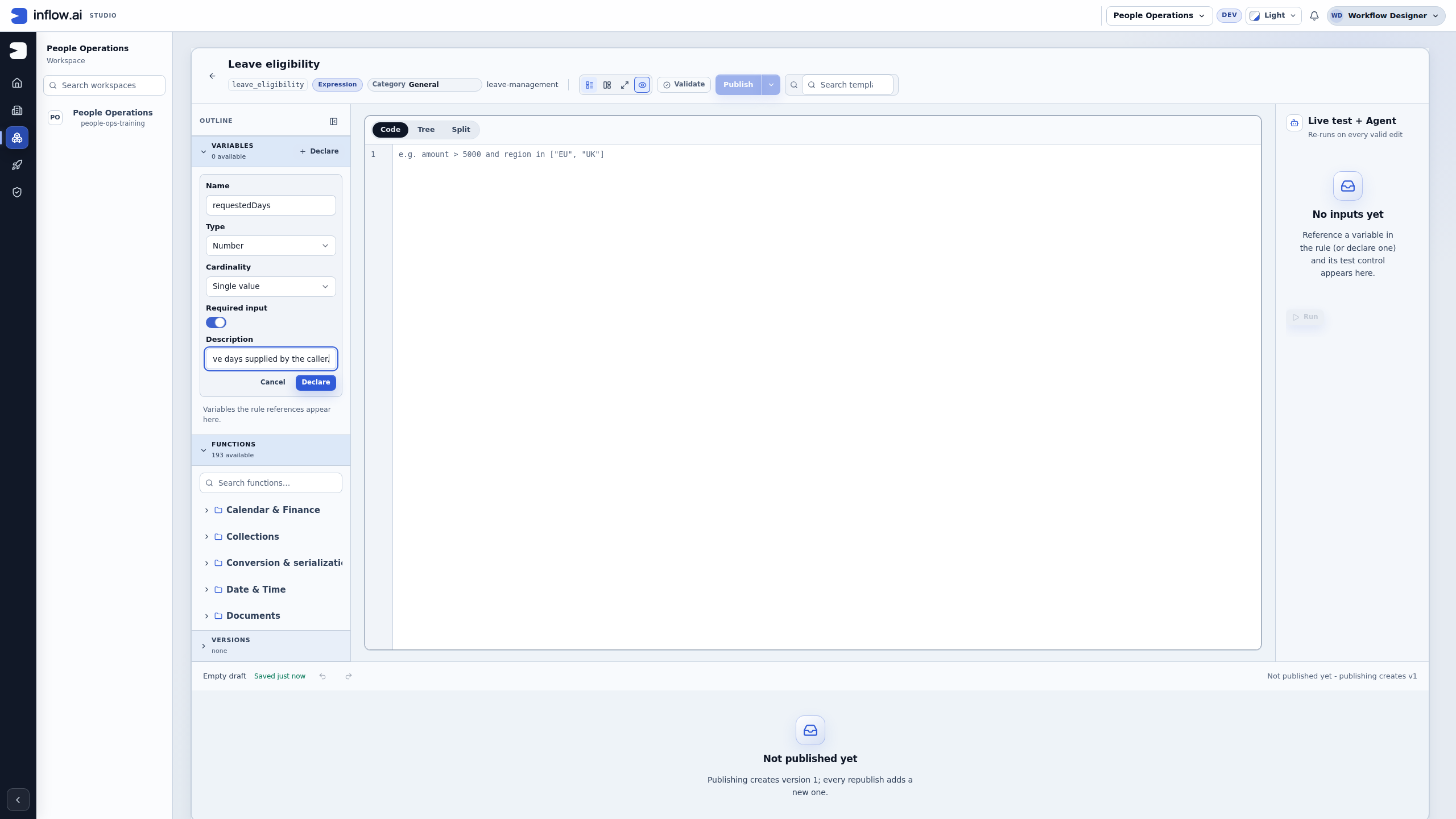
Check the declaration: Required input is on and the type is Number with Single value cardinality. The rule variable is exactly requestedDays; the model field is separately named requested_days. The consuming form or workflow must map those values deliberately. Declare adds the contract to this draft; it does not write, validate or publish the expression.
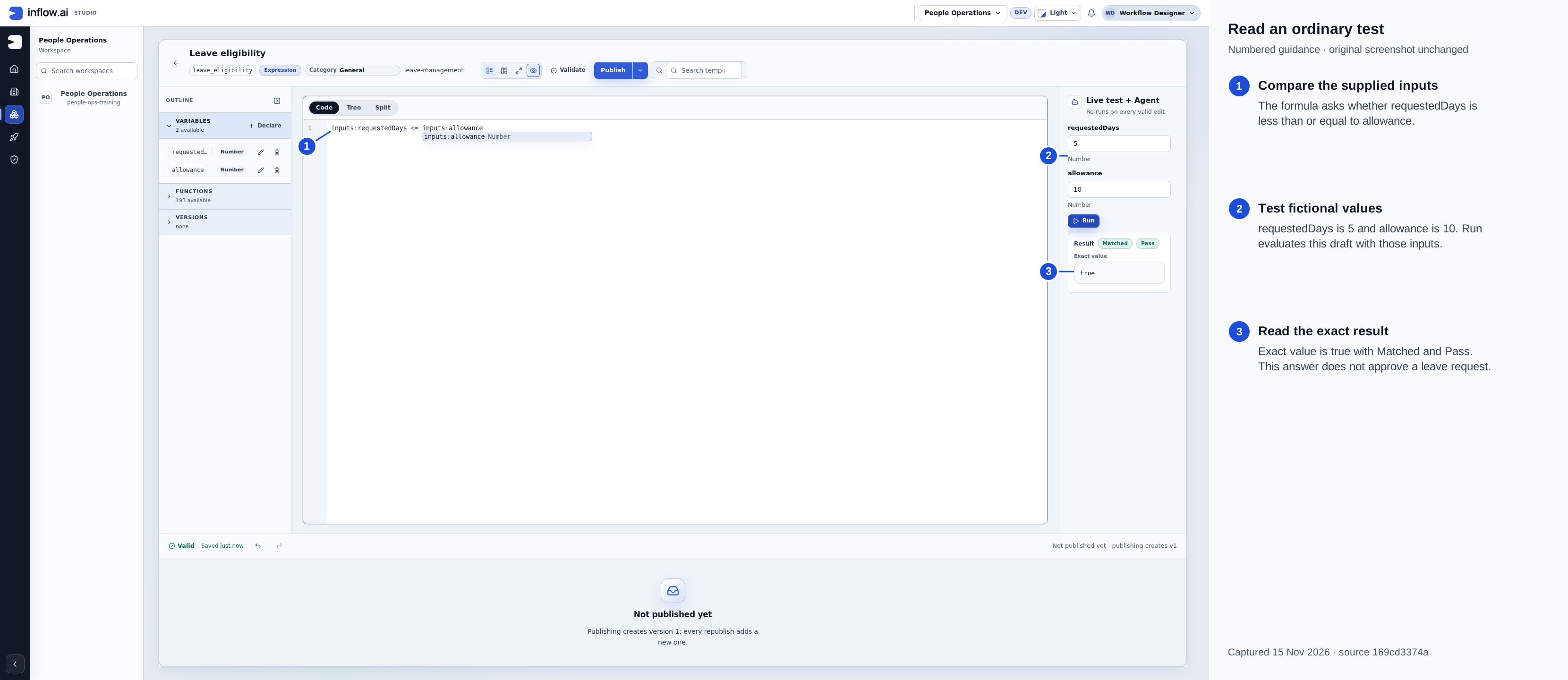
Captured 15 November 2026 from source 169cd3374a. Numbered guidance is editorial; the native 2560×1440 original is unchanged. Matched / Pass describes this comparison. The draft remains unpublished.
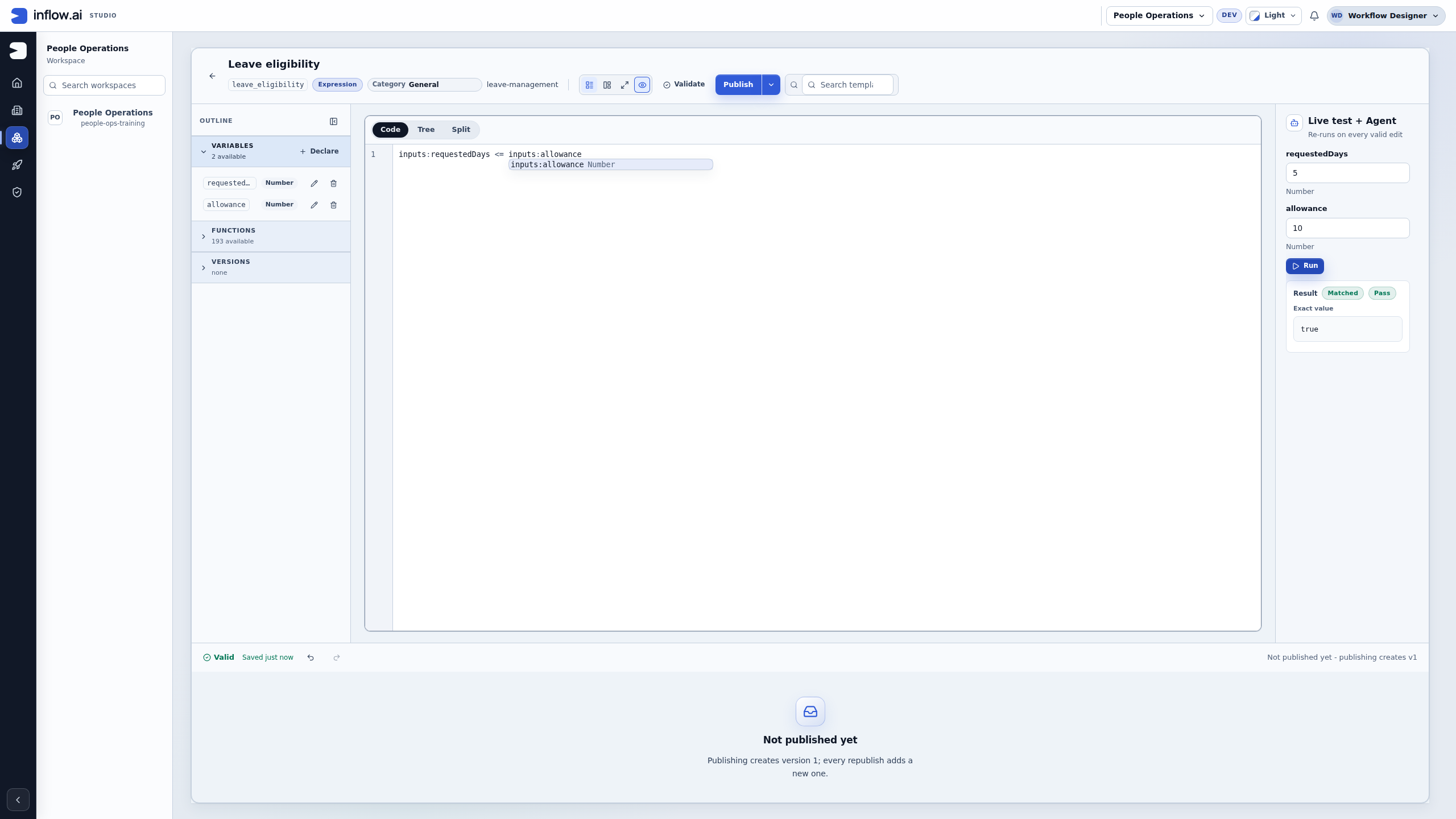
Check an ordinary case: Read both test values and Exact value. Matched / Pass means this comparison returned true. It does not mean a manager approved a leave task.
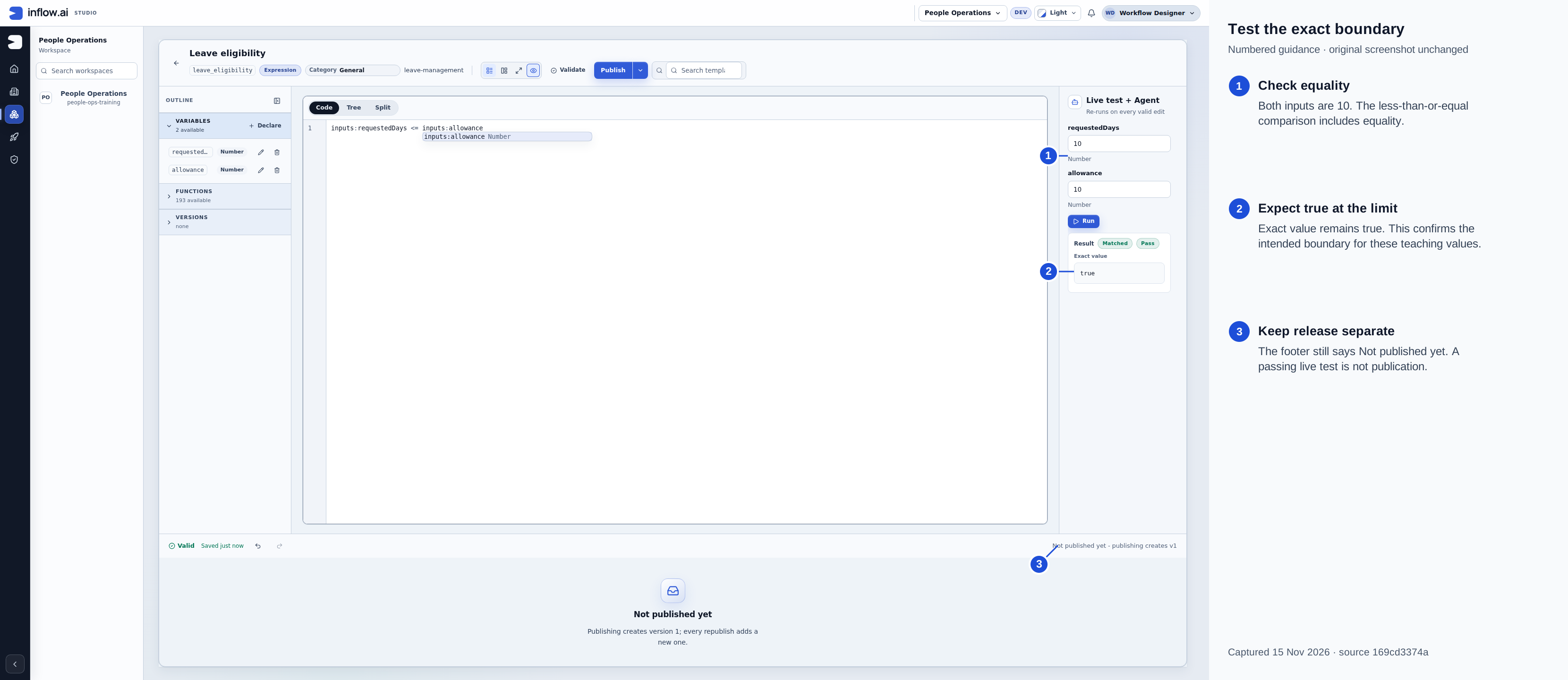
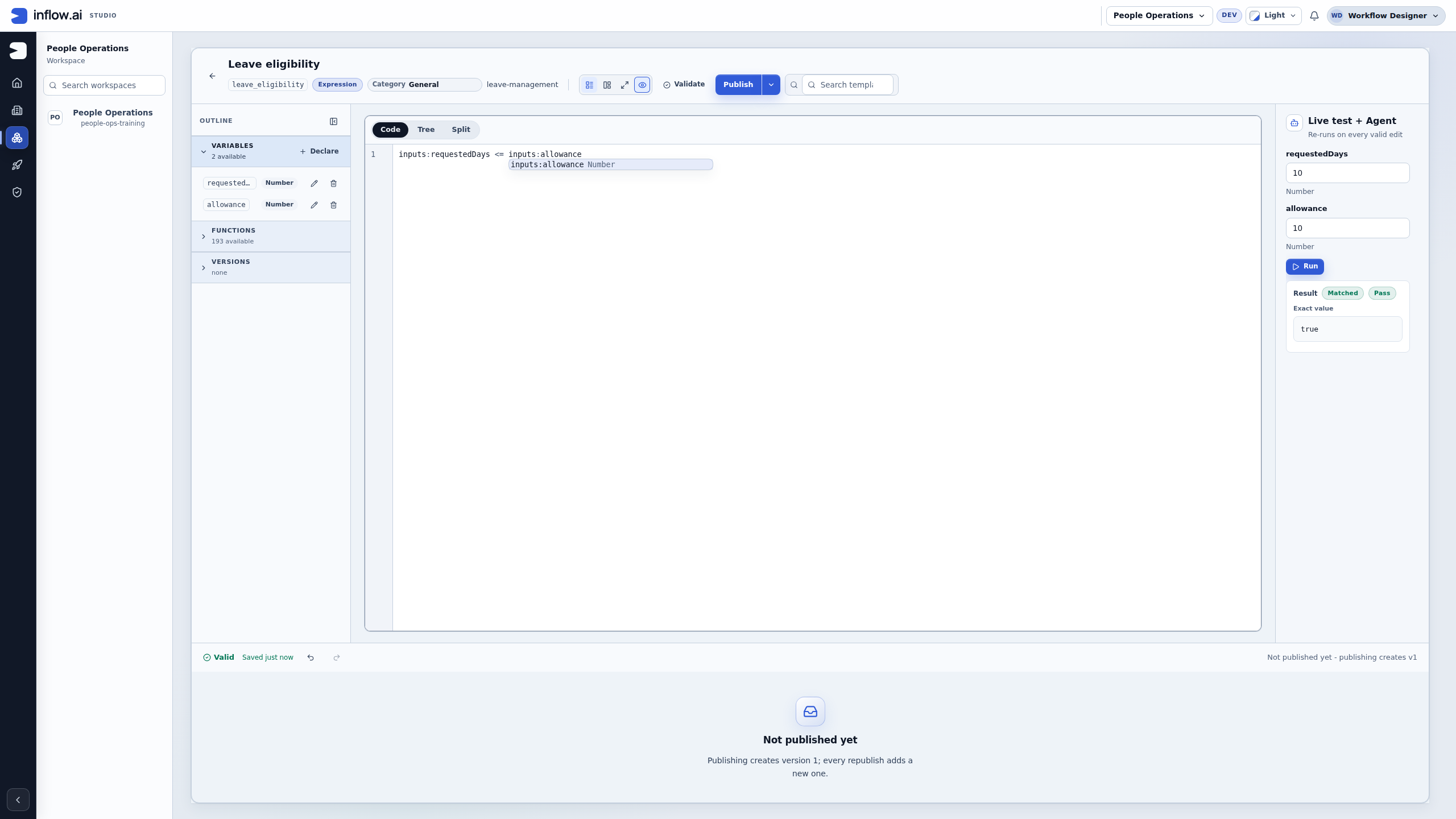
Captured 15 November 2026 from source 169cd3374a. Numbered guidance is editorial; the native 2560×1440 original is unchanged. The <= comparison permits equality; test the exact limit before the over-limit case.
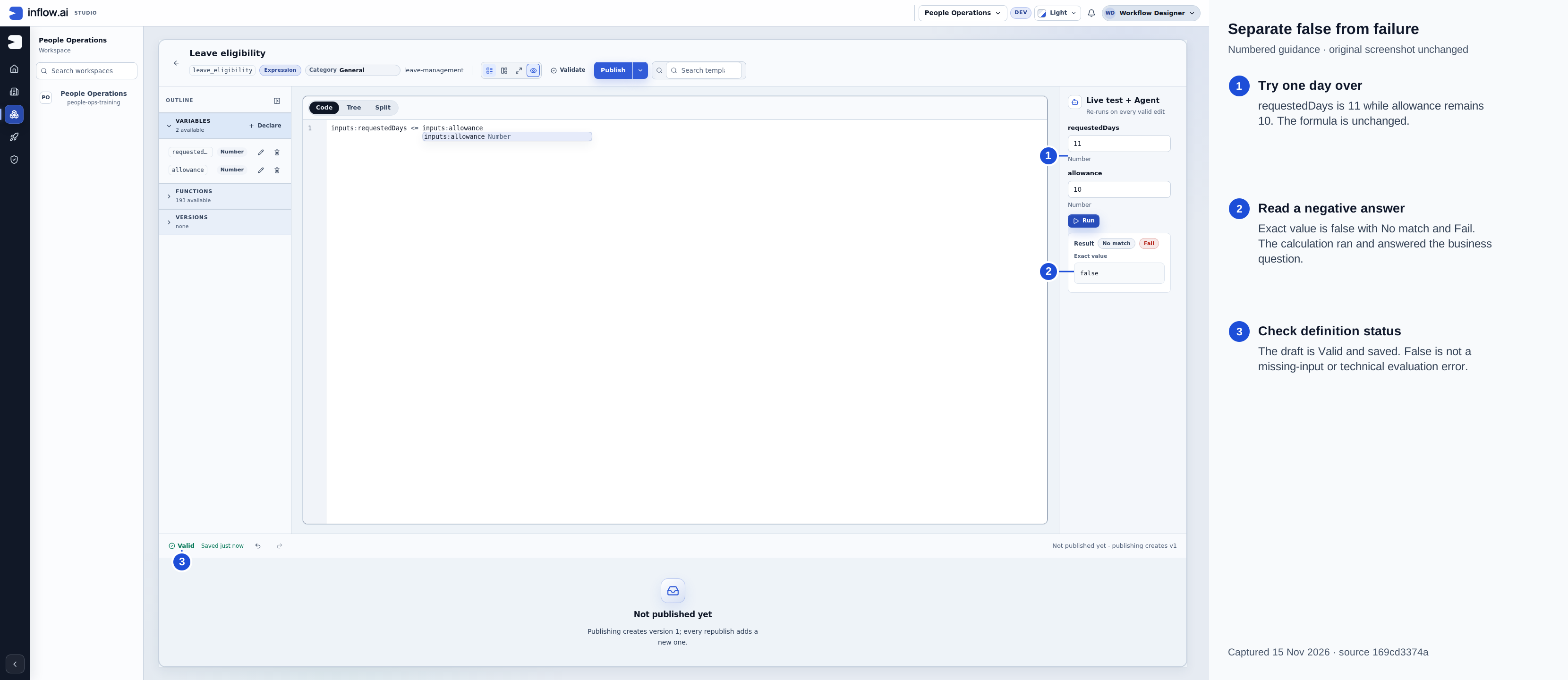
Captured 15 November 2026 from source 169cd3374a. Numbered guidance is editorial; the native 2560×1440 original is unchanged. No match / Fail is a negative business answer, while the definition remains Valid.
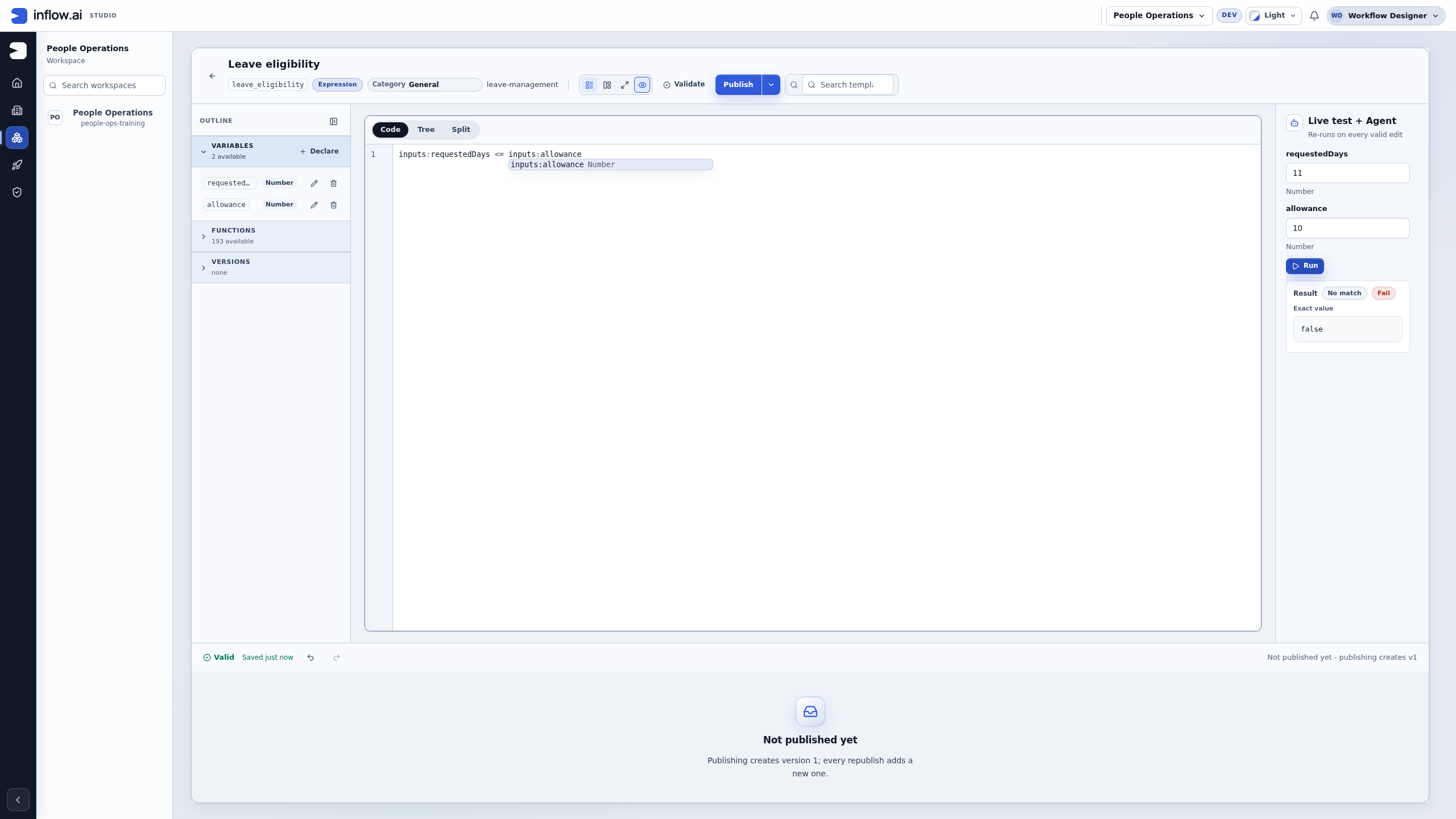
Check the boundary: Ten against ten returns true; eleven against ten returns false. In this capture the test label is No match / Fail, while the exact business value is false and the rule remains Valid. This is a negative test case, not a technical failure. Keep a small worksheet of these cases so a future policy change can be checked against the same inputs. The rule is still Not published yet in this screenshot.
Recover from a missing input
- After the eleven-day test, select the value in requestedDays in Live test + Agent, delete it with Backspace, and leave allowance at 10. Move focus out of the field and check that it really stays blank. On Windows/Linux, Ctrl+A selects the value; on macOS, use Cmd+A. If the old number returns, clear it again before proceeding.
- Read Previous result — outdated. The earlier false answer is retained as history, with an explicit warning that the test inputs changed.
- Choose Run while requestedDays is missing. The current example reports Evaluation failed and Required rule input is missing: requestedDays. This is a refused evaluation, not an answer that the request exceeds the allowance.
- Enter 5 again, check that it remains visible after leaving the field, then choose Run. Expect true / Pass again before proceeding.
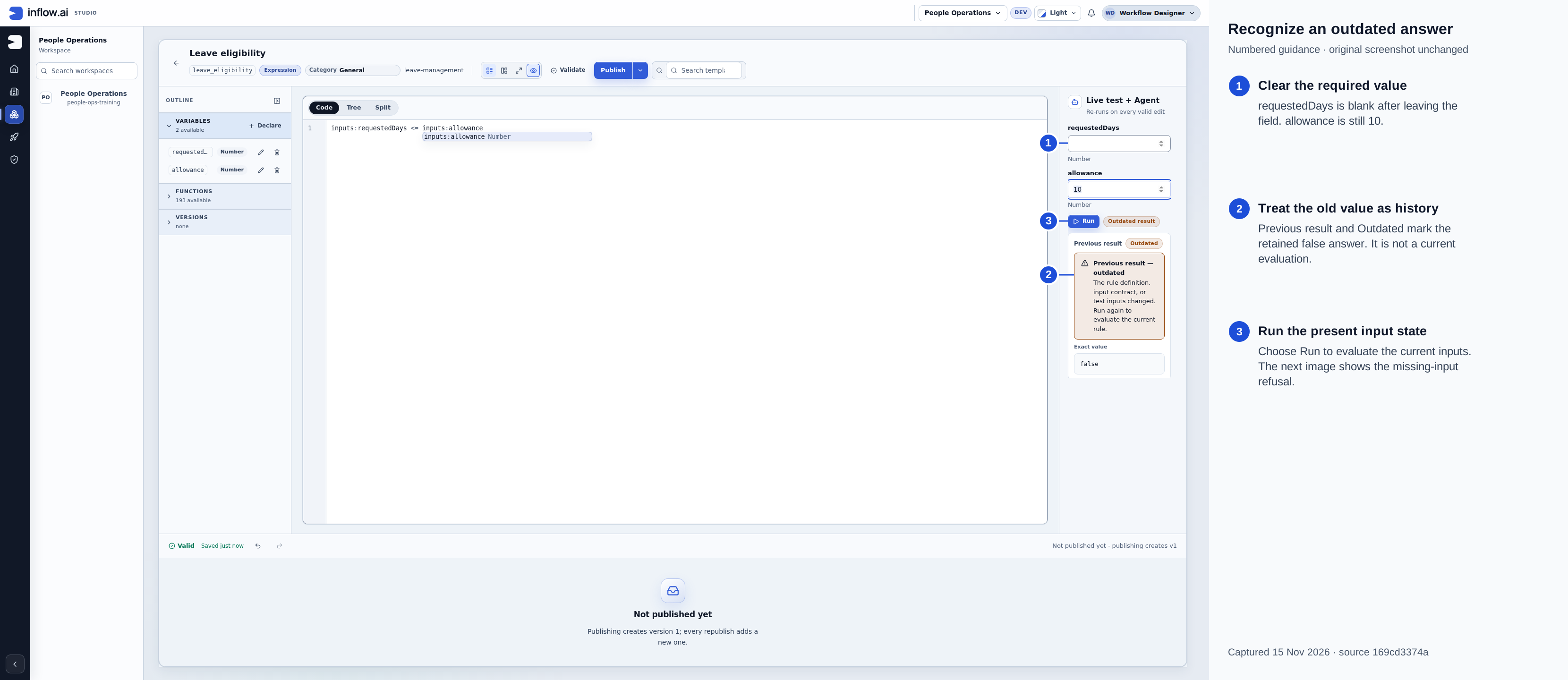
Captured 15 November 2026 from source 169cd3374a. Numbered guidance is editorial; the native 2560×1440 original is unchanged. The retained false answer belongs to the earlier input set. It must not be used as a fresh answer.
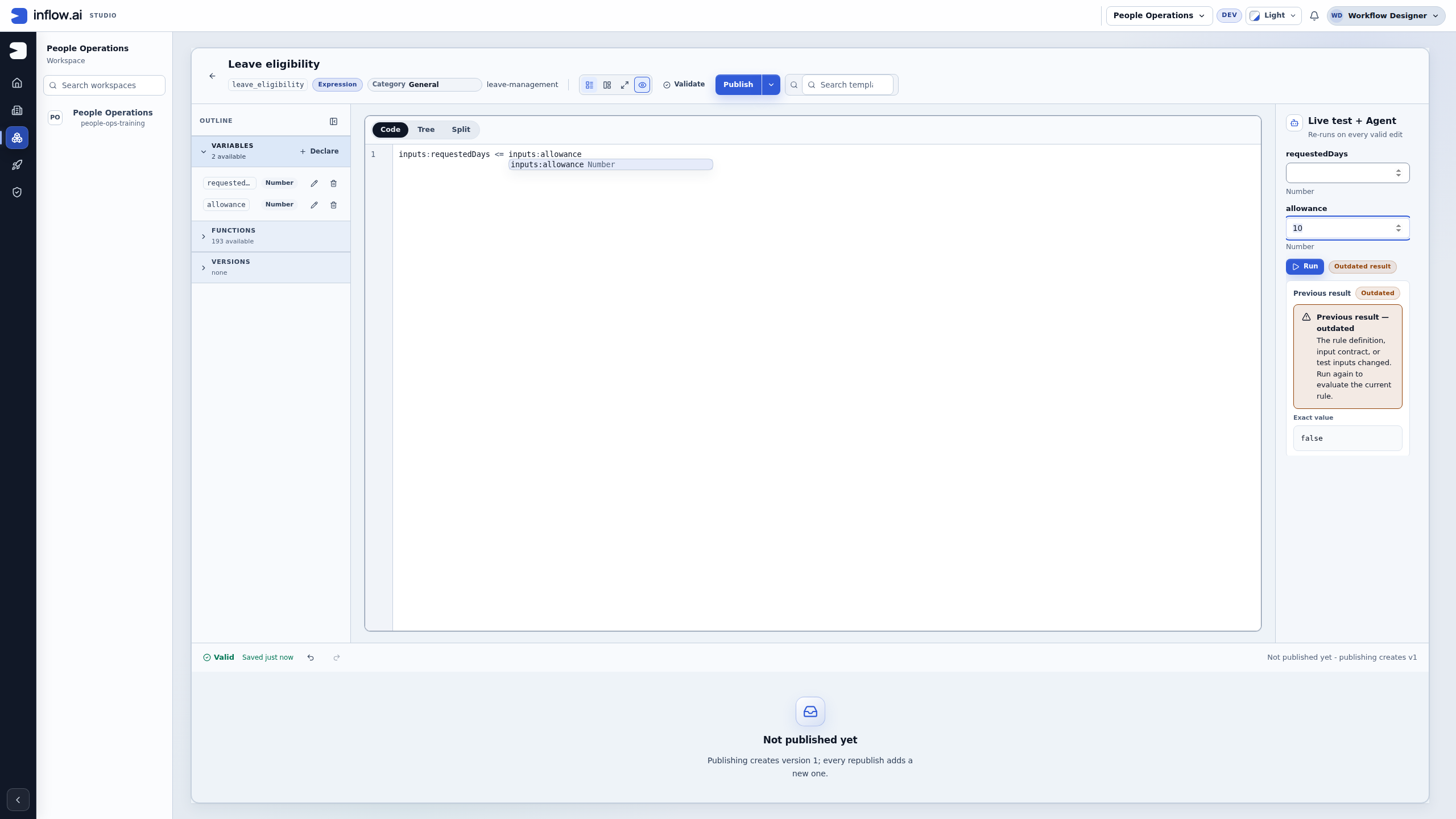
Check freshness: A visible old value is not a current answer. Changing the rule, its input contract or its test values can make the previous result outdated.
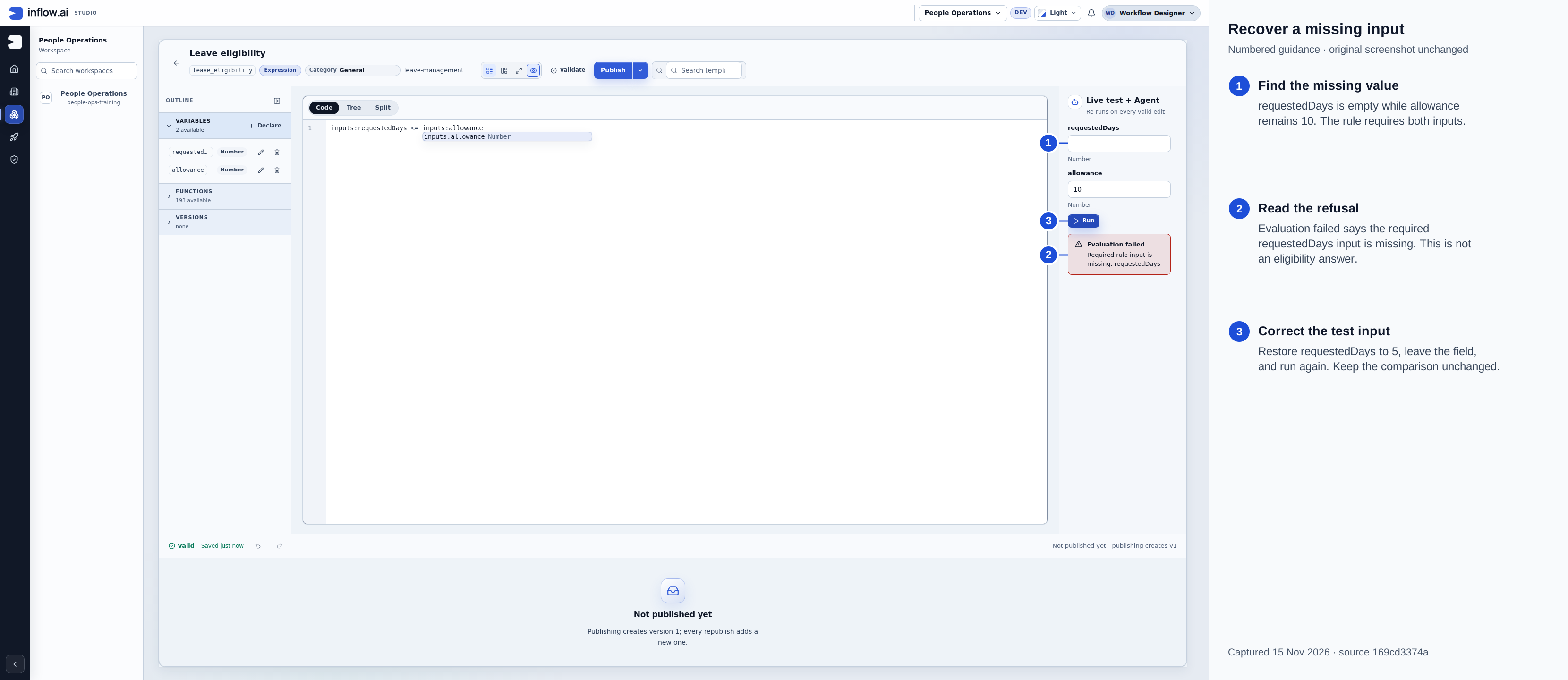
Captured 15 November 2026 from source 169cd3374a. Numbered guidance is editorial; the native 2560×1440 original is unchanged. The required input is missing, so this attempt did not produce an eligibility answer.
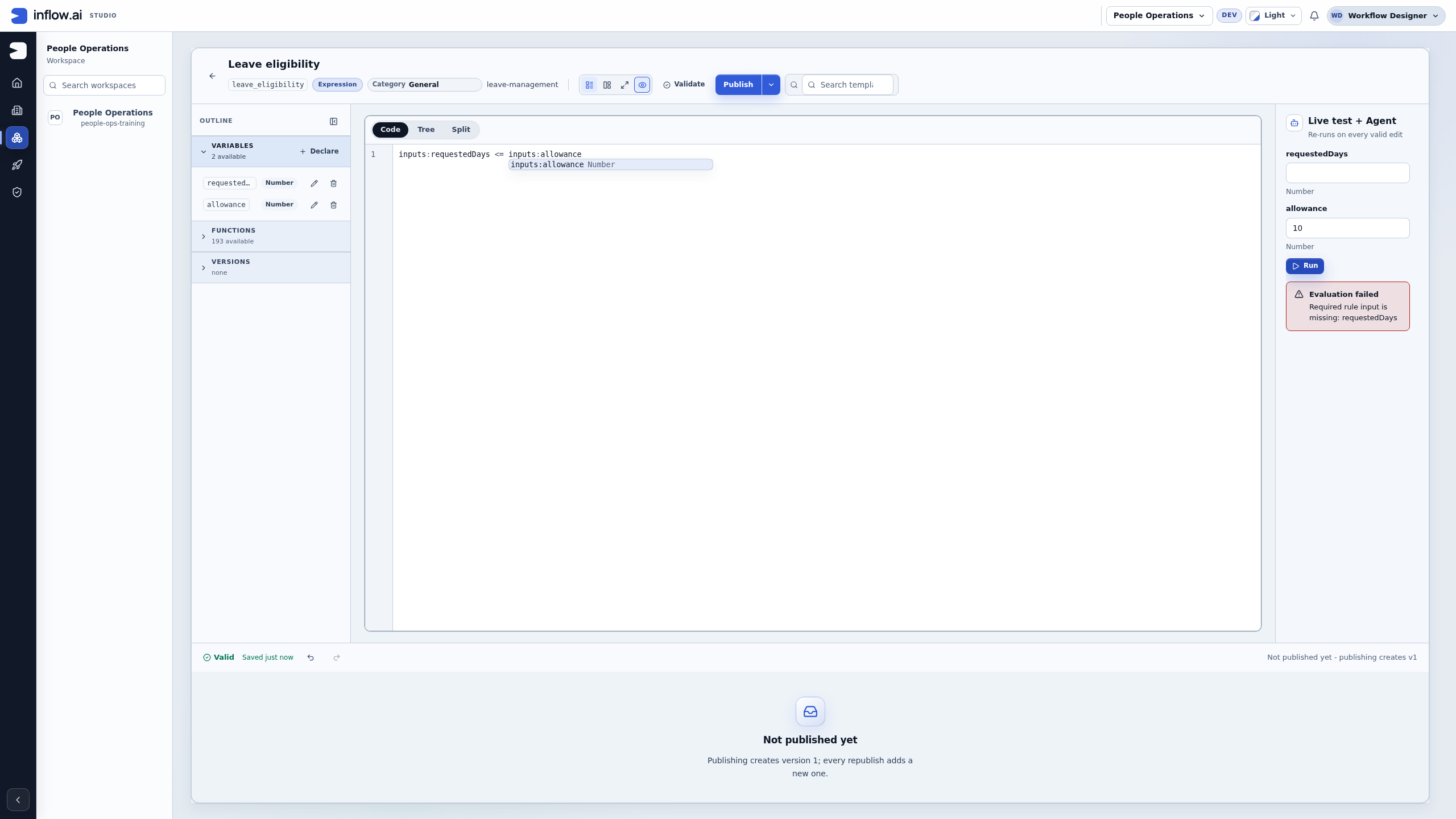
Check the difference: The missing required input prevented calculation. The refusal is distinct from a false business answer; correct the test input and run again. Do not change the formula merely to remove the message. The expression remains Valid, but the draft is unpublished.
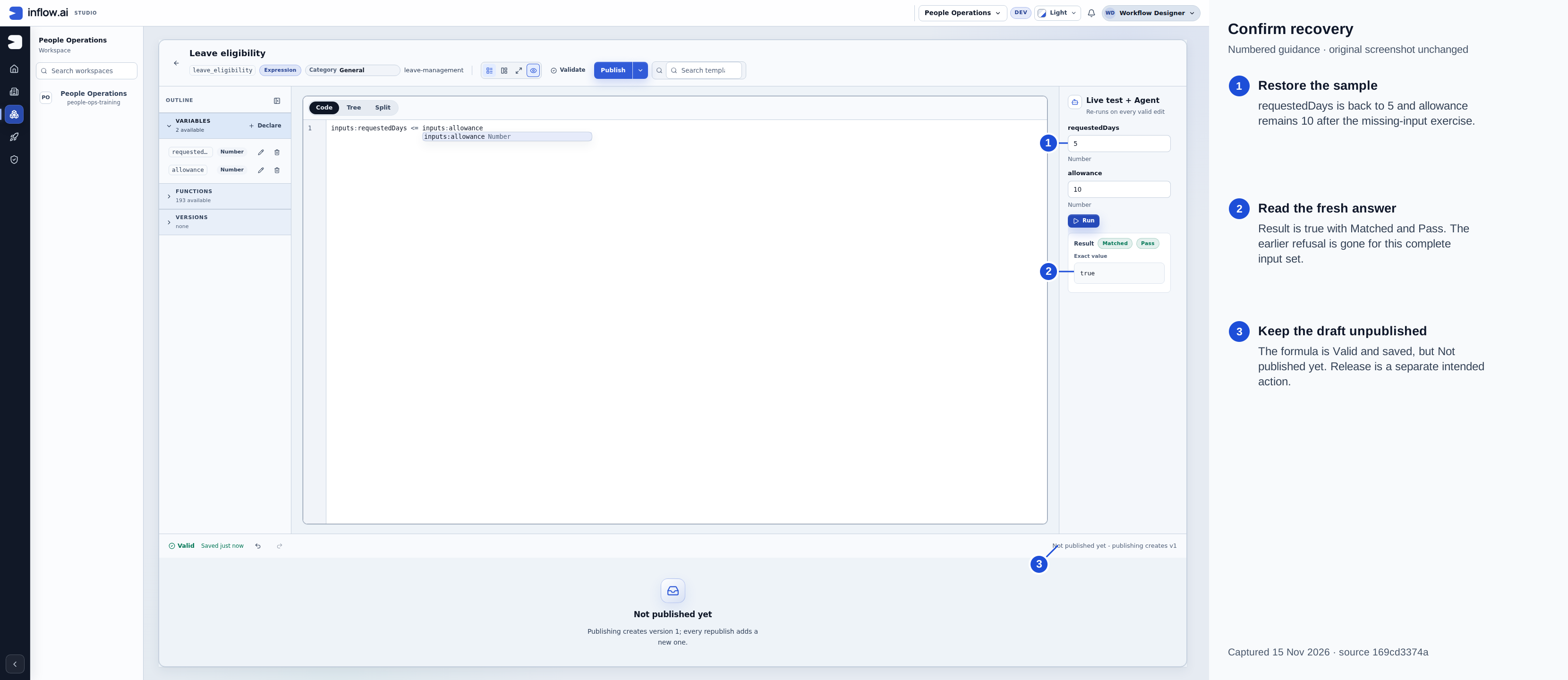
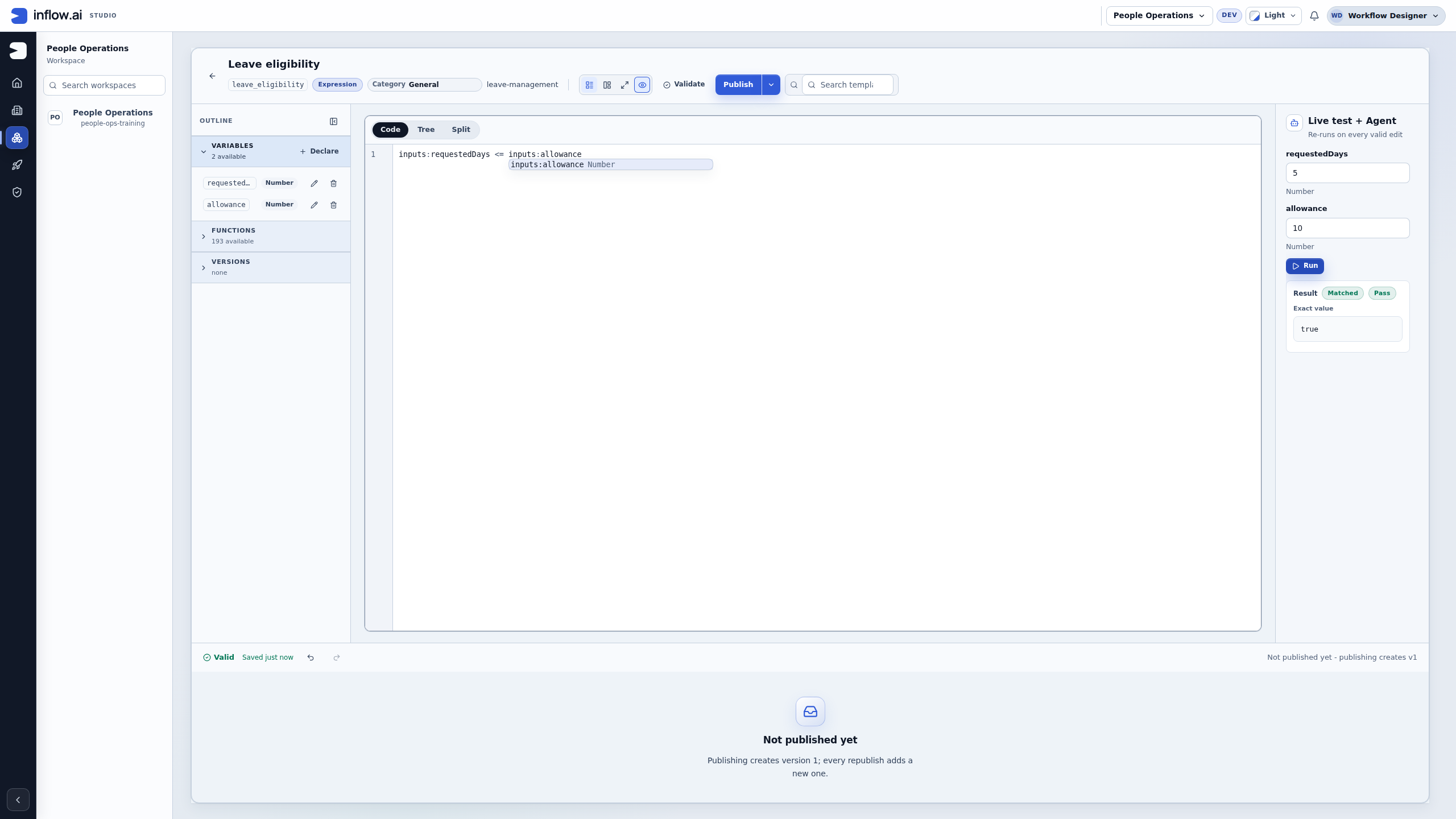
Captured 15 November 2026 from source 169cd3374a. Numbered guidance is editorial; the native 2560×1440 original is unchanged. Restoring a complete input set returns to Result / Matched / Pass. This recovery does not publish the rule.
Publish the checked rule
- Restore the ordinary 5-and-10 test and run it successfully. If an existing published rule already matches the intended formula and input contract, keep that version and skip the Publish action below. The practice tests do not require a new release.
- For an intended new or changed draft, check Valid and the saved state. Saved just now keeps the draft; it is not a published version.
- Choose Publish once for that intended new release. In this initial exercise it creates version 1. Read any review shown for later changes; publishing an edited existing rule deliberately creates another version.
- Check the resulting published-version row. A fresh example shows Published v1; an existing matching lesson retains its current version. Do not click Publish again simply to reproduce the screenshot.
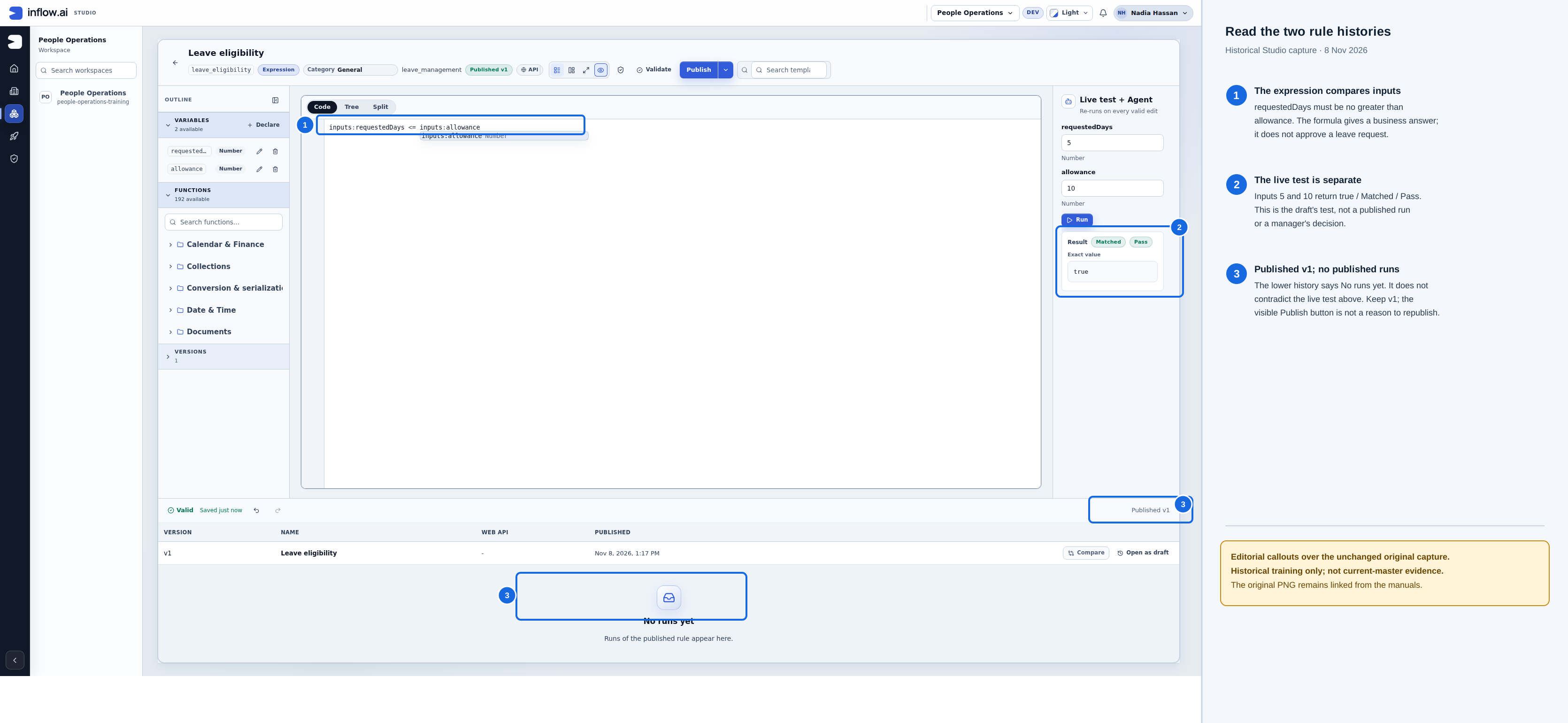
- The formula compares
requestedDayswithallowance; it returns an eligibility answer, not an approval. - The draft live test uses 5 and 10 and returns true / Matched / Pass. It is separate from published executions.
- Published v1 and No runs yet describe the release and its run history. Keep v1; the visible Publish button is not a reason to create another version.
Historical training capture from 8 November 2026. The callouts are editorial guidance over the unchanged original. Open the raw PNG. This composite is not current-master evidence.
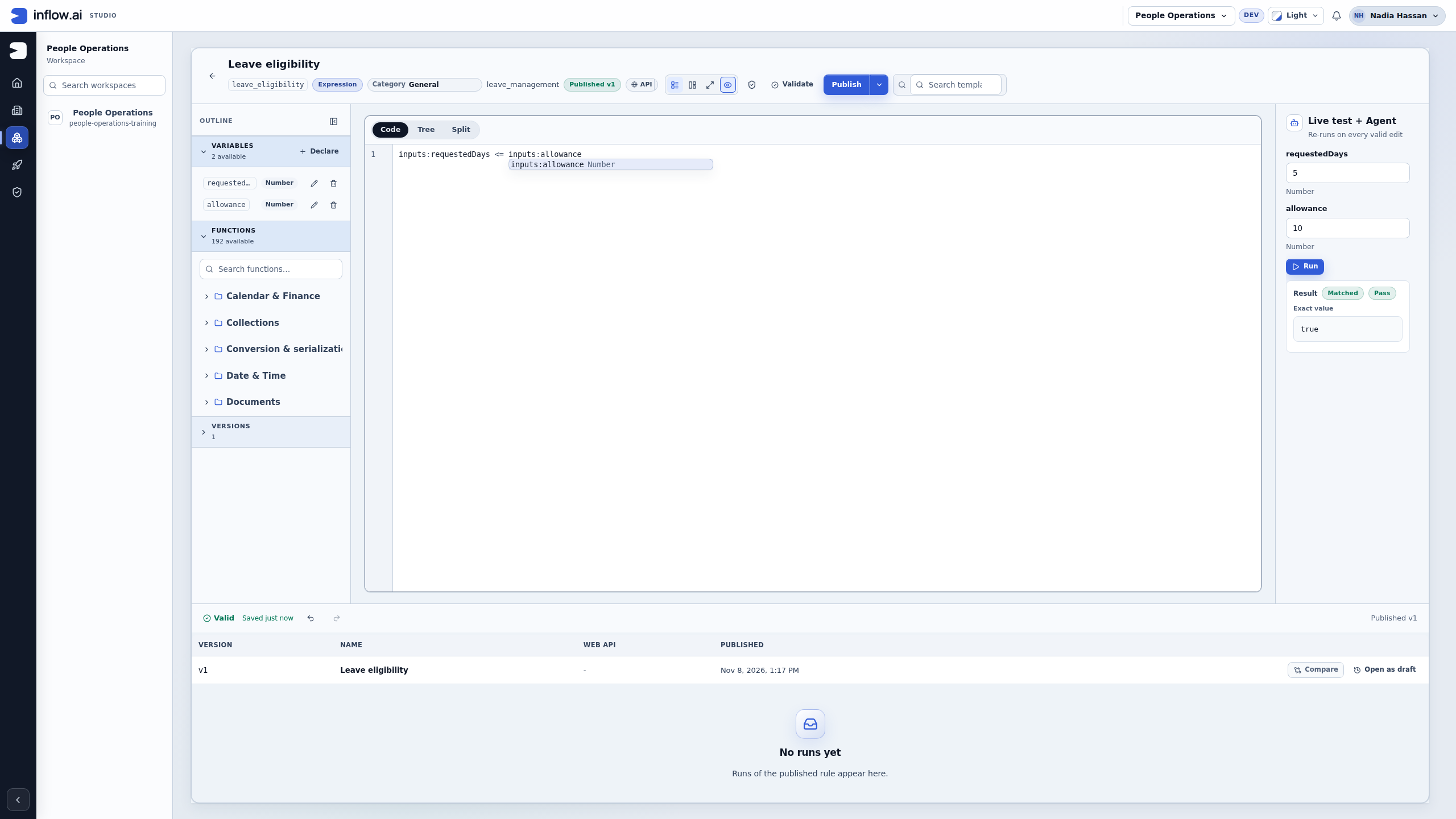
Check the two histories: The live test evaluates the draft. No runs yet beneath the published-version list refers to runs of the published rule; it does not contradict the successful separate live test. Publishing this rule neither creates a leave request nor completes a task.
Example — Calculate the cost of training materials
The same team needs four packs of training material at 12.50 each. This question produces an amount rather than yes/no.
- Create another Expression rule called Training material total.
- Declare required Number inputs
unitPriceandquantity. - Enter:
inputs:unitPrice * inputs:quantity
The * symbol means multiply. The formula does not choose a currency or change the company's rounding policy; it multiplies the two supplied values.
- Validate, enter 12.50 and 4 in the live test and choose Run.
- Expect 50. Test a quantity of 1 and expect 12.50 as a numeric value, even if the display omits a trailing zero.
- Agree how invalid quantities or missing prices should be handled before using the rule in a real process. Add any required business validation through the supported design.
What you should see: a number, not the text “50.” Keep employee numbers, request references and other identifiers as text even when they contain digits.
Learn the notation a little at a time
- Numbers:
5,12.5. Use a numeric input for arithmetic. - Text: put literal words in quotes, such as
'PENDING'. An unquoted word may be read as a name. - Comparisons:
=,!=,<,<=,>and>=ask how values relate. Check the editor's validation for the exact supported spelling you use. - Inputs: select the input from the editor's Variables area so its name and type match the declaration.
- Functions: choose from the available Functions reference, read the argument names and supply values of the expected kind.
For dates, lists, users or documents, choose their real types rather than converting everything to text. See field and input types. For Hijri (Umm al-Qura) dates, the calendar Saudi Arabia uses, see working with Hijri dates: it lists the 16 built-in Hijri functions with examples.
Reuse a value or rule deliberately
A Constant rule stores a value that other rules can use, such as an approved maximum. This keeps the policy in one named place instead of copying 10 into many forms. A published expression can also call another permitted published rule through the editor's supported references.
Example — Keep the allowance in one named place
For the connected leave lesson, Nadia prepares a separate Constant named Leave allowance with key leave_allowance. The practice value is 10; the business owner must approve the real application's policy.
- In Build → Rules, inspect an existing matching Leave allowance first. If it is missing, choose New rule → Constant, enter the Name/Key and Leave management business function, then choose Create Constant.
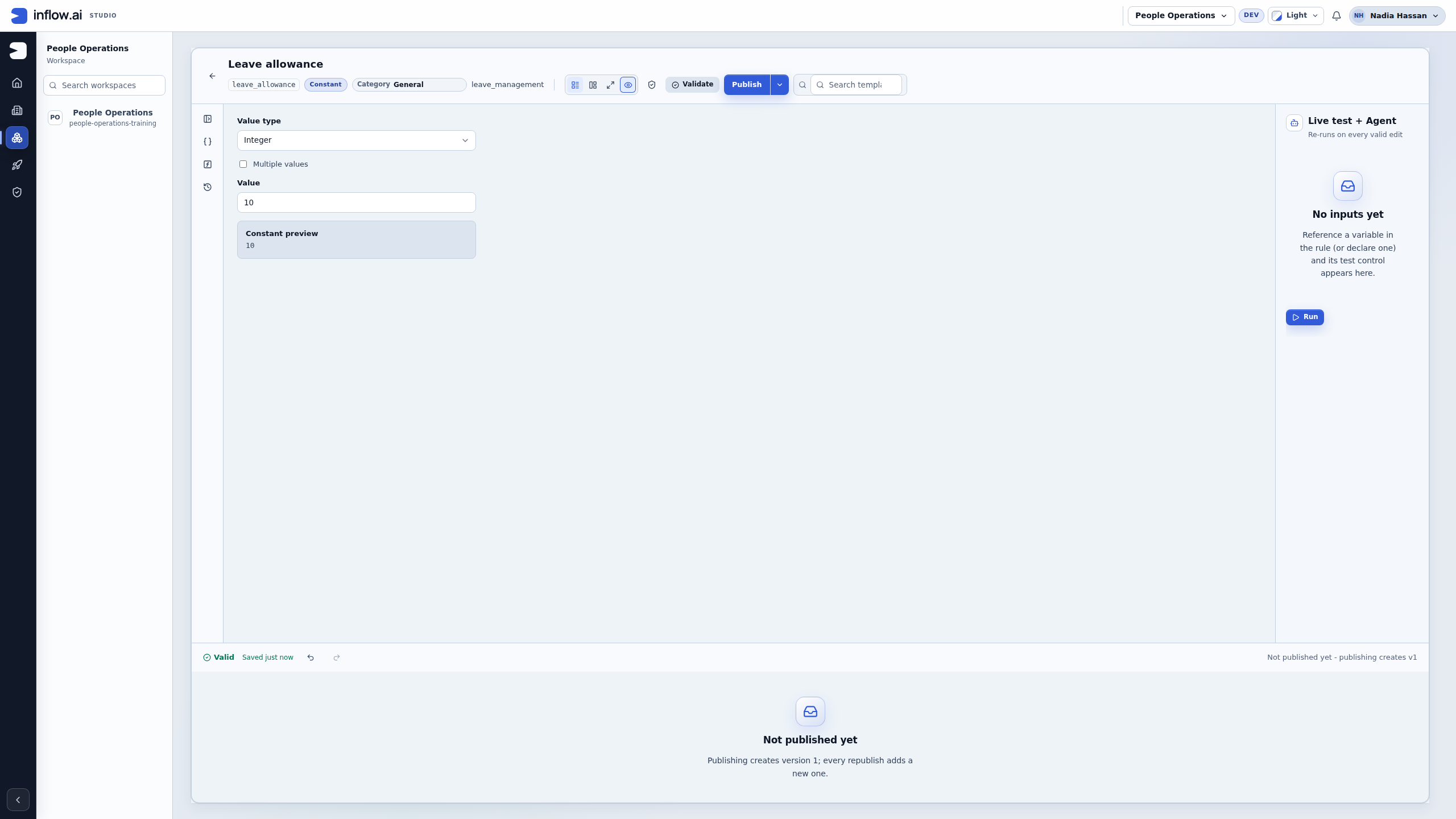
- Set Value type to Integer. Leave Multiple values off and enter Value 10. A constant's default Text type is not the same as a numeric policy value.
- Choose Validate, read Constant preview 10 and the saved state. If these settings already match the intended published constant, retain that version. Otherwise choose Publish once for the intended new or changed draft.
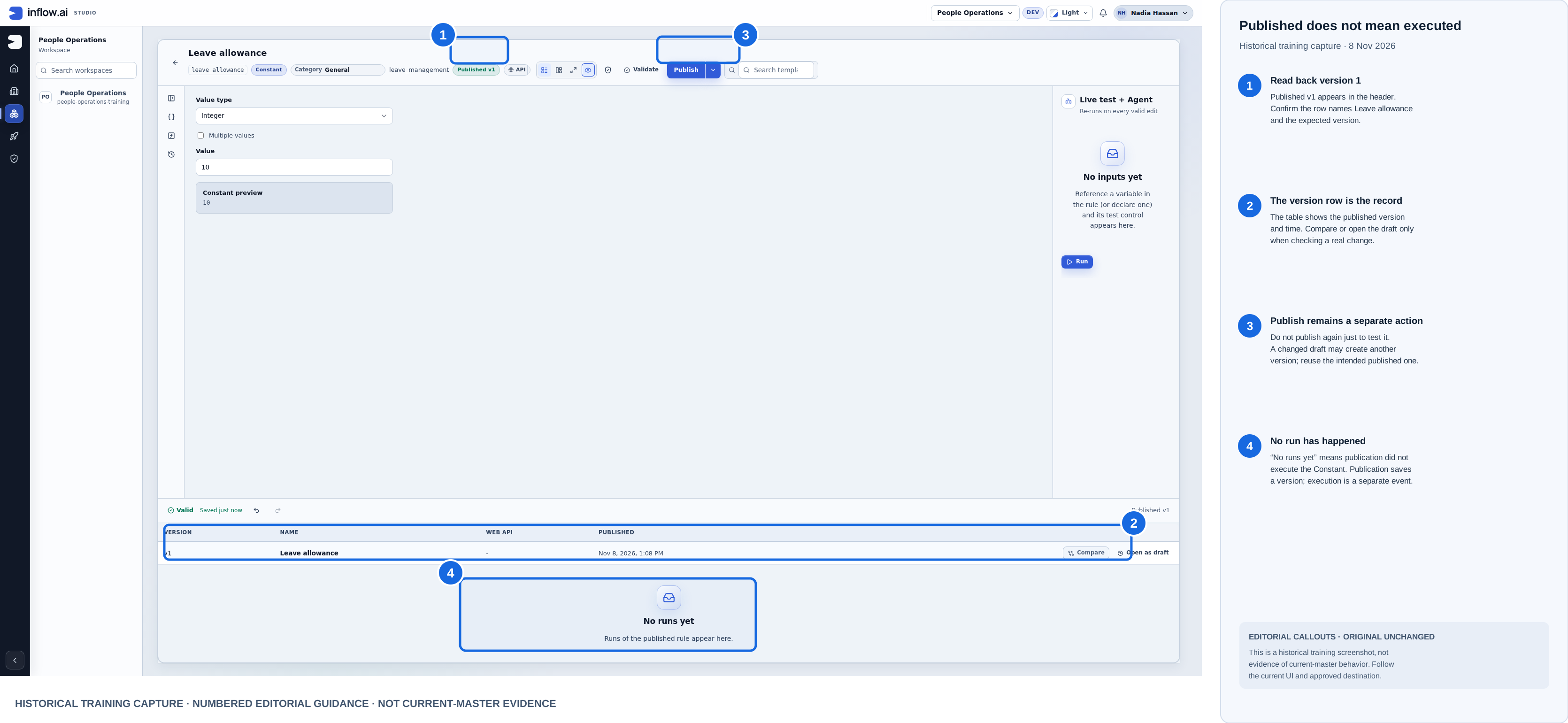
- Check the existing or newly created published version. Merely creating this constant does not connect it to the allowance input of Leave eligibility. When building the consuming form/workflow, map the approved published policy value deliberately rather than asking an employee to supply their own limit.
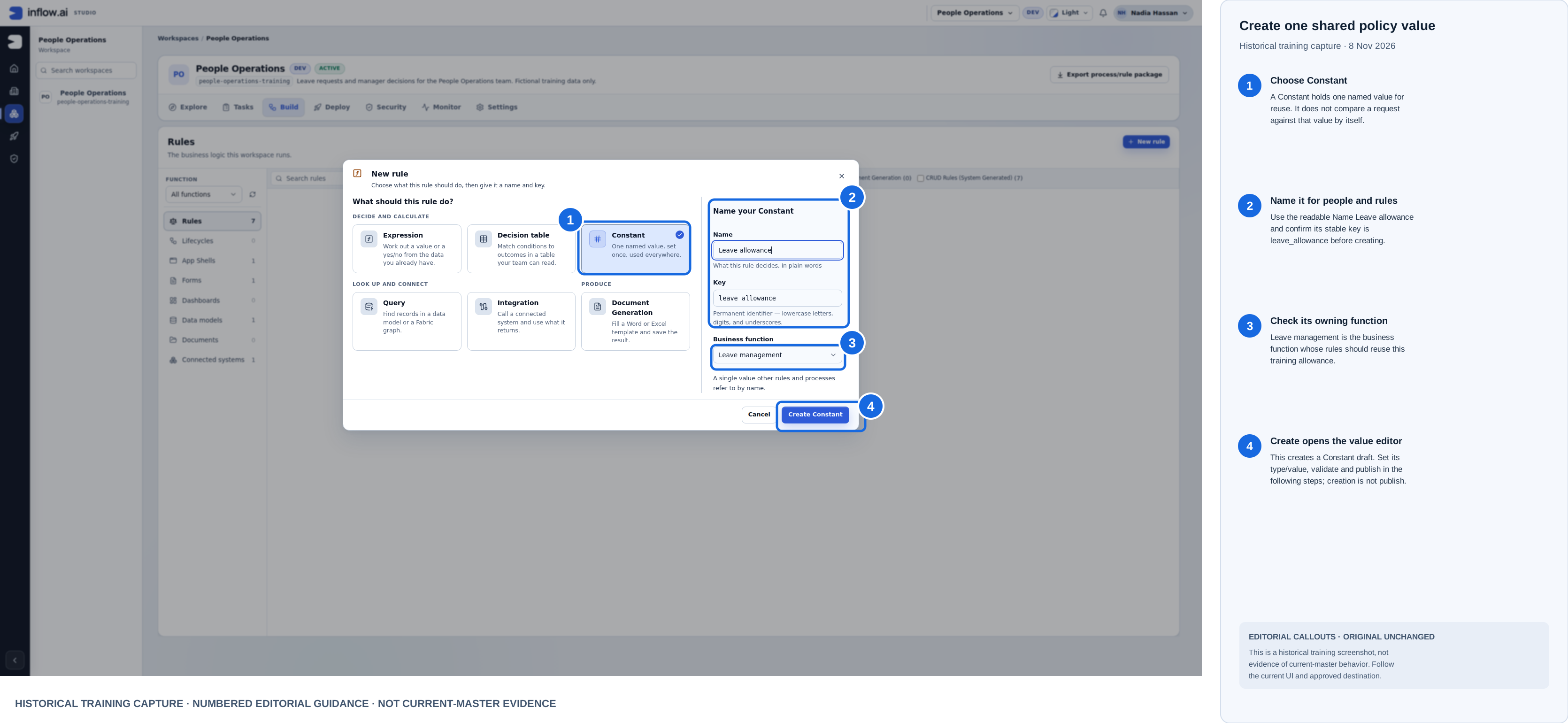
Historical training capture from 8 November 2026. Blue outlines and numbered labels are editorial guidance; the raw screenshot is unchanged. This composite is not current-master evidence.
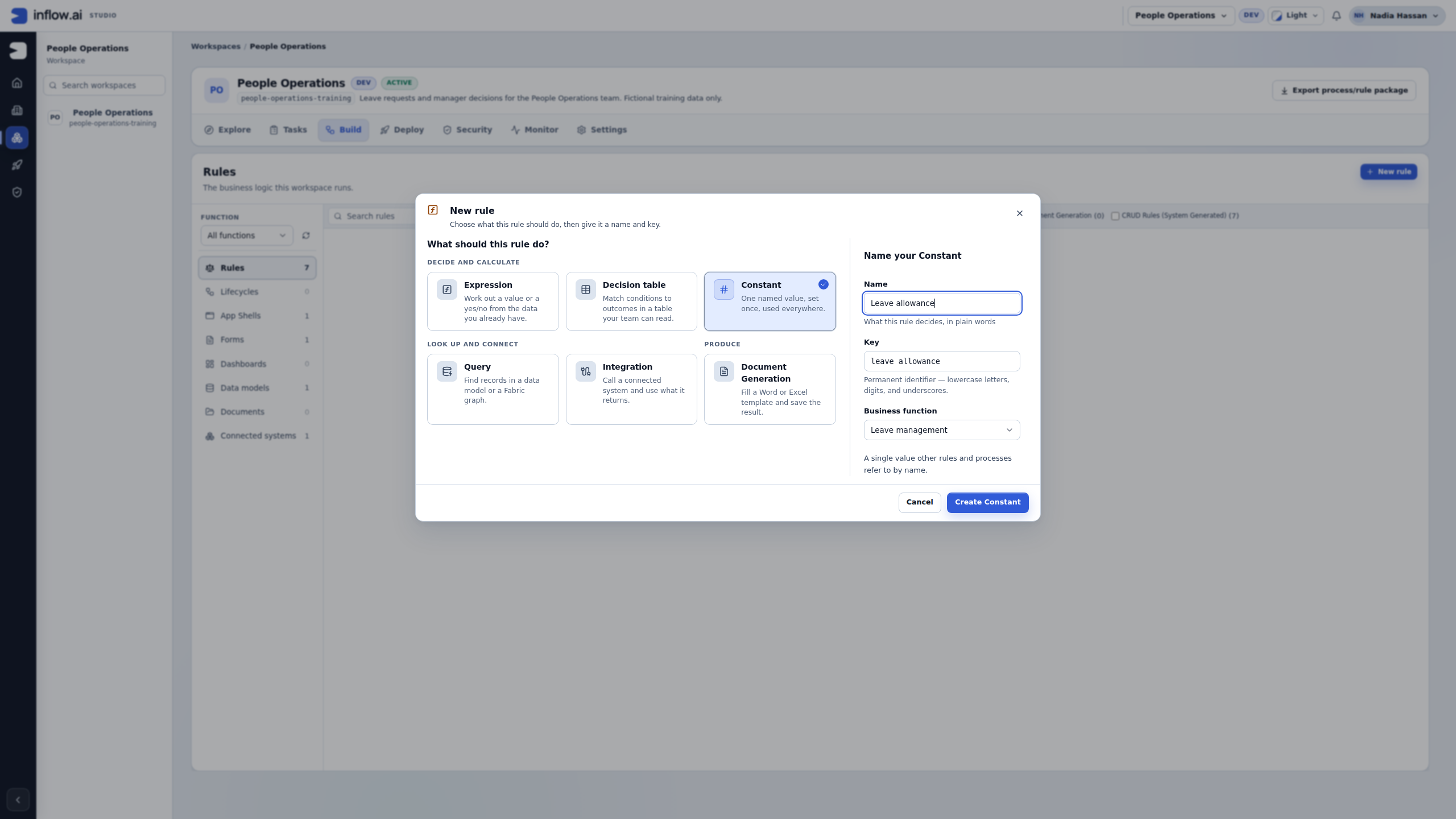
Check the object: The dialog creates a reusable Constant draft, not an expression with requested-days inputs. Verify the readable Leave allowance name, technical key leave_allowance, and owning Leave management business function. Then set its type/value and validate; publication is a separate step.
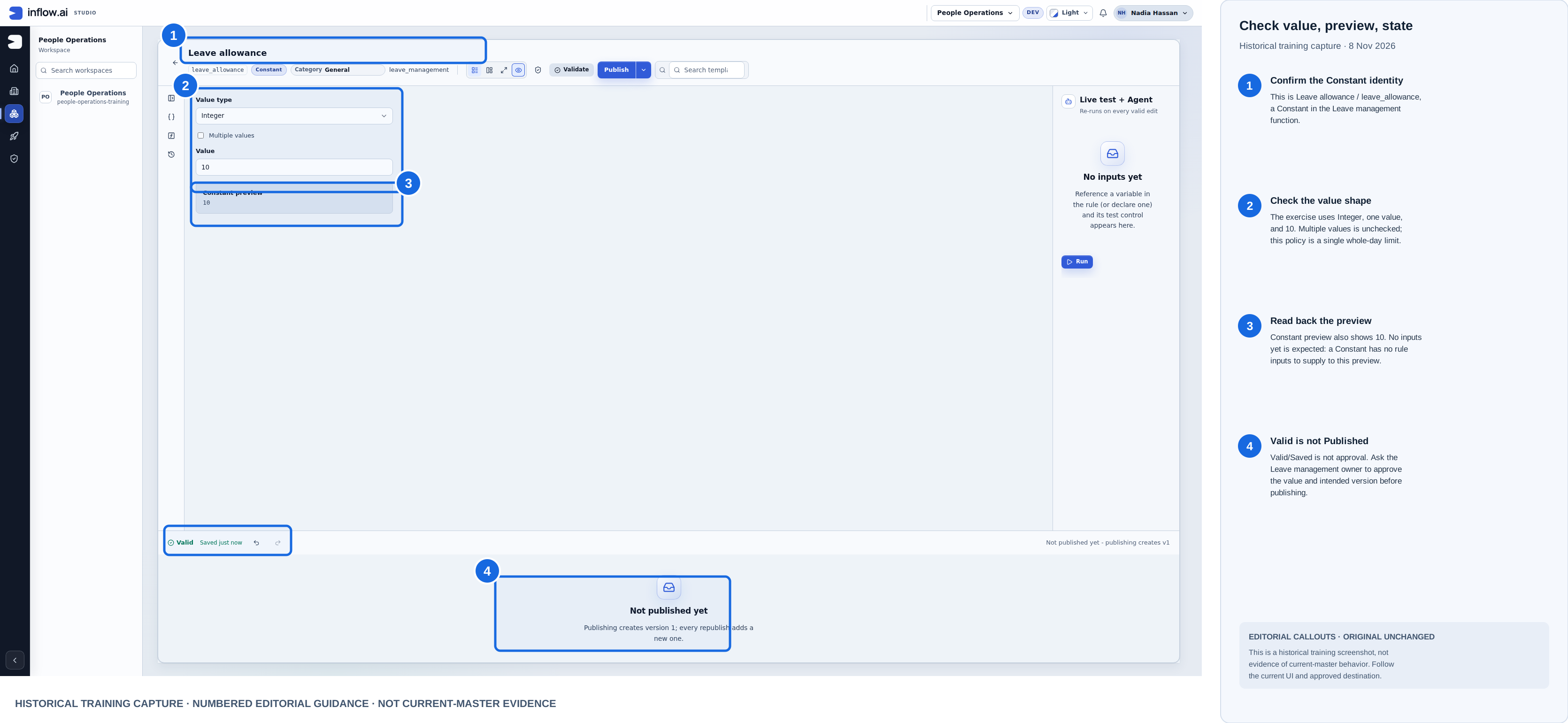
Historical training capture from 8 November 2026. Blue outlines and numbered labels are editorial guidance; the raw screenshot is unchanged. This composite is not current-master evidence.
Check the type and lifecycle: Integer and one value match this whole-day policy. Constant preview reads 10; No inputs yet is expected because no inputs are defined. The editor is Valid / Saved but Not published yet. Publish the intended version separately; validation does not make it available to consumers.
Historical training capture from 8 November 2026. Blue outlines and numbered labels are editorial guidance; the raw screenshot is unchanged. This composite is not current-master evidence.
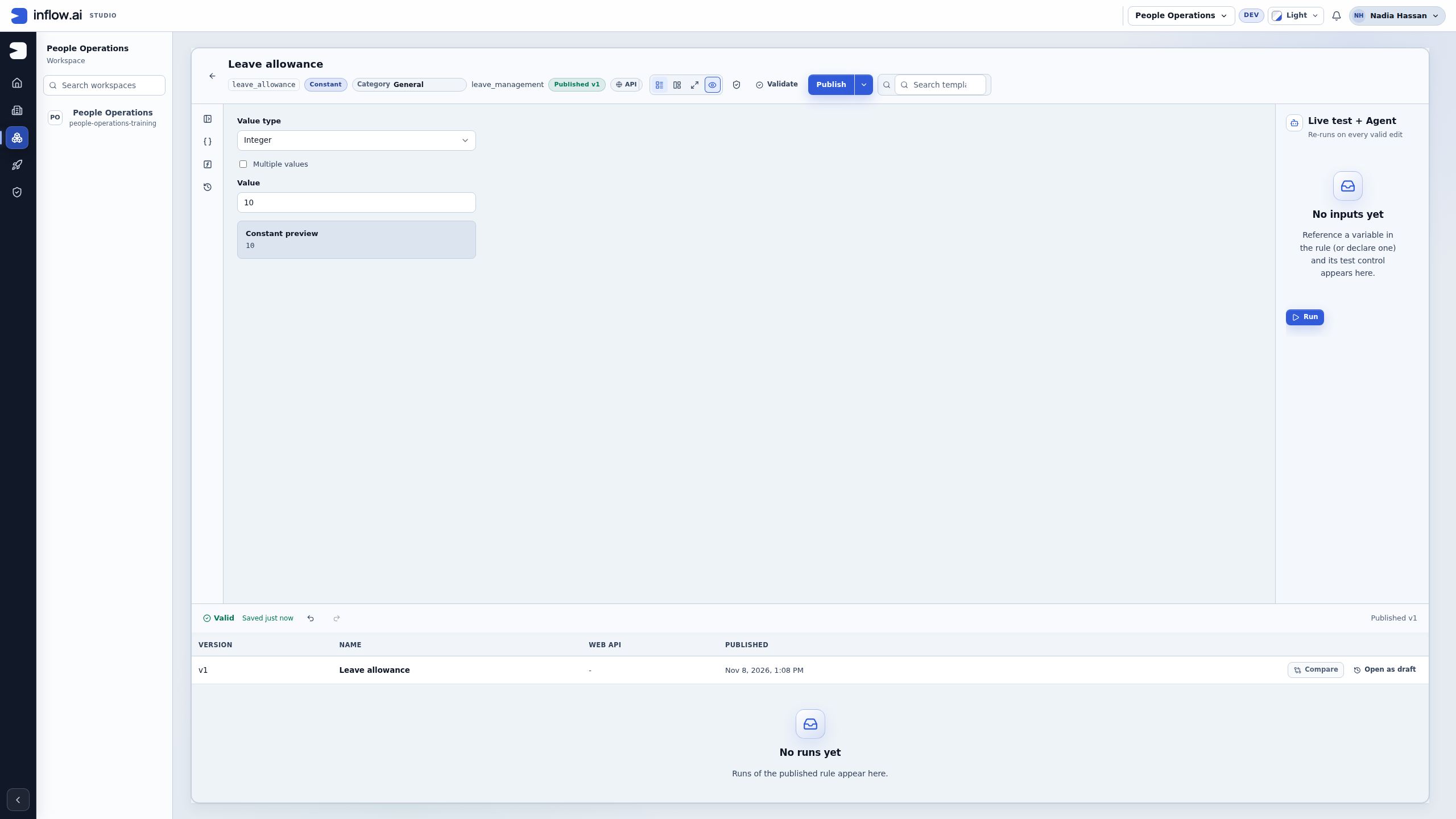
Check the publication: The Leave allowance row and Published v1 badge confirm the saved version. The editor’s Publish control remains available; do not use it again merely to test the constant. No runs yet means publication has not executed the rule. The constant and eligibility rule are separate published objects; record both names and versions in the application handoff.
Before changing a shared policy, identify where it is used. Test the changed draft with ordinary and boundary values, publish through the normal flow, and check the consuming form or workflow. A change to a reusable rule does not mean every existing running process silently changes its earlier captured decisions.
Use a formula in a screen automation
An expression can also provide a value to an automation on a form or page. Select the appropriate Open expression editor control beside a Value, business reference, condition or action payload. The editor shows the kind of answer the selected destination expects, such as Text, Document, List or Boolean. Use that as a type check while choosing a value; it does not replace saving and exercising the whole automation.
For example, the governed summary tutorial calls a published Summarize leave request rule and saves its answer in locals:leaveSummary. When the next Set a field step targets the form's Text input summaryText, open its Value expression editor and enter:
locals:leaveSummary
The expected result should be Text. This expression copies the previous step's local result into the form input. It does not itself call the rule, start a task or save a business record; those effects depend on the configured automation and the user's normal permissions.
When a preceding published rule writes a structured result, the editor can offer member suggestions from the selected rule version's available output contract or the declared Record type. For example, if locals:AIResult is a Record with a Text member named summary, a later Value formula can read:
locals:AIResult.summary
The final expression must still match the selected destination. If a member is not suggested, check that the earlier rule step writes to the expected local, that the right published version is selected and that its declared result contains the member. Branches, overwrites and incomplete result contracts can limit which members the editor can safely suggest. Validate the expression and test the actual automation paths, including missing or alternate results; an autocomplete suggestion is not proof that every runtime path supplies a value.
Example — pass an uploaded document to a rule
For this example, configure FileUpload with a destination folder in Document Management and turn Multiple off. Declare a form input named UploadedFile with type Document, then bind the control to that form input. In this DMS-backed single-file mode, the answer is a Document reference, not the filename text. A local FileUpload with no DMS folder returns a File value, and multiple-file modes return collections; those values do not match this single Document input. When the automation calls a published rule, map the rule's Document argument to the form value:
inputs:UploadedFile
When the editor can safely resolve the Document type, it can suggest reference members such as documentId, versionNumber, name, mimeType and sizeBytes. Use the whole reference when the destination expects a Document; use a member only when the destination expects that member's type. Do not replace the document with a filename string.
In the rule test panel, a Document input uses a document-shaped JSON value. A fictional example is {"kind":"document","documentId":"doc-014","name":"letter.pdf","mimeType":"application/pdf","sizeBytes":1024,"versionNumber":1}.
This sample helps check the declared input shape; the fictional ID is not proof that the current user may open the file. Test a real permitted task path as well, and verify the upload and rule result separately.
Example — count text consistently in a form rule
Suppose a leave-review form accepts a decision reason of at most 256 characters. If the form validates this limit with the expression-language length() function, the limit counts Unicode code points, matching Inflow's native length function. The expression below returns true when the reason is too long; connect it to the form's validation message Use at most 256 characters. and test both sides of the limit:
=if(inputs:reviewReason == null,false,length(string(inputs:reviewReason)) > 256)
reviewReason example |
length() result |
Expected validation |
|---|---|---|
A followed by 255 more ordinary characters |
256 | Pass |
😀 repeated 256 times |
256 | Pass |
😀 repeated 257 times |
257 | Show the limit message |
e followed by a combining acute accent |
2 | Counts as two code points |
length() counts an array's items when its input is an array. For text, it counts Unicode code points, not the number of symbols a person may perceive on screen: a base letter and combining mark count separately, and a joined emoji can contain several code points. Keep the business limit explicit and test representative input from the languages your form accepts.
The legacy expression alias len() is different: it continues to count JavaScript UTF-16 code units for text. For example, length("A🚀") is 2, while len("A🚀") is 3. Use length() when the form rule should match Inflow's native Unicode-aware length function; do not substitute len() for a cross-runtime character limit. This describes expression behavior and does not replace the form's normal validation, save, publication or authorization checks.
Common mistakes
- An input name is not recognized: declare it in Variables and insert its reference. Check spelling and the chosen input name.
- Text is treated as a name: add quotes around the literal text.
- A calculation returns text: check input types rather than formatting the answer to look numeric.
- The result is marked Previous result: the formula or test inputs changed. Run again before trusting the old answer.
- A function is unavailable: check its spelling and description, then ask the administrator about its availability.
- A test passes but a user cannot use the result: check that user's permissions and the consuming action. A successful formula test grants no access.
Continue
Choose the right kind of rule, try ready-made functions, or use the leave data and rules tutorial.
The optional full language reference contains the advanced syntax and developer detail.