Choose the right kind of rule
A rule is a reusable answer or action. It might hold a shared value, calculate an answer, choose an outcome from a table, find records or call a published outside operation. Start with the business question. The right kind should make that question easier for another consultant to understand.
In Build → Rules → New rule, the first question is What should this rule do? The choices are grouped by purpose. You do not need to write a technical rule definition before making this choice.
This lesson follows Nadia as she keeps an agreed allowance in a Constant and uses a Decision table to choose a review category. Fourteen numbered figures show actual authoring, live tests, error recovery and version publication from master source 179fffad29, captured at native 2560×1440 on 15 November 2026 in the isolated People Operations training workspace. The approved normal designer account is an application author; these images do not demonstrate an employee's record permissions, a manager decision or task assignment.
The Rules entry and new-Constant dialog below retain their earlier 15 November source fc4dcf5f63 figures. The Expression and Query examples retain explicitly dated 8 November images. Reuse matching existing rules when repeating the lesson: inspecting a published answer does not require creating or publishing another copy. If a screen differs, check the current setup with your administrator.
Match the business question to a rule
| You want to… | Choose | Leave application example | What this does not establish |
|---|---|---|---|
| Keep one named value | Constant | Leave allowance is 10 | It does not compare a request with that allowance. |
| Calculate or check something | Expression | Requested days are no greater than the supplied allowance | A true answer is not a manager's approval. |
| Apply rows of conditions and results | Decision table | Ordinary or senior review depends on the requested days | Returning a review category does not assign a person to a task. |
| Find existing information | Query | Return pending requests or count them | A filter does not grant access to records. |
| Call a published outside operation | Integration | Look up employee details in the permitted directory | A connection test does not prove this operation's result or permit a write. |
| Produce a document from a template | Document Generation | Create a letter from approved request details | A generated letter does not change the request's approval state. |
| Use an approved AI operation | AI Task, when offered | Summarize permitted text under the configured policy | Generated text is not a factual decision or access grant. |
The available choices depend on current access and setup. An optional kind may be absent. Ask the owner about the intended task and environment rather than selecting an unrelated kind or looking for a disabled permission placeholder.
Before you begin
Choose the People Operations training workspace and Leave management business function. A business function organizes related application designs. It is separate from the rule's kind and result type.
Read these distinctions before creating anything:
- Name: a readable description, such as Leave eligibility.
- Key: the stable short name selected or referenced by other designs, such as
leave_eligibility. - Input: an answer the caller supplies when a rule needs it.
- Result: the value, record, list or other answer returned.
- Draft: the editable design you are working on.
- Published version: a released design other permitted consumers can use.
Decide the policy and expected examples with its business owner. The allowance of 10 in this lesson is fictional training policy. Use the existing synthetic records and approved test surfaces. Do not send a real external write or create extra requests merely to demonstrate a rule kind.
If the matching rule already exists, open it and inspect its kind, inputs, saved state and version. Change it only for an intended design correction. Repeating a successful test does not require another publication.
Find the starting point
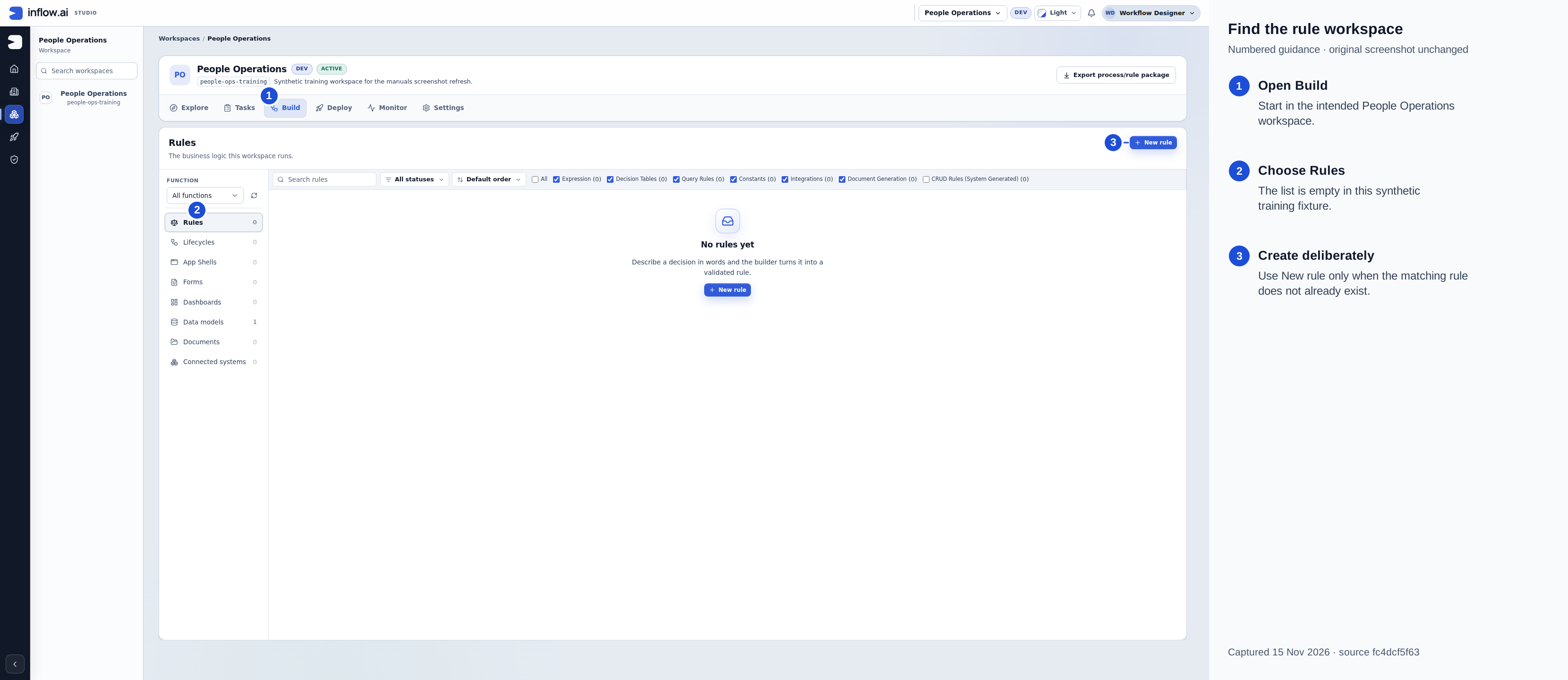
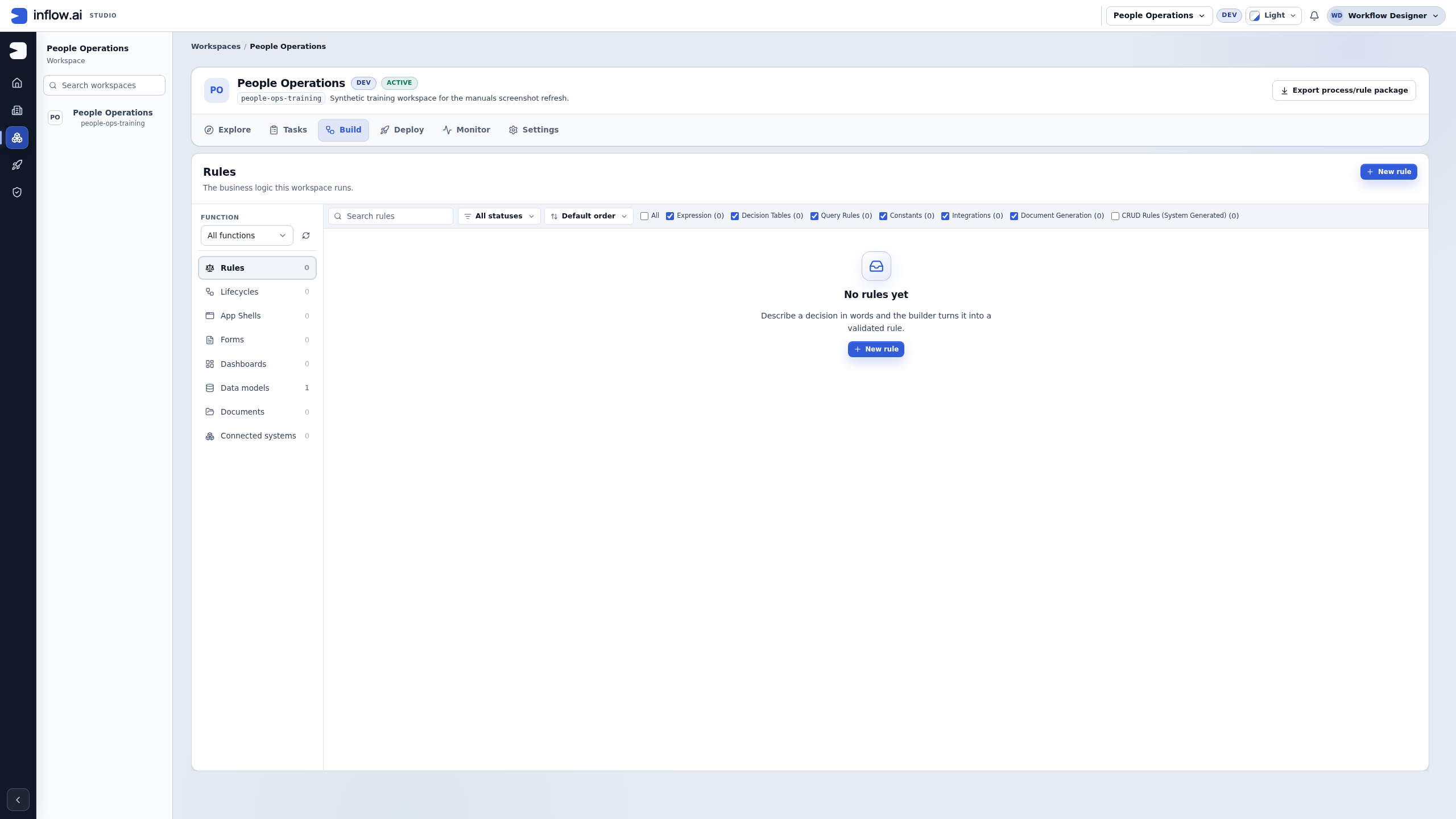
Use 1 to confirm Build, 2 to locate Rules, and 3 to open New rule when the matching rule is missing. This synthetic workspace had no rules at capture time. Numbered marks and the side legend are editorial additions. Open the unchanged 2560×1440 original.
Example 1: use a Constant for an allowance
The policy owner has approved 10 as this example's shared allowance. Nadia wants one understandable named value, rather than several unrelated copies of 10.
- In Build → Rules, open Leave allowance if it already exists.
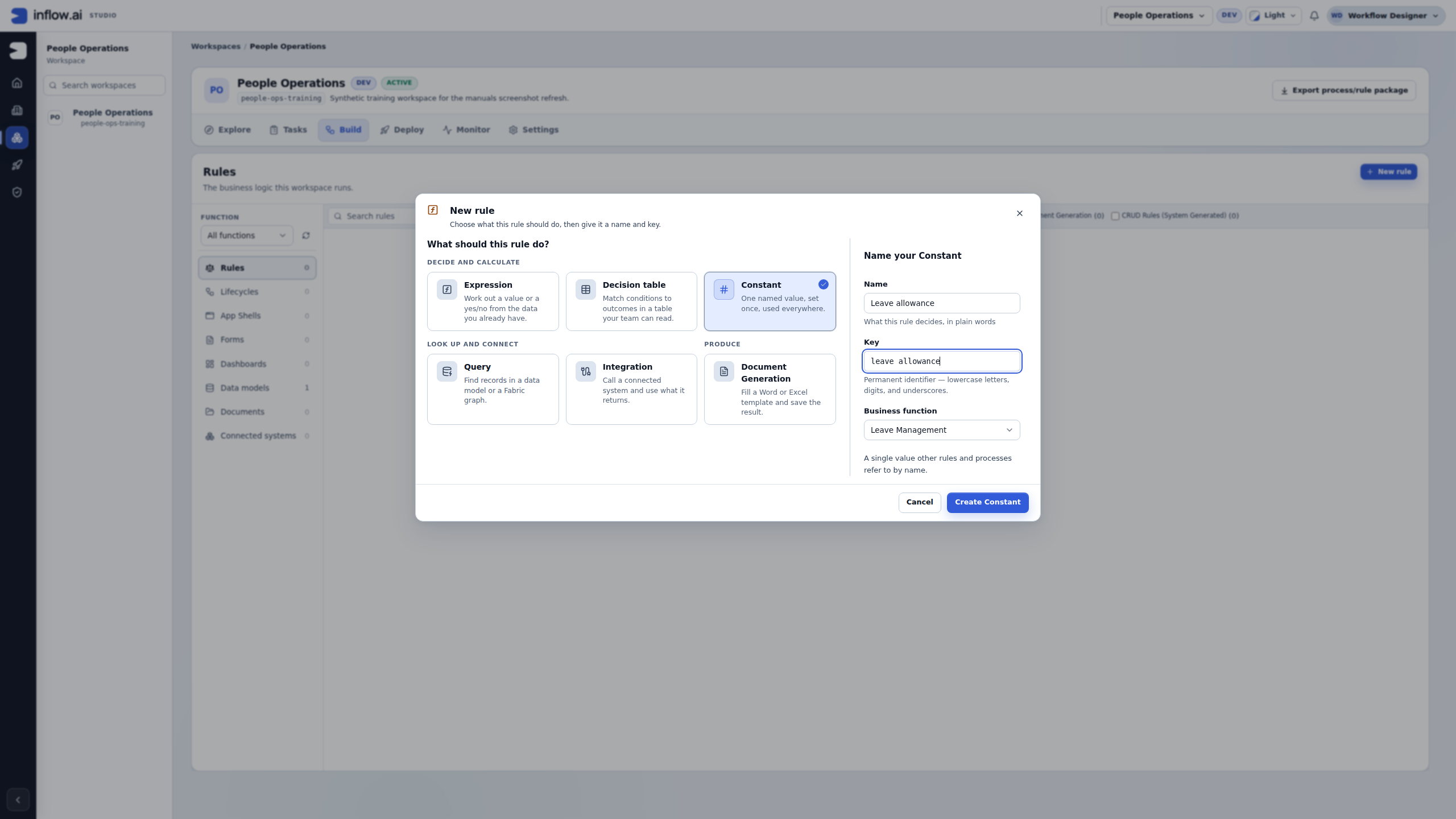
- Only if it is missing, choose New rule → Constant, enter Name Leave allowance, inspect Key
leave_allowance, select Leave management, and choose Create Constant. - For a new draft, choose Value type Integer, leave Multiple values off and enter 10 in Value. A new Constant does not arrive with this policy filled in. For an existing matching rule, inspect and retain those settings. Review any different existing policy before making an intentional correction.
- Choose Validate for a new or changed design, or when the current page asks for validation. Read Valid and the saved state. Constant preview should show 10; it explains the draft value but does not establish that you ran the rule.
- In Live test + Agent, choose Run. This Constant needs no caller input, so No inputs yet is expected. Read Result → Exact value → 10 and compare it with the agreed allowance.
- Keep an existing matching published version. For this intended first release, choose Publish once after checking the type, value and test. Wait for Published v1 and the actual version row. Repeating the lesson does not require another publication. The regular Publish action used here does not expose a Web API.
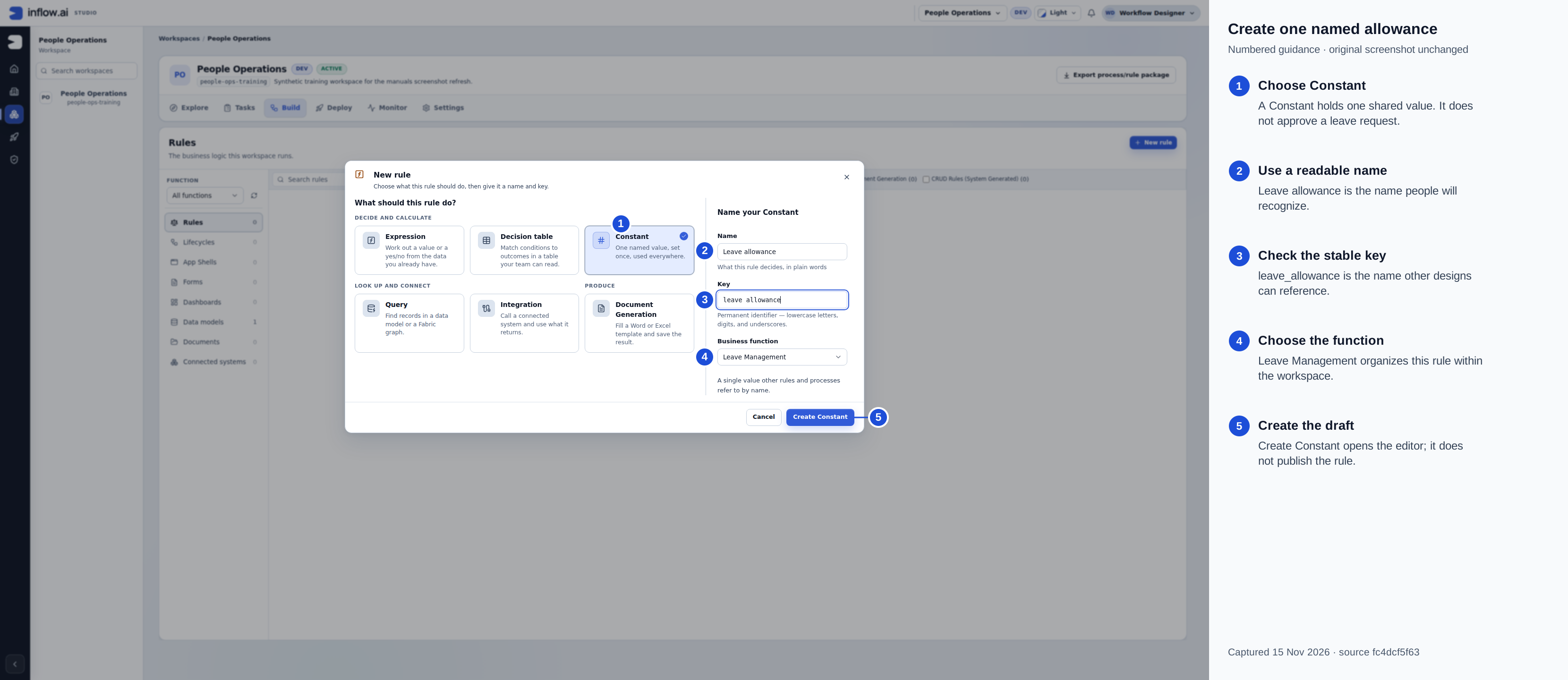
Follow 1–5 to create the intended Leave allowance draft in Leave Management. Creating the draft does not publish it. Numbered marks and the side legend are editorial additions. Open the unchanged 2560×1440 original.
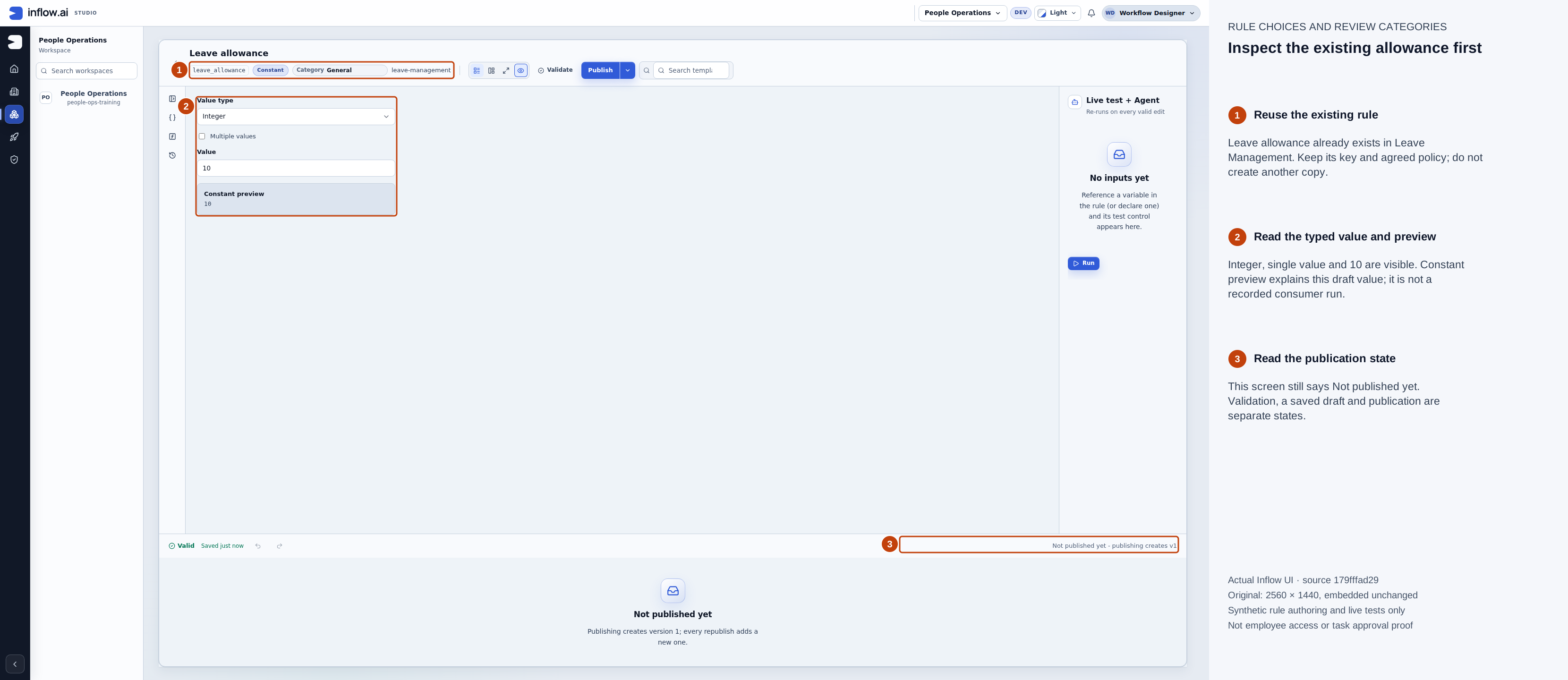
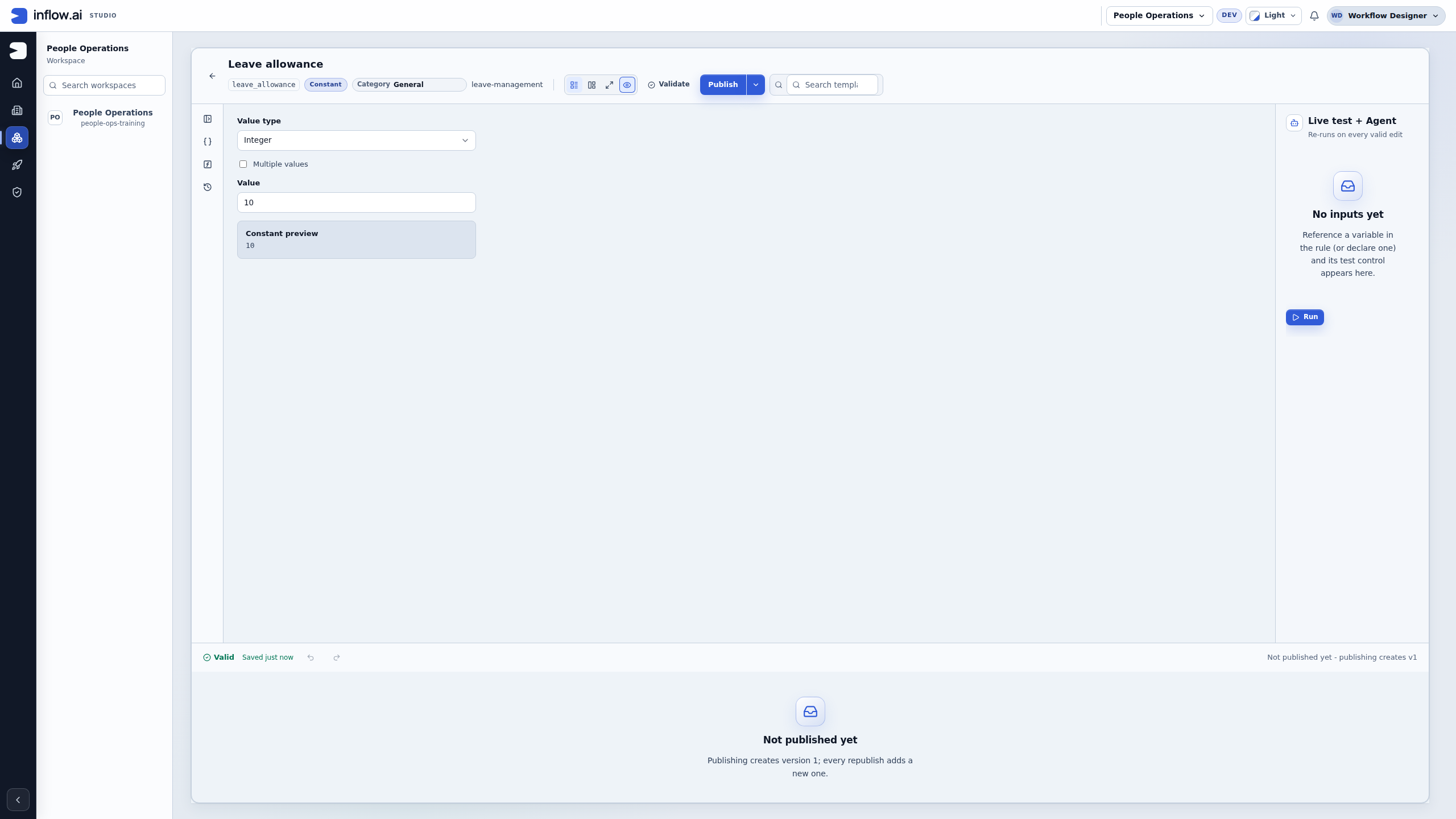
The existing draft is reused. Its preview is a visible explanation of the typed value, before the live test shown next. Numbered outlines and the side legend are guidance. Open the unchanged native original or open the full-size guide.
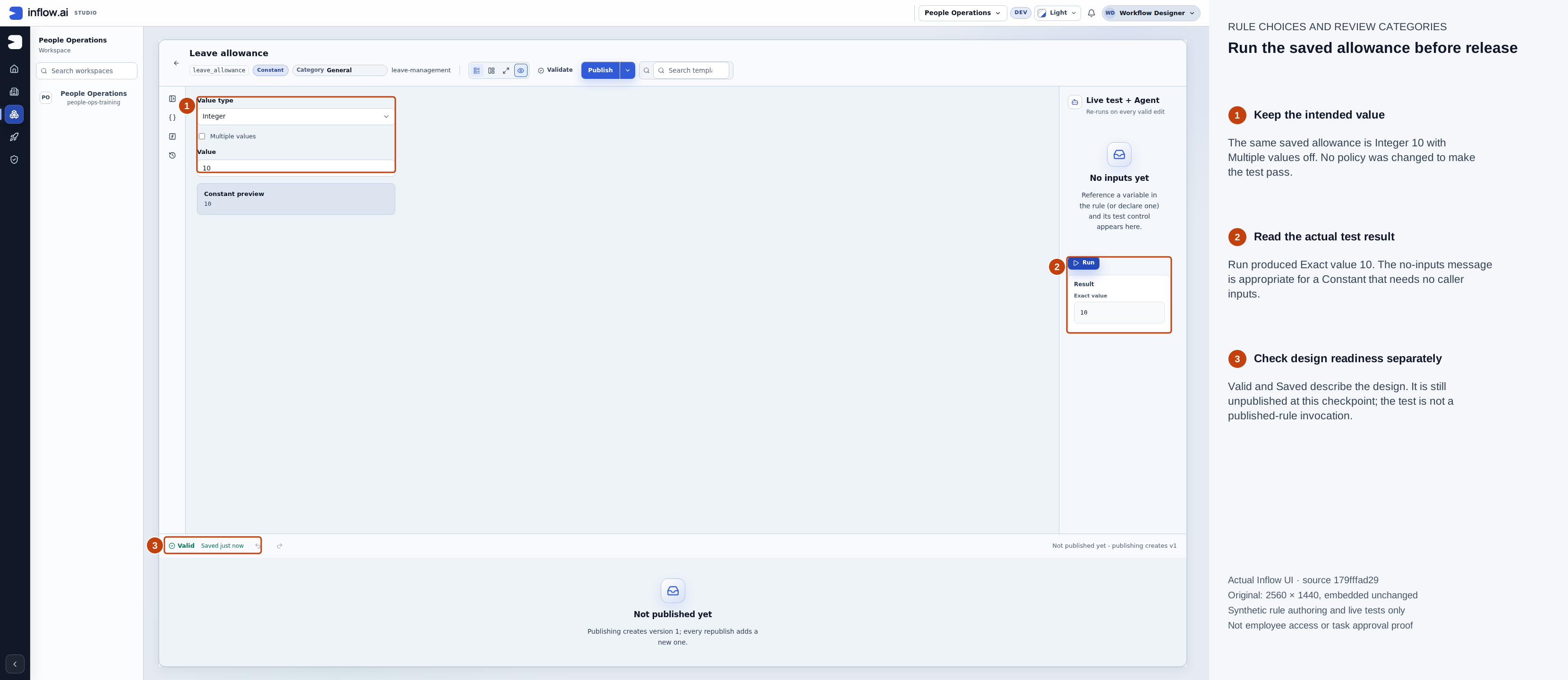
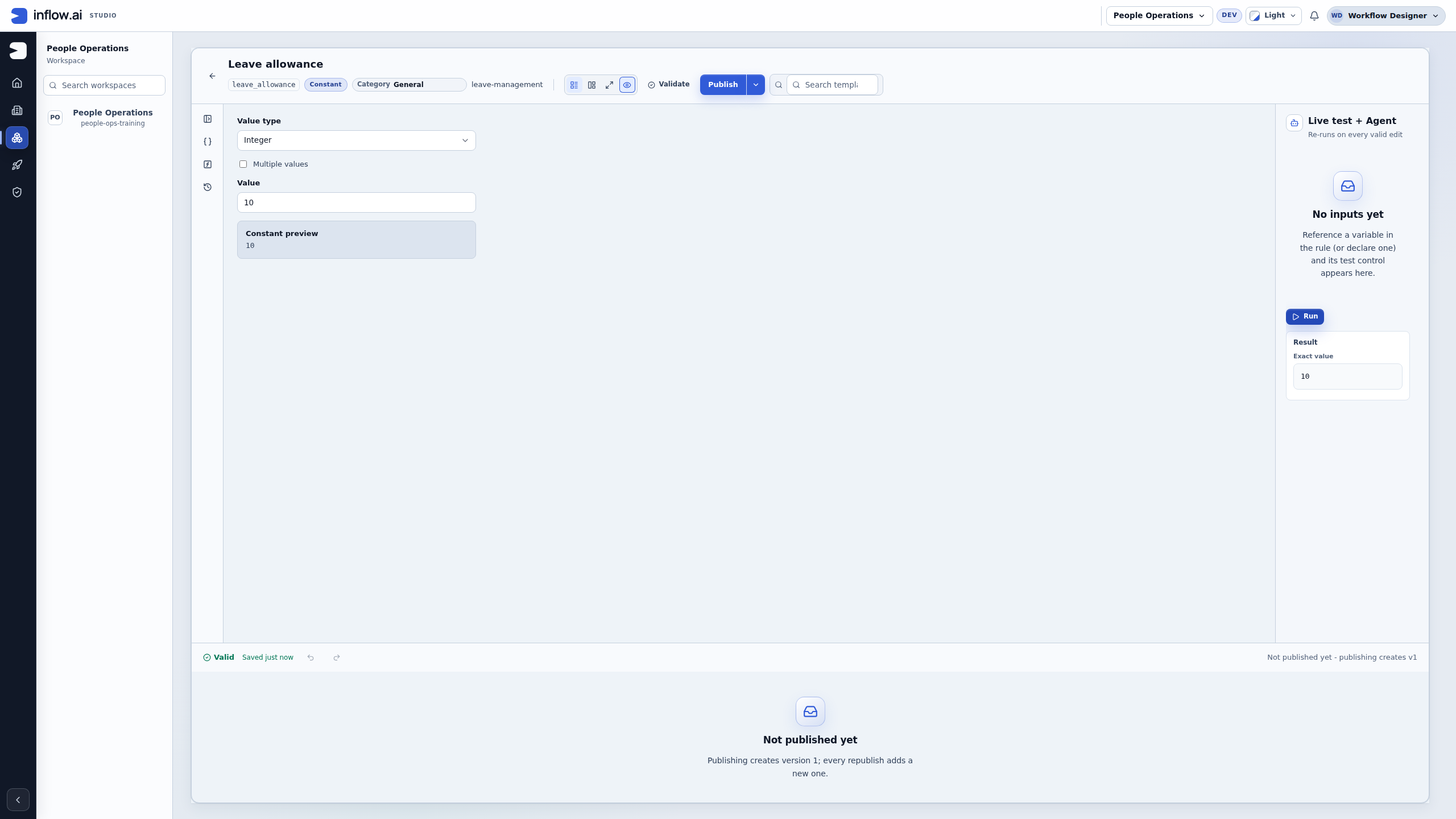
Run returned the actual scalar 10. Valid, Saved and a successful test remain separate from publication. Numbered outlines and the side legend are guidance. Open the unchanged native original or open the full-size guide.
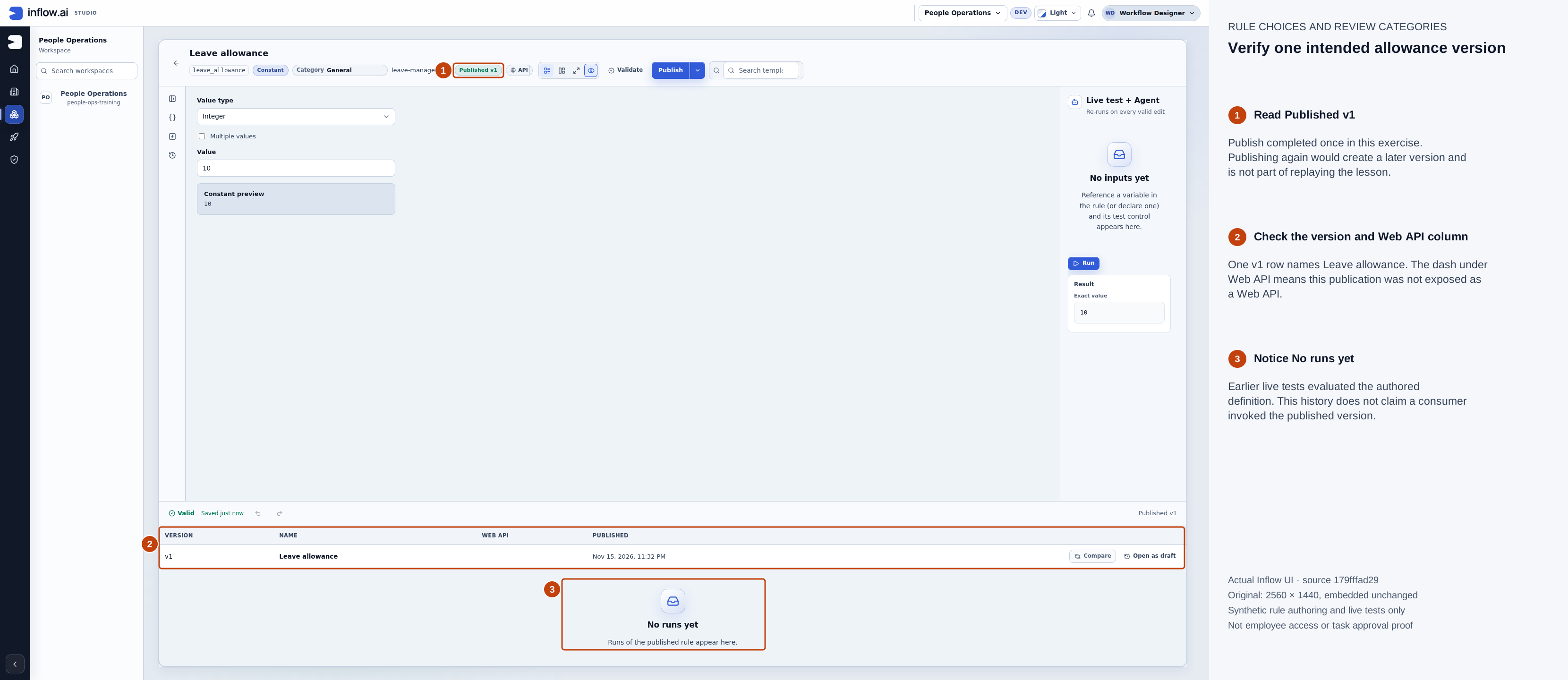
The first intended publication completed once. The Web API column is a dash. No runs yet refers to invocations of the published rule; the earlier authored-definition test is a different activity. Numbered outlines and the side legend are guidance. Open the unchanged native original or open the full-size guide.
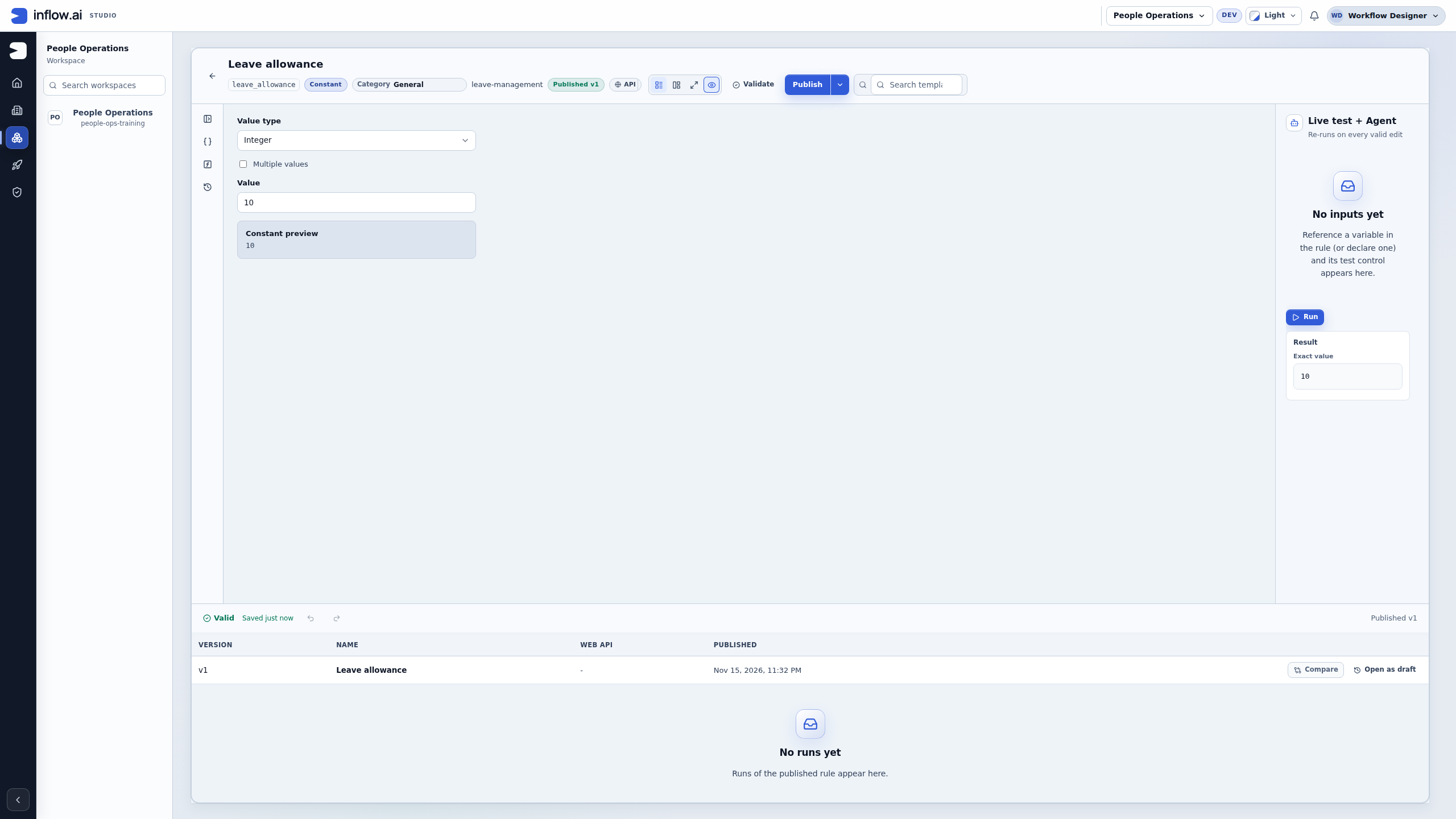
Expected result: one named published allowance, with the intended type and value. No request has been tested against it yet.
If the policy changes later, identify the actual consumers before editing. Prepare the changed draft, check the affected examples and use normal publication. Do not assume that every already-running case silently changes an earlier business decision.
Example 2: use an Expression to compare two answers
Now Nadia asks: “Are the requested days within the allowance supplied to this rule?” This needs two inputs and a comparison. An Expression is suitable because the answer can be written as a small formula.
- Open the existing Leave eligibility Expression rule, or create that kind only if the matching rule is missing.
- In Variables, inspect required Number, Single value inputs
requestedDaysandallowance. For each missing input, choose Declare, enter its exact Name, choose Type Number and Cardinality Single value, turn on Required input, add its business description and confirm with Declare. Retain a matching existing declaration rather than adding a duplicate. - For a new Expression, enter the formula below. For an existing matching rule, inspect and retain it. If an existing formula expresses different policy, review that difference before replacing its logic:
inputs:requestedDays <= inputs:allowance
inputs: means the value supplied to this rule. <= means less than or equal to. The two names must match the declared inputs.
- If the draft changed, Validate it before testing.
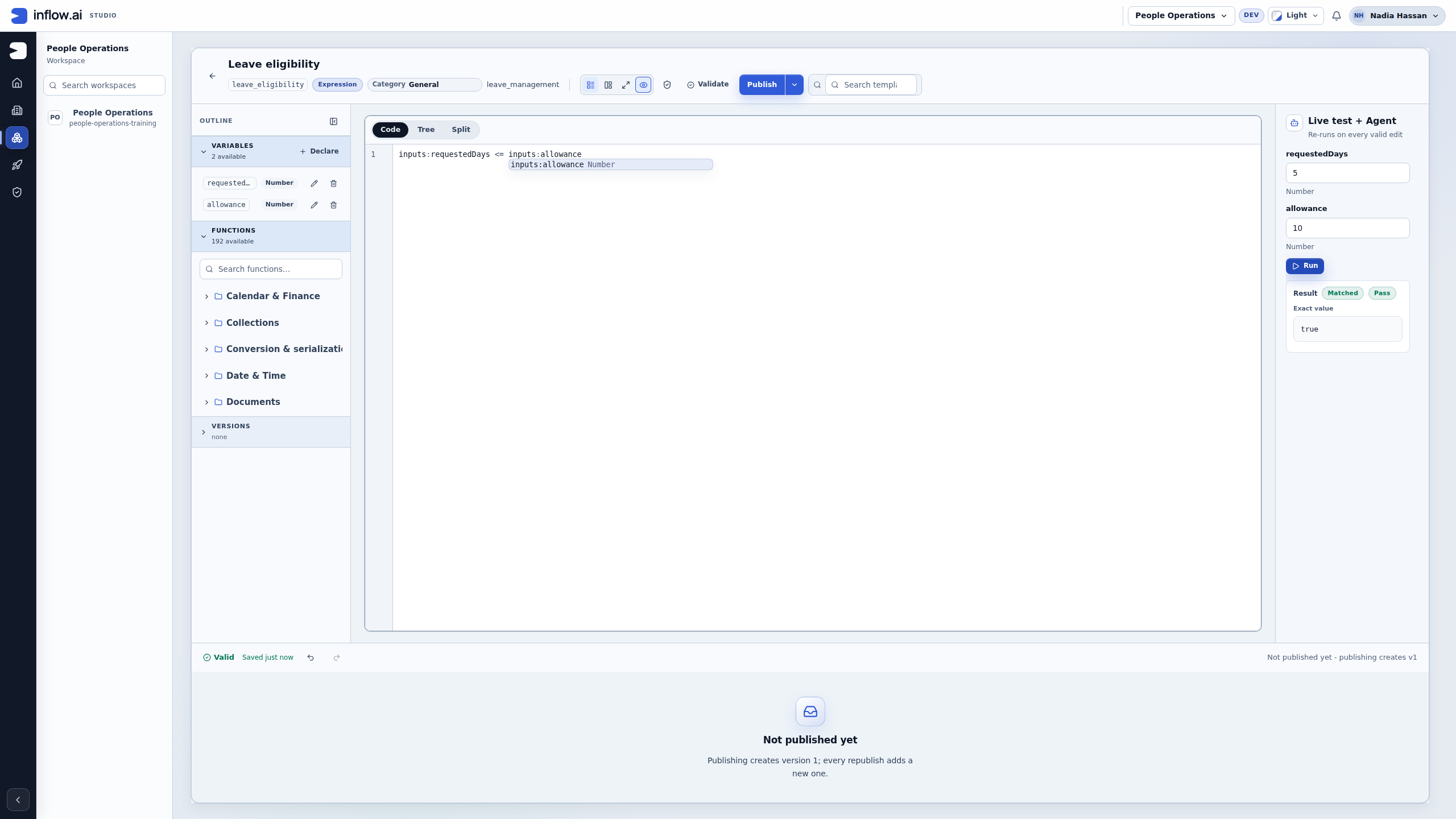
- In Live test + Agent, enter 5 for requestedDays and 10 for allowance, then choose Run. Inspect the current result and Exact value.
- Test 10 against 10 and then 11 against 10. Compare each result with the agreed policy.
| requestedDays | allowance | Expected answer | Meaning |
|---|---|---|---|
| 5 | 10 | true | The request fits within the supplied allowance. |
| 10 | 10 | true | The exact boundary is allowed by this comparison. |
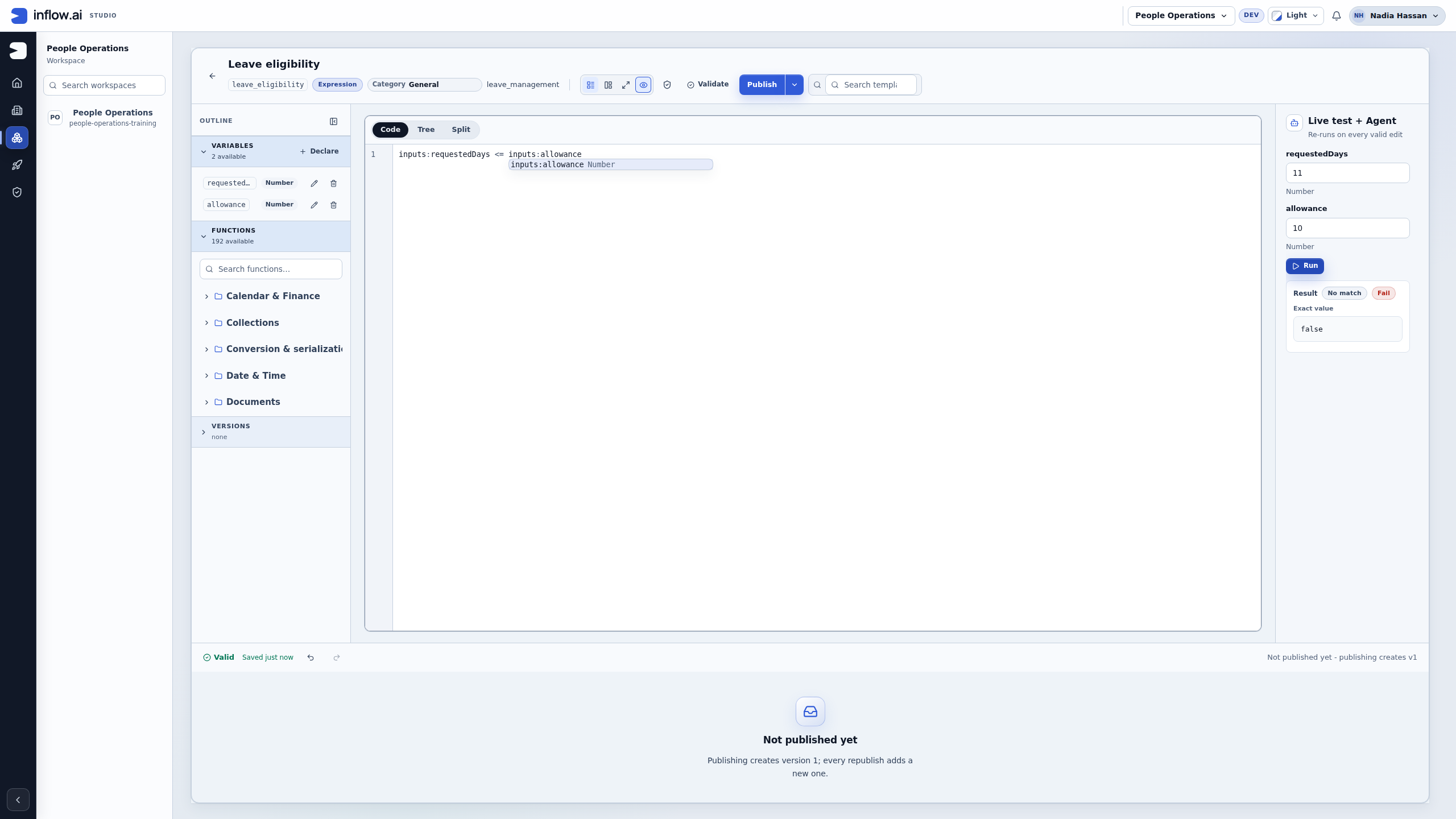
| 11 | 10 | false | The request exceeds the supplied allowance. |
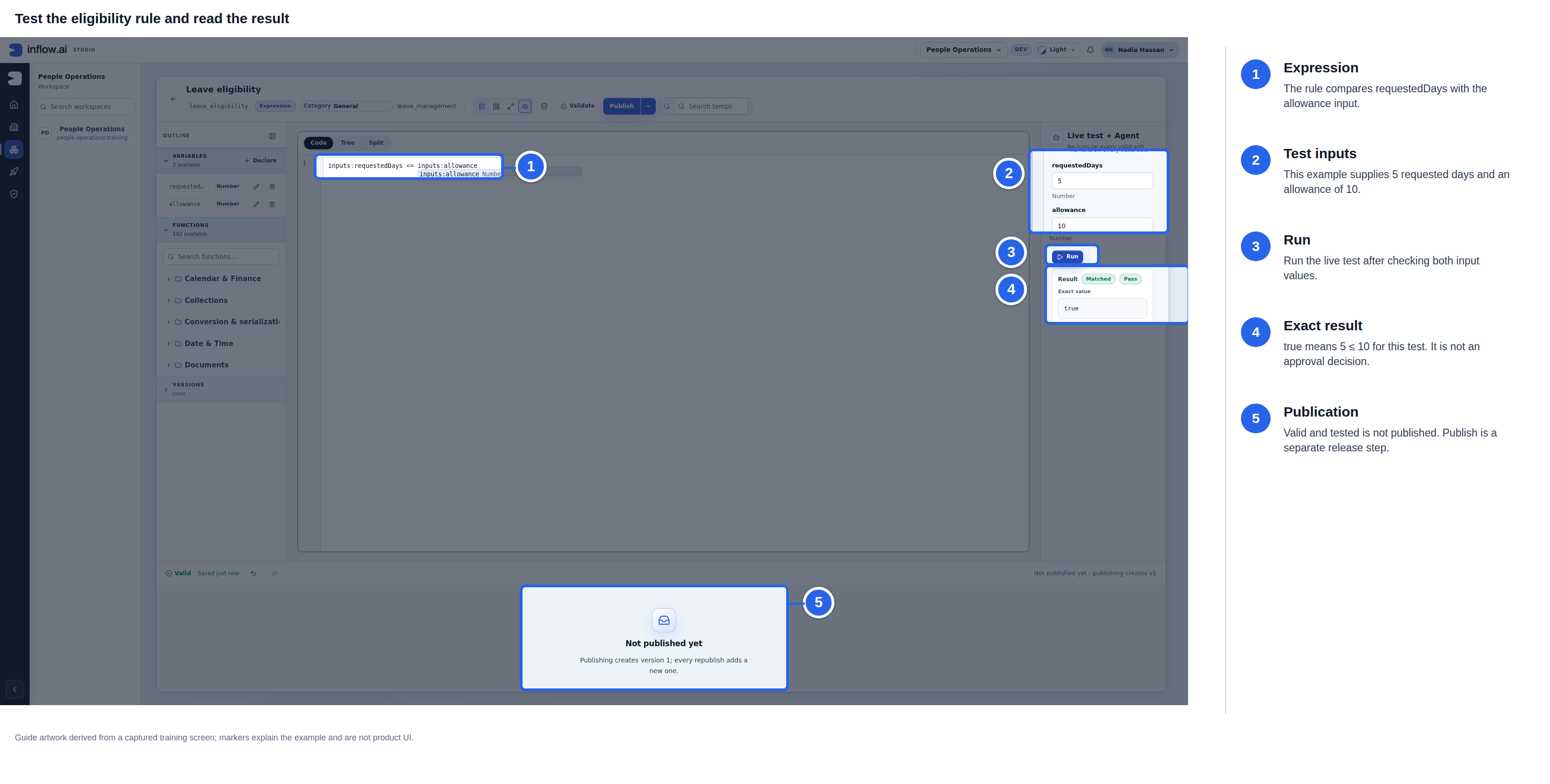
Historical capture from 8 November 2026. Blue outlines and numbered labels are editorial guidance; the raw screenshot remains unchanged. Here 5 <= 10 evaluates to true; Pass describes this comparison, not an approval. This image is not current-build evidence.
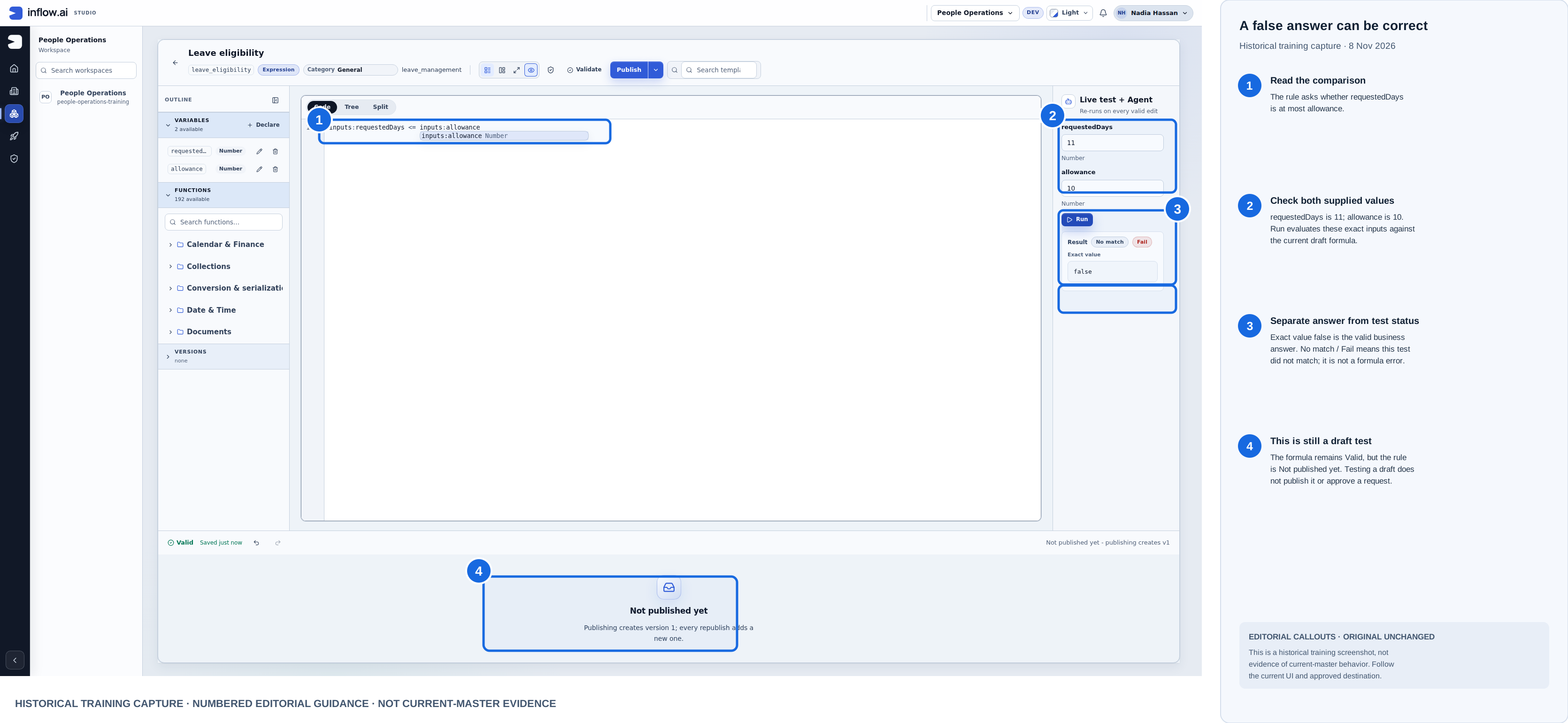
Historical training capture from 8 November 2026 with editorial callouts. Open the unchanged original screenshot. The comparison returns the valid answer false; it is not an approval and the Expression is not published.
The Constant and the Expression's allowance input are separate objects. Similar names do not connect them automatically. In this test, you type 10 into the test input. A consuming design must deliberately supply the intended value through its supported mapping.
Distinguish false from a refused evaluation
- Clear
requestedDaysin the test panel and move focus away. - Notice whether the old result is marked Previous result — outdated. It belongs to the earlier input values.
- Choose Run with the required answer missing.
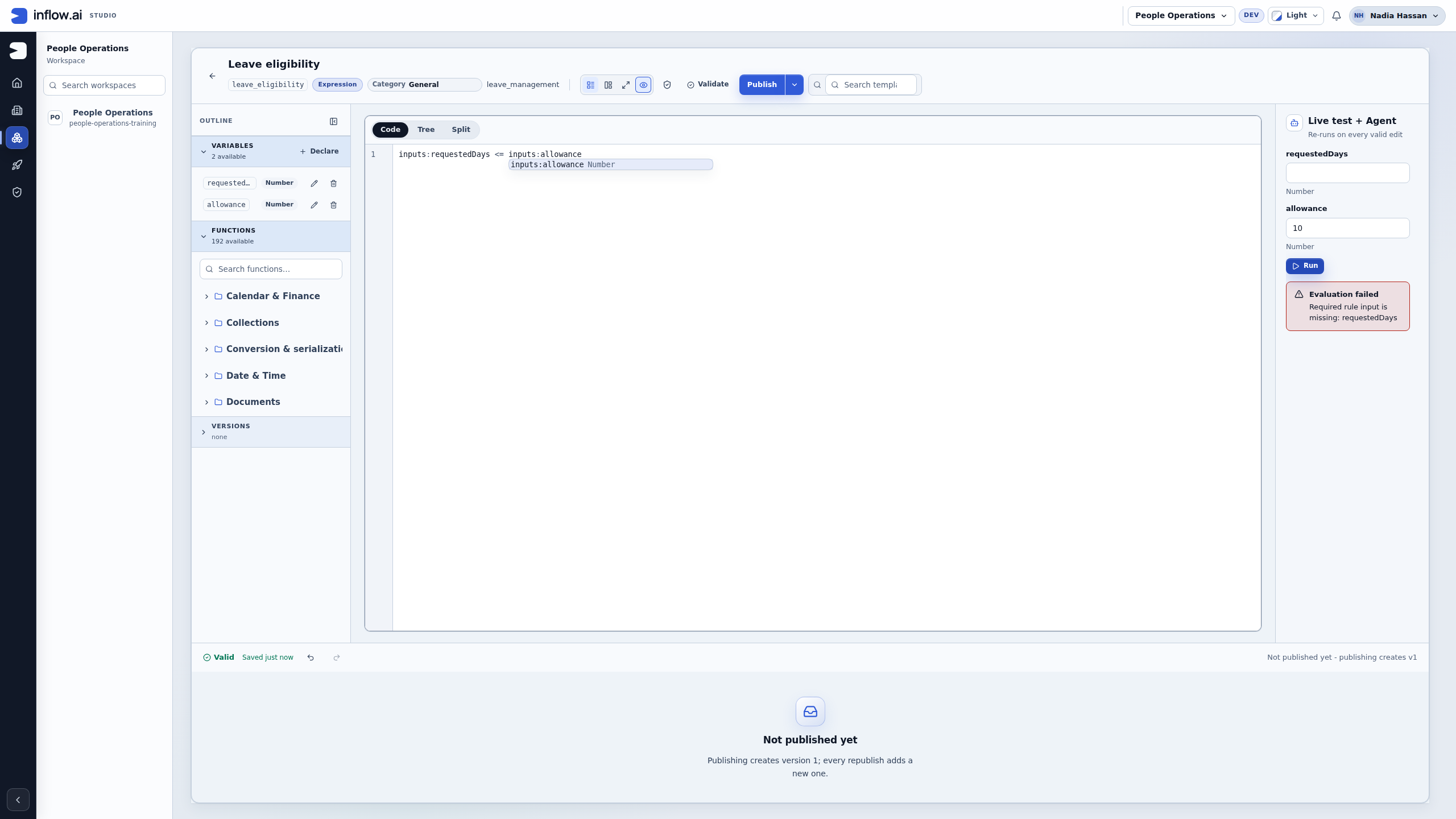
- Read the current failure. In this teaching rule, it says the required rule input
requestedDaysis missing. - Restore 5, leave allowance at 10 and run again. Expect true before handing the rule to a consumer.
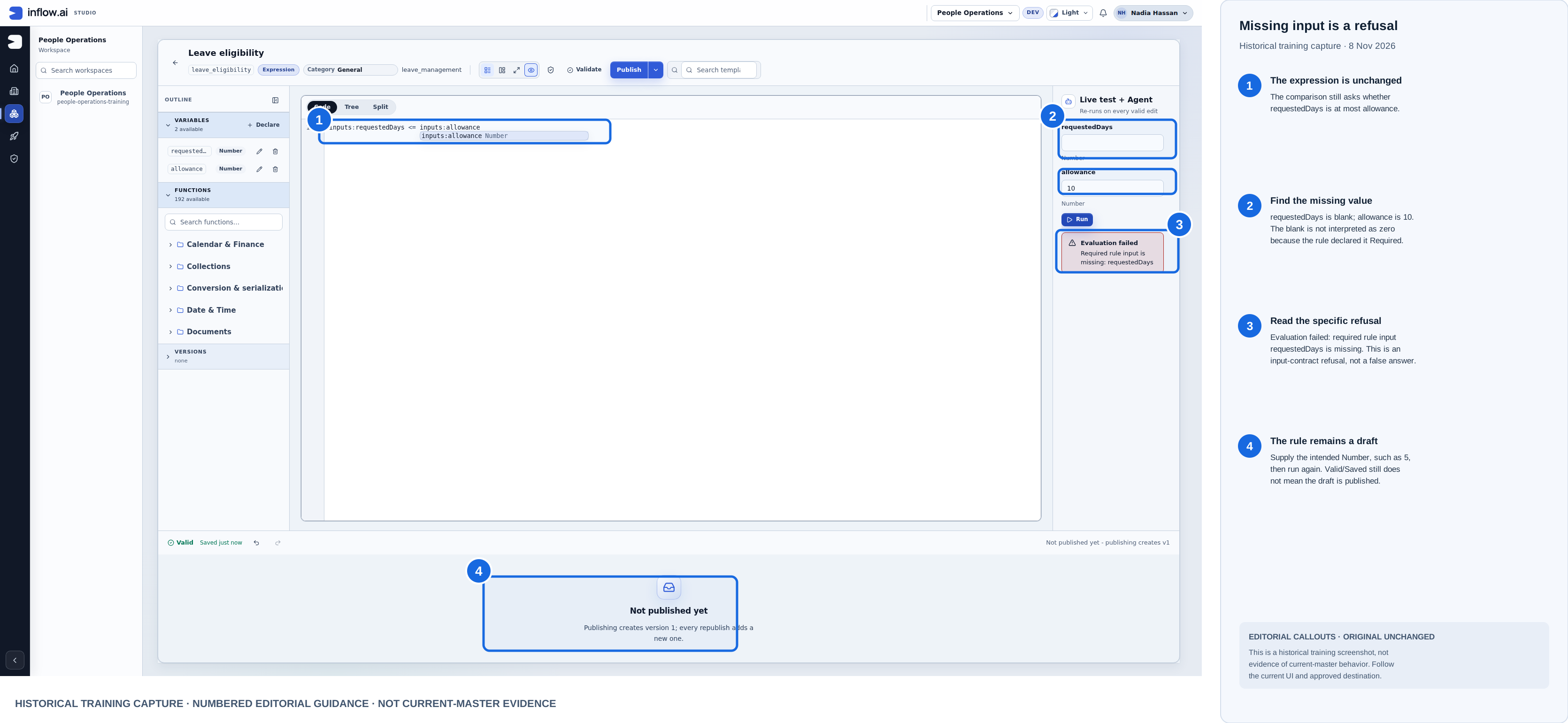
Historical training capture from 8 November 2026 with editorial callouts. Open the unchanged original screenshot. Missing requestedDays is an evaluation refusal, not a false answer; the rule is still a draft.
Reuse an existing matching published version. Publish once only for an intended new or changed release after the relevant tests. The formula lesson explains this walkthrough in detail.
Example 3: use a Query for pending requests
An allowance calculation does not answer “Which requests are pending?” A Query asks a published, permitted data source for existing information.
The connected example has two separate rules:
| Rule | Expected shape | Suitable use |
|---|---|---|
| Pending leave requests | Records | A table that needs the matching request fields. |
| Pending leave count | Count, a Number | A summary showing how many requests match. |
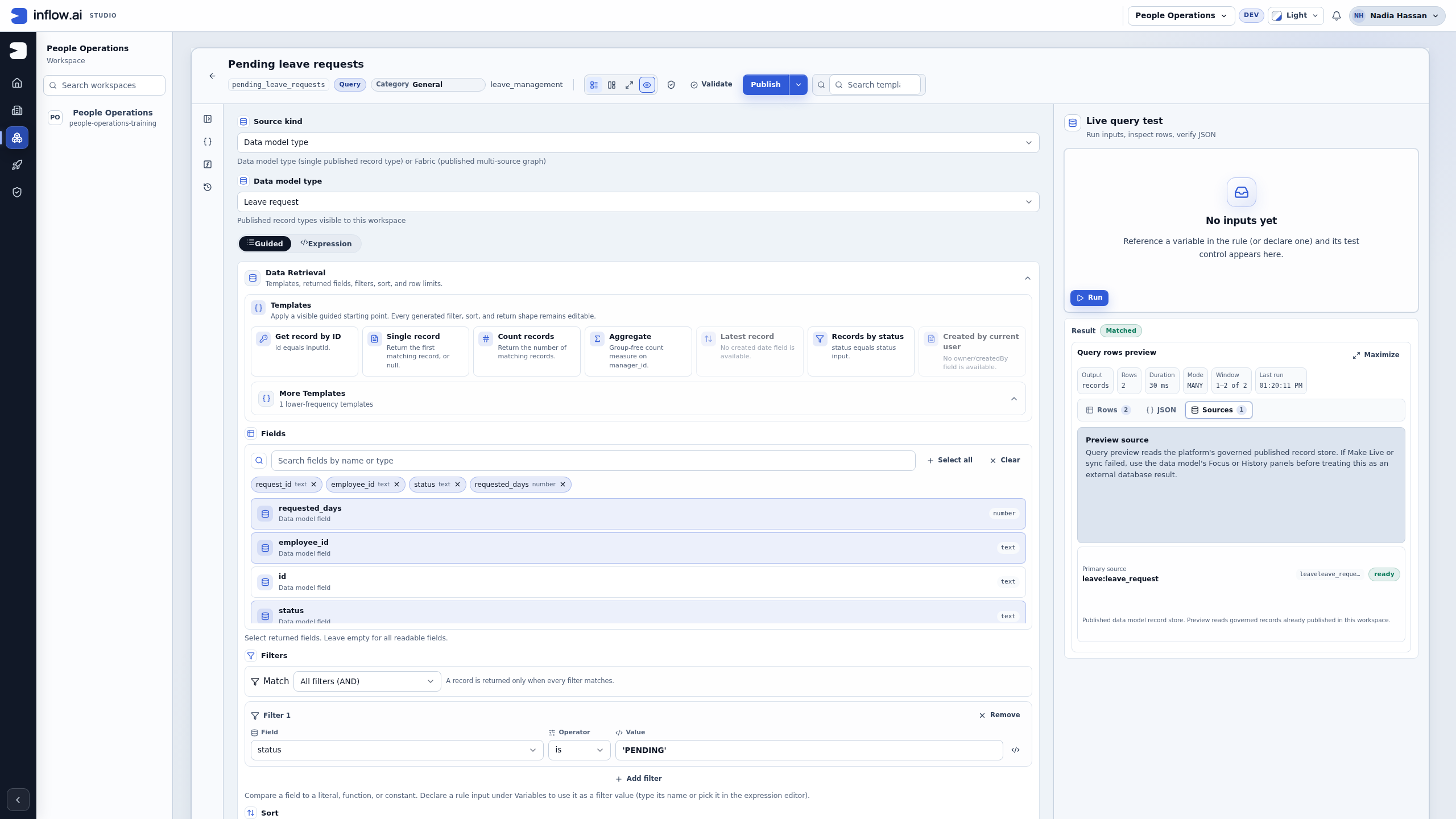
- Open the existing Pending leave requests Query. Inspect its actual published source, PENDING filter, intended sort and bounded result size.
- Keep the existing Records return shape. Preview the query using its normal test surface.
- Inspect the current result and source. The teaching fixture has two pending requests; the Approved comparison record is excluded.
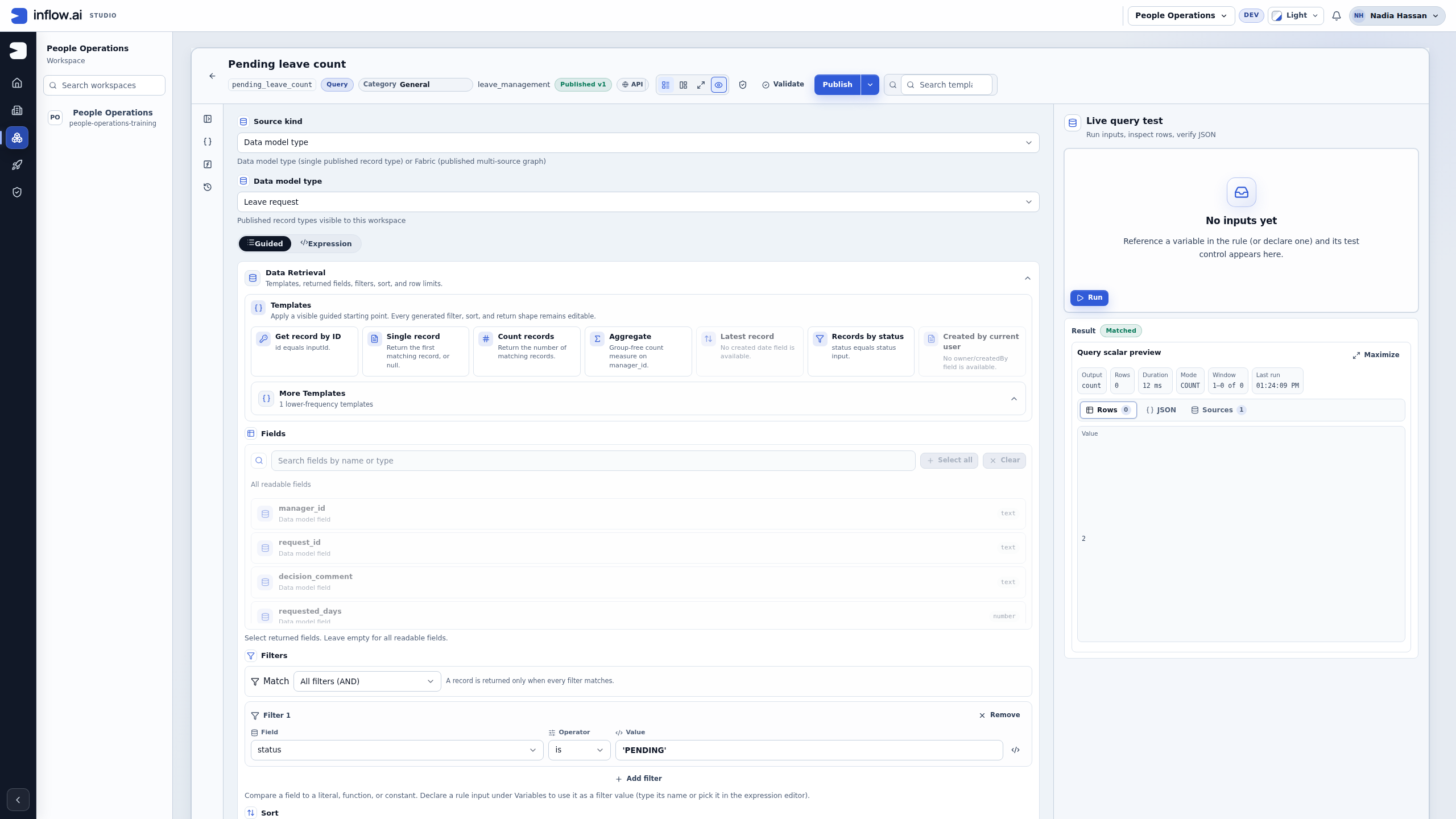
- Open the separate Pending leave count Query. Inspect the same business filter and Count return shape.
- Preview that query and read its scalar Value. Do not use table-row display metadata as the count.
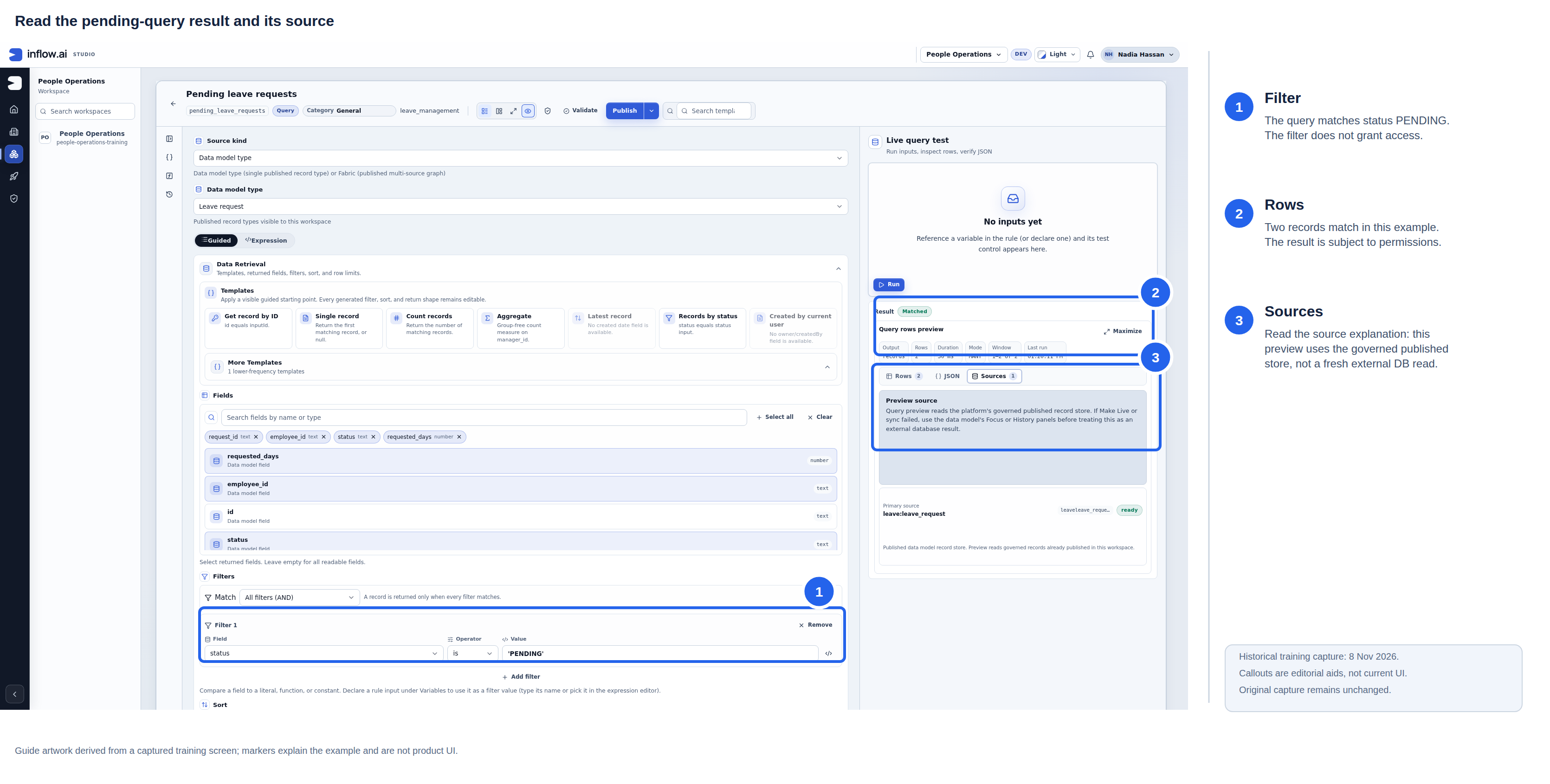
Historical capture from 8 November 2026. Blue outlines and numbered labels are editorial guidance; the raw screenshot remains unchanged. This image is not current-build evidence. A Records answer remains subject to the signed-in user's permissions.
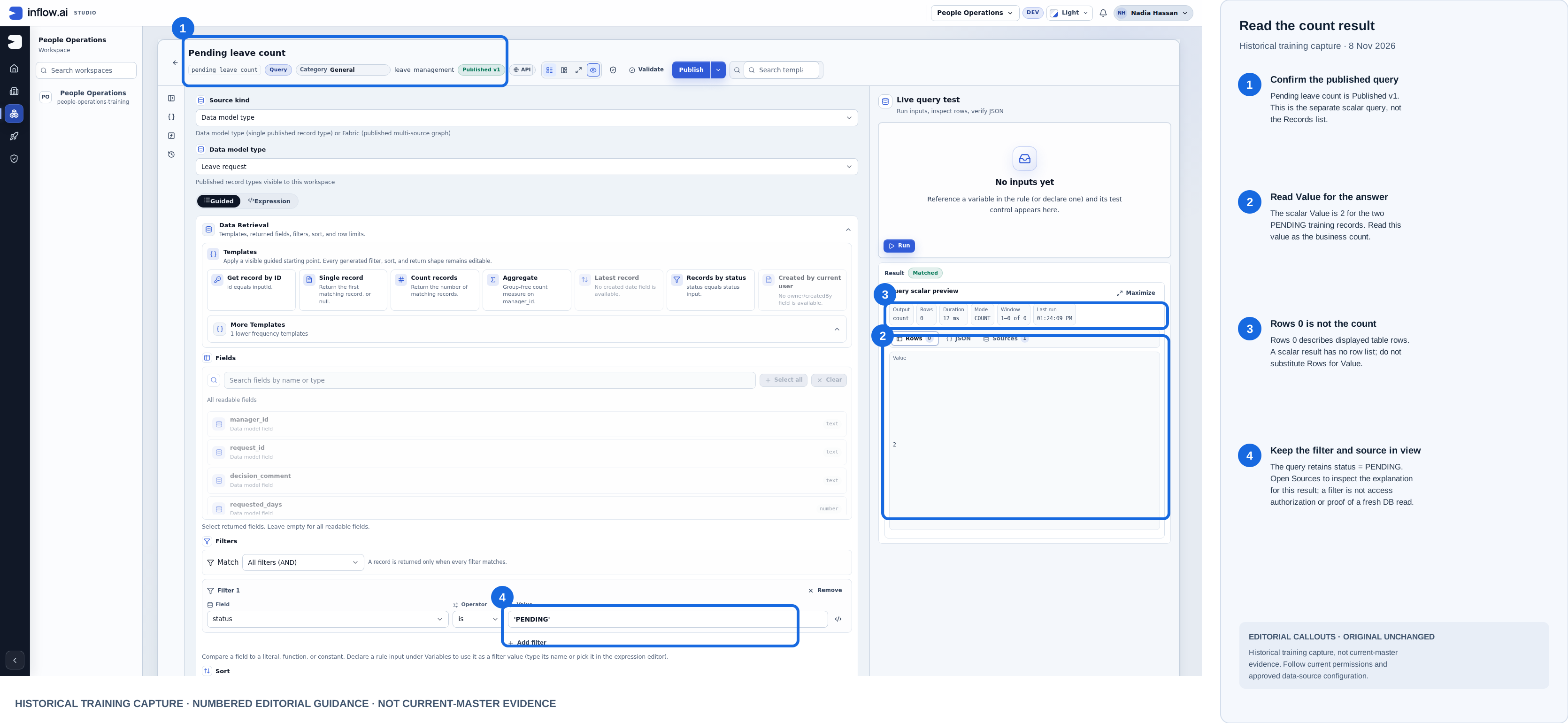
Historical training capture from 8 November 2026 with editorial callouts. Open the unchanged original screenshot. The published query's scalar value is 2; Rows 0 describes the table preview, not the count. Apply the user's current permissions when using a query result.
Expected result: the table receives records and the summary receives a number. Keep the two named rules separate. Do not switch the shared list query to Count just to supply one badge; that would change what its table consumer receives.
The Query Builder lesson covers source readiness, filters, sorting, bounded results and publication. A successful query test or a PENDING filter does not grant employee or manager access to the underlying records.
Example 4: choose a Decision table for review categories
Nadia's fictional policy says a request of up to five days needs ordinary review; more than five days needs senior review. She wants another consultant to read the conditions and answers as rows. The table will return one object, such as { "result": "ordinary review" }. It will not approve a request or assign a manager.
Open the matching rule or create one missing draft
- In Build → Rules, look for Leave review category, Key leave_review_category, in Leave Management. Open and inspect a matching existing rule. Do not create another copy merely to repeat these steps.
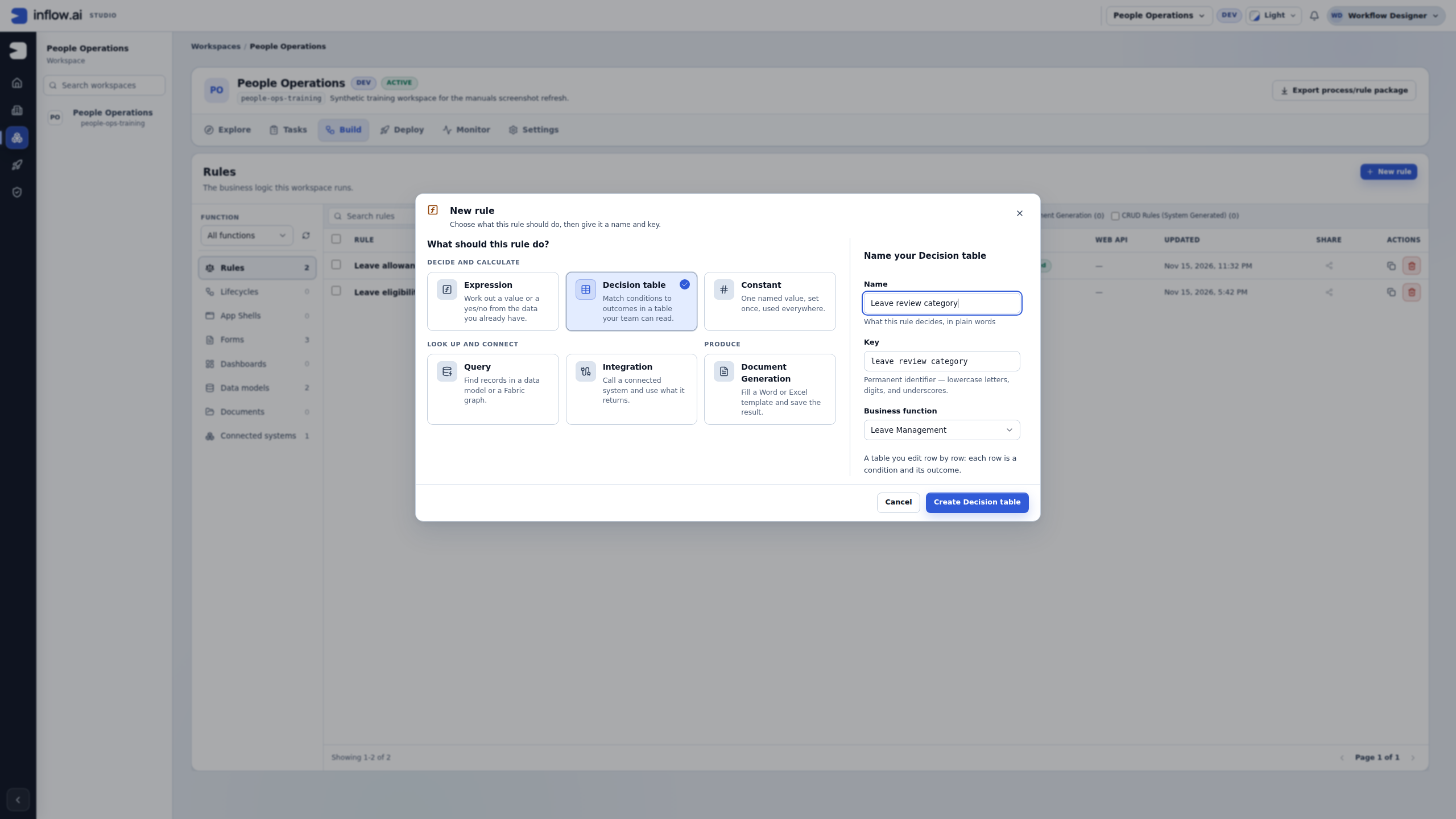
- Only if the intended rule is absent, choose New rule → Decision table. Enter that Name and review the stable Key. Select Leave Management as Business function, then choose Create Decision table once.
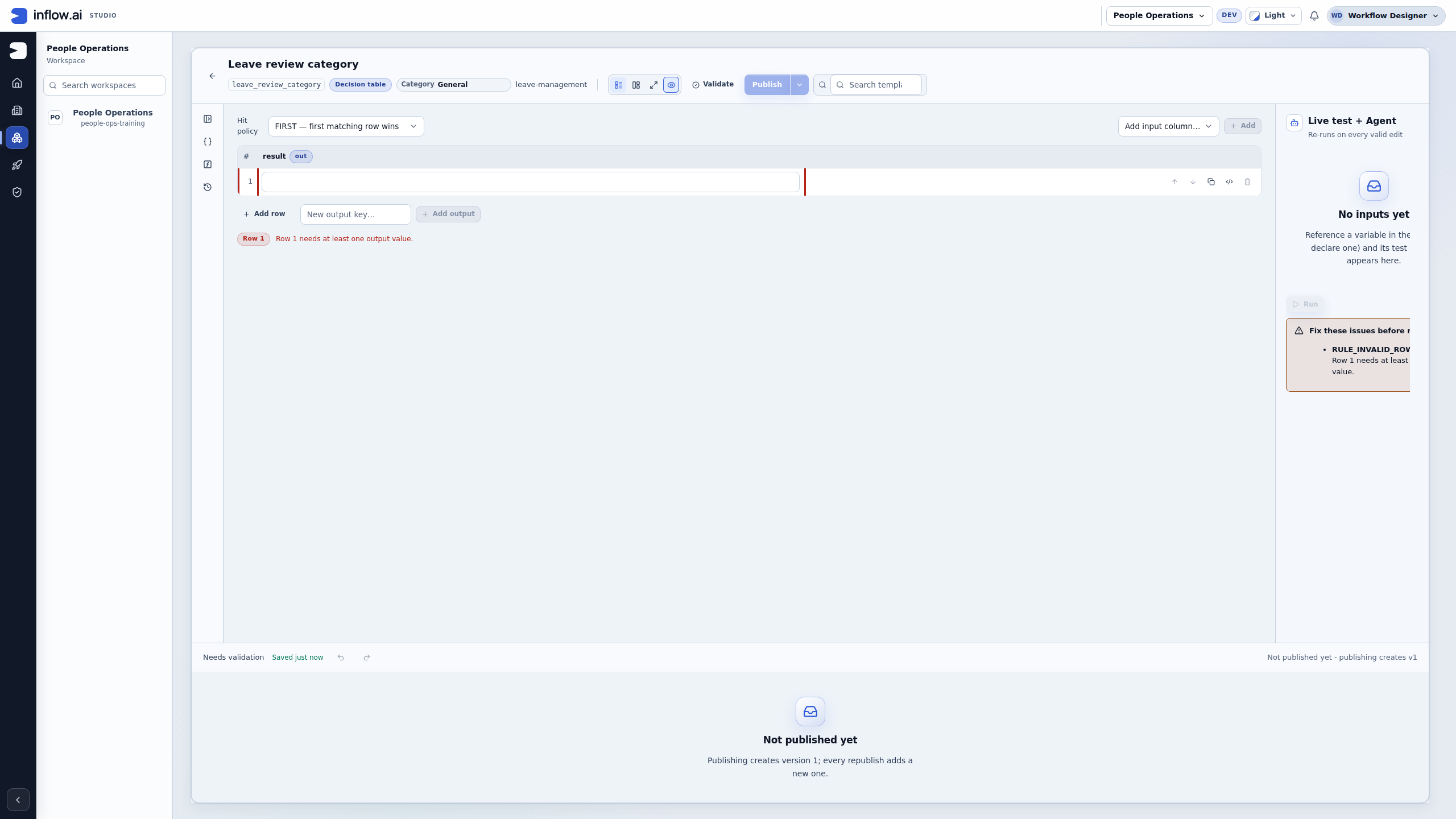
- Read the new editor before adding anything. A new table has FIRST, one starter row and a result output column. The empty output is a real incomplete-design issue. Reuse that row and output rather than adding a second result column or leaving an unintended unconditional row above the policy.
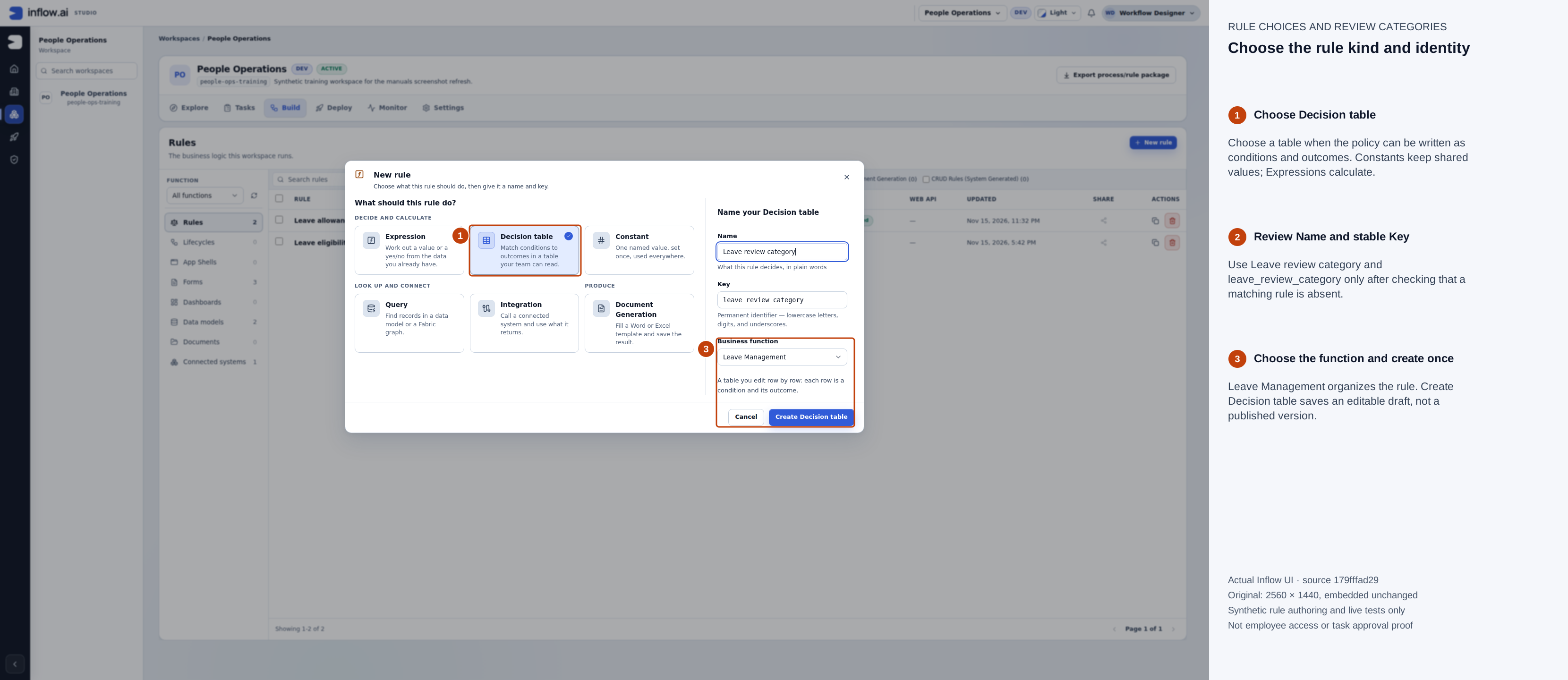
The native catalogue contained no matching rule before this one draft was created. The kind describes what the rule does; the business function organizes it. Numbered outlines and the side legend are guidance. Open the unchanged native original or open the full-size guide.
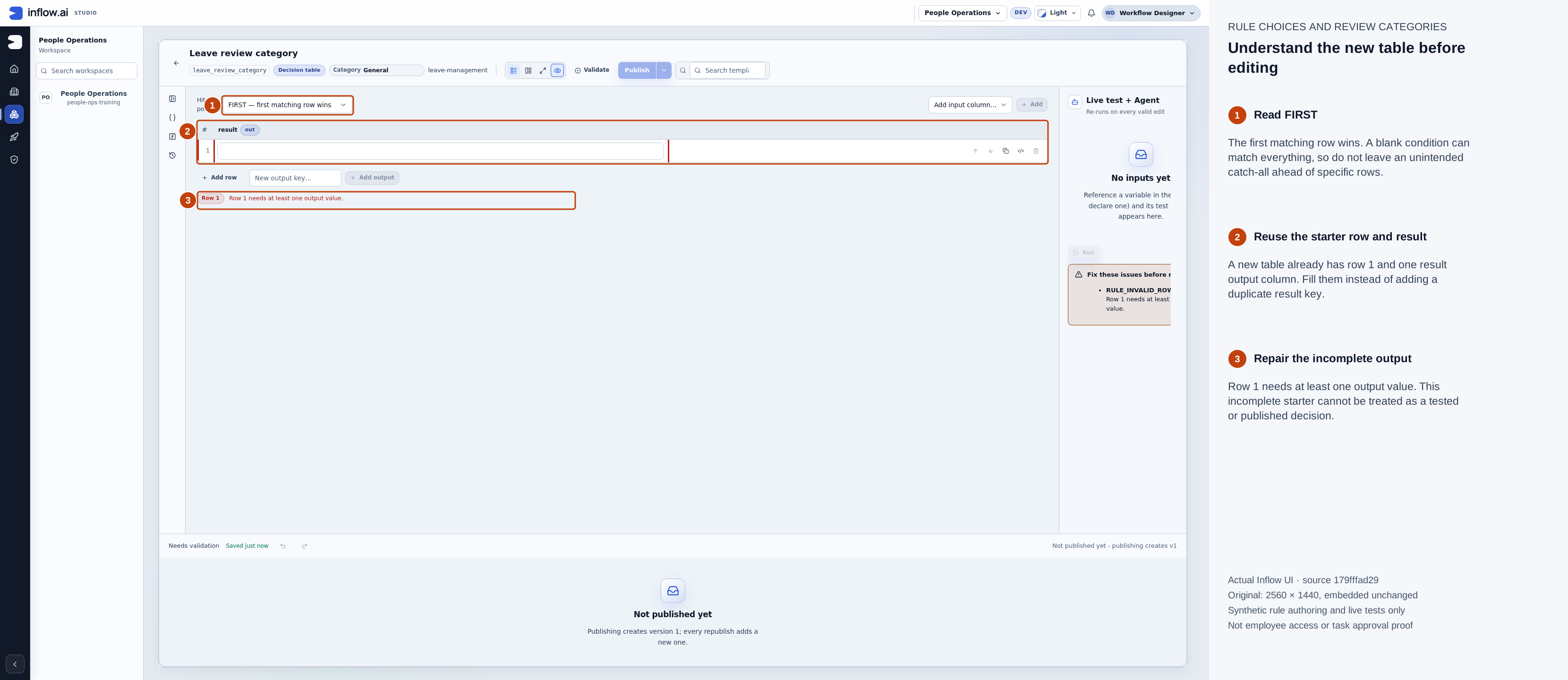
The starter row is not a finished policy. Row 1 needs at least one output value is visible; an empty condition can become a catch-all after it has an output. Numbered outlines and the side legend are guidance. Open the unchanged native original or open the full-size guide.
Declare what the caller supplies
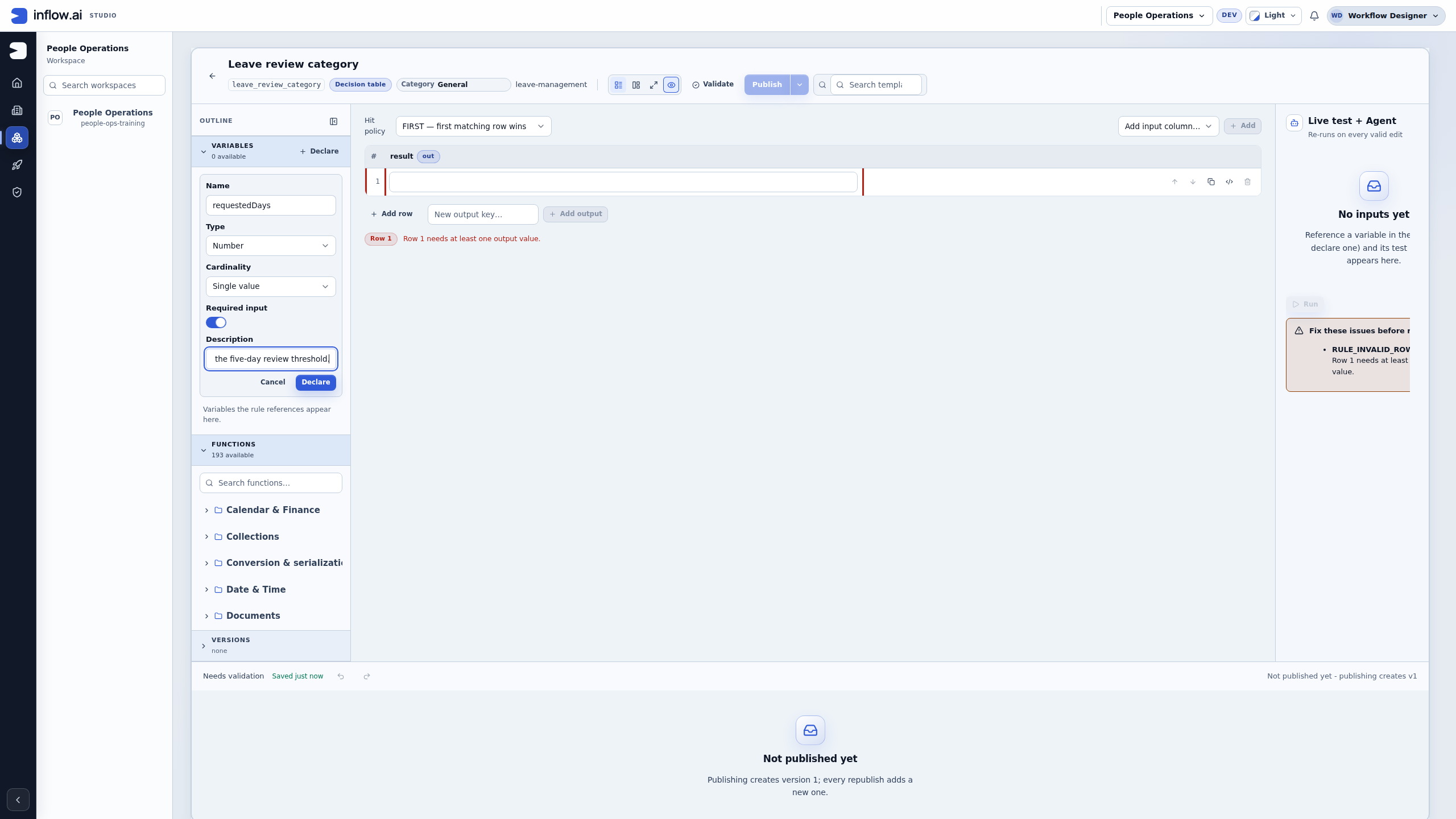
- Choose Open variables, then Declare only if
requestedDaysis missing. - Enter Name requestedDays, Type Number, Cardinality Single value, and turn Required input on. Describe its meaning: the caller supplies fictional requested days to compare with the five-day threshold.
- Confirm with Declare. Keep an existing matching declaration rather than adding another. If an existing input has another contract, review it with the rule owner before changing it.
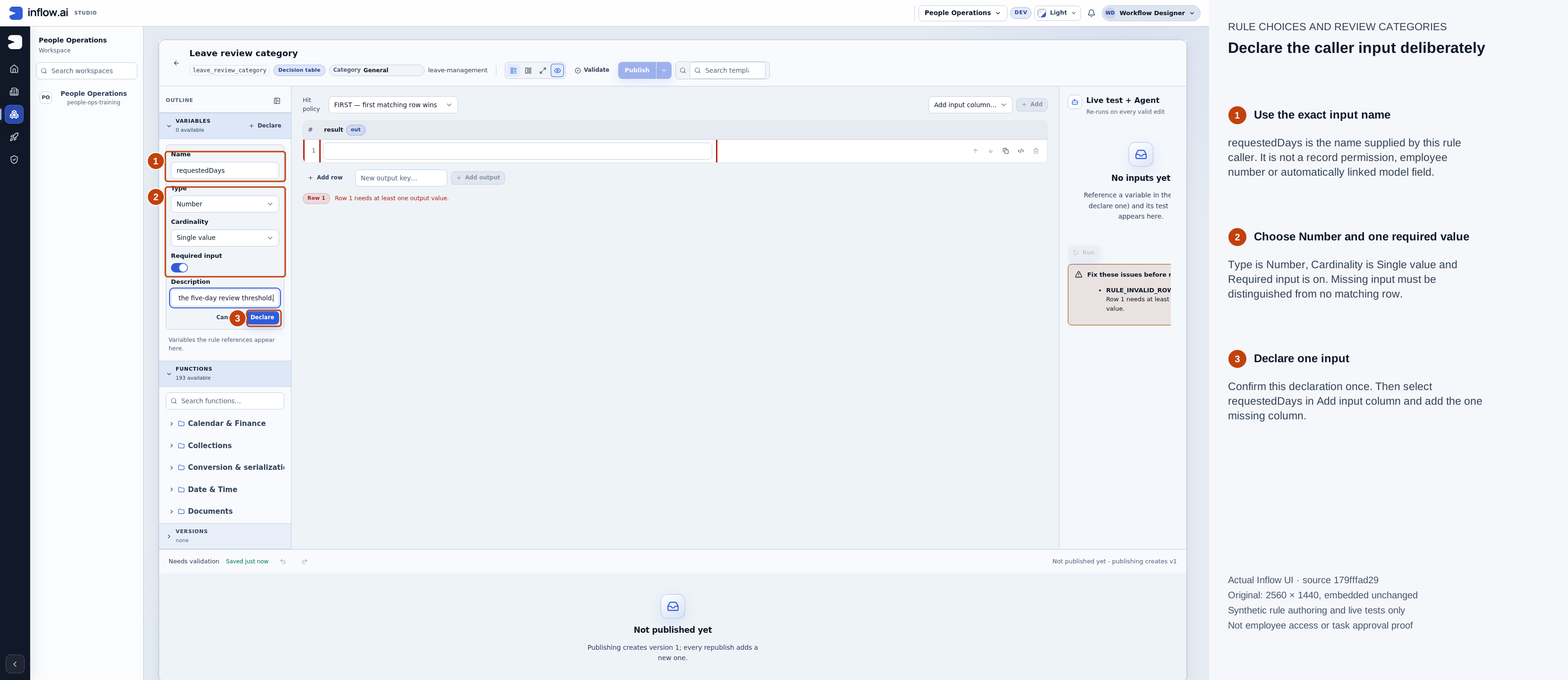
The input name is the caller contract. It does not automatically bind a model field or grant access to records. This figure is the declaration before confirmation. Numbered outlines and the side legend are guidance. Open the unchanged native original or open the full-size guide.
Build two conditions without a duplicate output
- In Add input column…, select requestedDays, then choose Add once. The column header shows
inputs:requestedDaysand Number. A matching column is retained rather than added again. - Keep Hit policy → FIRST — first matching row wins. This example needs one answer object. COLLECT — all matching rows changes the answer into a list of output objects; use it only when the caller needs that contract.
- In the existing row 1, choose Operator → is at most, enter 5 in its numeric Value, and enter ordinary review in result for row 1. The condition operand and row output are different controls.
- Choose Add row once. In row 2 choose is more than, enter 5, and set result for row 2 to senior review.
- Keep the existing result output. New output key and Add output are for another intended output, not a requirement to make this table work.
- Wait for the saved state, choose Validate, and read Valid. Resolve actual blocking issues before testing or publishing. If saving fails or the current design is still unsaved, do not use an earlier valid result as evidence for it.
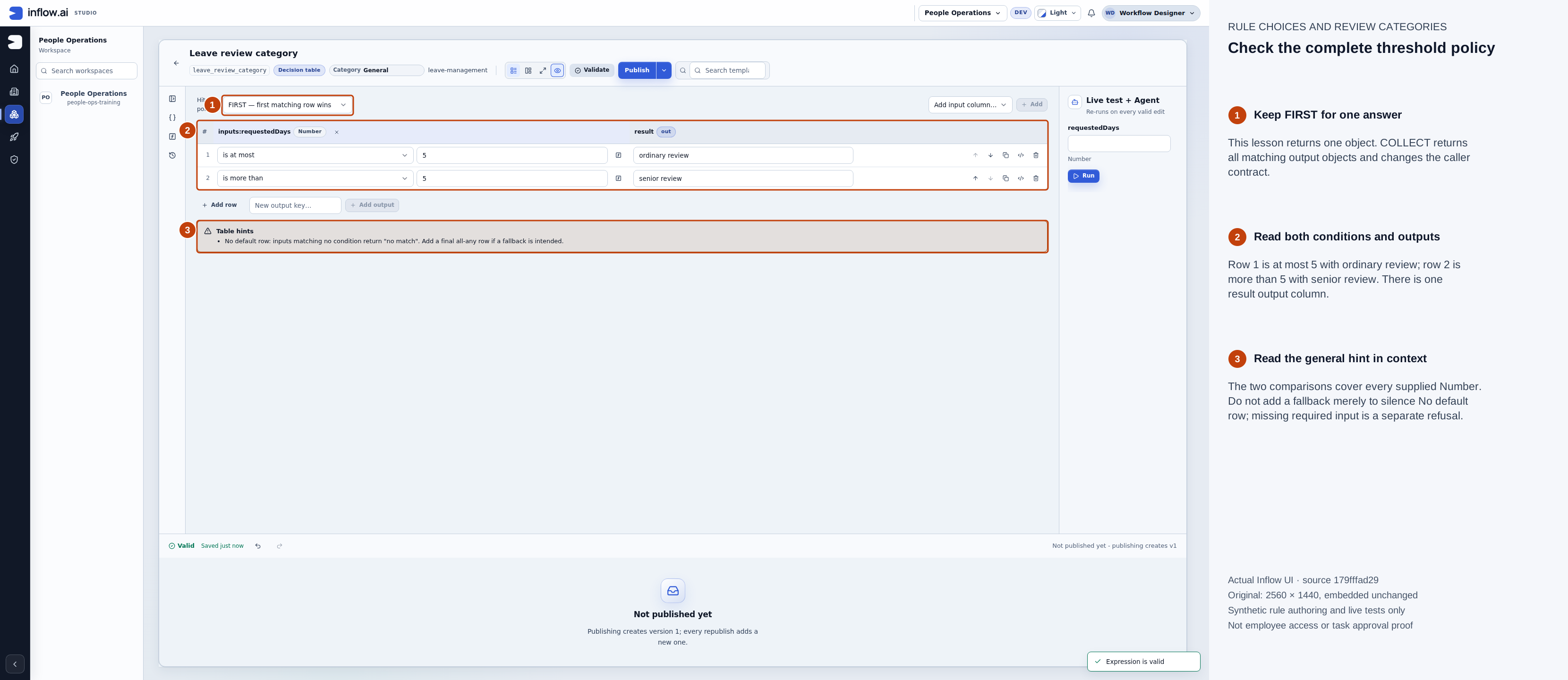
The first row includes five; the second starts above five. The table is Valid and Saved, and it is not published at this checkpoint. Numbered outlines and the side legend are guidance. Open the unchanged native original or open the full-size guide.
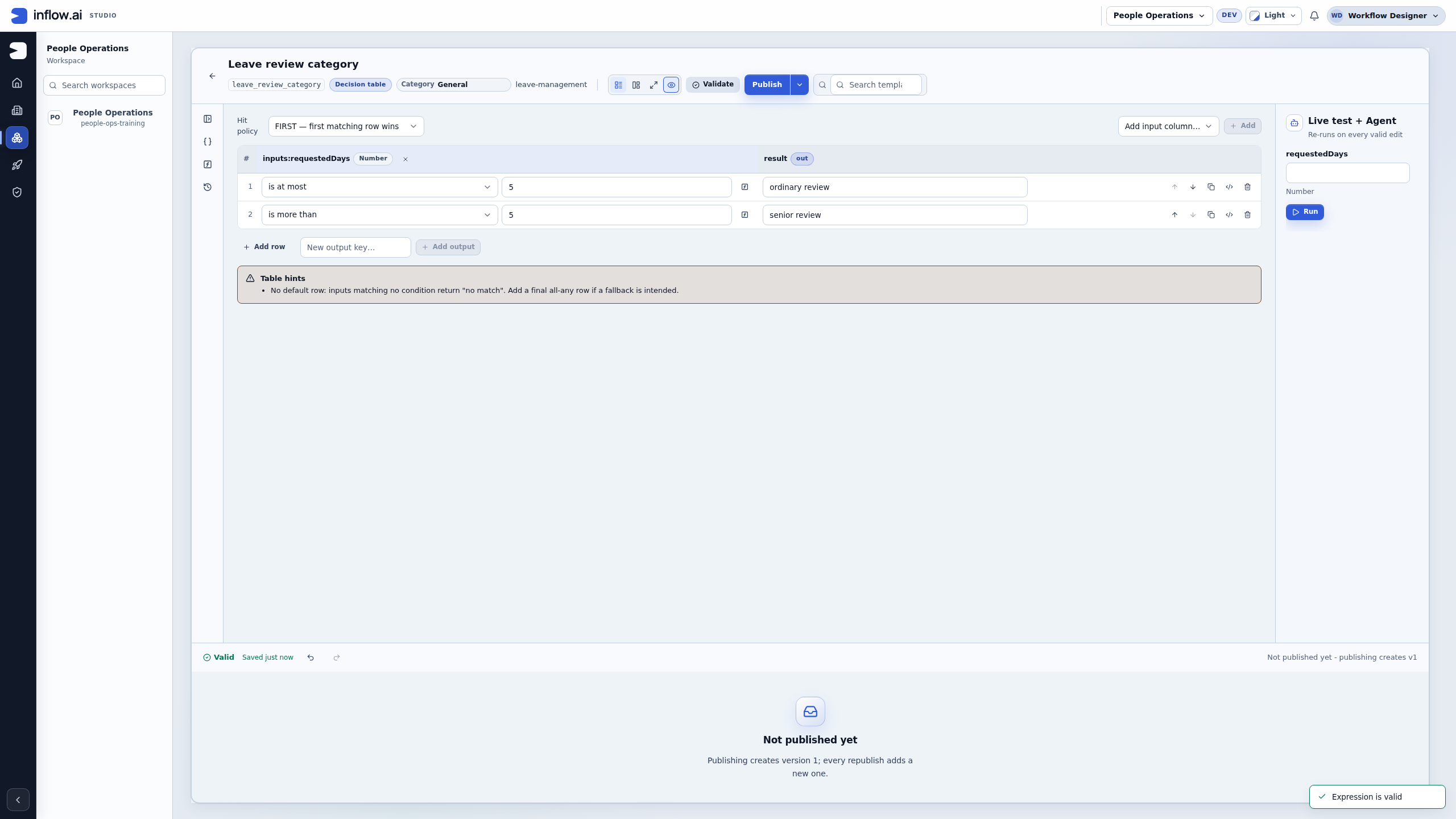
Read the hint in context: No default row explains what happens if an input matches no condition. These two comparisons cover every supplied Number, so this example needs no fallback row. Do not add an any row just to silence the hint. Under FIRST, an unconditional row placed first can mask later conditions. For another policy with a genuine uncovered range, ask its owner what the unmatched outcome should be before adding a fallback. A missing required input is a separate case, shown below.
Test ordinary values and the exact boundary
Use Live test + Agent on the saved, validated definition. Enter each value, choose Run, and read the current Result, matched row and Exact value. A previous result marked Outdated belongs to earlier inputs or a previous design.
requestedDays |
Expected matched row | Expected Exact value | Why it matters |
|---|---|---|---|
| 2 | is at most 5 | { "result": "ordinary review" } |
Ordinary example below the threshold. |
| 5 | is at most 5 | { "result": "ordinary review" } |
The boundary is deliberately inclusive. |
| 6 | is more than 5 | { "result": "senior review" } |
The other side of the threshold. |
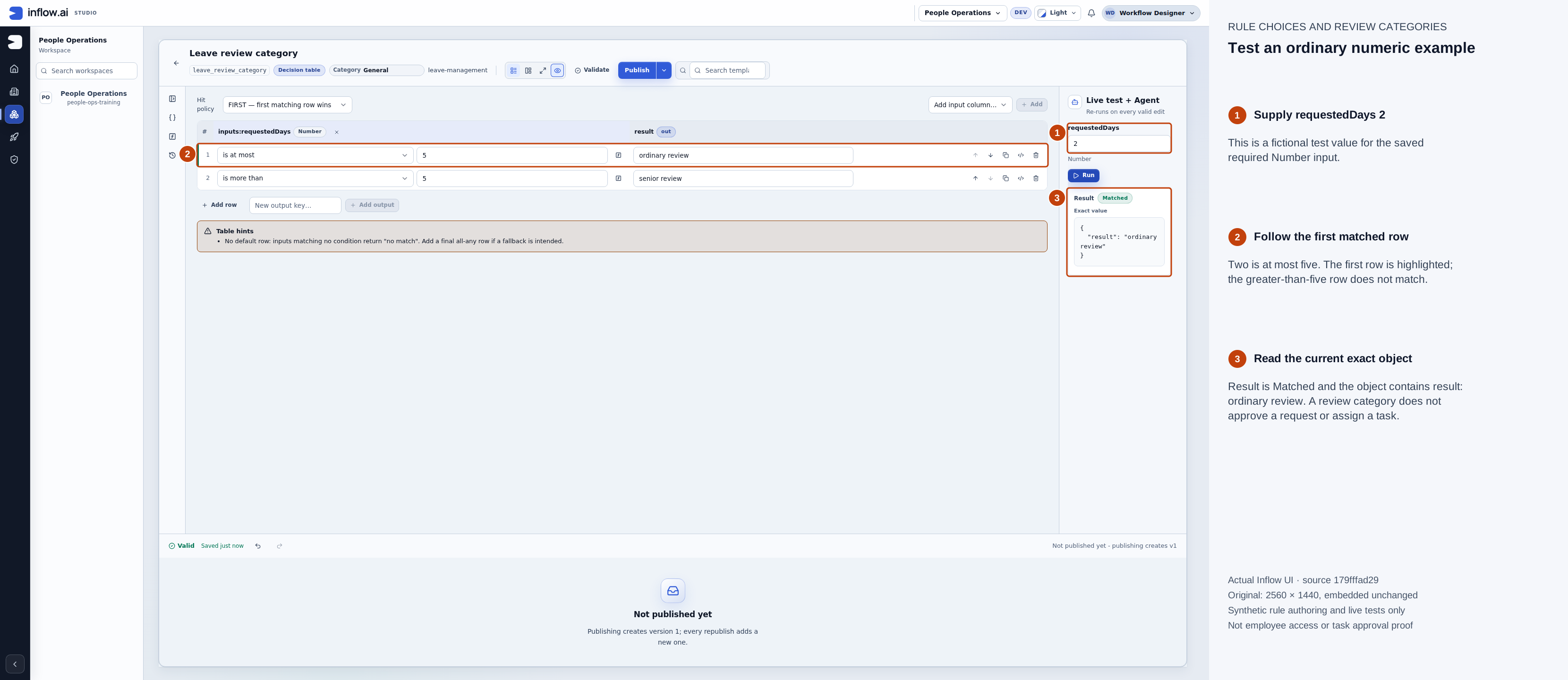
Two days matches row 1. Matched means a table row matched; it is not a manager approval. Numbered outlines and the side legend are guidance. Open the unchanged native original or open the full-size guide.
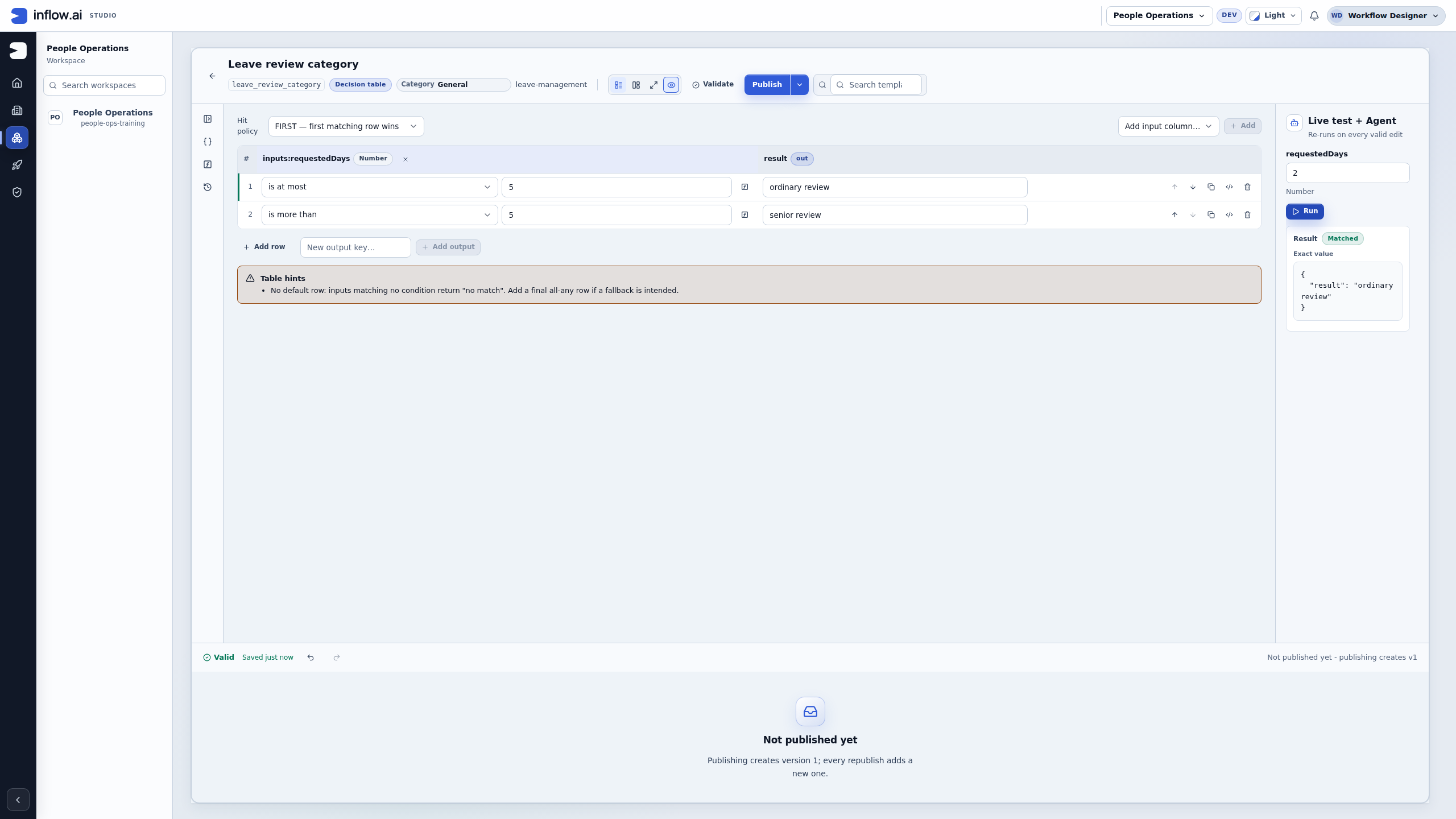
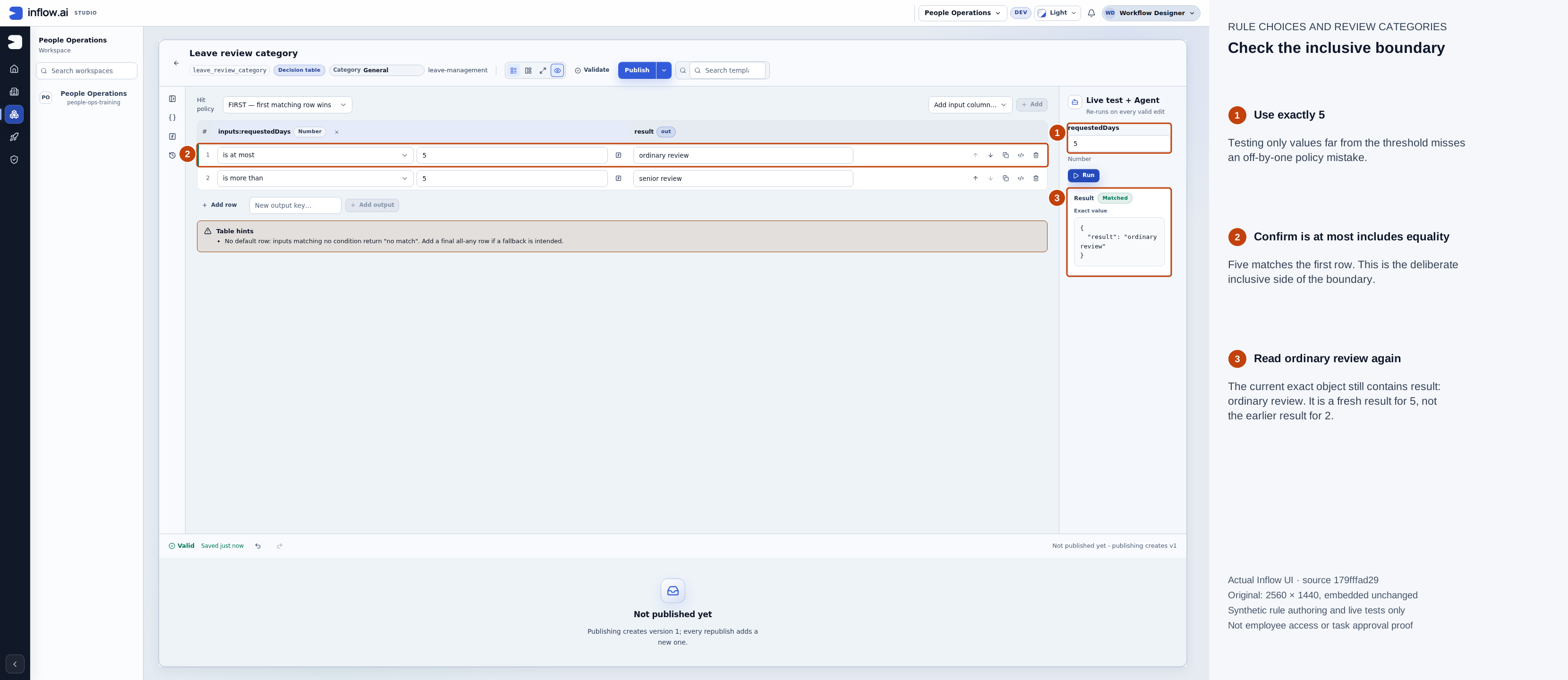
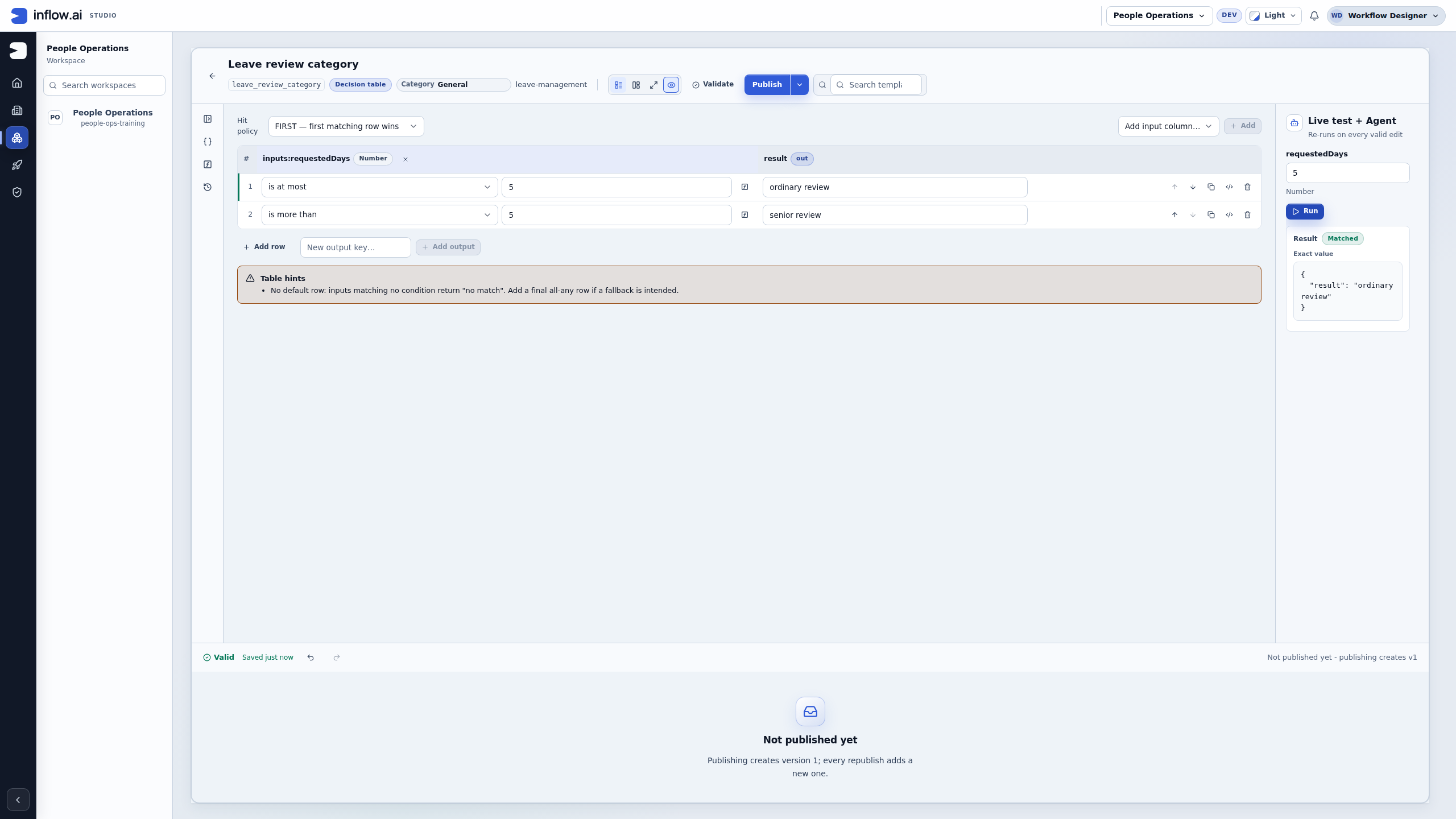
Exactly five belongs to is at most 5. Test equality explicitly instead of inferring it from a value far below the threshold. Numbered outlines and the side legend are guidance. Open the unchanged native original or open the full-size guide.
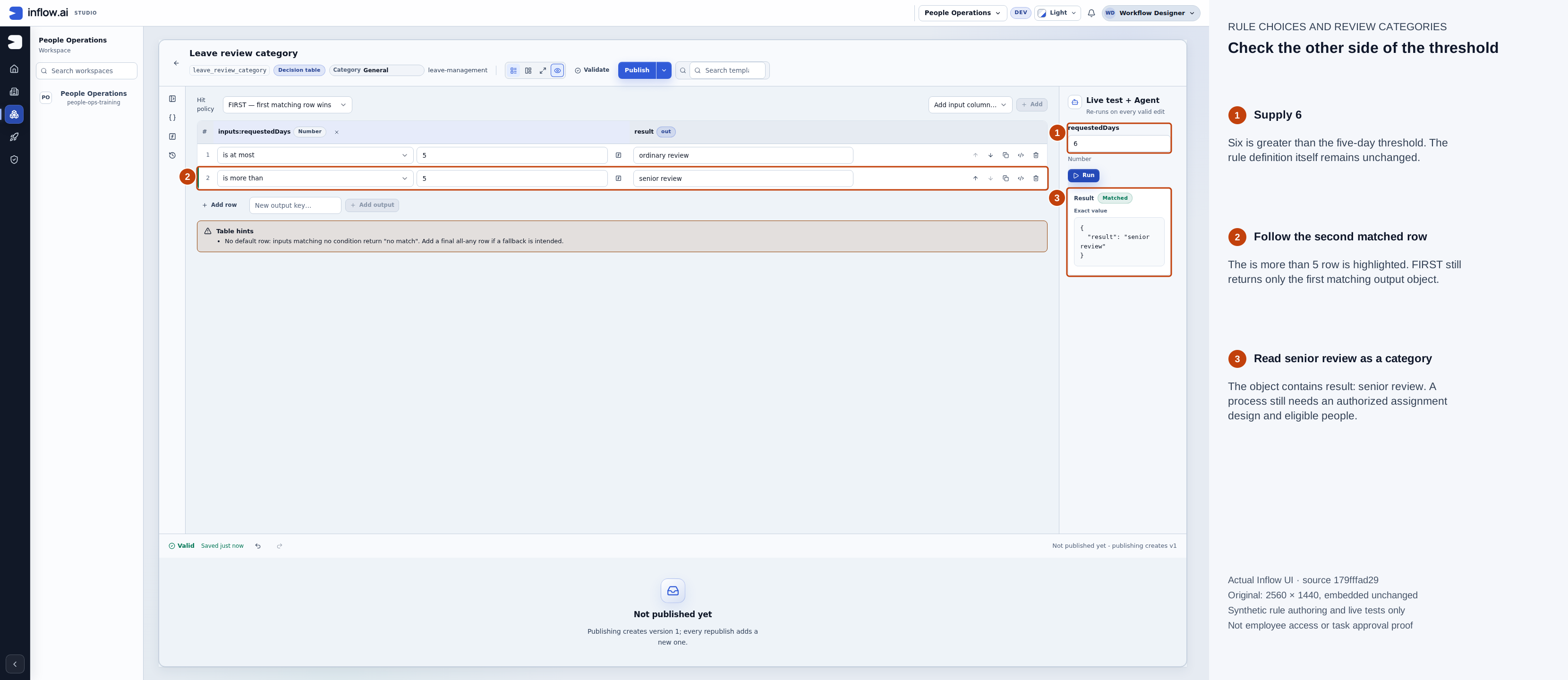
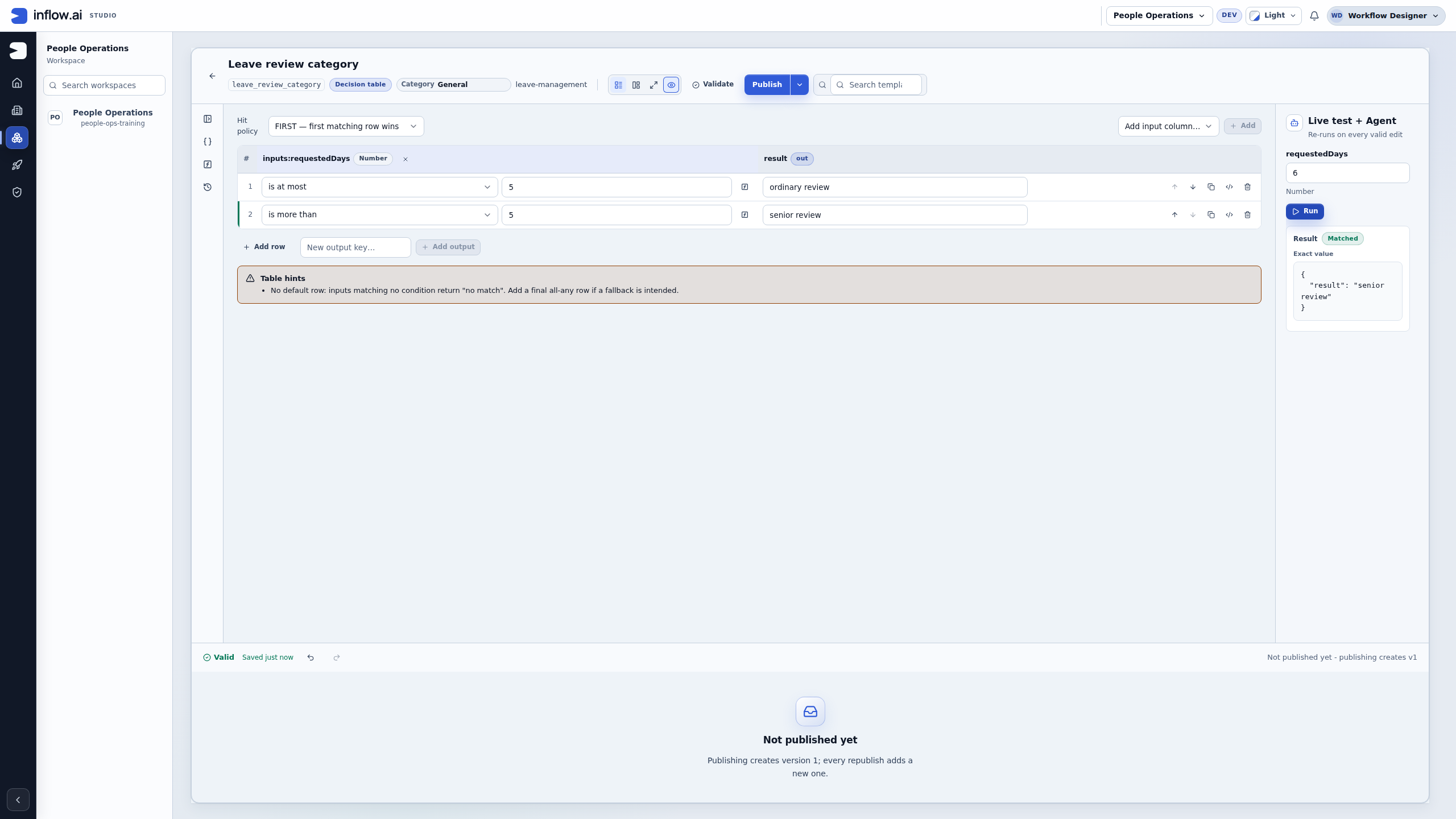
Six belongs to is more than 5. The table still returns one object under FIRST, not a person or an assigned task. Numbered outlines and the side legend are guidance. Open the unchanged native original or open the full-size guide.
Read outdated results and repair a missing input
- Select the requestedDays test value and delete it. Check that the field is genuinely blank. The previous six-day result may remain visible as Previous result — outdated. Keep that label in view: the old senior review object is not an answer for the now-empty field.
- Choose Run with the empty value. The actual result in this exercise is Evaluation failed → Required rule input is missing: requestedDays. This is a refusal to evaluate, not
false, No match or an approval. - Restore 2 and choose Run again. Read a current Matched result with
{ "result": "ordinary review" }. The error and Outdated labels should be gone. - Keep the required contract and both policy rows. Do not turn Required input off, change the threshold or add a catch-all merely to manufacture a result for missing information.
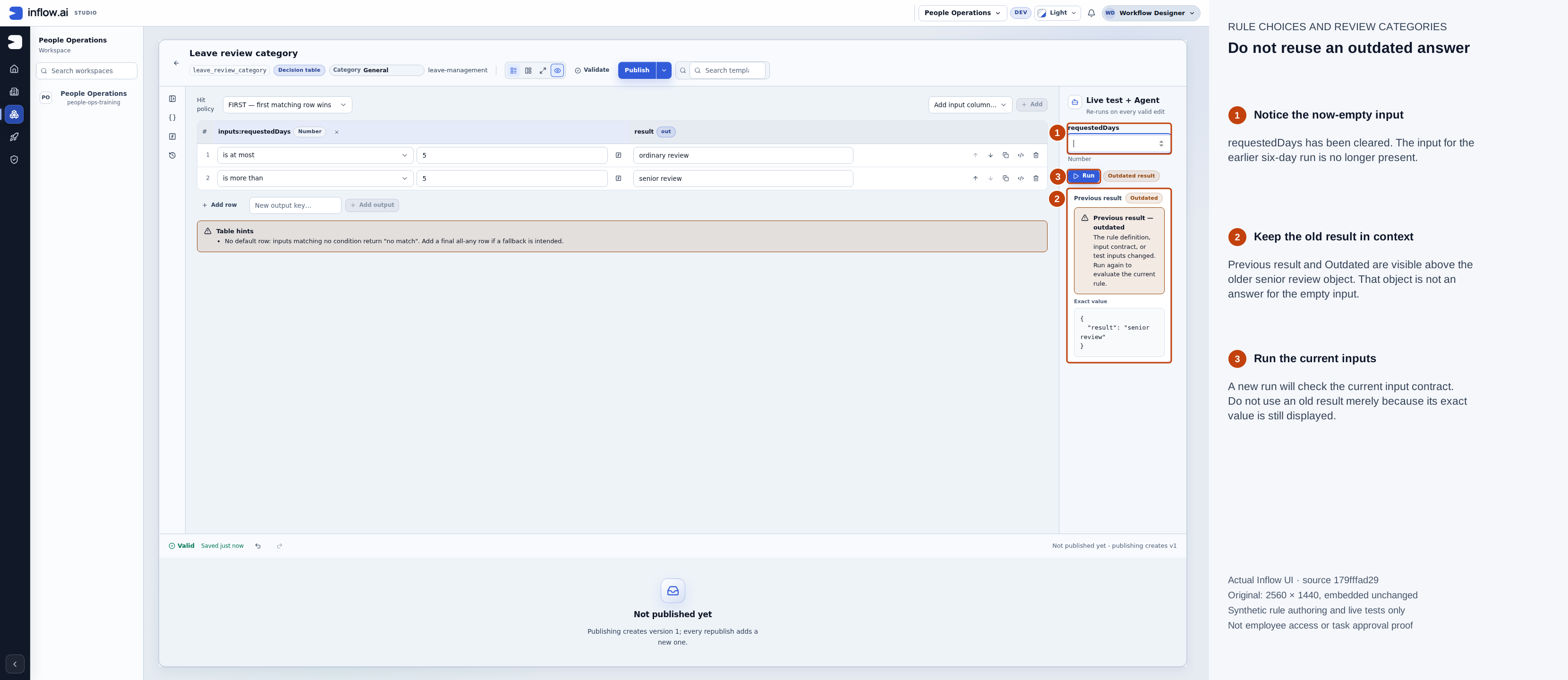
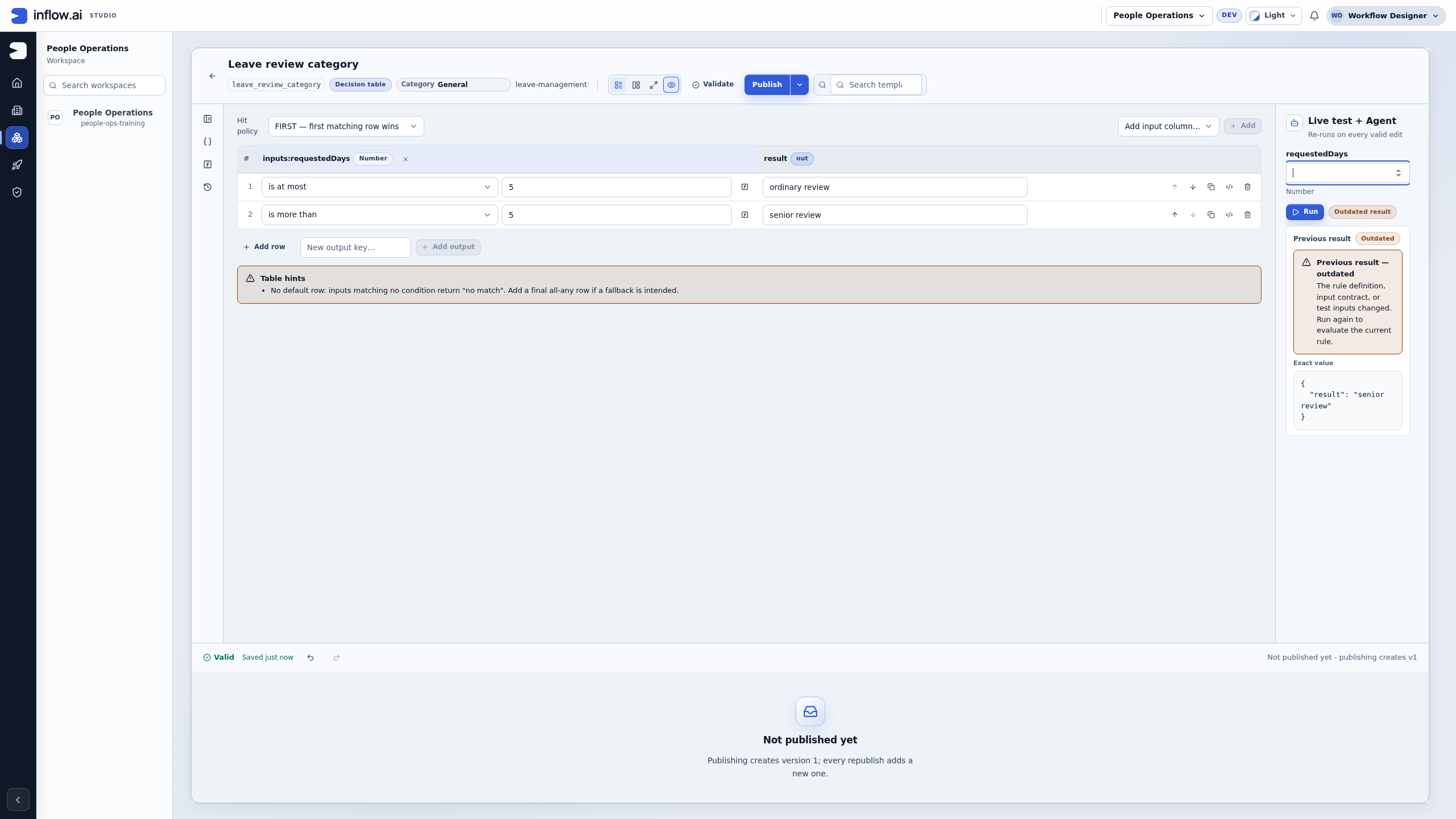
The old exact value remains visible for context. Its Outdated labels prevent it from being treated as the current answer. Numbered outlines and the side legend are guidance. Open the unchanged native original or open the full-size guide.
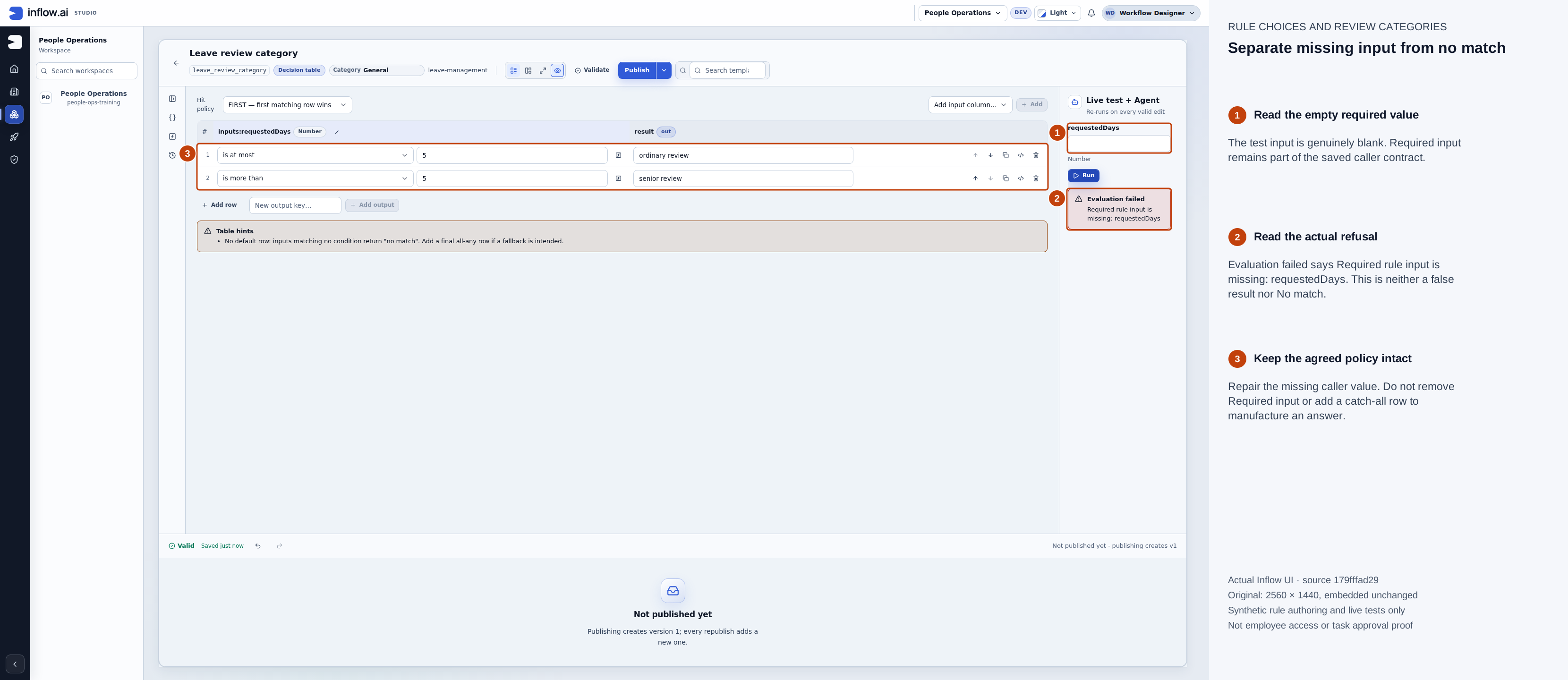
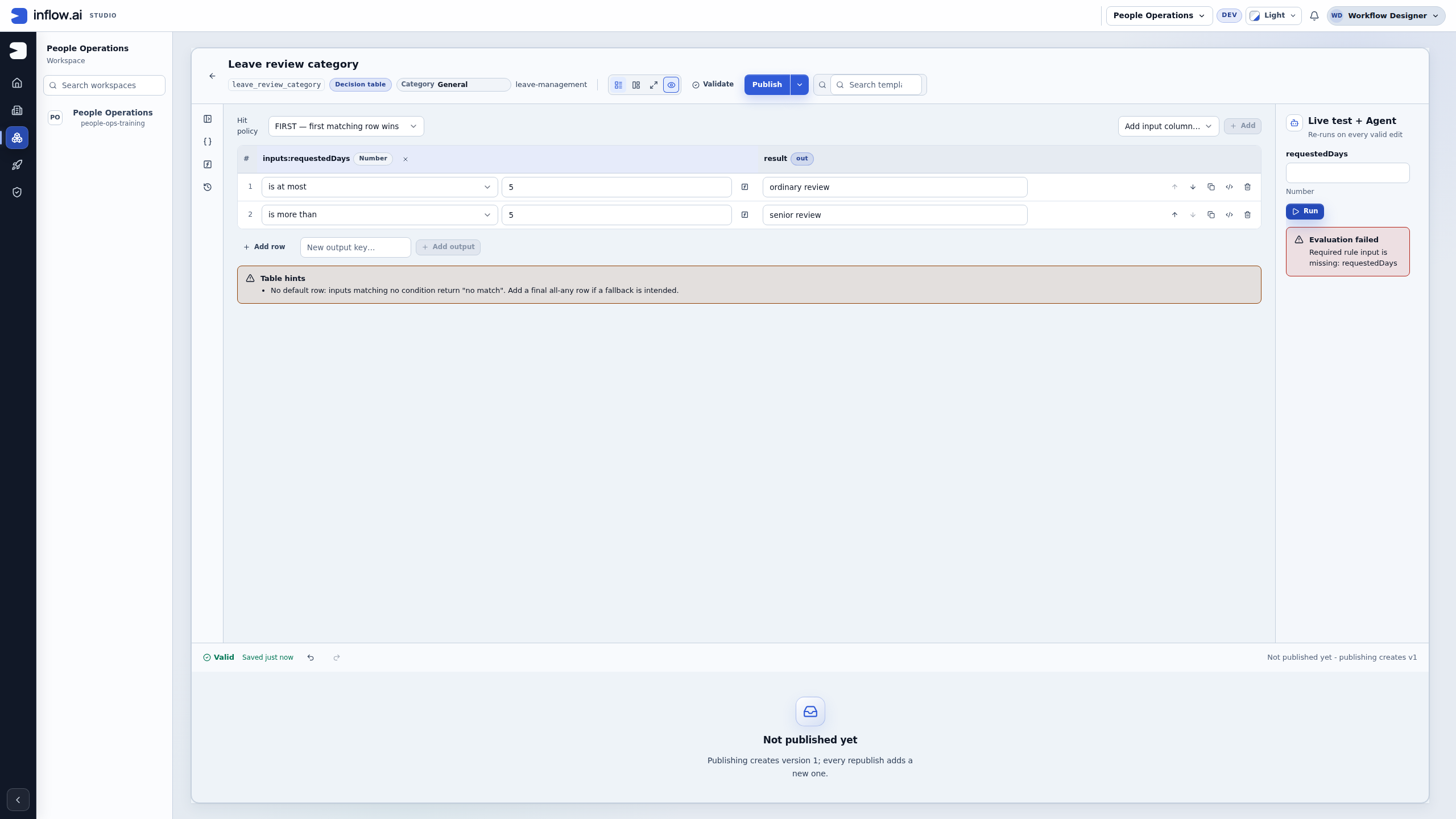
The saved required input is enforced. The old result is replaced by the current refusal; no policy row was removed. Numbered outlines and the side legend are guidance. Open the unchanged native original or open the full-size guide.
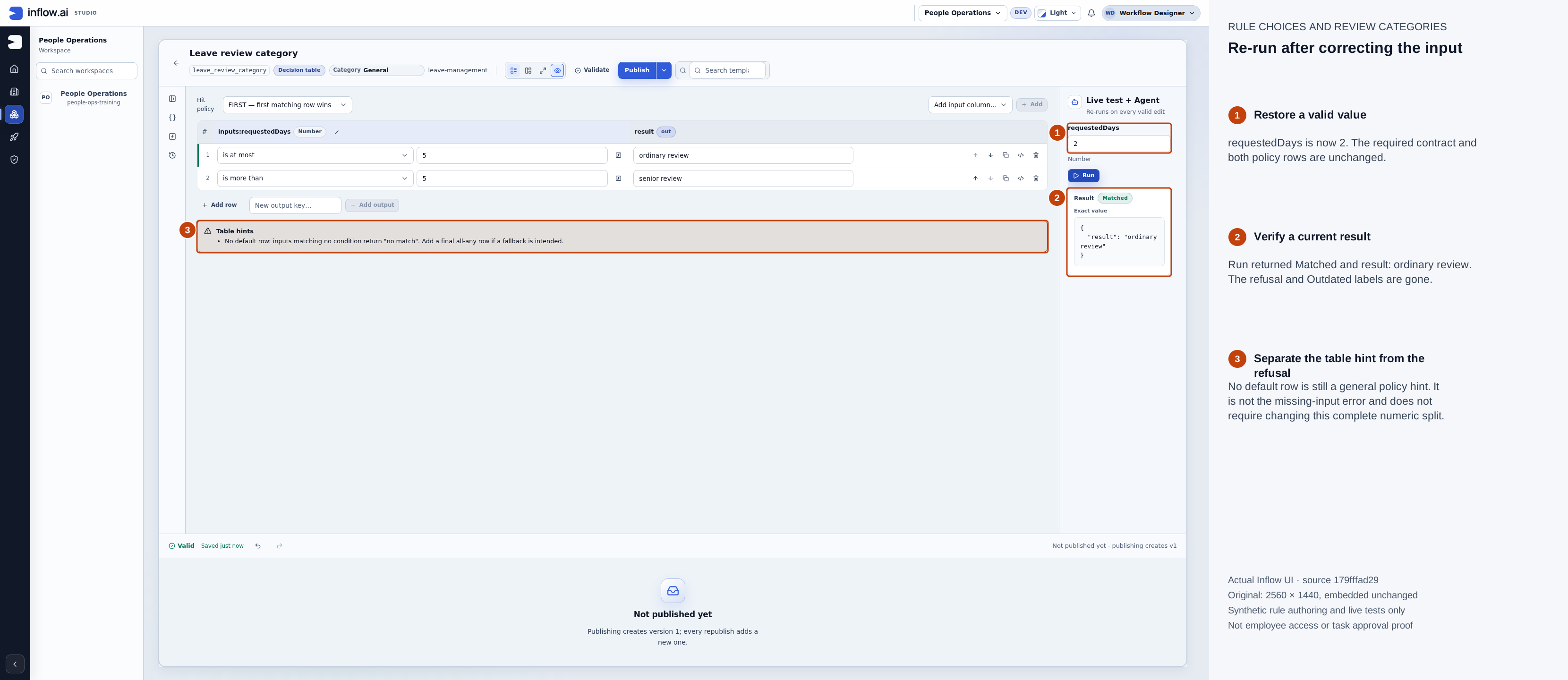
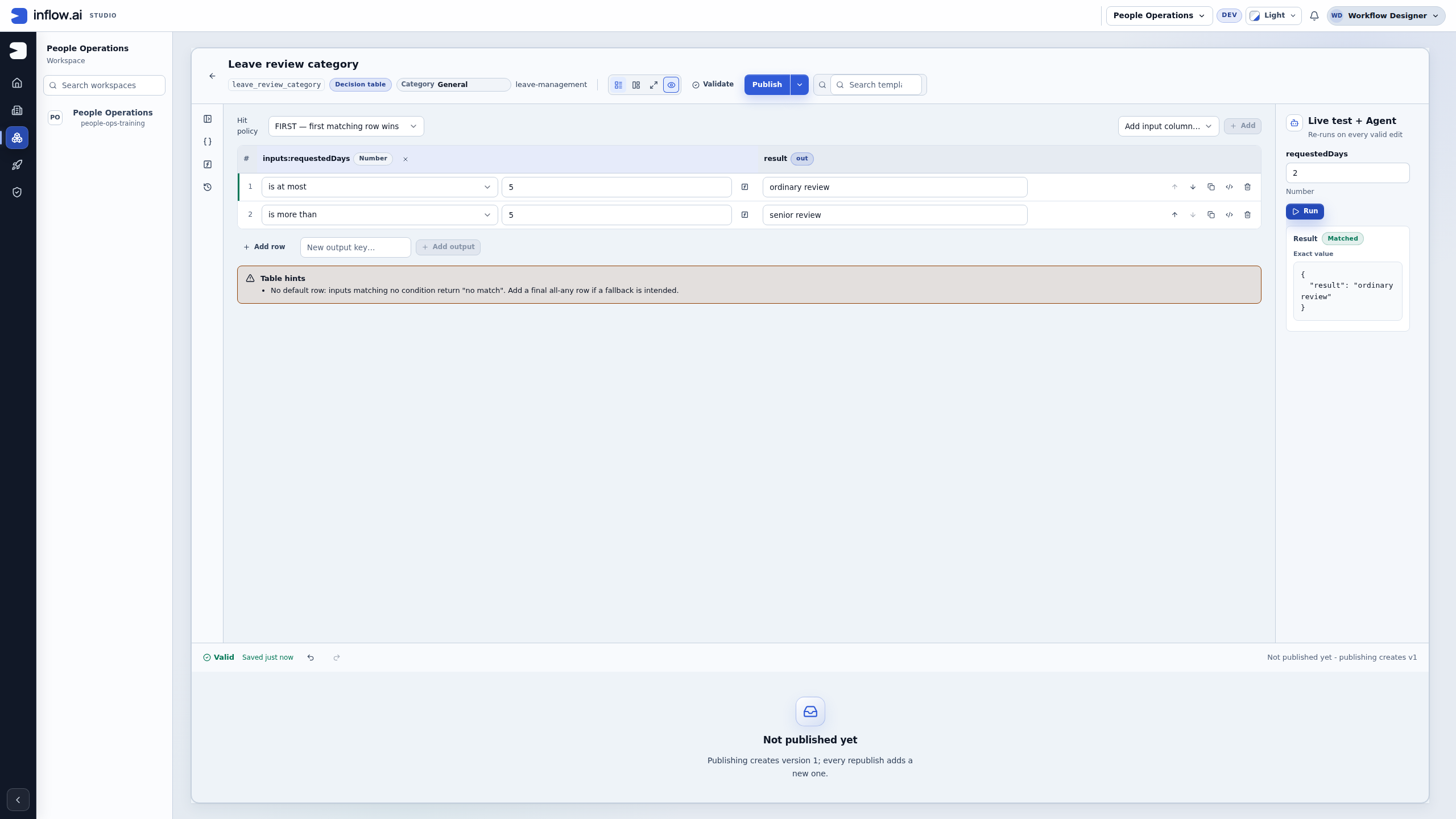
Repairing the test input resolves the refusal. The separate general No default row hint remains and is not the missing-input error. Numbered outlines and the side legend are guidance. Open the unchanged native original or open the full-size guide.
Publish the checked design once
- Confirm the intended input contract, both conditions, outputs, saved state and Valid result. Keep a matching existing published version when replaying the lesson.
- For the intended first release, choose the regular Publish action once. This run completed directly; wait for Published v1 and the actual version row instead of repeating the action while it is processing. A failed or uncertain outcome should be investigated before another publication.
- Read the row's Web API column. It is a dash in this exercise. The separate More publish options → Publish & expose as Web API route was not used.
- Read No runs yet accurately. The earlier live tests exercised the authored definition. A permitted consuming application or process still has to invoke the published rule before its execution history can establish that use.
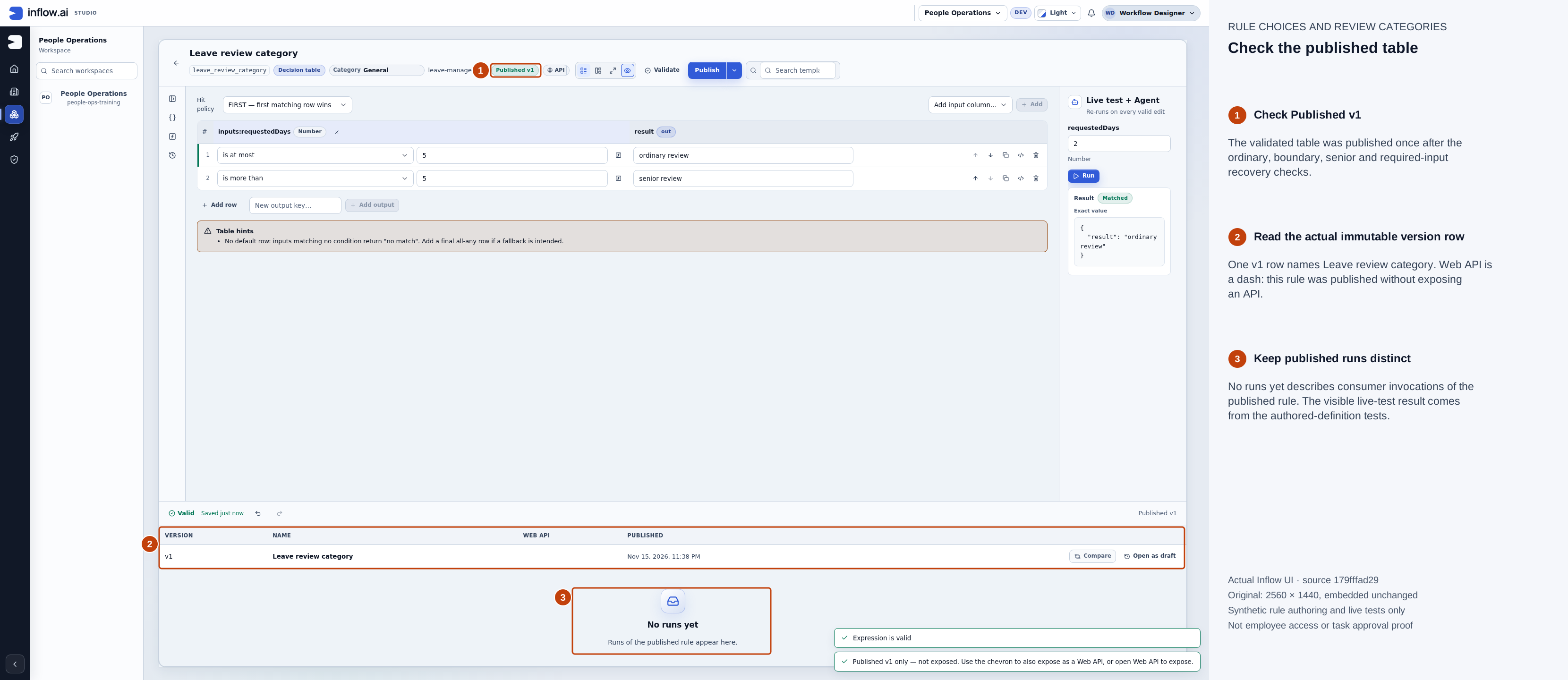
One intended v1 was published after the test and recovery cases. This is a rule-authoring result, not a completed leave request or employee-access proof. Numbered outlines and the side legend are guidance. Open the unchanged native original or open the full-size guide.
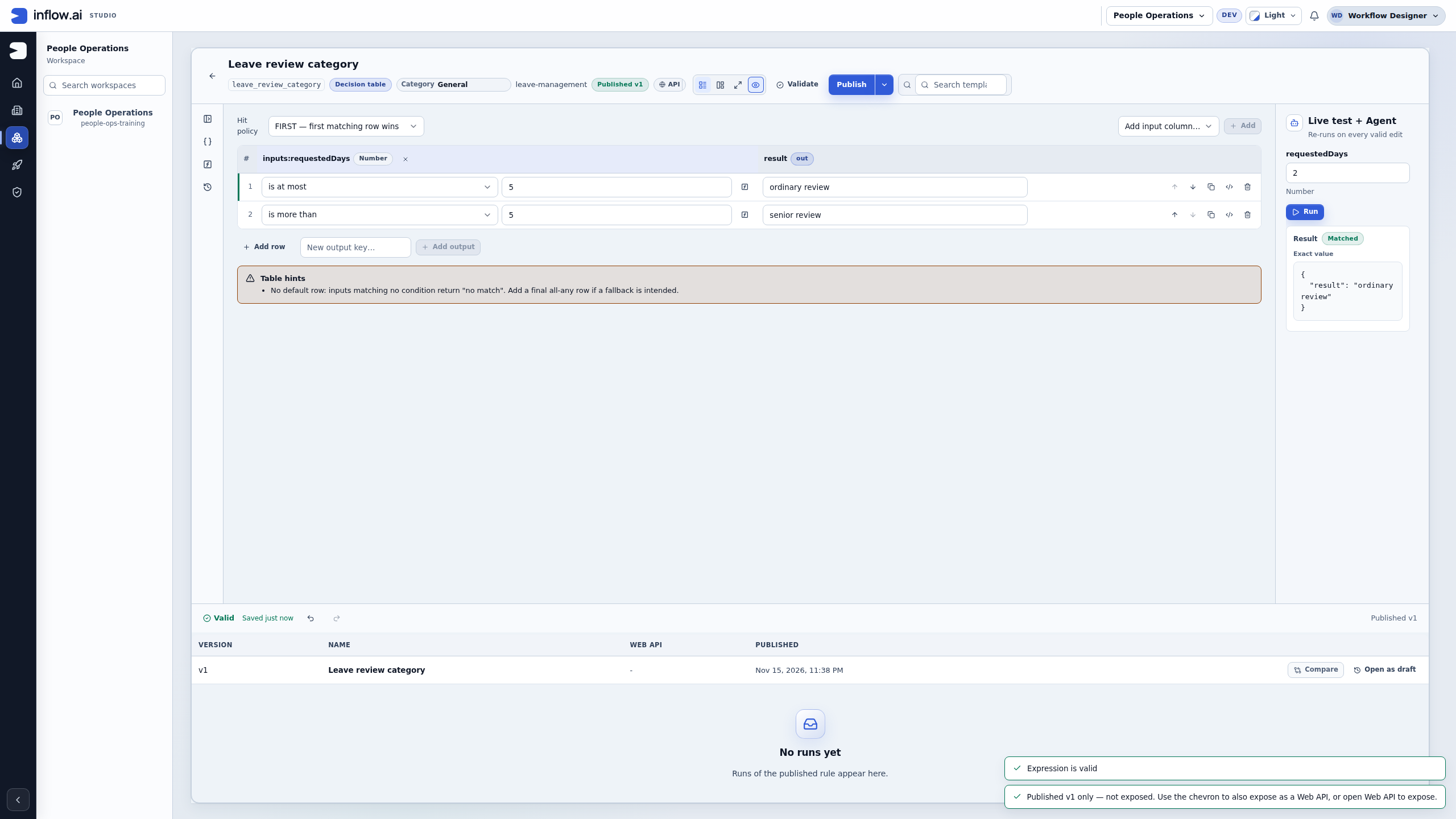
Hand the result to the right owner: FIRST makes row order important when conditions overlap. Keep deliberate fallback behavior and the caller's output contract intact. This table returns a review category only; a process must still use it in an authorized assignment design with actual eligible people. A group called Managers or the text “senior review” does not by itself assign Sara a task or approve the request.
Know when to use a specialist rule
For a directory lookup, continue with Integrations. Use a published operation with the expected inputs and minimal returned fields. Confirm whether the operation reads or changes the outside system. A teaching read is not permission to send a payment, deletion or other write.
For a letter or PDF, use the document guide. A document-generation result is separate from record state, task completion and delivery to a person. Use the required managed document setup and the actual generated result.
For an AI Task, use the approved provider, model, data and permissions described in AI Task rules. Optional availability and a generated answer are separate from business acceptance. Do not move private request text into another provider to make an unavailable test run.
Check the handoff before calling a rule ready
- State the business question and why this kind fits it.
- List each input, its meaning and whether it is required.
- State exactly what returns: one value, one record, several records, a document or another supported shape.
- Keep ordinary, boundary and relevant missing/error examples beside the rule.
- Check that a changed test has a current result. Preserve earlier failed or outdated results as history rather than treating them as the latest answer.
- Publish the intended version through the normal review. Publish & expose as Web API is a separate option for appropriate rules, not a step every publish should take.
- Test the actual consuming feature with the intended user's access. Rule validation alone does not prove a saved request or completed approval.
Recover common mistakes
| What you notice | Better next step |
|---|---|
| A shared value is copied into many designs | Consider one named Constant and an explicit consumer mapping, with controlled changes. |
| A large formula is hard to review | Decide whether rows in a Decision table explain the policy more clearly. |
| A page needs a number but the rule returns rows | Use a separate suitable Query return shape; preserve existing list consumers. |
| A test shows false | Compare the actual inputs with the policy; false can be the correct answer. |
| A test cannot evaluate | Read and correct the current input or validation problem before using any result. |
| A rule kind or source is absent | Review the intended setup and current access with its owner. |
| No Decision table row matches | Decide the intended business behavior instead of inventing an approval. |
| A publish button is available | Finish the design's checks first; availability is not evidence that the result is correct. |
Continue
Follow the connected data and rules tutorial, simple formulas, Query Builder, Integrations or document management. The optional rule design reference retains engineering detail and historical proposals.