Choose automatic steps for a workflow
An automatic step is work the process asks the application or an external service to do. Examples include evaluating a rule, creating a PDF or sending a notification. A human task waits for a person; an automatic step runs its configured operation and returns a result or a problem.
Inflow offers available activities through the flow designer. Your job as a consultant is to choose the right activity, supply the business information it needs, decide where useful results go and test what happens if it cannot finish.
Before you begin
Prepare the process and its case-file fields. Your administrator must prepare any required document service, connection, provider or approved service identity. A task appearing in the toolbox does not guarantee that its dependency is ready in your environment.
Use fictional inputs while learning. You need the right to edit and test the process, and the selected operation still checks its own resources. Do not borrow another connection's credentials or choose an elevated identity simply to get past a refusal.
Understand inputs, settings and outputs
| Part | Meaning | PDF example |
|---|---|---|
| Activity | The kind of work selected. | Convert Document To PDF. |
| Configuration | Choices about how that activity behaves. | Which source document to convert. |
| Input | Business information supplied when the step runs. | The permitted approval-letter document. |
| Output | A result later work may use. | The newly created PDF result. |
| Dependency | Something the activity needs to work. | A prepared conversion service and an allowed source/destination. |
A display title is not the actual business value. Selecting the library document is different from typing Leave approval.docx into a field that expects a document reference.
Choose an activity by the result the business needs
Start with the outcome, then choose from the operations actually offered in your workspace. The current platform catalog covers areas such as documents and PDFs, spreadsheets, reports, record actions, connectors, notifications, file storage and scanning, AI and data-fabric work, workflows, and simple waits or transformations. An operation being named in the platform catalog does not mean it is available to every workspace or ready in every environment.
| Business need | Activity family to look for | Example question before you choose |
|---|---|---|
| Prepare, convert, combine or inspect an application document | Document or PDF | Is the source an uploaded file, a managed document, or a template result? Which identifier does the offered operation expect? |
| Read or update rows in a workbook | Spreadsheet | Which workbook, sheet and range may this process use, and where should returned rows go? |
| Create or change business records | Record or data action | Which record may be changed, and does the caller have the needed object access? Should a human confirm this change first? |
| Ask another system to perform work | Connector or integration | Has the connection been configured for this environment, and could the request create a side effect outside Inflow? |
| Tell an employee or external recipient something happened | Notification | Which recipient and message are allowed, and how will an uncertain send be checked before retrying? |
| Classify, summarize or extract information | AI | Is an approved provider and model available, what data may it receive, and who verifies its output before the next decision? |
| Wait, route or start another process | Workflow or utility | Is the delay or child process needed for this business path, and what event will resume it? |
Use the designer's description and configuration fields as the contract for the selected operation. If the right result or required input is not clear, ask its platform or integration owner before publishing it into a business-critical flow.
Configure an automatic step
- Open the lifecycle in Design, select the intended state and choose Open flow.
- Add/select the appropriate automatic activity through the flow toolbox and its offered type/operation choices.
- Read the selected activity's description. Check that it does the actual business operation you need, not merely one with a similar title.
- Give the step a readable name, such as Create approval PDF. Later, this name helps people understand a waiting or failed request.
- Fill the required configuration through the actual input controls. Use pickers for governed objects and declared case fields for values that change by request.
- Open Outputs and map the returned business information to the intended declared destination. Use this table to connect the expected business answer with the field that later work needs.
- Read Reliability and any On failure behavior with the business owner. A timeout or repeat attempt can affect an external operation; it is not just a visual setting.
- Save, open Verify, correct the named findings and test a small business example before publication.
Check your result: you can explain what the activity receives, what it does and what the next step will use. A step's successful status is not enough if the needed answer never reaches the next task.
Illustrated practice — prepare a conversion step without running it
Nadia is designing the automatic work that will eventually prepare a leave-approval letter. Before connecting it to a real request, she wants to answer four questions: Which activity does this work? Which document does it need? Where will the answer go? What should happen if it fails?
The screenshots follow a separate fictional lifecycle named Automatic step practice 20261116, in People Operations → Leave Management. Its subject is Nothing — variables only. It is an unpublished practice draft with no employee request or source document. The example saves an intentionally incomplete activity so you can recognize both the controls and the remaining work. No document is converted and no case is started.
Use your own approved training workspace and a clearly named practice draft. Search for an existing matching design before creating another one. Keep an existing business process unchanged while you learn the controls. For the creation and state-selection steps, follow Create a process from business stages.
1. Find the operation in the selected state's flow
- Select the intended state in Design, then choose Open flow. Read the breadcrumb above the canvas. This example opens Start → State sub-flow; that flow belongs to the Start state of this practice lifecycle.
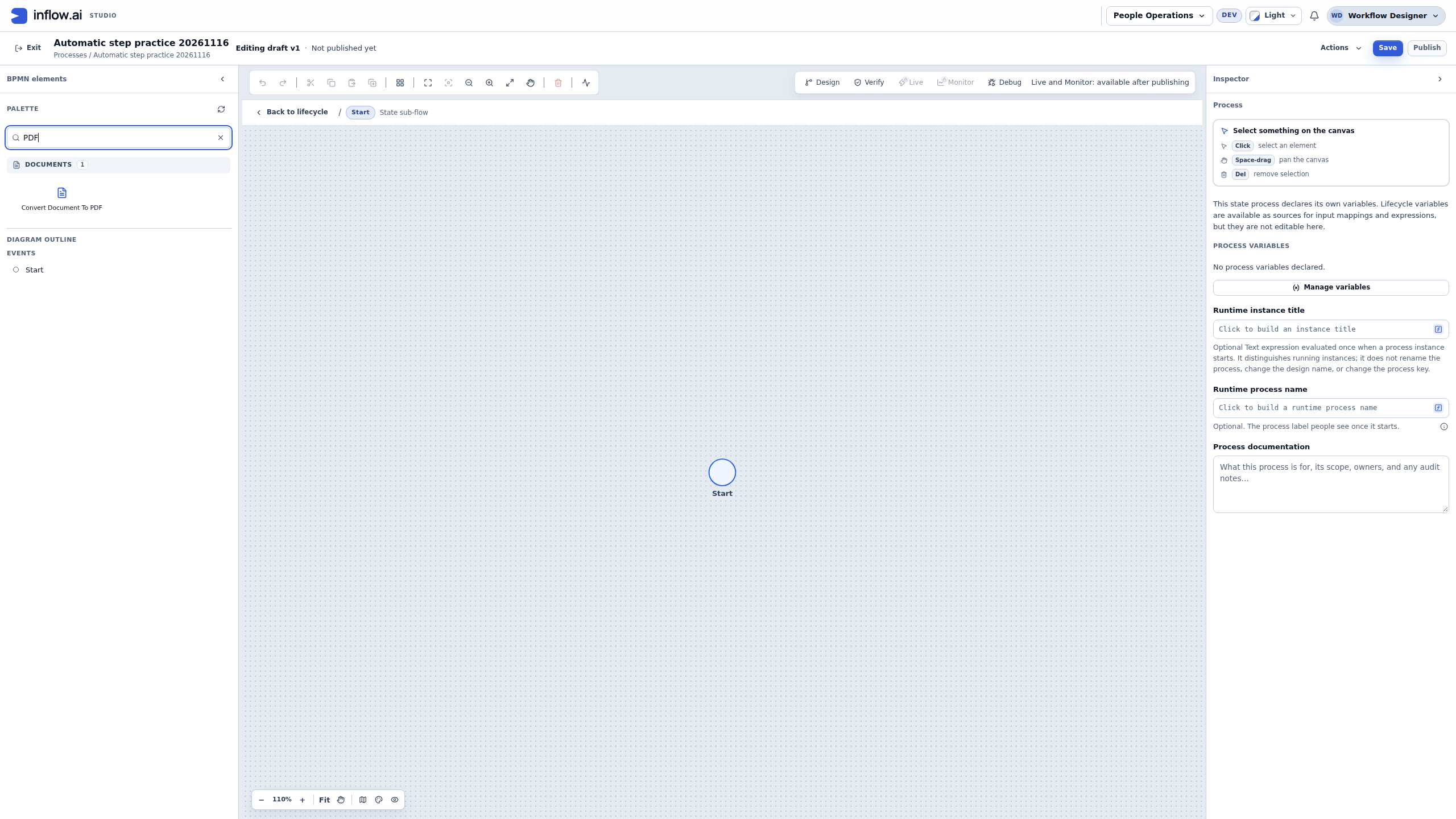
- In Search palette, enter PDF. The offered conversion tile is Convert Document To PDF. This is the name to look for in the current designer, including when older instructions call the operation Convert DOCX To PDF.
- Read its description. It converts a governed Word document to PDF. It is different from Attach Document, which reads document metadata for the case, and from a notification that sends something to a recipient.
- Add the conversion tile once. A click adds it to the canvas; adding the tile does not call the converter. If it is already present in this practice flow, select that element through Diagram outline instead of adding a duplicate.
Check your result: the selected flow now contains the intended activity. If your palette does not offer it, clear the search and check the actual workspace and prepared capabilities with the owner. Do not replace it with an unrelated service task merely because its icon looks similar.
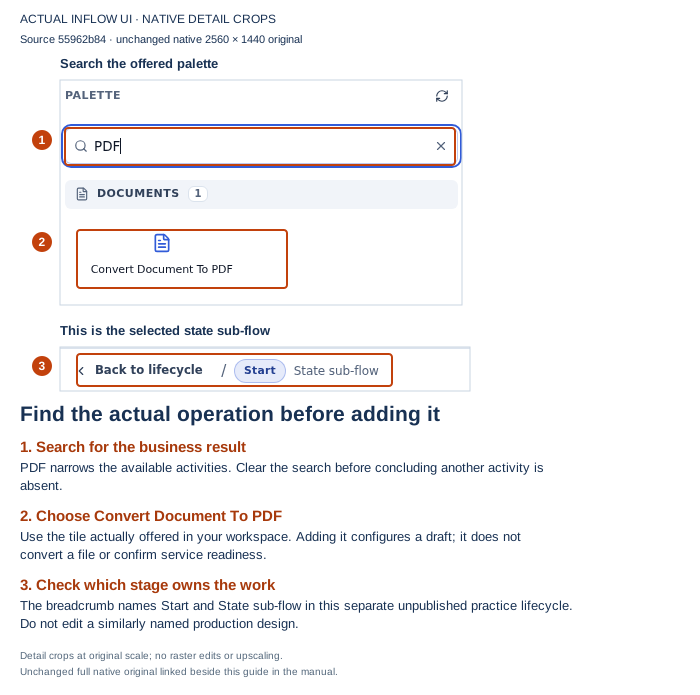
The actual palette offers Convert Document To PDF. The illustrated flow initially contains only its Start event. A visible tile describes an authoring choice; it does not prove that a source document or conversion service is ready. Open the unchanged full-size screenshot.
2. Give the step a purpose and inspect its required input
- Select the new activity. In Design name, enter Prepare approval PDF. The readable name helps the next author recognize the business purpose.
- Read Capability → What this step does. Keep the conversion operation selected. A design name and the operation binding are separate choices: renaming a task does not change the service it calls.
- Under Configuration, find Document and its Choose button. This input needs the actual governed source document. A document's display title typed into the task name is not a document reference.
- In a real application, choose the permitted document through the offered picker, or use Use an expression for a compatible document value supplied by the case. Inspect the source and its intended version behavior with the document owner. This practice deliberately leaves Document unset; do not select unrelated data to make the screen look finished.
- Look below the input at Outputs. In this example, Save “Pdf document” to a variable is Single Object, and its only destination choice is Don't store. There are no process variables yet, so the activity cannot offer one as the destination.
The designer explains the next authoring step: click an empty part of the canvas and add a compatible declaration under Process variables, through Manage variables. Return to the activity and select the intended destination in Outputs. In this saved practice, no declaration or mapping was added; the screenshot is the real empty-destination state.
For the conversion result, plan a compatible Record (any shape) destination for the structured result. The result object contains the nested Document reference a later document activity needs. A Text field, the file's name, and that structured result are different values. See conversion result mapping before wiring the next step.
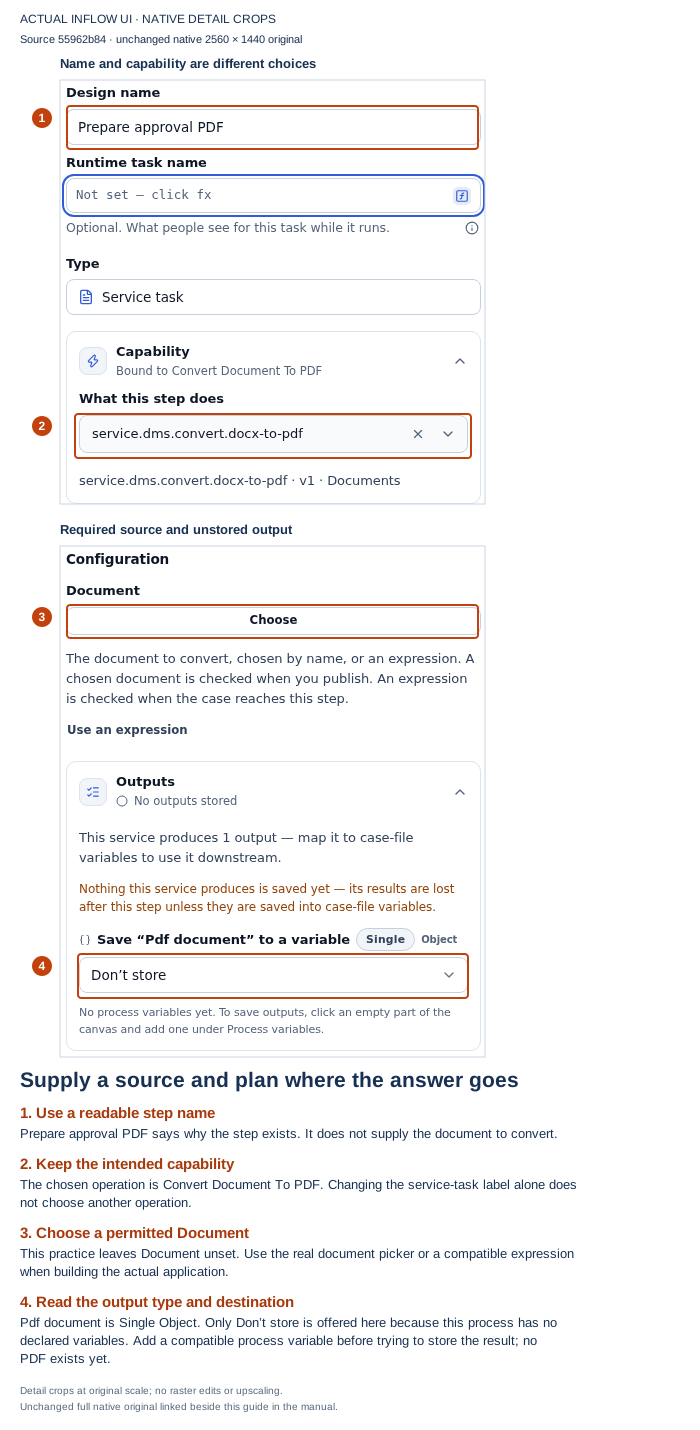
The screenshot keeps Document empty and the output unstored. It illustrates the prerequisites the author must supply. Nothing has been converted, and no generated file or saved output value is shown. Open the unchanged full-size screenshot.
3. Read Reliability as a business decision
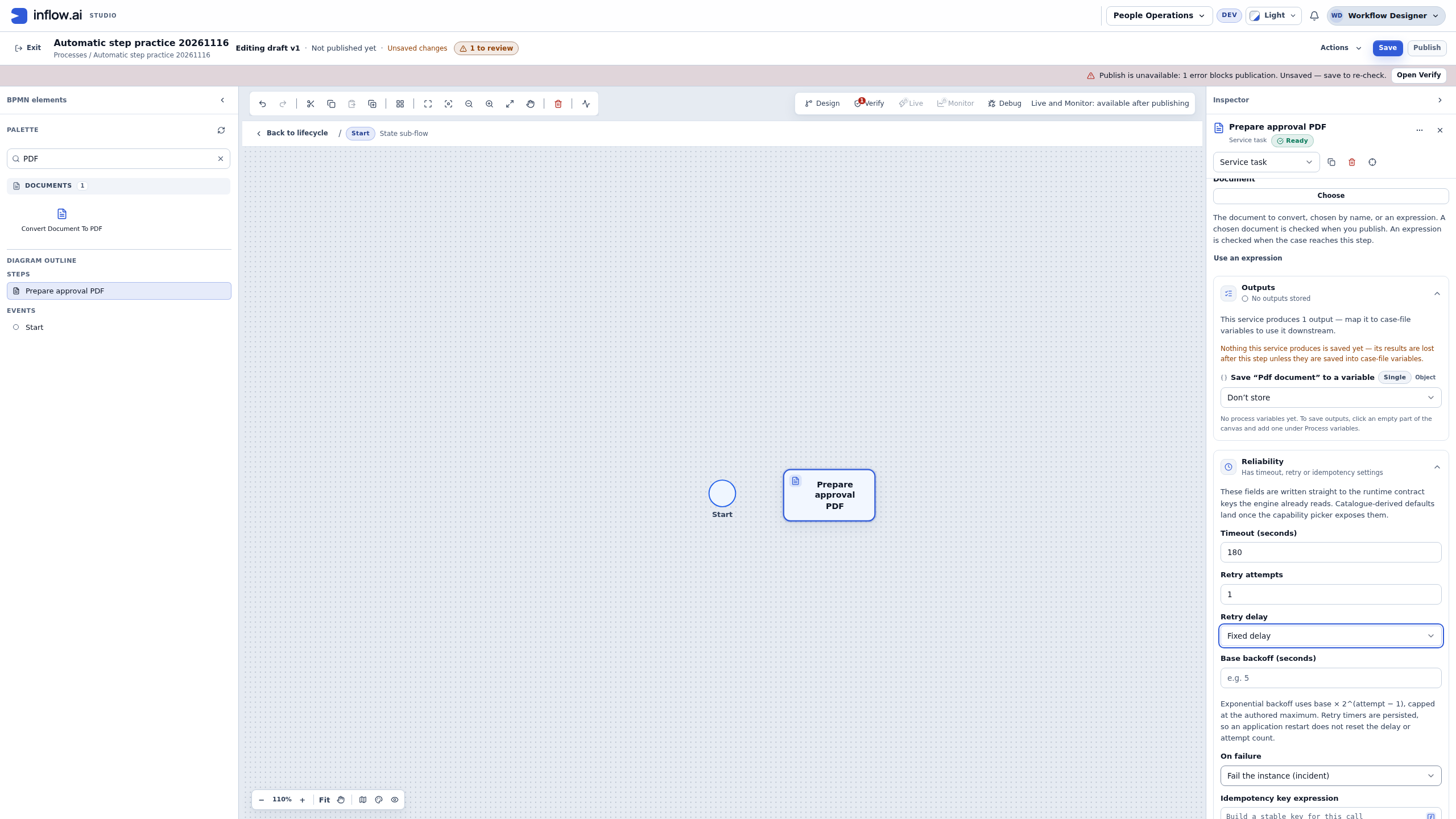
Open Reliability in the selected activity's inspector. The example records these draft values:
| Control | Value in the practice | What to decide for your application |
|---|---|---|
| Timeout (seconds) | 180 | How long the operation may take before the configured timeout handling applies. Choose an appropriate value with the service owner; this example does not test a timeout. |
| Retry attempts | 1 | One scheduled retry may follow a returned failure. This is not a promise of one total invocation. Decide whether repeating this operation can safely create another effect. |
| Retry delay | Fixed delay | How retries should be spaced when retries are appropriate. The example leaves Base backoff blank; it does not demonstrate a measured delay or validate a backoff plan. |
| On failure | Fail the instance (incident) | What the process should do after the applicable failure handling. The example keeps failure visible rather than claiming a recovery path exists. |
Be particularly careful with an operation that creates a document, appends a version or sends a notification. A missing response does not establish that its first attempt created nothing. Inspect the original outcome through the supported recovery path before deciding to repeat it. An idempotency setting also needs the operation's actual supported semantics; do not assume that any arbitrary expression makes a conversion or notification safe to repeat.
Continue with a marker variable and Route to an attached boundary event are different authored failure strategies. A marker needs a later decision that reads it. A boundary route needs the actual event and path. Selecting a menu item does not build that recovery design for you. Leave Runs as at the approved identity choice unless the owner has deliberately designed and authorized a different execution identity.
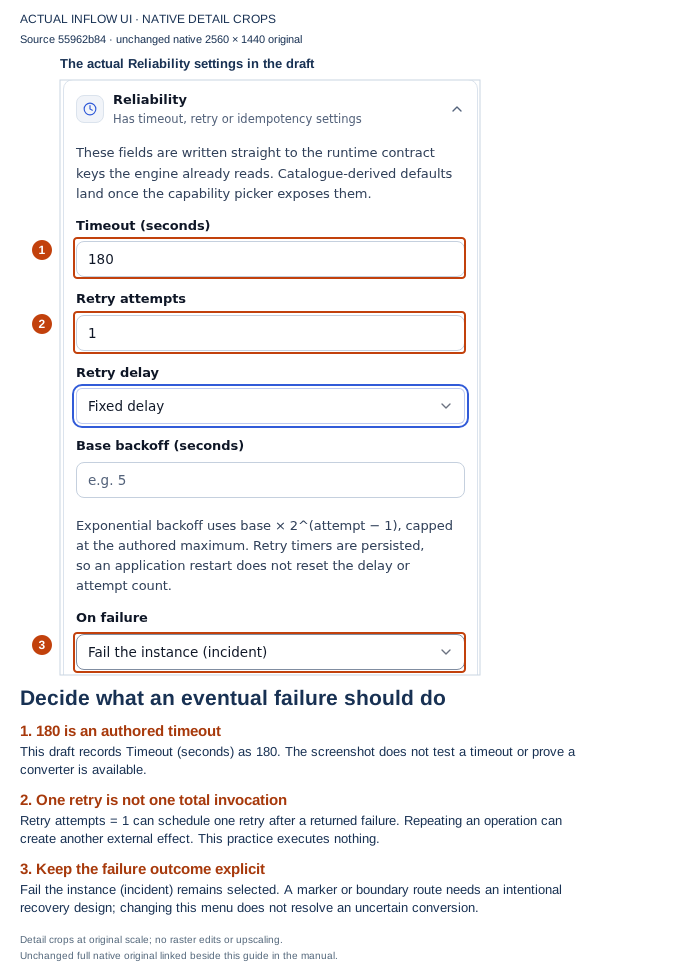
These are saved design choices for a future execution. Retry attempts = 1 can permit an additional attempt after failure; the screenshot is not an executed retry or timeout test. No converter was called. Open the unchanged full-size screenshot.
4. Save the intended changes and read the whole design
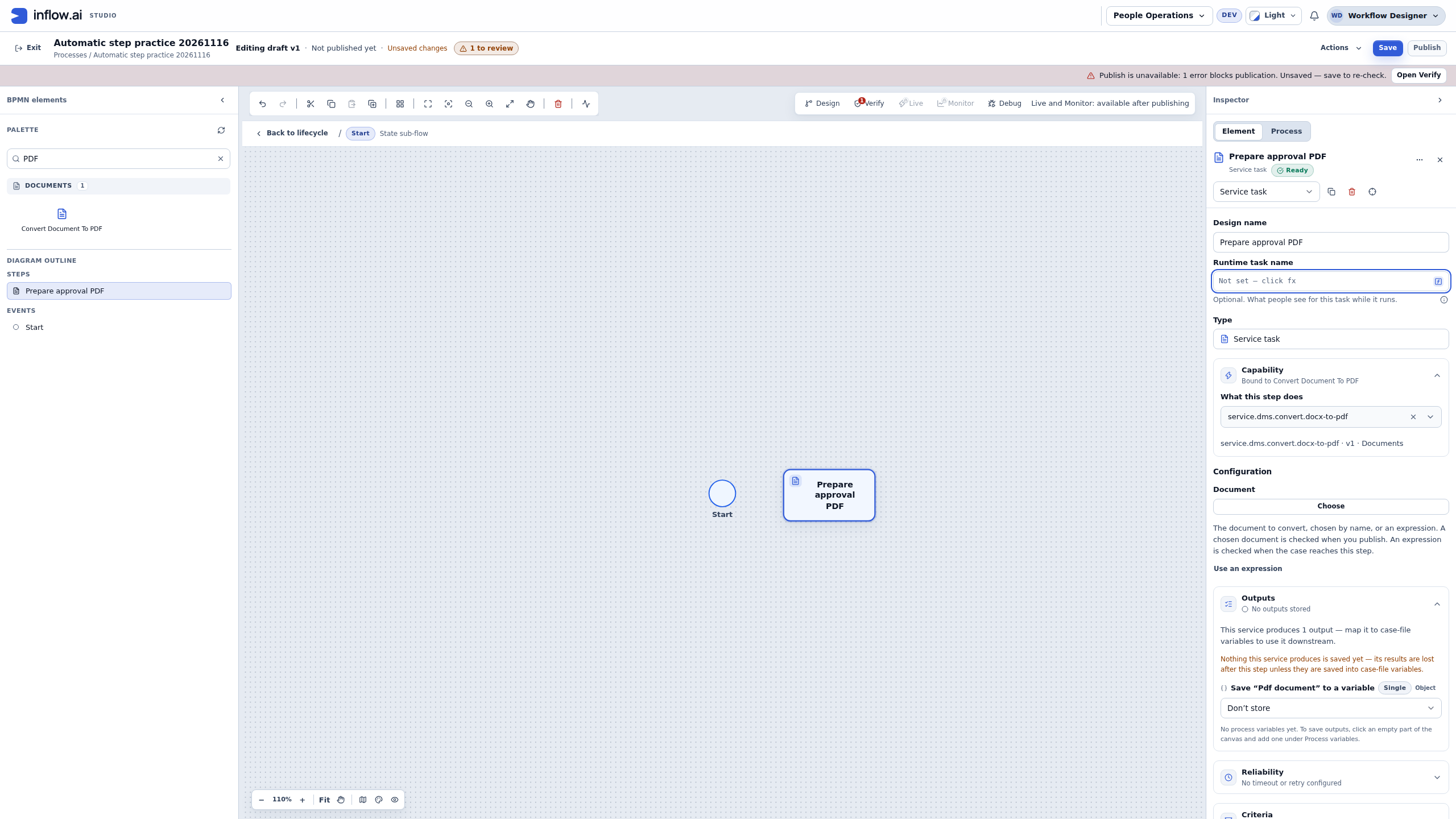
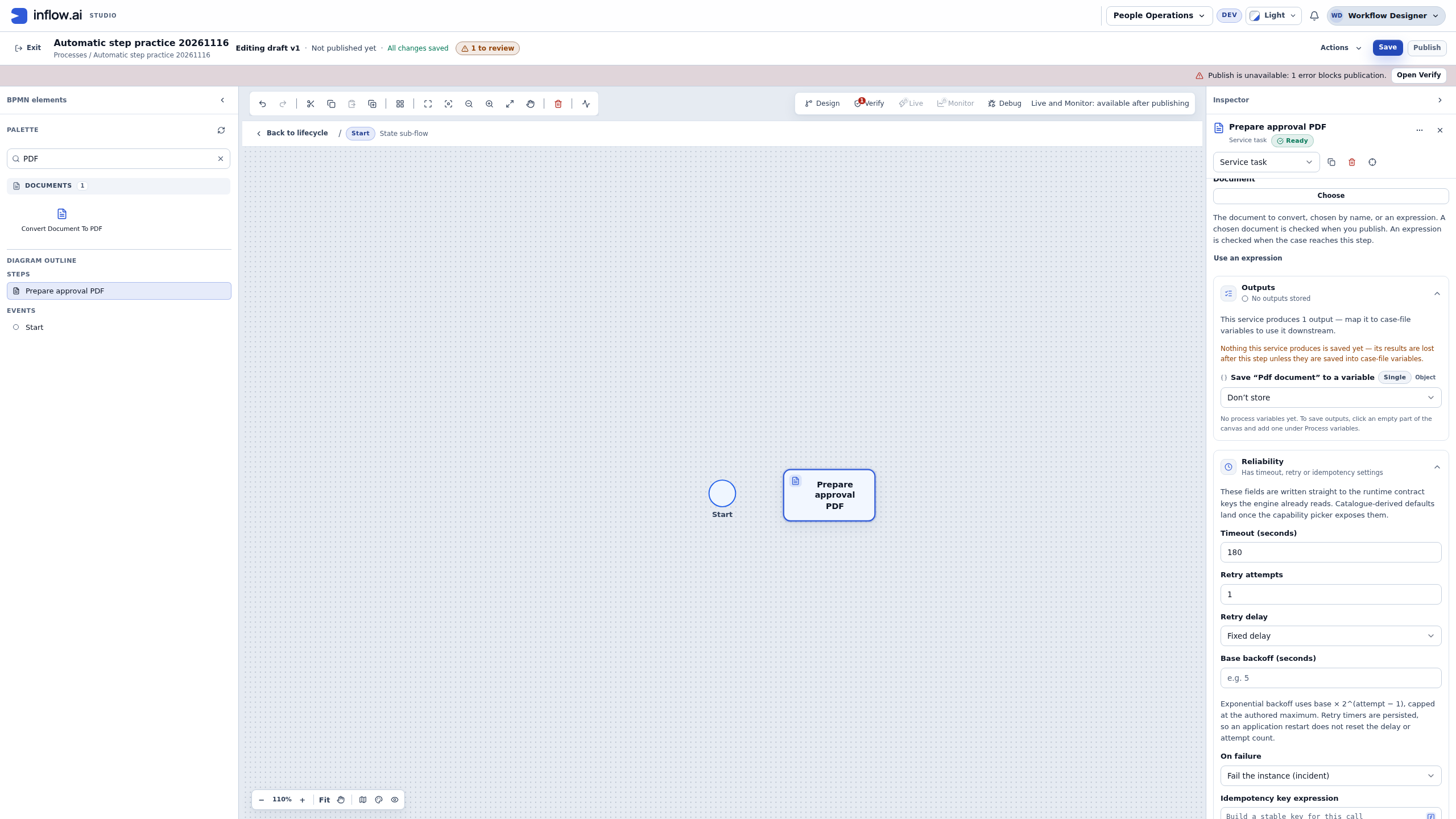
Select Save and wait for All changes saved. In this practice, the saved state was also read back: the state flow contains a Start event and the Prepare approval PDF service activity, with the authored timeout and retry value. It has no connections, end event, source document or output mapping.
The header still says Not published yet. You may also see Ready on the selected activity's inspector. Read the complete process result before treating the design as ready for people: the example's inspector can show that badge while publication remains blocked and the flow is disconnected.
If a save outcome is uncertain, inspect the same draft and the current save message before repeating the action. Do not create a second practice lifecycle or another conversion tile as a substitute for reconciling the first one.
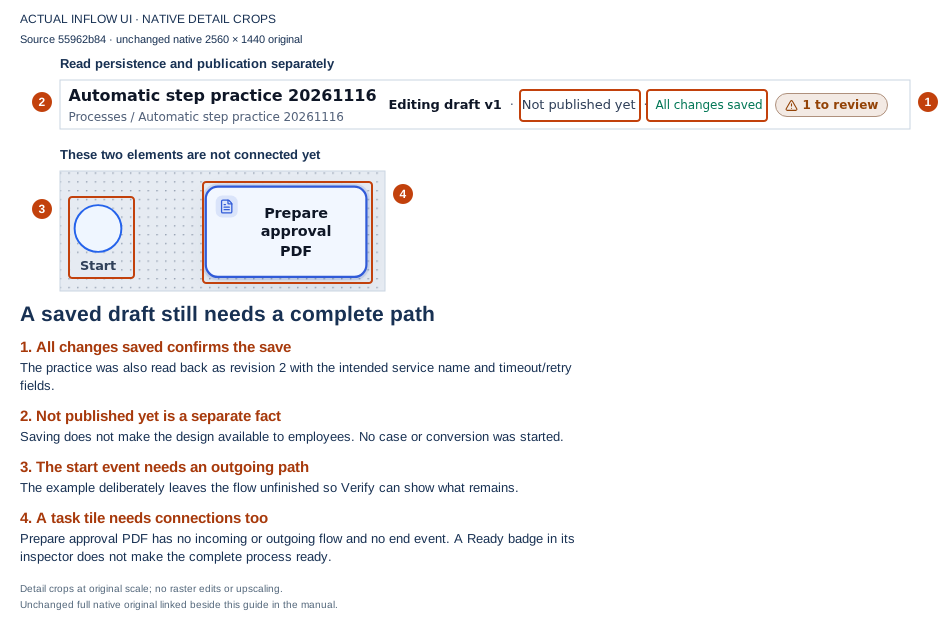
The saved example is still an incomplete flow. All changes saved confirms persistence of these intended edits; it does not publish the process or create a PDF. Open the unchanged full-size screenshot.
5. Use Verify to identify the next authoring work
Open Verify. The illustrated saved practice reports 5 errors, 0 warnings and 7 checks passed. Its actual findings are:
| Finding in this practice | What the author needs to address |
|---|---|
| The state sub-flow has no end event. | Give the state's work an intentional ending. |
| The process in Start has no end event. | Another check describes the same missing ending at the process level. These are two findings, not evidence of two execution attempts. |
| Start has no outgoing sequence flow. | Connect the start event to the intended first activity. |
| Prepare approval PDF has no outgoing sequence flow. | Connect the activity to the appropriate following work or end. |
| Prepare approval PDF cannot be reached from the start event. | Complete the intended incoming path. A floating activity does not participate in the process. |
Document remains unset even though these five displayed findings describe structural problems. An absent input finding is not proof that the input is configured or that publication will succeed. Likewise, seven passed checks do not cancel the five errors. This exercise stops at the incomplete saved draft; it does not publish, simulate, debug or start the flow.
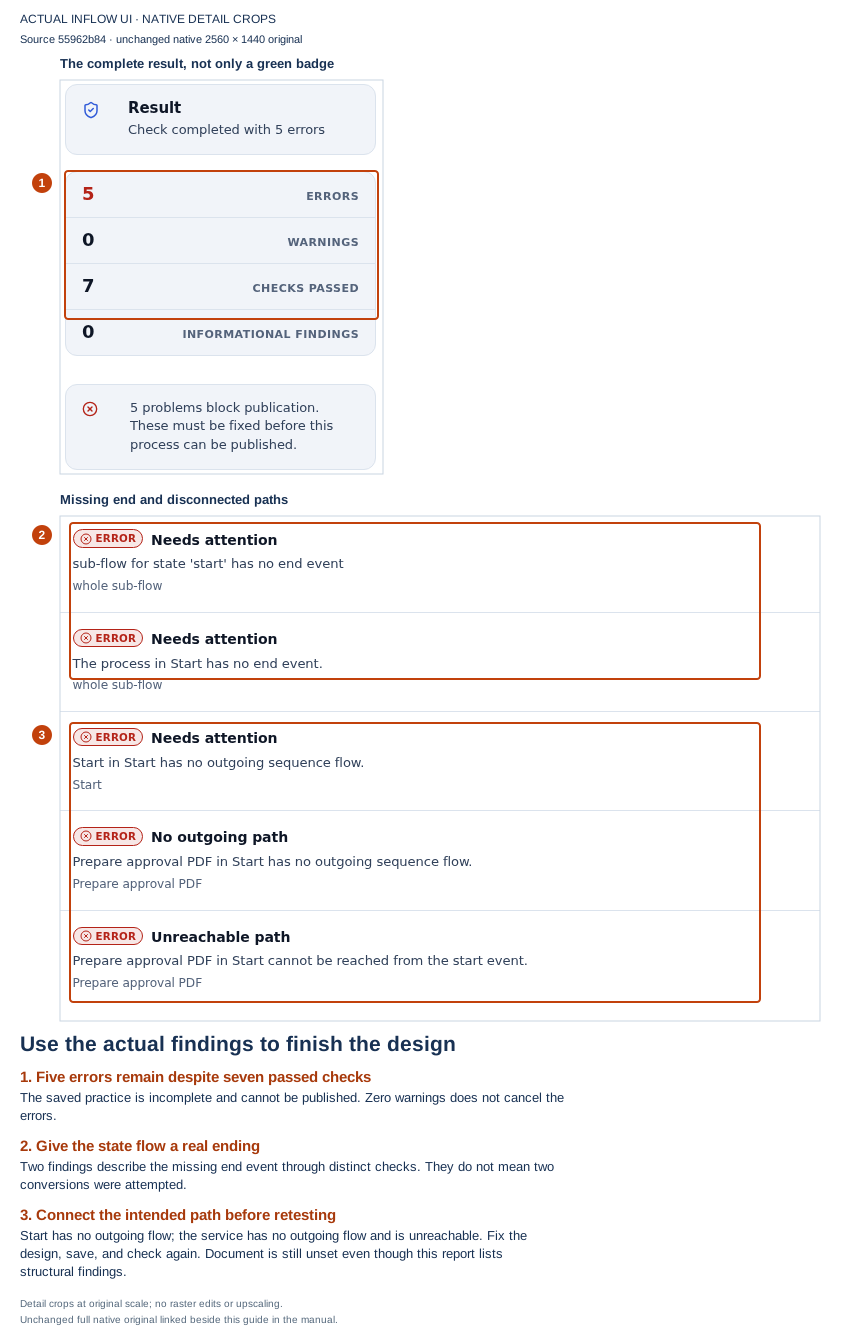
Read the findings and the overall result together. Complete the graph, supply the governed input and compatible output destination, save, and check again before planning an authorized end-to-end example. Open the unchanged full-size screenshot.
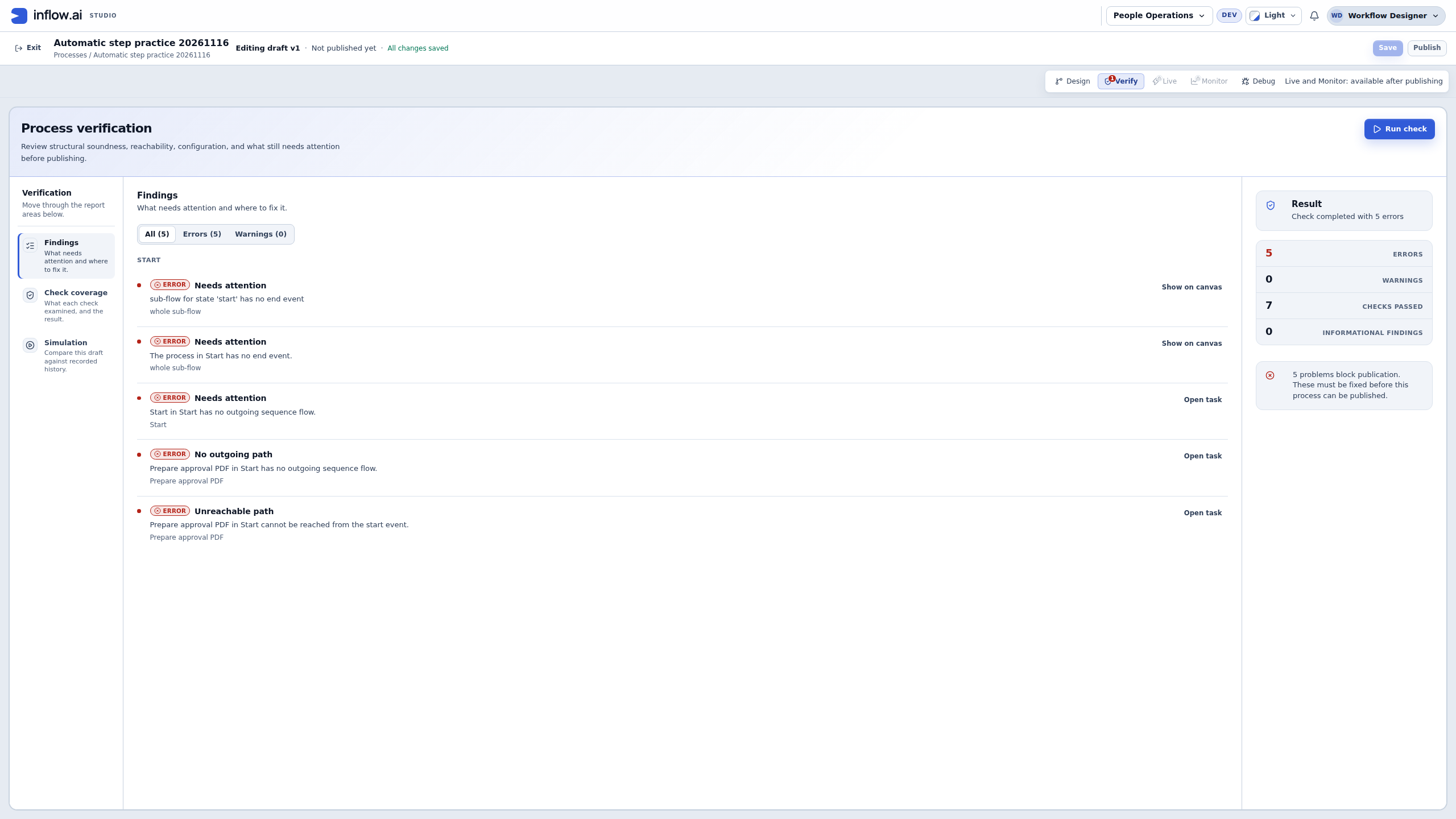
For a real leave application, the next learning milestone is broader than this draft. Finish the intended approval path; prepare an approved fictional source document and its destination/version authority; map the actual result; and test the authorized example through the normal process. Inspect the returned PDF identity, version, content and later consumer. A successful conversion still does not approve a leave request or prove that a notification reached its recipient.
Example: create a PDF after approval
Nadia wants the approved leave letter converted before it is used in the next stage.
- Prepare the actual source document and required conversion service.
- Add Convert Document To PDF in the appropriate flow position after the manager's approval.
- Configure the source using the supported document value/control.
- In Outputs, remember that the default
pdfDocumentresult is a structured Object, not itself the file's Document reference. Map that result to a compatible declared Record (any shape) case field; a later activity that needs a Document must receive the nestedpdfDocumentreference through its own compatible input mapping. See the detailed conversion-result mapping. - Save, Verify and test only with an authorized fictional Word letter. Check whether the deterministic output name already exists. A successful conversion may create a PDF document or append a version to the existing same-name document; confirm the needed version authority and read the returned PDF document identity and version before inspecting its dates and text. See same-name conversion recovery.
- Check the failure path when the required source or service is unavailable.
The original Word source remains a document of its own. The conversion result is an object containing a nested PDF document reference; it is not itself a Document value. A later conversion may create a new PDF or add another version to an existing same-name PDF, so inspect the identity/version returned instead of assuming a sibling was created. Conversion is not a general “the leave request is approved and sent” action. Keep the source's current-version behavior and the later sending step explicit.
Example: use a rule answer in the next stage
A rule checks whether the requested number of days is within the application's configured limit.
- Select the available rule-evaluation activity and choose the actual published rule through its supported settings.
- Map Requested days from the case into the appropriate rule input. A Number is different from a Text value such as five.
- Read the rule's returned answer and choose a compatible declared result destination in Outputs.
- Test one request within the limit and another outside it.
- Inspect the field the following decision step reads. It should contain the actual rule answer, not a sample value typed into the following form.
If the output cannot be mapped, check its type and shape. A list of results is not one yes/no answer. Do not add an unrelated Text field simply to silence the design warning.
Example: notify Mohammad after the approved letter is ready
The process must send an email only after the manager has approved the request and the letter PDF exists. Email is an external effect, so the flow must not send it before those conditions are true.
- Place the notification after the approval decision and the document step on the approved route. Confirm that the declined route cannot reach it.
- Select an available email operation. Choose the approved recipient source and map the intended subject and message from declared values; do not put secret or unnecessary personal information in the message.
- If the operation supports attachments, select the generated document reference from the prior step's output. Do not type the PDF's display name where the operation expects a file or document identifier.
- Read the output shape and map a delivery result or operation reference only if a later step needs it. Keep notification status separate from the process's business approval status.
- Test an approved example and verify the intended recipient and attachment in the authorized test environment. Also check the declined path and a missing-recipient/service failure.
- If the send times out or Live shows an uncertain result, inspect the same case and its original operation before retrying. A missing browser response does not prove no email was sent.
If the available notification provider does not report a delivery receipt, do not describe a successful workflow step as proof that the recipient read the message. Record only the result the operation actually returns.
Choose a prepared service, not just an attractive card
Some activities need an installed provider or a configured connection. A description can show what an activity is designed to do while the environment is still missing that dependency.
Before including it in a published business path, ask:
- Is this the actual operation we need?
- Has the administrator prepared its required service or connection?
- May this request/user access the resources it will use?
- What happens if it is unavailable or takes too long?
- Does repeating it risk another email, notification or business transaction?
When the prerequisite is missing, continue the independent parts of the application and give the owner a concrete request, such as Prepare the document conversion service for the approval-letter step. Do not replace a missing service with a sample success result.
Common mistakes
| Problem | What to check |
|---|---|
| A step exists in the toolbox but fails to run. | Its actual service, connection, credentials and resource access must be prepared. |
| The next stage has no result. | Check Outputs and the relevant declared case/state result mapping. |
| A required field rejects the value. | Match its expected type and choose the actual object rather than its display title. |
| A retry produced a second external effect. | Review whether the operation safely supports repetition and inspect its original result before retrying. |
| A useful answer does not reach the following task. | Use Outputs to connect that answer to the intended declared field. |
Where to go next
Continue with Follow automatic steps and handle failures. For implementation contracts and administrator/developer details, use the optional technical reference. You do not need that reference to follow this lesson.