5. Explain progress and responsibility
A useful tracking display answers a human question: “Is my request waiting?”, “Who acts next?”, or “What decision actually happened?” A badge or progress bar presents information. The business process, its authorized records and its real tasks supply the facts.
A status is a named condition such as Pending. A step is a stage such as Manager review. A history lists events that actually happened. A percentage needs a defined measure. Keep those meanings separate: a green badge, a person’s name, or a filled bar does not approve a request.
This chapter starts with a small practice you can reproduce in the Form designer. You will supply sample status text through one declared input, compare the display with Form state, find a misleading leftover sample, and repair it. Then you will configure an explicitly fictional progress bar. The real-request and approval-history handoff follows the practice.
Before you start
Use a workspace where you are permitted to author a practice Form. Follow Start your first form for the workspace, interface creation and designer basics. Use synthetic text, a distinct practice name, and an unpublished draft. This lesson needs no employee records, live application, task decision or external provider.
The illustrated practice uses Tracking status practice, key tracking_status_practice_20261116, in People Operations Access Practice. Its placement is Leave Management. Use an available practice key in your own workspace; do not replace an existing form or change memberships to reproduce the screenshots. The captured author signed in normally as Designer and had Admin in this practice workspace, without platform bypass. This is an author exercise; it does not demonstrate an employee’s record access.
The twelve figures are actual screenshots from the build of master 39f9f6374d, captured on 16 November 2026 at native 2560 × 1440. The numbered guides show readable details from those originals, with the full image linked below each guide. Preview’s selected Desktop · 1440 is the logical form viewport inside the captured Studio page. These figures do not demonstrate other widths, languages, or ordinary-user application routes.
Practice 1: supply a readable status to a Form
Imagine that the application owner will eventually supply a permitted request status. First learn the connection using a sample you control. “Waiting for manager review” is useful test text because it is longer than a short state code and explains the situation in words.
1. Declare the input before binding the display
- Create the new practice Form through the normal creation wizard. Check its name, key, kind and placement on Review before choosing Create interface once.
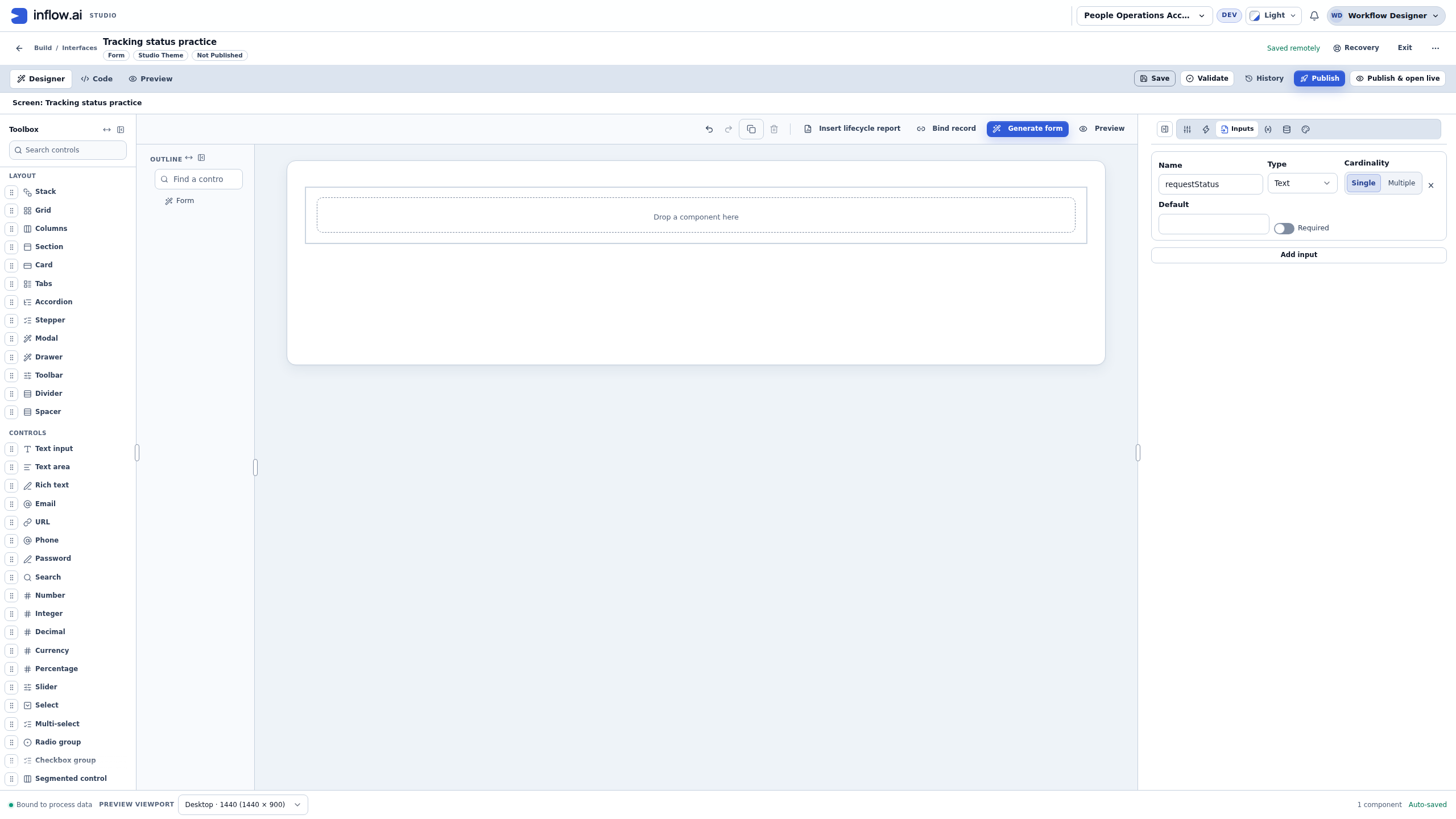
- Open Inputs in the designer’s right panel.
- Add an input named
requestStatus. - Choose Text and Single. One badge will display one status, so this example does not need Multiple values or a list of events.
- Leave Default blank and input Required off for this exercise. You need to test the missing-input case deliberately.
- Leave the field, save, and wait for Saved remotely before moving to the next stage. Later you will reload the draft to check what was retained.
The input declaration describes what the host may supply. It neither searches for a request nor chooses which employee’s information the form can read. A default such as Completed would also make the missing-input test ambiguous, so keep the exercise default blank.
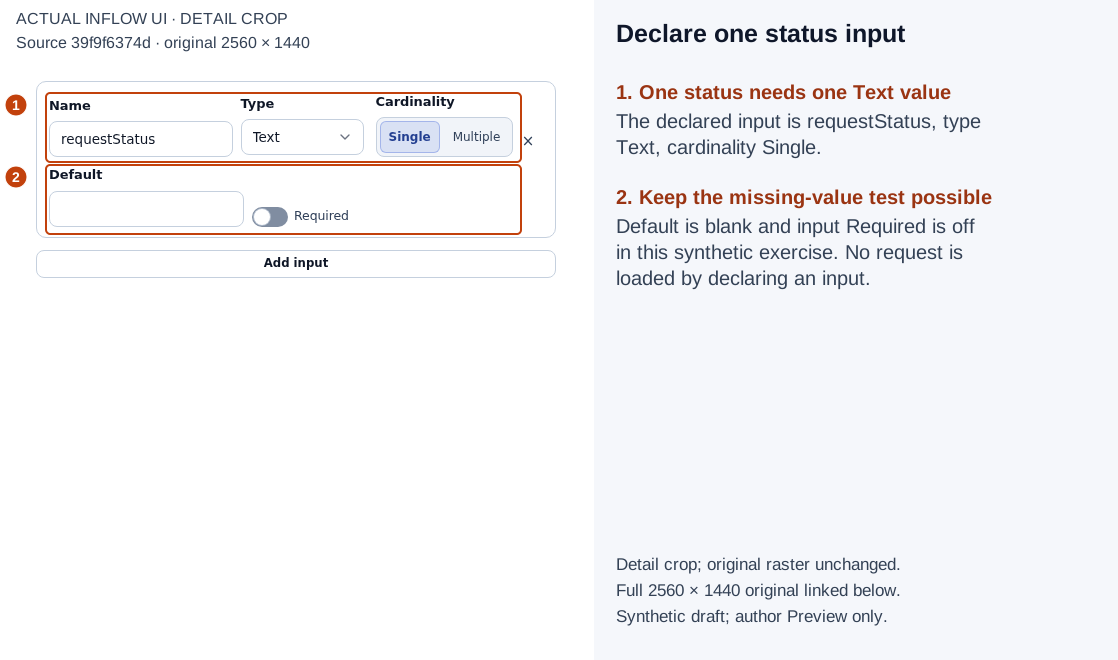
1–2: requestStatus is one Text input, with no default and input Required off. The empty Form has no live request connection. Open the full-size numbered guide · Open the unchanged full 2560 × 1440 screenshot.
2. Recognize a static status sample
- Return to Properties and add Status Badge from the Toolbox’s Tracking controls.
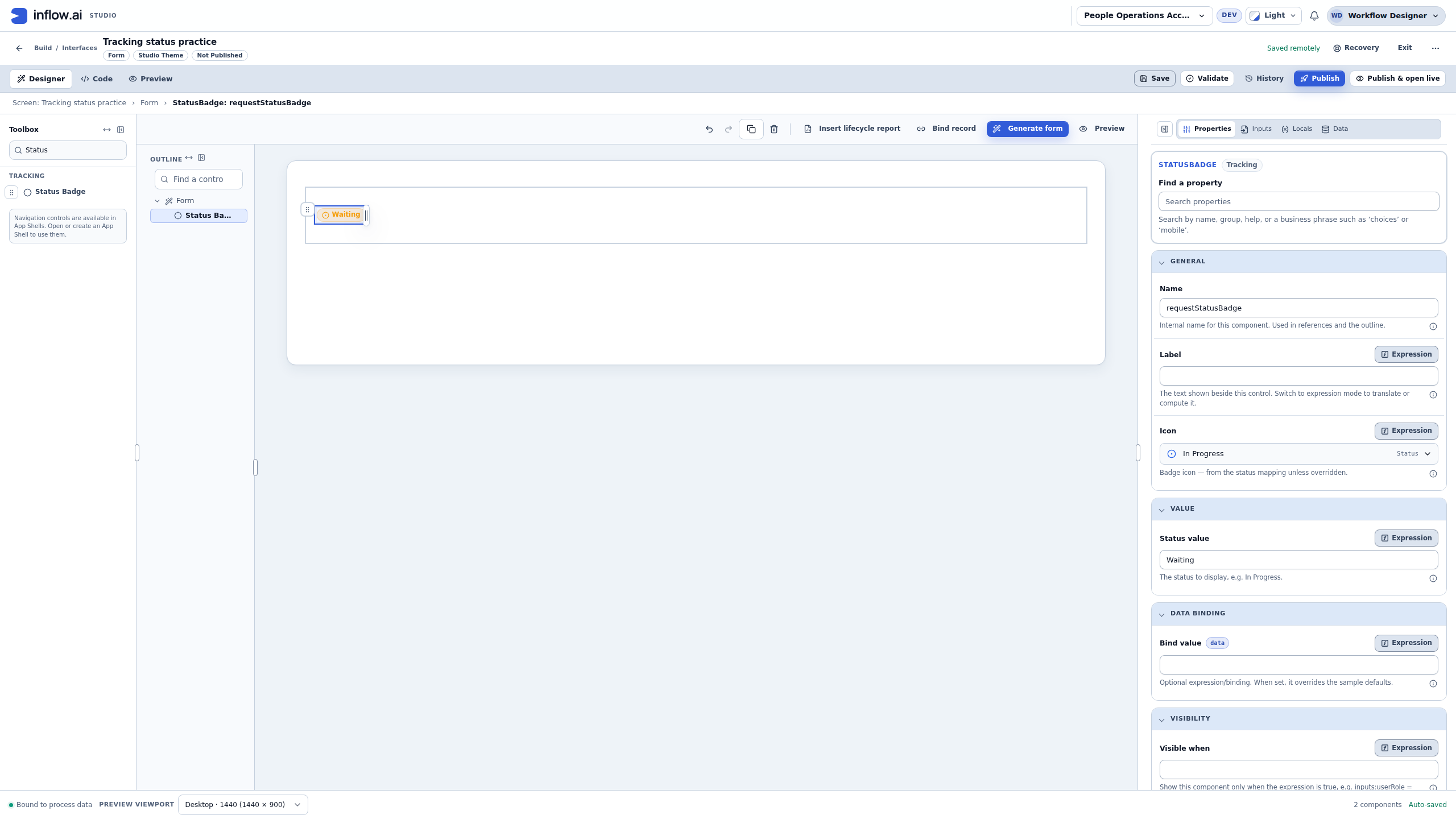
- Select the badge in the outline. Give it the internal Name
requestStatusBadgeso you can recognize it later. - Under Value, set Status value to
Waiting. - Keep Show label on. Readable status text matters even when color or an icon is present.
- Observe that Data Binding → Bind value is still blank. At this checkpoint you have authored a static string.
The badge’s displayed state comes from Status value or its resolved bound value. Typing a generic Label elsewhere in the property panel is not the input connection used in this exercise. Likewise, choosing an icon is a visual choice. The captured control retains an explicit In Progress icon setting; do not assume every later text value automatically selects a different icon.
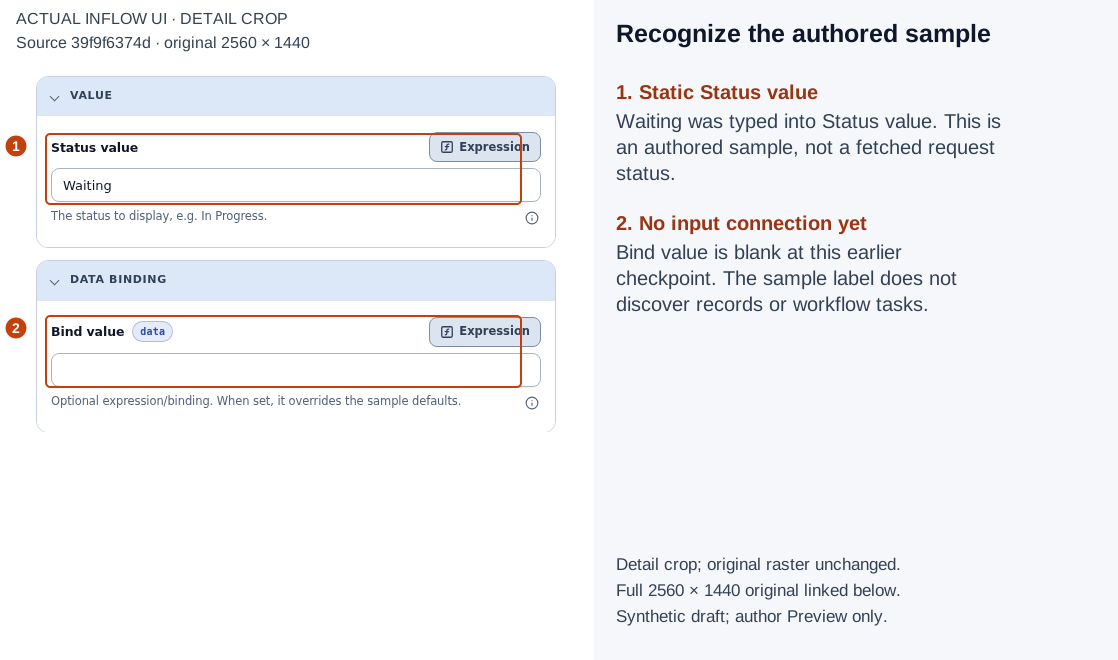
1: Waiting is an authored Status value. 2: Bind value is blank here; no request or task was fetched. Open the full-size numbered guide · Open the unchanged full 2560 × 1440 screenshot.
3. Bind the declared input through the expression picker
- Find Data Binding → Bind value on the selected Status Badge.
- Switch the property to expression mode. Then use Open editor to open the full expression editor. Switching the mode and opening the editor are separate actions.
- Select Variables.
- In FORM FIELDS, choose the declared Text input inputs:requestStatus.
- Read the inserted expression. Choose the declared field, not the separate status entry under EXAMPLES.
- Choose the modal’s Save. Return to the property and save the draft; wait for Saved remotely.
The actual picker inserts inputs:requestStatus. In this captured build, saving normalizes the property’s displayed expression to inputs.requestStatus; the saved definition contains =inputs.requestStatus. Use the declared field picker and check the saved result instead of copying an older spelling from another example. The Preview state shown later includes ri.requestStatus; that runtime state label is distinct from the authoring picker.
A resolved bound status overrides the static sample. That does not guarantee that an absent or unresolved input will display the result you expect. You will test that boundary explicitly below.
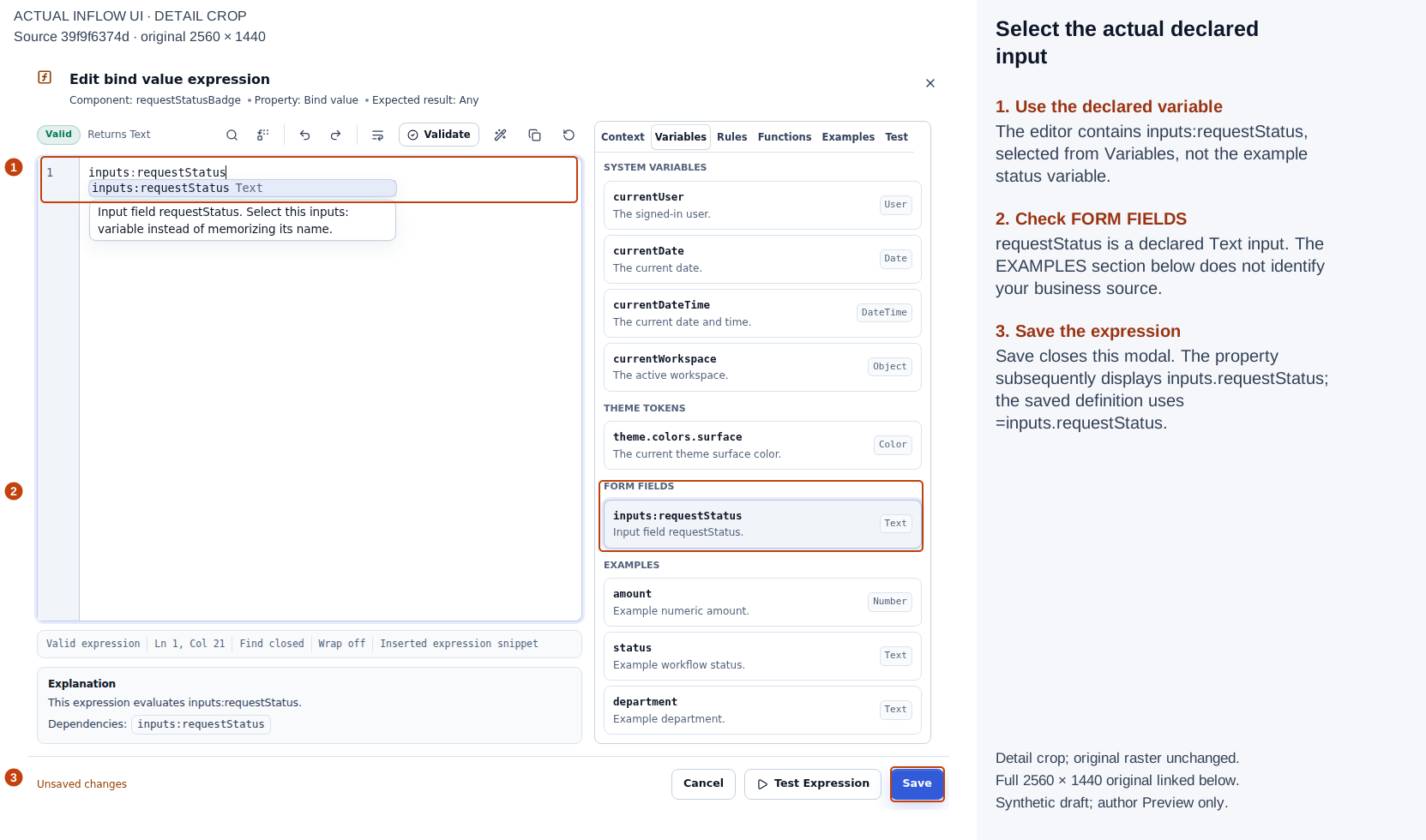
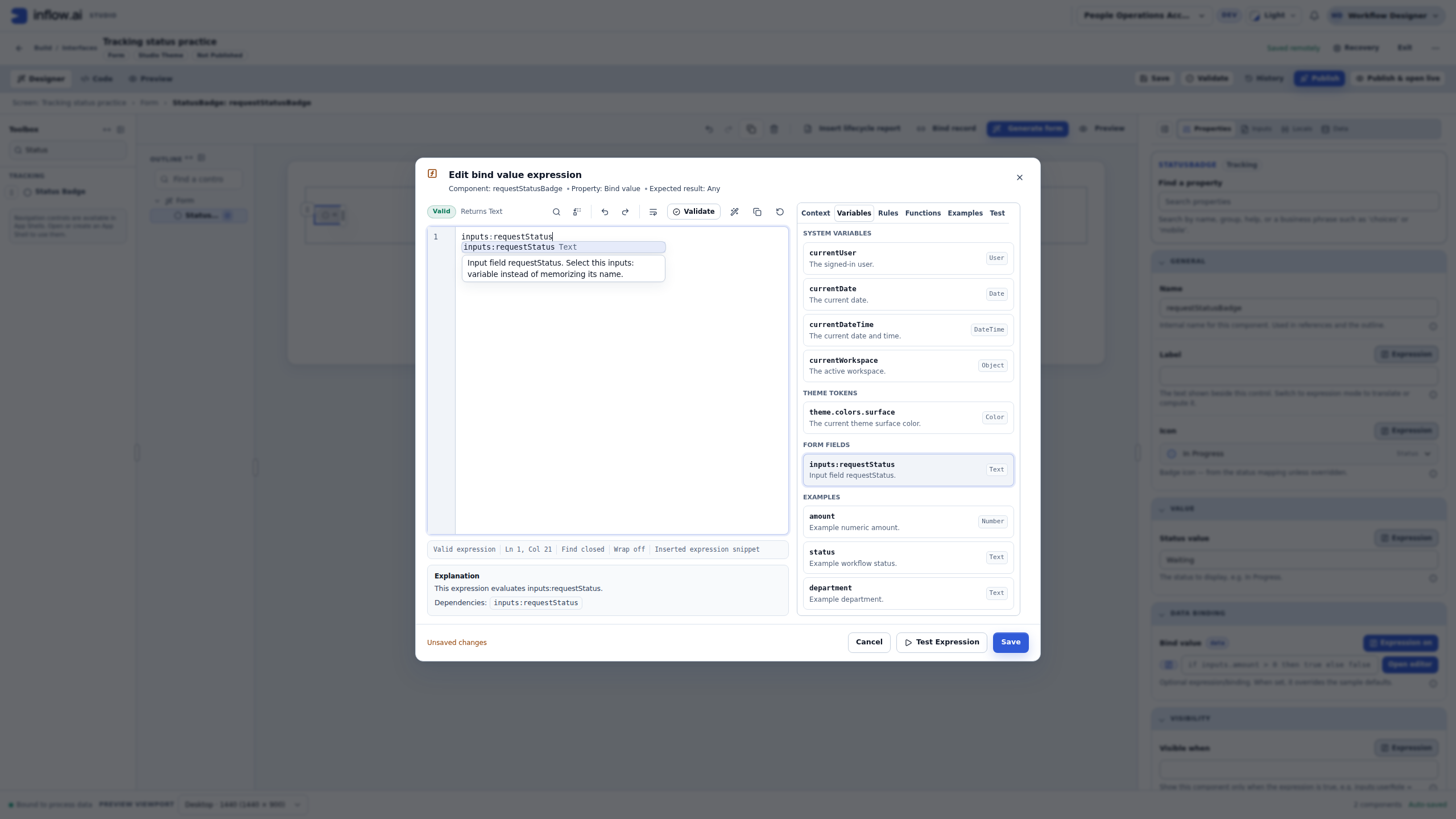
1–3: the selected FORM FIELDS variable, its actual inserted spelling, and the modal Save action. EXAMPLES does not identify your application’s real status source. Open the full-size numbered guide · Open the unchanged full 2560 × 1440 screenshot.
4. Apply a waiting value and compare the result
- Open the top-level Preview tab and keep Interactive selected.
- Choose Test values (1). The count reflects the one declared input in this practice.
- Select Request Status, keep Value mode, and enter
Waiting for manager review. - Choose Apply values. Typing in the test editor alone is not the same as applying the value to the Preview.
- Open Form state. Compare the actual value with the badge’s text.
- Confirm that the complete label is understandable. In this captured Desktop · 1440 view, the supplied text is readable.
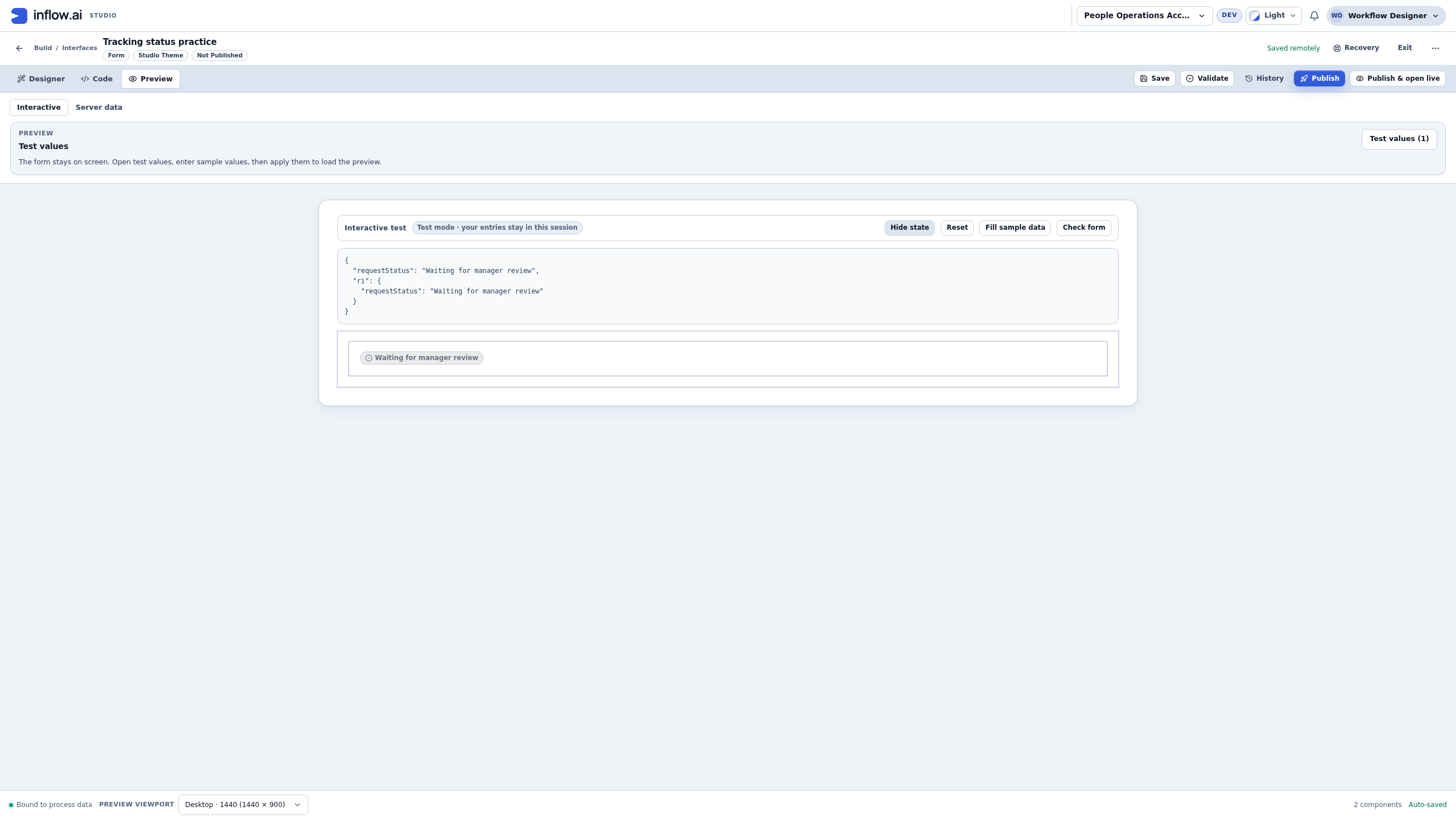
Here the state contains requestStatus and ri.requestStatus, both with the supplied text. The badge displays Waiting for manager review. This demonstrates the author Preview connection for this form input. It does not show that a manager task exists or that the host picked the correct request.
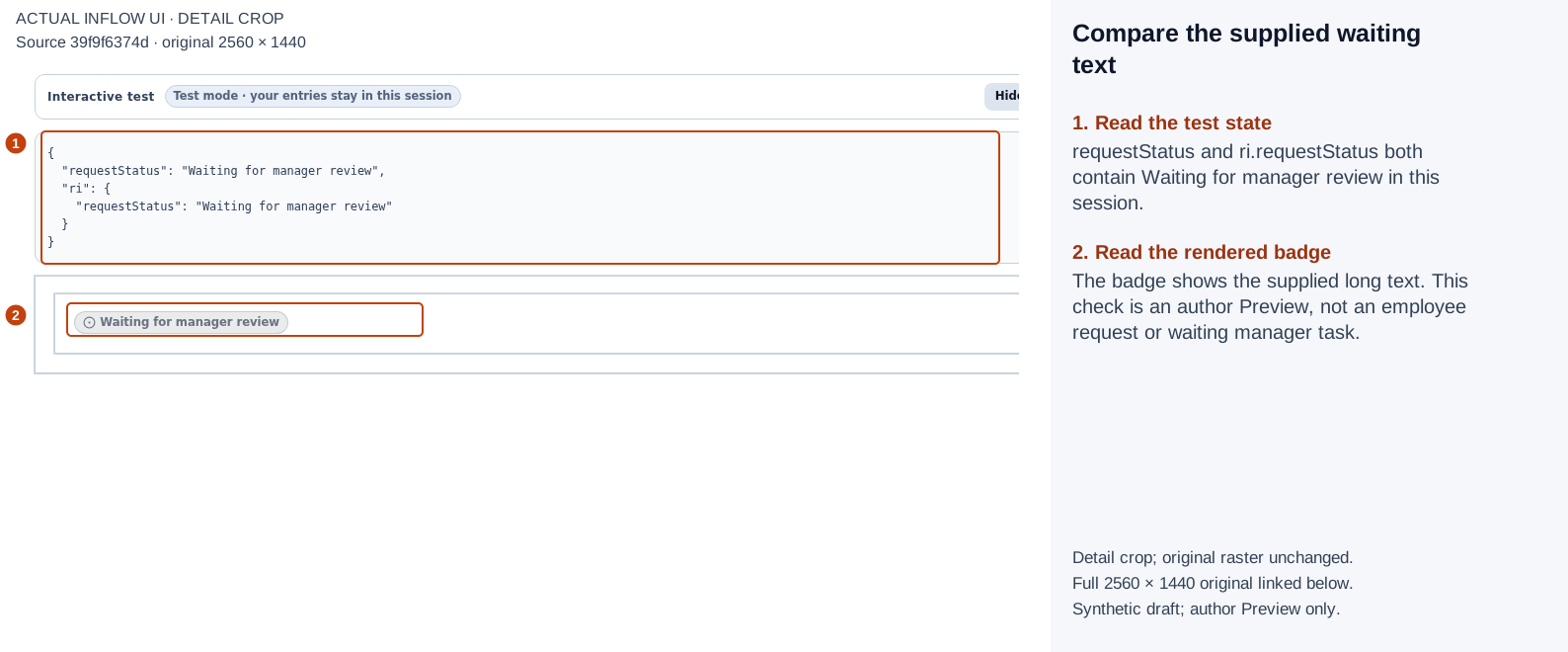
1: Form state contains the supplied waiting text. 2: the badge renders the same text in this author Preview. Open the full-size numbered guide · Open the unchanged full 2560 × 1440 screenshot.
5. Change the supplied state, without implying a decision
- Reopen Test values (1).
- Replace the text with
Completed. - Read the Input details: Text, not required, no default, input path
requestStatus. - Choose Apply values.
- Compare Form state with the displayed badge again.
You are providing different sample text, not completing a real request. The test dialog explicitly says its changes affect this Preview only. It does not submit a form, run an approval task or publish the interface.
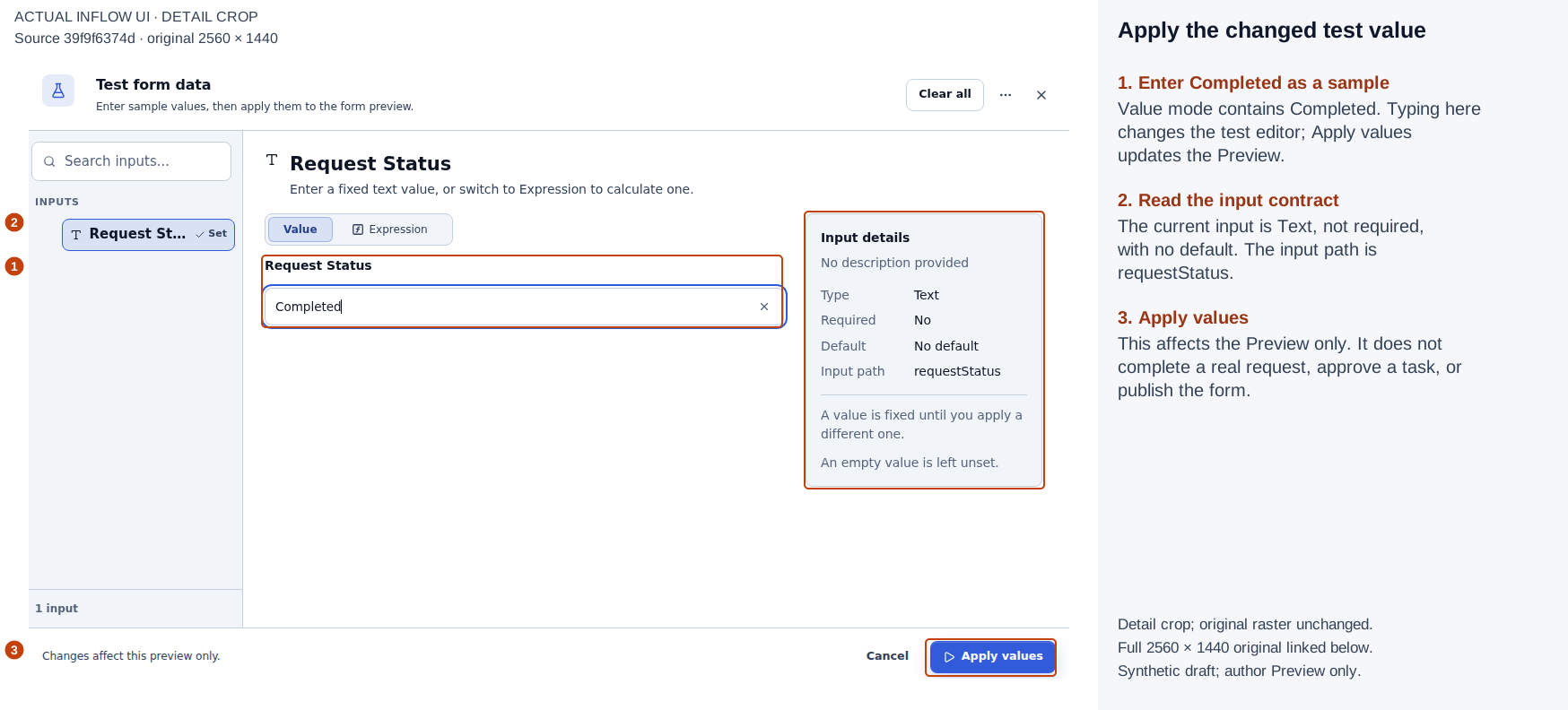
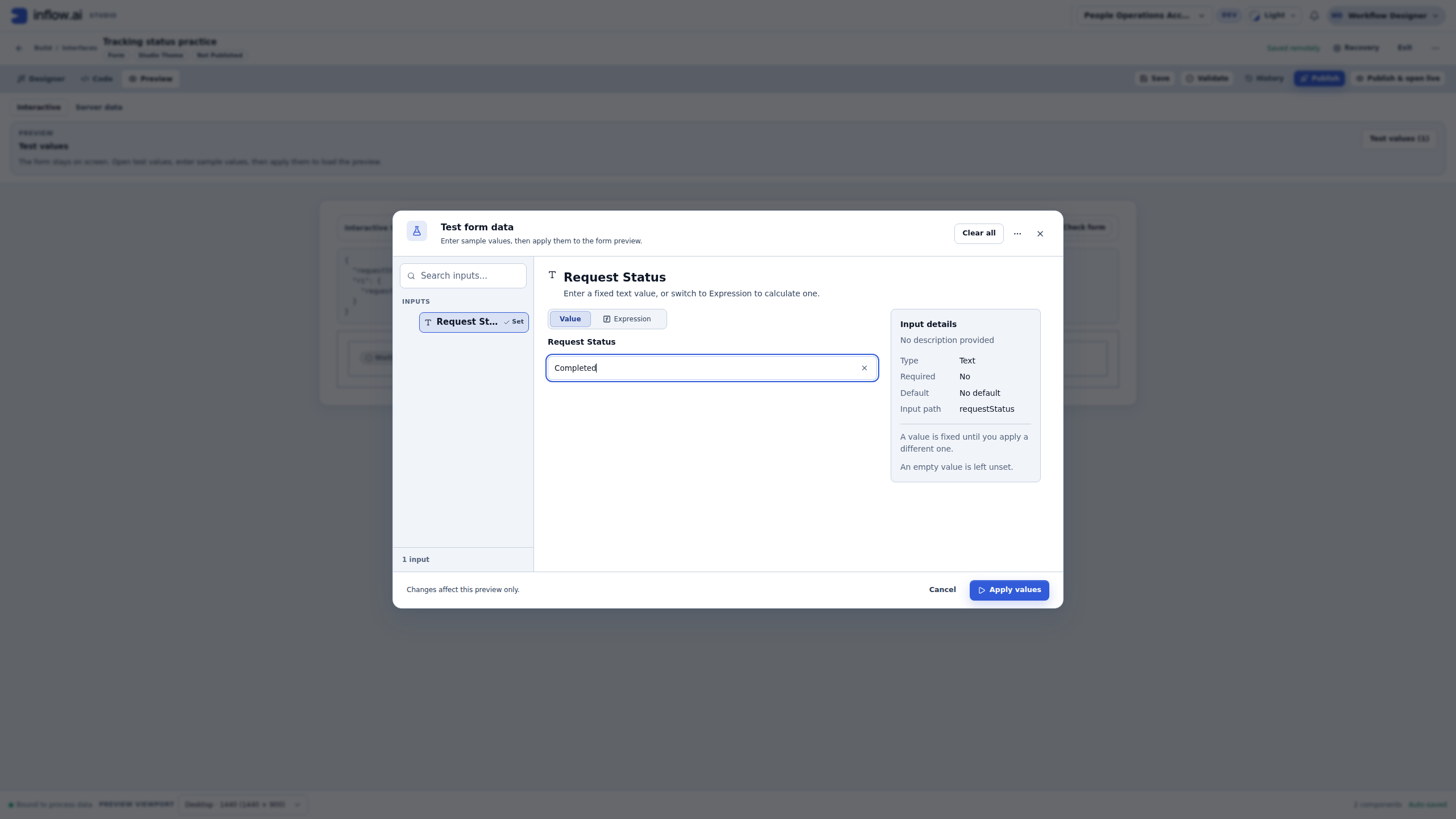
1–3: enter a sample, check its input contract, then Apply values. Completed is test text here. Open the full-size numbered guide · Open the unchanged full 2560 × 1440 screenshot.
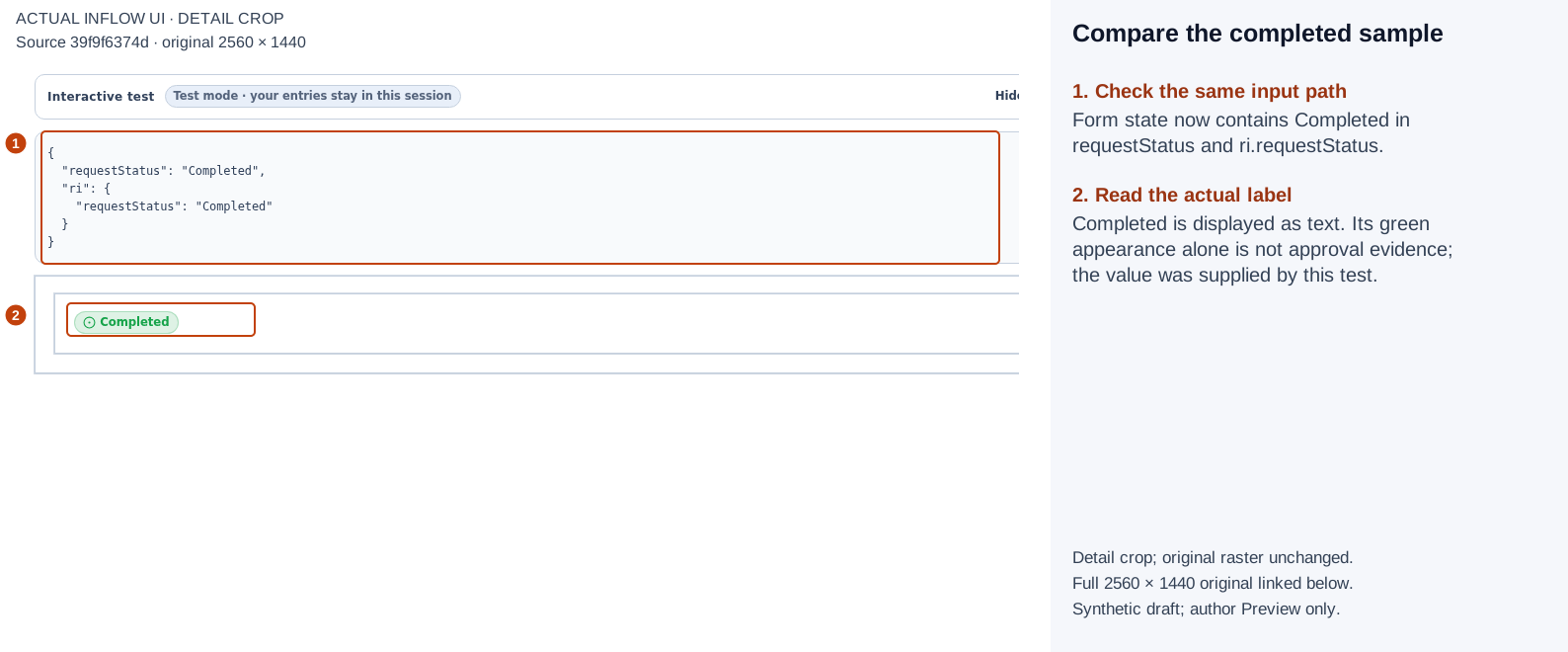
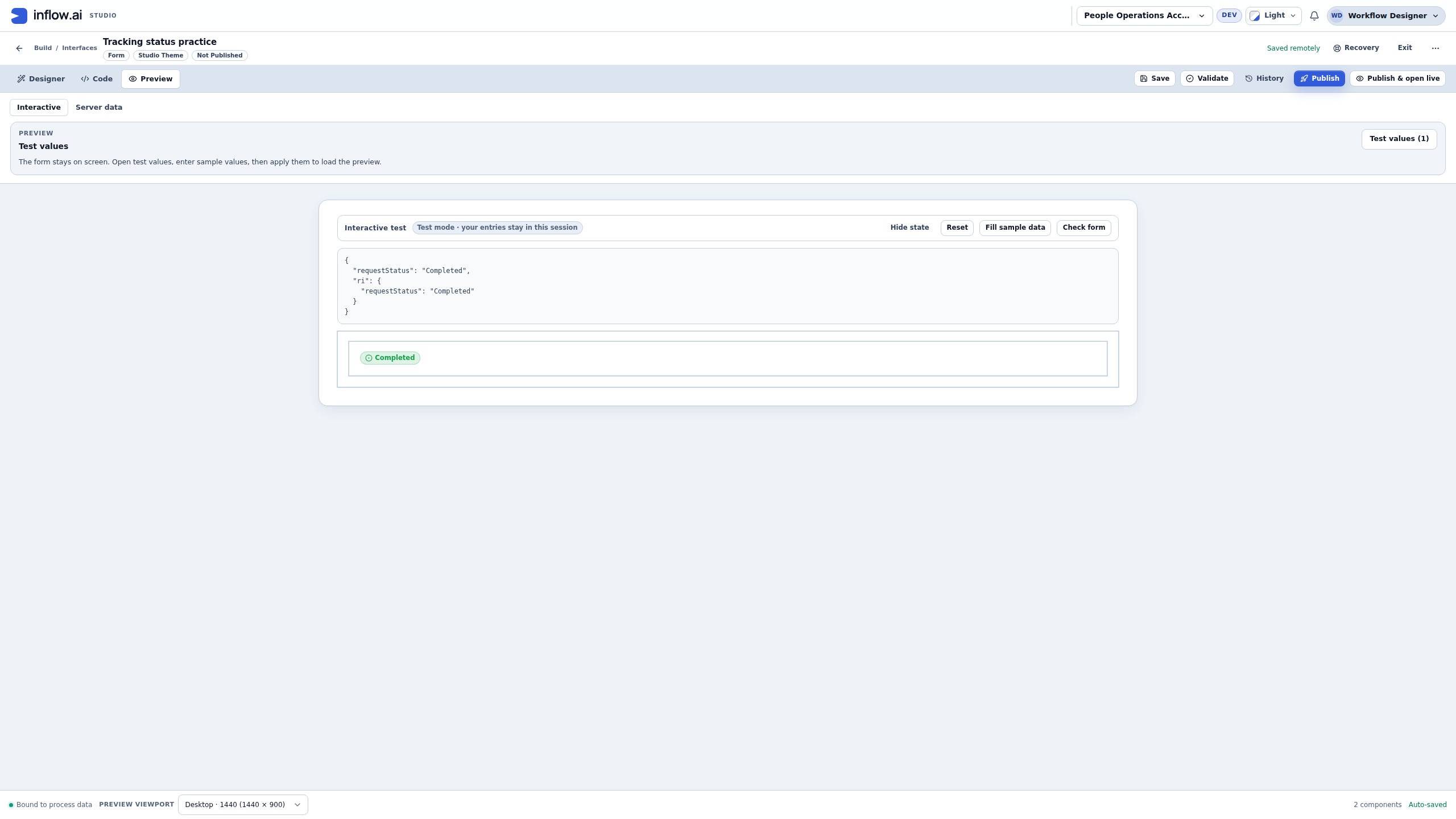
1: the state now contains Completed. 2: the badge renders Completed; its appearance does not prove a business decision. Open the full-size numbered guide · Open the unchanged full 2560 × 1440 screenshot.
6. Test the absent input and remove a misleading fallback
The missing-value check is as useful as the positive test. A design sample can otherwise look like a real status even after the host supplies nothing.
- Reopen Test values (1).
- Use Clear Request Status, then Apply values.
- Open Form state if necessary. Confirm that it is empty; do not judge absence from the badge alone.
- Read the badge. At the earlier configuration checkpoint in this exercise, it still showed Waiting, because that authored static sample remained.
- Return to Designer, select the existing Status Badge, and clear Status value. Keep the declared input binding.
- Leave the field, wait for the draft to save, and read the property again. Do not treat a temporarily blank editor as proof that the saved definition is blank.
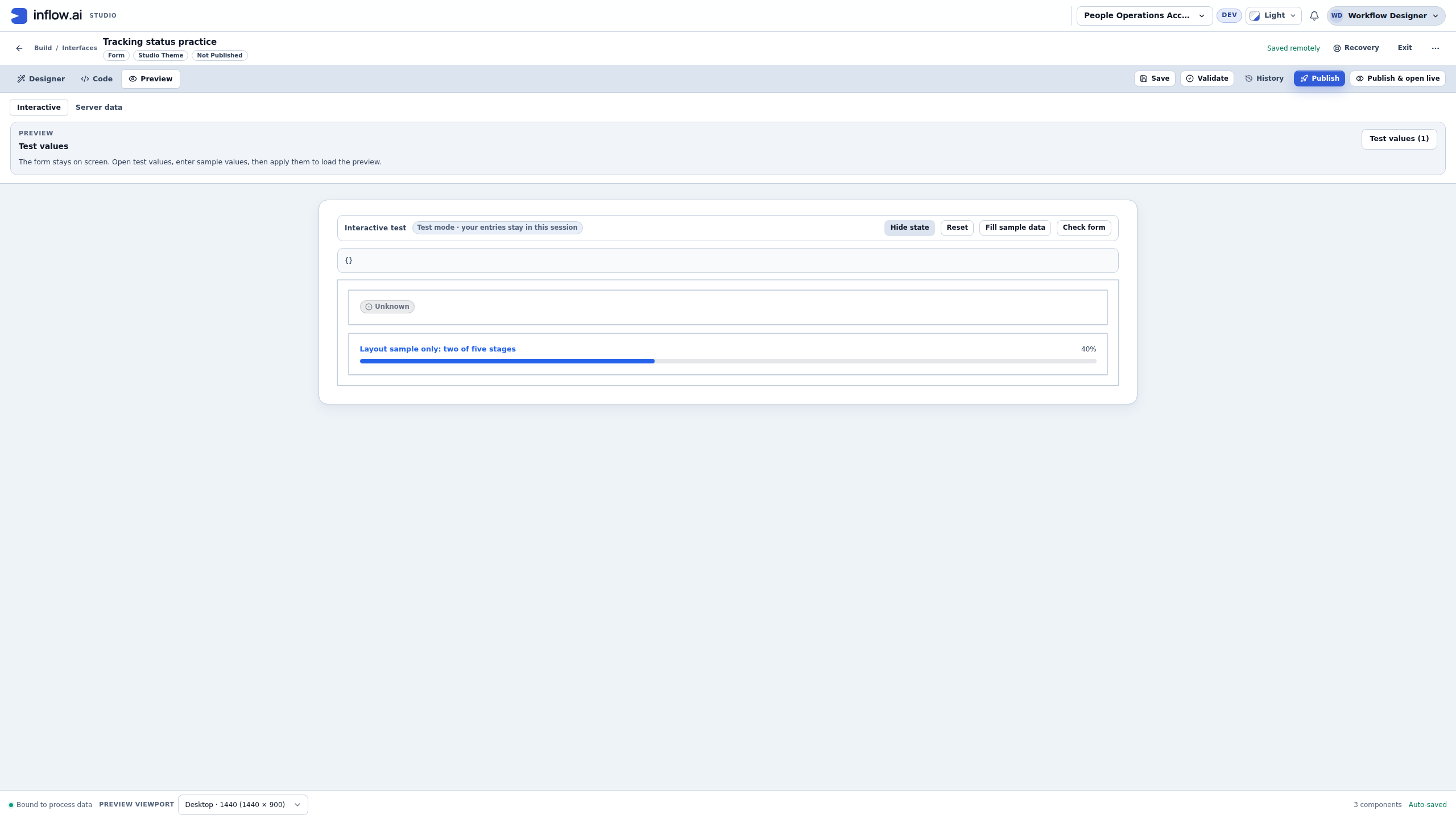
- Return to Preview → Interactive with no input supplied. Open Form state and repeat the comparison. With the static sample actually removed, this captured Preview shows Unknown.
Do not infer that Unknown represents a real business state, a permission refusal, or a universal fallback for every null, failure or host route. It is the observed result of this exact absent-input practice. The application owner still needs to decide what missing information should communicate before release.
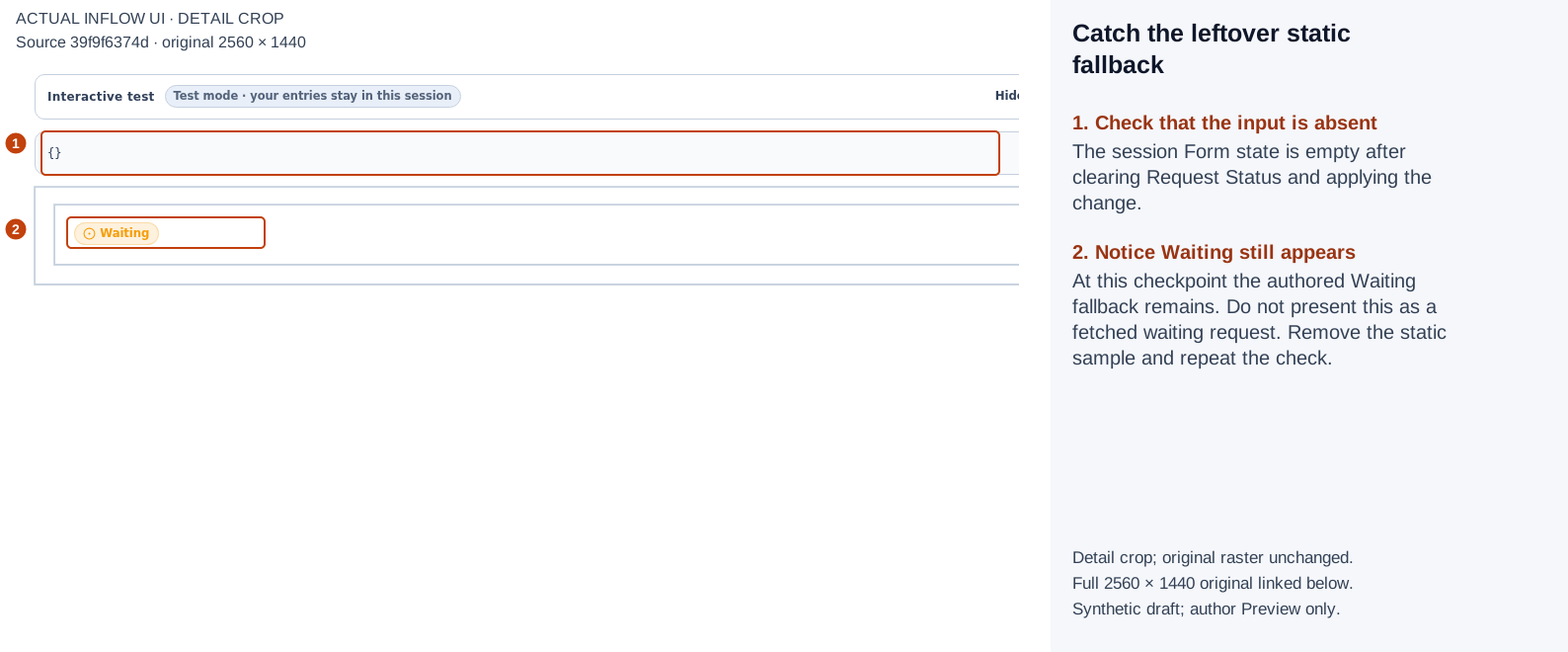
1: empty Form state. 2: the leftover authored Waiting label remains at this checkpoint. This figure demonstrates the fallback problem, despite the historical capture filename. Open the full-size numbered guide · Open the unchanged full 2560 × 1440 screenshot.
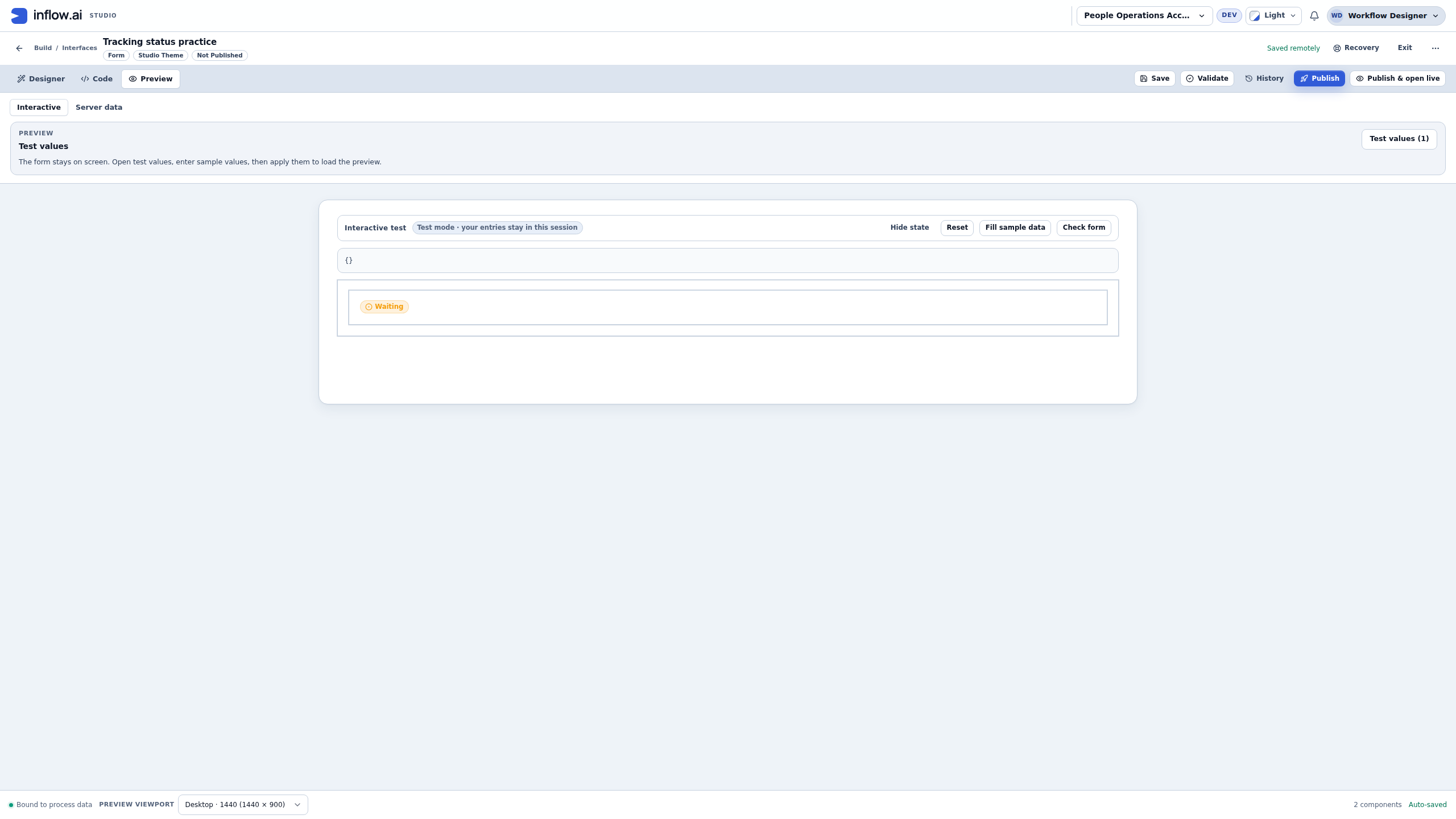
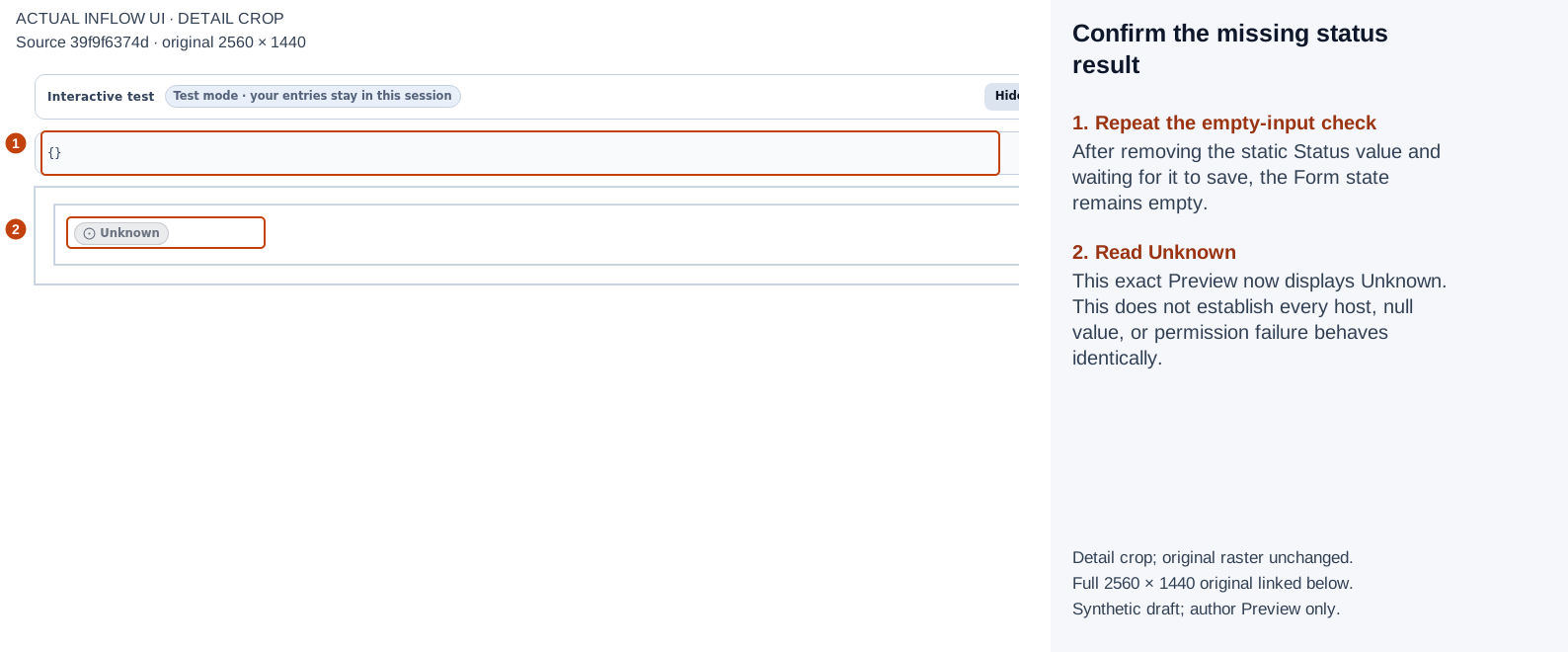
1–2: after the static sample was actually removed and saved, empty state is accompanied by Unknown in this Preview. Open the full-size numbered guide · Open the unchanged full 2560 × 1440 screenshot.
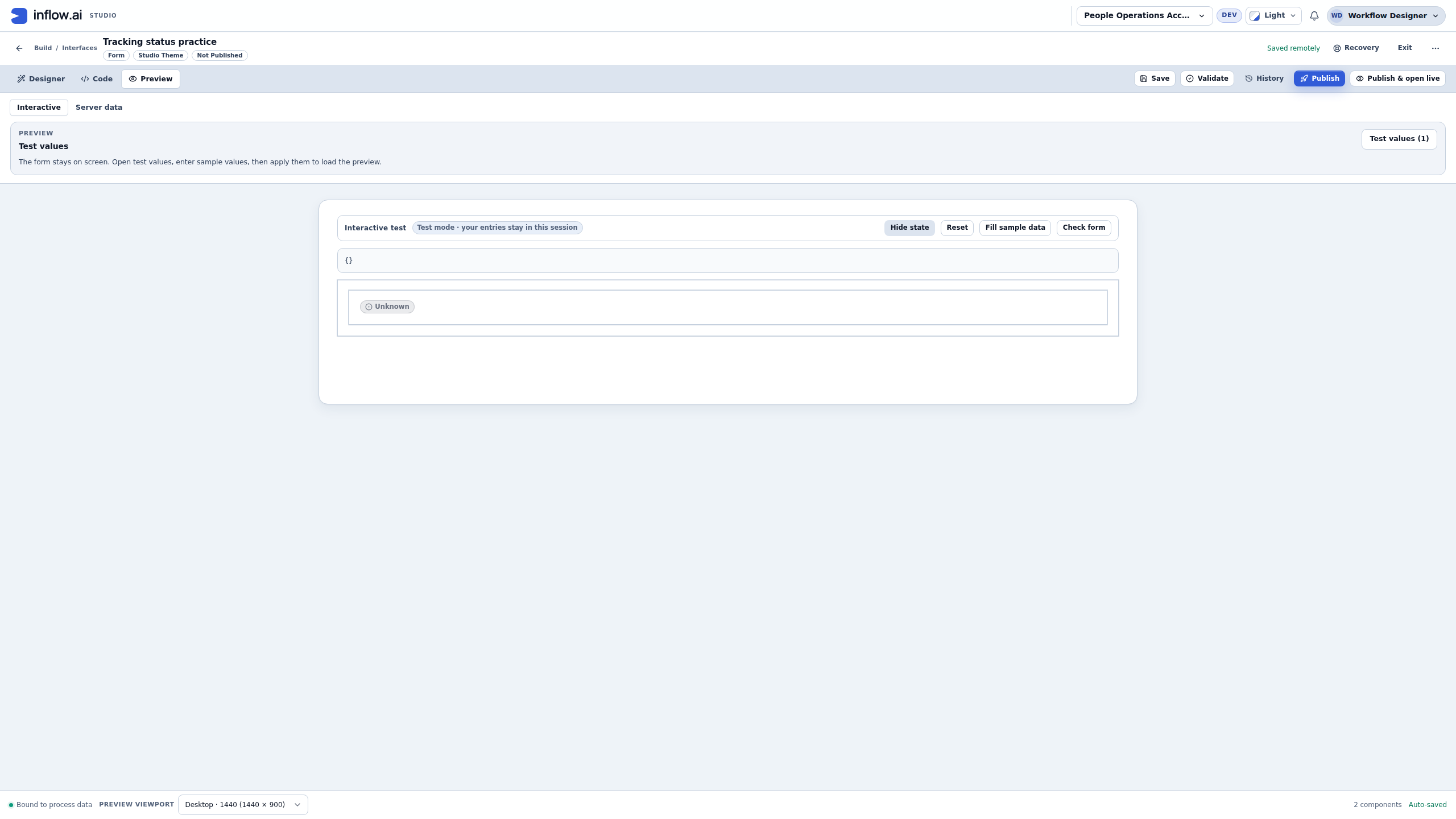
Do not use Reset as a substitute for clearing supplied test inputs. In this exercise, Reset retained the already applied Completed host test value. Clearing the field through Test values and applying the change was the action that produced an empty state. A reset of editable form answers and a change to the supplied host input are different operations.
7. Recover and check the saved definition
- Apply
Waiting for manager reviewagain through Test values. - Compare the restored text with Form state. The badge should once again display the value you supplied.
- Keep the input Default blank. Applying a session value does not mean you want that value as the form’s persistent default.
- Save the draft, wait for Saved remotely, then reopen or reload it through the normal designer route.
- Select the existing badge and inspect the saved connection. Check that Status value is blank and Bind value still shows the declared input expression.
- Confirm that the draft is Not Published. This practice stops at the saved definition and author Preview.
The captured definition was read back at draft revision 9 with the binding intact, no static Status value, no declared input default, and no published version. The earlier choice-practice draft remained revision 6. Those checks establish saved authoring state; they do not establish an employee application’s record, task or authorization behavior.
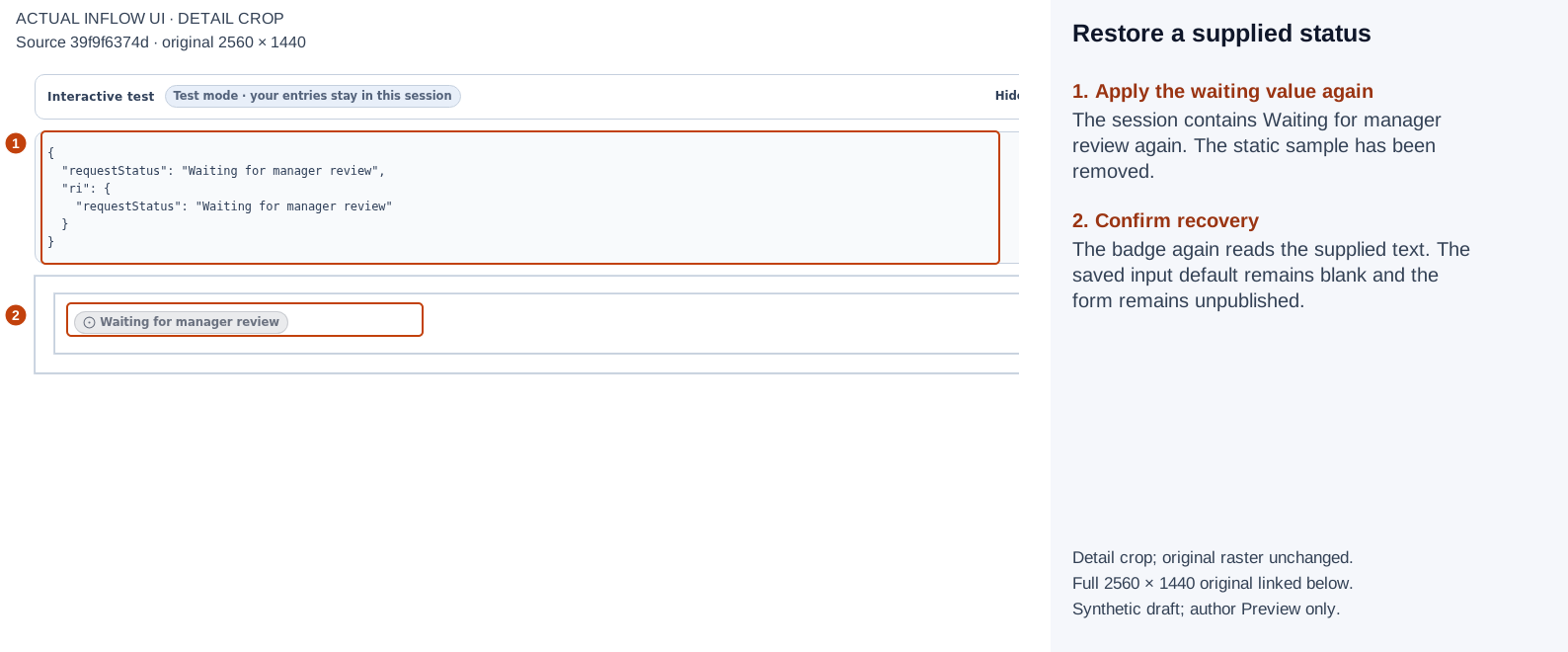
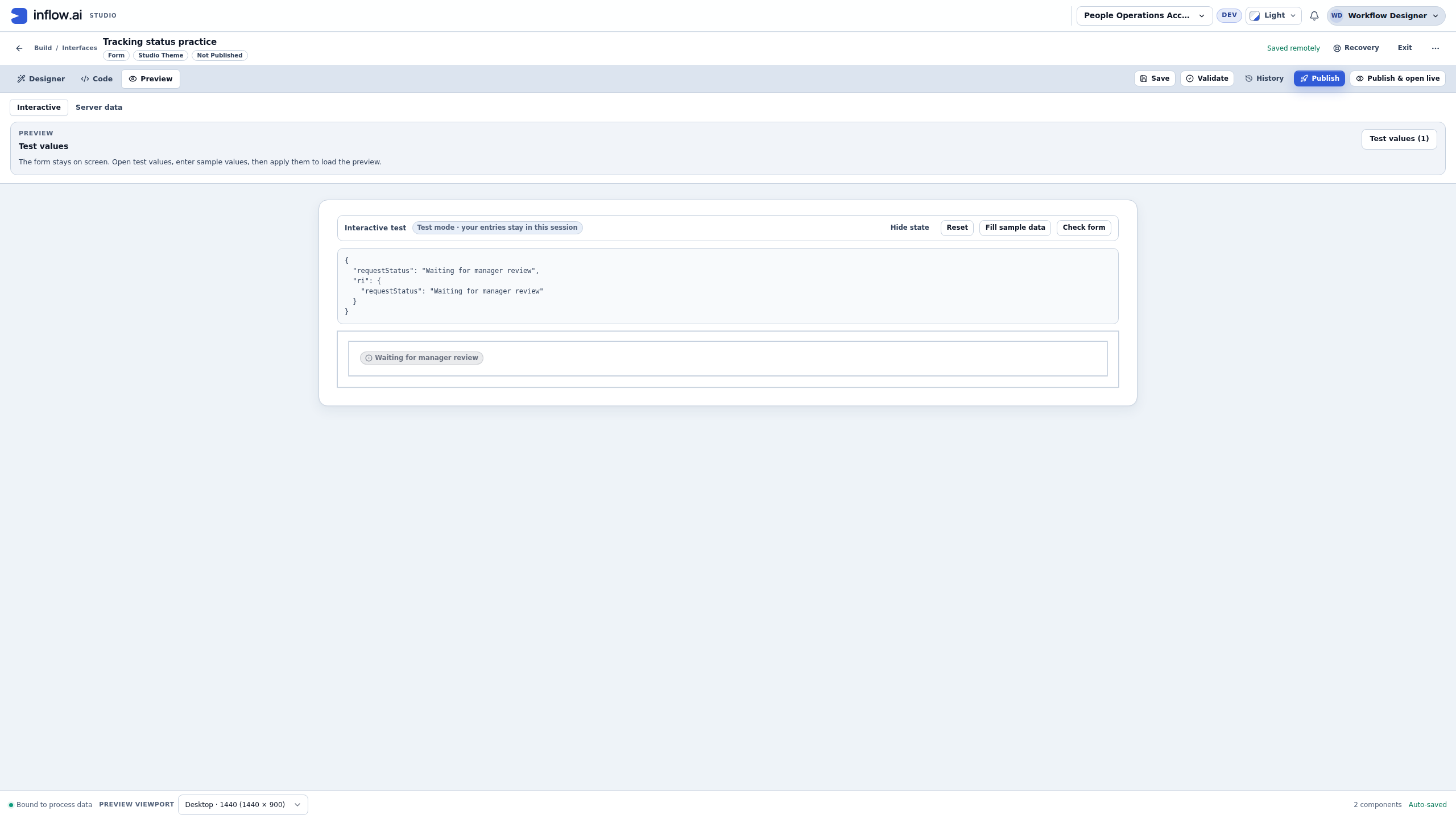
1–2: supplying the waiting text again restores the display after the missing-input check. The static sample remains absent. Open the full-size numbered guide · Open the unchanged full 2560 × 1440 screenshot.
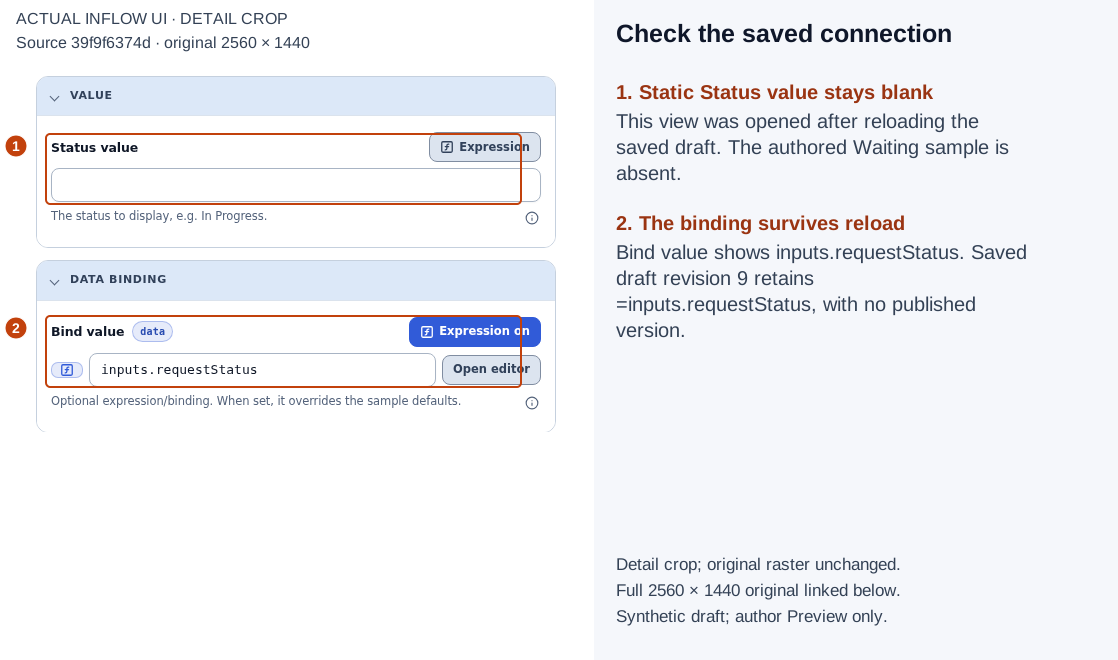
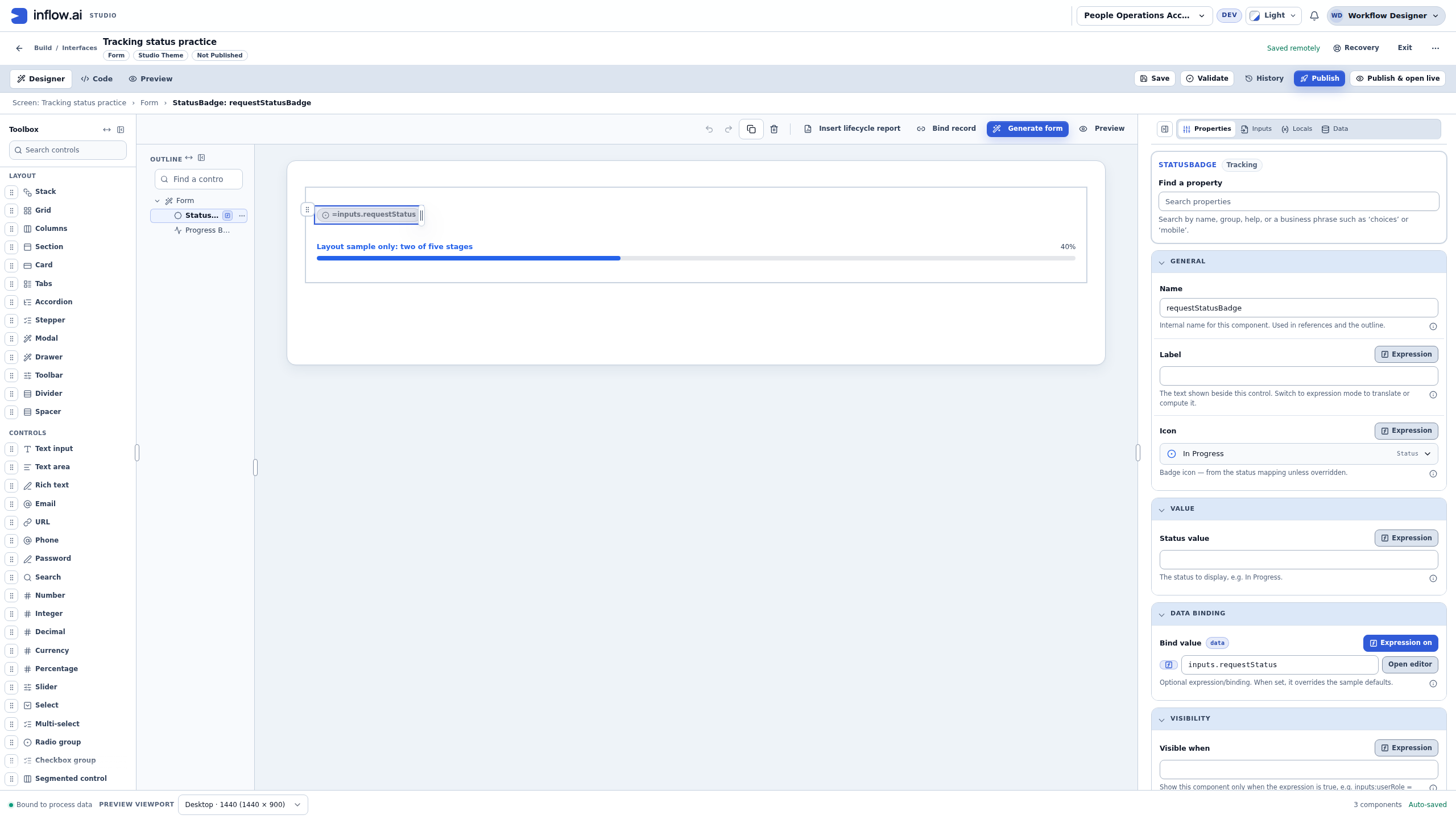
1–2: after reload, the blank static value and normalized bound expression are still present in the saved draft. This checkpoint was captured after adding the separate progress sample below. Open the full-size numbered guide · Open the unchanged full 2560 × 1440 screenshot.
Practice 2: explain a progress bar’s measure
Use a progress bar only when someone can define what is being measured. “Two of five defined stages” is a measure; “the request has waited a while” is not a completion percentage. Even a stage count needs agreement about whether the stages are equally weighted and when the count changes.
Configure a fictional five-stage layout
- Add one Progress Bar to the same synthetic practice Form.
- Give it Name
fictionalStageProgress. - Set its Label to
Layout sample only: two of five stages. Keep the sample’s meaning visible on the page. - Set Value to
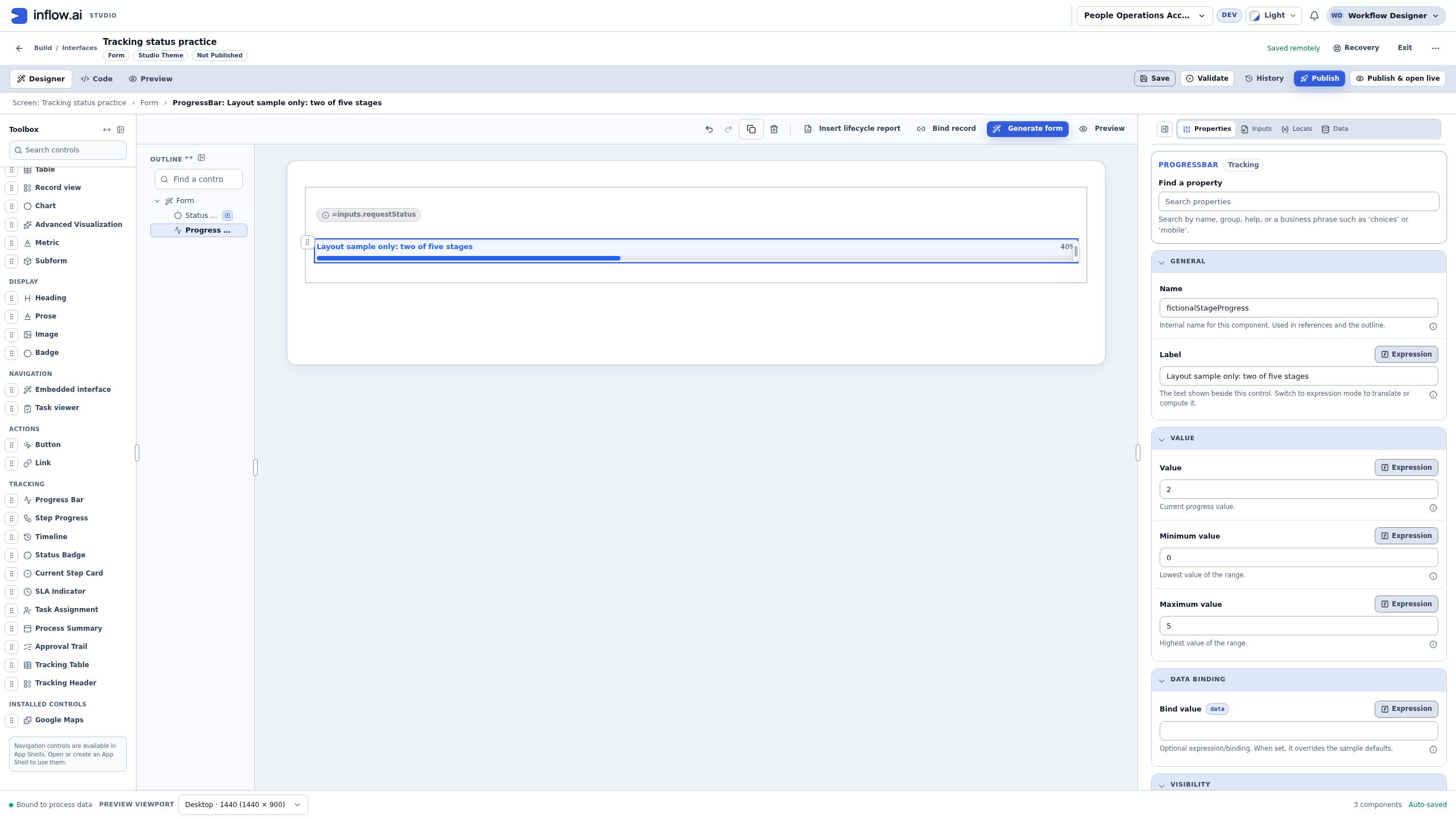
2, Minimum value to0, and Maximum value to5. - Keep Show percentage on. Leave Bind value blank for this static layout exercise.
- Leave the field, save, wait for the saved state, and inspect Preview → Interactive.
The resulting bar displays 40%, because the authored value is two on the specified zero-to-five range. That calculation does not establish that any real leave request is 40% complete. The label is part of the example, not an instruction to create five stages in an existing workflow.
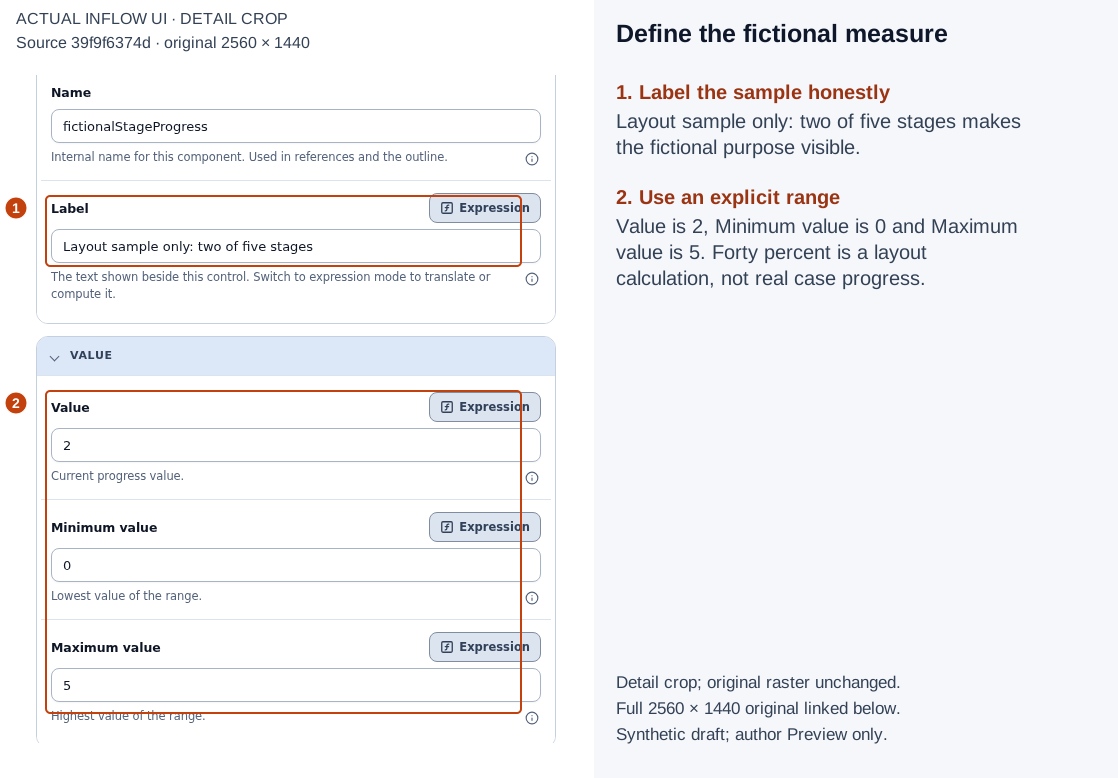
1: the label identifies a layout sample. 2: Value 2, Minimum 0 and Maximum 5 define this fictional measure. Open the full-size numbered guide · Open the unchanged full 2560 × 1440 screenshot.
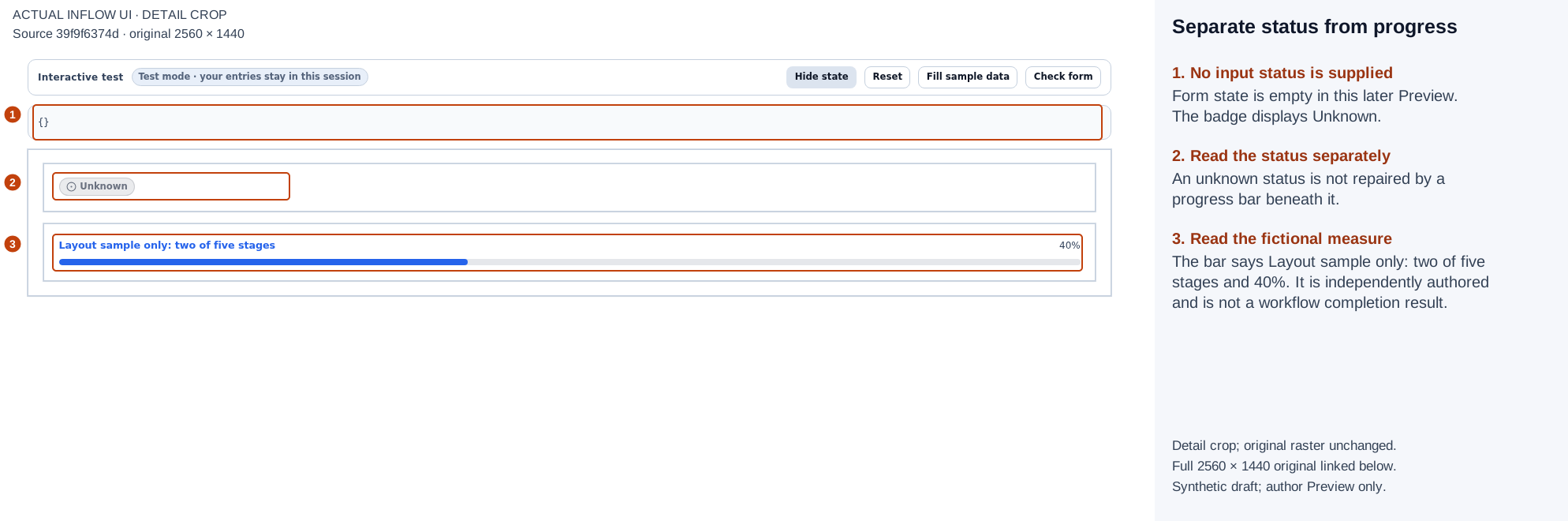
1–3: an empty status input shows Unknown while the independently authored sample bar still shows 40%. One does not validate the other. Open the full-size numbered guide · Open the unchanged full 2560 × 1440 screenshot.
Decide whether a real percentage is justified
Before replacing this sample, ask the owner to define the numerator, denominator, update event, reset point and source. For example, “two documents received out of five required documents” can be meaningful if the requirement set and receipt counts are real, permitted and current. That is different from saying an approval process is two-fifths complete: a later review might take longer or return the request for more information.
If no approved measure exists, use readable status text or a current-step display. Do not derive completion from elapsed time, filled form fields, a guessed stage count or the number of names in a decorative trail. Test zero, the stated maximum, missing data and invalid ranges through the actual approved source before release. Those real-source numeric checks were not performed by this layout practice.
Real-source handoff worksheet
Complete this with the application, data and workflow owners before replacing samples or promising that the display reflects a live case. “Not confirmed” means the real-source journey remains pending.
| Handoff question | Record the answer |
|---|---|
| What exact request, task, or case should this describe? | Identify the business object and the normal app route used to reach that object. |
| Which control and exact property are intended? | For example, Status Badge → Bind value receiving the permitted status; or Progress Bar receiving a defined measure and range. |
| Which supported source supplies it? | Name the actual declared input or supported source offered by the current authoring surface. Confirm the host mapping; do not invent a field path. |
| What values and types does that source produce? | Record the exact type, representative waiting/completed values, and the owner who confirms their meaning. |
| What should missing, unknown or unavailable information show? | Agree on readable text or an approved hiding behavior. Test the outcome rather than assuming a sample is cleared. |
| Which ordinary user may see the source and this case? | Confirm the intended user’s access to the specific object and fields. Author Preview or workspace Admin access is not that proof. |
| How is a percentage defined? | Record numerator, denominator, update event, reset point and invalid/missing-data behavior. Leave progress pending if no approved measure exists. |
| How will the result be read back? | Name the ordinary-user route for the same case before and after the actual workflow event. Keep this pending until someone performs the check. |
The worksheet plans verification; it is not evidence that a source was connected, a record was read or a decision happened. Keep unresolved mappings and user journeys explicit in the release handoff.
Choose a useful display
| What people need | Useful starting point |
|---|---|
| A short current state | Status badge. |
| An ordered view of stages | Step progress or Stepper-style presentation appropriate to the design. |
| What happened and when | Timeline. |
| The current stage and responsibility | Current step card or Task assignment. |
| A sequence of real decisions | Approval trail. |
| Several tracking rows | Tracking table. |
Use the actual property choices of the selected control. The names above are choices to investigate, not a claim that every control can automatically discover any workflow's data.
Example 2: show responsibility and approval history
Sara has a manager task for the fictional request, and the application needs to explain who is responsible.
- Choose the appropriate Task assignment or history display.
- Connect only the intended permitted task/case information through the control's supported binding.
- Check the waiting case before any manager decision. It should not already show an invented approval.
- After Sara uses the real decision task, inspect the actual decision/history information through the normal application view.
- Check that dates, names and comments are understandable in the intended language and direction.
A displayed person or team is not authority to act. Sara still uses her eligible task and the actual decision form. An approval trail must not be a manually edited list used to imitate a real approval.
Language and meaning
Keep the underlying business meaning stable when changing wording. The application can present known states appropriately for its language; an unfamiliar custom state needs an understandable label rather than an assumed color. Business step names, comments and people's names remain authored information.
Do not use red/green alone to convey a decision. Include clear text and inspect the result with realistic labels. A long employee name should not hide the state or the next action.
Troubleshoot what you actually see
| What you see | What to inspect and do next |
|---|---|
| Waiting appears even after clearing the test input. | Inspect both Form state and the authored Status value. In this practice an absent input left the static Waiting fallback visible until that sample was actually removed and saved. |
| The test editor says Completed but the badge still shows the earlier text. | Choose Apply values, then compare Form state. Editing the modal alone does not apply its value. |
| Reset did not remove a supplied status. | Reopen Test values, clear Request Status and Apply values. Reset retained the applied host value in this exercise. |
| The picker shows a status example but not your declared field. | Check the input declaration and FORM FIELDS. An EXAMPLES entry is not evidence of a host mapping. |
| The designer canvas shows an expression string. | Compare Interactive Preview with applied Test values. The authoring canvas is not the employee’s live application route. |
| A blank property edit reappears or was not saved. | Leave the field, wait for the saved state, reopen the property and check after reload. Keep the previous result until persistence is confirmed. |
| A badge looks completed but a real task is still waiting. | Verify the specific request and source mapping through the authorized application route. Do not use a sample string to resolve the disagreement. |
| A 40% bar appears beside Unknown. | Check each control’s source separately. In the illustrated practice the bar is static layout data and the status input is absent. |
| A history source is unavailable. | Ask the source owner about the supported path and permissions. Do not invent events, dates or approvers to fill the display. |
Continue with the workflow tutorial and Check and publish. The optional technical tracking chapter retains exact tracking contracts. The real employee case, real history and before/after manager decision journey remain separate acceptance work; this chapter’s screenshots establish the authoring exercise only.