Add a document library to a form or application
The Document browser control lets people browse an allowed document library inside a form or application page. It can be a read-only policy library, or it can collect a selected document as part of a business answer.
A file-upload field, document picker and DocumentBrowser are different tools. Use DocumentBrowser when people need the folder/library experience. Use a simpler field when the task only needs a new upload or one selected file and no library navigation.
Before you begin
Prepare an interface you may edit and a real cabinet/folder the intended users may access. If the browser will save a selected answer, prepare a field that can hold the appropriate document value or list.
For the illustrated practice below, reuse Document library practice 20261116 / Leave letters from the document-library lesson, or use your own approved fictional practice location. The later policy-library and Sara examples describe separate business situations; prepare their intended folders and access separately.
Understand the key settings
| Setting | What it means |
|---|---|
| Documents cabinet | The cabinet the browser opens. It must be an actual selected cabinet. |
| Root folder | An optional starting boundary inside that cabinet. Navigation stays beneath it. |
| Selection | Whether the browser only browses, chooses one document, or chooses several. |
| Allow upload/download/move/delete/convert | Which kinds of controls the application offers, still subject to the user's actual document access. |
| Allow share / security | Whether the Studio control offers its supported object-security surface where available. It does not grant file access or promise a sharing control in a published employee page. |
| Show folder tree | Whether the side tree is displayed beside the file list. |
Choosing a root folder does not grant a user access to every file beneath it. Likewise, turning on Allow upload does not give a read-only user upload permission.
For a browsing-only library, use Selection none and turn off the unneeded library mutations. Keep the intended reader functions available. The control’s separate Read only and Disabled states can also lock navigation and download; check the real intended state rather than using those switches as substitutes for document permissions.
Know which view you are looking at
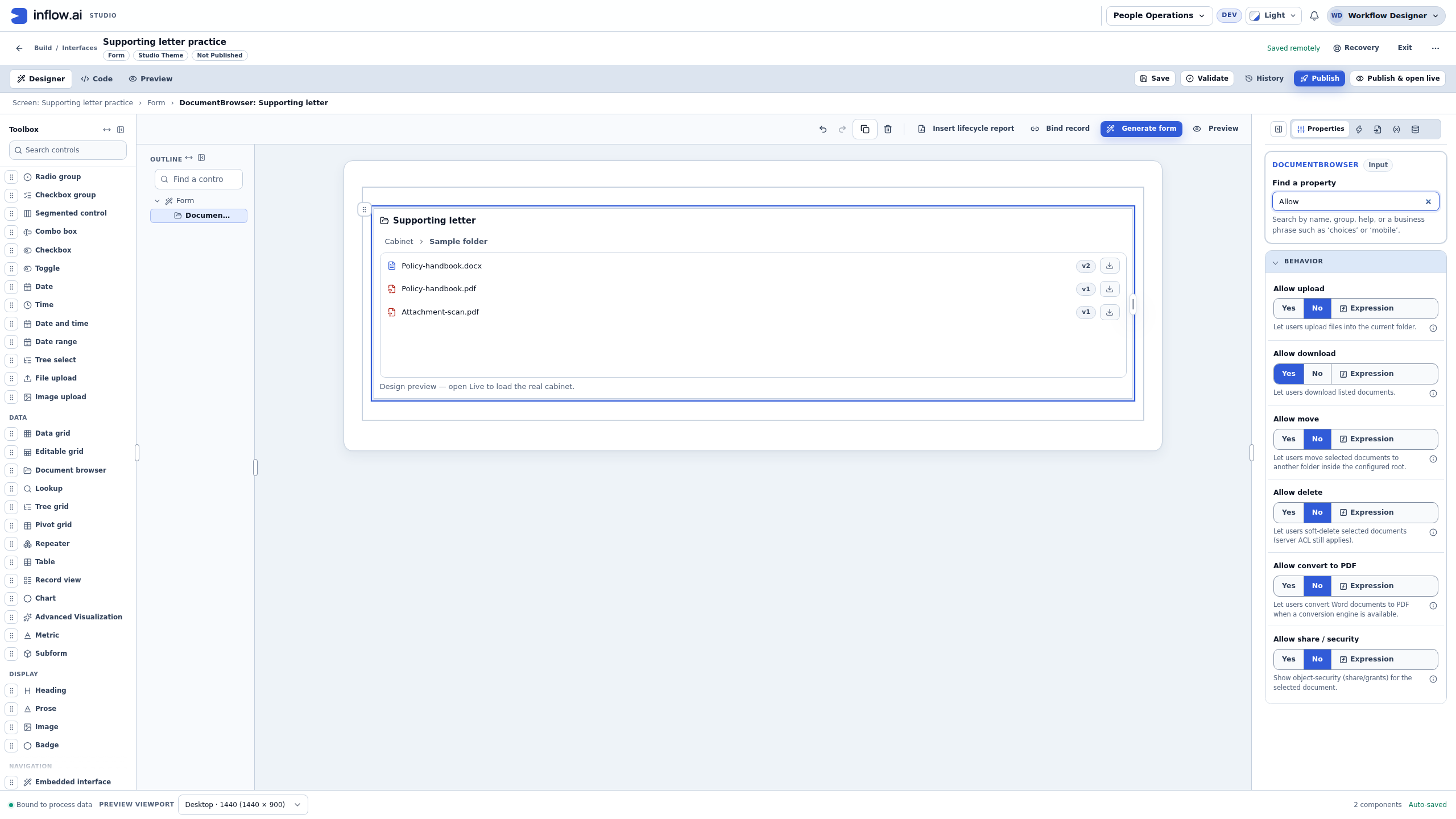
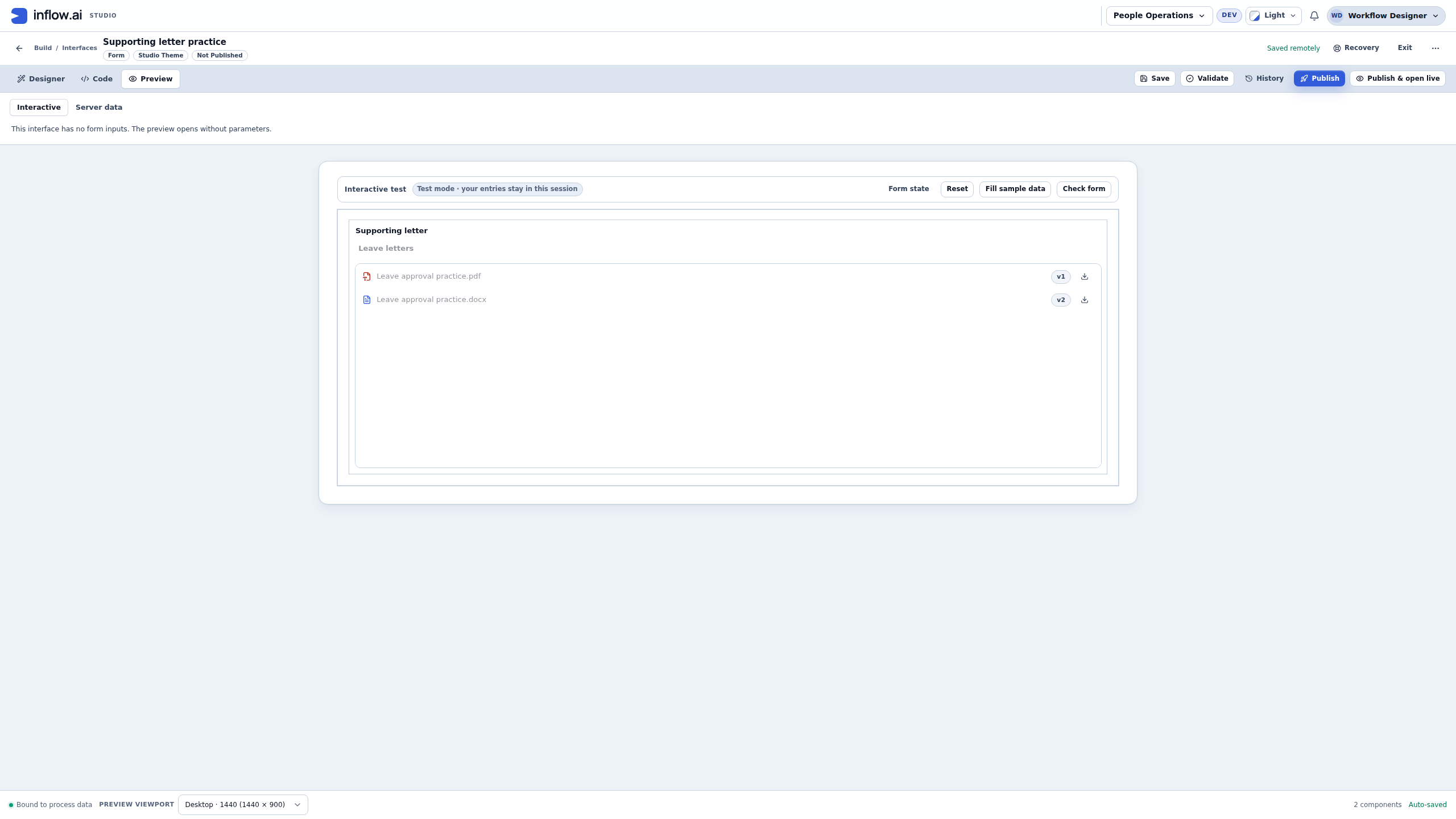
The designer helps you arrange the control before connecting a reader to a real library. Its sample rows include Policy-handbook.docx, Policy-handbook.pdf and Attachment-scan.pdf, with a hint to open Live. These are layout examples. Seeing those rows does not mean the selected cabinet contains those files, and changing their sample appearance does not upload a document.
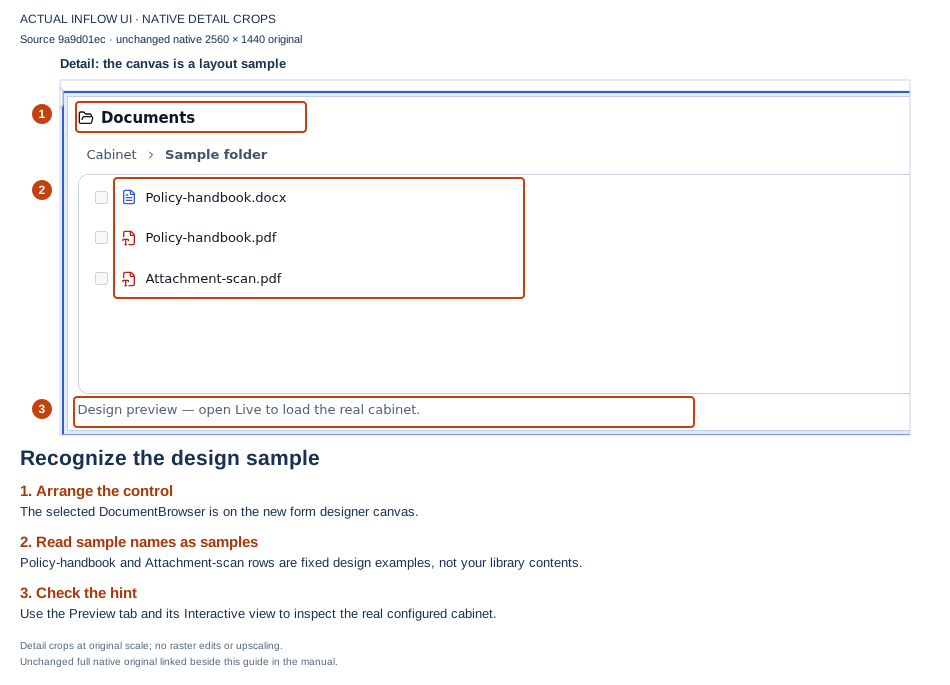
Read these as sample rows. The actual library is checked separately in Preview.
Open the unchanged full-size screenshot.
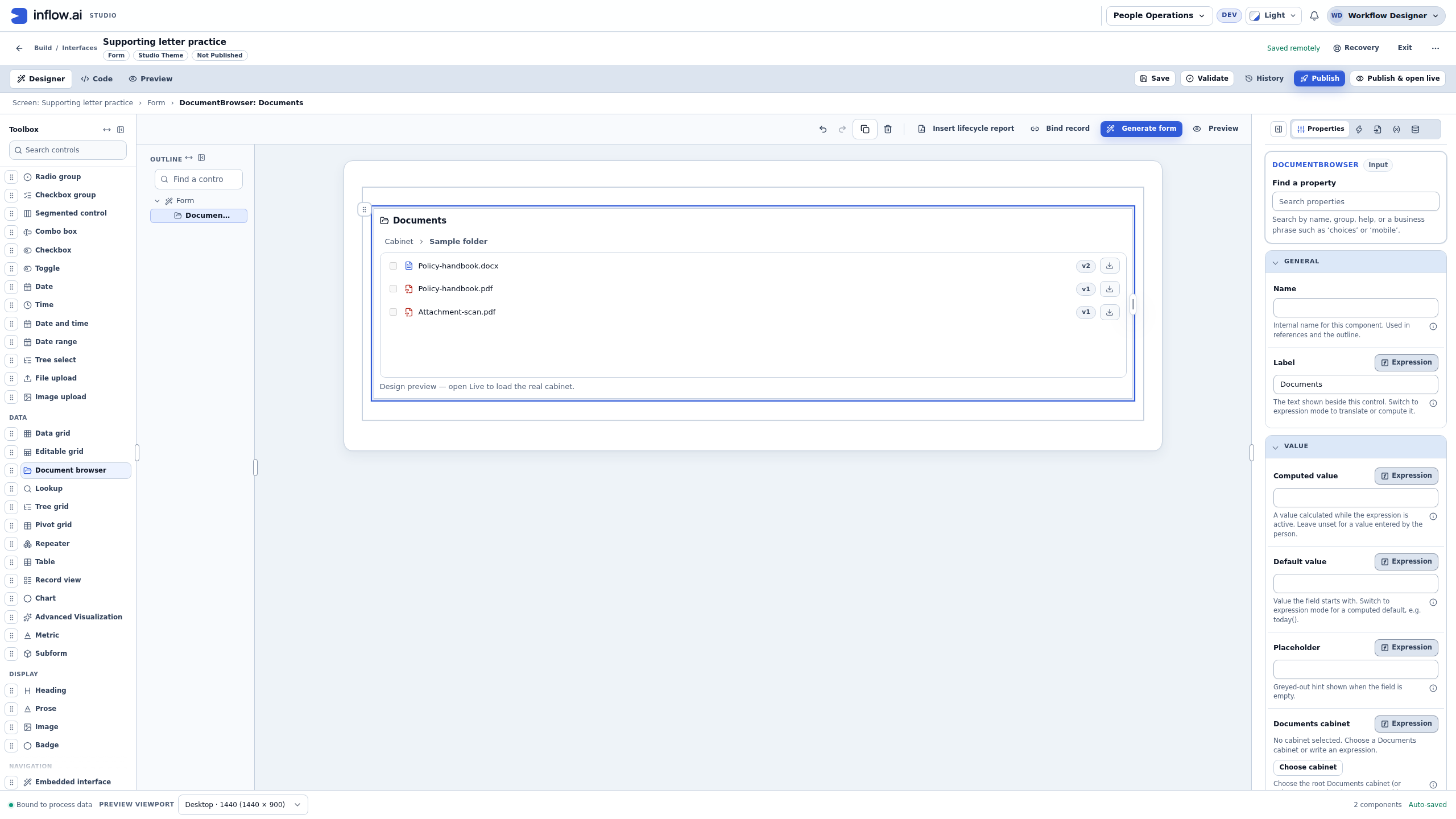
Use Preview → Interactive to try the configured control in the draft form. It uses the current signed-in person's workspace and document access to load the actual folders and documents. A local choice lets you check the form's selection behavior. Check the document name and version in that real list, then open Form state when you want to inspect the selected answer. This view lets you read the document reference without typing or editing it.
Keep three results separate:
| Result you checked | What it establishes | What still needs its own check |
|---|---|---|
| A useful layout in Design | The control fits the intended form. | The real cabinet, folders and documents load for the intended person. |
| A real library and a selection in the draft's Interactive view | This signed-in builder can see that library and try the form's local selection. | Publication, the actual employee's access, task output mapping and saved business data. |
| The intended person uses the published application or task | That actual session can perform the operations you exercised. | Each later task decision, record update, notification or other business effect. |
The library is real when Interactive loads it. Keep upload, move, delete, conversion and sharing off for a selection-only exercise. A Preview label is not a reason to experiment with a real file operation. Existing document permissions still apply to each server request.
Practice: offer the corrected letter as evidence
Nadia has already used the document-library lesson to keep Leave approval practice.docx at v2 and create Leave approval practice.pdf at v1. Both are in Document library practice 20261116 / Leave letters in the People Operations training workspace. These are separate documents with separate version counters. The fictional letter ends leave on 18 December 2026.
Use this exercise to prepare the form's evidence field. It does not approve leave or attach anything to a real task. Keep the previous forms and their published versions available. Create a separate synthetic practice form only when the intended form does not already exist.
Choose the real library boundary
- In the intended editable form, add DocumentBrowser and select it. Give its label a business meaning, such as Supporting letter.
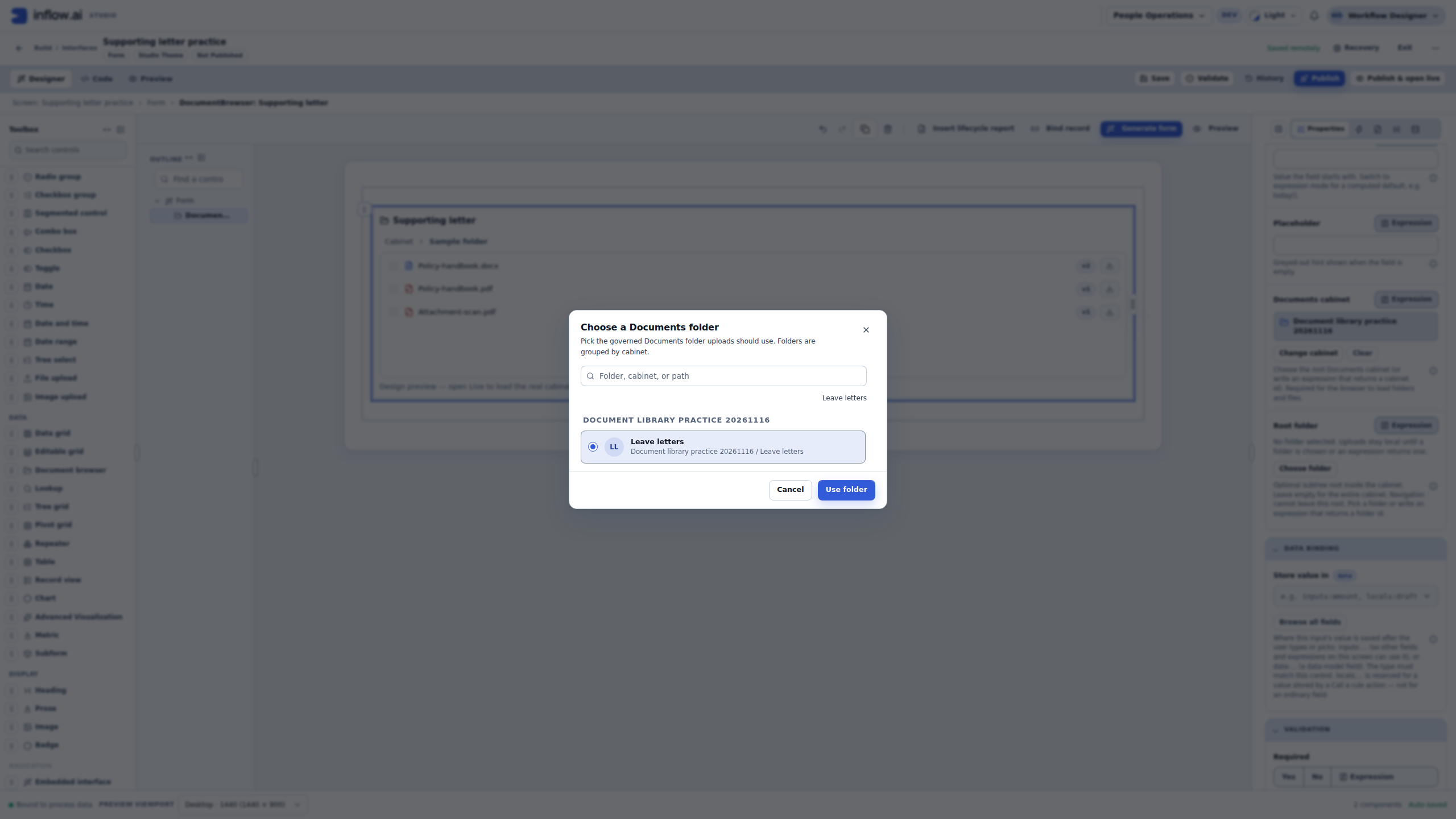
- Open Documents cabinet and use the normal cabinet chooser. Read the cabinet's actual name and workspace before choosing Document library practice 20261116. A typed display name is not the selected cabinet reference.
- Open Root folder and choose Leave letters under that cabinet. Reconcile both settings together if you change the cabinet later.
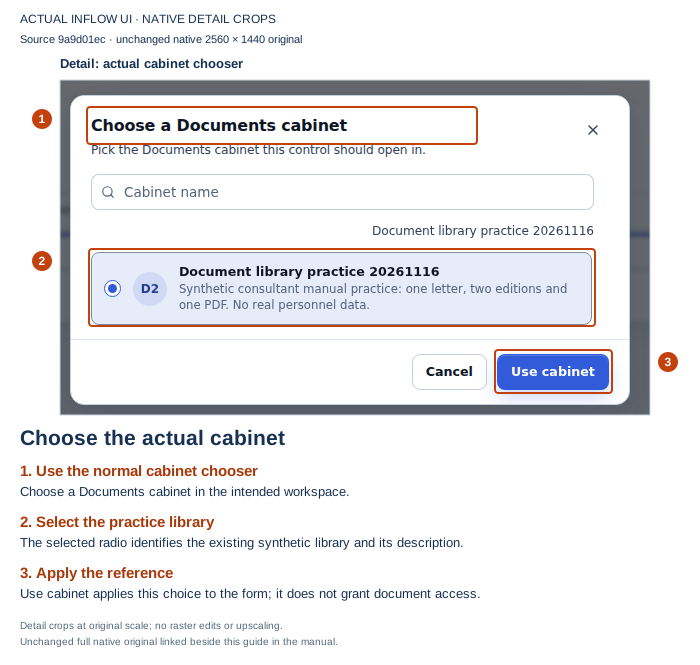
Apply the intended cabinet reference.
Open the unchanged full-size screenshot.
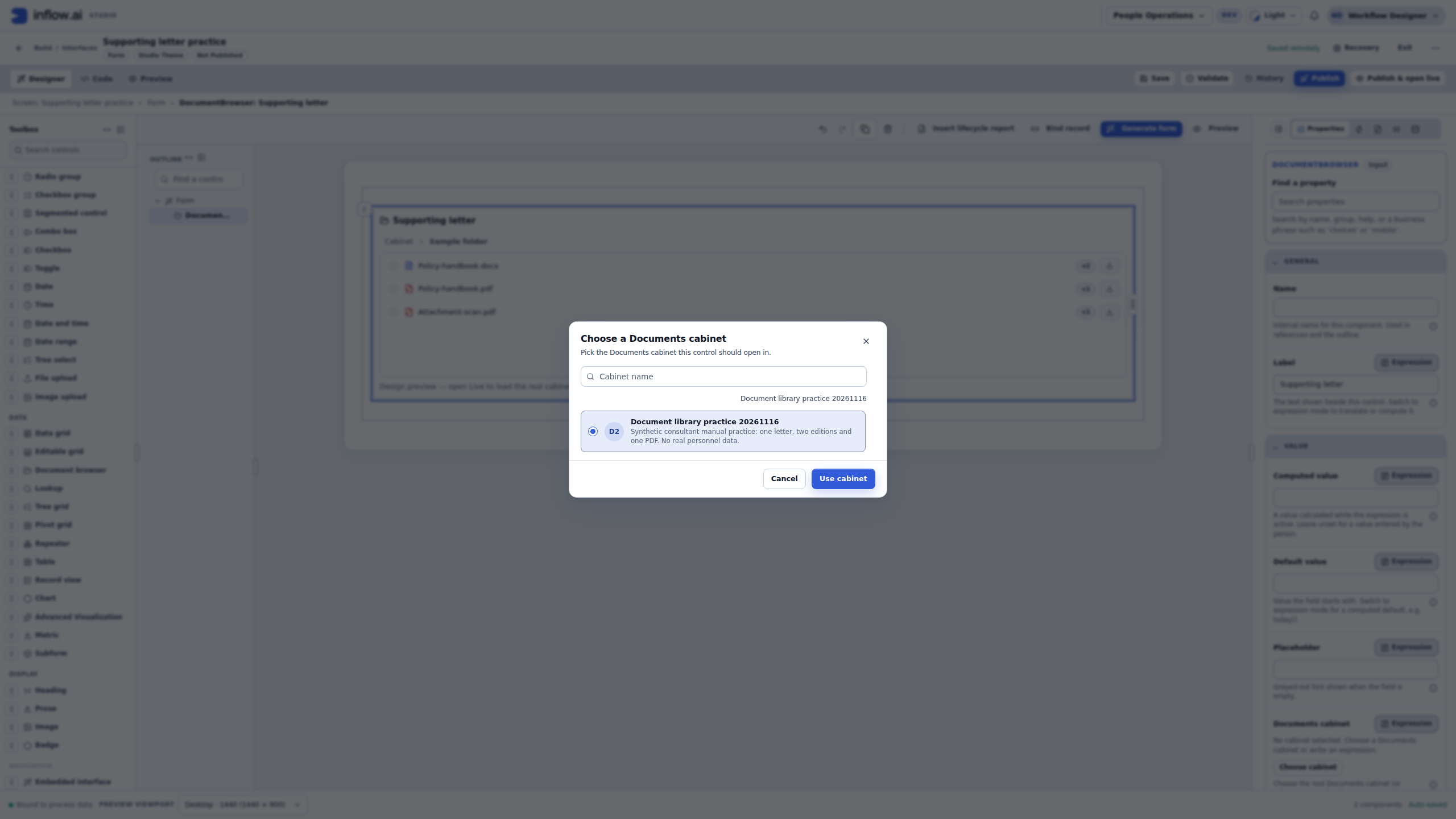
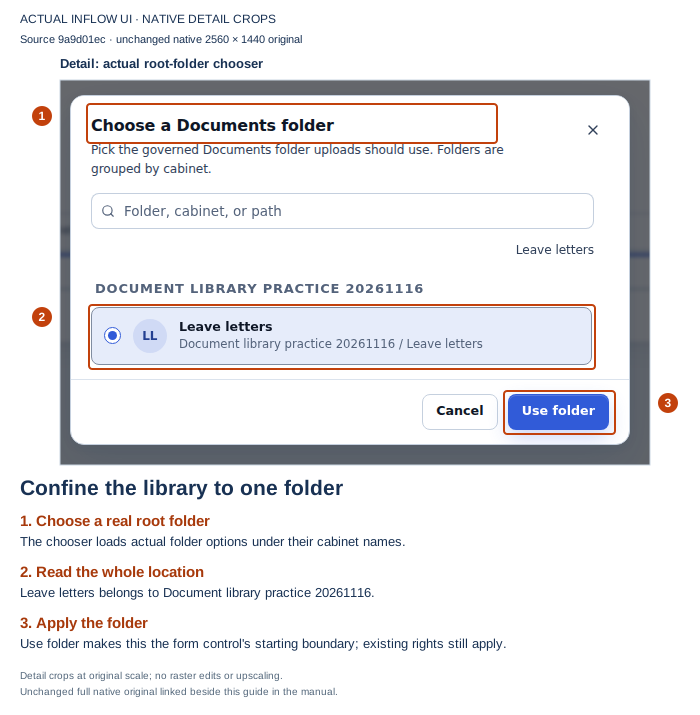
Read the cabinet and folder together.
Open the unchanged full-size screenshot.
Choose the offered operations
- Set Selection to none for the first inspection. Leave Allow download on only when the exercise and intended readers require it.
- Turn off Allow upload, Allow move, Allow delete, Allow convert to PDF and Allow share / security. This practice is about browsing and choosing existing evidence.
- Choose whether Show folder tree helps the page. A narrow root with one folder can use less space than a large library tree; the root boundary still needs to be correct.
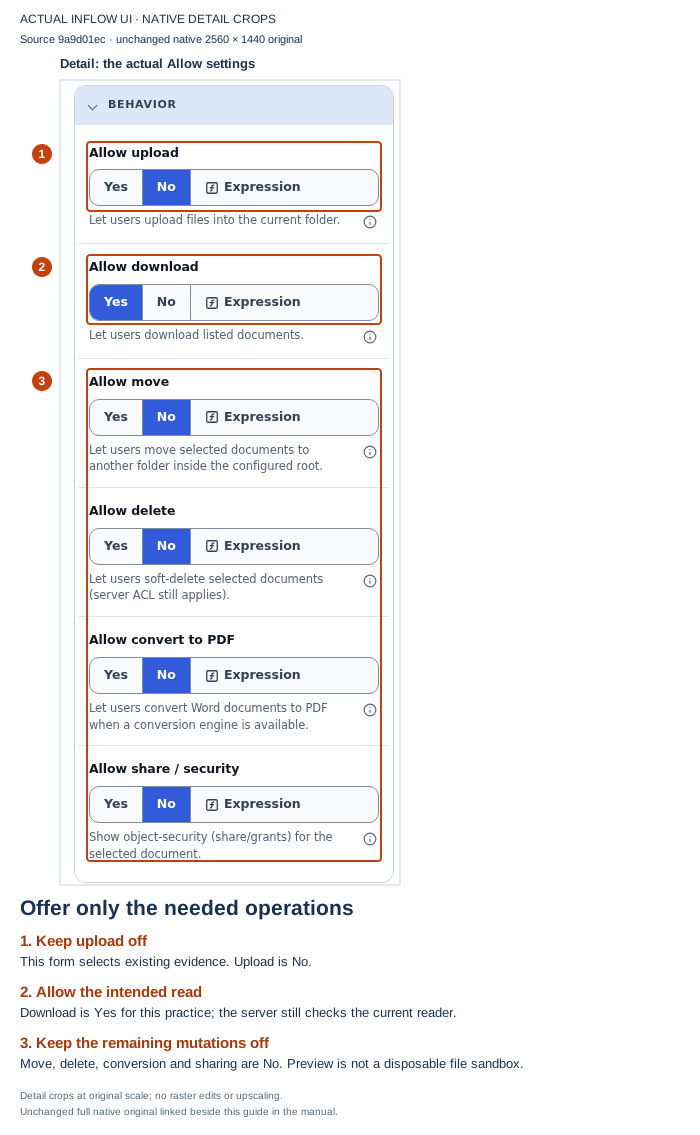
Keep the exercise focused on existing evidence.
Open the unchanged full-size screenshot.
Load the actual library in Preview
- Finish the field edit and inspect the save status. Saved locally · Unapplied field edits means the current field is still being edited; finish or apply that edit through the offered save flow. Wait for Saved remotely before testing the saved configuration. Open Preview → Interactive to check the real folder and file names. The expected practice rows are the Word document at v2 and PDF at v1.
- If the expected rows are missing, check the saved cabinet/root, actual workspace and current person's document access. Keep a failed load separate from an empty folder. Follow any offered recovery after reconciling those facts; do not upload another copy merely to fill an unexpected list.
Check your result: Interactive shows the actual fictional library you selected. No file was uploaded, moved, deleted, converted or shared by this browsing exercise.
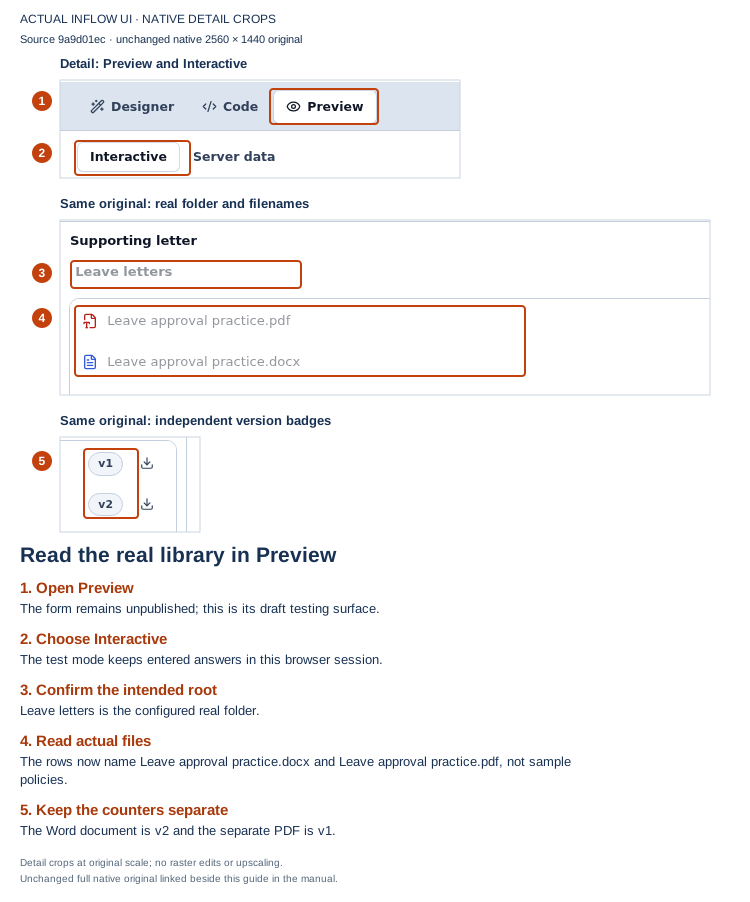
Compare the real names and independent version badges.
Open the unchanged full-size screenshot.
Collect one local document answer
- Inspect the form's Inputs for the intended
supportingLetterfield. Reuse an existing matching field. If this separate practice form needs a new one, declare Document / Single before binding the control. - Select DocumentBrowser and set Selection to single. Keep the same cabinet, root and allowed operations.
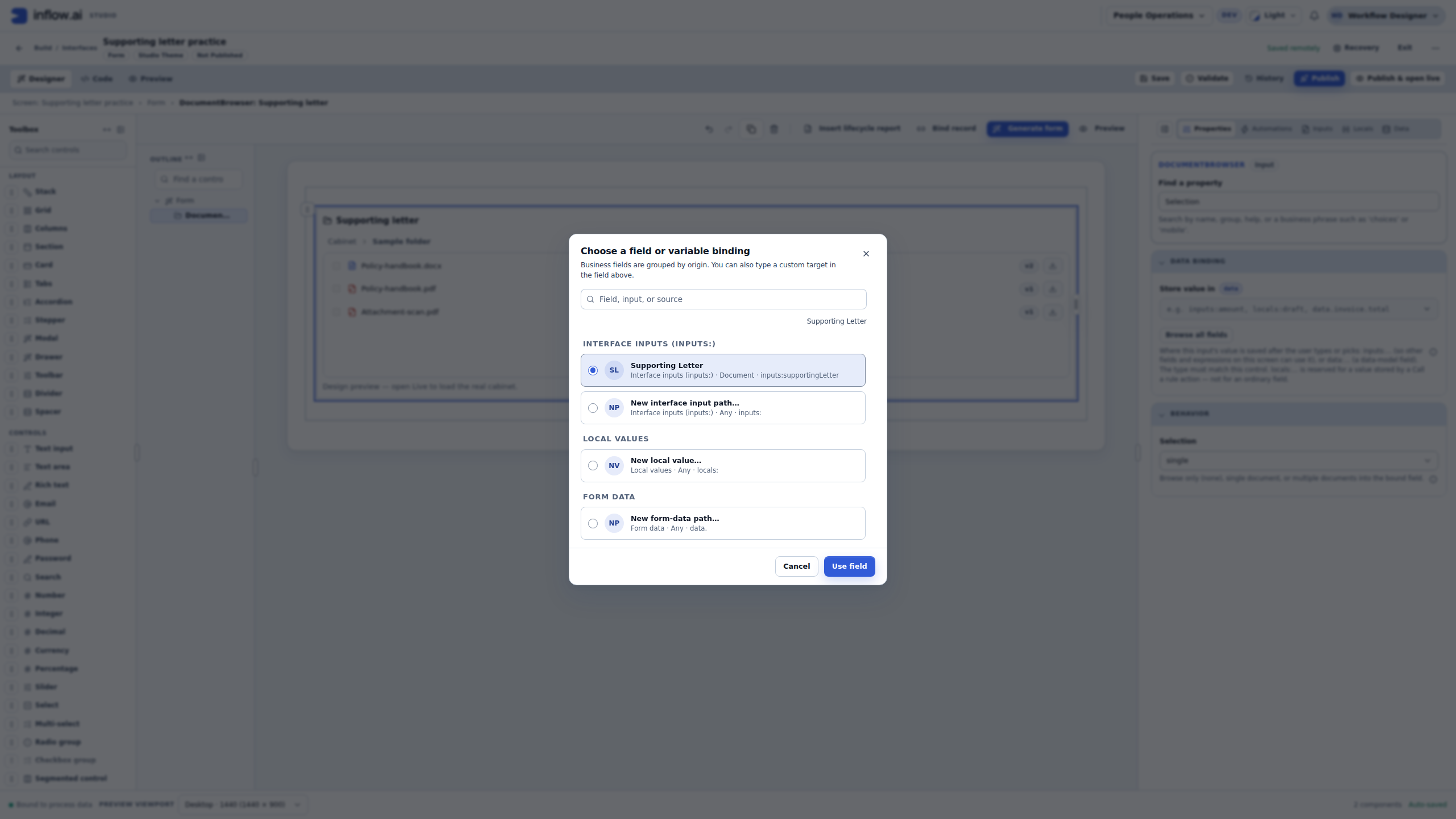
- Open Data Binding → Store value in → Browse all fields. Read the type and path of
supportingLetter, then choose Use field only when it is the compatible Document/Single field.
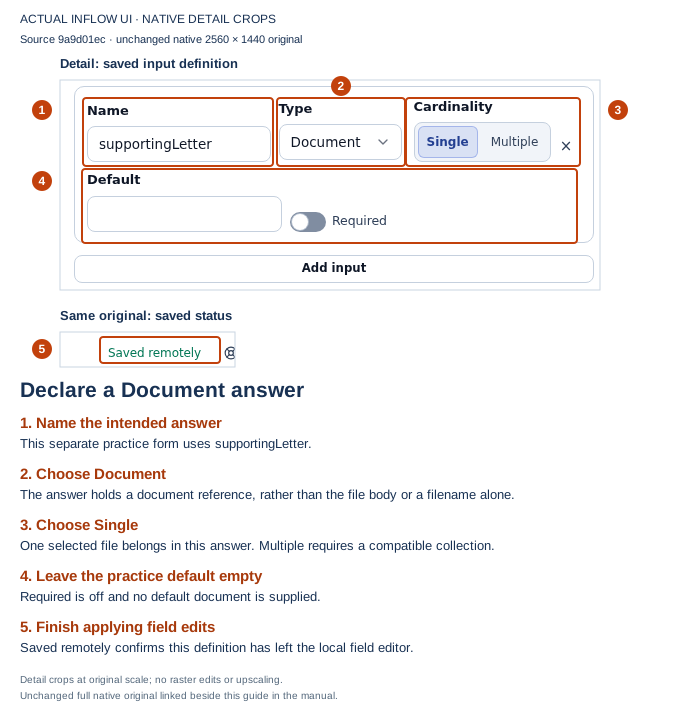
Finish the input edit and check the remote save.
Open the unchanged full-size screenshot.
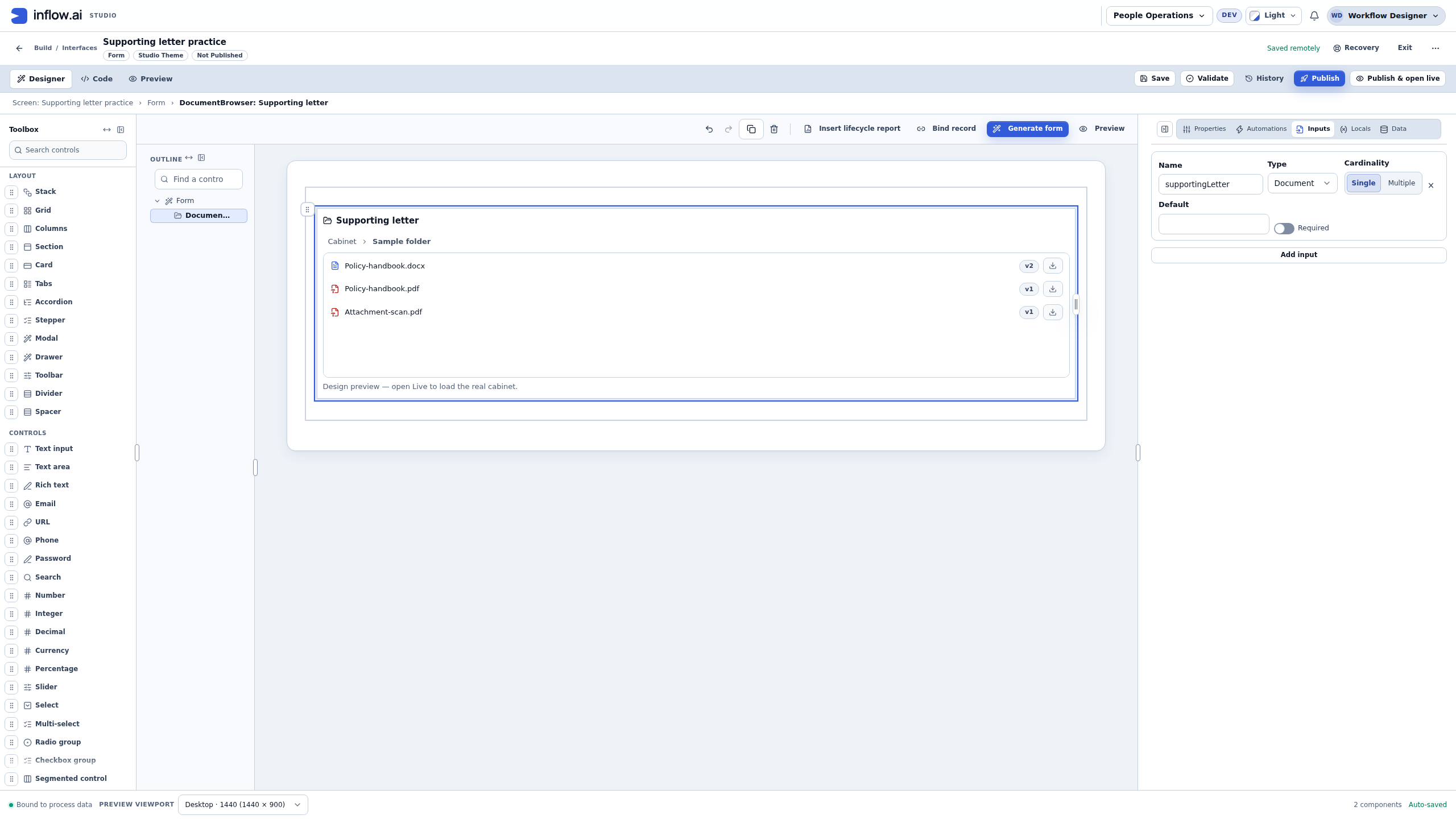
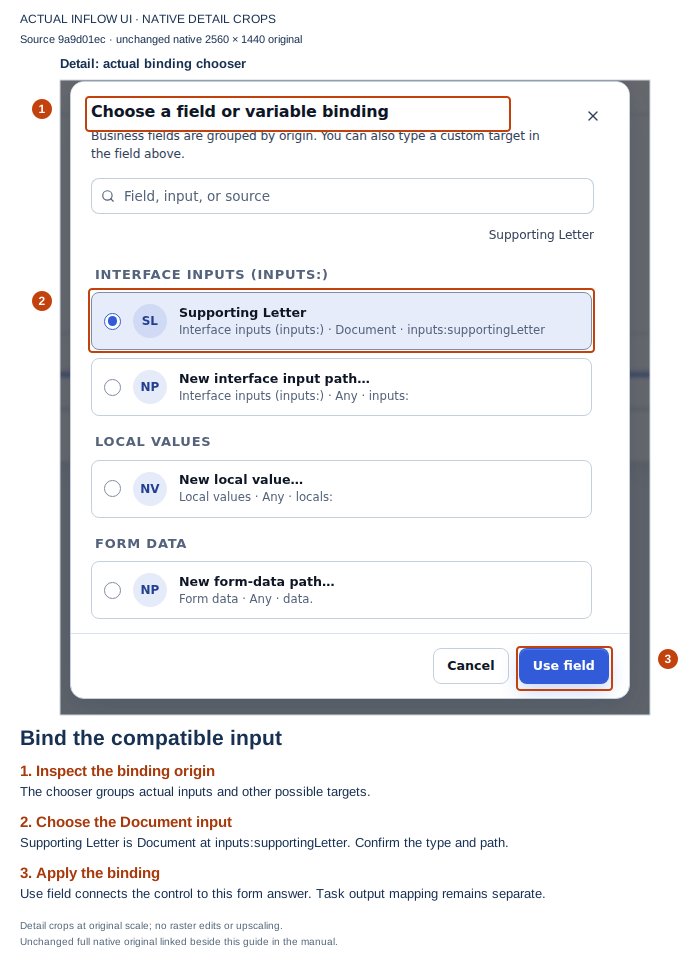
Confirm the existing type and path.
Open the unchanged full-size screenshot.
Test selection, replacement and clearing
- Finish/apply the field edit and confirm Saved remotely before returning to Interactive. A remote preview of the last saved draft must match the configuration you intend to test.
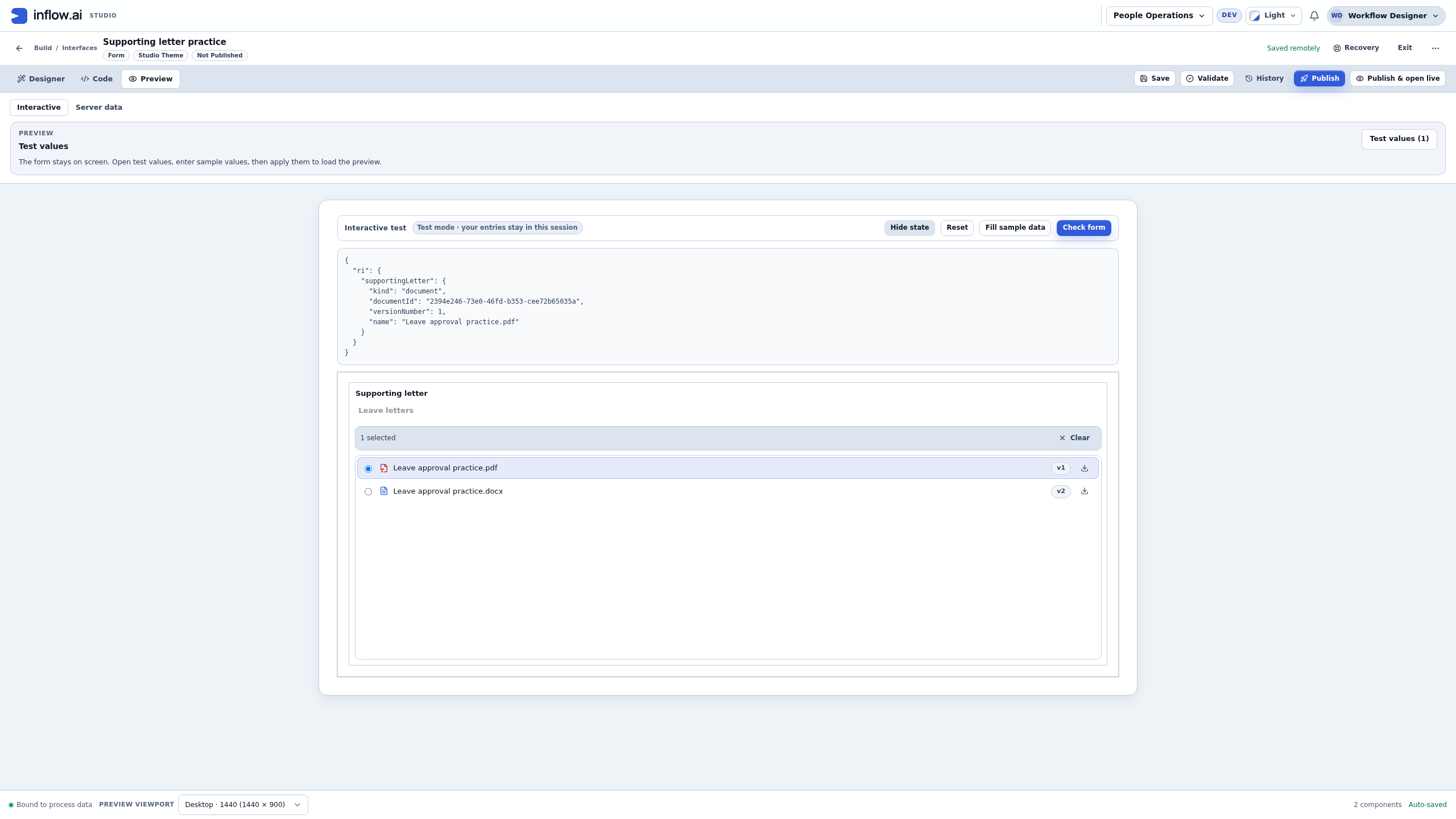
- Select Leave approval practice.pdf. Read its name, v1 and the selected state shown by the control. Choose Form state to see
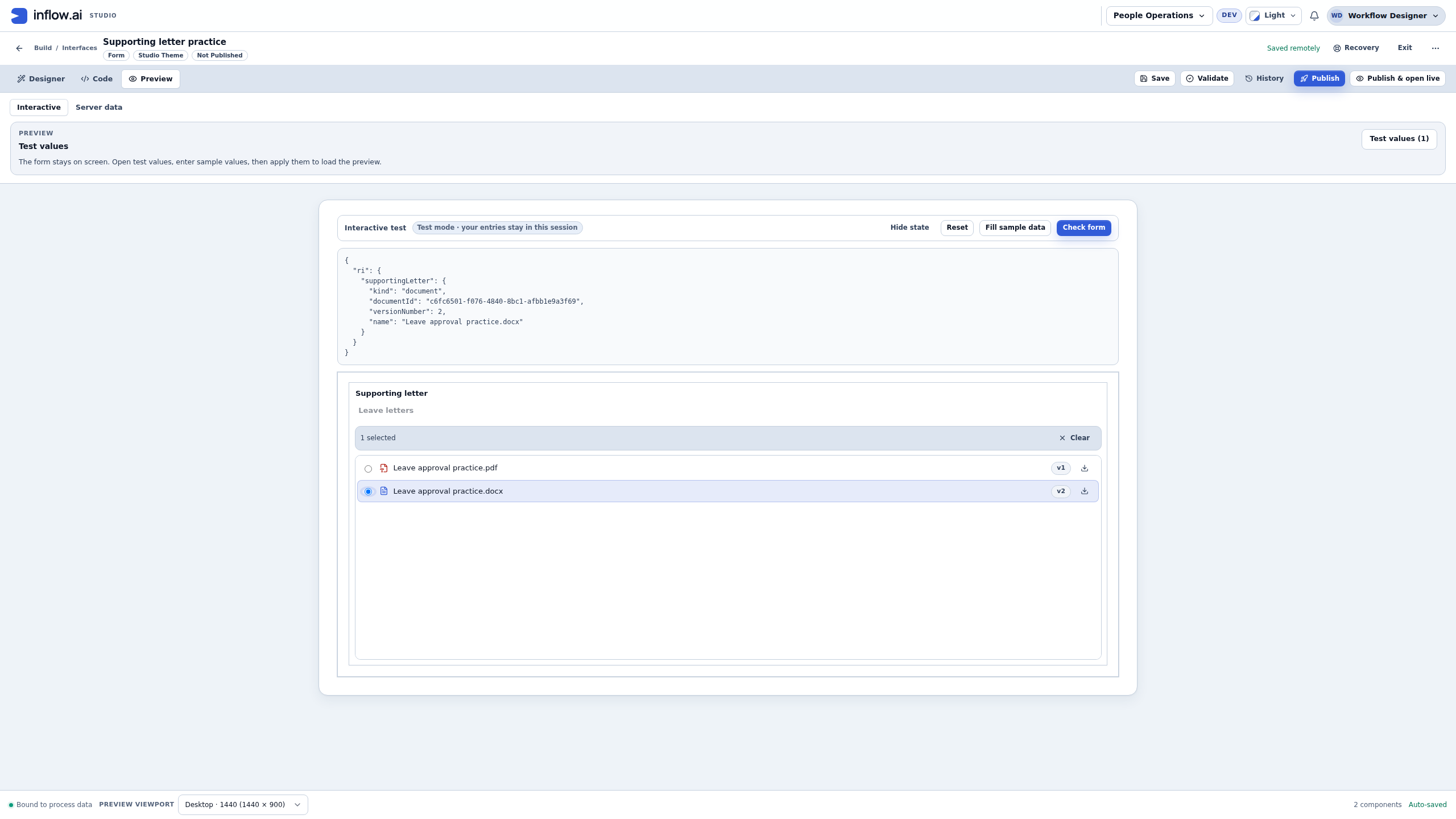
supportingLetter: itsdocumentIdidentifies the PDF,versionNumberis 1, andnameis the displayed PDF name. These values are produced by the selection; do not copy the example’s identifiers into another form. A single-document answer holds that document reference; it does not hold the PDF's raw contents. - Select the Word row when you want to check replacement. In single-selection mode, it replaces the previous choice with the Word document's reference at its current v2. It does not turn the PDF's v1 into a Word version or merge the files.
- Choose Clear in the selection bar and check Form state:
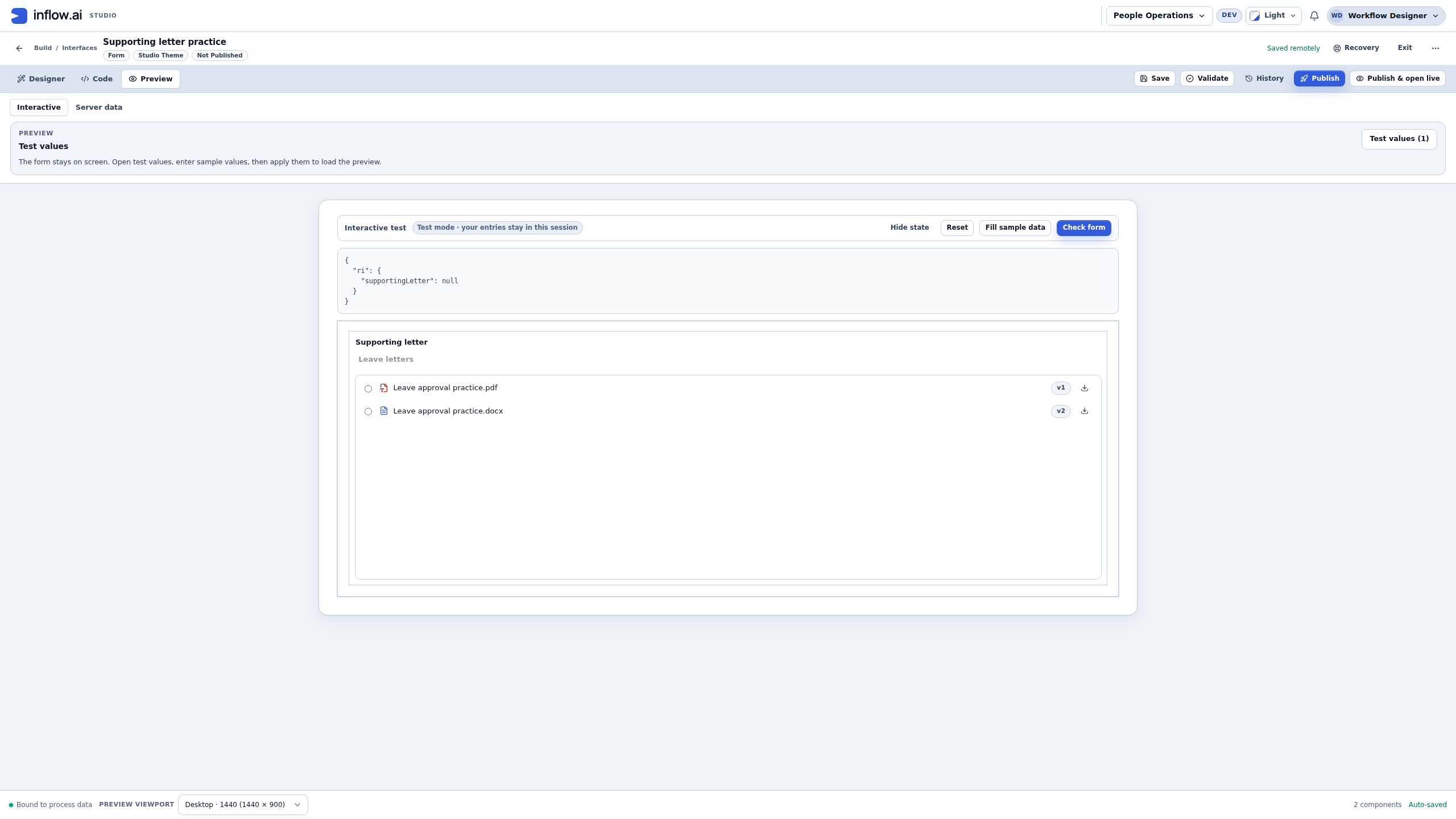
supportingLetterbecomesnull, both radios are clear, and both documents remain listed. Decide how the real form should handle a missing evidence answer before making it required or offering a business action. - Return to the saved draft and confirm that its intended cabinet, root, selection and binding remain configured. Reload only after the remote save is confirmed; in this practice the whole saved draft remains unchanged and a fresh local test has an empty answer. Keep local test selections separate from a task's submitted evidence and a durable record write.
Check your result: the form can represent one selected permitted document and clear or replace that local answer. The illustrated draft remains Not Published. The real task's output mapping and final saved evidence remain a separate participant journey.
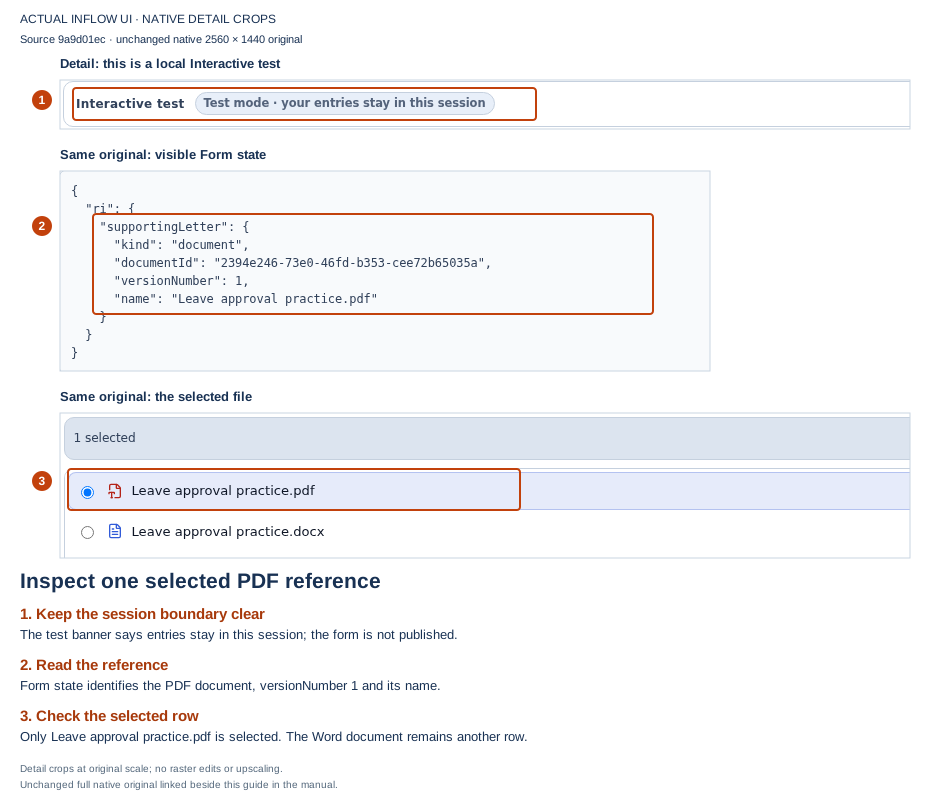
The chosen PDF is a reference in this test session.
Open the unchanged full-size screenshot.
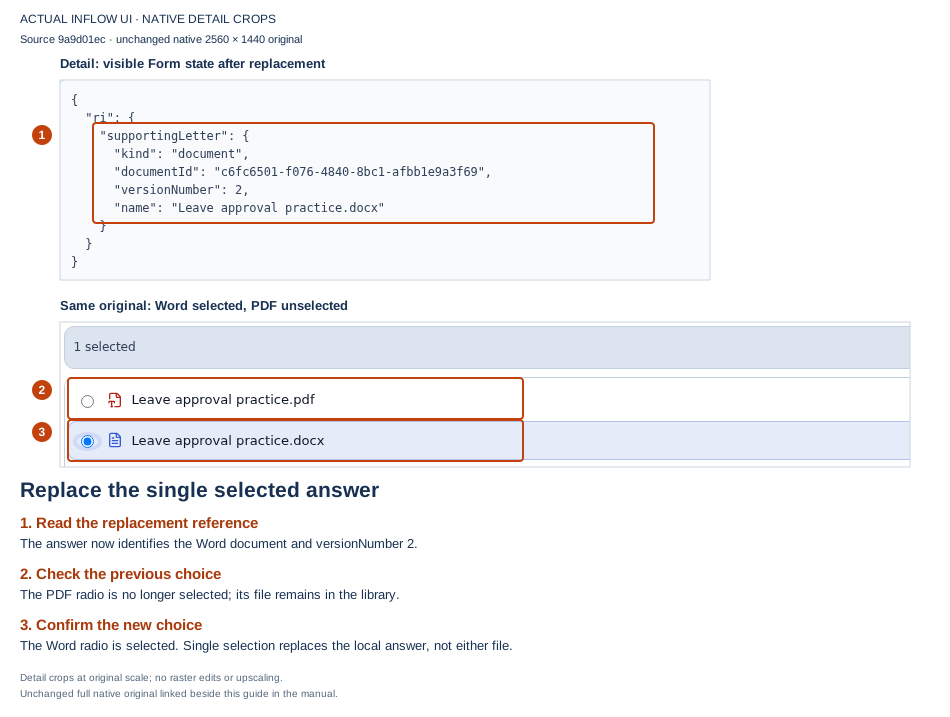
Single selection keeps one chosen reference.
Open the unchanged full-size screenshot.
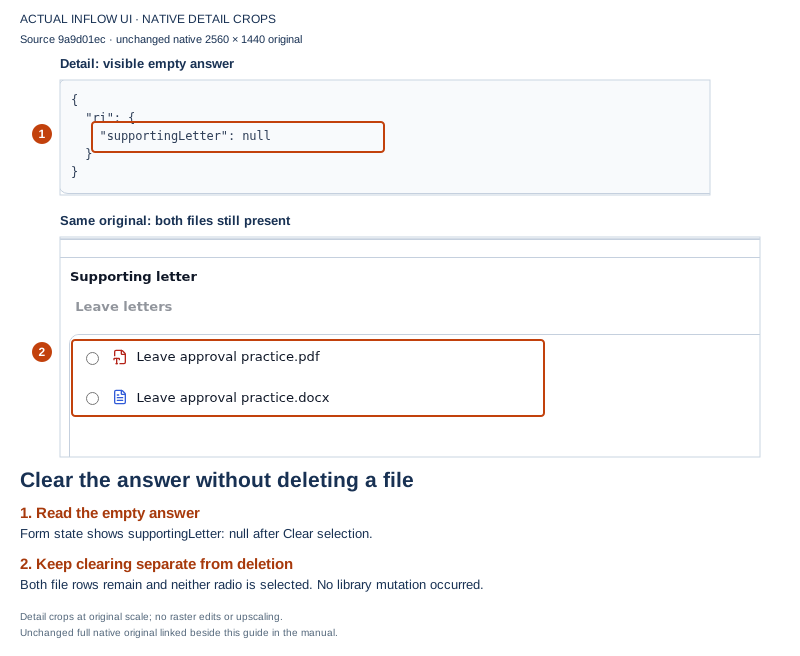
Clearing an answer leaves the library files intact.
Open the unchanged full-size screenshot.
Add a read-only library
- Open the intended interface in the designer.
- Add Document browser from the available control toolbox and select it.
- In Documents cabinet, choose the actual People Operations documents cabinet.
- In Root folder, choose the part of the library the page should expose, such as a Policies folder. Leave it empty only when browsing the whole cabinet is intended.
- Set Selection to none for browsing without collecting an answer.
- Turn off unneeded mutation features such as upload, move and delete. Leave only the allowed reader functions the page needs.
- Choose whether the folder tree suits the layout. Give the surrounding page a clear explanation of the library's purpose.
- Save, preview and publish the interface through its normal review.
Check your result: the page gives readers a useful library view without pretending the page itself grants file rights. Check its real behavior as an intended reader after the administrator has prepared the correct sharing.
Example: publish a leave-policy library
The employee page should let people read leave policies but not rearrange them.
- Configure the browser to open the actual policy cabinet/folder.
- Use Selection none, with allowed preview/download behavior and no employee upload/move/delete controls.
- Preview the page's layout, folder navigation and filenames.
- Ask an ordinary authorized employee to open a permitted policy and follow a link to another allowed folder under the chosen root.
- Check that unrelated navigation outside the configured root is not part of this browser's experience.
If the policy opens for Nadia but not for the employee, check the employee's actual document rights. Do not replace a protected policy with a publicly readable copy as a shortcut.
Collect one selected document
- Open the decision form in the designer and declare the intended document answer field using the supported field type.
- Add or select DocumentBrowser and choose the actual cabinet and root folder.
- Set Selection to single.
- Connect the browser's selected value to the compatible answer field through its binding setting.
- Configure only the allowed operations required for this task. A manager choosing existing evidence may not need to upload or delete anything.
- Preview a real permitted selection and check that the form receives one document answer, not a plain filename.
- Save/publish the form, then select that published form in the workflow and configure its allowed output where needed.
For multiple selection, the answer must be able to hold several documents. Do not bind it to a single-document field and expect the platform to guess which file to keep.
Worked example: bind one supporting letter to the form answer
Suppose the manager form needs one evidence answer called supportingLetter. Prepare the matching form input before connecting the browser:
- Open the form's Inputs list and look for
supportingLetter. Reuse it if it is already the intended answer and has the right type. Create it only if it is absent; set Name tosupportingLetter, Type to Document, and Cardinality to Single. Do not rename or change an existing input merely to follow the example. - Select the Document browser control. Set Selection to single, then choose the actual cabinet and the narrowest intended root folder. Turn on only the library actions needed for this form; a selection-only manager task normally needs no upload, move or delete control.
- In the browser's Data Binding setting, select Store value in. Open Browse all fields, inspect the displayed field type and path, choose the
supportingLetterinput only when it is the Document / Single answer, then select Use field. The chooser can include fields of other types, so confirm the type yourself before binding. - Save the draft and use Preview to inspect the layout and sample behavior. In a real permitted form session, selecting one file writes one document reference to the form answer. The reference includes the document ID, the selected current version number and the name; it is not the file's contents.
- In single-selection mode, selecting another file replaces the chosen reference. Clearing or deselecting it leaves the answer empty. Check both states in the actual intended form; do not assume that an old selection remains after clearing.
- If the form participates in a workflow, configure the task's supported output mapping separately so the intended process/business answer receives
supportingLetter. The screen input binding, the workflow output mapping, and a durable record write are separate steps. Confirm each one with the appropriate owner; do not treat a correct Preview as proof that a live task or business record stored the reference.
Use the exact source and ordinary user's document access for the final check. The steps above explain the authoring contract; actual task execution, output mapping and persistence readback remain pending until the matching current training source, build, fixture and normal actor are admitted.
Example: Sara selects supporting evidence
Sara should choose one supporting letter when completing a manager task.
- Nadia prepares a single-document answer and confines the browser to Leave evidence.
- Sara opens the actual task and selects the relevant document through the browser.
- She checks the document/version shown by the form and reads the file where permitted.
- She completes the actual business decision; merely selecting a file is not approval.
- Nadia checks the task/process result to confirm that the intended document answer was kept by the configured output mapping.
A later upload can create a newer document version. If the task retains the version Sara reviewed, that older reference still describes her actual evidence. Do not automatically call it the latest letter.
Wait for a form upload before the action
Document browser selects documents that are already in the library. A FileUpload control sends a new file. If the form uses FileUpload and a button action depends on that uploaded document, check the form's upload result before treating the action as complete.
In the live form, a button action waits for uploads already in progress before dispatching its supported action. A failed upload can stop that pending action; the form must not summarize or submit as if the missing document were available. A replacement or cancelled upload can also invalidate the pending action. Do not click repeatedly to force it through.
- Confirm that the FileUpload control is configured for the intended document destination and that its answer is connected to the form's supported document field.
- In the actual live task, select the approved file and read its individual result. A selected filename while the row is still uploading is not yet a completed attachment.
- If the participant starts the configured button or submit action while the upload is in flight, wait for it to finish. The tested live-form paths hold the action until the pending upload result is known.
- If the upload fails, is replaced, or has an unknown result, follow that row's offered recovery before starting the action again. After the action runs, verify its task/record result separately.
Example: Sara attaches a letter before requesting a summary
Sara selects the approved fictional letter and immediately starts the configured Summarize action. The action waits while the upload finishes; only then can it use the attachment. If the upload fails, the pending action does not run. Sara reads that row's result, follows its offered retry, reselection or stored-content check, and starts the action once. After it succeeds, she checks the resulting document reference and summary, then verifies the task or record submission separately.
This wait prevents an action from reading an attachment value before its upload has finished. It does not make Preview a saved upload, grant document access, or prove that a later task decision or record submission succeeded. For batch-level and file-by-file recovery, follow the document upload guidance.
Common mistakes
| Problem | What to check |
|---|---|
| No library loads. | Select an actual Documents cabinet and check the intended person's access. |
| Users can browse more than the page should expose. | Choose the correct Root folder and test its navigation boundary. |
| The form does not retain the selection. | Check Selection, the compatible bound answer field and the task's allowed output mapping. |
| Several files cannot fit the answer. | Use a collection-compatible answer for multiple selection or choose single selection. |
| A mutation button is absent or unavailable. | The page option, real document permissions and current selection/state all matter. |
| The interface preview looked correct, but the manager cannot open a file. | Preview by the builder is not proof of the manager's document access. |
Where to go next
Continue with Create a PDF from a Word document. For implementation contracts and administrator/developer details, use the optional technical reference. You do not need that reference to follow this lesson.