Give people the right workspace and function access
Access answers a practical question: what may this person do here? A consultant building a form, a reviewer inspecting its design, and an employee submitting a leave request need different access. Start with the person's job and the place where it happens.
This lesson follows an administrator through a complete, reversible configuration exercise: check an ordinary user's starting workspace role, save Viewer, inspect the inherited function role, save one local exception, compare a sibling, and restore inheritance. You will learn what to click and how to read the saved result.
Screenshot context: The fourteen numbered figures use actual native 2560×1440 screens from the build of master commit 52464bc2c0, fetched and built for this run on 16 November 2026. Narrow drawers and dialogs are shown as readable detail crops; each caption links to the unchanged full original. Workflow Designer signed in normally and created the isolated synthetic People Operations Access Practice workspace (access_practice_20261116) through the standard Human Resources wizard. The creator is Admin in this new workspace, while remaining Editor in the original People Operations workspace. Task Worker (worker) is an existing synthetic account used as the checked subject. No new account or password was created. These screens show saved access configuration and administrator readouts; they do not show Task Worker signing in or exercising application, record or task permissions.
Before you begin
Use an approved practice workspace and existing synthetic people for a training exercise. In a real workspace, obtain the owner's requested scope and intended outcome before saving access changes. You need authority to manage grants at that scope. If the controls are absent, have the authorized owner perform the change; do not increase your own role to expose them.
Write down three things:
| Question | Practice answer | Why it matters |
|---|---|---|
| Which person? | Task Worker, username worker, synthetic email worker@inflow.local |
Similar display names can identify different people. Select the actual person returned by the picker. |
| Which place? | People Operations Access Practice, then its Leave Management function | The original People Operations project is a separate workspace. Its roles must remain unchanged. |
| What should remain? | Workspace Viewer and Payroll Viewer while a temporary Leave Management exception is active | A local exception should not become a workspace-wide membership removal. |
The new practice workspace has five functions: General, Recruitment, Payroll, Leave Management and Performance. Creating that starting structure did not create a leave form, business record, approval process or published application. If you already have an approved practice workspace, reuse it; creating a new workspace is not a prerequisite for every access review.
Choose the boundary before choosing a role
| Request | First place to investigate | What this does not settle |
|---|---|---|
| “Let Omar help build this project.” | Workspace Security, then the relevant function or object | Published employee-app access, individual records and manager tasks |
| “Let Sara inspect these leave forms, but restrict this other function.” | Each relevant function's Security drawer and any nearer object decision | All asset types, business-record policy or workflow eligibility |
| “Let Mohammad submit a vacation request.” | The published application's own user-access setup | Studio authoring or workspace administration |
| “Why can this manager not approve this request?” | Actual workflow task assignment and participant eligibility | A group merely named Managers is not sufficient proof |
| “This consultant cannot open a data model or document.” | Workspace and that object's access | A function grant does not govern these asset families |
Business-function access applies to lifecycles, rules, forms, dashboards and App Shells. Data models, fabrics, connected systems, integrations and documents follow workspace and object access. For an individual function-governed asset, a nearer object decision may be considered before its function role. Do not promise “every asset in Leave Management is denied” from a function row alone.
A hidden control is a presentation outcome, not the whole security boundary. The server must authorize the requested operation. Conversely, a copied URL is not a way around an unavailable item. Use the appropriate owner and actual scope to investigate it.
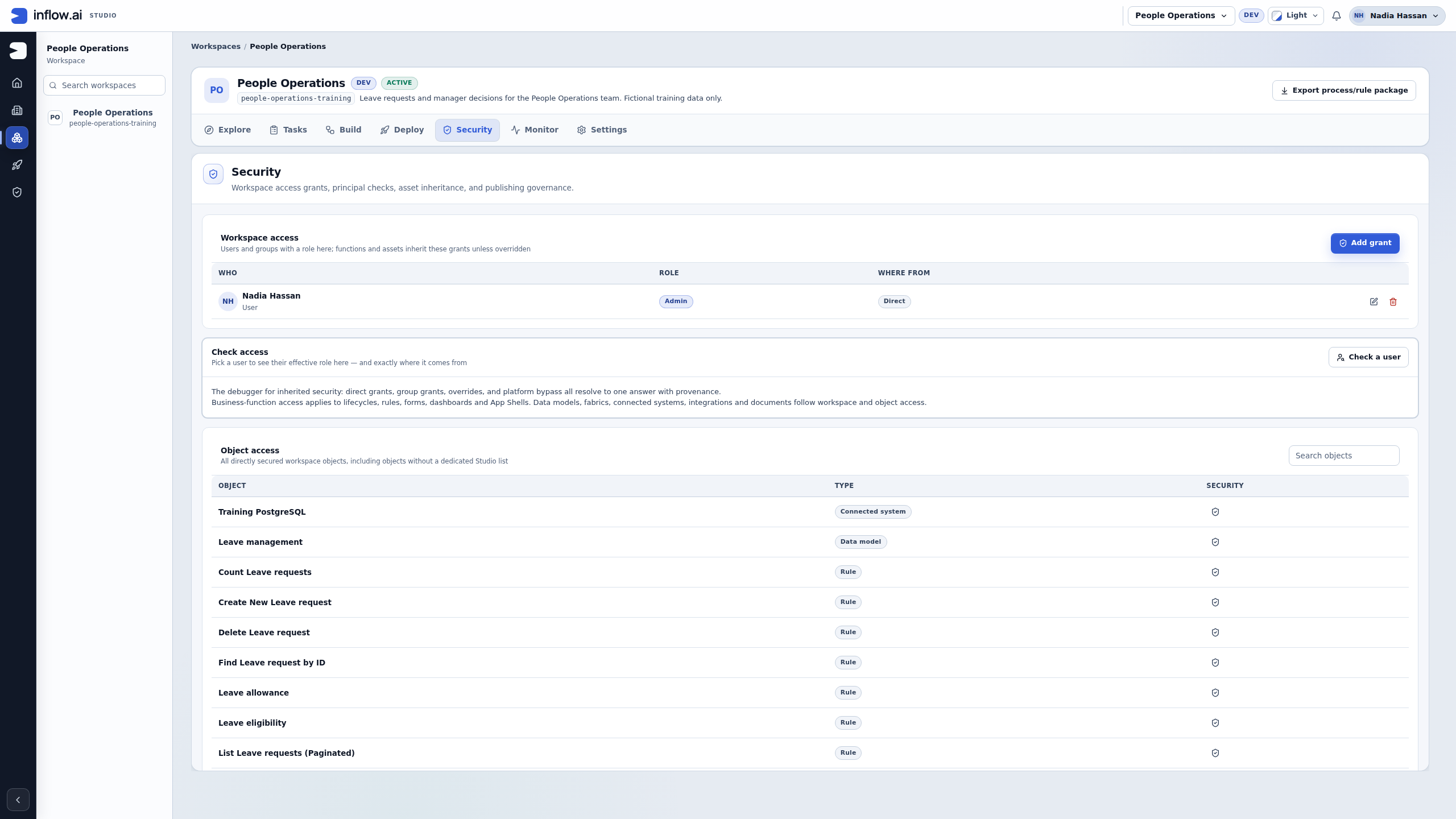
Read the workspace Security screen
- Open Workspaces and select the intended workspace. Confirm its name and stable key in the header.
- Choose its Security tab.
- Read Workspace access. Each row names a user or group, its role, and Where from.
- Locate the separate Check access panel. Its Check a user control checks one actual user at the workspace scope.
- Keep Object access separate. It lists directly secured objects that you may inspect; it is not a summary of every record or every effective permission.
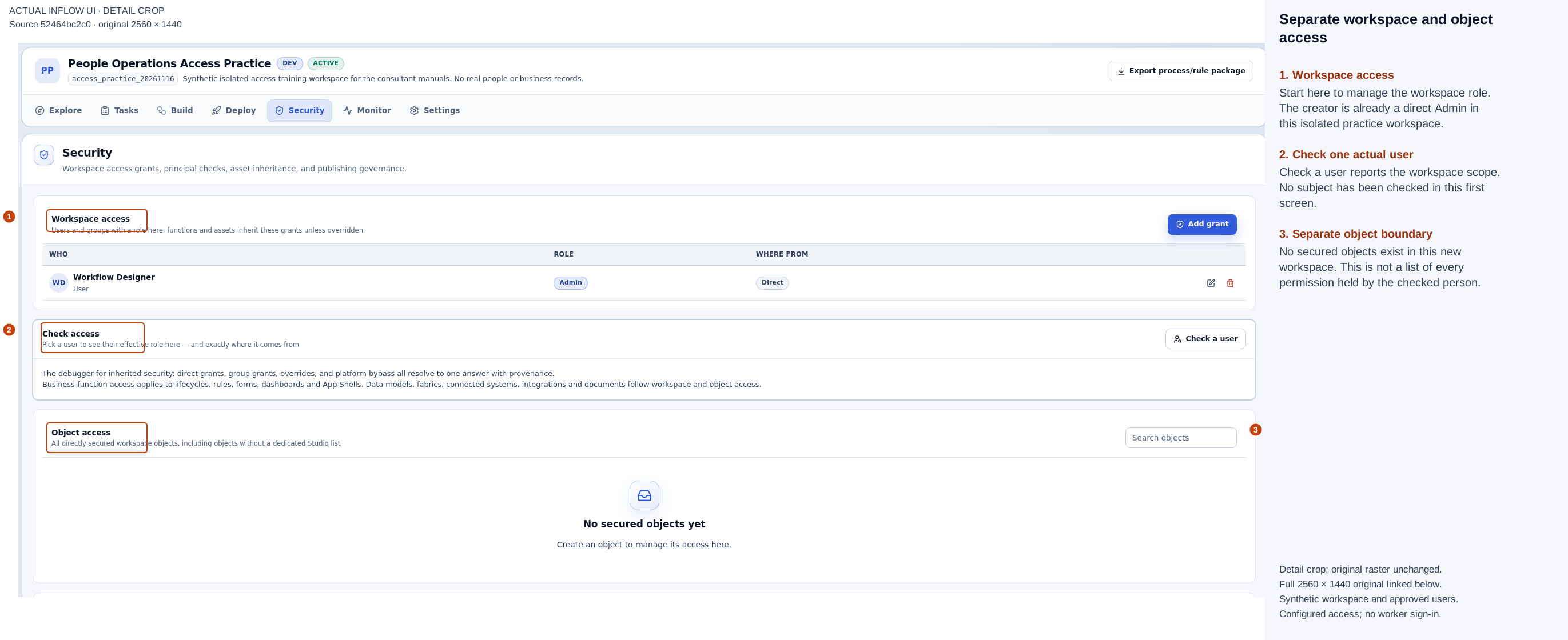
Numbered detail view from the actual 16 November 2026 screen, source 52464bc2c0. The crop and marks are editorial guidance; the original raster is unchanged. Open the full 2560×1440 original. Only the new workspace creator has a direct Admin grant at this point. Publishing governance and permanent-removal policy were not changed.
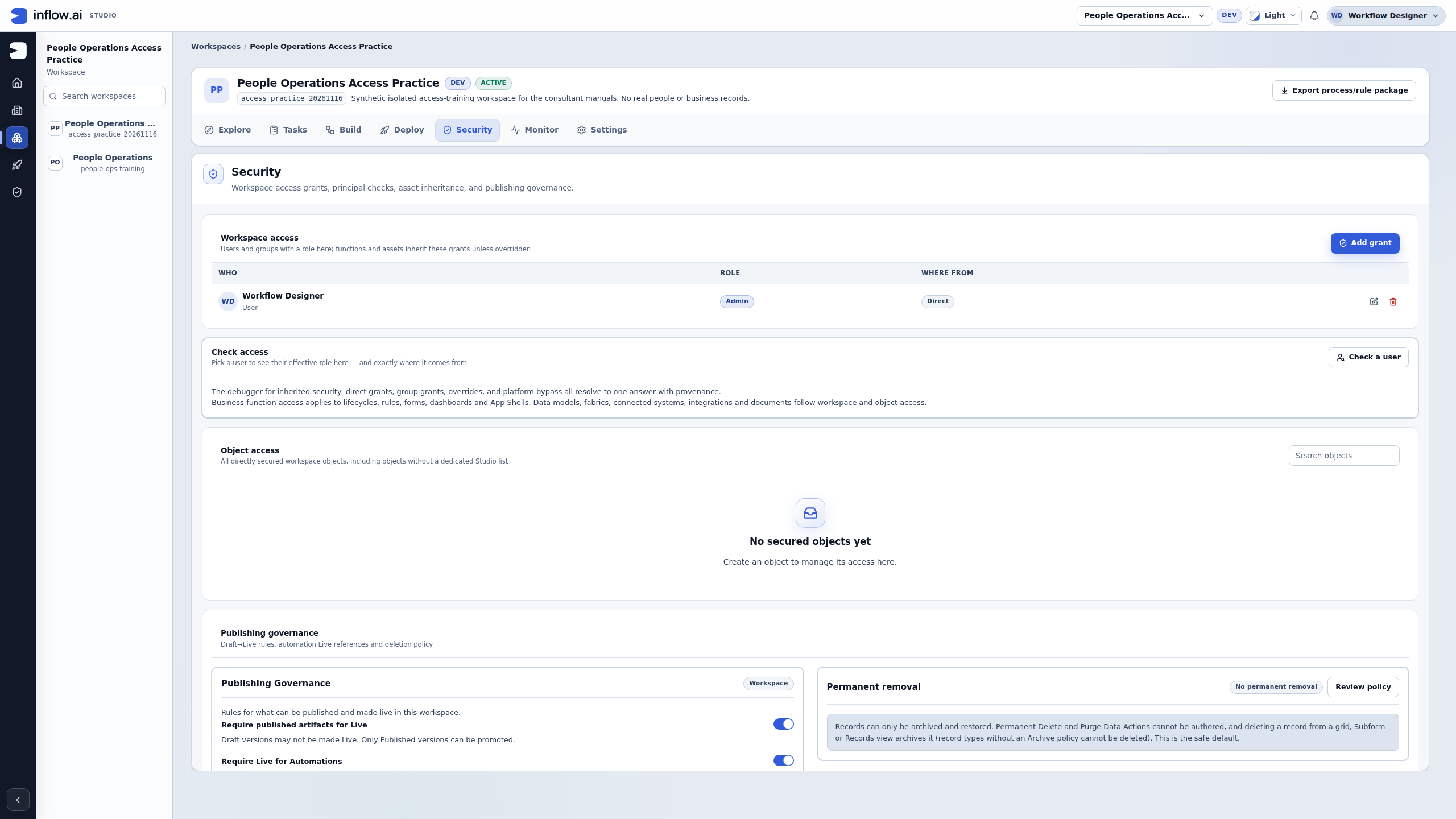
Check the result: make sure the workspace header matches the request before using Add grant. In the practice screen, the creator's Admin role is a saved result of normal creation, not a suggested default for every consultant or employee.
Check the starting role for Task Worker
- In the workspace Security tab, choose Check a user.
- Select Task Worker —
worker@inflow.localin the single-user picker. - Choose Check access.
- Read the returned person, role and explanation together. If the result is unavailable or the service reports an error, record “could not check” and resolve that condition; do not translate it into “allowed” or “denied.”
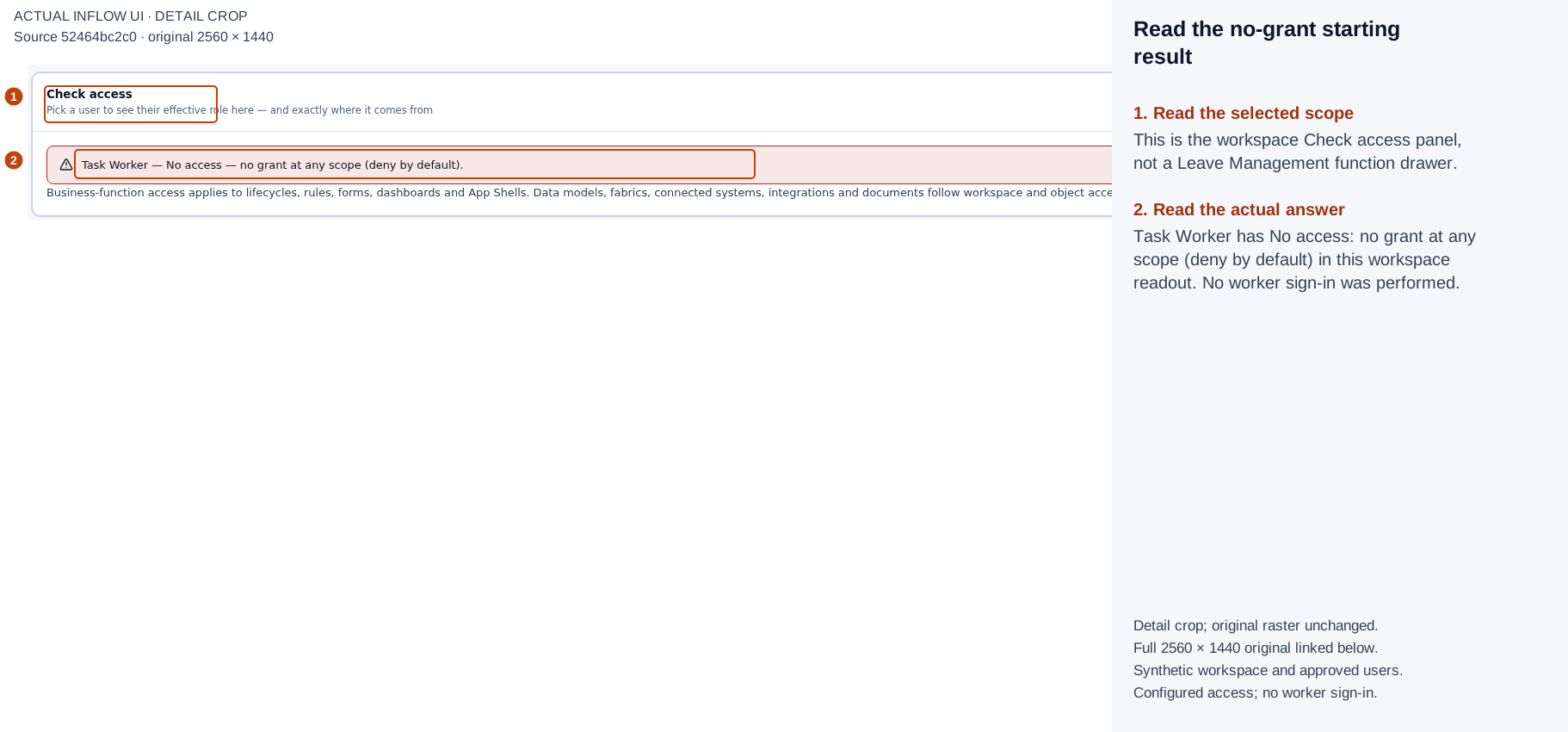
Numbered detail view from the actual 16 November 2026 screen, source 52464bc2c0. The crop and marks are editorial guidance; the original raster is unchanged. Open the full 2560×1440 original. This result was captured before adding the Viewer grant. It is a workspace configuration readout, not a worker sign-in or an asset-access test.
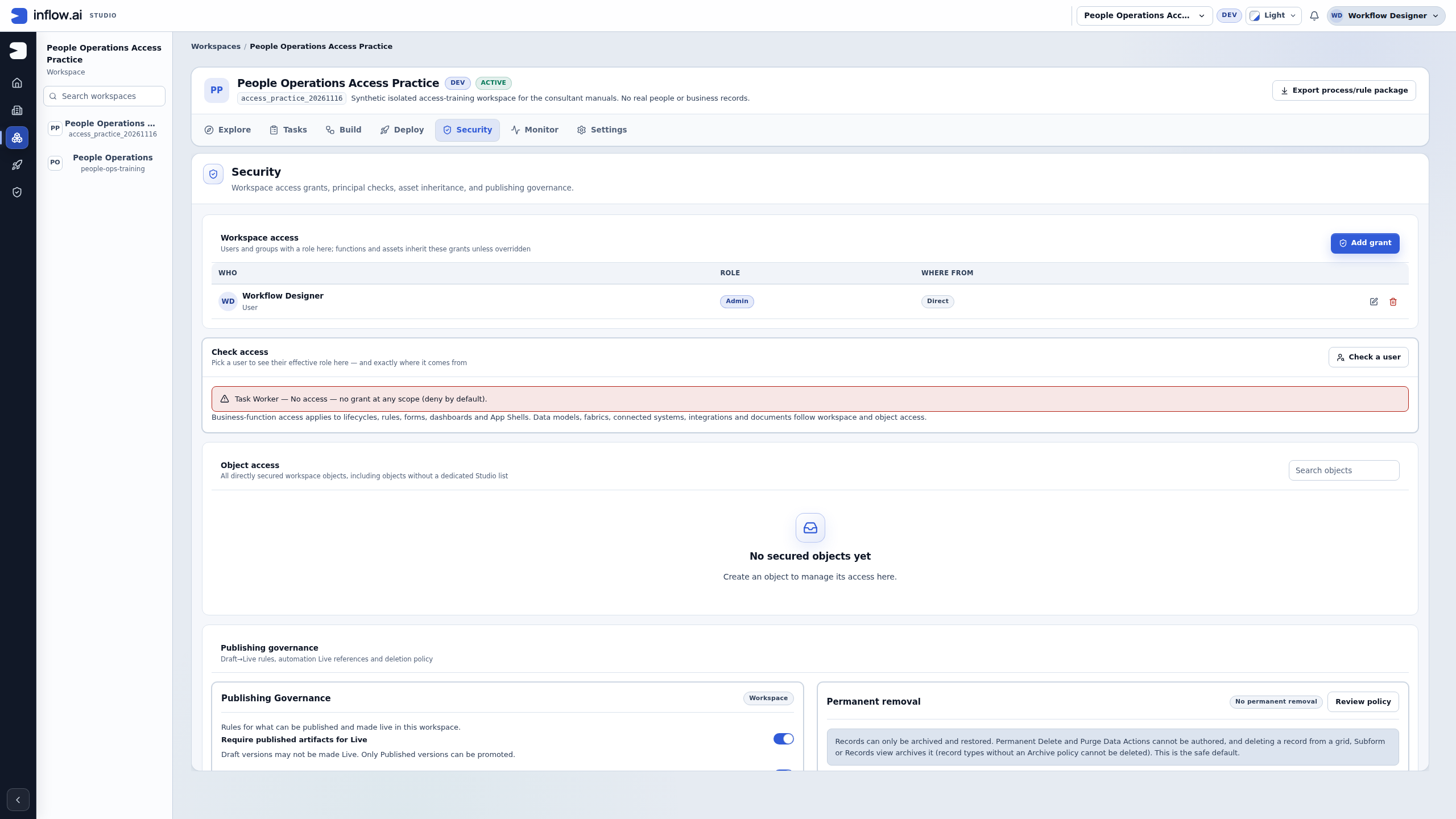
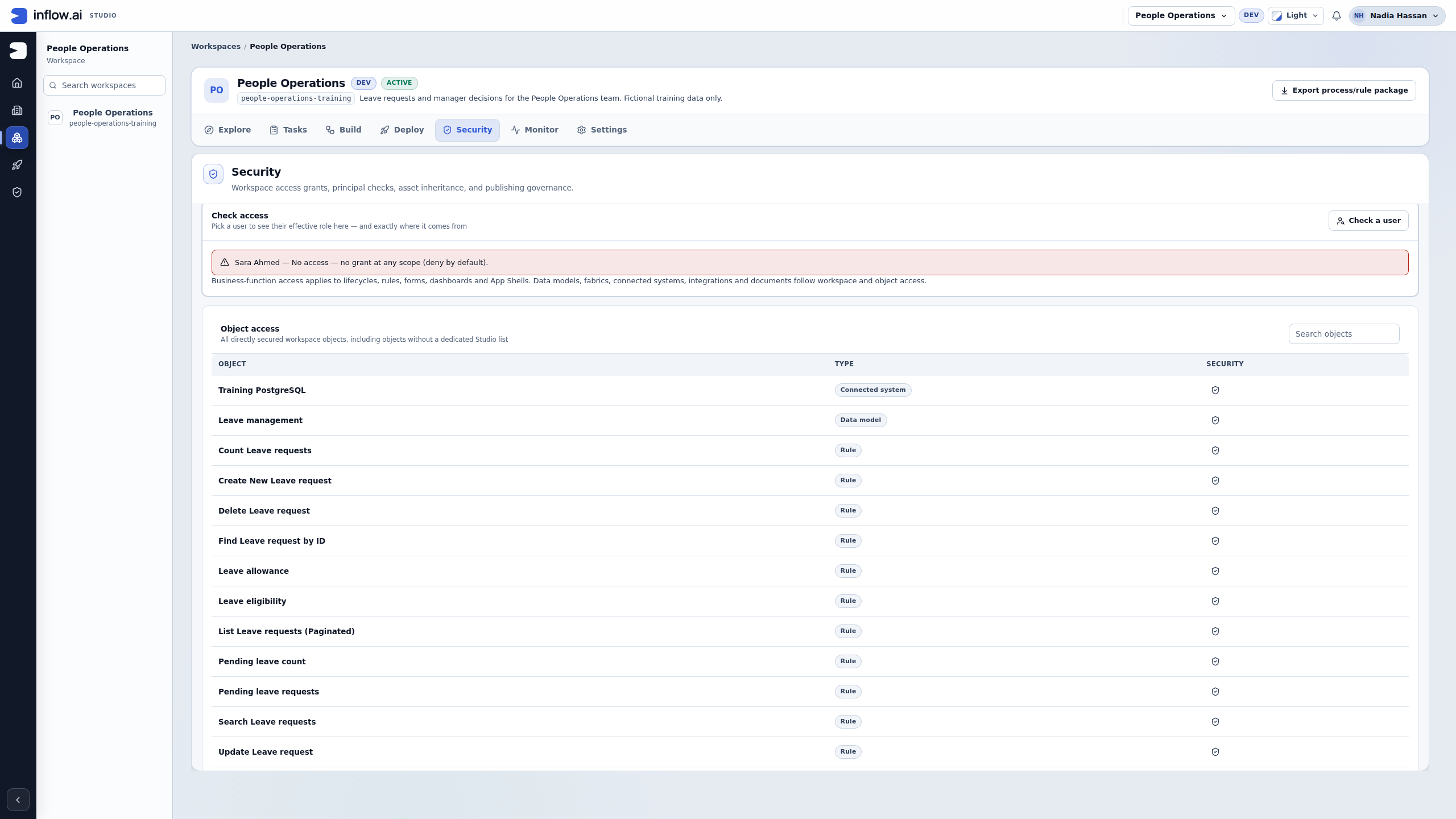
The starting answer in this isolated workspace is No access — no grant at any scope (deny by default). That is different from a later explicit None override: here no suitable workspace grant exists; later we will save a deliberate local decision at one function.
Save a workspace Viewer grant and read it back
Task Worker needs to inspect the practice workspace without becoming a builder or access administrator. The approved exercise therefore uses Viewer. Use the role appropriate to the actual job in your own workspace.
Select the actual person
- In Workspace access, choose Add grant.
- Search for the intended existing person by name, username or email if necessary.
- Select the correct Task Worker user entry. Check the email and selected count.
- Leave unrelated people and groups unselected. If several principals are selected, the next role applies to all of them; split the operation when responsibilities differ.
- Choose Choose role. The next dialog is titled Set role.
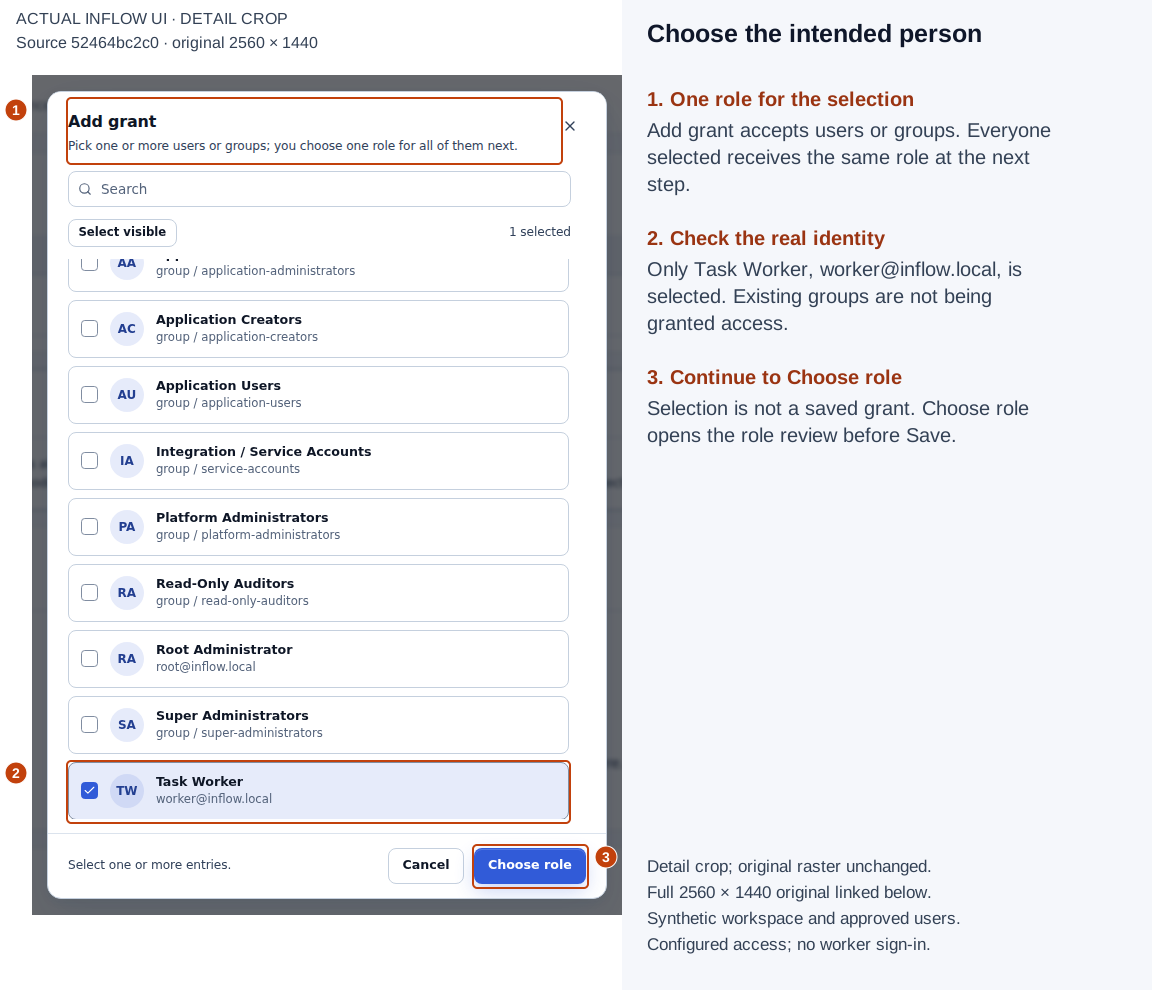
Numbered detail view from the actual 16 November 2026 screen, source 52464bc2c0. The crop and marks are editorial guidance; the original raster is unchanged. Open the full 2560×1440 original. This picker returned the eligible existing user. A selection alone has not saved a grant; group names visible in the catalogue were not selected or changed.
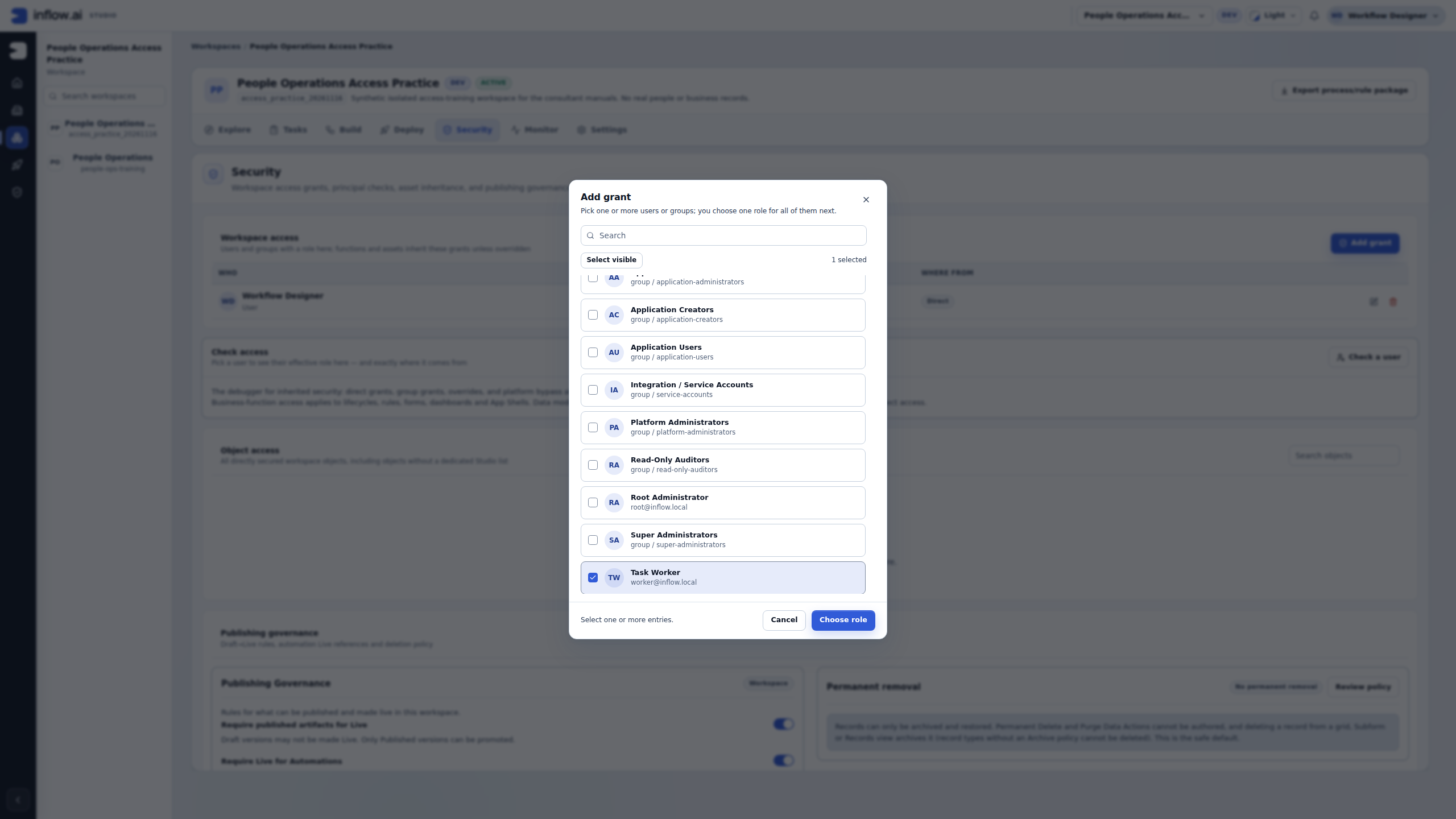
An entry that is already granted may be marked unavailable in this picker. Inspect its existing row rather than creating a second access path around the condition. A missing result needs investigation; it is not proof that the account does not exist.
Review the role before Save
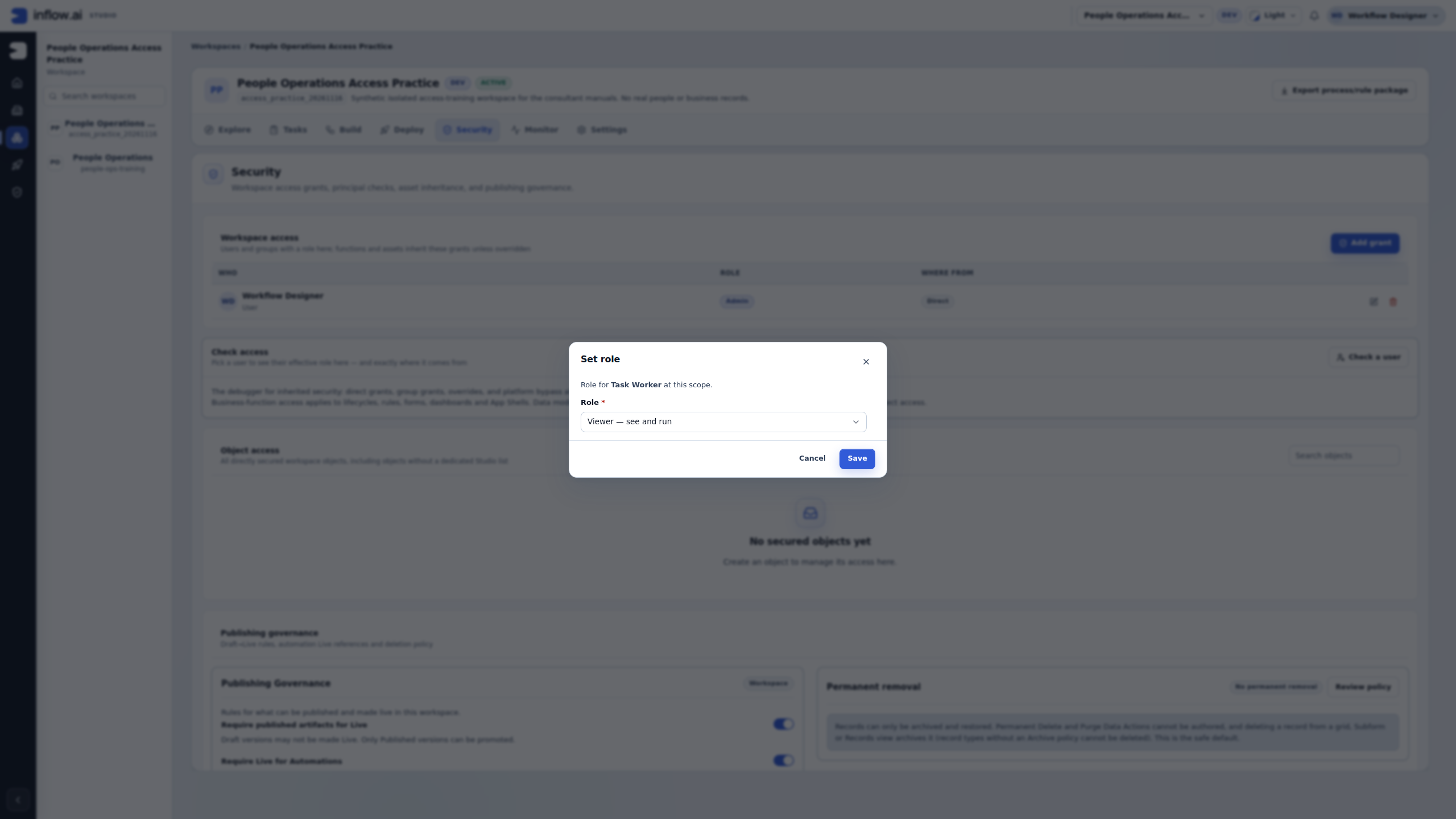
- In Set role, confirm that the dialog names Task Worker.
- Open Role and select Viewer — see and run.
- Compare the selected role to the requested job. Viewer does not mean unrestricted execution of every asset, access to all business records, or eligibility for every task.
- Choose Save once. Wait for the operation to settle before deciding whether to retry.
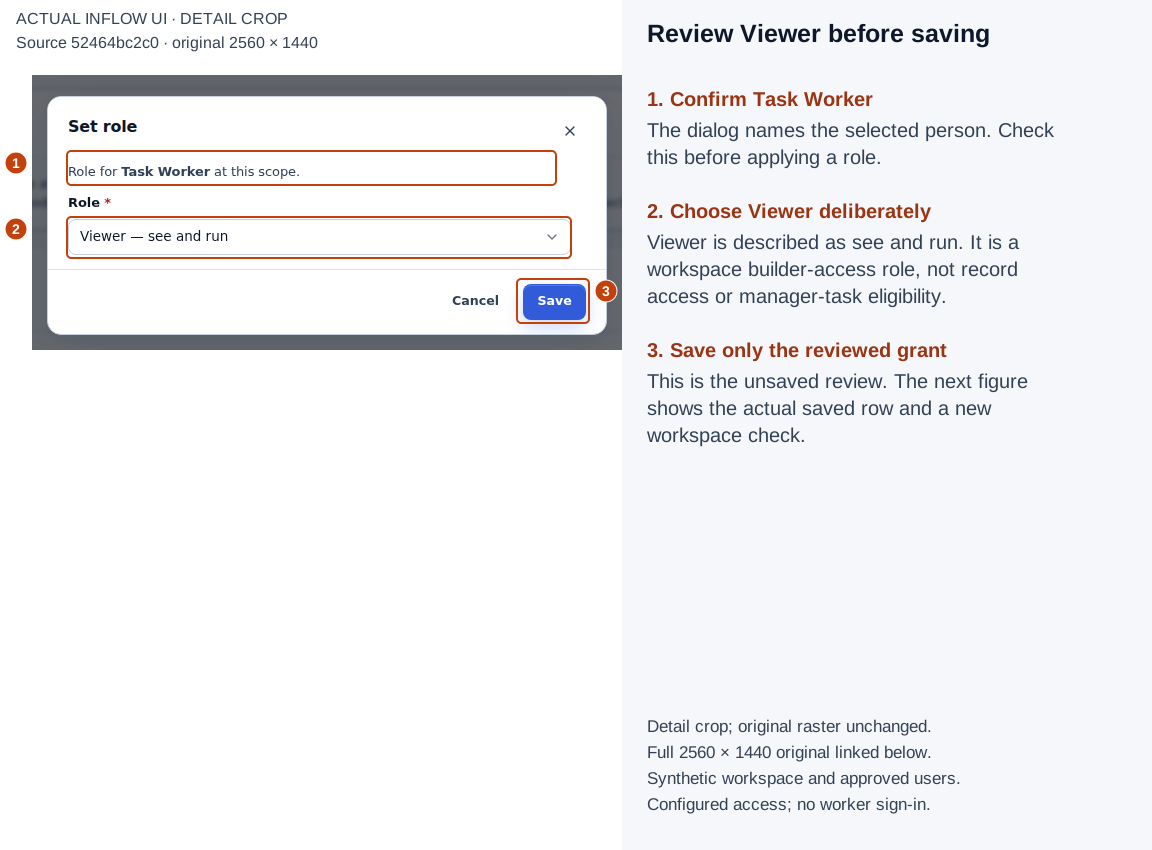
Numbered detail view from the actual 16 November 2026 screen, source 52464bc2c0. The crop and marks are editorial guidance; the original raster is unchanged. Open the full 2560×1440 original. The actual saved row is shown next. The practice did not grant Editor, Admin or a group role.
Confirm the saved role and check again
- In the refreshed workspace table, find Task Worker. Confirm Viewer and Direct.
- Confirm that the creator's Admin row remains unchanged.
- Choose Check a user, select Task Worker again and run Check access. Do not rely on a result produced before the save.
- Read the new result and its source. In this run it reports Task Worker — Viewer — inherited from the workspace, with the grant time.
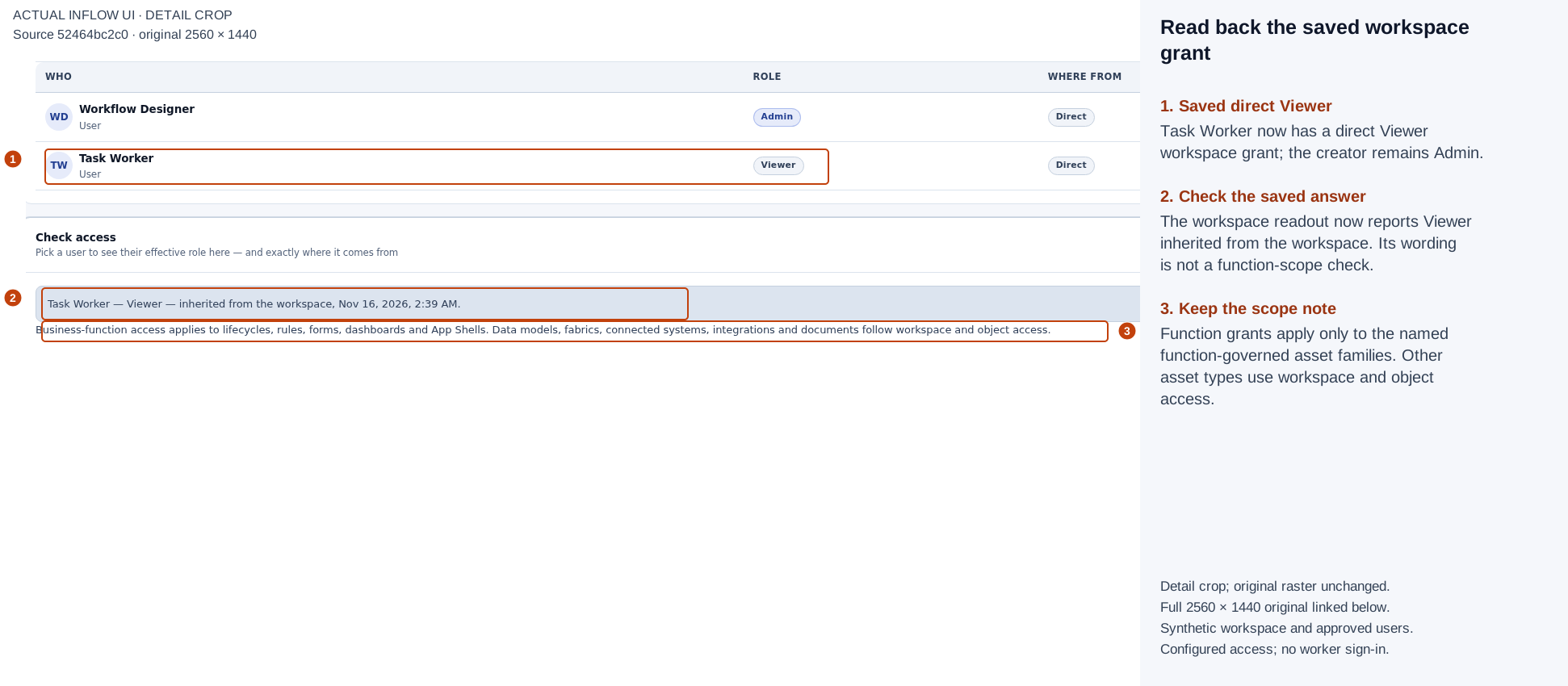
Numbered detail view from the actual 16 November 2026 screen, source 52464bc2c0. The crop and marks are editorial guidance; the original raster is unchanged. Open the full 2560×1440 original. The table calls the workspace grant Direct, while the check result uses “inherited from the workspace.” Both belong to this workspace screen; the wording does not turn this into a function check.
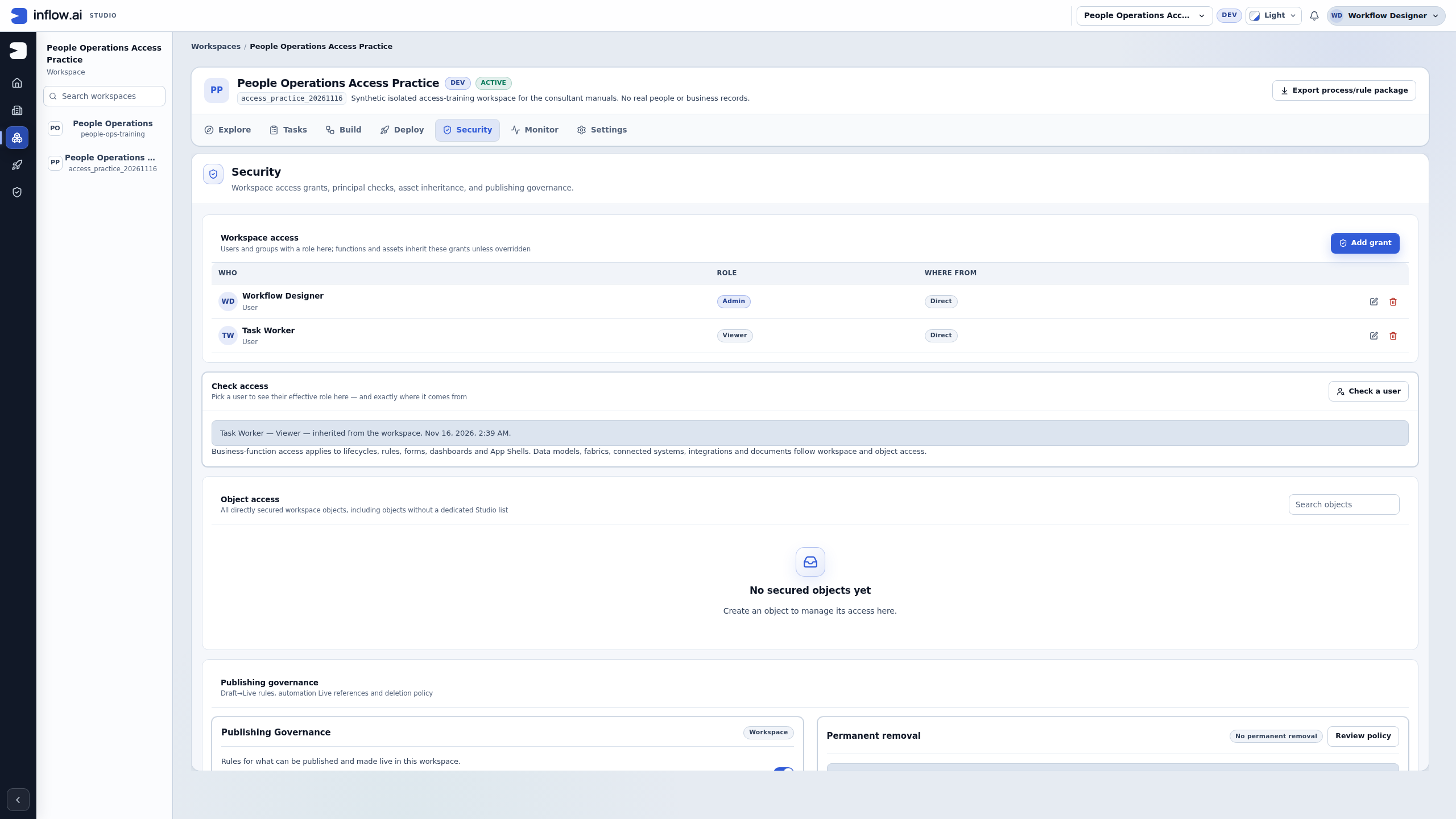
Check the result: the saved workspace grant also appears as Task Worker's Viewer membership in this practice workspace. The exercise retained that grant. It did not change Task Worker's Viewer membership in the original People Operations workspace or grant access to a published employee application.
Inspect inherited access at one function
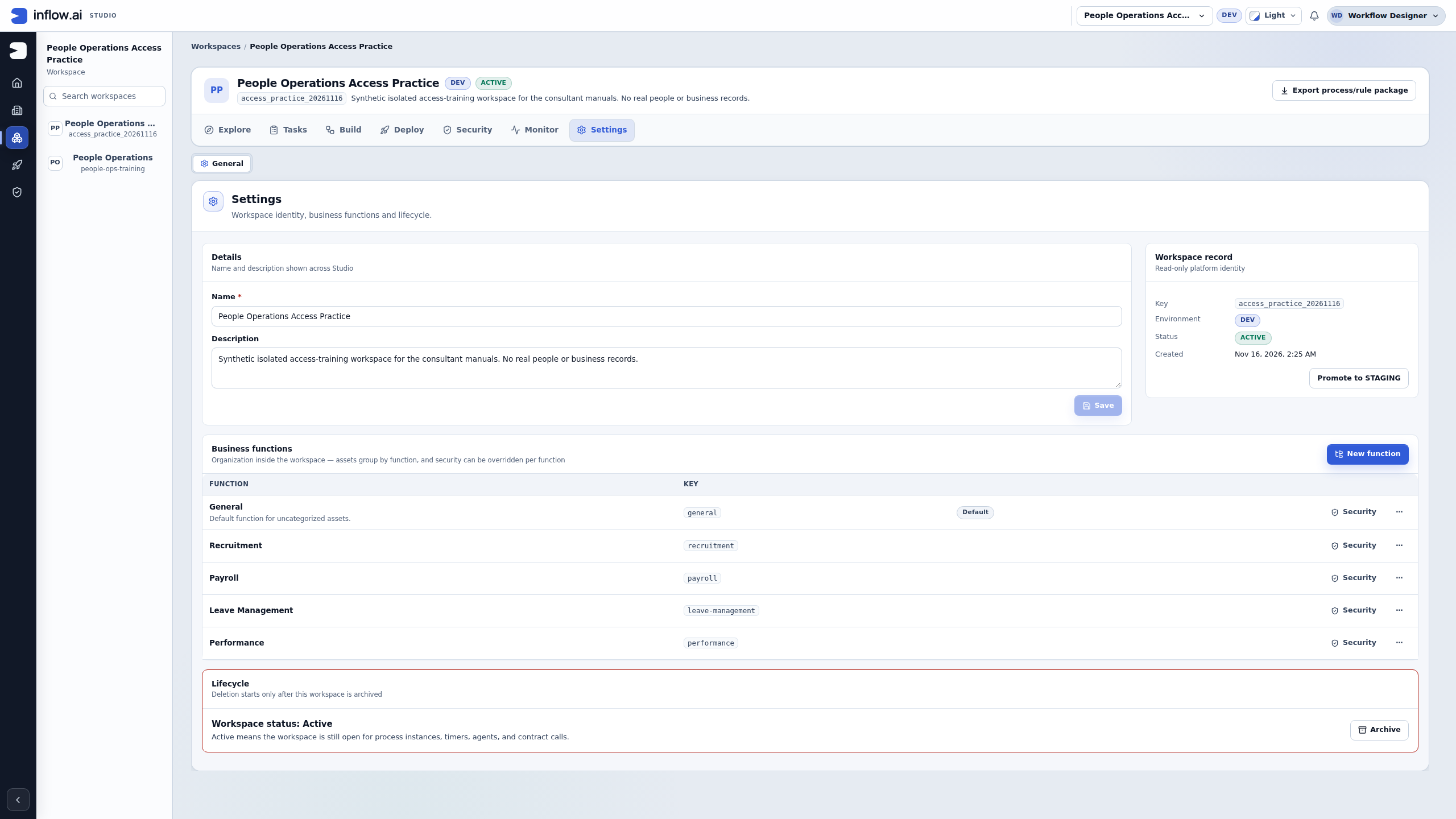
- Open the same workspace's Settings tab.
- Find Business functions.
- Locate the row named Leave Management, key
leave-management. - Choose Security on that exact row. Avoid the neighbouring Payroll or Recruitment action.
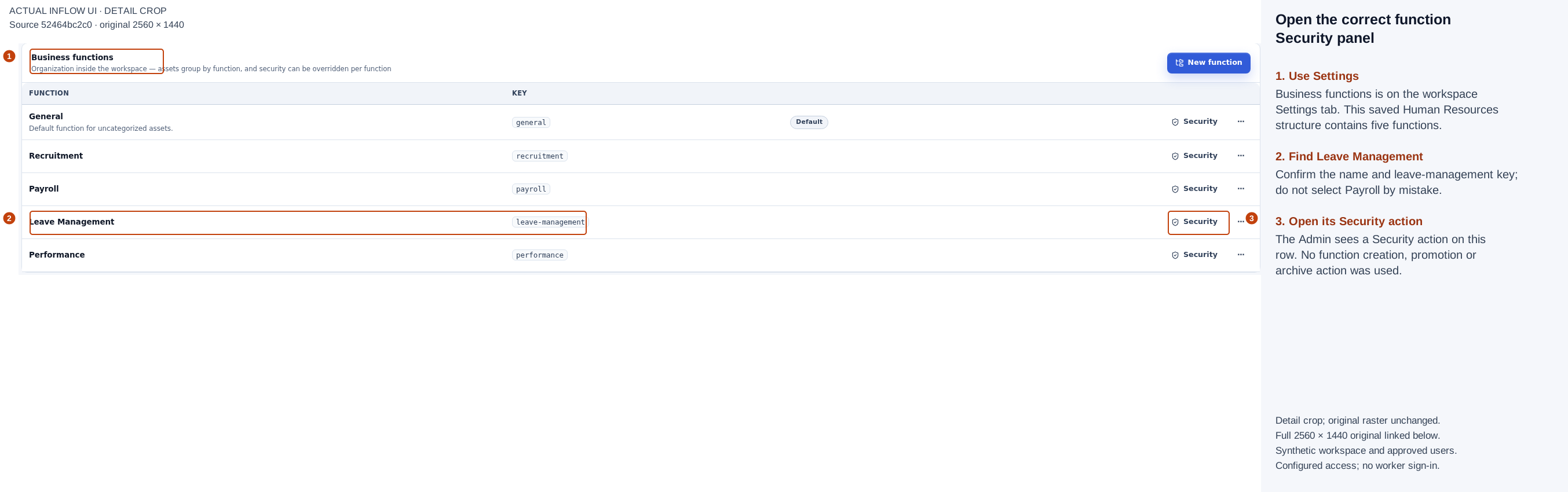
Numbered detail view from the actual 16 November 2026 screen, source 52464bc2c0. The crop and marks are editorial guidance; the original raster is unchanged. Open the full 2560×1440 original. The creator Admin can see the per-function management actions. The exercise opened Security; it did not create, rename, move, archive or promote a function or workspace.
Read the role and source together
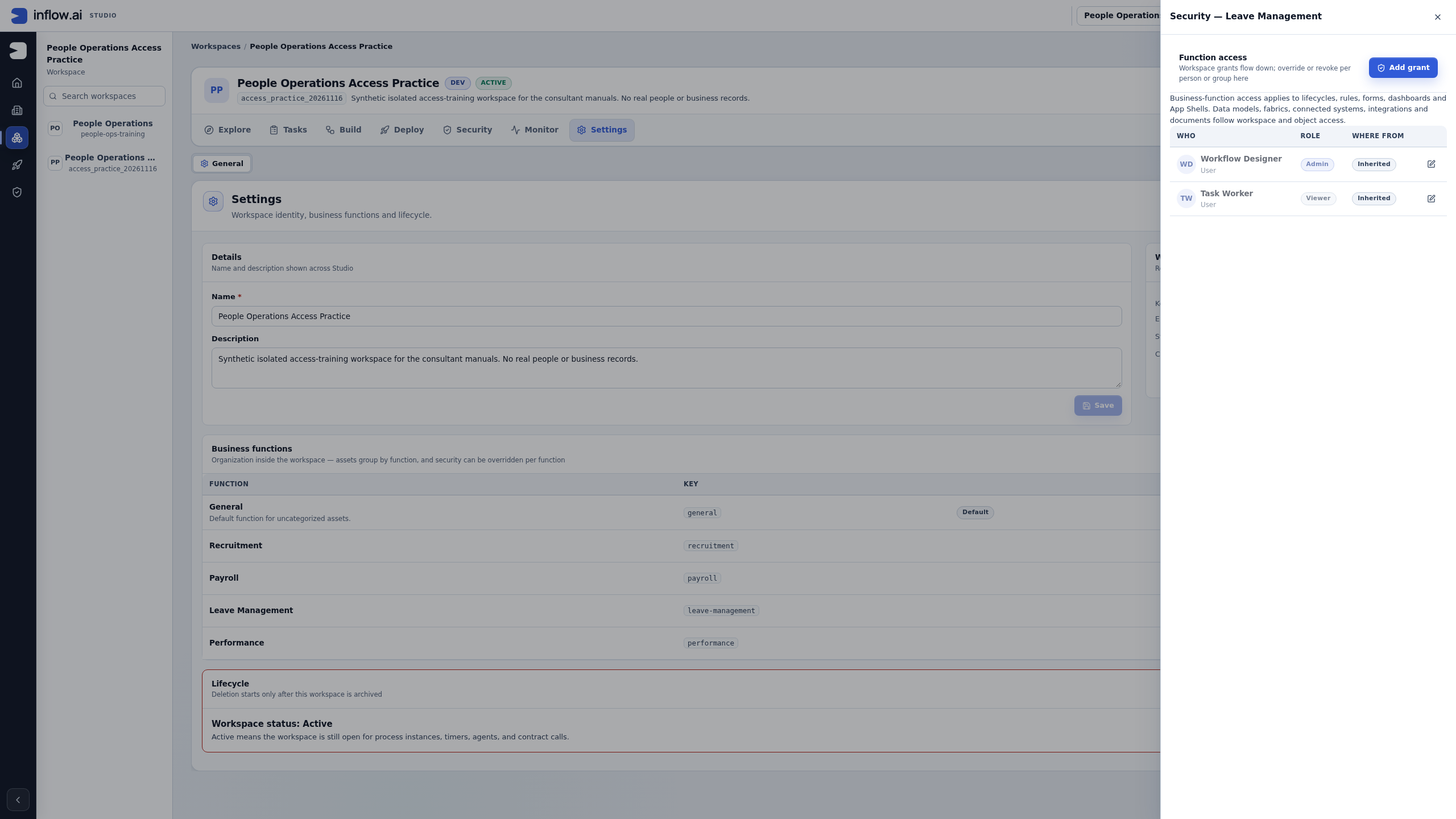
- Confirm the drawer title is Security — Leave Management.
- Find Task Worker in Function access.
- Read Viewer and Inherited. This row currently flows from the workspace grant.
- Read the scope note above the table. It lists the asset families governed by function access.
- Leave the creator's inherited Admin role unchanged.
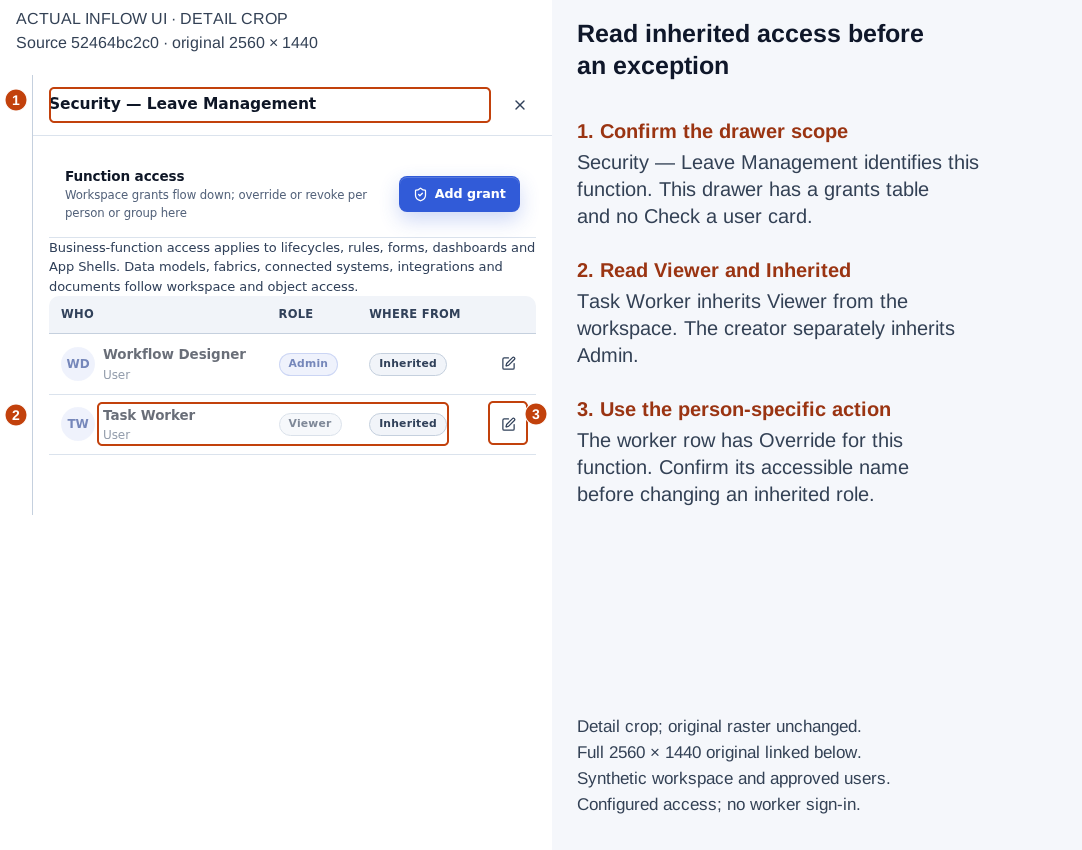
Numbered detail view from the actual 16 November 2026 screen, source 52464bc2c0. The crop and marks are editorial guidance; the original raster is unchanged. Open the full 2560×1440 original. This actual function drawer contains the grants table. It has no Check a user or Check access card. Do not search for a function-level checker that is not rendered here.
The three source labels answer different questions:
| Where from | Meaning | Appropriate next step |
|---|---|---|
| Direct | The entry is granted at the displayed scope | Review the person, role and scope before changing or removing it. |
| Inherited | The role flows from a broader place | Inspect the origin before creating a local exception. |
| Override | A local decision is stored for that principal at this scope | Review whether the exception is still required; use Restore inheritance to remove the local entry when appropriate. |
An empty local table is not automatically “nobody has access.” Broader grants may still apply. A table row is also not proof that a particular user successfully opened a particular asset. Use actual user/asset checks for that acceptance question.
Make a temporary user-level exception
In this exercise, the ordinary Task Worker subject should retain the practice workspace Viewer role while the Leave Management function scope temporarily resolves to no access. Payroll should continue inheriting Viewer. This is a configuration demonstration, not a recommendation to block every reviewer or employee from a whole function.
This exercise uses an ordinary Viewer subject. For a user admitted to the workspace, an effective workspace Admin role provides recovery access ahead of lower function/object decisions. A separate safeguard prevents removing, downgrading or revoking the last effective workspace Admin grant; platform-administrator bypass is another distinct path. Do not use this ordinary-user example as an administrator-removal procedure. Where multiple groups or nearer object decisions exist, inspect those sources before changing the result.
Select None for the worker at Leave Management
- In Security — Leave Management, identify Task Worker's inherited Viewer row.
- Use that row's Override for this function action. It may be an icon: inspect its accessible name or tooltip rather than guessing from its position.
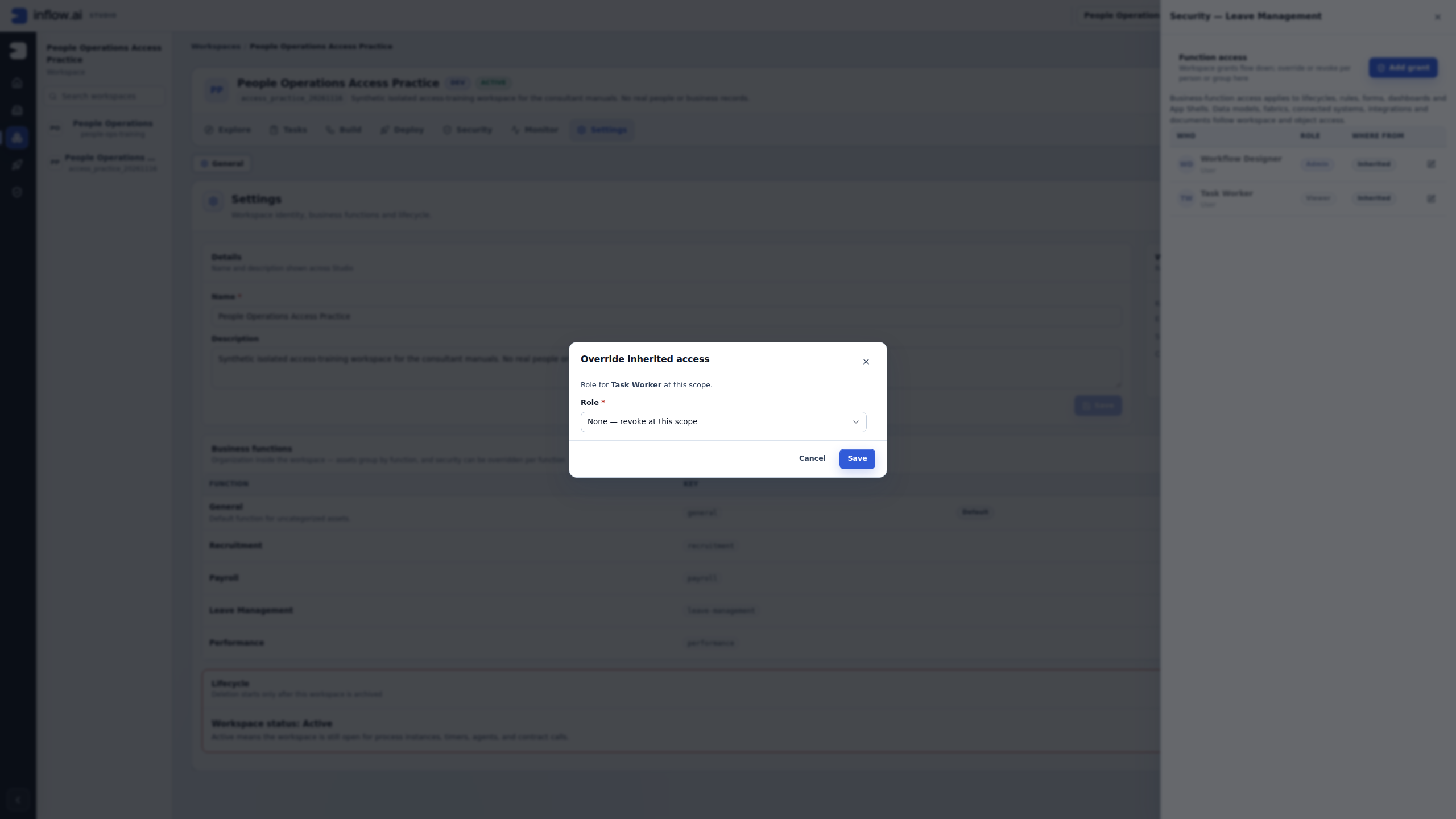
- In Override inherited access, confirm the text names Task Worker.
- Select None — revoke at this scope.
- Choose Save to review the required confirmation.
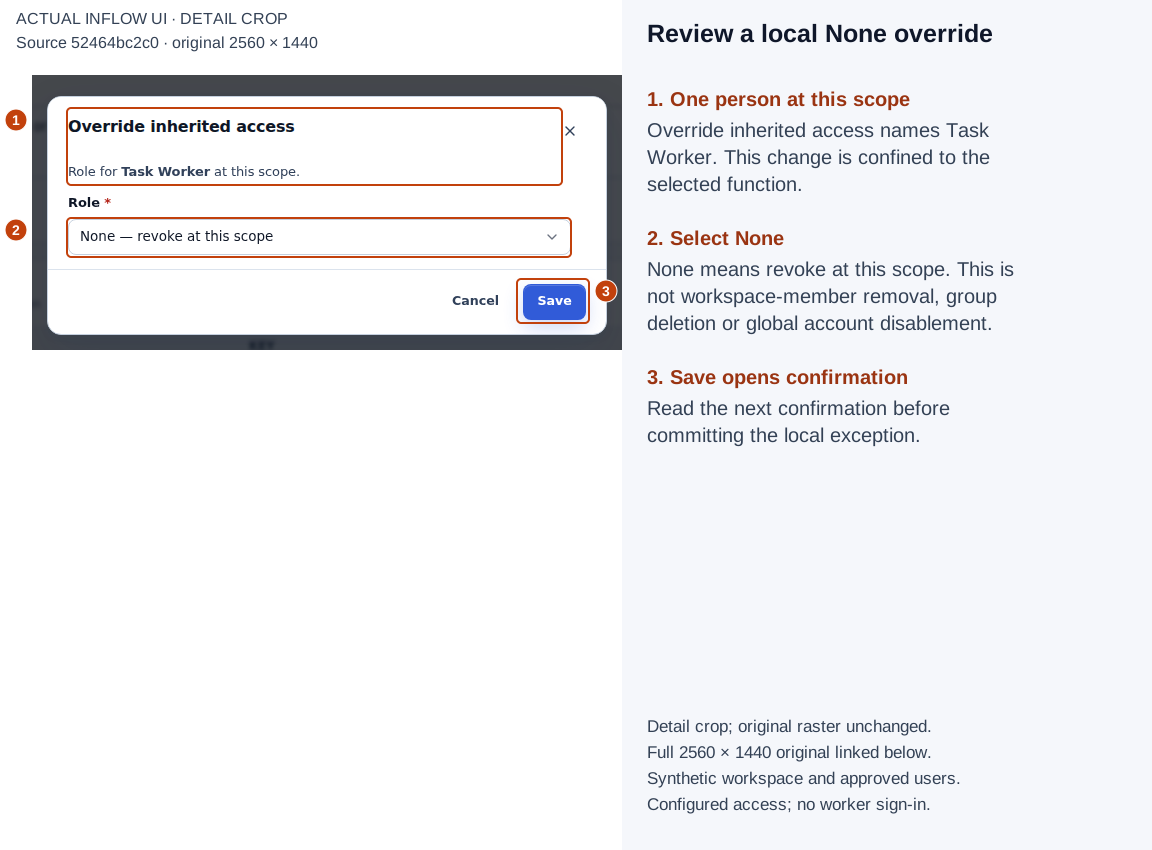
Numbered detail view from the actual 16 November 2026 screen, source 52464bc2c0. The crop and marks are editorial guidance; the original raster is unchanged. Open the full 2560×1440 original. This review has not yet committed the override. None is available for function/object exceptions; it is not a workspace grant role.
Review the revocation confirmation
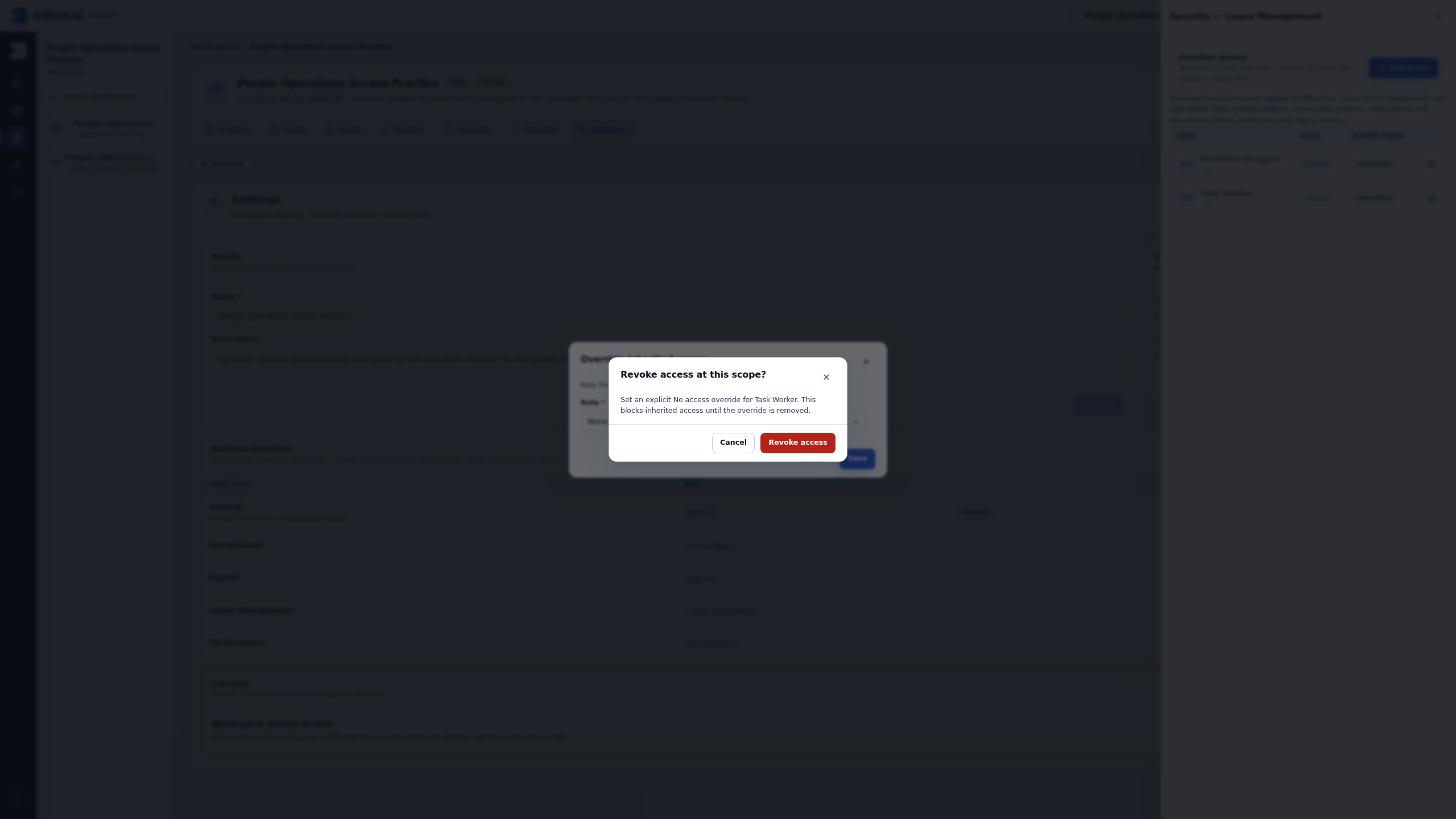
- Read Revoke access at this scope?.
- Confirm the named subject is Task Worker and that the active drawer is still Leave Management.
- Read the effect: an explicit No access override blocks inherited access until the override is removed.
- Choose Revoke access only when that local exception is intended. Otherwise choose Cancel.
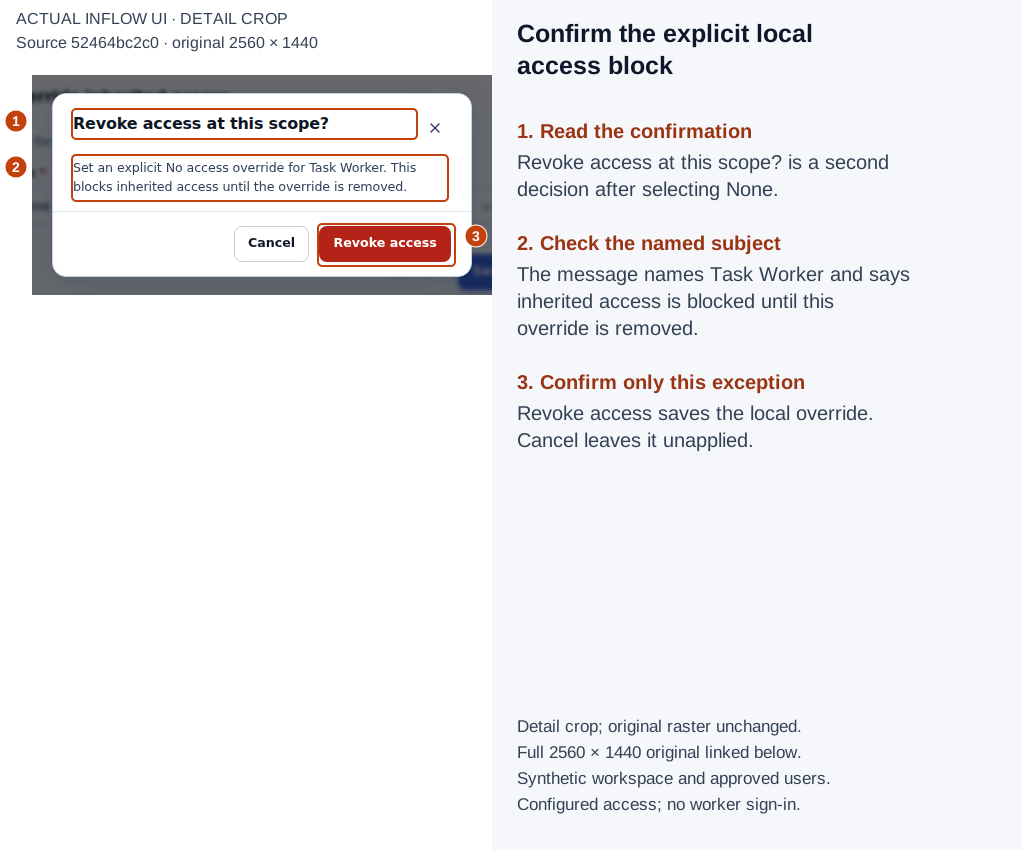
Numbered detail view from the actual 16 November 2026 screen, source 52464bc2c0. The crop and marks are editorial guidance; the original raster is unchanged. Open the full 2560×1440 original. The practice confirmed this once. It did not remove a workspace member, change a group, disable an account or alter the original workspace.
Inspect the saved local exception
- Wait for the dialog to close and the function table to refresh.
- Confirm Task Worker now shows Revoked under Role and Override under Where from.
- Confirm Workflow Designer still shows inherited Admin.
- Keep the local row's Restore inheritance action available for the later recovery step.
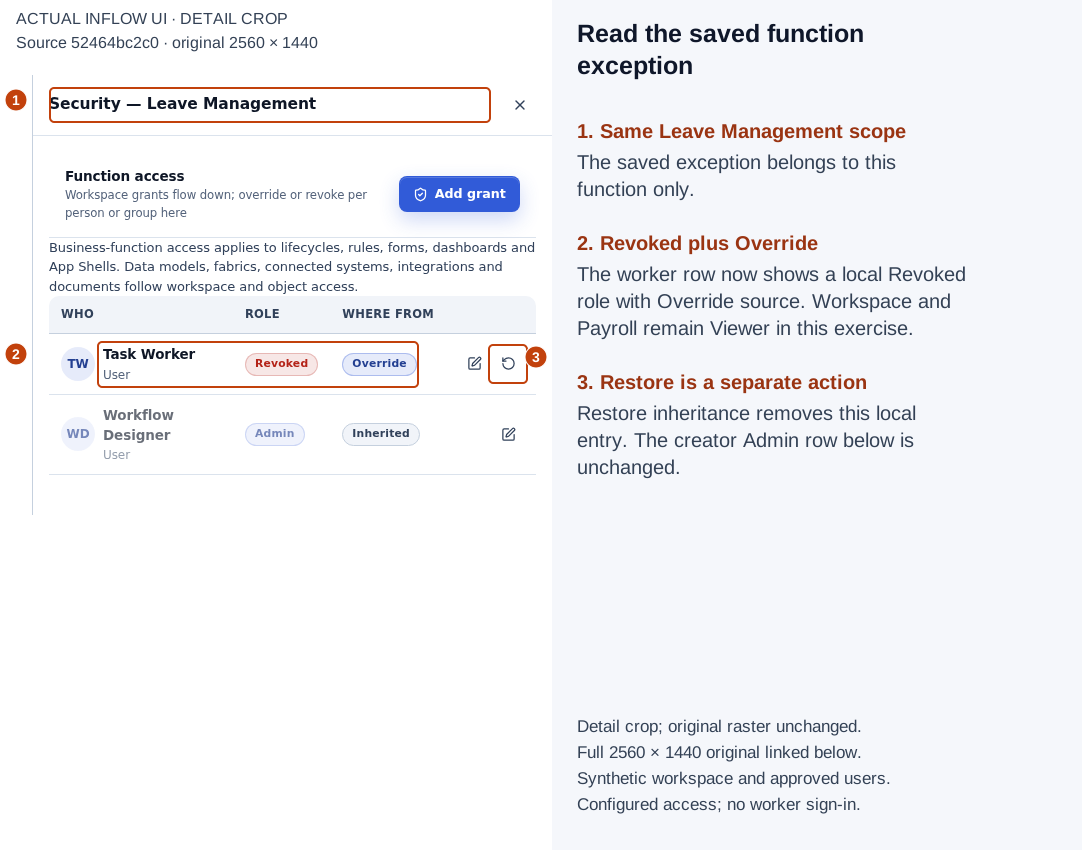
Numbered detail view from the actual 16 November 2026 screen, source 52464bc2c0. The crop and marks are editorial guidance; the original raster is unchanged. Open the full 2560×1440 original. The local role was saved as None and is displayed as Revoked. This is a stored function decision, not Task Worker attempting to open a form or app.
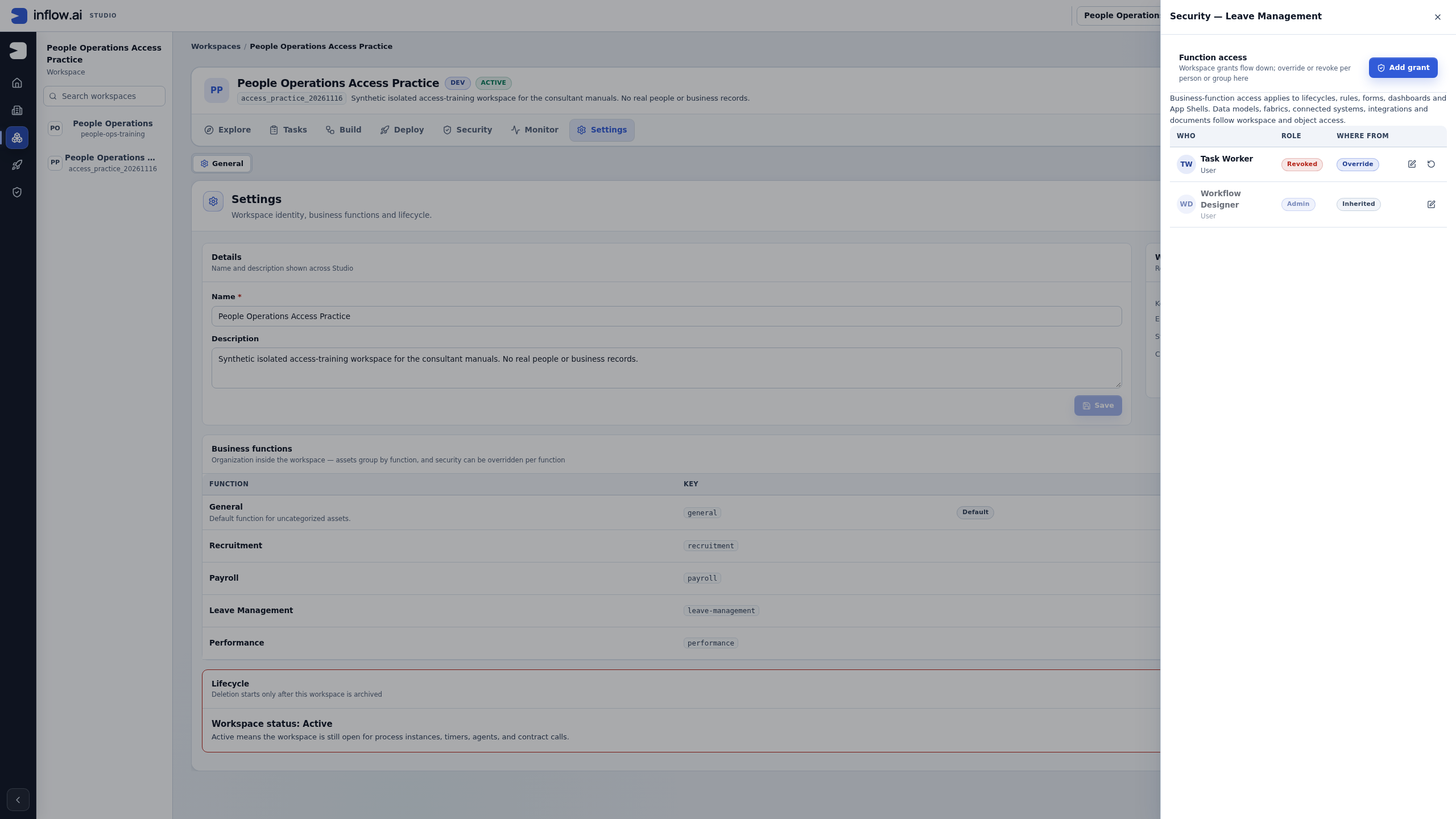
Check the result at the correct level: this drawer's refreshed row is the available UI readback. There is no function Check a user card in this build. The workspace checker remains workspace-scoped. If your acceptance question concerns a particular asset or user action, review that asset's access and test the approved ordinary user's intended journey separately. An administrator's grant-table view cannot replace that test.
Compare Payroll and the workspace while the exception is active
- Close the Leave Management drawer.
- In Business functions, open Security on Payroll.
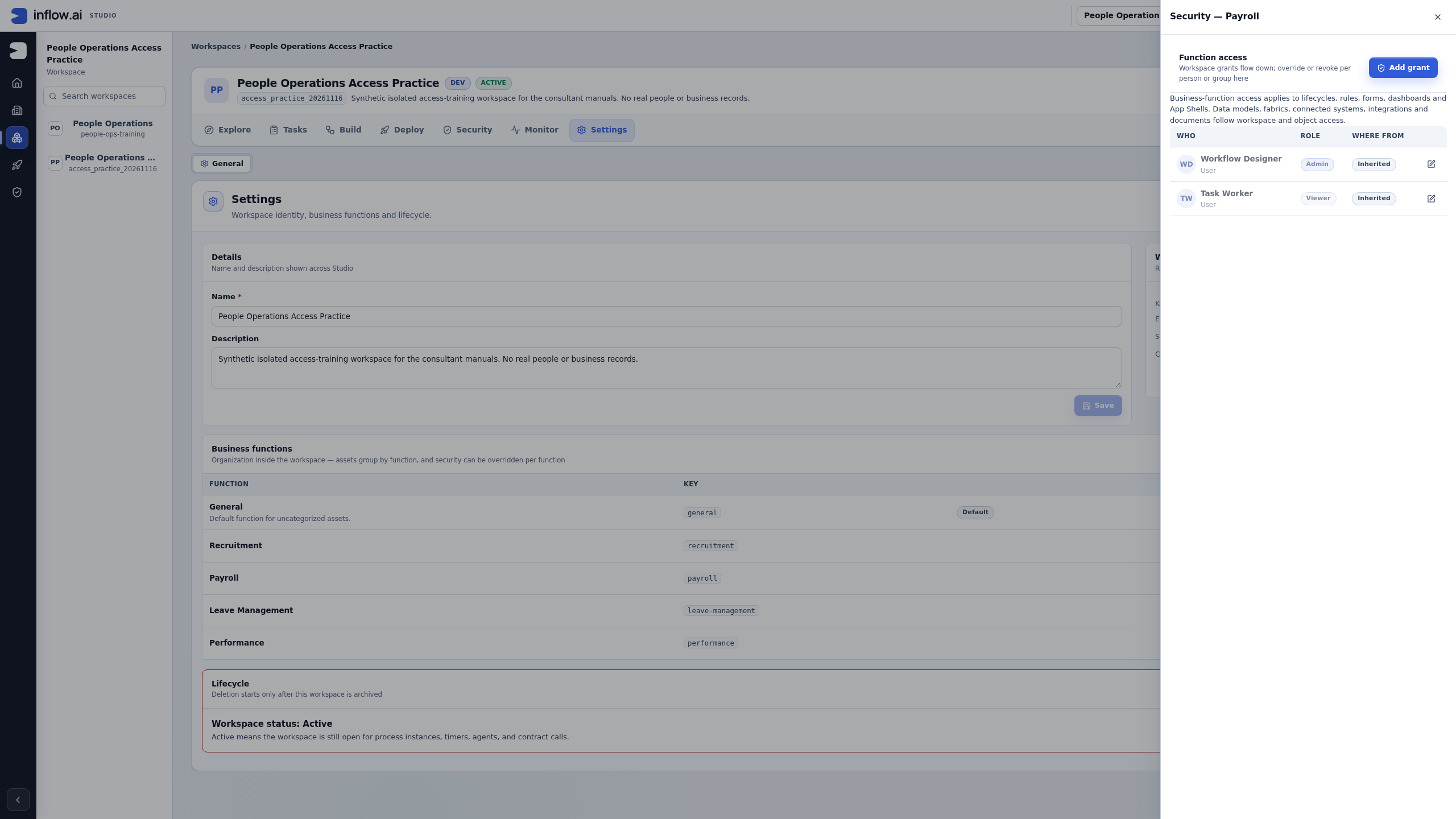
- Confirm the title is Security — Payroll and Task Worker remains Viewer — Inherited.
- Close the drawer. In workspace Security, run Check a user for Task Worker again. In this exercise the workspace result remains Viewer.
- Record these as separate scopes. A workspace Viewer result does not cancel or disprove the saved Leave Management exception.
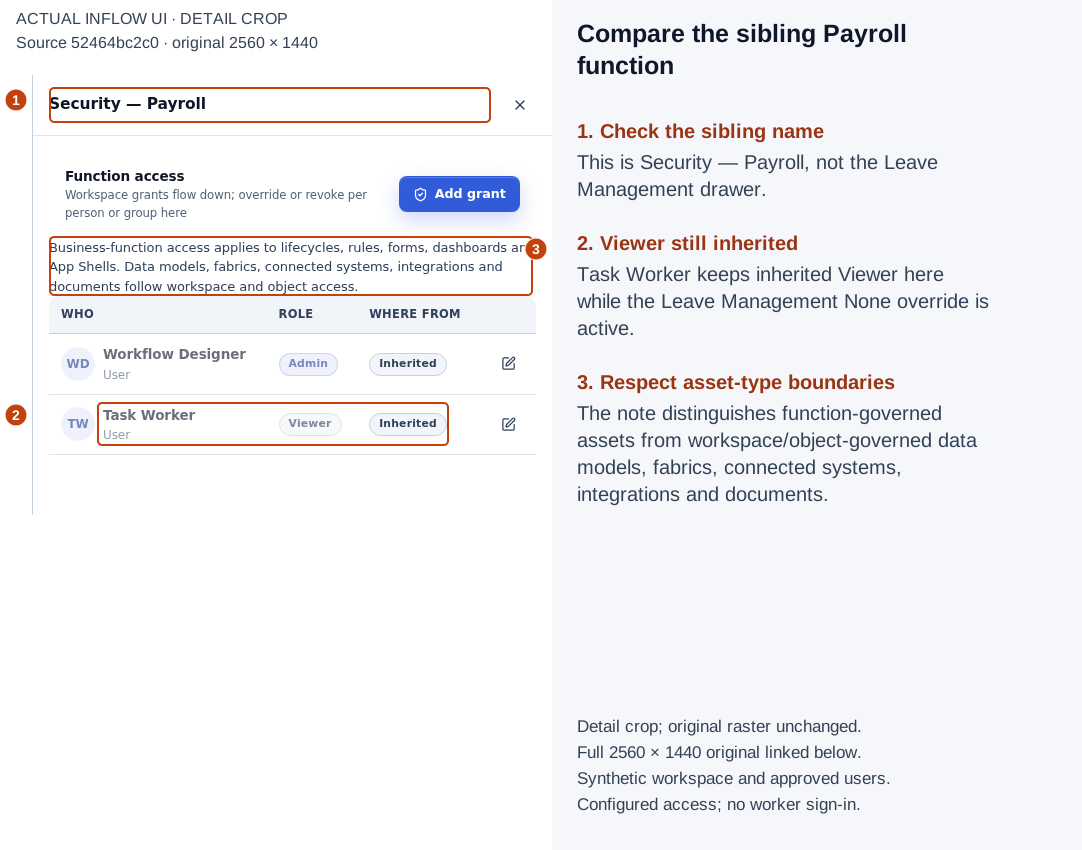
Numbered detail view from the actual 16 November 2026 screen, source 52464bc2c0. The crop and marks are editorial guidance; the original raster is unchanged. Open the full 2560×1440 original. The sibling was inspected before restoring the exception. Normal authenticated owner diagnostics also read workspace Viewer, Leave Management None and Payroll Viewer; those service readbacks are not a function-check UI or a worker sign-in.
The saved configuration during this part of the story is:
| Scope | Task Worker's configured role | Source |
|---|---|---|
| Practice workspace | Viewer | Workspace USER grant |
| Leave Management function | None, displayed as Revoked | Local USER override |
| Payroll function | Viewer | Inherited workspace USER grant |
No business asset was created in this practice workspace to claim form, rule, record or task enforcement. If the real requirement is “Sara must not read this specific record,” this table alone is insufficient; investigate the record's actual access boundary.
Restore inheritance and check the recovery
The temporary exception is finished. The intended final state is to follow Task Worker's existing workspace Viewer grant again. Remove the local function override; keep the workspace member and grant.
Confirm removal of the local override
- Return to Settings → Business functions → Leave Management → Security.
- Identify Task Worker's Revoked — Override row.
- Choose Restore inheritance on that exact row.
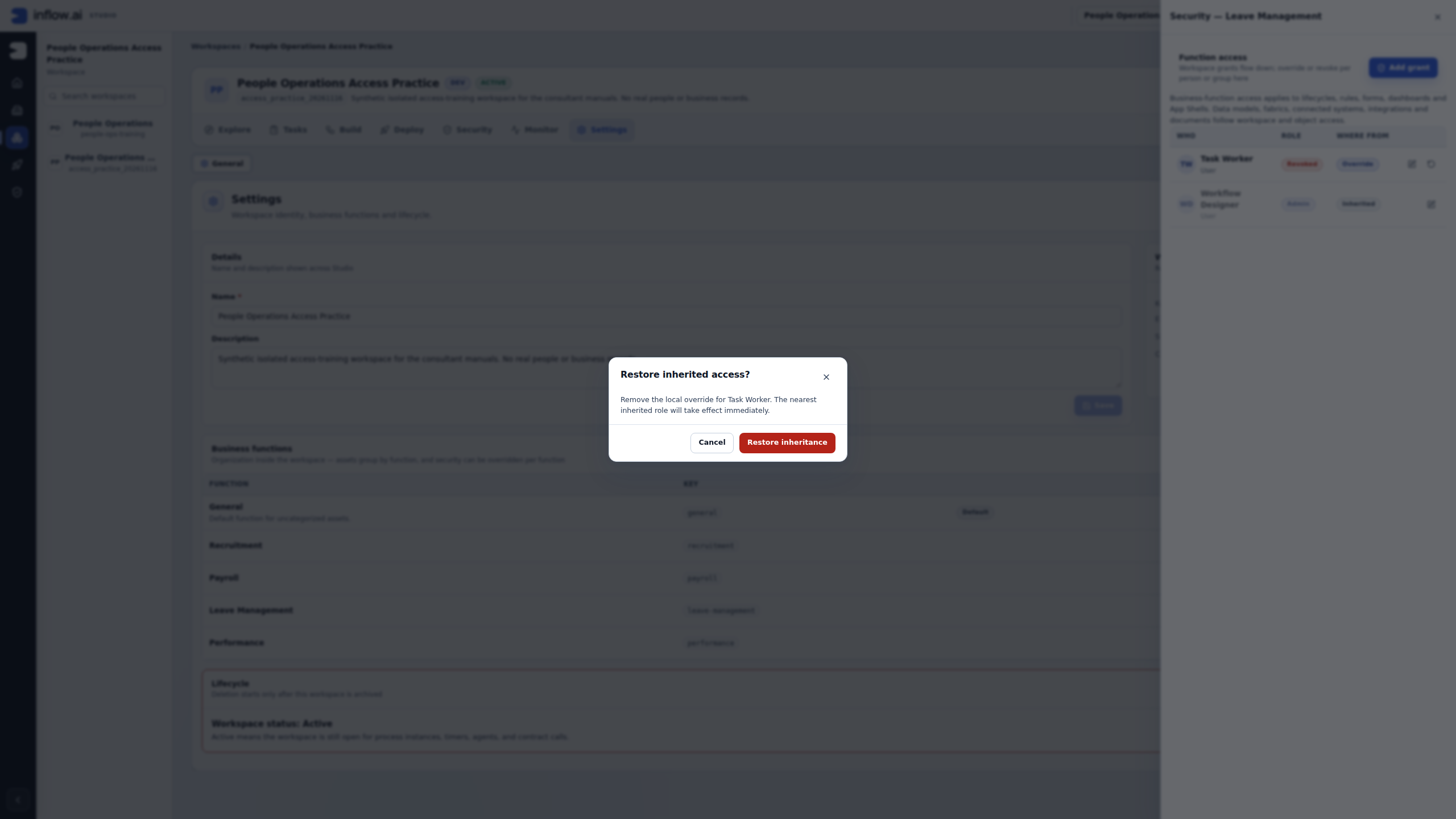
- Read Restore inherited access? and confirm that it names Task Worker.
- Review what remaining grants will apply. Choose Restore inheritance once if removing this local exception is intended; otherwise cancel.
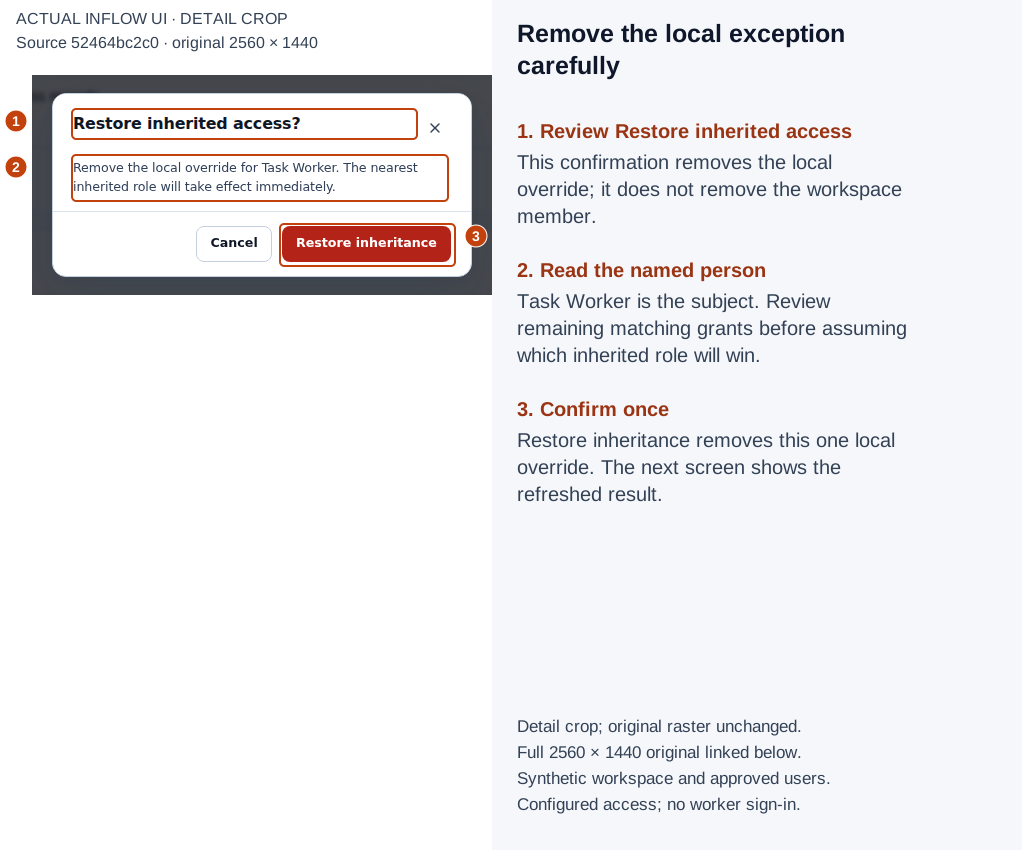
Numbered detail view from the actual 16 November 2026 screen, source 52464bc2c0. The crop and marks are editorial guidance; the original raster is unchanged. Open the full 2560×1440 original. Restoring inheritance removes the local entry. In a more complex grant set, another matching local grant may still determine access before the workspace grant is considered.
Inspect the refreshed function and retained memberships
- Reopen Security — Leave Management after the operation settles.
- Confirm Task Worker now shows Viewer — Inherited and no longer has the local Revoked/Override row.
- Confirm the creator remains Admin — Inherited.
- Recheck the parent and any sibling named in the request. In this exercise all three configured scopes resolve to Viewer for Task Worker.
- Confirm the original workspace's memberships remain unchanged if it was explicitly outside the change.
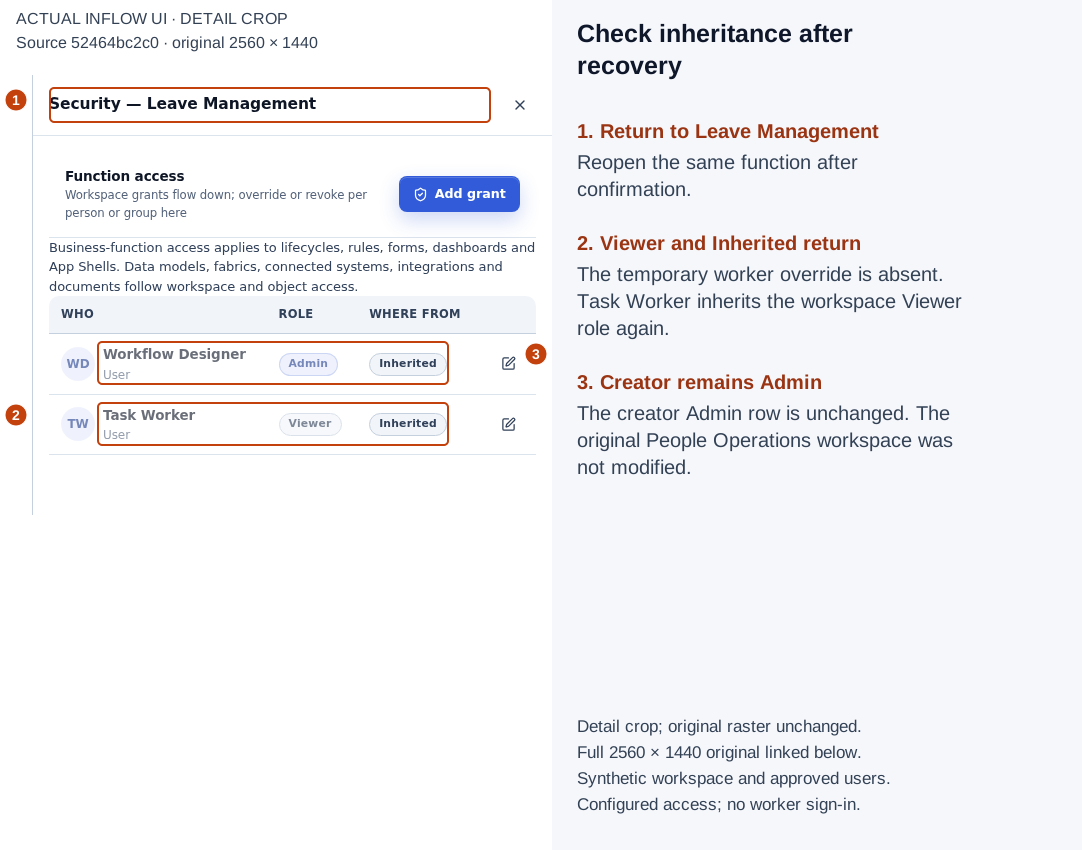
Numbered detail view from the actual 16 November 2026 screen, source 52464bc2c0. The crop and marks are editorial guidance; the original raster is unchanged. Open the full 2560×1440 original. Normal authenticated final readback confirmed workspace, Leave Management and Payroll Viewer without platform bypass. The original People Operations roles remain Root Admin, designer Editor and worker Viewer.
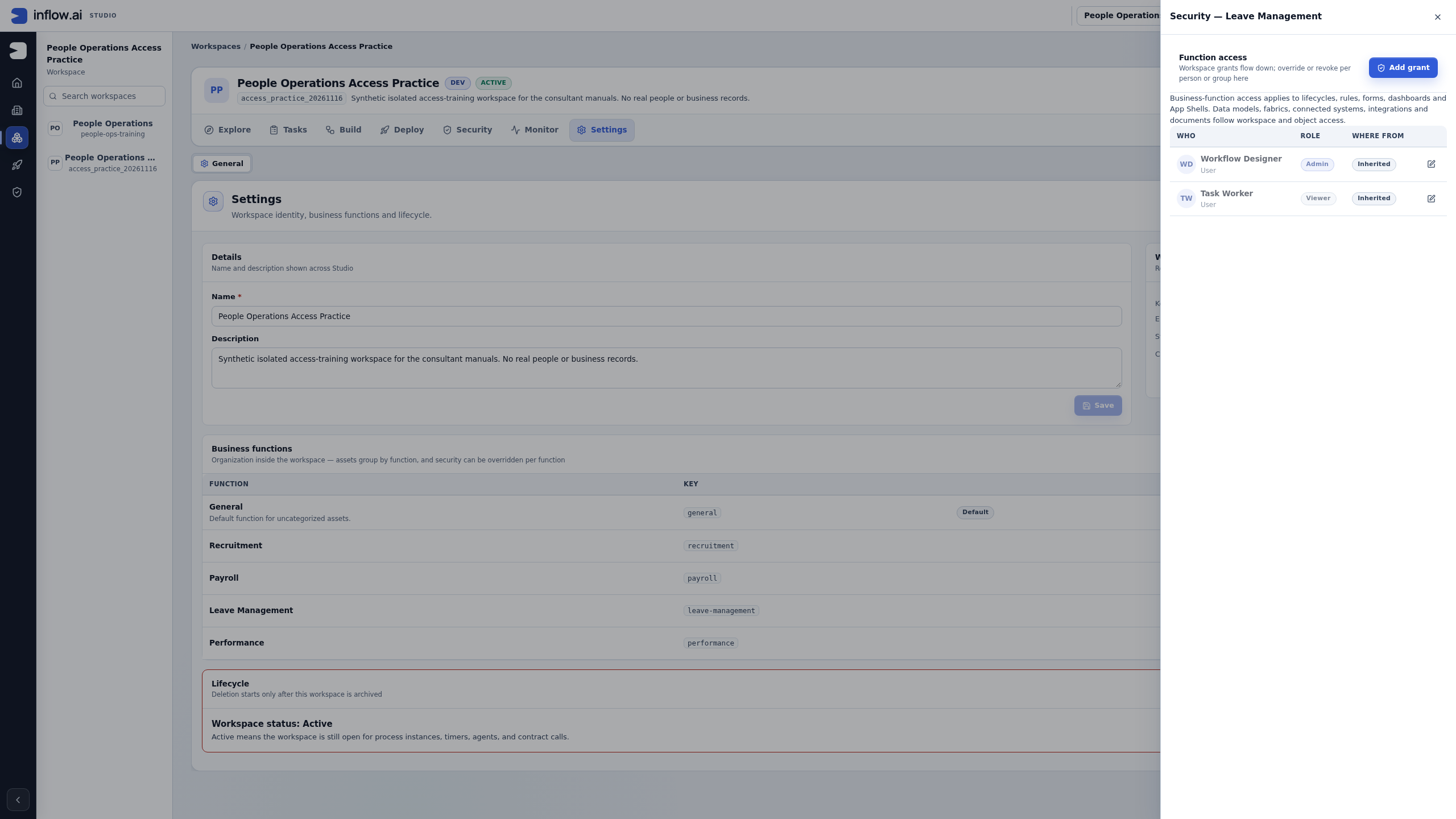
Final practice state: the new workspace retains creator Workflow Designer as Admin and Task Worker as Viewer. The temporary Leave Management None override is absent. No global identity, group membership, original-project role, model publication, business record or task decision changed.
Recover when the picker or saved state is surprising
A known user returns No matches in Add members
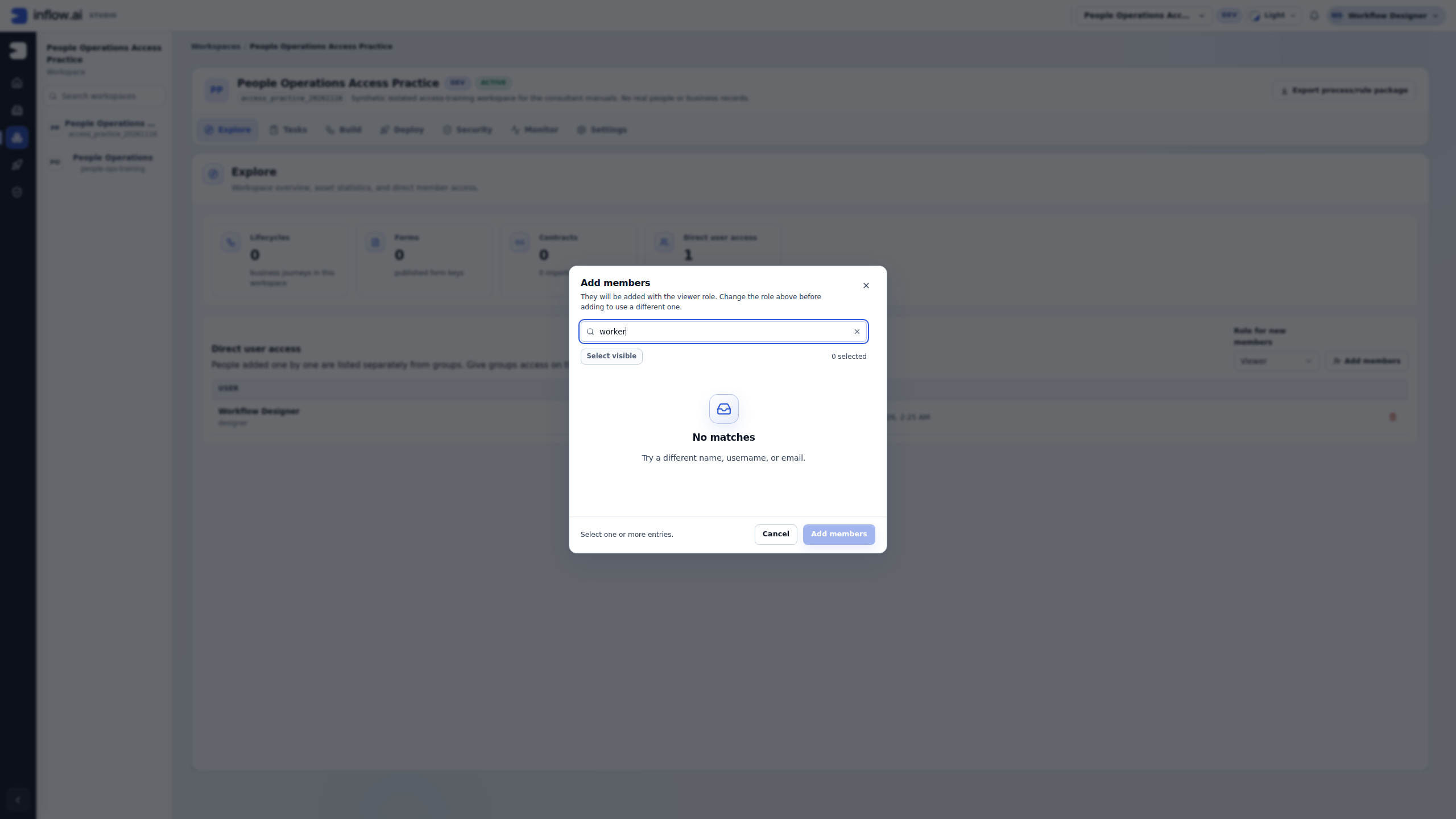
The Explore → Add members picker and Security → Add grant picker are different surfaces. In this run, Explore's picker returned No matches for worker, while the scoped Security picker returned the existing eligible Task Worker account.
- Confirm which workspace and picker are open, and check the search spelling.
- Do not interpret No matches as proof that the account is absent or access is denied.
- Cancel that unsaved member dialog.
- If you are authorized to manage workspace grants, use Security → Workspace access → Add grant and select the existing eligible person there.
- Save only the intended role, then inspect the saved row, actual membership and a fresh workspace access check.
- If the scoped route also cannot return the intended person, ask the authorized identity/workspace owner to investigate. Do not create a duplicate account or widen directory privileges merely to make the picker return someone.
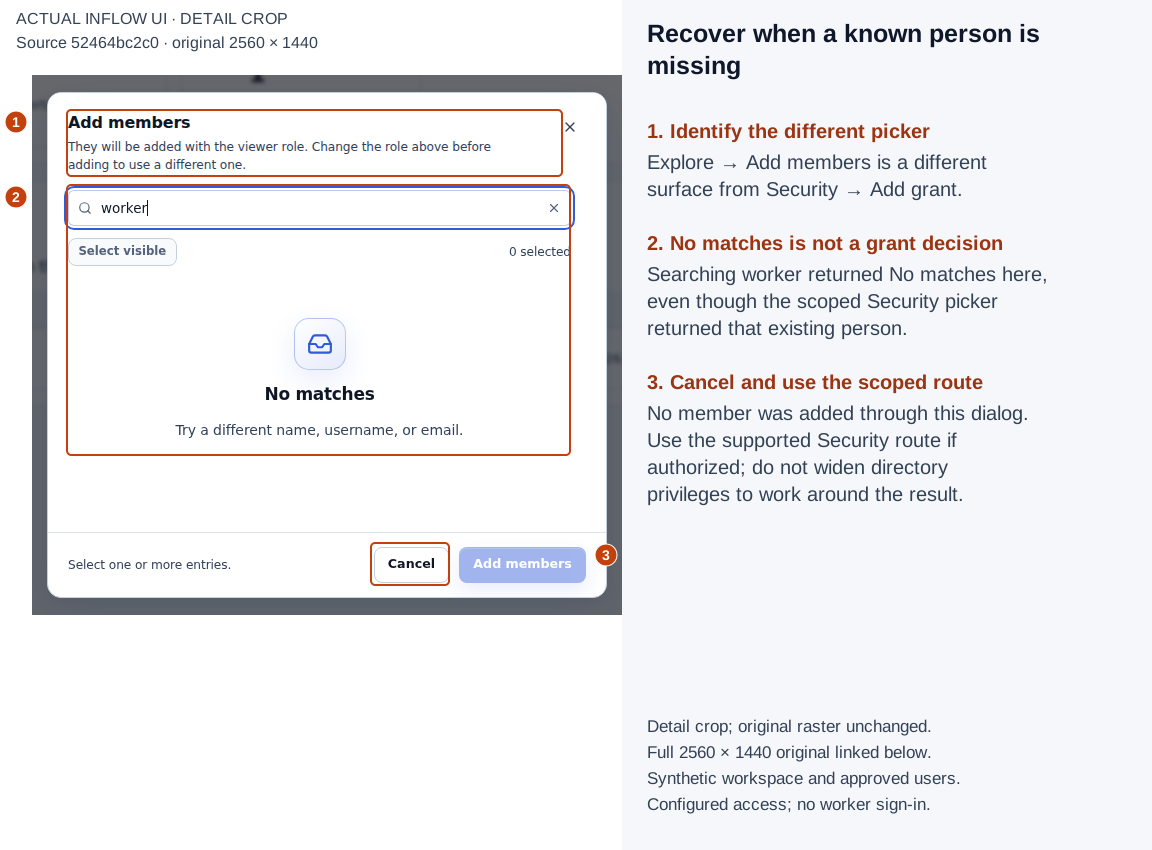
Numbered detail view from the actual 16 November 2026 screen, source 52464bc2c0. The crop and marks are editorial guidance; the original raster is unchanged. Open the full 2560×1440 original. No member was saved through this dialog. The exact HTTP failure/status was not established; the visible empty result must not be described as a proven permission denial or a nonexistent account.
A save fails, conflicts or has an uncertain result
- Preserve the error and intended person/scope without copying secrets or private records into the handoff.
- Inspect the refreshed grant table and current membership before submitting again. A closed dialog or changed editor is not enough to establish the saved outcome.
- If another administrator changed the scope, reload and compare current entries. Do not repeat the old save against stale state.
- Run the available current-scope check again when the service is working. If it is unavailable, say the result could not be checked.
- Investigate the actual boundary for a remaining user symptom: published-app access, nearer object policy, record permission, workflow assignment or a service outage may be separate from this grant.
Removing one workspace row does not necessarily remove all access: a matching group or other legitimate grant may remain. Restoring inheritance does not guarantee one particular parent role in every grant set. Read the remaining sources and test the real intended journey.
Understand role precedence in a more complex team
The pictured exercise uses one ordinary USER grant and one temporary USER override. It does not add groups. These examples explain how to reason about a more complex setup before saving it.
| Choice in the role editor | Meaning shown in the editor | Use deliberately |
|---|---|---|
| Viewer | See and run | Inspect/use the governed assets, subject to their separate permissions and state. Do not equate it with universal app, record or task access. |
| Editor | Build here | Author assets at the selected scope. It does not itself give global user administration. |
| Admin | Manage grants and everything below | Administer the relevant scope. Reserve it for an actual administration responsibility. |
| None | Revoke at this scope | Store a function/object local exception for that principal. It is not a workspace grant role or a global account disablement. |
At the same function or object scope, a matching USER entry takes precedence over matching GROUP entries. Where only groups match there, the most permissive matching group role wins. A group-level None therefore does not cancel a more permissive matching group at that function/object scope. Workspace admission and effective workspace Admin recovery use separate rules; do not apply this local-exception shortcut to workspace role composition. For an asset, inspect any nearer object-level decision before treating a function result as its final answer, and retain the workspace/platform administration boundaries explained above.
Example: two groups and one ordinary person's local exception
Sara belongs to leave-reviewers (Viewer at Leave Management) and shared-consultants (Editor there). A None on just one of those groups would not cancel the other group's more permissive role at the same scope. An explicit USER None for ordinary Sara at that function is a different decision and can take precedence over those groups. Do not apply this reasoning to a protected administrator or assume it defeats a nearer object grant.
The authorized owner should:
- Confirm Sara's actual identity, the Leave Management scope, both group sources and any nearer object decision relevant to the request.
- Use that function's Security drawer to add or change Sara's own USER entry to the intended role, review the explicit None confirmation if applicable, and inspect the refreshed row.
- Review sibling and workspace scopes separately. This build has no function Check a user card; do not substitute the workspace checker for a function result.
- When the exception ends, use Sara's Restore inheritance action. Review the remaining local groups: Editor may resolve from
shared-consultants; removing the USER exception does not choose Viewer automatically. - For actual asset acceptance, verify the approved user's intended operation at that asset and its own authorization boundary.
Example: builders and employees need different handoffs
Nadia and Omar maintain the leave model, rules and forms. Mohammad submits requests. The owner gives the consultants suitable builder access to the intended project; Mohammad is not made a workspace Editor just to make the final app appear.
After publication, the administrator reviews the employee application's own access and starting page. A manager's approval task still needs actual workflow eligibility. A group named Managers, a Viewer badge or an empty workspace checker is not enough to establish any of those outcomes.
Record a useful handover
Write what changed, what was checked, and what remains outside the evidence. For this exercise:
People Operations Access Practice (
access_practice_20261116): saved Task Worker USER Viewer at workspace scope. Confirmed the saved row and a fresh workspace check. Temporarily saved USER None at Leave Management; observed Revoked/Override while Payroll remained inherited Viewer and workspace check remained Viewer. Removed that local override through Restore inheritance. Final workspace/Leave Management/Payroll configuration readbacks are Viewer; creator remains Admin. Original People Operations roles unchanged. Worker sign-in, asset operations, application access, records and task eligibility were not tested.
This is more useful than “permissions fixed.” It tells the next owner which setting was exercised and which user journey still needs its own proof. Keep private record contents, passwords, session details and tokens out of the handover and screenshots.
Common mistakes
| Mistake | Better next step |
|---|---|
| Granting Admin to make a missing button appear | Identify the actual task and have the authorized owner review the narrowest relevant scope. |
| Treating workspace Viewer as permission for every form, record and approval | Check the application, object, record or workflow boundary that governs the requested operation. |
| Looking for a function Check a user control in this build | Inspect the function's saved grant table; keep workspace checking separate and test the intended asset journey when required. |
| Reading No matches as a definitive denial | Identify the picker and service condition; use the supported scoped route when authorized. |
| Assuming removing one row removes all access | Review remaining user/group/inherited sources and protected administration. |
| Setting None on one group to defeat every other group | Review same-scope precedence; the most permissive matching group can still win. |
| Assuming Restore inheritance always chooses the workspace role | Review remaining matching local entries and nearer object decisions. |
| Repeating a stale save after a conflict | Reload, compare current state and submit a deliberate current change. |
| Treating an administrator readout as an end-user enforcement test | Test the approved ordinary user's actual operation at the correct boundary. |
Earlier training evidence
The earlier workspace Security overview and Sara workspace no-grant check are preserved as historical captures. The latter belongs to 11 November's admitted dac13e8 source/build/runtime, not this 16 November run. Use the current figures above for this walkthrough; neither historical nor current administrator screenshots prove a target user's sign-in or every asset permission.
Continue
For published end-user applications, follow application access and starting pages. Use the identity tutorial to prepare fictional employee and manager journeys without turning them into builders. Return to workspace setup for identity, creation, cancellation and existing-function navigation.
Optional technical reference — detailed contracts and implementation information for an administrator or developer. It is not required to follow the UI steps above.