Build a leave-approval process from start to finish
Nadia is building a leave application. Mohammad asks for five days away, and Sara reviews his request. This tutorial connects the forms, process stages, task and application so that the story works as a business journey rather than as several unrelated screens.
The example uses fictional people and data. The application is something you build; it is not a built-in leave package.
Real participant examples: the earlier whole-day approval pilot shows one ordinary employee request and manager completion. The native handoff and real decline then shows a distinct request, a coordinator obtaining the task link through Tasks, and the ordinary assigned manager recording a refusal. Earlier five-day preparation and designer-preview images keep their original limits.
Follow the preparation order
The lessons deliberately return to each other. Do not try to finish every ordinary-user test before its forms, published process and access are prepared.
- Complete milestones 1–4 of identity and permissions, then the leave data and rules lesson.
- Complete milestones 1–7 of App Shell and interfaces. This prepares both the employee request form and the separate published manager decision form.
- Complete this tutorial's milestones 1–4 to author, check, publish and test the workflow.
- Return to interface milestones 8–9 to connect the published start and task host. Then complete identity milestone 6 to review the complete application's employee/manager access.
- Return here for milestones 5–8, using ordinary accounts. Finish interface milestone 10 and identity milestone 7 afterward.
The data lesson already uses request references 014, 015 and 016. The new employee-submission exercise uses leave-2026-017. Do not create a second row for the existing 014 reference. If you deliberately choose to work on that earlier row instead, configure an update to it rather than another create.
Understand the story's objects
| Object | What it means here |
|---|---|
| Leave record | The application's stored business information: dates, days, employee reference and Status. |
| Case | One running approval request following the published process. |
| Human task | Sara's review work inside that case. |
| Employee reason | Mohammad's explanation for requesting leave. |
| Decision comment | Sara's explanation of her approval or decline. |
The data model's employee and manager text references, such as M014 and S002, are business identifiers. The teaching task is assigned separately to Sara's actual directory account. Mohammad becomes the case starter through his normal signed-in submission. Neither business number grants access or identifies a task recipient.
Current application-runtime setup: the older illustrated state-flow exercise below explicitly declares a parent outcome. Preserve that historical screenshot, but do not repeat the declaration for the limited-user pilot. Use the actual ordinary child End directly in Outcome → Approved, leave parent-state outcomes empty, keep
approved == trueon the approval exit and one default decline exit. The current pilot saved and published that configuration. If you are following the older detailed picture sequence, stop at its Declare as instruction and use this current configuration instead.
Illustrated preparation — Check the manager’s answer form
Before building Review’s task, finish the separate manager Form. Nadia needs the actual published form and its declared inputs, not a draft employee form or a picture of a finished approval.
The following screens show builder preparation using local fictional values. They do not show Sara logged in, an assigned task, a completed decision or the resulting lifecycle stage. Use these local checks to catch form mistakes before wiring the real workflow. The later milestones still require actual mappings, assignment, publication and ordinary-user tests.
Example — Check missing and complete manager answers
- Open the manager form’s Preview → Interactive. In Test values, apply leave-2026-017, M014, 14–18 December 2026, requested days 5, Family vacation, Boolean false for approved and an empty decisionComment. Inspect the six displayed request values. They must be read-only; the checkbox and comment must be editable.
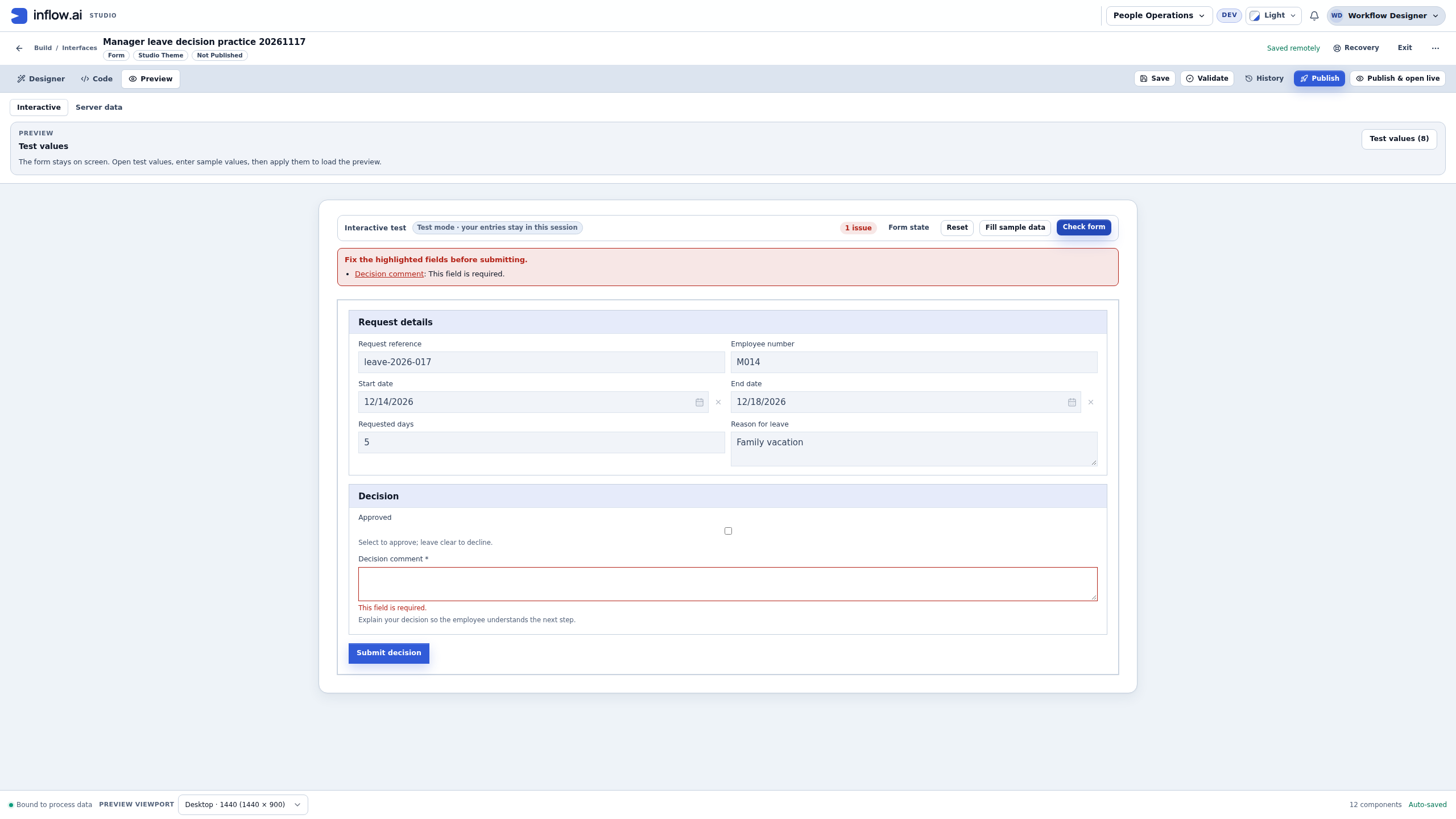
- Choose Check form, with Decision comment still empty. The expected local result is one required-field issue for Decision comment. Approved must not be rejected merely because it is clear. Do not choose Submit decision in this builder exercise.
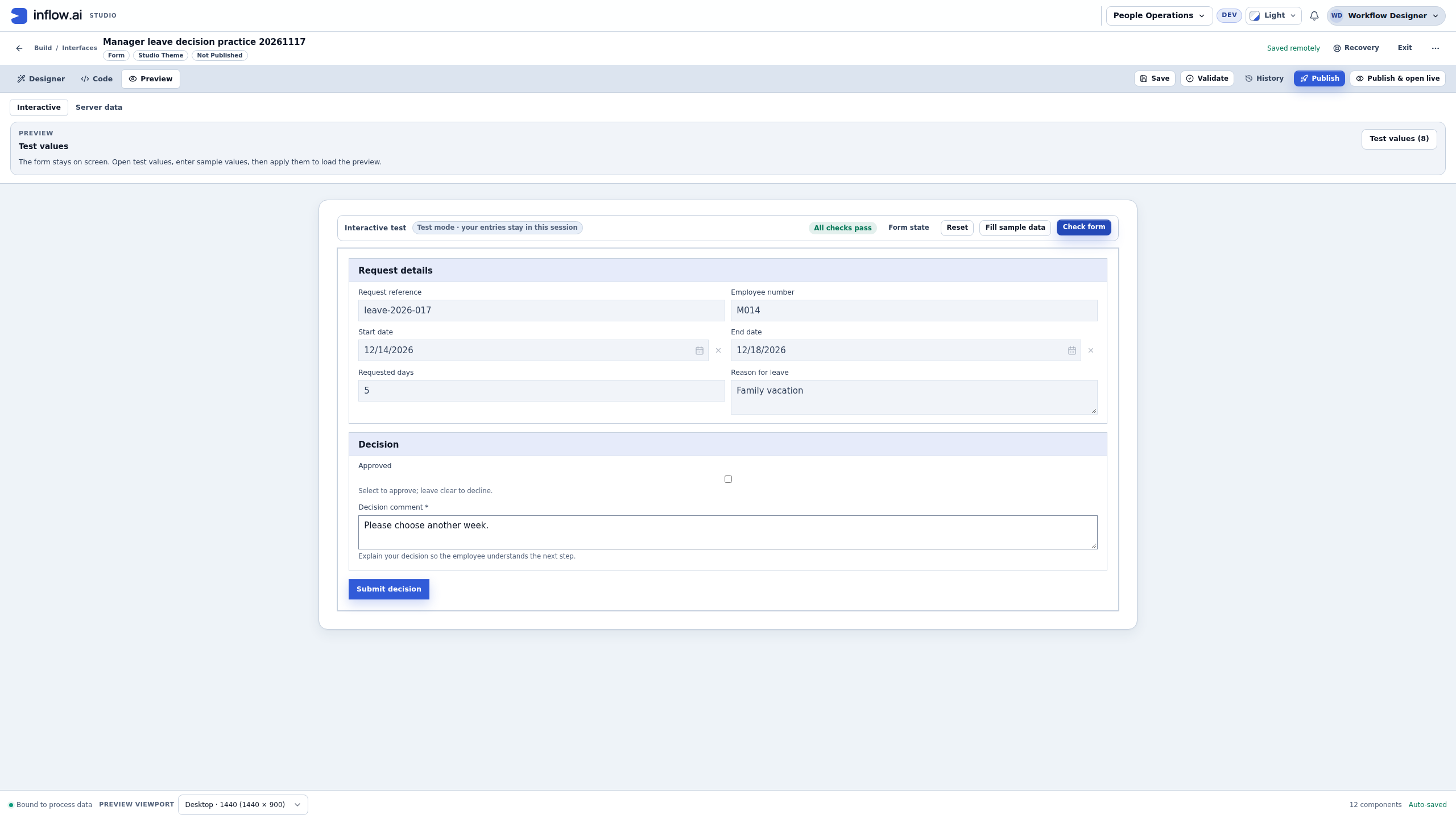
- Keep Approved clear and enter Please choose another week. Choose Check form again. Read All checks pass. This is a valid local no answer; it has not declined a task or moved a case to Declined.
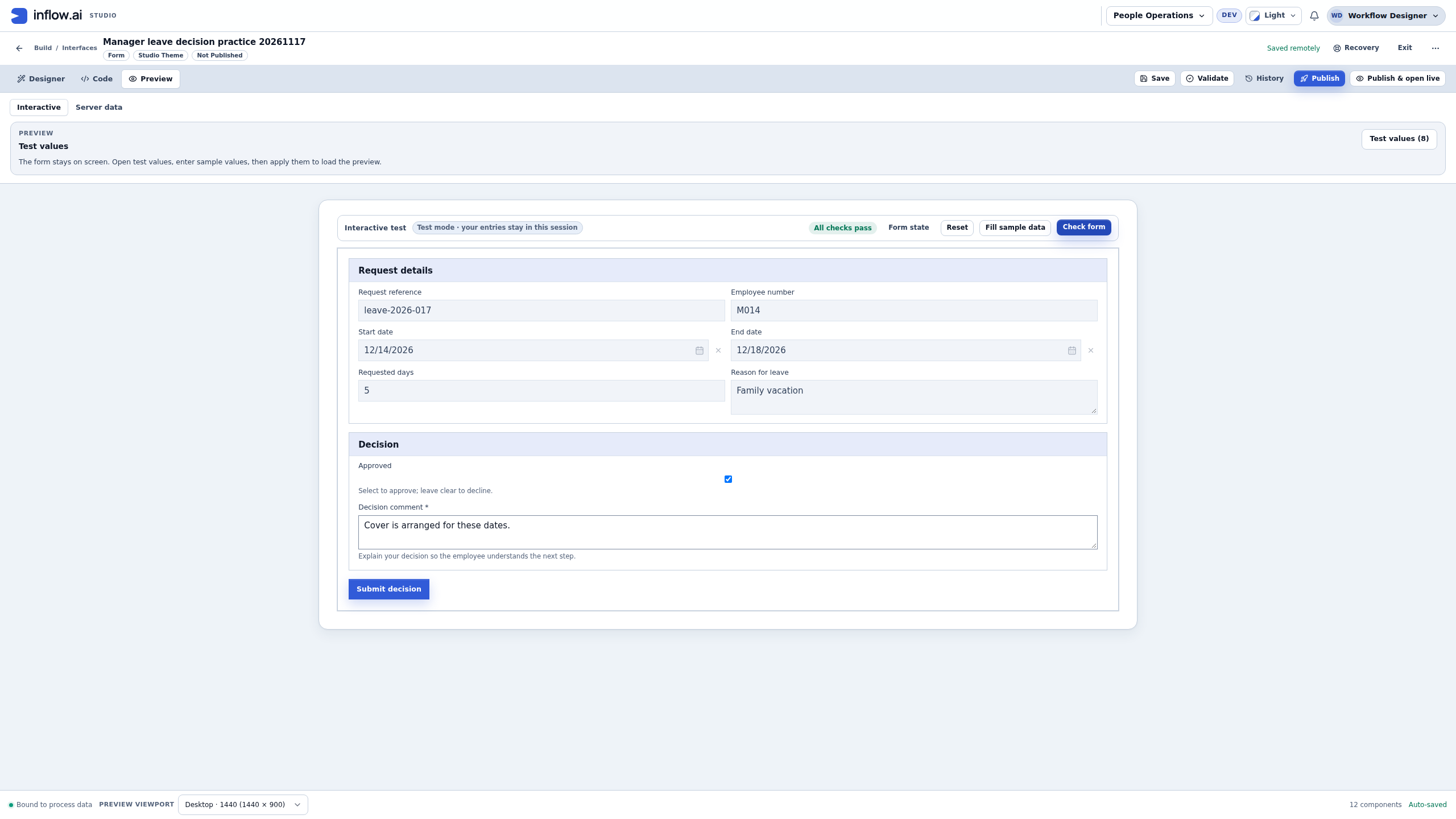
- For the alternate local answer, select Approved and enter Cover is arranged for these dates. Choose Check form and read All checks pass. This has not approved a task or moved a case to Approved. When executing the actual workflow later, use two distinct authorized requests to test both routes.
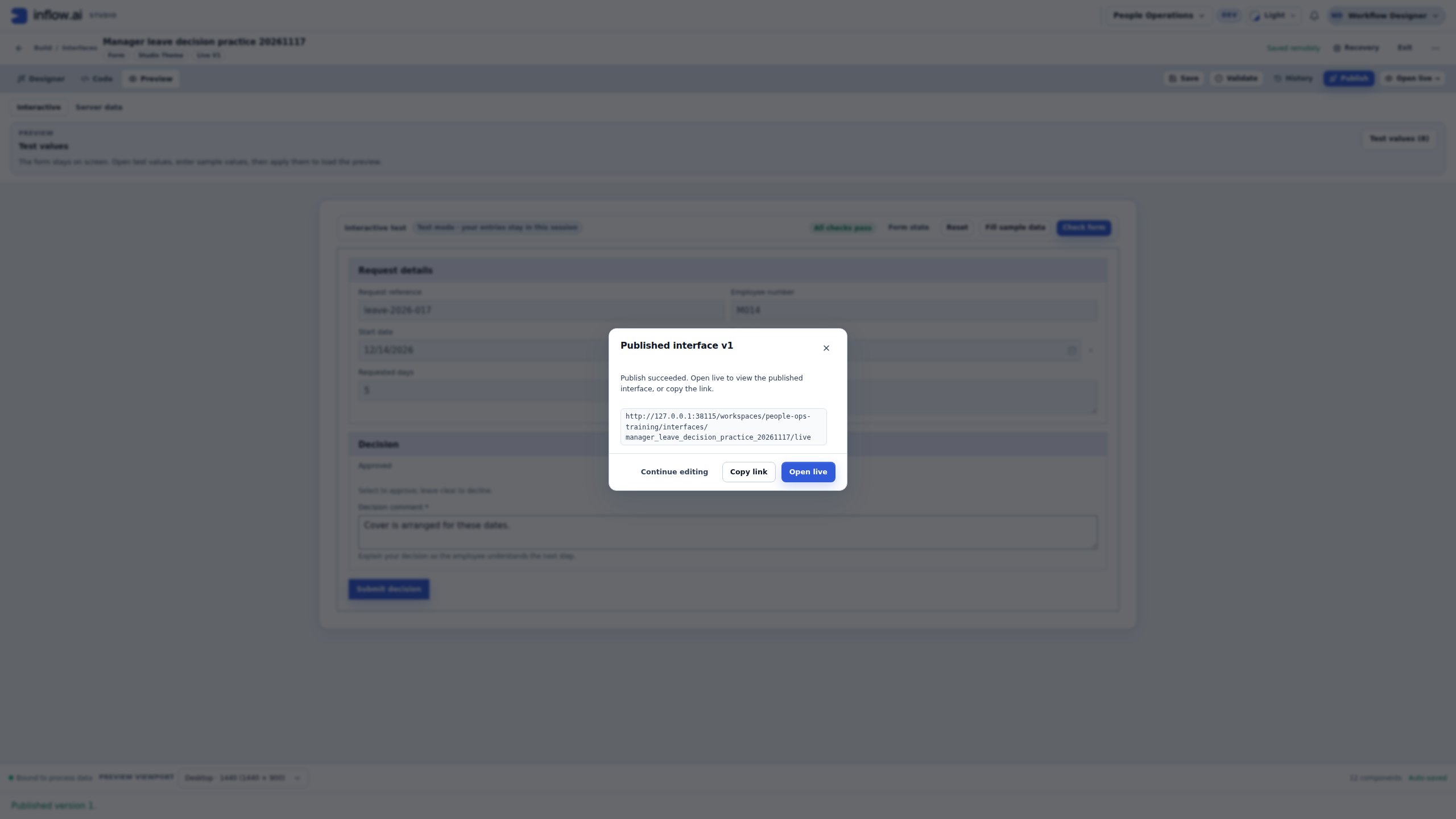
- Save, validate and publish the reviewed form through its own normal publication review. Read its actual resulting version and record it before binding it to the human task. A Form release does not publish this lifecycle, select Sara or make a business request.
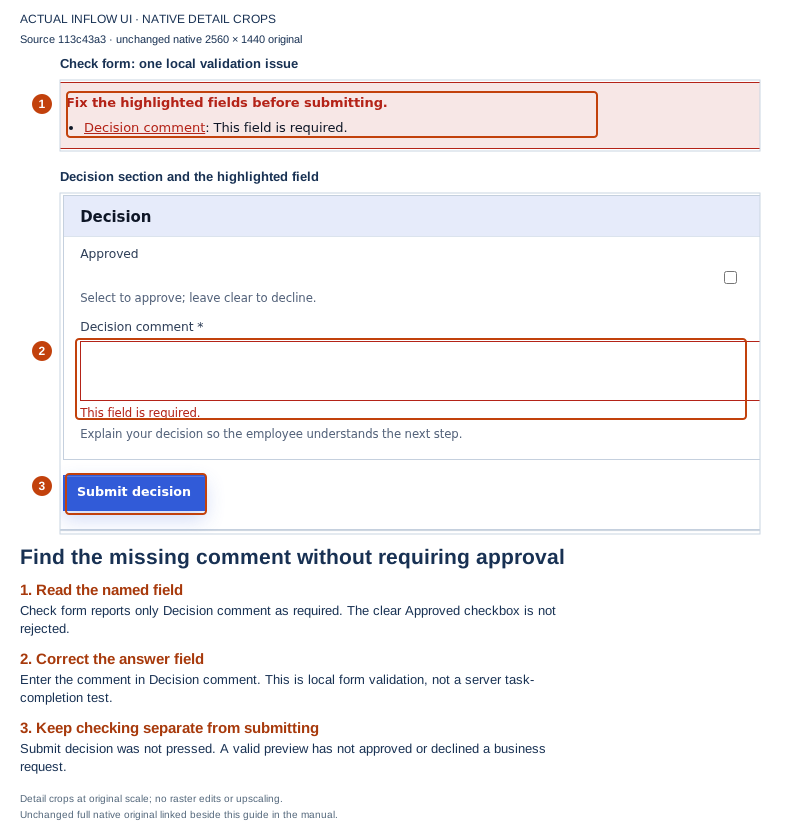
Find the missing answer: Check form identifies Decision comment. The six request values stay visible, and the clear Approved checkbox is not the error. This is local validation; Submit decision was not pressed. Open the unchanged native 2K screenshot.
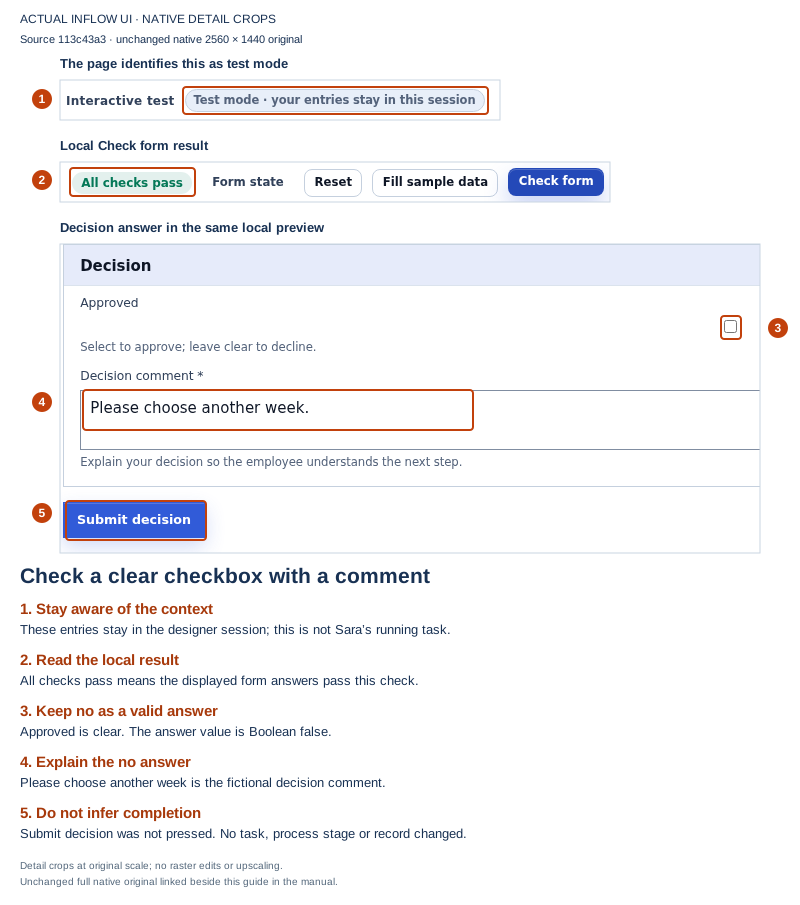
A valid local no answer: the checkbox remains clear and the explanation is present. All checks pass applies to this preview, not to a completed decline, process route or stored business record. Open the unchanged native 2K screenshot.
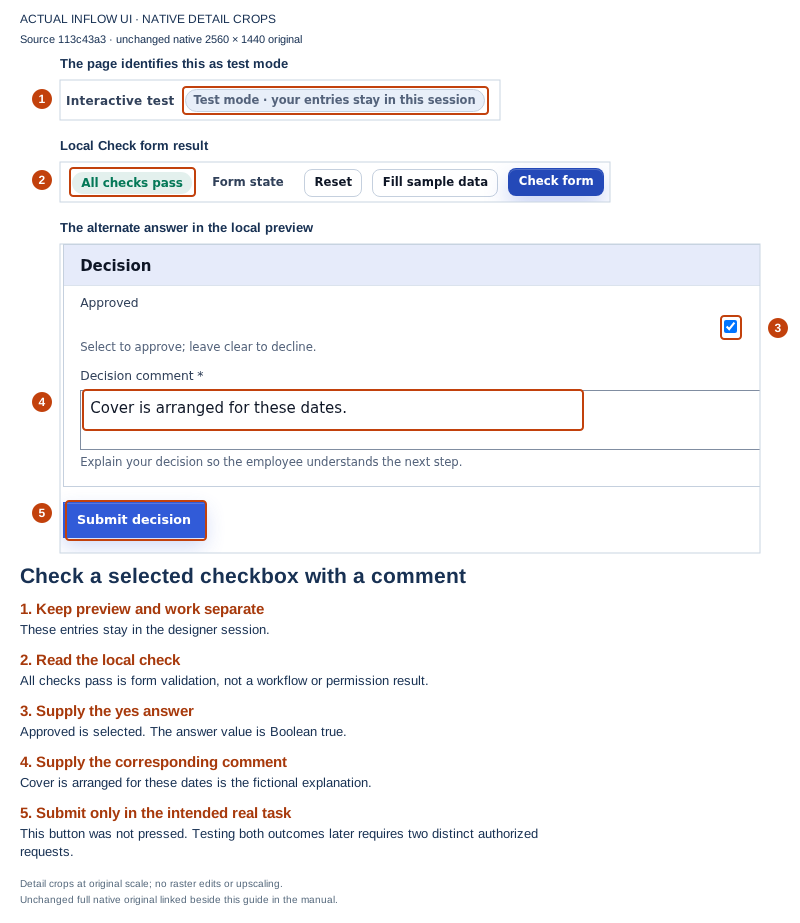
A valid local yes answer: the checked answer and explanation pass the form check. No Submit decision action was performed. Sara’s actual task and both resulting routes remain separate later tests. Open the unchanged native 2K screenshot.
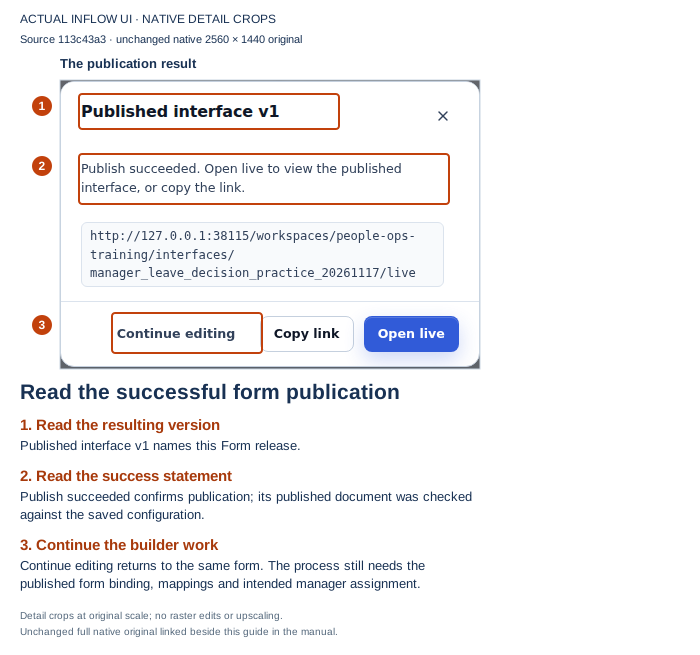
One published Form dependency: this example produced Form v1. Choose the actual published form in Review’s task, inspect its version, map the inputs and map only the two answer outputs. The process is not released by this Form result. Open the unchanged native 2K screenshot.
Check your result: the Form can display request context and collect both answer values, with the comment validation you intended. The six context inputs must still be mapped from the real case. M014 is a business identifier; choose Sara’s actual authorized directory account in Assignment instead of interpreting M014 or S002 as a login.
If it does not match: if the context is blank, inspect the supplied preview values first, then the bound control names and later the task’s input mappings. If a clear checkbox is rejected, inspect the Approved control’s Required setting and the genuine Boolean value. If the comment is missing from the later case, inspect its output mapping. Do not grant broad permissions or manually change a business row to make the exercise appear to pass.
The illustrations use the same synthetic builder Form on build-start master 113c43a3, recorded 17 November 2026 at native 2560×1440. The builder account is not limited employee/manager access evidence. The original story’s case, task and ordinary-user results are not claimed by these preparation pictures.
Milestone 1 — Prepare the case information
Goal: carry the right information from the employee form into one approval case.
- Open the Leave requests process in Studio, or create it with New lifecycle in the workspace's Build area if you have not already done so.
- Review the process's case-file fields. Prepare Request reference, Start date, End date, Requested days and Employee reason with types matching the form.
- Prepare Employee number as Text with the field name employeeId, and separate fields for Approved and Decision comment. Task assignment will select Sara’s real account separately; do not require employee or managerUser User inputs on the start form. Choose Yes / no for the case field Approved (the Boolean type) and enter
falsewithout quotes in its Default value. The case will pass a real Boolean no into the clear checkbox. The comment is Text. This initial no is not a submitted decline; the task stays unfinished until Submit decision is chosen. - Check which values are required when the process starts. A later state cannot review dates that were never supplied.
- Save the design and keep this small sample worksheet for testing:
| Case field name | Type | Sample value |
|---|---|---|
requestId |
Text | leave-2026-017 |
startDate |
Date | 14 December 2026 |
endDate |
Date | 18 December 2026 |
requestedDays |
Number | 5 |
reason |
Text | Family vacation |
employeeId |
Text | M014, the business employee number |
approved |
Yes / no | Default false |
decisionComment |
Text | Supplied later by Sara |
Use these exact field names in the example's form/process mappings. A friendly visible label such as Approved is different from the short case-field name approved used by a flow condition.
Check your result: the process can distinguish the employee's request from the manager's answer. A value of five is supplied for this lesson; the example does not assume a hidden holiday or working-day calculation.
If it does not match: compare the form's actual fields and the case-file types before wiring the start. Do not fix a mismatch by turning every field into Text.
Example — Prepare the eight case values and three stages
Nadia now has a published manager Form, but no case yet supplies its request values. She creates Leave decision mapping practice 20261117 in the People Operations workspace’s Leave Management function. In the creation review she chooses Nothing — variables only for what the process is about. This keeps the exercise about case information; it does not quietly create or attach a business record. Use your own unused practice name and key if you repeat the lesson. If Create gives an uncertain result, look for that draft before choosing Create again.
- Open the new lifecycle’s Design view. With no state selected, choose Manage variables. Choose Add variable for each row in the worksheet below. Enter the short case-field name and move out of its name field so that the editor commits it before continuing. A visible friendly label on a Form and this case-field name serve different purposes.
- Keep Single on every declaration. One leave request has one employee reference, one date pair, one number of requested days and one manager answer. Multiple would describe a collection and would change the mapping contract.
- For requestId and employeeId, choose Text. Turn on Required at process start for both and leave their defaults empty. A future employee submission must supply those business references. M014 remains a business employee number; it is not a directory login or an assignee.
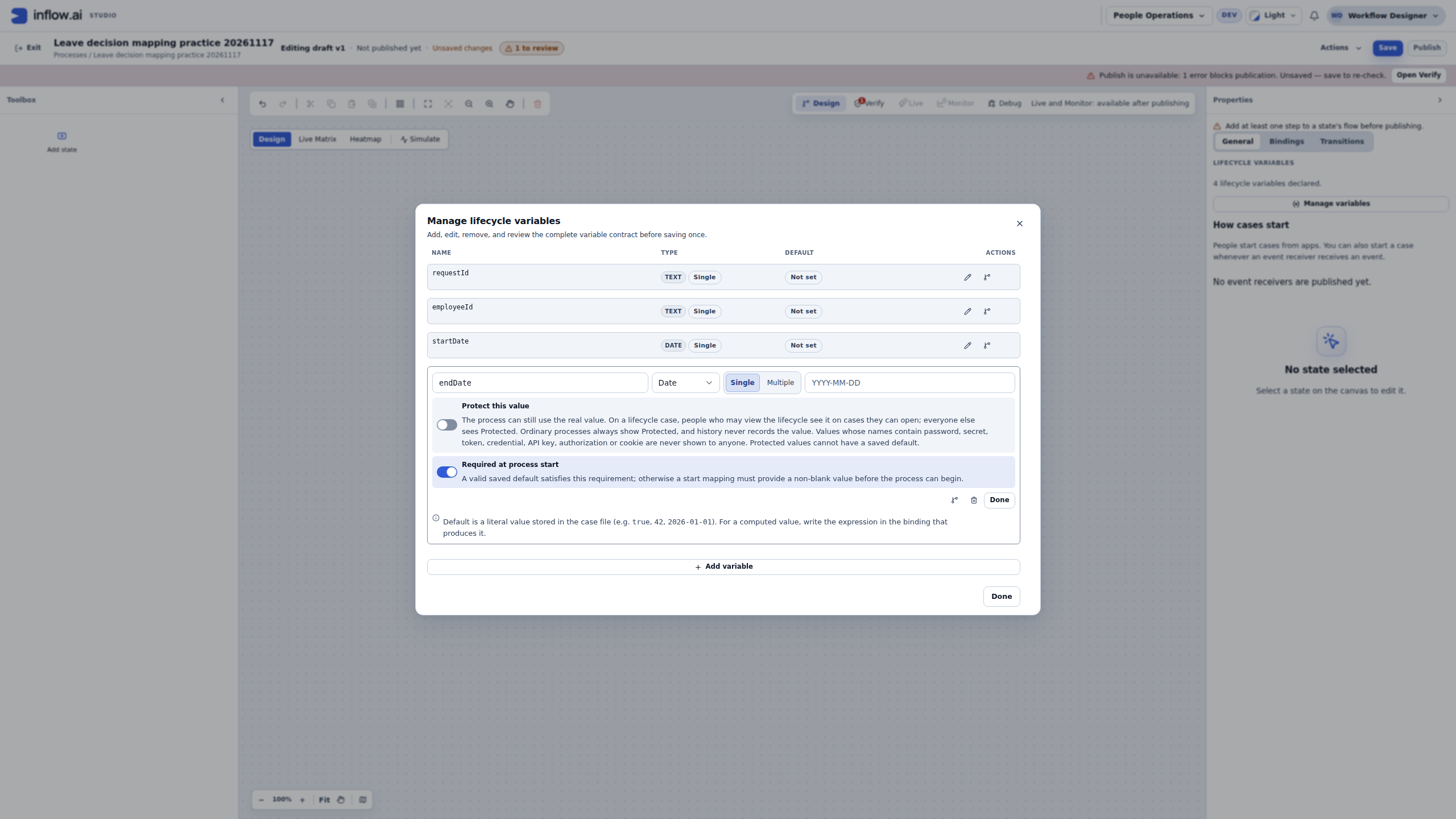
- For startDate and endDate, choose Date, keep Single, turn on Required at process start and leave their defaults empty. In this exercise the start mapping will supply 14 and 18 December 2026. Typing a date-looking phrase into a Text declaration would not create the intended Date contract.
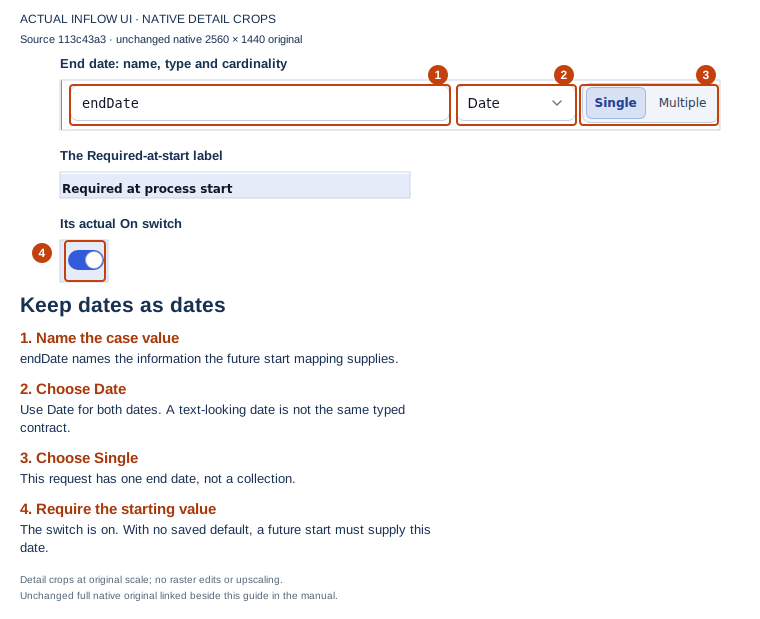
Check the date contract: the type says Date and the required-at-start switch is on. The empty default means that this value must arrive through the eventual start mapping. This is an editing step before Save. Open the unchanged native 2K screenshot.
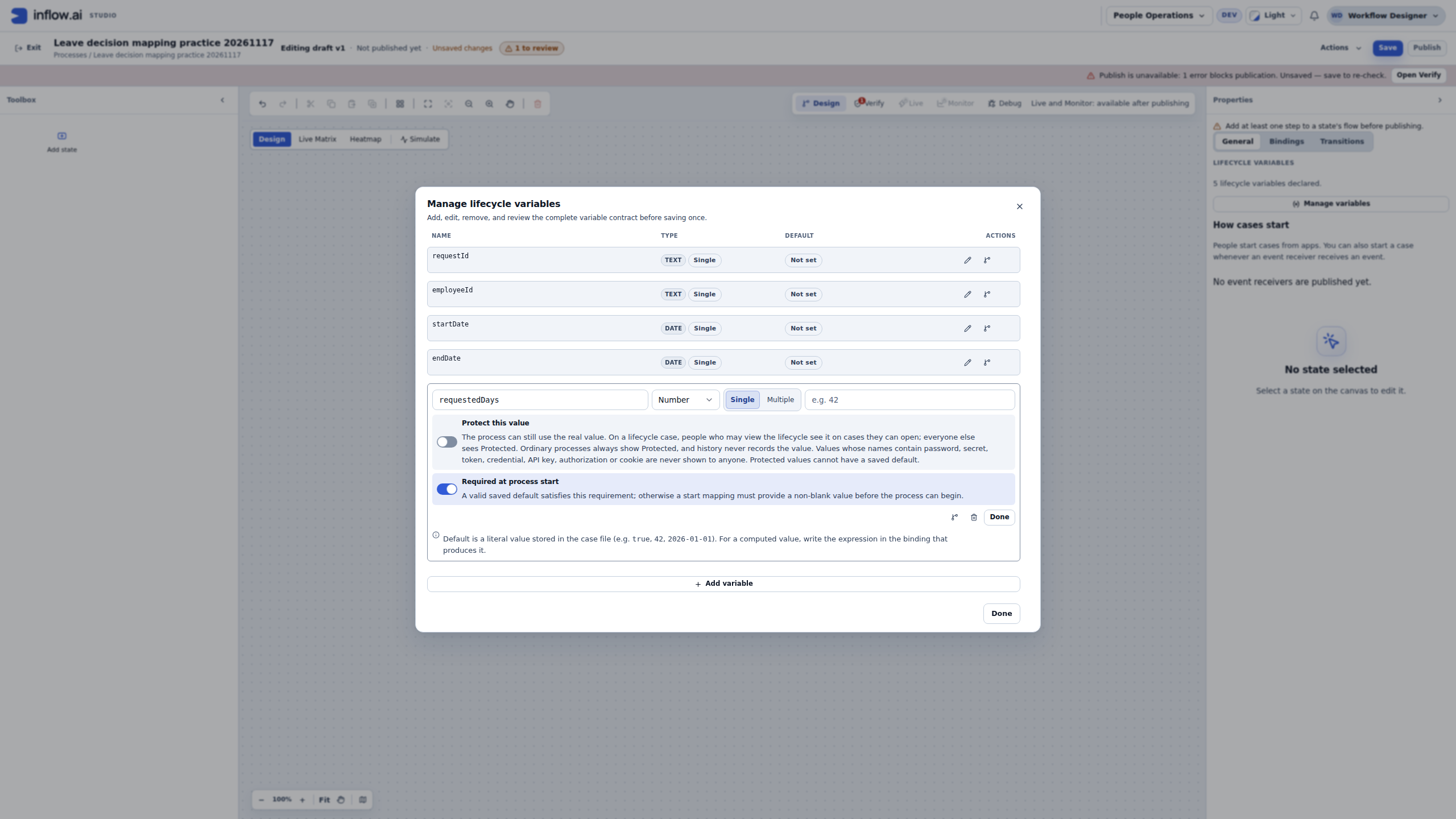
- For requestedDays, choose Number, keep Single and require it at process start. Leave Default empty. The sample value five belongs to the request data. This lesson does not calculate weekdays, holidays, entitlement or a leave balance. The separate published manager Form declares requestedDays as compatible Decimal input; keep the case value numeric when mapping it.
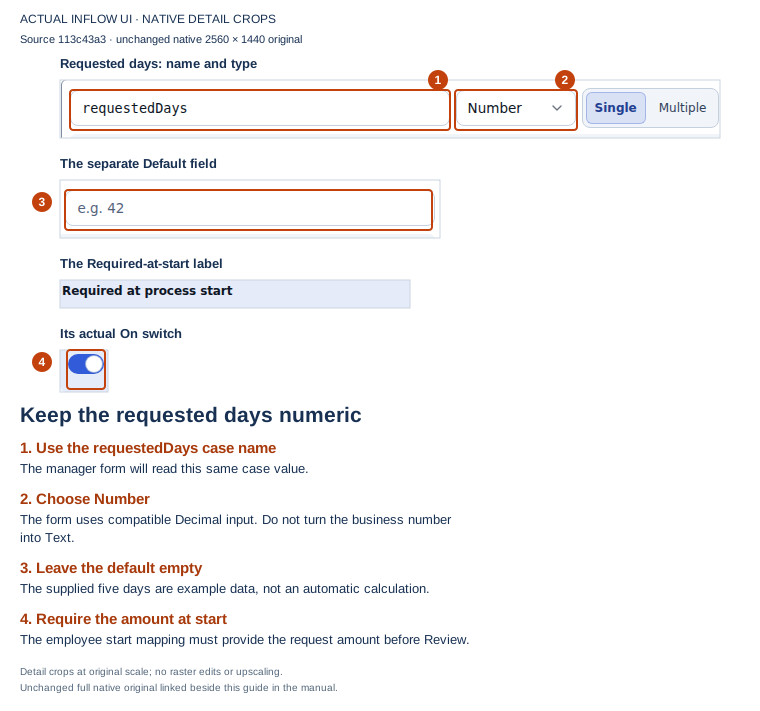
Preserve the number: the declaration accepts the future numeric request amount. It does not store the text “five days” or compute that amount. The surrounding unsaved indicator still applies to this editing step. Open the unchanged native 2K screenshot.
- Add reason as Text, Single, with Required at process start off and no default. This optional case input is the employee’s reason. If your organization requires a reason, make that a deliberate requirement in its actual start form and process contract; do not assume this example has already imposed it.
- Add approved as Yes / no, Single, with Required at process start off. In Default, enter the literal
falsewithout quotes. This is the Boolean case default that the manager Form later receives. It prepares a clear checkbox. It does not submit a decline, complete a task or make Declined the current stage. - Add decisionComment as Text, Single, with Required at process start off and no default. The manager supplies this answer during the future review. Requiring it at process start would ask the employee start to provide an answer that the manager has not made. Its editable Form control can still require a comment when that review is submitted.
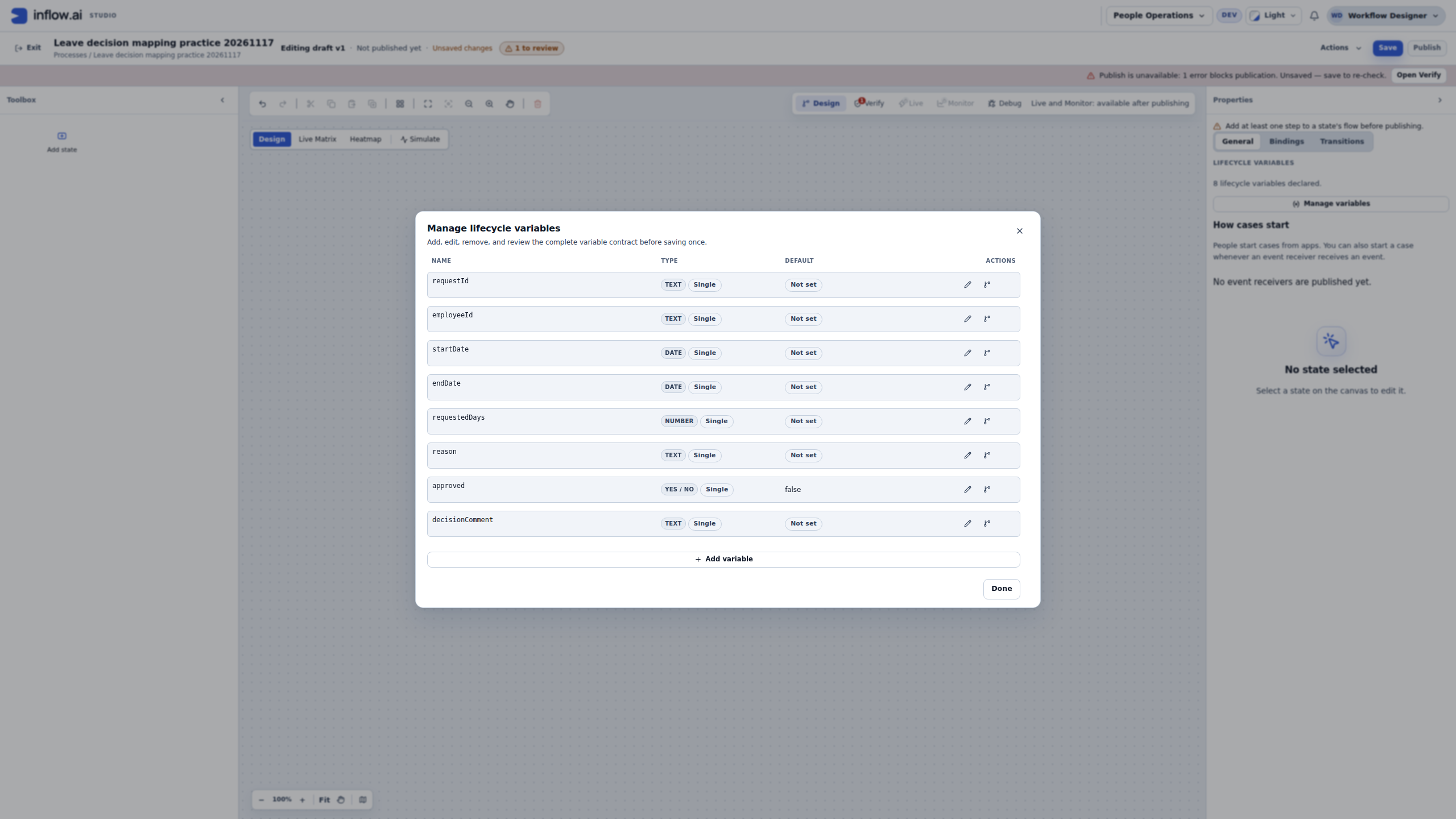
- Review all eight rows. Choose the outer Done, then the normal Save in the lifecycle header. Wait for All changes saved. A closed variable dialog alone is not the remote Save. If Save fails or its result is uncertain, reconcile the known draft before making another change.
| Case-field name | Type | Required at process start | Saved default |
|---|---|---|---|
| requestId | Text, Single | Yes | Empty |
| employeeId | Text, Single | Yes | Empty |
| startDate | Date, Single | Yes | Empty |
| endDate | Date, Single | Yes | Empty |
| requestedDays | Number, Single | Yes | Empty |
| reason | Text, Single | No | Empty |
| approved | Yes / no, Single | No | false |
| decisionComment | Text, Single | No | Empty |
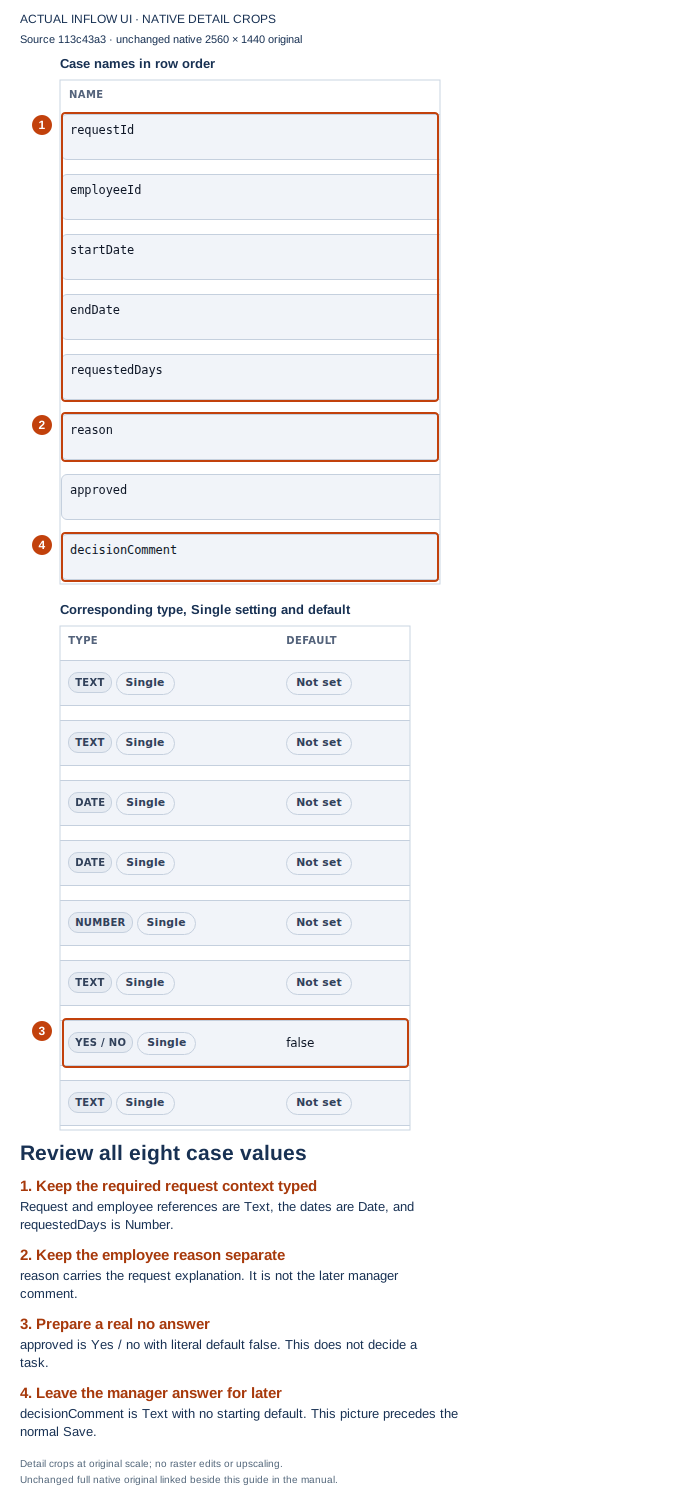
Review before storing: only approved has a default in this list. The screenshot was taken before the normal lifecycle Save; the later saved draft retained all eight declarations. The Required at process start switches are checked in their individual editors and in the worksheet above, not inferred from the collapsed rows. Open the unchanged native 2K screenshot.
- Select the original Start state and rename it Review. Keep it initial. Use Add next from Review twice to create its two destinations, then name them Approved and Declined. Keep both destination states terminal and Review nonterminal. Check the selected state’s own properties: the right panel changes when you select a different box.
- Use the canvas arrange and fit controls if needed to read the three stages. Select Declined and confirm Terminal state is on. Its explanation says that a case reaching it ends. That explanation describes the configuration; no case has reached it in these screenshots.
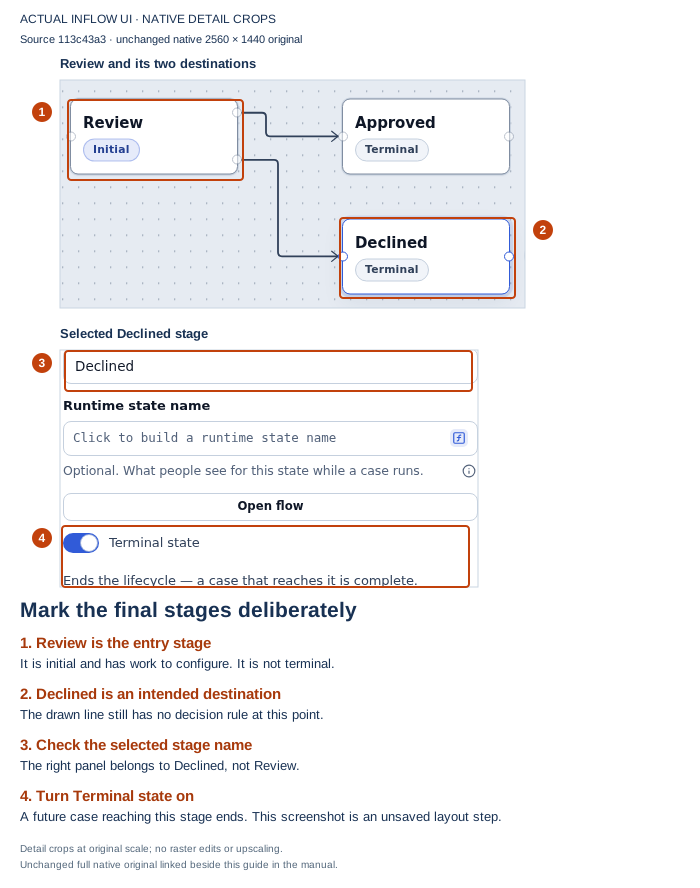
Read the destination separately from its route: the box is terminal, but the line into it still needs a decision rule. Naming a box Declined does not set approved to false or update a leave record. This layout picture precedes the second Save. Open the unchanged native 2K screenshot.
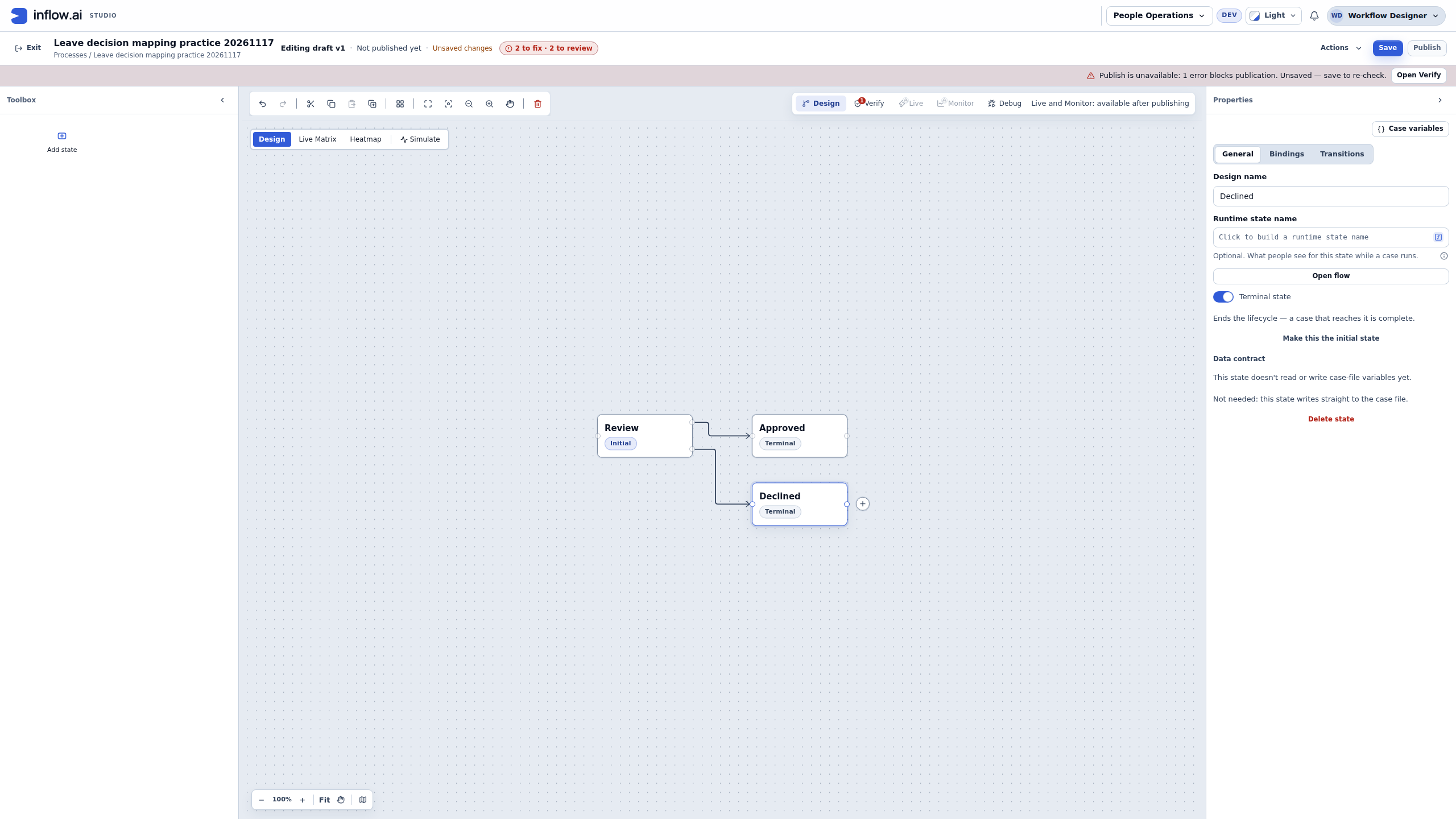
- Save the three-stage design. Open Verify and choose Run check. Wait for the check to complete before reading the totals. At this intermediate point the actual example reports 2 errors, 0 warnings and 9 checks passed: the branching transition lacks its rule, and Review needs its own flow. Use the findings to decide what to configure next. Repeatedly choosing Run check without changing the design does not fix either issue.
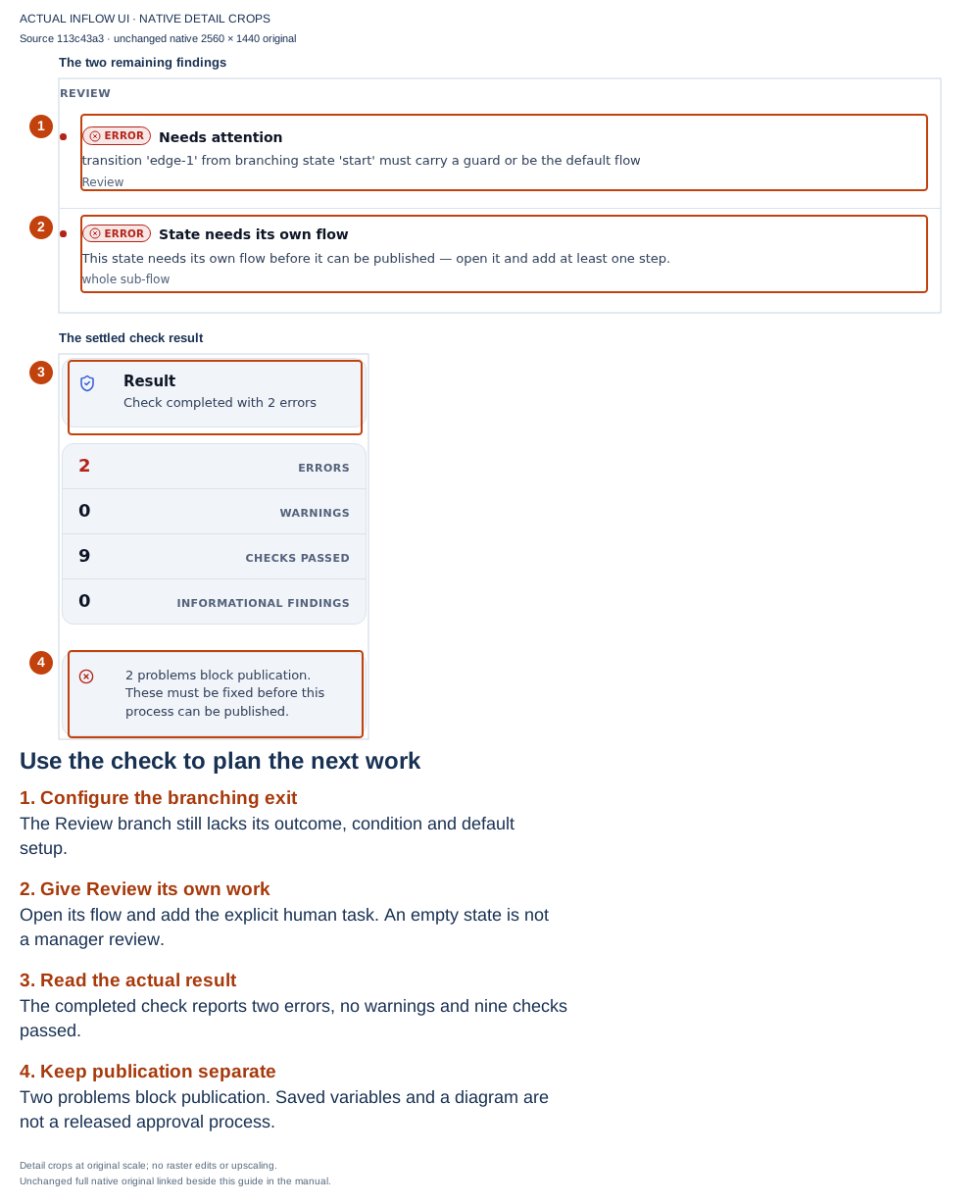
A useful intermediate check: the saved case values and three boxes are present, and the check explains why the process is unfinished. The next milestone gives Review its explicit human task, Form mappings and approval/default routing. This image does not show a published lifecycle, an assigned task or an employee/manager result. Open the unchanged native 2K screenshot.
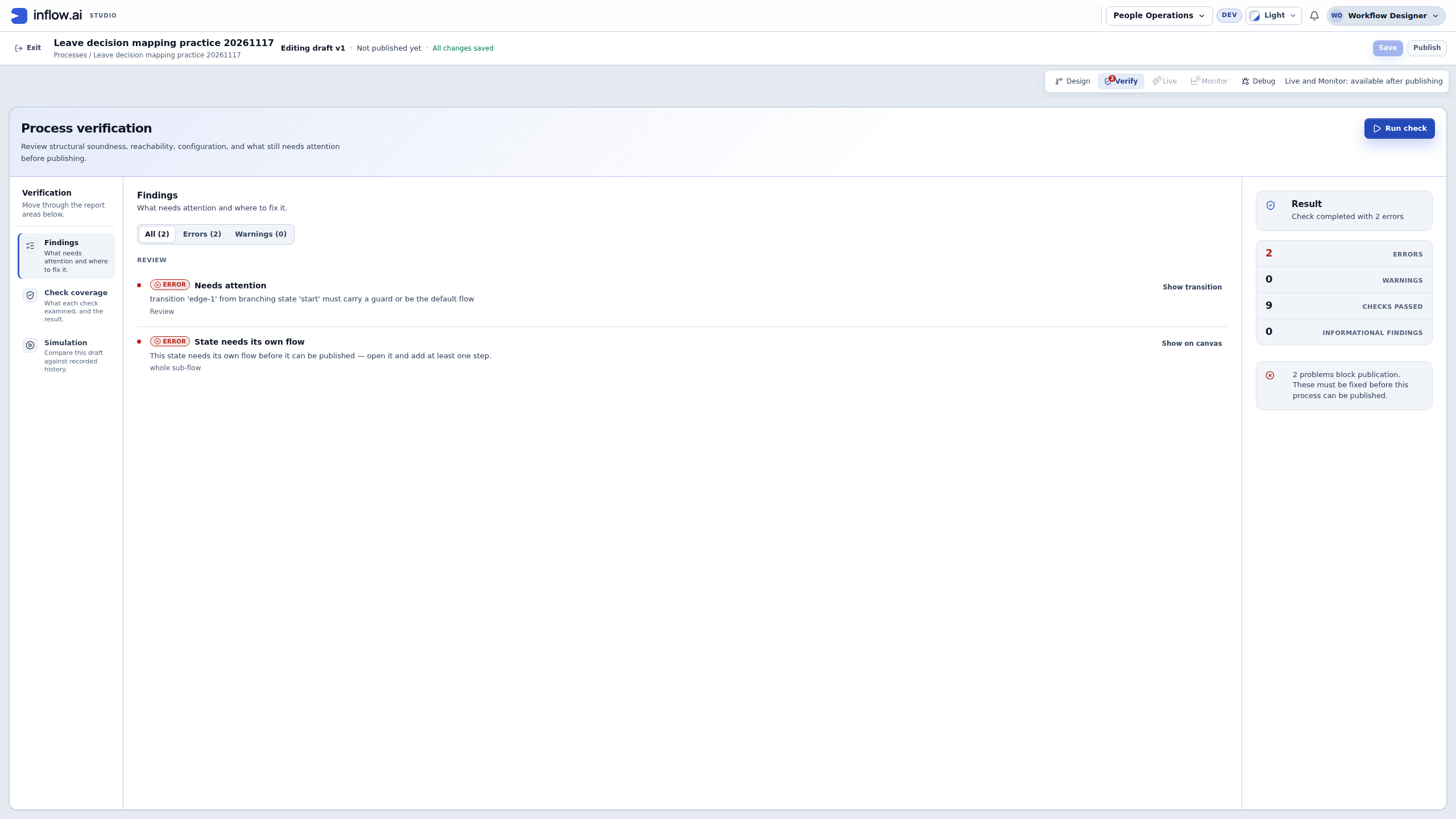
If your result differs: confirm that you are editing the intended practice draft and that Save has completed. A missing starting value belongs in the variable/start mapping contract; an empty Form belongs in the task’s Form/input mapping; a branching error belongs in the lifecycle’s transition settings. Work on the named cause rather than changing every type to Text, requiring the Approved checkbox, or choosing Publish repeatedly.
These illustrations show ordinary builder configuration of a synthetic unpublished draft. They were captured at native 2560×1440 on the recorded 17 November build source 113c43a3. They do not establish the later ordinary-user journey. The next steps still need the task, published Form pin, answer mappings, explicit approval/default exits and authorized manager assignment.
Milestone 2 — Build Review and its manager task
Goal: make Review do real work and give each decision a clear destination.
- In Design, create/select Review as the initial state. Prepare Approved and Declined as terminal states.
- Select Review and choose Open flow.
- Add a human task named Review leave request.
- In its Form settings, choose the published Manager leave decision interface from the interface lesson. Do not choose the employee request-entry form.
- Under Fill the form’s inputs, map each declared input on Manager leave decision from its matching case field: requestId → requestId (Text), employeeId → employeeId (Text), startDate → startDate (Date), endDate → endDate (Date), requestedDays → requestedDays (case Number to compatible form Decimal), and reason → reason (Text). These supply the read-only request section you built in interface milestone 7. Choose the actual case values with the mapping picker; do not replace employeeId with a login account ID. Also map the case’s Boolean approved value into the form input approved. Keep the form declaration’s own text Default empty.
- Under Save the form’s outputs, retain only approved → approved (Boolean) and decisionComment → decisionComment (Text). The request details are review context, not manager-editable answers to write back. Check that the form's read-only dates and employee match the case before publishing.
- Open Assignment, choose Add assignee source → Specific user, then Choose…. In Pick a user, use Search users, select Sara’s actual prepared account and confirm Select. Check the selected person chip. For this first lesson use Sara directly; do not type S002, add an unused managerUser input or leave an extra candidate source that routes the task elsewhere. A later real application can use the supported manager participant after its directory manager relationship is prepared.
- Connect the human task to one ordinary End event named Review complete. For the current limited-user application pilot, leave Review’s parent-state declared outcomes empty. Do not choose Declare as Review complete: the current application-runtime qualification does not admit that parent-outcome design. The ordinary child end still has its actual allocated identifier, which the transition selector can offer directly. The older illustrated declaration below records a separate authoring exercise; it is not the current pilot configuration.
- Return to Review’s Transitions tab. For the exit to Approved, choose the actual child end directly under Outcome → Approved; the current pilot offers it as end_3 — not declared, then set Only when (optional) → Approved to
approved == true. For the exit to Declined, choose Make default flow. That default has no guard and no outcome binding. It is the otherwise route when the completed review does not satisfy the approval exit. Keep exactly one default: two true/false guards without a default do not satisfy the process check. With this Form’s genuine Boolean false starting value, leaving Approved clear supplies the no answer; the later real-task test still needs to prove its submitted value. For the generic Submit decision action, leave Business outcome blank and Reason from form field unbound. Decision comment remains a mapped business answer, not automatically the activity reason. - Do not mark the Approved checkbox Required: in this form a cleared answer is a valid decline, not a missing approval.
- Review the case-file results on Review. Applying the two Form output mappings also adds approved and decisionComment to this state’s output contract when those names already exist in the lifecycle. Check that both are present and that the six read-only request fields have not become output mappings. Do not create duplicate case variables to repeat this automatic step.
- Choose the normal Save while editing this state flow. Its work is stored inside the same lifecycle draft; it is not a second separately published process. Open Verify and follow each blocking issue back to its actual state or step.
Check your result: the manager task has a published form, the right possible performer, allowed answers and a route to the intended final stage. Review is more than an empty box on the diagram.
If it does not match: if a submitted comment disappears, check both the task's answer mapping and Review's declared results. If the wrong decision route follows the button, check the form action and outcome together.
The record's Status is separate. If your application must change it from PENDING to APPROVED or DECLINED, add the supported record-update action and its explicit binding in the process. Naming a terminal state Approved does not update that row by itself.
Example — Connect the published Form and the case answers
Continue the same practice draft from the eight-variable example. The following screens show Nadia configuring the review work, saving its bindings and checking the design. They stop with No assignee still reported. They do not show Sara receiving a task, Mohammad starting a request or a released workflow.
- Select Review → Open flow. Check the breadcrumb: it should say Review — State sub-flow. The initial Start event belongs to this state’s work. Right-click it, choose Add next → User task, and name the new step Review leave request. A user task is the explicit human work. Adding a lifecycle state named Review would not create this step by itself.
- Right-click that task and choose Add next → End. Name the ordinary end Review complete. Keep its Ends choice at This branch only; this exercise does not use a terminate or error end. The two Add next actions connect Start to the task and the task to the end. Check the arrows rather than relying on the boxes merely appearing close together.
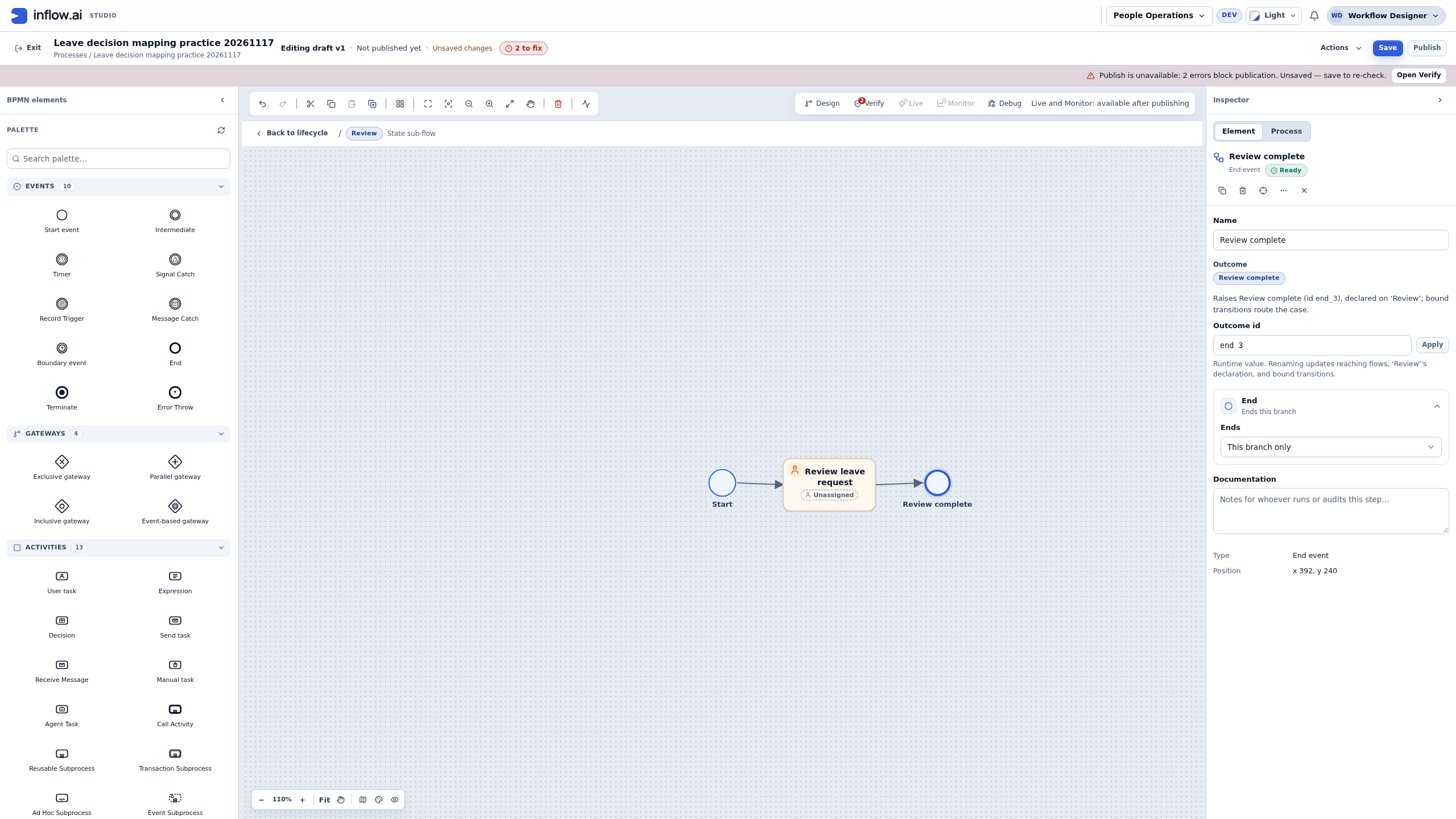
- Historical builder illustration: the 17 November exercise selected Review complete and chose Declare as Review complete, allocating end identifier end_3. Its unchanged picture follows. For the current limited-user pilot, keep the ordinary child End but skip that declaration: parent-state outcomes remain empty. Use the actual child end offered directly by the later transition selector; do not invent an approved or declined end identifier.
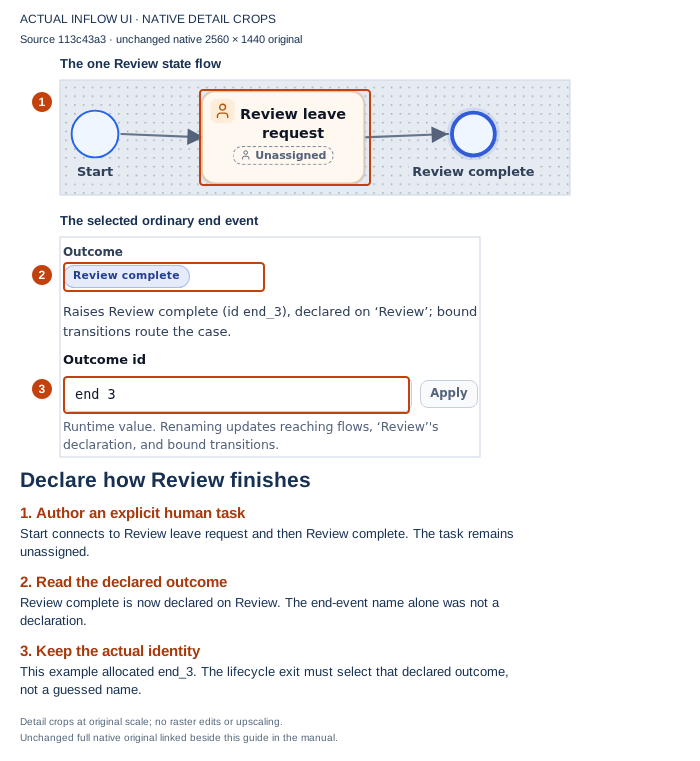
Connect the two levels: this end finishes Review’s internal work. The right panel says it raises Review complete, declared on Review. A later lifecycle transition selects that same outcome. This image is an unsaved authoring step, with Form binding and routing still to follow. Open the unchanged native 2K screenshot.
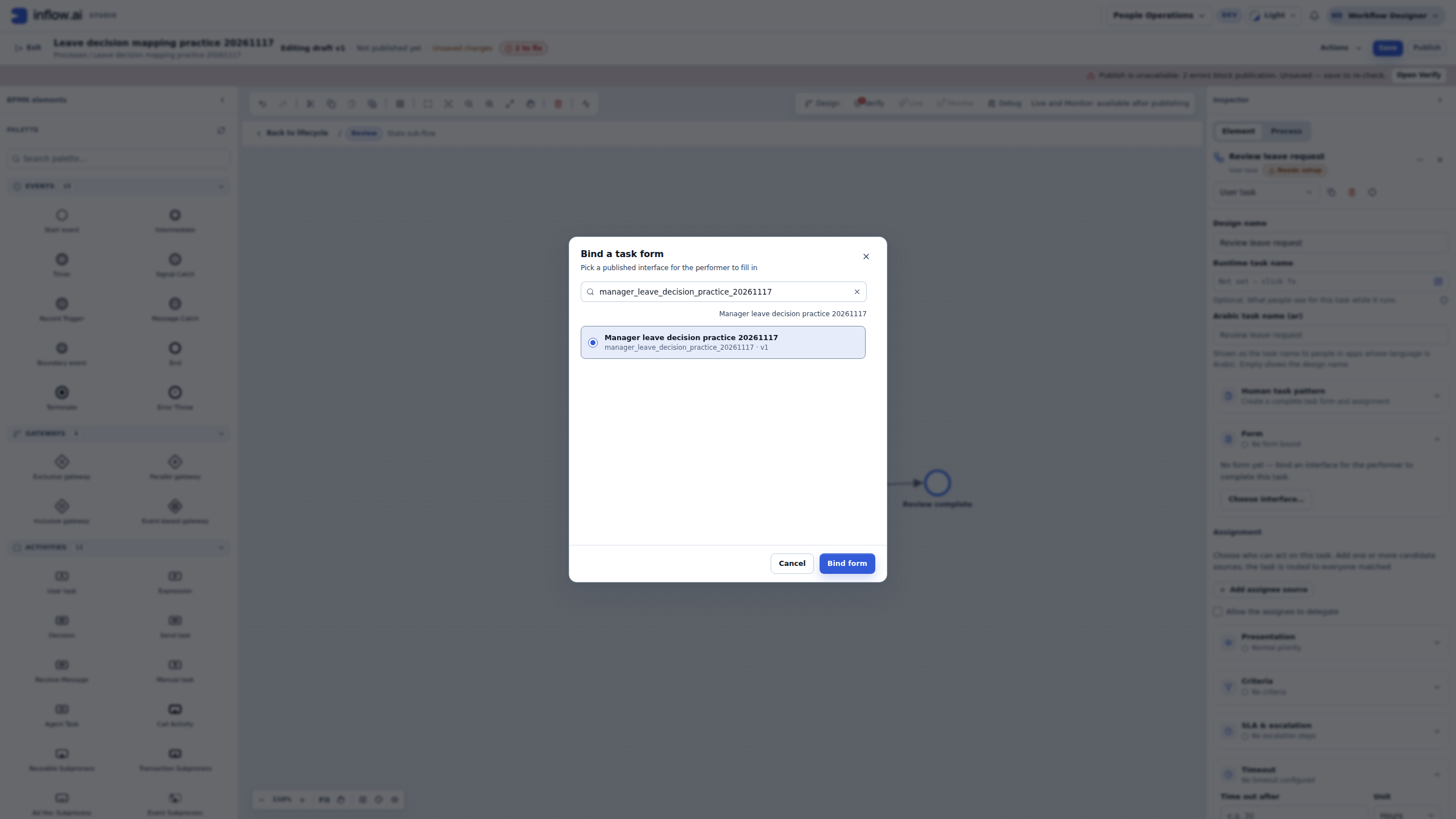
- Select Review leave request, open Form, and choose Choose interface…. Search for the manager decision Form you published in the interface lesson. Read its title, key and published version in the picker. Select that row and choose Bind form. In this captured example the exact key is manager_leave_decision_practice_20261117, version 1. Choosing a similarly named employee intake Form would connect the wrong contract.
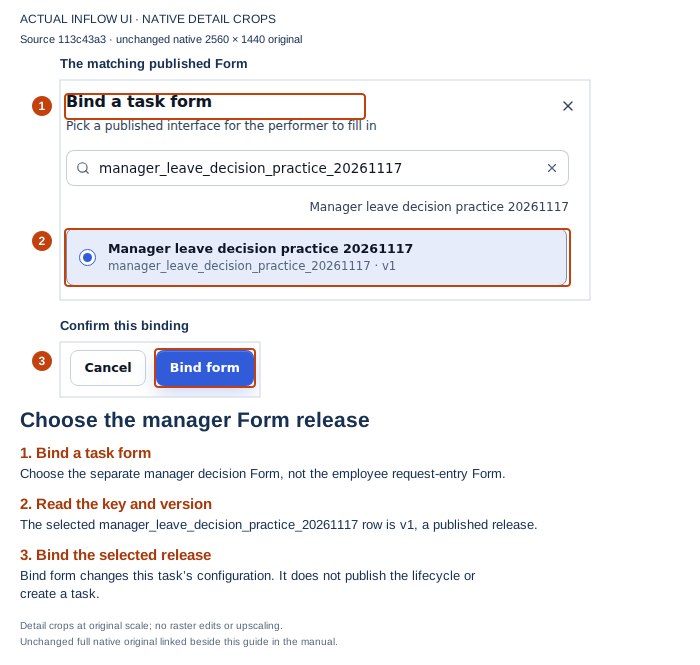
Choose a release, not just a title: v1 is the actual published dependency selected here. Binding it changes this task’s design. It does not publish the lifecycle, give the Form to a person or create a running task. Open the unchanged native 2K screenshot.
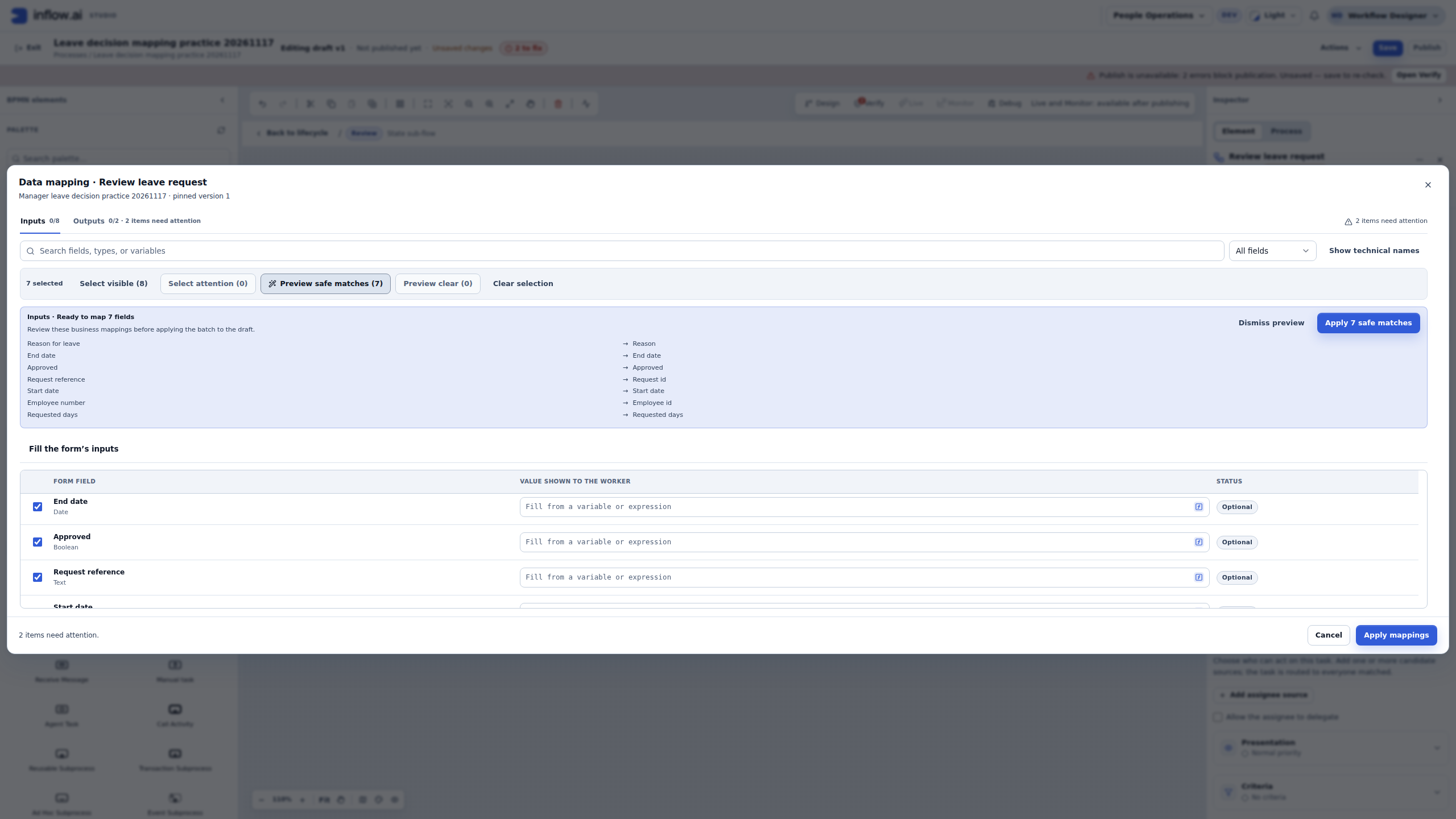
- Choose Manage data mapping → Inputs. Supply the seven input mappings below. You can open each input’s expression picker and choose its existing case variable. For these same-name compatible fields, the example instead selects the seven intended rows and uses Preview safe matches. When using Select visible (8), clear the Decision comment row before previewing. If the last row is below the dialog footer, scroll the mapping grid until you can see it. Review the proposed pairs before choosing Apply 7 safe matches.
| Value shown on the Form | Existing case variable | Purpose |
|---|---|---|
| Request reference | requestId | Read-only request reference |
| Employee number | employeeId | Read-only business employee number |
| Start date | startDate | Read-only requested start |
| End date | endDate | Read-only requested end |
| Requested days | requestedDays | Read-only numeric amount |
| Reason for leave | reason | Read-only employee explanation |
| Approved | approved | Initial editable Boolean answer |
Leave Decision comment unmapped on Inputs for this exercise. The future manager supplies that required Form answer. Do not map the employee’s reason into it or type a fixed sample comment as the task’s real initial answer. The Form input declarations are optional, so Inputs 7/8 is intentional here; the seven business mappings still matter even though the editor can label an unbound declaration Optional.
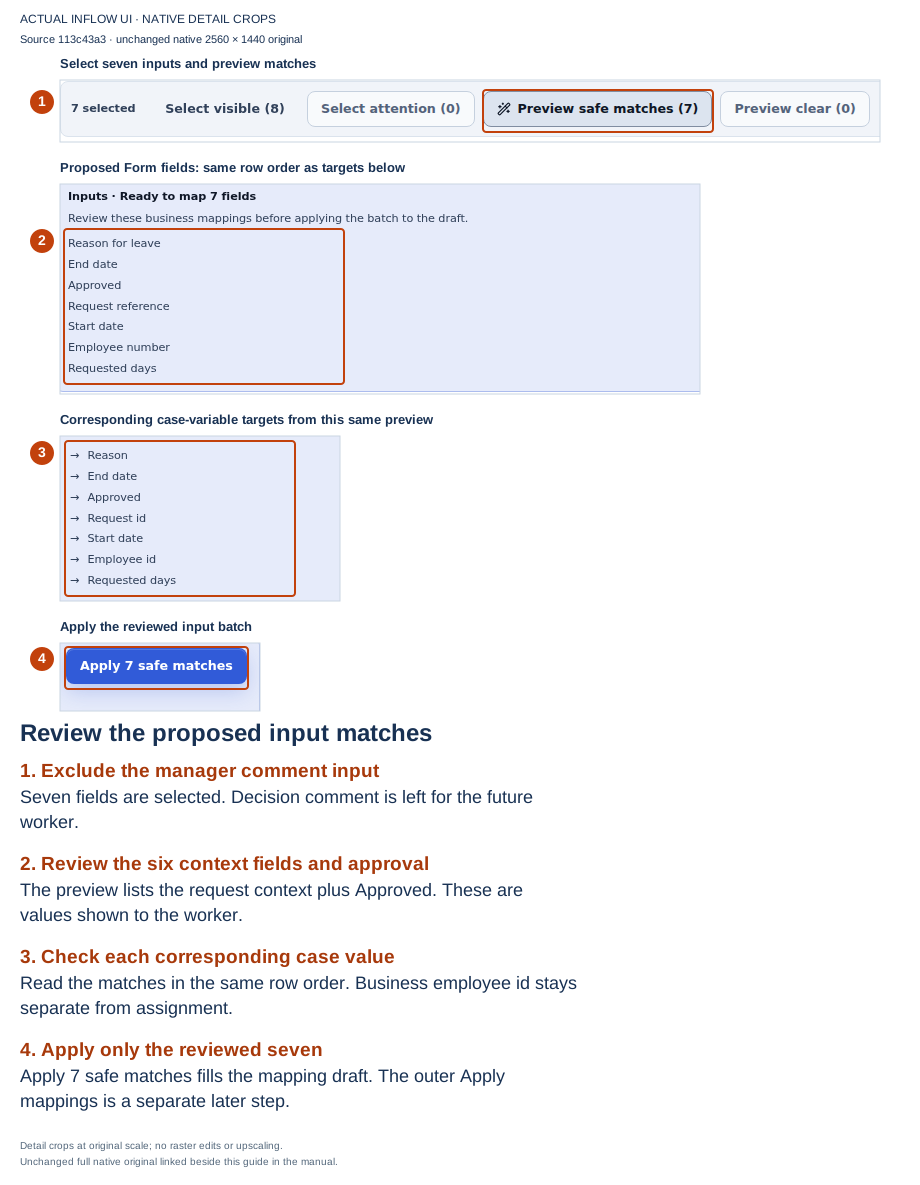
Review before applying: the detail crops show the Form fields and corresponding case targets from the same preview, in the same row order. Decision comment is excluded. Apply 7 safe matches fills the dialog’s mapping draft; the outer Apply mappings remains a separate commit. Open the unchanged native 2K screenshot.
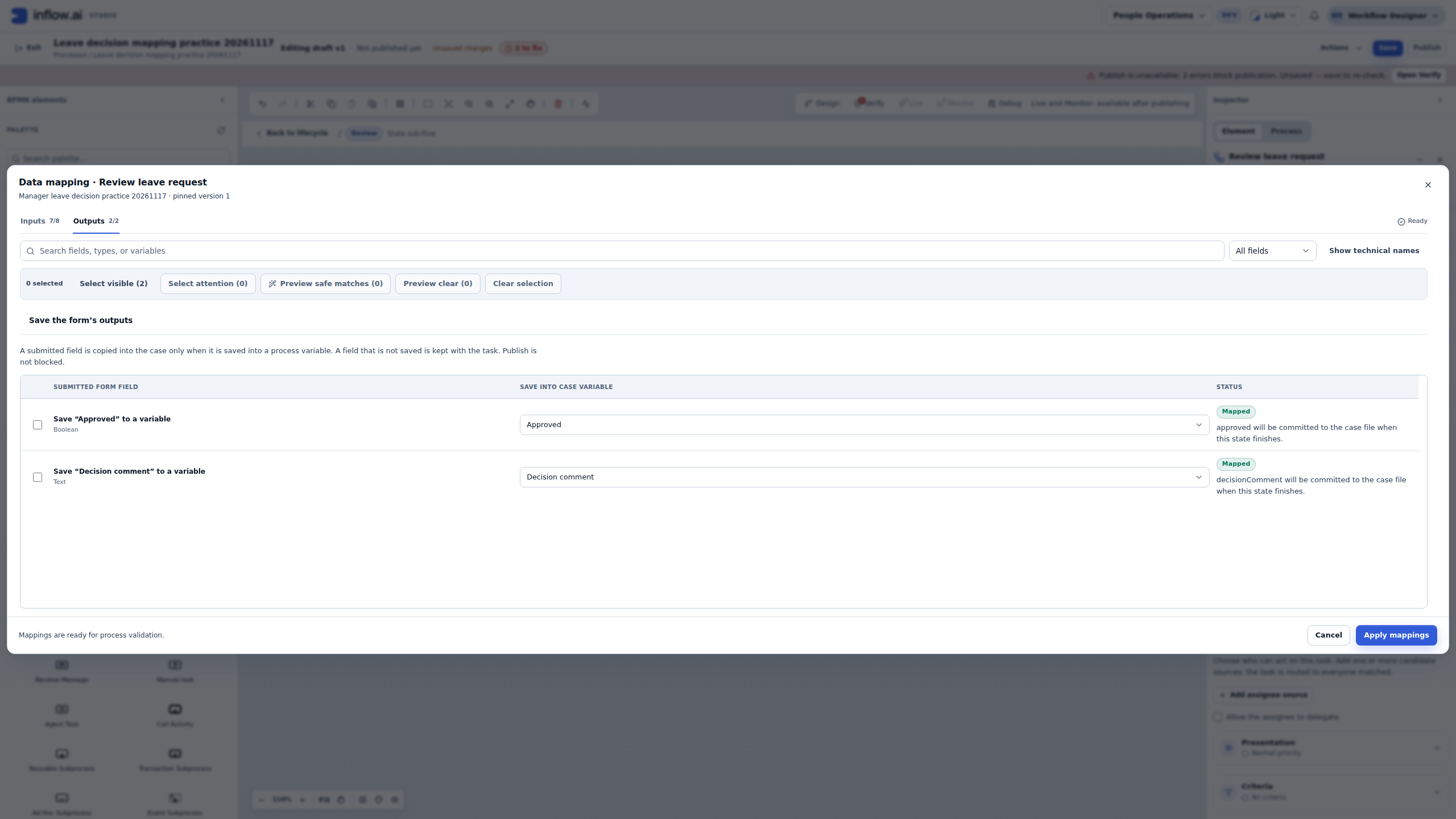
- Switch to Outputs. In Save “Approved” to a variable, choose the existing Approved case variable. In Save “Decision comment” to a variable, choose the existing Decision comment case variable. Read the types: Boolean and Text. These are the only two answer rows in this Form’s output list. Do not create extra variables or try to write the six read-only request values back to the case.
- Choose the outer Apply mappings. When the targets already exist in the lifecycle, this also adds approved and decisionComment to Review’s case-output contract. Return to Review’s properties and check those two committed names. Then choose the normal lifecycle header Save and wait for All changes saved. The internal flow is saved inside this same lifecycle draft; you do not need a second independent process publication for it.
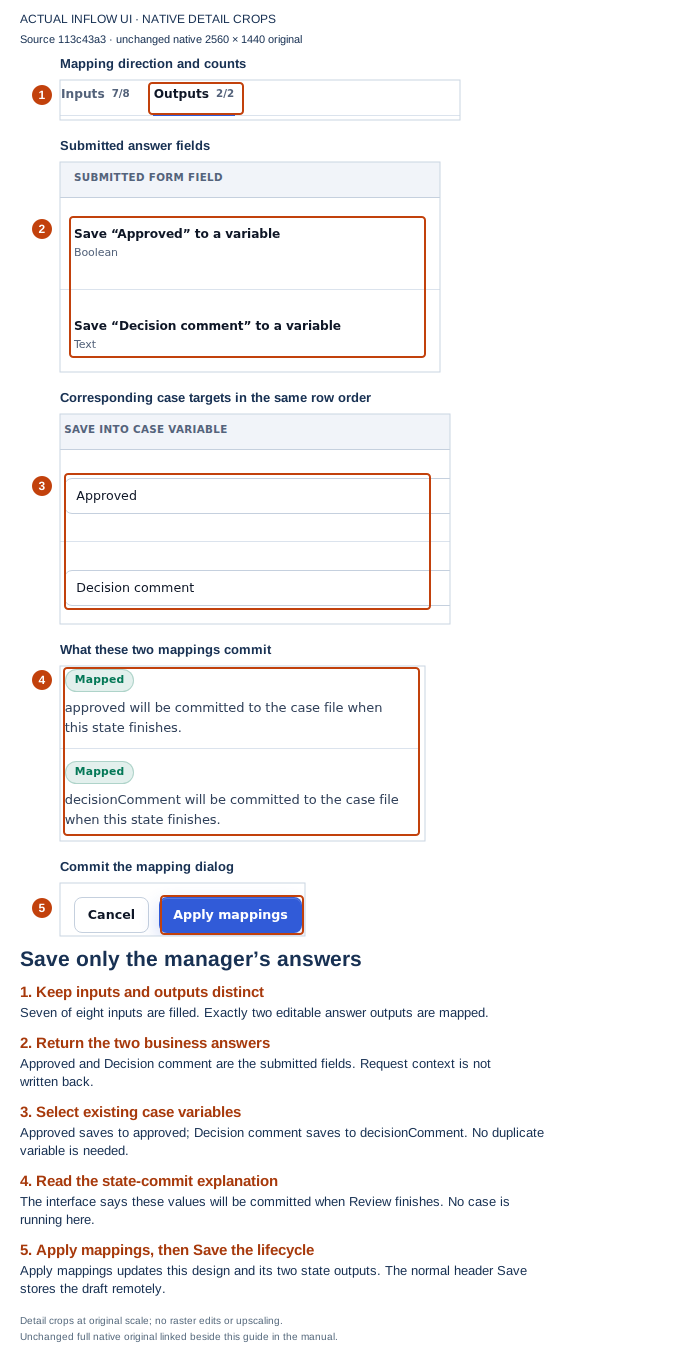
Keep the return contract narrow: the two submitted answers have their own destinations. The request’s dates, employee number and reason remain context. This picture precedes Apply mappings; the subsequent Save retained the seven inputs, two outputs, two state commits and declared end outcome. Open the unchanged native 2K screenshot.
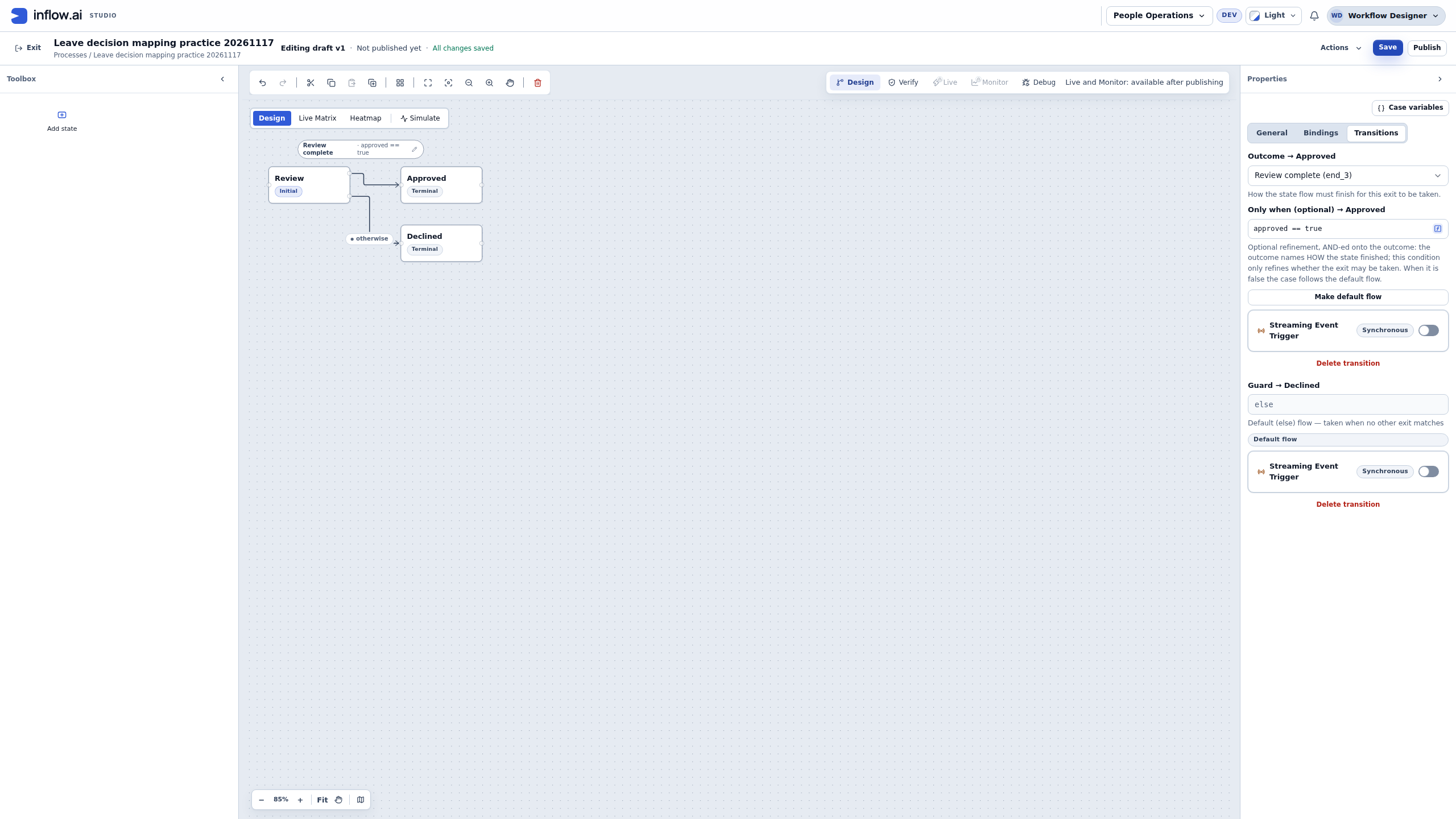
- Choose Back to lifecycle, select Review, and open Transitions. For the exit to Declined, choose Make default flow. Read the resulting else / Default flow presentation. Do not add a separate false guard or an end-outcome binding to that default.
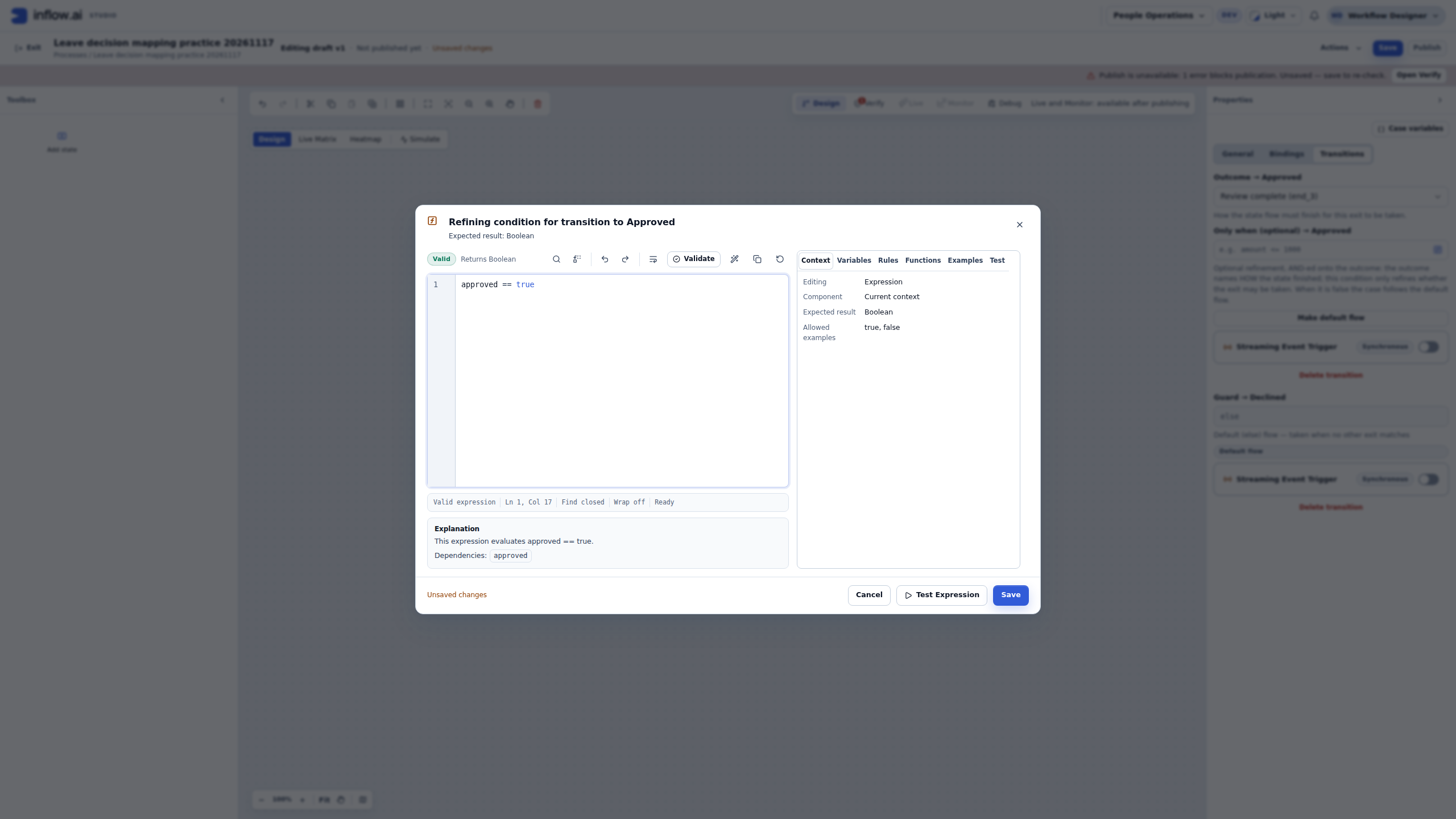
- For the current limited-user pilot, on the exit to Approved choose the actual child End under Outcome → Approved, offered as end_3 — not declared in the captured practice configuration. Your end identifier can differ. The older picture below instead shows the separately declared Review complete outcome; retain its historical meaning and do not copy that parent declaration into this pilot. Open Only when (optional) → Approved, enter
approved == true, and check that the editor reports a Boolean result. Choose the expression editor’s Save, then the lifecycle header’s Save. The first keeps the condition in the design; the second stores the lifecycle remotely.
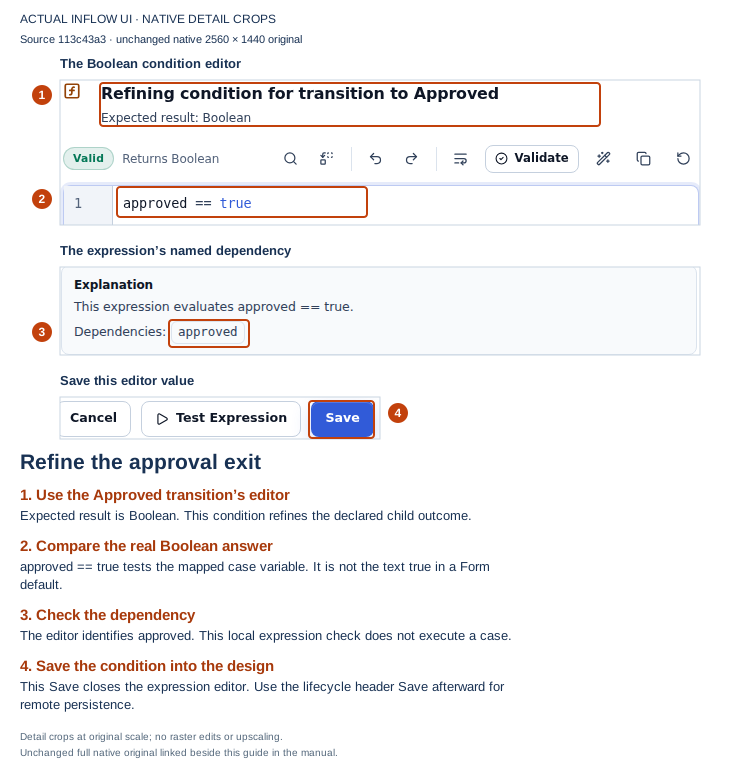
Two facts must match: the child work must finish with the chosen outcome, and the mapped approval answer must be true. The editor’s Valid result checks this expression; it is not evidence that a case ran or a manager submitted an answer. Open the unchanged native 2K screenshot.
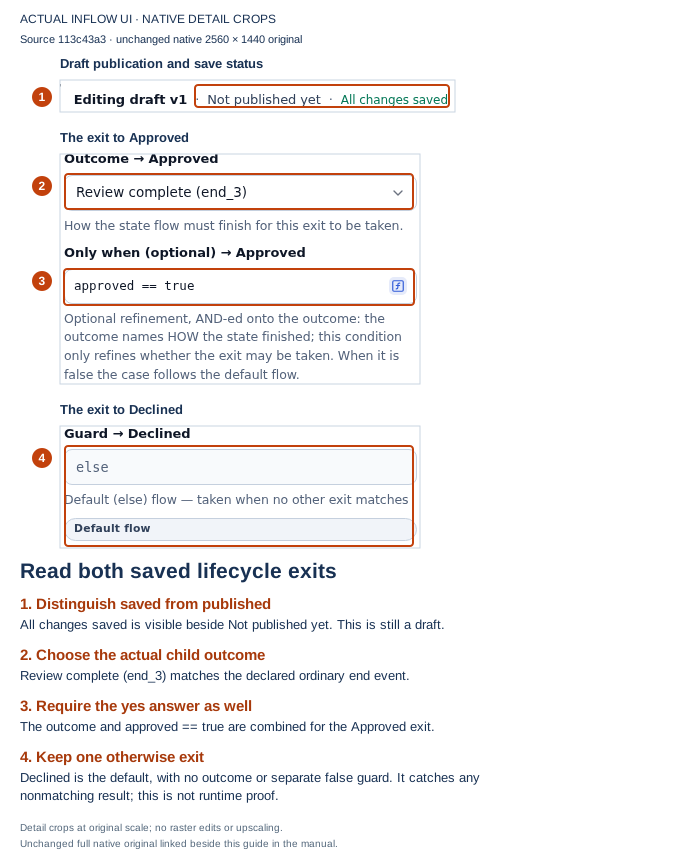
Read both exits together: the declared outcome and true condition choose Approved; otherwise the default chooses Declined. The default is a fallback for any nonmatching result, not a special test that the value is false. Keep this distinction when extending the design. The saved header still says Not published yet. Open the unchanged native 2K screenshot.
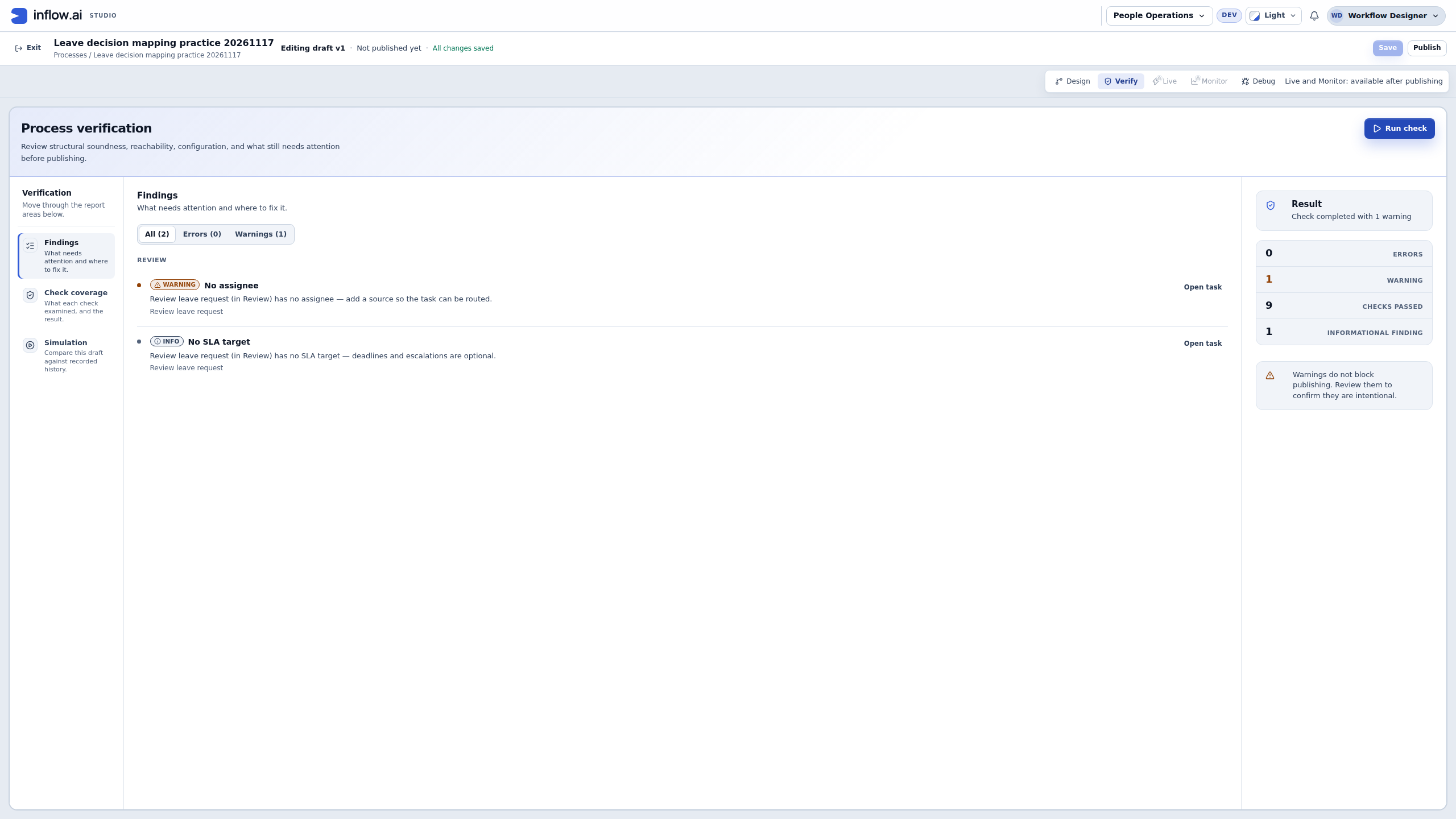
- Open Verify → Run check, wait for completion, and read each remaining finding. The captured saved draft reports 0 errors, 1 warning, 9 checks passed and 1 informational finding. No assignee points to Review leave request: its performer is still missing. No SLA target says deadlines and escalations are optional.
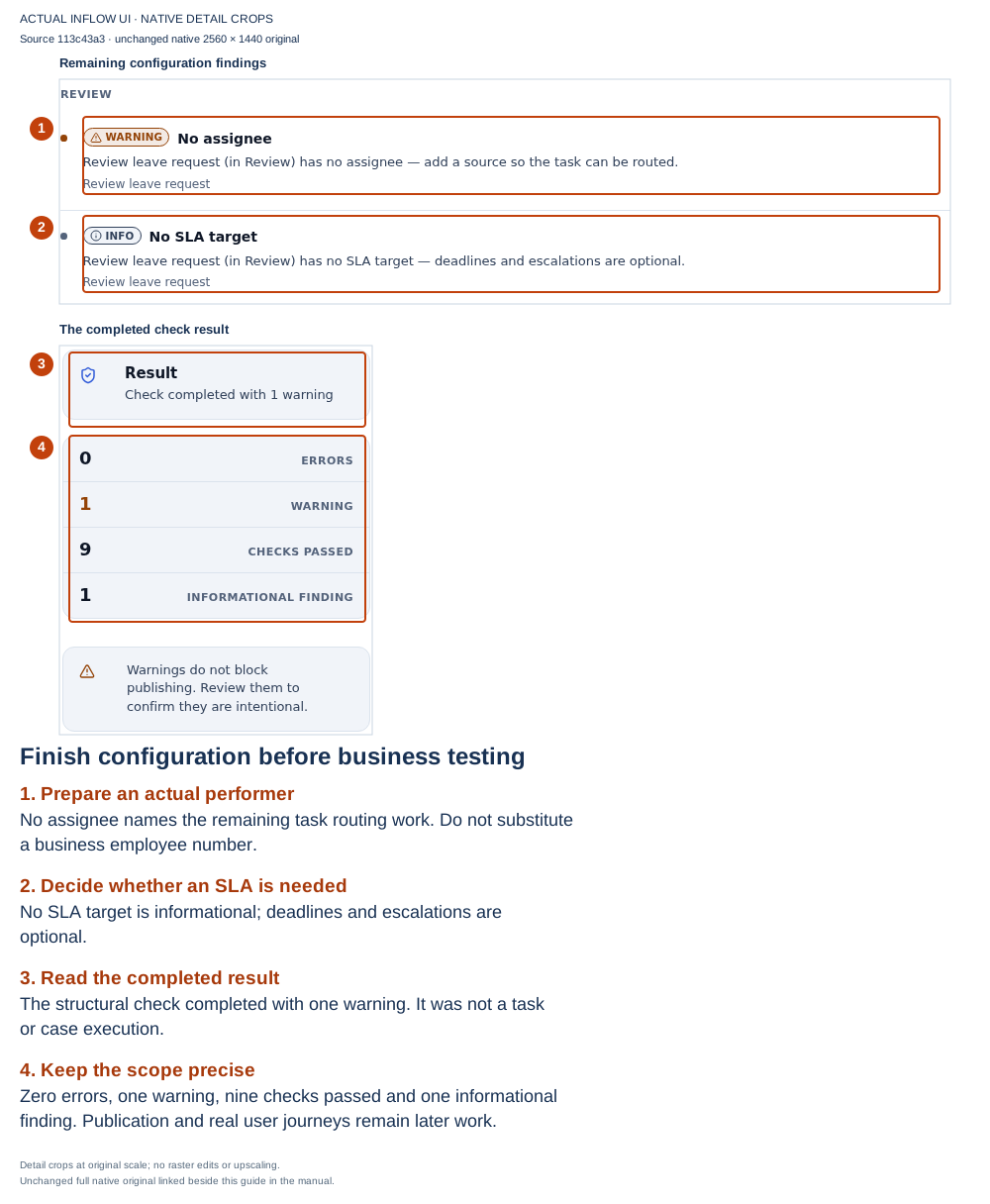
Use the warning to finish the business setup: this example stops before selecting a real manager or publishing the lifecycle. In your authorized training setup, continue with the prepared ordinary manager account in Assignment, then review and publish the intended workflow. A structurally acceptable draft can still lack a usable task recipient. Open the unchanged native 2K screenshot.
Check your result: the saved draft has one explicit review task, one exact published manager Form version, seven inputs, two answer outputs, the declared child completion and one approval/default pair. The two old intermediate errors have been removed by configuration. This remains builder evidence. The following milestones still need authorized assignment, workflow publication, application start/task hosting and actual ordinary-user tests of both decisions.
If it does not match: if the end is not offered in Outcome, verify that the saved ordinary End belongs to Review’s child flow and inspect its actual offered identifier. For the current limited-user pilot, do not add a parent declaration to force the picker; ask the owner to check that configuration. If a comment is missing from the later case, check its Form output target and Review’s committed outputs. If an exit lacks an otherwise path, use the default control rather than typing else as an ordinary expression. If the task has no assignee, select the approved person through Assignment; changing employeeId or a business record’s manager text does not make that person eligible.
Milestone 3 — Save, review and publish the workflow
Goal: release one intentional design for the application to start.
- Save the current design and use Verify to remove the blocking findings.
- Check the selected manager form and recipient once more.
- From Design or the appropriate editable flow, choose Publish when available.
- Read the review and any compatibility or acknowledgement explanation. Confirm only the design you have reviewed.
- Use a business-readable publication note, such as Initial leave approval with a required manager explanation.
- Read the resulting published version. Keep it distinct from any further draft edits.
Check your result: a published workflow exists for the next application-setup stage. That publication does not yet prove that Mohammad or Sara can use the application.
If it does not match: reload and compare if someone else changed the draft. If confirmation was lost, inspect the known publication history before repeating Publish.
Milestone 4 — Test both decisions in Debug
Goal: prove that the designed routes and mappings make business sense before ordinary users try them.
- Open Debug for the intended saved/published design.
- Choose the intended starting stage and pause before Review leave request.
- In the example business data, enter the worksheet values. If starting directly at Review, supply anything that an earlier stage would normally prepare.
- Choose Start test and inspect the task's inputs and eligible participant.
- In the supported participant form, select Approved, enter Cover is arranged as Decision comment and choose Submit decision.
- Continue with the current run/step controls and inspect the final stage and retained comment.
- Choose New test and repeat the decline route with a distinct test reference, a clear Approved checkbox and Please choose another week as the comment. Submit without first selecting the checkbox as one check that its Boolean false input is prepared correctly.
- Check a missing required answer as a separate negative test, then correct it and complete the intended decision.
Check your result: Approve and Decline take different intentional paths, and the manager's comment reaches the intended later information. A saved draft answer alone should not complete the task.
If it does not match: correct the actual form, mapping or outcome and start a new captured test for the revised design. A previous test's success is not proof of a later edit.
Pause this tutorial here. Return to App Shell/interface milestones 8–9 to configure the real published start and task host, then identity milestone 6 for the complete application's access review. Configuration of a task host does not require inventing a task before the process has been started. Continue below only after those preparations are finished.
Worked pilot — Submit a request and record the manager’s answer
This is a separate, real three-day practice request. It shows the published application in use by two ordinary accounts, Manuals Demo Employee and Manuals Demo Manager. They play Mohammad’s and Sara’s roles. Neither participant signs in as an administrator or uses the designer’s test preview.
The earlier preparation pictures show authoring steps; the pictures in this section show the employee’s actual request, a manager’s actual assigned task and its recorded completion. Keep those two kinds of evidence separate. This pilot uses only case variables and task answers. It does not create or update a leave business record, calculate entitlement or demonstrate the decline route.
Before the employee starts
Ask the person preparing the practice application to confirm these points:
- The Request leave page opens the published employee Form, whose button starts the reviewed leave process. The manager’s separate decision Form is already published and bound to its review task.
- The exercise accepts whole days. Its employee input uses Integer, while the process’s requested-days input accepts the resulting number. The six request fields map to their matching process inputs. Approved and Decision comment are manager answers, not employee start inputs.
- Start and End date use the Form’s normal date settings. Avoid carrying custom date preferences or unrelated declaration settings from another example into this small pilot.
- The actual directory account for the manager is selected in the task’s Assignment. Typing
DEMO-014in Employee number does not select the employee’s login or change the assignee. - The administrator has reviewed this published application’s access for the two ordinary accounts. Giving someone the application or its link does not give that person every task or every form.
- The coordinator has an approved way to give the manager the link to this exact task. This section starts with that link handoff; it does not demonstrate building an in-application task worklist or notification delivery. If your application already supplies an authorized task link, use it. Otherwise arrange the handoff before the exercise.
The complete setup course remains useful, but the real participant pictures below do not prove every preceding setup or discovery step. In particular, a preview containing sample orders is not a leave-task worklist. Do not publish that sample and tell a manager that it contains their assigned work.
1. Enter a fresh employee request
Sign in as the ordinary employee and open the permitted Leave requests walkthrough → Request leave page. Compare the application and account names before entering data. In this practice application, the left navigation contains Home and Request leave; your own reviewed application may use different page names.
Use a fresh request reference each time you deliberately make a new request. The pictured request is already submitted and completed, so do not submit it again to reproduce the picture.
| Field | Pictured value | What to check |
|---|---|---|
| Request reference | CF3-LEAVE-20261119-02 | One reference identifies this request through its task and receipt. Use your own unused practice reference. |
| Employee number | DEMO-014 | A fictional business number, not a directory username or a grant of access. |
| Start date | 21 December 2026 | The employee Form displays this as 21/12/2026. |
| End date | 23 December 2026 | The employee Form displays this as 23/12/2026. |
| Requested whole days | 3 | Enter whole days. This exercise neither calculates weekdays nor supports fractional-day requests. |
| Reason for leave | Family holiday — fictional whole-day training request. | The employee’s explanation will be shown to the manager. It is separate from the manager’s later comment. |
Read the help below each field. Check both dates, the amount and the reference before choosing Submit leave request once. A filled field, a selected page or a designer preview is not evidence that a case has started.
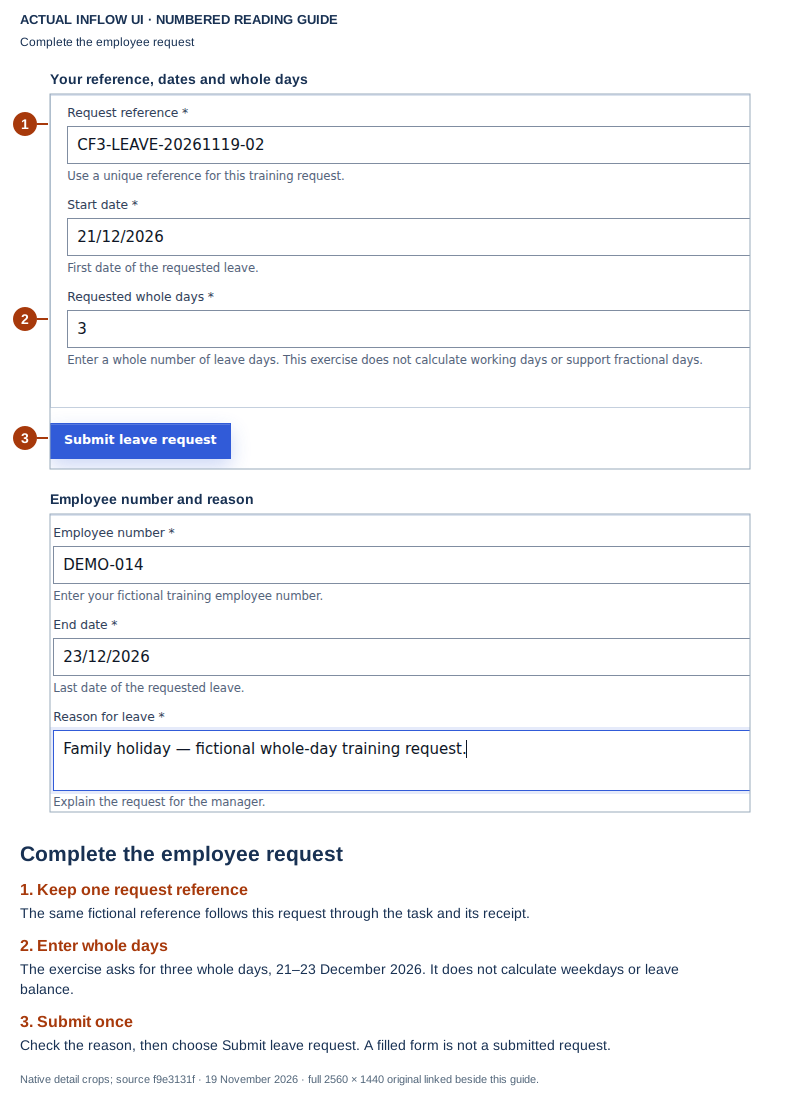
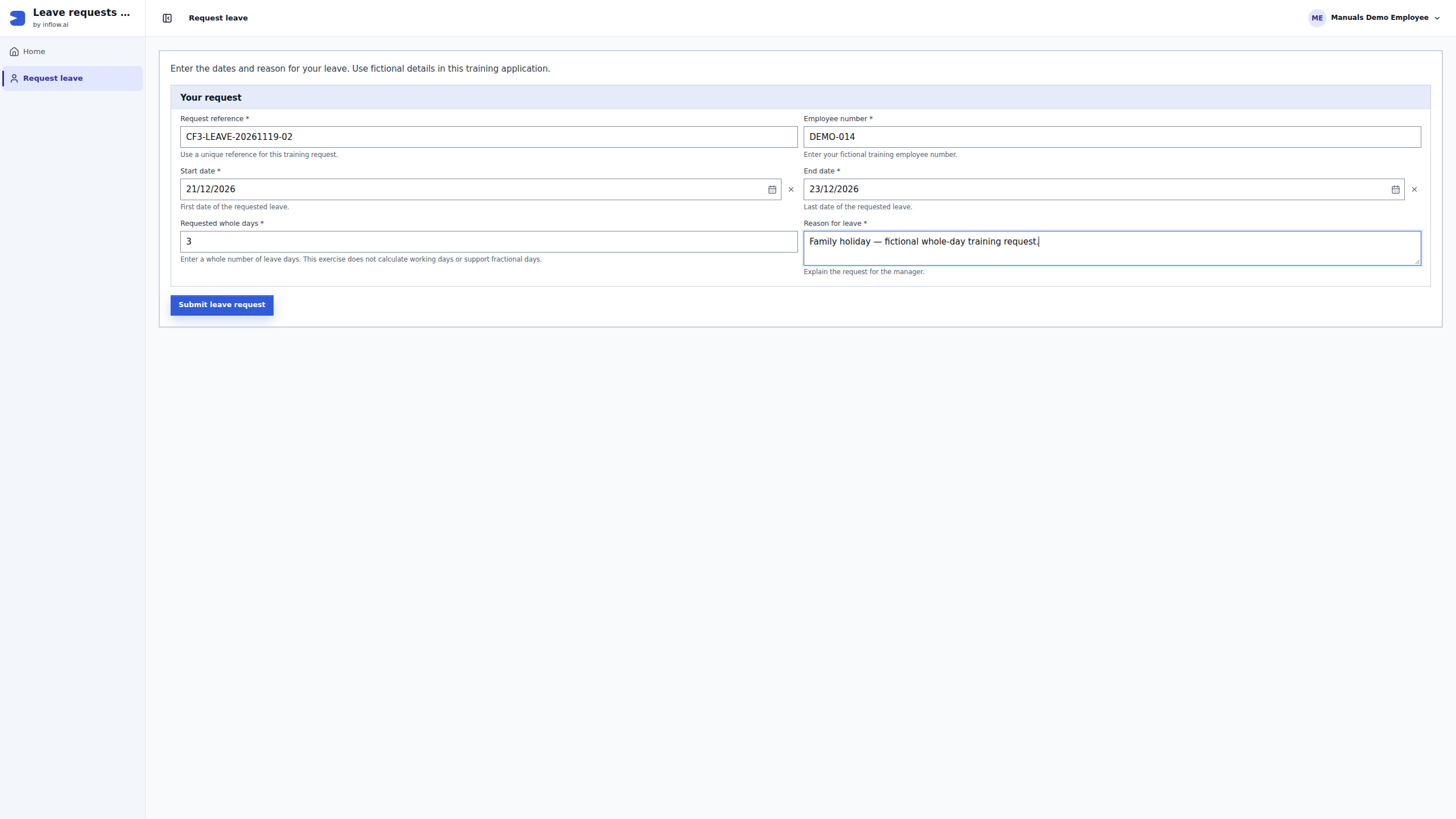
Check before submitting: 1 keeps the request reference clear, 2 identifies the whole-day amount, and 3 points to the deliberate submission. The adjacent detail crop shows the employee number and reason. This picture was taken before submission. Open the unchanged full-size screenshot.
2. Read the employee’s receipt
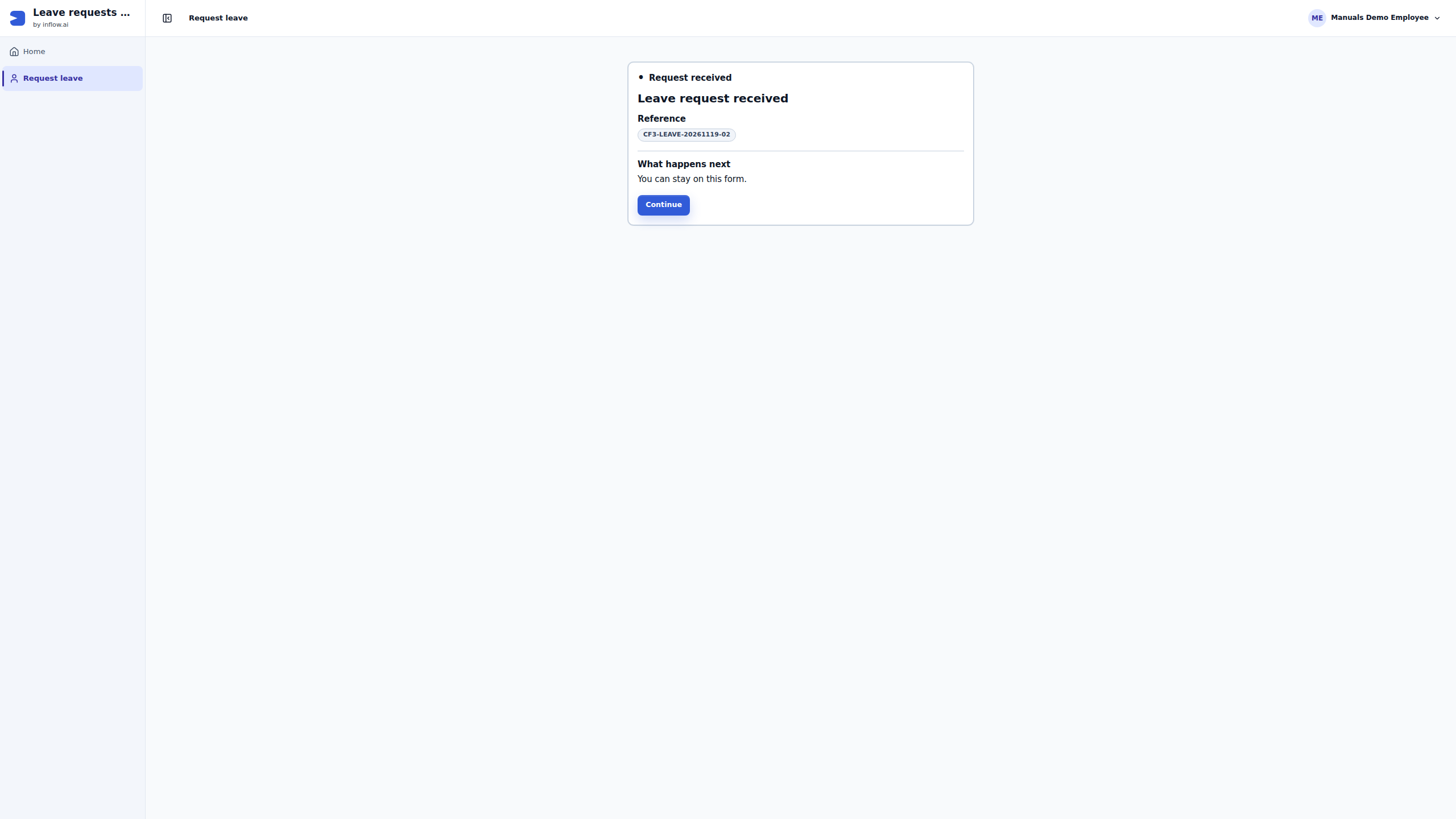
Wait for Leave request received. Read its Reference and keep it for the manager handoff or a support question. In the pictured run, the receipt contains the same reference that the employee entered. Continue lets the employee stay on the form; it is not a second submission and it does not approve the request.
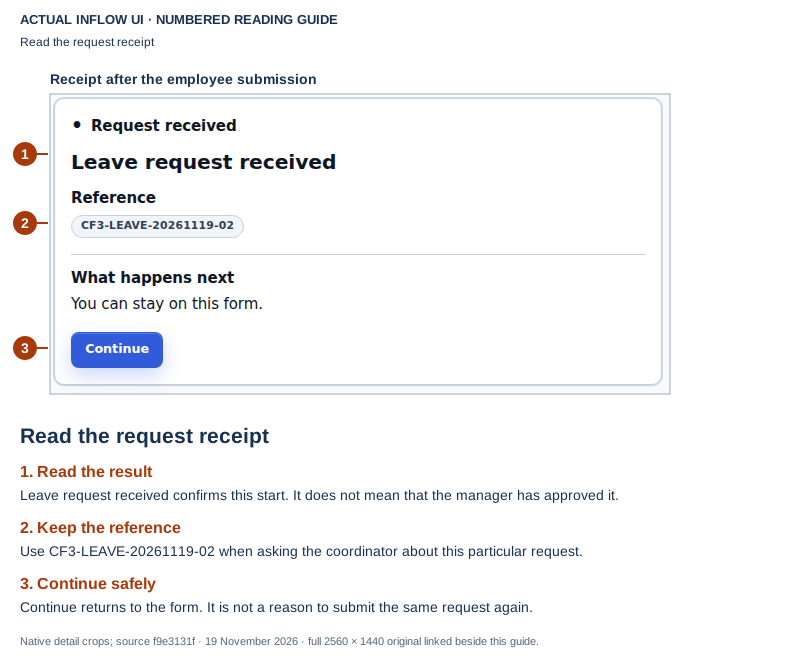
Received is not approved: 1 identifies the successful start receipt, 2 preserves the reference, and 3 explains Continue. The manager still has work to do at this point. Open the unchanged full-size screenshot.
If the browser loses the reply, do not submit again to discover what happened. Give the coordinator the reference and ask them to reconcile the existing request through a permitted view. A case that already exists should be inspected, not replaced by a duplicate. If a neutral unavailable page appears, retain the reference and ask the application owner to check the Form, published process and current access. Do not switch the employee to an administrator account to get past it.
3. Open the manager’s assigned task
Sign in separately as the ordinary manager. Open the task link supplied for this request through your approved handoff. The pictured title is Review leave request and the responsibility line names Manuals Demo Manager. Match those details before answering.
Read the Request details section. The request reference, employee business number, dates, days and employee reason are context for this decision. They are not fields for the manager to rewrite as part of approving or declining it.
The manager’s read-only form displays 12/21/2026 and 12/23/2026. These are the same 21–23 December 2026 dates that the employee entered. Date presentation depends on the particular Form and locale settings; compare the meaning of a date rather than assuming that every screen uses the same order.
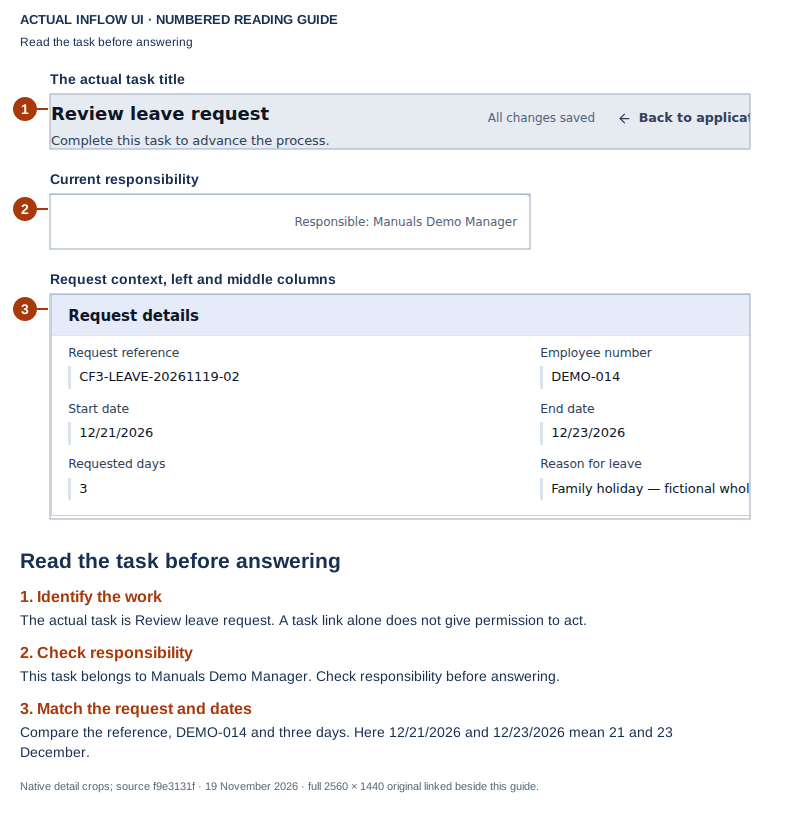
Match the work to the person and request: 1 identifies the task, 2 checks its current responsibility, and 3 compares the request context. These are details from an actual assigned task, not local Test values. Open the unchanged full-size screenshot.
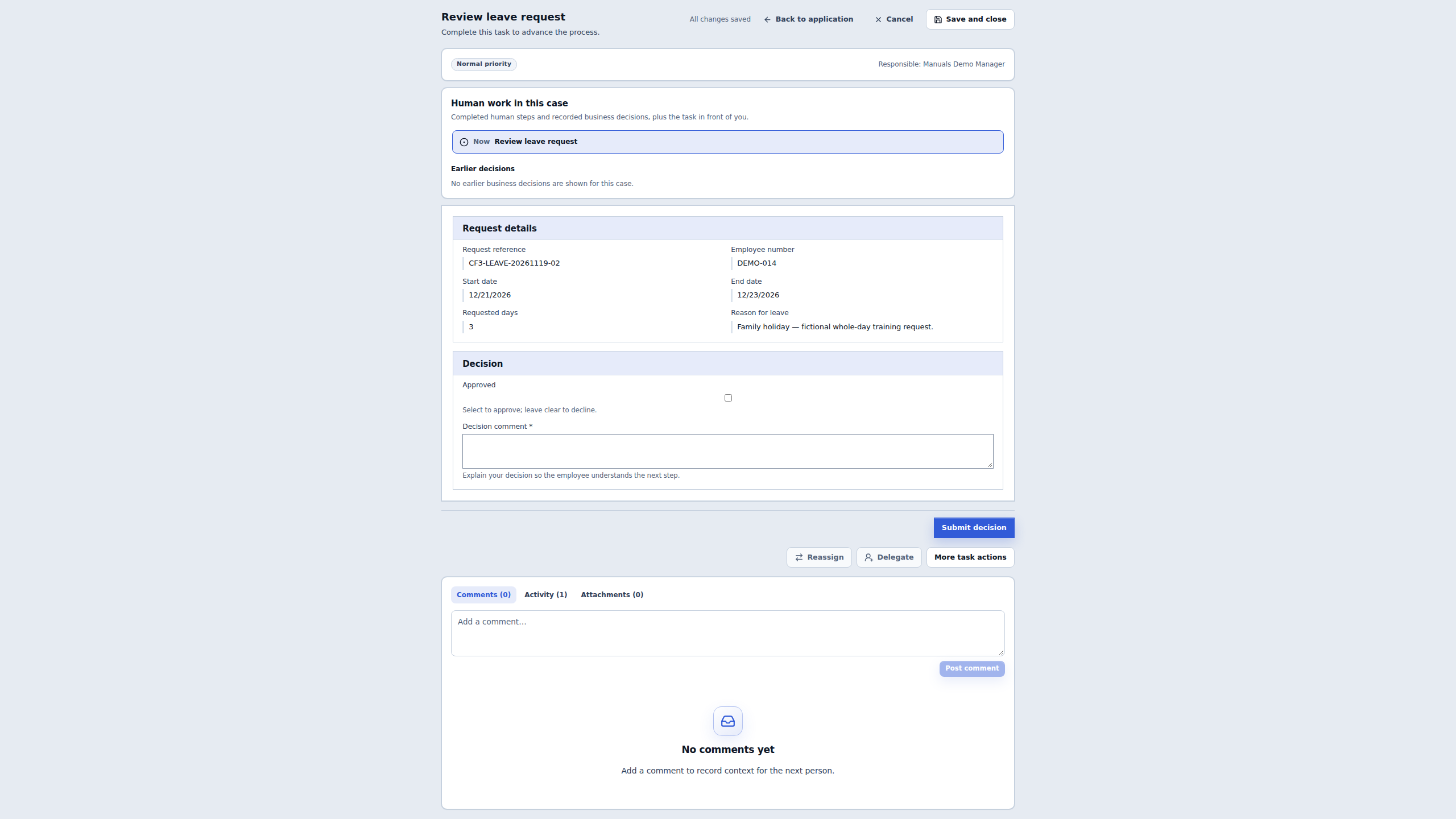
If the task’s form is unavailable, return to the application and ask the coordinator to check current responsibility, application access and the pinned decision Form. Do not assume that a readable task title means the form can be opened or the task can be completed. In this pilot, the employee could read task metadata but could not open the decision form; the form page showed no Submit decision control. That does not mean all task information was hidden from the employee.
4. Prepare the manager’s answer
For this approval example, select Approved and enter the following in Decision comment:
Approved for 21–23 December 2026. Team cover confirmed. Fictional training decision.
The employee’s Reason for leave explains the request. The manager’s Decision comment explains the answer. The separate Add a comment… area below the task is for discussion; writing there is not a substitute for the required Decision comment field.
Wait for All changes saved if you are pausing, or use Save and close when offered. Saved draft answers preserve unfinished work. They do not complete the task, even when Approved is checked and a complete comment is visible. Reopen the same task and check the current assignee and restored answers before continuing a saved draft.
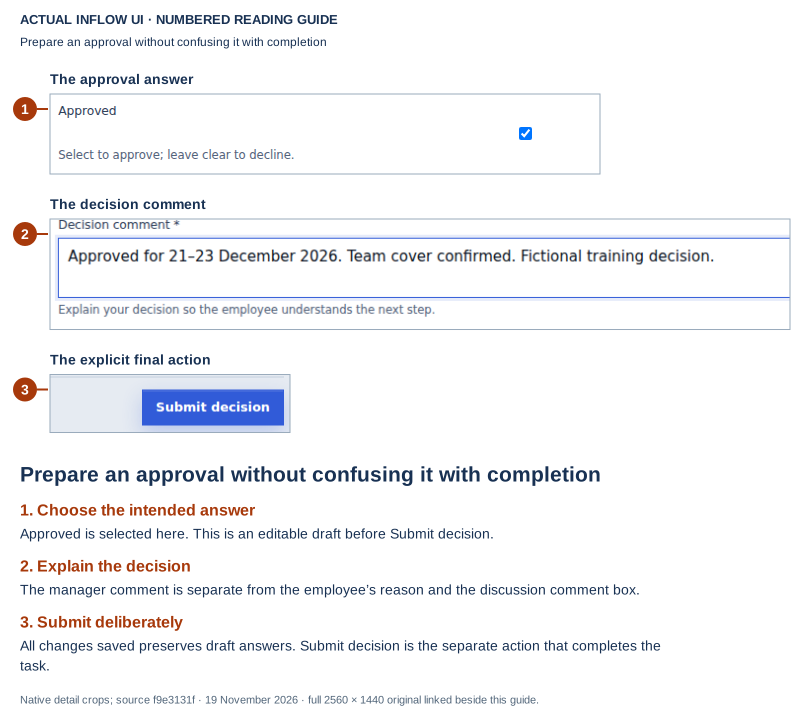
This is still a draft: 1 shows the selected answer, 2 shows the manager’s explanation, and 3 identifies Submit decision. The screenshot was taken before that final action. It is not a completion receipt. Open the unchanged full-size screenshot.
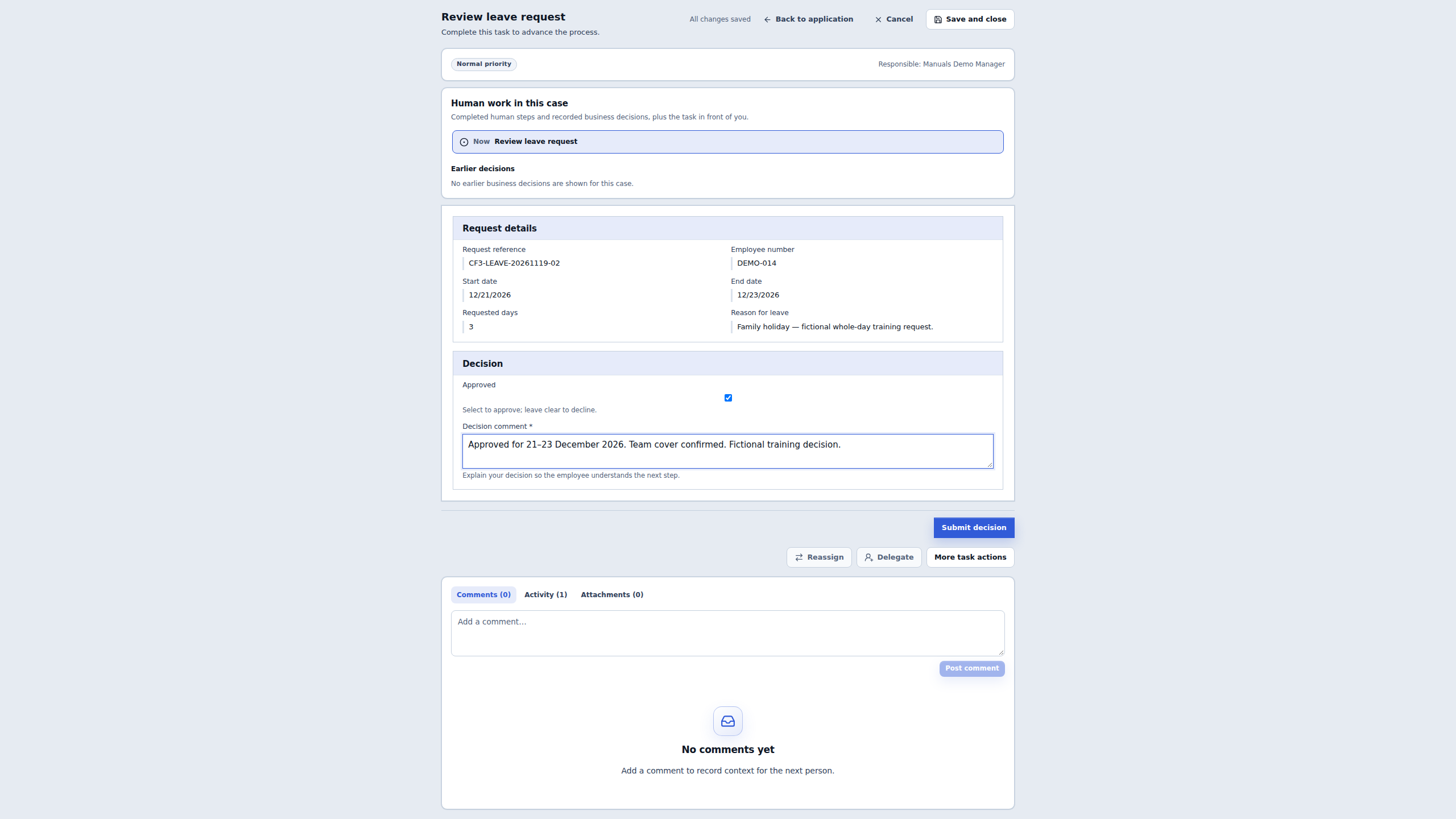
Read the answer and comment again, then choose Submit decision once. Do not use Save and close as a completion action, and do not press Submit decision again while waiting for its result.
5. Read what was recorded
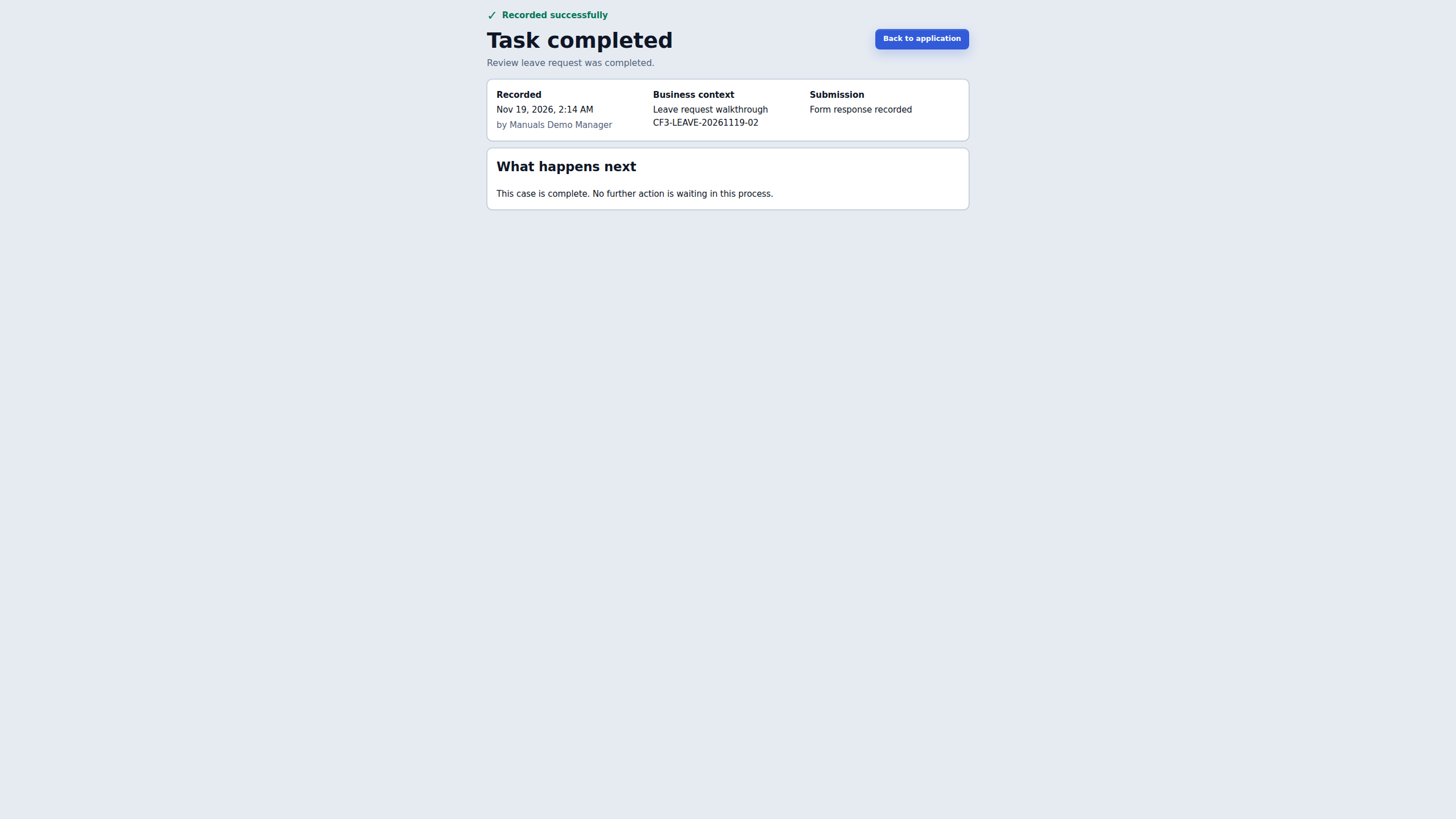
The real run shows Recorded successfully → Task completed. The receipt names the manager, records the time and carries the same business reference. Form response recorded refers to the manager’s task answers. Under What happens next, this example says that the case is complete and no further action is waiting in this process.
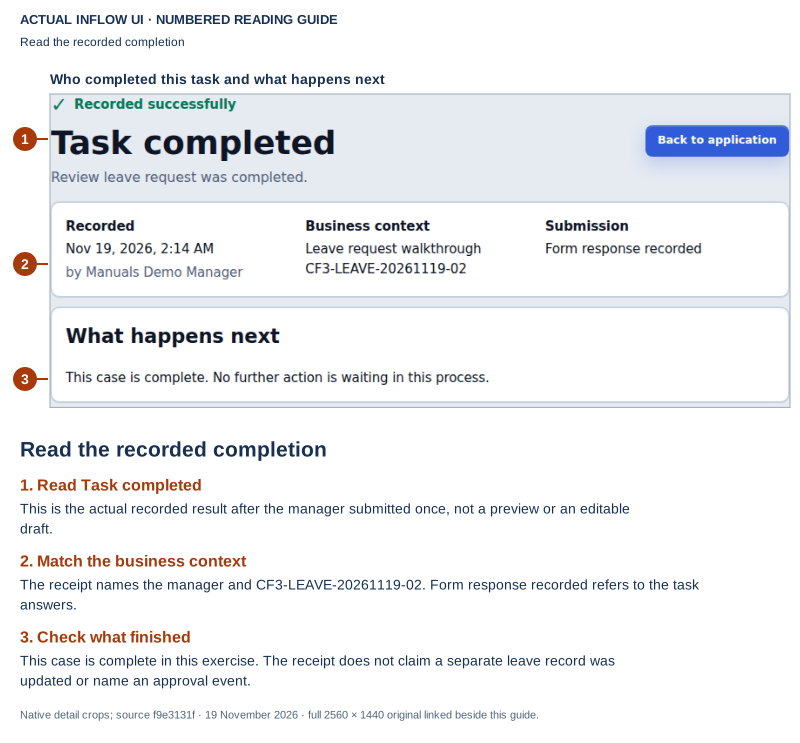
Read the result rather than the earlier checkbox: 1 identifies actual completion, 2 checks who and which request, and 3 reads what happens next. The submitted answers in this run retained Approved as true and the manager’s comment. The receipt does not display a separate named “Approval” event. Open the unchanged full-size screenshot.
If your intended design has another stage, read its actual receipt and next responsibility instead of expecting this example’s complete-case message. A task can finish while its larger case continues. Separately inspect a permitted business record only when your application explicitly updates one; this pilot supplies no evidence of a record Status change.
If completion is uncertain, keep the task link and request reference. Use the existing supported task-status or receipt check before considering another decision. An already-completed receipt is evidence to reconcile, not a reason to submit again. A discussion comment saying “approved” is not a replacement for the task’s recorded answer.
Explain the three different results
| What you see | What it tells you | What remains separate |
|---|---|---|
| Leave request received | The employee’s request started successfully in this run. | The manager has not yet answered. |
| Approved selected with All changes saved | The manager has an editable saved answer. | Submit decision and its recorded result. |
| Task completed and Form response recorded | The manager submitted and the task answers were recorded. | Any separately configured record update or named business-decision activity. |
| This case is complete | No further process action is waiting in this particular example. | Other designs may continue to another task or stage. |
These five native images were captured on 19 November 2026 from the identified build-start master f9e3131f. They show one whole-day approval case. They do not demonstrate a second decline, half-day handling, a task-worklist setup, notification delivery or a stored leave-record update. Keep those additional checks in the complete application handover rather than inferring them from the successful receipt.
Worked pilot — Hand off the task and record a real decline
The earlier pilot approved request …-02. This second, distinct request shows the other business outcome: the manager cannot release the employee for the requested dates, explains why, and finishes the task with Approved clear. It also makes the task-link handoff visible: an authorized coordinator finds the task in Studio, then the ordinary assigned manager opens the generated link in a separate signed-in session.
Follow the story through three people:
| Person | Their job in this exercise | What they must not be confused with |
|---|---|---|
| Manuals Demo Employee | Submit their fictional request in the published application. | A builder preview or an administrator starting work for them. |
| Manuals Documentation Administrator | Find the matching task through existing authorized workspace Tasks access and pass its generated link to the assigned manager. | The person making the manager’s decision. This coordinator has broader existing authority than the participants. |
| Manuals Demo Manager | Open their assigned task, check the request, explain the refusal and submit their own answer. | A coordinator completing somebody else’s task. |
1. Check that the published pieces agree
Use the interface setup lesson, the workflow preparation above and the application-access review before inviting the participants. For this run the prepared pieces were the published employee Form v3, manager Form v1 and leave lifecycle v1. The App Shell’s Request leave page opened the employee Form; its submission started that lifecycle. Review’s human task used the separate manager Form, the manager’s actual directory account and the six request-input mappings. Only Approved and Decision comment were task-answer outputs.
Check the two exits from Review in the published process. The approval exit requires the Boolean condition approved == true; the decline exit is the single default route. Approved and Declined are terminal stages in this small exercise. The Review state exposes both answer outputs, and the child end is used directly without adding a parent-state outcome declaration. A default false value prepares the form; it does not finish the task before the manager submits.
Keep the access responsibilities separate. The employee needs the reviewed application and start form; the assigned manager needs the matching task and its pinned manager Form. The coordinator uses their existing permitted Tasks view. The participant accounts in these pictures have application-scoped access and are not superadministrators; neither receives broad workspace or global permissions for this exercise. If your coordinator cannot see another person’s assigned work, arrange the handoff with an already authorized owner instead of broadening the manager’s rights.
2. Submit one new request as the employee
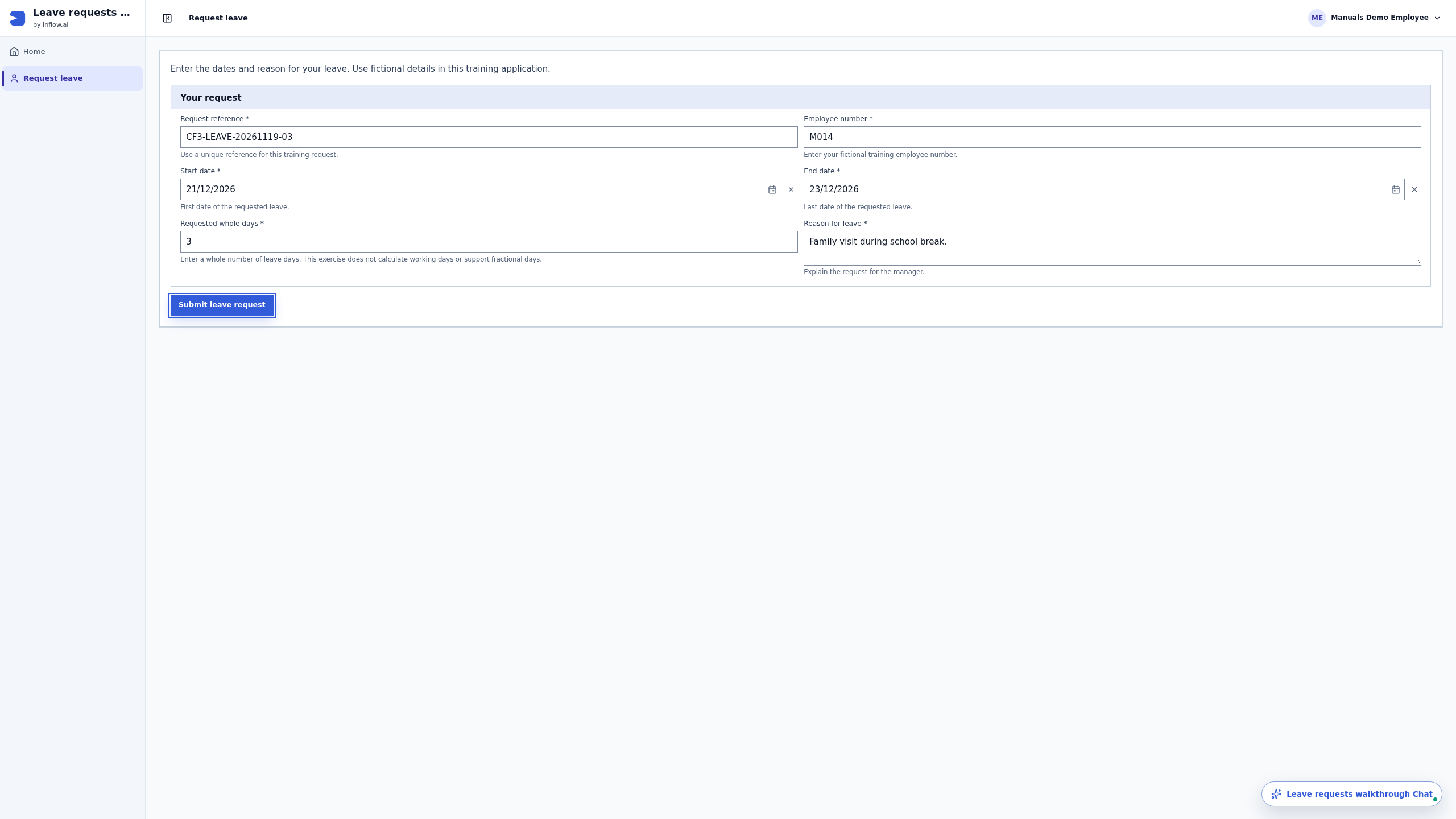
Sign in normally as the employee and open Leave requests walkthrough → Request leave. Use a fresh practice reference. The pictured CF3-LEAVE-20261119-03 is already completed and must not be submitted again.
| Field | Value in this completed example |
|---|---|
| Request reference | CF3-LEAVE-20261119-03 |
| Employee number | M014 — fictional business context, not a login or assignment |
| Start date | 21 December 2026 |
| End date | 23 December 2026 |
| Requested whole days | 3 |
| Reason for leave | Family visit during school break. |
The employee Form shows the dates as 21/12/2026 and 23/12/2026. Enter the whole-day amount yourself: this form does not calculate entitlement, weekends or holidays, and it does not accept fractional days. Read the reference, dates and reason before choosing Submit leave request once.
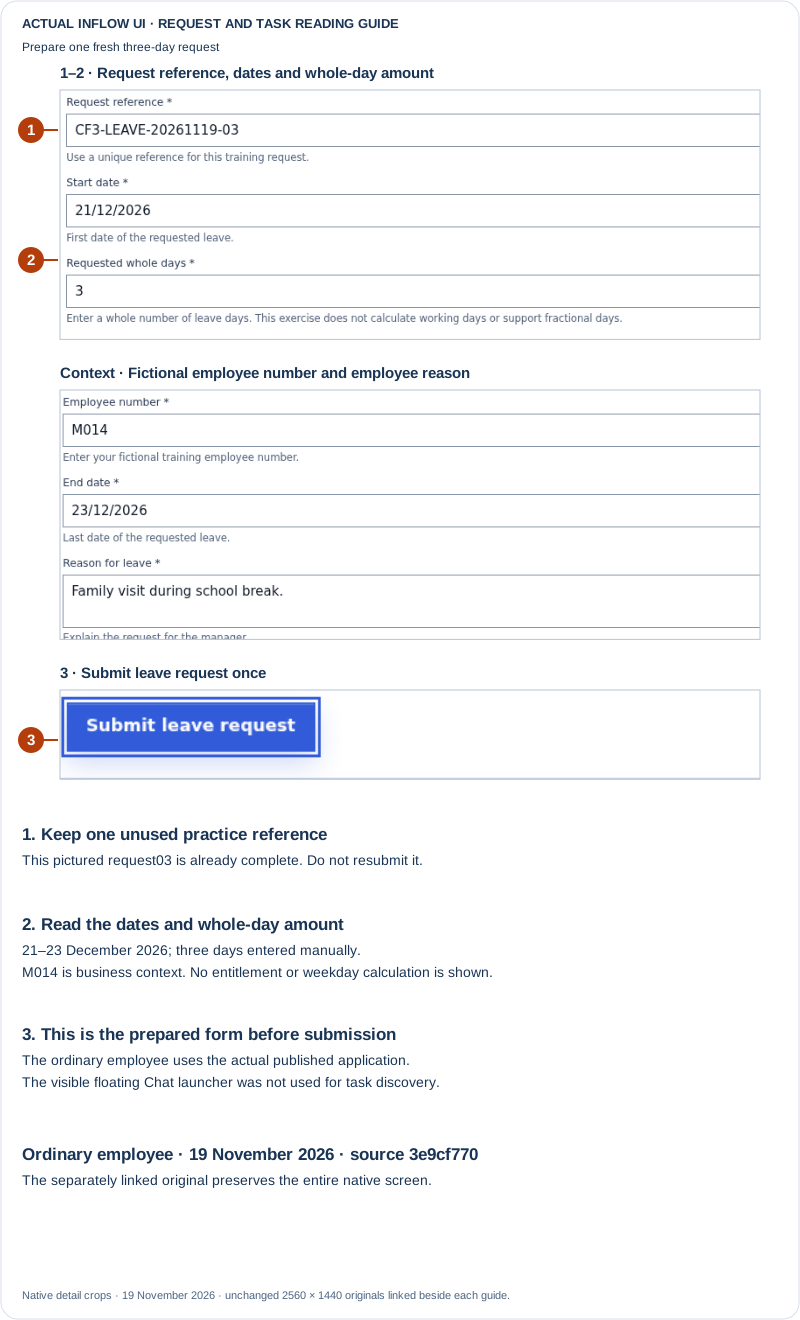
Check the request before sending: 1 identifies the new reference, 2 compares the dates and whole-day amount, and 3 identifies Submit leave request. M014 and the explanation remain visible in the paired context crop. This is the prepared form, before submission. Open the unchanged native 2K screenshot.
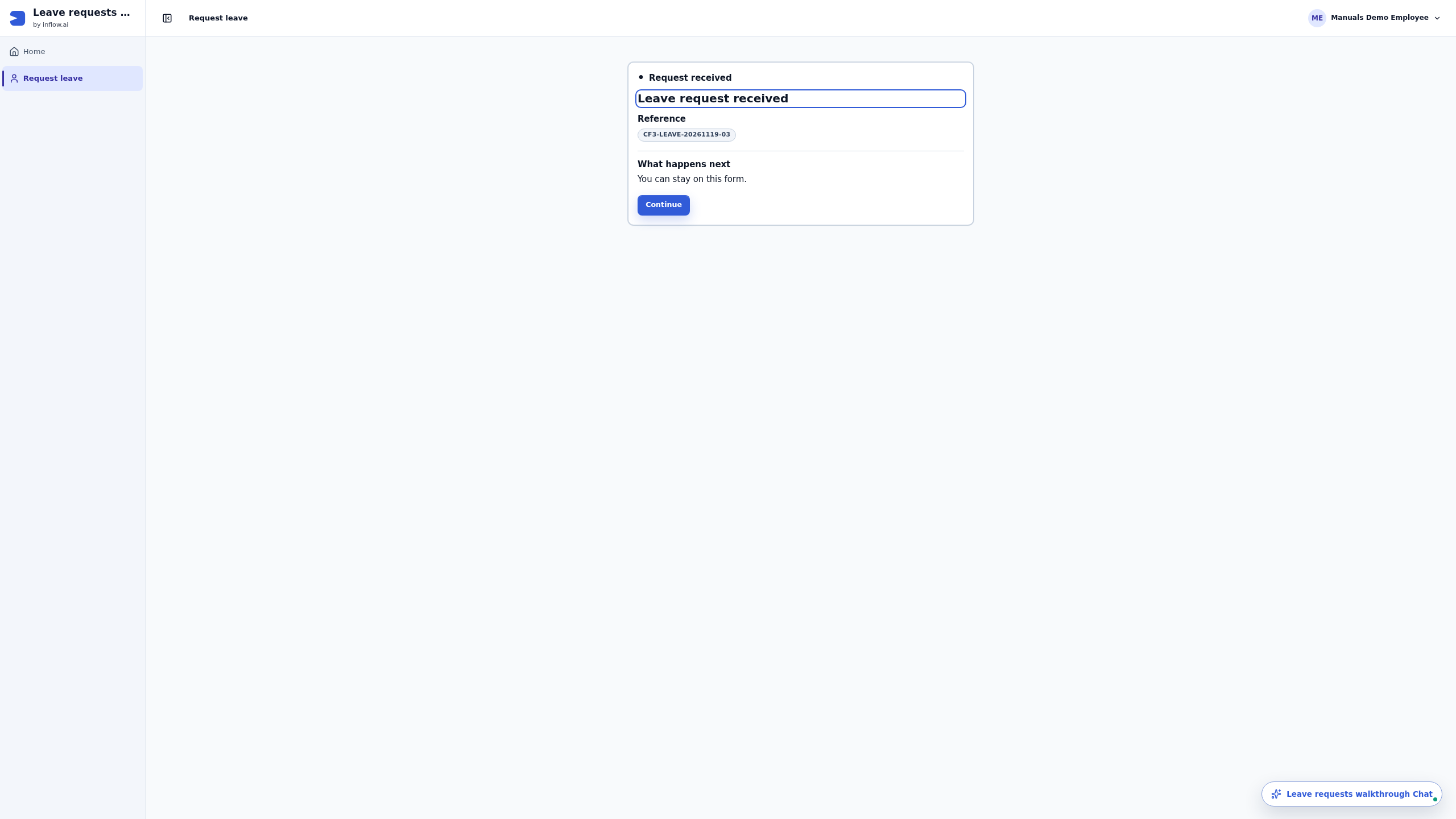
Read Leave request received and keep the exact reference. The request has started; the manager has not answered it. Continue is a navigation choice on the receipt, not an instruction to send the same request again.
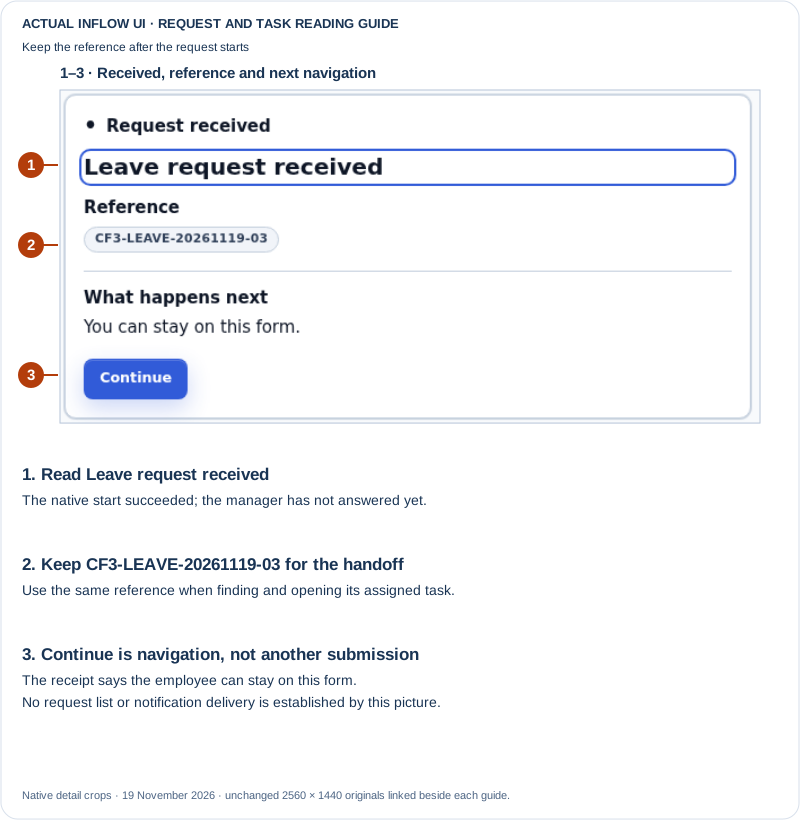
Keep the thread of the story: 1 confirms receipt, 2 preserves the reference for the handoff, and 3 reads what happens next. The actual receipt says that the employee can stay on this form. It does not promise an employee request list or a result notification. Open the unchanged native 2K screenshot.
3. Let the coordinator obtain the link through Tasks
In the coordinator’s own permitted Studio session:
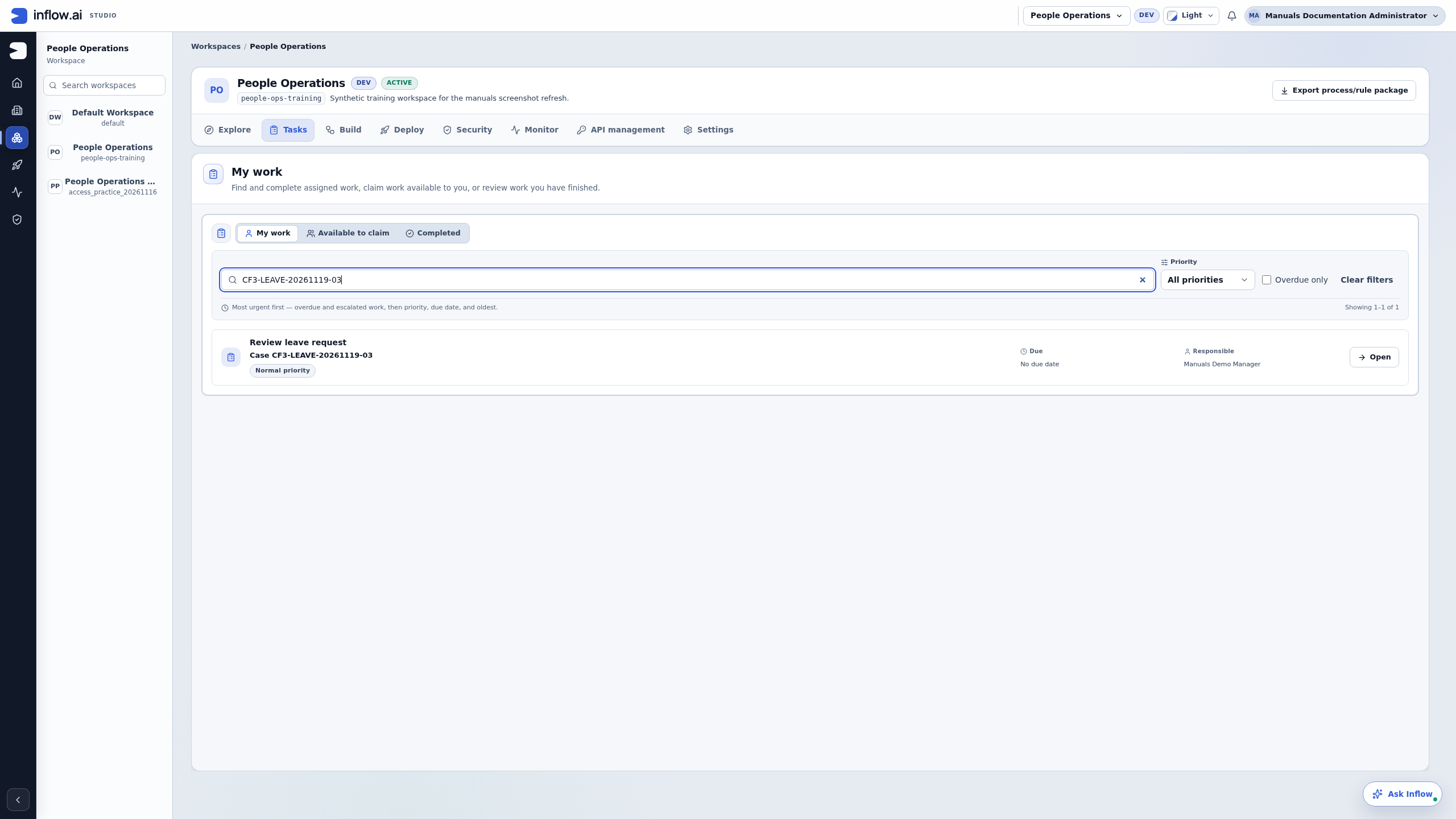
- Open Workspaces → People Operations → Tasks.
- Enter the received request reference in Search work.
- Read the task title, Case reference and Responsible person on the matching row. In this example they are Review leave request, CF3-LEAVE-20261119-03 and Manuals Demo Manager.
- Choose Open on that matching row. Copy the resulting task-page address from the browser and pass it unchanged to the assigned manager through your approved handoff channel.
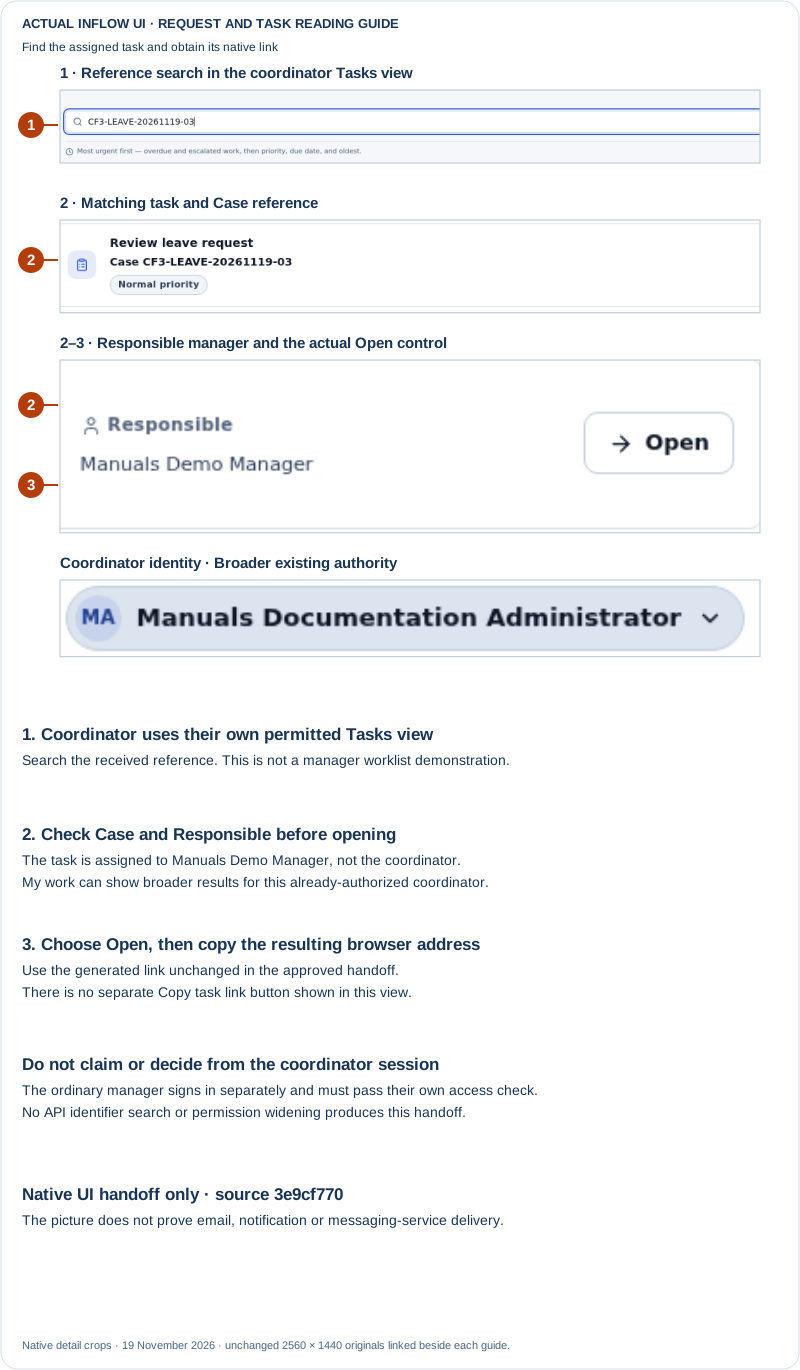
Match first, open second: 1 locates the reference search in the coordinator’s Tasks view, 2 checks the case and assigned manager, and 3 points to Open. The coordinator’s existing authority lets this view find the manager’s assigned work even though the heading reads My work. An ordinary person’s My work view can be narrower; this picture does not demonstrate the manager discovering it in their own worklist. Open the unchanged native 2K screenshot.
This sequence used the actual Open control; it did not search an API for a task identifier or assemble a URL by hand. There is no separate Copy task link button shown in this view.
Do not choose Available to claim, claim the task for the coordinator, reassign it or submit a decision from this session. Merely finding and opening the task is the coordinator’s part. The task link does not grant access to the recipient; the manager’s separately signed-in access is checked when they open it. This run records the generated-link handoff and the manager’s access, not delivery through email, a notification or another messaging service.
4. Prepare the refusal as the assigned manager
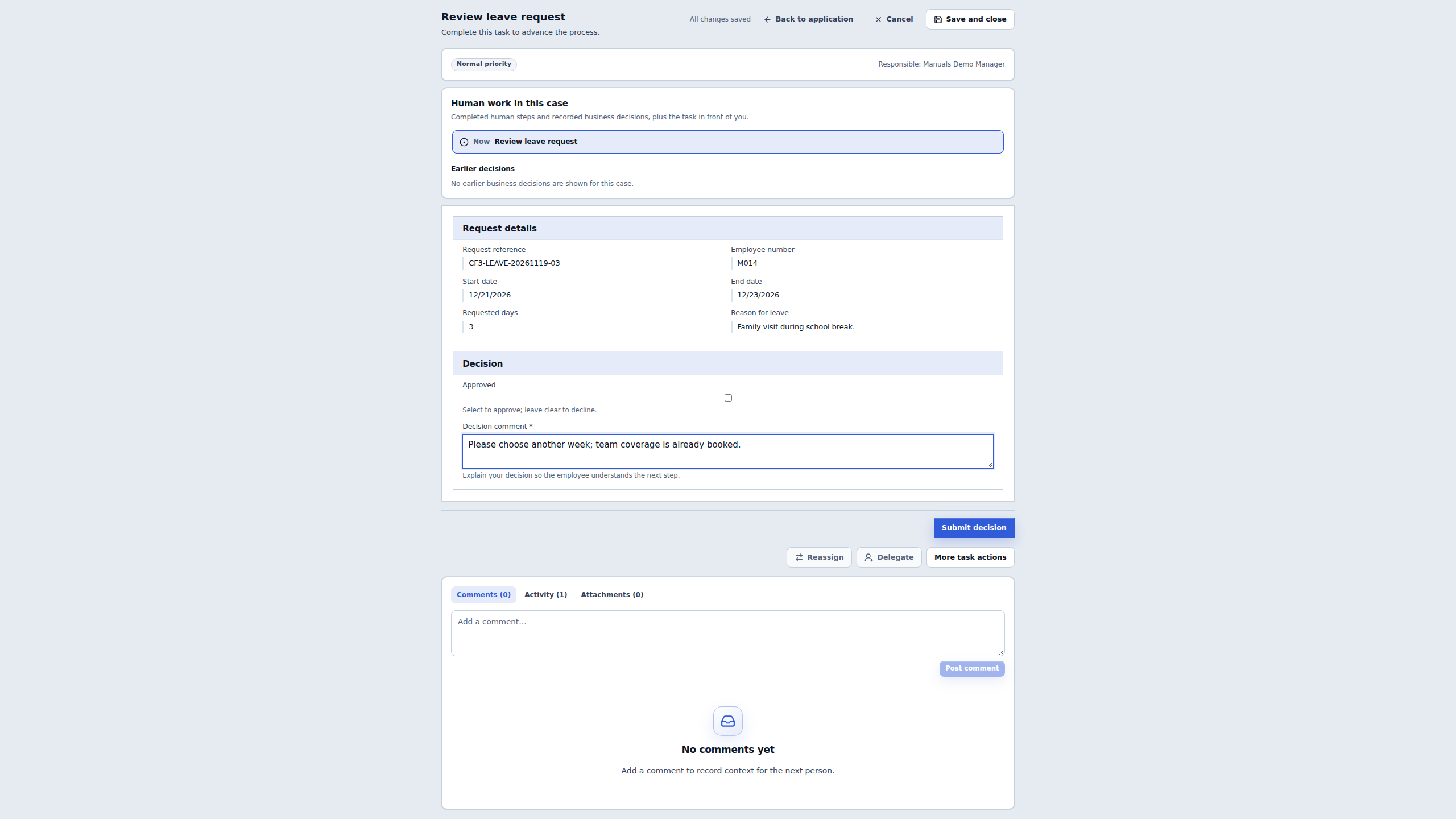
Sign in separately as Manuals Demo Manager and open the unchanged link. Read Review leave request, Responsible: Manuals Demo Manager and the request reference before editing anything. Match M014, the two December dates, three days and the employee’s reason. The manager Form displays these dates as 12/21/2026 and 12/23/2026; they are the same calendar dates shown in the employee Form, with a different display format.
Leave Approved clear. In Decision comment, enter Please choose another week; team coverage is already booked. The help explains that a clear checkbox means decline. The required comment gives the employee a useful next step, rather than an unexplained refusal.
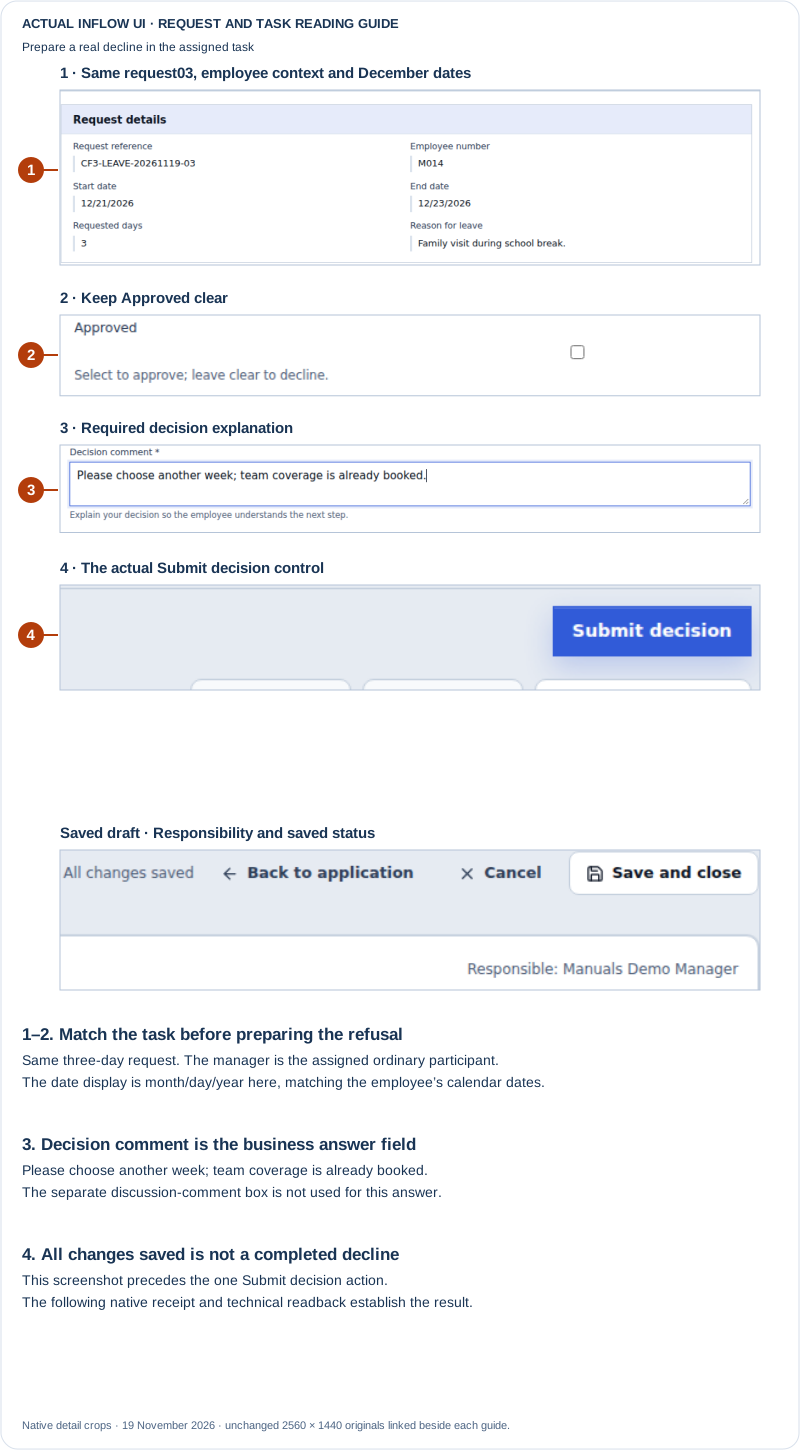
Prepare the answer deliberately: 1 compares the request and responsibility, 2 keeps Approved clear, 3 reads the required explanation and 4 points to Submit decision. All changes saved means that the unfinished answers have been saved; it is not a completed decline. The separate Add a comment… discussion box is empty and does not replace Decision comment. Open the unchanged native 2K screenshot.
5. Submit once and read the recorded result
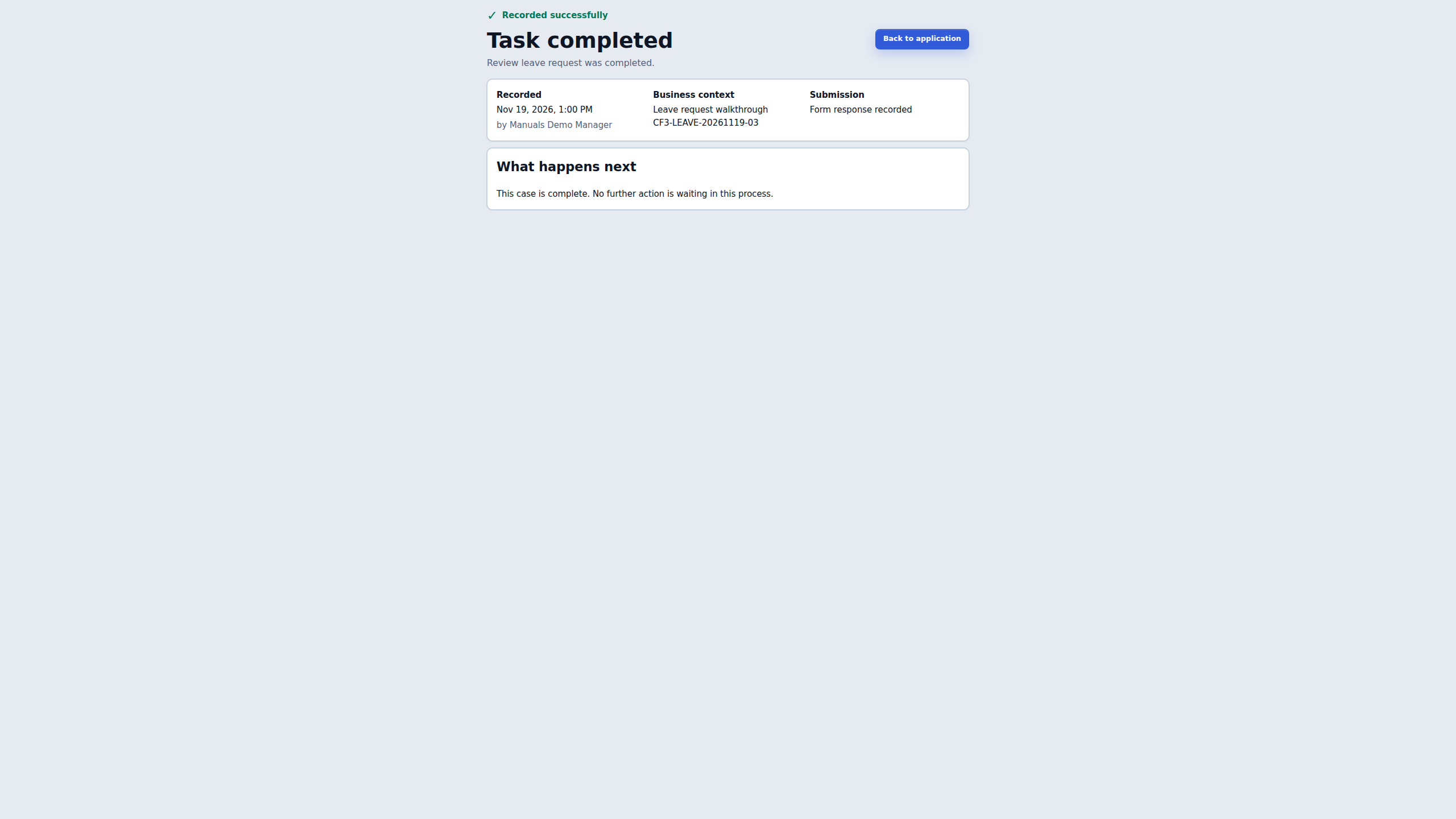
Choose Submit decision once. The actual run displayed Recorded successfully → Task completed, named Manuals Demo Manager, retained CF3-LEAVE-20261119-03 and reported Form response recorded. Under What happens next, it said that this case is complete and no further action is waiting in this process.
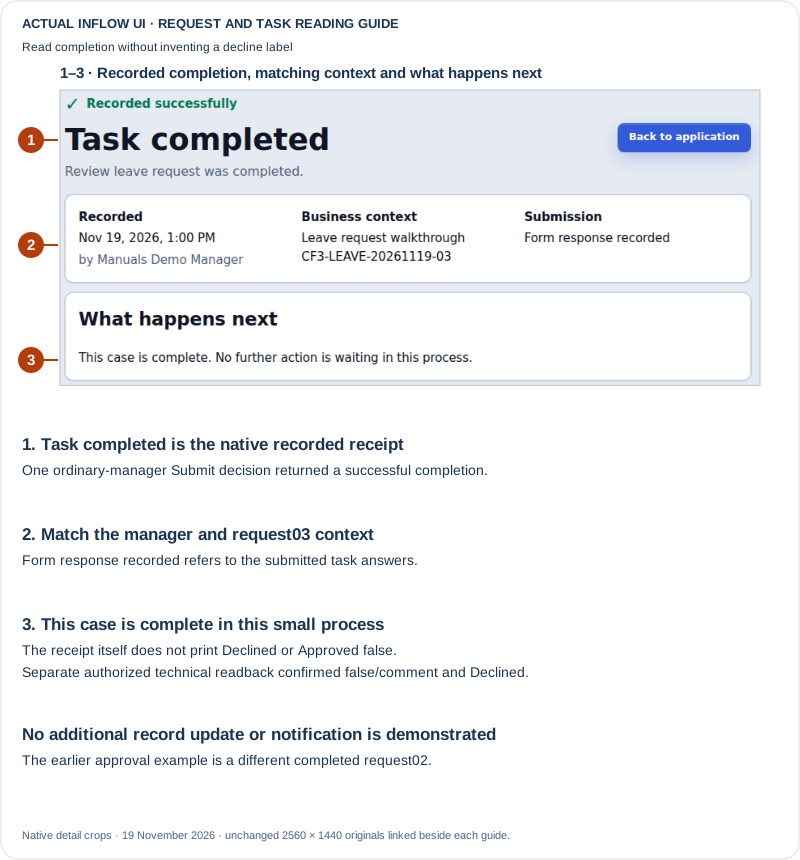
Read what the receipt actually says: 1 confirms recorded completion, 2 checks the person and request, and 3 distinguishes a completed case from a next pending task. The receipt does not print the words Declined or Approved false. Open the unchanged native 2K screenshot.
For this run, a separate authorized technical readback confirmed that the recorded form answers were Boolean false and the exact decision comment, the task was completed by the assigned manager, and the parent case finished in the published Declined stage. That check supports the business outcome; it is not text hidden inside the receipt or an additional technical-read permission granted to the ordinary manager. In your own application handover, have an authorized process viewer check the actual resulting stage and answer mapping. A generic completed-case message alone does not distinguish approval from decline.
Keep the reference and original task link if a response is uncertain. Check the existing task status or completion receipt before considering another action. Do not create another request or repeat a manager decision to obtain a cleaner picture. This example updates case variables and task answers; it does not demonstrate a separate leave-record Status update, an employee notification or entitlement calculation.
What the visible Chat launcher does and does not show
The employee screenshot includes the floating application Chat launcher. It was not used to send a prompt or discover this manager task. The application was published as v2 before the employee submitted; a later v3 configuration selected a process-specific Read inbox. The manager’s Chat task-list request still returned an unavailable-workspace response in this captured build, so Chat discovery remains unresolved. Publishing the setting did not prove that an ordinary manager could use it.
The successful discovery route in this story is the coordinator’s native Tasks → Search work → Open handoff, followed by the ordinary manager opening that generated link. It does not repair Chat, demonstrate the manager’s own worklist discovery, or prove notification delivery. Keep this distinction when deciding which experience to offer your users.
These five unchanged native 2560×1440 images were captured on 19 November 2026 from rebuilt source 3e9cf770. They extend the earlier, separately labelled approval example with a distinct real decline. The builder configuration, ordinary employee submission, coordinator handoff and ordinary manager decision are different roles and steps; no administrator substitutes for the participant actions.
Milestone 5 — Let Mohammad submit one ordinary request
Goal: use the published employee experience, not the builder's privileged preview.
- Sign in normally as Mohammad and open the published Leave requests application.
- Complete the request form for the fresh reference leave-2026-017, dates 14–18 December 2026, five requested days and the employee reason Family vacation.
- Use the application's configured submission/start action once and read its confirmation.
- Follow the permitted request link or list entry and check what was created: the business record and the running workflow case are distinct objects connected by your authored application behavior.
- If the application unexpectedly asks for a manager identity, resolve that design issue rather than allowing an employee to select any arbitrary approver.
Check your result: Mohammad has one request with the intended business details, and the configured workflow start has been observed through its own result. A saved record is not proof that the process also started.
If it does not match: inspect the existing request/status before clicking again after a lost reply. A second click should not be your method for discovering whether the first one succeeded.
Milestone 6 — Let Sara find, claim and prepare the task
Goal: confirm the manager's real work without confusing it with authoring or Debug access.
- Sign in normally as Sara and open the permitted work list or the application's configured task page.
- Search for leave-2026-017 and open Review leave request. If your design made it claimable, use Available to claim and Claim task where offered.
- Check the employee business number M014, dates and reason in the read-only request section before answering. The Employee reason is Mohammad's request text; it is not Sara's Decision comment.
- For the saved-answer exercise, open the full task page through the permitted My work route. Enter an unfinished answer, wait for All changes saved, or use Save and close when offered.
- Return to the same task and check its restored answers and current responsibility before continuing.
Check your result: Sara can actually handle this task, and unfinished saved work remains unfinished. An embedded Task Viewer may provide a different experience and must not be assumed to have the full task page's autosave/draft controls.
If it does not match: check assignment, application access and the published task form with the responsible owner. Do not give Sara a broad administrator role to make the form open.
Milestone 7 — Make the authored manager decision
Goal: complete the business work once and read its result.
- Sara enters the required Decision comment in its actual form field.
- She selects Approved for approval or clears it for decline, then chooses Submit decision. She does not treat a discussion comment, a saved draft or the selected checkbox alone as completion.
- She reads the completion result and follows the allowed link back to the request if useful.
- Check the request's resulting stage and, separately, its record Status if an explicit update step was configured.
- If the screen reports an uncertain result, use its Check task or supported refresh/recovery before considering another decision.
Check your result: the original task has one recorded decision. The following stage and retained comment match the configured route.
If it does not match: inspect the task result, form action and state output mapping. Do not edit a business row manually and call that a successful task decision.
Milestone 8 — Explain the result and test the boundaries
Goal: understand the business result and prove the intended roles remain separate.
- As an authorized process viewer, open the original request in the latest Live view.
- Read its actual published design, current/final stage and completed task result.
- Compare those with the application's business record where you may read it.
- Check the intended negative paths: an unrelated user must not gain the task merely by knowing its link; a required missing answer should be explained; an unavailable file must not silently become readable through the task.
- Finish the interface and identity lessons' ordinary-user checks using these actual published artifacts.
Check your result: you can describe the complete story without confusing the record, case, task, form publication or user role. A builder's successful Debug test and an ordinary manager's successful decision are different useful checks.
Two complete business outcomes
Example: approved with cover arranged
Use the five-day request above. Sara selects Approved, explains that cover is arranged and chooses Submit decision. The task finishes, the process reaches Approved, and the explicit record update—if you configured one—changes the row's Status. The PDF/notification extension can follow as separately authored work.
Example: declined with a useful reason
For a second distinct fictional request, Sara clears Approved, enters Please choose another week and chooses Submit decision. The task finishes through the decline route. Saving that explanation before deciding should leave the task open. The employee should read the actual published application's result rather than an internal test screen.
Common mistakes
| Mistake | Correction |
|---|---|
| Creating another 014 row during the form exercise. | Use fresh 017 or deliberately update the existing row. |
| Treating M014 or S002 text as authenticated users. | Choose the real person in task Assignment; keep business numbers as Text context. |
| Using the employee form as the manager task form. | Publish and select the separate decision form. |
| Opening a task before its start/access setup is complete. | Follow the staged setup order above. |
| Believing a saved answer is an approval. | Only the configured decision action completes the work. |
| Assuming task completion updates every related record. | Configure and check the separate business update. |
| Using the older operations screen for the final check. | Use the current Live view. |
Continue with supporting documents and a PDF letter. The optional technical workflow companion retains the specialist contracts; it is not required for the Studio lesson.