
Optional technical reference. This material is for developers, integration specialists and platform administrators. For the consultant lesson, read the practical guide.
Preserved from source baseline
d4587c7c0e073e58c2d430342f65ac55dd701bf4; source/static examples retain their stated scope. They are not new runtime verification or required consultant setup steps.
Interface Designer: build, query, and expression manual-test guide
Use the guide as a procedure and evidence checklist
The scenarios below teach how to evaluate a concrete authoring change. They do not claim that a browser, API, database or provider was exercised while writing the manual. Keep the actual build/source, owned fixture, signed-in authorization class and observed result together when you execute a test. Source/unit evidence, a screenshot and a meaningful recorded UI workflow each have their own acceptance boundary.
Start with fictional people-ops data and the current Form/App Shell/Dashboard wizard. Use stable semantic controls and actual native save/publication/discard flows. Expected denial means the control and unauthorized request are absent; a capability outage is a different unavailable state. Never turn an unsupported configuration or missing environment into a passing result by drawing sample data that looks live.
Example UIAI-INTERFACE_DESIGNER_MANUAL_TEST_GUIDE-01 — Check a leave-intake draft through save and reload
Scenario and inputs. Nadia has an owned people-ops draft and authoring permission. The test uses fictional dates14–18December2026 and a nonconfidential reason. The expected result is a correctly configured input form, not an automatically approved vacation or a newly certified deployment.
Procedure. Create the native Form, add its date/reason fields, and set labels, declared bind targets and required validation. Save the draft, note its actual revision, reload it and inspect the same node IDs and values/configuration. Open Preview with synthetic inputs and exercise a missing required value before the valid case. Record the observed state and any error rather than only capturing the initial page load.
Expected result. The saved document survives reload without a silent structural or binding change. Invalid input produces the actual supported validation behavior, while valid input captures values according to the declared contract. Preview alone does not establish a persisted business effect.
Failure and recovery. A stale revision requires reconciling the current draft, not overwriting another tab. Preserve a failing fixture and diagnose the actual missing field/type/control configuration. If the environment cannot execute the workflow, report NOT_RUN rather than interpreting this written checklist as test evidence.
Sources. Wizard, conditional save, property contract.
Example UIAI-INTERFACE_DESIGNER_MANUAL_TEST_GUIDE-02 — Test an expression with declared scope
Scenario and inputs. The form declares startDate/endDate and a Text reason. Nadia wants a clear date-order rule and a derived explanatory display. Synthetic values include an end date before the start date as the negative case; a label that happens to contain a field name is not a declared variable.
Procedure. Open the native expression/validation editor, use completion from the actual declared inputs, and supply representative typed values. Check the Boolean date-order condition through the supported editor and inspect the resulting field message. Use current colon namespaces such as ri:startDate and locals:result. For a hyphenated rule key, use its supported bracket form or native picker rather than inventing a bare identifier grammar.
Expected result. The condition's actual return type and dependencies agree with the property being edited. A changed valid input updates the intended display/validation according to the current evaluator boundary. Server-required lookups retain their distinct authorization and execution path.
Failure and recovery. Unknown variables, wrong return types or an unavailable server evaluation must remain errors, not false values that silently hide content. Fix the declared scope/type or admitted source. Do not paste confidential values into a local test panel merely to work around a denied data request.
Sources. Binding grammar, client expression boundary, native authoring surface.
Example UIAI-INTERFACE_DESIGNER_MANUAL_TEST_GUIDE-03 — Exercise reviewed publication and uncertain reply handling
Scenario and inputs. The test fixture contains a saved draft and its exact current revision. Nadia has publication authority and reviewed the native impact candidate. The scenario distinguishes a genuine validation rejection, a stale revision, an unknown network reply and a confirmed published version.
Procedure. Save pending edits, re-read the revision and complete the native impact review. Publish using the original stable intent and actual impact receipt. Inspect the returned publication version and then open the supported published target. If your authorized test can produce an uncertain reply, retain the original intent and use native reconciliation before any additional attempt; do not silently substitute another operation.
Expected result. The version that exists is the one actually accepted by the service. A draft label, Preview render or local success message cannot establish publication. Reconciliation preserves the original user's reviewed intent rather than creating an accidental extra version.
Failure and recovery. A stale revision needs a fresh read and review; a denied publication is unavailable. Validation failures remain associated with the failed candidate and user edits are preserved. Do not bypass impact checks, rewrite the stored revision or claim a timed-out operation failed merely because the client stopped waiting.
Sources. Publish/impact handling, body requirements, designer publication surface.
Example UIAI-INTERFACE_DESIGNER_MANUAL_TEST_GUIDE-04 — Distinguish revocation from capability outage
Scenario and inputs. Two authorized test fixtures examine different states: Sara no longer has access to a selected protected object, and a permitted capability cannot currently be resolved. These are not interchangeable and must not share a misleading Retry/permission-error presentation.
Procedure. Establish each fixture through its actual owner, then inspect rendered navigation, actions and the request boundary. For denied access, confirm the protected control and its unauthorized catalog/count/detail calls are absent. Follow a direct inaccessible link and expect the shared neutral unavailable state. For a capability outage, inspect the distinct unavailable/recovery behavior without interpreting it as a denial or granting additional scope.
Expected result. The user experience follows current effective scoped capability and server authorization. A visibility expression or hidden tab is not the only access control. Source inspection can establish intended branches; an actual browser/network test must establish what the running build did.
Failure and recovery. Preserve failures with the actual actor, source/build and fixture. Do not test by borrowing administrator credentials or injecting a privileged actor header and then call it ordinary-user evidence. A missing runtime or inaccessible required recording leaves that evidence NOT_RUN; the manual itself does not waive its gate.
Sources. Binding visibility policy, current designer access entry, control contract tests.
Audience: manual testers, solution designers, and reviewers reporting to Mr White.
Purpose: provide repeatable, screenshot-backed tests for building a UI, binding it to data, creating query rules, and using expressions in the Interface Designer. The guide is intentionally written as a click/type/assert script rather than as a product overview.
1. Test setup
Leaving with unsaved work (SCRUM-1741)
Exit, internal navigation, and browser Back/Forward use the same confirmation when this draft has unsaved work, a save in flight, or a draft conflict.
- Buffered input names and Advanced property edits participate in the guard. Valid values are applied before saving; invalid values require Stay and repair. Switching to Code or collapsing Properties preserves these pending fields. Switching App Shell pages or regions asks for the same choice when a field is pending. Discarding that field keeps normal autosave active on the next page.
- Save and leave waits for the server to acknowledge the latest edit before continuing to the requested destination. A failed save keeps the dialog open with a retry/recovery message.
- Stay cancels the departure and preserves the current text and visual edits. It also cancels a pending departure while a save is still waiting for a response.
- Discard and leave explicitly abandons remaining unsaved edits and queued writes. A request already sent to the server may still finish; this action does not roll back acknowledged saves.
Invalid Code text cannot be saved. Choose Stay to repair or copy the text, or explicitly discard it. After a conflict, choose Stay to copy your changes and use the designer's existing reload/recovery flow. Changing views or panels within the same draft does not trigger this leave confirmation. Clean drafts leave directly.
For regression testing, type an edit and immediately click Exit (before the 800 ms autosave delay), then repeat using Back, Forward, and an internal route. Verify all three choices. Repeat with a slow save, an offline save failure, a second-tab conflict, and incomplete JSON. Reopen a saved draft to verify its content came from the server. Reloading/closing the browser uses the browser's native unsaved-work warning; the custom three-choice dialog covers SPA navigation. Terminal session expiry still redirects to sign-in and does not wait for a save.
1.1 Required environment
Use a workspace where the tester can create and publish interfaces and rules. The workspace should contain:
- One published record type
Customerwith fieldsid,name,status,region, andcreditLimit. - One published record type
Invoicewith fieldsid,customerId,status,amount, anddueDate. - At least three customers and five invoices, including both
OPENandPAIDinvoices. - A test user with permission to view the published types and execute rules.
Use a unique suffix in every draft name, for example Manual QA 2026-07-15.
Before each test, open the draft in a fresh browser tab or use the designer's
reset/undo controls so a previous test cannot affect the next one.
1.2 Stable test evidence
Capture a screenshot at every Screenshot checkpoint below. The repository already contains reviewed reference captures:
The latest visual acceptance run also captured the expanded toolbox and Radio
group at studio/frontend/test-results/ui-human-designer-expanded-a2331-rols-with-readable-grouping-chromium/expanded-toolbox.png
and radio-group-toolbox.png (generated evidence; see the Playwright run
artifacts for the exact files).
The screenshot is evidence only when it shows the browser URL or draft name, the selected component, and the relevant Properties section. A screenshot of only the canvas is insufficient to prove configuration.
2. Common designer workflow
This is the baseline used by all scenarios.
- Open Studio and select the target workspace.
- Open Interfaces and select New interface.
- Choose the interface kind (usually Form for an input screen or Dashboard for a read-only view), enter a name and key, then create the draft.
- Confirm the three-region layout: toolbox on the left, canvas/outline in the center, and Properties on the right.
- Add a component by clicking its toolbox item. Drag-and-drop is optional; clicking is the deterministic manual-test path.
- Select the new component in the outline. Configure its properties in the right panel. The panel is grouped into General, Value/Data, Validation, Visibility, Layout, Style, Accessibility, and Advanced sections.
- Use Save and confirm the shared save indicator changes to Saved.
- Use Validate before Publish. Do not publish a draft with a red validation summary.
- Use Preview or Live to test the published behavior at Desktop, Tablet, and Mobile widths.
Reviewed publication and retry (SCRUM-1742)
- Publish and Publish & open live first save and validate the reviewed draft. If another author saves before publication commits, expect a draft conflict and no new version. Keep any local work you need, reload, and review the current draft.
- If the publish response is lost, retry Publish in the same editor. The retry uses the original publication intent and returns its existing version. New edits made while that request was pending remain unpublished; publish again after the original result is recovered to publish those edits.
- Add a visual control while a publish response is delayed. Its save indicator must remain unsaved/saving until its own save completes. The published version must contain only the reviewed document; it must not silently include that control.
- Run the focused browser scenarios in
tests/ui-human/designer/reviewed-publication.spec.tsfor competing-author, response-loss, newer-edit, and Open live evidence.
Screenshot checkpoint A — empty designer
Assert that the toolbox, outline, canvas, Properties panel, Save/Validate/ Publish controls, and responsive device controls are visible. The selected component must be highlighted in both the outline and canvas.
3. Scenario UI-001 — build a customer intake form
Goal: create a no-code form with text, number, date, select, validation, and an action button.
Steps
- Create a Form named
Customer intake. - Add a Card. Set Title to
Customer detailsand Subtitle toCreate or update a customer. - Add a Text control inside the card. Set:
- Name:
customerName - Label:
Customer name - Required:
Yes - Minimum length:
2 - Maximum length:
120 - Trim spaces:
Yes
- Name:
- Add a Number control. Set:
- Name:
creditLimit - Label:
Credit limit - Minimum:
0 - Step:
100 - Decimal places:
2
- Name:
- Add a Date control named
reviewDate. Set Disable past toYes. - Add a Select control named
region. Add optionsNorth,South,East, andWest; set Searchable toYesand Allow empty toNo. - Add a Button named
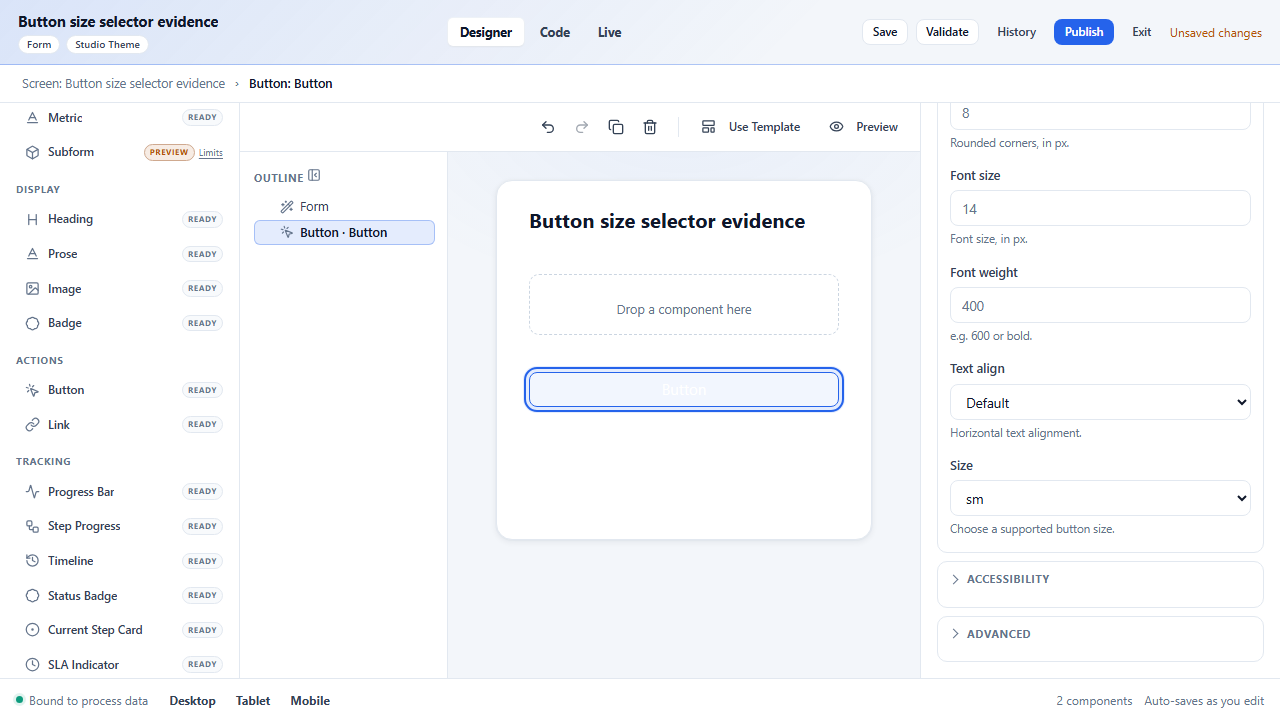
saveCustomer. Set Variant toPrimary, Size tomd, and Confirmation toSave this customer?. - Add a Link named
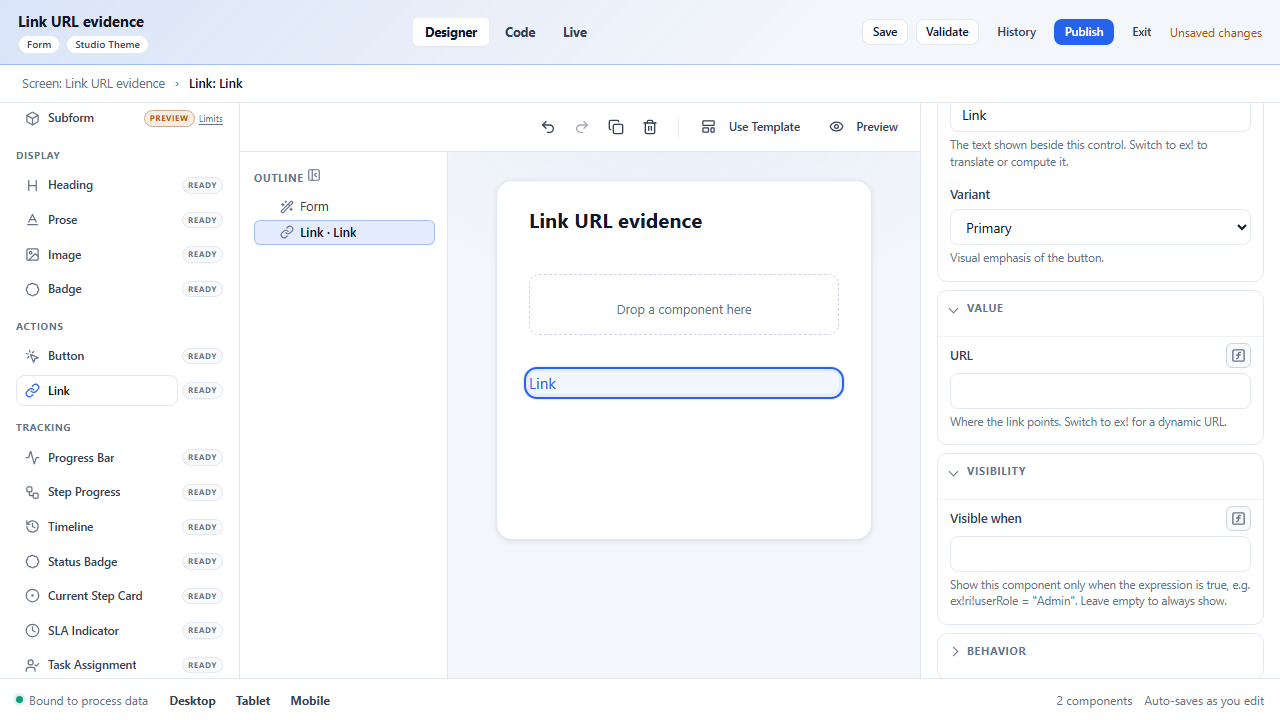
helpLink. Set its URL tohttps://example.test/customer-helpand Open in new tab toYes. - Save, validate, and preview the form.
Expected results
- The required marker appears beside
Customer name. creditLimitrejects negative values and accepts decimal values.- The date picker prevents dates before today.
- The region select cannot be submitted empty.
- The Button Size field is a selector containing only
sm,md, andlg. - The Link URL field is URL-typed and retains the entered destination.
- Save/Validate/Publish state is visible and never disappears when a field is focused.
Screenshot checkpoint B — configured form
Capture the selected Text, Number, or Button with its Properties section open. Capture a second image after toggling Required and showing the required marker on the canvas.
3.1 Input-control recipes
Use these recipes when a manual test needs to prove a specific input widget. For every recipe, select the control in the outline, configure the named properties, Save, reload the draft, and then Validate.
| User-facing control | Toolbox item | Configure | Test action and expected result |
|---|---|---|---|
| Text box | Text | Name, Label, Placeholder, bind, Required, Minimum/Maximum length, Pattern, Trim spaces |
Type leading/trailing spaces; the saved value is trimmed and too-short/too-long values show validation. |
| Multi-line text box | Text area | Rows, Maximum length, Auto-resize, bind, Required |
Enter line breaks; the control grows only when Auto-resize is on and the length limit is enforced. |
| Number input | Number | Minimum, Maximum, Step, Decimal places, bind |
Enter a negative/out-of-range value and a decimal; the invalid value is rejected and the valid value preserves precision. |
| Drop-down | Select | Options, Searchable, Multiple, Allow empty, bind |
Open the list, search for an option, select it, reload, and confirm the selection persists. With Multiple on, two chips/values are retained. |
| Checkbox | Checkbox | Label, bind, Required, Disabled/Read-only |
Toggle off → on → off and reload. The bound boolean changes exactly once per click; a required checkbox cannot be submitted unchecked. |
| Date picker | Date | Format, Earliest, Latest, Disable past, Disable future, bind |
Choose an allowed date and attempt a blocked date. The blocked date cannot be committed. |
| File picker | File upload | Allowed types, Max size (MB), Max files, Multiple | Upload an allowed file, then an oversized/wrong-extension file. Only the allowed file is accepted and the error is actionable. |
| Record lookup | Lookup (RecordPicker) | Record type/source, Display column, Search columns, bind |
Search by a configured column, choose one record, reload, and verify the stable record identity remains. |
| Rich text | Rich text | Placeholder, Minimum/Maximum length, bind, Required |
Enter formatted text, reload, and verify formatting and length validation persist. |
| Typed text | Email, URL, Phone, Password, Search | Placeholder, bind, Required, Pattern/validation |
Enter valid and invalid values; the control reports the appropriate format error and never exposes password text. |
| Numeric variants | Integer, Decimal, Currency, Percentage, Slider | Minimum, Maximum, Step, Decimal places, bind |
Enter or drag values at both boundaries; values snap to step and stay within the configured range. |
| Boolean switch | Toggle | Label, bind, Default, Required, Disabled |
Switch off/on, save, reload, and confirm the bound boolean and accessible state are preserved. |
| Choice groups | Multi-select, Radio group, Checkbox group, Segmented control, Combo box | Options, bind, Required, Searchable/Multiple where shown |
Configure options without code, select one or many according to the control, reload, and verify the selected value(s). |
| Related lookup | Tree select | Record/source, Searchable, bind, Required |
Search and choose a nested item; verify the selected key survives reload and invalid/empty required state is blocked. |
| Date/time variants | Time, Date-time, Date range | Format, Earliest/Latest, Disable past/future, bind |
Select valid values and attempt blocked boundaries; for a range, verify start cannot exceed end. |
| Upload/display variants | Image upload | Allowed types, Max size, Multiple, bind |
Upload a valid image and a wrong type/oversized file; only the valid file is accepted and preview state is clear. |
| Layout helpers | Accordion, Stepper, Modal, Drawer | Labels/titles, steps or open/close behavior, visibility, responsive layout | Configure labels and initial state in Properties; preview keyboard open/close, focus return, and responsive placement. |
Radio buttons
Radio group is now exposed as a first-class Controls item. Add it, define its options in Properties, bind it to a scalar value, and verify arrow-key navigation, one selected option at a time, Required validation, and save/reload persistence. Use Checkbox group or Multi-select when the bound value is an array; do not emulate either with a free-text field.
4. Scenario UI-002 — record input and nested member binding
Goal: verify that a record input exposes fields and that a designer can use
record -> relationship -> member paths without code.
Define the input
- Open the interface Inputs tab and select Add input.
- Set Name to
input. - Set Type to
Record. - Select the published
Customerrecord type. If the chooser is empty, stop and record a data-model publication/permission defect; do not type an arbitrary source key. - Save the interface.
Bind a field
- Add a Text control named
customerName. - In Data Binding, choose Store value in (or Store selection in for a choice control).
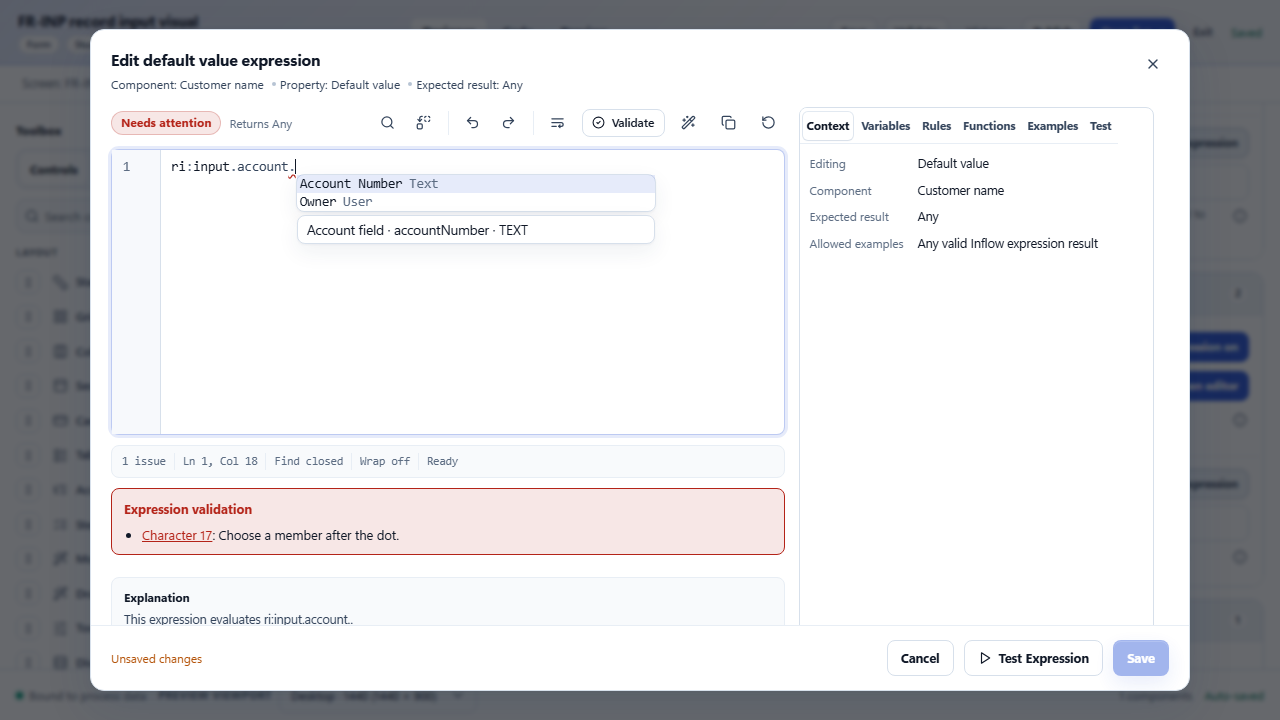
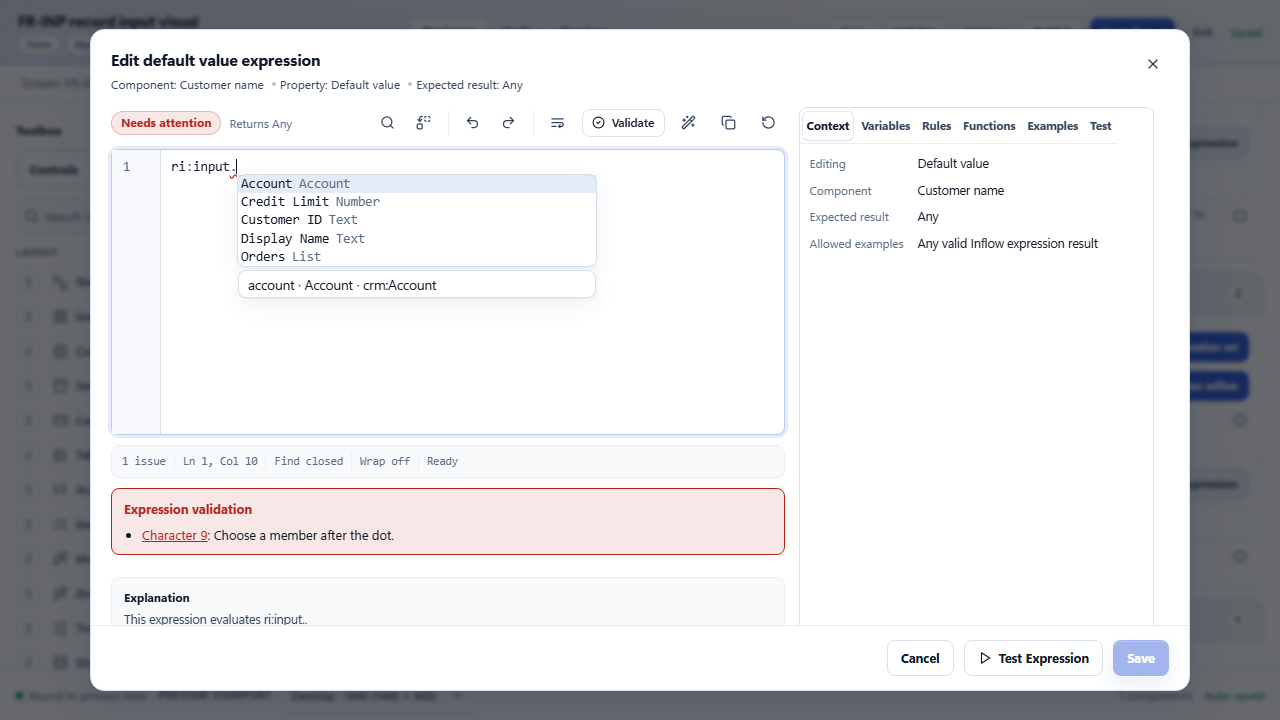
- Type
ri:input.and wait for completion suggestions. - Select
name. The stored path should be equivalent tori:input.name. A bind destination is a path, not a${…}expression wrapper. - For a related object, continue the path one member at a time, for example
ri:input.account.owner.name. Select each suggested member rather than guessing the spelling. - Save, reload the draft, and verify the path remains unchanged.
Expected results
- The record input shows a structured record identity, not only an opaque string.
- Typing
ri:input.shows record-field suggestions. - The completion list contains fields for the selected record type, not a generic function list.
- Selecting a member updates the field and the canvas preview without losing focus.
- An invalid member path produces a validation message and cannot be published.
Screenshot checkpoint C — record completion
Capture the completion menu with ri:input. and a second capture after a
nested member is selected. Compare with the reviewed reference:
5. Scenario UI-003 — create a query rule for open invoices
Goal: create a governed QUERY rule and consume its result in a dashboard.
Create the rule
- Open Rules → New rule → Query.
- Name the rule
Open invoices by customerand give it a unique key. - Select the published record type
Invoice. - Set Return to List of records.
- In Fields, select
id,customerId,status,amount, anddueDate. - Add a filter:
- Field:
status - Operator:
= - Value:
'OPEN'
- Field:
- Add a second filter:
- Field:
amount - Operator:
>= - Value:
minAmount
- Field:
- Add a rule input named
minAmountof type Number, default1000. - Add a sort on
dueDate, descending. - Set result size to First 50 (or the smallest available page size for the test environment).
- Run Live test with
minAmount = 1000.
Expected results
- Preview rows contain only
OPENinvoices with amount at least1000. - Rows are ordered by due date descending.
- The preview reports output kind, row count, duration, and validation state.
- The query reads the published/local governed record store; it does not issue raw SQL or bypass field permissions.
- Changing
minAmountchanges the preview after rerunning the test.
Generated expression check
Switch to Expression mode and confirm the generated shape is equivalent to:
queryMany(
  'Invoice',
  select('id', 'customerId', 'status', 'amount', 'dueDate'),
  whereAll(
    filter('status', '=', 'OPEN'),
    filter('amount', '>=', minAmount)
  ),
  sortDesc('dueDate'),
  limit(50)
)
The exact whitespace may differ. The important assertions are the source type, selected fields, both filters, sort direction, and limit. Never replace a governed query with raw SQL.
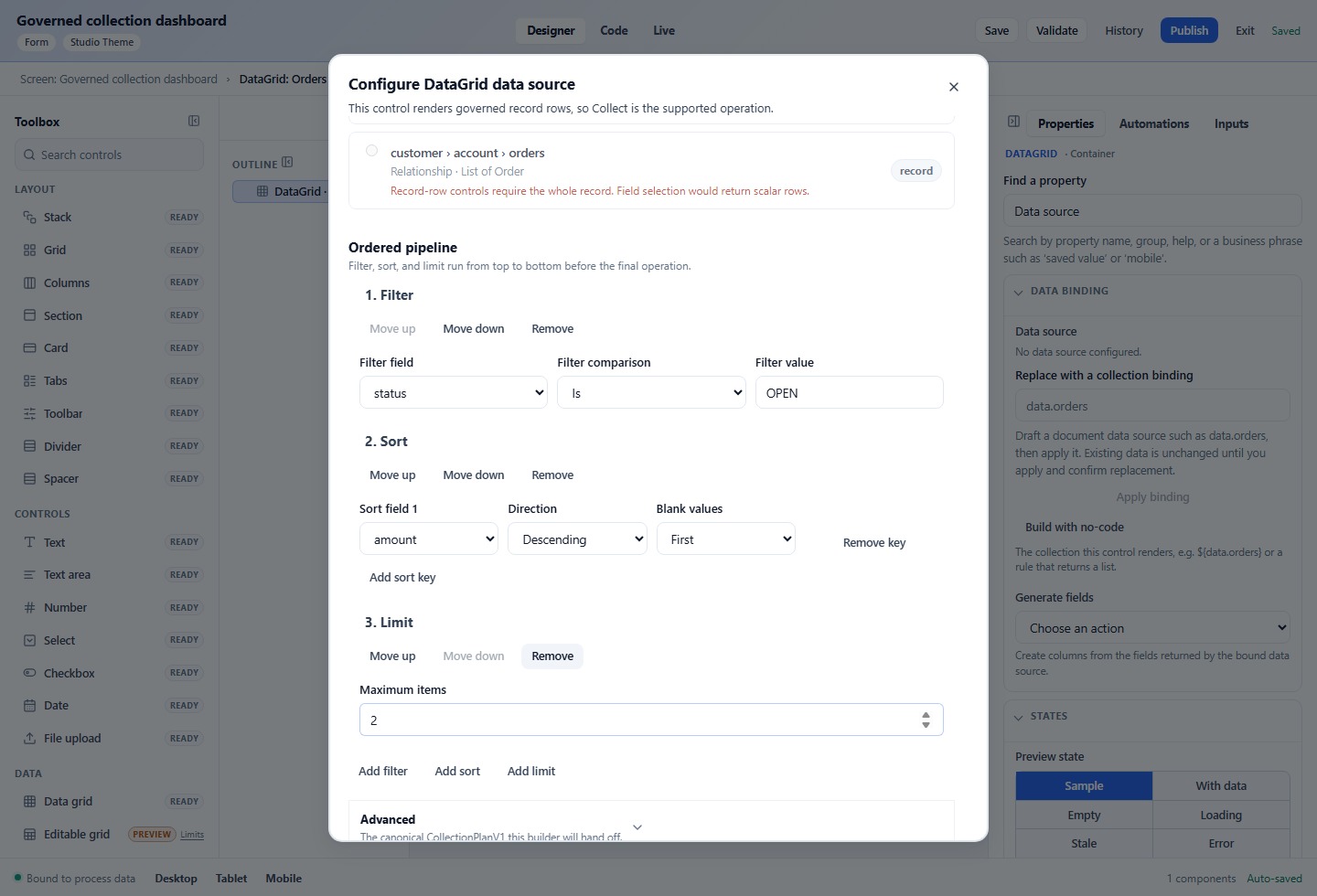
Screenshot checkpoint D — query rule
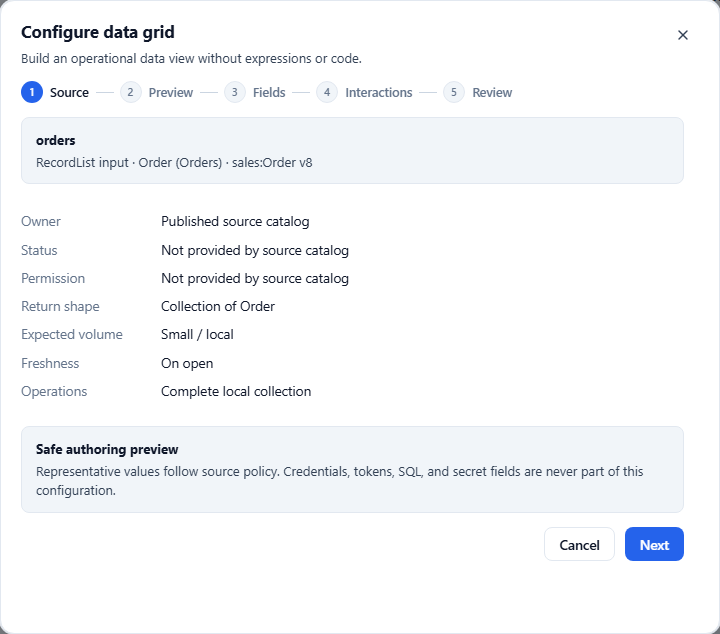
Capture the guided query editor with source, fields, filters, sort, and limit visible. Capture the Live test result and the Expression-mode view.
The ordered filter/sort/limit interaction in the Interface Designer should look like this reference:
6. Scenario UI-004 — place query results on a dashboard
- Create a Dashboard interface named
Invoice dashboard. - Add a DataGrid and select
Open invoices by customeras its rows/data source. If the designer asks for a rule input, bindminAmountto a Number input on the interface. - Select columns
id,customerId,amount,status, anddueDate. - Set paging to Paged, density to Compact, and selection to Single.
- If a count is needed, configure a Metric through its own supported governed aggregate source/plan and matching predicate. Direct rule-query Chart/Metric binding is not supported; omit the Metric when no admitted compatible adapter exists. Do not assume a paged grid's local row count equals the full result total.
- Add a Select named
minimumAmountFilterwith options0,1000,5000. Bind it to the query rule'sminAmountinput. - Preview the dashboard, change the select, and trigger the query refresh.
Expected results
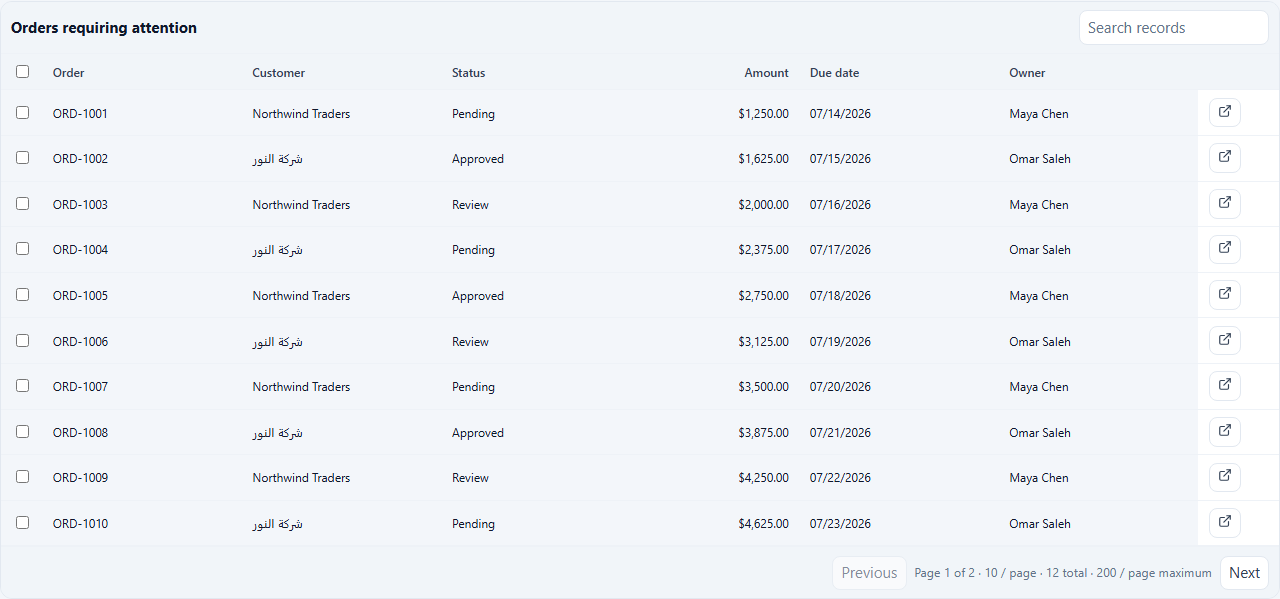
- The grid renders rows returned by the query, not placeholder rows after the query has completed.
- Changing the mapped query input refreshes the grid under its actual interaction strategy. A separately configured Metric changes only when its own compatible filter/source contract was explicitly wired.
- Loading, empty, error, unauthorized, and stale states are distinguishable.
- Paging does not duplicate or reorder records.
- Selection is keyboard reachable and remains stable after refresh.
Reference runtime states:


7. Scenario UI-005 — expressions in properties
7.1 Static value versus expression
- Select an expression-capable property such as Default value, Visible when or Computed value. Store value in is a destination editor with no scalar expression toggle.
- Enter a literal first, for example
1000orOPEN. - Select the expression/fx affordance beside the field.
- Enter an expression and select Validate.
- Save and reload. Confirm the expression mode is retained and the value is evaluated in Preview.
7.2 Practical expression examples
| Use | Expression | Expected behavior |
|---|---|---|
| Show an approval panel | ri:input.status == 'PENDING' |
Panel is visible only for pending records. |
| Default a threshold | coalesce(ri:input.creditLimit, 1000) |
Uses the record value, otherwise 1000. |
| Require a high-value reason | ri:input.amount >= 10000 |
Validation/visibility branch activates at 10000. |
| Display a friendly name | trim(ri:input.name) |
Whitespace is removed in the preview. |
| Current date limit | today() |
Uses the evaluated current date. |
| Query filter | constant('approval-limit') |
Uses the governed published constant. |
| Rule composition | rule('customer-risk-band') |
Uses the published rule result, subject to permissions. |
The interface editor may canonicalize ri: references to an inputs form when
saving. Treat equivalent canonical output as success; do not compare only raw
display text.
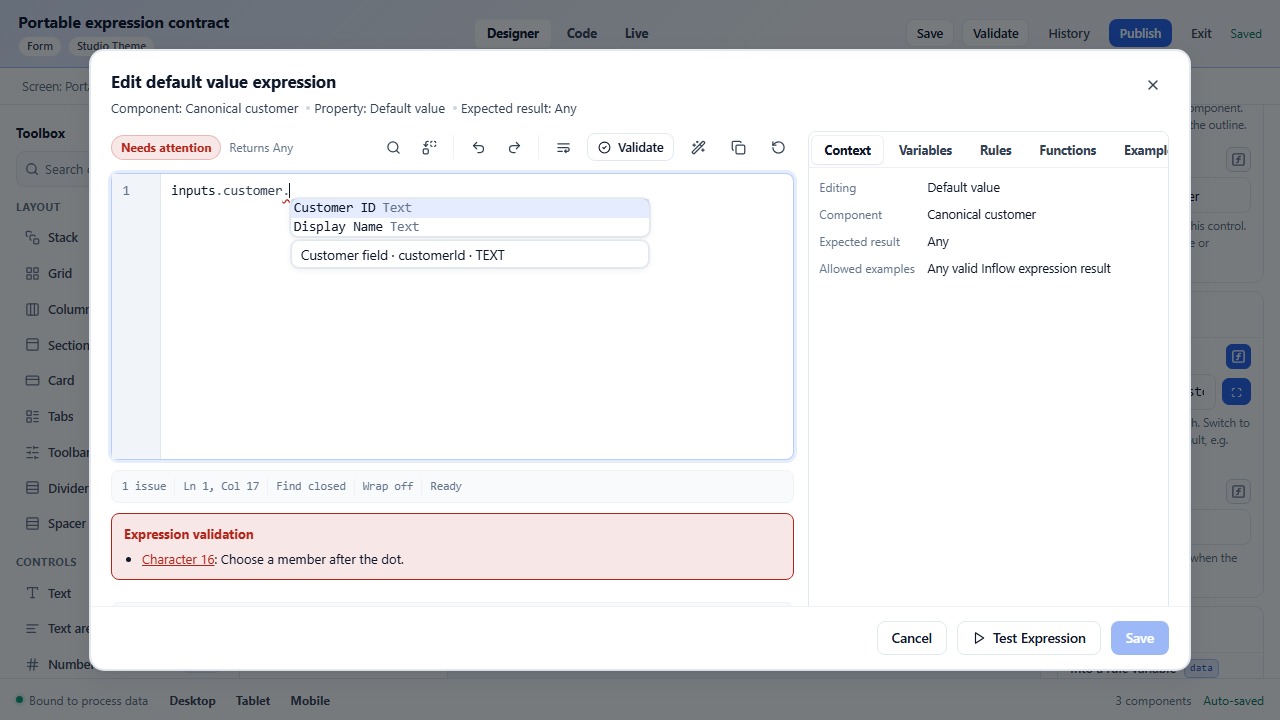
7.3 Record member completion
- Open an expression editor for a record-backed property.
- Type
ri:input.and pause for completion. - Choose a field, then type
.again for the next object level. - Select the member and click Validate.
- Confirm the completion list is field-specific. A list of unrelated built-in functions at this point is a defect.
Reference expression portability evidence:
8. Scenario UI-006 — expression errors and recovery
Run each invalid value and record the exact validation result:
| Input | Expected result |
|---|---|
| Empty expression | EXPRESSION_EMPTY or an inline required message. |
ri:missingField |
Undefined-variable/member validation. |
ri:input.name. |
Incomplete member-path validation. |
amount > |
Syntax error with a position. |
number('not-a-number') |
Type/conversion error. |
| A raw SQL string in a query rule | Rejected; query rules remain governed. |
| An unknown function | Unknown-function error with a suggestion when available. |
After each error, correct the expression, validate again, save, reload, and confirm the error state clears. The editor must not silently discard an unsupported expression when switching between guided and expression modes.
9. Scenario UI-007 — validation, publish, and runtime replay
- Leave one required field empty and select Validate. Confirm the error appears beside the field and in the summary.
- Fix the field and validate again. Confirm the summary clears.
- Select Publish and confirm the version/status changes to published.
- Open Live or the published interface URL.
- Exercise the happy path, empty result, unauthorized source, and query error paths.
- Return to the designer, change a label, save, and reload. Confirm the change persists without changing the expression or data binding.
Screenshot checkpoint E — publish and runtime
Capture the validation summary before repair, the saved/published state after repair, and one runtime state. Include the browser URL and status indicator.
10. Scenario UI-009 — explain and fix a wrong binding (spec 104)
Purpose: a control bound to the wrong kind of field gets a plain-language explanation and a reviewed, undoable fix.
Setup: a form whose data source is a published record, for example Purchase request v5 with Supplier name (Text), Supplier id (identifier) and Amount (decimal).
Steps
- Add a Text control and bind it to
data:request.supplierId.- Selecting it shows a binding card in the inspector: Wrong type, Expected Readable text, Mapped Supplier id · Identifier · request v5, and why: An identifier is not a name a person can read.
- Choose Change this binding.
- Fields of the same record are listed first, each with its reasons, e.g. Same record · v5 · current · Text · Name matches.
- Fields of other records come after the divider From another record: check this is the record you mean.
- No percentages or scores are shown.
- Choose Use on Supplier name.
- The review shows the binding now and after, each with one sample value. Where there is none it reads No sample value; where you may not read it, Not available with your access.
- Choose Apply.
- Only that binding changes, and the card reads Checked against request v5.
- Undo restores the previous binding in one step.
- Nothing is published.
- Bind a control to a field that does not exist, e.g.
data:request.supplier_name.- The card shows Wrong path and Blocks publishing.
- Validate lists it, and Publish is refused, also through the API.
- On a wrong-type card, choose Keep as is, enter a reason (1–200 characters) and save.
- The card reads Kept as is: ….
- Validate lists it as acknowledged, not blocking.
- The draft records who kept it and when; the server sets both.
- The published interface never shows the reason.
- As a designer who may not view a model, open a control bound into that model.
- The card says This binding can't be checked with your access and offers no fix.
- It names nothing from that model.
What blocks publishing. Only a field missing from the version the control reads. These are warnings:
- Wrong type;
- From another record (a repeated row reading a field of a different source);
- Older source version (the field is in the pinned version, but not in the newest one).
11. Manual-test matrix
| ID | Area | Pass condition |
|---|---|---|
| UI-001 | New interface | Draft opens with toolbox, outline, canvas, Properties. |
| UI-002 | Layout | Components can be added, reordered, saved, and reloaded. |
| UI-003 | Scalar properties | Text/Number/Date/Select/Button values persist and validate. |
| UI-004 | Record input | Published record chooser and member completion are typed. |
| UI-005 | Nested path | record.relationship.member completes and validates. |
| UI-006 | Query authoring | Source, fields, filters, sort, limit, and preview agree. |
| UI-007 | Query expression | Guided expression round-trips without loss. |
| UI-008 | Dashboard binding | Query results populate grid/metric and refresh from a filter. |
| UI-009 | Binding correction | Wrong-type, wrong-path, acknowledged and uncheckable bindings explained; a reviewed fix applies as one undo step. |
| UI-009 | Expression editor | Valid/invalid expressions show deterministic feedback. |
| UI-010 | Publish | Validation blocks bad drafts and publish creates a version. |
| UI-011 | Runtime states | Loading, empty, error, unauthorized, and stale states are clear. |
| UI-012 | Responsive | Desktop, tablet, mobile, keyboard, RTL, and 200% zoom remain usable. |
| UI-013 | Input controls | Scalar, typed text, numeric, boolean, choice-group, date/time, upload, and lookup recipes pass with save/reload persistence. |
| UI-014 | Find in Outline (spec 111) | On a page with two same-label controls, one inside a closed accordion and another container: / then part of the label lists both, each with its parent path and bound field; Enter selects the intended one, the canvas opens its panel and scrolls to it; Escape keeps it selected; Back (Alt+Left) returns to the previous control and scroll; Save produces no change. |
For every failed test record: workspace, draft key/version, actor, browser, viewport, exact input/expression, screenshot path, and whether the failure is authoring, validation, persistence, or runtime.
12. Tester quick reference
- Prefer guided pickers and field completion over manually typed source keys.
- Quote literal text in query filters:
status = 'OPEN'. - Use
constant('key')andrule('key')for governed reuse. - Use
coalescefor safe defaults andhasbefore optional access. - Query rules read governed published data; they do not accept raw SQL.
- Validate after changing a binding, expression, query filter, or return shape.
- Save, reload, and then preview: a value that only works before reload is not a passing result.
- Treat a generic function list after
ri:input.as a completion defect. - Treat silent loss when switching modes as a release-blocking defect.