
Use the Agent service in a workflow
An Agent Task runs AI work inside a published BPMN workflow. It uses the sources and operations selected by the author, returns typed business findings, and can route work to a person for review. For example, an Agent Task can use a known record ID to read a customer name and save that name to the case.
Availability. This guide describes a development candidate. The governed lookup example demonstrates one successful case with controlled model replies. Check availability in your workspace before configuring the task.
What you need
- A workflow draft you can edit and publish, with a place for its results and an appropriate review or failure route.
- A published Agent revision with the required inputs, outputs, and allowed operations. The revision and tools must be available in the current workspace.
- For a record lookup, a published data model and its published Find one operation. The Agent revision author needs workspace administration and current model view access. The operator needs access to start the case and view the source data.
- A scoped reviewer if the workflow requires a business decision or approval of a proposed change.
| What you configure | What the workflow uses |
|---|---|
| Agent revision | The published goal, schemas, and allowed operations. Existing cases keep their published bindings. |
| Inputs and outcomes | Case data sent into the task and typed findings mapped back to the case. Required values must be supplied and validated. |
| Tools | The selected published operations. An explicit empty selection grants zero tool operations. |
| Evidence and checks | Published rules can require citations or structured facts, count qualifying evidence, and reject an unsupported positive finding. |
| Review and approval | The person assigned to review findings or authorize an exact proposed change. |
| Run history | Separate records for attempts, model turns, tools, usage, deadlines, and workflow delivery. |
Configure an Agent Task
- Select the task in the workflow designer. In Agent & Goal, choose the published Agent and describe its job. For the lookup example, ask it to return the permitted customer name for the supplied record ID.
- In Data, map the declared input from the case. Use Edit fixed value
for literals and the expression editor for expressions. A fixed False
is a Boolean. Text beginning with
=belongs in the expression editor. - In Tools, choose the allowed operations from the selected revision. Keep the Agent, tool selection, and run-as mode fixed. Expressions belong in Data.
- In Outcomes, map each required typed result to the matching case destination. Choose Do not store for an optional value you want to leave unmapped.
- In Review, choose the task that handles review, its separate Boolean decision destination, and its deadline. For example, use a 15-minute review deadline where that fits the process.
- Save, reopen the draft to check its settings, and choose Verify. Review publication warnings and the affected cases before you Publish. Existing cases keep their original workflow version.
Keyboard and narrow screens. Use Tab and Shift+Tab to navigate, and Enter or Space to activate controls. Escape discards provisional tool selections and returns focus to Choose tools. Apply selected tools also returns focus there. On a narrow screen, choose Expand right panel and scroll within the Inspector.
Read a governed customer record
Use this example when your case already has the ID of a record in a published data model. The task uses an exact Find one operation version and can return only fields allowed by current data-model and field disclosure policy.
1. Attach the published lookup to the Agent revision
Publish the data model and its generated Find one operation. Record the operation key and exact published version.
In an authenticated POST /api/agents/revisions request, add recordLookup
alongside the existing definition and expectedRevision fields. The example
uses the following recordLookup object. Replace the sample operation key and
version with your published values.
{
  "operationKey": "your-published-operation-key",
  "version": 1,
  "maximumBytes": 4096,
  "requiredForCompletion": true
}
The server derives the binding from the published operation. Workspace administration, current model-view access, and disclosure policy are checked during revision registration. The registration itself issues no target record query.
2. Choose the operation and map the result in Studio
Open the Agent Task, choose Tools → Choose tools, and select the read-only operation from the published revision. Pass the case's record ID under Data. Under Outcomes, map the declared customer name into a case field such as Read Outcome. Configure the review route, then Save, Verify, and Publish.
3. Submit once and read the result on the original case
As an operator with the required case and data access, submit the record ID through the published intake. Choose Open case to check the result. In Studio, an authorized viewer can open the same case under Live → Data.
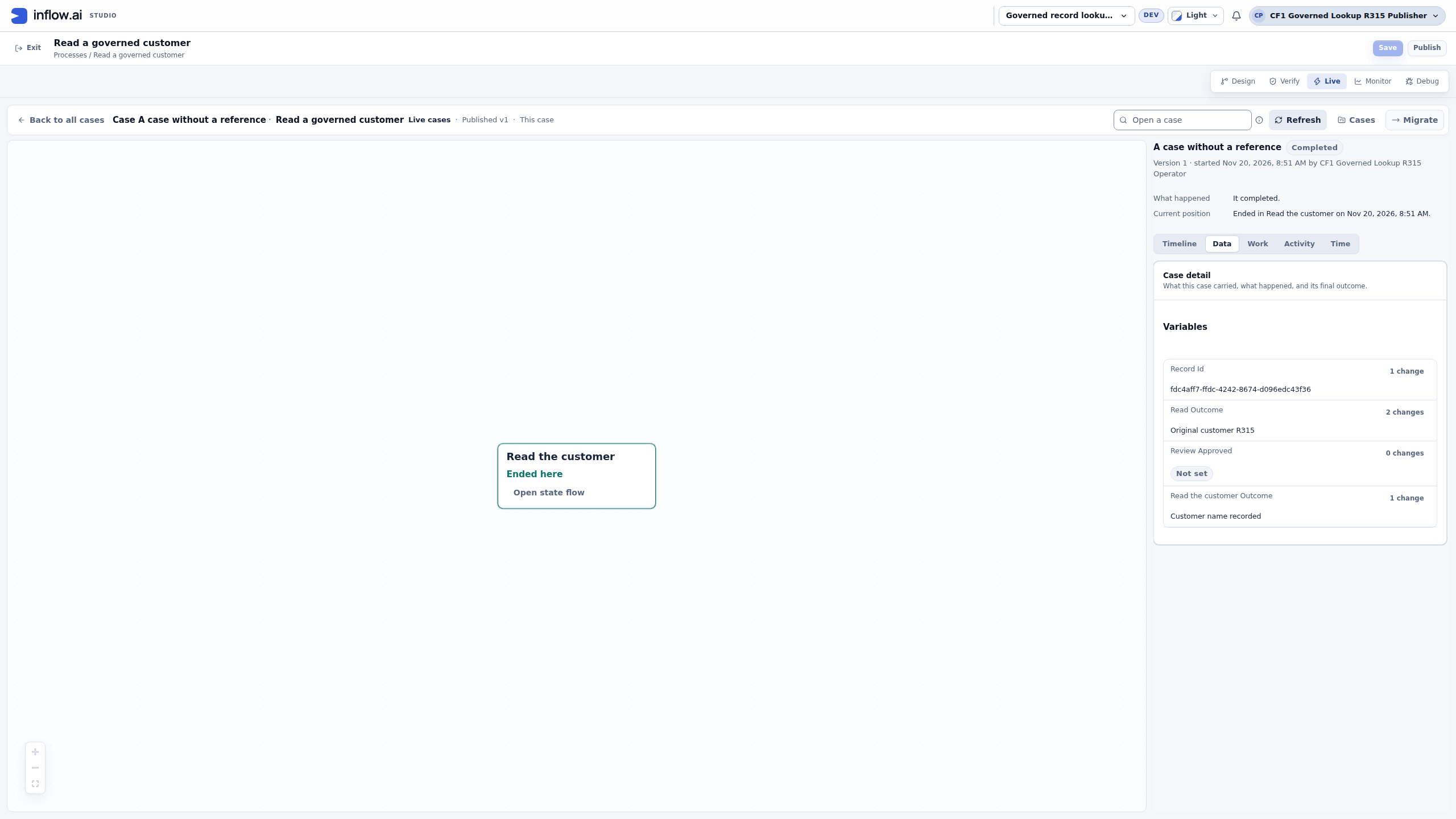
- Completed shows the original case reached its terminal state.
- Data opens the saved case variables.
- Read Outcome contains the mapped synthetic customer name.
In the demonstrated example the case reached Completed, Read Outcome contained the synthetic customer name, and the source row stayed unchanged. The lookup rechecks source availability, current permissions, and disclosure policy at runtime. A missing visible match or an ambiguous match returns an explicit lookup outcome with no record values. Use the workflow's review route if it cannot produce a valid business result.
Require citations for specific record fields
Use required citations when an Agent answer needs to show which fields from the governed lookup support it. For a customer lookup, you can require both the published customer ID field and the name field, even if the case only stores the name.
- Attach the published Find one operation to an Agent revision. Declare a
required, non-null record ID input that matches the lookup's record ID type.
In the Agent definition's opt-in
premiumRecordCitationPolicyV1metadata, setformatto1, name thecitationsField, and declare the lookup inrequirements. Each requirement identifies theoperationKey,version,recordIdInput, and required projectedfields. Use the field keys from the actual published operation. - Declare the citation output as a required, non-null list of records. Each
entry has two required Text fields,
receiptDigestandfield.receiptDigestis the 64-character lowercase hexadecimal digest returned by the confirmed lookup.fieldis the exact field key within that result'svalues. Keep record citations in a separate output from document citations. - Select the same published operation in Tools → Choose tools for the workflow's Agent Task. Map the business answer to the case field, connect the Agent's error boundary to a human review task, then save, verify, and publish the workflow.
For example, this Agent definition metadata requires two fields from one published operation. Replace the example keys and version with your own. A policy can declare up to eight lookup requirements and up to 32 required fields in total.
{
  "premiumRecordCitationPolicyV1": {
    "format": 1,
    "citationsField": "recordCitations",
    "requirements": [
      {
        "operationKey": "customer-find-one",
        "version": 1,
        "recordIdInput": "customerId",
        "fields": ["customerId", "customerName"]
      }
    ]
  }
}
| What the Agent cites | What happens in the customer example |
|---|---|
| Customer ID and customer name, each with a valid citation | The case completes and saves the customer name. |
| Only the customer name | The case follows the configured review route. The result stays Pending, its value before the lookup. |
One matching citation is required for each field. Missing, duplicate, or extra citations fail validation, as do citations for a different record or a missing or null field. The application checks current access to the source again before accepting an answer. A citation verifies where the data came from. Business decisions still follow the workflow's rules.
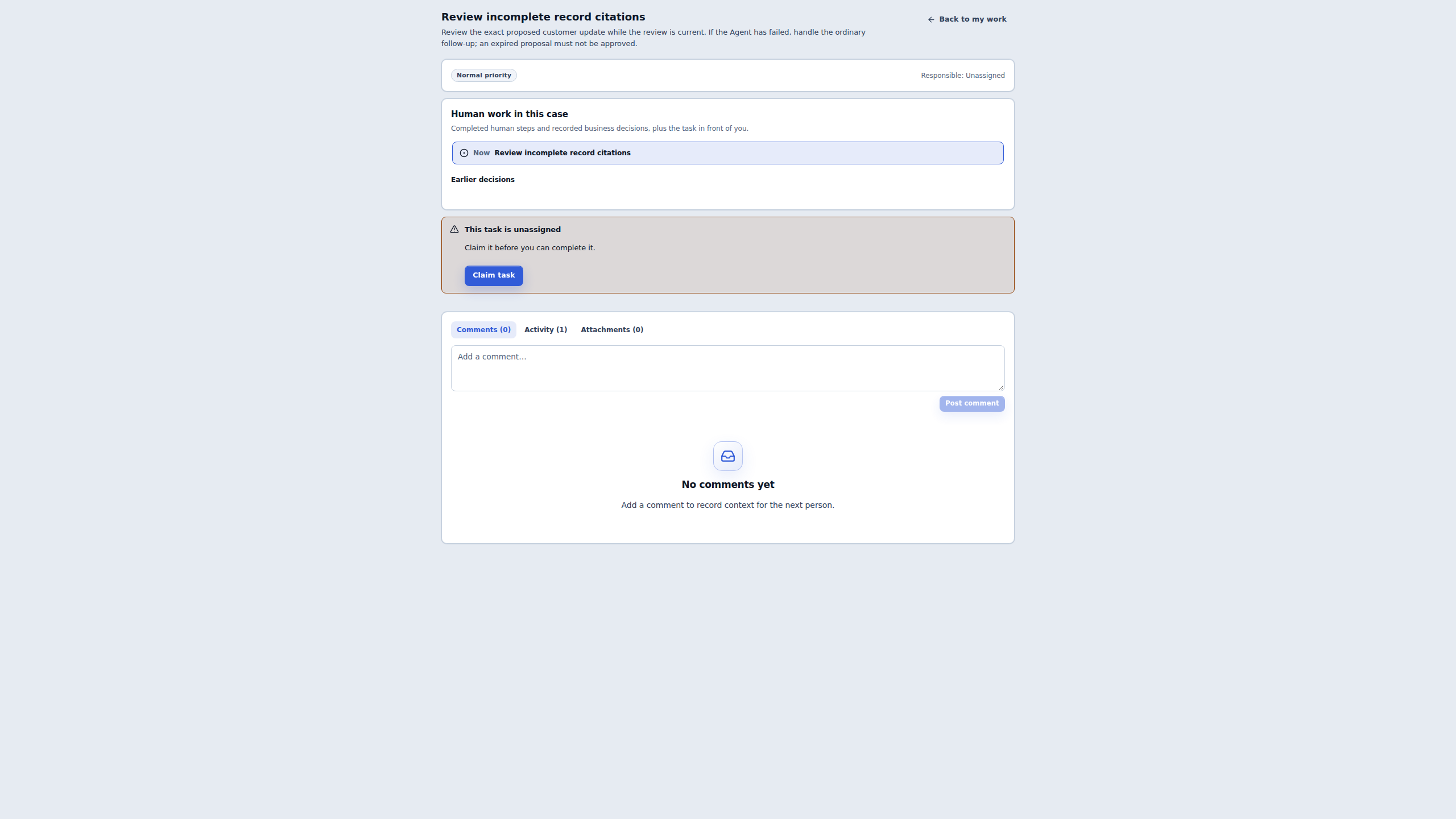
- Review incomplete record citations is the configured human task.
- Claim task is available to the eligible operator on the unassigned task.
An eligible operator can open the original review task via its authenticated workspace link and check the case before claiming or deciding the task. The two demonstration cases used controlled model replies and left both synthetic source records unchanged.
Verify dependencies and adopt a newer revision
Verify checks the saved revision, schemas, selected tools, and current model policy without starting the Agent or sending a model request. If the saved sources are unavailable, reassess the revision, check model policy and your inputs and tools, then save and verify again. Verify retains the saved values. Publication checks the sources again.
The Agent selector shows entries available in the current workspace. If the catalog fails to load, choose Check availability after the connection recovers. Saved settings remain in place. Agent settings you cannot access stay hidden.
To adopt a newer version, choose Reassess agent revision. Reselect the tools and check the inputs, outcomes, and review route. Save and Publish. If your intake pins a lifecycle version, update and publish the intake before starting cases on the newer version. Existing cases keep their original bindings.
Route findings or proposed changes to a person
A review can record findings, request information, reject a proposal, or authorize one exact proposed action where the route and the reviewer's permissions permit. An Agent recommendation by itself grants no business approval.
Example: onboarding evidence
Suppose an onboarding packet reports missing training. A published rule can require specific evidence kinds and citations before accepting a Ready recommendation. Missing evidence sends the case to a reviewer. The reviewer reads the saved findings and records a decision once on the original task.
A complete packet can use evidence from the pinned documents, while a missing or ambiguous item leads to Review required. Keep the evidence requirements and decision rules explicit in the workflow so the business checks apply even if the model recommends a different outcome.
Example: approving a customer update
Claim the task and inspect the displayed record and every proposed value. Choose Approve proposed action only if you are authorized to make that exact change, then confirm Authorize action. The receipt records the decision. Check case activity and the permission-scoped record view to confirm whether the update executed. A changed target or value needs a current decision for that proposal.
If you need clarification, use Request information. It records the request and leaves the existing review open with its original deadline. If the review expires, follow the published failure or follow-up route. An ordinary follow-up task grants no authority to execute the expired proposal.
Inspect a completed run
In Studio, open the original case. In Live → Activity, choose View activity for the Agent run. Use Agent run stages to inspect attempts, model turns, usage, and confirmed or uncertain operations. Open Data to see the typed business output. On a narrow panel, a visible prefix may be shorter than the full value.
A confirmed read means the selected operation returned its recorded result. For a write, use the operation and delivery receipts to confirm what happened after authorization. Check the workflow status separately from the Agent run status.
Recover an existing case
Open the original case, task, and receipts before taking an action. Use the current case status and documented route to decide what happens next.
| What you see | What to check or do |
|---|---|
| Queued or waiting to retry | Inspect Activity for earlier attempts and effects. A confirmed temporary provider failure may retry under the original limits. Keep using the existing case. |
| Completed Agent run while the case is Running | Check workflow delivery and any open human task. Reopen the original case to read its latest status. |
| Saved review after interruption | Reopen the same task and inspect its current proposal, permissions, receipt, and expiry before deciding. |
| Paused with a recorded response | Inspect the original run. Resume if appropriate. Current inputs, permissions, and activation must still allow the result. The original deadline still applies. |
| Outcome uncertain | Reconcile the original operation and authorized target against its receipts. Keep the original case and avoid a replacement submission that could repeat the effect. |
| Retries exhausted | Follow the published failure route. The case can remain Running while ordinary follow-up work is pending. |
| Cancellation requested | Wait for the original case to show Cancelled. A late response can appear in history. Check the case and effect records for its disposition. |
To cancel an active case you can manage, choose Other actions → Cancel case in its Live view, enter the reason, and confirm once. Cancellation stops the case and cannot undo a confirmed external effect. Keep the original case and receipts when checking the result.
Configure limits and read results safely
- Run and provider time limits. The Agent's whole-run timeout and the provider's whole-attempt limit apply independently. Lease renewal, pause, and additional model turns keep the original run deadline. Use Refresh agent activity to check progress on the existing run.
- Document reads. A read honors the published operation's size limit, the exact document version, and the actor's current document access. A document can exceed the read limit even when its declared size is smaller.
- Visibility. Workspace access alone does not grant every case or every field. Use an authorized account for publication, operations, and review. Refreshing a workflow link after access is revoked shows the unavailable state.
For related guidance, see Agent execution, Human tasks, and the technical Agent execution reference.