Practice generating a form before a record destination is ready
Nadia wants to check the shape of a leave form while its record destination is still being prepared. She can practise questions and validation without pretending that a leave request was saved. This guide follows that smaller exercise: three questions, an intentional empty-answer check, a repair, and the actual result of pressing Submit in Interactive Preview.
The numbered figures show a fictional People Operations session captured on 15 November 2026. Each guide links to the unchanged original. The form stays a draft throughout. This is a builder practice exercise, not an employee application or manager approval.
Keep the existing work
Use a workspace and function you are allowed to edit. This example uses People Operations → Leave Management. Keep the original Leave request form from the first-form lesson.
First inspect the Forms list. In the captured session, only Leave request and Leave date practice existed, so Nadia created a separate empty Form named Leave request intake, with key leave_request_intake. If your intake already contains generated controls, a live destination or later edits, retain it. Use a different empty practice form, such as Leave request intake practice, rather than replacing that work to repeat this guide.
- Choose New form. Confirm the interface kind is Form.
- Choose the intended function under Placement.
- Enter a clear Title and distinct Key, then inspect Review interface before choosing Create interface.
- In Designer, confirm the title and workspace. Continue only in the intended empty practice draft.
Creating this design saves an interface draft. It does not create a leave business record, publish a page, provide a record destination or assign work to a manager.
Choose the pattern, then read the destination
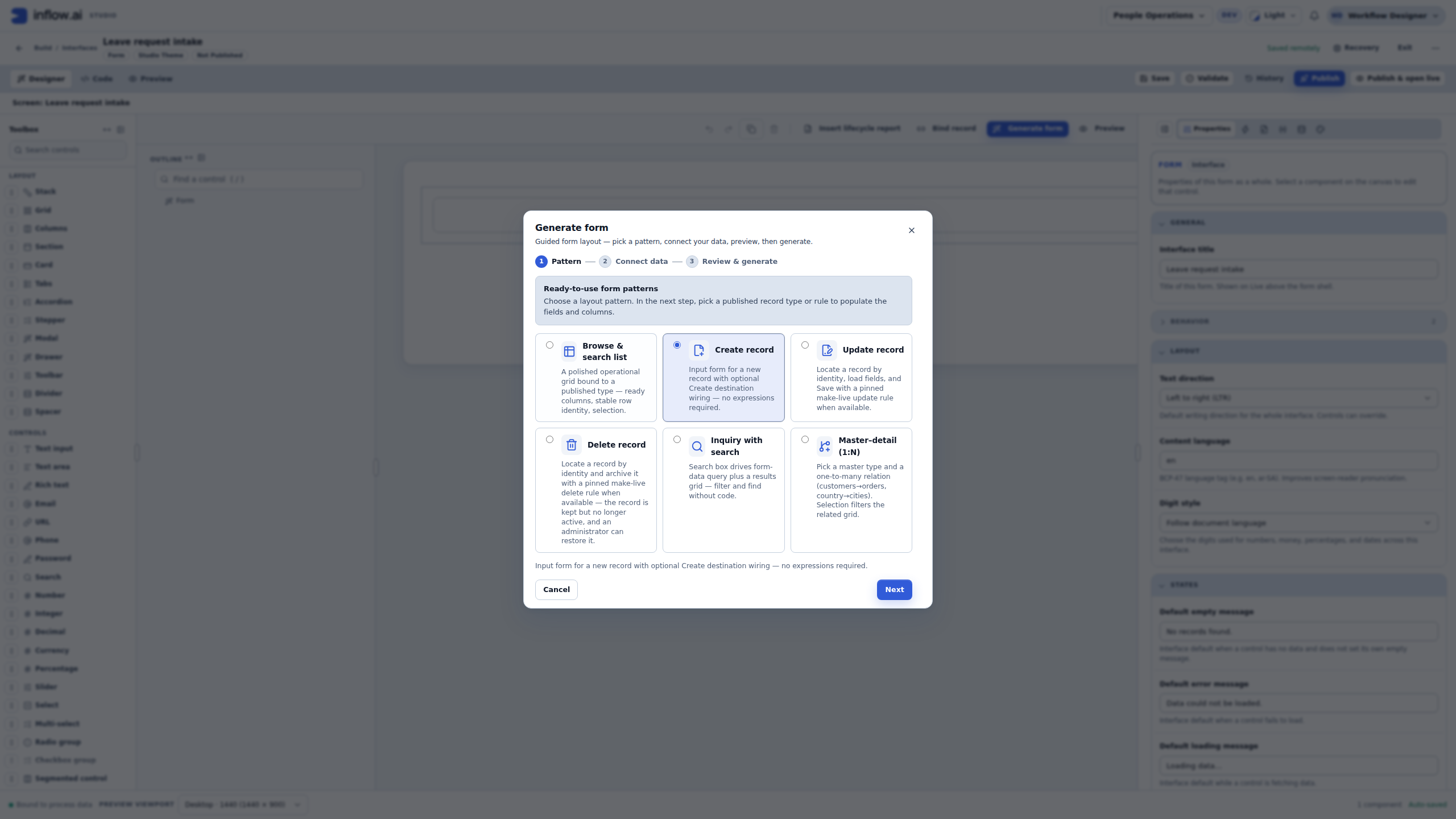
- Choose Generate form.
- Deliberately select Create record. The initial selection may be Browse & search list.
- Choose Next. Pattern selection prepares a kind of layout; the next step decides its destination and fields.
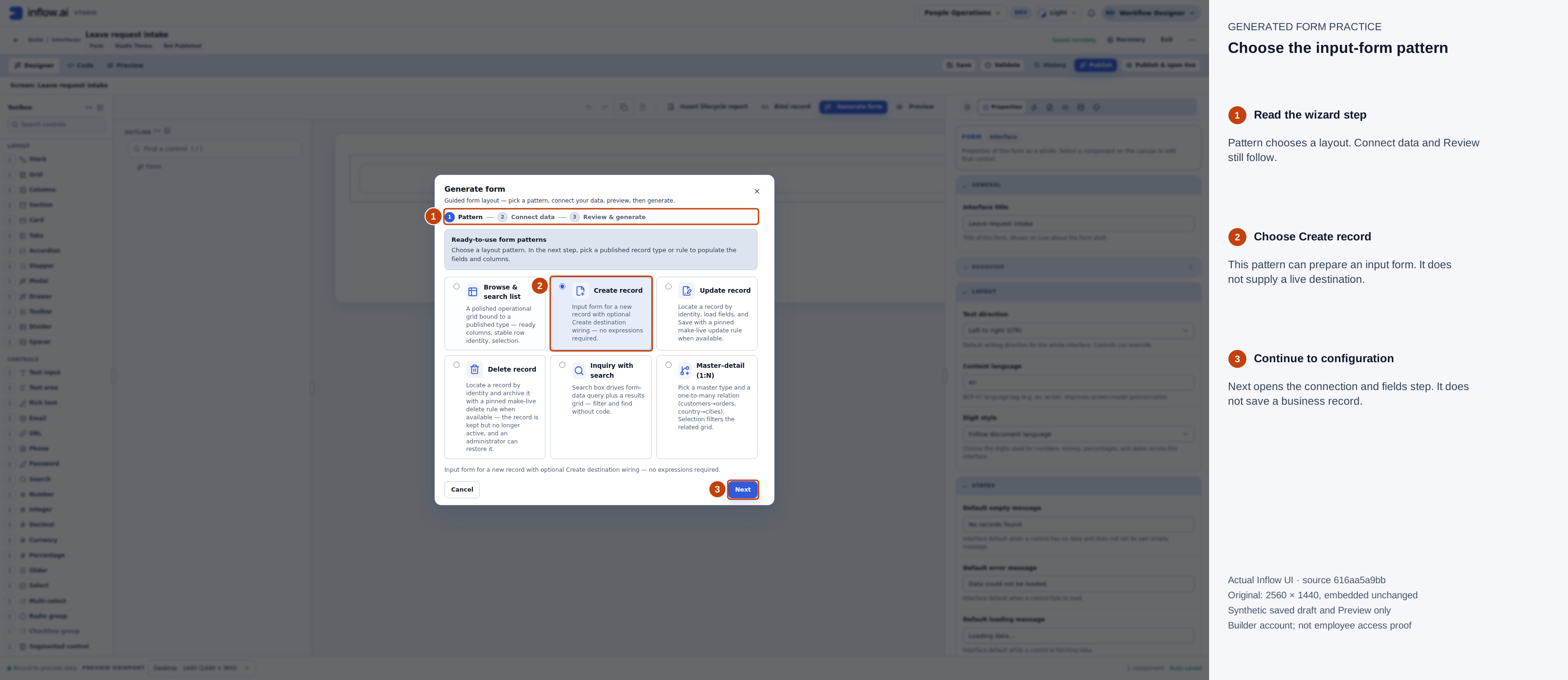
Create record is selected in the actual wizard. Next opens configuration; it does not create a record. Full-size guide · Unchanged original.
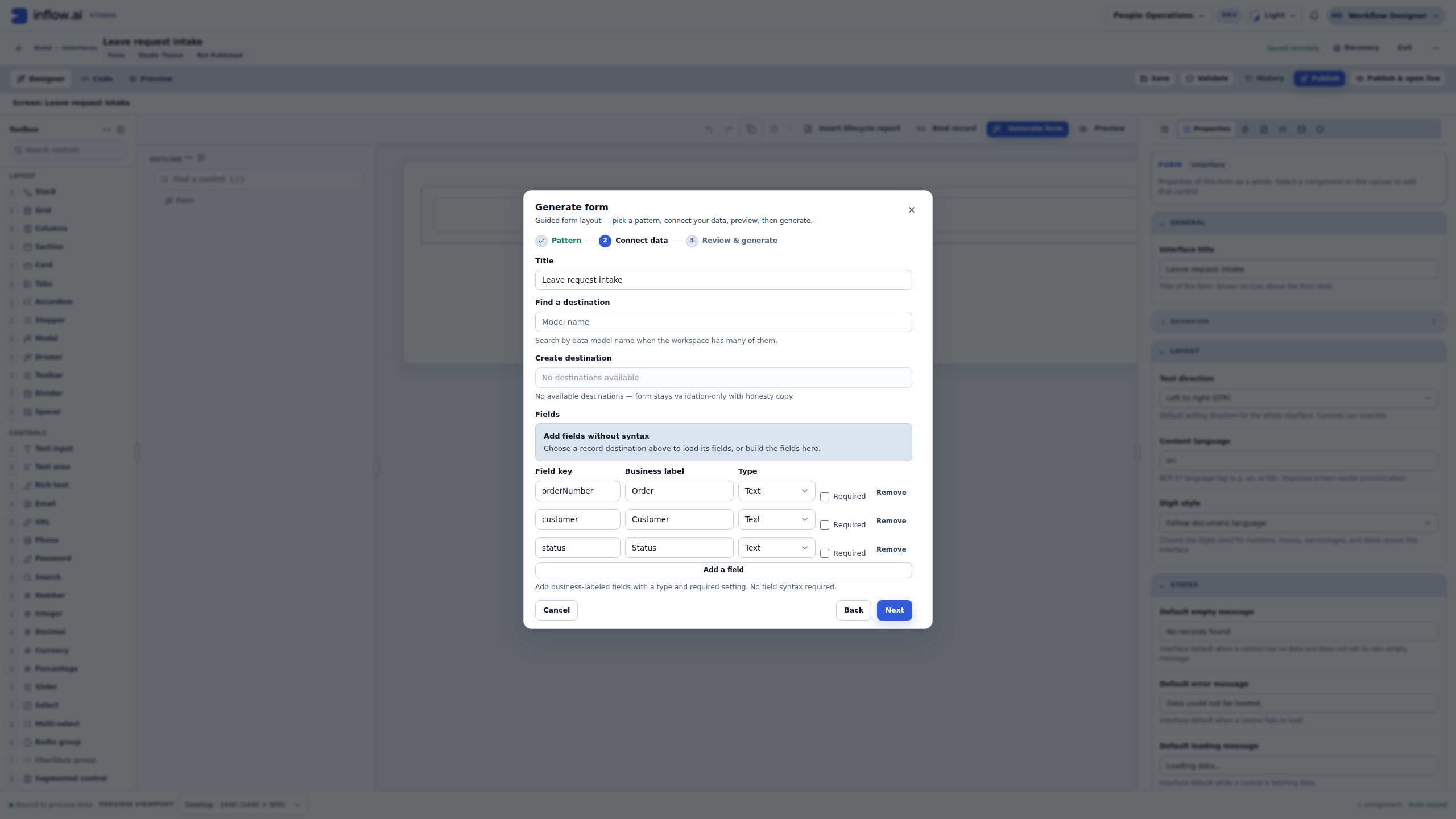
On Connect data, the captured Create destination says No destinations available. Read the accompanying explanation: the form stays validation-only. Do not choose an unrelated record, paste another application's destination or add credentials merely to advance this lesson.
A live destination requires its own preparation and the intended user's scoped access. Being able to edit a screen does not itself supply a writable record destination. Ask the responsible data/application owner to prepare the intended destination when real record creation is required. The published-model preparation guide and the main generation and publishing chapter cover that separate route.
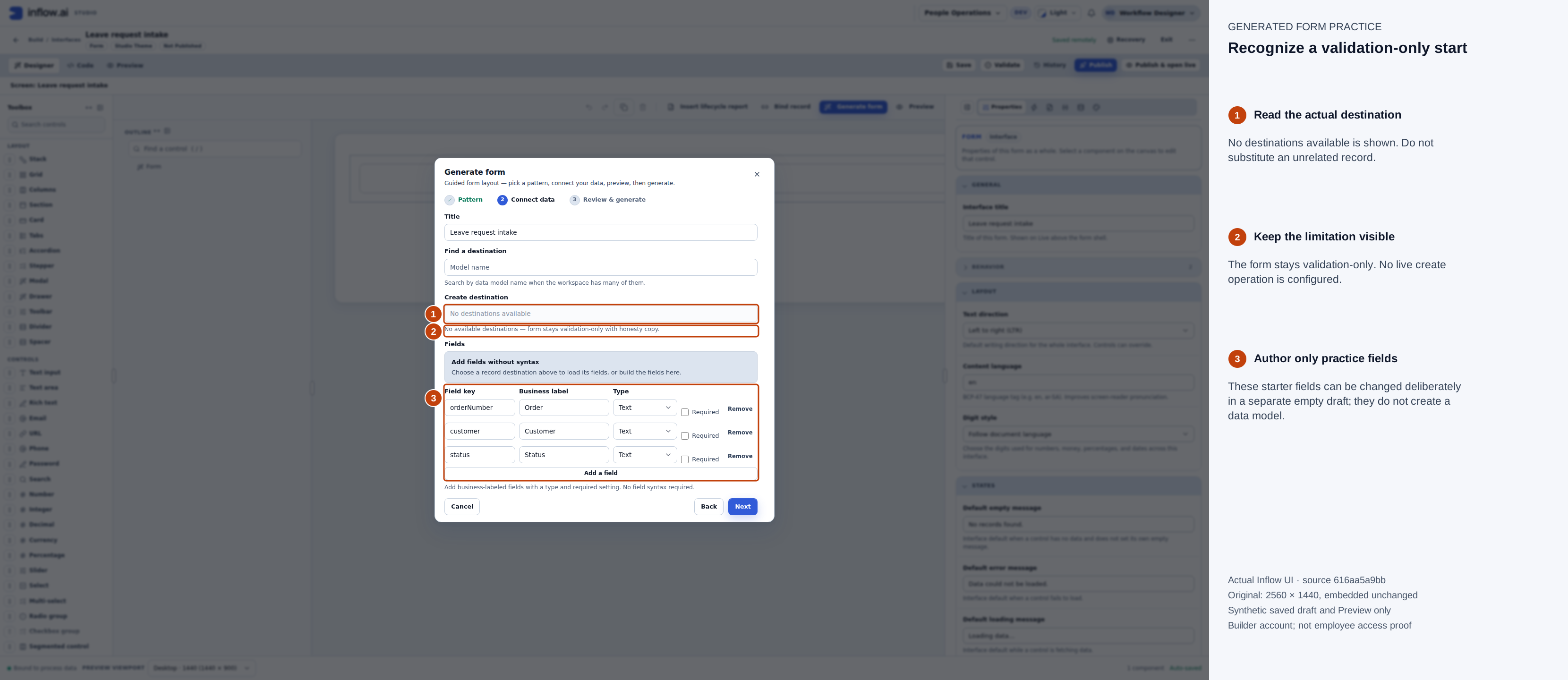
The empty picker is an observed prerequisite state. Editable field definitions do not turn it into a connected save. Full-size guide · Unchanged original.
Define the three practice questions
Keep Title as the intended practice form. In the existing three starter rows, deliberately replace the starter definitions with the following. If your draft already has business fields, stop and inspect them first; this table is for the separate empty practice exercise.
| Field key | Business label | Type | Required |
|---|---|---|---|
reason |
Reason for leave | Long text | Yes |
start_date |
Start date | Date | Yes |
end_date |
End date | Date | Yes |
The Field key is the generated record-field identifier. Use lowercase letters, digits and underscores, starting with a lowercase letter. Business label is the question people read; it can use spaces and normal wording. In this guided generation route, use start_date and end_date, rather than copying the camel-case names used by the separate declared-input exercise. These are different settings with different naming rules.
The Type should match the answer. Reason needs room for a short explanation; the dates should be Date values. Required means these three answers must be supplied for this practice check. It does not mean they are already filled or that the application has a complete leave policy.
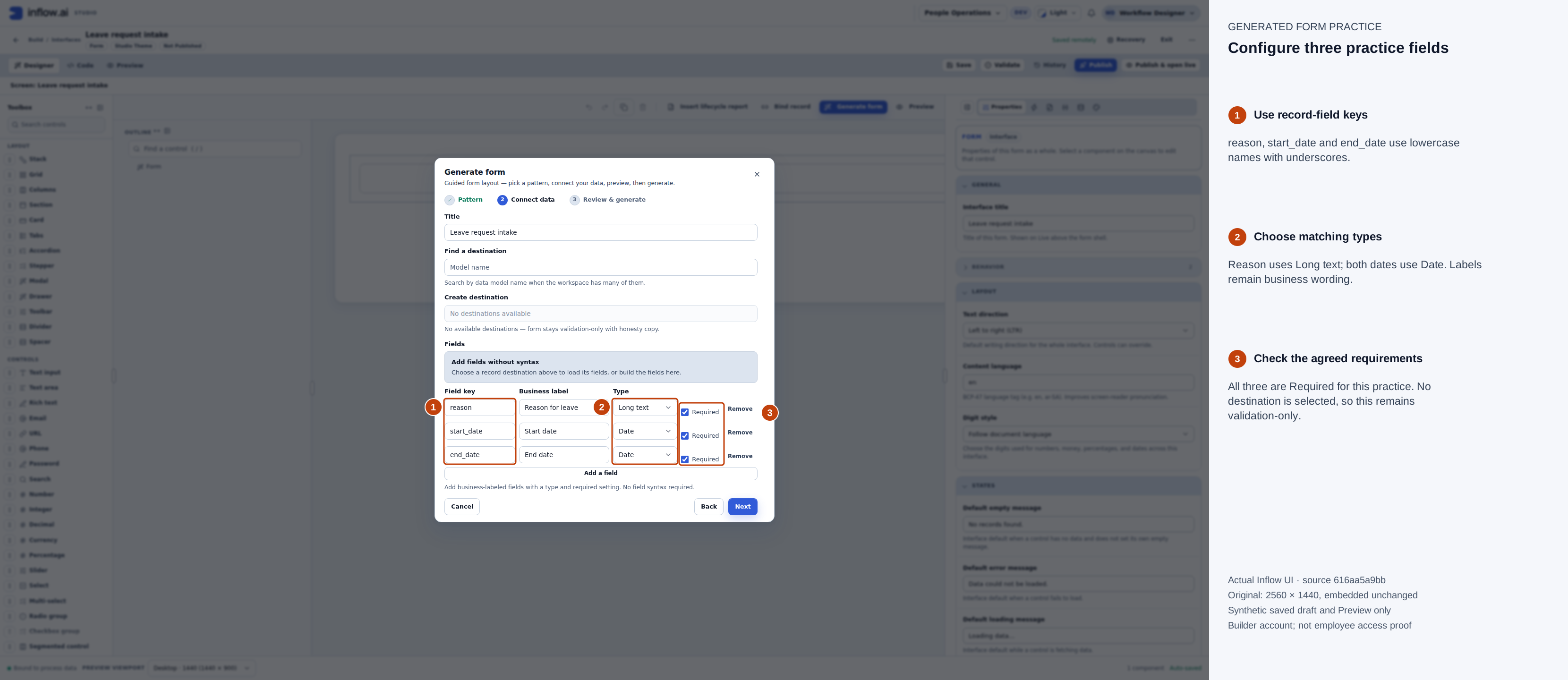
The intended keys, labels and types are visible together. No live destination is selected. Full-size guide · Unchanged original.
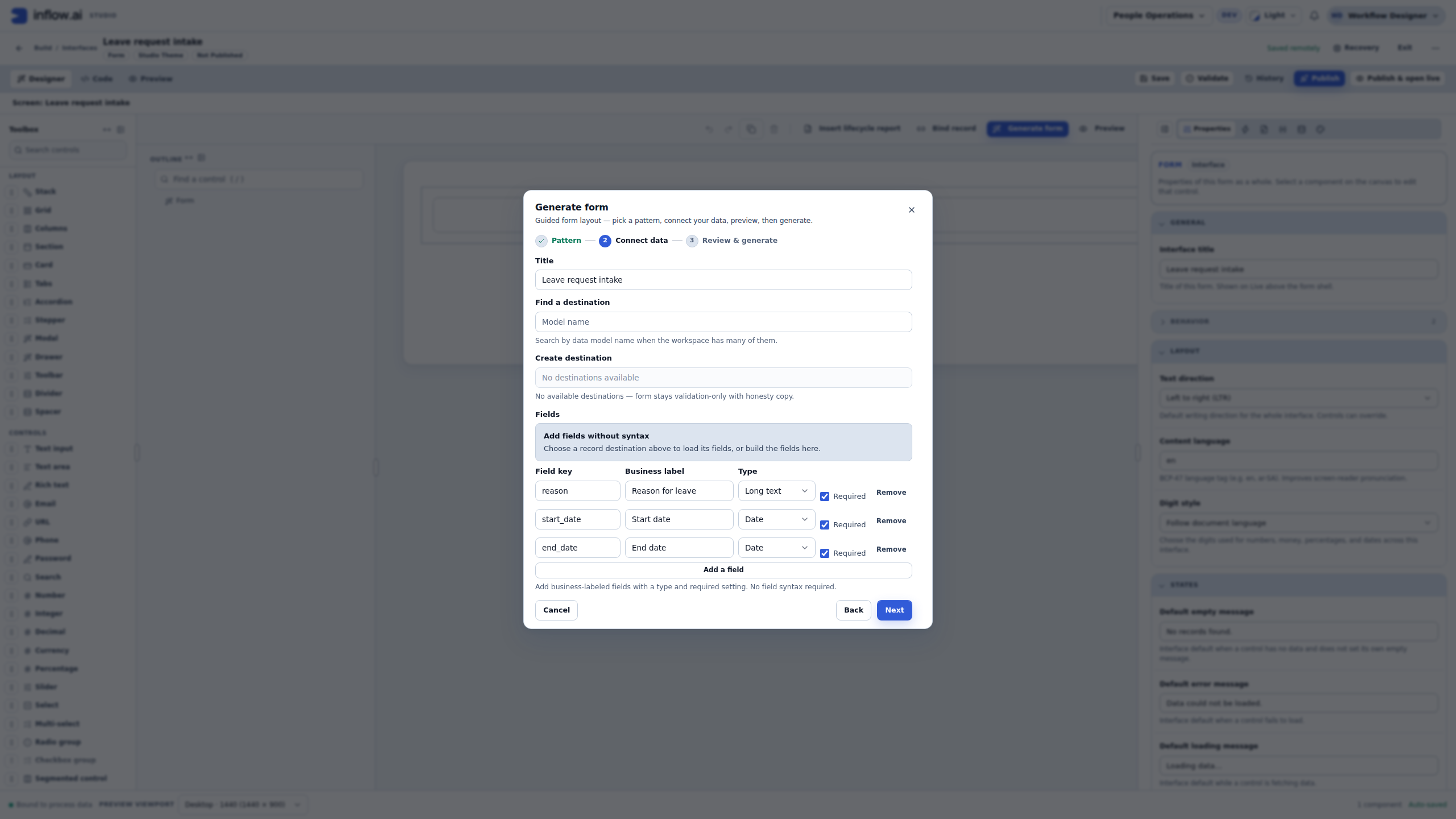
Choose Next and inspect Review & generate. Read the validation-only explanation and all three field previews. Choose Generate only when those proposed questions are correct. There is still a separate application decision.
Review what will actually be applied
The next dialog is Review generated changes. Compare its actual added controls and field connections with the intended questions. A plausible first preview is not a substitute for this check.
The captured session first tried startDate and endDate. The wizard preview showed the three labels, but the generated-change review contained only Reason for leave: six added controls and one field-binding change. Nadia cancelled that proposal before applying it. She reopened the wizard on the same empty draft and corrected the field keys to start_date and end_date.
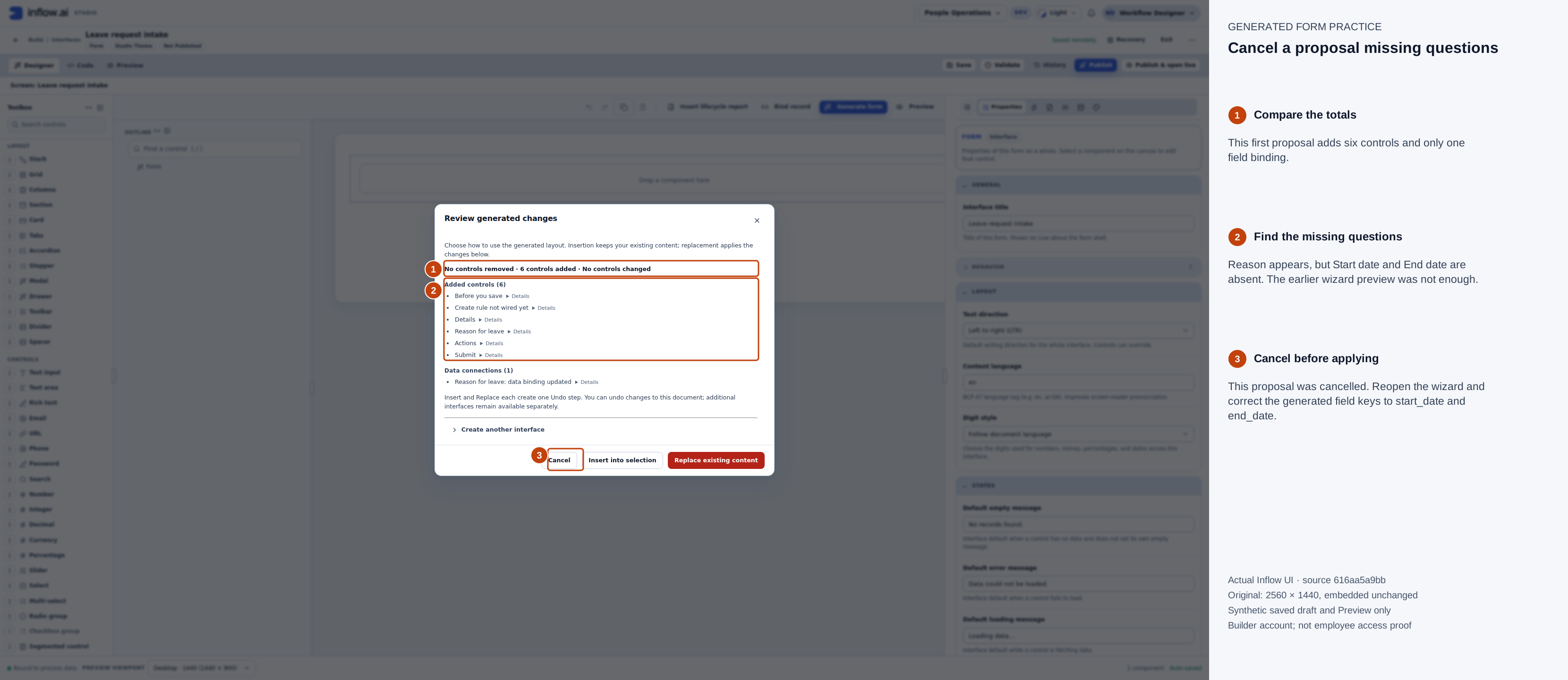
This incomplete proposal was cancelled. The missing date questions are a reason to stop and repair the definitions, not to apply and assume they exist. Full-size guide · Unchanged original.
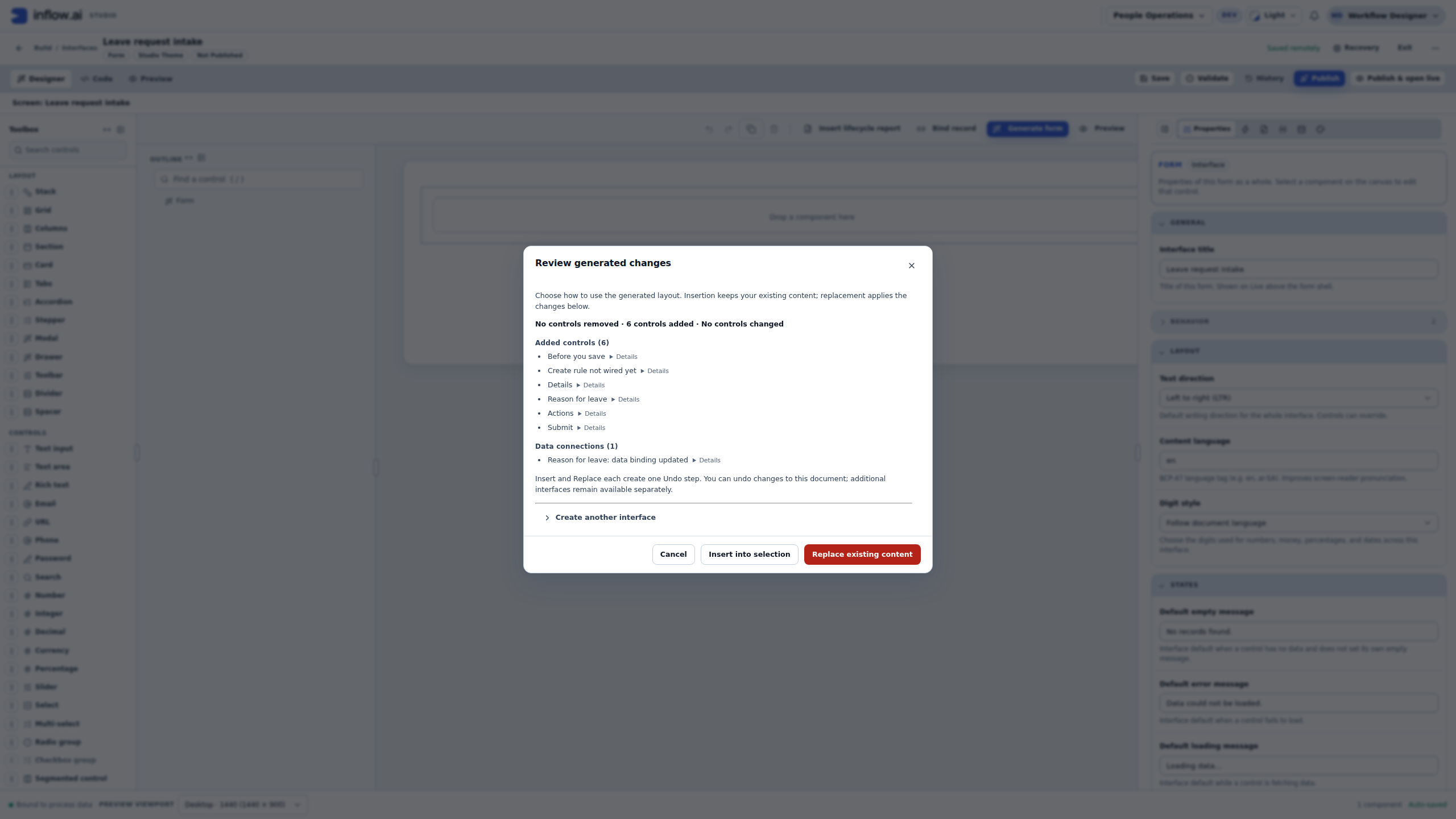
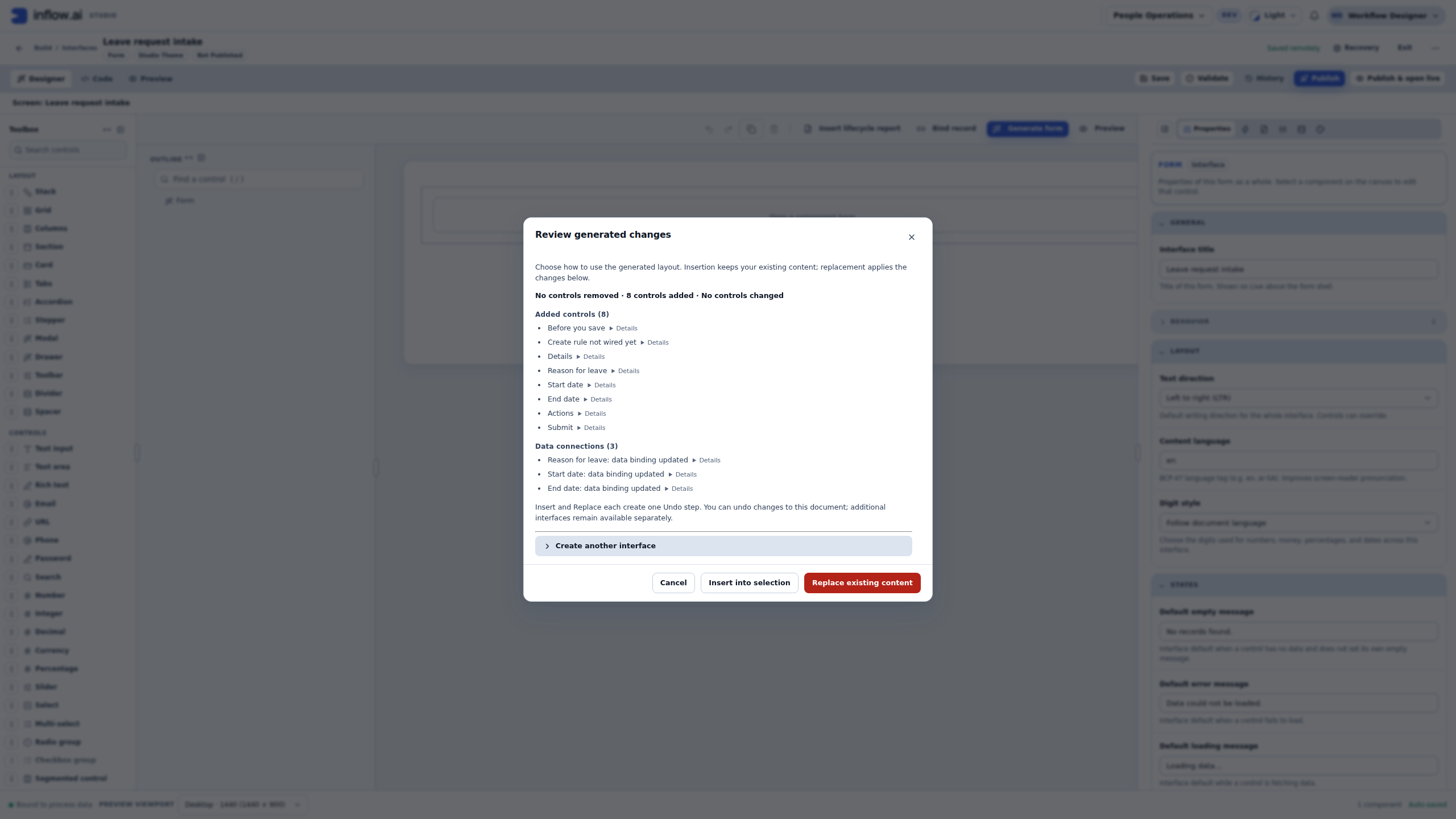
After correcting the keys, the actual review shows eight added controls, no controls removed, no controls changed, and three Data connections entries. The added controls now include Reason for leave, Start date and End date. The other additions include sections, the missing-create-rule notice and Submit; the total is not simply the number of questions.
Here Data connections (3) describes the three field-binding changes. It does not mean that a live record destination has appeared. Read all three names, and use each offered Details disclosure to inspect the proposed connection when needed.
- Cancel keeps the proposal from being applied. Use it if a question is missing or the target is wrong.
- Insert into selection keeps existing content and inserts the proposal at the selected location. Check that location and avoid duplicate questions.
- Replace existing content can displace existing work. In this captured exercise it was chosen only after confirming the separate intake draft was empty. Do not use replacement to repeat the exercise over a populated form.
- Create another interface is a separate draft-creation choice; it is not required here.
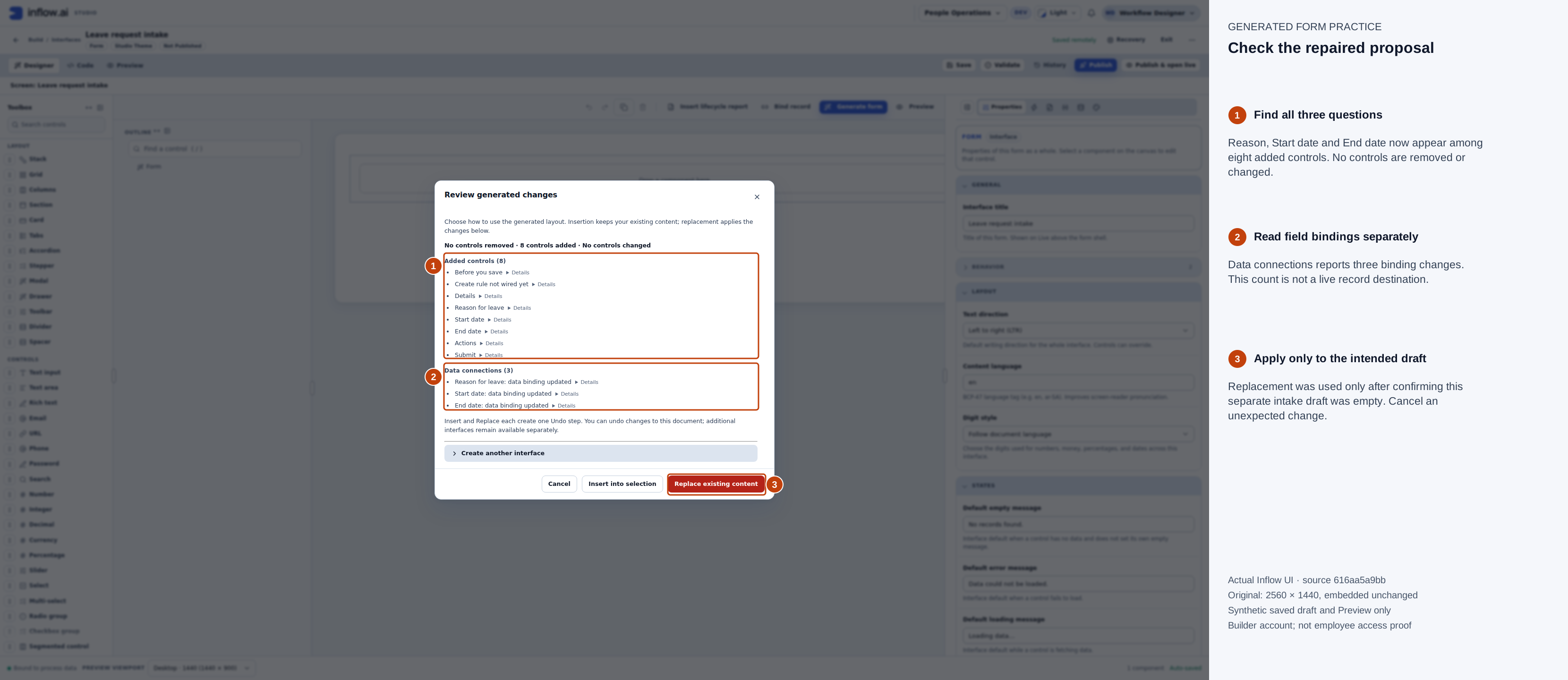
The corrected proposal includes both dates. Replacement applies the layout to this empty practice draft; it does not publish the interface or submit a leave record. Full-size guide · Unchanged original.
Save the resulting draft and inspect its questions in Outline. In the captured result, the questions bind to record.reason, record.start_date and record.end_date. The form has nine components including its existing root. A field's generated record destination is not a declaration that a business record has been persisted.
For this typing exercise, select each Date question and explicitly choose Value → Display format → mm/dd/yyyy. Keep Calendar → Gregorian. Save again. Inspect the actual Preview placeholder before entering dates; do not infer the typing order from an unset default.
Test empty answers, then repair them
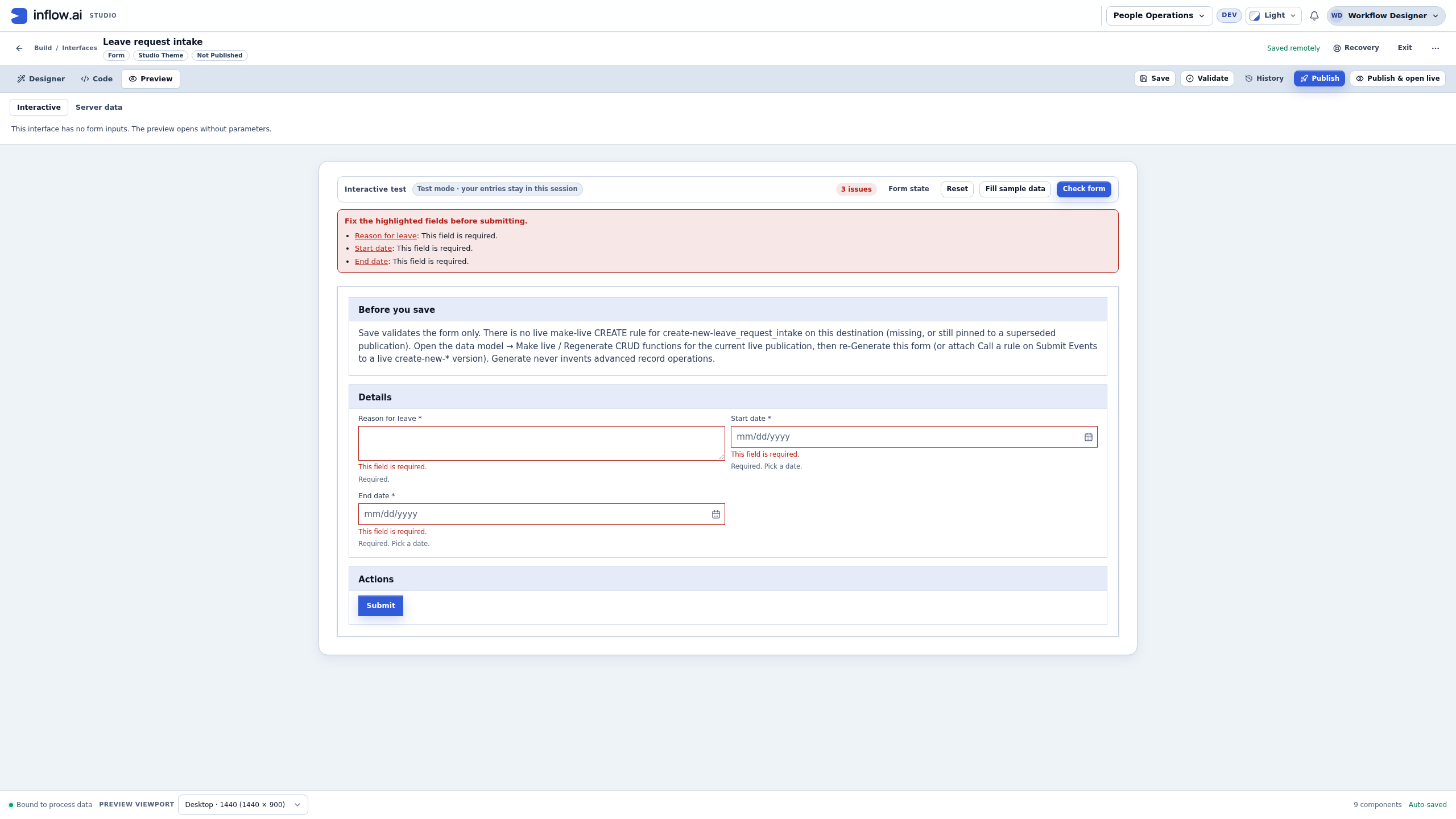
- Open Preview → Interactive. Read Test mode · your entries stay in this session.
- Leave all three questions empty and press Submit once.
- Read 3 issues and the linked required-field summary. Follow each question link to the answer that needs repair. A placeholder is not an answer.
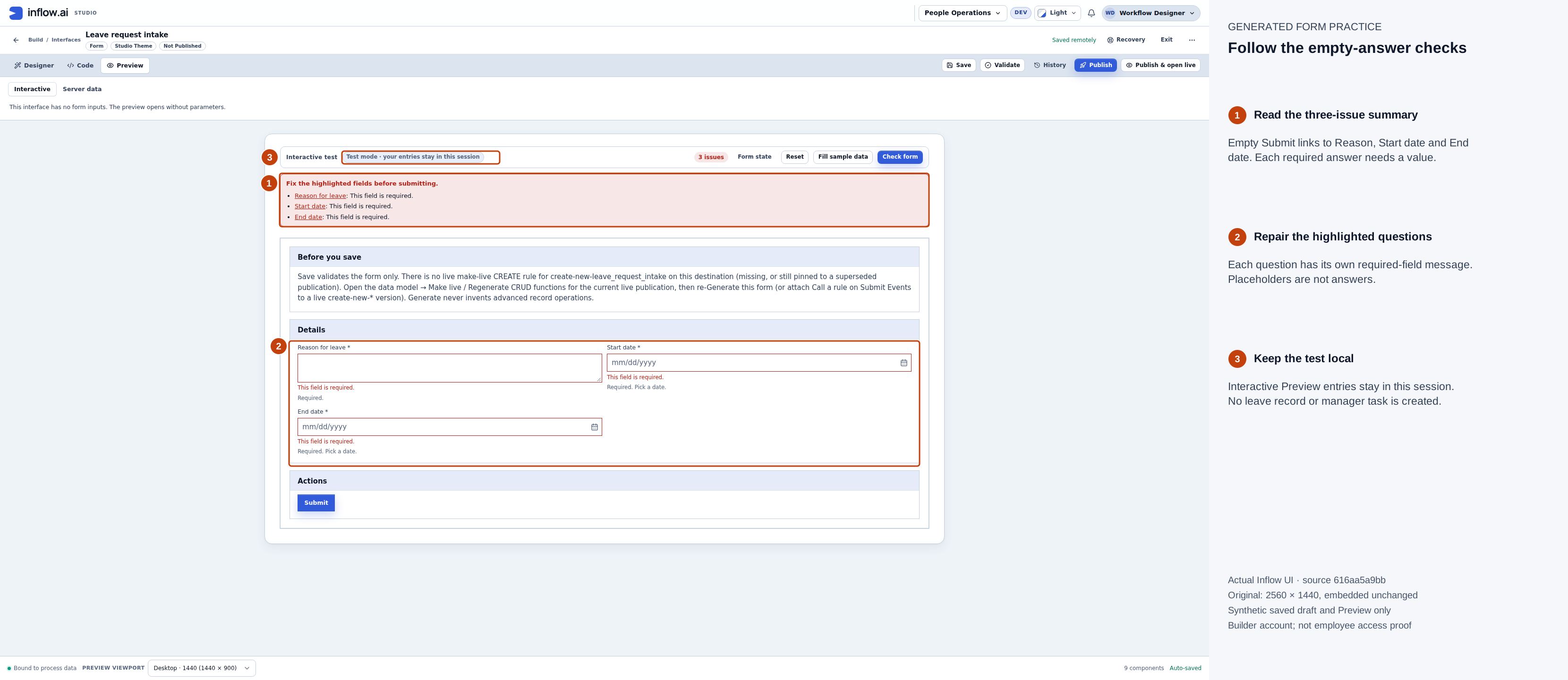
The three required checks actually ran in Interactive Preview. Repair the answers; do not remove the checks just to make the error disappear. Full-size guide · Unchanged original.
Use these fictional answers:
| Question | Practice answer |
|---|---|
| Reason for leave | Fictional generated-form practice request |
| Start date | December 21, 2026: 12/21/2026 with the selected month-first format |
| End date | December 22, 2026: 12/22/2026 with the selected month-first format |
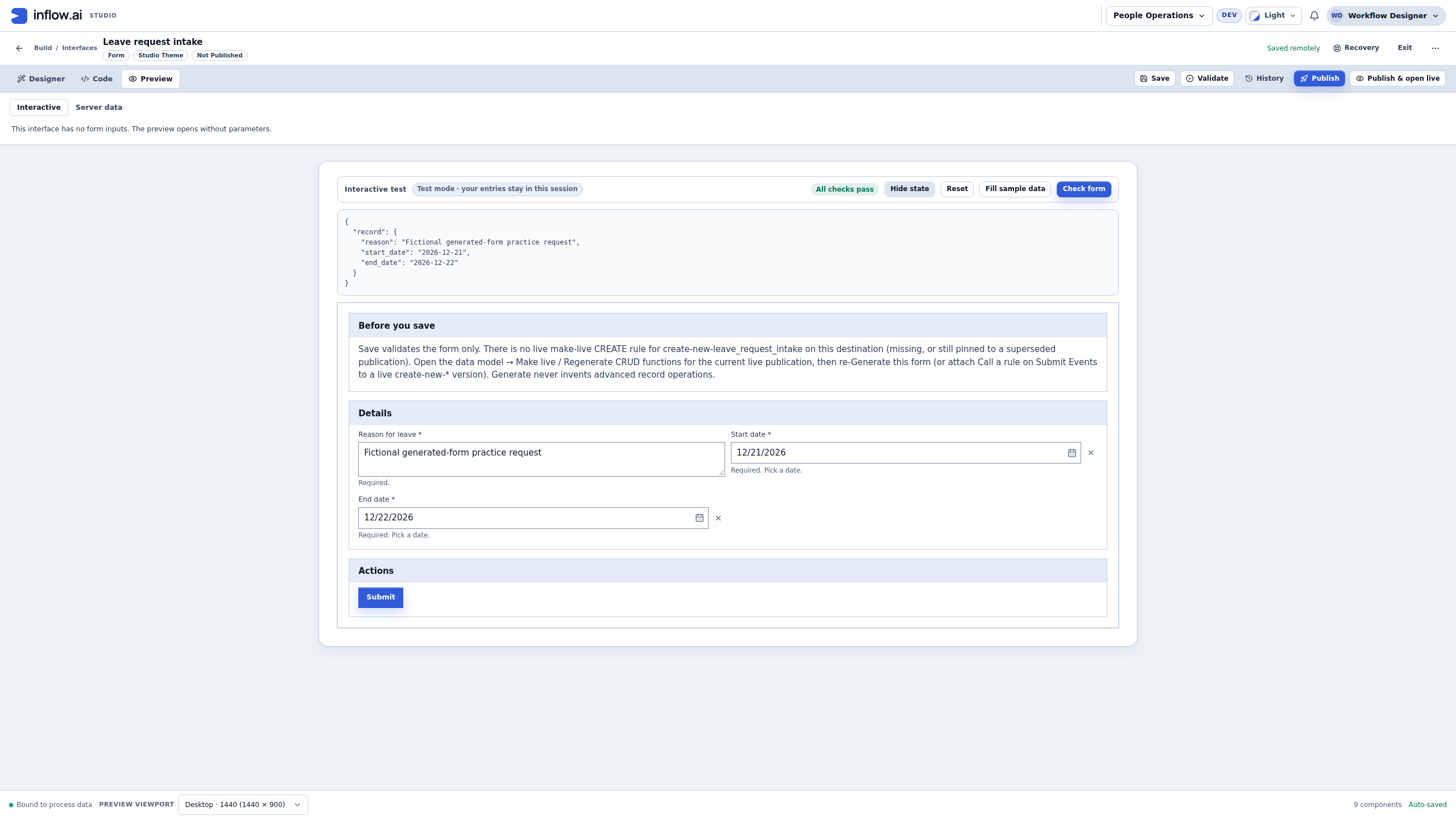
Leave each Date field after typing so its entry is committed. Choose Check form again. Expect All checks pass and the earlier required-field summary to clear. Open Form state: this example shows the reason and ISO Date values 2026-12-21 and 2026-12-22 inside record.
That state is the local test object. The Preview notice that the interface has no form inputs means it needs no declared input parameters to open; it does not mean there are no visible questions.
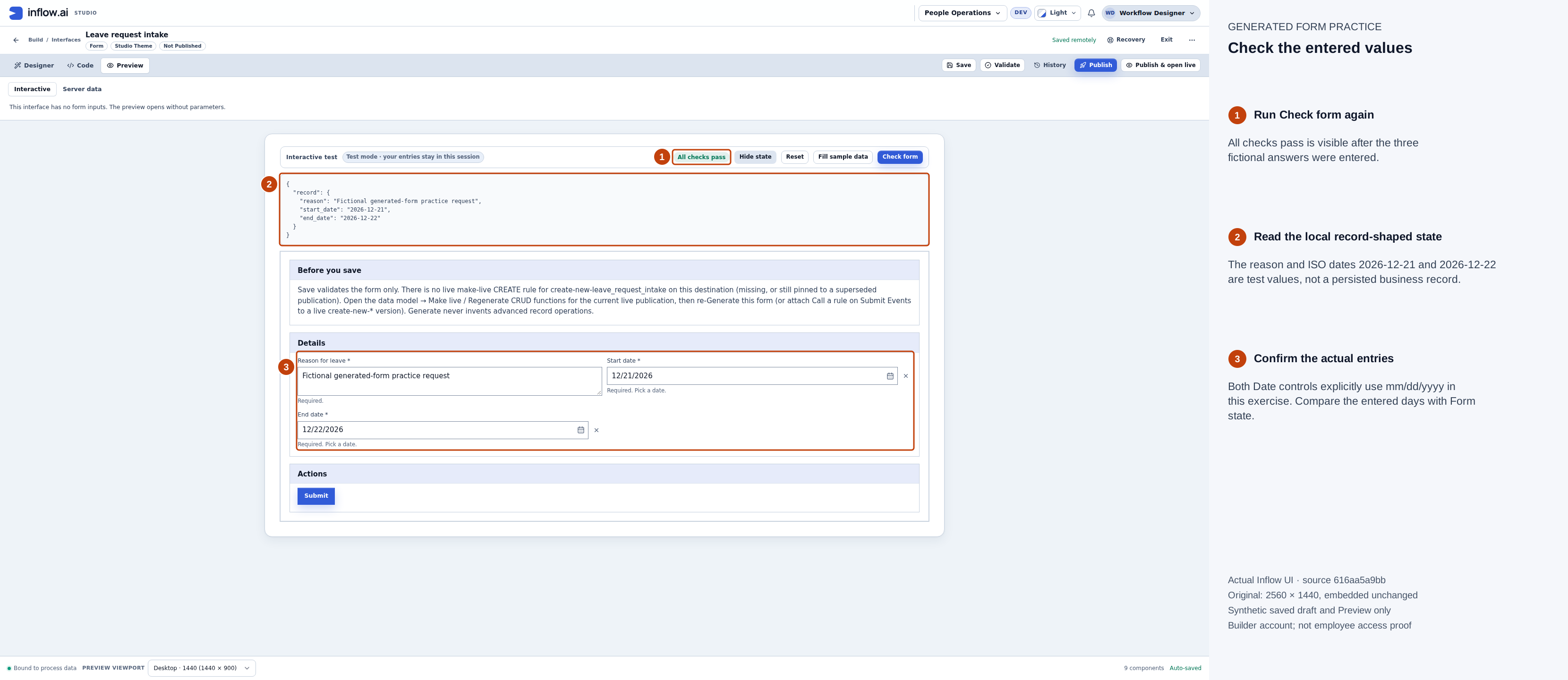
All checks pass applies to the checks configured here. It does not calculate working days, check leave balances or approve the request. Full-size guide · Unchanged original.
Read Submit's actual outcome
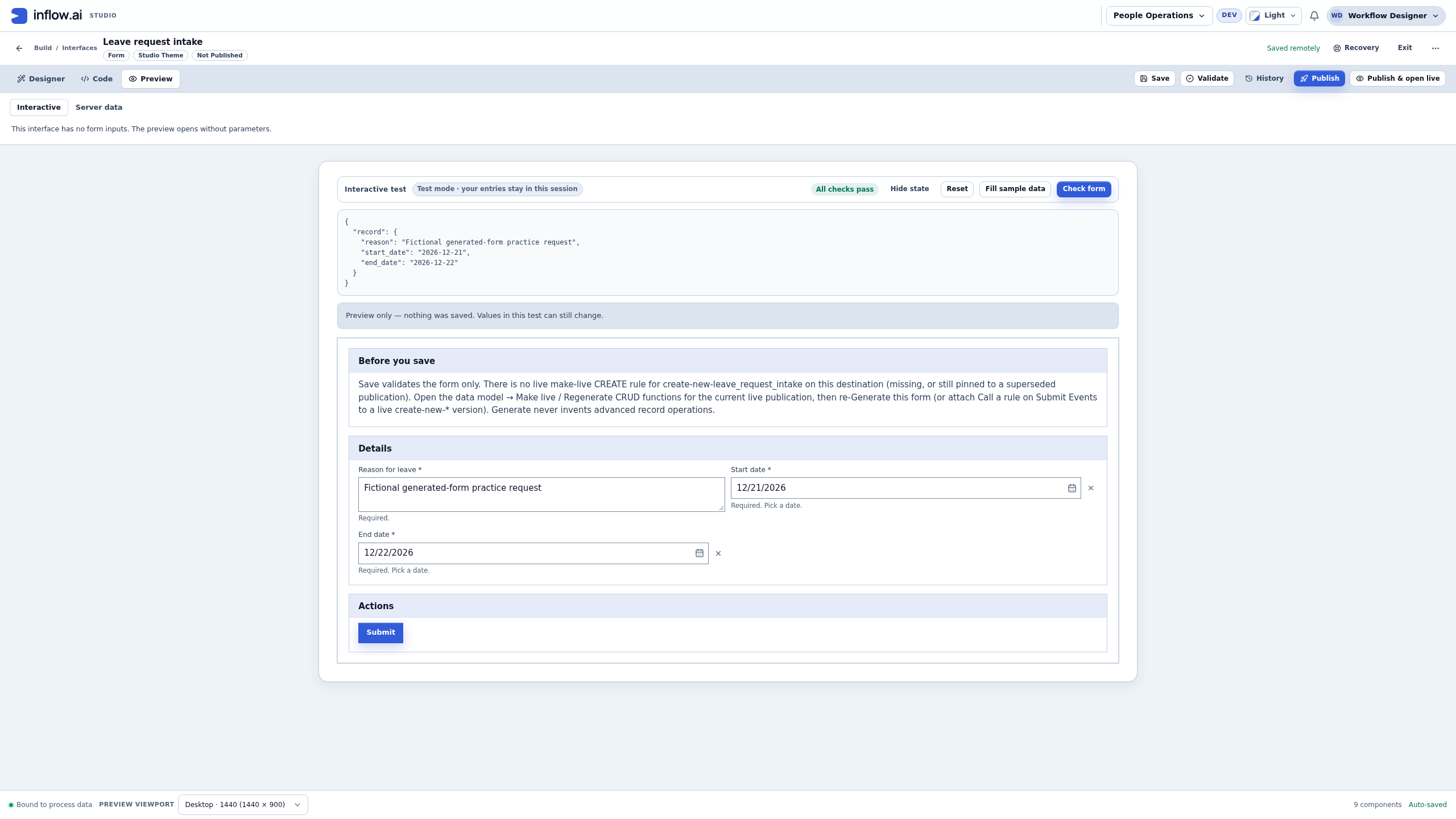
With the fictional answers still present, press Submit once in Interactive Preview. The observed message is Preview only — nothing was saved. Values in this test can still change. The generated Before you save section also explains that there is no live make-live CREATE rule for the chosen destination.
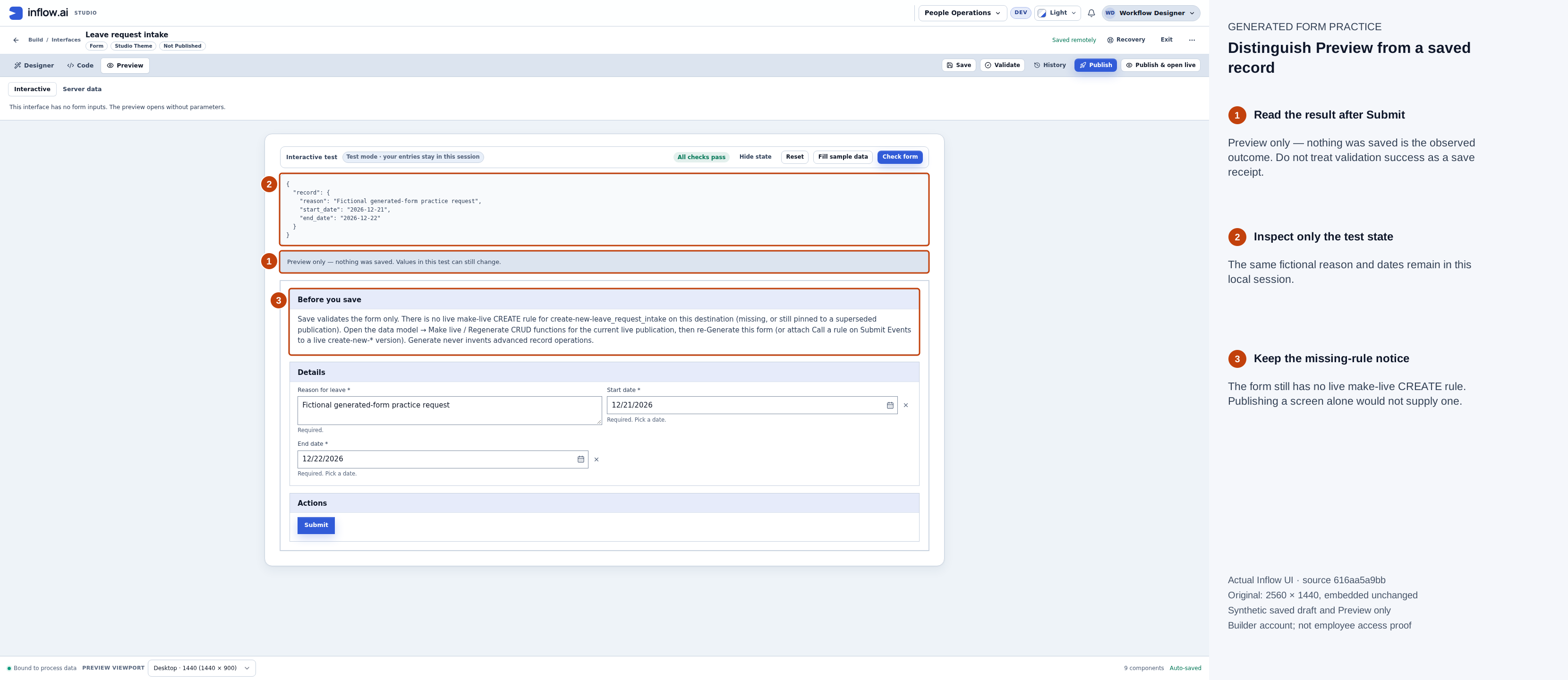
This is a successful local validation exercise. It is not a record-save receipt. Full-size guide · Unchanged original.
Keep the distinction when handing the draft to the application owner: the questions and required checks have been practised, while destination preparation, supported create-rule wiring, business validation, authorization, publication and the intended user's real saved-record journey still need their own work. Publishing this screen alone would not provide those missing pieces.
To repeat the practice, reuse the generated questions and bindings. Reset only your own Preview test values when appropriate, then try the empty and repaired cases again. Do not regenerate another copy over later edits. Continue with the main publishing checklist when the real application is ready for that work.