Illustrated Inflow learning path
Follow one fictional People Operations story: Nadia designs a leave application, Mohammad submits a request, and Sara records the manager's answer. The linked lessons explain the steps with examples, marked screenshots and unchanged full-size originals.
Start with the experience below to understand what you are building. Then follow the build course in order. Use a training workspace, fictional information and ordinary test accounts prepared for their intended roles.
See the employee and manager experience
The worked whole-day pilot follows five actual states: a filled employee request, its received receipt, the manager's assigned task, a saved answer and the final completion receipt. The ordinary Manuals Demo Employee and Manuals Demo Manager accounts play Mohammad's and Sara's roles.
This pilot starts with prepared application access and an approved way to give the manager the exact task link. It does not show task-worklist setup, notification delivery, a second decline, fractional days or a separate leave-record update or leave-balance calculation.
Mohammad checks the request before submitting
The fictional request is for 21–23 December 2026, three whole days, with employee business number DEMO-014. The business number is not a directory login or a grant of access. The input does not calculate working days or support fractional days.
Retained completed training case — reading only. Do not resubmit the pictured request. The guide's Submit once cue belongs to the original exercise; this index asks you to read the already captured state.
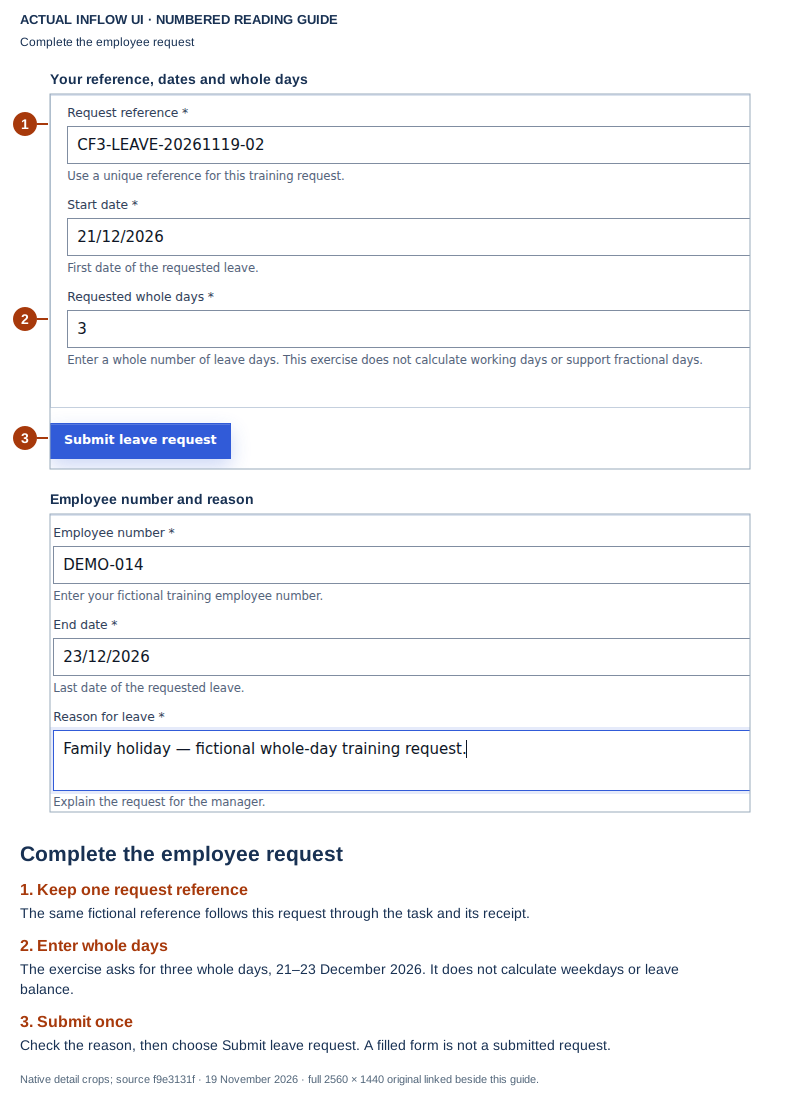
Read the marks: 1 identifies the request reference, 2 checks the whole-day amount, and 3 identifies the deliberate submission. The enlarged detail also shows the employee number and reason. This is the before-submit view; filled fields alone do not establish that a request started. Open the unchanged 2560×1440 original.
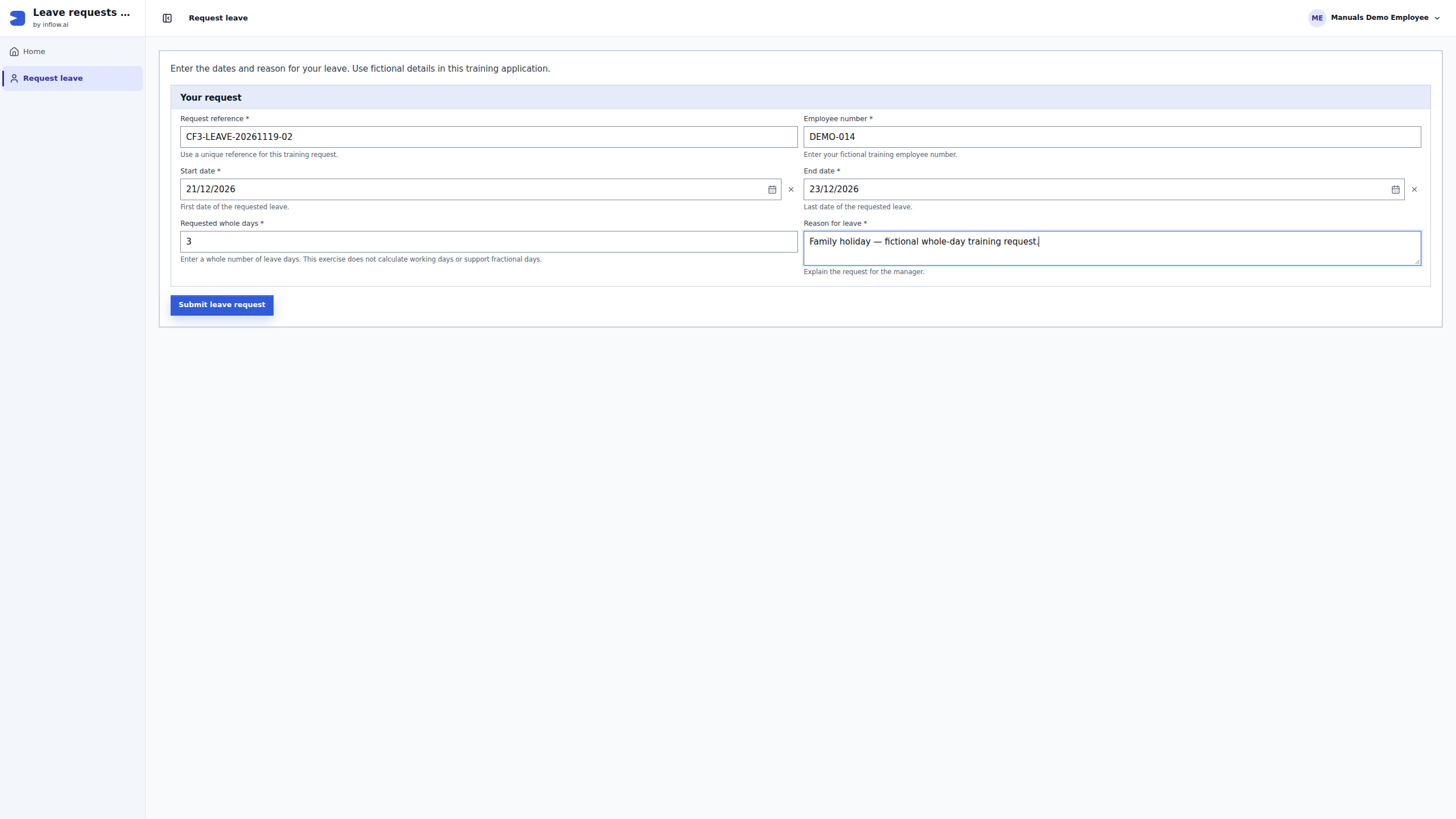
The pictured reference, CF3-LEAVE-20261119-02, belongs to an already completed practice case. Do not submit it again to reproduce the picture. For a deliberately new exercise, use an unused reference and the ordinary application flow described in the full lesson.
Sara reads the result after submitting the task answer
In the later view of the same request, Sara's ordinary manager account has submitted the answer. The receipt says Recorded successfully, Task completed and Form response recorded. It carries the same request reference and says that this case is complete.
Retained completed training case — reading only. Do not replay the manager's decision. This is the later recorded result of the same fictional request, with intermediate steps explained in the full pilot.
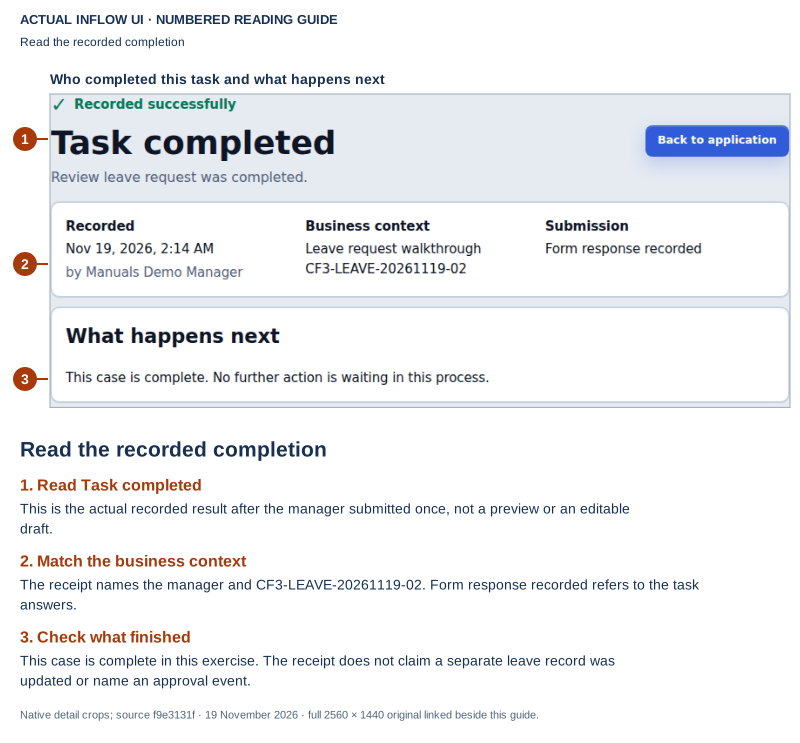
Read the marks: 1 checks actual task completion, 2 matches the manager and request, and 3 explains what happens next. This later receipt is different from an earlier checked Approved box or All changes saved. It does not display a separate named Approval event or prove a business-record Status update. Open the unchanged 2560×1440 original.
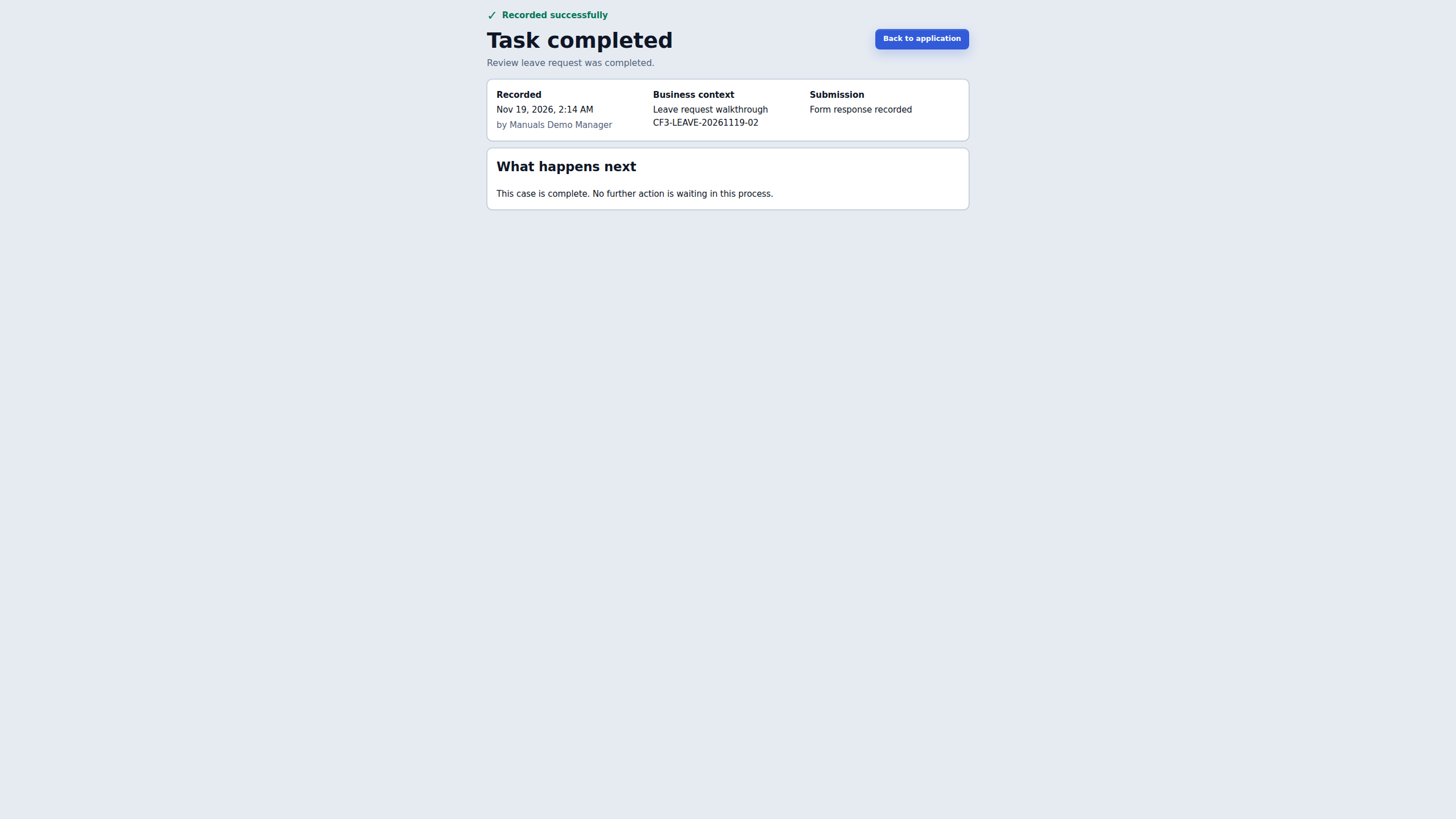
These are two retained screenshots from the 19 November 2026 training run, captured from source f9e3131f; no new request or manager decision was made for this index. Read the complete five-state pilot for the received receipt, task context, saved answer, date-presentation differences and uncertain-outcome handling. Inspect the original request before repeating any action whose result is unclear.
Choose where to begin
| Your role or question | Start here | What to look for |
|---|---|---|
| Consultant: “How do the pieces fit together?” | How an Inflow application fits together | Workspace, data, forms, application pages, cases and tasks have different jobs. |
| Consultant: “I want to build the example.” | Build your first Inflow application | Follow the preparation order and each lesson's prerequisites. |
| Employee or manager: “What will I actually do?” | The whole-day participant pilot | Use your own permitted application or task; match the request and read its actual result. |
| Designer: “I need a specific field or setting.” | Interface Builder handbook | Begin with the question and answer destination, then inspect Preview and publication separately. |
| Administrator or specialist: “What must be prepared?” | Application access and the specialist reference library | Prepare the intended environment and ordinary users; builder access is not employee access. |
Build the application in order
Nadia's build course prepares the work before Mohammad or Sara uses it. A picture of a completed manager task does not supply the missing design, access or connection setup.
| Stage | Detailed lessons | Check before moving on |
|---|---|---|
| 1. Prepare the project and people | Workspace setup, workspace and function access, users and groups | The right workspace and intended roles are available. An administrator performs the steps that require that role. |
| 2. Define leave information | Data models, field and input types, leave data and rules | Required fields, types and published design are deliberate. Pause before Make live until the training destination is prepared. |
| 3. Prepare the data connection | Connections, integration walkthrough | The destination owner approves the settings. A published connection is separate from written-query access, an integration or a live data model. |
| 4. Write and check the business rules | Rule kinds, formulas, Query Builder | Test useful values and missing or invalid inputs. A reference entry is not an evaluated result. |
| 5. Build the forms and app pages | First form, layout, properties and answers, App Shell tutorial | Each answer has an intended destination. Local Preview, a saved draft and a published interface are different states. |
| 6. Connect the human work | Process design, leave workflow and tasks | Request inputs, the manager's assignee and Form, answer mappings and outcome routes agree. |
| 7. Test and prepare the handover | Debug preparation, process publication, application access | Use the intended environment and ordinary participants. Test the actual paths; an unpictured path remains a separate check. |
| 8. Observe a real request | Participant pilot, running requests, human tasks | Match the original request, task, submitted answers and next responsibility. Inspect a record separately if the design updates one. |
For date-specific practice, Working with Hijri dates explains explicit calendar and format selection, Gregorian storage and invalid-input repair. Follow its own captured-build notes and check the actual presented date; do not transfer a date preference blindly into another Form.
Know what the pictured state means
| What you see | What it tells you | What still needs a separate check |
|---|---|---|
| Interactive Preview with sample values | Local interface behavior for that session | A submitted employee request or saved business record |
| All changes saved | Draft work was retained in the pictured context | Publication, task submission or business approval |
| A published version | A design snapshot was published | The intended user's access and any required live data destination |
| Leave request received | The pictured employee request started | The manager's later answer |
| Approved selected in an editable task | An answer is being prepared | Submit decision and its actual receipt |
| Task completed | That task's completion was recorded | Whether its larger case continues and whether a separate record changed |
Read the caption beside each screenshot. Numbered enlarged details help you locate controls and compare values; the linked original shows the full captured context. Cropping a detail is not a promise that the rest of the original was removed or redacted. These originals retain fictional employee details and the manager's display name. Real request references, reasons and screenshots can be private; share them only through the approved support route.
Find the next illustrated guide
| What you want to understand | Open this guide | Keep this boundary clear |
|---|---|---|
| Prepare a process test | Debug preparation and incomplete test data | The two preparation views do not show a started Debug session. |
| Decide whether custom code is necessary | A clear developer brief | The trim contract and proposed-name search are reference checks, not implementation or business acceptance. |
| Review an Agent Task before handoff | An unfinished Agent Task draft | Both warnings explain the type-picker discrepancy, displayed defaults, publication block, clipped goal and unmapped outputs. No agent run is shown. |
| Discuss a platform upgrade | Business acceptance for an upgrade | The reused request and receipt illustrate case/task evidence; they do not show a migration, backup or rollback. |
| Explain delayed work | Background work and delivery | A completed task does not prove notification or broker delivery. |
| Send a useful problem report | Report a problem safely | Keep the reference and observed result; omit unnecessary personnel details. |
Keep the assistant experiences separate
Ask Inflow helps a consultant in Studio. App Chat is optional on a published App Shell, where the owner chooses approved sources and actions for application users. A background Agent Task belongs to a workflow; its agent and runtime need their own configuration. A Proposed memory is one item to review for reuse; it is not a leave approval or permission to read a record.
Use Work with Ask Inflow, assistant choices, App Shell and App Chat setup, and memory decisions for their respective procedures. AI setup belongs with the authorized owner. If the Studio launcher is absent, ask that owner to check readiness; changing an App Shell chat setting does not enable Studio's assistant.
Some AI lessons include clearly labelled editorial reading maps. Those maps explain a conversation, memory or result-review decision. They are not product screenshots and do not demonstrate an executed provider call, a saved memory decision or a successful application action.
Read the images with their capture notes
The detailed guides contain screenshots from different training builds. Historical images remain labelled in their own captions; later illustrations do not requalify them automatically. The two images on this page retain their original capture, actor and build records. This index adds navigation and reuses those images; it is not a fresh end-to-end test or proof that every lesson is fully illustrated.
For the technical capture and review records, see the source-context registry. For learning, follow the linked lesson's current written steps and compare them with the actual interface. If a control differs or the intended object is unavailable, retain the workspace, object reference and observed result and ask its owner. Do not use another person's account or repeat a consequential action to find out what happened.
Return to the full consultant guide index, continue the build course, or open the Interface Builder handbook.