
Optional technical reference. This material is for developers, integration specialists and platform administrators. For the consultant lesson, read the practical guide.
Preserved from source baseline
d4587c7c0e073e58c2d430342f65ac55dd701bf4; source/static examples retain their stated scope. They are not new runtime verification or required consultant setup steps.
5. Tracking controls
Separate the display seed from business state
Tracking controls make a case understandable, but their default sample labels and percentages are design-time data. Configure the actual supported binding or property expressions from admitted case/task data before describing a published result as live. Status, assignee, progress and approval history each have domain meaning; they are not interchangeable strings copied from a screenshot.
The current node reference exposes actual keys such as ProgressBar.value/min/max, TrackingHeader.status/currentStep/progress and TaskAssignment.assignedGroup/claimedUser. Use those keys through the native editor and preserve localization/direction behavior. Never infer a successful approval from a green color or an unbound default label.
Example UIAI-CH05-01 — Design a progress display without inventing completion
Scenario and inputs. Nadia is arranging an overview for the fictional leave request. She wants to see how a progress control fits before the actual case source is wired. The number35 below is an authoring sample, not an observed workflow-completion percentage.
Procedure. Insert Progress Bar, give it a meaningful label and inspect its actual value/min/max and percentage settings. Use the native editor to choose the intended source/expression when real admitted progress becomes available. Validate the returned type and scale; a value in a zero-to-one model must not silently be labeled as a zero-to-one-hundred percentage.
Authoring node fragment:
{"id":"leave-progress","type":"ProgressBar","label":"Leave request","value":35,"min":0,"max":100,"showPercentage":true,"dataState":"sample"}
Expected result. The sample explains appearance and property semantics. A published business result requires the actual supported source and current authorization; neither JSON syntax nor a visible35% label establishes case progression.
Failure and recovery. If the source is missing, unavailable or returns an incompatible value, retain that state instead of showing the seed as live truth. Correct the mapping/scale through its owner. Do not change the underlying business status merely to match a preferred color or make a demonstration look complete.
Sources. Tracking property/default composition, actual source contract, tracking seed metadata.
Example UIAI-CH05-02 — Explain assignment and approval history safely
Scenario and inputs. Sara opens the synthetic leave case while it is awaiting a manager response. The application has admitted the relevant case/task data. A design seed saying Finance Team or Approved must not be mistaken for that case's real assignment or outcome.
Procedure. Choose Task Assignment or Approval Trail for the particular information being explained. Bind only the actual supported fields from the authorized source, preserve stable status codes and meaningful authored names/comments, and inspect empty/unavailable states. Review direction, wrapping and accessible labels with representative long names rather than testing only a short English sample.
Expected result. The display reflects the admitted source without rewriting stored/submitted business values. A localized status label or icon is a presentation of a known domain state; a custom state retains its neutral fallback rather than being coerced into Approved. Actual task participation and decisions remain native task operations.
Failure and recovery. When history or assignment is inaccessible, do not copy it from another person's view or expose process details through a tracking property. Repair the actual source/mapping or narrow the display. Keep capability outage distinct from permission denial, and retain original failed evidence if a running workflow does not match the documented expectation.
Sources. Tracking fields and modes, stable tracking defaults, current visibility policy.
Tracking controls visualize process and task status. They are read-only display components that render immediately with realistic sample data, so you can design with them before any data is wired, then bind them to a real process, task, or data source via the Data Binding group.
They all draw their icons from the Inflow Business Icons library and map statuses to sensible colors automatically (you can override any color).
| Control | Shows |
|---|---|
| Progress Bar | A percentage-complete bar (value / min / max, optional % label, bar + track colors). |
| Step Progress | A horizontal or vertical stepper of workflow steps with status. |
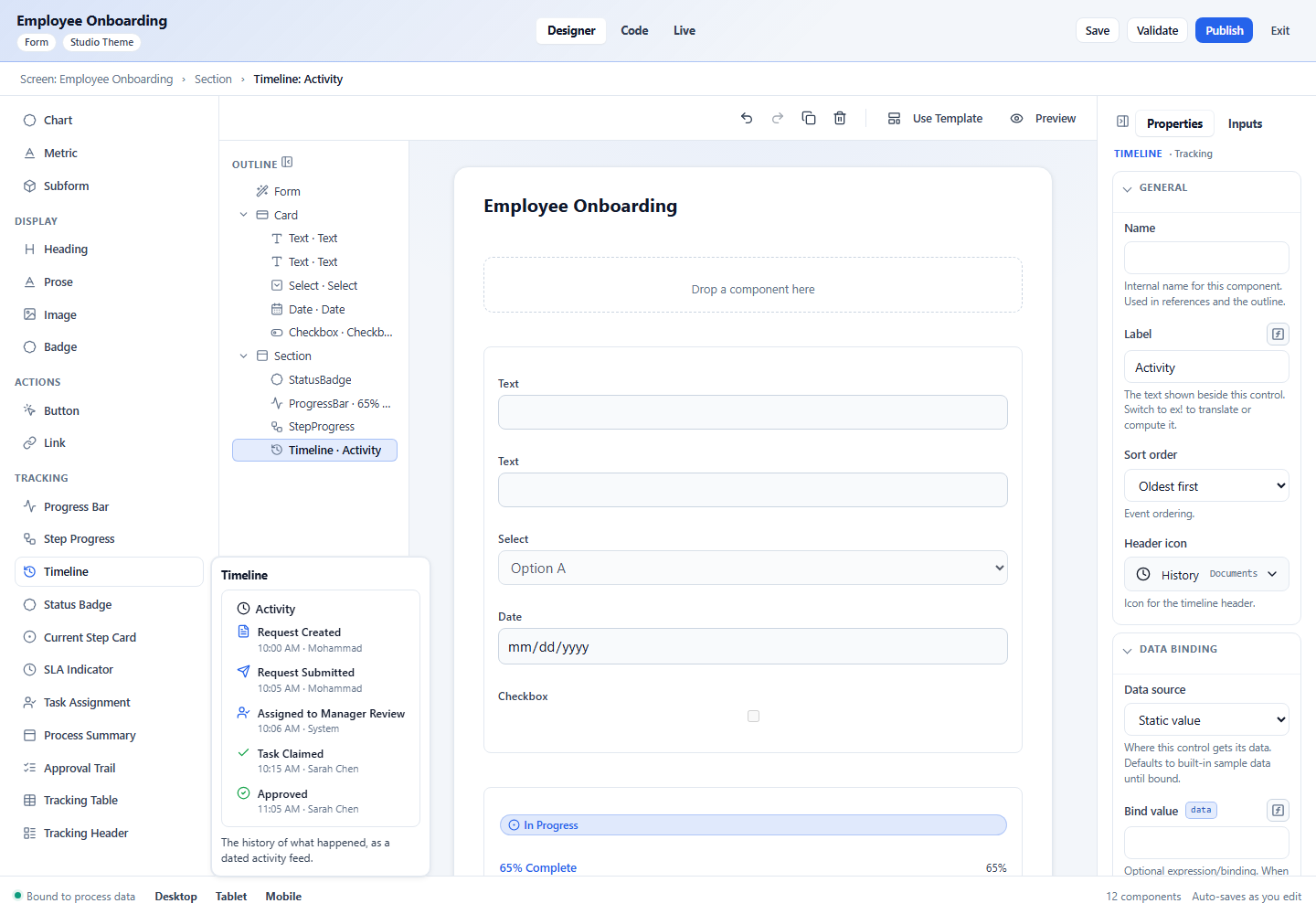
| Timeline | A dated activity feed (who did what, when), sortable oldest/newest first. |
| Status Badge | A status pill (e.g. In Progress) with an icon and style. |
| Current Step Card | A card for the active step — name, status, assignee, due date. |
| SLA Indicator | An on-track / due-soon / overdue indicator with a countdown. |
| Task Assignment | Who a task is assigned to (group / claimed user) and waiting time. |
| Process Summary | A compact summary of a process instance (name, status, step, progress). |
| Approval Trail | The approve/reject history with approver, decision, comment, timestamp. |
| Tracking Table | A table of tracked items with status icons, search, and pagination. |
| Tracking Header | A page header for a process instance — title, status, step, assignee, progress. |
Here they are on a real canvas (a Status Badge, Progress Bar, Step Progress, and Timeline in an “Onboarding status” section):
Binding to real data
Use Data Binding → Bind value to supply an expression or binding returning the control’s scalar, object or collection. Design and interactive Preview show representative samples until bound; published runtime does not invent sample business state. The binding can reference governed data available to the interface.
A configured source, rendered card or sample approval trail is not proof that a business operation completed. Use the current task/record status and canonical receipt when the interface reports an actual outcome.
Common properties
Most tracking controls share toggles for what to show (icons, labels, timestamps, assignees) and status→color mapping. See each control’s full property list in the Node type reference.
Next: Templates, preview & publish →
Language, direction and state meaning
Built-in tracking states follow the interface's declared language (en or ar), with English fallback. The viewer's formatting preference does not select tracking wording. A nested published interface can declare its own language. Layout follows resolved direction independently: Arabic text can be used in an LTR interface, and English in RTL.
Keep canonical codes such as Completed, On Track and Approved in business data. The exact Arabic aliases listed in the current alias map are also recognized in their own domain. Known codes/aliases retain mapped icons/colors and localized labels; custom states remain visible with a neutral fallback. Display never rewrites stored or submitted values. Business step names, comments and approvers stay authored text. Bidi controls are stripped for display and accessible names only.
Status Badge Left and Right place its icon on the physical side in both directions. Other tracking pills keep their logical leading icon, and existing logical End values remain supported. Horizontal Step Progress keeps source order and connects adjacent centers in the resolved direction. Approval metadata wraps, and comments have a full-width separate row without ellipsis. Tracking Table retains its internal scrolling; search accepts displayed localized states and stored codes.
An explicitly stored icon/color remains an override. Older designer definitions also stored default icons/colors without intent metadata; review those properties when changing status and clear an icon override to use the status mapping. The renderer preserves stored choices.